light LINCOLN NAVIGATOR 2021 Owner's Guide
[x] Cancel search | Manufacturer: LINCOLN, Model Year: 2021, Model line: NAVIGATOR, Model: LINCOLN NAVIGATOR 2021Pages: 639, PDF Size: 6.09 MB
Page 140 of 639
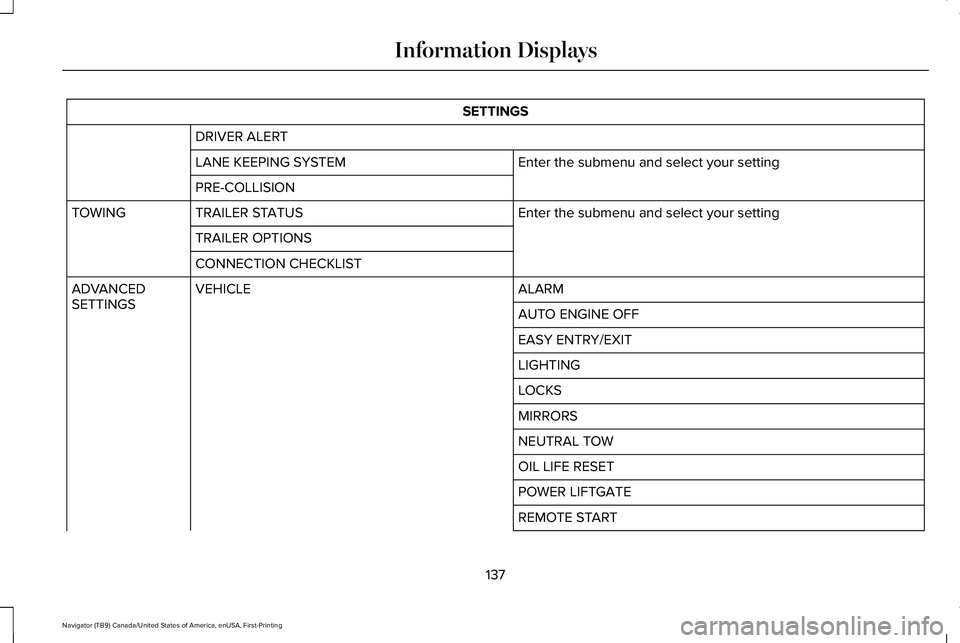
SETTINGS
DRIVER ALERT Enter the submenu and select your setting
LANE KEEPING SYSTEM
PRE-COLLISION
Enter the submenu and select your setting
TRAILER STATUS
TOWING
TRAILER OPTIONS
CONNECTION CHECKLIST ALARM
VEHICLE
ADVANCED
SETTINGS
AUTO ENGINE OFF
EASY ENTRY/EXIT
LIGHTING
LOCKS
MIRRORS
NEUTRAL TOW
OIL LIFE RESET
POWER LIFTGATE
REMOTE START
137
Navigator (TB9) Canada/United States of America, enUSA, First-Printing Information Displays
Page 162 of 639
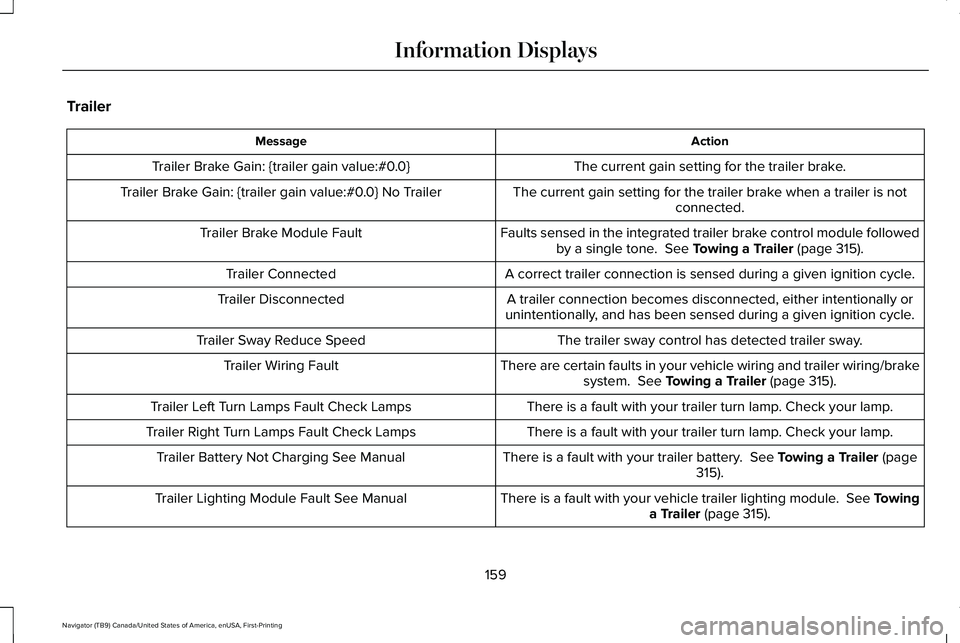
Trailer
Action
Message
The current gain setting for the trailer brake.
Trailer Brake Gain: {trailer gain value:#0.0}
The current gain setting for the trailer brake when a trailer is notconnected.
Trailer Brake Gain: {trailer gain value:#0.0} No Trailer
Faults sensed in the integrated trailer brake control module followedby a single tone. See Towing a Trailer (page 315).
Trailer Brake Module Fault
A correct trailer connection is sensed during a given ignition cycle.
Trailer Connected
A trailer connection becomes disconnected, either intentionally or
unintentionally, and has been sensed during a given ignition cycle.
Trailer Disconnected
The trailer sway control has detected trailer sway.
Trailer Sway Reduce Speed
There are certain faults in your vehicle wiring and trailer wiring/brakesystem.
See Towing a Trailer (page 315).
Trailer Wiring Fault
There is a fault with your trailer turn lamp. Check your lamp.
Trailer Left Turn Lamps Fault Check Lamps
There is a fault with your trailer turn lamp. Check your lamp.
Trailer Right Turn Lamps Fault Check Lamps
There is a fault with your trailer battery.
See Towing a Trailer (page
315).
Trailer Battery Not Charging See Manual
There is a fault with your vehicle trailer lighting module. See Towinga Trailer
(page 315).
Trailer Lighting Module Fault See Manual
159
Navigator (TB9) Canada/United States of America, enUSA, First-Printing Information Displays
Page 166 of 639
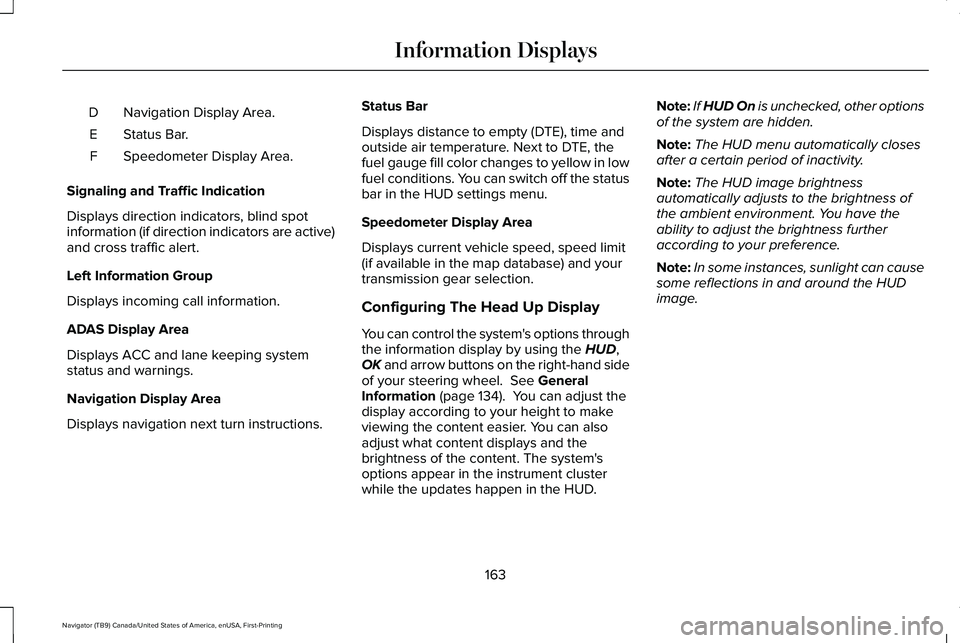
Navigation Display Area.
D
Status Bar.
E
Speedometer Display Area.
F
Signaling and Traffic Indication
Displays direction indicators, blind spot
information (if direction indicators are active)
and cross traffic alert.
Left Information Group
Displays incoming call information.
ADAS Display Area
Displays ACC and lane keeping system
status and warnings.
Navigation Display Area
Displays navigation next turn instructions. Status Bar
Displays distance to empty (DTE), time and
outside air temperature. Next to DTE, the
fuel gauge fill color changes to yellow in low
fuel conditions. You can switch off the status
bar in the HUD settings menu.
Speedometer Display Area
Displays current vehicle speed, speed limit
(if available in the map database) and your
transmission gear selection.
Configuring The Head Up Display
You can control the system's options through
the information display by using the HUD,
OK and arrow buttons on the right-hand side
of your steering wheel.
See General
Information (page 134). You can adjust the
display according to your height to make
viewing the content easier. You can also
adjust what content displays and the
brightness of the content. The system's
options appear in the instrument cluster
while the updates happen in the HUD. Note:
If HUD On is unchecked, other options
of the system are hidden.
Note: The HUD menu automatically closes
after a certain period of inactivity.
Note: The HUD image brightness
automatically adjusts to the brightness of
the ambient environment. You have the
ability to adjust the brightness further
according to your preference.
Note: In some instances, sunlight can cause
some reflections in and around the HUD
image.
163
Navigator (TB9) Canada/United States of America, enUSA, First-Printing Information Displays
Page 168 of 639
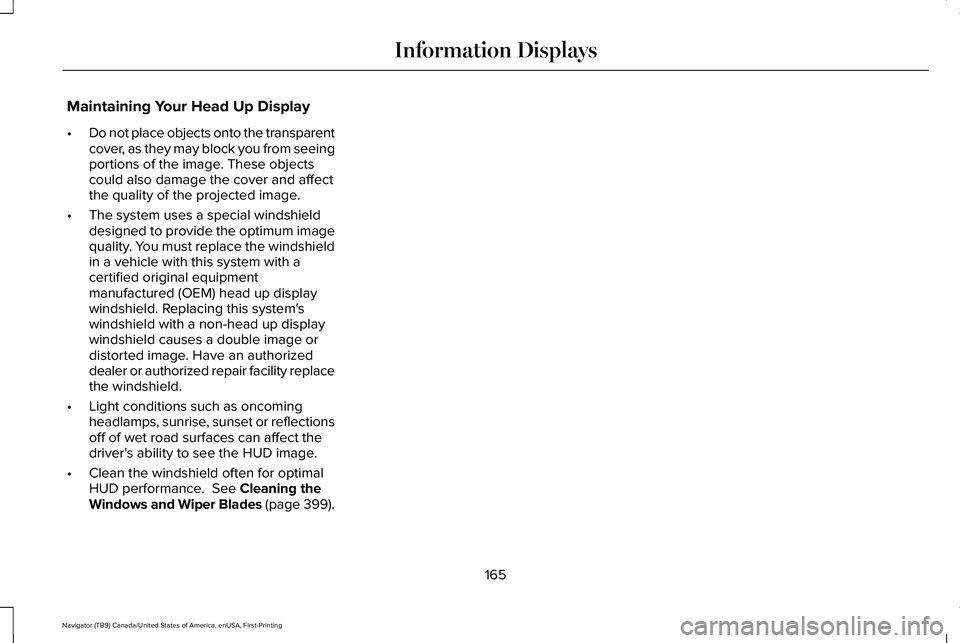
Maintaining Your Head Up Display
•
Do not place objects onto the transparent
cover, as they may block you from seeing
portions of the image. These objects
could also damage the cover and affect
the quality of the projected image.
• The system uses a special windshield
designed to provide the optimum image
quality. You must replace the windshield
in a vehicle with this system with a
certified original equipment
manufactured (OEM) head up display
windshield. Replacing this system's
windshield with a non-head up display
windshield causes a double image or
distorted image. Have an authorized
dealer or authorized repair facility replace
the windshield.
• Light conditions such as oncoming
headlamps, sunrise, sunset or reflections
off of wet road surfaces can affect the
driver's ability to see the HUD image.
• Clean the windshield often for optimal
HUD performance. See Cleaning the
Windows and Wiper Blades (page 399).
165
Navigator (TB9) Canada/United States of America, enUSA, First-Printing Information Displays
Page 177 of 639
SITTING IN THE CORRECT
POSITION
WARNING: Sitting improperly, out of
position or with the seatback reclined too
far can take weight off the seat cushion
and affect the decision of the passenger
sensing system, resulting in serious injury
or death in the event of a crash. Always sit
upright against your seat back, with your
feet on the floor. WARNING: Do not recline the seat
backrest too far as this can cause the
occupant to slide under the seatbelt,
resulting in personal injury in the event of
a crash. WARNING:
Do not place objects
higher than the top of the seat backrest.
Failure to follow this instruction could result
in personal injury or death in the event of
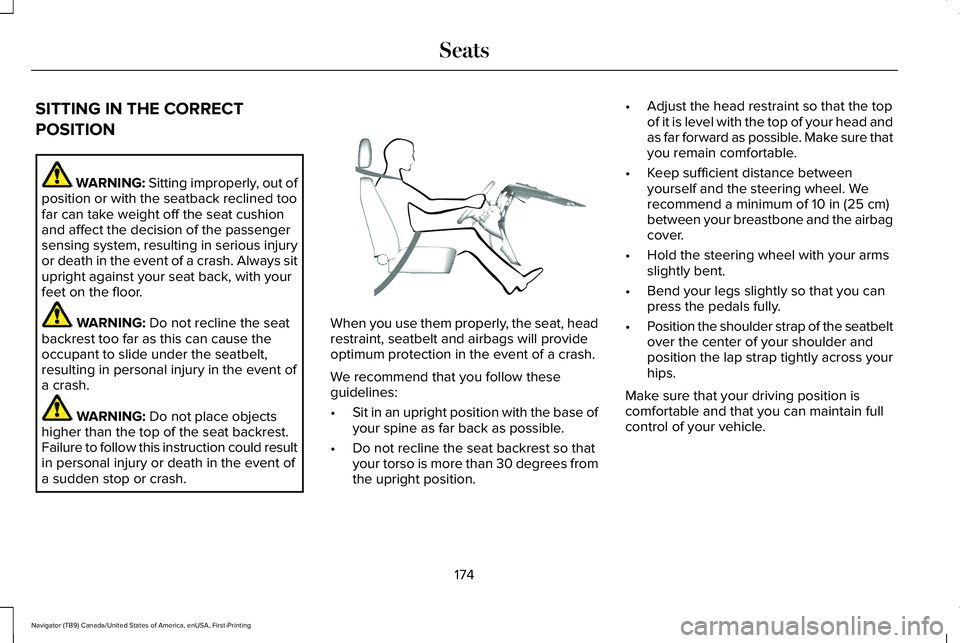
a sudden stop or crash. When you use them properly, the seat, head
restraint, seatbelt and airbags will provide
optimum protection in the event of a crash.
We recommend that you follow these
guidelines:
•
Sit in an upright position with the base of
your spine as far back as possible.
• Do not recline the seat backrest so that
your torso is more than 30 degrees from
the upright position. •
Adjust the head restraint so that the top
of it is level with the top of your head and
as far forward as possible. Make sure that
you remain comfortable.
• Keep sufficient distance between
yourself and the steering wheel. We
recommend a minimum of
10 in (25 cm)
between your breastbone and the airbag
cover.
• Hold the steering wheel with your arms
slightly bent.
• Bend your legs slightly so that you can
press the pedals fully.
• Position the shoulder strap of the seatbelt
over the center of your shoulder and
position the lap strap tightly across your
hips.
Make sure that your driving position is
comfortable and that you can maintain full
control of your vehicle.
174
Navigator (TB9) Canada/United States of America, enUSA, First-Printing SeatsE68595
Page 196 of 639
CLIMATE CONTROLLED SEATS
Heated Seats
WARNING: Use caution when using
the heated seat if you are unable to feel
pain to your skin because of advanced
age, chronic illness, diabetes, spinal cord
injury, medication, alcohol use, exhaustion
or other physical conditions. The heated
seat could cause burns even at low
temperatures, especially if used for long
periods of time. Failure to follow this
instruction could result in personal injury. WARNING:
Do not poke sharp
objects into the seat cushion or seat
backrest. This could damage the heated
seat element and cause it to overheat.
Failure to follow this instruction could result
in personal injury. WARNING:
Do not place anything on
the seat that blocks the heat, for example
a seat cover or a cushion. This could cause
the seat to overheat. Failure to follow this
instruction could result in personal injury.
Note: The heated seats switch on during a
remote start if they are enabled.
See
Remote Start (page 171).
Note: The heated seats may also switch on
when you start your vehicle if they were on
when you previously switched your vehicle
off.
Note: Do not do the following:
• Place heavy objects on the seat.
• Operate the seat heater if water or any
other liquid spills on the seat. Allow the
seat to dry thoroughly. Press this symbol to cycle through the
various heat settings and off. More indicator
lights indicate warmer settings.
Rear Heated Seats (If Equipped)
The rear heated seat controls are on the rear
of the center console.
Automatic Climate Controlled Seats
(If
Equipped)
When you switch the auto setting on, the
climate controlled seats switch between the
heated seats and ventilated seats to match
your climate control setting.
193
Navigator (TB9) Canada/United States of America, enUSA, First-Printing SeatsE146322
Page 197 of 639
Ventilated Seats
Note:
The ventilated seats switch on during
a remote start if they are enabled. See
Remote Start (page 171).
Note: The ventilated seats may also switch
on when you start your vehicle if they were
on when you previously switched your
vehicle off.
Note: Do not do the following:
• Spill liquid on the front seats. This may
cause the air vent holes to become
blocked and not work properly.
• Place cargo or objects under the seats.
They may block the air intake causing
the air vents to not work properly.
The ventilated seats only function when the
engine is running. Press this symbol to cycle through the
various ventilation settings and off. More
indicator lights indicate higher fan speeds.
If the engine falls below 350 RPM while the
ventilated seats are on, the feature turns
itself off. You need to reactivate it.
Automatic Climate Controlled Seats
(If
Equipped)
When you switch the auto setting on, the
climate controlled seats switch between the
heated seats and ventilated seats to match
your climate control setting.
194
Navigator (TB9) Canada/United States of America, enUSA, First-Printing SeatsE224689
Page 200 of 639
UNIVERSAL GARAGE DOOR
OPENER
HomeLink Wireless Control System
WARNING: Do not use the system
with any garage door opener that does not
have the safety stop and reverse feature
as required by U.S. Federal Safety
Standards (this includes any garage door
opener manufactured before April 1, 1982).
A garage door opener which cannot detect
an object, signaling the door to stop and
reverse, does not meet current federal
safety standards. Using a garage door
opener without these features increases
the risk of serious injury or death.
Note: Make sure that the garage door and
security device are free from obstruction
when you are programming. Do not program
the system with the vehicle in the garage.
Note: Make sure you keep the original
remote control transmitter for use in other
vehicles as well as for future system
programming. Note:
We recommend that upon the sale or
lease termination of your vehicle, you erase
the programmed function buttons for security
reasons. See
Erasing the Function Button
Codes later in this section.
Note: You can program a maximum of three
devices. To change or replace any of the
three devices after it has been initially
programmed, you must first erase the current
settings. See
Erasing the Function Button
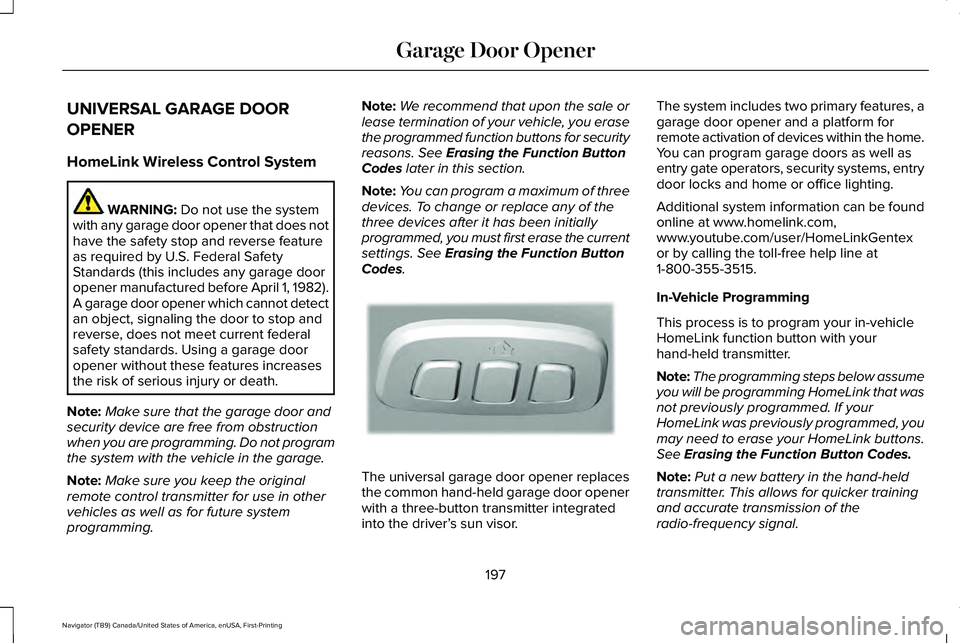
Codes. The universal garage door opener replaces
the common hand-held garage door opener
with a three-button transmitter integrated
into the driver’
s sun visor. The system includes two primary features, a
garage door opener and a platform for
remote activation of devices within the home.
You can program garage doors as well as
entry gate operators, security systems, entry
door locks and home or office lighting.
Additional system information can be found
online at www.homelink.com,
www.youtube.com/user/HomeLinkGentex
or by calling the toll-free help line at
1-800-355-3515.
In-Vehicle Programming
This process is to program your in-vehicle
HomeLink function button with your
hand-held transmitter.
Note:
The programming steps below assume
you will be programming HomeLink that was
not previously programmed. If your
HomeLink was previously programmed, you
may need to erase your HomeLink buttons.
See
Erasing the Function Button Codes.
Note: Put a new battery in the hand-held
transmitter. This allows for quicker training
and accurate transmission of the
radio-frequency signal.
197
Navigator (TB9) Canada/United States of America, enUSA, First-Printing Garage Door OpenerE188211
Page 201 of 639
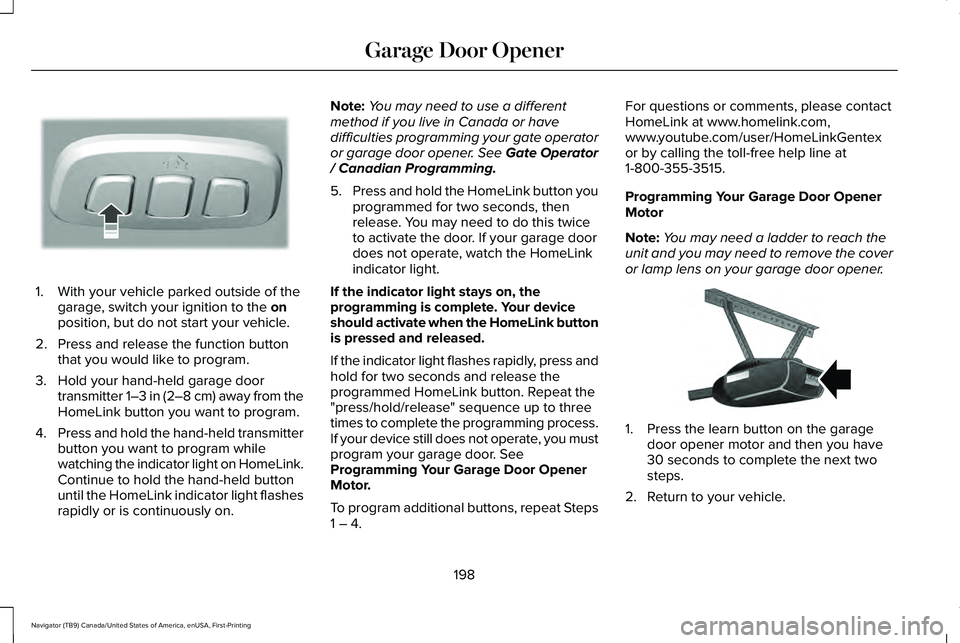
1. With your vehicle parked outside of the
garage, switch your ignition to the on
position, but do not start your vehicle.
2. Press and release the function button that you would like to program.
3. Hold your hand-held garage door transmitter 1–3 in (2–8 cm) away from the
HomeLink button you want to program.
4. Press and hold the hand-held transmitter
button you want to program while
watching the indicator light on HomeLink.
Continue to hold the hand-held button
until the HomeLink indicator light flashes
rapidly or is continuously on. Note:
You may need to use a different
method if you live in Canada or have
difficulties programming your gate operator
or garage door opener. See Gate Operator
/ Canadian Programming.
5. Press and hold the HomeLink button you
programmed for two seconds, then
release. You may need to do this twice
to activate the door. If your garage door
does not operate, watch the HomeLink
indicator light.
If the indicator light stays on, the
programming is complete. Your device
should activate when the HomeLink button
is pressed and released.
If the indicator light flashes rapidly, press and
hold for two seconds and release the
programmed HomeLink button. Repeat the
"press/hold/release" sequence up to three
times to complete the programming process.
If your device still does not operate, you must
program your garage door. See
Programming Your Garage Door Opener
Motor.
To program additional buttons, repeat Steps
1 – 4. For questions or comments, please contact
HomeLink at www.homelink.com,
www.youtube.com/user/HomeLinkGentex
or by calling the toll-free help line at
1-800-355-3515.
Programming Your Garage Door Opener
Motor
Note:
You may need a ladder to reach the
unit and you may need to remove the cover
or lamp lens on your garage door opener. 1. Press the learn button on the garage
door opener motor and then you have
30 seconds to complete the next two
steps.
2. Return to your vehicle.
198
Navigator (TB9) Canada/United States of America, enUSA, First-Printing Garage Door OpenerE188212 E142659
Page 202 of 639
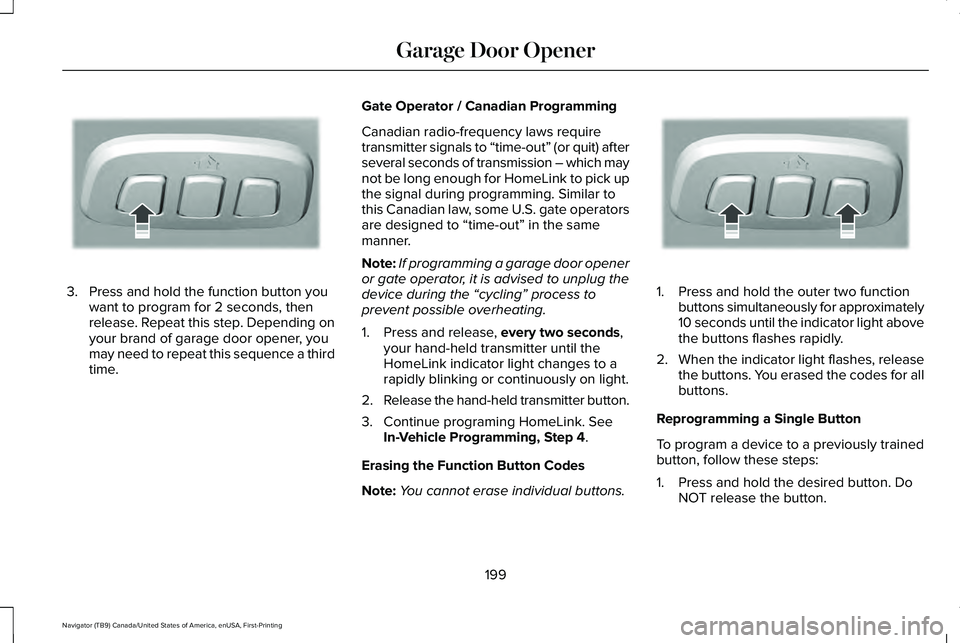
3. Press and hold the function button you
want to program for 2 seconds, then
release. Repeat this step. Depending on
your brand of garage door opener, you
may need to repeat this sequence a third
time. Gate Operator / Canadian Programming
Canadian radio-frequency laws require
transmitter signals to “time-out” (or quit) after
several seconds of transmission – which may
not be long enough for HomeLink to pick up
the signal during programming. Similar to
this Canadian law, some U.S. gate operators
are designed to “time-out” in the same
manner.
Note:
If programming a garage door opener
or gate operator, it is advised to unplug the
device during the “cycling” process to
prevent possible overheating.
1. Press and release, every two seconds,
your hand-held transmitter until the
HomeLink indicator light changes to a
rapidly blinking or continuously on light.
2. Release the hand-held transmitter button.
3. Continue programing HomeLink. See In-Vehicle Programming, Step 4
.
Erasing the Function Button Codes
Note: You cannot erase individual buttons. 1. Press and hold the outer two function
buttons simultaneously for approximately
10 seconds until the indicator light above
the buttons flashes rapidly.
2. When the indicator light flashes, release
the buttons. You erased the codes for all
buttons.
Reprogramming a Single Button
To program a device to a previously trained
button, follow these steps:
1. Press and hold the desired button. Do NOT release the button.
199
Navigator (TB9) Canada/United States of America, enUSA, First-Printing Garage Door OpenerE188212 E188213