brakes LINCOLN NAVIGATOR 2022 Owner's Manual
[x] Cancel search | Manufacturer: LINCOLN, Model Year: 2022, Model line: NAVIGATOR, Model: LINCOLN NAVIGATOR 2022Pages: 646, PDF Size: 7.29 MB
Page 275 of 646
Hilly Condition Usage
Select a lower gear when the system is
active in situations such as prolonged
downhill driving on steep slopes, for example
in mountainous areas.
ADAPTIVE CRUISE CONTROL
LIMITATIONS
Sensor Limitations
WARNING: On rare occasions,
detection issues can occur due to the road
infrastructures, for example bridges,
tunnels and safety barriers. In these cases,
the system may brake late or
unexpectedly. At all times, you are
responsible for controlling your vehicle,
supervising the system and intervening, if
required. WARNING:
If the system
malfunctions, have your vehicle checked
as soon as possible. WARNING: Large contrasts in outside
lighting can limit sensor performance. WARNING:
The system only warns
of vehicles detected by the radar sensor.
In some cases there may be no warning
or a delayed warning. Apply the brakes
when necessary. Failure to follow this
instruction could result in personal injury
or death. WARNING:
The system may not
detect stationary or slow moving vehicles
below
6 mph (10 km/h). WARNING:
The system does not
detect pedestrians or objects in the road. WARNING:
The system does not
detect oncoming vehicles in the same lane. WARNING:
The system may not
operate properly if the sensor is blocked.
Keep the windshield free from obstruction. WARNING:
The sensor may
incorrectly track lane markings as other
structures or objects. This can result in a
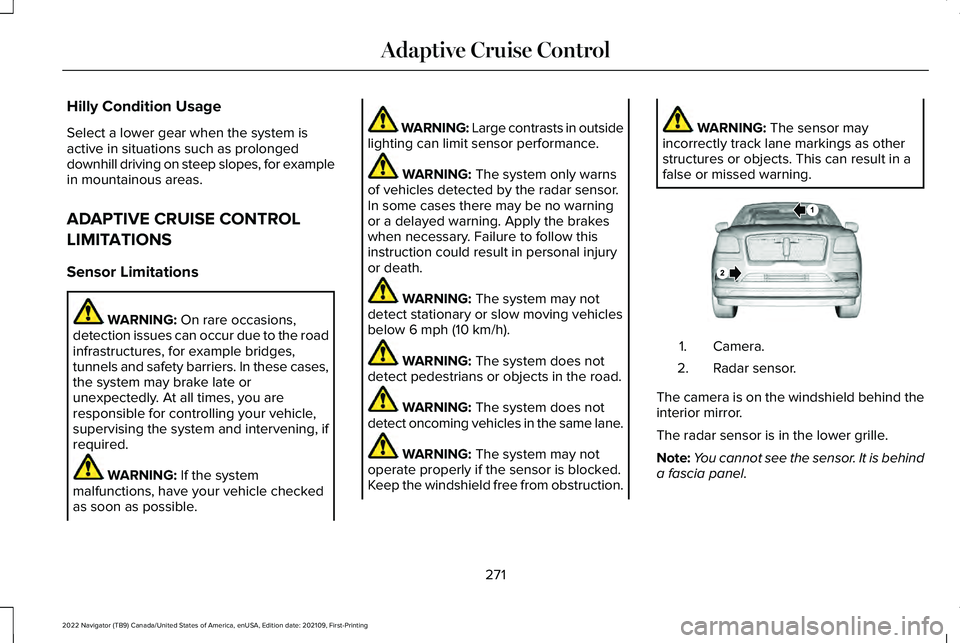
false or missed warning. Camera.
1.
Radar sensor.
2.
The camera is on the windshield behind the
interior mirror.
The radar sensor is in the lower grille.
Note: You cannot see the sensor. It is behind
a fascia panel.
271
2022 Navigator (TB9) Canada/United States of America, enUSA, Edition date: 202109, First-Printing Adaptive Cruise ControlE253503
Page 279 of 646
A vehicle image illuminates if there is a
vehicle detected in front of you.
Note:
When adaptive cruise control is active,
the speedometer can vary slightly from the
set speed displayed in the instrument cluster
display.
Manually Changing the Set Speed Press the button to increase the
set speed in small increments.
Press and hold the button to
increase the set speed in large increments.
Release the button when the set speed is
equal to the desired speed. Press the button to decrease the
set speed in small increments.
Press and hold the button to
decrease the set speed in large increments.
Release the button when the set speed is
equal to the desired speed.
You can also press the accelerator or brake
pedal until you reach the speed you prefer.
Press either button to select the current
speed as the set speed. The system could apply the brakes to slow
the vehicle to the new set speed. The set
speed continuously displays in the
instrument cluster display when the system
is active.
SETTING THE ADAPTIVE CRUISE
CONTROL GAP
You can decrease or increase the distance
between your vehicle and the vehicle in front
by pressing the gap control.
Press the button to cycle through
the four gap settings.
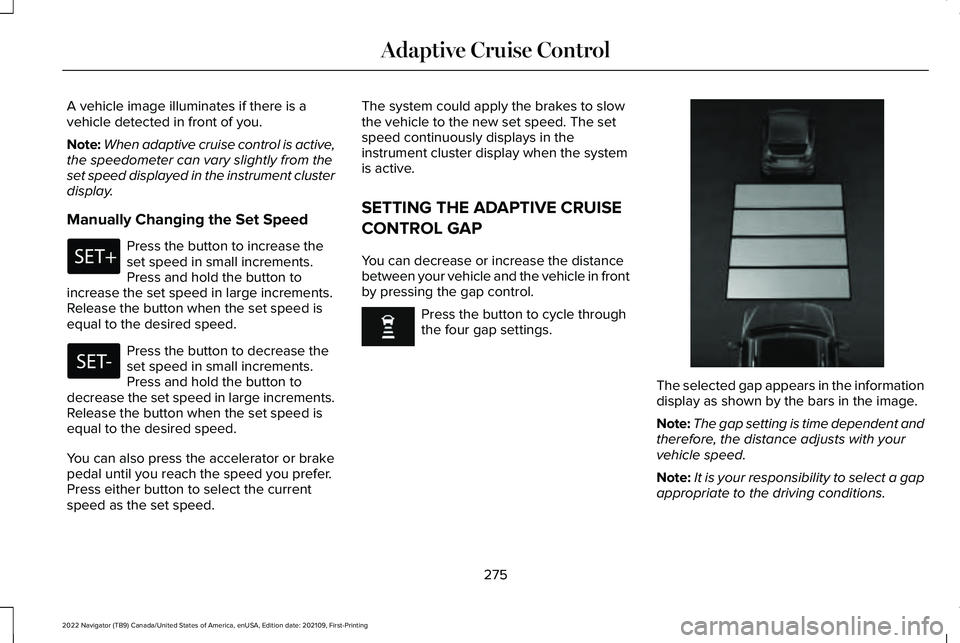
The selected gap appears in the information
display as shown by the bars in the image.
Note:
The gap setting is time dependent and
therefore, the distance adjusts with your
vehicle speed.
Note: It is your responsibility to select a gap
appropriate to the driving conditions.
275
2022 Navigator (TB9) Canada/United States of America, enUSA, Edition date: 202109, First-Printing Adaptive Cruise Control E354843
Page 280 of 646
Adaptive Cruise Control Gap Settings
Dynamic
Behavior
Gap Distance
Graphic
Display,
Bars Indic- ated
Between Vehicles
Sport.
Closest.
1
Normal.
Close.
2
Normal.
Medium.
3
Comfort.
Far.
4
Each time you switch the system on, it
selects the last chosen gap setting.
Following a Vehicle
When a vehicle ahead of you enters the
same lane or a slower vehicle is ahead in the
same lane, the vehicle speed adjusts to
maintain the gap setting. Note:
When you are following a vehicle and
you switch on a turn signal lamp, adaptive
cruise control may provide a small,
temporary acceleration to help you pass.
Your vehicle maintains a consistent gap from
the vehicle ahead until:
• The vehicle in front of you accelerates to
a speed above the set speed.
• The vehicle in front of you moves out of
the lane you are in.
• You set a new gap distance.
The system applies the brakes to slow down
your vehicle to maintain a safe gap distance
from the vehicle in front of you. The system
only applies limited braking. You can
override the system by applying the brakes.
Note: The brakes may emit noise when
applied by the system.
If the system determines that its maximum
braking level is not sufficient, an audible
warning sounds, a message appears in the
information display and an indicator flashes
when the system continues to brake. Take
immediate action. CANCELING THE SET SPEED Press the button or tap the brake
pedal.
The set speed does not erase.
RESUMING THE SET SPEED Press the button.
The vehicle speed returns to the previously
set speed and gap setting. The set speed
displays continuously in the information
display when the system is active.
Note: Only use resume if you are aware of
the set speed and intend to return to it.
Resuming the Set Speed from a
Complete Stop (If Equipped)
If your vehicle follows a vehicle to a complete
stop and remains stationary for less than a
few seconds, your vehicle accelerates from
a stationary position to follow the vehicle
ahead.
276
2022 Navigator (TB9) Canada/United States of America, enUSA, Edition date: 202109, First-Printing Adaptive Cruise ControlE308130 E308130
Page 282 of 646
Action
Message
Press and release the button or use the accelerator pedal to resumefollowing the lead vehicle.
Displays when on a limited access highway after following a vehicle to a complete stop. In this situation, your vehicle resumes followingthe lead vehicle without a button press or pressing the accelerator
pedal. The system can remain in auto-resume state for approximately 30 seconds, after which it no longer automatically resumes.
Auto-Resume
OVERRIDING THE SET SPEED WARNING: If you override the system
by pressing the accelerator pedal, it does
not automatically apply the brakes to
maintain a gap from any vehicle ahead.
When you press the accelerator pedal, you
override the set speed and gap distance.
Use the accelerator pedal to intentionally
exceed the set speed limit. When you override the system, the green
indicator illuminates and the vehicle icon
does not appear in the instrument cluster
display.
The system resumes operation when you
release the accelerator pedal. The vehicle
speed decreases to the set speed, or a lower
speed if following a slower vehicle.
ADAPTIVE CRUISE CONTROL
INDICATORS
Illuminates when you switch
adaptive cruise control on. The
color of the indicator changes to
indicate the system status. White indicates the system is on but inactive.
Green indicates that you set the speed and
the system is active.
SWITCHING FROM ADAPTIVE
CRUISE CONTROL TO CRUISE
CONTROL
WARNING: Normal cruise control will
not brake when your vehicle is
approaching slower vehicles. Always be
aware of which mode you have selected
and apply the brakes when necessary.
278
2022 Navigator (TB9) Canada/United States of America, enUSA, Edition date: 202109, First-Printing Adaptive Cruise ControlE144529
Page 293 of 646
Using Activation Prompts
When the prompt appears, press
the button to switch ActiveGlide
on.
The indicator appears in the instrument
cluster. When the system is on, the color of
the indicator changes to indicate the system
status.
Note: You must enable activation prompts
in the touchscreen.
Using Steering Wheel Controls Using the adaptive cruise control
and lateral support buttons, ensure
both systems are active.
ActiveGlide activates.
Switching ActiveGlide Off Press either the lateral support or
adaptive cruise control button
when system is active or in
standby mode.
ActiveGlide turns off through each
ignition cycle. ACTIVEGLIDE™ ALERTS
When ActiveGlide is providing hands-on
driving or transitioning to hands-on driving
from hands-free driving and detects no
steering activity for a certain period of time,
the system alerts you with a message in the
instrument cluster to put your hands on the
steering wheel. After the first alert, the
system alerts you with a message in the
instrument cluster and an audible warning.
When ActiveGlide is providing hands-on or
hands-free driving and detects you are not
looking at the road for a certain period of
time, the system alerts you to return your
eyes to the road. Depending on where you
are looking, the alert can be a message in
the instrument cluster and an audible
warning.
If you do not react to the warnings,
ActiveGlide cancels, quickly activates and
releases the brakes, and slows your vehicle
down to low speeds while maintaining
steering control.
If your vehicle slows down and you resume
control, a message appears to prompt you
to press the accelerator pedal to allow the
system to resume.
Note:
If the system detects repeated
inactivity, it disables until the next key cycle.
ACTIVEGLIDE™ AUTOMATIC
CANCELLATION
When an external condition cancels
ActiveGlide, for example, no lane markings
available, a tone sounds and a message
appears in the instrument cluster. If your vehicle starts to slow down,
you must take control of steering
and press and release the button
to reactivate ActiveGlide.
System cancellation can also occur if:
• The lane becomes too narrow.
• The system cannot detect valid lane
markings.
289
2022 Navigator (TB9) Canada/United States of America, enUSA, Edition date: 202109, First-Printing ActiveGlide™ (If Equipped)E144529 E308131 E144529 E308131 E144529 E308130
Page 294 of 646
•
Lane markings cross.
• Your eyes are not on the road or your
hands are not the steering wheel.
If you have your hands on the steering wheel
and your eyes are on the road when the
feature is active and a cancellation occurs,
the system sounds a tone and displays a
cancelled graphic in the instrument cluster.
If you are not paying attention to the road or
your hands are not on the steering wheel
and a cancellation occurs, the system
displays a message and a tone sounds until
you resume control. If you do not resume
control in time, ActiveGlide quickly activates
and releases the brakes, and slows your
vehicle down to low speeds while
maintaining steering control. If your vehicle
slows down and you resume control, a
message appears to prompt you to press the
accelerator pedal to allow the system to
resume.
Note: The system disables until the next key
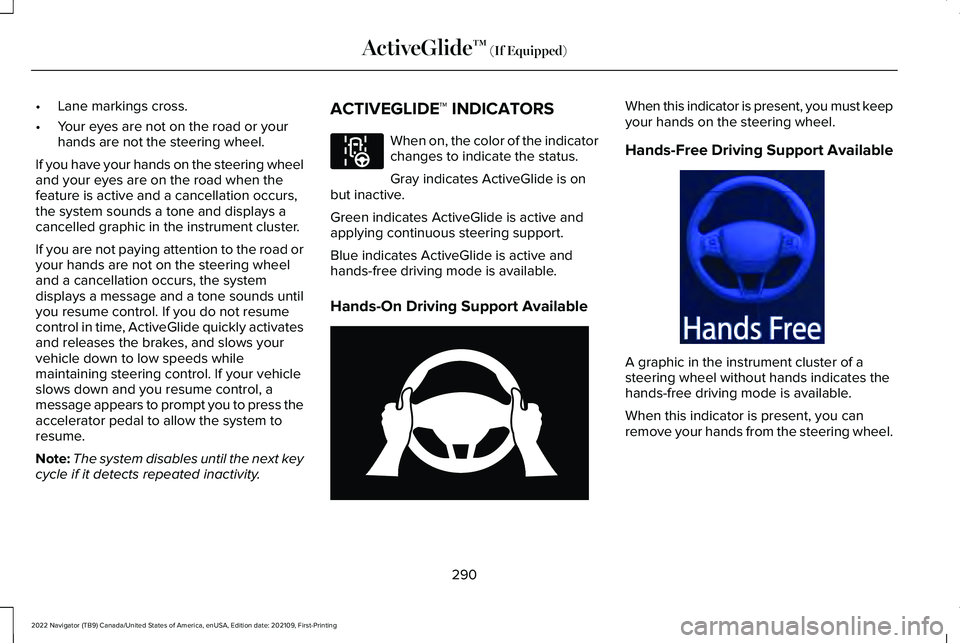
cycle if it detects repeated inactivity. ACTIVEGLIDE™ INDICATORS When on, the color of the indicator
changes to indicate the status.
Gray indicates ActiveGlide is on
but inactive.
Green indicates ActiveGlide is active and
applying continuous steering support.
Blue indicates ActiveGlide is active and
hands-free driving mode is available.
Hands-On Driving Support Available When this indicator is present, you must keep
your hands on the steering wheel.
Hands-Free Driving Support Available
A graphic in the instrument cluster of a
steering wheel without hands indicates the
hands-free driving mode is available.
When this indicator is present, you can
remove your hands from the steering wheel.
290
2022 Navigator (TB9) Canada/United States of America, enUSA, Edition date: 202109, First-Printing ActiveGlide™ (If Equipped)E297977 E333236 E333232
Page 324 of 646
WHAT IS PRE-COLLISION ASSIST
Pre-collision assist detects and warns of
approaching hazards in the roadway. The
system provides multiple levels of assistance
to help avoid a collision if your vehicle is
rapidly approaching another stationary
vehicle, a vehicle traveling in the same
direction as yours, or a pedestrian or cyclist
within your driving path.
HOW DOES PRE-COLLISION
ASSIST WORK
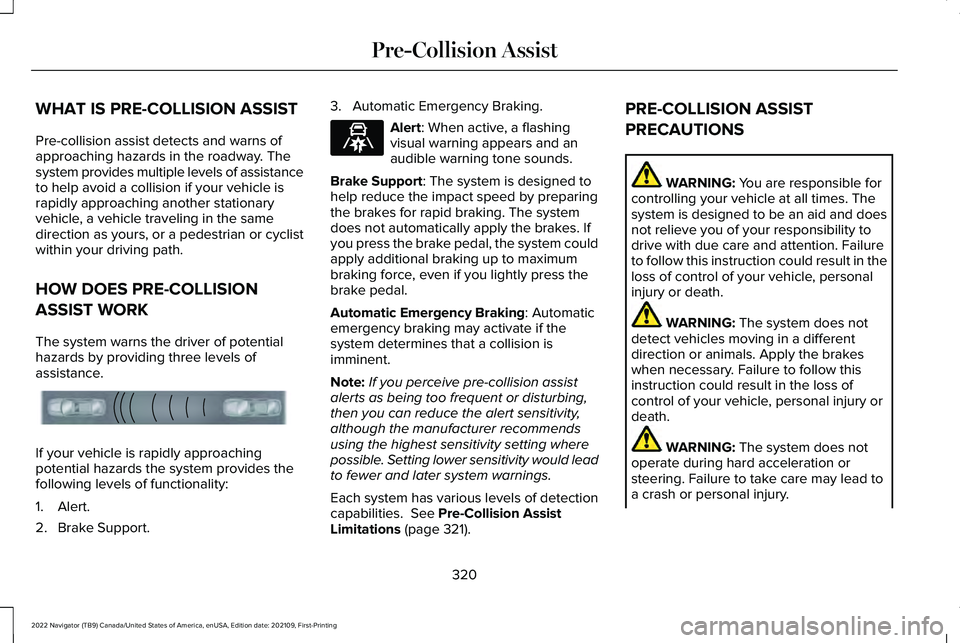
The system warns the driver of potential
hazards by providing three levels of
assistance.
If your vehicle is rapidly approaching
potential hazards the system provides the
following levels of functionality:
1. Alert.
2. Brake Support. 3. Automatic Emergency Braking. Alert: When active, a flashing
visual warning appears and an
audible warning tone sounds.
Brake Support
: The system is designed to
help reduce the impact speed by preparing
the brakes for rapid braking. The system
does not automatically apply the brakes. If
you press the brake pedal, the system could
apply additional braking up to maximum
braking force, even if you lightly press the
brake pedal.
Automatic Emergency Braking
: Automatic
emergency braking may activate if the
system determines that a collision is
imminent.
Note: If you perceive pre-collision assist
alerts as being too frequent or disturbing,
then you can reduce the alert sensitivity,
although the manufacturer recommends
using the highest sensitivity setting where
possible. Setting lower sensitivity would lead
to fewer and later system warnings.
Each system has various levels of detection
capabilities.
See Pre-Collision Assist
Limitations (page 321). PRE-COLLISION ASSIST
PRECAUTIONS WARNING:
You are responsible for
controlling your vehicle at all times. The
system is designed to be an aid and does
not relieve you of your responsibility to
drive with due care and attention. Failure
to follow this instruction could result in the
loss of control of your vehicle, personal
injury or death. WARNING:
The system does not
detect vehicles moving in a different
direction or animals. Apply the brakes
when necessary. Failure to follow this
instruction could result in the loss of
control of your vehicle, personal injury or
death. WARNING:
The system does not
operate during hard acceleration or
steering. Failure to take care may lead to
a crash or personal injury.
320
2022 Navigator (TB9) Canada/United States of America, enUSA, Edition date: 202109, First-Printing Pre-Collision AssistE156130 E329466
Page 331 of 646
EVASIVE STEERING ASSIST
LIMITATIONS
Evasive steering assist only activates when
all the following occur:
•
Automatic emergency braking and
evasive steering assist are on.
• The system detects a road user ahead
and starts to apply the brakes.
• You significantly turn the steering wheel
to steer around a road user.
Note: Evasive steering assist does not
automatically steer around a road user. If
you do not turn the steering wheel, evasive
steering assist does not activate. Note:
Evasive steering assist does not
activate if the distance to the road user
ahead is too small and the system cannot
avoid a crash.
SWITCHING EVASIVE STEERING
ASSIST ON AND OFF
To switch the system on or off, use the
touchscreen:
1. Press Features on the touchscreen.
2. Press
Driver Assistance.
3. Press
Pre-Collision Assist.
4. Switch
Evasive Steering on or off. Note:
If you switch automatic emergency
braking off, evasive steering assist turns off.
Note: Automatic emergency braking and
evasive steering assist turn on every time
you switch the ignition on.
PRE-COLLISION ASSIST –
TROUBLESHOOTING
PRE-COLLISION ASSIST – WARNING
LAMPS A telltale illuminates in the cluster
to indicate if the system is disabled
or unavailable.
PRE-COLLISION ASSIST – INFORMATION MESSAGES Action
Message
You have a blocked sensor due to bad weather, ice, mud or water in
front of the radar sensor. You can typically clean the sensor to resolve.
Pre-Collision Assist Not Available Sensor Blocked
A fault with the system has occurred. Have your vehicle checked assoon as possible.
Pre-Collision Assist Not Available
327
2022 Navigator (TB9) Canada/United States of America, enUSA, Edition date: 202109, First-Printing Pre-Collision AssistE335612
Page 340 of 646
LOCATING THE SAFETY
COMPLIANCE CERTIFICATION
LABELS
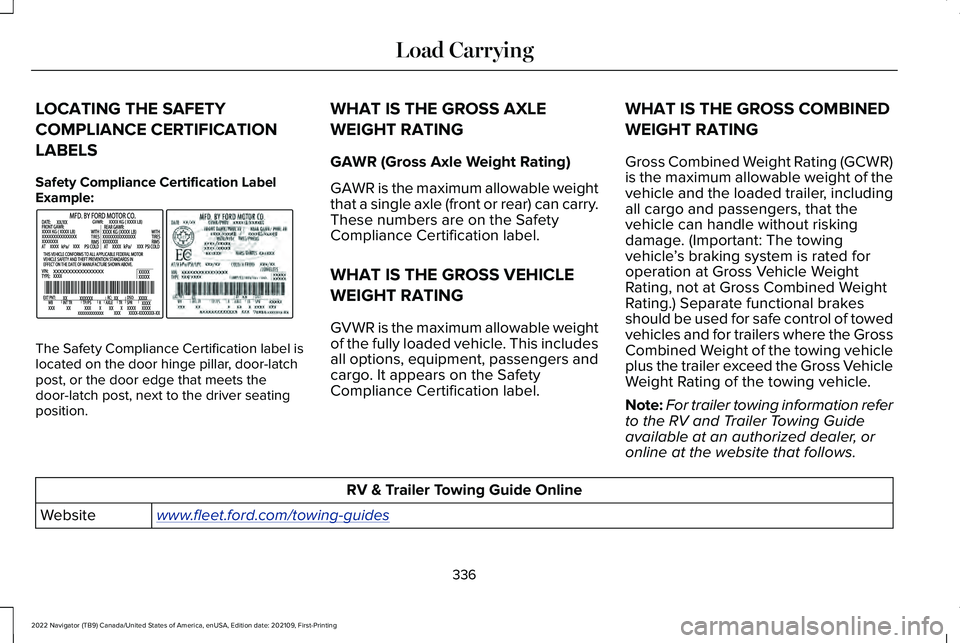
Safety Compliance Certification Label
Example:
The Safety Compliance Certification label is
located on the door hinge pillar, door-latch
post, or the door edge that meets the
door-latch post, next to the driver seating
position. WHAT IS THE GROSS AXLE
WEIGHT RATING
GAWR (Gross Axle Weight Rating)
GAWR is the maximum allowable weight
that a single axle (front or rear) can carry.
These numbers are on the Safety
Compliance Certification label.
WHAT IS THE GROSS VEHICLE
WEIGHT RATING
GVWR is the maximum allowable weight
of the fully loaded vehicle. This includes
all options, equipment, passengers and
cargo. It appears on the Safety
Compliance Certification label.
WHAT IS THE GROSS COMBINED
WEIGHT RATING
Gross Combined Weight Rating (GCWR)
is the maximum allowable weight of the
vehicle and the loaded trailer, including
all cargo and passengers, that the
vehicle can handle without risking
damage. (Important: The towing
vehicle
’s braking system is rated for
operation at Gross Vehicle Weight
Rating, not at Gross Combined Weight
Rating.) Separate functional brakes
should be used for safe control of towed
vehicles and for trailers where the Gross
Combined Weight of the towing vehicle
plus the trailer exceed the Gross Vehicle
Weight Rating of the towing vehicle.
Note: For trailer towing information refer
to the RV and Trailer Towing Guide
available at an authorized dealer, or
online at the website that follows. RV & Trailer Towing Guide Online
www . fleet. ford. com/towing-guidesWebsite
336
2022 Navigator (TB9) Canada/United States of America, enUSA, Edition date: 202109, First-Printing Load CarryingE198828
Page 353 of 646
TOWING A TRAILER PRECAUTIONS
WARNING: Do not exceed the
GVWR or the GAWR specified on the
certification label. WARNING:
Towing trailers
beyond the maximum recommended
gross trailer weight exceeds the limit
of your vehicle and could result in
engine damage, transmission damage,
structural damage, loss of vehicle
control, vehicle rollover and personal
injury. WARNING:
Do not exceed the
lowest rating capacity for your vehicle
or trailer hitch. Overloading your
vehicle or trailer hitch can impair your
vehicle stability and handling. Failure
to follow this instruction could result
in the loss of control of your vehicle,
personal injury or death. WARNING:
Make sure that the
vertical load on the tow ball is between
the minimum and maximum
recommended weight at all times.
Failure to follow this instruction could
result in the loss of control of your
vehicle, personal injury or death. WARNING: Do not cut, drill, weld
or modify the trailer hitch. Modifying
the trailer hitch could reduce the hitch
rating. WARNING:
The anti-lock brake
system does not control the trailer
brakes. TRAILER BRAKE PRECAUTIONS WARNING:
Do not connect a trailer's
hydraulic brake system directly to your
vehicle's brake system. Your vehicle may
not have enough braking power and your
chances of having a collision greatly
increase. WARNING:
Do not tow a trailer fitted
with electric trailer brakes unless your
vehicle is fitted with a compatible
aftermarket electronic trailer brake
controller. Failure to follow this instruction
could result in the loss of control of your
vehicle, personal injury or death. For
additional information and assistance, we
recommend that you contact an authorized
dealer.
Electric brakes and manual, automatic or
surge-type trailer brakes are safe if you install
them properly and adjust them to the
manufacturer's specifications. The trailer
brakes must meet local and federal
regulations.
349
2022 Navigator (TB9) Canada/United States of America, enUSA, Edition date: 202109, First-Printing Towing a Trailer