lock LINCOLN NAVIGATOR 2023 Owners Manual
[x] Cancel search | Manufacturer: LINCOLN, Model Year: 2023, Model line: NAVIGATOR, Model: LINCOLN NAVIGATOR 2023Pages: 660, PDF Size: 14.04 MB
Page 487 of 660
Why does the Wi-Fi connectiondisconnect after successfulconnection?
•The network signal is weak. Move yourvehicle closer to the Wi-Fi router or to aplace where the network signal is notobstructed.
What can I do if I am close to a Wi-Firouter but the network signal strengthis weak?
•If your vehicle has a heated windshield,position your vehicle so that thewindshield is not facing the Wi-Fi router.
•If your vehicle has metallic tinting on thewindows but not on the windshield,position your vehicle so that thewindshield is facing the Wi-Fi router oropen the windows that are facing therouter.
•If your vehicle has metallic tinting on thewindows and the windshield, open thewindows that are facing the router.
•If your vehicle is in a garage and youhave the garage door closed, open thegarage door as it could block the signal.
Why can I not see a network I expectto see in the list of available networks?
•The network is hidden. Make the networkvisible and try again, or manually add anetwork in the Wi-Fi settings menu.
•Some network security types are notsupported, for example, WEP.
Why do software downloads take toolong?
•The network signal is weak. Move yourvehicle closer to the Wi-Fi router or to aplace where the network signal is notobstructed.
•Wi-Fi network is in high demand or hasa slow Internet connection. Use a morereliable Wi-Fi network.
Why does the software not updatewhen the system seems to connect toa Wi-Fi network and the signal strengthis excellent?
•No software update is available at thistime.
•Select automatic updates option in thesettings menu to enable automaticsoftware update or contact an authorizeddealer.
•There could be a connection problem.Test the network using another device.
483
2023 Navigator (TB9) Canada/United States of America, enUSA, Edition date: 202207, DOMConnected Vehicle
Page 492 of 660
Tone Settings
1.Press Settings on the touchscreen.
2.Press Sound Settings.
3.Press Tone Settings.
4.Press the arrows or slider bar to adjustthe settings.
Speed Compensated Volume
1.Press Settings on the touchscreen.
2.Press Sound Settings.
3.Press Speed Compensated Volume.
4.Press a setting.
Occupancy Mode (If Equipped)
1.Press Settings on the touchscreen.
2.Press Sound Settings.
3.Press Occupancy Mode.
4.Press a setting.
Sound Mode (If Equipped)
1.Press Settings on the touchscreen.
2.Press Sound Settings.
3.Press Sound Mode.
4.Press a setting.
SETTING THE CLOCK AND DATE
1.Press Settings on the touchscreen.
2.Press Clock Settings.
3.Set the time.
Note:The AM and PM options are notavailable if 24-hour mode is on.
Switching Automatic Time Updates Onand Off
1.Press Settings on the touchscreen.
2.Press Clock Settings.
3.Switch Auto Time Update on or off.
AM/FM RADIO
AM/FM RADIO LIMITATIONS
The further you travel from an AM or FMstation, the weaker the signal and the weakerthe reception.
Hills, mountains, tall buildings, bridges,tunnels, freeway overpasses, parkinggarages, dense tree foliage andthunderstorms can interfere with thereception.
When you pass a ground-based broadcastrepeating tower, a stronger signal mayovertake a weaker one and result in theaudio system muting.
488
2023 Navigator (TB9) Canada/United States of America, enUSA, Edition date: 202207, DOMAudio System
Page 499 of 660
Recommended ActionPotential EffectsError Message
Your subscription does not include access tothe listed content. You may need to upgradeyour subscription. Navigate to Subscriptionunder the Satellite Radio Settings menu. If youhave an active subscription which includesthe listed channel or content and you see thiserror, you may need to refresh your radio. Torefresh your SiriusXM radio, visit www.siri-usxm.com/refresh in the US, or www.siri-usxm.ca/refresh in Canada.You may need to provide your SiriusXM Radioidentification number. See Locating theSatellite Radio Identification Number (page491).
Cannot listen to selected content. Contentmay appear grayed out and some featuresmay be disabled.
Upgrade to Listen
Content is not available in your location orSiriusXM is unable to determine your location.Tuning to a different channel may resolve theissue.
Audio may mute. Not available in your locationor Unable to determine your location may bedisplayed.
Location Restricted Content
The Block Explicit Content filter is turned on.Navigate to Listener Settings under the Satel-lite Radio Settings menu to access the BlockExplicit Content filter. Navigate to ListenerSettings. See Satellite Radio Settings (page492).
Audio may mute. Radio may tune to a differentchannel.Channel Blocked
495
2023 Navigator (TB9) Canada/United States of America, enUSA, Edition date: 202207, DOMAudio System
Page 519 of 660
HOW DO PERSONAL PROFILES
WORK
This feature allows you to create multiplepersonal profiles enabling users topersonalize vehicle’s settings such as seatsand mirrors, as well as non-positional settingslike radio, navigation, driver assist systemsettings. Positional settings are saved byholding a memory seat button.Non-positional settings are saved youchange a setting while a profile is active. Youcan create one profile for each presetmemory seat button along with a guestprofile.
Recalling and Changing a Profile
You can recall a profile using thetouchscreen or the preset button youselected when you created your profile. Youcan also link a remote control and a mobiledevice to your profile, which are used torecall it.
ENABLING OR DISABLING
PERSONAL PROFILES
When you switch on the Personal Profilesfeature:
•Unlocking a door with a remote controlor mobile device that is not linked to adriver profile does not change the activeprofile, but remains in the last knownprofile. It does not change the positionalsettings.
•Pressing a memory seat button that isnot linked to a driver profile or saved toa preset setting does not change theactive profile, but remains in the lastknown profile. It does not change thepositional settings.
•Pressing a memory seat button that isnot linked to a driver profile but is savedto a preset setting does not change theactive profile, but remains in the lastknown profile. It recalls the positionalsettings that you saved to that memoryseat button.
When you switch off a Personal Profilesfeature:
•Unlocking a door with a remote controlor mobile device does not recall anynon-positional settings but still recallspositional settings from the driver profilewhich the remote control or mobiledevice is linked to.
•Pressing a memory seat button that isnot linked to a driver profile or saved toa preset setting does not change thepositional or non-positional settings.
•Pressing a memory seat button that islinked to a driver profile or has saved toa preset setting recalls the positionalsettings that you saved to that memoryseat button.
CREATING A PERSONAL PROFILE
Use the touchscreen to create a personalprofile.
1.Switch the vehicle on and leave thevehicle in park (P).
2.Select the Personal Profiles button underSettings.
515
2023 Navigator (TB9) Canada/United States of America, enUSA, Edition date: 202207, DOMPersonal Profiles
Page 524 of 660
This introduces new features and providesupdates to the vehicle's software systems.Make sure to switch Automatic Updates on,set a recurring update schedule and connectyour vehicle to Wi-Fi. Updates could takelonger when not connected to Wi-Fi or couldnot download at all. See Connecting theVehicle to a Wi-Fi Network (page 482). SeeConnecting the Vehicle to a Wi-Fi Network(page 482).
Your vehicle may be able to receive drivablesoftware updates, non-drivable softwareupdates or both. Drivable software updateshappen during normal vehicle usage andrequire limited input from you. You arenotified on your touchscreen and connecteddevice prior to a non-drivable update.
Most updates complete in less than 30minutes, although some updates could takeup to a few hours. Check your touchscreenor connected device for the most accurateestimated update time.
You are notified of the status of the vehiclesoftware update in the touchscreen and onyour connected device. See SoftwareUpdate Indicators (page 521).
Vehicle Software Update Requirements
Non-drivable software updates do not installif any of the following occur:
•Your vehicle is running.
•Your vehicle is switched on.
•Your vehicle is not parked.
•The 12 V battery charge is too low.
•The hazard indicators are switched on.
•The alarm is sounding.
•The doors are open.
•The parking lamps are switched on.
•You are pressing the brake pedal.
•An emergency call is in process.
•Your vehicle is in limp home mode.
Vehicle Software Update Limitations
Once you begin a non-drivable softwareupdate, you cannot:
•Cancel the update.
•Lock, unlock or enter your vehicle unlessyou have a key blade.
•You can open the doors using themechanical latch if child locks are noton.
•Drive your vehicle.
•Start your vehicle.
•Use the remote control to lock, unlock orstart your vehicle.
•Use the alarm, central locks or doortones.
•Use the electronic door locks.
•Charge your vehicle.
•Charging resumes once the updatecompletes.
SOFTWARE UPDATE SETTINGS
To access the Software Updates menu:
520
2023 Navigator (TB9) Canada/United States of America, enUSA, Edition date: 202207, DOMVehicle Software Updates
Page 530 of 660
WHAT IS LINCOLN PROTECT
Protect yourself from the rising cost ofvehicle repairs with the Lincoln Protectextended service plan.
Lincoln Protect Extended Service Plans(United States Only)
Lincoln Protect means peace of mind. It isthe extended service plan backed by Lincoln,and provides more protection beyond theNew Vehicle Limited Warranty coverage.When you visit your Lincoln Dealer, insist ongenuine Lincoln Protect extended serviceplans.
Lincoln Protect Extended Service Plan CanQuickly Pay for Itself
One trip to the Service Center could easilyexceed the price of your Lincoln Protectextended service plan. With Lincoln Protect,you minimize your risk for unexpected repairbills and rising repair costs.
Up to 1000+ Covered Vehicle Components
There are four mechanical Lincoln Protectextended service plans with different levelsof coverage. Ask your authorized dealer fordetails.
1.PremiumCARE - Our most comprehensivecoverage. With over 1,000 coveredcomponents, this plan is so complete itis probably easier to list what is notcovered.
2.ExtraCARE - Covers 113 components, andincludes many high-tech items.
3.BaseCARE - Covers 84 components.
4.PowertrainCARE - Covers 29 criticalcomponents.
Lincoln Protect extended service plans arehonored by all authorized Lincoln dealers inthe United States, Canada and Mexico.
That means you get:
•Reliable, quality service at any Lincoln orFord dealership.
•Repairs performed by factory trainedtechnicians, using genuine parts.
Rental Car Reimbursement
First Day Rental Benefit
If you bring your car into your dealer forservice, we will give you a rental vehicle touse for the day.
Extended Rental Benefits
If your vehicle is kept overnight for coveredrepairs, you are eligible for rental carcoverage, including bumper to bumperwarranty repairs, and field service actions.
Roadside Assistance
Exclusive 24/7 roadside assistance, including:
•Towing, flat-tire change and battery jumpstarts.
•Out of fuel and lock-out assistance.
•Travel expense reimbursement forlodging, meals and rental car.
•Assistance for taxi, shuttle, rental carcoverage and other transportation.
526
2023 Navigator (TB9) Canada/United States of America, enUSA, Edition date: 202207, DOMLincoln Protect
Page 535 of 660
Check Every Month
The air filter restriction gauge.1
The engine oil level.
Function of all interior and the exterior lights.
The tires including the spare for wear and proper pressure.
The windshield washer fluid level.
The fuel and water separator. Drain if necessary or if indicated by the instrument cluster display.1
The holes and slots in the tail pipe to make sure they are functional and clear of debris.1
1 Diesel vehicles only.
Check Every Six Months
The battery connections. Clean if necessary.
The body and door drain holes for obstructions. Clean if necessary.
The cooling system fluid level and the coolant system strength.
The door weatherstrips for wear. Lubricate if necessary.
The hinges, latches and outside locks for proper operation. Lubricate if necessary.
531
2023 Navigator (TB9) Canada/United States of America, enUSA, Edition date: 202207, DOMScheduled Maintenance
Page 636 of 660
Adjusting the Luggage CompartmentDivider..........................................................343Adjusting the Luggage Compartment LoadFloor..............................................................342Adjusting the Map.........................................517Changing the Format of the Map....................517Zooming the Map In and Out...........................517
Adjusting the Pedals......................................113Adjusting the Seatbelt Height.....................56Adjusting the Seatbelts DuringPregnancy......................................................55Adjusting the Sound Settings....................487Adjusting the Steering Wheel.....................112Adjusting the Volume..................................487Aid Mode........................................................302How Does Aid Mode Work..............................302What Is Aid Mode...............................................302
Airbag Precautions.........................................63Airbags...............................................................61Front Passenger Sensing System....................65
Air ConditioningSee: Climate Control..........................................159
Air Conditioning System Capacity andSpecification................................................474Alert and Aid Mode......................................303How Does Alert and Aid Mode Work............303What Is Alert and Aid Mode.............................303
Alert Mode.....................................................302Adjusting the Steering Wheel VibrationIntensity............................................................302How Does Alert Mode Work...........................302What Is Alert Mode............................................302
Alexa Built-In.................................................503Alexa Built-In Requirements......................503Alexa Built-In Settings.................................503AM/FM Radio.................................................488AM/FM Radio Limitations..................................488Selecting a Radio Station.................................489
Ambient Lighting...........................................133Adjusting Ambient Lighting..............................133Switching Ambient Lighting On and Off........133
Anti-Lock Braking System..........................232Anti-Lock Braking System Limitations..........232
Anti-Theft Alarm System.............................106Arming the Anti-Theft Alarm System..............107Disarming the Anti-Theft Alarm System........107How Does the Anti-Theft Alarm SystemWork...................................................................106What Are the Inclination Sensors....................107What Are the Interior Sensors.........................106What Is the Anti-Theft Alarm System.............106What Is the Perimeter Alarm............................106
Anti-Theft Alarm System Settings.............107Setting the Alarm Security Level.....................107Switching Ask on Exit On and Off...................107
What are the Alarm Security Levels...............107What Is Ask on Exit.............................................107
Appendices...................................................625Applying the Electric Parking Brake........235Applying the Electric Parking Brake in anEmergency..................................................235App Precautions............................................512App Requirements........................................512Apps.................................................................512Audio System................................................486AM/FM Radio.......................................................488Audio System – Troubleshooting...................493Digital Radio.........................................................489Satellite Radio......................................................491
Audio System Precautions.........................486Audio System – Troubleshooting.............493Audio System – Information Messages........493
Auto-Dimming Exterior Mirror....................139What Is the Auto-Dimming ExteriorMirror..................................................................139
Auto-Dimming Interior Mirror.....................136Auto-Dimming Interior MirrorLimitations.........................................................136What Is the Auto-Dimming InteriorMirror..................................................................136
Auto Hold.......................................................243Auto Hold Indicators....................................244
632
2023 Navigator (TB9) Canada/United States of America, enUSA, Edition date: 202207, DOMIndex
Page 637 of 660
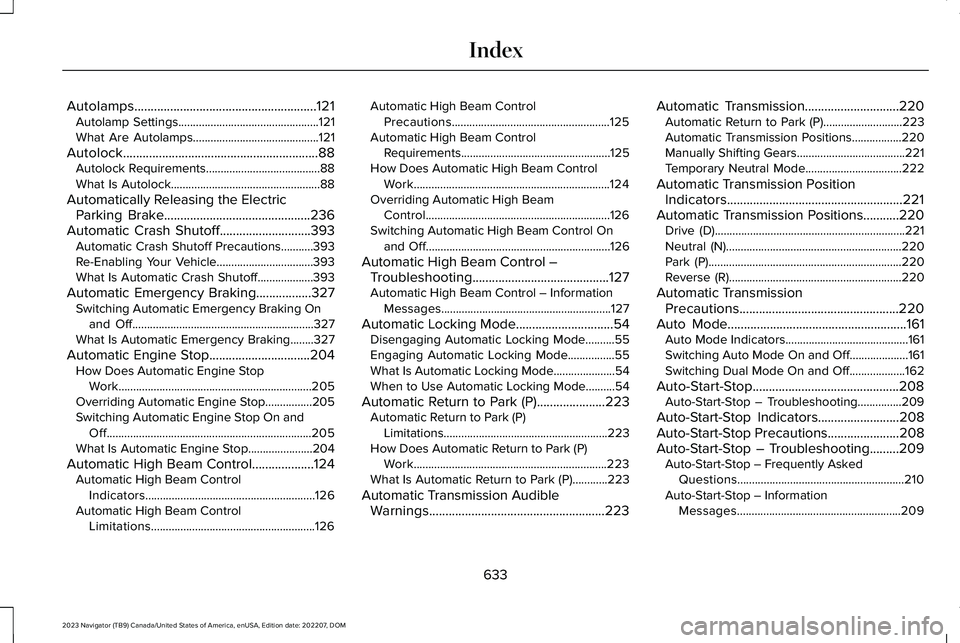
Autolamps........................................................121Autolamp Settings................................................121What Are Autolamps...........................................121
Autolock............................................................88Autolock Requirements.......................................88What Is Autolock...................................................88
Automatically Releasing the ElectricParking Brake.............................................236Automatic Crash Shutoff............................393Automatic Crash Shutoff Precautions...........393Re-Enabling Your Vehicle.................................393What Is Automatic Crash Shutoff...................393
Automatic Emergency Braking.................327Switching Automatic Emergency Braking Onand Off..............................................................327What Is Automatic Emergency Braking........327
Automatic Engine Stop...............................204How Does Automatic Engine StopWork..................................................................205Overriding Automatic Engine Stop................205Switching Automatic Engine Stop On andOff......................................................................205What Is Automatic Engine Stop......................204
Automatic High Beam Control...................124Automatic High Beam ControlIndicators..........................................................126Automatic High Beam ControlLimitations........................................................126
Automatic High Beam ControlPrecautions......................................................125Automatic High Beam ControlRequirements...................................................125How Does Automatic High Beam ControlWork...................................................................124Overriding Automatic High BeamControl...............................................................126Switching Automatic High Beam Control Onand Off...............................................................126
Automatic High Beam Control –Troubleshooting..........................................127Automatic High Beam Control – InformationMessages..........................................................127
Automatic Locking Mode..............................54Disengaging Automatic Locking Mode..........55Engaging Automatic Locking Mode................55What Is Automatic Locking Mode.....................54When to Use Automatic Locking Mode..........54
Automatic Return to Park (P).....................223Automatic Return to Park (P)Limitations........................................................223How Does Automatic Return to Park (P)Work..................................................................223What Is Automatic Return to Park (P)............223
Automatic Transmission AudibleWarnings......................................................223
Automatic Transmission.............................220Automatic Return to Park (P)...........................223Automatic Transmission Positions.................220Manually Shifting Gears.....................................221Temporary Neutral Mode.................................222
Automatic Transmission PositionIndicators......................................................221Automatic Transmission Positions...........220Drive (D).................................................................221Neutral (N)............................................................220Park (P)..................................................................220Reverse (R)...........................................................220
Automatic TransmissionPrecautions.................................................220Auto Mode.......................................................161Auto Mode Indicators..........................................161Switching Auto Mode On and Off....................161Switching Dual Mode On and Off...................162
Auto-Start-Stop.............................................208Auto-Start-Stop – Troubleshooting...............209
Auto-Start-Stop Indicators.........................208Auto-Start-Stop Precautions......................208Auto-Start-Stop – Troubleshooting.........209Auto-Start-Stop – Frequently AskedQuestions.........................................................210Auto-Start-Stop – InformationMessages........................................................209
633
2023 Navigator (TB9) Canada/United States of America, enUSA, Edition date: 202207, DOMIndex
Page 638 of 660
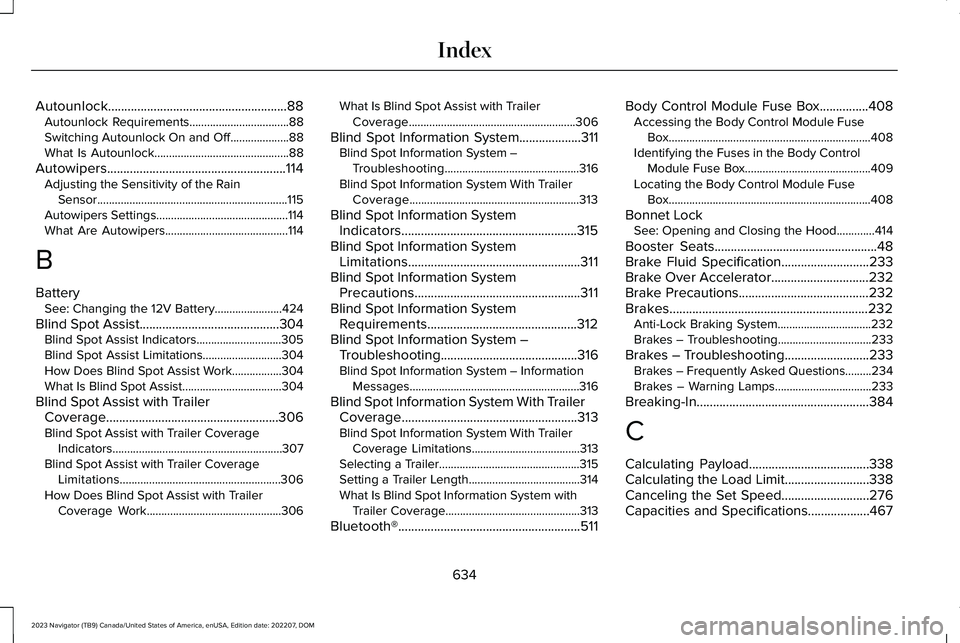
Autounlock.......................................................88Autounlock Requirements..................................88Switching Autounlock On and Off....................88What Is Autounlock..............................................88
Autowipers.......................................................114Adjusting the Sensitivity of the RainSensor.................................................................115Autowipers Settings.............................................114What Are Autowipers..........................................114
B
BatterySee: Changing the 12V Battery.......................424
Blind Spot Assist...........................................304Blind Spot Assist Indicators.............................305Blind Spot Assist Limitations...........................304How Does Blind Spot Assist Work.................304What Is Blind Spot Assist..................................304
Blind Spot Assist with TrailerCoverage.....................................................306Blind Spot Assist with Trailer CoverageIndicators..........................................................307Blind Spot Assist with Trailer CoverageLimitations.......................................................306How Does Blind Spot Assist with TrailerCoverage Work..............................................306
What Is Blind Spot Assist with TrailerCoverage.........................................................306
Blind Spot Information System...................311Blind Spot Information System –Troubleshooting..............................................316Blind Spot Information System With TrailerCoverage..........................................................313
Blind Spot Information SystemIndicators......................................................315Blind Spot Information SystemLimitations.....................................................311Blind Spot Information SystemPrecautions...................................................311Blind Spot Information SystemRequirements..............................................312Blind Spot Information System –Troubleshooting..........................................316Blind Spot Information System – InformationMessages..........................................................316
Blind Spot Information System With TrailerCoverage......................................................313Blind Spot Information System With TrailerCoverage Limitations.....................................313Selecting a Trailer................................................315Setting a Trailer Length......................................314What Is Blind Spot Information System withTrailer Coverage..............................................313
Bluetooth®........................................................511
Body Control Module Fuse Box...............408Accessing the Body Control Module FuseBox.....................................................................408Identifying the Fuses in the Body ControlModule Fuse Box...........................................409Locating the Body Control Module FuseBox.....................................................................408
Bonnet LockSee: Opening and Closing the Hood.............414
Booster Seats..................................................48Brake Fluid Specification...........................233Brake Over Accelerator..............................232Brake Precautions........................................232Brakes.............................................................232Anti-Lock Braking System................................232Brakes – Troubleshooting................................233
Brakes – Troubleshooting..........................233Brakes – Frequently Asked Questions.........234Brakes – Warning Lamps.................................233
Breaking-In.....................................................384
C
Calculating Payload.....................................338Calculating the Load Limit..........................338Canceling the Set Speed...........................276Capacities and Specifications...................467
634
2023 Navigator (TB9) Canada/United States of America, enUSA, Edition date: 202207, DOMIndex