length LINCOLN NAVIGATOR 2023 User Guide
[x] Cancel search | Manufacturer: LINCOLN, Model Year: 2023, Model line: NAVIGATOR, Model: LINCOLN NAVIGATOR 2023Pages: 660, PDF Size: 14.04 MB
Page 371 of 660
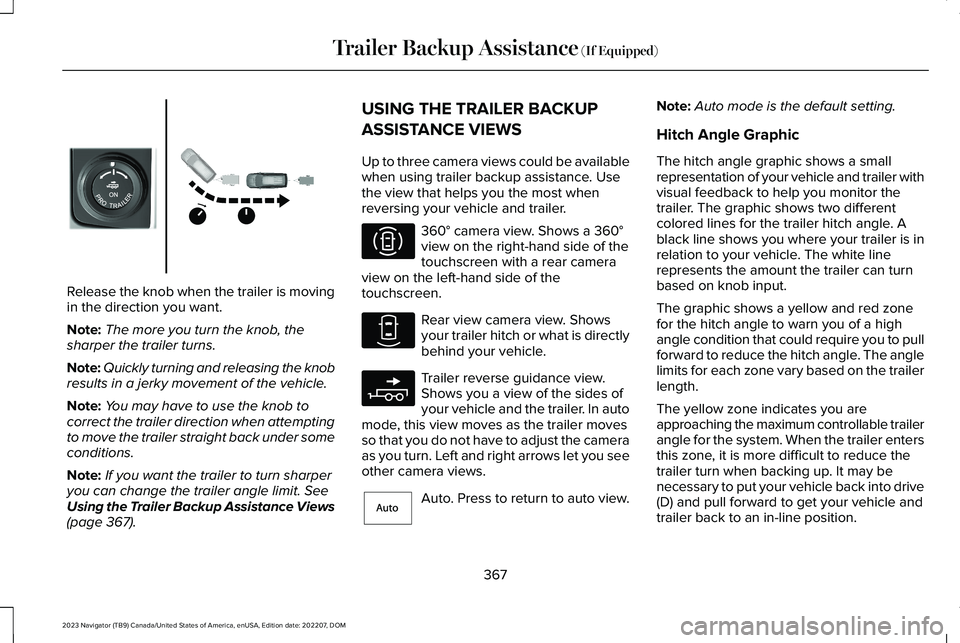
Release the knob when the trailer is movingin the direction you want.
Note:The more you turn the knob, thesharper the trailer turns.
Note:Quickly turning and releasing the knobresults in a jerky movement of the vehicle.
Note:You may have to use the knob tocorrect the trailer direction when attemptingto move the trailer straight back under someconditions.
Note:If you want the trailer to turn sharperyou can change the trailer angle limit. SeeUsing the Trailer Backup Assistance Views(page 367).
USING THE TRAILER BACKUP
ASSISTANCE VIEWS
Up to three camera views could be availablewhen using trailer backup assistance. Usethe view that helps you the most whenreversing your vehicle and trailer.
360° camera view. Shows a 360°view on the right-hand side of thetouchscreen with a rear cameraview on the left-hand side of thetouchscreen.
Rear view camera view. Showsyour trailer hitch or what is directlybehind your vehicle.
Trailer reverse guidance view.Shows you a view of the sides ofyour vehicle and the trailer. In automode, this view moves as the trailer movesso that you do not have to adjust the cameraas you turn. Left and right arrows let you seeother camera views.
Auto. Press to return to auto view.
Note:Auto mode is the default setting.
Hitch Angle Graphic
The hitch angle graphic shows a smallrepresentation of your vehicle and trailer withvisual feedback to help you monitor thetrailer. The graphic shows two differentcolored lines for the trailer hitch angle. Ablack line shows you where your trailer is inrelation to your vehicle. The white linerepresents the amount the trailer can turnbased on knob input.
The graphic shows a yellow and red zonefor the hitch angle to warn you of a highangle condition that could require you to pullforward to reduce the hitch angle. The anglelimits for each zone vary based on the trailerlength.
The yellow zone indicates you areapproaching the maximum controllable trailerangle for the system. When the trailer entersthis zone, it is more difficult to reduce thetrailer turn when backing up. It may benecessary to put your vehicle back into drive(D) and pull forward to get your vehicle andtrailer back to an in-line position.
367
2023 Navigator (TB9) Canada/United States of America, enUSA, Edition date: 202207, DOMTrailer Backup Assistance (If Equipped)E349264 E310996 E310967 E310965 E315644
Page 378 of 660
What does it mean if the trailer is at itsmaximum angle or the system deactivatedby trailer angle?
You are at the maximum controllabletrailer angle for the system. Place yourvehicle in drive (D) and pull forward toget the truck and trailer back to anin-line position. If this messageconsistently displays, this could indicatethe sticker is incorrectly applied, thetrailer needs to be recalibrated or thedrawbar or the trailer dimensions areoutside of the supported range. Thesystem is designed to work withdrawbars that have a license plate tohitch ball center measurement of 9–18 in(23–46 cm) when installed. The systemis designed to work with trailers thathave a hitch point to center of the axleor axles measurement of 6–33 ft(1.85–10.05 m). Do not attempt to usedrawbars or trailers that have a lengthoutside of this range as the systemperformance degrades and could causeimproper system function. Check thatthe correct trailer is selected on the
touchscreen. Verify the sticker iscorrectly applied and check that thedrawbar and the trailer dimensions arewithin the allowed range. Then, deletethe trailer from the system and repeatthe setup process to calibrate the trailer.
What does it mean when the system tellsyou to take control of the steering wheel?
The system is no longer steering thevehicle and you must take over steering.There are four reasons the system coulddisplay this message. The first reasonthe system could display this messageis that you have touched the steeringwheel when the system is steering. Thesecond reason the system could displaythis message is that you have exceededthe maximum speed for the feature. Thethird reason the system could displaythis message is that the trailer is notdetected. The final reason the systemcould display this message is that aninternal condition for system operationis not met that requires your vehicle toreturn to manual control of the steering.
What does it mean if the system does notdetect a trailer?
The system requires a clear view of thesticker placed on the trailer. You mustkeep the camera lens and sticker cleanfor the system to correctly operate. Ifthe system cannot initially detect thetrailer, it could be necessary for you tochange the lighting conditions bymoving your vehicle and trailer orwaiting until the conditions change. SeeApplying the Trailer Reversing AidSticker (page 364). Some trailers are notcompatible with the sticker and camerasystem.
Note:The system is designed to be usedwith the same trailer connection every timeyou choose the trailer from the touchscreen.When using a different drawbar or a differentpinhole on drawbars with more than one,connecting the drawbar to your vehicleaffects the trailer position and you may needto repeat the trailer setup and calibrationprocess.
374
2023 Navigator (TB9) Canada/United States of America, enUSA, Edition date: 202207, DOMTrailer Backup Assistance (If Equipped)
Page 382 of 660
Note:During calibration, the systemdetermines the trailer length. The systemsupports trailer lengths of 6–33 ft(1.85–10.05 m) distance from the hitch pointto the center of the axle or axles. The systemis designed to work with drawbars that havea license plate to hitch ball centermeasurement of 9–18 in (23–46 cm) wheninstalled. Do not attempt to use drawbars ortrailers that have a length outside of thisrange as the system performance degradesand could cause improper system function.
Note:The touchscreen shows if you aregoing too slow or fast. Calibration pauses ifthe speed is outside the required range of2–9 mph (4–15 km/h).
Note:You need to complete at least a 90°turn, and longer trailers could require a 180°turn. Camera trailer tracking requires thesystem to locate the hitch ball as well asdetermine the trailer length. Some trailerscould require you to drive straight then turnmultiple times before calibration completes.The touchscreen provides instructions andnotifies you when calibration completes.
Note:For best results, do not calibrate thesystem at night.
SWITCHING TRAILER REVERSE
GUIDANCE ON AND OFF
Shift into reverse (R), press the rear camerabutton to expand the menu, press the trailericon and use the touchscreen to select theconnected trailer.
Note:If the trailer was connected just priorto turning the system on, you may need todrive forward to initialize the system. Followthe instructions on the touchscreen toactivate the system.
USING TRAILER REVERSE
GUIDANCE VIEWS
Up to three camera views could be availablewhen using trailer reverse guidance. Use theview that helps you the most when reversingyour vehicle and trailer.
360° camera view. Shows a 360°view on the right-hand side of thetouchscreen with a rear cameraview on the left-hand side of thetouchscreen.
Rear view camera view. Showsyour trailer hitch or what is directlybehind your vehicle.
Trailer reverse guidance view.Shows you a view of the sides ofyour vehicle and the trailer. In automode, this view moves as the trailer movesso that you do not have to adjust the cameraas you turn. Left and right arrows let you seeother camera views.
Straight backup mode. Showswhich way to turn your steeringwheel to keep the trailer straight.Use this view when you want to keep yourtrailer completely in line with your vehicle.
Note: It may be helpful to shift your vehicleinto drive (D), pull forward and straighten outthe vehicle and trailer before engagingstraight backup mode.
378
2023 Navigator (TB9) Canada/United States of America, enUSA, Edition date: 202207, DOMTrailer Reverse Guidance (If Equipped)E310996 E310967 E310965 E224484
Page 383 of 660
This takes you back to the 360°camera system and out of thetrailer reverse guidance feature.
Auto. Press to return to auto view.
Note:Auto mode is the default setting.
Hitch Angle Graphic
The hitch angle graphic shows a smallrepresentation of your vehicle and trailer withvisual feedback to help you monitor thetrailer. The graphic shows two differentcolored lines for the trailer hitch angle. Ablack line shows you where your trailer is inrelation to your vehicle. The white linerepresents the amount the trailer can turnbased on steering wheel position.
The graphic shows a yellow and red zonefor the hitch angle to warn you of a highangle condition that could require you to pullforward to reduce the hitch angle. The anglelimits for each zone vary based on the trailerlength.
The yellow zone indicates you areapproaching the maximum controllable trailerangle for the system. When the trailer entersthis zone, it is more difficult to reduce thetrailer turn when backing up. It may benecessary to put your vehicle back into drive(D) and pull forward to get your vehicle andtrailer back to an in-line position.
The red zone indicates you have exceededthe maximum controllable trailer angle forthe system. Immediately stop reversing. Putyour vehicle into drive (D) and pull forwarduntil the trailer is no longer in the red zone.
379
2023 Navigator (TB9) Canada/United States of America, enUSA, Edition date: 202207, DOMTrailer Reverse Guidance (If Equipped)E224486 E315644
Page 385 of 660
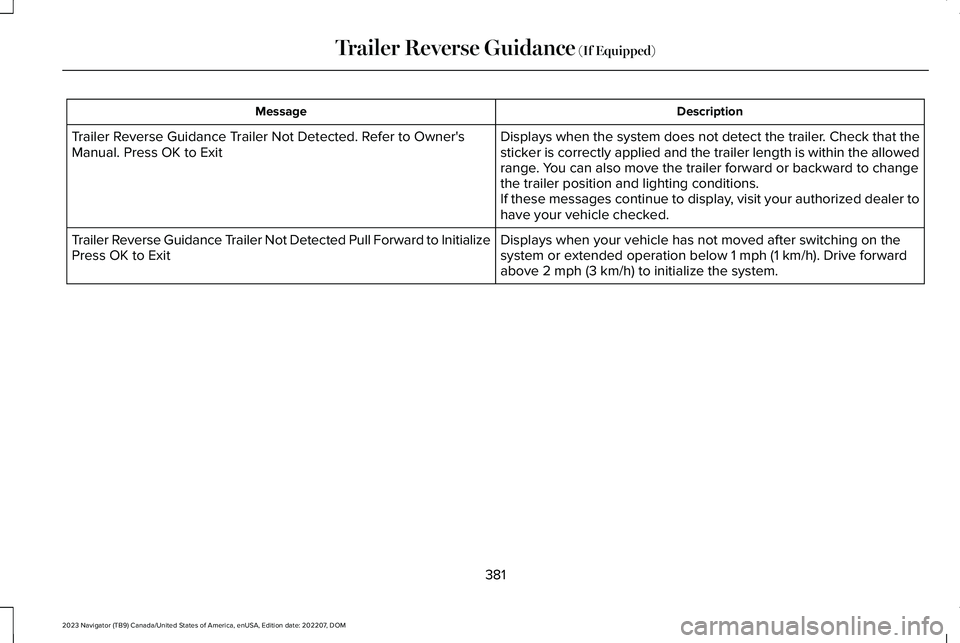
DescriptionMessage
Displays when the system does not detect the trailer. Check that thesticker is correctly applied and the trailer length is within the allowedrange. You can also move the trailer forward or backward to changethe trailer position and lighting conditions.If these messages continue to display, visit your authorized dealer tohave your vehicle checked.
Trailer Reverse Guidance Trailer Not Detected. Refer to Owner'sManual. Press OK to Exit
Displays when your vehicle has not moved after switching on thesystem or extended operation below 1 mph (1 km/h). Drive forwardabove 2 mph (3 km/h) to initialize the system.
Trailer Reverse Guidance Trailer Not Detected Pull Forward to InitializePress OK to Exit
381
2023 Navigator (TB9) Canada/United States of America, enUSA, Edition date: 202207, DOMTrailer Reverse Guidance (If Equipped)
Page 399 of 660
•Align the tow vehicle and stuck vehiclein a straight line, within 10 degrees.
•Keep bystanders to the sides of thevehicle, at a distance of at least twice thelength of the recovery strap. This helpsavoid injury from the hazard of a recoveryhook or strap breaking, or a vehiclelurching into their path.
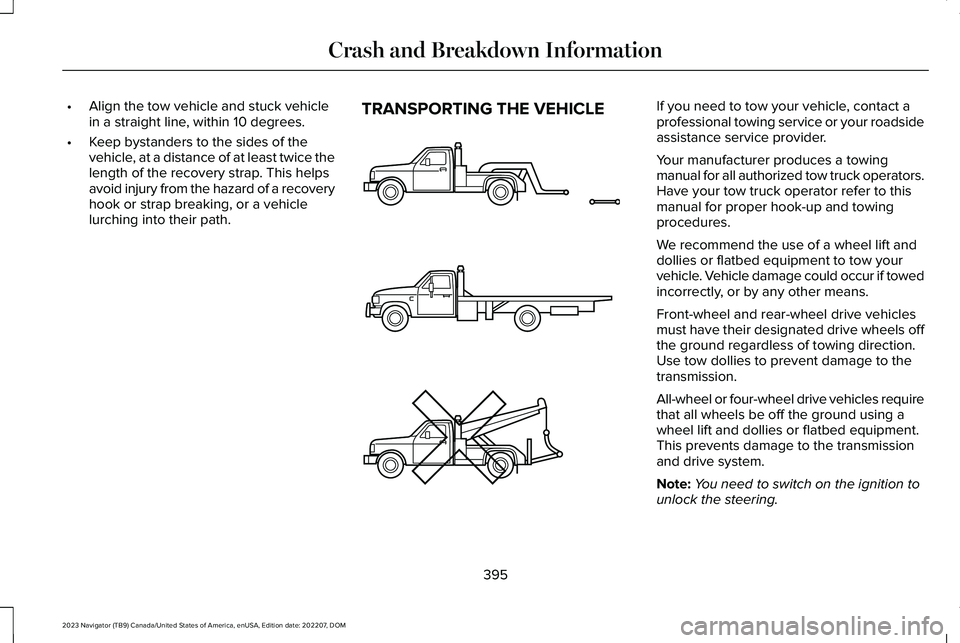
TRANSPORTING THE VEHICLEIf you need to tow your vehicle, contact aprofessional towing service or your roadsideassistance service provider.
Your manufacturer produces a towingmanual for all authorized tow truck operators.Have your tow truck operator refer to thismanual for proper hook-up and towingprocedures.
We recommend the use of a wheel lift anddollies or flatbed equipment to tow yourvehicle. Vehicle damage could occur if towedincorrectly, or by any other means.
Front-wheel and rear-wheel drive vehiclesmust have their designated drive wheels offthe ground regardless of towing direction.Use tow dollies to prevent damage to thetransmission.
All-wheel or four-wheel drive vehicles requirethat all wheels be off the ground using awheel lift and dollies or flatbed equipment.This prevents damage to the transmissionand drive system.
Note:You need to switch on the ignition tounlock the steering.
395
2023 Navigator (TB9) Canada/United States of America, enUSA, Edition date: 202207, DOMCrash and Breakdown InformationE143886
Page 546 of 660
Disputes submitted to the BBB AUTO LINEprogram are usually decided within 40 daysafter you file your claim with the BBB. Youare not bound by the decision, and mayreject the decision and proceed to courtwhere all findings of the BBB Auto Linedispute, and decision, are admissible in thecourt action. Should you choose to acceptthe BBB AUTO LINE decision, Ford is thenbound by the decision, and must comply withthe decision within 30 days of receipt of youracceptance letter.
BBB AUTO LINE Application: Using theinformation that follows, call or write torequest a program application. You will beasked for your name and address, generalinformation about your new vehicle,information about your warranty concerns,and any steps you have already taken to tryto resolve them. A Customer Claim Form willbe mailed that needs to be completed,signed and returned to the BBB along withproof of ownership. Upon receipt, the BBBreviews the claim for eligibility under theProgram Summary Guidelines.
You can get more information by callingBBB AUTO LINE at 1-800-955-5100, orwriting to:
BBB AUTO LINE a Division of BBB NationalPrograms, Inc.1676 International Drive, Suite 550McLean, VA 22102
BBB AUTO LINE applications can also berequested by calling the Ford MotorCompany Customer Relationship Center at1-800-392-3673.
For additional information, refer to the BetterBusiness Bureau website.
Note:Ford Motor Company reserves theright to change eligibility limitations, modifyprocedures, or to discontinue this processat any time without notice and withoutobligation.
THE MEDIATION AND
ARBITRATION PROGRAM -
CANADA
For vehicles delivered to authorizedCanadian dealers. In those cases where youcontinue to feel that the efforts by Ford ofCanada and the authorized dealer to resolvea factory-related vehicle service concernhave been unsatisfactory, Ford of Canadaparticipates in an impartial third partymediation/arbitration program administeredby the Canadian Motor Vehicle ArbitrationPlan (CAMVAP).
The CAMVAP program is a straightforwardand relatively speedy alternative to resolvea disagreement when all other efforts toproduce a settlement have failed. Thisprocedure is without cost to you and isdesigned to eliminate the need for lengthyand expensive legal proceedings.
542
2023 Navigator (TB9) Canada/United States of America, enUSA, Edition date: 202207, DOMCustomer Information
Page 638 of 660
Autounlock.......................................................88Autounlock Requirements..................................88Switching Autounlock On and Off....................88What Is Autounlock..............................................88
Autowipers.......................................................114Adjusting the Sensitivity of the RainSensor.................................................................115Autowipers Settings.............................................114What Are Autowipers..........................................114
B
BatterySee: Changing the 12V Battery.......................424
Blind Spot Assist...........................................304Blind Spot Assist Indicators.............................305Blind Spot Assist Limitations...........................304How Does Blind Spot Assist Work.................304What Is Blind Spot Assist..................................304
Blind Spot Assist with TrailerCoverage.....................................................306Blind Spot Assist with Trailer CoverageIndicators..........................................................307Blind Spot Assist with Trailer CoverageLimitations.......................................................306How Does Blind Spot Assist with TrailerCoverage Work..............................................306
What Is Blind Spot Assist with TrailerCoverage.........................................................306
Blind Spot Information System...................311Blind Spot Information System –Troubleshooting..............................................316Blind Spot Information System With TrailerCoverage..........................................................313
Blind Spot Information SystemIndicators......................................................315Blind Spot Information SystemLimitations.....................................................311Blind Spot Information SystemPrecautions...................................................311Blind Spot Information SystemRequirements..............................................312Blind Spot Information System –Troubleshooting..........................................316Blind Spot Information System – InformationMessages..........................................................316
Blind Spot Information System With TrailerCoverage......................................................313Blind Spot Information System With TrailerCoverage Limitations.....................................313Selecting a Trailer................................................315Setting a Trailer Length......................................314What Is Blind Spot Information System withTrailer Coverage..............................................313
Bluetooth®........................................................511
Body Control Module Fuse Box...............408Accessing the Body Control Module FuseBox.....................................................................408Identifying the Fuses in the Body ControlModule Fuse Box...........................................409Locating the Body Control Module FuseBox.....................................................................408
Bonnet LockSee: Opening and Closing the Hood.............414
Booster Seats..................................................48Brake Fluid Specification...........................233Brake Over Accelerator..............................232Brake Precautions........................................232Brakes.............................................................232Anti-Lock Braking System................................232Brakes – Troubleshooting................................233
Brakes – Troubleshooting..........................233Brakes – Frequently Asked Questions.........234Brakes – Warning Lamps.................................233
Breaking-In.....................................................384
C
Calculating Payload.....................................338Calculating the Load Limit..........................338Canceling the Set Speed...........................276Capacities and Specifications...................467
634
2023 Navigator (TB9) Canada/United States of America, enUSA, Edition date: 202207, DOMIndex