navigation system LINCOLN TOWN CAR 2005 Owner's Manual
[x] Cancel search | Manufacturer: LINCOLN, Model Year: 2005, Model line: TOWN CAR, Model: LINCOLN TOWN CAR 2005Pages: 328, PDF Size: 3.44 MB
Page 69 of 328
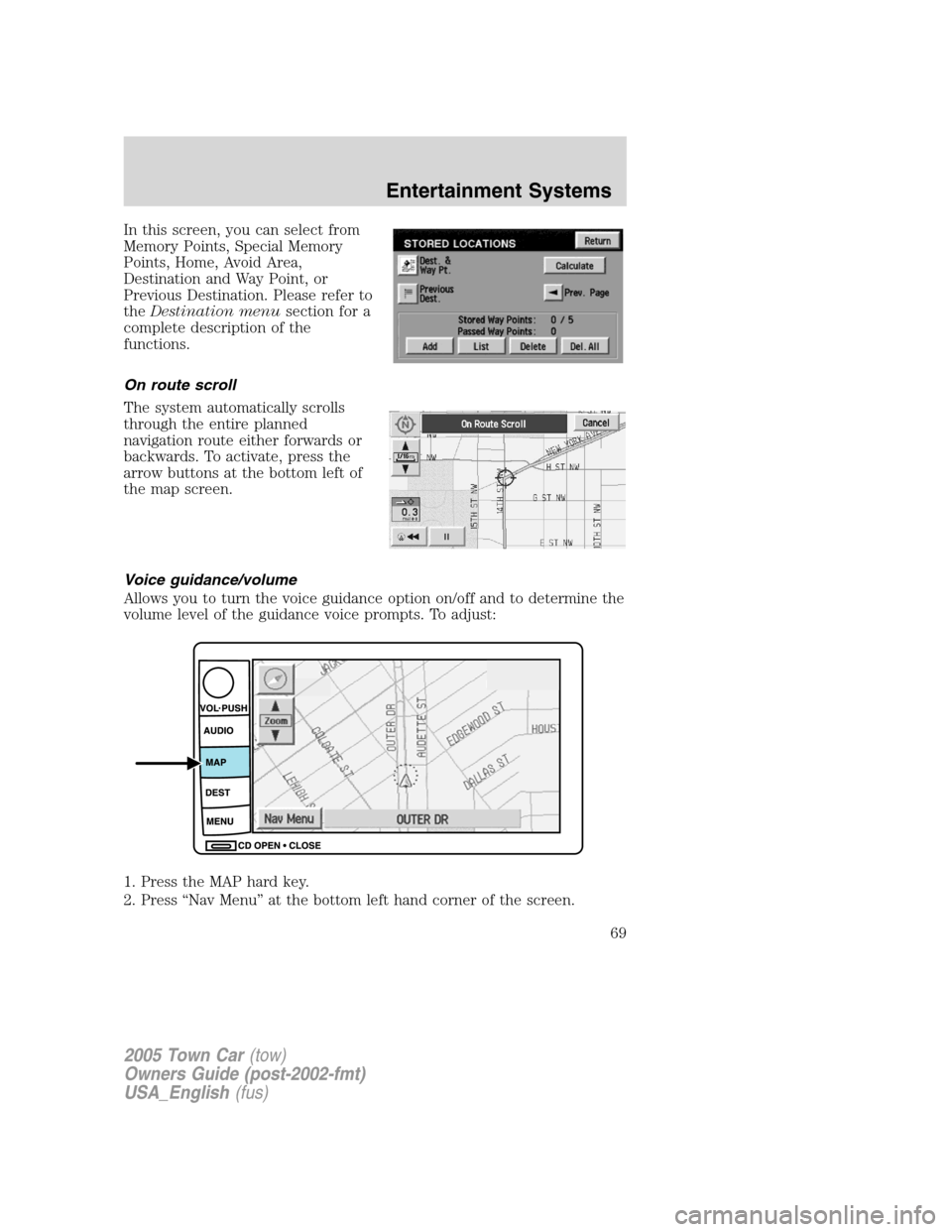
In this screen, you can select from
Memory Points, Special Memory
Points, Home, Avoid Area,
Destination and Way Point, or
Previous Destination. Please refer to
theDestination menusection for a
complete description of the
functions.
On route scroll
The system automatically scrolls
through the entire planned
navigation route either forwards or
backwards. To activate, press the
arrow buttons at the bottom left of
the map screen.
Voice guidance/volume
Allows you to turn the voice guidance option on/off and to determine the
volume level of the guidance voice prompts. To adjust:
1. Press the MAP hard key.
2. Press “Nav Menu” at the bottom left hand corner of the screen.
2005 Town Car(tow)
Owners Guide (post-2002-fmt)
USA_English(fus)
Entertainment Systems
69
Page 79 of 328
Deleting areas to avoid
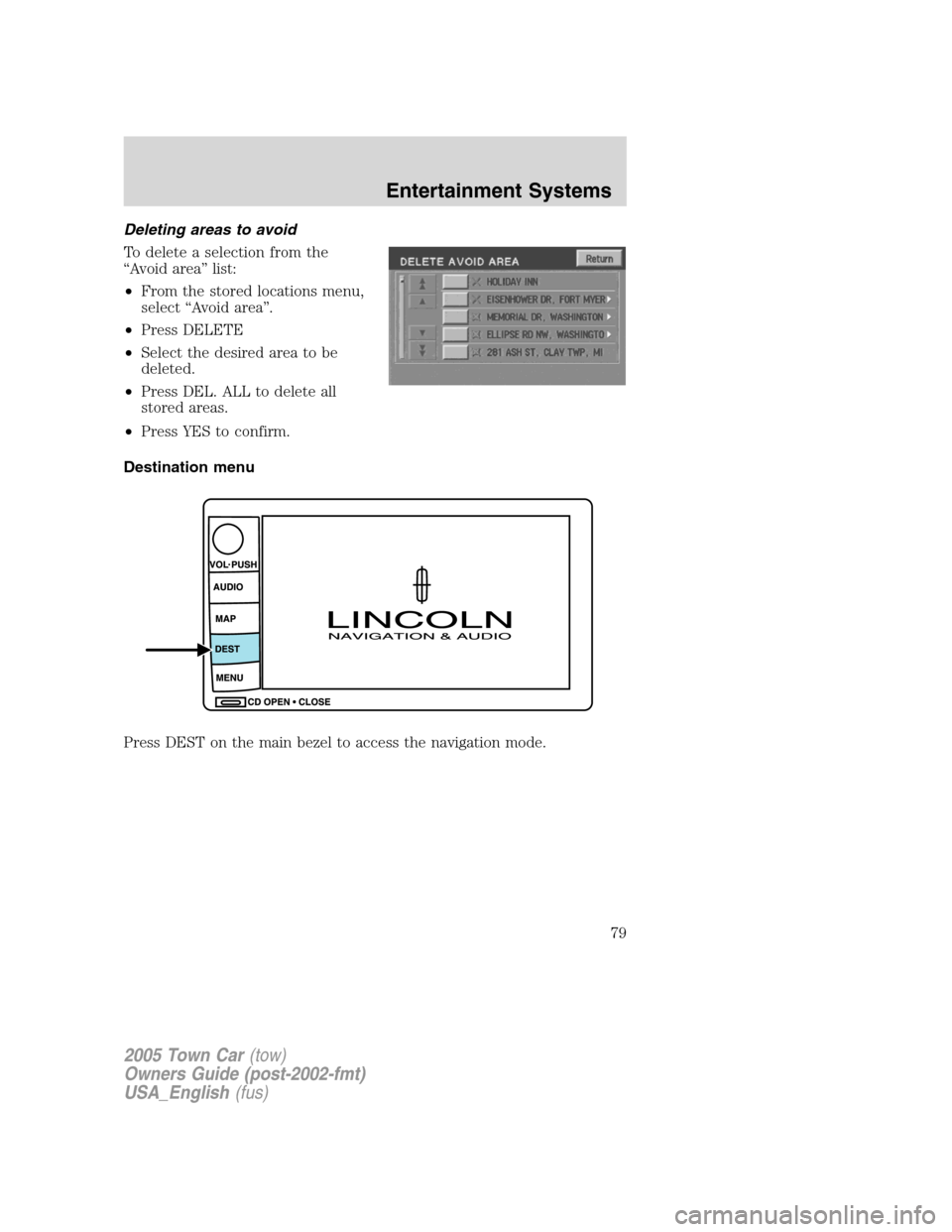
To delete a selection from the
“Avoid area” list:
•From the stored locations menu,
select “Avoid area”.
•Press DELETE
•Select the desired area to be
deleted.
•Press DEL. ALL to delete all
stored areas.
•Press YES to confirm.
Destination menu
Press DEST on the main bezel to access the navigation mode.
2005 Town Car(tow)
Owners Guide (post-2002-fmt)
USA_English(fus)
Entertainment Systems
79
Page 80 of 328
Initial map display
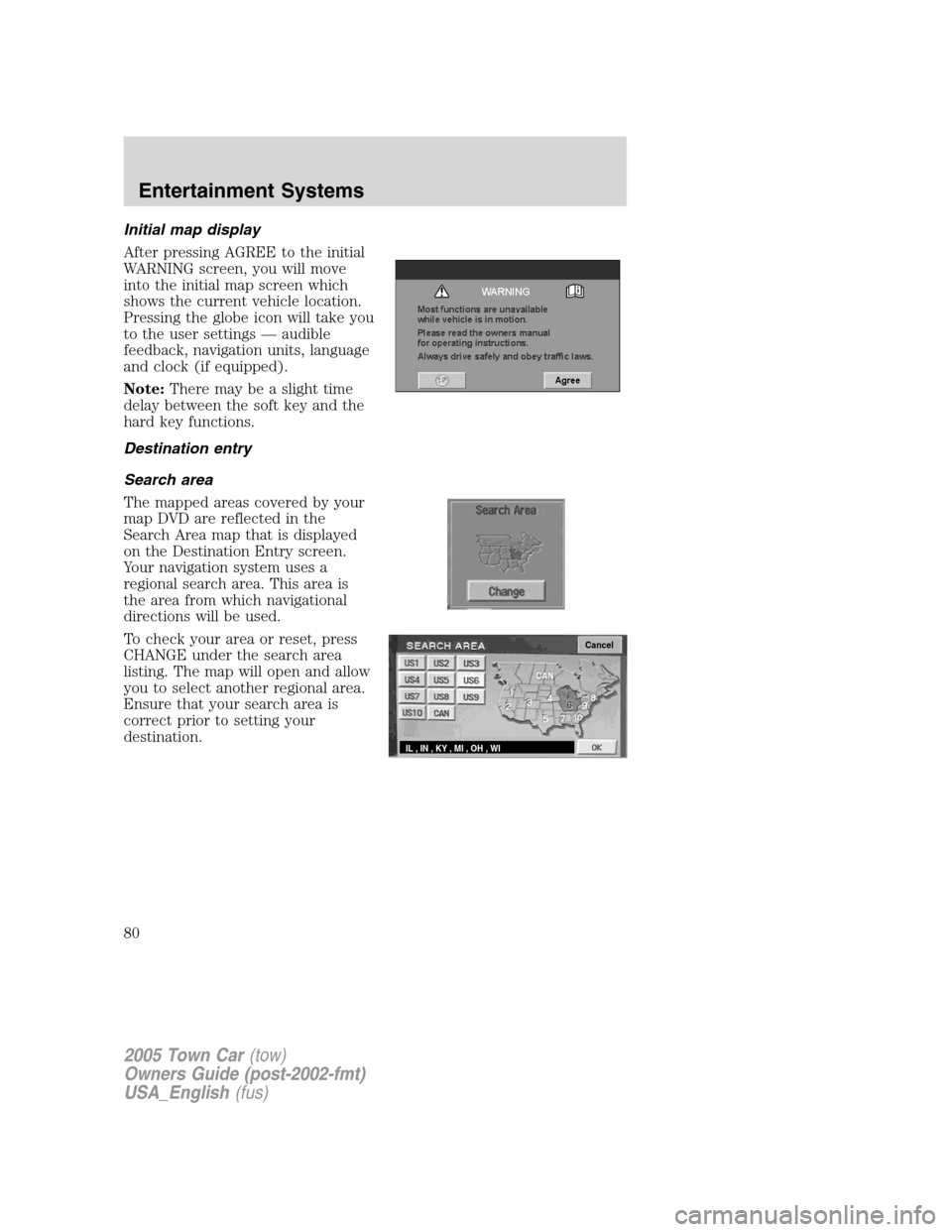
After pressing AGREE to the initial
WARNING screen, you will move
into the initial map screen which
shows the current vehicle location.
Pressing the globe icon will take you
to the user settings — audible
feedback, navigation units, language
and clock (if equipped).
Note:There may be a slight time
delay between the soft key and the
hard key functions.
Destination entry
Search area
The mapped areas covered by your
map DVD are reflected in the
Search Area map that is displayed
on the Destination Entry screen.
Your navigation system uses a
regional search area. This area is
the area from which navigational
directions will be used.
To check your area or reset, press
CHANGE under the search area
listing. The map will open and allow
you to select another regional area.
Ensure that your search area is
correct prior to setting your
destination.
Cancel
IL , IN , KY , MI , OH , WI
2005 Town Car(tow)
Owners Guide (post-2002-fmt)
USA_English(fus)
Entertainment Systems
80
Page 84 of 328
Deleting stored locations
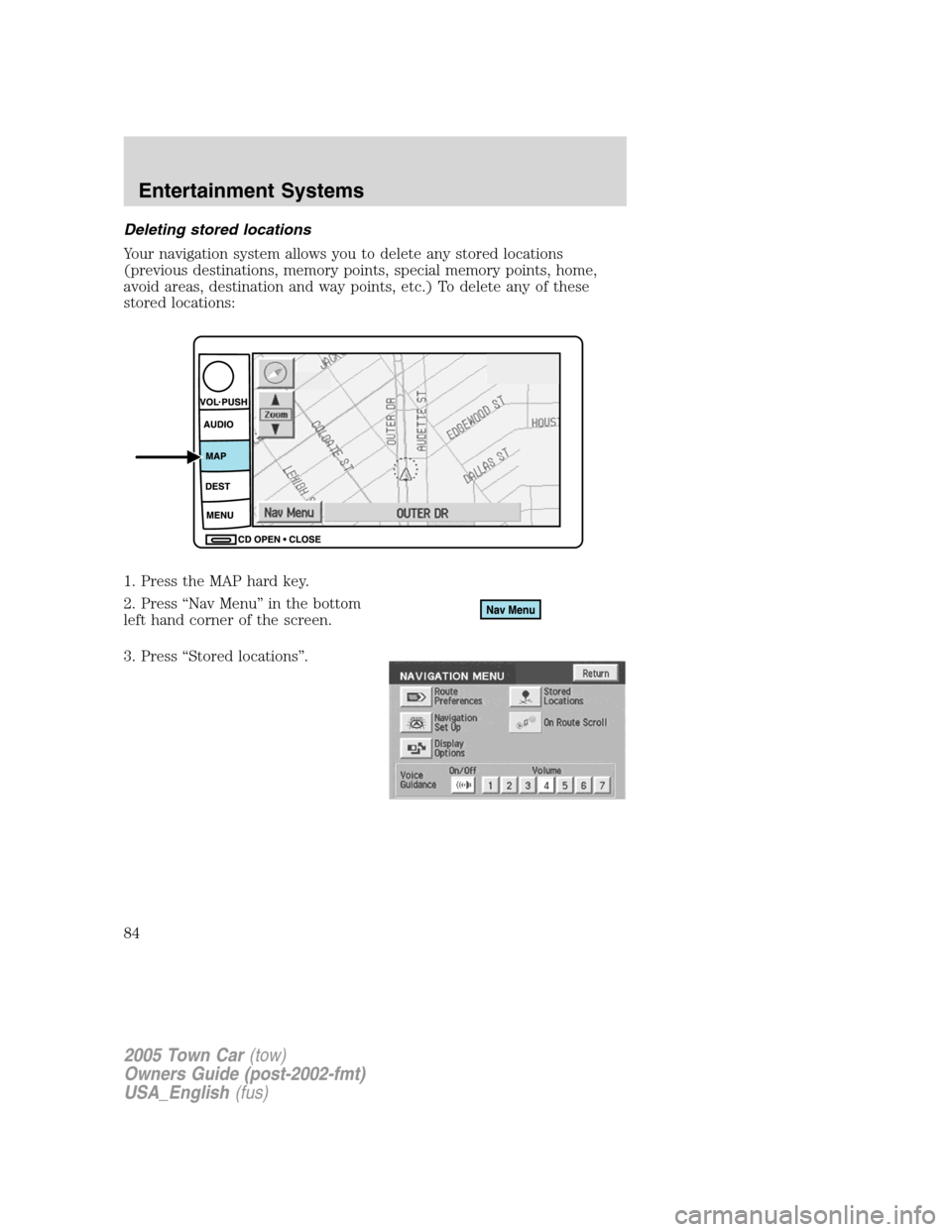
Your navigation system allows you to delete any stored locations
(previous destinations, memory points, special memory points, home,
avoid areas, destination and way points, etc.) To delete any of these
stored locations:
1. Press the MAP hard key.
2. Press “Nav Menu” in the bottom
left hand corner of the screen.
3. Press “Stored locations”.
2005 Town Car(tow)
Owners Guide (post-2002-fmt)
USA_English(fus)
Entertainment Systems
84
Page 85 of 328
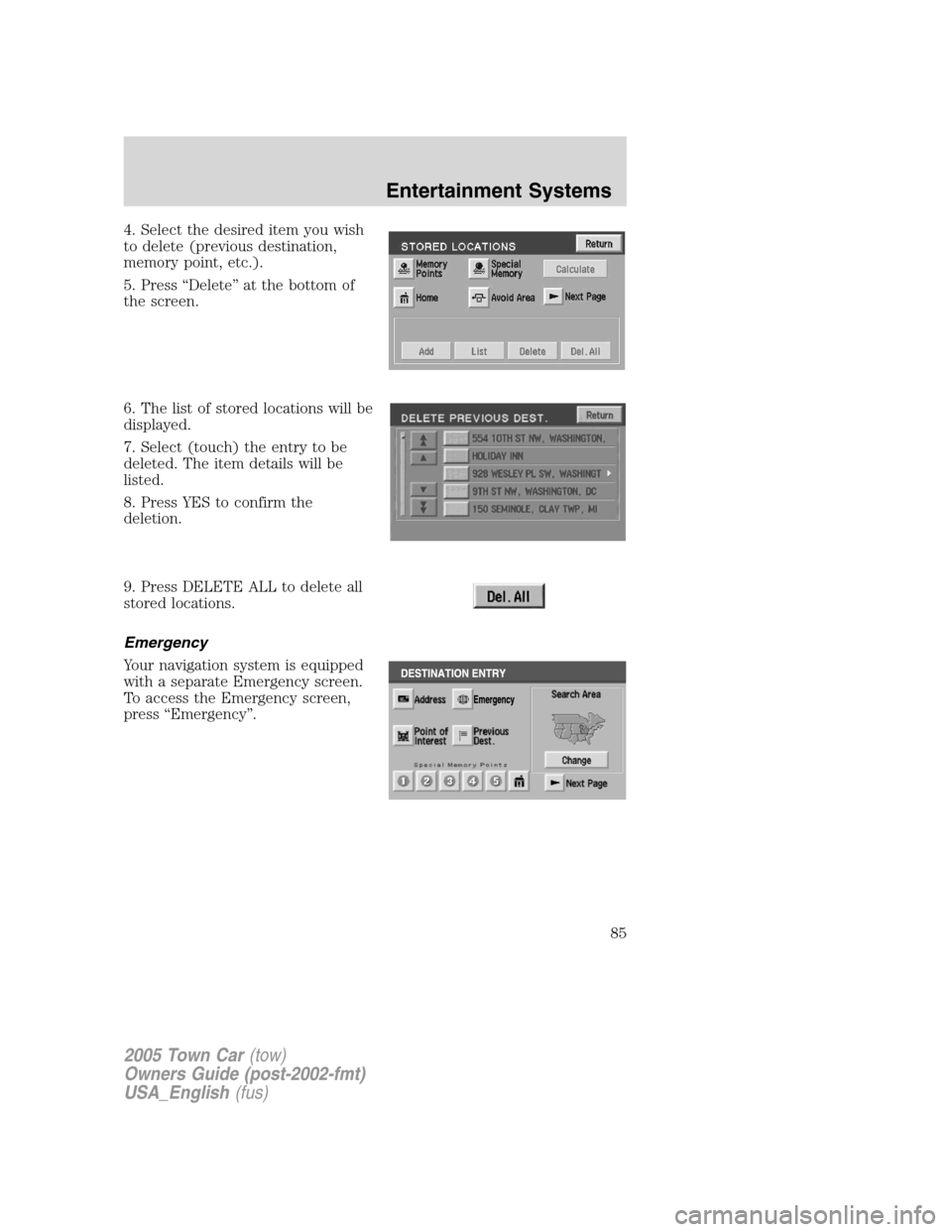
4. Select the desired item you wish
to delete (previous destination,
memory point, etc.).
5. Press “Delete” at the bottom of
the screen.
6. The list of stored locations will be
displayed.
7. Select (touch) the entry to be
deleted. The item details will be
listed.
8. Press YES to confirm the
deletion.
9. Press DELETE ALL to delete all
stored locations.
Emergency
Your navigation system is equipped
with a separate Emergency screen.
To access the Emergency screen,
press “Emergency”.
2005 Town Car(tow)
Owners Guide (post-2002-fmt)
USA_English(fus)
Entertainment Systems
85
Page 86 of 328
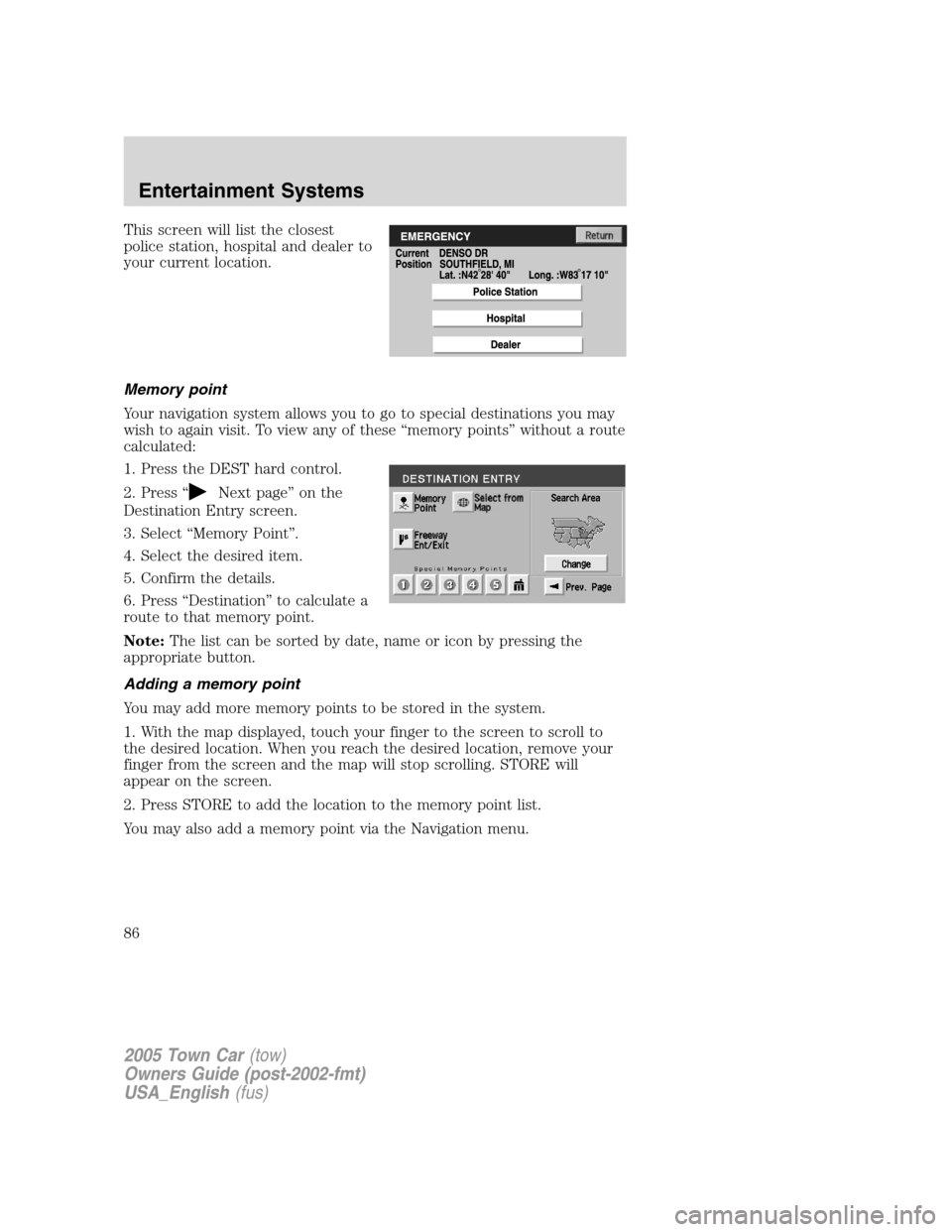
This screen will list the closest
police station, hospital and dealer to
your current location.
Memory point
Your navigation system allows you to go to special destinations you may
wish to again visit. To view any of these “memory points” without a route
calculated:
1. Press the DEST hard control.
2. Press “
Next page” on the
Destination Entry screen.
3. Select “Memory Point”.
4. Select the desired item.
5. Confirm the details.
6. Press “Destination” to calculate a
route to that memory point.
Note:The list can be sorted by date, name or icon by pressing the
appropriate button.
Adding a memory point
You may add more memory points to be stored in the system.
1. With the map displayed, touch your finger to the screen to scroll to
the desired location. When you reach the desired location, remove your
finger from the screen and the map will stop scrolling. STORE will
appear on the screen.
2. Press STORE to add the location to the memory point list.
You may also add a memory point via the Navigation menu.
2005 Town Car(tow)
Owners Guide (post-2002-fmt)
USA_English(fus)
Entertainment Systems
86
Page 94 of 328
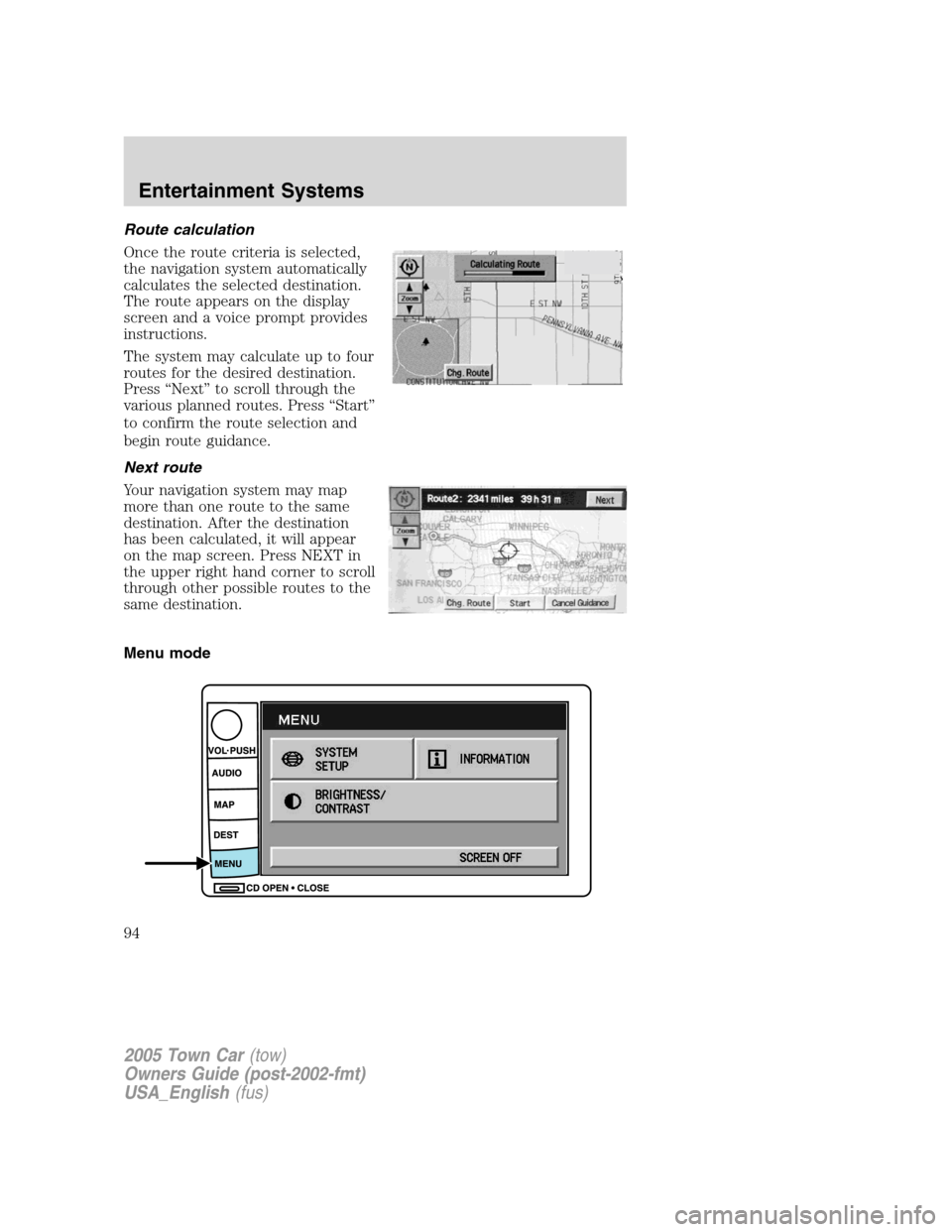
Route calculation
Once the route criteria is selected,
the navigation system automatically
calculates the selected destination.
The route appears on the display
screen and a voice prompt provides
instructions.
The system may calculate up to four
routes for the desired destination.
Press “Next” to scroll through the
various planned routes. Press “Start”
to confirm the route selection and
begin route guidance.
Next route
Your navigation system may map
more than one route to the same
destination. After the destination
has been calculated, it will appear
on the map screen. Press NEXT in
the upper right hand corner to scroll
through other possible routes to the
same destination.
Menu mode
2005 Town Car(tow)
Owners Guide (post-2002-fmt)
USA_English(fus)
Entertainment Systems
94
Page 95 of 328
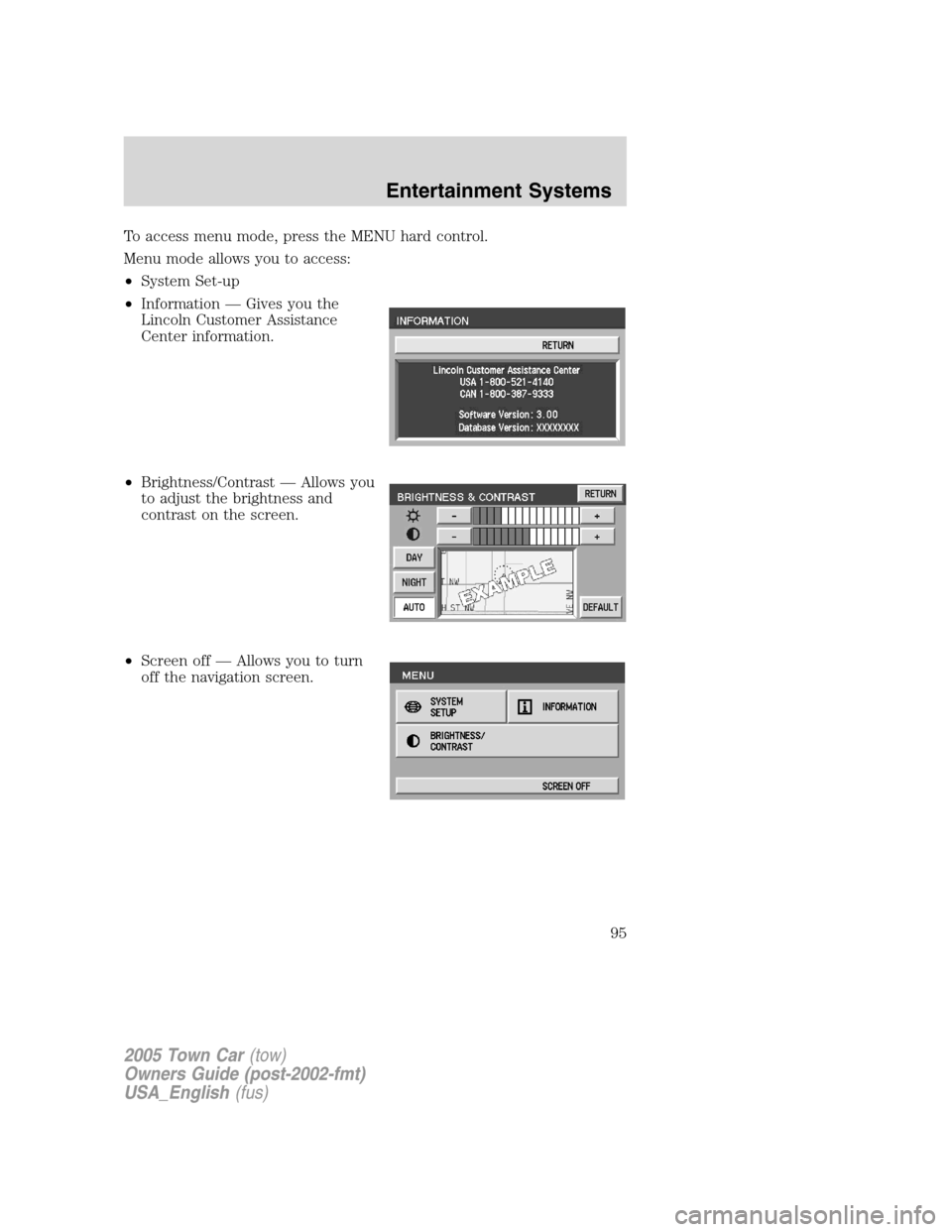
To access menu mode, press the MENU hard control.
Menu mode allows you to access:
•System Set-up
•Information — Gives you the
Lincoln Customer Assistance
Center information.
•Brightness/Contrast — Allows you
to adjust the brightness and
contrast on the screen.
•Screen off — Allows you to turn
off the navigation screen.
2005 Town Car(tow)
Owners Guide (post-2002-fmt)
USA_English(fus)
Entertainment Systems
95
Page 96 of 328
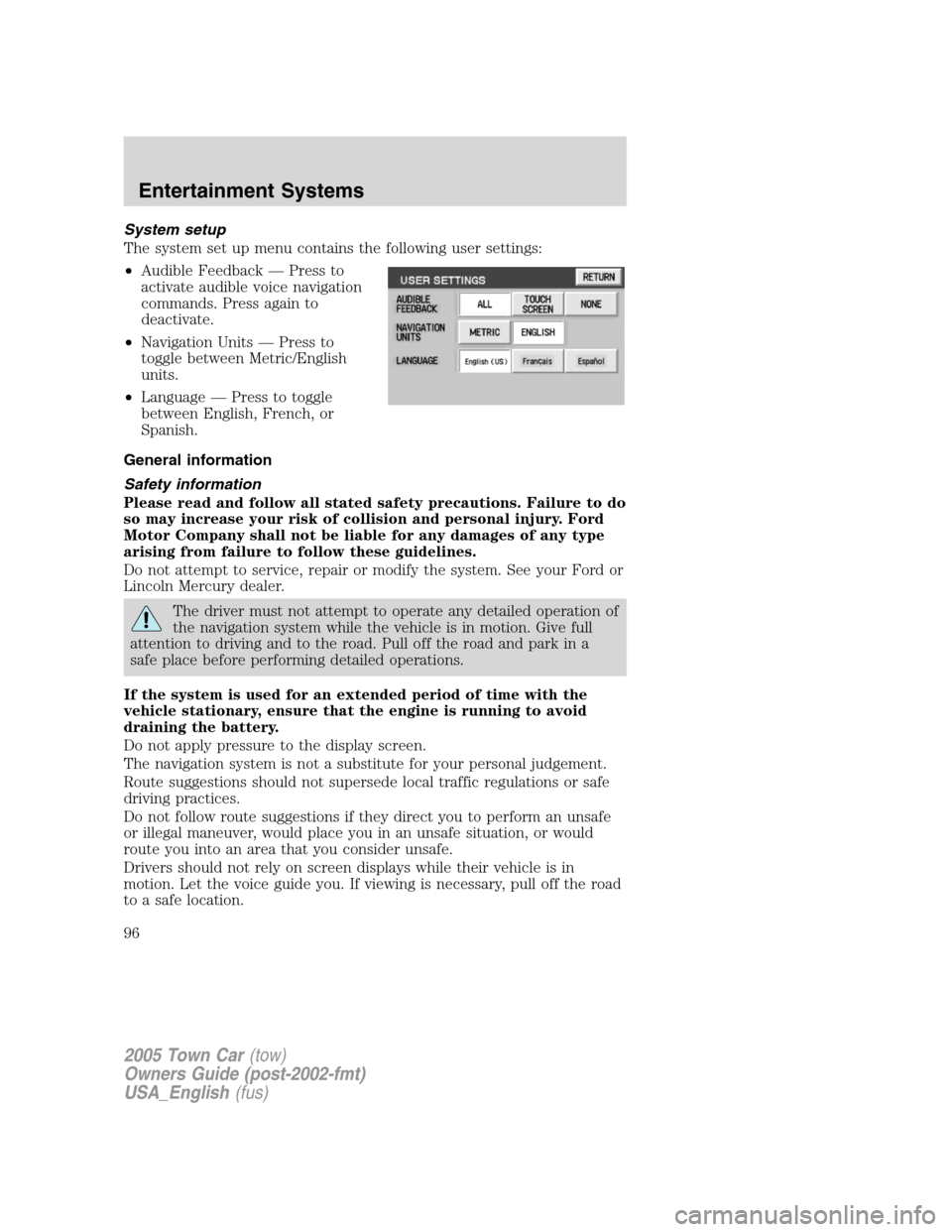
System setup
The system set up menu contains the following user settings:
•Audible Feedback — Press to
activate audible voice navigation
commands. Press again to
deactivate.
•Navigation Units — Press to
toggle between Metric/English
units.
•Language — Press to toggle
between English, French, or
Spanish.
General information
Safety information
Please read and follow all stated safety precautions. Failure to do
so may increase your risk of collision and personal injury. Ford
Motor Company shall not be liable for any damages of any type
arising from failure to follow these guidelines.
Do not attempt to service, repair or modify the system. See your Ford or
Lincoln Mercury dealer.
The driver must not attempt to operate any detailed operation of
the navigation system while the vehicle is in motion. Give full
attention to driving and to the road. Pull off the road and park in a
safe place before performing detailed operations.
If the system is used for an extended period of time with the
vehicle stationary, ensure that the engine is running to avoid
draining the battery.
Do not apply pressure to the display screen.
The navigation system is not a substitute for your personal judgement.
Route suggestions should not supersede local traffic regulations or safe
driving practices.
Do not follow route suggestions if they direct you to perform an unsafe
or illegal maneuver, would place you in an unsafe situation, or would
route you into an area that you consider unsafe.
Drivers should not rely on screen displays while their vehicle is in
motion. Let the voice guide you. If viewing is necessary, pull off the road
to a safe location.
2005 Town Car(tow)
Owners Guide (post-2002-fmt)
USA_English(fus)
Entertainment Systems
96
Page 97 of 328
Do not use the navigation system to locate emergency services.
For road safety reasons, the driver should program the system only when
the vehicle is stationary. Certain functions will therefore not operate
while the vehicle is in motion.
The map database DVD does not reflect road detours, closures or
construction, road characteristics such as rough road surface, slope or
grade, weight or height restrictions, traffic congestion, weather or similar
conditions.
To use the system as effectively and safely as possible, obtain an
up-to-date map database DVD whenever they become available.
Set the volume level so that you can hear directions clearly.
Do not disassemble or modify the system as this may lead to damage and
void your warranty. If a problem occurs, stop using the system
immediately and contact your Ford or Lincoln Dealer.
Federal Communication Commission (FCC) Compliance
Changes or modifications not approved by Ford Lincoln Mercury could
void user’s authority to operate the equipment. This equipment has been
tested and found to comply with the limits for a Class B digital device,
pursuant to Part 15 of the FCC Rules. These limits are designed to
provide reasonable protection against harmful interference in a
residential installation. This equipment generates, uses and can radiate
radio frequency energy and, if not installed and used in accordance with
the instructions, may cause harmful interference to radio
communications.
However, there is no guarantee that interference will not occur in a
particular installation. If this equipment does cause harmful interference
to radio or television reception, which can be determined by turning the
equipment off and on, the user is encouraged to consult the dealer or an
experienced radio/TV technician for help.
The database reflects reality as existing before you received the
database and it comprises data and information from government
and other sources, which may contain errors and omissions.
Accordingly, the database may contain inaccurate or incomplete
information due to the passage of time, changing circumstances,
and due to the nature of the sources used. The database does not
include or reflect information on neighborhood safety, law
enforcement, emergency assistance, construction work, road or
lane closures, vehicle or speed restrictions, road slope or grade,
bridge height, weight or other limits, road or traffic conditions,
special events, traffic congestion, or travel time.
2005 Town Car(tow)
Owners Guide (post-2002-fmt)
USA_English(fus)
Entertainment Systems
97