brake LUCID AIR 2022 User Guide
[x] Cancel search | Manufacturer: LUCID, Model Year: 2022, Model line: AIR, Model: LUCID AIR 2022Pages: 241, PDF Size: 5.15 MB
Page 91 of 241
Brakes
Braking SystemsWARNING: It is critical to occupant
safety that your braking systems are
always functioning properly. If you
experience any braking issues or
receive any fault messages regarding
the braking system, contact a Lucid
Service Center immediately.WARNING: Driving through heavy rain
or water can have a temporary adverse
effect on braking efficiency.CAUTION: Do not rest your foot on
the brake pedal while the vehicle is
in motion unless you are applying the
brakes. Resting your foot on the brake
pedal can cause premature brake
wear.
The foot pedal hydraulically-operated brakes
are electrically boosted, but only when the
vehicle is On. If the vehicle loses power when
driving, you will need to apply more force on
the brake pedal and you will experience longer
stopping distances.
If the brake fluid level in the
reservoir is low, a red brake indicator
and a notification message will be
displayed on the Cockpit Panel.
See Checking Brake Fluid on page 157.
If the yellow brake indicator displays on the Cockpit Panel, a brake
system fault has been detected.
Contact a Lucid Service Center as
soon as possible.
Note: It
Page 92 of 241
ABS warning indicatorThe ABS indicator displays on
the Cockpit Panel, along with a
notification message. If illuminated,
the ABS is disabled. Contact a Lucid
Service Center as soon as possible to have
the fault repaired.CAUTION: Even when ABS is disabled,
the pedal-operated braking system
remains operational. Be aware that
braking distances may increase and
wheels may lock under heavy braking.
Regenerative Braking
WARNING: If driving the vehicle in
reduced traction conditions (that is,
icy or snowy conditions), the use
of High regenerative braking level
may cause traction control to operate
more frequently. Lucid recommends
switching to Standard level when
driving in such conditions.
Whenever the vehicle is moving and your foot
is off the accelerator, regenerative braking
slows the vehicle and feeds energy back to
the high-voltage battery.
While you should still use the brake
pedal whenever needed to stop safely, you
can take advantage of regenerative braking
by anticipating your stops and reducing
accelerator pedal position.
Note: If regenerative braking is aggressively
slowing your vehicle (such as when your foot
is completely off the accelerator pedal at highway speeds), the brake lights turn on to
alert others that you are slowing down.
During regenerative braking, the charge/power
meter that arcs over the speedometer shows the current amount of energy being generated
and fed back to the high-voltage battery.
The amount of generated energy being fed
back to the high-voltage battery can vary
depending on the current state of the battery
and the regenerative braking setting being used. For example, regenerative braking maybe limited if the battery is extremely hot or
cold or if the battery is already charged to its
maximum allowable level.
Regenerative braking settings
On the Pilot Panel, press
> Vehicle
> Drive Settings, then press to select between
two levels of Regenerative Braking:
-Standard - Provides the standard
amount of regenerative braking.
When you release the accelerator, the
vehicle takes longer to slow down and
coasts further than if set to High.
- High - Provides the maximum amount of
regenerative braking.
When you release the accelerator, the
vehicle slows down faster, reducing the
need to use the brakes.
Note: Should regenerative braking levels be
limited, you
Page 93 of 241
Vehicle Hold
Vehicle Hold controls brake settings, and cankeep your vehicle stopped even when your
foot is not on the brake pedal.
When set to HOLD, the vehicle remains
stationary after a stop. The brakes hold until
the driver presses the accelerator pedal again.
If set to ROLL, the car rolls freely after releasing the accelerator.
To configure, use the Pilot Panel and touch
> Vehicle > Drive Settings, then
select the desired mode.
Note: The default setting is HOLD, and can
only be changed when the vehicle is in
P (Park). The setting saves to your User
Profile.
Note: Vehicle Hold disengages if the driver
shifts into N (Neutral) or presses and releases
the brake pedal.
Note: Vehicle Hold will disengage and shift
into P (Park) in any of the following instances:
-Hold has been braking for approximately
10 minutes.
- The system detects that the driver has
exited the vehicle.
Parking Brake
CAUTION: In the unlikely event that
your vehicle loses electrical power,
you will not be able to select another
gear and therefore will be unable to
release the parking brake. Contact a
Lucid Service Center for assistance.
The parking brake operates on the rear wheels
only, and is independently controlled of the
pedal-operated brake system.
The parking brake automatically applies when
P (Park) is selected, and releases when any other gear is selected. It is also engaged by
certain systems when a time limit is reached. See Vehicle Hold on page 80.
The red parking brake indicator
is displayed on the Cockpit Panel
when the parking brake is engaged.
A flashing indicator signals either
operating wiht a fault, or a parking brake
stuck in operation.
If the indicator is amber, a fault
has been detected and the parking
brake may not be applied when the
vehicle is in P (Park). This will be
accompanied by a notification on the Cockpit
Panel. Contact a Lucid Service Center to have
the fault repaired.
Emergency useCAUTION: Driving the vehicle with the
parking brake applied, or repeated
use of the parking brake to slow the
vehicle, may cause serious damage to
the brake system.
In an emergency, pressing and holding the P
(Park) button decelerates the vehicle to a low
speed using the service brakes, then applies
the parking brake.
Parking on a slope
WARNING: In snowy or icy conditions,
the rear wheels may not have
sufficient traction to prevent the
vehicle from sliding when parked on
a slope. You are always responsible for parking safely.WARNING: If parking on too steep a
grade for the parking brake to securely
hold the vehicle, the vehicle will give
audible and visual warnings. Drive to a
less steep area and re-park.
As an added precaution:
-If your vehicle is parked on a hill and
facing uphill, turn the steering wheel so
the front wheels are pointing away from
the curb.
- If your vehicle is parked on a hill and
facing downhill, turn the steering wheel
Driving & Operating80
Page 94 of 241

so the front wheels are pointing towards
the curb.
Brake Pad WearWARNING: Neglecting to replace worn
brake pads can damage the brake
rotors, reduce the vehicle
Page 95 of 241

Lucid Stability Control
Lucid Stability ControlWARNING: No electronic system can
remove the need for safe driving
practices. Although the Lucid Stability
Control system can help to maintain
control of the vehicle under certain
driving conditions, it cannot prevent
any accident which may occur due
to unforeseen road conditions (e.g.
black ice, standing water, etc.) or
result from careless/dangerous driving
techniques.
The Lucid Stability Control system uses
multiple sensors to monitor driver inputs
and vehicle motion. Under certain driving
conditions, the system helps to perform the following functions:
-Controls brake pressure to reduce wheel
slip on one slipping drive wheel so
power is transferred to a drive wheel on the same axle that is not slipping.
- Controls brake pressure and traction
motor output to reduce drive wheel slip.
Controls brake pressure at individual
wheels and traction motor output to
help the driver maintain control of the
vehicle in the following conditions:
Page 111 of 241

ahead. The default distance maintained is
the furthest allowed. See Adjusting following
distance
Adaptive Cruise Control is primarily intended
for driving on dry, straight roads with no
stops or sharp curves, such as highways and
freeways.
If the adaptive Cruise Control cannot brake the vehicle safely, it will issue a takeover
request.
Note: If your vehicle stops behind another
vehicle and remains stationary for more than
10 minutes while Adaptive Cruise Control is
active, the system will disengage and apply the Emergency Parking Brake (EPB).
Setting and changing cruising speed To activate Adaptive Cruise Control, press the
DreamDrive button on the steering wheel.
See Steering Wheel DreamDrive Controls .
Note: The DreamDrive mode defaults to
Highway Assist for first-time users. When a
User Profile is active, the system will go to
the last used DreamDrive mode (Adaptive
Cruise Control or Highway Assist). If Highway
Assist is activated, press and hold the
. DreamDrive button to switch to Adaptive
Cruise Control.
To set the cruising speed: -Push the left toggle up or down to adjust
speed by
Page 114 of 241
Cruise Control and Highway Assist will be
unavailable until the next drive cycle.
Once an in-lane stop has completed: -The vehicle automatically shifts into P
(Park).
- Highway Assist is canceled.
- DreamDrive will be unavailable until the
next drive cycle.
- All doors unlock.
- An audible alert sounds.
Note: Warnings will be dismissed if the vehicle
is shifted out of P (Park). See Using the Drive
Selector on page 69.
Steering override
While Highway Assist is active, you can
temporarily override it by using the steering wheel. When you turn the steering wheel, the
Highway Assist indicator will gray out on the
Cockpit Panel.
Once the steering wheel returns to its neutral
position, the vehicle is centered in the lane,
and the system detects lanes again, Highway Assist should automatically resume and the
Cockpit Panel will return to displaying the
active Highway Assist mode.
Manually canceling Highway Assist To cancel Highway Assist, press the
Cancel button on the steering wheel.
The system can also be canceled by pressing
the brake pedal if it is safe to do so in the current traffic conditions.
Traffic Sign Recognition
WARNING: Traffic Sign Recognition
is an assist feature only. The driver
is responsible for paying attention
to the road signs and determining
the appropriate speed limit, road
conditions, and driving speed.WARNING: Traffic Sign Recognition is
not available in all countries.WARNING: Map data is not always
accurate. The GPS can miscalculatethe vehicle location, which may
provide an incorrect traffic sign.WARNING: If a road or a traffic
sign has recently been changed, the
Traffic Sign Recognition system may
not be fully functional or may provide
inaccurate information.WARNING: In situations where the
Traffic Sign Recognition system is
unable to determine a traffic sign, or if
it is uncertain that an acquired speed
limit is accurate, the system may not
display the information and warnings
may not take effect.
The Traffic Sign Recognition system uses the
front cameras and navigation system data to
recognize traffic signs on the road, providing
you with driving information such as speed limits and other regulations.
When a traffic sign is detected, it displays on
the Cockpit Panel next to the speedometer.
Speed Limit Alerts
When Speed Limit Alert is enabled (see Speed
Limit Alert Settings ), if the current vehicle
speed exceeds the detected speed limit, the display color of the speed limit sign willchange color and may increase in size. Thedisplay will return to the normal color and
size when the vehicle is slowed to within the
speed limit.
Wrong-way warnings
If a Wrong Way road sign is detected and the
vehicle passes the sign, the system will alert you with an audible alert and a notification on
the Cockpit Panel.
Speed Limit Alert settings To configure Speed Limit Alert settings,
use the Pilot Panel and touch
>
DreamDrive.
- Touch to enable or disable Speed Limit
Alert. Additional options to receive
VISUAL or VISUAL AND AUDIO alerts are available when this feature is
enabled.
- Touch to enable or disable Cruise Speed
Update. When enabled, this feature
DreamDrive101
Page 118 of 241

Collision Detection and Protection
Collision Protection
Collision Protection includes Automatic
Emergency Braking, Forward Collision
Warning, and Rear Pedestrian Collision
Protection. See Forward Collision Warning
on page 106 and Rear Pedestrian Collision
Protection on page 107.
Collision Protection is always enabled when
you start the vehicle.
Collision Protection settings
WARNING: Lucid strongly
recommends that you leave this
feature enabled to provide potential
supplemental assistance and to help
avoid serious injury.
To configure Collision Protection, from the
Pilot Panel touch
> DreamDrive, then
enable or disable Collision Protection.
-When enabled, you can press to select
the level of sensitivity for Forward
Collision Warnings: EARLY, NORMAL
(default), or LATE.
Note: Sensitivity levels do not affect the
actual braking distance.
Note: The selected sensitivity level will
be saved to the current User Profile.
- If you select to disable Collision
Protection, you will be prompted to
confirm your selection.
When Collision Protection is
disabled, an indicator displays on
the Cockpit Panel.
Automatic Emergency Braking
WARNING: Automatic Emergency
Braking is not designed to prevent
a collision, but to minimize the
impact of a frontal collision by
attempting to reduce your driving
speed. Depending solely on Automatic
Emergency Braking to avoid a collision
can result in serious injury or death.WARNING: Automatic Emergency
Braking only applies the brakes. It
does not steer the vehicle out of the
path of the hazard.WARNING: There are factors that can
affect the performance of Automatic
Emergency Braking, causing either no
braking or inappropriate or untimely
braking. It is your responsibility to
drive safely and remain in control of
the vehicle at all times. Never depend
on Automatic Emergency Braking to
avoid or reduce the impact of a
collision.WARNING: The brake pedal moves
downward abruptly during Automatic
Emergency Braking events. Always
ensure that the brake pedal can move
freely. Do not place material (including
additional mats) under or on top of the
vehicle-supplied floor mat and always
ensure that the driver
Page 119 of 241
-Steering wheel is turned abruptly.
- Brake pedal is pressed and released
while Automatic Emergency Braking is
applying the brakes.
- Accelerator is pressed abruptly while
Automatic Emergency Braking is
applying the brakes.
- Hazard (vehicle, motorcycle, bicycle or
pedestrian) is no longer detected in the
vehicle path.
Note: Automatic Emergency Braking can
be adversely affected by the limitations of
Advanced Driver Assistance components. See
ADAS Limitations . Use appropriate caution
when driving.
If Automatic Emergency Braking is
unavailable, a warning message and
indicator display on the Cockpit
Panel. If either of these items
appear, contact a Lucid Service Center.
Speed limitationsWARNING: The Automatic Emergency
Braking system automatically disables
when you manually disable Lucid
Stability Control.
The Automatic Emergency Braking system,
including Forward Collision Warning, is
active at speeds above approximately 4
mph (7 km/h) and up to 112 mph (180
km/h). Pedestrian detection and reaction to
stationary vehicles is active at speeds up to
53 mph (85 km/h).
Automatic Emergency Braking settings
See Collision Protection on page 105.
Forward Collision Warning
WARNING: Forward Collision Warning
is an assist feature only, and is
not a substitute for attentive driving
and sound judgment. The driver is
responsible for paying attention to the
road, maintaining a suitable distance
from the vehicle ahead, and braking or
steering the vehicle when necessary.WARNING: There are factors that can
reduce or impair the performance ofthe Forward Collision Warning system,
causing either unnecessary, invalid,
inaccurate, or missed warnings. Do
not rely solely on Forward Collision
Warning to warn you of a potential
collision.WARNING: Forward Collision Warning
only monitors what is in front of the
vehicle. Be aware of your surroundings
at all times while operating the
vehicle.WARNING: Forward Collision Warning
does not provide alerts when the
driver is already applying the brake.
The Forward Collision Warning system uses
the front camera mounted behind the
windshield and the radar sensor mounted behind the front bumper to detect the
presence of an object (such as a vehicle,
bicycle, or pedestrian).
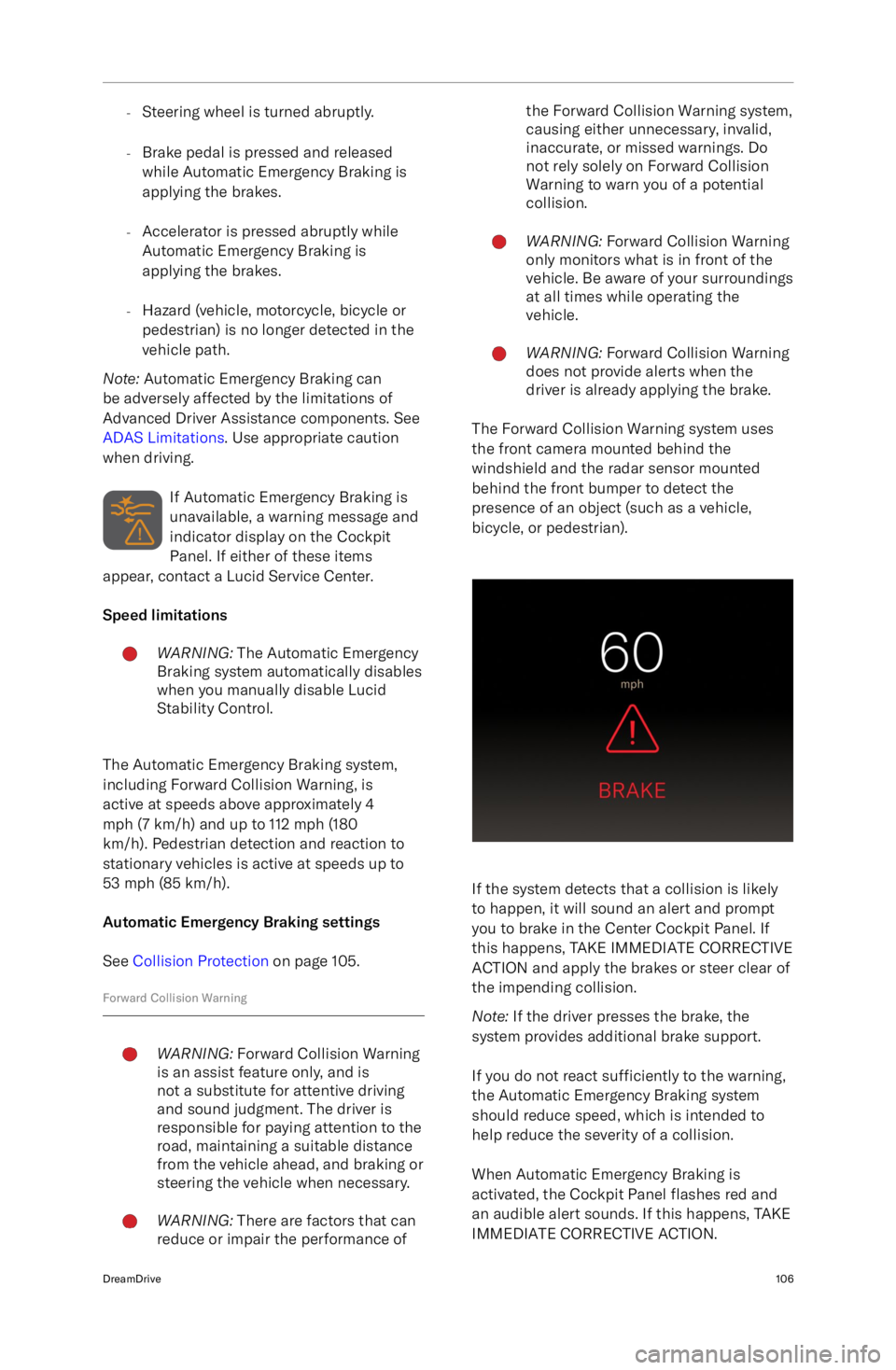
If the system detects that a collision is likely
to happen, it will sound an alert and prompt
you to brake in the Center Cockpit Panel. If
this happens, TAKE IMMEDIATE CORRECTIVE
ACTION and apply the brakes or steer clear of
the impending collision.
Note: If the driver presses the brake, the
system provides additional brake support.
If you do not react sufficiently to the warning,
the Automatic Emergency Braking system
should reduce speed, which is intended to help reduce the severity of a collision.
When Automatic Emergency Braking is
activated, the Cockpit Panel flashes red and
an audible alert sounds. If this happens, TAKE
IMMEDIATE CORRECTIVE ACTION.
DreamDrive106
Page 120 of 241
Forward Collision Warning settingsSee Collision Protection on page 105.
Rear Pedestrian Collision ProtectionWARNING: Rear Pedestrian Collision
Protection is an assist feature only,
and is not a substitute for attentive
driving and sound judgment. The
driver is responsible for paying
attention while reversing, monitoring
the surroundings, and braking or
steering the vehicle when necessary.WARNING: There are factors
that can reduce or impair the
performance of the Rear Pedestrian
Collision Protection system, such
as low ambient light conditions,
causing either unnecessary, invalid,
inaccurate, or missed warnings. Do
not rely solely on Rear Pedestrian
Collision Protection to warn you of a
potential collision.WARNING: Rear Pedestrian Collision
Protection only monitors for
pedestrians behind the vehicle. It
does not detect objects, and does
not detect pedestrians outside of the
range of the rear camera. Be aware of
your surroundings at all times while
operating the vehicle.WARNING: Rear Pedestrian Collision
Protection does not provide alerts
when the driver is already applying the
brake.
When the gear is in N (Neutral) or R (Reverse)
and backward vehicle motion is detected,
Rear Pedestrian Collision Protection uses the
rear camera to monitor for pedestrians behind
the vehicle. If a collision is imminent, the
system issues a warning and applies the
brakes. Rear Pedestrian Collision Protection is
active at speeds below 11 mph (18 km/h).
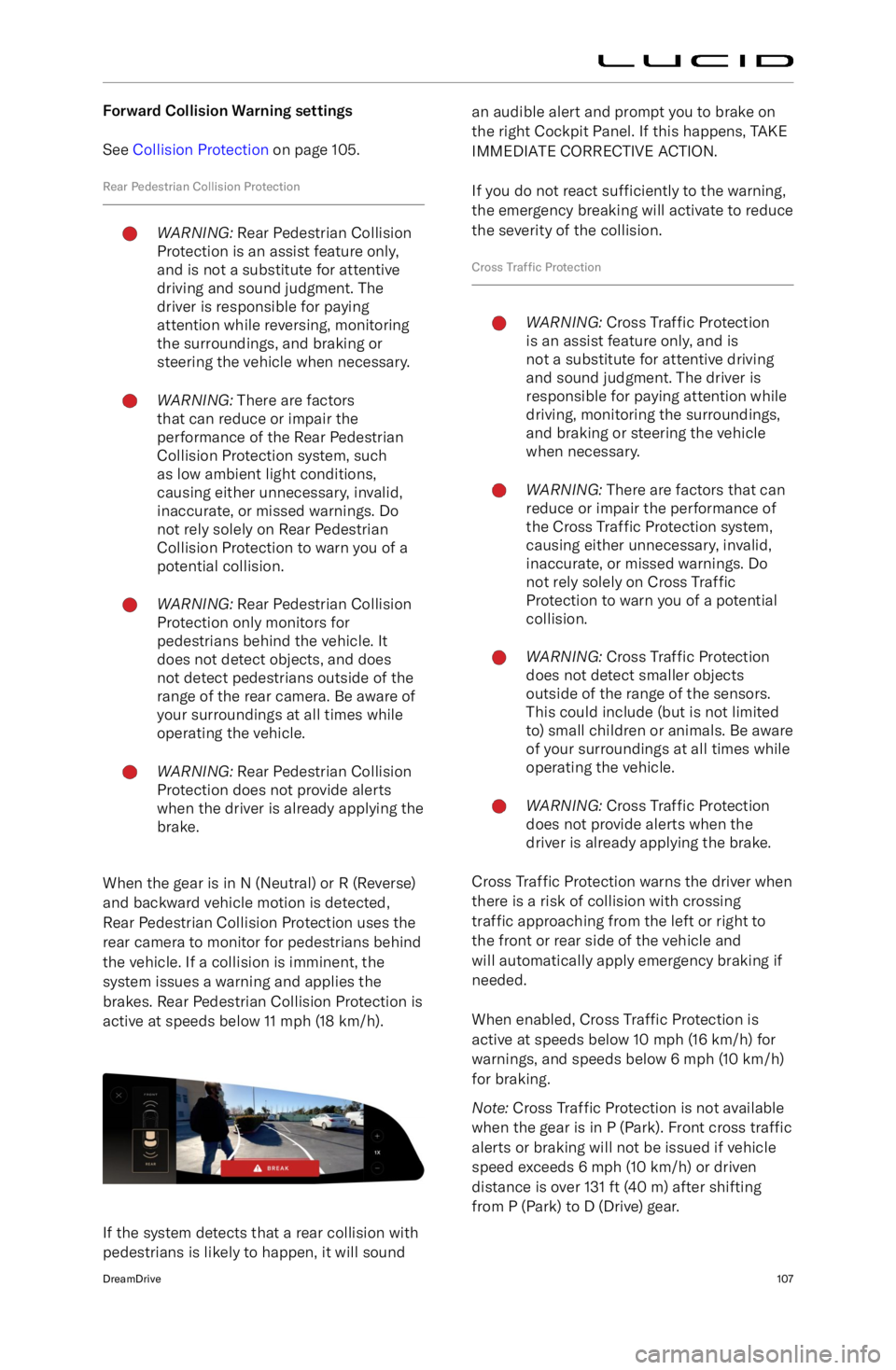
If the system detects that a rear collision with
pedestrians is likely to happen, it will sound
an audible alert and prompt you to brake on
the right Cockpit Panel. If this happens, TAKE
IMMEDIATE CORRECTIVE ACTION.
If you do not react sufficiently to the warning,
the emergency breaking will activate to reduce
the severity of the collision.
Cross Traffic ProtectionWARNING: Cross Traffic Protection
is an assist feature only, and is
not a substitute for attentive driving
and sound judgment. The driver is
responsible for paying attention while
driving, monitoring the surroundings,
and braking or steering the vehicle
when necessary.WARNING: There are factors that can
reduce or impair the performance of
the Cross Traffic Protection system,
causing either unnecessary, invalid,
inaccurate, or missed warnings. Do
not rely solely on Cross Traffic
Protection to warn you of a potential
collision.WARNING: Cross Traffic Protection
does not detect smaller objects
outside of the range of the sensors.
This could include (but is not limited
to) small children or animals. Be aware of your surroundings at all times while
operating the vehicle.WARNING: Cross Traffic Protection
does not provide alerts when the
driver is already applying the brake.
Cross Traffic Protection warns the driver when
there is a risk of collision with crossing
traffic approaching from the left or right to
the front or rear side of the vehicle and
will automatically apply emergency braking if
needed.
When enabled, Cross Traffic Protection is
active at speeds below 10 mph (16 km/h) for warnings, and speeds below 6 mph (10 km/h)for braking.
Note: Cross Traffic Protection is not available
when the gear is in P (Park). Front cross traffic
alerts or braking will not be issued if vehicle
speed exceeds 6 mph (10 km/h) or driven
distance is over 131 ft (40 m) after shifting from P (Park) to D (Drive) gear.
DreamDrive107