set LUCID AIR 2022 Owners Manual
[x] Cancel search | Manufacturer: LUCID, Model Year: 2022, Model line: AIR, Model: LUCID AIR 2022Pages: 241, PDF Size: 5.15 MB
Page 8 of 241
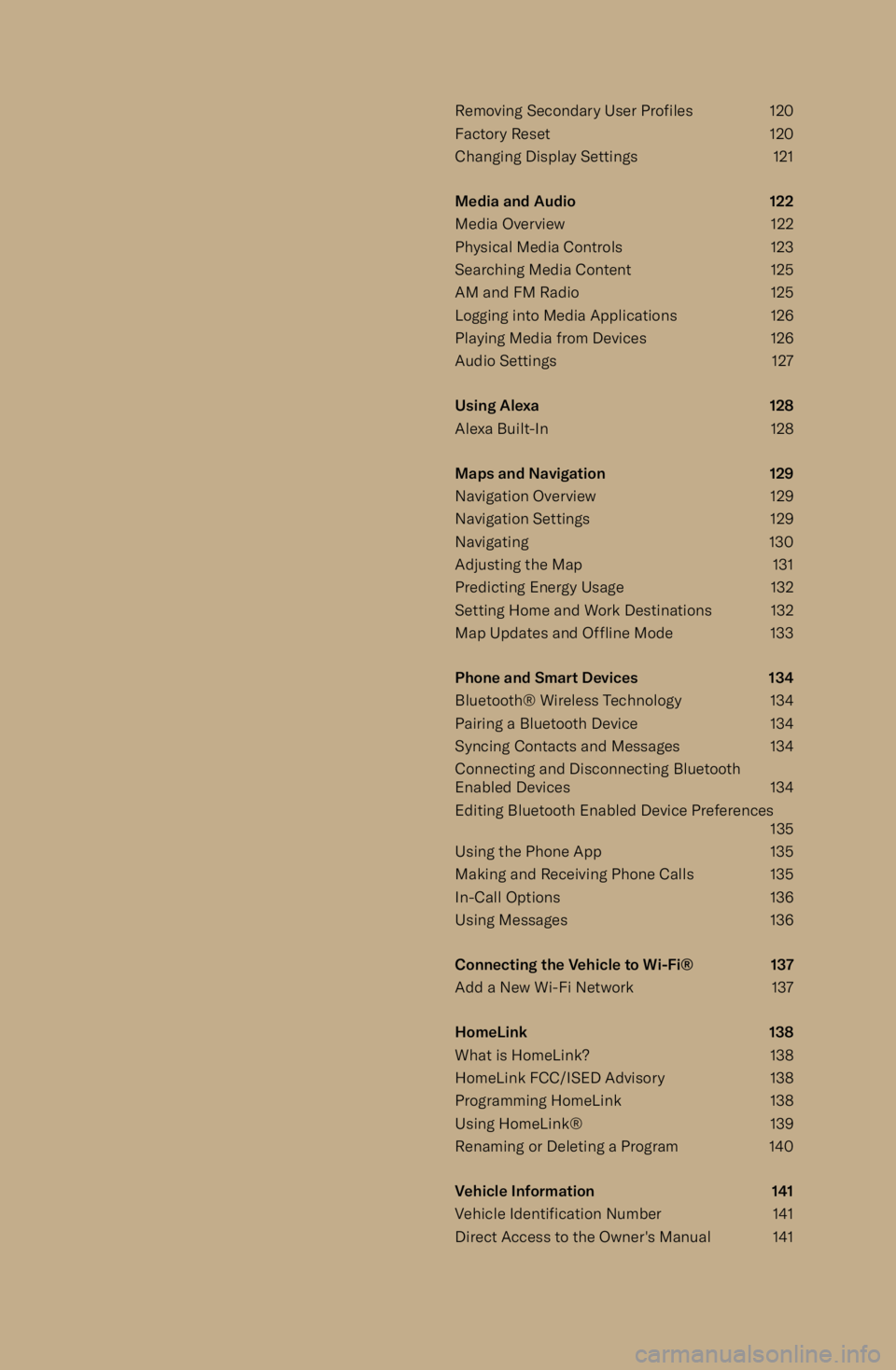
Removing Secondary User Profiles120
Factory Reset 120
Changing Display Settings 121
Media and Audio 122
Media Overview 122 Physical Media Controls 123
Searching Media Content 125
AM and FM Radio 125
Logging into Media Applications 126
Playing Media from Devices 126
Audio Settings 127
Using Alexa 128
Alexa Built-In 128
Maps and Navigation 129
Navigation Overview 129
Navigation Settings 129
Navigating 130
Adjusting the Map 131
Predicting Energy Usage 132
Setting Home and Work Destinations 132 Map Updates and Offline Mode 133
Phone and Smart Devices 134 Bluetooth
Page 9 of 241
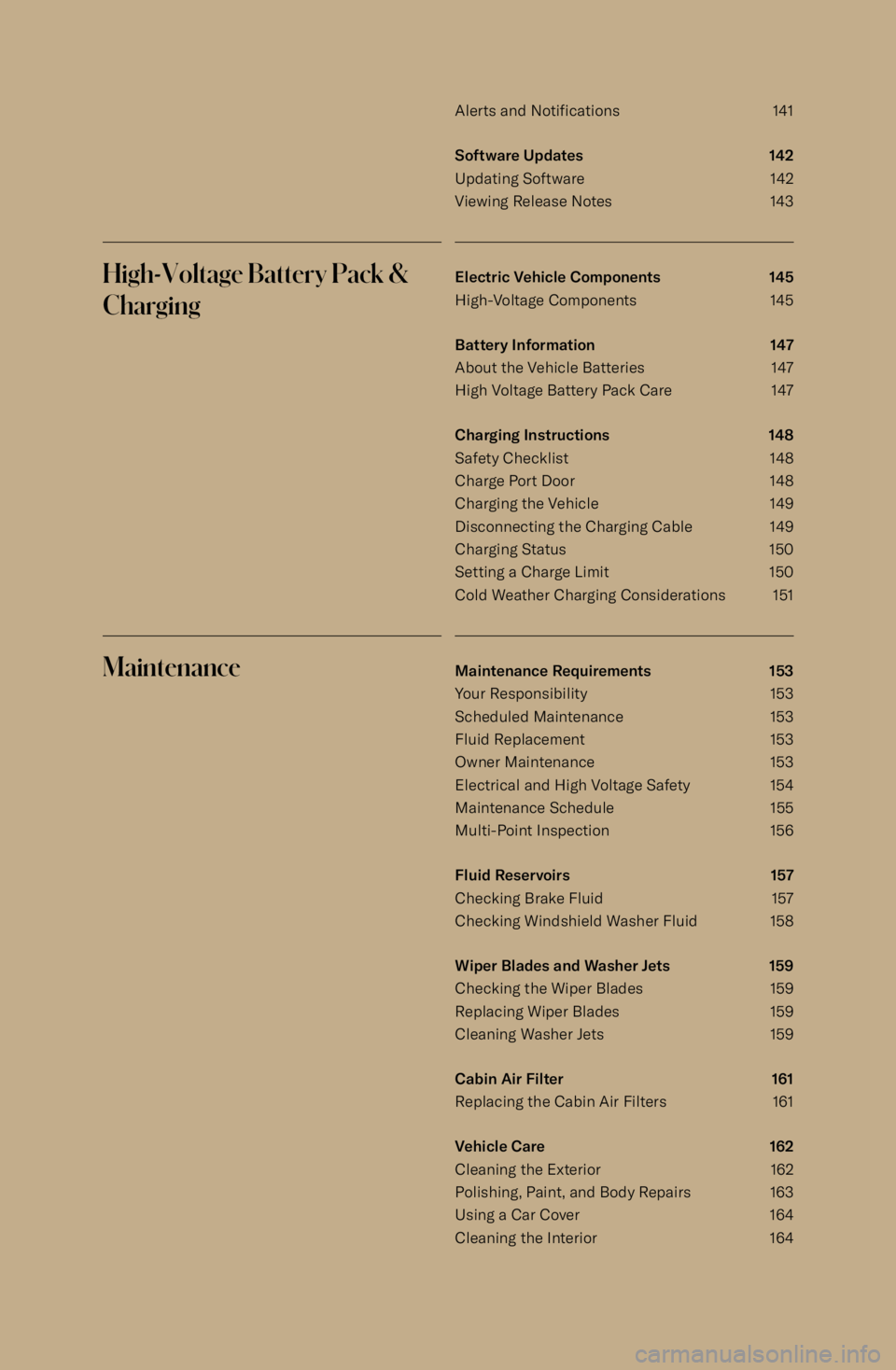
Alerts and Notifications 141
Software Updates 142
Updating Software 142 Viewing Release Notes 143High-Voltage Battery Pack &
ChargingElectric Vehicle Components 145
High-Voltage Components 145
Battery Information 147
About the Vehicle Batteries 147
High Voltage Battery Pack Care 147
Charging Instructions 148
Safety Checklist 148 Charge Port Door 148Charging the Vehicle 149Disconnecting the Charging Cable 149
Charging Status 150
Setting a Charge Limit 150
Cold Weather Charging Considerations 151MaintenanceMaintenance Requirements 153
Your Responsibility 153
Scheduled Maintenance 153
Fluid Replacement 153
Owner Maintenance 153
Electrical and High Voltage Safety 154
Maintenance Schedule 155
Multi-Point Inspection 156
Fluid Reservoirs 157
Checking Brake Fluid 157 Checking Windshield Washer Fluid 158
Wiper Blades and Washer Jets 159
Checking the Wiper Blades 159 Replacing Wiper Blades 159
Cleaning Washer Jets 159
Cabin Air Filter 161
Replacing the Cabin Air Filters 161
Vehicle Care 162
Cleaning the Exterior 162
Polishing, Paint, and Body Repairs 163
Using a Car Cover 164
Cleaning the Interior 164
Page 18 of 241

Data Sharing Permissions
You can disable data sharing from the Pilot
Panel by touching Settings > Connectivity > Data Sharing Permissions. From here you can
toggle data sharing settings.
Please note that disabling data sharing also
disables the following features:
-Signing in and out of your user profile
- Saving and restoring user profiles and
preferences to the cloud
- Resetting user PINs
- Mobile app interactions
Note: When data sharing with Lucid is
disabled, third-party apps still receive and transmit data as needed by those third-party
terms of use. Lucid may also still receive data and personal information regarding you and
your vehicle from third parties.
Introduction5
Page 26 of 241
Pilot Panel
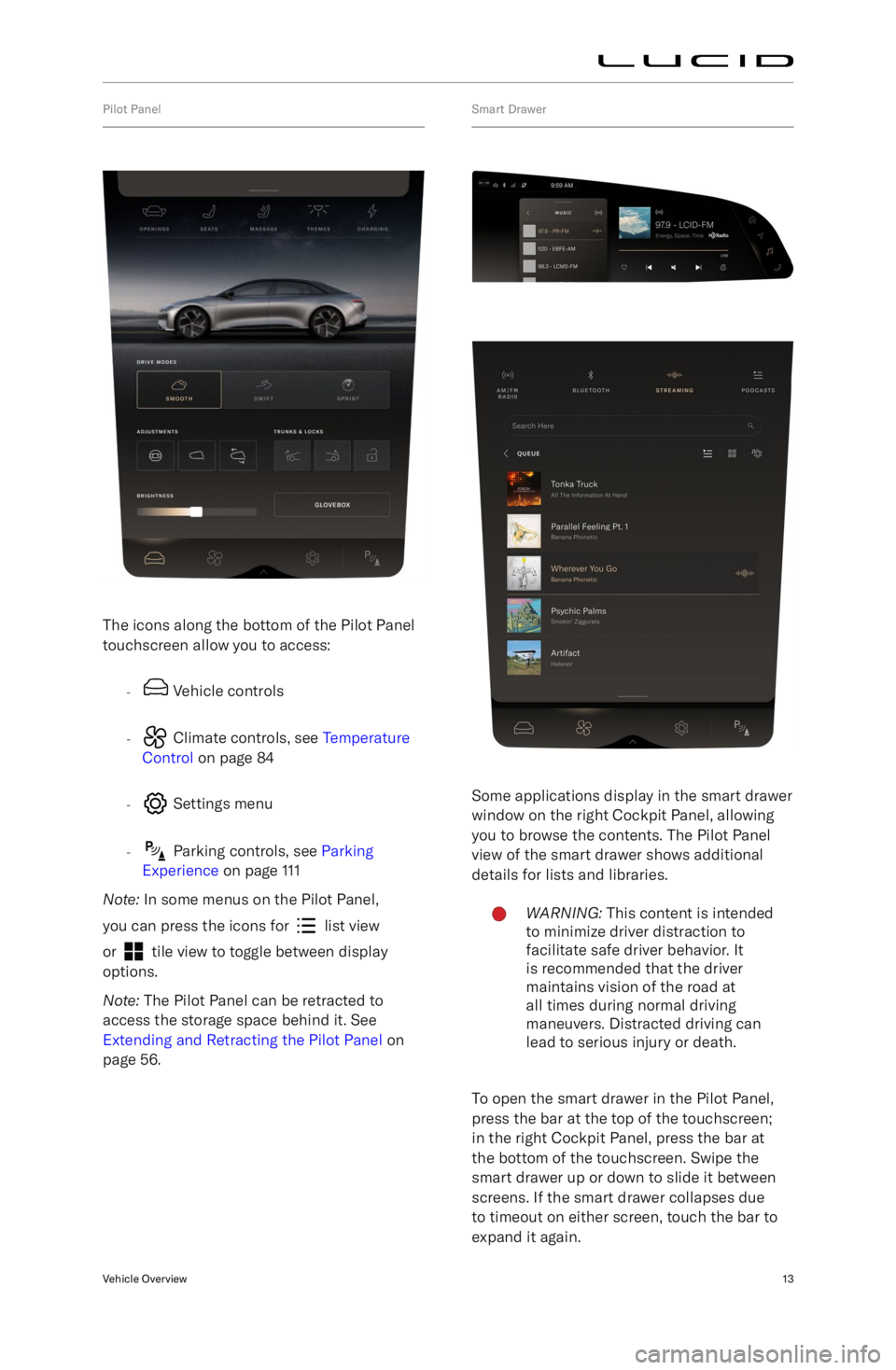
The icons along the bottom of the Pilot Panel
touchscreen allow you to access:
-
Vehicle controls
-
Climate controls, see Temperature
Control on page 84
-
Settings menu
-
Parking controls, see Parking
Experience on page 111
Note: In some menus on the Pilot Panel,
you can press the icons for
list view
or
tile view to toggle between display
options.
Note: The Pilot Panel can be retracted to
access the storage space behind it. See
Extending and Retracting the Pilot Panel on
page 56.
Smart Drawer
Some applications display in the smart drawer
window on the right Cockpit Panel, allowing
you to browse the contents. The Pilot Panel
view of the smart drawer shows additional
details for lists and libraries.
WARNING: This content is intended
to minimize driver distraction to
facilitate safe driver behavior. It
is recommended that the driver
maintains vision of the road at
all times during normal driving
maneuvers. Distracted driving can
lead to serious injury or death.
To open the smart drawer in the Pilot Panel,
press the bar at the top of the touchscreen;
in the right Cockpit Panel, press the bar at
the bottom of the touchscreen. Swipe the
smart drawer up or down to slide it between
screens. If the smart drawer collapses due
to timeout on either screen, touch the bar to
expand it again.
Vehicle Overview13
Page 27 of 241
The < arrow in the upper left corner of a menu
title returns you to the previous screen.
Rear Center Console Display (RCCD)
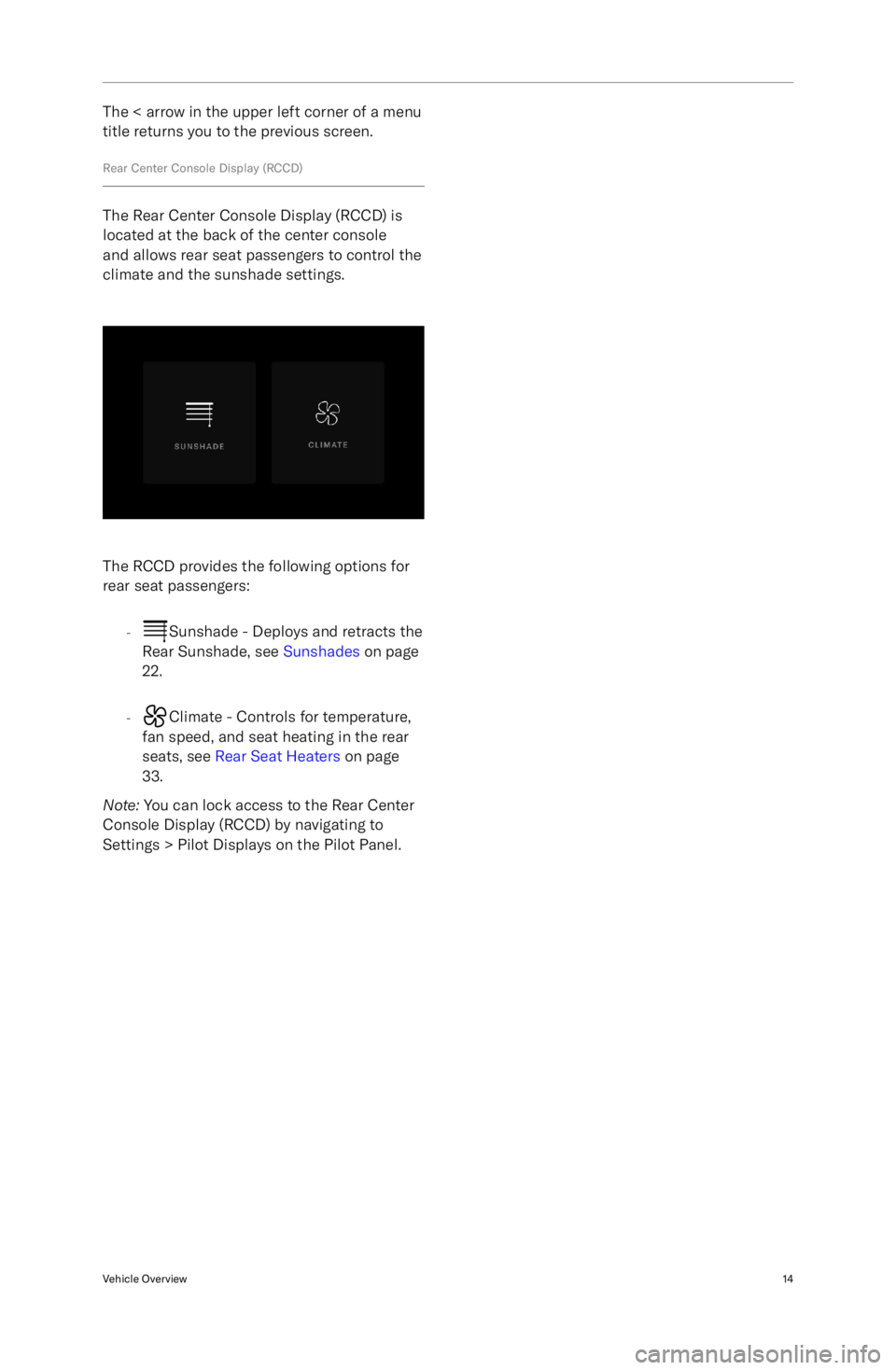
The Rear Center Console Display (RCCD) is
located at the back of the center console
and allows rear seat passengers to control the
climate and the sunshade settings.
The RCCD provides the following options for
rear seat passengers:
-
Sunshade - Deploys and retracts the
Rear Sunshade, see Sunshades on page
22.
-
Climate - Controls for temperature,
fan speed, and seat heating in the rear
seats, see Rear Seat Heaters on page
33.
Note: You can lock access to the Rear Center
Console Display (RCCD) by navigating to
Settings > Pilot Displays on the Pilot Panel.
Vehicle Overview14
Page 29 of 241
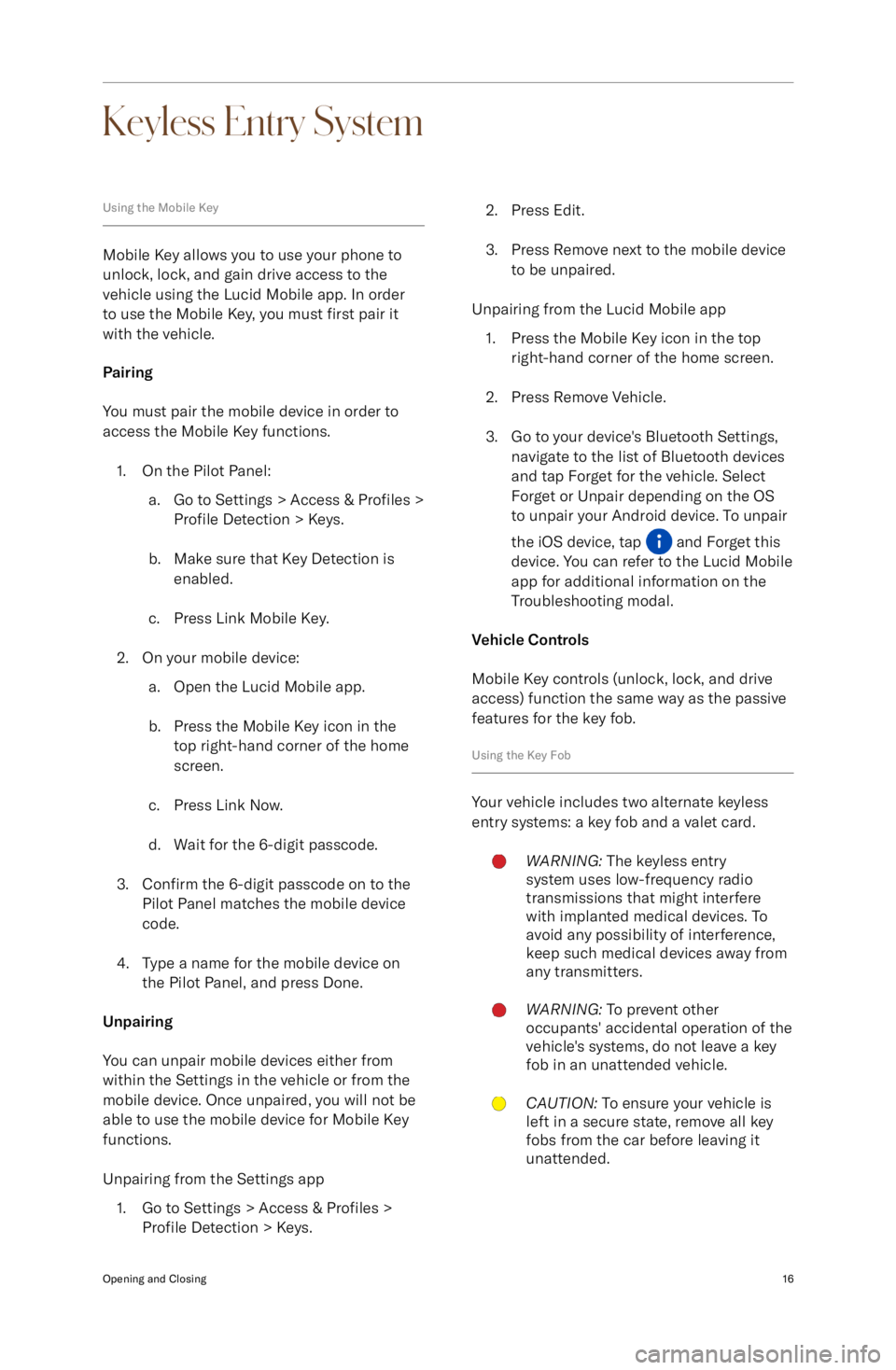
Keyless Entry System
Using the Mobile Key
Mobile Key allows you to use your phone to
unlock, lock, and gain drive access to the
vehicle using the Lucid Mobile app. In order to use the Mobile Key, you must first pair it
with the vehicle.
Pairing
You must pair the mobile device in order to
access the Mobile Key functions.
1. On the Pilot Panel: a. Go to Settings > Access & Profiles >
Profile Detection > Keys.
b. Make sure that Key Detection is enabled.
c. Press Link Mobile Key.
2. On your mobile device: a. Open the Lucid Mobile app.
b. Press the Mobile Key icon in the top right-hand corner of the home
screen.
c. Press Link Now.
d. Wait for the 6-digit passcode.
3. Confirm the 6-digit passcode on to the
Pilot Panel matches the mobile device
code.
4. Type a name for the mobile device on the Pilot Panel, and press Done.
Unpairing
You can unpair mobile devices either from
within the Settings in the vehicle or from the
mobile device. Once unpaired, you will not be
able to use the mobile device for Mobile Key
functions.
Unpairing from the Settings app 1. Go to Settings > Access & Profiles >
Profile Detection > Keys.
2. Press Edit.
3. Press Remove next to the mobile device to be unpaired.
Unpairing from the Lucid Mobile app 1. Press the Mobile Key icon in the top right-hand corner of the home screen.
2. Press Remove Vehicle.
3. Go to your device
Page 41 of 241

Safety & SecuritySafety & Security is a Settings menu item that
controls most safety & security features. To
access Safety & Security, tap the Settings icon
on the Pilot Panel and tap Safety & Security.
Tow & Break-In Alert
Vehicle sensors can detect significant
impacts, intrusions, or unauthorized towing while your vehicle is in P (Park) and can trigger
alarms and notifications.
To access Tow & Break-In Alert settings from the Pilot Panel, select
>
Safety and Security. Alternatively, use
Settings from the Lucid Mobile App. You can
then select a notification type (both an alarm
and push notification or a push notification
only) and disable the Tow & Break-In Alert.
By default, the Tow & Break-In Alert is
ON unless manually disabled (for example,
towing) and will notify you through the Alarm
and Push Notification.
Disable the Tow & Break-In Alert for towing
or servicing. If disabled, Tow & Break-In Alert
automatically re-enables when you eitherreenter the vehicle, or the next time the car
is in P (Park).
CAUTION: The sensor for the Tow
& Break-In Alert is located in the
center console of the vehicle and
could accidentally be triggered by a
large amount of force to that part of
the vehicle.
Disabling the alarm
If triggered, disable the Tow & Break-In Alert
sequence by holding a valid key close to
the vehicle or by double-clicking the key fob button.
Opening and Closing28
Page 68 of 241
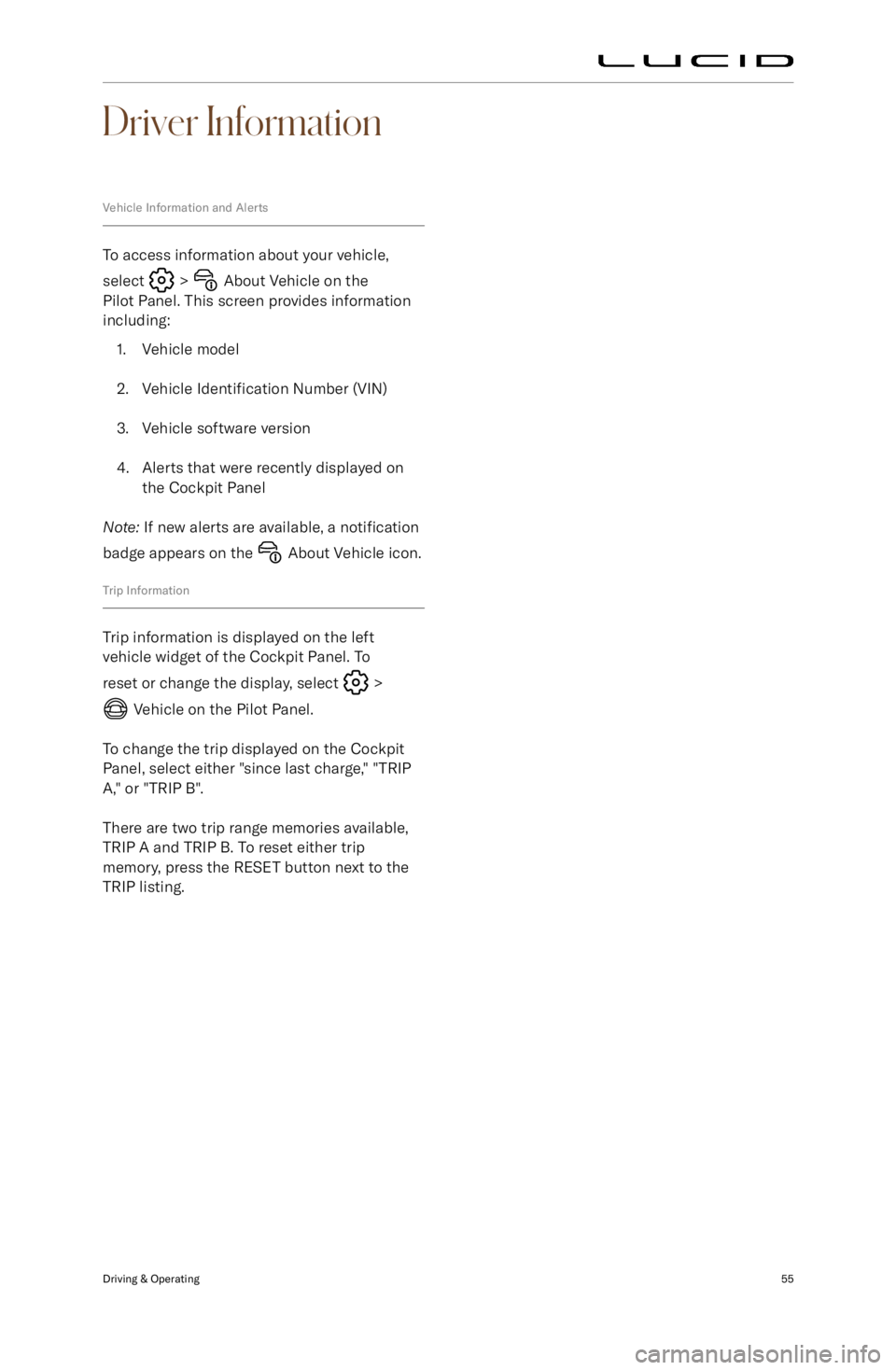
Driver Information
Vehicle Information and Alerts
To access information about your vehicle,
select
> About Vehicle on the
Pilot Panel. This screen provides information
including:
1. Vehicle model
2. Vehicle Identification Number (VIN)
3. Vehicle software version
4. Alerts that were recently displayed on the Cockpit Panel
Note: If new alerts are available, a notification
badge appears on the
About Vehicle icon.
Trip Information
Trip information is displayed on the left
vehicle widget of the Cockpit Panel. To
reset or change the display, select
>
Vehicle on the Pilot Panel.
To change the trip displayed on the Cockpit Panel, select either "since last charge," "TRIPA," or "TRIP B".
There are two trip range memories available,
TRIP A and TRIP B. To reset either trip
memory, press the RESET button next to the
TRIP listing.
Driving & Operating55
Page 81 of 241

Steering Wheel - Left Controls
1. Cancel cruise control.Set and adjust Adaptive Cruise Control
(ACC) cruising speed:
Page 83 of 241
Drive Modes
Using Neutral
1. To shift out of park unlock the car witheither the keyfob, the nfc card, a pairedphone, or the phone app with correct
credentials.
2. Once the car is unlocked and powered on, you can open the driver door and
shift to neutral by pressing the brake
pedal and operating the shift lever.
The park brake will disengage, and the
vehicle will be ready to be pushed or
pulled.
3. If the electrical system of the vehicle is dead where the vehicle does not
wake up and unlock when asked for, the operator needs to connect a 12v jump-
start battery to the jump-start terminal so that operations A and B can be
conducted.
Drive Modes
Your vehicle can be set to your preferred
driving and regenerative braking modes.
You can opt for more comfortable and
less responsive vehicle controls in order to increase energy efficiency.
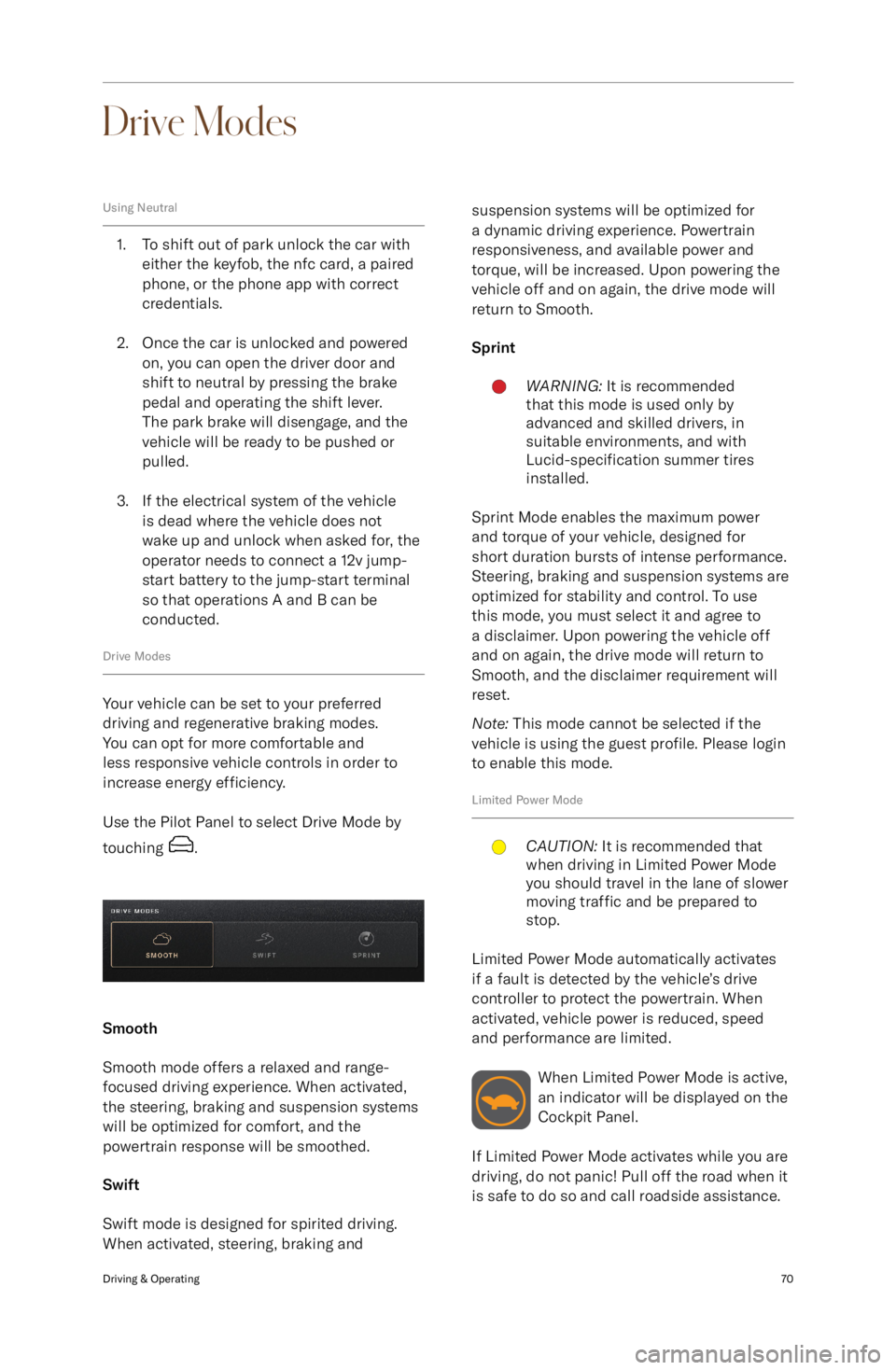
Use the Pilot Panel to select Drive Mode by
touching
.
Smooth
Smooth mode offers a relaxed and range-
focused driving experience. When activated,
the steering, braking and suspension systems
will be optimized for comfort, and the
powertrain response will be smoothed.
Swift
Swift mode is designed for spirited driving.
When activated, steering, braking and
suspension systems will be optimized for
a dynamic driving experience. Powertrain
responsiveness, and available power and
torque, will be increased. Upon powering the
vehicle off and on again, the drive mode will return to Smooth.
SprintWARNING: It is recommended
that this mode is used only by
advanced and skilled drivers, in
suitable environments, and with
Lucid-specification summer tires
installed.
Sprint Mode enables the maximum power
and torque of your vehicle, designed for
short duration bursts of intense performance.
Steering, braking and suspension systems are
optimized for stability and control. To use
this mode, you must select it and agree to
a disclaimer. Upon powering the vehicle off
and on again, the drive mode will return to
Smooth, and the disclaimer requirement will
reset.
Note: This mode cannot be selected if the
vehicle is using the guest profile. Please login
to enable this mode.
Limited Power Mode
CAUTION: It is recommended that
when driving in Limited Power Mode
you should travel in the lane of slower
moving traffic and be prepared to
stop.
Limited Power Mode automatically activates
if a fault is detected by the vehicle