park assist LUCID AIR 2023 User Guide
[x] Cancel search | Manufacturer: LUCID, Model Year: 2023, Model line: AIR, Model: LUCID AIR 2023Pages: 241, PDF Size: 5.15 MB
Page 127 of 241
-A safety system activates (such
as Collision Protection or Automatic
Emergency Braking. See Collision
Detection and Protection on page 105)
When the system is canceled, the vehicle will
stop, emit an audible alert, and prompt the
driver to take control of the steering wheel
and brake pedal. If there is no response from
the driver after 20 seconds, the gear will
automatically shift into P (Park).
If Automatic Park Out cancels for any of the
aforementioned reasons and you wish to use
the system again, you must start over at the
beginning of the process.
Surround View MonitoringWARNING: The Surround View
Monitoring system should not be
used as a replacement for looking
into the interior and exterior mirrors
or looking over your shoulder when
operating and parking the vehicle.
Always inspect your surroundings with
your own eyes.
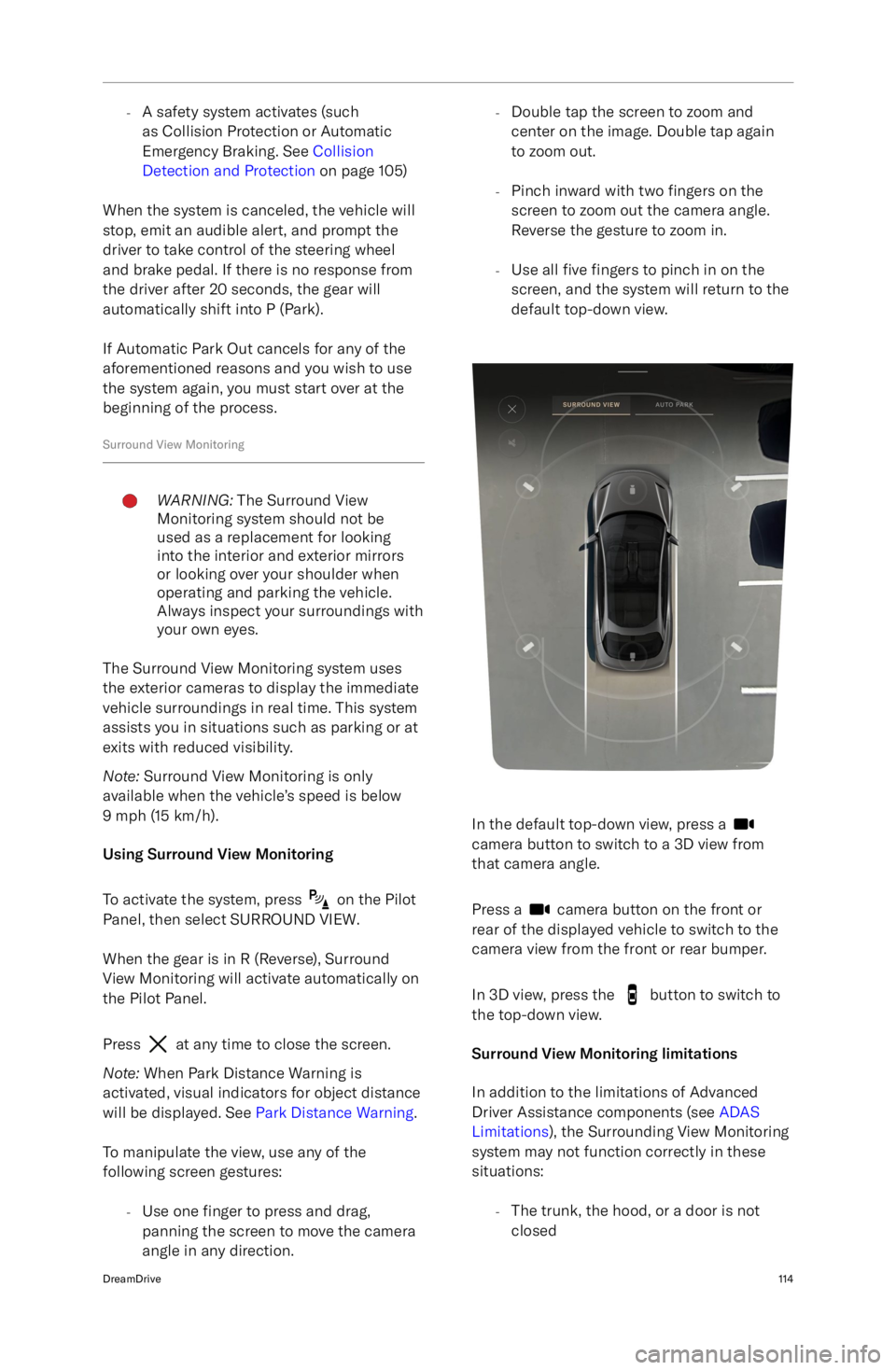
The Surround View Monitoring system uses
the exterior cameras to display the immediate vehicle surroundings in real time. This system
assists you in situations such as parking or at
exits with reduced visibility.
Note: Surround View Monitoring is only
available when the vehicle
Page 128 of 241
-The side mirrors are folded in
- The trunk or hood is open
Rear View MonitoringWARNING: The Rear View Monitoring
system should not be used as a
replacement for looking into the
interior and exterior mirrors or looking
over your shoulder when operating and parking the vehicle. Always
inspect your surroundings with your
own eyes.
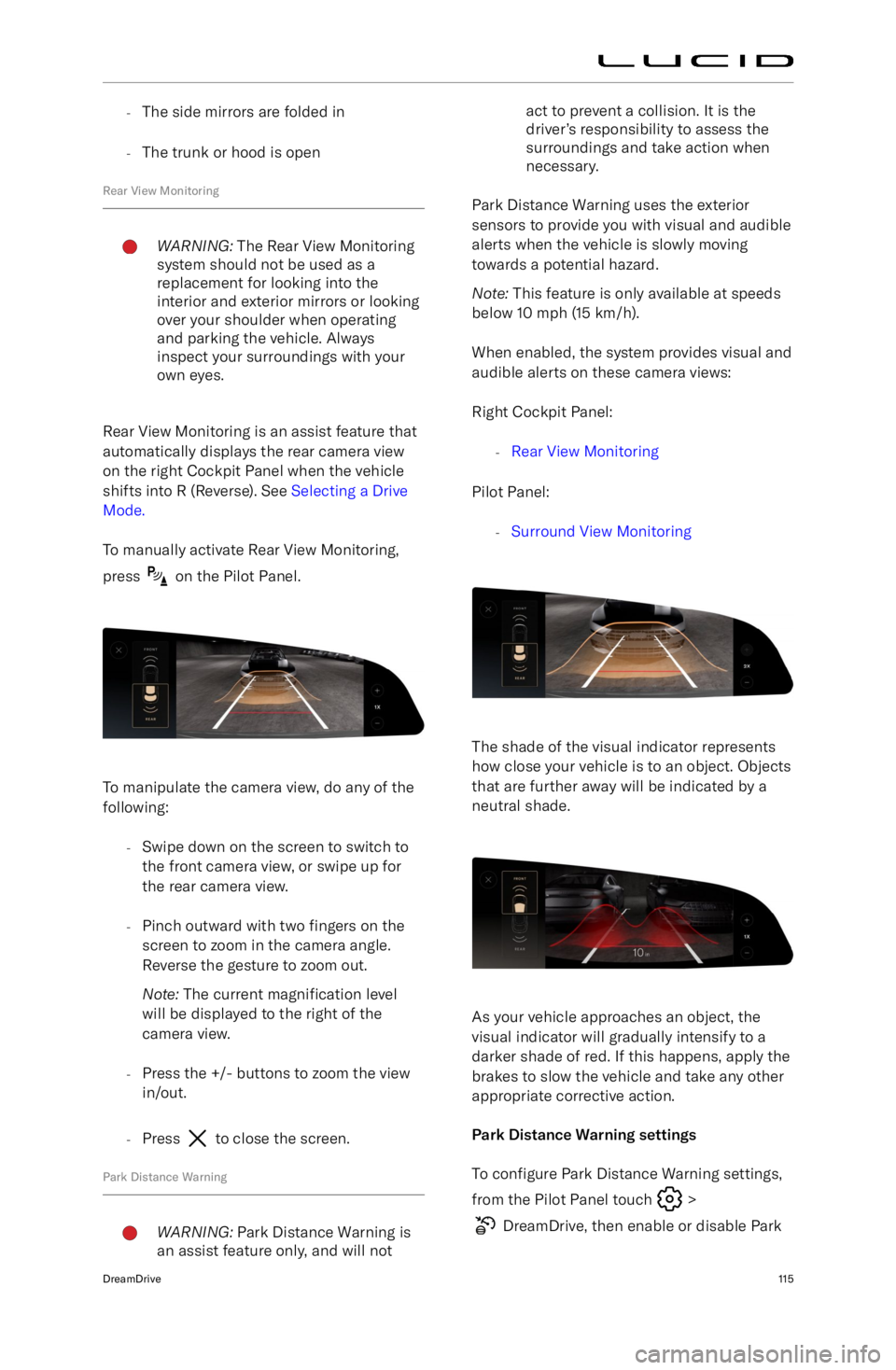
Rear View Monitoring is an assist feature that
automatically displays the rear camera view
on the right Cockpit Panel when the vehicle
shifts into R (Reverse). See Selecting a Drive
Mode.
To manually activate Rear View Monitoring,
press
on the Pilot Panel.
To manipulate the camera view, do any of the
following:
-Swipe down on the screen to switch to
the front camera view, or swipe up forthe rear camera view.
- Pinch outward with two fingers on the
screen to zoom in the camera angle.
Reverse the gesture to zoom out.
Note: The current magnification level
will be displayed to the right of the
camera view.
- Press the +/- buttons to zoom the view
in/out.
- Press
to close the screen.
Park Distance Warning
WARNING: Park Distance Warning is
an assist feature only, and will notact to prevent a collision. It is the
driver
Page 156 of 241

Schedule an update
On the software update screen, press
SCHEDULE TIME if you wish to start the
update later. Updates can be scheduled up to 48 hours later.
1. Read the cautionary statement and press CONFIRM to consent to the
update.
2. Select the time to start on the screen provided and press SET TIME to save.
3. Your scheduled date and time will be displayed on the main software update
screen, and can be edited by pressing
the
icon beside it. Ensure that all
update prerequisites will be met at the scheduled time.
30 minutes before a scheduled update, you
will receive a notification on the right Cockpit
Panel, with options to DELAY AN HOUR or CANCEL SCHEDULE.
Install an update now
On the software update screen, press
INSTALL NOW to proceed with the update.
1. Read the cautionary statement and press CONFIRM to consent to the
update.
2. The system will perform a series of checks to ensure all prerequisites havebeen met.
3. A 2-minute countdown will display. Exit and lock the doors at this time. See
Doors on page 20.
4. During the update, the Pilot Panel and left Cockpit Panel screens will be blank.
The Cockpit Panel indicates the update
is proceeding. The progress can be
viewed on the right Cockpit Panel and
within the Lucid mobile app.
5. When the update is complete, a notification will appear on the left Pilot
Panel and a push notification will be
sent to the Lucid mobile app.
Note: If an update fails to install, a notification
will display on the Infotainment screens and a
push notification is sent to the Lucid mobile
app.
- If a failure was due to a prerequisite
not being met (e.g., battery was at less
than 20% or vehicle was not put in Park),
resolve the issue and press TRY AGAIN.
- If a failure was due to another reason,
contact a Lucid Service Center for
assistance.
Viewing Release Notes
Lucid strongly recommends that all users read
the release notes for every software update.
They can contain important information about
your vehicle, including safety information or
new operating instructions.
Release notes can be viewed before and after
a software update:
-On the Pilot Panel, select
>
About Vehicle. The software
versions for the current installation and any available updates will be listed.
Press Learn More next to a version to
read the notes for it.
- When an update has installed
successfully, press Learn More on the
prompt that appears on the right
Cockpit Panel.
Infotainment143
Page 211 of 241
Tow Truck Mode
When loading and unloading the vehicle onto
a flatbed tow truck, put the vehicle in Tow
Truck Mode. This can be done on the Pilot
Panel by navigating to Settings > Vehicle and
toggling Tow Truck Mode.
Tow Truck Mode disables the emergency
parking brake, disables the alarm, and shifts
the vehicle into neutral to allow for transport
on and off the flatbed truck.
Lucid recommends that Tow Truck Mode
remain active until after transportation has been completed.
Pulling the Vehicle onto a Trailer or TransporterCAUTION: Under no circumstances
should the vehicle be towed using
the vehicle recovery eye. Doing so
can cause significant damage to your
vehicle.CAUTION: Incorrect installation of the
recovery eye can cause it to become
detached while pulling the vehicle,
resulting in significant damage.WARNING: If the recovery eye mount
is not accessible and the vehicle
is recovered by attaching to a
frame, suspension, or other means,
the vehicle may sustain damage.
Inspect the vehicle and ensure it is
safe to operate.The Towing provider
MUST document the method of
vehicle recovery, whether using the
recovery eye, attachment to the body,
suspension, or other means.Failure to
do so could result in a hazardous
situation when operating the vehicle.
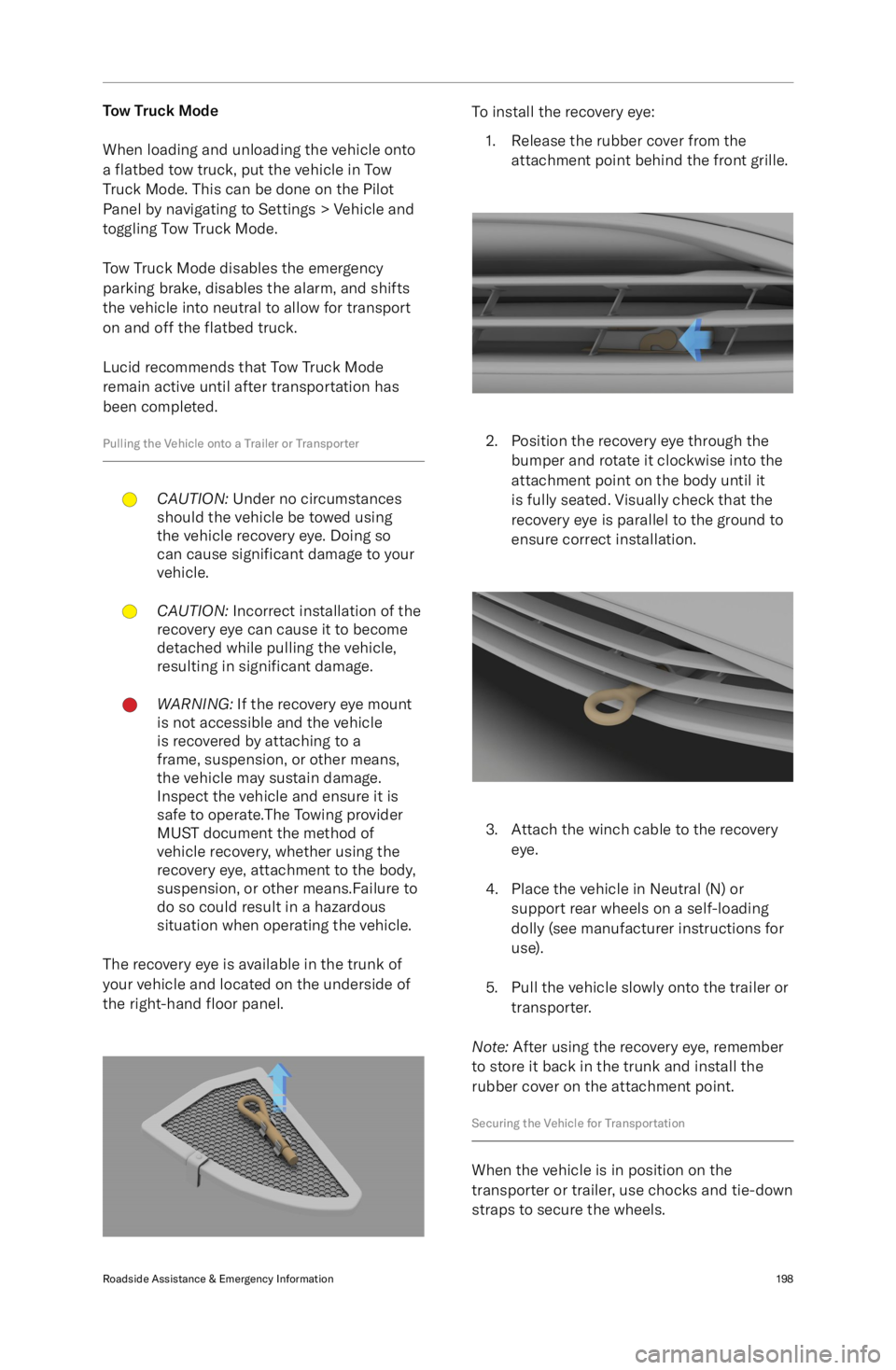
The recovery eye is available in the trunk of
your vehicle and located on the underside of
the right-hand floor panel.
To install the recovery eye:
1. Release the rubber cover from the attachment point behind the front grille.
2. Position the recovery eye through thebumper and rotate it clockwise into the
attachment point on the body until it
is fully seated. Visually check that the
recovery eye is parallel to the ground to
ensure correct installation.
3. Attach the winch cable to the recovery eye.
4. Place the vehicle in Neutral (N) or support rear wheels on a self-loading
dolly (see manufacturer instructions for use).
5. Pull the vehicle slowly onto the trailer or transporter.
Note: After using the recovery eye, remember
to store it back in the trunk and install the
rubber cover on the attachment point.
Securing the Vehicle for Transportation
When the vehicle is in position on the
transporter or trailer, use chocks and tie-down
straps to secure the wheels.
Roadside Assistance & Emergency Information198