warning MASERATI GHIBLI 2019 Owners Manual
[x] Cancel search | Manufacturer: MASERATI, Model Year: 2019, Model line: GHIBLI, Model: MASERATI GHIBLI 2019Pages: 384, PDF Size: 13.33 MB
Page 171 of 384
“Automatic Transmission” in section
“Driving”) drive carefully and slow
down as the grip of the tires may be
significantly reduced.
The indicator light flashes for 5
seconds and switches off when the
temperature reaches 43°F (6°C) or
higher.
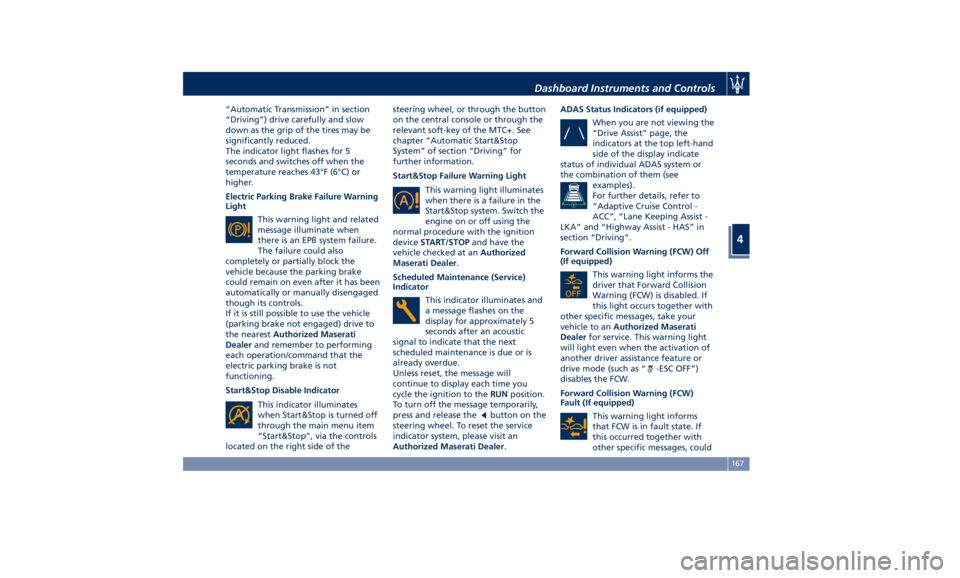
Electric Parking Brake Failure Warning
Light
This warning light and related
message illuminate when
there is an EPB system failure.
The failure could also
completely or partially block the
vehicle because the parking brake
could remain on even after it has been
automatically or manually disengaged
though its controls.
If it is still possible to use the vehicle
(parking brake not engaged) drive to
the nearest Authorized Maserati
Dealer and remember to performing
each operation/command that the
electric parking brake is not
functioning.
Start&Stop Disable Indicator
This indicator illuminates
when Start&Stop is turned off
through the main menu item
“Start&Stop”, via the controls
located on the right side of the steering wheel, or through the button
on the central console or through the
relevant soft-key of the MTC+. See
chapter “Automatic Start&Stop
System” of section “Driving” for
further information.
Start&Stop Failure Warning Light
This warning light illuminates
when there is a failure in the
Start&Stop system. Switch the
engine on or off using the
normal procedure with the ignition
device START/STOP and have the
vehicle checked at an Authorized
Maserati Dealer .
Scheduled Maintenance (Service)
Indicator
This indicator illuminates and
a message flashes on the
display for approximately 5
seconds after an acoustic
signal to indicate that the next
scheduled maintenance is due or is
already overdue.
Unless reset, the message will
continue to display each time you
cycle the ignition to the RUN position.
To turn off the message temporarily,
press and release the
button on the
steering wheel. To reset the service
indicator system, please visit an
Authorized Maserati Dealer . ADAS Status Indicators (if equipped)
When you are not viewing the
“Drive Assist” page, the
indicators at the top left-hand
side of the display indicate
status of individual ADAS system or
the combination of them (see
examples).
For further details, refer to
“Adaptive Cruise Control -
ACC”, “Lane Keeping Assist -
LKA” and “Highway Assist - HAS” in
section “Driving”.
Forward Collision Warning (FCW) Off
(If equipped)
This warning light informs the
driver that Forward Collision
Warning (FCW) is disabled. If
this light occurs together with
other specific messages, take your
vehicle to an Authorized Maserati
Dealer for service. This warning light
will light even when the activation of
another driver assistance feature or
drive mode (such as “
-ESC OFF”)
disables the FCW.
Forward Collision Warning (FCW)
Fault (If equipped)
This warning light informs
that FCW is in fault state. If
this occurred together with
other specific messages, couldDashboard Instruments and Controls
4
167
Page 172 of 384
mean that a system fault requiring
servicing at an Authorized Maserati
Dealer . It is nevertheless possible to
drive the vehicle without using this
function (for further details, refer to
“Forward Collision Warning - FCW” in
section “Driving”).
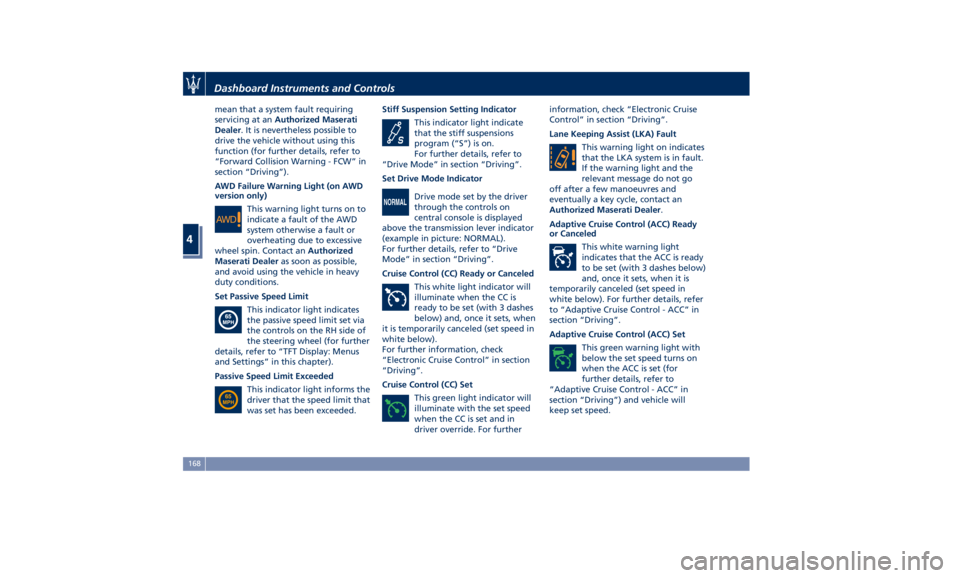
AWD Failure Warning Light (on AWD
version only)
This warning light turns on to
indicate a fault of the AWD
system otherwise a fault or
overheating due to excessive
wheel spin. Contact an Authorized
Maserati Dealer as soon as possible,
and avoid using the vehicle in heavy
duty conditions.
Set Passive Speed Limit
This indicator light indicates
the passive speed limit set via
the controls on the RH side of
the steering wheel (for further
details, refer to “TFT Display: Menus
and Settings” in this chapter).
Passive Speed Limit Exceeded
This indicator light informs the
driver that the speed limit that
was set has been exceeded. Stiff Suspension Setting Indicator
This indicator light indicate
that the stiff suspensions
program (“S”) is on.
For further details, refer to
“Drive Mode” in section “Driving”.
Set Drive Mode Indicator
Drive mode set by the driver
through the controls on
central console is displayed
above the transmission lever indicator
(example in picture: NORMAL).
For further details, refer to “Drive
Mode” in section “Driving”.
Cruise Control (CC) Ready or Canceled
This white light indicator will
illuminate when the CC is
ready to be set (with 3 dashes
below) and, once it sets, when
it is temporarily canceled (set speed in
white below).
For further information, check
“Electronic Cruise Control” in section
“Driving”.
Cruise Control (CC) Set
This green light indicator will
illuminate with the set speed
when the CC is set and in
driver override. For further information, check “Electronic Cruise
Control” in section “Driving”.
Lane Keeping Assist (LKA) Fault
This warning light on indicates
that the LKA system is in fault.
If the warning light and the
relevant message do not go
off after a few manoeuvres and
eventually a key cycle, contact an
Authorized Maserati Dealer .
Adaptive Cruise Control (ACC) Ready
or Canceled
This white warning light
indicates that the ACC is ready
to be set (with 3 dashes below)
and, once it sets, when it is
temporarily canceled (set speed in
white below). For further details, refer
to “Adaptive Cruise Control - ACC” in
section “Driving”.
Adaptive Cruise Control (ACC) Set
This green warning light with
below the set speed turns on
when the ACC is set (for
further details, refer to
“Adaptive Cruise Control - ACC” in
section “Driving”) and vehicle will
keep set speed.Dashboard Instruments and Controls
4
168
Page 173 of 384
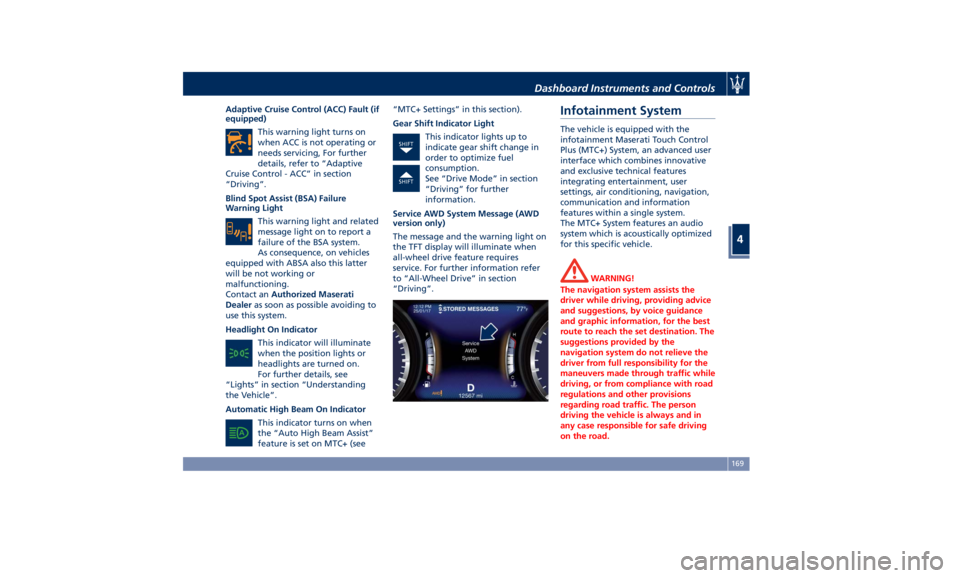
Adaptive Cruise Control (ACC) Fault (if
equipped)
This warning light turns on
when ACC is not operating or
needs servicing, For further
details, refer to “Adaptive
Cruise Control - ACC” in section
“Driving”.
Blind Spot Assist (BSA) Failure
Warning Light
This warning light and related
message light on to report a
failure of the BSA system.
As consequence, on vehicles
equipped with ABSA also this latter
will be not working or
malfunctioning.
Contact an Authorized Maserati
Dealer as soon as possible avoiding to
use this system.
Headlight On Indicator
This indicator will illuminate
when the position lights or
headlights are turned on.
For further details, see
“Lights” in section “Understanding
the Vehicle”.
Automatic High Beam On Indicator
This indicator turns on when
the “Auto High Beam Assist”
feature is set on MTC+ (see “MTC+ Settings” in this section).
Gear Shift Indicator Light
This indicator lights up to
indicate gear shift change in
order to optimize fuel
consumption.
See “Drive Mode” in section
“Driving” for further
information.
Service AWD System Message (AWD
version only)
The message and the warning light on
the TFT display will illuminate when
all-wheel drive feature requires
service. For further information refer
to “All-Wheel Drive” in section
“Driving”.Infotainment System The vehicle is equipped with the
infotainment Maserati Touch Control
Plus (MTC+) System, an advanced user
interface which combines innovative
and exclusive technical features
integrating entertainment, user
settings, air conditioning, navigation,
communication and information
features within a single system.
The MTC+ System features an audio
system which is acoustically optimized
for this specific vehicle.
WARNING!
The navigation system assists the
driver while driving, providing advice
and suggestions, by voice guidance
and graphic information, for the best
route to reach the set destination. The
suggestions provided by the
navigation system do not relieve the
driver from full responsibility for the
maneuvers made through traffic while
driving, or from compliance with road
regulations and other provisions
regarding road traffic. The person
driving the vehicle is always and in
any case responsible for safe driving
on the road.Dashboard Instruments and Controls
4
169
Page 174 of 384
The vehicle is provided with a specific
add to the owner’s manual, describing
the MTC+ System features and listing
all warnings and precautions, which
are essential for a safe use of the
system. Maserati advises you to read
this add carefully and thoroughly.
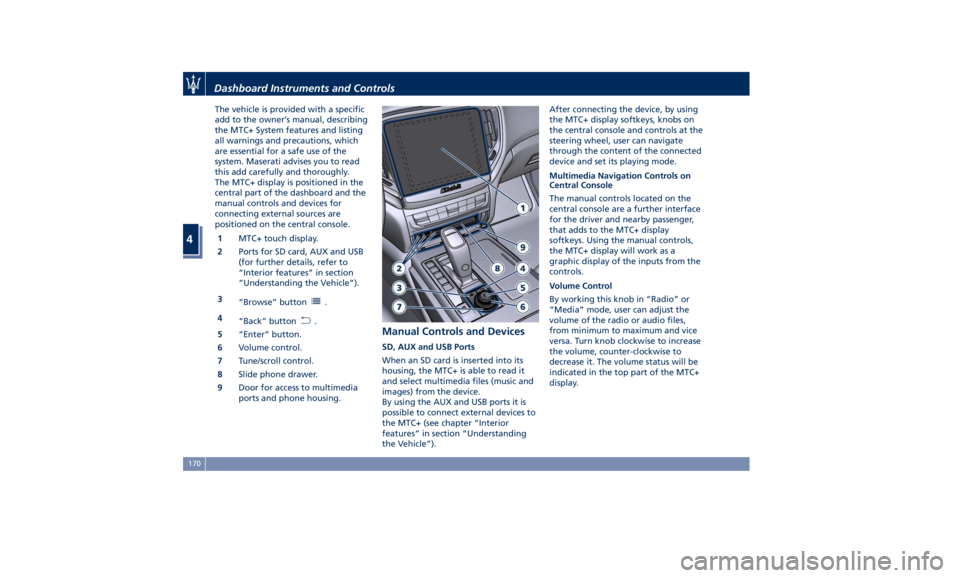
The MTC+ display is positioned in the
central part of the dashboard and the
manual controls and devices for
connecting external sources are
positioned on the central console.
1 MTC+ touch display.
2 Ports for SD card, AUX and USB
(for further details, refer to
“Interior features” in section
“Understanding the Vehicle”).
3
“Browse” button
.
4
“Back” button
.
5 “Enter” button.
6 Volume control.
7 Tune/scroll control.
8 Slide phone drawer.
9 Door for access to multimedia
ports and phone housing. Manual Controls and Devices SD, AUX and USB Ports
When an SD card is inserted into its
housing, the MTC+ is able to read it
and select multimedia files (music and
images) from the device.
By using the AUX and USB ports it is
possible to connect external devices to
the MTC+ (see chapter “Interior
features” in section “Understanding
the Vehicle”). After connecting the device, by using
the MTC+ display softkeys, knobs on
the central console and controls at the
steering wheel, user can navigate
through the content of the connected
device and set its playing mode.
Multimedia Navigation Controls on
Central Console
The manual controls located on the
central console are a further interface
for the driver and nearby passenger,
that adds to the MTC+ display
softkeys. Using the manual controls,
the MTC+ display will work as a
graphic display of the inputs from the
controls.
Volume Control
By working this knob in “Radio” or
“Media” mode, user can adjust the
volume of the radio or audio files,
from minimum to maximum and vice
versa. Turn knob clockwise to increase
the volume, counter-clockwise to
decrease it. The volume status will be
indicated in the top part of the MTC+
display.Dashboard Instruments and Controls
4
170
Page 176 of 384
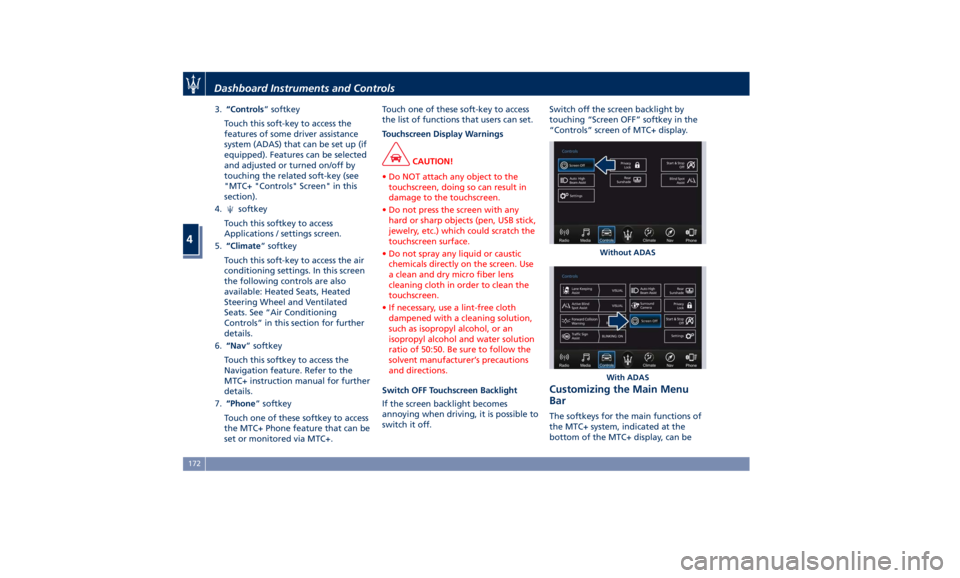
3. “Controls ” softkey
Touch this soft-key to access the
features of some driver assistance
system (ADAS) that can be set up (if
equipped). Features can be selected
and adjusted or turned on/off by
touching the related soft-key (see
"MTC+ "Controls" Screen" in this
section).
4.
softkey
Touch this softkey to access
Applications / settings screen.
5. “Climate ” softkey
Touch this soft-key to access the air
conditioning settings. In this screen
the following controls are also
available: Heated Seats, Heated
Steering Wheel and Ventilated
Seats. See “Air Conditioning
Controls” in this section for further
details.
6. “Nav ” softkey
Touch this softkey to access the
Navigation feature. Refer to the
MTC+ instruction manual for further
details.
7. “Phone ” softkey
Touch one of these softkey to access
the MTC+ Phone feature that can be
set or monitored via MTC+. Touch one of these soft-key to access
the list of functions that users can set.
Touchscreen Display Warnings
CAUTION!
• Do NOT attach any object to the
touchscreen, doing so can result in
damage to the touchscreen.
• Do not press the screen with any
hard or sharp objects (pen, USB stick,
jewelry, etc.) which could scratch the
touchscreen surface.
• Do not spray any liquid or caustic
chemicals directly on the screen. Use
a clean and dry micro fiber lens
cleaning cloth in order to clean the
touchscreen.
• If necessary, use a lint-free cloth
dampened with a cleaning solution,
such as isopropyl alcohol, or an
isopropyl alcohol and water solution
ratio of 50:50. Be sure to follow the
solvent manufacturer’s precautions
and directions.
Switch OFF Touchscreen Backlight
If
the screen backlight becomes
annoying when driving, it is possible to
switch it off. Switch off the screen backlight by
touching “Screen OFF” softkey in the
“Controls” screen of MTC+ display.
Customizing the Main Menu
Bar The softkeys for the main functions of
the MTC+ system, indicated at the
bottom of the MTC+ display, can be Without ADAS
With ADASDashboard Instruments and Controls
4
172
Page 184 of 384
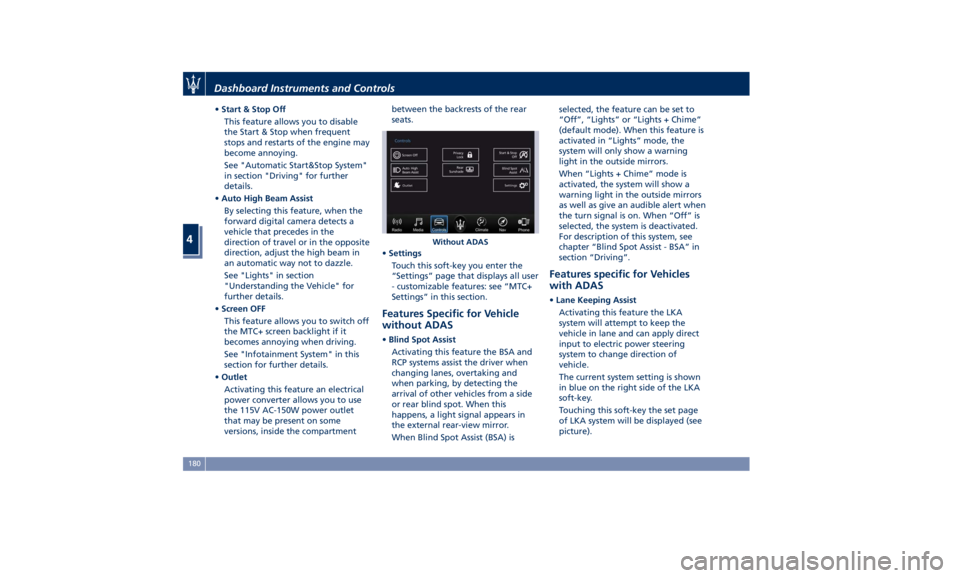
• Start & Stop Off
This feature allows you to disable
the Start & Stop when frequent
stops and restarts of the engine may
become annoying.
See "Automatic Start&Stop System"
in section "Driving" for further
details.
• Auto High Beam Assist
By selecting this feature, when the
forward digital camera detects a
vehicle that precedes in the
direction of travel or in the opposite
direction, adjust the high beam in
an automatic way not to dazzle.
See "Lights" in section
"Understanding the Vehicle" for
further details.
• Screen OFF
This feature allows you to switch off
the MTC+ screen backlight if it
becomes annoying when driving.
See "Infotainment System" in this
section for further details.
• Outlet
Activating this feature an electrical
power converter allows you to use
the 115V AC-150W power outlet
that may be present on some
versions, inside the compartment between the backrests of the rear
seats.
• Settings
Touch this soft-key you enter the
“Settings” page that displays all user
- customizable features: see “MTC+
Settings” in this section.
Features Specific for Vehicle
without ADAS • Blind Spot Assist
Activating this feature the BSA and
RCP systems assist the driver when
changing lanes, overtaking and
when parking, by detecting the
arrival of other vehicles from a side
or rear blind spot. When this
happens, a light signal appears in
the external rear-view mirror.
When Blind Spot Assist (BSA) is selected, the feature can be set to
“Off”, “Lights” or “Lights + Chime”
(default mode). When this feature is
activated in “Lights” mode, the
system will only show a warning
light in the outside mirrors.
When “Lights + Chime” mode is
activated, the system will show a
warning light in the outside mirrors
as well as give an audible alert when
the turn signal is on. When “Off” is
selected, the system is deactivated.
For description of this system, see
chapter “Blind Spot Assist - BSA” in
section “Driving”.
Features specific for Vehicles
with ADAS • Lane Keeping Assist
Activating this feature the LKA
system will attempt to keep the
vehicle in lane and can apply direct
input to electric power steering
system to change direction of
vehicle.
The current system setting is shown
in blue on the right side of the LKA
soft-key.
Touching this soft-key the set page
of LKA system will be displayed (see
picture).Without ADASDashboard Instruments and Controls
4
180
Page 185 of 384
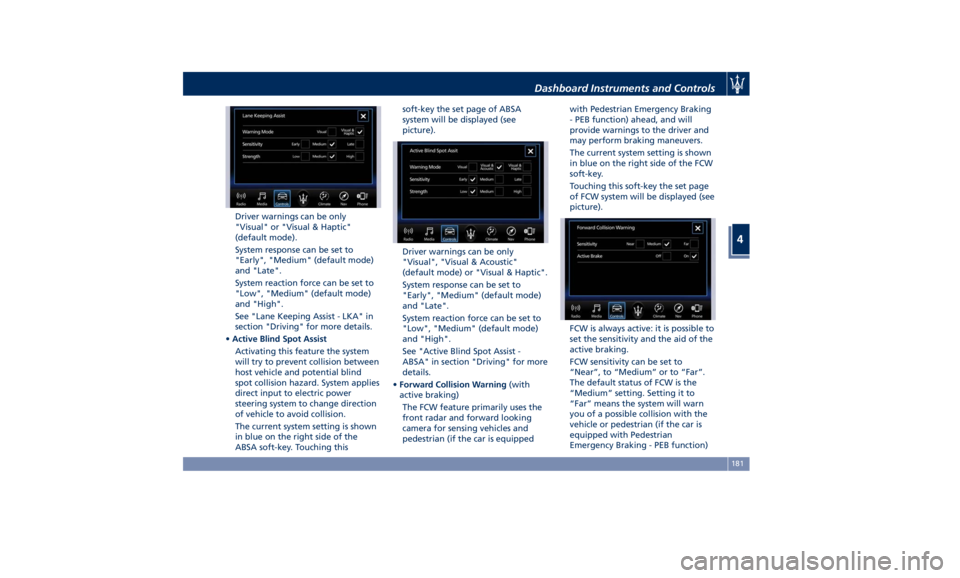
Driver warnings can be only
"Visual" or "Visual & Haptic"
(default mode).
System response can be set to
"Early", "Medium" (default mode)
and "Late".
System reaction force can be set to
"Low", "Medium" (default mode)
and "High".
See "Lane Keeping Assist - LKA" in
section "Driving" for more details.
• Active Blind Spot Assist
Activating this feature the system
will try to prevent collision between
host vehicle and potential blind
spot collision hazard. System applies
direct input to electric power
steering system to change direction
of vehicle to avoid collision.
The current system setting is shown
in blue on the right side of the
ABSA soft-key. Touching this soft-key the set page of ABSA
system will be displayed (see
picture).
Driver warnings can be only
"Visual", "Visual & Acoustic"
(default mode) or "Visual & Haptic".
System response can be set to
"Early", "Medium" (default mode)
and "Late".
System reaction force can be set to
"Low", "Medium" (default mode)
and "High".
See "Active Blind Spot Assist -
ABSA" in section "Driving" for more
details.
• Forward Collision Warning (with
active braking)
The FCW feature primarily uses the
front radar and forward looking
camera for sensing vehicles and
pedestrian (if the car is equipped with Pedestrian Emergency Braking
- PEB function) ahead, and will
provide warnings to the driver and
may perform braking maneuvers.
The current system setting is shown
in blue on the right side of the FCW
soft-key.
Touching this soft-key the set page
of FCW system will be displayed (see
picture).
FCW is always active: it is possible to
set the sensitivity and the aid of the
active braking.
FCW sensitivity can be set to
“Near”, to “Medium” or to “Far”.
The default status of FCW is the
“Medium” setting. Setting it to
“Far” means the system will warn
you of a possible collision with the
vehicle or pedestrian (if the car is
equipped with Pedestrian
Emergency Braking - PEB function)Dashboard Instruments and Controls
4
181
Page 186 of 384
in front of you when you are farther
away. This gives you the best
reaction time, though could lead to
some more unwanted warnings.
“Medium” gives instead a little less
time for reacting compared to
“Far”, but at the same time should
lead to less not desired warning.
To change the setting for more
dynamic driving, select the “Near”
setting. This warns you of a possible
collision when you are much closer
to the vehicle or pedestrian (if the
car is equipped with Pedestrian
Emergency Braking - PEB function)in
front of you.
FCW with active braking can be set
to "On" or "Off".
• Surround View Camera
By activating this feature the system
uses four cameras to monitor the
area around the vehicle when
transmission lever is shifted to P
(Park), N (Neutral) or D (Drive)
position.
When activation occurs by pressing
the “Surround Camera” button in
the “Controls” screen or moving the
shift lever in R (Reverse) position,
the initial view will be the default
view (associated with current gear
state). Image will be displayed with active guidelines while in that gear
as long as vehicle speed remains
lower than 8 mph (12 km/h).
When vehicle is shifted into a
different gear, the image will
remain displayed for 10 seconds, or
vehicle is shifted in P (Park), or until
vehicle speed exceeds 8 mph
(12 km/h), at which point it will
immediately cancel and return to
the last-viewed screen.
The feature can be set to “On” or
“Off”. See “Surround View Camera
System (optional)” in section
“Understanding the Vehicle” for
further details.
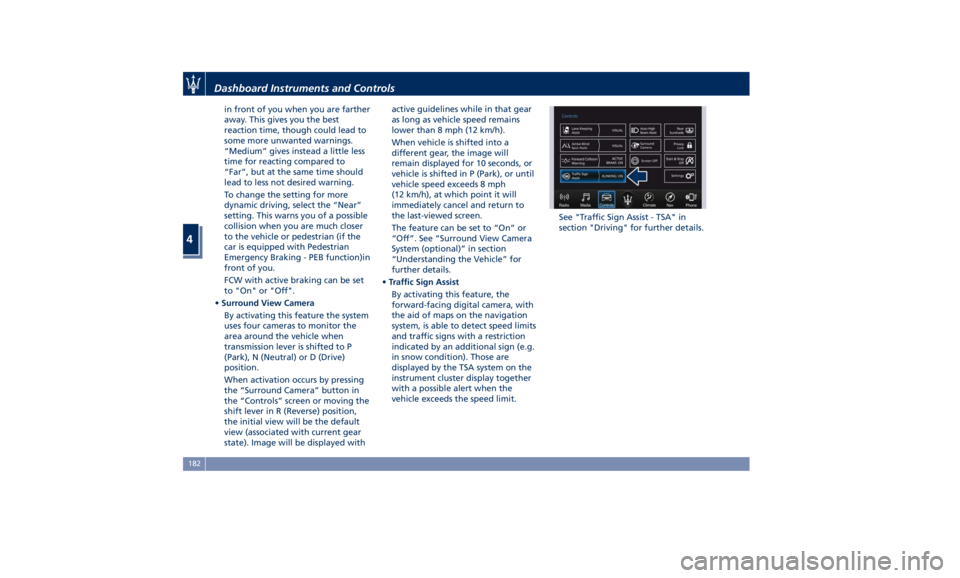
• Traffic Sign Assist
By activating this feature, the
forward-facing digital camera, with
the aid of maps on the navigation
system, is able to detect speed limits
and traffic signs with a restriction
indicated by an additional sign (e.g.
in snow condition). Those are
displayed by the TSA system on the
instrument cluster display together
with a possible alert when the
vehicle exceeds the speed limit. See "Traffic Sign Assist - TSA" in
section "Driving" for further details.Dashboard Instruments and Controls
4
182
Page 194 of 384
• Power Liftgate Alert
When this feature is selected,
further to turn indicators flashing,
an acoustic warning will also be
triggered when opening and closing
the liftgate/trunk lid. The feature
can be set to “On” or “Off”.
• Hands Free Power Liftgate
To prevent the accidental opening
of the Power Trunk Lid/Hands Free
(optional) with the movement of
the foot, it is possible to disable the
“Hands Free” function. The feature
can be set to “On” or “Off”. This
operation is recommended when
you have to wash the car (for
further information, refer to “Power
Trunk Lid Operation” in section
“Before Starting”).
Auto-On Comfort & Remote
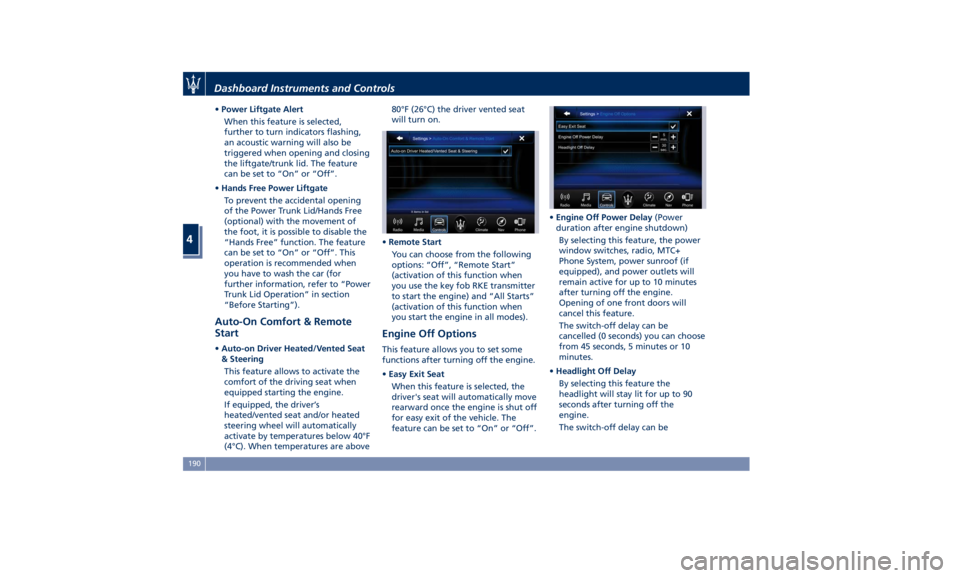
Start • Auto-on Driver Heated/Vented Seat
& Steering
This feature allows to activate the
comfort of the driving seat when
equipped starting the engine.
If equipped, the driver’s
heated/vented seat and/or heated
steering wheel will automatically
activate by temperatures below 40°F
(4°C). When temperatures are above 80°F (26°C) the driver vented seat
will turn on.
• Remote Start
You can choose from the following
options: “Off”, “Remote Start”
(activation of this function when
you use the key fob RKE transmitter
to start the engine) and “All Starts”
(activation of this function when
you start the engine in all modes).
Engine Off Options This feature allows you to set some
functions after turning off the engine.
• Easy Exit Seat
When this feature is selected, the
driver's seat will automatically move
rearward once the engine is shut off
for easy exit of the vehicle. The
feature can be set to “On” or “Off”. • Engine Off Power Delay (Power
duration after engine shutdown)
By selecting this feature, the power
window switches, radio, MTC+
Phone System, power sunroof (if
equipped), and power outlets will
remain active for up to 10 minutes
after turning off the engine.
Opening of one front doors will
cancel this feature.
The switch-off delay can be
cancelled (0 seconds) you can choose
from 45 seconds, 5 minutes or 10
minutes.
• Headlight Off Delay
By selecting this feature the
headlight will stay lit for up to 90
seconds after turning off the
engine.
The switch-off delay can beDashboard Instruments and Controls
4
190
Page 198 of 384
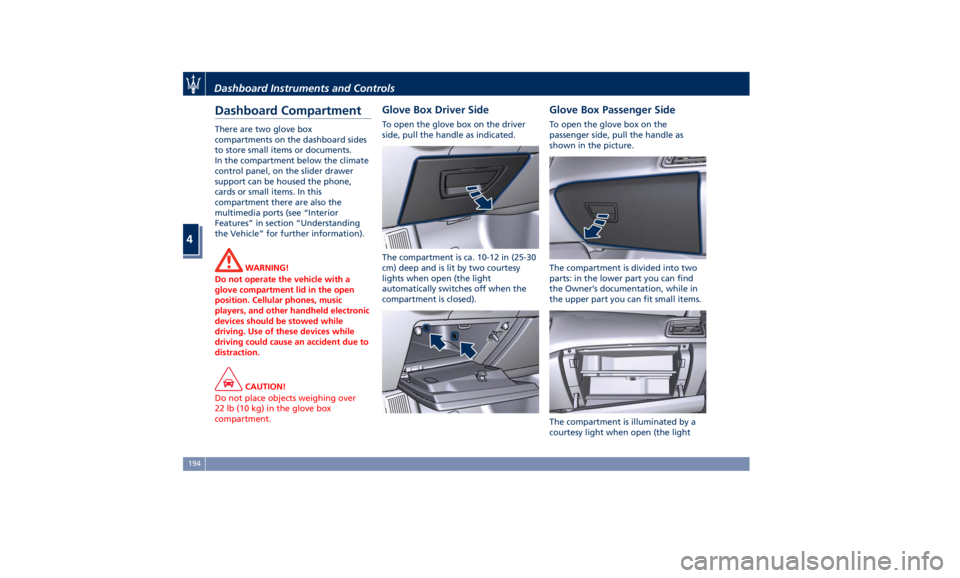
Dashboard Compartment There are two glove box
compartments on the dashboard sides
to store small items or documents.
In the compartment below the climate
control panel, on the slider drawer
support can be housed the phone,
cards or small items. In this
compartment there are also the
multimedia ports (see “Interior
Features” in section “Understanding
the Vehicle” for further information).
WARNING!
Do not operate the vehicle with a
glove compartment lid in the open
position. Cellular phones, music
players, and other handheld electronic
devices should be stowed while
driving. Use of these devices while
driving could cause an accident due to
distraction.
CAUTION!
Do not place objects weighing over
22 lb (10 kg) in the glove box
compartment. Glove Box Driver Side To open the glove box on the driver
side, pull the handle as indicated.
The compartment is ca. 10-12 in (25-30
cm) deep and is lit by two courtesy
lights when open (the light
automatically switches off when the
compartment is closed). Glove Box Passenger Side To open the glove box on the
passenger side, pull the handle as
shown in the picture.
The compartment is divided into two
parts: in the lower part you can find
the Owner’s documentation, while in
the upper part you can fit small items.
The compartment is illuminated by a
courtesy light when open (the lightDashboard Instruments and Controls
4
194