light MASERATI GRANTURISMO 2019 Repair Manual
[x] Cancel search | Manufacturer: MASERATI, Model Year: 2019, Model line: GRANTURISMO, Model: MASERATI GRANTURISMO 2019Pages: 286, PDF Size: 8.08 MB
Page 127 of 286
for at least 2 seconds, it brings the
cursor back in the lower bar of the
main menus.
Enter Button
To confirm the function or setting
highlighted on MTC+ display. When in
"Radio" mode and the key in the
ignition switch in MAR (ON) position,
holding this button you can save your
preset stations.
With key not inserted in the ignition
switch or in STOP (OFF) position,
pressing and holding this button for
2-3 seconds will turn off the MTC+
system. If pressed again and held for
2-3 seconds, the MTC+ will turn back
on.
Main Menu Bar on MTC+
Display The softkeys located on the lower part
of the MTC+ display represent the
main menu modes/functions, which
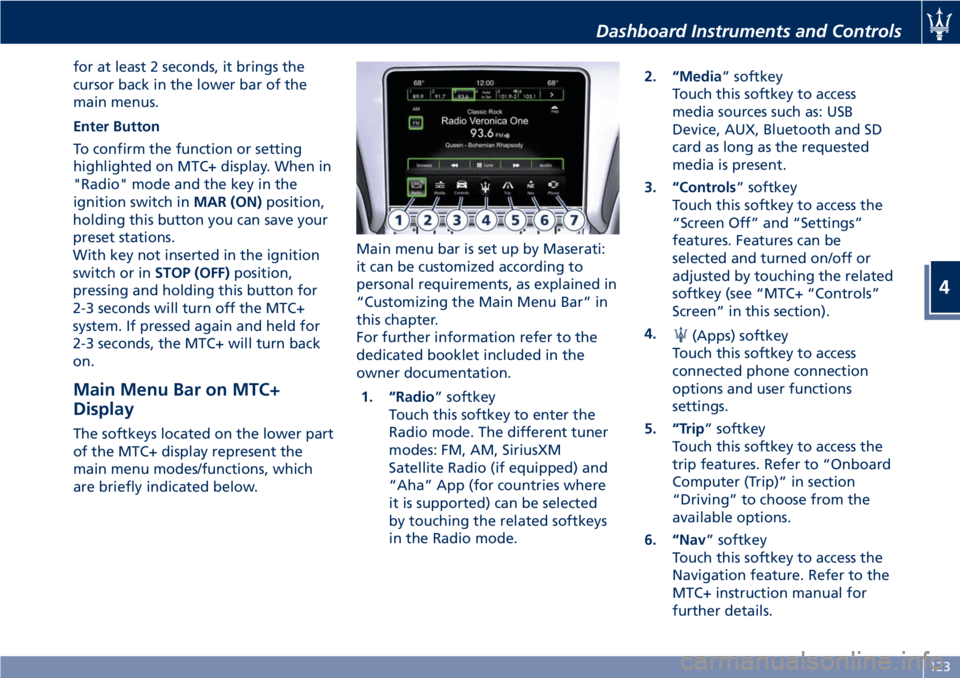
are briefly indicated below. Main menu bar is set up by Maserati:
it can be customized according to
personal requirements, as explained in
“Customizing the Main Menu Bar” in
this chapter.
For further information refer to the
dedicated booklet included in the
owner documentation.
1. “Radio ” softkey
Touch this softkey to enter the
Radio mode. The different tuner
modes: FM, AM, SiriusXM
Satellite Radio (if equipped) and
“Aha” App (for countries where
it is supported) can be selected
by touching the related softkeys
in the Radio mode. 2. “Media ” softkey
Touch this softkey to access
media sources such as: USB
Device, AUX, Bluetooth and SD
card as long as the requested
media is present.
3. “Controls ” softkey
Touch this softkey to access the
“Screen Off” and “Settings”
features. Features can be
selected and turned on/off or
adjusted by touching the related
softkey (see “MTC+ “Controls”
Screen” in this section).
4.
(Apps) softkey
Touch this softkey to access
connected phone connection
options and user functions
settings.
5. “Trip ” softkey
Touch this softkey to access the
trip features. Refer to “Onboard
Computer (Trip)” in section
“Driving” to choose from the
available options.
6. “Nav ” softkey
Touch this softkey to access the
Navigation feature. Refer to the
MTC+ instruction manual for
further details.Dashboard Instruments and Controls
4
123
Page 128 of 286
7. “Phone ” softkey
Touch this softkey to access the
MTC+ Phone feature that can be
set or monitored via MTC+.
Touch one of these softkeys to access
the list of functions that the user can
set.
Touchscreen Display Warnings
CAUTION!
• Do NOT attach any object to the
touchscreen, doing so can result in
damage to the touchscreen.
• Do not press the screen with any
hard or sharp objects (pen, USB stick,
jewelry, etc.) which could scratch the
touchscreen surface.
• Do not spray any liquid or caustic
chemicals directly on the screen. Use
a clean and dry micro fiber lens
cleaning cloth in order to clean the
touchscreen.
• If necessary, use a lint-free cloth
dampened with a cleaning solution,
such as isopropyl alcohol, or an
isopropyl alcohol and water solution
ratio of 50:50. Be sure to follow the
solvent manufacturer’s precautions
and directions. Switch OFF Touch screen Backlight
If
the screen backlight becomes
annoying when driving, it is possible to
switch it off.
Switch off the screen backlight by
touching “Screen OFF” softkey in the
“Controls” screen of MTC+ display.
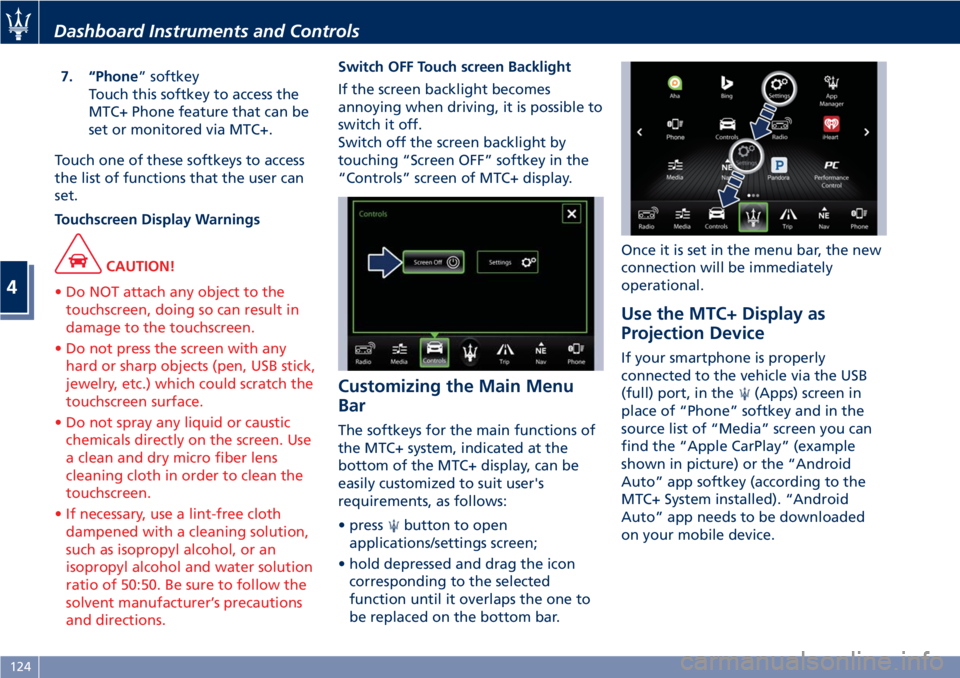
Customizing the Main Menu
Bar The softkeys for the main functions of
the MTC+ system, indicated at the
bottom of the MTC+ display, can be
easily customized to suit user's
requirements, as follows:
• press
button to open
applications/settings screen;
• hold depressed and drag the icon
corresponding to the selected
function until it overlaps the one to
be replaced on the bottom bar. Once it is set in the menu bar, the new
connection will be immediately
operational.
Use the MTC+ Display as
Projection Device If your smartphone is properly
connected to the vehicle via the USB
(full) port, in the
(Apps) screen in
place of “Phone” softkey and in the
source list of “Media” screen you can
find the “Apple CarPlay” (example
shown in picture) or the “Android
Auto” app softkey (according to the
MTC+ System installed). “Android
Auto” app needs to be downloaded
on your mobile device.Dashboard Instruments and Controls
4
124
Page 133 of 286
NOTE:
“SiriusXM Satellite Radio” is the US
service only available in the 48
Continental United States and
Canadian markets. Subscription is
required. For further details refer to
the Maserati Touch Controls Plus
(MTC+) guide.
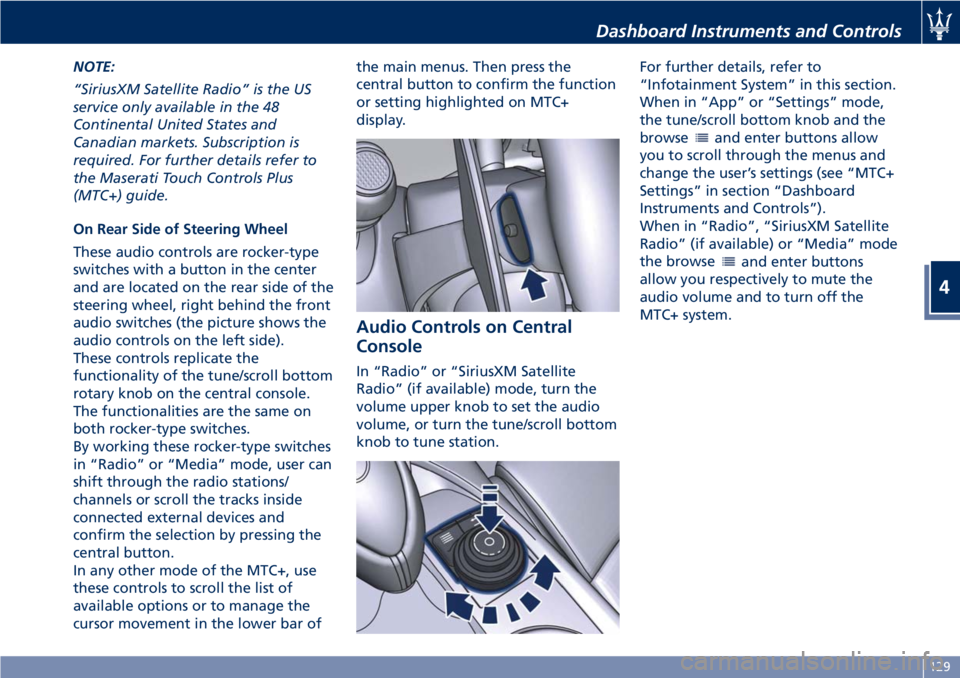
On Rear Side of Steering Wheel
These audio controls are rocker-type
switches with a button in the center
and are located on the rear side of the
steering wheel, right behind the front
audio switches (the picture shows the
audio controls on the left side).
These controls replicate the
functionality of the tune/scroll bottom
rotary knob on the central console.
The functionalities are the same on
both rocker-type switches.
By working these rocker-type switches
in “Radio” or “Media” mode, user can
shift through the radio stations/
channels or scroll the tracks inside
connected external devices and
confirm the selection by pressing the
central button.
In any other mode of the MTC+, use
these controls to scroll the list of
available options or to manage the
cursor movement in the lower bar of the main menus. Then press the
central button to confirm the function
or setting highlighted on MTC+
display.
Audio Controls on Central
Console In “Radio” or “SiriusXM Satellite
Radio” (if available) mode, turn the
volume upper knob to set the audio
volume, or turn the tune/scroll bottom
knob to tune station. For further details, refer to
“Infotainment System” in this section.
When in “App” or “Settings” mode,
the tune/scroll bottom knob and the
browse
and enter buttons allow
you to scroll through the menus and
change the user’s settings (see “MTC+
Settings” in section “Dashboard
Instruments and Controls”).
When in “Radio”, “SiriusXM Satellite
Radio” (if available) or “Media” mode
the browse
and enter buttons
allow you respectively to mute the
audio volume and to turn off the
MTC+ system.Dashboard Instruments and Controls
4
129
Page 135 of 286
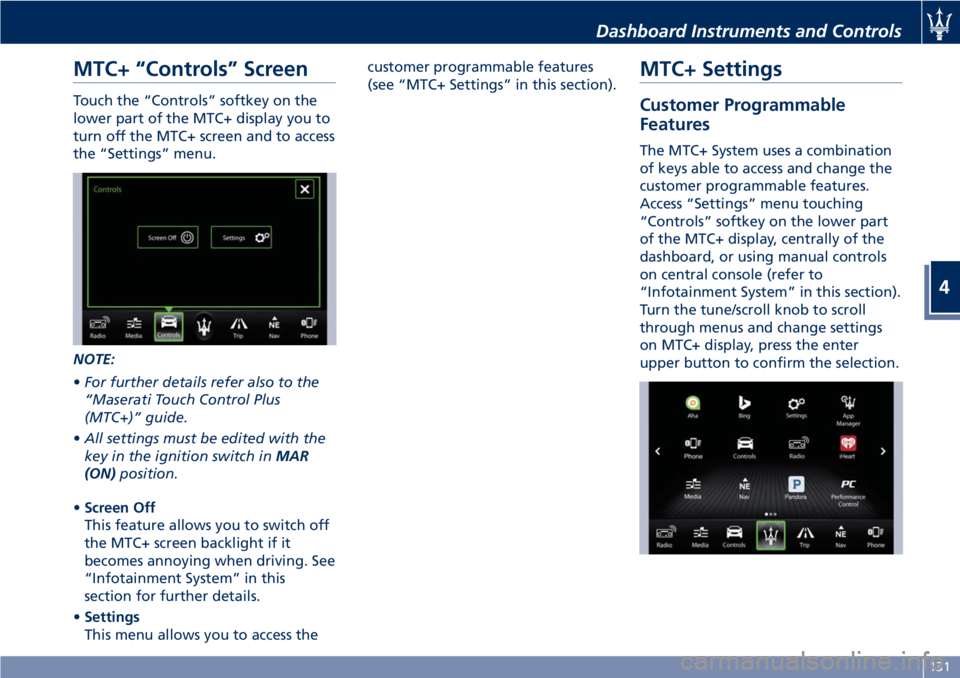
MTC+ “Controls” Screen Touch the “Controls” softkey on the
lower part of the MTC+ display you to
turn off the MTC+ screen and to access
the “Settings” menu.
NOTE:
• For further details refer also to the
“Maserati Touch Control Plus
(MTC+)” guide.
• All settings must be edited with the
key in the ignition switch in MAR
(ON) position.
• Screen Off
This feature allows you to switch off
the MTC+ screen backlight if it
becomes annoying when driving. See
“Infotainment System” in this
section for further details.
• Settings
This menu allows you to access the customer programmable features
(see “MTC+ Settings” in this section).
MTC+ Settings Customer Programmable
Features The MTC+ System uses a combination
of keys able to access and change the
customer programmable features.
Access “Settings” menu touching
“Controls” softkey on the lower part
of the MTC+ display, centrally of the
dashboard, or using manual controls
on central console (refer to
“Infotainment System” in this section).
Turn the tune/scroll knob to scroll
through menus and change settings
on MTC+ display, press the enter
upper button to confirm the selection.Dashboard Instruments and Controls
4
131
Page 136 of 286
NOTE:
• For further details refer to the
“Maserati Touch Control Plus
(MTC+)” guide.
• All settings must be edited with key
in the ignition switch in MAR (ON)
position.
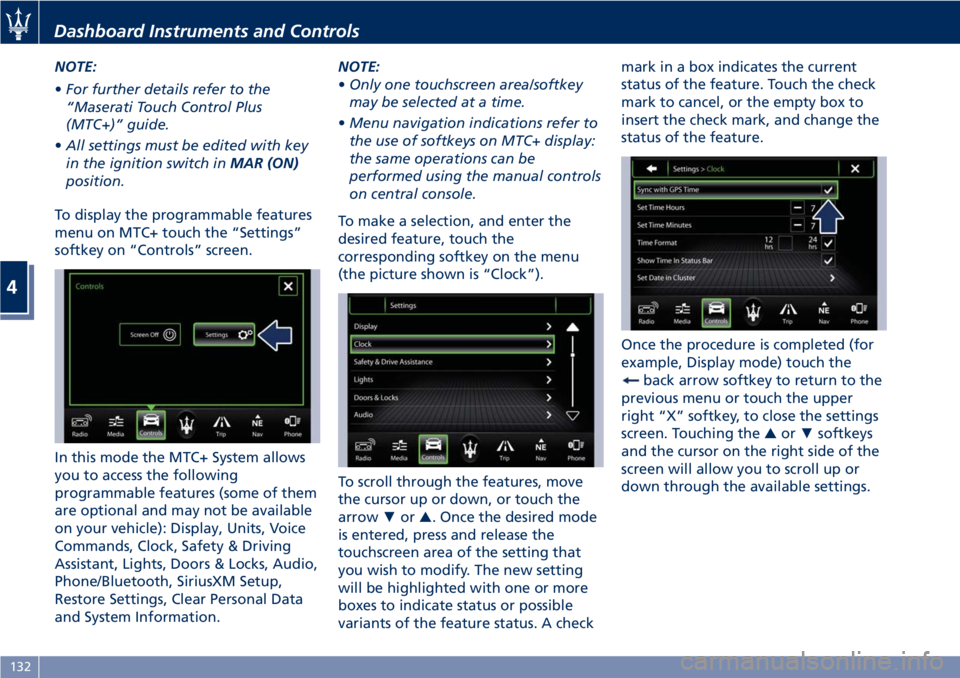
To display the programmable features
menu on MTC+ touch the “Settings”
softkey on “Controls” screen.
In this mode the MTC+ System allows
you to access the following
programmable features (some of them
are optional and may not be available
on your vehicle): Display, Units, Voice
Commands, Clock, Safety & Driving
Assistant, Lights, Doors & Locks, Audio,
Phone/Bluetooth, SiriusXM Setup,
Restore Settings, Clear Personal Data
and System Information. NOTE:
• Only one touchscreen area/softkey
may be selected at a time.
• Menu navigation indications refer to
the use of softkeys on MTC+ display:
the same operations can be
performed using the manual controls
on central console.
To make a selection, and enter the
desired feature, touch the
corresponding softkey on the menu
(the picture shown is “Clock”).
To scroll through the features, move
the cursor up or down, or touch the
arrow ▼ or ▲ . Once the desired mode
is entered, press and release the
touchscreen area of the setting that
you wish to modify. The new setting
will be highlighted with one or more
boxes to indicate status or possible
variants of the feature status. A check mark in a box indicates the current
status of the feature. Touch the check
mark to cancel, or the empty box to
insert the check mark, and change the
status of the feature.
Once the procedure is completed (for
example, Display mode) touch the
back arrow softkey to return to the
previous menu or touch the upper
right “X” softkey, to close the settings
screen. Touching the ▲ or ▼ softkeys
and the cursor on the right side of the
screen will allow you to scroll up or
down through the available settings.Dashboard Instruments and Controls
4
132
Page 137 of 286
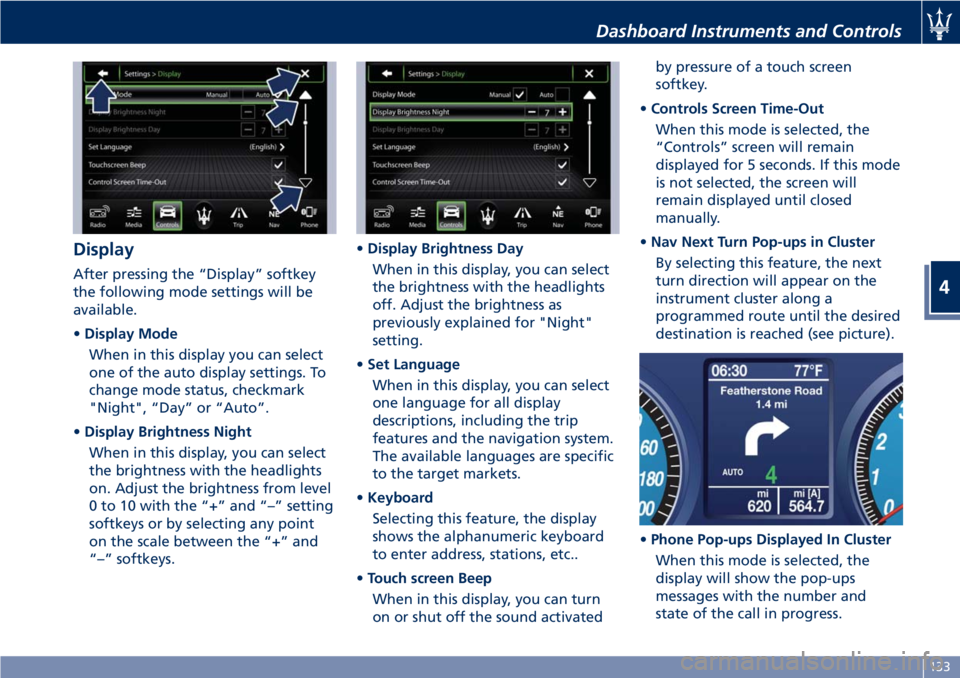
Display After pressing the “Display” softkey
the following mode settings will be
available.
• Display Mode
When in this display you can select
one of the auto display settings. To
change mode status, checkmark
"Night", “Day” or “Auto”.
• Display Brightness Night
When in this display, you can select
the brightness with the headlights
on. Adjust the brightness from level
0 to 10 with the “+” and “–” setting
softkeys or by selecting any point
on the scale between the “+” and
“–” softkeys. • Display Brightness Day
When in this display, you can select
the brightness with the headlights
off. Adjust the brightness as
previously explained for "Night"
setting.
• Set Language
When in this display, you can select
one language for all display
descriptions, including the trip
features and the navigation system.
The available languages are specific
to the target markets.
• Keyboard
Selecting this feature, the display
shows the alphanumeric keyboard
to enter address, stations, etc..
• Touch screen Beep
When in this display, you can turn
on or shut off the sound activated by pressure of a touch screen
softkey.
• Controls Screen Time-Out
When this mode is selected, the
“Controls” screen will remain
displayed for 5 seconds. If this mode
is not selected, the screen will
remain displayed until closed
manually.
• Nav Next Turn Pop-ups in Cluster
By selecting this feature, the next
turn direction will appear on the
instrument cluster along a
programmed route until the desired
destination is reached (see picture).
• Phone Pop-ups Displayed In Cluster
When this mode is selected, the
display will show the pop-ups
messages with the number and
state of the call in progress.Dashboard Instruments and Controls
4
133
Page 139 of 286
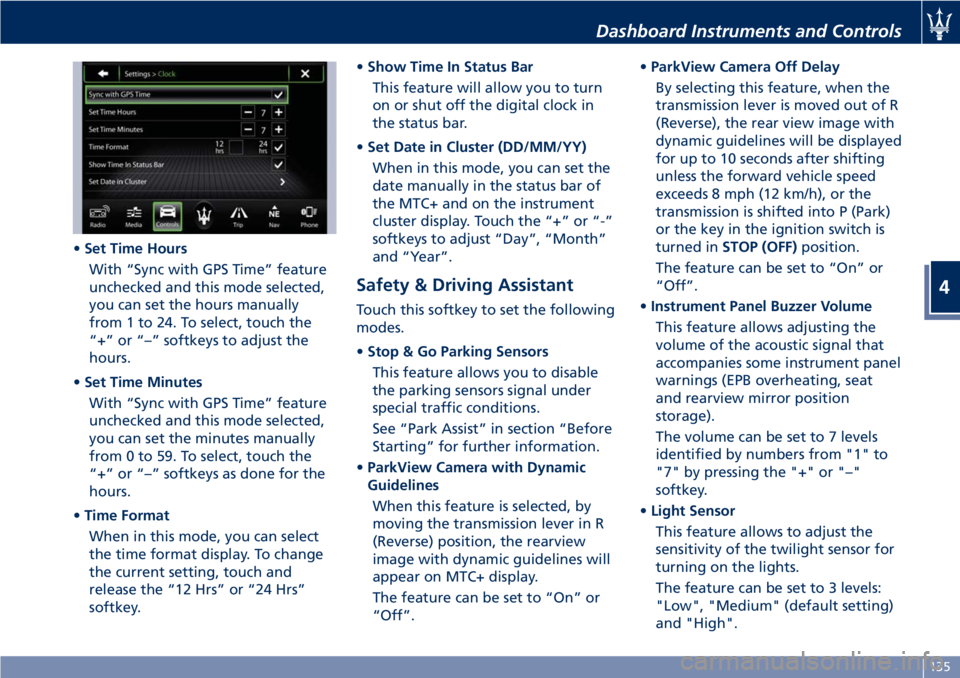
• Set Time Hours
With “Sync with GPS Time” feature
unchecked and this mode selected,
you can set the hours manually
from 1 to 24. To select, touch the
“+” or “–” softkeys to adjust the
hours.
• Set Time Minutes
With “Sync with GPS Time” feature
unchecked and this mode selected,
you can set the minutes manually
from 0 to 59. To select, touch the
“+” or “–” softkeys as done for the
hours.
• Time Format
When in this mode, you can select
the time format display. To change
the current setting, touch and
release the “12 Hrs” or “24 Hrs”
softkey. • Show Time In Status Bar
This feature will allow you to turn
on or shut off the digital clock in
the status bar.
• Set Date in Cluster (DD/MM/YY)
When in this mode, you can set the
date manually in the status bar of
the MTC+ and on the instrument
cluster display. Touch the “+” or “-”
softkeys to adjust “Day”, “Month”
and “Year”.
Safety & Driving Assistant Touch this softkey to set the following
modes.
• Stop & Go Parking Sensors
This feature allows you to disable
the parking sensors signal under
special traffic conditions.
See “Park Assist” in section “Before
Starting” for further information.
• ParkView Camera with Dynamic
Guidelines
When this feature is selected, by
moving the transmission lever in R
(Reverse) position, the rearview
image with dynamic guidelines will
appear on MTC+ display.
The feature can be set to “On” or
“Off”. • ParkView Camera Off Delay
By selecting this feature, when the
transmission lever is moved out of R
(Reverse), the rear view image with
dynamic guidelines will be displayed
for up to 10 seconds after shifting
unless the forward vehicle speed
exceeds 8 mph (12 km/h), or the
transmission is shifted into P (Park)
or the key in the ignition switch is
turned in STOP (OFF) position.
The feature can be set to “On” or
“Off”.
• Instrument Panel Buzzer Volume
This feature allows adjusting the
volume of the acoustic signal that
accompanies some instrument panel
warnings (EPB overheating, seat
and rearview mirror position
storage).
The volume can be set to 7 levels
identified by numbers from "1" to
"7" by pressing the "+" or "–"
softkey.
• Light Sensor
This feature allows to adjust the
sensitivity of the twilight sensor for
turning on the lights.
The feature can be set to 3 levels:
"Low", "Medium" (default setting)
and "High".Dashboard Instruments and Controls
4
135
Page 140 of 286
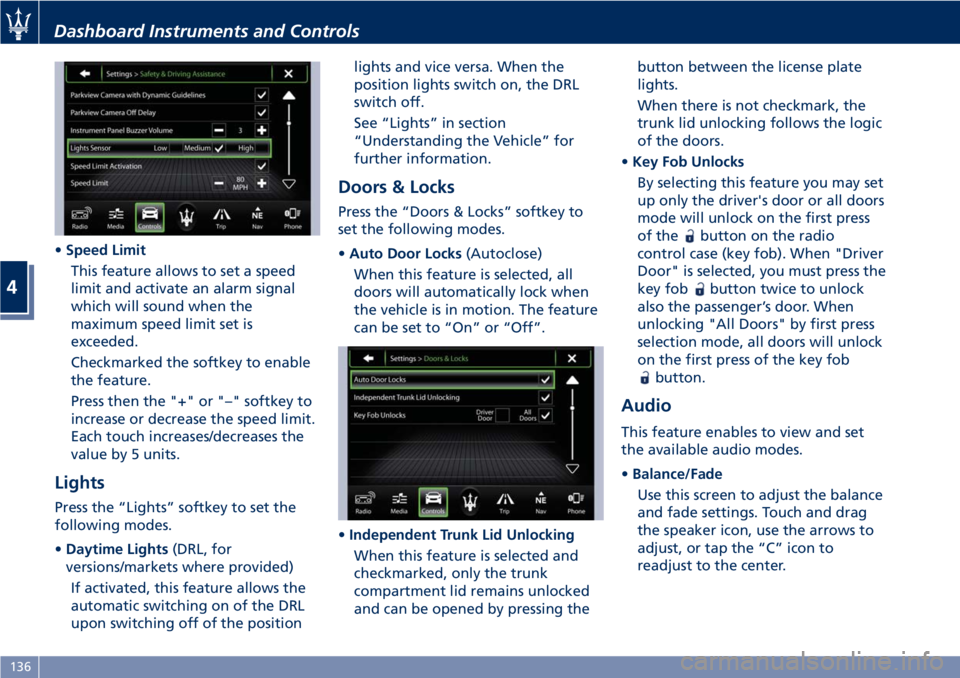
• Speed Limit
This feature allows to set a speed
limit and activate an alarm signal
which will sound when the
maximum speed limit set is
exceeded.
Checkmarked the softkey to enable
the feature.
Press then the "+" or "–" softkey to
increase or decrease the speed limit.
Each touch increases/decreases the
value by 5 units.
Lights Press the “Lights” softkey to set the
following modes.
• Daytime Lights (DRL, for
versions/markets where provided)
If activated, this feature allows the
automatic switching on of the DRL
upon switching off of the position lights and vice versa. When the
position lights switch on, the DRL
switch off.
See “Lights” in section
“Understanding the Vehicle” for
further information.
Doors & Locks Press the “Doors & Locks” softkey to
set the following modes.
• Auto Door Locks (Autoclose)
When this feature is selected, all
doors will automatically lock when
the vehicle is in motion. The feature
can be set to “On” or “Off”.
• Independent Trunk Lid Unlocking
When this feature is selected and
checkmarked, only the trunk
compartment lid remains unlocked
and can be opened by pressing the button between the license plate
lights.
When there is not checkmark, the
trunk lid unlocking follows the logic
of the doors.
• Key Fob Unlocks
By selecting this feature you may set
up only the driver's door or all doors
mode will unlock on the first press
of the
button on the radio
control case (key fob). When "Driver
Door" is selected, you must press the
key fob
button twice to unlock
also the passenger’s door. When
unlocking "All Doors" by first press
selection mode, all doors will unlock
on the first press of the key fob
button.
Audio This feature enables to view and set
the available audio modes.
• Balance/Fade
Use this screen to adjust the balance
and fade settings. Touch and drag
the speaker icon, use the arrows to
adjust, or tap the “C” icon to
readjust to the center.Dashboard Instruments and Controls
4
136
Page 143 of 286
settings and/or options that have been
modified compared to factory settings
and will also remove from system
memory Bluetooth ®
devices and
presets.
To remove personal information,
select this feature and a pop-up will
appear asking confirmation to delete
all personal data. Select “OK” to clear,
or “Cancel” to exit. Once the data
have been cleared, a pop up appears
confirming that personal data have
been cleared.
System Information When this feature is selected, the
display shows an information screen
with the software version installed on
MTC+. Glove Compartments The glove compartments may be used
to store devices, small items or
documents.
WARNING!
• Do not operate the vehicle with the
lid of glove compartment in the
open position.
• To help ensure passenger safety, the
glove compartment must always
remain closed while driving.
• Store objects or devices in glove
compartment to ensure they will not
move during the trip and prevent
them from hitting any person on
board.
CAUTION!
Do not place objects weighing over
22 lb (10 kg) in the glove
compartment.
Glove Box on Passenger Side
To open the glove box on the
passenger side of the dashboard, pull
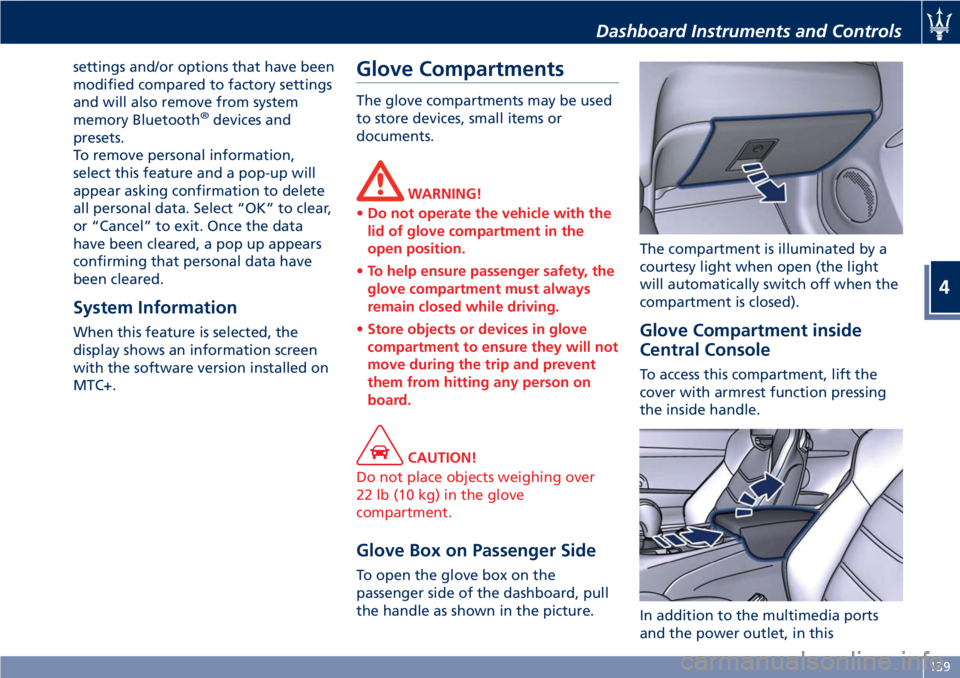
the handle as shown in the picture. The compartment is illuminated by a
courtesy light when open (the light
will automatically switch off when the
compartment is closed).
Glove Compartment inside
Central Console To access this compartment, lift the
cover with armrest function pressing
the inside handle.
In addition to the multimedia ports
and the power outlet, in thisDashboard Instruments and Controls
4
139
Page 144 of 286
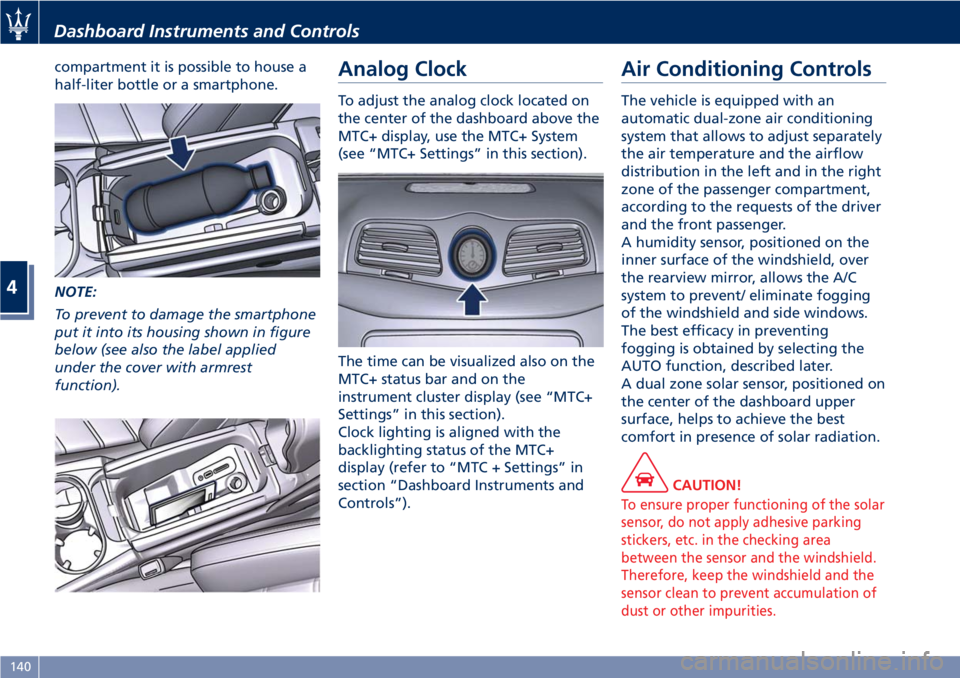
compartment it is possible to house a
half-liter bottle or a smartphone.
NOTE:
To prevent to damage the smartphone
put it into its housing shown in figure
below (see also the label applied
under the cover with armrest
function). Analog Clock To adjust the analog clock located on
the center of the dashboard above the
MTC+ display, use the MTC+ System
(see “MTC+ Settings” in this section).
The time can be visualized also on the
MTC+ status bar and on the
instrument cluster display (see “MTC+
Settings” in this section).
Clock lighting is aligned with the
backlighting status of the MTC+
display (refer to “MTC + Settings” in
section “Dashboard Instruments and
Controls”). Air Conditioning Controls The vehicle is equipped with an
automatic dual-zone air conditioning
system that allows to adjust separately
the air temperature and the airflow
distribution in the left and in the right
zone of the passenger compartment,
according to the requests of the driver
and the front passenger.
A humidity sensor, positioned on the
inner surface of the windshield, over
the rearview mirror, allows the A/C
system to prevent/ eliminate fogging
of the windshield and side windows.
The best efficacy in preventing
fogging is obtained by selecting the
AUTO function, described later.
A dual zone solar sensor, positioned on
the center of the dashboard upper
surface, helps to achieve the best
comfort in presence of solar radiation.
CAUTION!
To ensure proper functioning of the solar
sensor, do not apply adhesive parking
stickers, etc. in the checking area
between the sensor and the windshield.
Therefore, keep the windshield and the
sensor clean to prevent accumulation of
dust or other impurities.Dashboard Instruments and Controls
4
140