specif MASERATI LEVANTE 2019 Owner's Manual
[x] Cancel search | Manufacturer: MASERATI, Model Year: 2019, Model line: LEVANTE, Model: MASERATI LEVANTE 2019Pages: 436, PDF Size: 15.24 MB
Page 189 of 436
Gear Shift Indicator Light
This indicator lights up to
indicate gear shift change in
order to optimize fuel
consumption.
See “Drive Mode” in section
“Driving” for further
information.
Performance "Launch Control"
Indicator (TROFEO version only)
This indicator lights up when
the car is launched in the
"Launch Control"
performance start procedure.
See chapter "Drive Mode" in section
"Driving" for "Launch Control"
procedure.
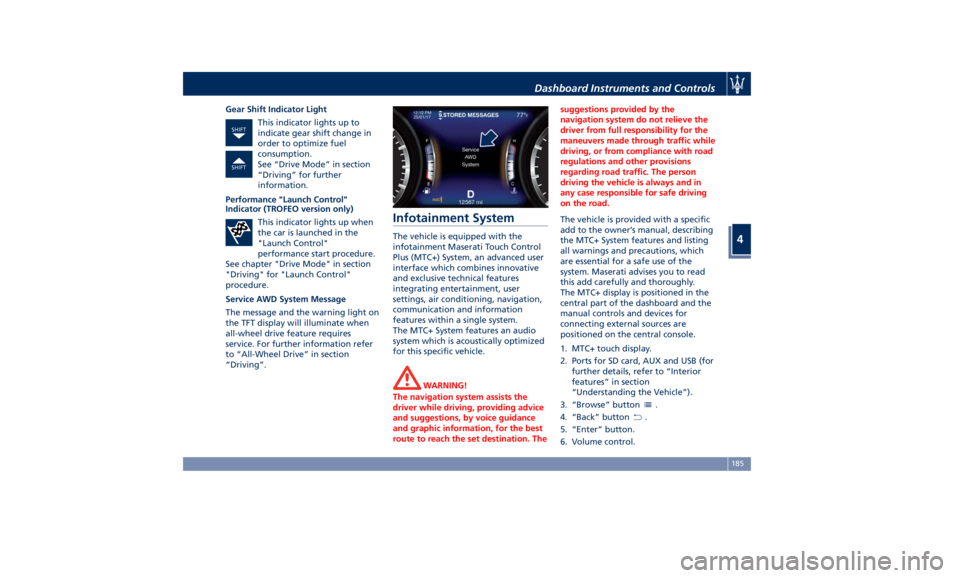
Service AWD System Message
The message and the warning light on
the TFT display will illuminate when
all-wheel drive feature requires
service. For further information refer
to “All-Wheel Drive” in section
“Driving”. Infotainment System The vehicle is equipped with the
infotainment Maserati Touch Control
Plus (MTC+) System, an advanced user
interface which combines innovative
and exclusive technical features
integrating entertainment, user
settings, air conditioning, navigation,
communication and information
features within a single system.
The MTC+ System features an audio
system which is acoustically optimized
for this specific vehicle.
WARNING!
The navigation system assists the
driver while driving, providing advice
and suggestions, by voice guidance
and graphic information, for the best
route to reach the set destination. The suggestions provided by the
navigation system do not relieve the
driver from full responsibility for the
maneuvers made through traffic while
driving, or from compliance with road
regulations and other provisions
regarding road traffic. The person
driving the vehicle is always and in
any case responsible for safe driving
on the road.
The vehicle is provided with a specific
add
to the owner’
s manual, describing
the MTC+ System features and listing
all warnings and precautions, which
are essential for a safe use of the
system. Maserati advises you to read
this add carefully and thoroughly.
The MTC+ display is positioned in the
central part of the dashboard and the
manual controls and devices for
connecting external sources are
positioned on the central console.
1. MTC+ touch display.
2. Ports for SD card, AUX and USB (for
further details, refer to “Interior
features” in section
“Understanding the Vehicle”).
3. “Browse” button
.
4. “Back” button
.
5. “Enter” button.
6. Volume control.Dashboard Instruments and Controls
4
185
Page 199 of 436
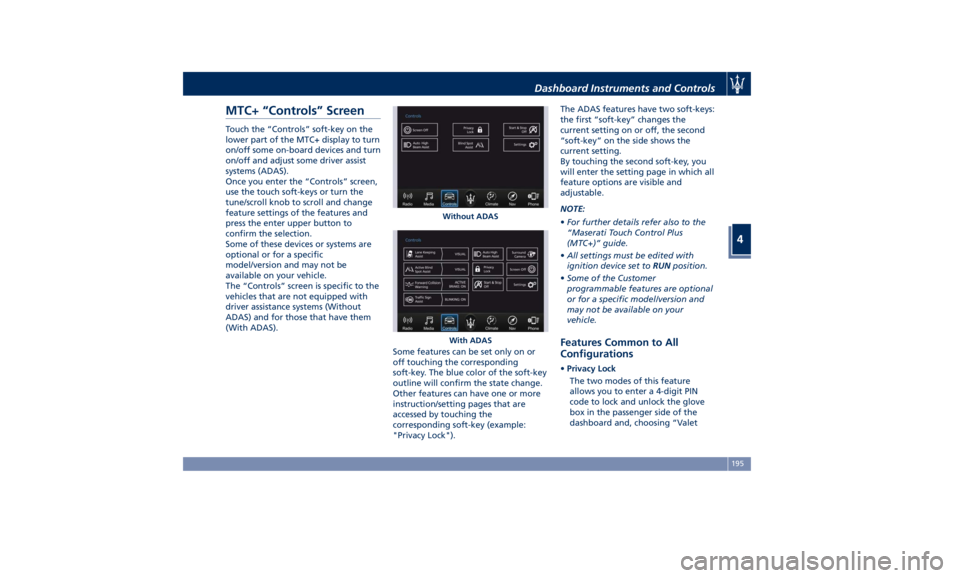
MTC+ “Controls” Screen Touch the “Controls” soft-key on the
lower part of the MTC+ display to turn
on/off some on-board devices and turn
on/off and adjust some driver assist
systems (ADAS).
Once you enter the “Controls” screen,
use the touch soft-keys or turn the
tune/scroll knob to scroll and change
feature settings of the features and
press the enter upper button to
confirm the selection.
Some of these devices or systems are
optional or for a specific
model/version and may not be
available on your vehicle.
The “Controls” screen is specific to the
vehicles that are not equipped with
driver assistance systems (Without
ADAS) and for those that have them
(With ADAS).
Some features can be set only on or
off touching the corresponding
soft-key. The blue color of the soft-key
outline will confirm the state change.
Other features can have one or more
instruction/setting pages that are
accessed by touching the
corresponding soft-key (example:
"Privacy Lock"). The ADAS features have two soft-keys:
the first “soft-key” changes the
current setting on or off, the second
“soft-key” on the side shows the
current setting.
By touching the second soft-key, you
will enter the setting page in which all
feature options are visible and
adjustable.
NOTE:
• For further details refer also to the
“Maserati Touch Control Plus
(MTC+)” guide.
• All settings must be edited with
ignition device set to RUN position.
• Some of the Customer
programmable features are optional
or for a specific model/version and
may not be available on your
vehicle.
Features Common to All
Configurations • Privacy Lock
The two modes of this feature
allows you to enter a 4-digit PIN
code to lock and unlock the glove
box in the passenger side of the
dashboard and, choosing “ValetWithout ADAS
With ADASDashboard Instruments and Controls
4
195
Page 200 of 436
Mode”, to lock your settings for
listening and guidance.
See "Dashboard Compartments" in
this section for further details.
• Start & Stop Off
This feature allows you to disable
the Start & Stop when frequent
stops and restarts of the engine may
become annoying.
See "Automatic Start&Stop System"
in section "Driving" for further
details.
• Auto High Beam Assist
By selecting this feature, when the
forward digital camera detects a
vehicle that precedes in the
direction of travel or in the opposite
direction, adjust the high beam in
an automatic way not to dazzle.
See "Lights" in section
"Understanding the Vehicle" for
further details.
• Screen OFF
This feature allows you to switch off
the MTC+ screen backlight if it
becomes annoying when driving.
See "Infotainment System" in this
section for further details.
• Settings
Touch this soft-key you enter the
“Settings” page that displays all user - customizable features: see “MTC+
Settings” in this section.
Features Specific for Vehicle
without ADAS • Blind Spot Assist
Activating this feature the BSA and
RCP systems assist the driver when
changing lanes, overtaking and
when parking, by detecting the
arrival of other vehicles from a side
or rear blind spot. When this
happens, a light signal appears in
the external rear-view mirror.
When the Blind Spot Assist (BSA) is
selected, feature can be set to
“Off”, “Lights” or “Lights + Chime”
(default mode). When this feature is
activated in “Lights” mode, the
system will only show a warning
light in the outside mirrors.
When “Lights + Chime” mode is
activated, the system will show a
warning light in the outside mirrors
as well as give an audible alert when
the turn signal is on. When “Off” is
selected, the system is deactivated.
For description of this system, see
chapter “Blind Spot Assist - BSA” in
section “Driving”. Features Specific for Vehicles
with ADAS • Lane Keeping Assist
Activating this feature the LKA
system will attempt to keep the
vehicle in lane and can apply direct
input to electric power steering
system to change direction of
vehicle.
The current system setting is shown
in blue on the right side of the LKA
soft-key.
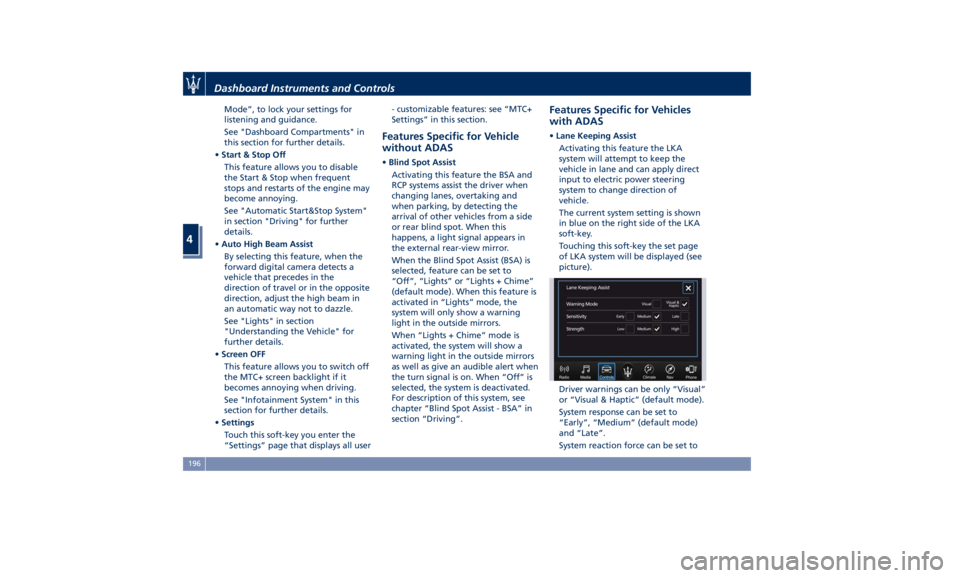
Touching this soft-key the set page
of LKA system will be displayed (see
picture).
Driver warnings can be only “Visual”
or “Visual & Haptic” (default mode).
System response can be set to
“Early”, “Medium” (default mode)
and “Late”.
System reaction force can be set toDashboard Instruments and Controls
4
196
Page 203 of 436
NOTE:
• For further details refer to the
“Maserati Touch Control Plus
(MTC+)” guide.
• All settings must be edited with
ignition device set to RUN position.
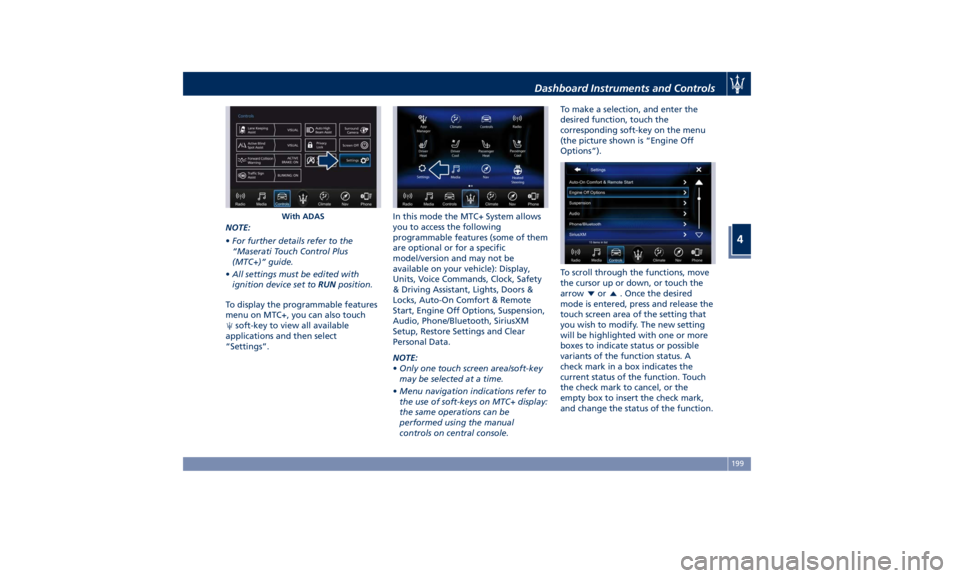
To display the programmable features
menu on MTC+, you can also touch
soft-key to view all available
applications and then select
“Settings”. In this mode the MTC+ System allows
you to access the following
programmable features (some of them
are optional or for a specific
model/version and may not be
available on your vehicle): Display,
Units, Voice Commands, Clock, Safety
& Driving Assistant, Lights, Doors &
Locks, Auto-On Comfort & Remote
Start, Engine Off Options, Suspension,
Audio, Phone/Bluetooth, SiriusXM
Setup, Restore Settings and Clear
Personal Data.
NOTE:
• Only one touch screen area/soft-key
may be selected at a time.
• Menu navigation indications refer to
the use of soft-keys on MTC+ display:
the same operations can be
performed using the manual
controls on central console. To make a selection, and enter the
desired function, touch the
corresponding soft-key on the menu
(the picture shown is “Engine Off
Options”).
To scroll through the functions, move
the cursor up or down, or touch the
arrow
or . Once the desired
mode is entered, press and release the
touch screen area of the setting that
you wish to modify. The new setting
will be highlighted with one or more
boxes to indicate status or possible
variants of the function status. A
check mark in a box indicates the
current status of the function. Touch
the check mark to cancel, or the
empty box to insert the check mark,
and change the status of the function.With ADAS Dashboard Instruments and Controls
4
199
Page 204 of 436
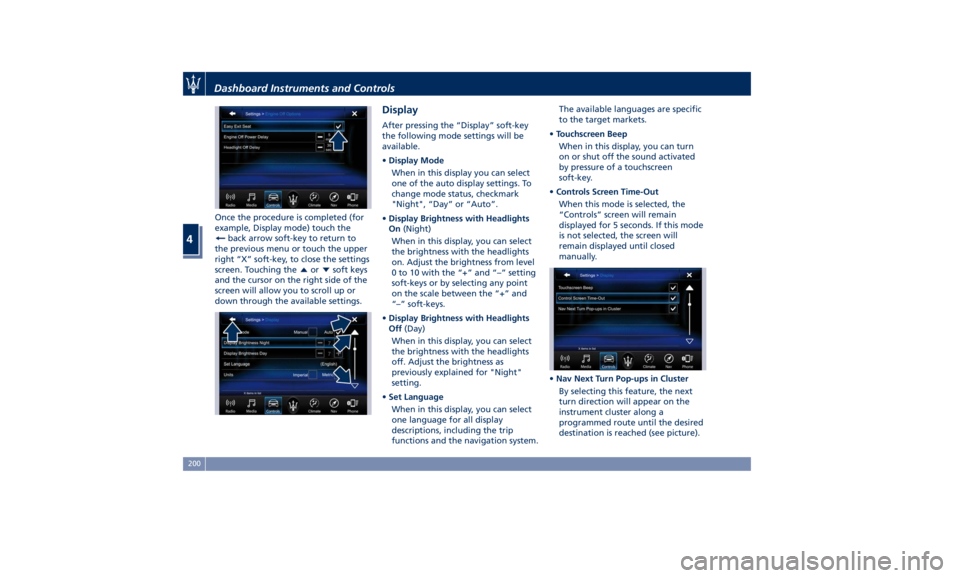
Once the procedure is completed (for
example, Display mode) touch the
back arrow soft-key to return to
the previous menu or touch the upper
right “X” soft-key, to close the settings
screen. Touching the
or soft keys
and the cursor on the right side of the
screen will allow you to scroll up or
down through the available settings. Display After pressing the “Display” soft-key
the following mode settings will be
available.
• Display Mode
When in this display you can select
one of the auto display settings. To
change mode status, checkmark
"Night", “Day” or “Auto”.
• Display Brightness with Headlights
On (Night)
When in this display, you can select
the brightness with the headlights
on. Adjust the brightness from level
0 to 10 with the “+” and “–” setting
soft-keys or by selecting any point
on the scale between the “+” and
“–” soft-keys.
• Display Brightness with Headlights
Off (Day)
When in this display, you can select
the brightness with the headlights
off. Adjust the brightness as
previously explained for "Night"
setting.
• Set Language
When in this display, you can select
one language for all display
descriptions, including the trip
functions and the navigation system. The available languages are specific
to the target markets.
• Touchscreen Beep
When in this display, you can turn
on or shut off the sound activated
by pressure of a touchscreen
soft-key.
• Controls Screen Time-Out
When this mode is selected, the
“Controls” screen will remain
displayed for 5 seconds. If this mode
is not selected, the screen will
remain displayed until closed
manually.
• Nav Next Turn Pop-ups in Cluster
By selecting this feature, the next
turn direction will appear on the
instrument cluster along a
programmed route until the desired
destination is reached (see picture).Dashboard Instruments and Controls
4
200
Page 216 of 436
NOTE:
• If you do not enter all PIN digits, a
prompt will indicate that you should
do so.
• In case of an incoming call while
entering the PIN, the MTC+ system
will temporarily stop the release
function. As soon as the call is over,
the keypad screen will be displayed
again so that you can enter the PIN.
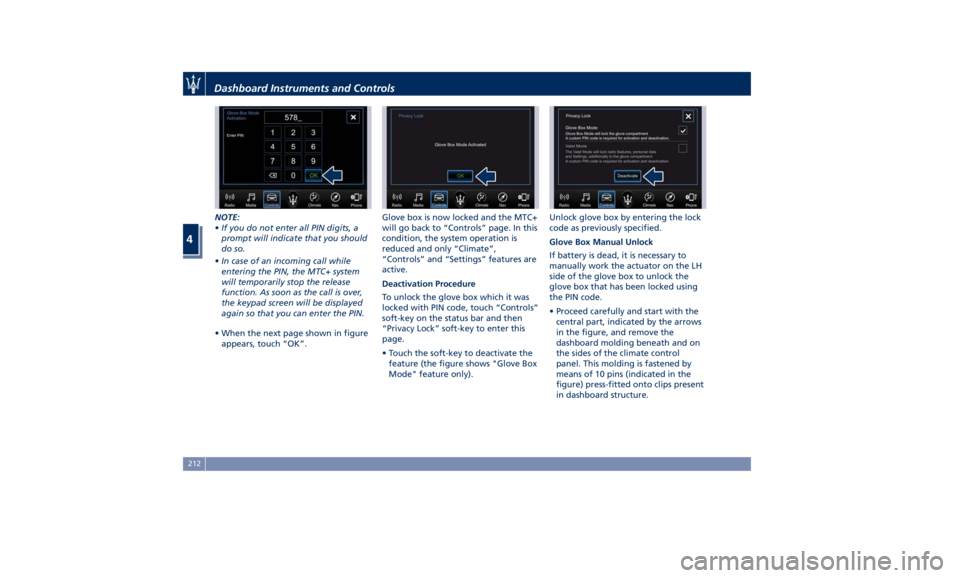
• When the next page shown in figure
appears, touch “OK”. Glove box is now locked and the MTC+
will go back to “Controls” page. In this
condition, the system operation is
reduced and only “Climate”,
“Controls” and “Settings” features are
active.
Deactivation Procedure
To unlock the glove box which it was
locked with PIN code, touch “Controls”
soft-key on the status bar and then
“Privacy Lock” soft-key to enter this
page.
• Touch the soft-key to deactivate the
feature (the figure shows "Glove Box
Mode" feature only). Unlock glove box by entering the lock
code as previously specified.
Glove Box Manual Unlock
If battery is dead, it is necessary to
manually work the actuator on the LH
side of the glove box to unlock the
glove box that has been locked using
the PIN code.
• Proceed carefully and start with the
central part, indicated by the arrows
in the figure, and remove the
dashboard molding beneath and on
the sides of the climate control
panel. This molding is fastened by
means of 10 pins (indicated in the
figure) press-fitted onto clips present
in dashboard structure.Dashboard Instruments and Controls
4
212
Page 229 of 436
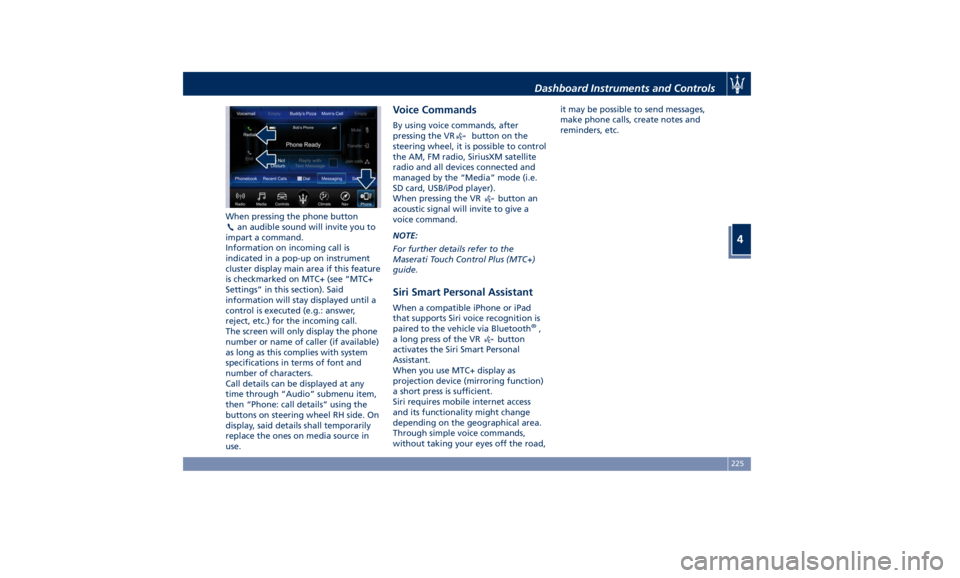
When pressing the phone button
an audible sound will invite you to
impart a command.
Information on incoming call is
indicated in a pop-up on instrument
cluster display main area if this feature
is checkmarked on MTC+ (see “MTC+
Settings” in this section). Said
information will stay displayed until a
control is executed (e.g.: answer,
reject, etc.) for the incoming call.
The screen will only display the phone
number or name of caller (if available)
as long as this complies with system
specifications in terms of font and
number of characters.
Call details can be displayed at any
time through “Audio” submenu item,
then “Phone: call details” using the
buttons on steering wheel RH side. On
display, said details shall temporarily
replace the ones on media source in
use. Voice Commands By using voice commands, after
pressing the VR
button on the
steering wheel, it is possible to control
the AM, FM radio, SiriusXM satellite
radio and all devices connected and
managed by the “Media” mode (i.e.
SD card, USB/iPod player).
When pressing the VR
button an
acoustic signal will invite to give a
voice command.
NOTE:
For further details refer to the
Maserati Touch Control Plus (MTC+)
guide.
Siri Smart Personal Assistant When a compatible iPhone or iPad
that supports Siri voice recognition is
paired to the vehicle via Bluetooth ®
,
a long press of the VR
button
activates the Siri Smart Personal
Assistant.
When you use MTC+ display as
projection device (mirroring function)
a short press is sufficient.
Siri requires mobile internet access
and its functionality might change
depending on the geographical area.
Through simple voice commands,
without taking your eyes off the road, it may be possible to send messages,
make phone calls, create notes and
reminders, etc.
Dashboard Instruments and Controls
4
225
Page 247 of 436
perform the following procedure
preferably at an Authorized Maserati
Dealer .
In the event of a momentary problem,
the transmission can be reset to regain
all forward gears by performing the
following steps.
• Stop the vehicle.
• Shift the transmission into P (Park), if
possible.
• Turn the engine off.
• Wait approximately 30 seconds.
• Restart the engine.
• Shift the transmission into D (Drive)
and then into the desired gear
range. If the problem is no longer
detected, the transmission will
return to normal operation.
NOTE:
Even if the transmission can be reset,
we recommend that you visit an
Authorized Maserati Dealer at your
earliest possible convenience, which
has diagnostic equipment to
determine if the problem could recur.
Transmission Manual Release of P
(Park) Position
See chapter “Transmission Manual
Release of P (Park) Position” in section
“In an Emergency”. All-Wheel Drive The active on-demand All-Wheel Drive
(AWD) system provides available
optimum traction for a wide variety of
road and off-road surface and driving
conditions. The system minimizes
wheel slip by automatically redirecting
torque to the front and rear wheels as
necessary.
To maximize fuel economy, the AWD
system automatically disengages
torque distribution on front axle when
road and environmental conditions
are such that wheel slip is unlikely to
occur. When specific road and
environmental conditions require
increased levels of road traction, the
AWD system automatically distributes
the torque between front and rear
axle in order to grant the best driving
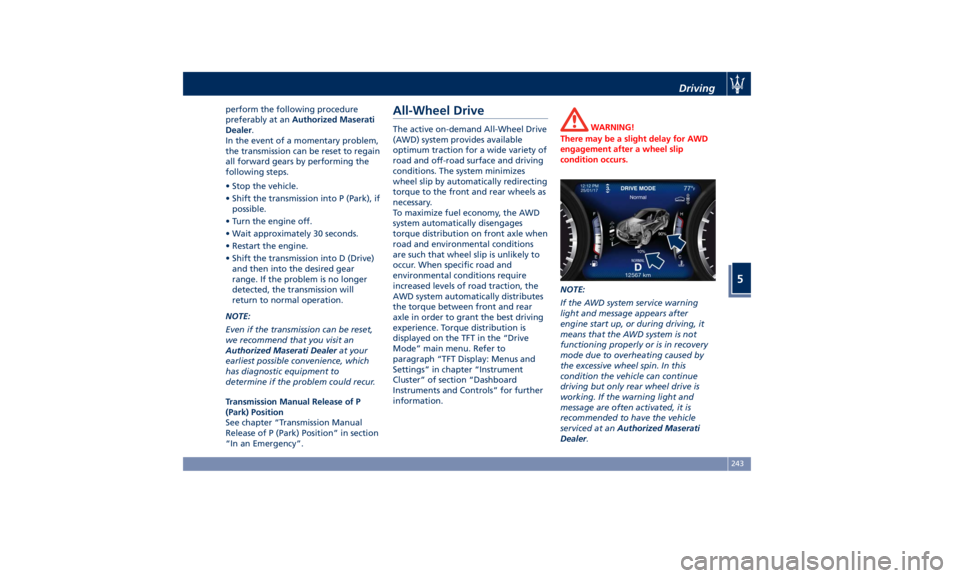
experience. Torque distribution is
displayed on the TFT in the “Drive
Mode” main menu. Refer to
paragraph “TFT Display: Menus and
Settings” in chapter “Instrument
Cluster” of section “Dashboard
Instruments and Controls” for further
information. WARNING!
There may be a slight delay for AWD
engagement after a wheel slip
condition occurs.
NOTE:
If the A WD
system service warning
light and message appears after
engine start up, or during driving, it
means that the AWD system is not
functioning properly or is in recovery
mode due to overheating caused by
the excessive wheel spin. In this
condition the vehicle can continue
driving but only rear wheel drive is
working. If the warning light and
message are often activated, it is
recommended to have the vehicle
serviced at an Authorized Maserati
Dealer .Driving
5
243
Page 248 of 436
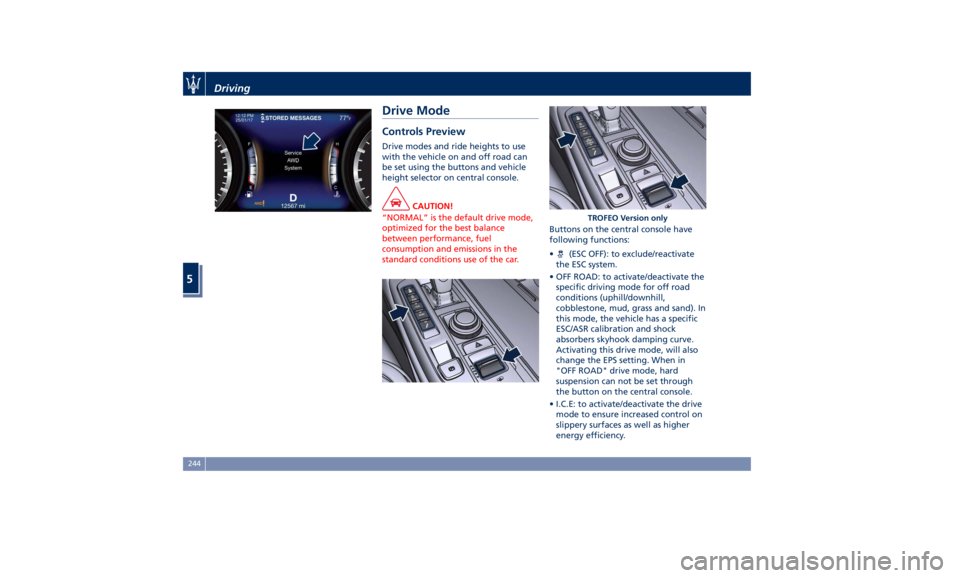
Drive Mode Controls Preview Drive modes and ride heights to use
with the vehicle on and off road can
be set using the buttons and vehicle
height selector on central console.
CAUTION!
“NORMAL” is the default drive mode,
optimized for the best balance
between performance, fuel
consumption and emissions in the
standard conditions use of the car. Buttons on the central console have
following
functions:
• (ESC OFF): to exclude/reactivate
the ESC system.
• OFF ROAD: to activate/deactivate the
specific driving mode for off road
conditions (uphill/downhill,
cobblestone, mud, grass and sand). In
this mode, the vehicle has a specific
ESC/ASR calibration and shock
absorbers skyhook damping curve.
Activating this drive mode, will also
change the EPS setting. When in
"OFF ROAD" drive mode, hard
suspension can not be set through
the button on the central console.
• I.C.E: to activate/deactivate the drive
mode to ensure increased control on
slippery surfaces as well as higher
energy efficiency. TROFEO Version onlyDriving
5
244
Page 249 of 436
• SPORT (NOT for TROFEO version): to
activate/deactivate a sportier drive
mode. In this mode, the vehicle has a
faster throttle response and ESC
sport calibration (not recommended
on wet/slippery surfaces). Activating
this drive mode, will also change the
EPS setting.
• SPORT and CORSA (TROFEO version
only): to activate/deactivate the
sportier and the race drive mode.
When in "SPORT" drive mode, the
vehicle has a faster throttle response
and ESC sport calibration (not
recommended on wet/slippery
surfaces). Activating this drive mode,
will also change the EPS setting.
When in "CORSA" drive mode, in
addition to what indicated for the
sposts mode, the transmission use a
specific gear shift pattern and the
traction is shifted more on the rear
wheels with increased oversteering
behavior. Traction control with
dedicated calibration to maximize
traction vs stability and "Launch
Control" start mode.
•
(Suspension): to switch between
the two suspension setting modes:
soft (LED light off) and hard ("S" on
the cluster and LED light on).
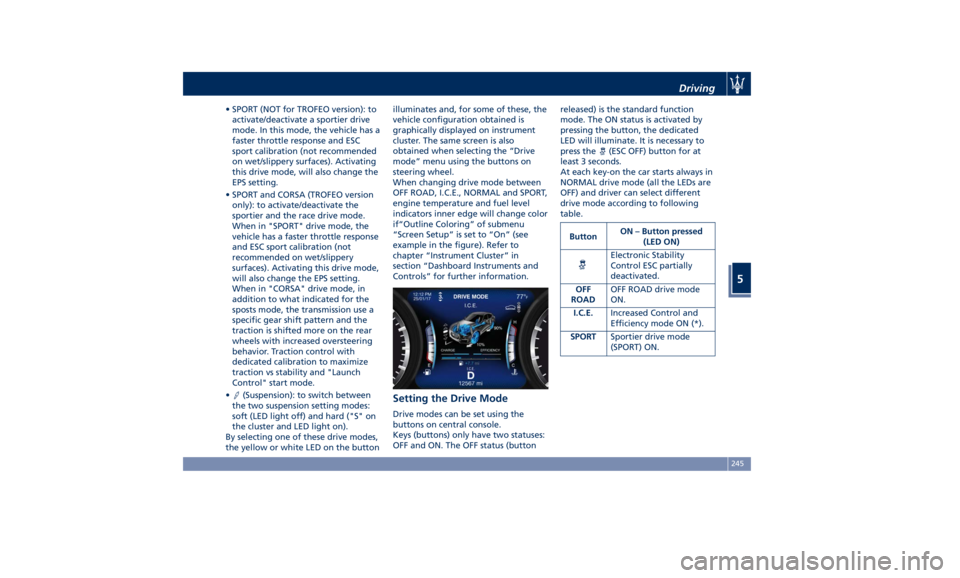
By selecting one of these drive modes,
the yellow or white LED on the button illuminates and, for some of these, the
vehicle configuration obtained is
graphically displayed on instrument
cluster. The same screen is also
obtained when selecting the “Drive
mode” menu using the buttons on
steering wheel.
When changing drive mode between
OFF ROAD, I.C.E., NORMAL and SPORT,
engine temperature and fuel level
indicators inner edge will change color
if“Outline Coloring” of submenu
“Screen Setup” is set to “On” (see
example in the figure). Refer to
chapter “Instrument Cluster” in
section “Dashboard Instruments and
Controls” for further information.
Setting the Drive Mode Drive modes can be set using the
buttons on central console.
Keys (buttons) only have two statuses:
OFF and ON. The OFF status (button released) is the standard function
mode. The ON status is activated by
pressing the button, the dedicated
LED will illuminate. It is necessary to
press the
(ESC OFF) button for at
least 3 seconds.
At each key-on the car starts always in
NORMAL drive mode (all the LEDs are
OFF) and driver can select different
drive mode according to following
table.
Button ON – Button pressed
(LED ON)
Electronic Stability
Control ESC partially
deactivated.
OFF
ROAD OFF ROAD drive mode
ON.
I.C.E. Increased Control and
Efficiency mode ON (*).
SPORT Sportier drive mode
(SPORT) ON.Driving
5
245