navigation MASERATI QUATTROPORTE 2019 Owners Manual
[x] Cancel search | Manufacturer: MASERATI, Model Year: 2019, Model line: QUATTROPORTE, Model: MASERATI QUATTROPORTE 2019Pages: 396, PDF Size: 13.9 MB
Page 89 of 396
or when the vehicle is overtaken by
motorcycles or other vehicles on one
or both sides in a queue of traffic.
When you set the volume, only the
parking sensor acoustic signal will be
affected. The radio or any other
devices connected to the vehicle
sound system will not be affected.
Refer to chapter “MTC+ Settings” in
section “Dashboard Instruments and
Controls” for further information.
Rear Parking Camera Your vehicle is equipped with a rear
parking camera that allows you to see
an image on the MTC+ screen of the
rear surroundings of your vehicle
whenever the shift lever is put into R
(Reverse).
When “Parkview Camera Off Delay”
mode is enabled, the rear view image
shall be displayed for up to 10 seconds
after shifting out of R (Reverse).
When “Rearwiew Camera Delay”
mode is enabled, the rear view image
shall be displayed for up to 10 seconds
after shifting out of R (Reverse).
To assist the driver during maneuvers
on dead-ends/roads and on
intersections, the vehicle may be
equipped with an optional surround
view camera system. In this case, the
rear parking camera is integrated into
the surround view camera system. In
both configurations (rear parking
camera only or surround view camera
system), you can always monitor the
rear view. For more details on this
option, see chapter "Surround View
Camera System (optional)" in this
section.
The image will be displayed along
with a caution note to “Check Entire
Surroundings” across the top of the screen. After five seconds this note
will disappear.
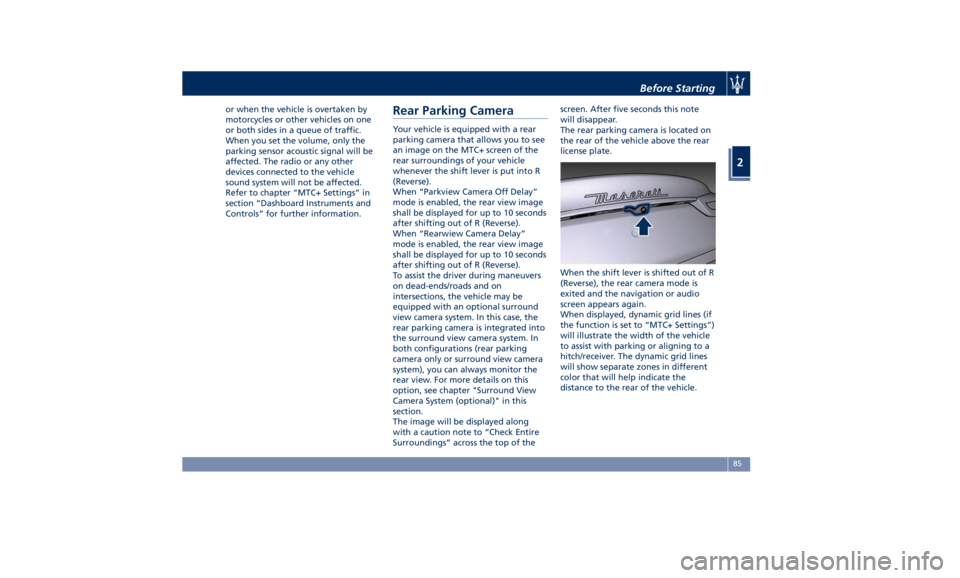
The rear parking camera is located on
the rear of the vehicle above the rear
license plate.
When the shift lever is shifted out of R
(Reverse), the rear camera mode is
exited and the navigation or audio
screen appears again.
When displayed, dynamic grid lines (if
the function is set to “MTC+ Settings”)
will illustrate the width of the vehicle
to assist with parking or aligning to a
hitch/receiver. The dynamic grid lines
will show separate zones in different
color that will help indicate the
distance to the rear of the vehicle.Before Starting
2
85
Page 99 of 396
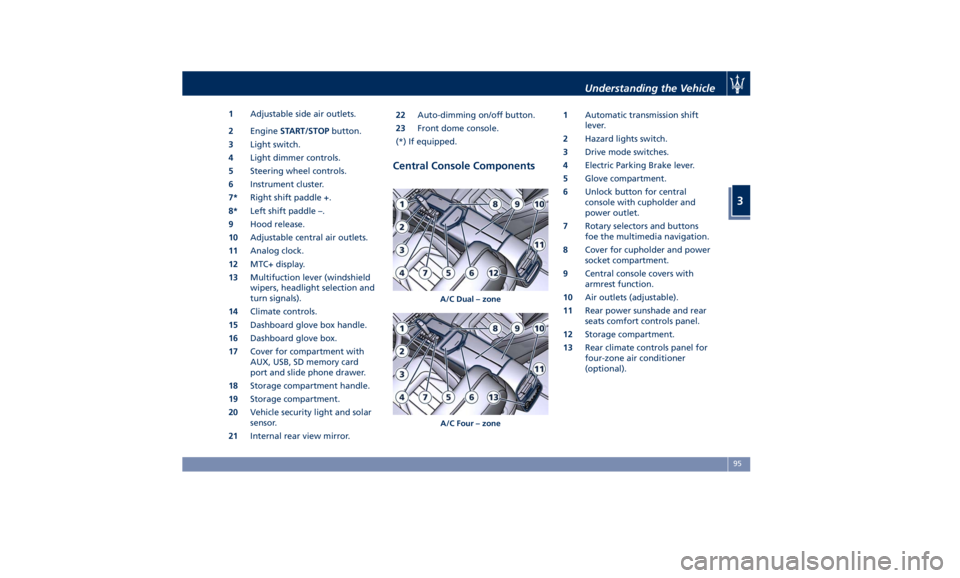
1 Adjustable side air outlets.
2 Engine START/STOP button.
3 Light switch.
4 Light dimmer controls.
5 Steering wheel controls.
6 Instrument cluster.
7* Right shift paddle +.
8* Left shift paddle –.
9 Hood release.
10 Adjustable central air outlets.
11 Analog clock.
12 MTC+ display.
13 Multifuction lever (windshield
wipers, headlight selection and
turn signals).
14 Climate controls.
15 Dashboard glove box handle.
16 Dashboard glove box.
17 Cover for compartment with
AUX, USB, SD memory card
port and slide phone drawer.
18 Storage compartment handle.
19 Storage compartment.
20 Vehicle security light and solar
sensor.
21 Internal rear view mirror. 22 Auto-dimming on/off button.
23 Front dome console.
(*) If equipped.
Central Console Components 1 Automatic transmission shift
lever.
2 Hazard lights switch.
3 Drive mode switches.
4 Electric Parking Brake lever.
5 Glove compartment.
6 Unlock button for central
console with cupholder and
power outlet.
7 Rotary selectors and buttons
foe the multimedia navigation.
8 Cover for cupholder and power
socket compartment.
9 Central console covers with
armrest function.
10 Air outlets (adjustable).
11 Rear power sunshade and rear
seats comfort controls panel.
12 Storage compartment.
13 Rear climate controls panel for
four-zone air conditioner
(optional).A/C Dual – zone
A/C Four – zone Understanding the Vehicle
3
95
Page 139 of 396
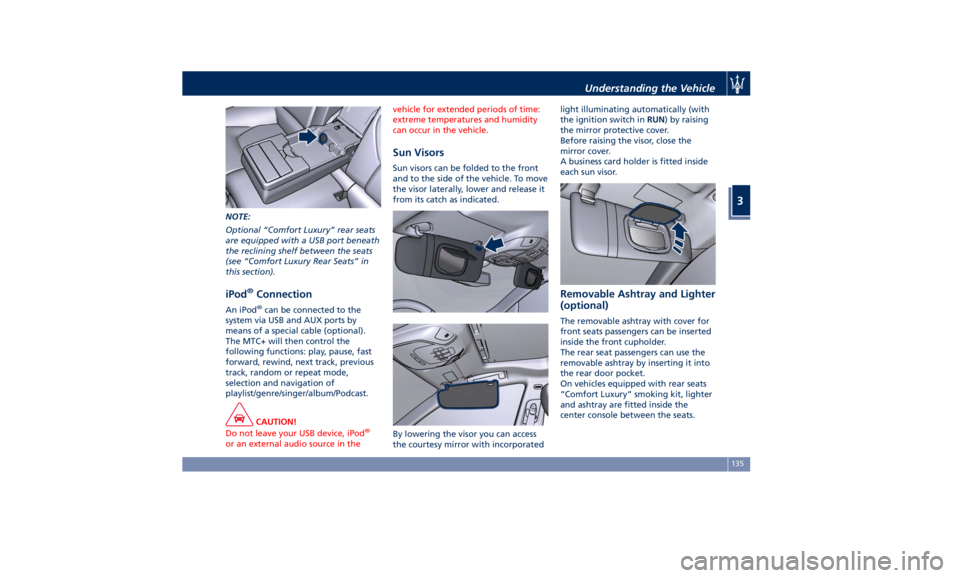
NOTE:
Optional “Comfort Luxury” rear seats
are equipped with a USB port beneath
the reclining shelf between the seats
(see “Comfort Luxury Rear Seats” in
this section).
iPod ®
Connection An iPod ®
can be connected to the
system via USB and AUX ports by
means of a special cable (optional).
The MTC+ will then control the
following functions: play, pause, fast
forward, rewind, next track, previous
track, random or repeat mode,
selection and navigation of
playlist/genre/singer/album/Podcast.
CAUTION!
Do not leave your USB device, iPod ®
or an external audio source in the vehicle for extended periods of time:
extreme temperatures and humidity
can occur in the vehicle.
Sun Visors Sun visors can be folded to the front
and to the side of the vehicle. To move
the visor laterally, lower and release it
from its catch as indicated.
By lowering the visor you can access
the courtesy mirror with incorporated light illuminating automatically (with
the ignition switch in RUN ) by raising
the mirror protective cover.
Before raising the visor, close the
mirror cover.
A business card holder is fitted inside
each sun visor.
Removable Ashtray and Lighter
(optional) The removable ashtray with cover for
front seats passengers can be inserted
inside the front cupholder.
The rear seat passengers can use the
removable ashtray by inserting it into
the rear door pocket.
On vehicles equipped with rear seats
“Comfort Luxury” smoking kit, lighter
and ashtray are fitted inside the
center console between the seats.Understanding the Vehicle
3
135
Page 141 of 396
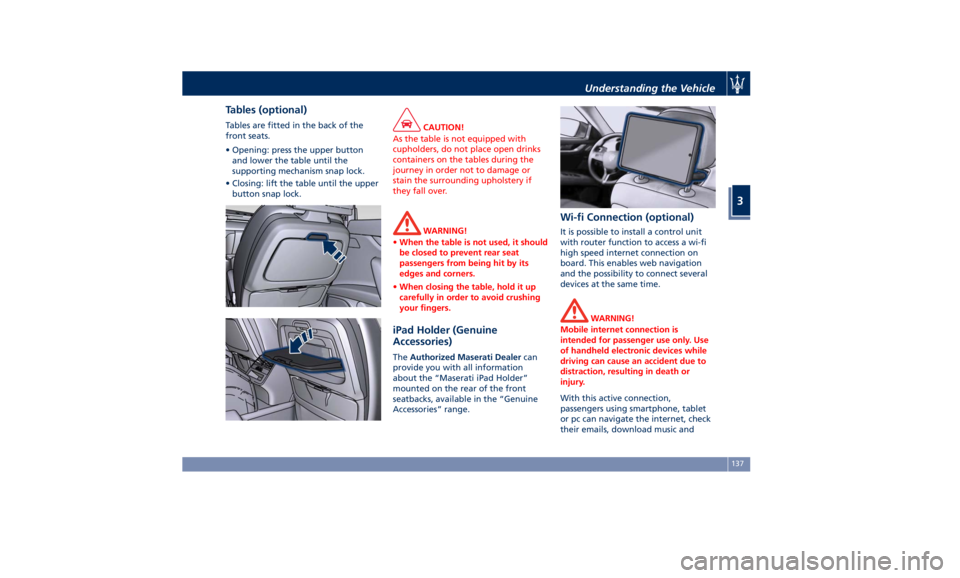
Tables (optional) Tables are fitted in the back of the
front seats.
• Opening: press the upper button
and lower the table until the
supporting mechanism snap lock.
• Closing: lift the table until the upper
button snap lock. CAUTION!
As the table is not equipped with
cupholders, do not place open drinks
containers on the tables during the
journey in order not to damage or
stain the surrounding upholstery if
they fall over.
WARNING!
• When the table is not used, it should
be closed to prevent rear seat
passengers from being hit by its
edges and corners.
• When closing the table, hold it up
carefully in order to avoid crushing
your fingers.
iPad Holder (Genuine
Accessories) The Authorized Maserati Dealer can
provide you with all information
about the “Maserati iPad Holder”
mounted on the rear of the front
seatbacks, available in the “Genuine
Accessories” range. Wi-fi Connection (optional) It is possible to install a control unit
with router function to access a wi-fi
high speed internet connection on
board. This enables web navigation
and the possibility to connect several
devices at the same time.
WARNING!
Mobile internet connection is
intended for passenger use only. Use
of handheld electronic devices while
driving can cause an accident due to
distraction, resulting in death or
injury.
With this active connection,
passengers
using smartphone,
tablet
or pc can navigate the internet, check
their emails, download music andUnderstanding the Vehicle
3
137
Page 164 of 396
• Trip B: Average, Avg. speed, Elapsed
time, Distance
7. START&STOP
• Messages relating to the Start&Stop
function
8. AUDIO
• Information concerning audio status
according to current media source,
track and station.
9. STORED MESSAGES
10. VEHICLE SETTINGS
• Speed Warning: enables, disables or
sets the speed limit represented in
the dynamic icon on the TFT display
• Auto apply Off/On of the Electric
Parking Brake
• Screen Setup
– Upper Left
– Upper Right
– Main Menu: Line 1
– Main Menu: Line 2
– Main Menu: Line 3
– MPH km/h Display On/Off
– Main Menu Navigation
– Outline Coloring
– Key-On Display
– Key-Off Display
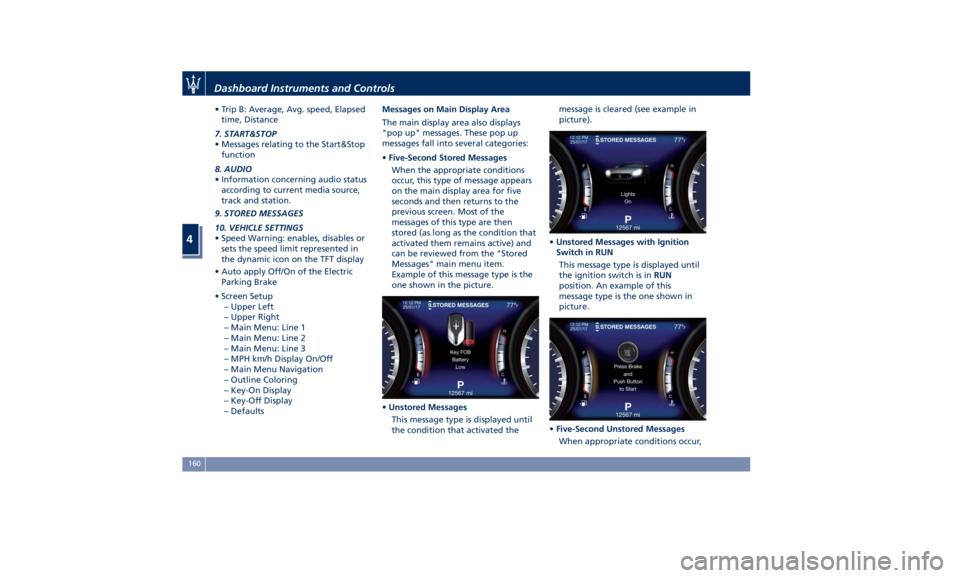
– Defaults Messages on Main Display Area
The main display area also displays
"pop up" messages. These pop up
messages fall into several categories:
• Five-Second Stored Messages
When the appropriate conditions
occur, this type of message appears
on the main display area for five
seconds and then returns to the
previous screen. Most of the
messages of this type are then
stored (as long as the condition that
activated them remains active) and
can be reviewed from the "Stored
Messages" main menu item.
Example of this message type is the
one shown in the picture.
• Unstored Messages
This message type is displayed until
the condition that activated the message is cleared (see example in
picture).
• Unstored Messages with Ignition
Switch in RUN
This message type is displayed until
the ignition switch is in RUN
position. An example of this
message type is the one shown in
picture.
• Five-Second Unstored Messages
When appropriate conditions occur,Dashboard Instruments and Controls
4
160
Page 165 of 396
this type of message appears on the
main display area for five seconds
then returns to the previous screen.
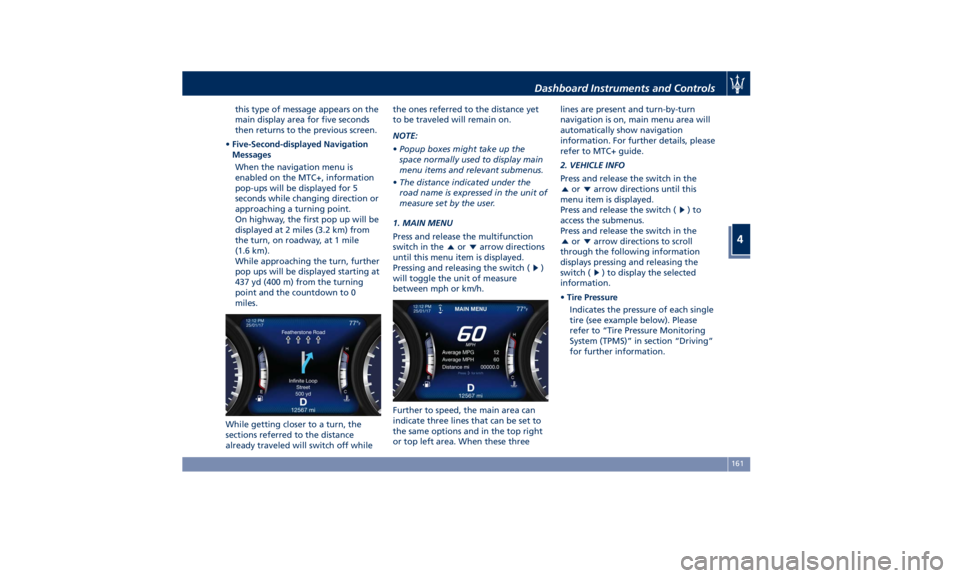
• Five-Second-displayed Navigation
Messages
When the navigation menu is
enabled on the MTC+, information
pop-ups will be displayed for 5
seconds while changing direction or
approaching a turning point.
On highway, the first pop up will be
displayed at 2 miles (3.2 km) from
the turn, on roadway, at 1 mile
(1.6 km).
While approaching the turn, further
pop ups will be displayed starting at
437 yd (400 m) from the turning
point and the countdown to 0
miles.
While getting closer to a turn, the
sections referred to the distance
already traveled will switch off while the ones referred to the distance yet
to be traveled will remain on.
NOTE:
• Popup boxes might take up the
space normally used to display main
menu items and relevant submenus.
• The distance indicated under the
road name is expressed in the unit of
measure set by the user.
1. MAIN MENU
Press and release the multifunction
switch in the
or arrow directions
until this menu item is displayed.
Pressing and releasing the switch (
)
will toggle the unit of measure
between mph or km/h.
Further to speed, the main area can
indicate three lines that can be set to
the same options and in the top right
or top left area. When these three lines are present and turn-by-turn
navigation is on, main menu area will
automatically show navigation
information. For further details, please
refer to MTC+ guide.
2. VEHICLE INFO
Press and release the switch in the
or arrow directions until this
menu item is displayed.
Press and release the switch (
)to
access the submenus.
Press and release the switch in the
or arrow directions to scroll
through the following information
displays pressing and releasing the
switch (
) to display the selected
information.
• Tire Pressure
Indicates the pressure of each single
tire (see example below). Please
refer to “Tire Pressure Monitoring
System (TPMS)” in section “Driving”
for further information.Dashboard Instruments and Controls
4
161
Page 172 of 396
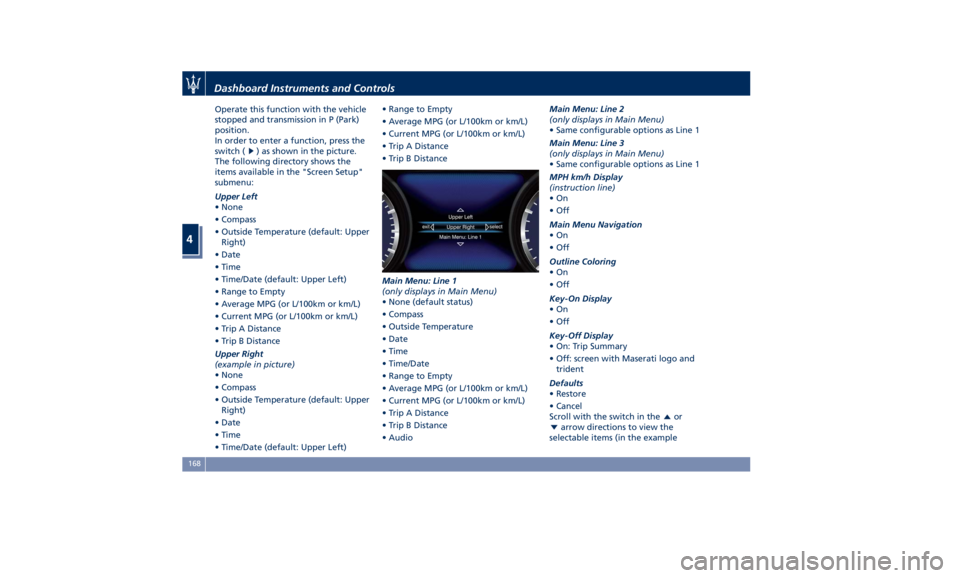
Operate this function with the vehicle
stopped and transmission in P (Park)
position.
In order to enter a function, press the
switch (
) as shown in the picture.
The following directory shows the
items available in the "Screen Setup"
submenu:
Upper Left
• None
• Compass
• Outside Temperature (default: Upper
Right)
• Date
• Time
• Time/Date (default: Upper Left)
• Range to Empty
• Average MPG (or L/100km or km/L)
• Current MPG (or L/100km or km/L)
• Trip A Distance
• Trip B Distance
Upper Right
(example in picture)
• None
• Compass
• Outside Temperature (default: Upper
Right)
• Date
• Time
• Time/Date (default: Upper Left) • Range to Empty
• Average MPG (or L/100km or km/L)
• Current MPG (or L/100km or km/L)
• Trip A Distance
• Trip B Distance
Main Menu: Line 1
(only displays in Main Menu)
• None (default status)
• Compass
• Outside Temperature
• Date
• Time
• Time/Date
• Range to Empty
• Average MPG (or L/100km or km/L)
• Current MPG (or L/100km or km/L)
• Trip A Distance
• Trip B Distance
• Audio Main Menu: Line 2
(only displays in Main Menu)
• Same configurable options as Line 1
Main Menu: Line 3
(only displays in Main Menu)
• Same configurable options as Line 1
MPH km/h Display
(instruction line)
•On
•Off
Main Menu Navigation
•On
•Off
Outline Coloring
•On
•Off
Key-On Display
•On
•Off
Key-Off Display
• On: Trip Summary
• Off: screen with Maserati logo and
trident
Defaults
• Restore
• Cancel
Scroll with the switch in the
or
arrow directions to view the
selectable items (in the exampleDashboard Instruments and Controls
4
168
Page 173 of 396
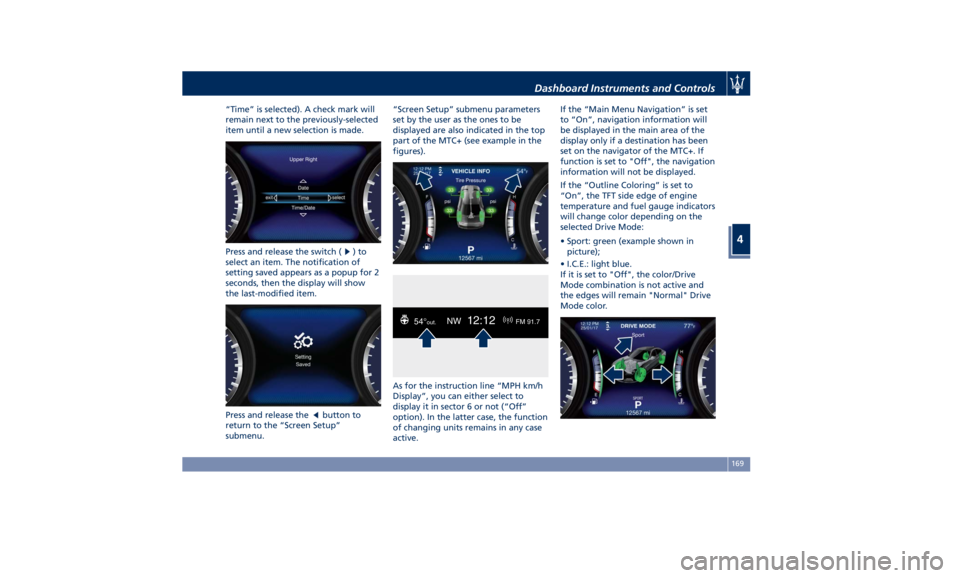
“Time” is selected). A check mark will
remain next to the previously-selected
item until a new selection is made.
Press and release the switch (
)to
select an item. The notification of
setting saved appears as a popup for 2
seconds, then the display will show
the last-modified item.
Press and release the
button to
return to the “Screen Setup”
submenu. “Screen Setup” submenu parameters
set by the user as the ones to be
displayed are also indicated in the top
part of the MTC+ (see example in the
figures).
As for the instruction line “MPH km/h
Display”, you can either select to
display it in sector 6 or not (“Off”
option). In the latter case, the function
of changing units remains in any case
active. If the “Main Menu Navigation” is set
to “On”, navigation information will
be displayed in the main area of the
display only if a destination has been
set on the navigator of the MTC+. If
function is set to "Off", the navigation
information will not be displayed.
If the “Outline Coloring” is set to
“On”, the TFT side edge of engine
temperature and fuel gauge indicators
will change color depending on the
selected Drive Mode:
• Sport: green (example shown in
picture);
• I.C.E.: light blue.
If it is set to "Off", the color/Drive
Mode combination is not active and
the edges will remain "Normal" Drive
Mode color.Dashboard Instruments and Controls
4
169
Page 180 of 396
For further details, see “Lights” in
section “Understanding the Vehicle”.
Automatic High Beam On Indicator
This indicator turns on when
the “Auto High Beam Assist”
feature is set on MTC+ (see
“MTC+ Settings” in this
section).
Gear Shift Indicator Light
This indicator lights up to
indicate gear shift change in
order to optimize fuel
consumption.
See “Drive Mode” in section
“Driving” for further
information.
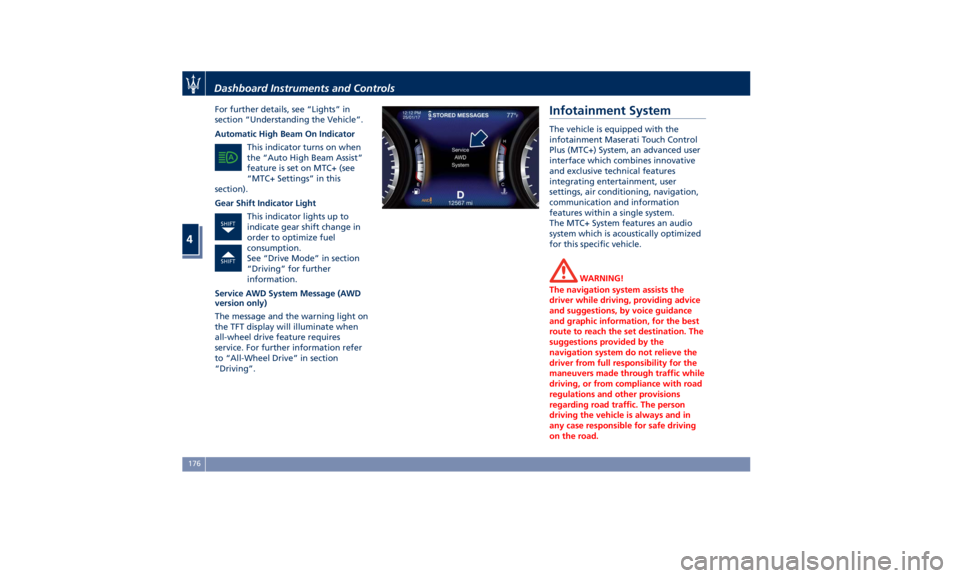
Service AWD System Message (AWD
version only)
The message and the warning light on
the TFT display will illuminate when
all-wheel drive feature requires
service. For further information refer
to “All-Wheel Drive” in section
“Driving”. Infotainment System The vehicle is equipped with the
infotainment Maserati Touch Control
Plus (MTC+) System, an advanced user
interface which combines innovative
and exclusive technical features
integrating entertainment, user
settings, air conditioning, navigation,
communication and information
features within a single system.
The MTC+ System features an audio
system which is acoustically optimized
for this specific vehicle.
WARNING!
The navigation system assists the
driver while driving, providing advice
and suggestions, by voice guidance
and graphic information, for the best
route to reach the set destination. The
suggestions provided by the
navigation system do not relieve the
driver from full responsibility for the
maneuvers made through traffic while
driving, or from compliance with road
regulations and other provisions
regarding road traffic. The person
driving the vehicle is always and in
any case responsible for safe driving
on the road.Dashboard Instruments and Controls
4
176
Page 181 of 396
The vehicle is provided with a specific
add to the owner’s manual, describing
the MTC+ System features and listing
all warnings and precautions, which
are essential for a safe use of the
system. Maserati advises you to read
this add carefully and thoroughly.
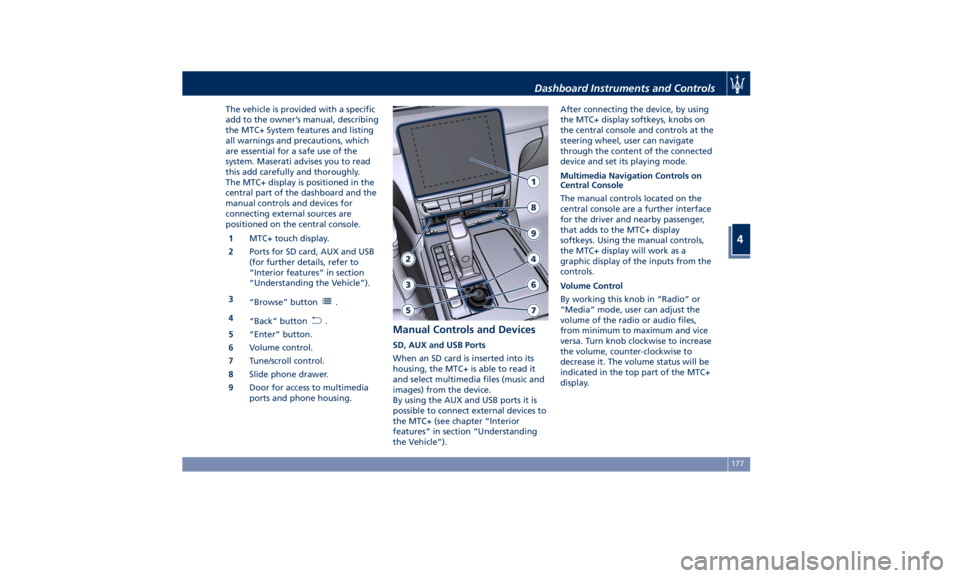
The MTC+ display is positioned in the
central part of the dashboard and the
manual controls and devices for
connecting external sources are
positioned on the central console.
1 MTC+ touch display.
2 Ports for SD card, AUX and USB
(for further details, refer to
“Interior features” in section
“Understanding the Vehicle”).
3
“Browse” button
.
4
“Back” button
.
5 “Enter” button.
6 Volume control.
7 Tune/scroll control.
8 Slide phone drawer.
9 Door for access to multimedia
ports and phone housing. Manual Controls and Devices SD, AUX and USB Ports
When an SD card is inserted into its
housing, the MTC+ is able to read it
and select multimedia files (music and
images) from the device.
By using the AUX and USB ports it is
possible to connect external devices to
the MTC+ (see chapter “Interior
features” in section “Understanding
the Vehicle”). After connecting the device, by using
the MTC+ display softkeys, knobs on
the central console and controls at the
steering wheel, user can navigate
through the content of the connected
device and set its playing mode.
Multimedia Navigation Controls on
Central Console
The manual controls located on the
central console are a further interface
for the driver and nearby passenger,
that adds to the MTC+ display
softkeys. Using the manual controls,
the MTC+ display will work as a
graphic display of the inputs from the
controls.
Volume Control
By working this knob in “Radio” or
“Media” mode, user can adjust the
volume of the radio or audio files,
from minimum to maximum and vice
versa. Turn knob clockwise to increase
the volume, counter-clockwise to
decrease it. The volume status will be
indicated in the top part of the MTC+
display.Dashboard Instruments and Controls
4
177