change time MAZDA MODEL 3 5-DOOR 2008 User Guide
[x] Cancel search | Manufacturer: MAZDA, Model Year: 2008, Model line: MODEL 3 5-DOOR, Model: MAZDA MODEL 3 5-DOOR 2008Pages: 412, PDF Size: 5.26 MB
Page 208 of 412
Black plate (208,1)
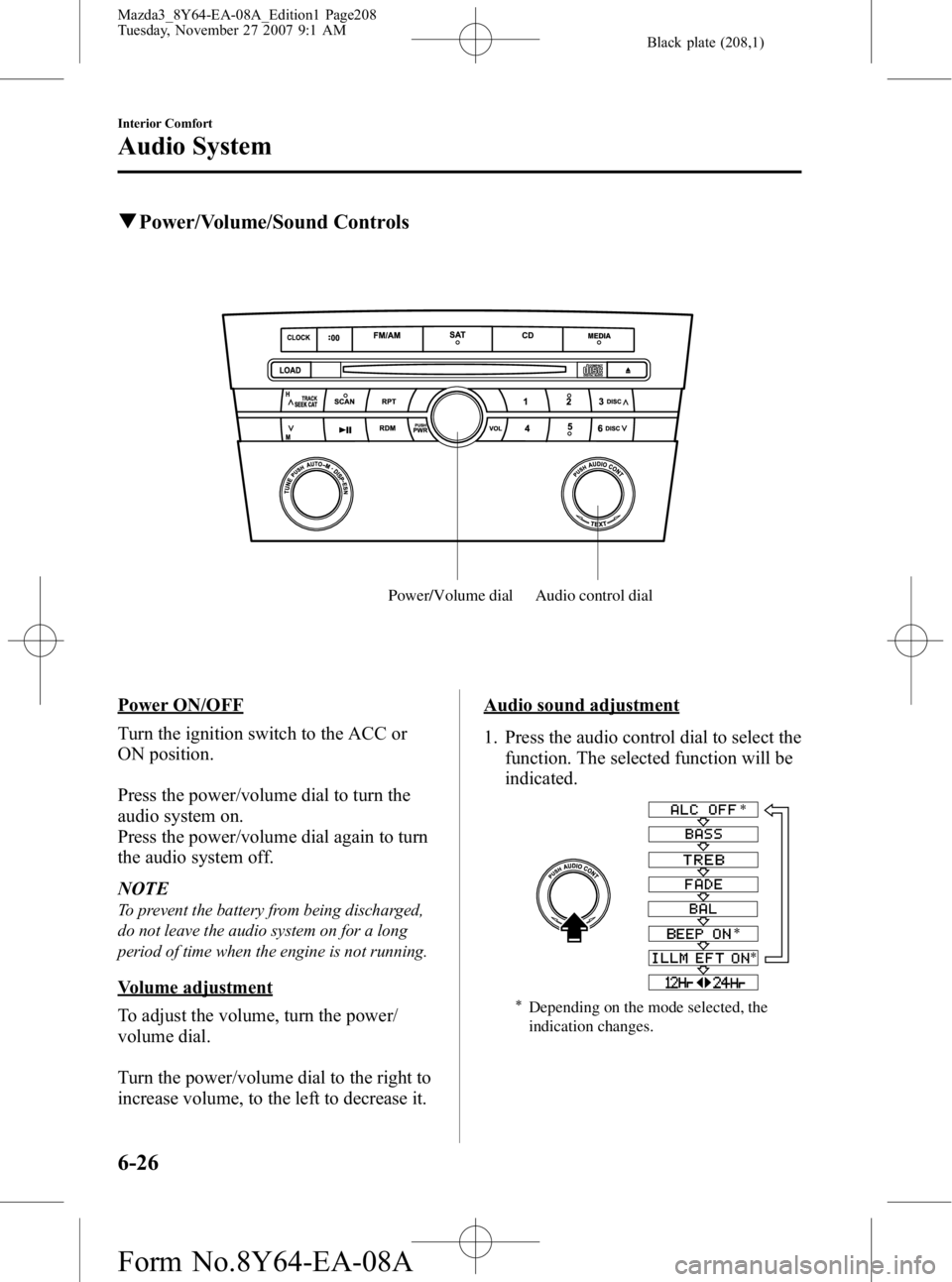
qPower/Volume/Sound Controls
Audio control dial
Power/Volume dial
Power ON/OFF
Turn the ignition switch to the ACC or
ON position.
Press the power/volume dial to turn the
audio system on.
Press the power/volume dial again to turn
the audio system off.
NOTE
To prevent the battery from being discharged,
do not leave the audio system on for a long
period of time when the engine is not running.
Volume adjustment
To adjust the volume, turn the power/
volume dial.
Turn the power/volume dial to the right to
increase volume, to the left to decrease it.
Audio sound adjustment
1. Press the audio control dial to select the
function. The selected function will be
indicated.
Depending on the mode selected, the
indication changes.
6-26
Interior Comfort
Audio System
Mazda3_8Y64-EA-08A_Edition1 Page208
Tuesday, November 27 2007 9:1 AM
Form No.8Y64-EA-08A
Page 209 of 412
Black plate (209,1)
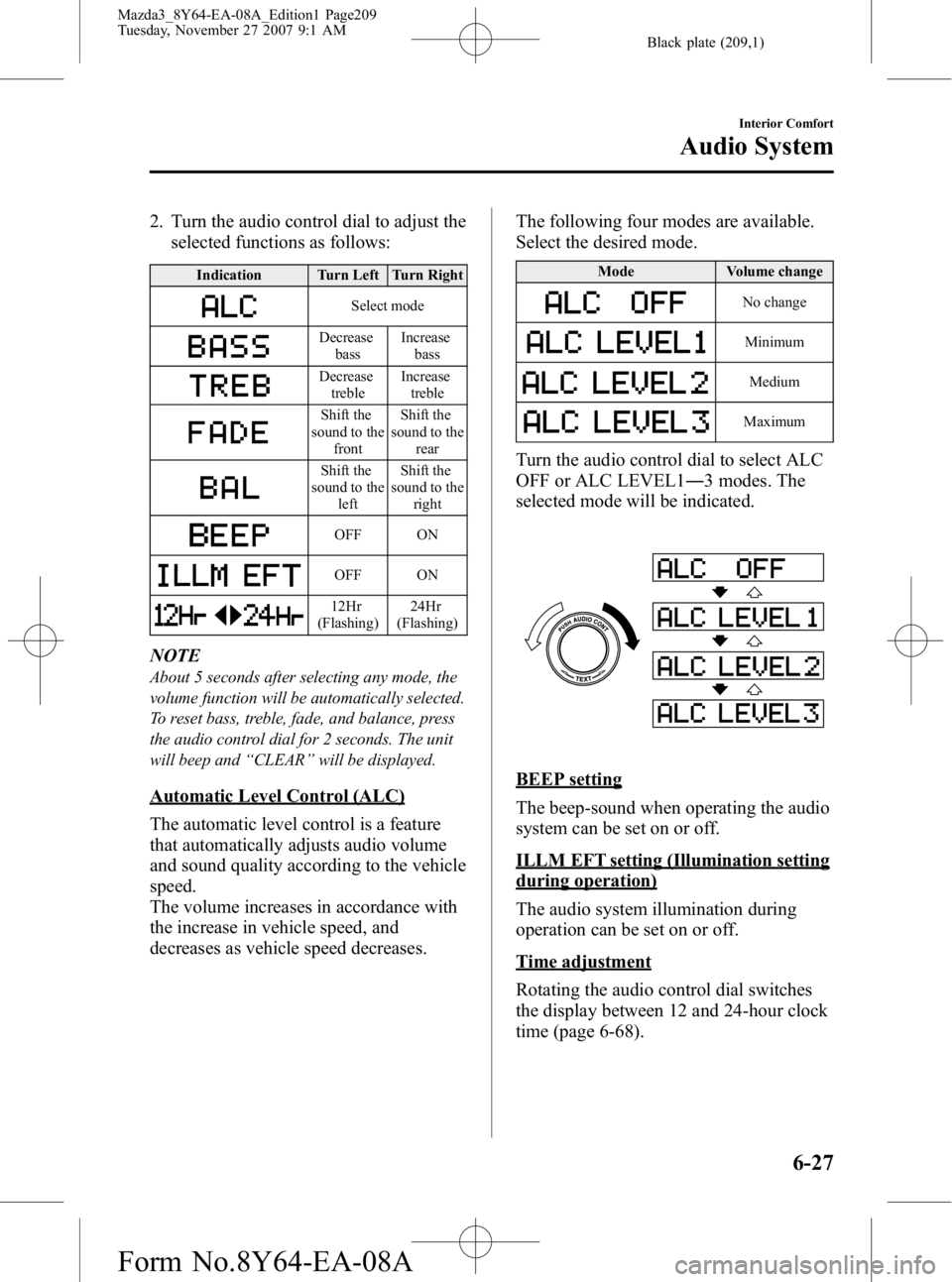
2. Turn the audio control dial to adjust theselected functions as follows:
Indication Turn Left Turn Right
Select mode
Decrease
bass Increase
bass
Decreasetreble Increase
treble
Shift the
sound to the front Shift the
sound to the rear
Shift the
sound to the left Shift the
sound to the right
OFF ON
OFF ON
12Hr
(Flashing) 24Hr
(Flashing)
NOTE
About 5 seconds after selecting any mode, the
volume function will be automatically selected.
To reset bass, treble, fade, and balance, press
the audio control dial for 2 seconds. The unit
will beep and “CLEAR ”will be displayed.
Automatic Level Control (ALC)
The automatic level control is a feature
that automatically adjusts audio volume
and sound quality according to the vehicle
speed.
The volume increases in accordance with
the increase in vehicle speed, and
decreases as vehicle speed decreases. The following four modes are available.
Select the desired mode.
Mode
Volume change
No change
Minimum
Medium
Maximum
Turn the audio control dial to select ALC
OFF or ALC LEVEL1― 3 modes. The
selected mode will be indicated.
BEEP setting
The beep-sound when operating the audio
system can be set on or off.
ILLM EFT setting (Illumination setting
during operation)
The audio system illumination during
operation can be set on or off.
Time adjustment
Rotating the audio control dial switches
the display between 12 and 24-hour clock
time (page 6-68).
Interior Comfort
Audio System
6-27
Mazda3_8Y64-EA-08A_Edition1 Page209
Tuesday, November 27 2007 9:1 AM
Form No.8Y64-EA-08A
Page 216 of 412
Black plate (216,1)
NOTE
This equipment has been tested and found to
comply with the limits for a Class B digital
device, pursuant to Part 15 of the FCC Rules.
These limits are designed to provide
reasonable protection against harmful
interference in a residential installation. This
equipment generates, uses, and can radiate
radio frequency energy and, If not installed
and used in accordance with the instructions,
may cause harmful interference to radio
communications. However, there is no
guarantee that interference will not occur in a
particular installation. If this equipment does
cause harmful interference to radio or
television reception, which can be determined
by turning the equipment off and on, the user
is encouraged to try to correct the interference
by one or more of the following measures:
- Increase the separation between the
equipment and tuner.
- Connect the equipment into an outlet on a
circuit different from that to which the tuner is
connected.
- Consult the dealer or an experienced radio/
TV technician for help.
Selecting Sirius radio mode (Satellite
button)
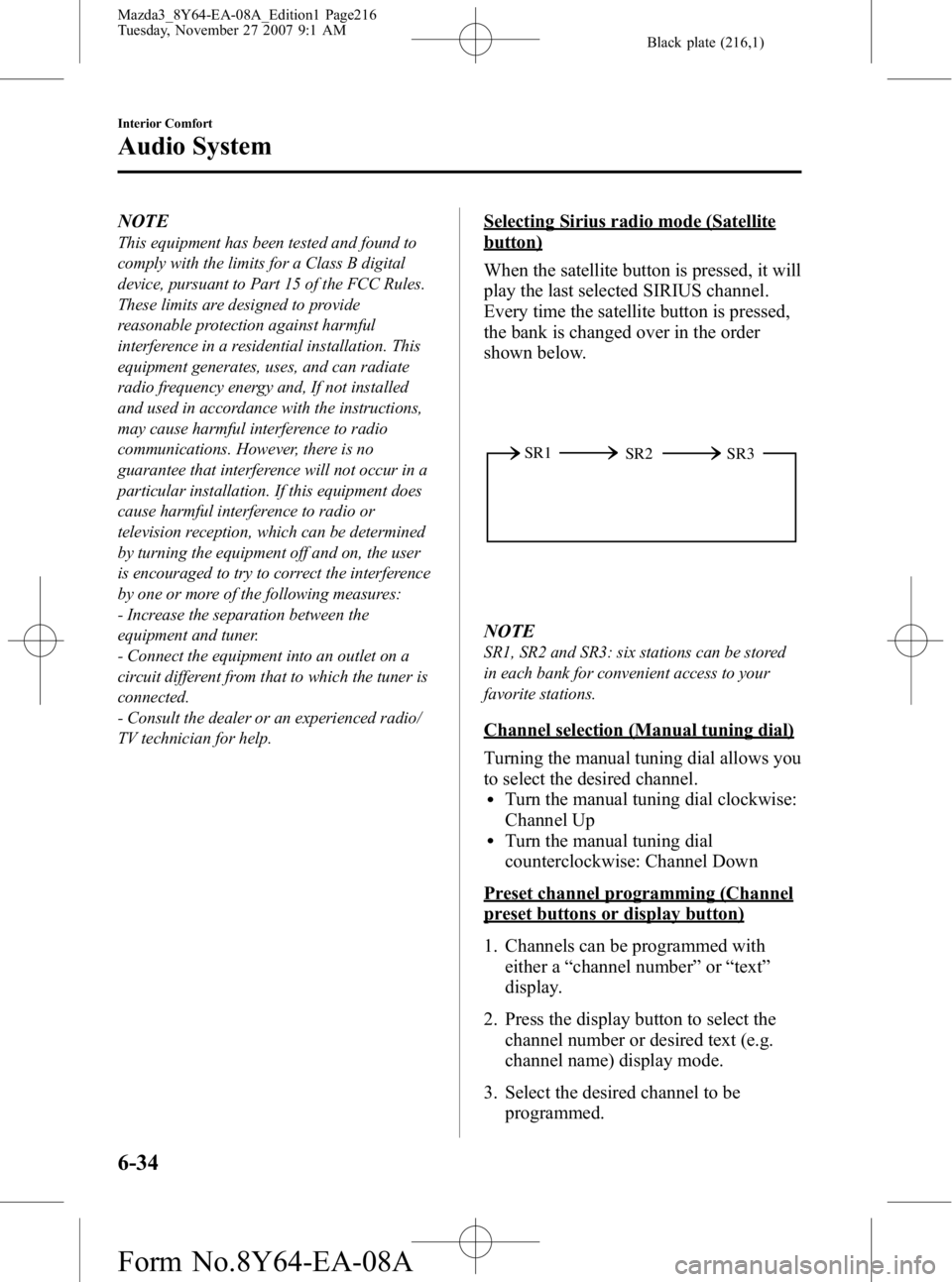
When the satellite button is pressed, it will
play the last selected SIRIUS channel.
Every time the satellite button is pressed,
the bank is changed over in the order
shown below.
SR2
SR1
SR3
NOTE
SR1, SR2 and SR3: six stations can be stored
in each bank for convenient access to your
favorite stations.
Channel selection (Manual tuning dial)
Turning the manual tuning dial allows you
to select the desired channel.
lTurn the manual tuning dial clockwise:
Channel Up
lTurn the manual tuning dial
counterclockwise: Channel Down
Preset channel programming (Channel
preset buttons or display button)
1. Channels can be programmed with
either a “channel number ”or “text ”
display.
2. Press the display button to select the channel number or desired text (e.g.
channel name) display mode.
3. Select the desired channel to be programmed.
6-34
Interior Comfort
Audio System
Mazda3_8Y64-EA-08A_Edition1 Page216
Tuesday, November 27 2007 9:1 AM
Form No.8Y64-EA-08A
Page 217 of 412
Black plate (217,1)
4. Hold down a channel preset button forabout 1.5 seconds, and release when
the beep is heard.
5. The programming process is complete after the channel number or text blinks.
Preset channel call-up (Channel preset
buttons)
Press a channel preset button for about 1.5
seconds.
Category change (Category button)
Press the category button (UP or DOWN)
and select the desired category.
lPress the category button (UP):
Category up
lPress the category button (DOWN):
Category down
At this time, the lowest (smallest-number)
channel within the category indicated is
received.
When the highest (or lowest) category is
reached, the display of the category is
changed over in the order shown below.
Highest category →Category all →Lowest
category
NOTE
While in “CATEGORY ALL ”mode, all
channels covering a category can be accessed
(Category off condition).
Channel selection within a category
(Manual tuning dial)
NOTE
If the category is not in “ALL ”, turning the
manual tuning dial moves the channel number
up/down in the present category.
lTurn the knob clockwise: Channel UplTurn the knob counterclockwise: Channel
Down
Channel number, channel, category,
artist, and song title display (Display
button, display feed dial)
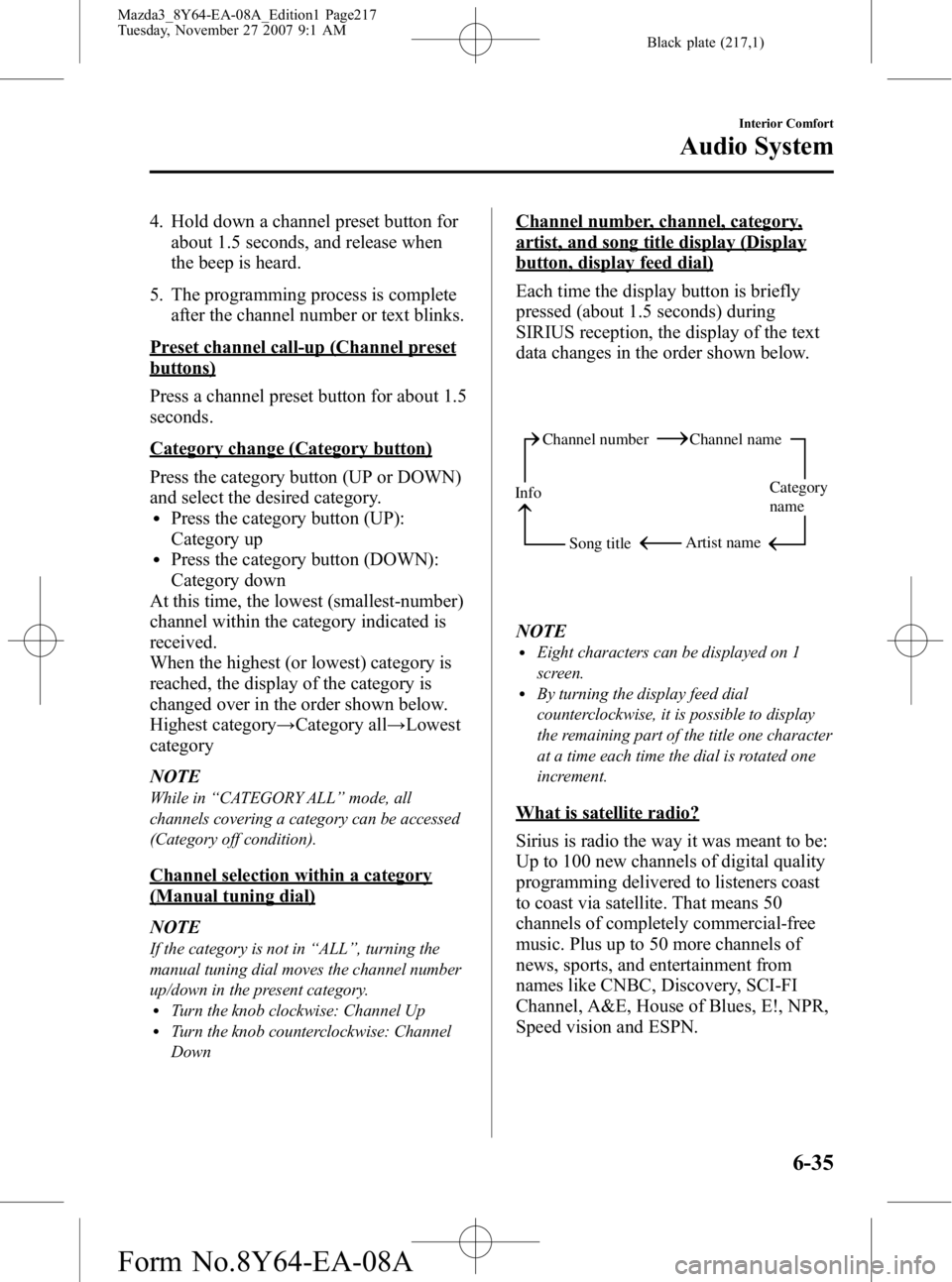
Each time the display button is briefly
pressed (about 1.5 seconds) during
SIRIUS reception, the display of the text
data changes in the order shown below.
Channel number Channel name
Category
name
Artist name
Info
Song title
NOTElEight characters can be displayed on 1
screen.
lBy turning the display feed dial
counterclockwise, it is possible to display
the remaining part of the title one character
at a time each time the dial is rotated one
increment.
What is satellite radio?
Sirius is radio the way it was meant to be:
Up to 100 new channels of digital quality
programming delivered to listeners coast
to coast via satellite. That means 50
channels of completely commercial-free
music. Plus up to 50 more channels of
news, sports, and entertainment from
names like CNBC, Discovery, SCI-FI
Channel, A&E, House of Blues, E!, NPR,
Speed vision and ESPN.
Interior Comfort
Audio System
6-35
Mazda3_8Y64-EA-08A_Edition1 Page217
Tuesday, November 27 2007 9:1 AM
Form No.8Y64-EA-08A
Page 219 of 412
Black plate (219,1)
lProduct serial numberlVehicle Identification Number (VIN)
When you are ready to receive the on-air
activation signals you will be instructed
(for activation via phone) to turn on your
tuner, have the antenna pointed skyward,
and to set the channel to channel 184.
Once the signal is sent from the national
studio it may take up to 10 minutes to be
received by your unit.
*ESN: Electronic Serial Number
NOTE
lOn-air activation is completed after the
procedure, in most cases from 10 seconds
to 10 minutes.
lThe VIN/SIRIUS ID (ESN*)/SERIAL No. is
printed on the back cover label of the
manual.
Sirius operation
All operations of the satellite radio are
conducted by means of the audio unit.
Sirius radio mode selection
When the satellite button is pressed during
ACC ON, it will play the last SIRIUS
channel in use before the mode was
switched over to another mode or the
power was turned off.
When the satellite button is pressed in a
mode other than the SIRIUS mode, the
last channel in use will be received. Every time the satellite button is pressed,
the bank changes in the order shown
below.
SR2
SR1
SR3
NOTE
SR1, SR2 and SR3:6 stations can be stored in
each bank for convenient access to your
favorite stations.
Operation in the initial state
It may take some time to start up the
equipment when it is in the initial state,
when there is a change in the user's
subscription condition, or when the
SIRIUS channel map is changed.
“UPDATING xx% ”is displayed when the
SIRIUS channel map is changed. If the
unit is initialized or the user contract
content is changed, “UPDATING ”is
displayed. Updating could take as long as
3 minutes depending on the geographical
area. When the unit is in an initialized
state, channel 184 is displayed after the
display indicates “UPDATING 100% ”.If
the SIRIUS channel map or the user
contract content is changed, the channel
prior to the change is displayed after
“ UPDATING ”is displayed. After the
initialization display, it may take as long
as 12 seconds to receive channel 184.
Interior Comfort
Audio System
6-37
Mazda3_8Y64-EA-08A_Edition1 Page219
Tuesday, November 27 2007 9:1 AM
Form No.8Y64-EA-08A
Page 221 of 412
![MAZDA MODEL 3 5-DOOR 2008 User Guide Black plate (221,1)
4. Three seconds later, it returns to normaldisplay. [SR + (bank number) + (text
(e.g. channel name))]
NOTE
Six stations can be stored in each bank, SR1,
SR2, and SR3 for convenien](/img/28/41023/w960_41023-220.png "MAZDA MODEL 3 5-DOOR 2008 User Guide Black plate (221,1)
4. Three seconds later, it returns to normaldisplay. [SR + (bank number) + (text
(e.g. channel name))]
NOTE
Six stations can be stored in each bank, SR1,
SR2, and SR3 for convenien")
Black plate (221,1)
4. Three seconds later, it returns to normaldisplay. [SR + (bank number) + (text
(e.g. channel name))]
NOTE
Six stations can be stored in each bank, SR1,
SR2, and SR3 for convenient access to your
favorite stations.
Preset channel call-up
Press and release the channel preset
button for about 1.5 seconds,
[SR + (bank number) + CH + (preset
number) + (channel number)] appears.
When the preset button is pressed during
text mode, its channel number is
displayed first for 3 second and then its
text is displayed.
NOTE
In the initial setting, all channels are preset to
184.
Category change
Press the category button (UP or DOWN)
and select the desired category.
lPress the category button (UP):
Category up
lPress the category button (DOWN):
Category down
Every time the category (UP) button is
pressed for 1.5 second or less, the
category is changed over in the order
shown below.
At this time, the lowest (smallest-number)
channel within the category indicated is
received.
When the highest (or lowest) category is
reached, the category is changed over in
the order shown below.
Highest category →Category all →Lowest
category NOTE
While in
“CATEGORY ALL ”mode, all
channels covering a category can be accessed
(Category off condition).
Channel selection within a category
If category is not in “ALL ”and the
channel number is displayed, turning the
manual tuning dial moves the channel
number up/down in the present category.
lTurn the manual tuning dial clockwise:
Channel Up
lTurn the manual tuning dial
counterclockwise: Channel Down
NOTE
The channel number needs to be indicated in
the display to use manual tuning dial for this
function.
Channel number, channel name,
category, artist, song titles and info
display
Each time the display button is briefly
pressed (about 0.5 seconds) during
SIRIUS reception, the display of the text
data is changed over in the order shown
below.
Channel number Channel name
Category
name
Artist name
Info
Song title
Interior Comfort
Audio System
6-39
Mazda3_8Y64-EA-08A_Edition1 Page221
Tuesday, November 27 2007 9:1 AM
Form No.8Y64-EA-08A
Page 222 of 412
Black plate (222,1)
NOTElEight characters are displayed on 1 screen.lBy turning the display feed dial
counterclockwise, it is possible to display
the remaining part of the title one character
at a time each time the display feed dial is
rotated one increment counterclockwise.
(Channel number display)lWhen the display button is briefly
pressed (about 0.5 seconds) while in
song title display mode, the mode
changes to the channel number display
mode.
(Channel name display)
lWhen the display button is briefly
pressed (about 0.5 seconds) while in
channel number display mode, it
changes to channel name display
mode.
lThere are short (8 fixed characters) and
long names for the channel name.
lThe long name is displayed first, and 3
seconds later the short name is
displayed. If there is no short name, the
long name is displayed.
lIf there are more than 8 characters in
the channel name, it is possible to
display the remaining part of the
channel name one character at a time
each time the display feed dial is
rotated one increment clockwise.
lWhile the short name is displayed,
turning the display feed dial switches
the display to the long name.
lThree seconds after scrolling the long
name, the display automatically returns
to the first part of the long name. Three
more seconds and the short name
appears.
lIf there is no channel name,
“ No TITLE ”is displayed. (Category name display)
lWhen the display button is briefly
pressed (about 0.5 seconds) while in
channel name display mode, it changes
to the category name display mode.
lThere are short (8 fixed characters) and
long names for the category name.
lThe long name is displayed first, and 3
seconds later the short name is
displayed. If there is no short name, the
long name is displayed.
lIf there are more than 8 characters in
the category name, it is possible to
display the remaining part of the
category name one character at a time
each time the display feed dial is
rotated one increment clockwise.
lWhile the short name is displayed,
turning the display feed dial switches
the display to the long name.
lThree seconds after scrolling the long
name, the display automatically returns
to display the first part of the long
name. Three more seconds and the
short name appears.
lIf there is no category name,
“
No CATEGORY ”is displayed.
(Artist name display)
lWhen the display button is briefly
pressed (about 0.5 seconds) while in
category name display mode, it
changes to the artist name display
mode.
lIf there are more than 8 characters in
the artist's name, it is possible to
display the remaining part of the artist
name one character at a time each time
the display feed dial is rotated one
increment clockwise.
lThree seconds after scrolling the artist
name, the display automatically return
to display the first part of the artist's
name.
6-40
Interior Comfort
Audio System
Mazda3_8Y64-EA-08A_Edition1 Page222
Tuesday, November 27 2007 9:1 AM
Form No.8Y64-EA-08A
Page 223 of 412

Black plate (223,1)
lIf there is no artist's name,
“No ARTIST ”is displayed.
(Song title display)
lWhen the display button is briefly
pressed (about 0.5 seconds) while in
artist name display mode, it changes to
the song title display mode.
lIf there are more than 8 characters in
the song title, it is possible to display
the remaining part of the song title one
character at a time each time the
display feed dial is rotated one
increment clockwise.
lThree more seconds after scrolling the
song title, the display automatically
returns to display the first part of the
song title.
lIf there is no song title, “No SONG ”is
displayed.
(INFO (such as composer's name)
display)
lWhen the display button is briefly
pressed (about 1.5 seconds) while in
song title display mode, it changes to
the INFO display mode.
lIf there are more than 8 characters in
the composer's name, it is possible to
display the remaining part of the name
one character at a time each time the
display feed dial is rotated one
increment clockwise.
lThree seconds after scrolling the text,
the display automatically returns to
display the first part of the text.
lIf there is no composer name,
“ No INFO ”is displayed
Instant replay
This function allows you to rewind and
replay the program that you were
previously or are currently listening to.
Press the instant replay button. When the category button (DOWN) is
briefly pressed (about 0.5 seconds),
playback starts from the beginning of the
current program.
When the category button (DOWN) is
pressed twice, playback starts from the
beginning of the previous program.
When the category button (DOWN) is
pressed for about 0.5 seconds or longer,
the program is reversed while the button
is being pressed.
When the category button (UP) is briefly
pressed (about 0.5 seconds), playback
starts from the beginning of the next
program. When the category button (UP)
is briefly pressed (about 0.5 seconds)
while the last program is being played, the
instant replay mode is cancelled.
When the category button (UP) is pressed
for 0.5 seconds or longer, the program is
fast-forwarded while the button is being
pressed. When pressing and holding the
button until the end of the program, the
instant replay mode is cancelled.
When the instant replay button is pressed
again, playback is temporarily stopped, or
playback starts if it has been temporarily
stopped.
NOTE
If the channel is changed, the instant replay
buffer data is deleted.
(How to cancel the instant replay)lPress the satellite button.lTurn off the ACC or POWER.lPress any one of the following buttons:
FM/AM, CD, MEDIA, SAT, SEEK/
CAT/TRACK, or a channel preset
button.
lInsert or play a CD.
Interior Comfort
Audio System
6-41
Mazda3_8Y64-EA-08A_Edition1 Page223
Tuesday, November 27 2007 9:1 AM
Form No.8Y64-EA-08A
Page 224 of 412
Black plate (224,1)
Displaying the Sirius ID (ESN)
When the ESN button is pressed for 1.5
seconds or longer, a 12-digit Electronic
Serial Number (ESN) for the SIRIUS
tuner is displayed.
[SR + (bank number) + (first 8 digits of
SIRIUS ID (ESN))] are displayed.
The 4 digits following the first 8 digits are
displayed by turning the display feed dial
clockwise.
While the last 4 digits of the 12-digit
SIRIUS ID (ESN) are displayed, turning
the display feed dial displays the first 8
digits of SIRIUS ID (ESN).
(How to clear the message)
lTurn off the ACC.lTurn off the POWER.lPress any one of the following buttons:
FM/AM, CD, MEDIA, SAT, ESN/
DISP, CAT, SCAN, or a channel preset
button.
lInsert or play a CD.
(If the SIRIUS ID (ESN) for the tuner
does not display)
If “ESN + FAIL ”is displayed after
pressing the ESN button for 1.5 seconds
or longer, contact an Authorized Mazda
Dealer.
Initialization of ID code
If the registered ID code is forgotten,
return the ID code to the default [0000] by
performing the following steps:
Setting condition: SAT mode
(Master code input preparation)
1. Hold the scan button, then press channel preset button 4, hold both
buttons together for 1.5 seconds. 2.
“ENTER PIN ”appears for 2 seconds
which indicates that it is in code input
mode.
3. “SR1 - - - - ”appears, which indicates
that it is ready for code input.
(Master code input)
4. Input the master code using the channel preset buttons 1-4.
Press the scan button after inputting the
code.
(The master code is already set at the
time of factory shipment.)
(Master code input determination)
5. Determine the master code which has been input by pressing the scan button
briefly.
6. “PIN CLEARED ”appears which
indicates that the master code input has
been completed.
7. The ID code is set to the default [0000] and the initialization process is
completed.
(How to clear the message)
lPress any of the following FM/AM,
SAT, CD, MEDIA, CAT, ESN/DISP,
Instant replay, POWER buttons.
lTurn the ACC off or insert a CD.lChange a channel.
NOTE
lWhen a numeric value other than the
master code is input and the scan button is
pressed, “SR1 Err ”is displayed and then it
returns to the “SR1---- ”display again.
lIf an ID code is not input for 10 seconds,
“Err ”is displayed and it returns to the
former display.
lChannel preset buttons 1, 2, 3, 4 and the
scan button are used for inputting the ID
code. Buttons 5 and 6 cannot be used.
6-42
Interior Comfort
Audio System
Mazda3_8Y64-EA-08A_Edition1 Page224
Tuesday, November 27 2007 9:1 AM
Form No.8Y64-EA-08A
Page 225 of 412
Black plate (225,1)
Change of ID code
Setting condition: SAT mode
(Registered ID code input)
1. Hold the scan button, then presschannel preset button 5, hold both
buttons together for 1.5 seconds.
2. “ENTER PIN ”appears for 2 seconds
which indicates that it is in code input
mode.
3. “SR1 - - - - ”appears, which indicates
that it is ready for code input.
4. Input the registered ID code using channel preset buttons 1-4. Then press
the scan button.
Example: When the registered ID code
is“2323 ”, input “2323 ”. At this time
“ SR1 2323 ”is displayed.
Press 1 for the first digit, 2 for the
second, 3 for the third, and 4 for the
last digit. For example, if your number
is 2323, press 1 three times, 2 four
times, 3 three, and 4 four times. If the
display goes off while inputting, begin
from Step 1.
NOTE
The registered ID code is the default [0000] at
the time of factory shipment. If [0000] results
in “Err ”on the display, go to the
“ INITIALIZATION OF ID CODE” section to
reset to [0000].
(Verification with the registered ID
code)
5. Determine the input code by pressing the scan button briefly.
6. If it does not match with the previously registered code, “SR1 Err ”is displayed
and then it returns to “SR1 - - - - ”. 7. If it matches with the previously
registered code, “ENTER PIN ”appears
again and it switches to code input
mode.
8. “SR1 - - - - ”appears, and it is ready for
input of the new ID code.
(New ID code input)
9. Input the new ID code using channel preset buttons 1-4.
Example: If “1234 ”is input as the new
code, “SR1 1234 ”is displayed.
Press the scan button after the code is
input.
(New ID code input determination)
10. Determine the new ID code which has been input by pressing the scan
button briefly.
11. “PIN CHANGED ”appears for 3
seconds which indicates that the new
ID code input has been completed.
12. It returns to the former display.
(How to clear the message)
lPress any of the following FM/AM,
SAT, CD, MEDIA, CAT, ESN/DISP,
Instant replay, POWER buttons.
lTurn the ACC off or insert a CD.lChange a channel.
NOTE
lIf an ID code is not input for 10 seconds,
“ Err ”is displayed and it returns to the
former display.
lChannel preset buttons 1, 2, 3, 4 and the
scan button are used for input of the ID
code. Buttons 5 and 6 cannot be used.
Individual channel locking
If a channel is locked, the channel is
muted.
Interior Comfort
Audio System
6-43
Mazda3_8Y64-EA-08A_Edition1 Page225
Tuesday, November 27 2007 9:1 AM
Form No.8Y64-EA-08A