radio MAZDA MODEL 5 2010 User Guide
[x] Cancel search | Manufacturer: MAZDA, Model Year: 2010, Model line: MODEL 5, Model: MAZDA MODEL 5 2010Pages: 392, PDF Size: 4.81 MB
Page 196 of 392
Black plate (196,1)
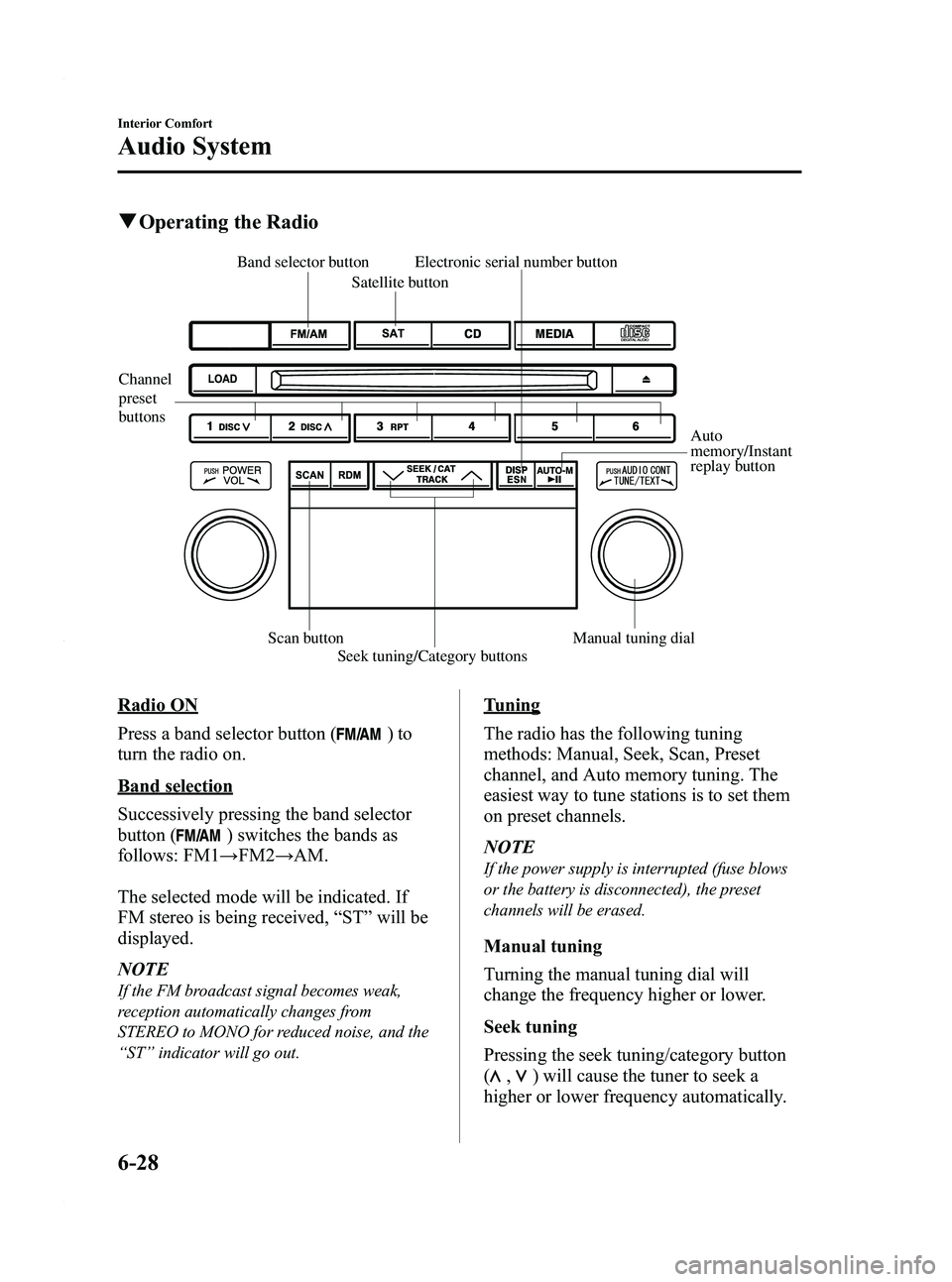
qOperating the Radio
Channel
preset
buttons
Auto
memory/Instant
replay button
Electronic serial number button
Scan button Seek tuning/Category buttons Manual tuning dial
Satellite button
Band selector button
Radio ON
Press a band selector button (
)to
turn the radio on.
Band selection
Successively pressing the band selector
button (
) switches the bands as
follows: FM1 →FM2 →AM.
The selected mode will be indicated. If
FM stereo is being received, “ST ”will be
displayed.
NOTE
If the FM broadcast signal becomes weak,
reception automatically changes from
STEREO to MONO for reduced noise, and the
“ ST ”indicator will go out.
Tuning
The radio has the following tuning
methods: Manual, Seek, Scan, Preset
channel, and Auto memory tuning. The
easiest way to tune stations is to set them
on preset channels.
NOTE
If the power supply is interrupted (fuse blows
or the battery is disconnected), the preset
channels will be erased.
Manual tuning
Turning the manual tuning dial will
change the frequency higher or lower.
Seek tuning
Pressing the seek tuning/category button
(
,) will cause the tuner to seek a
higher or lower frequency automatically.
6-28
Interior Comfort
Audio System
Mazda5_8AU7-EA-09H_Edition4 Page196
Tuesday, March 30 2010 1:10 PM
Form No.8AU7-EA-09H
Page 197 of 392
Black plate (197,1)
NOTE
If you continue to press and hold the button,
the frequency will continue changing without
stopping.
Scan tuning
Press the scan button (
)to
automatically sample strong stations.
Scanning stops at each station for about 5
seconds. To hold a station, press the scan
button (
) again during this interval.
Preset channel tuning
The 6 preset channels can be used to store
6 AM and 12 FM stations.
1. To set a channel first select AM, FM1, or FM2. Tune to the desired station.
2. Depress a channel preset button for about 2 seconds until a beep sound is
heard. The preset channel number and
station frequency will be displayed.
The station is now held in the memory.
3. Repeat this operation for the other stations and bands you want to store.
To tune one in the memory, select AM,
FM1, or FM2 and then press its
channel preset button. The station
frequency and the channel number will
be displayed.
NOTE
If the power supply is interrupted (fuse blows
or the battery is disconnected), the preset
channels will be erased.
Auto memory tuning
This is especially useful when driving in
an area where the local stations are not
known. Additional AM/FM stations can
be stored without disturbing the
previously set channels. Press and hold the auto memory/instant
replay button (
) for about 2
seconds until a beep sound is heard; the
system will automatically scan and
temporarily store up to 6 stations with the
strongest frequencies in each selected
band in that area.
After scanning is completed, the station
with the strongest frequency will be tuned
and its frequency displayed.
Press and release the auto memory/instant
replay button (
) to recall stations
from the auto-stored stations. One stored
station will be selected each time; its
frequency and channel number will be
displayed.
NOTE
If no stations can be tuned after scanning
operations, “A ” will be displayed.
SATELLITE RADIO (SAT)
Vehicles equipped with the separately
purchased SIRIUS digital satellite radio
unit have the ability to receive channels of
digital quality programming coast to coast
via satellite. For information on use, read
the Satellite Radio Kit manual
accompanying the SIRIUS digital satellite
radio unit. A subscription to SIRIUS
digital satellite radio service is required
(available in the U.S. - Except Alaska and
Hawaii) to enable this feature once the
separately purchased SIRIUS digital
satellite radio unit has been installed. For
subscription and channel information, or
for digital satellite radio technical issues,
contact SIRIUS directly at:
- Web: www.siriusradio.com
- Phone (24 hrs/day, 7 days/week): 888-
539-SIRI (7474)
- E-mail: [email protected]
Interior Comfort
Audio System
6-29
Mazda5_8AU7-EA-09H_Edition4 Page197
Tuesday, March 30 2010 1:10 PM
Form No.8AU7-EA-09H
Page 198 of 392
Black plate (198,1)
- Mailing Address: Sirius Satellite Radio
1221 Avenue Of The Americas
New York, NY 10020
Attention: Customer Care
Include your Sirius Radio ESN
(Electronic Serial Number) when
subscribing or requesting technical
assistance. See the Satellite Radio Kit
manual accompanying the SIRIUS unit
for complete satellite radio activation
procedures and information on how to
display the ESN#.
6-30
Interior Comfort
Audio System
Mazda5_8AU7-EA-09H_Edition4 Page198
Tuesday, March 30 2010 1:10 PM
Form No.8AU7-EA-09H
Page 207 of 392

Black plate (207,1)
qChanging the Source
Press the mode switch () to change
the audio source (FM1 radio →FM2
radio →AM radio →CD player or CD
changer →SIRIUS1 →SIRIUS2 →
SIRIUS3 →AUX →cyclical).
NOTE
CD, CD changer, and SIRIUS digital satellite
radio modes cannot be selected in the
following cases:
· CD, CD changer, or SIRIUS digital satellite
radio unit is not equipped on the audio
system.
· CD has not been inserted.
The AUX mode is locked out unless you
connect a commercially available portable
audio unit to the auxiliary jack. Connect a
portable audio unit or similar product on the
market to the auxiliary jack to listen to music
or audio over the vehicle's speakers. Change
the audio source to AUX mode (page 6-40).
q Seek Switch
When listening to the radio or SIRIUS
digital satellite radio
Press the seek switch (
,), the radio
switches to the next/previous stored
station in the order that it was stored
(1 ― 6).
Press the seek switch (
,) for about 2
seconds until a beep sound is heard to
seek all usable stations at a higher or
lower frequency whether programmed or
not.
When playing a CD
Press the seek switch (
) to skip to the
next track.
Press the seek switch (
) to repeat the
current track.
Press the seek switch (
) for about 2
seconds until a beep sound is heard to
advance through a track at high speed.
Press the seek switch (
) for about 2
seconds until a beep sound is heard to
reverse through a track at high speed.
Interior Comfort
Audio System
6-39
Mazda5_8AU7-EA-09H_Edition4 Page207
Tuesday, March 30 2010 1:11 PM
Form No.8AU7-EA-09H
Page 211 of 392

Black plate (211,1)
Safety Certification
This CD player is made and tested to meet exacting safety standards. It meets FCC
requirements and complies with safety performance standards of the U.S. Department of
Health and Human Services.
CAUTION
ØThis CD player should not be adjusted or repaired by anyone except qualified
service personnel.
If servicing is required, contact an Authorized Mazda Dealer.
Ø Use of controls or adjustments or performance of procedures other than those
specified herein may result in hazardous laser exposure. Never operate the CD
player with the top case of the unit removed.
Ø Changes or modifications not expressly approved by the party responsible for
compliance could void the user's authority to operate this equipment.
NOTE
For CD player section:
This device complies with part 15 of the FCC Rules. Operation is subject to the following two
conditions: (1) This device may not cause harmful interference, and (2) this device must accept any
interference received, including interference that may cause undesired operation.
NOTE
This equipment has been tested and found to comply with the limits for a Class B digital device,
pursuant to part 15 of the FCC Rules. These limits are designed to provide reasonable protection
against harmful interference in a residential installation. This equipment generates, uses, and can
radiate radio frequency energy and, if not installed and used in accordance with the instructions,
may cause harmful interference to radio communications. However, there is no guarantee that
interference will not occur in a particular installation.
Interior Comfort
Audio System
6-43
Mazda5_8AU7-EA-09H_Edition4 Page211
Tuesday, March 30 2010 1:11 PM
Form No.8AU7-EA-09H
Page 212 of 392
Black plate (212,1)
Bluetooth Hands-Freeí
qWhat is Bluetooth Hands-Free?
Bluetooth Hands-Free Outline
By connecting a Bluetooth equipped
mobile telephone to the hands-free unit
equipped on the vehicle, making and
receiving calls are possible using the
voice recognition/hands-free switch
located on the steering wheel, and saying
the voice commands.
WARNING
Perform phonebook registration related
operations while the vehicle is parked:
Performing phonebook registration
while driving the vehicle could be a
distraction to your driving and result
in an unexpected accident. In
addition, a mistake in performing the
phonebook operation could result in
the loss of important data.
Bluetooth equipped mobile telephone
A Bluetooth equipped mobile telephone
communicates with the hands-free unit
equipped on the vehicle using radio
transmission (Bluetooth).
For example, if the mobile telephone is
placed in a coat pocket, the phone calls
can be made through your mobile service
without taking out and handling the
mobile telephone.
CAUTION
The types of mobile phones which
can be connected to the hands-free
unit are limited. Therefore, before
purchasing or changing your mobile
phone model, consult Mazda
Bluetooth Hands-Free Customer
Service or visit www.MazdaUSA.com/
bluetooth for a complete list of
compatible phones.
Mobile phones which can be
connected to the hands-free system
need to be compliant with Bluetooth
specifications and the appropriate
profile. However, even among these
Bluetooth phones are some which
will not connect with your Mazda or
will have limited function. Therefore,
consult Mazda Bluetooth Hands-Free
Customer Service for information
regarding mobile phone
compatibility:
Phone: 800-430-0153
Web: www.MazdaUSA.com/
bluetooth
Applicable Bluetooth specification
Ver. 1.1 or higher
Response profile
lHFP (Hands Free Profile) Ver. 1.0lDUN (Dial-up Networking Profile)
Ver. 1.1
Bluetooth is the registered trademark of
Bluetooth SIG. Inc.
6-44
Interior Comfort
íSome models.
Bluetooth Hands-Free
Mazda5_8AU7-EA-09H_Edition4 Page212
Tuesday, March 30 2010 1:11 PM
Form No.8AU7-EA-09H
Page 213 of 392
Black plate (213,1)
NOTElThe Bluetooth Hands-Free system is
operable several seconds after turning the
ignition switch to the ACC or ON position
(requires less than 15 seconds).
lIf the ignition switch is turned off during a
hands-free call, the line is transferred to the
mobile telephone automatically.
lIf the mobile telephone is in a location
where radio reception is difficult such as a
metal container or in the trunk, the call may
not be connected using Bluetooth. If
communication is not possible, change the
location of the mobile telephone.
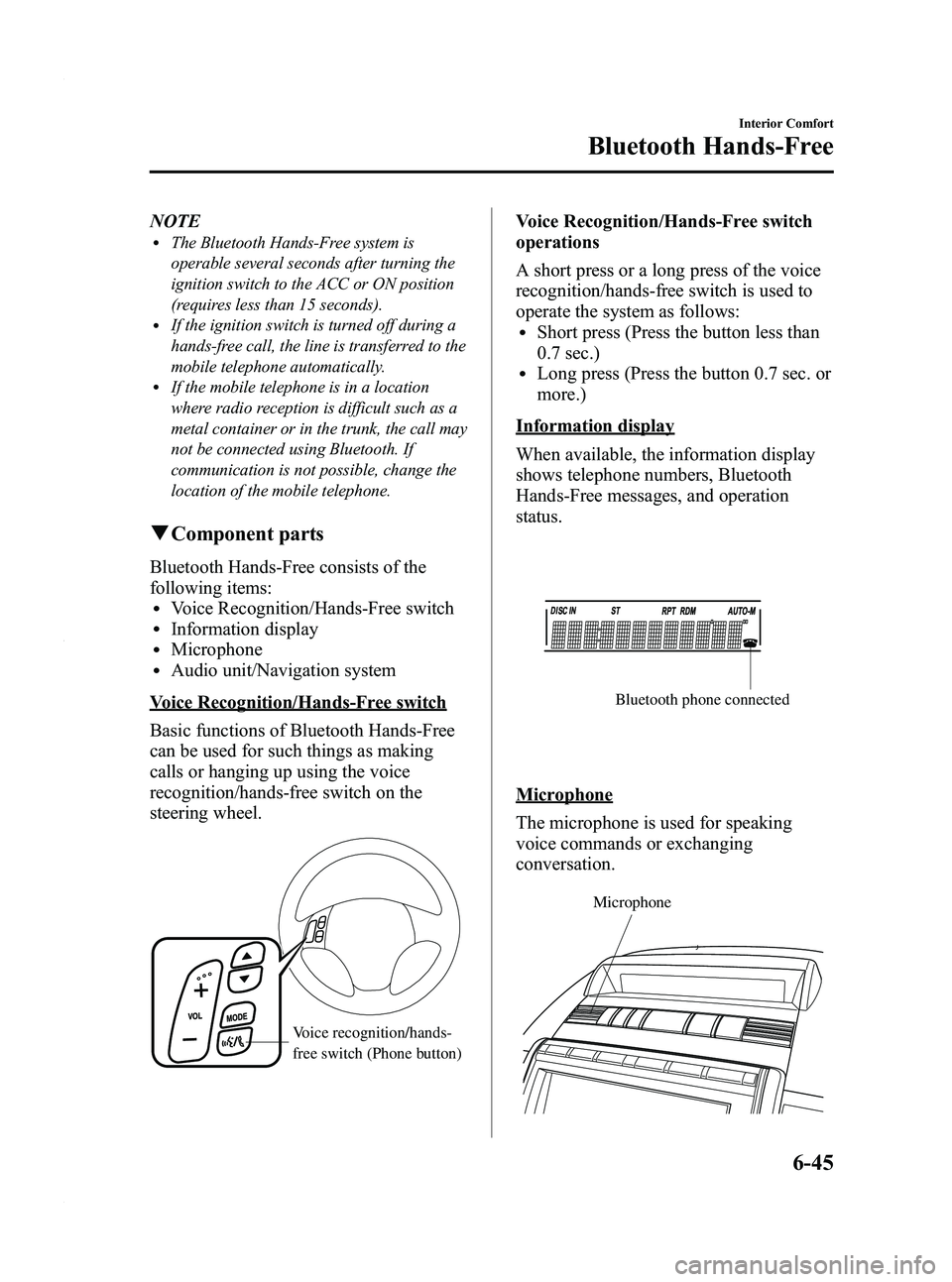
qComponent parts
Bluetooth Hands-Free consists of the
following items:
lVoice Recognition/Hands-Free switchlInformation displaylMicrophonelAudio unit/Navigation system
Voice Recognition/Hands-Free switch
Basic functions of Bluetooth Hands-Free
can be used for such things as making
calls or hanging up using the voice
recognition/hands-free switch on the
steering wheel.
Voice recognition/hands-
free switch (Phone button)
Voice Recognition/Hands-Free switch
operations
A short press or a long press of the voice
recognition/hands-free switch is used to
operate the system as follows:
lShort press (Press the button less than
0.7 sec.)
lLong press (Press the button 0.7 sec. or
more.)
Information display
When available, the information display
shows telephone numbers, Bluetooth
Hands-Free messages, and operation
status.
Bluetooth phone connected
Microphone
The microphone is used for speaking
voice commands or exchanging
conversation.
Microphone
Interior Comfort
Bluetooth Hands-Free
6-45
Mazda5_8AU7-EA-09H_Edition4 Page213
Tuesday, March 30 2010 1:11 PM
Form No.8AU7-EA-09H
Page 231 of 392

Black plate (231,1)
When Bluetooth Hands-
Free cannot be used
Bluetooth Hands-Free cannot be used
under the following conditions:
lThe mobile telephone is outside of the
communication area.
lThe mobile telephone has a
malfunction.
lThe mobile telephone is not connected
to the hands-free unit equipped on the
vehicle.
lThe mobile telephone battery is weak.lThe mobile telephone is turned off.lThe mobile telephone is placed where
radio reception is difficult.
Safety Certification
FCC ID: CB2MBLUEC07 IC:279B-
MBLUEC07
This device complies with Part 15 of the
FCC Rules and with RSS-210 of Industry
Canada. Operation is subject to the
following two conditions:
(1) This device may not cause harmfulinterference, and
(2) This device must accept any interference received, including
interference that may cause undesired
operation.
WARNING
Changes or modifications not
expressively approved by the party
responsible for compliance could void
the user's authority to operate the
equipment.
The term “IC: ”before the radio
certification number only signifies that
Industry Canada technical specifications
were met.
The antenna used for this transmitter must
not be co-located or operating in
conjunction with any other antenna or
transmitter. End-users and installers must
be provided with installation instructions
and transmitter operating conditions for
satisfying RF exposure compliance.
Interior Comfort
Bluetooth Hands-Free
6-63
Mazda5_8AU7-EA-09H_Edition4 Page231
Tuesday, March 30 2010 1:11 PM
Form No.8AU7-EA-09H
Page 349 of 392

Black plate (349,1)
Add-On Non-Genuine Parts and Accessories
Non-genuine parts and accessories for Mazda vehicles can be found in stores.
These may fit your vehicle, but they are not approved by Mazda for use with Mazda
vehicles. When you install non-genuine parts or accessories, they could affect your
vehicle's performance or safety systems; the Mazda warranty doesn't cover this. Before you
install any non-genuine parts or accessories, consult an Authorized Mazda Dealer.
WARNING
Always consult an Authorized Mazda Dealer before you install non-genuine parts or
accessories:Installation of non-genuine parts or accessories is dangerous. Improperly designed
parts or accessories could seriously affect your vehicle's performance or safety
systems. This could cause you to have an accident or increase your chances of
injuries in an accident.
Be very careful in choosing and installing add-on electrical equipment, such as
mobile telephones, two-way radios, stereo systems, and car alarm systems: Incorrectly choosing or installing improper add-on equipment or choosing an
improper installer is dangerous. Essential systems could be damaged, causing engine
stalling, air-bag (SRS) activation, ABS inactivation, or a fire in the vehicle.
Mazda assumes no responsibility for death, injury, or expenses that may result from the
installation of add-on non-genuine parts or accessories.
Customer Information
Warranty
9-19
Mazda5_8AU7-EA-09H_Edition4 Page349
Tuesday, March 30 2010 1:11 PM
Form No.8AU7-EA-09H
Page 350 of 392

Black plate (350,1)
Cell Phones Warning
WARNING
Please comply with the legal regulations concerning the use of communication
equipment in vehicles in your State or Province:Use of any electrical devices such as cell phones, computers, portable radios, vehicle
navigation or other devices by the driver while the vehicle is moving is dangerous.
Dialing a number on a cell phone while driving also ties-up the driver's hands. Use of
these devices will cause the driver to be distracted and could lead to a serious
accident. If a passenger is unable to use the device, pull off the right-of-way to a safe
area before use. If use of a cell phone is necessary despite this warning, use a hands-
free system to at least leave the hands free to drive the vehicle. Never use a cell
phone or other electrical devices while the vehicle is moving and, instead,
concentrate on the full-time job of driving.
9-20
Customer Information
Cell Phones
Mazda5_8AU7-EA-09H_Edition4 Page350
Tuesday, March 30 2010 1:11 PM
Form No.8AU7-EA-09H