radio MAZDA MODEL CX-3 2019 (in English) Owner's Manual
[x] Cancel search | Manufacturer: MAZDA, Model Year: 2019, Model line: MODEL CX-3, Model: MAZDA MODEL CX-3 2019Pages: 608, PDF Size: 7.89 MB
Page 285 of 608

5Interior Features
Use of various features for ride comfort, including air-conditioning and
audio system.
Climate Control System.................... 5-4 Operating Tips.............................. 5-4
Vent Operation.............................. 5-5
Manual Type................................. 5-7
Fully Automatic Type................. 5-12
Before Using the Audio System...... 5-16 Audio Control Swit ch................. 5-16
AUX/USB mode.........................5-17
Antenna.......................................5-19
Audio Set [Type A (non-
touchscreen)].................................... 5-20 Power/Volume/Sound
Controls...................................... 5-20
Clock...........................................5-22
Operating the Radio....................5-23
How to use AUX m ode.............. 5-24
How to use USB mode ............... 5-25
How to use iPod mode................5-28
Error Indications......................... 5-30
Bluetooth
®.................................. 5-31
Bluetooth
® Preparation.............. 5-34
Available Language.. .................. 5-43
Security Setting..... ..................... 5-44
Bluetooth
® Audio....................... 5-46
Bluetooth
® Hands-Free.............. 5-48
Voice Recognition.................. .....5-56
Voice Recognition Learning
Function (Speaker
Enrollment)................................. 5-57
Troubleshooting.......................... 5-60
Audio Set [Type B
(touchscreen)]...................................5-64 Basic Operation Method............. 5-64
Home screen............................... 5-68
Volume/Display/Sound
Controls...................................... 5-69
Operating the Radio....................5-71
Operating the Satellite Radio
*...........
.................................................... 5-75
How to use AUX m ode.............. 5-78
How to use USB mode ............... 5-79
Bluetooth
®.................................. 5-84
Bluetooth
® Preparation.............. 5-87
Available Language.. .................. 5-89
Bluetooth
® Audio....................... 5-90
How to Use Pandora
®*............... 5-93
How to Use Aha™..................... 5-95
How to Use Stitche r™ Radio..... 5-98
Bluetooth
® Hands-Free............ 5-100
Voice Recognition.................. ...5-110
Settings..................................... 5-112
Applications.............................. 5-114
Troubleshooting........................ 5-115
Appendix........................................ 5-120 Things You Need to Know....... 5-120
*Some models.5-1
CX-3_8GR7-EA-18B_Edition1 2017-12-20 16:18:14
Page 300 of 608

Audio Control Switch
▼Adjusting the Volume
To increase the volume, press up the
volume switch (
).
To decrease the volume, press down the
volume switch (
).
▼ Seek Switch
AM/FM radio
Press the seek switch (, ). The radio
switches to the next/previous stored
station in the order that it was stored.
Press and hold the seek switch (
, ) to
seek all usable stations at a higher or lower
frequency whether programmed or not.
Radio stations which have been previously
stored in the auto memory tuning (Type A)/
favorite radio (Type B) can be called up by
pressing the seek switch (
, ) while any
radio station stored in the auto memory
tuning (Type A)/favorite radio (Type B) is
being received. Radio stations can be called
up in the order they were stored with each
press of the switch (
, ).
USB Audio/Bluetooth® Audio
Press the seek switch () to skip forward
to the beginning of the next track.
Press the seek switch (
) within a few
seconds after playba ck begins to track
down to the beginning of the previous
track.
Press the seek switch (
) after a few
seconds have elapsed to start playback
from the beginning of the current track.
Press and hold the seek switch (
, ) to
continuously switch th e tracks up or down.
Pandora
®/Aha™/Stitcher™ Radio
(Type B)
Press the seek switch () to skip forward
to the beginning of the next track.
Press and hold the seek switch (
) to
evaluate the playback of the current song
as “Like”.
Press and hold the seek switch (
) to
evaluate the playback of the current song
as “Dislike”.
Interior Features
Before Using the Audio System
5-16
CX-3_8GR7-EA-18B_Edition1 2017-12-20 16:18:14
Page 307 of 608
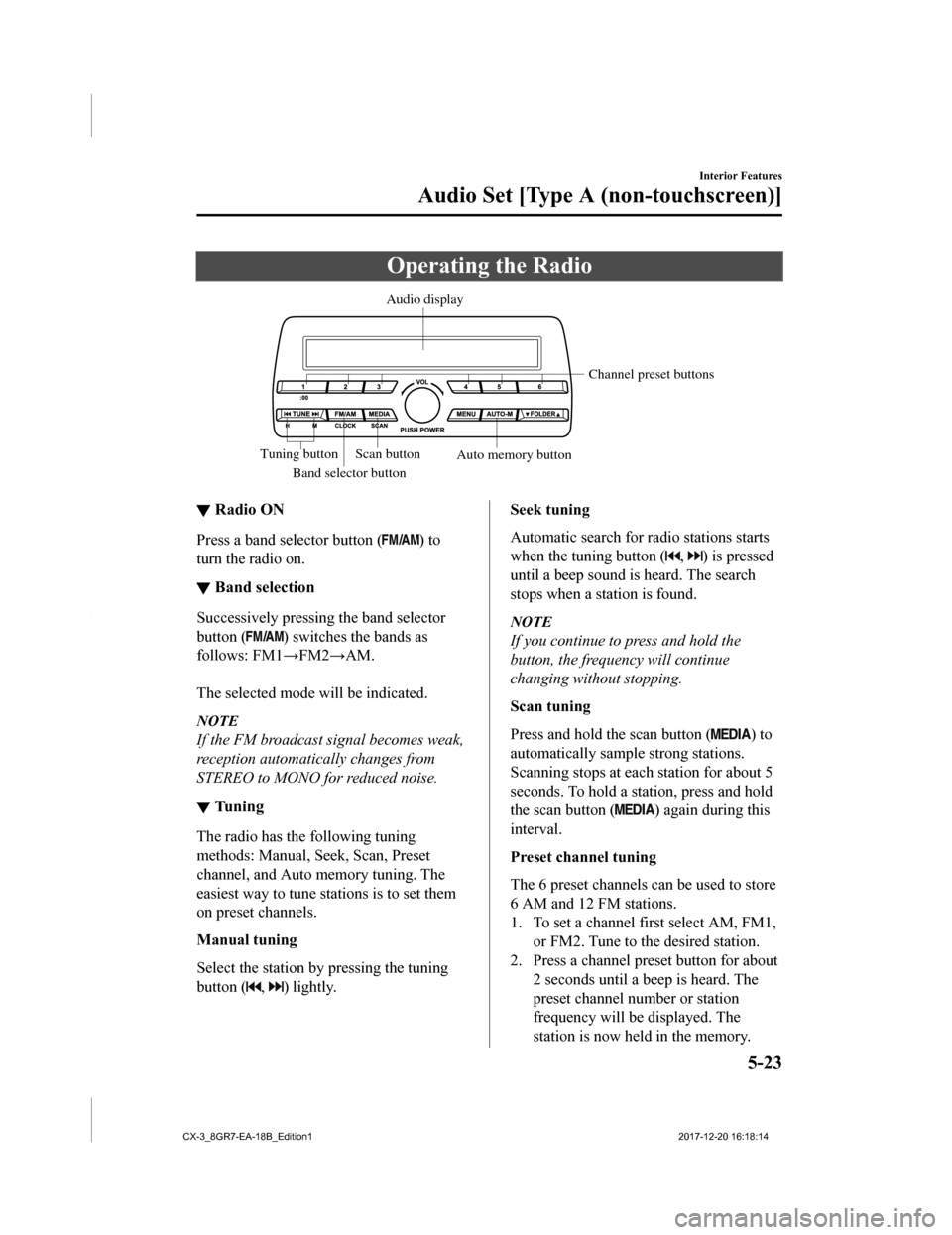
Operating the Radio
Band selector buttonChannel preset buttons
Scan button Auto memory button
Tuning button Audio display
▼
Radio ON
Press a band selector button () to
turn the radio on.
▼ Band selection
Successively pressing the band selector
button (
) switches the bands as
follows: FM1→FM2→AM.
The selected mode will be indicated.
NOTE
If the FM broadcast signal becomes weak,
reception automatically changes from
STEREO to MONO fo r reduced noise.
▼Tuning
The radio has the following tuning
methods: Manual, Seek, Scan, Preset
channel, and Auto memory tuning. The
easiest way to tune stations is to set them
on preset channels.
Manual tuning
Select the station by pressing the tuning
button (
, ) lightly.
Seek tuning
Automatic search for ra
dio stations starts
when the tuning button (
, ) is pressed
until a beep sound is heard. The search
stops when a station is found.
NOTE
If you continue to press and hold the
button, the frequency will continue
changing without stopping.
Scan tuning
Press and hold the scan button (
) to
automatically sample strong stations.
Scanning stops at each station for about 5
seconds. To hold a station, press and hold
the scan button (
) again during this
interval.
Preset channel tuning
The 6 preset channels can be used to store
6 AM and 12 FM stations.
1. To set a channel first select AM, FM1, or FM2. Tune to the desired station.
2. Press a channel preset button for about
2 seconds until a beep is heard. The
preset channel number or station
frequency will be displayed. The
station is now held in the memory.
Interior Features
Audio Set [Type A (non-touchscreen)]
5-23
CX-3_8GR7-EA-18B_Edition1 2017-12-20 16:18:14
Page 344 of 608
Troubleshooting
Mazda Bluetooth® Hands-Free Customer Service
If you have any problems with Bluetooth®, contact our toll-free customer service center.
•U.S.A.
Phone: 800-430-0153 (Toll-free)
Web: www.mazdausa.com/mazdaconnect
•Canada
Phone: 800-430-0153 (Toll-free)
Web: www.mazdahandsfree.ca
•Mexico
Center of Attention to Client (CAC)
Phone: 01-800-01-MAZDA (Toll-free)
Web: www.mazdamexico.com.mx
Bluetooth
® Device pairing, c onnection problems
Symptom CauseSolution method
Unable to perform pairing ―First make sure the device is com-
patible with the Bluetooth
® unit,
and then check whether the Blue-
tooth
® function and the Find Mode/
Visible setting*1 on the device are
turned on. If pair ing is still not pos-
sible after this, contact an Author-
ized Mazda Dealer or Mazda Blue-
tooth
® Hands-Free Customer Serv-
ice.
Pairing cannot be performed again The pairing information paired to
the Bluetooth
® unit or device is not
recognized correctly. Perform pairing using the following
procedure.•Clear “Mazda” stored in the de-
vice.
•Perform pairing again.
Unable to perform pairing The Bluetooth
® function and the
Find Mode/Visible setting*1 on the
device may turn off automatically
after a period of time has elapsed
depending on the device. Check whether the Bluetooth® func-
tion and the Find Mode/Visible set-
ting
*1 on the device are turned on
and pairing or reconnect.
Does not connect automatically
when starting the engine
Automatically connects, but then
disconnects suddenly
Disconnects intermittently
The device is in a location in which
radio wave interference can occur
easily, such as inside a bag in a rear
seat, in a rear pocket of a pair of
pants.Move the device to a location in
which radio wave interference is
less likely to occur.
Interior Features
Audio Set [Type A (non-touchscreen)]
5-60
CX-3_8GR7-EA-18B_Edition1
2017-12-20 16:18:14
Page 349 of 608

Switches around commander knob
The following operations can be done by pressing the switches around the commander
knob.
: Displays the home screen.
: Displays the Ente rtainment screen.
: Displays the Navigation screen (Only navigation-equipped vehicles). For operation
of the Navigation screen, refer to the navigation system manual . If the SD card for the
navigation system is not inserted , the compass indicating the direction in which the vehicle
is moving is displayed.
: Displays the Favor ites screen. Long-press to store particula r items in Favorites. (Radio,
phonebook and destination of the navigation system can be progr ammed.)
: Returns to previous screen.
Commander knob operation
(Selection of ic ons on screen)
1. Tilt or turn the commander knob and move the cursor to the de sired icon.
2. Press the commander knob and select the icon.
NOTE
Long-press operation of the commander knob is also possible for some functions.
Interior Features
Audio Set [Type B (touchscreen)]
5-65
CX-3_8GR7-EA-18B_Edition1 2017-12-20 16:18:14
Page 352 of 608
Home screen
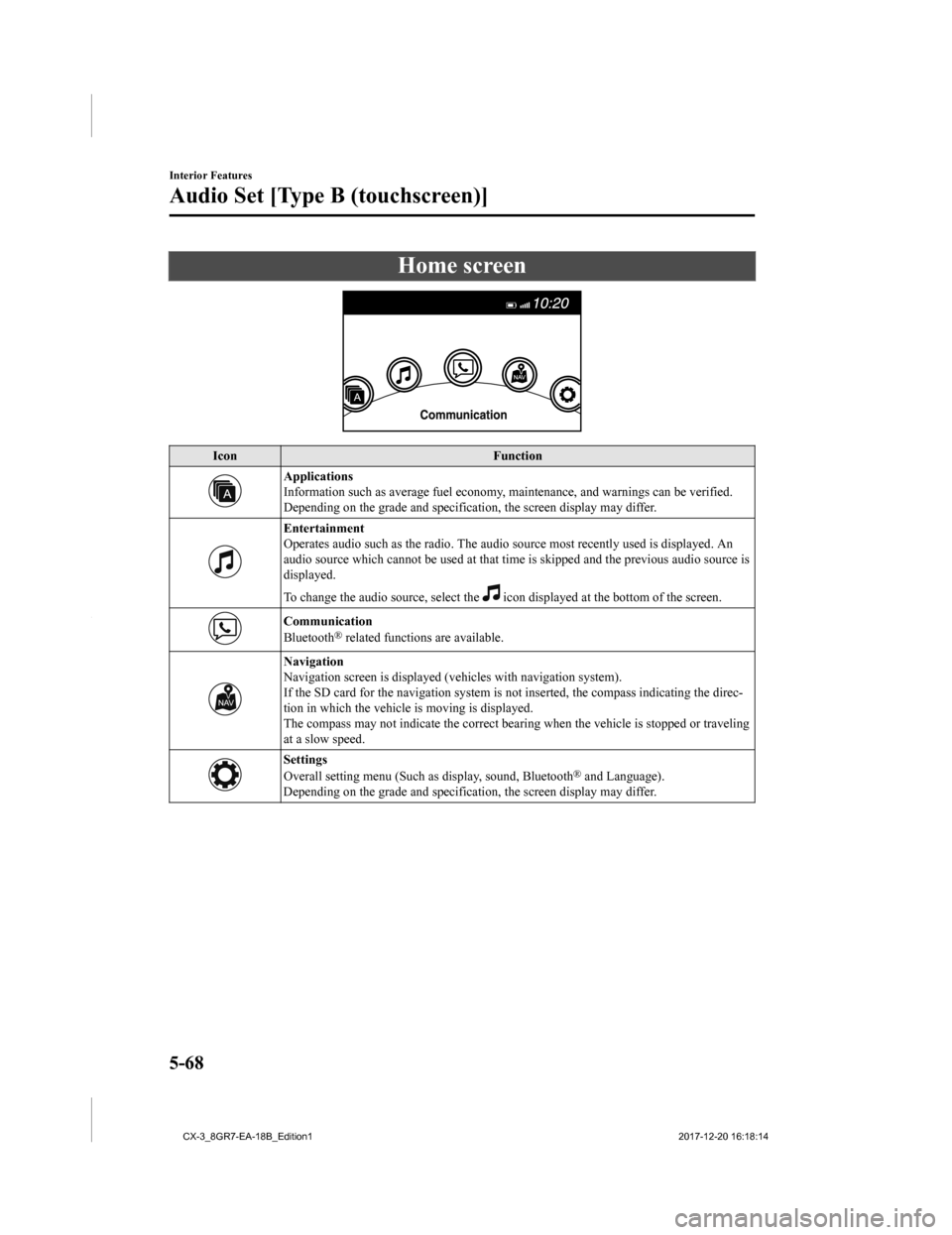
IconFunction
Applications
Information such as average fuel economy, maintenance, and warn ings can be verified.
Depending on the grade and specification, the screen display ma y differ.
Entertainment
Operates audio such as the radio. The audio source most recently used is displayed. An
audio source which cannot be used at that time is skipped and t he previous audio source is
displayed.
To change the audio source, select the
icon displayed at the bottom of the screen.
Communication
Bluetooth® related functions are available.
Navigation
Navigation screen is displayed (v ehicles with navigation system).
If the SD card for the navigation system is not inserted, the c ompass indicating the direc-
tion in which the vehicle is moving is displayed.
The compass may not indicate th e correct bearing when the vehicle is stopped or traveling
at a slow speed.
Settings
Overall setting menu (Such as display, sound, Bluetooth® and Language).
Depending on the grade and specification, the screen display ma y differ.
Interior Features
Audio Set [Type B (touchscreen)]
5-68
CX-3_8GR7-EA-18B_Edition1 2017-12-20 16:18:14
Page 355 of 608
Operating the Radio
▼Radio ON
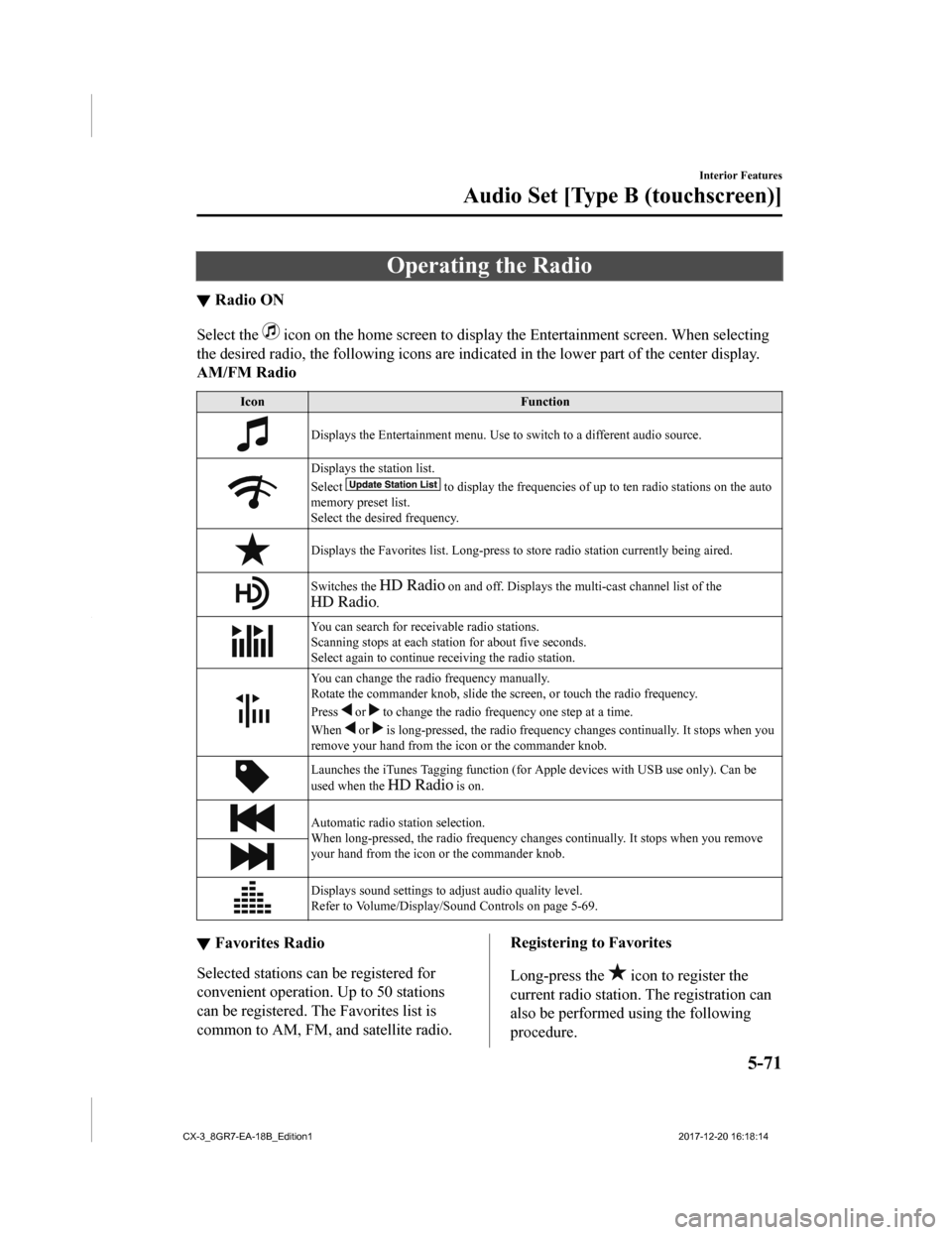
Select the icon on the home screen to disp
lay the Entertainment screen. When selecting
the desired radio, the following icons are indicated in the low er part of the center display.
AM/FM Radio
Icon Function
Displays the Entertainment menu. Use to switch to a different a udio source.
Displays the station list.
Select
to display the frequencies of up to ten radio stations on the auto
memory preset list.
Select the desired frequency.
Displays the Favorites list. Lon g-press to store radio station currently being aired.
Switches the on and off. Displays the multi-cast ch annel list of the
.
You can search for receivable radio stations.
Scanning stops at each station for about five seconds.
Select again to continue receiving the radio station.
You can change the radio frequency manually.
Rotate the commander knob, slide the screen, or touch the radio frequency.
Press
or to change the radio frequ ency one step at a time.
When
or is long-pressed, the radio frequency changes continually. It s tops when you
remove your hand from the icon or the commander knob.
Launches the iTunes Tagging fun ction (for Apple devices with USB use only). Can be
used when the
is on.
Automatic radio station selection.
When long-pressed, the radio frequency changes continually. It stops when you remove
your hand from the icon or the commander knob.
Displays sound settings to adjust audio quality level.
Refer to Volume/Display/Sound Controls on page 5-69.
▼ Favorites Radio
Selected stations ca
n be registered for
convenient operation. Up to 50 stations
can be registered. The Favorites list is
common to AM, FM, and satellite radio.
Registering to Favorites
Long-press the
icon to register the
current radio station. The registration can
also be performed using the following
procedure.
Interior Features
Audio Set [Type B (touchscreen)]
5-71
CX-3_8GR7-EA-18B_Edition1 2017-12-20 16:18:14
Page 356 of 608
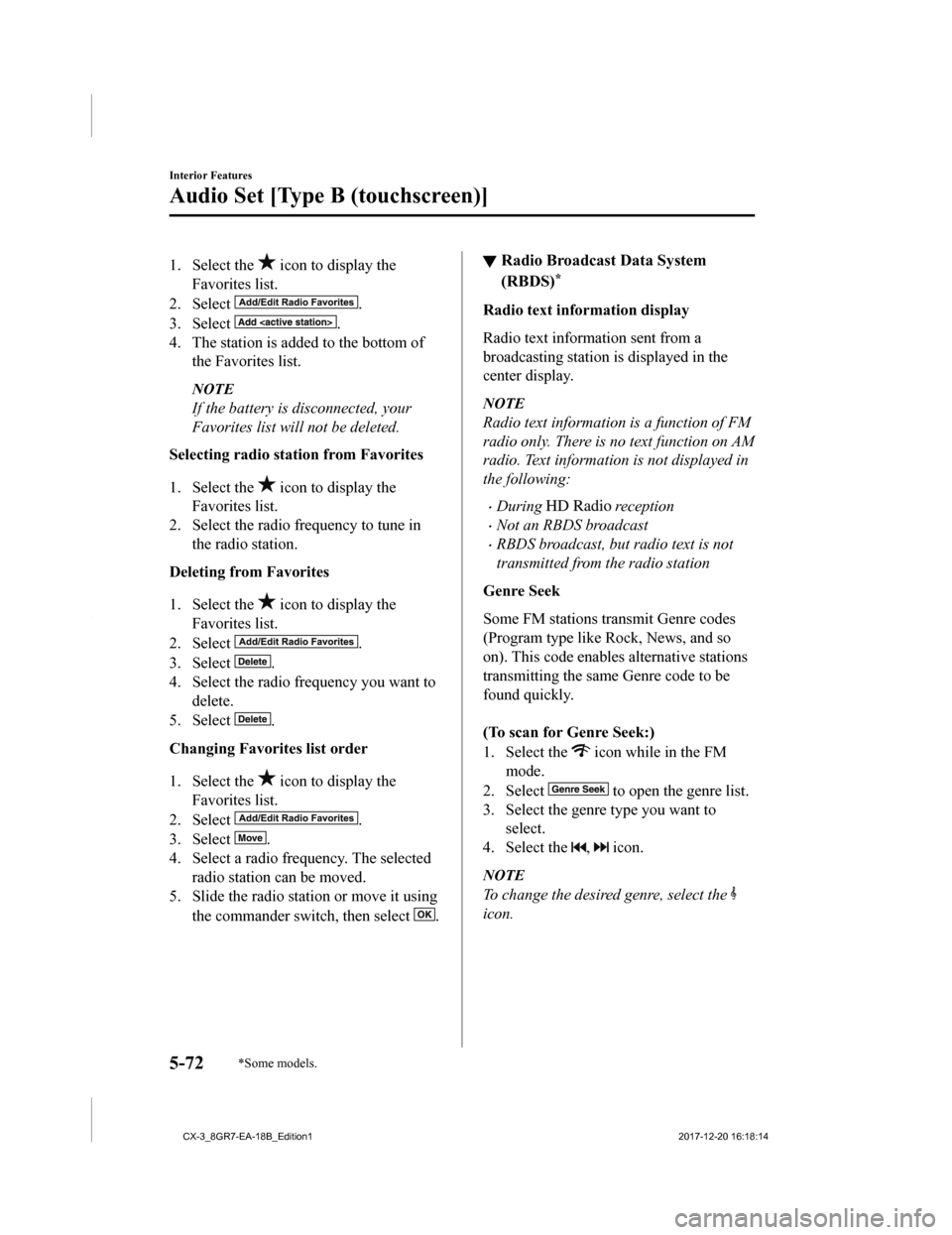
1. Select the icon to display the
Favorites list.
2. Select
.
3. Select
.
4. The station is added to the bottom of the Favorites list.
NOTE
If the battery is disconnected, your
Favorites list will not be deleted.
Selecting radio station from Favorites
1. Select the
icon to display the
Favorites list.
2. Select the radio frequency to tune in the radio station.
Deleting from Favorites
1. Select the
icon to display the
Favorites list.
2. Select
.
3. Select
.
4. Select the radio frequency you want to
delete.
5. Select
.
Changing Favorites list order
1. Select the
icon to display the
Favorites list.
2. Select
.
3. Select
.
4. Select a radio frequency. The selected radio station can be moved.
5. Slide the radio station or move it using
the commander switch, then select
.
▼Radio Broadcast Data System
(RBDS)*
Radio text information display
Radio text information sent from a
broadcasting station is displayed in the
center display.
NOTE
Radio text information is a function of FM
radio only. There is no text function on AM
radio. Text informati
on is not displayed in
the following:
•During reception
•Not an RBDS broadcast
•RBDS broadcast, but radio text is not
transmitted from the radio station
Genre Seek
Some FM stations transmit Genre codes
(Program type like Rock, News, and so
on). This code enables alternative stations
transmitting the same Genre code to be
found quickly.
(To scan for Genre Seek:)
1. Select the
icon while in the FM
mode.
2. Select
to open the genre list.
3. Select the genre type you want to select.
4. Select the
, icon.
NOTE
To change the desired genre, select the
icon.
Interior Features
Audio Set [Type B (touchscreen)]
5-72*Some models.
CX-3_8GR7-EA-18B_Edition1 2017-12-20 16:18:14
Page 357 of 608
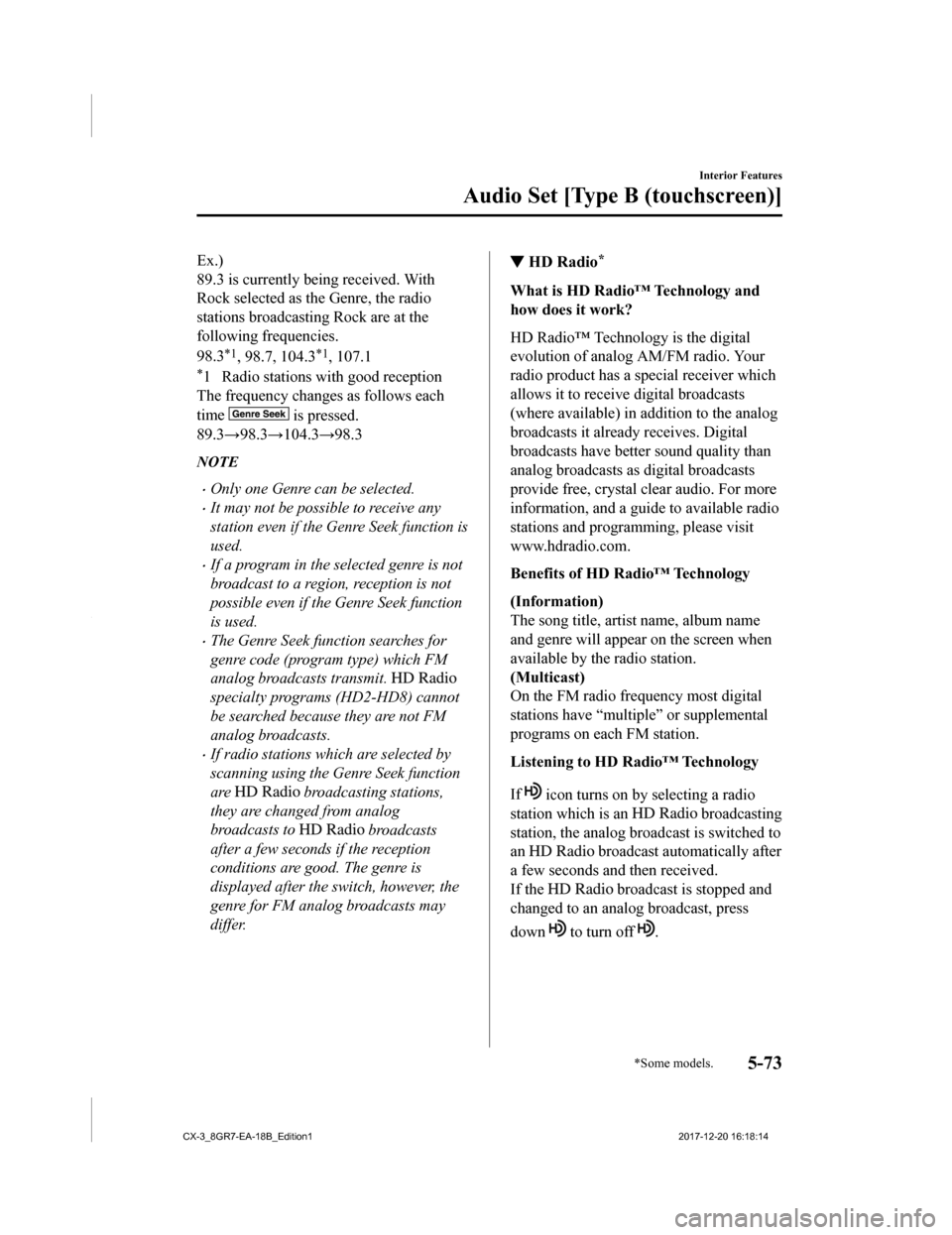
Ex.)
89.3 is currently being received. With
Rock selected as the Genre, the radio
stations broadcasting Rock are at the
following frequencies.
98.3
*1, 98.7, 104.3*1, 107.1
*1 Radio stations with good reception
The frequency changes as follows each
time
is pressed.
89.3→98.3→104.3→98.3
NOTE
•Only one Genre can be selected.
•It may not be possible to receive any
station even if the Genre Seek function is
used.
•If a program in the selected genre is not
broadcast to a region, reception is not
possible even if the Genre Seek function
is used.
•The Genre Seek function searches for
genre code (program type) which FM
analog broadcasts transmit.
specialty programs (HD2-HD8) cannot
be searched because they are not FM
analog broadcasts.
•If radio stations which are selected by
scanning using the Genre Seek function
are
broadcasting stations,
they are changed from analog
broadcasts to
broadcasts
after a few seconds if the reception
conditions are good. The genre is
displayed after the switch, however, the
genre for FM analog broadcasts may
differ.
▼ HD Radio*
What is HD Radio™ Technology and
how does it work?
HD Radio™ Technology is the digital
evolution of analog AM/FM radio. Your
radio product has a special receiver which
allows it to receive
digital broadcasts
(where available) in a ddition to the analog
broadcasts it already receives. Digital
broadcasts have better sound quality than
analog broadcasts as digital broadcasts
provide free, crystal clear audio. For more
information, and a guide to available radio
stations and programming, please visit
www.hdradio.com.
Benefits of HD Radio™ Technology
(Information)
The song title, artist name, album name
and genre will appear on the screen when
available by the radio station.
(Multicast)
On the FM radio frequency most digital
stations have “multiple” or supplemental
programs on each FM station.
Listening to HD Radio™ Technology
If
icon turns on by selecting a radio
station which is an
broadcasting
station, the analog broadcast is switched to
an
broadcast automatically after
a few seconds and then received.
If the
broadcast is stopped and
changed to an analog broadcast, press
down
to turn off .
Interior Features
Audio Set [Type B (touchscreen)]
*Some models.5-73
CX-3_8GR7-EA-18B_Edition1 2017-12-20 16:18:14
Page 358 of 608
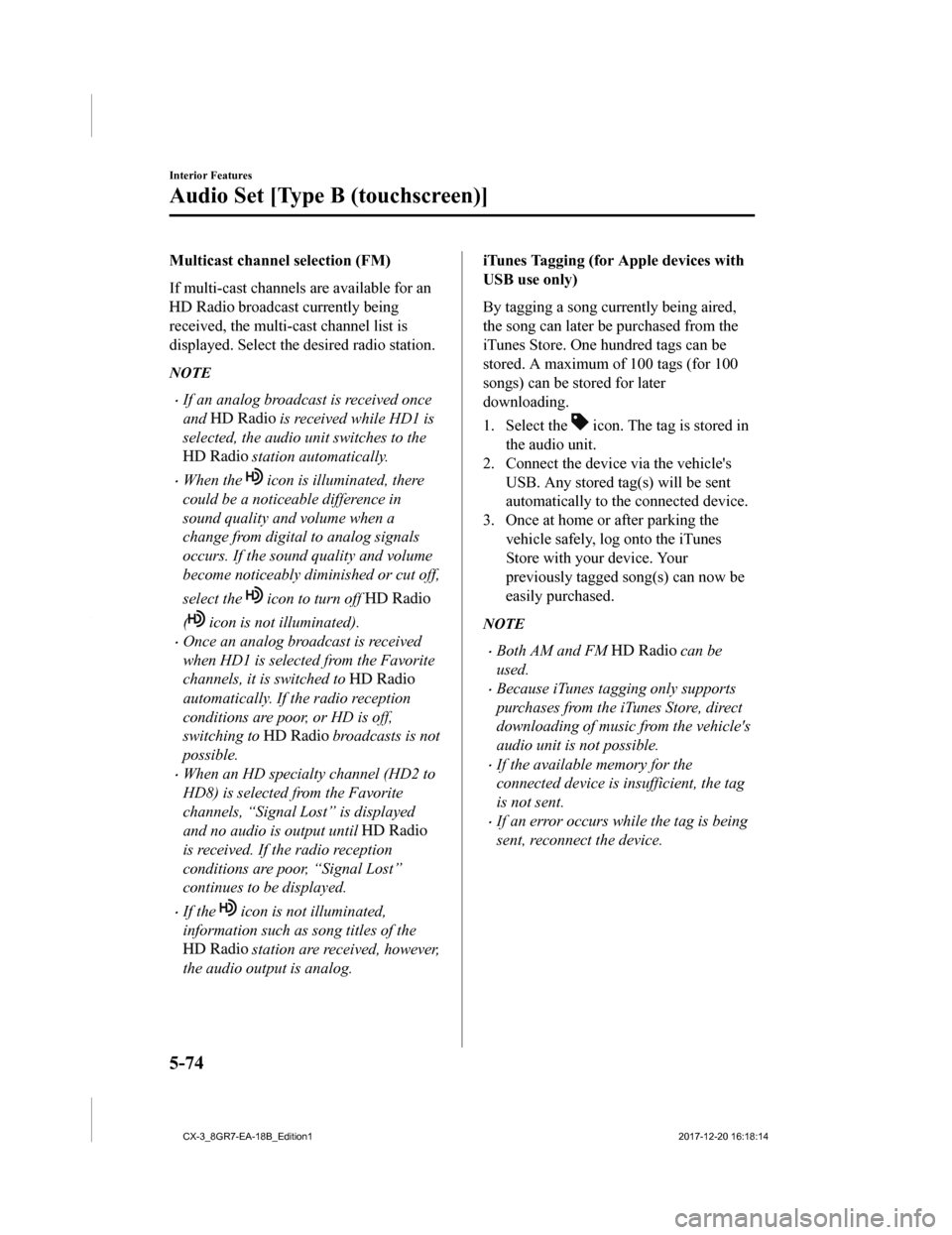
Multicast channel selection (FM)
If multi-cast channels are available for an
broadcast currently being
received, the multi-cast channel list is
displayed. Select the desired radio station.
NOTE
•If an analog broadcast is received once
and
is received while HD1 is
selected, the audio unit switches to the
station automatically.
•When the icon is illuminated, there
could be a noticeable difference in
sound quality and volume when a
change from digital to analog signals
occurs. If the sound quality and volume
become noticeably diminished or cut off,
select the
icon to turn off
( icon is not illuminated).
•Once an analog broadcast is received
when HD1 is selected from the Favorite
channels, it is switched to
automatically. If the radio reception
conditions are poor, or HD is off,
switching to
broadcasts is not
possible.
•When an HD specialty channel (HD2 to
HD8) is selected from the Favorite
channels, “Signal Lost” is displayed
and no audio is output until
is received. If the radio reception
conditions are poor, “Signal Lost”
continues to be displayed.
•If the icon is not illuminated,
information such as song titles of the
station are received, however,
the audio output is analog.
iTunes Tagging (for Apple devices with
USB use only)
By tagging a song currently being aired,
the song can later be purchased from the
iTunes Store. One hundred tags can be
stored. A maximum of 100 tags (for 100
songs) can be stored for later
downloading.
1. Select the
icon. The tag is stored in
the audio unit.
2. Connect the device via the vehicle's
USB. Any stored tag(s) will be sent
automatically to the connected device.
3. Once at home or after parking the
vehicle safely, log onto the iTunes
Store with your device. Your
previously tagged song(s) can now be
easily purchased.
NOTE
•Both AM and FM can be
used.
•Because iTunes tagging only supports
purchases from the iTunes Store, direct
downloading of music from the vehicle's
audio unit is not possible.
•If the available memory for the
connected device is insufficient, the tag
is not sent.
•If an error occurs while the tag is being
sent, reconnect the device.
Interior Features
Audio Set [Type B (touchscreen)]
5-74
CX-3_8GR7-EA-18B_Edition1 2017-12-20 16:18:14