park assist MAZDA MODEL CX-5 2022 User Guide
[x] Cancel search | Manufacturer: MAZDA, Model Year: 2022, Model line: MODEL CX-5, Model: MAZDA MODEL CX-5 2022Pages: 723, PDF Size: 89.79 MB
Page 355 of 723

360° View Monitor (Mazda Connect (Type A))*
The 360° View Monitor consists of the following functions which assist the driver in
checking the area surrounding the vehicle using various indications in the center display and
a warning sound while the vehicle is being driven at low speeds or while parking.
To p v i e w
The top view displays an image of the vehicle from directly above on the center display
by combining the images taken from the 4 cameras set on all sides of the vehicle. The top
view displays on the right side of the screen when the front view or rear view screen is
being displayed. The top view assists the d river in checking the area surrounding the
vehicle when the vehicle is moving forward or in reverse.
Front view/front wide view
The image from the front of the vehicle is displayed on the center display.
The view from the front assists the driver in checking the front of the vehicle by
displaying guide lines on the displayed im age taken from the front of the vehicle.
Side view
The images taken from the front left and righ t sides of the vehicle are displayed on the
center display.
The side view assists the driver in checking the front sides of the vehicle by displaying
guide lines on the displayed image taken from the front left and right sides of the vehicle.
Rear view/rear wide view
The image from the rear of the vehicle is displayed on the center display.
The image from the rear assists the driver in checking the rear of the vehicle by displaying
guide lines on the displayed image taken from the rear of the vehicle.
Parking sensor
If there are any obstructions near the vehicle while the top view/side view is displayed, an
obstruction detection indication on the center display turns on.
The parking sensors use ultrason ic sensors to detect obstructions around the vehicle when
the vehicle is driven at low speeds, such as during garage or parallel parking, and notifies
the driver of the approximate distance from the vehicle to the surrounding obstruction
using sound and an obstruction detection indication.
Refer to Parking Sensor System on page 4-293.
Rear Cross Traffic Alert (RCTA)
If there is the possibility of a collision with an approaching vehicle while the rear view/
rear wide view is displayed, a warning is displayed on the center display.
The Rear Cross Traffic Alert (RCTA) uses radar sensors (rear) to detect vehicles
approaching from the rear left and right side s of the vehicle, and it assists the driver in
checking the rear of the vehicle while reve rsing by flashing the Blind Spot Monitoring
(BSM) warning lights and activating the warning sound.
Refer to Rear Cross Traffic Alert (RCTA) on page 4-141.
When Driving
i-ACTIVSENSE
4-202*Some models.
CX-5_8KN5-EA-21K_Edition1_old 2021-9-9 8:35:12
Page 365 of 723
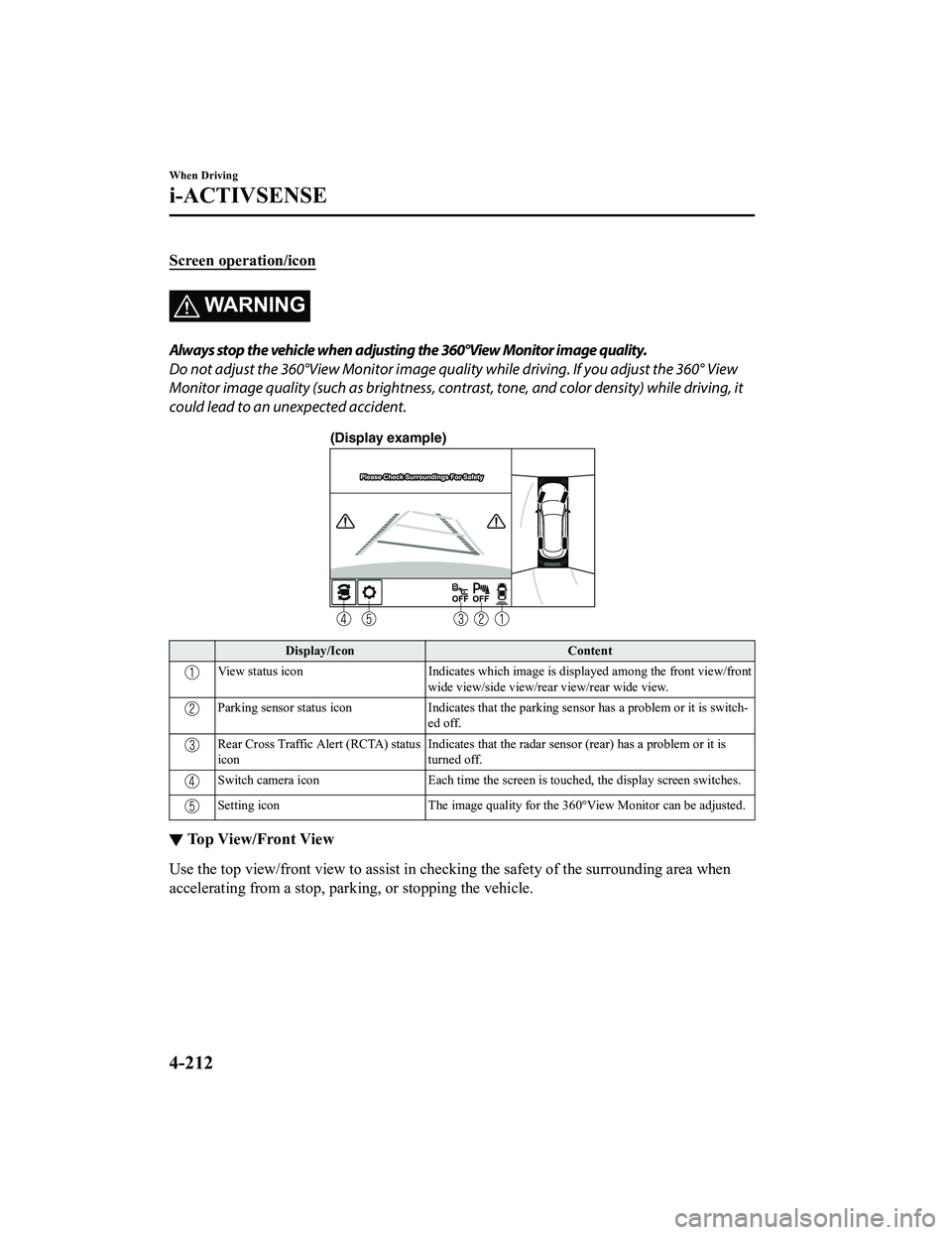
Screen operation/icon
WA R N I N G
Always stop the vehicle when adjusting the 360°View Monitor image quality.
Do not adjust the 360°View Monitor image quality while driving. If you adjust the 360° View
Monitor image quality (such as brightness, contra st, tone, and color density) while driving, it
could lead to an unexpected accident.
(Display example)
Display/Icon Content
View status iconIndicates which image is displayed among the front view/front
wide view/side view/rear view/rear wide view.
Parking sensor status icon Indicates that the parking sensor has a problem or it is switch ‐
ed off.
Rear Cross Traffic Alert (RCTA) status
icon Indicates that the radar sensor (rear) has a problem or it is
turned off.
Switch camera icon
Each time the screen is touched, the display screen switches.
Setting icon The image quality for the 360°View Monitor can be adjusted.
▼Top View/Front View
Use the top view/front view to assist in
checking the safety of the surrounding area when
accelerating from a stop, park ing, or stopping the vehicle.
When Driving
i-ACTIVSENSE
4-212
CX-5_8KN5-EA-21K_Edition1_old 2021-9-9 8:35:12
Page 368 of 723
CAUTION
The parking sensor detection range has limitations. For example, obstructions closing in from
the side and objects short in height may not be detected. Always confirm the safety around
the vehicle visually when driving.
For details, refer to the parking sensor obstruction detection indication and warning sound.
Refer to Parking Sensor System on page 4-293.
NOTE
The setting can be changed so that the projected vehicle path lines are not displayed.
Refer to the Settings section in the Mazda Connect Owner's Manual.
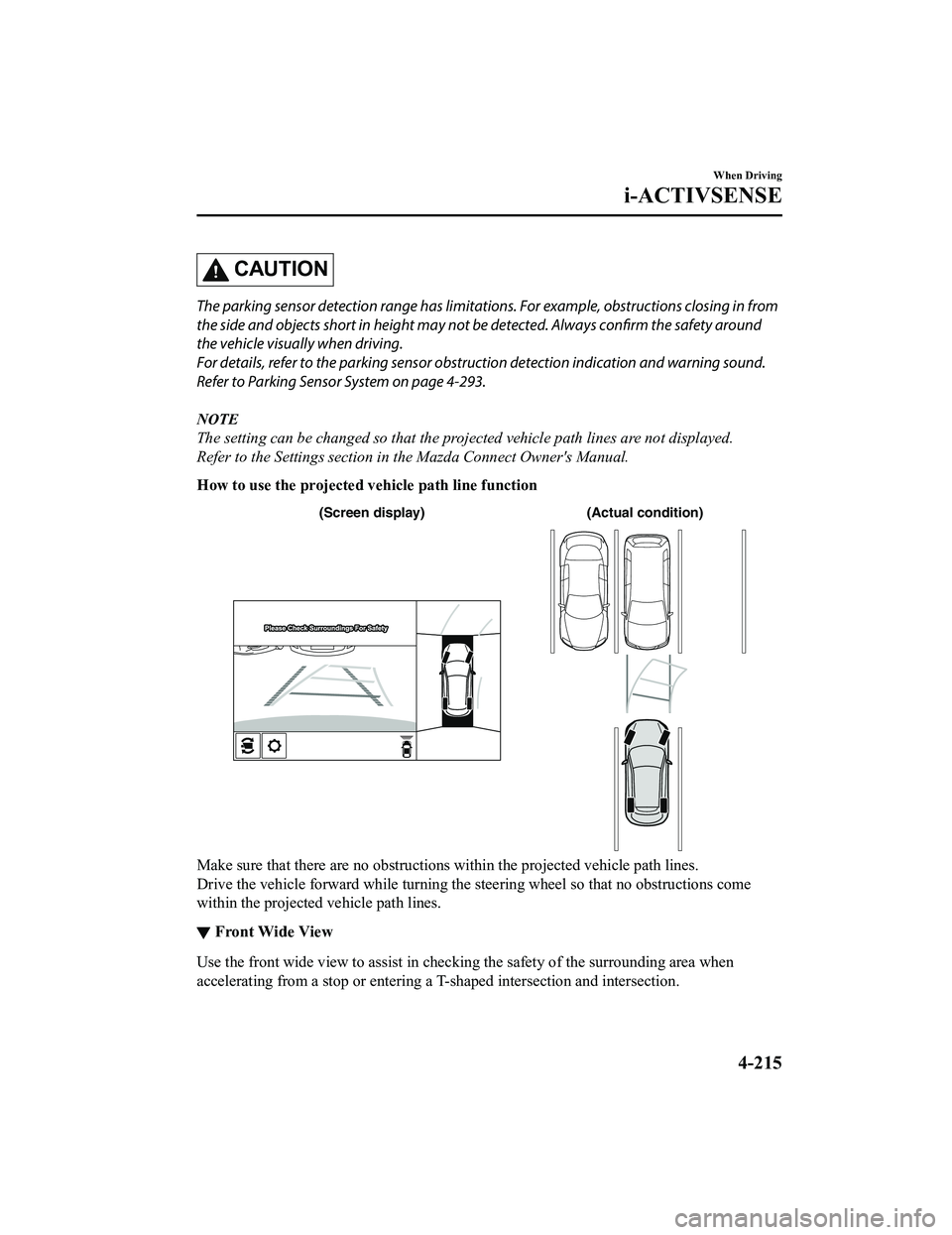
How to use the projected vehicle path line function
(Actual condition)
(Screen display)
Make sure that there are no obstructions within the projected vehicle path lines.
Drive the vehicle forward while turning the steering wheel so that no obstructions come
within the projected vehicle path lines.
▼Front Wide View
Use the front wide view to assist in checking the safety of the surrounding area when
accelerating from a stop or entering a T-shaped intersection and intersection.
When Driving
i-ACTIVSENSE
4-215
CX-5_8KN5-EA-21K_Edition1_old
2021-9-9 8:35:12
Page 370 of 723
NOTE
The parking sensor obstruction detection indication does not display. Switch the screen
display to the top view/front view or side view display if the parking sensor warning sound
is activated.
The front wide view screen displays the image in front of the vehicle at a wide angle and
corrects the image to help detect approaching obstructions from the side. Therefore, it
differs from the actual view.
▼ Side View
Use the side view to assist in checking the sa
fety of the surrounding area when accelerating
from a stop, parking, or stopping the vehicle.
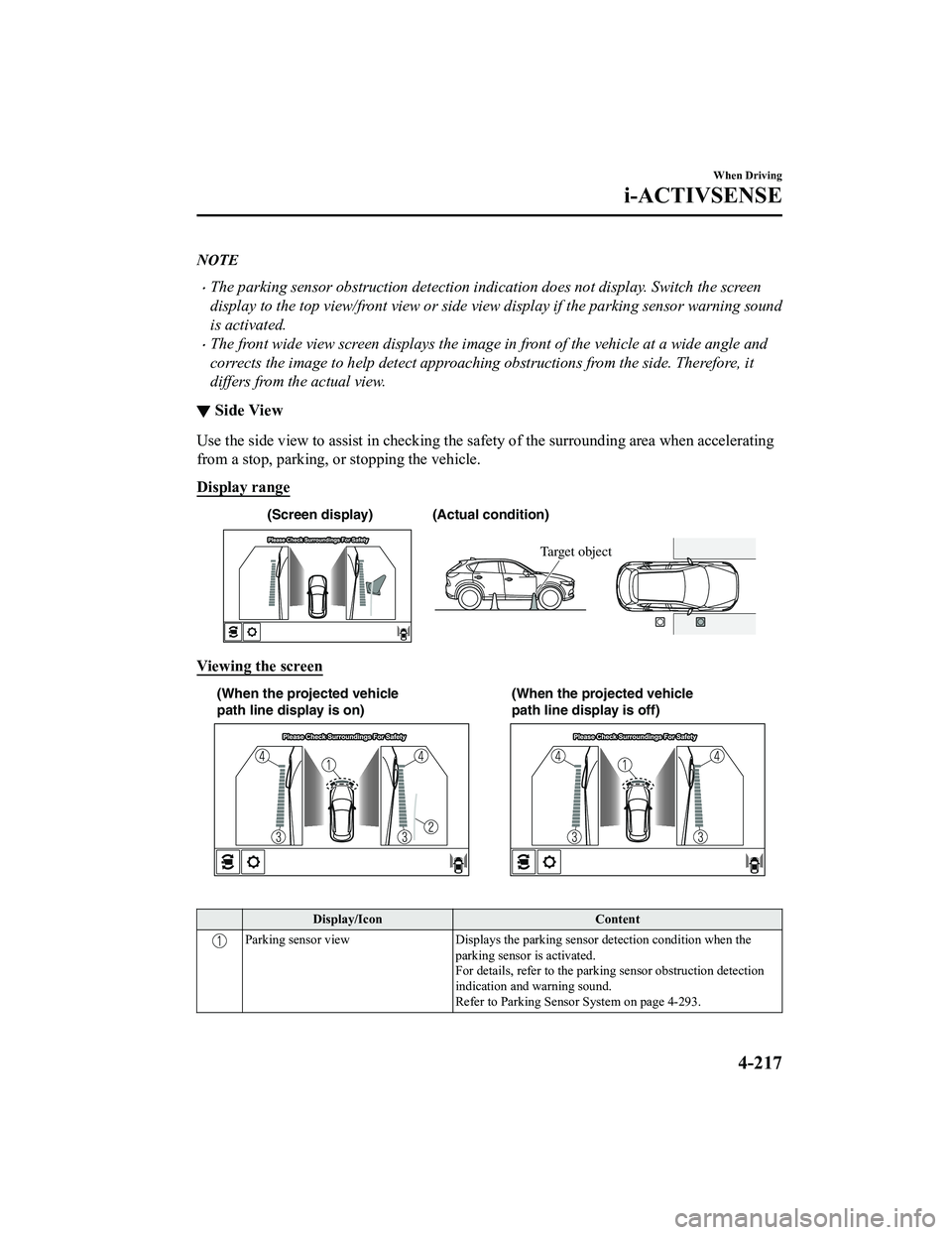
Display range
(Actual condition)
(Screen display)
Target object
Viewing the screen
(When the projected vehicle
path line display is on) (When the projected vehicle
path line display is off)
Display/Icon
Content
Parking sensor viewDisplays the parking sensor detection condition when the
parking sensor is activated.
For details, refer to the parking sensor obstruction detection
indication and warning sound.
Refer to Parking Sensor System on page 4-293.
When Driving
i-ACTIVSENSE
4-217
CX-5_8KN5-EA-21K_Edition1_old 2021-9-9 8:35:12
Page 372 of 723

Do not turn the steering wheel any more until the vehicle has passed the obstruction, even
if the obstruction is not visible on the side vi ew image. If the steering wheel is turned even
more, the vehicle may contact the obstruction if it is turned sharply.
NOTE
Because there might be a difference between the image displayed on the screen and the
actual conditions, always check the safety of the surrounding area using the mirrors and
directly with your eyes when driving.
Even though the object displayed on the screen, such as a road curb or a division line of a
parking space, and the vehicle parallel guide lines appear parallel, they may not actually
be parallel.
▼ Top View/Rear View
Use the top view/rear view to assist in chec
king the safety of the surrounding area when
accelerating from a stop, parking, or stopping the vehicle.
Range of displayed screen image
(Actual condition) (Screen display)
Target object
NOTE
In the top view screen, the areas in black at the front and rear of the vehicle image and the
seams where each of the camera images merge are blind spots.
Because images displayed in the top view screen are processed from each camera, the top
view screen may display in the following ways.
When Driving
i-ACTIVSENSE
4-219
CX-5_8KN5-EA-21K_Edition1_old 2021-9-9 8:35:12
Page 375 of 723

1. Back the vehicle into the parking space by turning the steering wheel so that the vehicleenters the center of the parking space.
(Actual condition)
(Screen display)
2. After the vehicle starts entering the parking space, stop and adjust the steering wheel so
that the distance between the vehicle width lines and the sides of the parking space on
the left and right are roughly equal, and then continue backing up slowly.
3. Once the vehicle width lines and the sides of the parking space on the left and right are parallel, straighten the wheels and back the vehicle slowly into the parking space.
Continue checking the vehicle's surroundings and then stop the vehicle in the best
possible position. (If the parking space has division lines, check whether the vehicle
width guide lines are parallel to them.)
(Actual condition)
(Screen display)
▼ Rear Wide View
Use the rear wide view to assist in checking the safety of the surrounding area when
accelerating from a stop, park
ing, or stopping the vehicle.
When Driving
i-ACTIVSENSE
4-222
CX-5_8KN5-EA-21K_Edition1_old 2021-9-9 8:35:12
Page 381 of 723

360° View Monitor (Mazda Connect (Type B))*
▼360° View Monitor
The 360°View Monitor consists of the foll
owing functions which assist the driver in
checking the area surrounding the vehicle using various indications in the center display and
a warning sound while the vehicle is being driven at low speeds or while parking.
To p v i e w
The top view displays an image of the vehicle from directly above on the center display
by combining the images taken from the 4 cameras set on all sides of the vehicle. The top
view displays on the right side of the screen when the front view or rear view screen is
being displayed. The top view assists the d river in checking the area surrounding the
vehicle when the vehicle is moving forward or in reverse.
Front view/front wide view
The image from the front of the vehicle is displayed on the center display.
The view from the front assists the driver in checking the front of the vehicle by
displaying guide lines on the displayed im age taken from the front of the vehicle.
Side view
The images taken from the front left and righ t sides of the vehicle are displayed on the
center display.
The side view assists the driver in checking the front sides of the vehicle by displaying
guide lines on the displayed image taken from the front left and right sides of the vehicle.
Rear view/rear wide view
The image from the rear of the vehicle is displayed on the center display.
The image from the rear assists the driver in checking the rear of the vehicle by displaying
guide lines on the displayed image taken from the rear of the vehicle.
Parking sensor
If there are any obstructions near the vehicle while the top view/side view is displayed, an
obstruction detection indication turns on ar ound the bumper in the center display.
The parking sensors use ultrason ic sensors to detect obstructions around the vehicle when
the vehicle is driven at low speeds, such as during garage or parallel parking, and notifies
the driver of the approximate distance from the vehicle to the surrounding obstruction
using sound and an obstruction detection indication.
Refer to Parking Sensor System on page 4-302.
Rear Cross Traffic Alert (RCTA)
If there is the possibility of a collision with an approaching vehicle while the rear view/
rear wide view is displayed, a warning is displayed on the center display.
The Rear Cross Traffic Alert (RCTA) uses rear side radar sensor to detect vehicles
approaching from the rear left and right side s of the vehicle, and it assists the driver in
checking the rear of the vehicle while reve rsing by flashing the Blind Spot Monitoring
(BSM) warning lights and activating the warning sound.
When Driving
i-ACTIVSENSE
4-228*Some models.
CX-5_8KN5-EA-21K_Edition1_old 2021-9-9 8:35:12
Page 390 of 723

Screen operation/icon
WARNING
Always stop the vehicle when adjusting the 360°View Monitor image quality.
Do not adjust the 360°View Monitor image quality while driving. If you adjust the 360°View
Monitor image quality (such as brightness, contra st, tone, and color density) while driving, it
could lead to an unexpected accident.
Display/Icon Content
(1) View status icon Indicates which image is displayed among the front view/front
wide view/side view/rear view/rear wide view.
(2) Parking sensor status icon Indicates that the parking sensor has a problem or it is switch ‐
ed off.
▼ Top View/Front View
Use the top view/front view to assist in checking the safety of the surrounding area when
accelerating from a stop, parking, or stopping the vehicle.
When Driving
i-ACTIVSENSE
4-237
CX-5_8KN5-EA-21K_Edition1_old
2021-9-9 8:35:12
Page 395 of 723
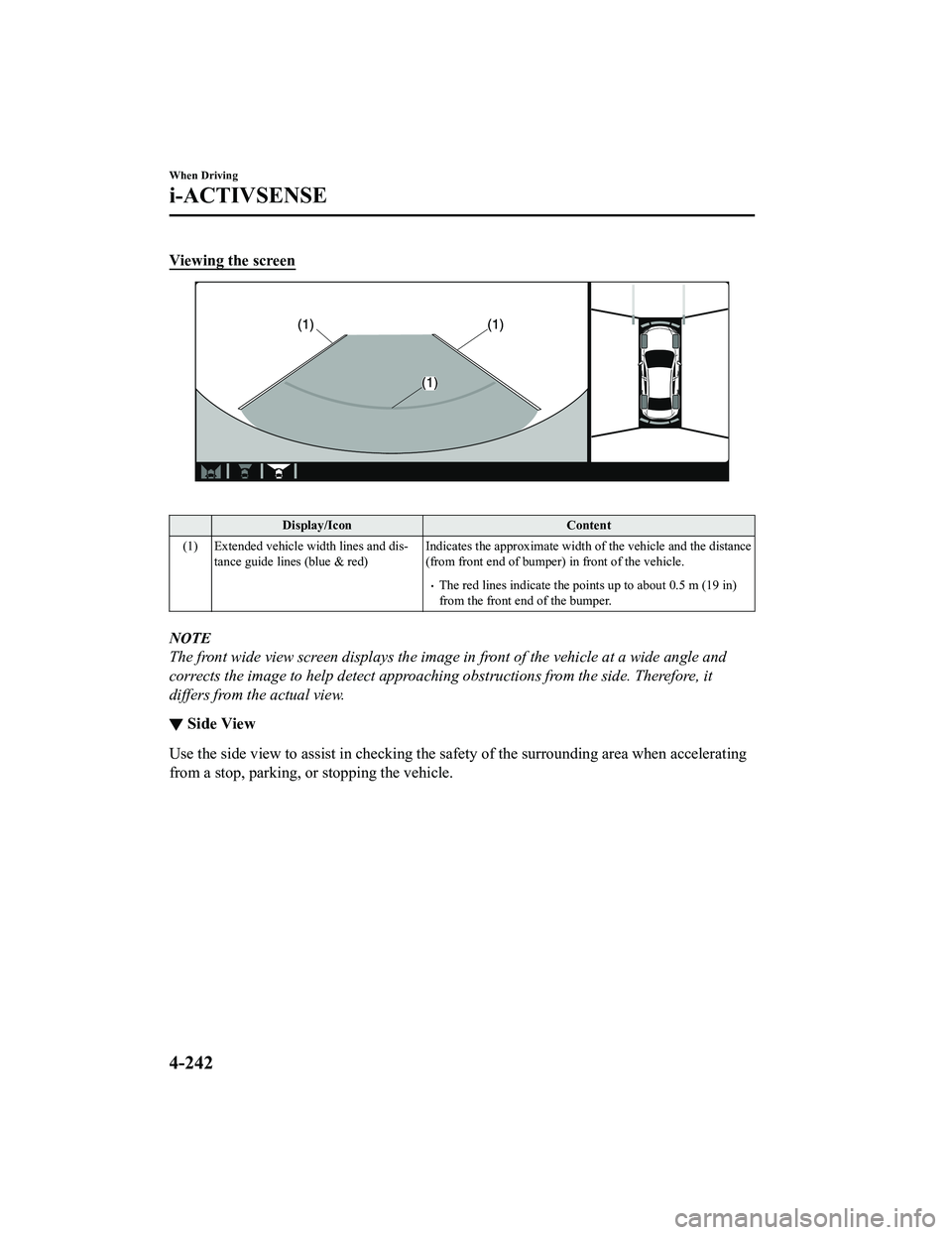
Viewing the screen
Display/IconContent
(1) Extended vehicle width lines and dis ‐
tance guide lines (blue & red) Indicates the approximate width of the vehicle and the distance
(from front end of bumper) in front of the vehicle.
The red lines indicate the points up to about 0.5 m (19 in)
from the front end of the bumper.
NOTE
The front wide view screen displays the imag
e in front of the vehicle at a wide angle and
corrects the image to help detect approaching obstructions from the side. Therefore, it
differs from the actual view.
▼ Side View
Use the side view to assist in checking the safety of the surrounding area when accelerating
from a stop, parking, or stopping the vehicle.
When Driving
i-ACTIVSENSE
4-242
CX-5_8KN5-EA-21K_Edition1_old
2021-9-9 8:35:12
Page 398 of 723
Refer to Parking Sensor System on page 4-302.
Do not turn the steering wheel any more until the vehicle has passed the obstruction, even
if the obstruction is not visible on the side vi ew image. If the steering wheel is turned even
more, the vehicle may contact the obstruction if it is turned sharply.
NOTE
Because there might be a difference between the image displayed on the screen and the
actual conditions, always check the safety of the surrounding area using the mirrors and
directly with your eyes when driving.
Even though the object displayed on the screen, such as a road curb or a division line of a
parking space, and the vehicle parallel guide lines appear parallel, they may not actually
be parallel.
▼ Top View/Rear View
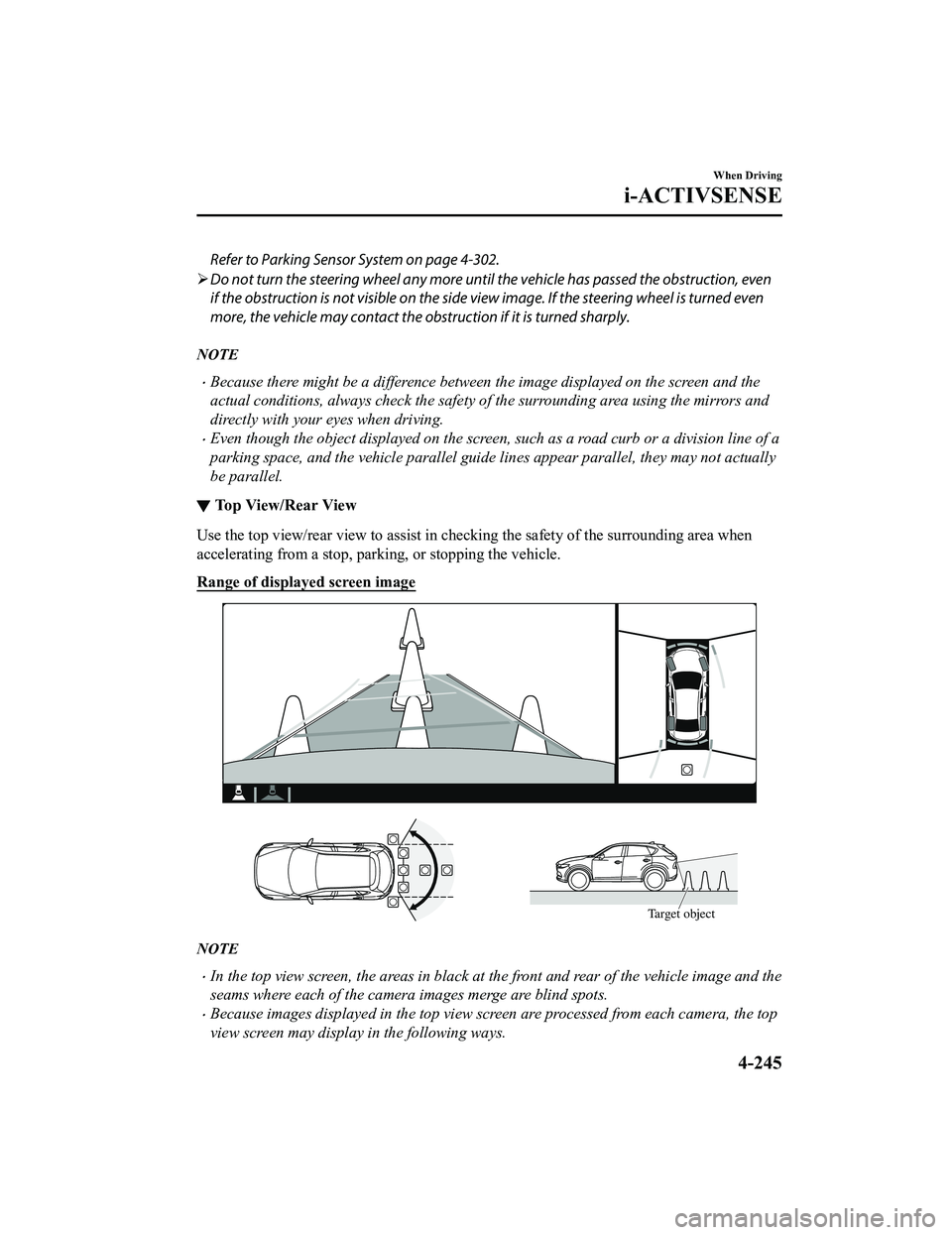
Use the top view/rear view to assist in chec
king the safety of the surrounding area when
accelerating from a stop, parking, or stopping the vehicle.
Range of displayed screen image
Target object
NOTE
In the top view screen, the areas in black at the front and rear of the vehicle image and the
seams where each of the camera images merge are blind spots.
Because images displayed in the top view screen are processed from each camera, the top
view screen may display in the following ways.
When Driving
i-ACTIVSENSE
4-245
CX-5_8KN5-EA-21K_Edition1_old 2021-9-9 8:35:12