radio MAZDA MODEL MX-5 MIATA 2018 Owner's Manual
[x] Cancel search | Manufacturer: MAZDA, Model Year: 2018, Model line: MODEL MX-5 MIATA, Model: MAZDA MODEL MX-5 MIATA 2018Pages: 576, PDF Size: 55.37 MB
Page 238 of 576

Audio Control Switch
▼Adjusting the Volume
To increase the volume, press up the
volume switch (
).
To decrease the volume, press down the
volume switch (
).
▼ Seek Switch
AM/FM radio
Press the seek switch (, ). The radio
switches to the next/previous stored
station in the order that it was stored.
Press and hold the seek switch (
, ) to
seek all usable stations at a higher or lower
frequency whether programmed or not.
Radio stations which have been previously
stored in the auto memory tuning (Type
A)/favorite radio (Type B) can be called
up by pressing the seek switch (
, )
while any radio station stored in the auto
memory tuning (Type A)/favorite radio
(Type B) is being received. Radio stations
can be called up in the order they were
stored with each press of the switch (
,
).
USB Audio/Bluetooth® Audio/CD*
Press the seek switch () to skip forward
to the beginning of the next track.
Press the seek switch (
) within a few
seconds after playba ck begins to track
down to the beginning of the previous
track.
Press the seek switch (
) after a few
seconds have elapsed to start playback
from the beginning of the current track.
Press and hold the seek switch (
, ) to
continuously switch th e tracks up or down.
Pandora
®/Aha™/Stitcher™ Radio
(Type B)
Press the seek switch () to skip forward
to the beginning of the next track.
Press and hold the seek switch (
) to
evaluate the playback of the current song
as “Like”.
Press and hold the seek switch (
) to
evaluate the playback of the current song
as “Dislike”.
Interior Features
Before Using the Audio System
5-16*Some models.
MX-5_8GF7-EA-17J_Edition2 2017-10-31 14:07:27
Page 241 of 576
WA R N I N G
Do not allow the connection plug cord to
get tangled with the parking brake or the
shift lever (manual transmission)/selector
lever (automatic transmission):
Allowing the plug cord to become tangled
with the parking brake or the shift lever
(manual transmission)/selector lever
(automatic transmission) is dangerous as it
could interfere with driving, resulting in an
accident.
CAUTION
Do not place objects or apply force to the
auxiliary jack/USB port with the plug
connected.
NOTE
Insert the plug into the auxiliary
jack/USB port securely.
Insert or pull out the plug with the plug
perpendicular to the auxiliary jack/USB
port hole.
Insert or remove the plug by holding its
base.
Antenna
AM/FM Radio Antenna
The AM/FM radio antenna receives both
AM and FM signals.
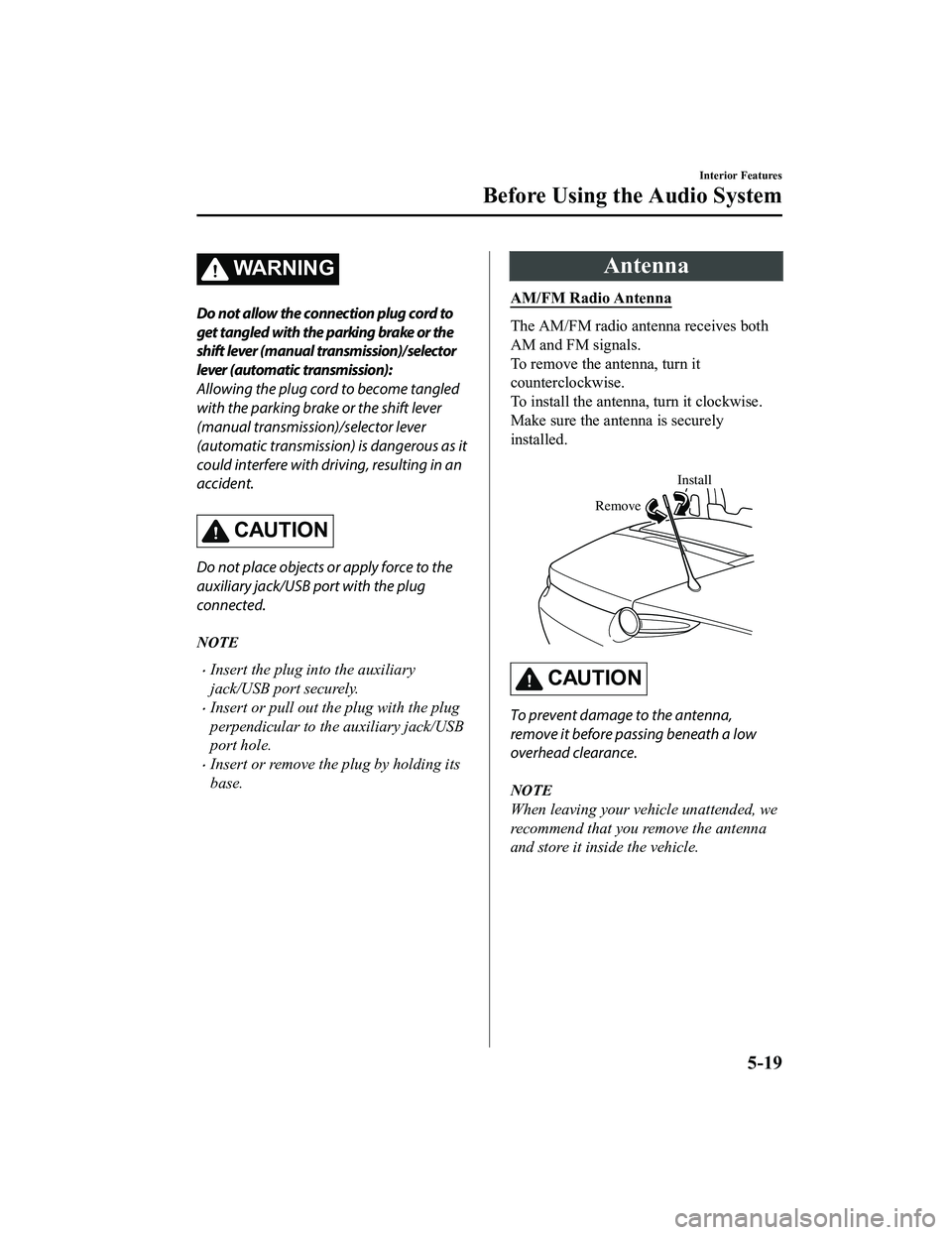
To remove the antenna, turn it
counterclockwise.
To install the antenna, turn it clockwise.
Make sure the antenna is securely
installed.
Install
Remove
CAUTION
To prevent damage to the antenna,
remove it before passing beneath a low
overhead clearance.
NOTE
When leaving your vehicle unattended, we
recommend that you remove the antenna
and store it inside the vehicle.
Interior Features
Before Using the Audio System
5-19
MX-5_8GF7-EA-17J_Edition2 2017-10-31 14:07:27
Page 242 of 576
Satellite Radio Antenna*
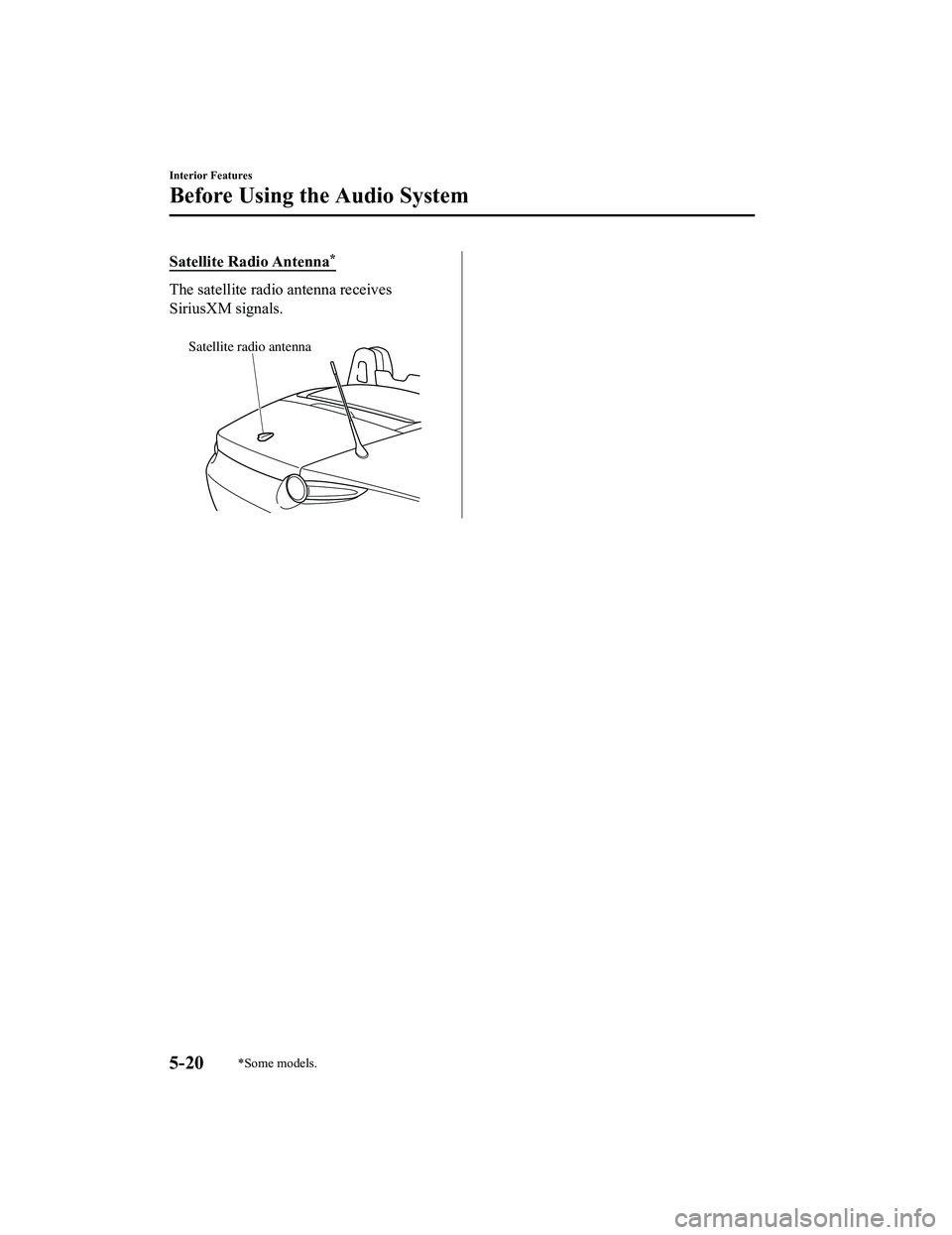
The satellite radio antenna receives
SiriusXM signals.
Satellite radio antenna
Interior Features
Before Using the Audio System
5-20*Some models.
MX-5_8GF7-EA-17J_Edition22017-10-31 14:07:27
Page 246 of 576
Operating the Radio
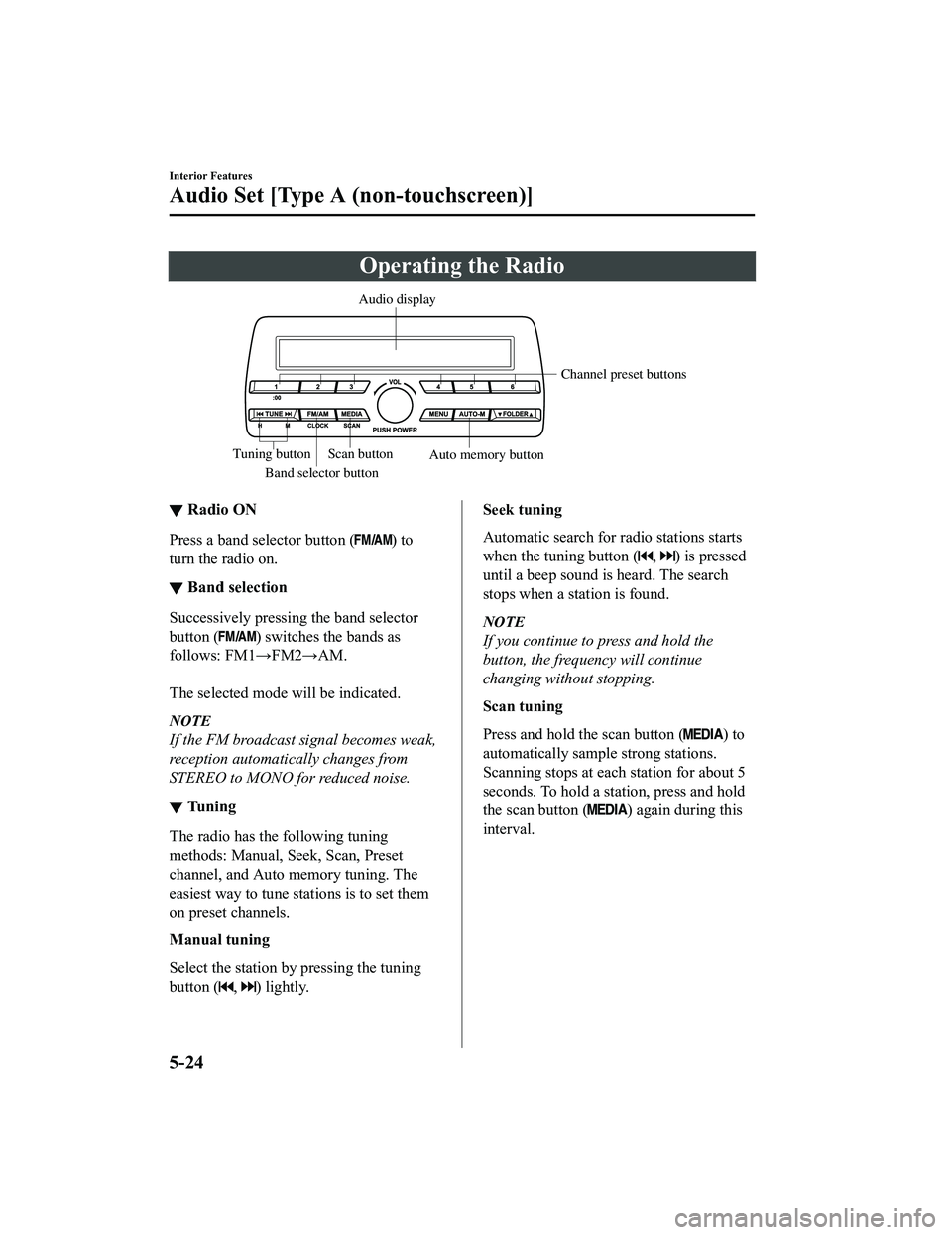
Band selector buttonChannel preset buttons
Scan button Auto memory button
Tuning button Audio display
▼
Radio ON
Press a band selector button () to
turn the radio on.
▼ Band selection
Successively pressing the band selector
button (
) switches the bands as
follows: FM1→FM2→AM.
The selected mode will be indicated.
NOTE
If the FM broadcast signal becomes weak,
reception automatically changes from
STEREO to MONO for reduced noise.
▼ Tuning
The radio has the following tuning
methods: Manual, Seek, Scan, Preset
channel, and Auto memory tuning. The
easiest way to tune stations is to set them
on preset channels.
Manual tuning
Select the station by pressing the tuning
button (
, ) lightly.
Seek tuning
Automatic search for radio stations starts
when the tuning button (
, ) is pressed
until a beep sound is heard. The search
stops when a station is found.
NOTE
If you continue to press and hold the
button, the frequency will continue
changing without stopping.
Scan tuning
Press and hold the scan button (
) to
automatically sample strong stations.
Scanning stops at each station for about 5
seconds. To hold a station, press and hold
the scan button (
) again during this
interval.
Interior Features
Audio Set [Type A (non-touchscreen)]
5-24
MX-5_8GF7-EA-17J_Edition2 2017-10-31 14:07:27
Page 286 of 576
Troubleshooting
Mazda Bluetooth® Hands-Free Customer Service
If you have any problems with Bluetooth®, contact our toll-free customer service center.
U.S.A.
Phone: 800-430-0153 (Toll-free)
Web: www.mazdausa.com/mazdaconnect
Canada
Phone: 800-430-0153 (Toll-free)
Web: www.mazdahandsfree.ca
Mexico
Center of Attention to Client (CAC)
Phone: 01-800-01-MAZDA (Toll-free)
Web: www.mazdamexico.com.mx
Bluetooth
® Device pairing, c onnection problems
Symptom CauseSolution method
Unable to perform pairing ―
First make sure the device is compati-
ble with the Bluetooth® unit, and then
check whether the Bluetooth® func-
tion and the Find Mode/Visible set-
ting
*1 on the device are turned on. If
pairing is still not possible after this,
contact an Authorized Mazda Dealer
or Mazda Bluetooth
® Hands-Free
Customer Service.
Pairing cannot be performed again The pairing information paired to
the Bluetooth® unit or device is not
recognized correctly. Perform pairing using the following
procedure.Clear “Mazda” stored in the device.Perform pairing again.
Unable to perform pairing The Bluetooth
® function and the
Find Mode/Visible setting*1 on the
device may turn off automatically
after a period of time has elapsed
depending on the device. Check whether the Bluetooth® func-
tion and the Find Mode/Visible set-
ting
*1 on the device are turned on
and pairing or reconnect.
Does not connect automatically
when starting the engine
Automatically connects, but then
disconnects suddenly
Disconnects intermittently
The device is in a location in which
radio wave interference can occur
easily, such as in a bag or in a rear
pocket of a pair of pants.Move the device to a location in
which radio wave interference is
less likely to occur.
Does not connect automatically
when starting the engine The pairing information is updated
when the device OS is updated.
Perform pairing again.
*1 Setting which detects the existe
nce of a device external to the Bluetooth® unit.
Interior Features
Audio Set [Type A (non-touchscreen)]
5-64
MX-5_8GF7-EA-17J_Edition2 2017-10-31 14:07:27
Page 291 of 576

Switches around commander knob
The following operations can be done by pressing the switches around the commander
knob.
: Displays the home screen.
: Displays the Ente rtainment screen.
: Displays the Navigation screen (Only navigation-equipped vehicles). For operation
of the Navigation screen, refer to the navigation system manual . If the SD card for the
navigation system is not inserted , the compass indicating the direction in which the vehicle
is moving is displayed.
: Displays the Favor ites screen. Long-press to store particula r items in Favorites. (Radio,
phonebook and destination of the navigation system can be progr ammed.)
: Returns to previous screen.
Commander knob operation
Interior Features
Audio Set [Type B (touchscreen)]
5-69
MX-5_8GF7-EA-17J_Edition2 2017-10-31 14:07:27
Page 295 of 576
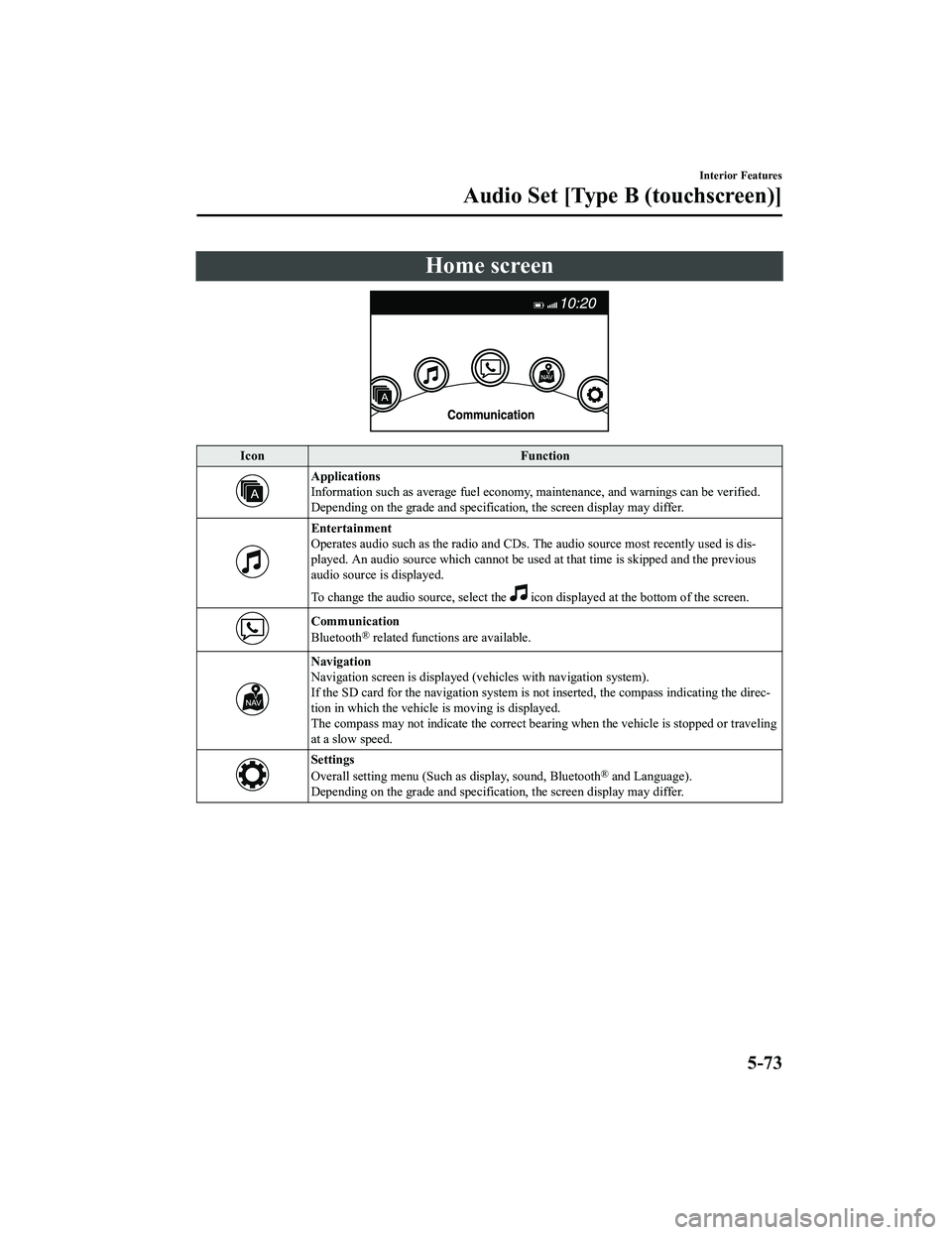
Home screen
IconFunction
Applications
Information such as average fuel economy, maintenance, and warn ings can be verified.
Depending on the grade and specification, the screen display ma y differ.
Entertainment
Operates audio such as the radio and CDs. The audio source most recently used is dis-
played. An audio source which can not be used at that time is skipped and the previous
audio source is displayed.
To change the audio source, select the
icon displayed at the bottom of the screen.
Communication
Bluetooth® related functions are available.
Navigation
Navigation screen is displayed (v ehicles with navigation system).
If the SD card for the navigation system is not inserted, the compass indicating the direc-
tion in which the vehicle is moving is displayed.
The compass may not indicate th e correct bearing when the vehicle is stopped or traveling
at a slow speed.
Settings
Overall setting menu (Such a s display, sound, Bluetooth® and Language).
Depending on the grade and specification, the screen display ma y differ.
Interior Features
Audio Set [Type B (touchscreen)]
5-73
MX-5_8GF7-EA-17J_Edition2 2017-10-31 14:07:27
Page 298 of 576

Operating the Radio
▼Radio ON
Select the icon on the home screen to display the Entertainment screen. W
hen selecting
the desired radio, the following icons are indicated in the low er part of the center display.
AM/FM Radio
Icon Function
Displays the Entertainment menu. Use to switch to a different audio source.
Displays the station list.
Select
to display the frequencies of up to ten radio stations on the auto
memory preset list.
Select the desired frequency.
Displays the Favorites list. Lo ng-press to store radio station currently being aired.
Switches the on and off. Displays the mu lti-cast channel list of the
.
You can search for receivable radio stations.
Scanning stops at each station for about five seconds.
Select again to continue receiving the radio station.
You can change the radio frequency manually.
Rotate the commander knob, slide the screen, or touch the radio frequency.
Press
or to change the radio frequency one step at a time.
When
or is long-pressed, the radio frequency changes continually. It s tops when you
remove your hand from the icon or the commander knob.
Launches the iTunes Tagging func tion (for Apple devices with USB use only). Can be
used when the
is on.
Automatic radio station selection.
When long-pressed, the radio frequency changes continually. It stops when you remove
your hand from the icon or the commander knob.
Displays sound settings to adjust audio quality level.
Refer to Volume/Display/Sound Controls on page 5-74.
Interior Features
Audio Set [Type B (touchscreen)]
5-76
MX-5_8GF7-EA-17J_Edition2 2017-10-31 14:07:27
Page 299 of 576

▼Favorites Radio
Selected stations ca
n be registered for
convenient operation. Up to 50 stations
can be registered. The Favorites list is
common to AM, FM, and satellite radio.
Registering to Favorites
Long-press the
icon to reg ister the
current radio station . The registration can
also be performed using the following
procedure.
1. Select the
icon to display the
Favorites list.
2. Select
.
3. Select
.
4. The station is added to the bottom of the Favorites list.
NOTE
If the battery is disconnected, your
Favorites list will not be deleted.
Selecting radio station from Favorites
1. Select the
icon to display the
Favorites list.
2. Select the radio frequency to tune in
the radio station.
Deleting from Favorites
1. Select the
icon to display the
Favorites list.
2. Select
.
3. Select
.
4. Select the radio frequency you want to delete.
5. Select
.
Changing Favorites list order
1. Select the
icon to display the
Favorites list.
2. Select .
3. Select
.
4. Select a radio frequency. The selected radio station can be moved.
5. Slide the radio sta tion or move it using
the commander switch, then select
.
▼ Radio Broadcast Data System
(RBDS)*
Radio text information display
Radio text informa
tion sent from a
broadcasting station is displayed in the
center display.
NOTE
Radio text information is a function of FM
radio only. There is no text function on AM
radio. Text information is not displayed in
the following:
During reception
Not an RBDS broadcast
RBDS broadcast, but radio text is not
transmitted from the radio station
Genre Seek
Some FM stations transmit Genre codes
(Program type like Rock, News, and so
on). This code enables alternative stations
transmitting the same Genre code to be
found quickly.
(To scan for Genre Seek:)
1. Select the
icon while in the FM
mode.
2. Select
to open the genre list.
3. Select the genre type you want to select.
4. Select the
, icon.
Interior Features
Audio Set [Type B (touchscreen)]
*Some models.5-77
MX-5_8GF7-EA-17J_Edition2 2017-10-31 14:07:27
Page 300 of 576
NOTE
To change the desired genre, select the
icon.
Ex.)
89.3 is currently being received. With
Rock selected as the Genre, the radio
stations broadcasting Rock are at the
following frequencies.
98.3
*1, 98.7, 104.3*1, 107.1
*1 Radio stations with good reception
The frequency changes as follows each
time
is pressed.
89.3→98.3→104.3→98.3
NOTE
Only one Genre can be selected.
It may not be possible to receive any
station even if the Genre Seek function is
used.
If a program in the selected genre is not
broadcast to a region, reception is not
possible even if the Genre Seek function
is used.
The Genre Seek function searches for
genre code (program type) which FM
analog broadcasts transmit.
specialty programs (HD2-HD8) cannot
be searched because they are not FM
analog broadcasts.
If radio stations which are selected by
scanning using the Genre Seek function
are
broadcasting stations,
they are changed from analog
broadcasts to
broadcasts
after a few seconds if the reception
conditions are good. The genre is
displayed after the sw itch, however, the
genre for FM analog broadcasts may
differ.
▼ HD Radio
What is HD Radio™ Technology and
how does it work?
HD Radio™ Technology is the digital
evolution of analog AM/FM radio. Your
radio product has a special receiver which
allows it to receive digital broadcasts
(where available) in addition to the analog
broadcasts it already receives. Digital
broadcasts have better sound quality than
analog broadcasts as digital broadcasts
provide free, crystal clear audio. For more
information, and a gui
de to available radio
stations and programming, please visit
www.hdradio.com.
Benefits of HD Radio™ Technology
(Information)
The song title, artist name, album name
and genre will appear on the screen when
available by the radio station.
(Multicast)
On the FM radio frequency most digital
stations have “multiple” or supplemental
programs on each FM station.
Listening to HD Radio™ Technology
If
icon turns on by selecting a radio
station which is an
broadcasting
station, the analog broadcast is switched to
an
broadcast automatically after
a few seconds and then received.
If the
broadcast is stopped and
changed to an analog broadcast, press
down
to turn off .
Interior Features
Audio Set [Type B (touchscreen)]
5-78
MX-5_8GF7-EA-17J_Edition2 2017-10-31 14:07:27