audio MAZDA MODEL TRIBUTE HEV 2009 Owner's Manual
[x] Cancel search | Manufacturer: MAZDA, Model Year: 2009, Model line: MODEL TRIBUTE HEV, Model: MAZDA MODEL TRIBUTE HEV 2009Pages: 81, PDF Size: 1.49 MB
Page 32 of 81
JOBNAME: No Job Name PAGE: 32 SESS: 1 OUTPUT: Thu Mar 6 14:57:32 2008
/ford_pdm/ford/supplement/ng2/navi
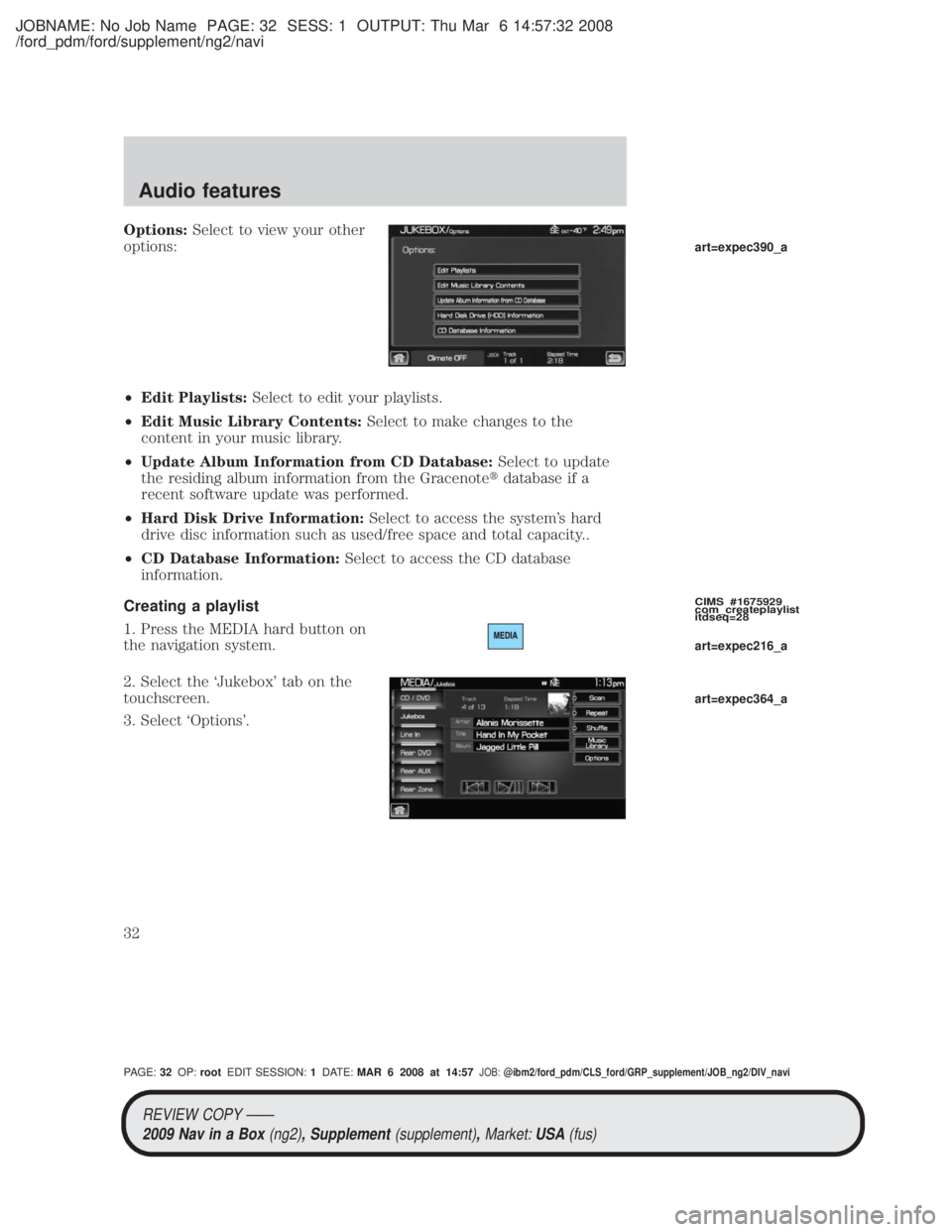
Options:Select to view your other
options:
² Edit Playlists: Select to edit your playlists.
² Edit Music Library Contents: Select to make changes to the
content in your music library.
² Update Album Information from CD Database: Select to update
the residing album information from the Gracenote tdatabase if a
recent software update was performed.
² Hard Disk Drive Information: Select to access the system's hard
drive disc information such as used/free space and total capacity..
² CD Database Information: Select to access the CD database
information.
Creating a playlist
1. Press the MEDIA hard button on
the navigation system.
2. Select the `Jukebox' tab on the
touchscreen.
3. Select `Options'.
CIMS #1675929
com_createplaylist
itdseq=28
art=expec390_a
art=expec216_a
art=expec364_a
REVIEW COPY ÐÐ 2009 Nav in a Box (ng2), Supplement(supplement),Market:USA(fus)
PAGE: 32OP: root EDIT SESSION: 1DATE: MAR 6 2008 at 14:57JOB:@ibm2/ford_pdm/CLS_ford/GRP_supplement/JOB_ng2/DIV_navi
Audio features
32
Page 33 of 81
JOBNAME: No Job Name PAGE: 33 SESS: 1 OUTPUT: Thu Mar 6 14:57:32 2008
/ford_pdm/ford/supplement/ng2/navi
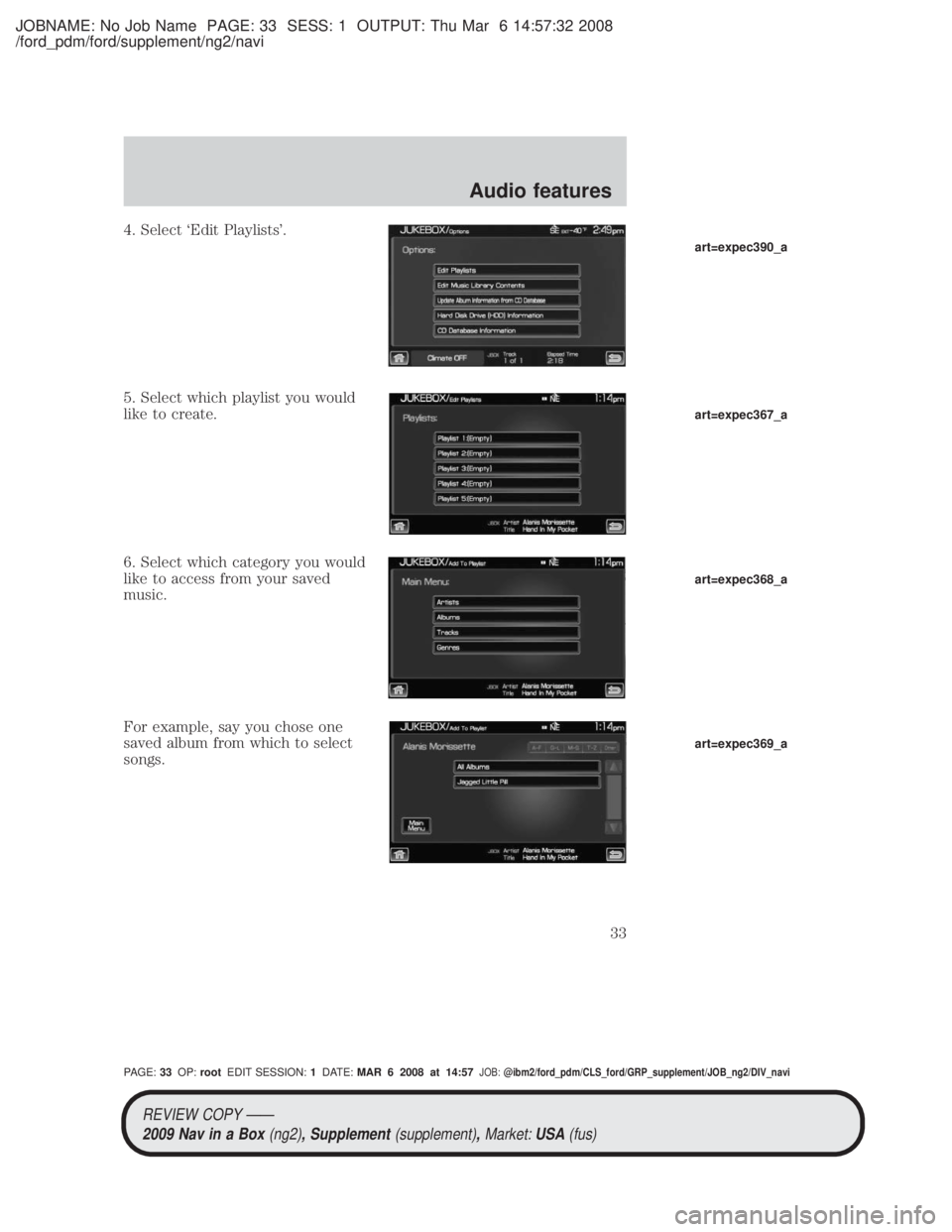
4. Select `Edit Playlists'.
5. Select which playlist you would
like to create.
6. Select which category you would
like to access from your saved
music.
For example, say you chose one
saved album from which to select
songs.
art=expec390_a
art=expec367_a
art=expec368_a
art=expec369_a
REVIEW COPY ÐÐ2009 Nav in a Box (ng2), Supplement(supplement),Market:USA(fus)
PAGE: 33OP: root EDIT SESSION: 1DATE: MAR 6 2008 at 14:57JOB:@ibm2/ford_pdm/CLS_ford/GRP_supplement/JOB_ng2/DIV_navi
Audio features
33
Page 34 of 81
JOBNAME: No Job Name PAGE: 34 SESS: 1 OUTPUT: Thu Mar 6 14:57:32 2008
/ford_pdm/ford/supplement/ng2/navi
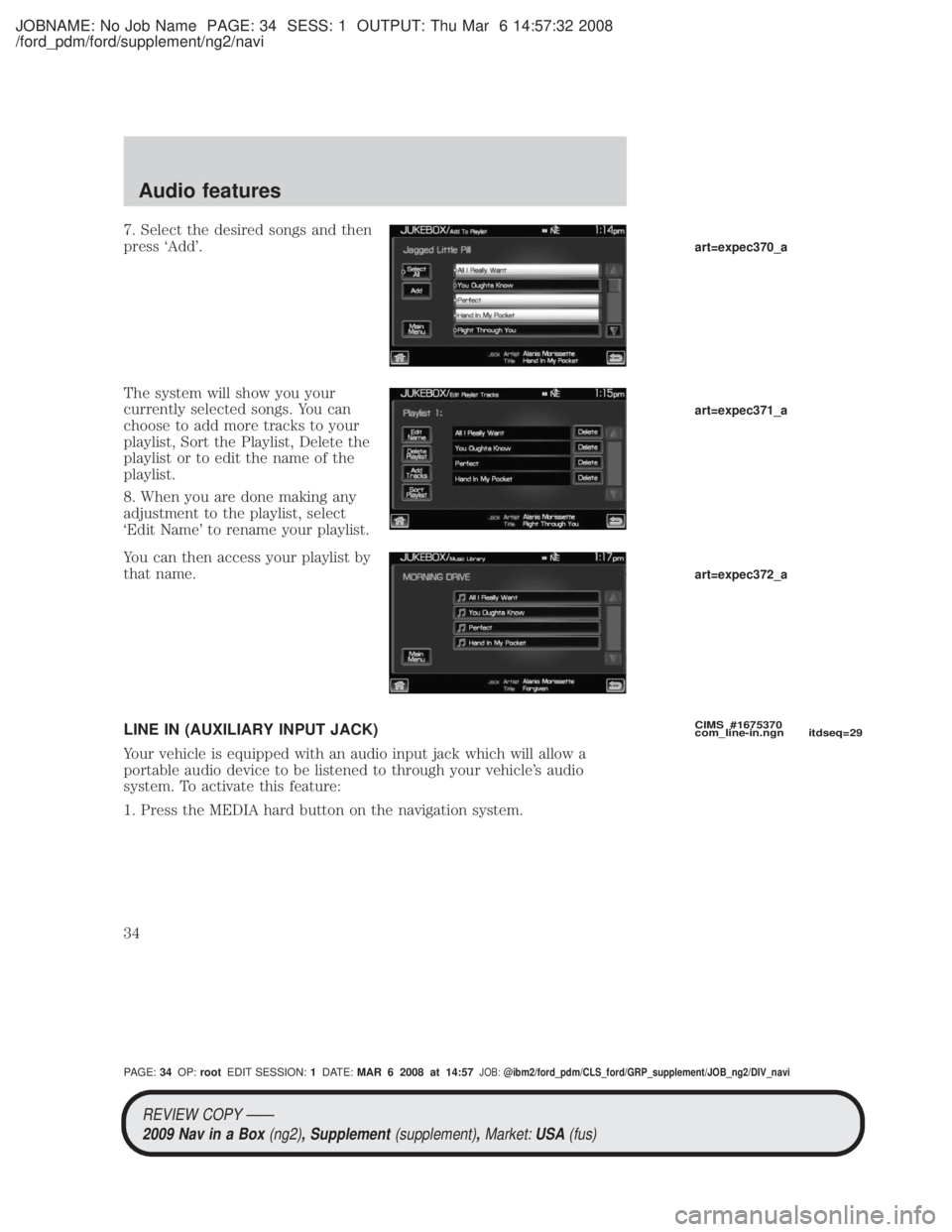
7. Select the desired songs and then
press `Add'.
The system will show you your
currently selected songs. You can
choose to add more tracks to your
playlist, Sort the Playlist, Delete the
playlist or to edit the name of the
playlist.
8. When you are done making any
adjustment to the playlist, select
`Edit Name' to rename your playlist.
You can then access your playlist by
that name.
LINE IN (AUXILIARY INPUT JACK)
Your vehicle is equipped with an audio input jack which will allow a
portable audio device to be listened to through your vehicle's audio
system. To activate this feature:
1. Press the MEDIA hard button on the navigation system.
CIMS #1675370
com_line-in.ngn itdseq=29
art=expec370_a
art=expec371_a
art=expec372_a
REVIEW COPY ÐÐ2009 Nav in a Box (ng2), Supplement(supplement),Market:USA(fus)
PAGE: 34OP: root EDIT SESSION: 1DATE: MAR 6 2008 at 14:57JOB:@ibm2/ford_pdm/CLS_ford/GRP_supplement/JOB_ng2/DIV_navi
Audio features
34
Page 35 of 81
JOBNAME: No Job Name PAGE: 35 SESS: 1 OUTPUT: Thu Mar 6 14:57:32 2008
/ford_pdm/ford/supplement/ng2/navi
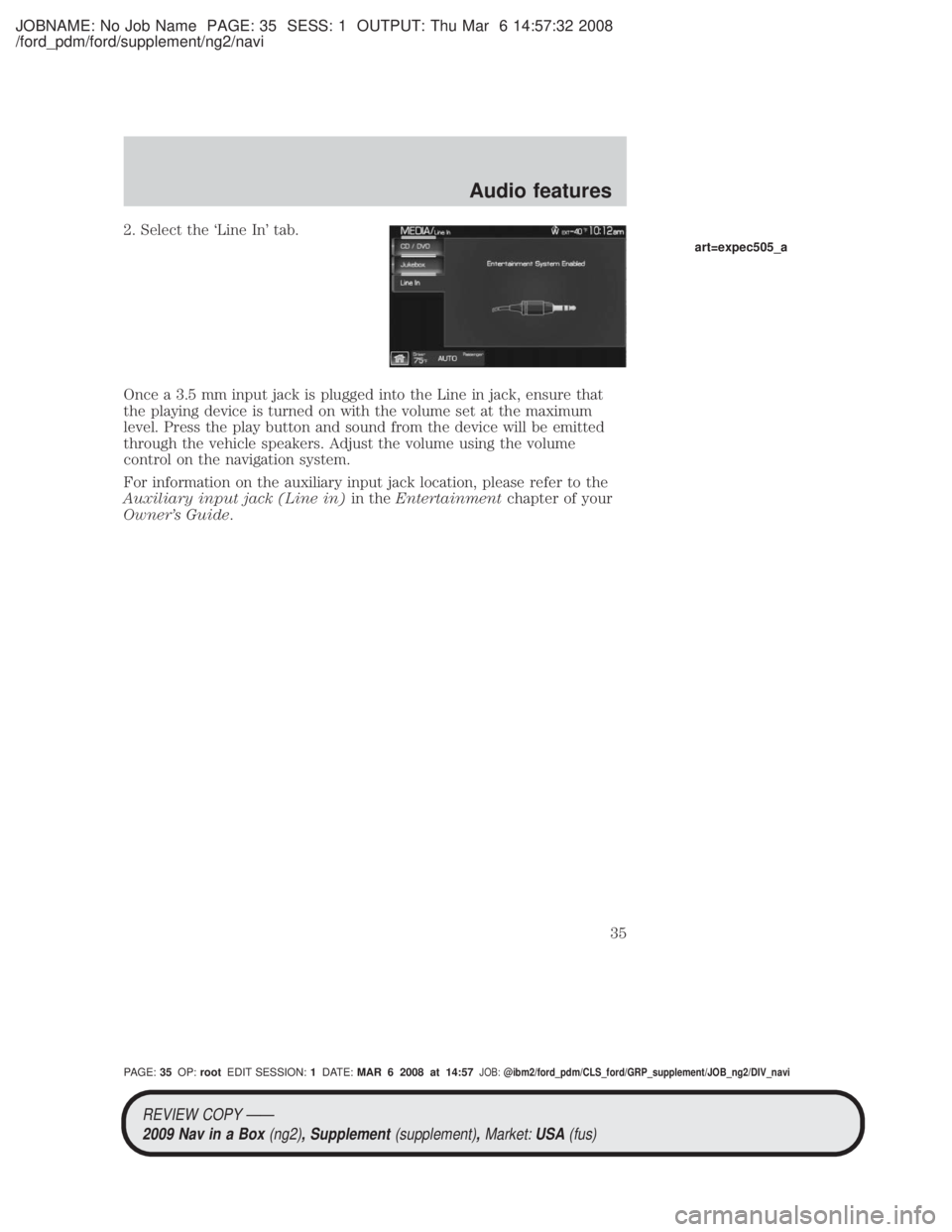
2. Select the `Line In' tab.
Once a 3.5 mm input jack is plugged into the Line in jack, ensure that
the playing device is turned on with the volume set at the maximum
level. Press the play button and sound from the device will be emitted
through the vehicle speakers. Adjust the volume using the volume
control on the navigation system.
For information on the auxiliary input jack location, please refer to the
Auxiliary input jack (Line in)in theEntertainment chapter of your
Owner's Guide.
art=expec505_a
REVIEW COPY ÐÐ
2009 Nav in a Box (ng2), Supplement(supplement),Market:USA(fus)
PAGE: 35OP: root EDIT SESSION: 1DATE: MAR 6 2008 at 14:57JOB:@ibm2/ford_pdm/CLS_ford/GRP_supplement/JOB_ng2/DIV_navi
Audio features
35
Page 48 of 81
JOBNAME: No Job Name PAGE: 48 SESS: 1 OUTPUT: Thu Mar 6 14:57:32 2008
/ford_pdm/ford/supplement/ng2/navi
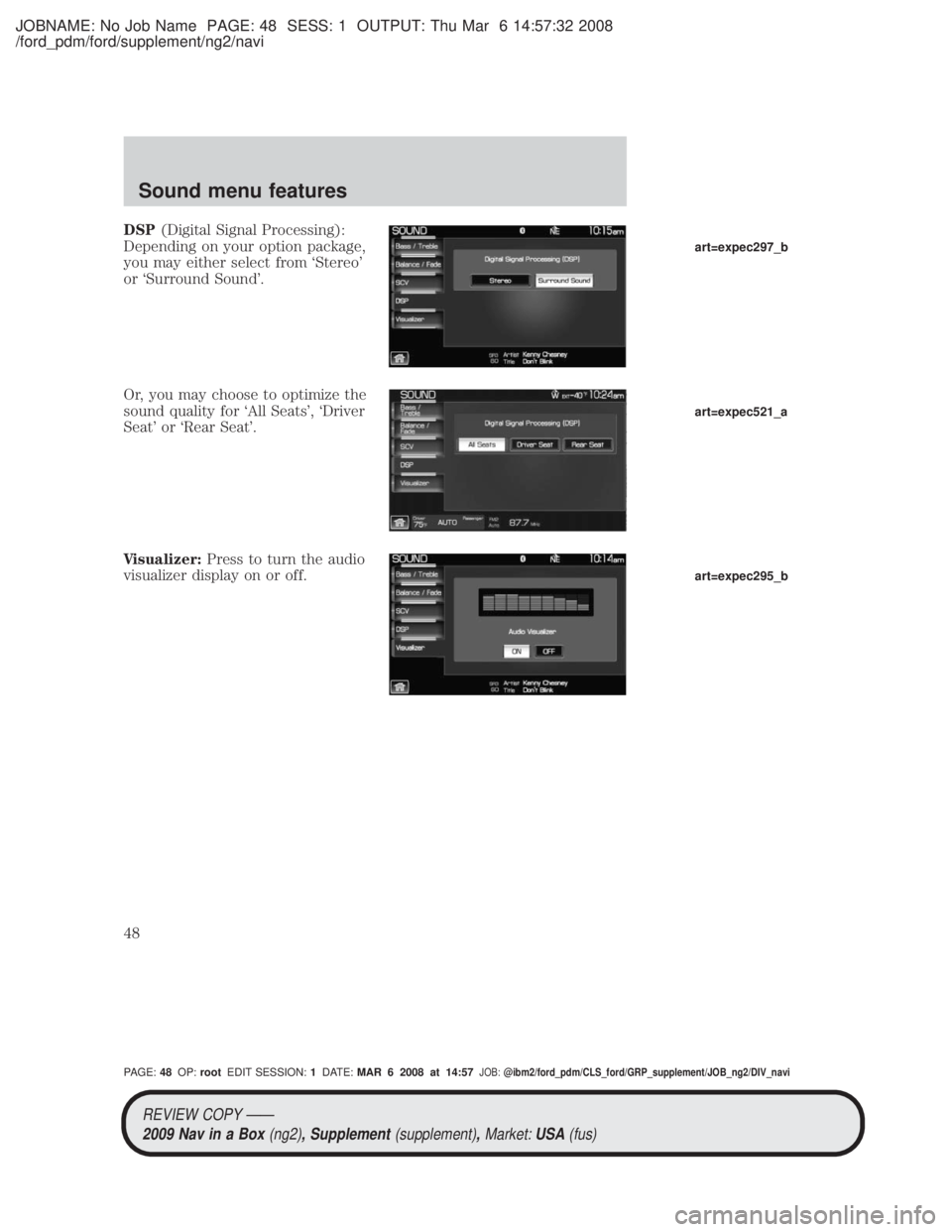
DSP(Digital Signal Processing):
Depending on your option package,
you may either select from `Stereo'
or `Surround Sound'.
Or, you may choose to optimize the
sound quality for `All Seats', `Driver
Seat' or `Rear Seat'.
Visualizer: Press to turn the audio
visualizer display on or off.
art=expec297_b
art=expec521_a
art=expec295_b
REVIEW COPY ÐÐ
2009 Nav in a Box (ng2), Supplement(supplement),Market:USA(fus)
PAGE: 48OP: root EDIT SESSION: 1DATE: MAR 6 2008 at 14:57JOB:@ibm2/ford_pdm/CLS_ford/GRP_supplement/JOB_ng2/DIV_navi
Sound menu features
48
Page 52 of 81
JOBNAME: No Job Name PAGE: 52 SESS: 1 OUTPUT: Thu Mar 6 14:57:32 2008
/ford_pdm/ford/supplement/ng2/navi
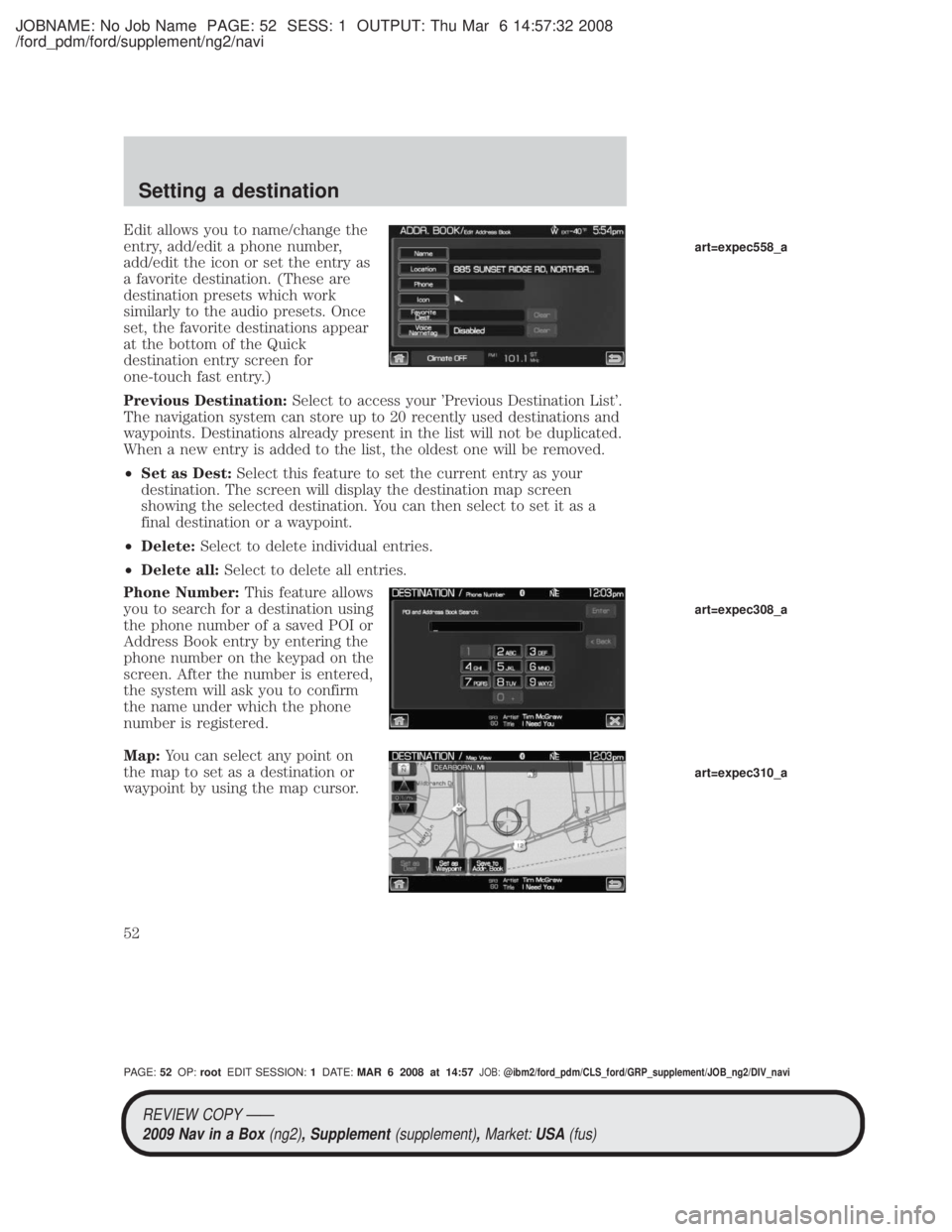
Edit allows you to name/change the
entry, add/edit a phone number,
add/edit the icon or set the entry as
a favorite destination. (These are
destination presets which work
similarly to the audio presets. Once
set, the favorite destinations appear
at the bottom of the Quick
destination entry screen for
one-touch fast entry.)
Previous Destination:Select to access your 'Previous Destination List'.
The navigation system can store up to 20 recently used destinations and
waypoints. Destinations already present in the list will not be duplicated.
When a new entry is added to the list, the oldest one will be removed.
² Set as Dest: Select this feature to set the current entry as your
destination. The screen will display the destination map screen
showing the selected destination. You can then select to set it as a
final destination or a waypoint.
² Delete: Select to delete individual entries.
² Delete all: Select to delete all entries.
Phone Number: This feature allows
you to search for a destination using
the phone number of a saved POI or
Address Book entry by entering the
phone number on the keypad on the
screen. After the number is entered,
the system will ask you to confirm
the name under which the phone
number is registered.
Map: You can select any point on
the map to set as a destination or
waypoint by using the map cursor.
art=expec558_a
art=expec308_a
art=expec310_a
REVIEW COPY ÐÐ
2009 Nav in a Box (ng2), Supplement(supplement),Market:USA(fus)
PAGE: 52OP: root EDIT SESSION: 1DATE: MAR 6 2008 at 14:57JOB:@ibm2/ford_pdm/CLS_ford/GRP_supplement/JOB_ng2/DIV_navi
Setting a destination
52