Audio unit MAZDA MX5 MIATA 2016 Owners Manual
[x] Cancel search | Manufacturer: MAZDA, Model Year: 2016, Model line: MX5 MIATA, Model: MAZDA MX5 MIATA 2016Pages: 526, PDF Size: 10.44 MB
Page 115 of 526
4–11
When Driving
Instrument Cluster and Display
NOTE
(Vehicles with type B audio)
If the fuel economy data is reset using
the fuel economy monitor, or trip A
is reset using the trip meter when the
function which synchronizes the fuel
economy monitor and the trip meter is
on, the fuel economy data and trip A are
reset simultaneously.
Refer to Fuel Economy Monitor on page
4-59. Only the trip meters record tenths of
kilometers (miles). The trip record will be erased when:
The power supply is interrupted
(blown fuse or the battery is
disconnected).
The vehicle is driven over 9999.9 km
(mile).
Tachometer
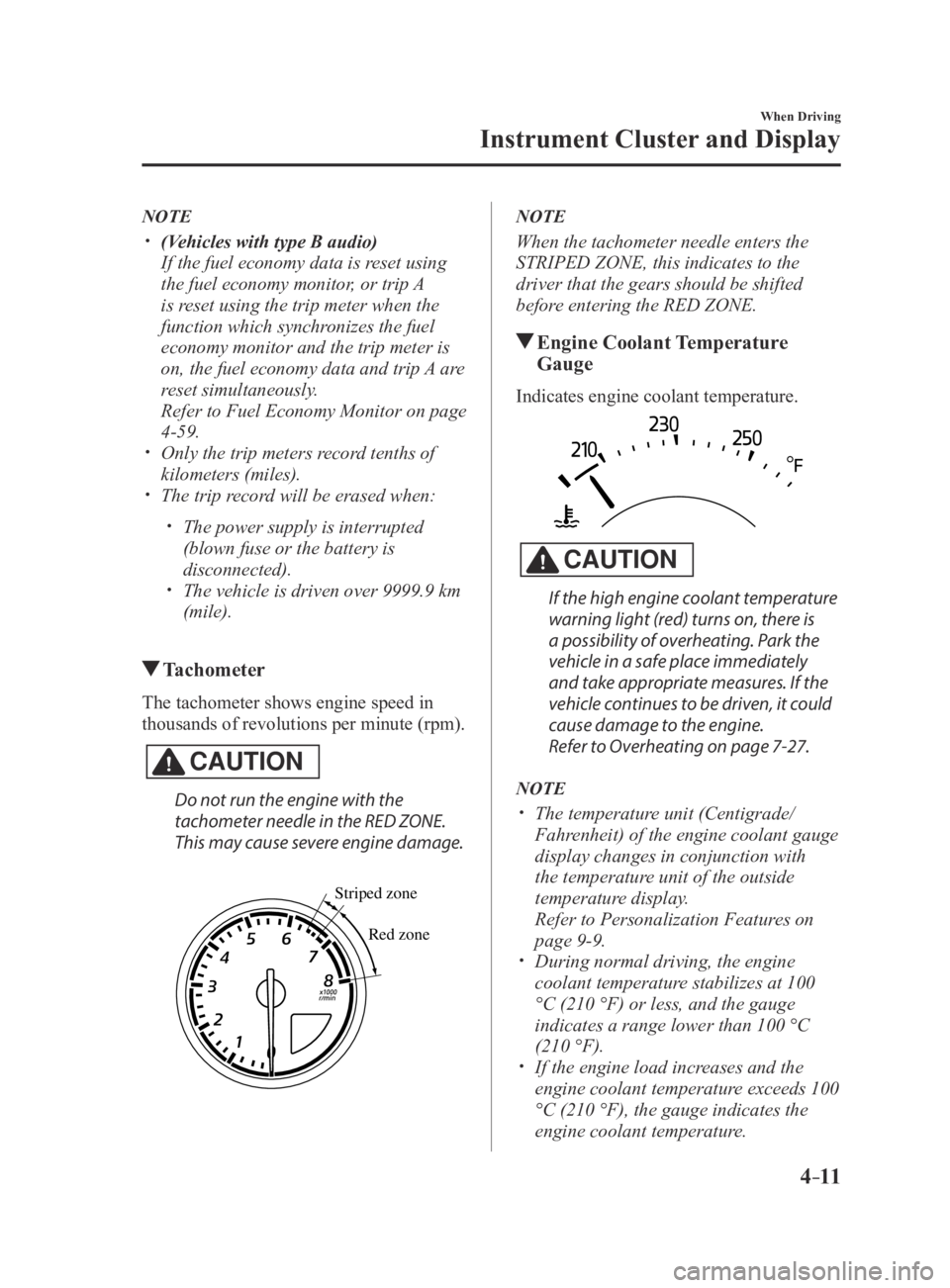
The tachometer shows engine speed in
thousands of revolutions per minute (rpm).
CAUTION
Do not run the engine with the
tachometer needle in the RED ZONE.
This may cause severe engine damage.
Striped zone
Red zone
NOTE
When the tachometer needle enters the
STRIPED ZONE, this indicates to the
driver that the gears should be shifted
before entering the RED ZONE.
Engine Coolant Temperature
Gauge
Indicates engine coolant temperature.
CAUTION
If the high engine coolant temperature
warning light (red) turns on, there is
a possibility of overheating. Park the
vehicle in a safe place immediately
and take appropriate measures. If the
vehicle continues to be driven, it could
cause damage to the engine.
Refer to Overheating on page 7-27.
NOTE
The temperature unit (Centigrade/
Fahrenheit) of the engine coolant gauge
display changes in conjunction with
the temperature unit of the outside
temperature display.
Refer to Personalization Featur es on
page 9-9. During normal driving, the engine
coolant temperature stabilizes at 100
°C (210 °F) or less, and the gauge
indicates a range lower than 100 °C
(210 °F).
If the engine load increases and the
engine coolant temperature exceeds 100
°C (210 °F), the gauge indicates the
engine coolant temperature.
MX-5_8EU4-EA-15D_Edition4.indb 112016/01/20 11:05:04
Page 118 of 526

4–14
When Driving
Instrument Cluster and Display
*Some models.
Changing the Temperature Unit of the
Outside Temperature Display
The outside temperature unit can be
switched between Celsius and Fahrenheit
using the following procedure.
(Vehicles with Type B Audio)
Settings can be changed by operating the
center display screen.
Refer to Personalization Features on page
9-9.
(Vehicles without Type B Audio)
1. Press the INFO switch with the ignition
switched off and continue pressing the
INFO switch for 5 seconds or longer
while switching the ignition ON. The
outside temperature display flashes.
2. Press the INFO switch to change the
outside temperature unit.
3. Press and hold the INFO switch for
3 seconds or longer while the outside
temperature display is flashing. The
outside temperature display illuminates.
NOTE
When the temperature unit indicated in the
outside temperature display is changed,
the temperature unit indicated in the
engine coolant gauge display changes in
conjunction with it.
Cruise Control Set Vehicle Speed
Display*
The vehicle speed preset using the cruise
control is displayed.
Trip Computer and INFO Switch
The following information can be selected
by pressing the INFO switch with the
ignition switched ON.
Approximate distance you can travel on
the available fuel Average fuel economy Current fuel economy Average vehicle speed
If you have any problems with your trip
computer, consult an Authorized Mazda
Dealer.
Distance-to-empty mode
This mode displays the approximate
distance you can travel on the remaining
fuel based on the fuel economy.
The distance-to-empty will be calculated
and displayed every second.
MX-5_8EU4-EA-15D_Edition3.indb 142015/10/21 16:52:55
Page 216 of 526

5–16
Interior Features
Audio System
Weak signal noise
In suburban areas, broadcast signals
become weak because of distance from the
transmitter. Reception in such fringe areas
is characterized by sound breakup.
Strong signal noise
This occurs very close to a transmitter
tower. The broadcast signals are extremely
strong, so the result is noise and sound
breakup at the radio receiver.
Station drift noise
When a vehicle reaches the area of two
strong stations broadcasting at similar
frequencies, the original station may be
temporarily lost and the second station
picked up. At this time there will be some
noise from this disturbance.
Station 2 88.3 MHzStation 1
88.1 MHz
Operating Tips for CD Player
Condensation phenomenon
Immediately after turning on the heater
when the vehicle is cold, the CD or
optical components (prism and lens) in
the CD player may become clouded with
condensation. At this time, the CD will
eject immediately when placed in the unit.
A clouded CD can be corrected simply by
wiping it with a soft cloth. Clouded optical
components will clear naturally in about
an hour. Wait for normal operation to
return before attempting to use the unit.
Handling the CD player
The following precautions should be
observed.
Do not use deformed or cracked CDs.
The disc may not eject resulting in a
malfunction.
Do not use non-conventional discs such
as heart-shaped, octagonal discs, etc.
The disc may not eject resulting in a
malfunction.
MX-5_8EU4-EA-15D_Edition3.indb 162015/10/21 16:53:51
Page 218 of 526

5–18
Interior Features
Audio System
The CD player ejects the CD if the CD
is inserted upside down. Also dirty and/
or defective CDs may be ejected.
Do not insert cleaning discs in the CD
player. Do not insert any disc with a peel-off
seal affixed to it. This unit may not be able to play certain
CD-R/CD-RWs made using a computer
or music CD recorder due to disc
characteristics, scratches, smudges, dirt,
etc., or due to dust or condensation on
the lens inside the unit.
Storing CDs in the vehicle exposed to
direct sunlight or high temperature may
damage the CD-R/CD-RWs, and make
them unplayable.
CD-R/CD-RW exceeding 700 MB
cannot be played. This unit may not be able to play certain
discs made using a computer due to the
application (writing software) setting
used. (For details, consult the store
where the application was purchased.)
It is possible that certain text data, such
as titles, recorded on a CD-R/CD-RW
may not be displayed when musical data
(CD-DA) is playing.
The period from when a CD-RW is
inserted to when it begins playing is
longer than a normal CD or CD-R.
Completely read the instruction manual
and cautions for CD-R/CD-RWs. Do not use discs with cellophane tape
adhering, partially peeled off labels,
or adhesive material exuding from the
edges of the CD label. Also, do not use
discs with a commercially-available
CD-R label affixed. The disc may not
eject resulting in a malfunction.
Operating Tips for MP3
MP3 stands for MPEG Audio Layer 3,
which is standardized voice compression
established by the ISO
*1 working group
(MPEG).
Use of MP3 allows for audio data to be
compressed to approximately a tenth of
the source data size.
This unit plays files with the extension
(.mp3) as MP3 files.
*1 International Organization for
Standardization
CAUTION
Do not use an audio file extension on
files other than audio files. In addition,
do not change the audio file extension.
Otherwise, the unit will not recognize
the file correctly resulting in noise or a
malfunction.
NOTE
Supply of this product only conveys a
license for private, non-commercial
use and does not convey a license nor
imply any right to use this product in any
commercial (i.e. revenue-generating)
real time broadcasting (terrestrial,
satellite, cable and/or any other media),
broadcasting/streaming via the Internet,
intranets and/or other networks or in other
electronic content distribution systems,
such as pay-audio or audio-on-demand
applications. An independent license for
such use is required. For details, please
visit http://www.mp3licensing.com.
This audio system handles MP3 files
that have been recorded on CD-R/CD-
RW/CD-ROMs.
When naming an MP3 file, be sure to
add an MP3 file extension (.mp3) after
the file name.
MX-5_8EU4-EA-15D_Edition3.indb 182015/10/21 16:53:52
Page 219 of 526
5–19
Interior Features
Audio System
The number of characters which can be
displayed is restricted.
Operating Tips for WMA
WMA is short for Windows Media Audio
and is the audio compression format used
by Microsoft.
Audio data can be created and stored at a
higher compression ratio than MP3.
This unit plays files with the extension
(.wma) as WMA files.
*
Microsoft and Windows Media are
registered trademarks of Microsoft
Corporation U.S. in the United States
and other countries.
CAUTION
Do not use an audio file extension on
files other than audio files. In addition,
do not change the audio file extension.
Otherwise, the unit will not recognize
the file correctly resulting in noise or a
malfunction.
WMA files written under specifications
other than the indicated specification
may not play normally or files or folder
names may not display correctly.
The file extension may not be provided
depending on the computer operating
system, version, software, or settings. In
this case, add the file extension “.wma”
to the end of the file name, and then
write it to the disc.
Operating Tips for AAC
AAC stands for Advanced Audio Coding,
which is standardized voice compression
established by the ISO
*1 working group
(MPEG). Audio data can be created and
stored at a higher compression ratio than
MP3.
This unit plays files with the extensions
(.aac/.m4a/.wav
*2) as the AAC files.
CAUTION
Do not use an audio file extension on
files other than audio files. In addition,
do not change the audio file extension.
Otherwise, the unit will not recognize
the file correctly resulting in noise or a
malfunction.
AAC files written under specifications
other than the indicated specification
may not play normally or files or folder
names may not display correctly.
The file extension may not be provided
depending on the computer operating
system, version, software, or settings. In
this case, add the file extension “.aac ”,
“.m4a”, or “.wav
*2” to the end of the file
name, and then write it to the memory.
*1 International Or ganization for
Standardization
*2 Type B
MX-5_8EU4-EA-15D_Edition4.indb 192016/01/20 11:05:37
Page 220 of 526
5–20
Interior Features
Audio System
Operating Tips for OGG
OGG is the audio compression format for
Xiph. Org Foundation.
Audio data can be created and stored at a
higher compression ratio than MP3.
This unit plays files with the extension
(.ogg) as OGG files.
CAUTION
Do not use an audio file extension on
files other than audio files. In addition,
do not change the audio file extension.
Otherwise, the unit will not recognize
the file correctly resulting in noise or a
malfunction.
OGG files written under specifications
other than the indicated specification
may not play normally or files or folder
names may not display correctly.
The file extension may not be provided
depending on the computer operating
system, version, software, or settings. In
this case, add the file extension “.ogg” to
the end of the file name, and then write
it to the disc.
Operating Tips for USB device
This unit plays audio files as follows:
ExtensionPlayback with this unit
.mp3 MP3
.wma WMA
.aac AAC
.m4a
.wav
*1
.ogg*1OGG
CAUTION
Do not use an audio file extension on
files other than audio files. In addition,
do not change the audio file extension.
Otherwise, the unit will not recognize
the file correctly resulting in noise or a
malfunction.
NOTE
Playback may not be possible
depending on the type and condition of
the USB flash memory even if the audio
file complies with the standard above.
A copyright protected WMA/AAC file
cannot be played in this unit. The order of the music data stored in
the device may differ from the playback
order.
To prevent loss or damage of stored
data, we recommend that you always
back up your data.
If a device exceeds the maximum
electric current value of 1,000 mA,
it may not operate or recharge when
connected.
Do not pull out the USB device while in
the USB mode (only pull it out while in
FM/AM radio or CD mode).
The device will not operate if the data is
password protected.
MP3/WMA/AAC/OGG
*1 files written
under specifications other than the
indicated specification may not play
normally or files/folder names may not
display correctly.
*1 Type B
MX-5_8EU4-EA-15D_Edition4.indb 202016/01/20 11:05:38
Page 221 of 526
5–21
Interior Features
Audio System
Operating Tips for iPod
This unit supports playback of music files
recorded to an iPod.*
iPod is a trademark of Apple Inc.,
registered in the U.S. and other
countries.
The iPod may not be compatible
depending on the model or OS version. In
this case, an error message is displayed.
CAUTION
Remove the iPod when it is not in
use. Because the iPod is not designed
to withstand excessive changes in
temperature inside the cabin, it could be
damaged or the battery may deteriorate
due to the excessive temperature or
humidity inside the cabin if it is left in the
vehicle.
If data in the iPod is lost while it is
connected to the unit, Mazda cannot
guarantee recovery of any lost data.
If the iPod battery is deteriorated, the
iPod may not recharge and playback
may not be possible when it is connected
to the unit.
For details on using the iPod, refer to the
iPod instruction manual. When connecting the iPod to a USB port,
all commands are made from the audio
unit. iPod control is not possible.
NOTE
The audio unit cannot display images or
videos stored in an iPod.
MX-5_8EU4-EA-15D_Edition3.indb 212015/10/21 16:53:53
Page 225 of 526

5–25
Interior Features
Audio System
*Some models.
NOTE
If not operated for several seconds, the
display returns to the previous display. To
reset bass, treble, fade, and balance, press
the menu button (
) for 2 seconds.
The unit will beep and “CLEAR” will be
displayed.
ALC (Automatic volume adjustment)
The automatic level control (ALC)
changes the audio volume automatically
according to the vehicle speed. The faster
the vehicle speed, the higher the volume
increases. ALC has ALC OFF and ALC
LEVEL 1 to 7 modes. At ALC LEVEL 7,
the amount that the volume can increase
is at the maximum. Select the mode
according to the driving conditions.
BEEP (Audio operation sound)
The setting for the operation sound when
pressing and holding a button can be
changed. The initial setting is ON. Set to
OFF to mute the operation sound.
BT SETUP mode
*
Music and other audio such as voice data
recorded on portable audio devices and
mobile phones available on the market
which are equipped with the Bluetooth
®
transmission function can be listened to
via wireless transmission over the vehicle's
speakers. Using the BT SETUP mode,
these devices can be programmed to the
Bluetooth
® unit or changed (page 5-77).
12Hr
24Hr (12 Hr/24 Hr time
adjustment)
Rotating the audio control dial switches
the display between 12 and 24-hour clock
time (page 5-26).
MX-5_8EU4-EA-15D_Edition3.indb 252015/10/21 16:53:56
Page 231 of 526
5–31
Interior Features
Audio System
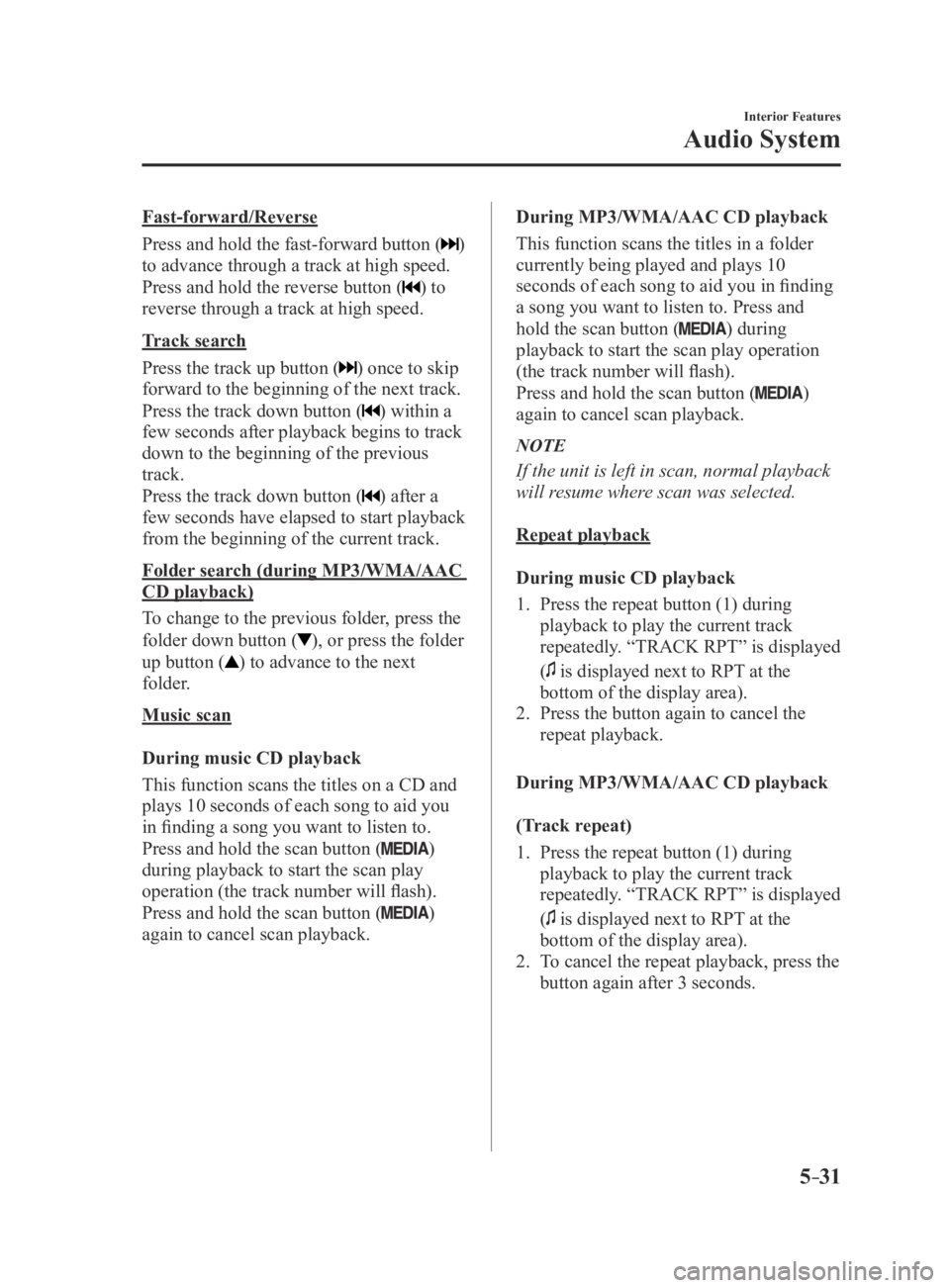
Fast-forward/Reverse
Press and hold the fast-forward button (
)
to advance through a track at high speed.
Press and hold the reverse button (
) to
reverse through a track at high speed.
Track search
Press the track up button (
) once to skip
forward to the beginning of the next track.
Press the track down button (
) within a
few seconds after playback begins to track
down to the beginning of the previous
track.
Press the track down button (
) after a
few seconds have elapsed to start playback
from the beginning of the current track.
Folder search (during MP3/WMA/AAC
CD playback)
To change to the previous folder, press the
folder down button (
), or press the folder
up button (
) to advance to the next
folder.
Music scan
During music CD playback
This function scans the titles on a CD and
plays 10 seconds of each song to aid you
in finding a song you want to listen to.
Press and hold the scan button (
)
during playback to start the scan play
operation (the track number will flash).
Press and hold the scan button (
)
again to cancel scan playback.
During MP3/WMA/AAC CD playback
This function scans the titles in a folder
currently being played and plays 10
seconds of each song to aid you in finding
a song you want to listen to. Press and
hold the scan button (
) during
playback to start the scan play operation
(the track number will flash).
Press and hold the scan button (
)
again to cancel scan playback.
NOTE
If the unit is left in scan, normal playback
will resume where scan was selected.
Repeat playback
During music CD playback
1. Press the repeat button (1) during
playback to play the current track
repeatedly. “TRACK RPT” is displayed
(
is displayed next to RPT at the
bottom of the display area).
2. Press the button again to cancel the
repeat playback.
During MP3/WMA/AAC CD playback
(Track repeat)
1. Press the repeat button (1) during
playback to play the current track
repeatedly. “TRACK RPT” is displayed
(
is displayed next to RPT at the
bottom of the display area).
2. To cancel the repeat playback, press the
button again after 3 seconds.
MX-5_8EU4-EA-15D_Edition4.indb 312016/01/20 11:05:44
Page 233 of 526
5–33
Interior Features
Audio System
NOTE
The information viewable in the display
is only CD information (such as artist
name, song title) which has been
recorded to the CD.
This unit cannot display some
characters. Characters which cannot be
displayed are indicated by an asterisk
(
).
Display scroll
Only 13 characters can be displayed at one
time. To display the rest of the characters
of a long title, press and hold the text
button (3). The display scrolls the next 13
characters. Press and hold the text button
(3) again after the last 13 characters have
been displayed to return to the beginning
of the title.
NOTE
The number of characters which can be
displayed is restricted.
Message display
If “CHECK CD” is displayed, it means
that there is some CD malfunction. Check
the CD for damage, dirt, or smudges, and
then properly reinsert it. If the message
appears again, insert another known good
CD. If the message continues to appear,
take the unit to an Authorized Mazda
Dealer for service.
How to use Auxiliary jack/USB
port
Audio can be heard from the vehicle's
speakers by connecting a commercially-
available portable audio unit to the
auxiliary jack.
Use a commercially-available, non-
impedance (3.5
) stereo mini plug cable.
Contact an Authorized Mazda Dealer for
details.
In addition, audio can be played from the
vehicle audio device by connecting a USB
device to the USB port.
Refer to AUX/USB mode on page 5-57.
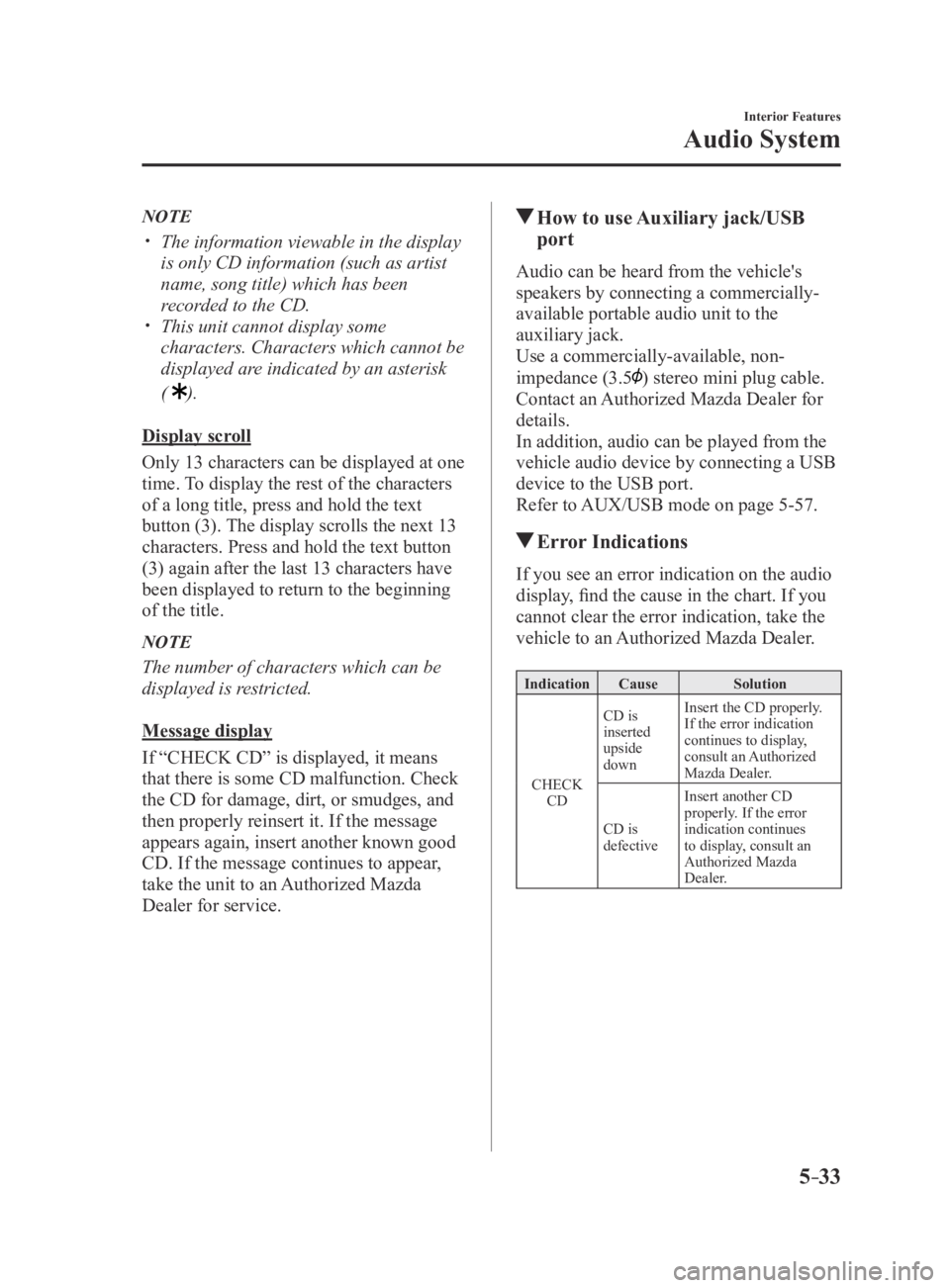
Error Indications
If you see an error indication on the audio
display, find the cause in the chart. If you
cannot clear the error indication, take the
vehicle to an Authorized Mazda Dealer.
IndicationCause Solution
CHECK CD CD is
inserted
upside
down
Insert the CD properly.
If the error indication
continues to display,
consult an Authorized
Mazda Dealer.
CD is
defective Insert another CD
properly. If the error
indication continues
to display, consult an
Authorized Mazda
Dealer.
MX-5_8EU4-EA-15D_Edition3.indb 332015/10/21 16:54:01