audio MERCEDES-BENZ A-CLASS HATCHBACK 2015 Owner's Manual
[x] Cancel search | Manufacturer: MERCEDES-BENZ, Model Year: 2015, Model line: A-CLASS HATCHBACK, Model: MERCEDES-BENZ A-CLASS HATCHBACK 2015Pages: 417, PDF Size: 11.91 MB
Page 222 of 417
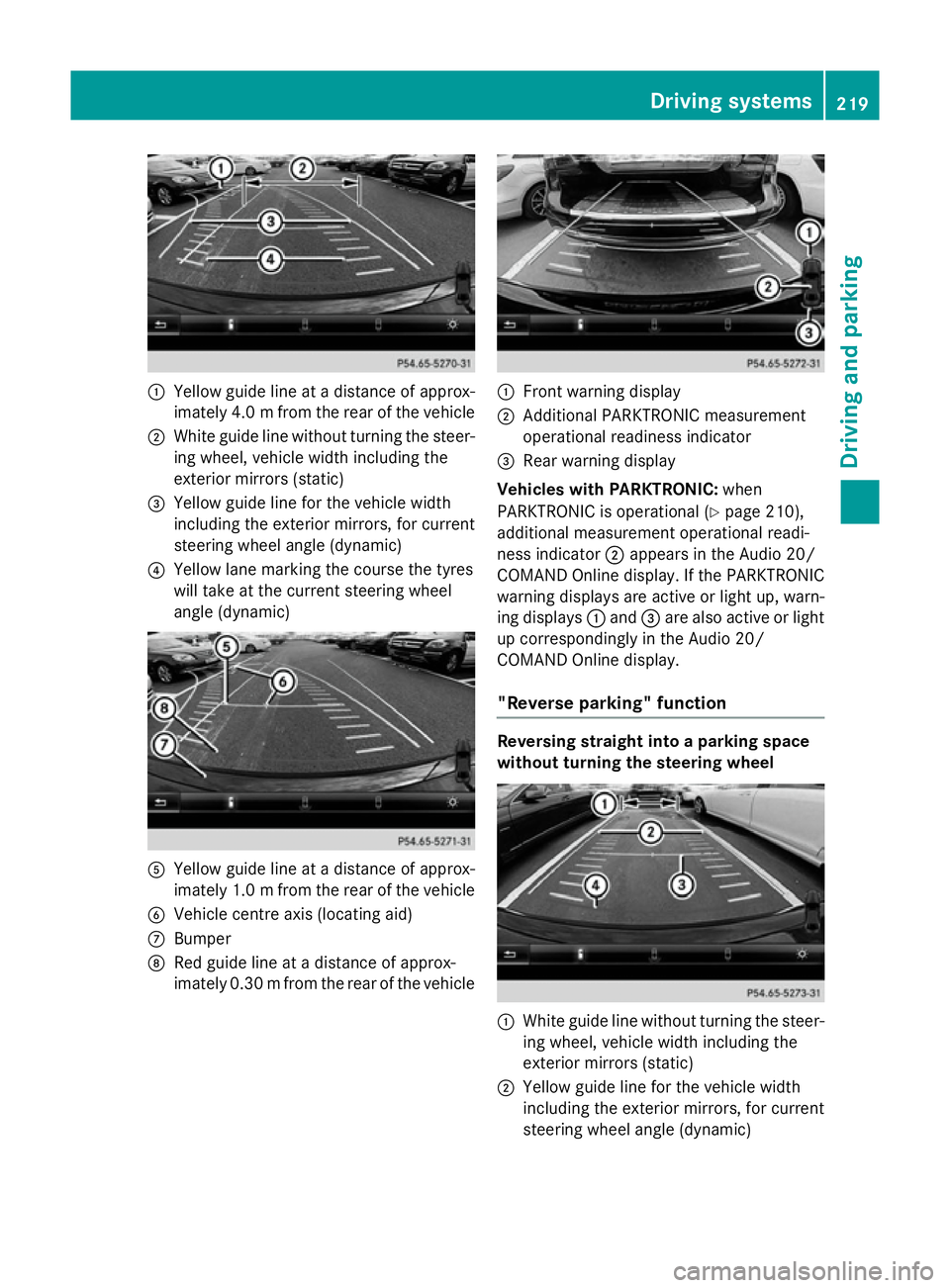
:
Yellow guide line at a distance of approx-
imately 4.0 mfrom the rear of the vehicle
; White guide line without turning the steer-
ing wheel, vehicle width including the
exterior mirrors (static)
= Yellow guide line for the vehicle width
including the exterior mirrors, for current
steering wheel angle (dynamic)
? Yellow lane marking the course the tyres
will take at the current steering wheel
angle (dynamic) A
Yellow guide line at a distance of approx-
imately 1.0 mfrom the rear of the vehicle
B Vehicle centre axis (locating aid)
C Bumper
D Red guide line at a distance of approx-
imately 0.30 mfrom the rear of the vehicle :
Front warning display
; Additional PARKTRONIC measurement
operational readiness indicator
= Rear warning display
Vehicles with PARKTRONIC: when
PARKTRONIC is operational (Y page 210),
additional measurement operational readi-
ness indicator ;appears in the Audio 20/
COMAND Online display. If the PARKTRONIC warning displays are active or light up, warn-
ing displays :and =are also active or light
up correspondingly in the Audio 20/
COMAND Online display.
"Reverse parking" function Reversing straight into a parking space
without turning the steering wheel
:
White guide line without turning the steer-
ing wheel, vehicle width including the
exterior mirrors (static)
; Yellow guide line for the vehicle width
including the exterior mirrors, for current
steering wheel angle (dynamic) Driving systems
219Driving and parking Z
Page 243 of 417
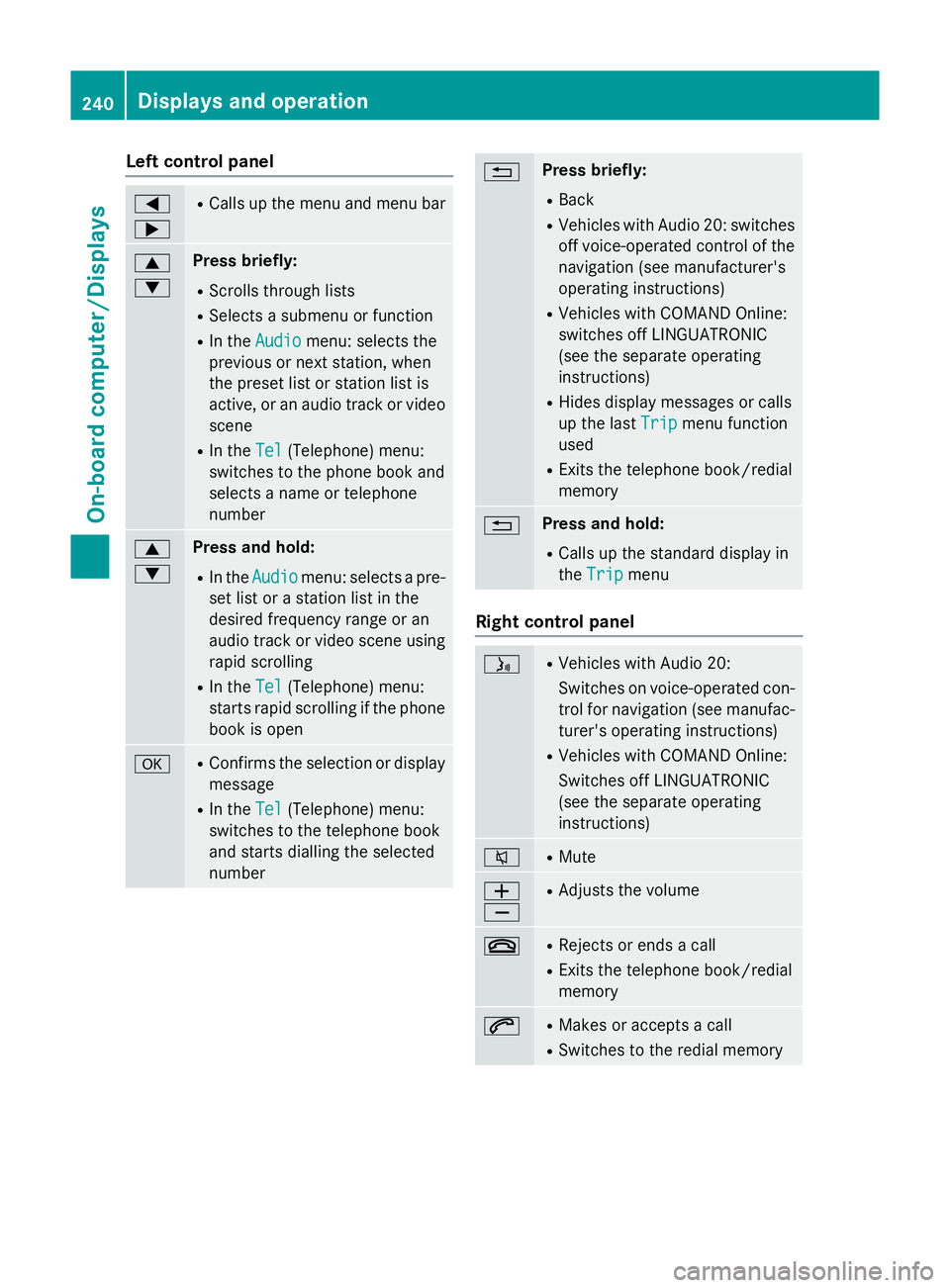
Left control panel
=
; R
Calls up the menu and menu bar 9
: Press briefly:
R Scrolls through lists
R Selects a submenu or function
R In the Audio Audio menu: selects the
previous or next station, when
the preset list or station list is
active, or an audio track or video
scene
R In the Tel
Tel (Telephone) menu:
switches to the phone book and
selects a name or telephone
number 9
: Press and hold:
R In the Audio Audio menu: selects a pre-
set list or a station list in the
desired frequency range or an
audio track or video scene using
rapid scrolling
R In the Tel Tel(Telephone) menu:
starts rapid scrolling if the phone book is open a R
Confirms the selection or display
message
R In the Tel
Tel(Telephone) menu:
switches to the telephone book
and starts dialling the selected
number % Press briefly:
R Back
R Vehicles with Audio 20: switches
off voice-operated control of thenavigation (see manufacturer's
operating instructions)
R Vehicles with COMAND Online:
switches off LINGUATRONIC
(see the separate operating
instructions)
R Hides display messages or calls
up the last Trip
Trip menu function
used
R Exits the telephone book/redial
memory % Press and hold:
R Calls up the standard display in
the Trip Trip menu Right control panel
ó R
Vehicles with Audio 20:
Switches on voice-operated con-
trol for navigation (see manufac-
turer's operating instructions)
R Vehicles with COMAND Online:
Switches off LINGUATRONIC
(see the separate operating
instructions) 8 R
Mute W
X R
Adjusts the volume ~ R
Rejects or ends a call
R Exits the telephone book/redial
memory 6 R
Makes or accepts a call
R Switches to the redial memory 240
Displays and operationOn-board computer/Displays
Page 244 of 417
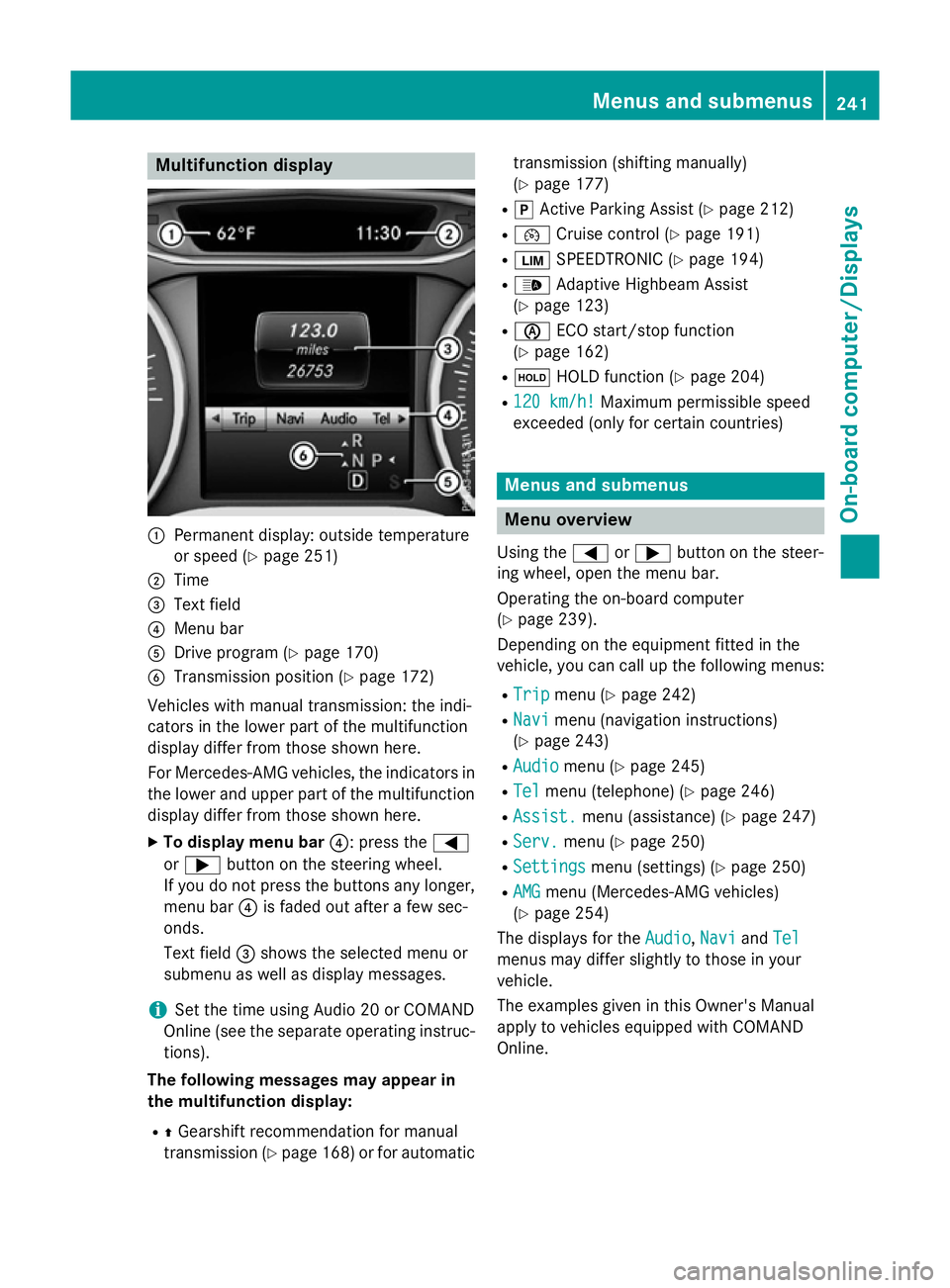
Multifunction display
:
Permanent display: outside temperature
or speed (Y page 251)
; Time
= Text field
? Menu bar
A Drive program (Y page 170)
B Transmission position (Y page 172)
Vehicles with manual transmission: the indi-
cators in the lower part of the multifunction
display differ from those shown here.
For Mercedes-AMG vehicles, the indicators in
the lower and upper part of the multifunction display differ from those shown here.
X To display menu bar ?: press the=
or ; button on the steering wheel.
If you do not press the buttons any longer, menu bar ?is faded out after a few sec-
onds.
Text field =shows the selected menu or
submenu as well as display messages.
i Set the time using Audio 20 or COMAND
Online (see the separate operating instruc-
tions).
The following messages may appear in
the multifunction display:
R ZGearshift recommendation for manual
transmission (Y page 168) or for automatic transmission (shifting manually)
(Y
page 177)
R j Active Parking Assist (Y page 212)
R ¯ Cruise control (Y page 191)
R È SPEEDTRONIC (Y page 194)
R _ Adaptive Highbeam Assist
(Y page 123)
R è ECO start/stop function
(Y page 162)
R ë HOLD function (Y page 204)
R 120 km/h!
120 km/h! Maximum permissible speed
exceeded (only for certain countries) Menus and submenus
Menu overview
Using the =or; button on the steer-
ing wheel, open the menu bar.
Operating the on-board computer
(Y page 239).
Depending on the equipment fitted in the
vehicle, you can call up the following menus:
R Trip Trip menu (Y page 242)
R Navi
Navi menu (navigation instructions)
(Y page 243)
R Audio
Audio menu (Y page 245)
R Tel
Tel menu (telephone) (Y page 246)
R Assist.
Assist. menu (assistance) (Y page 247)
R Serv.
Serv. menu (Y page 250)
R Settings
Settings menu (settings) (Y page 250)
R AMG
AMG menu (Mercedes-AMG vehicles)
(Y page 254)
The displays for the Audio
Audio,Navi
NaviandTel
Tel
menus may differ slightly to those in your
vehicle.
The examples given in this Owner's Manual
apply to vehicles equipped with COMAND
Online. Menus and submenus
241On-board computer/Displays Z
Page 246 of 417
the fuel tank, a vehicle being refuelled
C
appears instead of approximate range :.
Recuperation display =shows you if
energy has been recuperated from the
kinetic energy in overrun mode and saved
in the battery. Recuperation display =
depends on the engine installed and is
therefore not available in all vehicles.
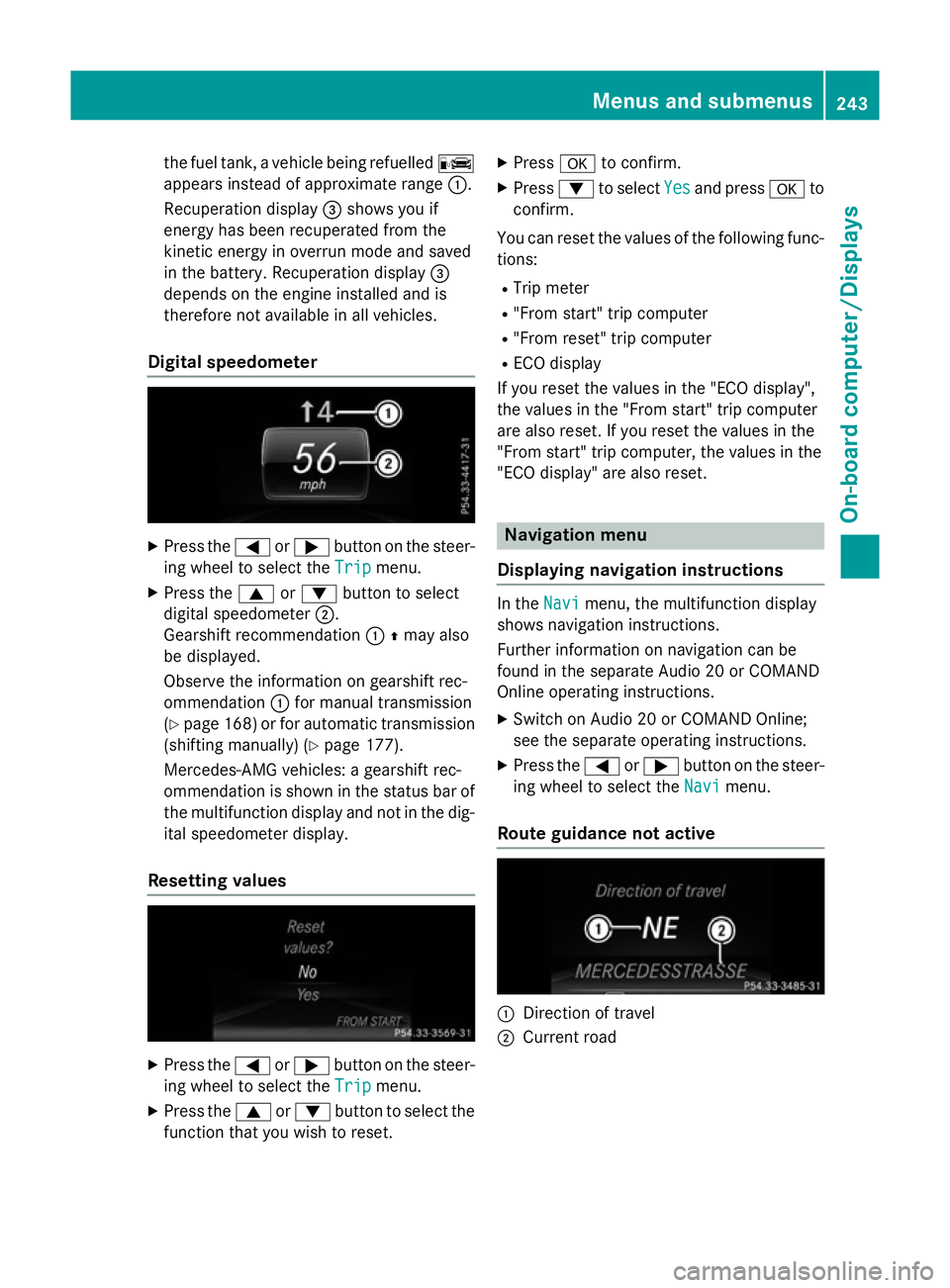
Digital speedometer X
Press the =or; button on the steer-
ing wheel to select the Trip
Trip menu.
X Press the 9or: button to select
digital speedometer ;.
Gearshift recommendation :Zmay also
be displayed.
Observe the information on gearshift rec-
ommendation :for manual transmission
(Y page 168 )or for automatic transmission
(shifting manually) (Y page 177).
Mercedes-AMG vehicles: a gearshift rec-
ommendation is shown in the status bar of
the multifunction display and not in the dig- ital speedometer display.
Resetting values X
Press the =or; button on the steer-
ing wheel to select the Trip
Trip menu.
X Press the 9or: button to select the
function that you wish to reset. X
Press ato confirm.
X Press :to select Yes Yesand press ato
confirm.
You can reset the values of the following func-
tions:
R Trip meter
R "From start" trip computer
R "From reset" trip computer
R ECO display
If you reset the values in the "ECO display",
the values in the "From start" trip computer
are also reset. If you reset the values in the
"From start" trip computer, the values in the
"ECO display" are also reset. Navigation menu
Displaying navigation instructions In the
Navi Navimenu, the multifunction display
shows navigation instructions.
Further information on navigation can be
found in the separate Audio 20 or COMAND
Online operating instructions.
X Switch on Audio 20 or COMAND Online;
see the separate operating instructions.
X Press the =or; button on the steer-
ing wheel to select the Navi
Navi menu.
Route guidance not active :
Direction of travel
; Current road Menus and submenus
243On-board computer/Displays Z
Page 248 of 417
A new route is calculated.
R Road not mapped
Road not mapped
The vehicle position is inside the area of the
digital map but the road is not recognised,
e.g. new roads, car parks or private land.
R No route No route
No route could be calculated to the selec-
ted destination.
R O
You have reached the destination or an
intermediate destination. Audio menu
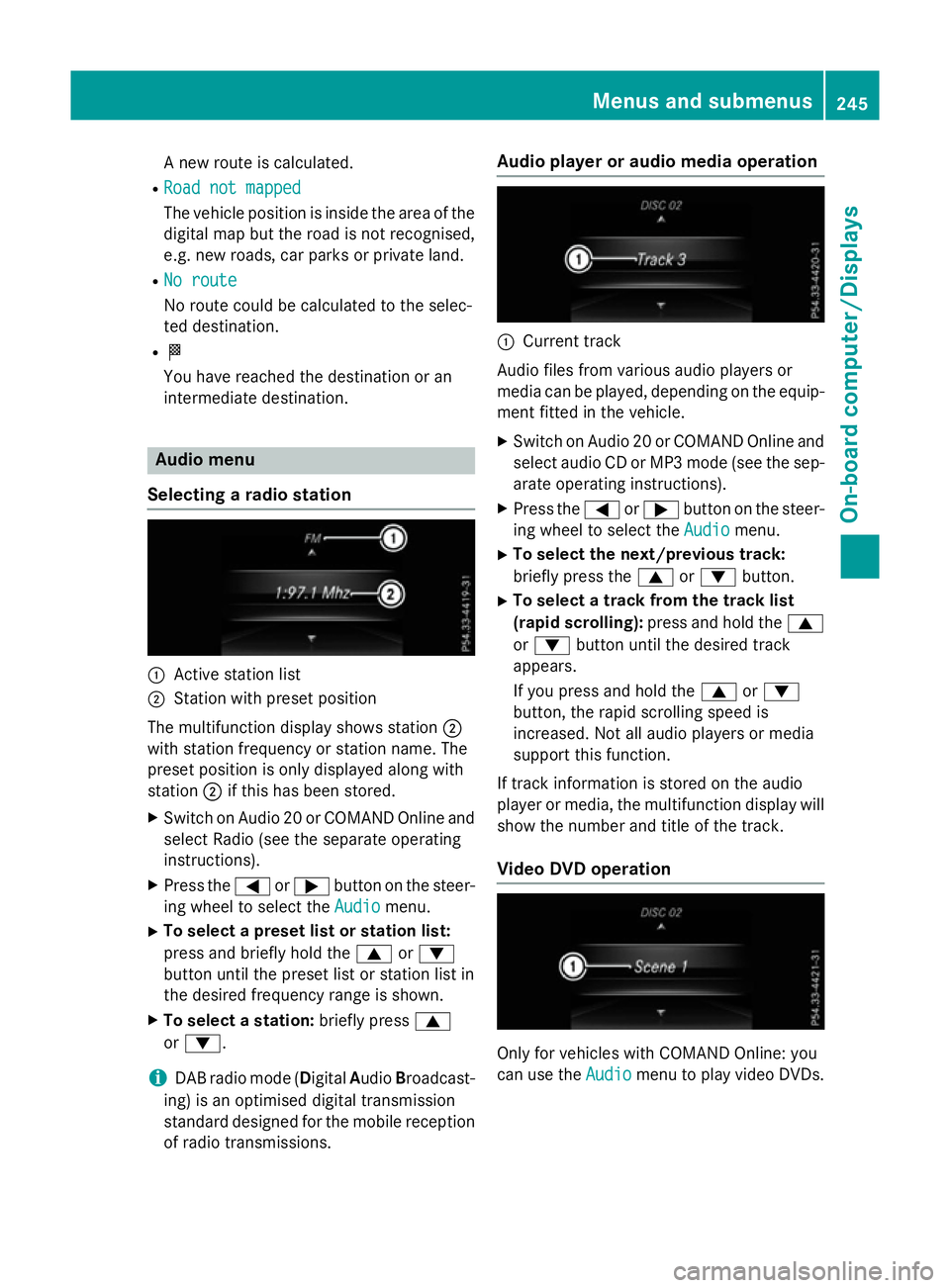
Selecting a radio station :
Active station list
; Station with preset position
The multifunction display shows station ;
with station frequency or station name. The
preset position is only displayed along with
station ;if this has been stored.
X Switch on Audio 20 or COMAND Online and
select Radio (see the separate operating
instructions).
X Press the =or; button on the steer-
ing wheel to select the Audio
Audio menu.
X To select a preset list or station list:
press and briefly hold the 9or:
button until the preset list or station list in
the desired frequency range is shown.
X To select a station: briefly press9
or :.
i DAB radio mode (Digital
AudioBroadcast-
ing) is an optimised digital transmission
standard designed for the mobile reception
of radio transmissions. Audio player or audio media operation
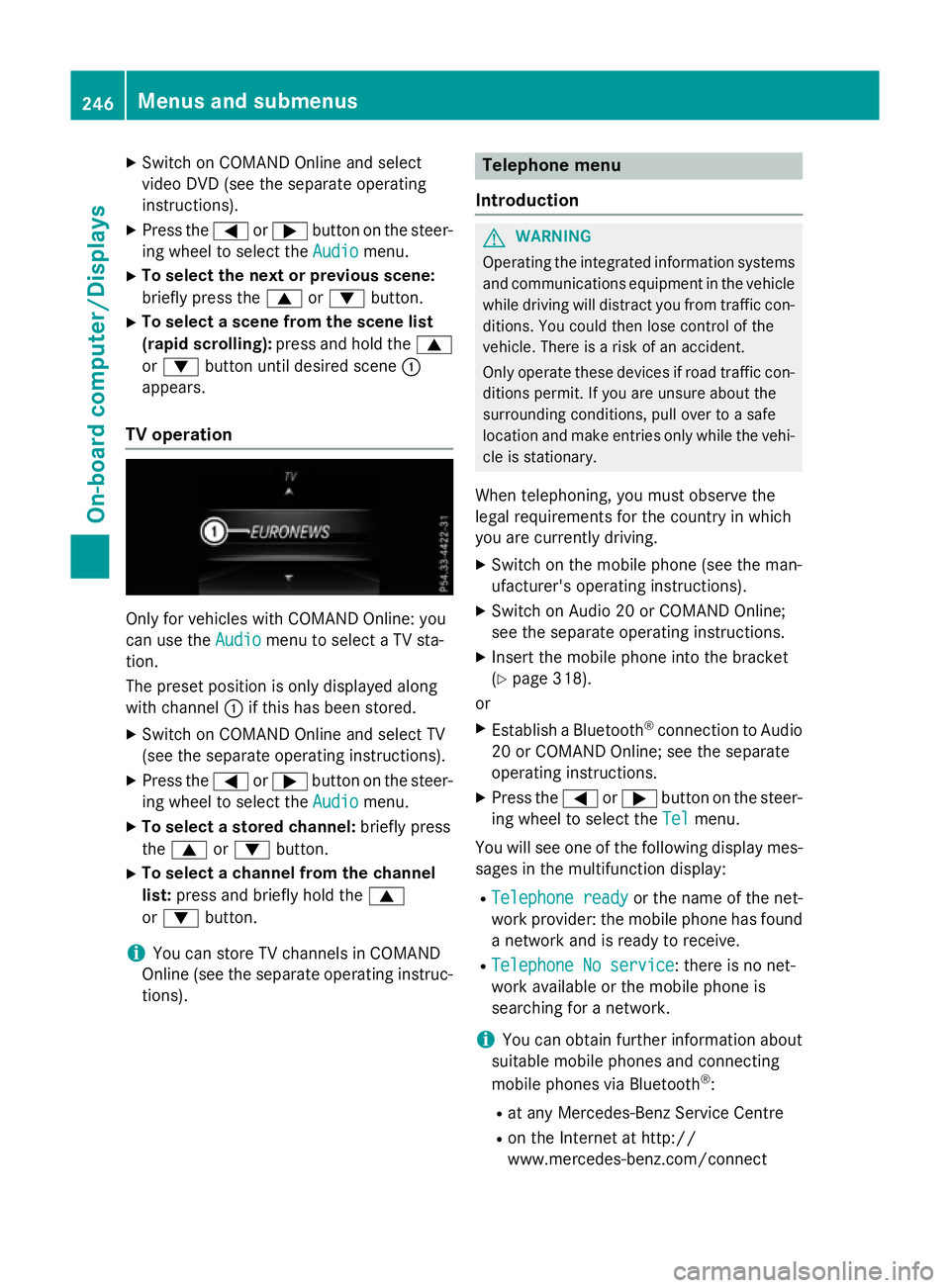
:
Current track
Audio files from various audio players or
media can be played, depending on the equip-
ment fitted in the vehicle.
X Switch on Audio 20 or COMAND Online and
select audio CD or MP3 mode (see the sep-
arate operating instructions).
X Press the =or; button on the steer-
ing wheel to select the Audio Audiomenu.
X To select the next/previous track:
briefly press the 9or: button.
X To select a track from the track list
(rapid scrolling): press and hold the 9
or : button until the desired track
appears.
If you press and hold the 9or:
button, the rapid scrolling speed is
increased. Not all audio players or media
support this function.
If track information is stored on the audio
player or media, the multifunction display will
show the number and title of the track.
Video DVD operation Only for vehicles with COMAND Online: you
can use the Audio Audiomenu to play video DVDs. Menus and submenus
245On-board computer/Displays Z
Page 249 of 417
X
Switch on COMAND Online and select
video DVD (see the separate operating
instructions).
X Press the =or; button on the steer-
ing wheel to select the Audio Audiomenu.
X To select the next or previous scene:
briefly press the 9or: button.
X To select a scene from the scene list
(rapid scrolling): press and hold the 9
or : button until desired scene :
appears.
TV operation Only for vehicles with COMAND Online: you
can use the Audio Audiomenu to select a TV sta-
tion.
The preset position is only displayed along
with channel :if this has been stored.
X Switch on COMAND Online and select TV
(see the separate operating instructions).
X Press the =or; button on the steer-
ing wheel to select the Audio
Audio menu.
X To select a stored channel: briefly press
the 9 or: button.
X To select a channel from the channel
list: press and briefly hold the 9
or : button.
i You can store TV channels in COMAND
Online (see the separate operating instruc-
tions). Telephone menu
Introduction G
WARNING
Operating the integrated information systems and communications equipment in the vehicle
while driving will distract you from traffic con-
ditions. You could then lose control of the
vehicle. There is a risk of an accident.
Only operate these devices if road traffic con-
ditions permit. If you are unsure about the
surrounding conditions, pull over to a safe
location and make entries only while the vehi-
cle is stationary.
When telephoning, you must observe the
legal requirements for the country in which
you are currently driving. X Switch on the mobile phone (see the man-
ufacturer's operating instructions).
X Switch on Audio 20 or COMAND Online;
see the separate operating instructions.
X Insert the mobile phone into the bracket
(Y page 318).
or
X Establish a Bluetooth ®
connection to Audio
20 or COMAND Online; see the separate
operating instructions.
X Press the =or; button on the steer-
ing wheel to select the Tel Telmenu.
You will see one of the following display mes- sages in the multifunction display:
R Telephone ready
Telephone ready or the name of the net-
work provider: the mobile phone has found
a network and is ready to receive.
R Telephone No service
Telephone No service: there is no net-
work available or the mobile phone is
searching for a network.
i You can obtain further information about
suitable mobile phones and connecting
mobile phones via Bluetooth ®
:
R at any Mercedes-Benz Service Centre
R on the Internet at http://
www.mercedes-benz.com/connect 246
Menus and submenusOn-board computer/Displays
Page 317 of 417
thrown around and hit vehicle occupants.
There is a risk of injury, particularly in the
event of sudden braking or a sudden change
in direction.
R Always stow objects so that they cannot be
thrown around in such situations.
R Always make sure that objects do not pro-
trude from stowage spaces, parcel nets or
stowage nets.
R Close the lockable stowage spaces before
starting a journey.
R Stow and secure objects that are heavy,
hard, pointed, sharp-edged, fragile or too
large in the luggage compartment.
! Only use the cup holders for containers of
the right size and which have lids. The
drinks could otherwise spill.
Observe the loading guidelines (Y page 306).
The stowage compartments in the doors pro- vide space for bottles:
R front: capacity up to 1.0 l
R rear: capacity up to 0.5 l
Cup holders in the front centre console All vehicles (except vehicles with Audio 5)
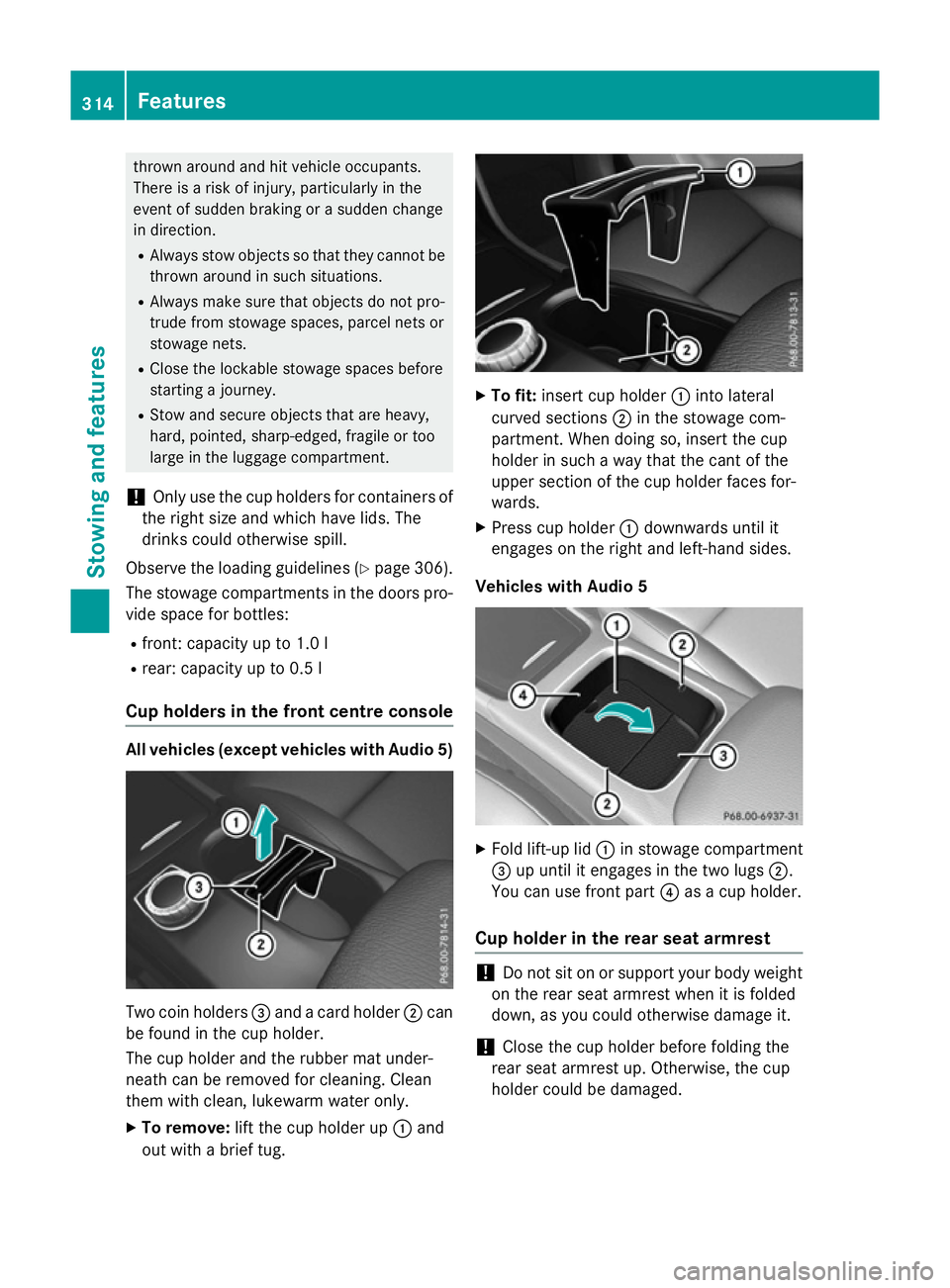
Two coin holders
=and a card holder ;can
be found in the cup holder.
The cup holder and the rubber mat under-
neath can be removed for cleaning. Clean
them with clean, lukewarm water only.
X To remove: lift the cup holder up :and
out with a brief tug. X
To fit: insert cup holder :into lateral
curved sections ;in the stowage com-
partment. When doing so, insert the cup
holder in such a way that the cant of the
upper section of the cup holder faces for-
wards.
X Press cup holder :downwards until it
engages on the right and left-hand sides.
Vehicles with Audio 5 X
Fold lift-up lid :in stowage compartment
= up until it engages in the two lugs ;.
You can use front part ?as a cup holder.
Cup holder in the rear seat armrest !
Do not sit on or support your body weight
on the rear seat armrest when it is folded
down, as you could otherwise damage it.
! Close the cup holder before folding the
rear seat armrest up. Otherwise, the cup
holder could be damaged. 314
FeaturesSto
wing an d features
Page 320 of 417
Socket in the front centre console
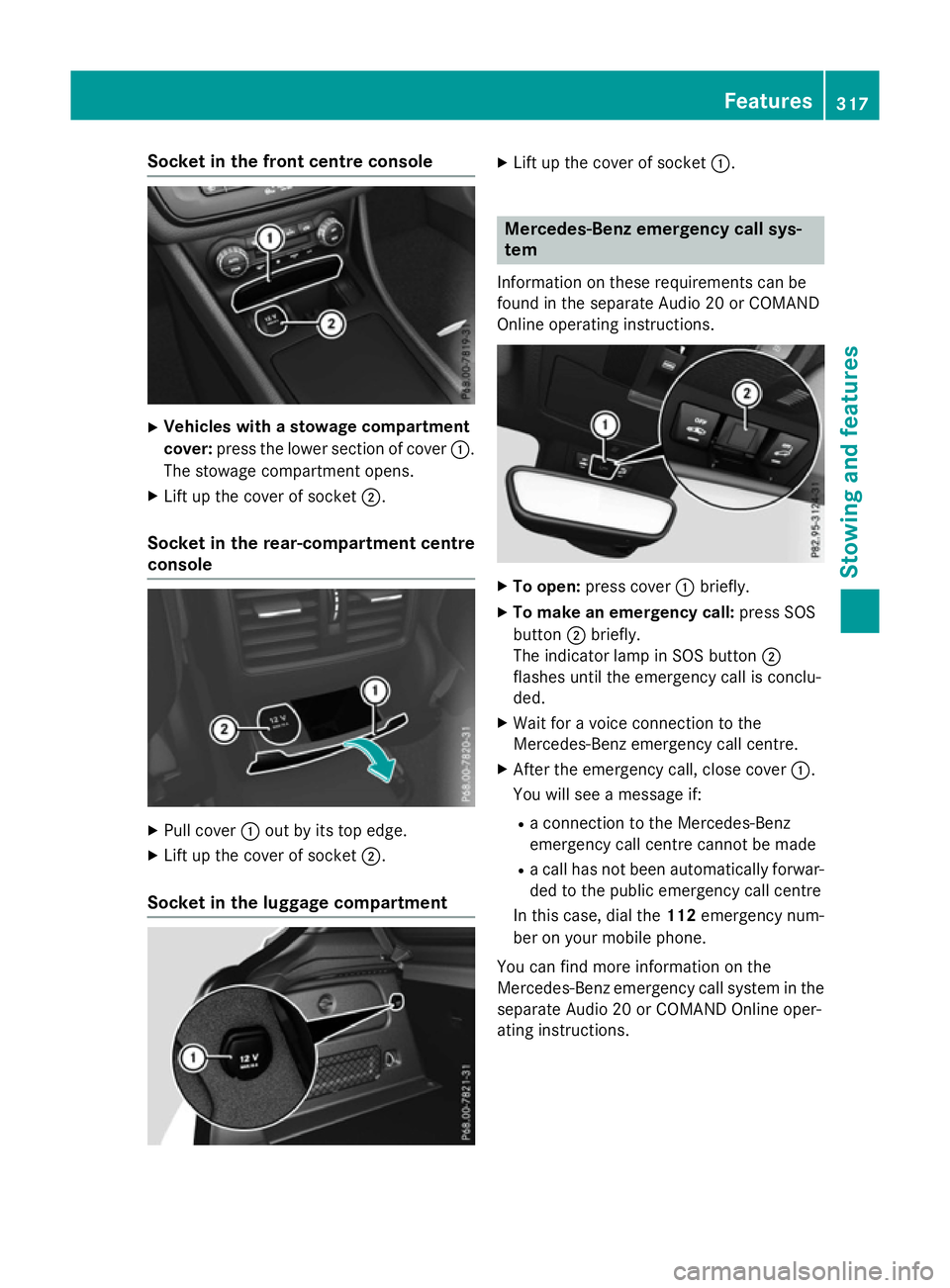
X
Vehicles with a stowage compartment
cover: press the lower section of cover :.
The stowage compartment opens.
X Lift up the cover of socket ;.
Socket in the rear-compartment centre
console X
Pull cover :out by its top edge.
X Lift up the cover of socket ;.
Socket in the luggage compartment X
Lift up the cover of socket :. Mercedes-Benz emergency call sys-
tem
Information on these requirements can be
found in the separate Audio 20 or COMAND
Online operating instructions. X
To open: press cover :briefly.
X To make an emergency call: press SOS
button ;briefly.
The indicator lamp in SOS button ;
flashes until the emergency call is conclu-
ded.
X Wait for a voice connection to the
Mercedes-Benz emergency call centre.
X After the emergency call, close cover :.
You will see a message if:
R a connection to the Mercedes-Benz
emergency call centre cannot be made
R a call has not been automatically forwar-
ded to the public emergency call centre
In this case, dial the 112emergency num-
ber on your mobile phone.
You can find more information on the
Mercedes-Benz emergency call system in the separate Audio 20 or COMAND Online oper-
ating instructions. Features
317Stowing and features Z
Page 321 of 417
Mobile phone
Important safety notes G
WARNING
Operating mobile communications equip-
ment while driving distracts you from paying
attention to traffic conditions. This could also cause you to lose control of the vehicle. There
is a risk of an accident.
Use this device only when the vehicle is sta-
tionary.
You must observe the legal requirements for
the country in which you are currently driving when operating mobile communications
equipment in the vehicle.
If it is permitted by law to operate communi-
cations equipment while the vehicle is in
motion, you may only do so if the traffic sit-
uation permits. You may otherwise be dis-
tracted from the traffic conditions, cause an
accident and injure yourself and others.
Excessive levels of electromagnetic radiation
may cause damage to your health and to the
health of others. The use of an exterior aerial
takes into consideration the scientific discus- sion surrounding the possible health risk
posed by electromagnetic fields.
Mercedes-Benz recommends the use of an
approved exterior aerial. This ensures:
R optimal mobile phone reception quality in
the vehicle
R that mutual interference between the vehi-
cle electronics and mobile phones is mini-
mised
An exterior aerial has the following advan-
tages:
R it conducts the electromagnetic fields gen-
erated by a wireless device to the exterior
R the field strength in the vehicle interior is
lower than in a vehicle that does not have
an exterior aerial
Information on retrofitting two-way radios
and mobile phones (RF transmitters)
(Y page 394). General notes There are various mobile phone brackets that
may be fitted in your vehicle; in some cases,
these are country-specific.
You can connect a Bluetooth ®
-capable
mobile phone with Audio 20 or COMAND
Online via the Bluetooth ®
interface. This also
applies if your vehicle is equipped with con-
venience telephony.
More information on suitable mobile phones,
mobile phone brackets and on connecting
Bluetooth ®
-capable mobile phones with
Audio 20 or COMAND Online can be obtained:
R at your Mercedes-Benz Service Centre
R on the Internet at http://www.mercedes-
benz.com/connect
The functions and services available when
you use the phone depend on your mobile
phone model and service provider.
Using a mobile phone To connect a mobile phone to the exterior
aerial and charge it, insert it into the mobile
phone bracket.
X Open the telephone compartment
(Y page 308).
X Place the mobile phone bracket into the
pre-installed fitting; see the separate instal-
lation instructions for the mobile phone fit-
ting.
X Insert the mobile phone into the mobile
phone bracket; see the separate installa-
tion instructions for the mobile phone fit-
ting.
i The mobile phone can also be operated
without being in the bracket. However, the charging function and aerial function are
not available.
In order to use Bluetooth ®
(SAP profile) on
your telephone module, you must first insert
the telephone module into the pre-installed
fitting. This connects it to the exterior aerial. 318
FeaturesStowing and features
Page 336 of 417
X
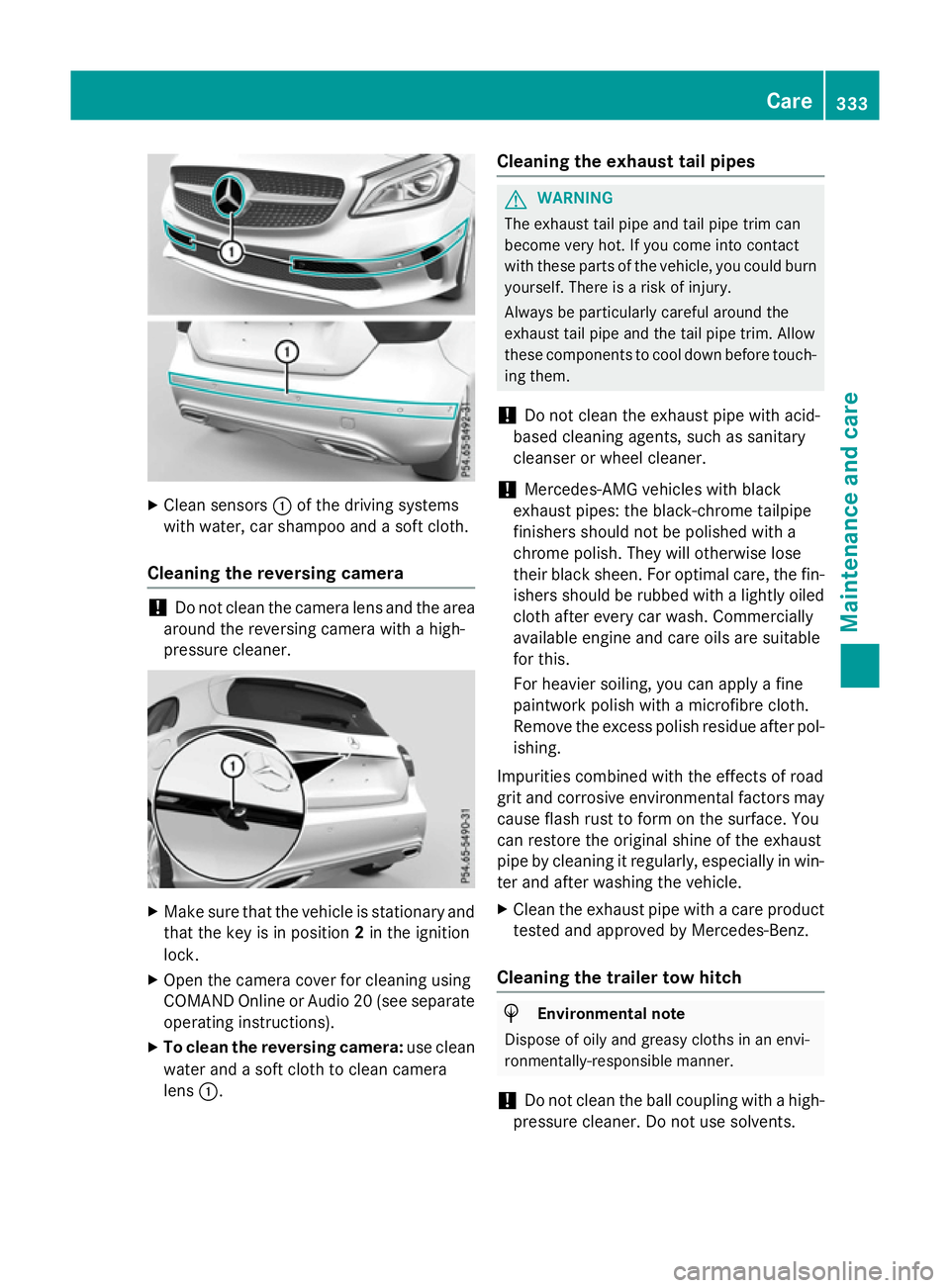
Clean sensors :of the driving systems
with water, car shampoo and a soft cloth.
Cleaning the reversing camera !
Do not clean the camera lens and the area
around the reversing camera with a high-
pressure cleaner. X
Make sure that the vehicle is stationary and
that the key is in position 2in the ignition
lock.
X Open the camera cover for cleaning using
COMAND Online or Audio 20 (see separate
operating instructions).
X To clean the reversing camera: use clean
water and a soft cloth to clean camera
lens :. Cleaning the exhaust tail pipes G
WARNING
The exhaust tail pipe and tail pipe trim can
become very hot. If you come into contact
with these parts of the vehicle, you could burn
yourself. There is a risk of injury.
Always be particularly careful around the
exhaust tail pipe and the tail pipe trim. Allow
these components to cool down before touch-
ing them.
! Do not clean the exhaust pipe with acid-
based cleaning agents, such as sanitary
cleanser or wheel cleaner.
! Mercedes-AMG vehicles with black
exhaust pipes: the black-chrome tailpipe
finishers should not be polished with a
chrome polish. They will otherwise lose
their black sheen. For optimal care, the fin- ishers should be rubbed with a lightly oiled
cloth after every car wash. Commercially
available engine and care oils are suitable
for this.
For heavier soiling, you can apply a fine
paintwork polish with a microfibre cloth.
Remove the excess polish residue after pol- ishing.
Impurities combined with the effects of road
grit and corrosive environmental factors may cause flash rust to form on the surface. You
can restore the original shine of the exhaust
pipe by cleaning it regularly, especially in win- ter and after washing the vehicle.
X Clean the exhaust pipe with a care product
tested and approved by Mercedes-Benz.
Cleaning the trailer tow hitch H
Environmental note
Dispose of oily and greasy cloths in an envi-
ronmentally-responsible manner.
! Do not clean the ball coupling with a high-
pressure cleaner. Do not use solvents. Care
333Maintenance and care Z