display MERCEDES-BENZ A-CLASS HATCHBACK 2018 Owners Manual
[x] Cancel search | Manufacturer: MERCEDES-BENZ, Model Year: 2018, Model line: A-CLASS HATCHBACK, Model: MERCEDES-BENZ A-CLASS HATCHBACK 2018Pages: 609, PDF Size: 10.73 MB
Page 339 of 609
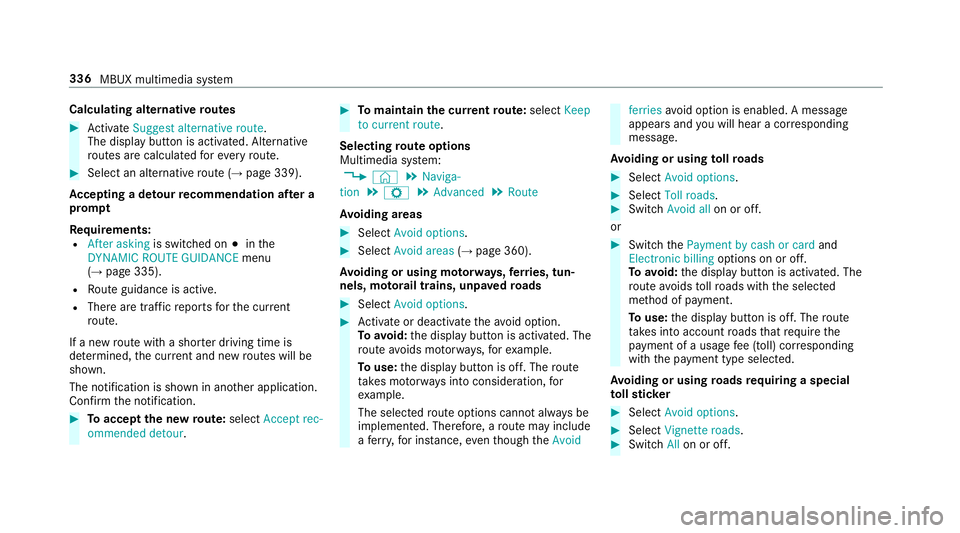
Calculating alternative
routes #
Activate Suggest alternative route.
The display button is acti vated. Alternative
ro utes are calculated foreve ryroute. #
Select an alternative route (→ page 339).
Ac cepting a de tour recommendation af ter a
prom pt
Re quirements:
R After asking is switched on #inthe
DYNAMIC ROUTE GUIDANCE menu
(→ page 335).
R Route guidance is active.
R There are traf fic re ports forth e cur rent
ro ute.
If a new route with a sho rter driving time is
de term ined, the cur rent and new routes will be
shown.
The notification is shown in ano ther application.
Confirm the notification. #
Toaccept the new route: select Accept rec-
ommended detour. #
Tomaintain the cu rrentroute: select Keep
to current route .
Selecting route options
Multimedia sy stem:
, © .
Naviga-
tion .
Z .
Advanced .
Route
Av oiding areas #
Select Avoid options. #
Select Avoid areas (→page 360).
Av oiding or using mo torw ays, ferries, tun‐
nels, mo torail trains, unpa vedro ads #
Select Avoid options. #
Activate or deacti vate theavo id option.
To avoid: the display button is activated. The
ro ute avoids mo torw ays, forex ample.
To use: the display button is off. The route
ta ke s mo torw ays into consideration, for
ex ample.
The selec tedro ute options cannot alw ays be
implemented. Therefore, a route may include
a fe rry, for ins tance, eventh ough theAvoid ferries
avoid option is enabled. A message
appears and you will hear a co rresponding
message.
Av oiding or using tollro ads #
Select Avoid options. #
Select Toll roads. #
Switch Avoid all on or off.
or #
Switch thePayment by cash or card and
Electronic billing options on or off.
To avoid: the display button is activated. The
ro ute avoids tollro ads with the selected
me thod of payment.
To use: the display button is off. The route
ta ke s into account roads that requ irethe
payment of a usage fee (toll) cor responding
with the payment type selected.
Av oiding or using roads requ iring a special
to llst icker #
Select Avoid options . #
Select Vignette roads . #
Switch Allon or off. 336
MBUX multimedia sy stem
Page 340 of 609
or
#
Activate or deacti vate the count ries.
To avoid: the display button is activated. The
ro ute avoids roads requ iring a special toll
st icke r in the selected count ries.
To use: the display button is off. The route
ta ke s into account roads in the selected
count rywhich requireyouto pay a time-
based fee (vignette). A vignette allo wsforthe
use of a route network for a limi ted time
period.
% These route options are not available in
eve rycountr y.
Selecting notifications for the route
Re quirements:
R For an audible indication when approach‐
ing a personal POI: the USB device conta ins
personal POIs.
R The USB device is connec ted with the multi‐
media sy stem.
R The category in which the personal POI
belongs is activated. Multimedia sy
stem:
, © .
Naviga-
tion .
Z .
Advanced .
Announcements #
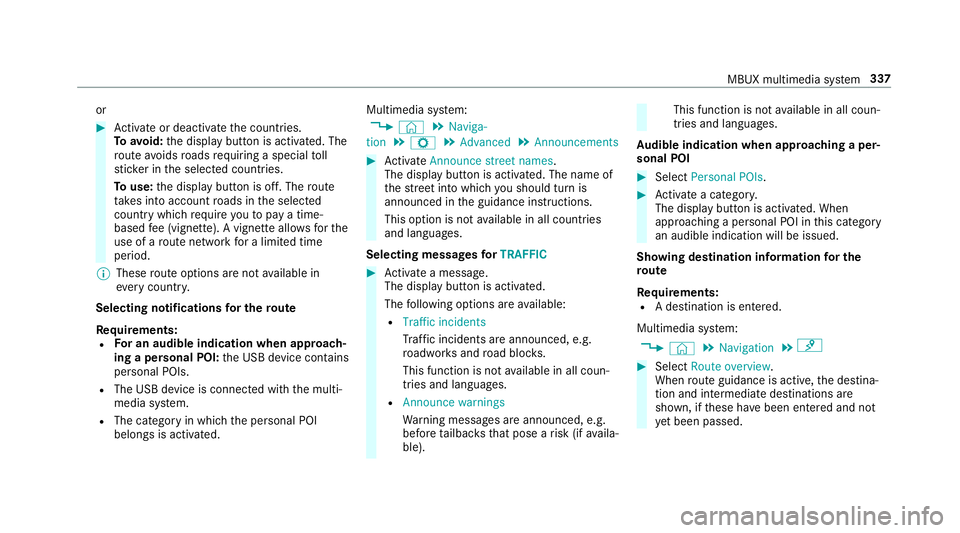
Activate Announce street names .
The display button is acti vated. The name of
th est re et into which you should turn is
announced in the guidance instructions.
This option is not available in all countries
and languages.
Selecting messages forTRAFFIC #
Activate a messa ge.
The display button is activated.
The following options are available:
R Traffic incidents
Traf fic incidents are announced, e.g.
ro adwor ksand road bloc ks.
This function is not available in all coun‐
tries and languages.
R Announce warnings
Warning messages are announced, e.g.
before tailbac ksthat pose a risk (if availa‐
ble). This function is not
available in all coun‐
tries and languages.
Au dible indication when approaching a per‐
sonal POI #
Select Personal POIs . #
Activate a categor y.
The display button is activated. When
approaching a personal POI in this category
an audible indication will be issued.
Showing destination information for the
ro ute
Re quirements:
R A destination is entered.
Multimedia sy stem:
, © .
Navigation .
¡ #
Select Route overview .
When route guidance is active, the destina‐
tion and intermediate destinations are
shown, if these ha vebeen entered and not
ye t been passed. MBUX multimedia sy
stem 337
Page 342 of 609
Displaying
thero ute list
Multimedia sy stem:
, © .
Navigation .
¡ #
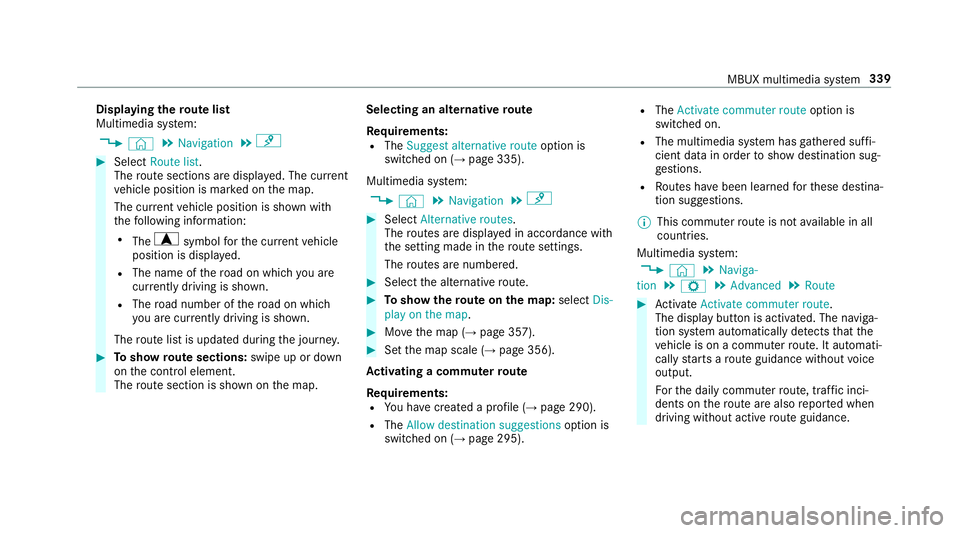
Select Route list.
The route sections are displ ayed. The cur rent
ve hicle position is mar ked on the map.
The cur rent vehicle position is shown with
th efo llowing information:
R The a symbol forth e cur rent vehicle
position is displa yed.
R The name of thero ad on which you are
cur rently driving is shown.
R The road number of thero ad on which
yo u are cur rently driving is shown.
The route list is updated during the journe y. #
Toshow route sections: swipe up or down
on the control element.
The route section is shown on the map. Selecting an alternative
route
Re quirements:
R The Suggest alternative route option is
switched on (→ page 335).
Multimedia sy stem:
, © .
Navigation .
¡ #
Select Alternative routes.
The routes are displ ayed in accordance with
th e setting made in thero ute settings.
The routes are numbered. #
Select the alternative route. #
Toshow thero ute on the map: selectDis-
play on the map . #
Movethe map (→ page 357). #
Set the map scale (→ page 356).
Ac tivating a commuter route
Re quirements:
R You ha vecrea ted a profile (→ page 290).
R The Allow destination suggestions option is
switched on (→ page 295). R
The Activate commuter route option is
switched on.
R The multimedia sy stem has gathered suf fi‐
cient da tain order toshow destination sug‐
ge stions.
R Routes ha vebeen learned forth ese destina‐
tion suggestions.
% This commuter route is not available in all
countries.
Multimedia sy stem:
, © .
Naviga-
tion .
Z .
Advanced .
Route #
Activate Activate commuter route .
The display button is acti vated. The naviga‐
tion sy stem automatically de tects that the
ve hicle is on a commuter route. It automati‐
cally starts a route guidance without voice
output.
Fo rth e daily commuter route, traf fic inci‐
dents on thero ute are also repor ted when
driving without active route guidance. MBUX multimedia sy
stem 339
Page 343 of 609
Switching
the automatic filling station
sear chon/off
Multimedia sy stem:
, © .
Settings .
Vehicle #
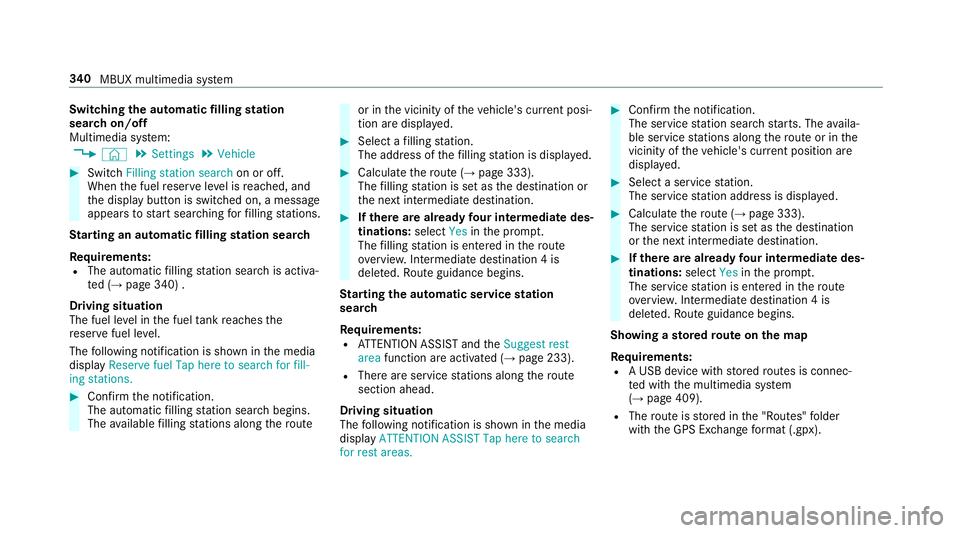
Switch Filling station search on or off.
When the fuel reser veleve l is reached, and
th e display button is switched on, a message
appears tostart sear ching forfilling stations.
St arting an automatic filling station sear ch
Re quirements:
R The automatic filling station sear chis activa‐
te d (→ page 340) .
Driving situation
The fuel le vel in the fuel tankre aches the
re ser vefuel le vel.
The following notification is shown in the media
display Reserve fuel Tap here to search for fill-
ing stations. #
Confirm the notification.
The automatic filling station sear chbegins.
The available filling stations along thero ute or in
the vicinity of theve hicle's cur rent posi‐
tion are displ ayed. #
Select a filling station.
The address of thefilling station is displa yed. #
Calculate thero ute (→ page 333).
The filling station is set as the destination or
th e next intermediate destination. #
Ifth ere are already four intermediate des‐
tinations: selectYesinthe prom pt.
The filling station is entered in thero ute
ove rview. Intermediate destination 4 is
dele ted. Ro ute guidance begins.
St arting the automatic service station
sear ch
Re quirements:
R ATTENTION ASSIST and theSuggest rest
area function are activated (→ page 233).
R There are service stations along thero ute
section ahead.
Driving situation
The following notification is shown in the media
display ATTENTION ASSIST Tap here to search
for rest areas. #
Confirm the notification.
The service station sear ch starts. The availa‐
ble service stations along thero ute or in the
vicinity of theve hicle's cur rent position are
displ ayed. #
Select a service station.
The service station address is displa yed. #
Calculate thero ute (→ page 333).
The service station is set as the destination
or the next intermediate destination. #
Ifth ere are already four intermediate des‐
tinations: selectYesinthe prom pt.
The service station is entered in thero ute
ove rview. Intermediate destination 4 is
dele ted. Ro ute guidance begins.
Showing a stored route on the map
Re quirements:
R A USB device with stored routes is connec‐
te d with the multimedia sy stem
(→ page 409).
R The route is stored in the "Routes" folder
with the GPS Ex change form at (.gpx). 340
MBUX multimedia sy stem
Page 344 of 609
Multimedia sy
stem:
, © .
Navigation .
ª Where
to? .
STORED ROUTES #
Select a route. #
Select Display on the map .#
Movethe map (→ page 357).
St arting a sa vedro ute
Re quirements:
R A USB device with stored routes is connec‐
te d with the multimedia sy stem
(→ page 409).
R The route is stored in the "Routes" folder
with the GPS Ex change form at (.gpx).
Multimedia sy stem:
, © .
Navigation .
ª Where
to? .
STORED ROUTES #
Select a route. #
Select Start route guidance from the begin-
ning orStart route guidance from current
location.
Ro ute guidance starts. %
The route can be sa ved with finthe
menu (→ page 333).
Re cording a route
Re quirements:
R A USB device is connec ted with the multime‐
dia sy stem (→ page 409).
Multimedia sy stem:
, © .
Navigation .
ª Where
to? .
STORED ROUTES #
Tostart recording: selectStart to record
new route.
A redre cording symbol is shown.
The route is stored on the USB device. #
Tosto pre cording: selectEnd recording.
Saving a recorded route
Re quirements:
R A USB device is connec ted with the multime‐
dia sy stem (→ page 409). Multimedia sy
stem:
, © .
Navigation .
ª Where
to? .
STORED ROUTES #
Select a route. #
Select f. #
Select Save in "Previous destinations" .
The route is stored in the "Pr evious destina‐
tions" memo ryand can be called up from
th ere forro ute guidance.
Editing a storedro ute
Re quirements:
R A USB device with stored routes is connec‐
te d with the multimedia sy stem
(→ page 409).
Multimedia sy stem:
, © .
Navigation .
ª Where
to? .
STORED ROUTES #
Select a route with V. #
Toenter a name: selectChange name . #
Enterth e name. MBUX multimedia sy
stem 341
Page 345 of 609
#
Select OK.
or #
When the name has been changed, press the
G button. #
Select Yes. #
Todel ete a route: select Delete. #
Select Yes. Ro
ute guidance Note
s onroute guidance &
WARNING Risk of di stra ction from oper‐
ating integrated communication equip‐
ment while theve hicle is in motion
If yo u operate communication equipment
integrated in theve hicle when driving, you
will be distracted from the tra ffic situation.
This could also cause youto lose control of
th eve hicle. #
Only operate this equipment when the
traf fic situation permits. #
Ifyo u cannot be sure of this, stop the
ve hicle whilst paying attention toroad
and traf fic conditions and ope rate the
equipment with theve hicle stationar y. Yo
u must obse rveth e legal requirements forthe
country in whi chyou are cur rently driving when
operating the multimedia sy stem.
Ro ute guidance begins once a route has been
calculated.
The road and traf fic ru les and regulations alw ays
ha ve priority over multimedia sy stem driving
instructions.
Driving instructions are:
R Navigation announcements
R Route guidance displ ays
R Lane recommendations
If yo u do not follow the driving instructions or if
yo u lea vethe calculated route, a new route is
calculated automaticall y.
Driving instructions may di ffer from the actual
ro ad and traf fic conditions if:
R The route is diver ted R
The direction of a one-w aystre et has been
ch anged
Fo rth is reason, you must alw ays obser veroad
and traf fic ru les and regulations during your
journey as well as the pr evailing traf fic condi‐
tions.
The route may dif fer from the ideal route due to
th efo llowing:
R Roadwor ks
R Incomple tedigital map data
Note s on GPS reception
The cor rect function of the navigation sy stem
depends amongst other things on GPS recep‐
tion. In cer tain situations GPS reception can be
impaired, defective or even not possible, e.g. in
tunnels or in multi-s torey car par ks.
Changing direction overview
Changes of direction are shown in thefo llowing
displa ys:
R Detailed image of the junction
The display appears when you drive into a
junction. 342
MBUX multimedia sy stem
Page 346 of 609
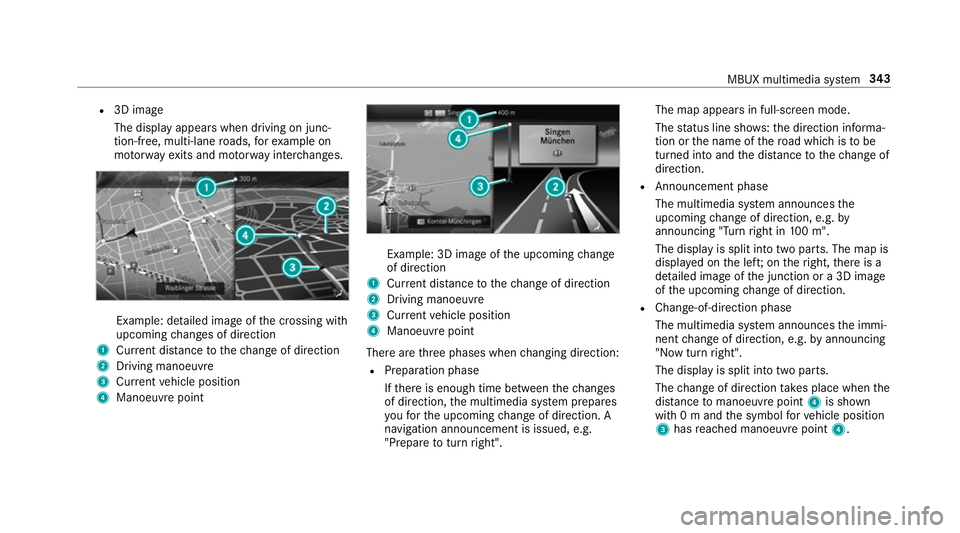
R
3D ima ge
The display appears when driving on junc‐
tion-free, multi-lane roads, forex ample on
mo torw ay ex its and mo torw ay inter changes. Example: detailed image of
the crossing with
upcoming changes of direction
1 Current di stance tothech ange of direction
2 Driving manoeuv re
3 Current vehicle position
4 Manoeuvre point Example: 3D image of
the upcoming change
of direction
1 Current di stance tothech ange of direction
2 Driving manoeuv re
3 Current vehicle position
4 Manoeuvre point
There are thre e phases when changing direction:
R Preparation phase
Ifth ere is enough time between thech anges
of direction, the multimedia sy stem prepares
yo ufo rth e upcoming change of direction. A
navigation announcement is issued, e.g.
"Prepare toturn right". The map appears in full-screen mode.
The status line sho ws:th e direction informa‐
tion or the name of thero ad which is tobe
turned into and the dis tance tothech ange of
direction.
R Announcement phase
The multimedia sy stem announces the
upcoming change of direction, e.g. by
announcing "Turn right in 100 m".
The display is split into two parts. The map is
displa yed on the lef t;on theright, there is a
de tailed image of the junction or a 3D image
of the upcoming change of direction.
R Chan ge-of-direction phase
The multimedia sy stem announces the immi‐
nent change of direction, e.g. byannouncing
"N ow turn right".
The display is split into two parts.
The change of direction take s place when the
dis tance tomanoeuvre point 4is shown
with 0 m and the symbol forve hicle position
3 has reached manoeuvre point 4. MBUX multimedia sy
stem 343
Page 347 of 609
When
thech ange of direction is comple te,
th e map appears in full-screen mode.
% Changes of direction are also shown in the
Instrument Displa y.
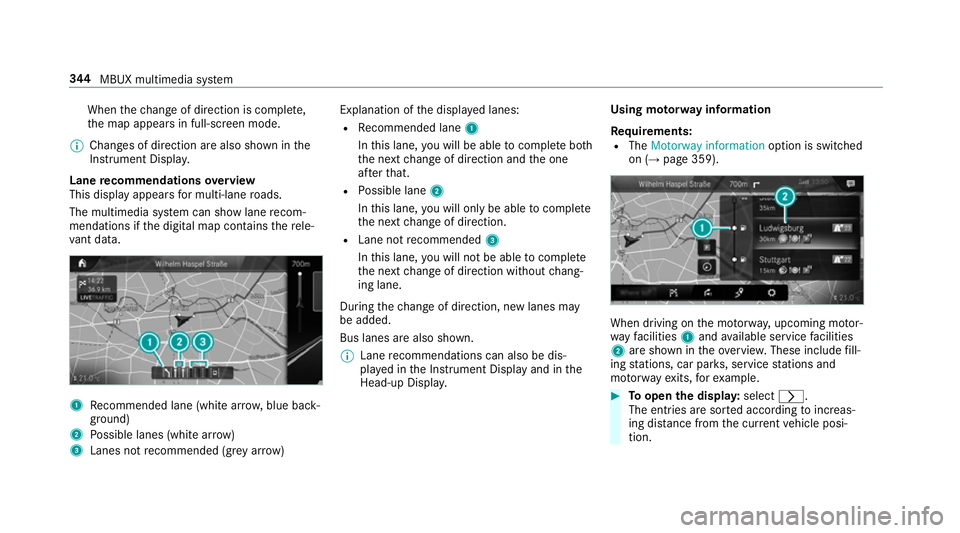
Lane recommendations overview
This display appears for multi-lane roads.
The multimedia sy stem can show lane recom‐
mendations if the digital map conta insthere le‐
va nt da ta. 1
Recommended lane (white ar row, blue back‐
ground)
2 Possible lanes (white ar row)
3 Lanes not recommended (gr eyarro w) Explanation of
the displa yed lanes:
R Recommended lane 1
In this lane, you will be able tocompl ete bo th
th e next change of direction and the one
af te rth at.
R Possible lane 2
In this lane, you will on lybe able tocompl ete
th e next change of direction.
R Lane not recommended 3
In this lane, you will not be able tocompl ete
th e next change of direction without chang‐
ing lane.
During thech ange of direction, new lanes may
be added.
Bus lanes are also shown.
% Lane recommendations can also be dis‐
pl ay ed in the Instrument Display and in the
Head-up Displa y. Using mo
torw ay information
Re quirements:
R The Motorway information option is switched
on (→ page 359). When driving on
the mo torw ay, upcoming mo tor‐
wa yfa cilities 1and available service facilities
2 are shown in theove rview. These include fill‐
ing stations, car par ks, service stations and
mo torw ay ex its,forex ample. #
Toopen the displa y:select r.
The entries are sor ted according toinc reas‐
ing dis tance from the cur rent vehicle posi‐
tion. 344
MBUX multimedia sy stem
Page 349 of 609
When an intermediate destination has been
re ached, you will see the intermediate destina‐
tion flag with the number of your Î inter‐
mediate destination. Route guidance is contin‐
ued.
Swit ching navigation announcements on/off #
Toswitch off: turnthevo lume control on
th esteering wheel or next totheto uchpad
during a navigation announcement
(→ page 301).
The Spoken driving recommendations have
been deactivated. message appears.
or #
Show the navigation menu (→ page 324).#
Select !.
The symbol changes to# . #
Toactivate: select#.
The cur rent navigation announcement is
pl ay ed.
The symbol changes to! .
% This function can be added and called up
from thefa vo urites within the navigation cat‐
egor y. Switching navigation announcements on/off
during a phone call #
Press the© button on thesteering wheel
or on theto uchpad.
or #
Tap on © inthe media displa y. #
Select Settings . #
Select System . #
Select Audio. #
Select Navigation and traffic announce-
ments . #
Switch Driving recommendations during call
on or off.
When the option is switched on, the display
button is activated. #
Tolea vethe menu: selectq. Ad
justing the volume of navigation
announcements
Multimedia sy stem:
, © .
Settings .
Sys-
tem .
Audio .
Navigation and traffic
announcements #
Select Driving recommendation vol. . #
Set thevo lume. #
Tolea vethe menu: selectq.
Ro ute guidance is active #
Turn thevo lume control on thesteering
wheel or next totheto uchpad during a navi‐
ga tion announcement.
Switching audio fadeout on or off during nav‐
igation announcements #
Press the© button on thesteering wheel
or on theto uchpad.
or #
Tap on © inthe media displa y. #
Select Settings . #
Select System . 346
MBUX multimedia sy stem
Page 350 of 609
#
Select Audio. #
Switch Audio fadeout on or off.
When the option is switched on, the display
button is activated. #
Tolea vethe menu: selectq.
Re peating navigation announcements
Re quirements:
R aro ute has already been created.
R route guidance is active.
Multimedia sy stem:
, Navigation (Navigation) #
Select !. #
Select #.
The cur rent navigation announcement is
re peated.
% This function can be added and called up
from thefa vo urites within the navigation cat‐
egor y. Cancelling
route guidance
Re quirements:
R aro ute has already been created.
R route guidance is active. #
Show the navigation menu. #
Select ¤inthe navigation menu
(→ page 325).
Overview of route guidance toan off-road
destination
An off-road destination is within the digital map.
The map conta ins noroads that lead tothe des‐
tination.
Yo u can en terge o-coordinates or a thre ewo rd
address for off-road destinations on the map.
Ro ute guidance guides youfo r as long as possi‐
ble with navigation announcements and displa ys
on roads that are kn ownto the multimedia sys‐
te m.
Shortly before youre ach the last know n position
on the map, you will hear the "Please follow the
direction ar row" announcement, forex ample. The display sho
wsa direction ar rowand the lin‐
ear dis tance tothe destination.
Overview of route guidance from an off-road
location toa destination
In an off-road position, the cur rent vehicle posi‐
tion is located within the digital map on roads
th at are not available.
The following displa ysappear when route guid‐
ance begins:
R A message appears that thero ad is not on
th e map.
R A direction ar rowshowing the linear direc‐
tion tothe POI.
When theve hicle is back on a road kn ownto the
multimedia sy stem, route guidance continues as
no rm al.
Overview of off- road status during route
guidance
Due toroadwor ks,fo rex ample, there may be dif‐
fe re nces between the data on the digital map
and the actual course of thero ad. In such cases,
th e multimedia sy stem will temp orarily be MBUX multimedia sy
stem 347