ECO mode MERCEDES-BENZ AMG GT COUPE 2018 COMAND Manual
[x] Cancel search | Manufacturer: MERCEDES-BENZ, Model Year: 2018, Model line: AMG GT COUPE, Model: MERCEDES-BENZ AMG GT COUPE 2018Pages: 174, PDF Size: 4.14 MB
Page 7 of 174
De-authorizing (de-registering) a
device ............................................ 150
Device list ...................................... 147
Displaying connection details .......... 94
Displaying details ........................... 148
Entering the passcode ..................... 92
External authorization (audio
device) ........................................... 148
General information ......................... 38
Increasing the volume using
COMAND ....................................... 149
Interface .......................................... 89
Introduction ..................................... 89
Playback options ........................... 149
Preparation .................................... 146
Reconnecting an audio device ....... 150
Searching for a mobile phone .......... 92
Selecting a playback option ........... 149
Selecting a track ............................ 149
Starting and stopping playback ..... 148
Starting playback if the Blue-
tooth
®audio device has been
stopped ......................................... 149
Telephony ........................................ 90
Telephony notes .............................. 89
Burmester
®high-end surround
sound system
Balance .......................................... 160
Calling up the sound menu ............ 160
Equalizer ........................................ 160
Equipment ..................................... 159
Sound profile ................................. 161
VIP & BAL selection ....................... 161
Burmester
®surround sound sys-
tem
Balance .......................................... 159
Calling up the sound menu ............ 159
Equalizer ........................................ 159
Equipment ..................................... 158
Surround sound ............................. 159
Buttons and controller ........................ 20
C
Call lists
Displaying details ........................... 108
Opening and selecting an entry ..... 108 Saving an entry in the address
book .............................................. 109
Calling up the compass display ......... 85
Car pool lanes ...................................... 51
Category list (music search) ............ 142
CD
Inserting ........................................ 139
Notes on discs ............................... 138
Characters
Entering (navigation) ........................ 29
Climate control
Calling up climate control
(COMAND) ....................................... 45
Calling up the climate control bar
(COMAND) ....................................... 44
COMAND ......................................... 44
Cooling with air dehumidification
(COMAND) ....................................... 45
Overview .......................................... 44
Setting the air distribution
(COMAND) ....................................... 44
Setting the airflow (COMAND) ......... 45
Setting the temperature
(COMAND) ....................................... 44
Switching on/off (COMAND) ........... 45
Climate control bar
Calling up ......................................... 44
COMAND
Basic display menu .......................... 27
Basic functions ................................ 26
Controller ......................................... 20
Display ............................................. 19
Selecting operating mode ................ 28
Settings ......................................... 126
Switching on/off .............................. 26
COMAND display
Cleaning instructions ....................... 19
Setting ............................................. 33
Contacts
Deleting ......................................... 106
Importing ....................................... 107
Controller ............................................. 20
Copying music files
see Media Register
Copying/renaming/deleting files
see Media Register
Index5
Page 9 of 174
Displaying and calling up ................. 31
Moving ............................................. 32
Overview .......................................... 31
Renaming ......................................... 32
Favorites (Internet) ........................... 127
Favorites button .................................. 39
G
GPS reception...................................... 48
Gracenote®Media Database ............ 141
H
Handwriting recognition
Switching text reader function
on/off .............................................. 25
Touchpad ......................................... 24
Heading up (navigation) ..................... 80
Home
see Home address
Home address
Entering and saving ......................... 53
I
Importing/exporting data .................. 39
Incident (traffic report) ....................... 74
Interior lighting
Setting the delayed switch-off
time (COMAND) ............................... 43
Intermediate destinations
Entering ........................................... 60
Internet
Conditions for access .................... 118
Creating favorites .......................... 127
Entering the URL ............................ 124
Favorites manager ......................... 127
Favorites menu .............................. 127
Menu functions .............................. 124
Options menu ................................ 125
Selecting/setting access data ....... 119
Setting automatic disconnection
of the Internet connection ............. 122
Setting up an Internet connection .. 119
K
Keyword search (navigation)Entering keywords ........................... 55
Online search ................................... 56
Selecting search options ................. 56
Selecting search results ................... 55
L
Lane recommendationsExplanation ...................................... 69
Presentation .................................... 69
Lighting
Setting the delayed switch-off
time (COMAND) ............................... 43
Switching the locator lighting on/
off .................................................... 43
List of access data
New provider ................................. 120
List of mobile phone network pro-
viders
With the selected provider ............. 120
Locator lighting
Setting (COMAND) ........................... 43
Locking confirmation
see Acoustic locking confirmation
M
Making a callUsing speed dial .............................. 96
Using the call lists ............................ 96
Using the phone book ...................... 96
Map (navigation)
3D map ............................................ 80
Adjusting the scale .......................... 79
Building images ................................ 82
Displaying the next intersection ...... 81
Elevation modeling ........................... 82
Map heading up ............................... 80
Map settings .................................... 79
Moving ............................................. 49
North orientation ............................. 80
Notes ............................................... 79
Rotating the 3D map ........................ 82
Selecting POI symbols on the
map ................................................. 80
Index7
Page 12 of 174
Phone callDialing ..............................................9 5
Picture viewer
Changing view ...............................1 57
Displaying pictures ........................ 156
Exiting the picture viewer .............. 157
General notes ................................ 156
Starting a slide show ..................... 157
PIN protection
Activating/deactivating ................... 39
POI (navigation)
Calling up the menu ......................... 57
Category .......................................... 57
Defining the position for the POI
search .............................................. 58
Entering ...........................................5 7
Rotating 3D POI .............................. .60
Selecting .......................................... 59
Previous destinations (navigation) .... 79
R
Radio
Activating/deactivating the sta-
tion presets display ....................... 130
Deleting a station .......................... 130
Displaying information ................... 131
Displaying station information ....... 131
Displaying the artist and track ....... 131
Moving stations ............................. 130
Overview ........................................ 128
Setting the waveband .................... 129
Sound settings (balance, bass,
treble) ............................................ 131
Station list ..................................... 130
Storing stations ............................. 130
Switching on .................................. 128
Tagging music tracks (download-
ing/purchasing tracks from the
iTunes Store
®) ............................... 130
Radio station
Storing ........................................... 130
Read-aloud function
Automatic ........................................ 77
Read-aloud function for e-mails ....... 114
Reading out
Traffic reports on the route .............. 76
Real-time traffic reports ..................... 74Rear view camera
Displaying the image ........................ 43
Switching on/off (COMAND) ........... 44
Receiving vCards ............................... 107
Redialing (telephone) .......................... 96
Reducing the volume
Switching announcements on/off
(COMAND) ....................................... 51
Reserve fuel level
Switching announcements on/off(COMAND) ....................................... 51
Resetting (factory settings) ............... 40
Road map
see Map (navigation)
Route (navigation)
Selecting an alternative route .......... 72
Setting route options (avoiding:
highways, toll roads, tunnels, fer-
ries) ................................................. 50
Setting the route type (short
route, fast route, dynamic route or
economic route) ............................... 50
Starting calculation .......................... 54
Route guidance
Canceling/continuing ...................... 71
Continue .......................................... 71
Freeway information ........................ 69
General notes .................................. 67
Lane recommendations ................... 69
Off-road ........................................... 73
Traffic reports .................................. 74
S
Safety notesAudio CD/DVD and MP3 mode ..... 137
Using the telephone ......................... 89
Satellite radio
Displaying information ................... 135
Overview ........................................ 132
Presets menu view ......................... 133
Registering .................................... 132
Switching to ................................... 132
SatRadio
Channel list updates ...................... 135
Memory functions .......................... 133
Music and sports alerts ................. 134
Notes ............................................. 131
10Index
Page 22 of 174
Buttons and controller
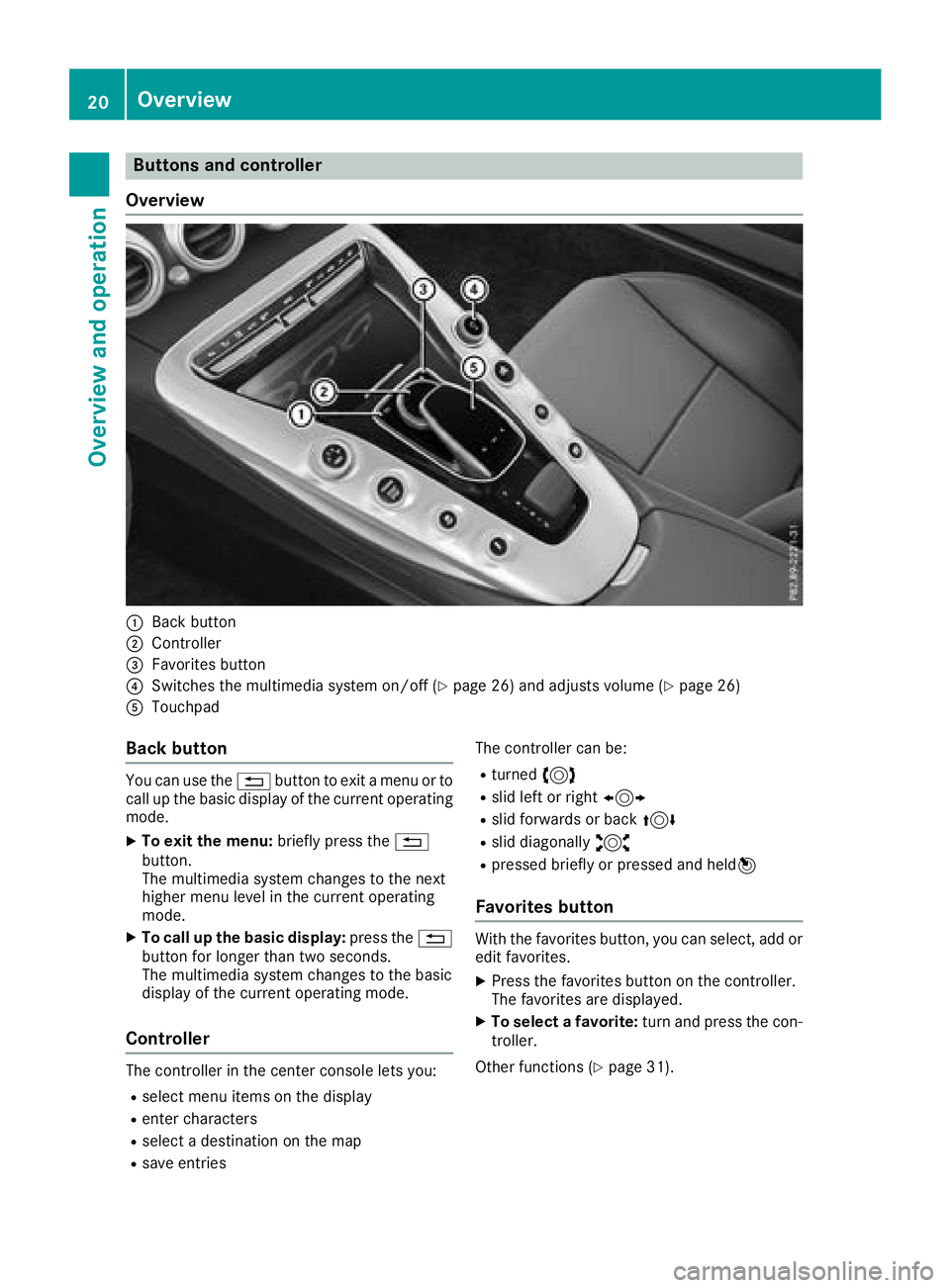
Overview
:Back button
;Controller
=Favorites button
?Switches the multimedia system on/off (Ypage 26) and adjusts volume (Ypage 26)
ATouchpad
Back button
You can use the %button to exit a menu or to
call up the basic display of the current operating
mode.
XTo exit the menu: briefly press the%
button.
The multimedia system changes to the next
higher menu level in the current operating
mode.
XTo call up the basic display: press the%
button for longer than two seconds.
The multimedia system changes to the basic
display of the current operating mode.
Controller
The controller in the center console lets you:
Rselect menu items on the display
Renter characters
Rselect a destination on the map
Rsave entries The controller can be:
Rturned
3
Rslid left or right 1
Rslid forwards or back 4
Rslid diagonally2
Rpressed briefly or pressed and held 7
Favorites button
With the favorites button, you can select, add or
edit favorites.
XPress the favorites button on the controller.
The favorites are displayed.
XTo select a favorite: turn and press the con-
troller.
Other functions (
Ypage 31).
20Overview
Overview and operation
Page 35 of 174
Your multimediasyste mequipment
These operatin ginstruction sdescribe all th e
standar dan doptional equipment of your multi-
media system, as available at th etime of going
to press. Country-specifi cdifference sare pos -
sible. Bear in min dthat your vehicle may no t
feature all function sdescribed here. Thi salso
applies to safety-relevan tsystems an dfunc-
tions.
Read th einformation on qualifie dspecialis t
workshop sin th evehicle Operator's Manual.
Important safet ynotes
GWARNING
If you operat emobile communication equip-
men twhen driving, you may be distracted
from th etraffic situation .You could also los e
contro lof th evehicle. There is aris kof an
accident.
Only operat ethis equipment when th evehicle
is stationary.
GWARNING
SD cards are small parts .The ycan be swal -
lowe dan dcause choking. Thi sposes an
increase dris kof injury or eve nfatal injury.
Kee pth eSD car dout of th ereach of children .
If aSD car dis swallowed, see kmedical atten-
tion immediately.
You mus tobserv eth elegal requirements fo rth e
country in whic hyou are currentl ydrivin gwhen
operatin gmobile communication sequipment in
th evehicle.
Display settings
Setting th ebrightness
The brightness detecte dby th edisplay ligh tsen -
sor affects th esetting option sfo rthis function .
XPressVehicl ein themain function bar .
The vehicle men uis displayed.
XTo switch to th emen ubar :slid e6 thecon-
troller.
XTo selec tSystem Settings:turn an dpress
th econtroller .
A men uappears .
XTo selec tDispla y:turn an dpress th econ-
troller.
A men uappears .
XSelectBrightness.
A contro lappears .
XSelectth edesire dbrightness.
Display design
The display feature soptimize ddesign sfo rday-
time an dnight-time operation .You can set th e
design by manually selecting day or night design
or opt fo ran automatic setting .
XPressVehicl ein themain function bar .
The vehicle men uis displayed.
XTo switch to th emen ubar :slid e6 thecon-
troller.
XTo selec tSystem Settings:turn an dpress
th econtroller .
A men uappears .
XTo selec tDispla y:turn an dpress th econ-
troller.
A men uappears .
XSelectDa yMode,Nigh tModeor Auto.
The #dot indicates th ecurren tsetting .
DesignExplanation
DayModeThe display is set perma-
nently to day design .
NightModeThe display is set perma-
nently to night design .
AutomaticThe multimedia syste m
evaluates th edat aof th e
ligh tsensor an dautomat -
ically switches over th e
display design .
Switching thedisplay on/of f
Switching off th edisplay
XPress Vehicl ein themain function bar .
The vehicle men uis displayed.
XTo selec tDispla yOff:slid e6 ,turn an d
press th econtroller .
The display goe sout .
Display settings33
System settings
Z
Page 52 of 174
Basic settings
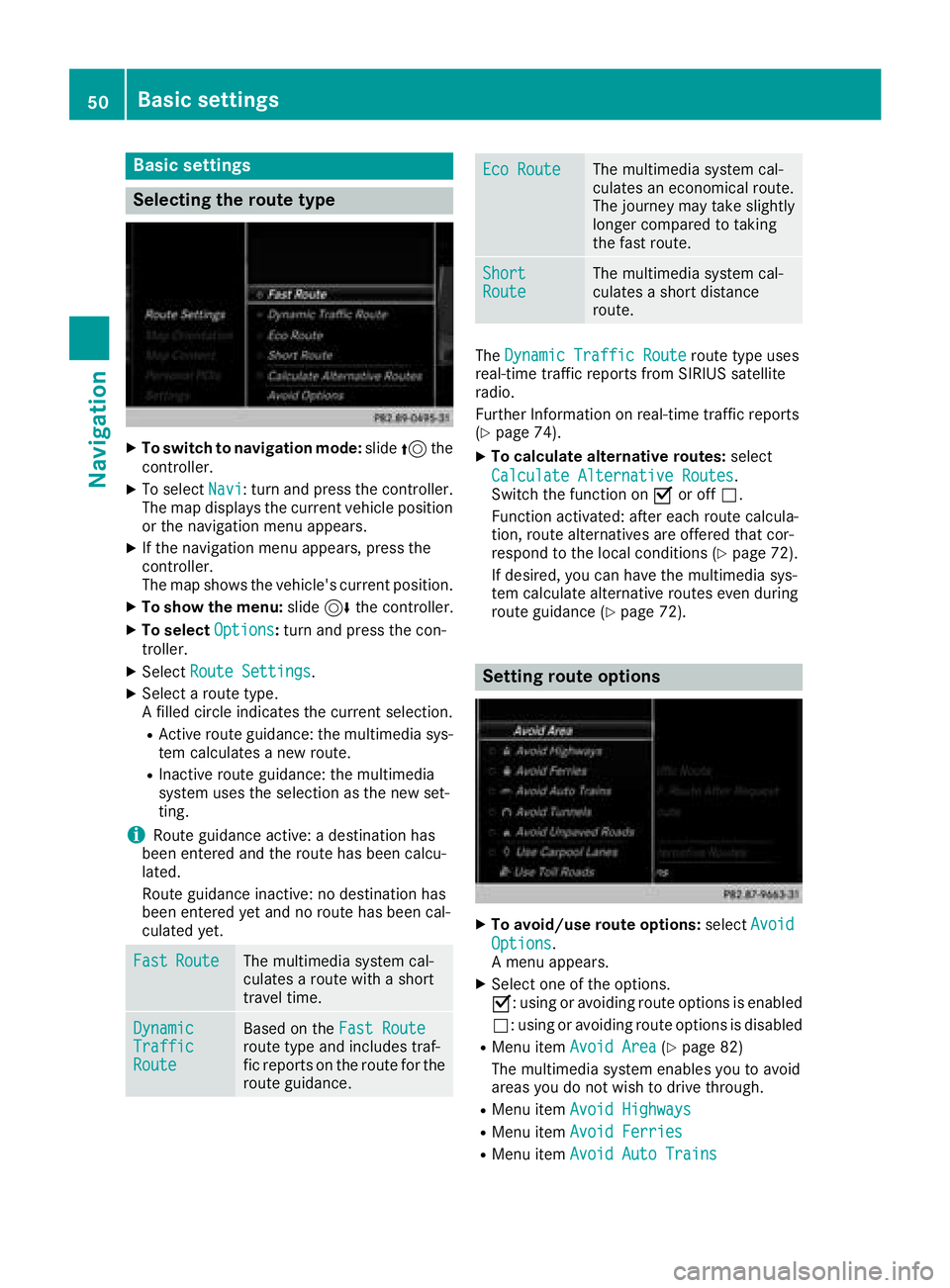
Selecting the route type
XTo switch to navigation mode:slide5the
controller.
XTo select Navi: turn and press the controller.
The map displays the current vehicle position
or the navigation menu appears.
XIf the navigation menu appears, press the
controller.
The map shows the vehicle's current position.
XTo show the menu: slide6the controller.
XTo select Options:turn and press the con-
troller.
XSelect Route Settings.
XSelect a route type.
A filled circle indicates the current selection.
RActive route guidance: the multimedia sys-
tem calculates a new route.
RInactive route guidance: the multimedia
system uses the selection as the new set-
ting.
iRoute guidance active: a destination has
been entered and the route has been calcu-
lated.
Route guidance inactive: no destination has
been entered yet and no route has been cal-
culated yet.
FastRouteThe multimedia system cal-
culates a route with a short
travel time.
DynamicTrafficRoute
Based on the Fast Routeroute type and includes traf-
fic reports on the route for the
route guidance.
Eco RouteThe multimedia system cal-
culates an economical route.
The journey may take slightly
longer compared to taking
the fast route.
ShortRouteThe multimedia system cal-
culates a short distance
route.
TheDynamic Traffic Routeroute type uses
real-time traffic reports from SIRIUS satellite
radio.
Further Information on real-time traffic reports
(
Ypage 74).
XTo calculate alternative routes: select
Calculate Alternative Routes
.
Switch the function on Oor off ª.
Function activated: after each route calcula-
tion, route alternatives are offered that cor-
respond to the local conditions (
Ypage 72).
If desired, you can have the multimedia sys-
tem calculate alternative routes even during
route guidance (
Ypage 72).
Setting route options
XTo avoid/use route options: selectAvoid
Options.
A menu appears.
XSelect one of the options.
O: using or avoiding route options is enabled
ª: using or avoiding route options is disabled
RMenu item Avoid Area(Ypage 82)
The multimedia system enables you to avoid
areas you do not wish to drive through.
RMenu item Avoid Highways
RMenu itemAvoid Ferries
RMenu itemAvoid Auto Trains
50Basic settings
Navigation
Page 57 of 174
Keyword search
Entering key words
The keywor dsearch is used to help fin ddesti-
nation susin gfragment sof words. The keywor d
search is tolerant of errors .
It can be used for an address or aPOI .Fo rexam-
ple, you can search for th eEmpir eState Buildin g
in New York.
The keywor dsearch finds geographically toler -
ant hits. If ,for example, you are searching for a
stree tlocate don th eedge of amajor city, th e
search will also cover adjacent smaller cities.
The keywor dsearch support slanguage susin g
Latin characters .
XTo switch to navigation mode: slide5 the
controller .
XTo selectNavi:tur nand press th econtroller .
The map displays th ecurren tvehicl eposition
or th enavigation men uappears.
XIf th enavigation men uappears, press th e
controller .
The map shows th evehicle's curren tposition .
XTo showthemenu: slide6 thecontroller .
XTo select Destination:tur nand press th e
controller .
XSelectKeywor dSearch.
XEnte rth efirst few letters of th ecit yand
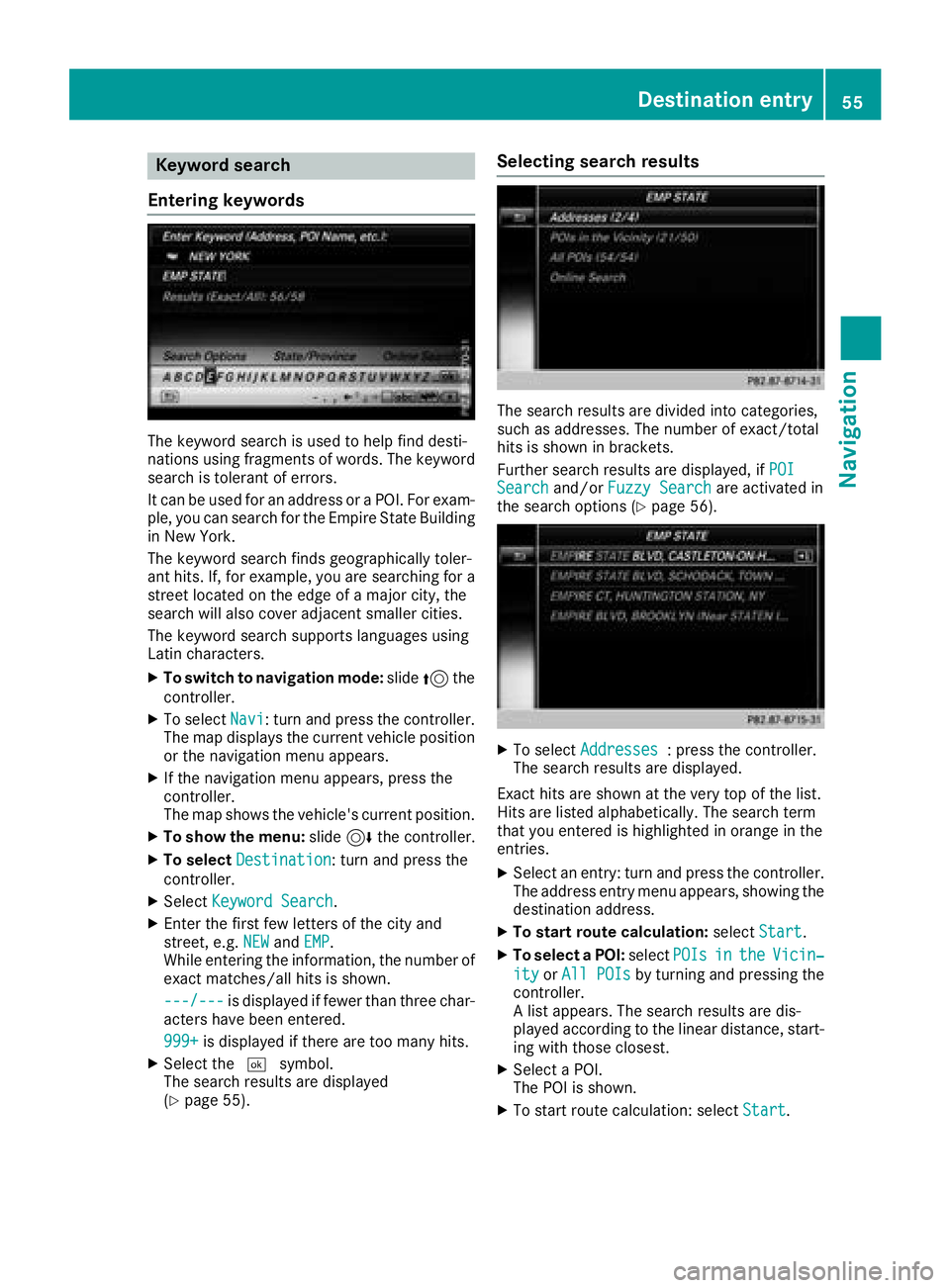
street, e.g. NEWandEMP.
Whil eenterin gth einformation ,th enumber of
exact matches/all hit sis shown.
---/-- -
is displayed if fewer than three char-
acters hav ebeen entered .
999 +
is displayed if there are to oman yhits.
XSelec tth e¬ symbol.
The search result sare displayed
(
Ypage 55) .
Selecting search results
The search result sare divided int ocategories,
suc has addresses. The number of exact/total
hit sis shown in brackets .
Further search result sare displayed, if POI
Searchand/orFuzzy Searchare activated in
th esearch option s (Ypage 56).
XTo select Addresses:press th econtroller .
The search result sare displayed.
Exact hit sare shown at th ever yto pof th elist .
Hit sare listed alphabetically. The search term
that you entered is highlighte din orang ein th e
entries.
XSelec tan entry: tur nand press th econtroller .
The address entr ymen uappears, showin gth e
destination address .
XTo startroute calculation: selectStart.
XTo select aPOI: select POIsintheVicin‐
ityorAll POI sby turnin gand pressing th e
controller .
A list appears. The search result sare dis-
played according to th elinear distance, start -
ing wit hthose closest.
XSelec t aPOI .
The POI is shown.
XTo start rout ecalculation :select Start.
Destination entry55
Navigation
Z
Page 65 of 174
Requirement (Canada):amobile phon eis con-
nected to th emultimedia system via Bluetoot h®
(Ypage 90) or USB (Ypage 151).
XTo switch to navigation mode: slide5 the
controller .
XTo selectNavi:tur nand press th econtroller .
The map displays th ecurren tvehicl eposition
or th enavigation men uappears.
XIf th enavigation men uappears, press th e
controller .
The map shows th evehicle's curren tposition .
XTo showthemenu: slide6 thecontroller .
XTo select Destination:tur nand press th e
controller .
XSelectFro mMercedes-Ben zApp s.
The list of Mercedes-Ben zApps appears.
Using geo-coordinates
XTo switch to navigation mode: slide5 the
controller .
XTo selectNavi:tur nand press th econtroller .
The map displays th ecurren tvehicl eposition
or th enavigation men uappears.
XIf th enavigation men uappears, press th e
controller .
The map shows th evehicle's curren tposition .
XTo showthemenu: slide6 thecontroller .
XTo select Destination:tur nand press th e
controller .
XSelectUsing Geo-Coordinates.
Geo-coordinate s(longitude and latitude) are
entered in degrees, minute sand seconds.
XTo enter geo-coordinates: turnth econtrol -
ler .
The value for degree, minute or secon d
changes.
XTo mov eth eselection within th eline: slid e
1 thecontroller .
XTo moveth eselection between lines: slid e
4 thecontroller .
XTo confirm th evalue :press th econtroller .
XTo store geo-coordinates: selectSaveby
turnin gand pressin gth econtroller .
The destination wit hth egeo-coordinate scan
be saved as:
Ra hom eaddress in th eaddress book
Ranavigable address book contact Fo
rfurther information on th eaddress
book ,see (
Ypage 102)
Rapersonal destination on th eSD car d
(Ypage 78)
XTo star troute calculation: selectStart
RouteGuidanceby turnin gand pressing th e
controller .
Personal POIs and routes
General notes
The use of personal POI sfor displayin gtraffic
surveillance equipmen tis no tpermitte din every
country. Pleas eobserv eth ecountry-specific
regulation sand always driv eat asuitable speed.
Personal POI sare file din categories:
RNot Classifie d
Standard entryfor personal POI s
RMercedes-BenzApp s
Personal POI s(destinations, routes) that you
hav eimported via th eonlin efunctions.
RCategories whic hyou hav ecreated yourself ,
e.g. on your PC
Personal routes are no tcategorized.
Settings for personal POIs
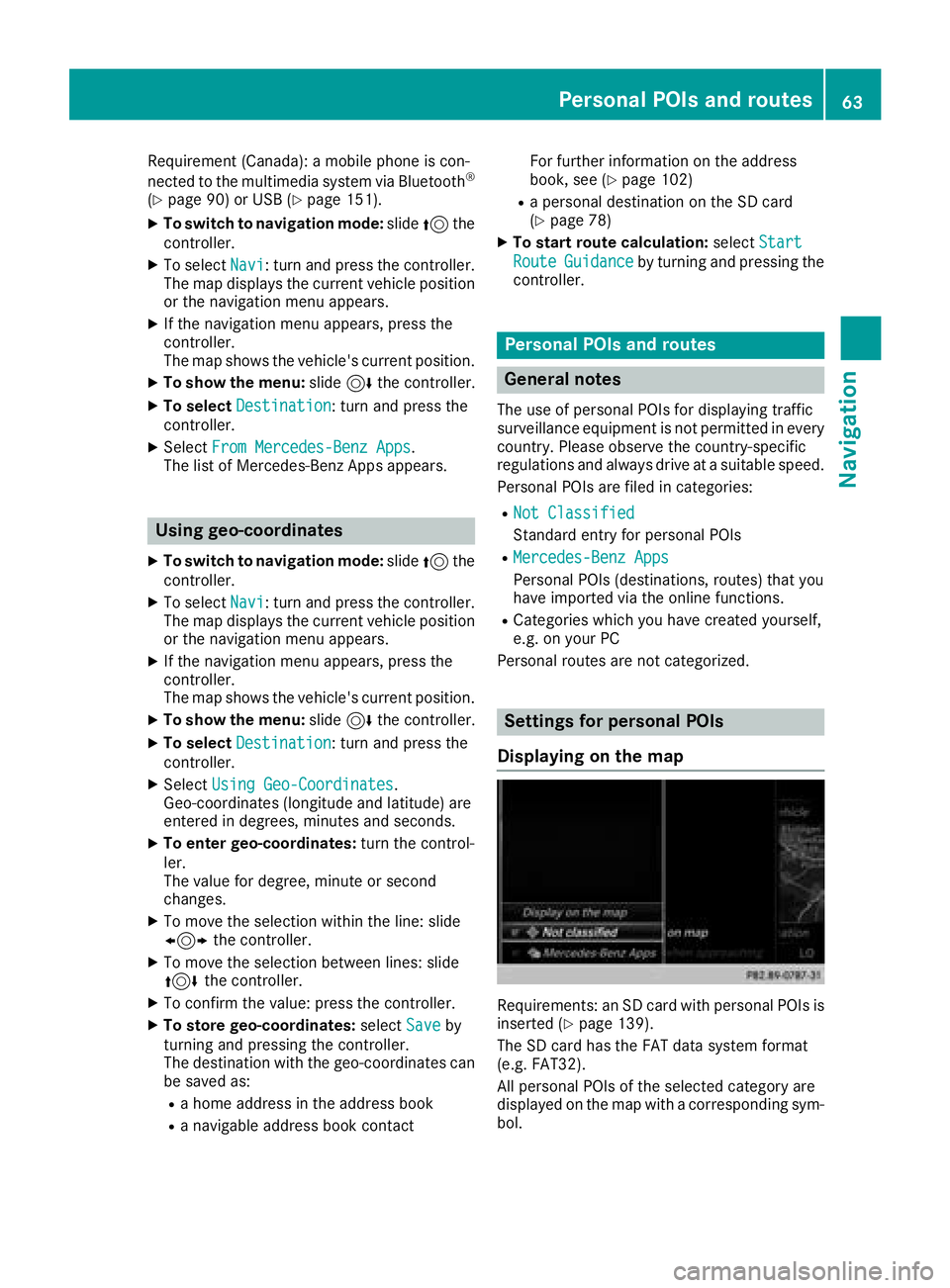
Displaying on the map
Requirements: an SD car dwit hpersonal POI sis
inserted (Ypage 139).
The SD car dhas th eFA Tdat asystem format
(e.g. FAT32).
All personal POI sof th eselected categor yare
displayed on th emap wit h acorresponding sym-
bol.
Personal POIs and routes63
Navigation
Z
Page 68 of 174
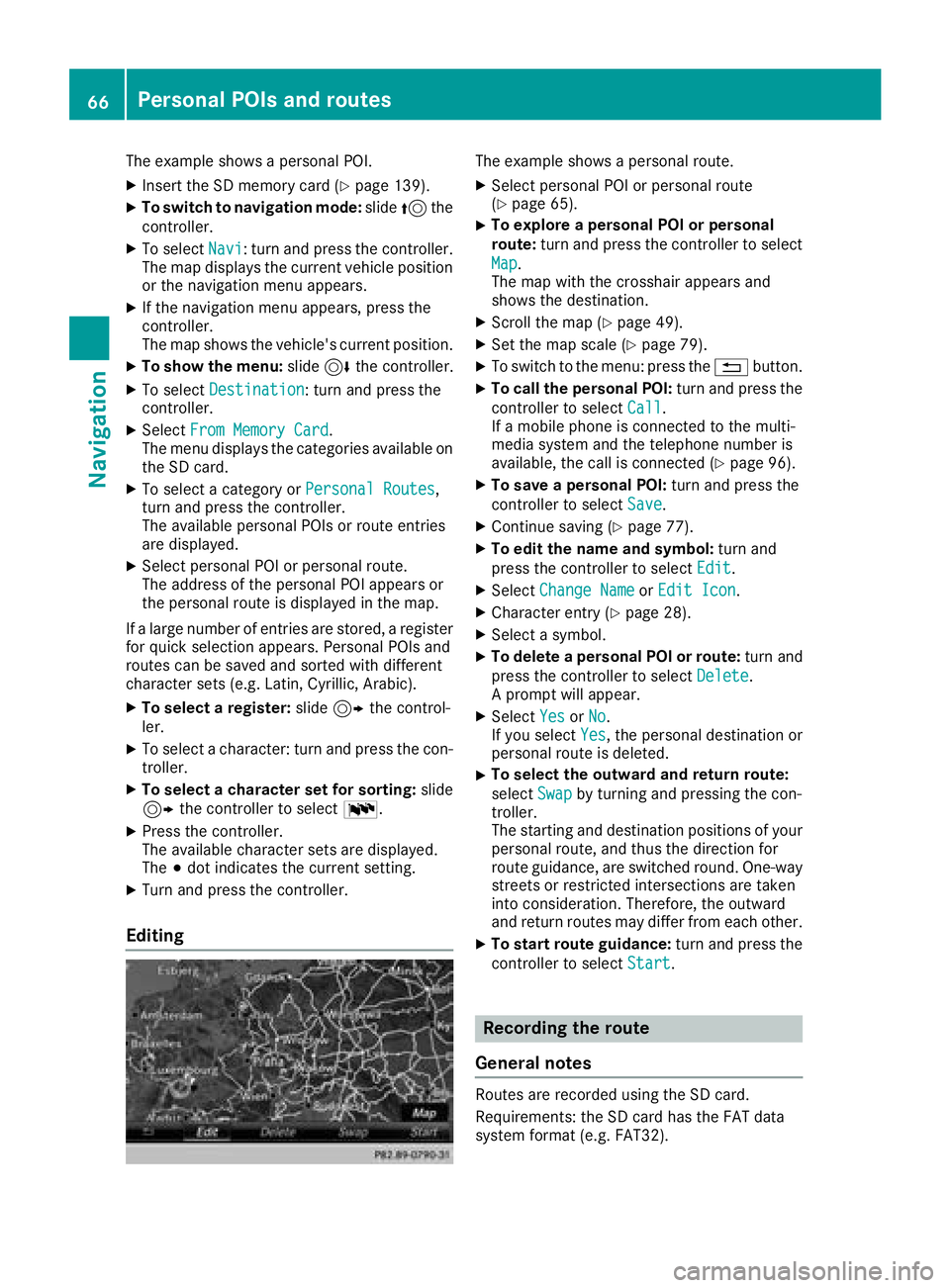
The example shows a personal POI.
XInsert the SD memory card (Ypage 139).
XTo switch to navigation mode:slide5the
controller.
XTo select Navi: turn and press the controller.
The map displays the current vehicle position
or the navigation menu appears.
XIf the navigation menu appears, press the
controller.
The map shows the vehicle's current position.
XTo show the menu: slide6the controller.
XTo select Destination: turn and press the
controller.
XSelect From Memory Card.
The menu displays the categories available on
the SD card.
XTo select a category or Personal Routes,
turn and press the controller.
The available personal POIs or route entries
are displayed.
XSelect personal POI or personal route.
The address of the personal POI appears or
the personal route is displayed in the map.
If a large number of entries are stored, a register
for quick selection appears. Personal POIs and
routes can be saved and sorted with different
character sets (e.g. Latin, Cyrillic, Arabic).
XTo select a register: slide9 the control-
ler.
XTo select a character: turn and press the con-
troller.
XTo select a character set for sorting: slide
9 the controller to select B.
XPress the controller.
The available character sets are displayed.
The#dot indicates the current setting.
XTurn and press the controller.
Editing
The example shows a personal route.
XSelect personal POI or personal route
(Ypage 65).
XTo explore a personal POI or personal
route: turn and press the controller to select
Map
.
The map with the crosshair appears and
shows the destination.
XScroll the map (Ypage 49).
XSet the map scale (Ypage 79).
XTo switch to the menu: press the %button.
XTo call the personal POI: turn and press the
controller to select Call
.
If a mobile phone is connected to the multi-
media system and the telephone number is
available, the call is connected (
Ypage 96).
XTo save a personal POI: turn and press the
controller to select Save
.
XContinue saving (Ypage 77).
XTo edit the name and symbol: turn and
press the controller to select Edit
.
XSelectChange NameorEdit Icon.
XCharacter entry (Ypage 28).
XSelect a symbol.
XTo delete a personal POI or route: turn and
press the controller to select Delete
.
A prompt will appear.
XSelect YesorNo.
If you select Yes, the personal destination or
personal route is deleted.
XTo select the outward and return route:
select Swap
by turning and pressing the con-
troller.
The starting and destination positions of your
personal route, and thus the direction for
route guidance, are switched round. One-way
streets or restricted intersections are taken
into consideration. Therefore, the outward
and return routes may differ from each other.
XTo start route guidance: turn and press the
controller to select Start
.
Recording the route
General notes
Routes are recorded using the SD card.
Requirements: the SD card has the FAT data
system format (e.g. FAT32).
66Personal POIs and routes
Navigation
Page 69 of 174
When recording the route, bear in mind the fol-
lowing:
RIf the SD card is inserted, it must not be
removed during recording.
RIf route recording is started manually, it must
be finished manually before the multimedia
system is switched off (e. g. when the engine
is switched off).
RThe multimedia system minimizes the num-
ber of route points recorded. Therefore when
the recorded route is subsequently com-
menced, it may differ from the route that was
originally recorded.
Starting/finishing route recording
XInsert the SD memory card (Ypage 139).
XTo switch to navigation mode:slide5the
controller.
XTo select Navi: turn and press the controller.
The map displays the current vehicle position
or the navigation menu appears.
XIf the navigation menu appears, press the
controller.
The map shows the vehicle's current position.
XTo show the menu: slide6the controller.
XTo select Destination: turn and press the
controller.
XSelect From Memory Card.
XSelectStart Route Recording.
The route is recorded and REC appears at the
bottom edge of the screen.
XTo stop recording, select End RouteRecordingfrom the menu.
The route is stored under Personal Routes.
Displaying/editing the recorded route
XInsert the SD memory card (Ypage 139).
XTo switch to navigation mode: slide5the
controller.
XTo select Navi: turn and press the controller.
The map displays the current vehicle position
or the navigation menu appears.
XIf the navigation menu appears, press the
controller.
The map shows the vehicle's current position.
XTo show the menu: slide6the controller.
XTo select Destination: turn and press the
controller.
XSelect From Memory Card.
XSelectPersonal Routes.
Previously recorded routes are displayed.
XTo select a route, turn and press the control-
ler.
The map appears with a menu. The recorded
route is shown on the map in blue.
XTo calculate a route: selectStart.
XTo change the name and symbol: select
Edit
.
XSelect Change NameorEdit Icon.
XCharacter entry (Ypage 28).
XSelect a symbol.
Route guidance
General notes
The multimedia system calculates the route to
the destination without taking the following into
account, for example:
Rtraffic lights
Rstop and yield signs
Rparking or stopping restrictions
Rroad narrowing
Rtemporary traffic rules and regulations
The navigation system can give differing driving
recommendations if the actual street/traffic sit-
uation does not correspond with the digital
map's data. For example, if the road layout or
the direction of a one-way street has been
changed.
For this reason, you must always observe road
and traffic rules and regulations during your
journey. Road and traffic rules and regulations
always have priority over system driving recom-
mendations.
Route guidance begins once a route has been
calculated (
Ypage 54).
The multimedia system guides you to your des-
tination by means of navigation announcements
in the form of audible navigation announce-
ments and route guidance displays.
The route guidance displays can be seen if nav-
igation mode is switched on.
If you do not follow the navigation announce-
ments or if you leave the calculated route, the
multimedia system automatically calculates a
new route to the destination.
Route guidance67
Navigation
Z