sat nav MERCEDES-BENZ AMG GT COUPE 2018 COMAND Manual
[x] Cancel search | Manufacturer: MERCEDES-BENZ, Model Year: 2018, Model line: AMG GT COUPE, Model: MERCEDES-BENZ AMG GT COUPE 2018Pages: 174, PDF Size: 4.14 MB
Page 12 of 174
Phone callDialing ..............................................9 5
Picture viewer
Changing view ...............................1 57
Displaying pictures ........................ 156
Exiting the picture viewer .............. 157
General notes ................................ 156
Starting a slide show ..................... 157
PIN protection
Activating/deactivating ................... 39
POI (navigation)
Calling up the menu ......................... 57
Category .......................................... 57
Defining the position for the POI
search .............................................. 58
Entering ...........................................5 7
Rotating 3D POI .............................. .60
Selecting .......................................... 59
Previous destinations (navigation) .... 79
R
Radio
Activating/deactivating the sta-
tion presets display ....................... 130
Deleting a station .......................... 130
Displaying information ................... 131
Displaying station information ....... 131
Displaying the artist and track ....... 131
Moving stations ............................. 130
Overview ........................................ 128
Setting the waveband .................... 129
Sound settings (balance, bass,
treble) ............................................ 131
Station list ..................................... 130
Storing stations ............................. 130
Switching on .................................. 128
Tagging music tracks (download-
ing/purchasing tracks from the
iTunes Store
®) ............................... 130
Radio station
Storing ........................................... 130
Read-aloud function
Automatic ........................................ 77
Read-aloud function for e-mails ....... 114
Reading out
Traffic reports on the route .............. 76
Real-time traffic reports ..................... 74Rear view camera
Displaying the image ........................ 43
Switching on/off (COMAND) ........... 44
Receiving vCards ............................... 107
Redialing (telephone) .......................... 96
Reducing the volume
Switching announcements on/off
(COMAND) ....................................... 51
Reserve fuel level
Switching announcements on/off(COMAND) ....................................... 51
Resetting (factory settings) ............... 40
Road map
see Map (navigation)
Route (navigation)
Selecting an alternative route .......... 72
Setting route options (avoiding:
highways, toll roads, tunnels, fer-
ries) ................................................. 50
Setting the route type (short
route, fast route, dynamic route or
economic route) ............................... 50
Starting calculation .......................... 54
Route guidance
Canceling/continuing ...................... 71
Continue .......................................... 71
Freeway information ........................ 69
General notes .................................. 67
Lane recommendations ................... 69
Off-road ........................................... 73
Traffic reports .................................. 74
S
Safety notesAudio CD/DVD and MP3 mode ..... 137
Using the telephone ......................... 89
Satellite radio
Displaying information ................... 135
Overview ........................................ 132
Presets menu view ......................... 133
Registering .................................... 132
Switching to ................................... 132
SatRadio
Channel list updates ...................... 135
Memory functions .......................... 133
Music and sports alerts ................. 134
Notes ............................................. 131
10Index
Page 20 of 174
Overview
Components
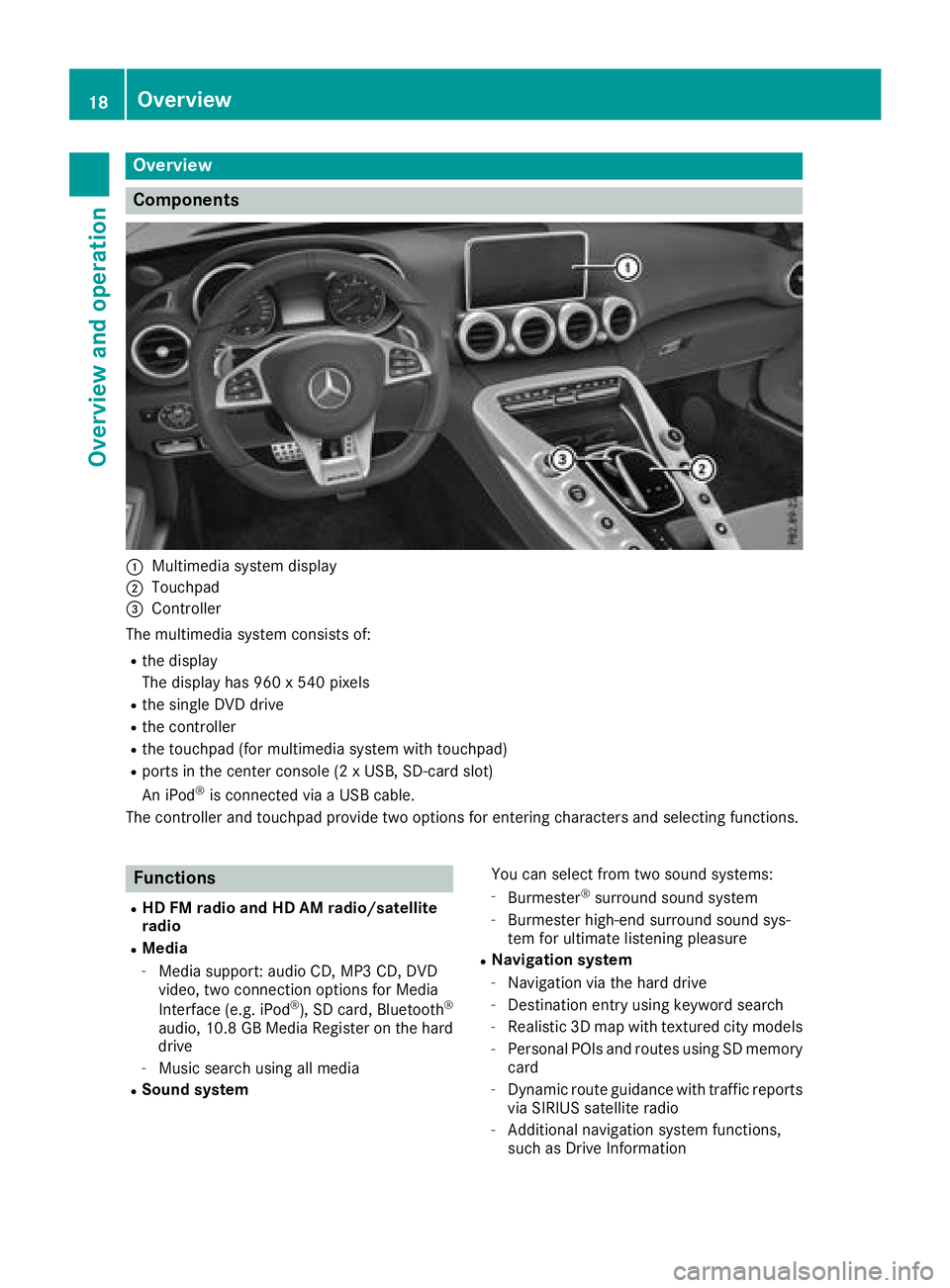
:Multimedia system display
;Touchpad
=Controller
The multimedia system consists of:
Rthe display
The display has 960 x 540 pixels
Rthe single DVD drive
Rthe controller
Rthe touchpad (for multimedia system with touchpad)
Rports in the center console (2 x USB, SD-card slot)
An iPod®is connected via a USB cable.
The controller and touchpad provide two options for entering characters and selecting functions.
Functions
RHD FM radio and HD AM radio/satellite
radio
RMedia
-Media support: audio CD, MP3 CD, DVD
video, two connection options for Media
Interface (e.g. iPod
®), SD card, Bluetooth®
audio, 10.8 GB Media Register on the hard
drive
-Music search using all media
RSound system You can select from two sound systems:
-Burmester®surround sound system
-Burmester high-end surround sound sys-
tem for ultimate listening pleasure
RNavigation system
-Navigation via the hard drive
-Destination entry using keyword search
-Realistic 3D map with textured city models
-Personal POIs and routes using SD memory
card
-Dynamic route guidance with traffic reports
via SIRIUS satellite radio
-Additional navigation system functions,
such as Drive Information
18Overview
Overview and operation
Page 40 of 174
XSelect¬.
XPress the controller.
From now on, when establishing a connec-
tion, the vehicle will be shown with the new
SSID both on the device to be connected and
in theConnect
UsingSecurityKeymenu.
iDevice connections established using the
previous SSID will no longer work after the
SSID is changed. You have to reconnect these
devices (
Ypage 36).
Bluetooth®settings
General information about Blue-
tooth®
Bluetooth®-capable devices, e. g. mobile
phones, need to comply with a certain profile in
order to be connected to the multimedia sys-
tem. Every Bluetooth
®device has its own spe-
cific Bluetooth®name.
Bluetooth®technology is a standard for short-
range wireless data transmissions up to approx-
imately 10 m.
Yo u can use Bluetooth
®to connect your mobile
phone to the multimedia system, for example:
Ruse the hands-free system
Restablish an Internet connection
Rlisten to music using Bluetooth®Audio
Rexchange vCards
Bluetooth®is a registered trademark of Blue-
tooth Special Interest Group (SIG) Inc.
Activating/deactivating Bluetooth®
X
Press Vehiclein the main function bar.
The vehicle menu is displayed.
XTo switch to the menu bar: slide 6the con-
troller.
XTo select System Settings: turn and press
the controller.
A menu appears.
XTo activate Oor deactivate ªActivateBluetooth: turn and press the controller.
Automatic volume adjustment
General information
With the AutomaticVolumeAdjustmentfunc-
tion, the volumes of different audio sources are
adjusted for each other, to compensate for rel-
ative differences in volume.
For example: changing from a relatively quiet to
a relatively loud radio station. The volume for
both stations sounds the same. Manual read-
justment of the volume is not required.
The Automatic Volume Adjustment
function
is deactivated ªwhen the vehicle leaves the
factory. Using this function, the dynamic range
of the music is slightly reduced. To make the
most of the audiophile sound quality, it is rec-
ommended to leave it off.
Switching the automatic volume
adjustment on/off
XPress Vehiclein the main function bar.
The vehicle menu is displayed.
XTo switch to the menu bar: slide 6the con-
troller.
XTo select System Settings: turn and press
the controller.
A menu appears.
XTo select Automatic Volume Adjustment:
turn and press the controller.
Switch the Automatic Volume Adjustment
function on Oor off ª.
Setting the system language
General information
This function allows you to determine the lan-
guage for the menu displays and the navigation
messages. The selected language affects the
characters available for entry.
iThe navigation announcements are not
available in all languages. If a language is not
available, the navigation announcements will
be in English.
iWhen you set the system language, the lan-
guage of the Voice Control System will
change accordingly. If it is not supported by
the Voice Control System, English will be
selected.
38Setting the system language
System settings
Page 52 of 174
Basic settings
Selecting the route type
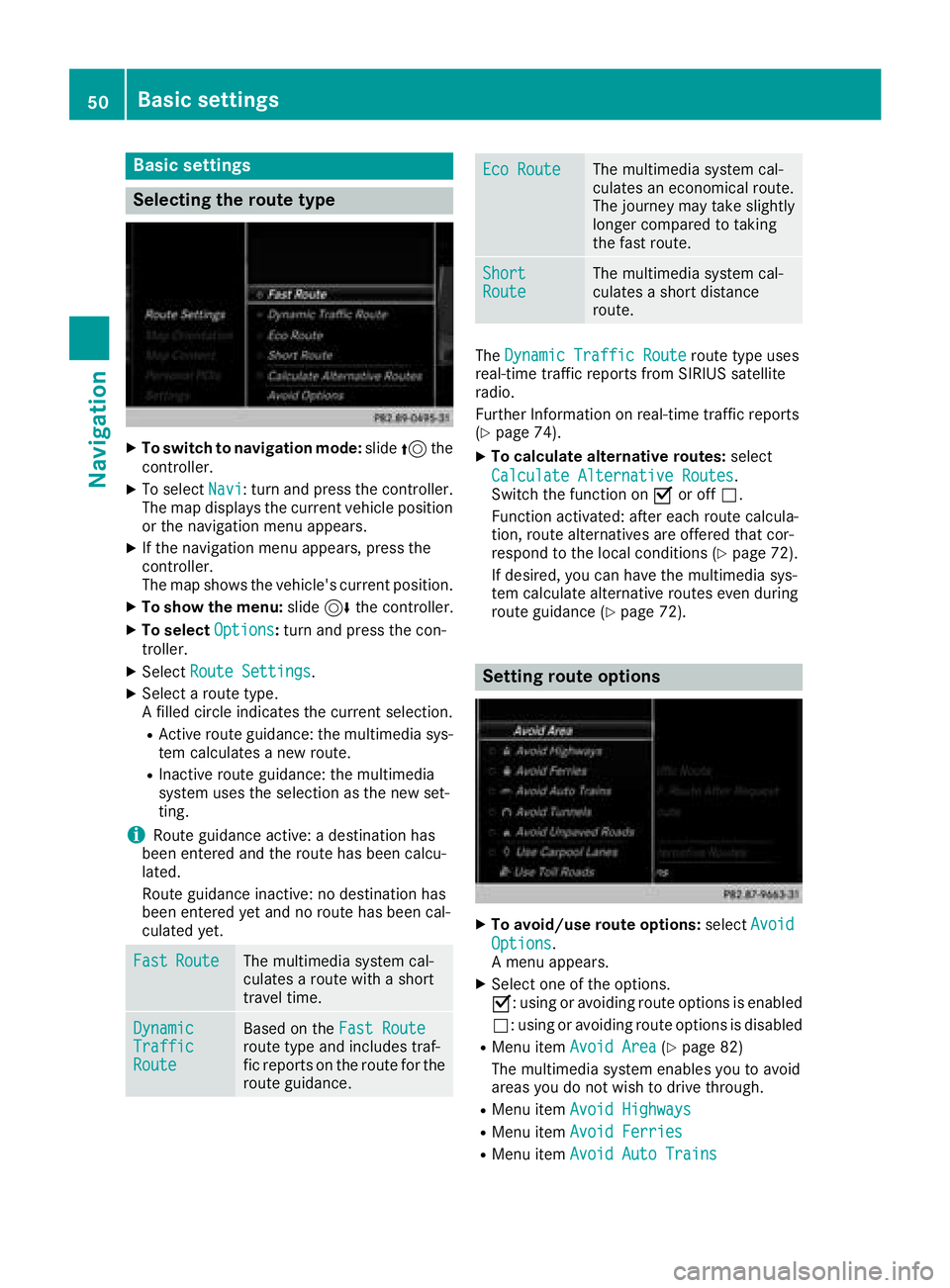
XTo switch to navigation mode:slide5the
controller.
XTo select Navi: turn and press the controller.
The map displays the current vehicle position
or the navigation menu appears.
XIf the navigation menu appears, press the
controller.
The map shows the vehicle's current position.
XTo show the menu: slide6the controller.
XTo select Options:turn and press the con-
troller.
XSelect Route Settings.
XSelect a route type.
A filled circle indicates the current selection.
RActive route guidance: the multimedia sys-
tem calculates a new route.
RInactive route guidance: the multimedia
system uses the selection as the new set-
ting.
iRoute guidance active: a destination has
been entered and the route has been calcu-
lated.
Route guidance inactive: no destination has
been entered yet and no route has been cal-
culated yet.
FastRouteThe multimedia system cal-
culates a route with a short
travel time.
DynamicTrafficRoute
Based on the Fast Routeroute type and includes traf-
fic reports on the route for the
route guidance.
Eco RouteThe multimedia system cal-
culates an economical route.
The journey may take slightly
longer compared to taking
the fast route.
ShortRouteThe multimedia system cal-
culates a short distance
route.
TheDynamic Traffic Routeroute type uses
real-time traffic reports from SIRIUS satellite
radio.
Further Information on real-time traffic reports
(
Ypage 74).
XTo calculate alternative routes: select
Calculate Alternative Routes
.
Switch the function on Oor off ª.
Function activated: after each route calcula-
tion, route alternatives are offered that cor-
respond to the local conditions (
Ypage 72).
If desired, you can have the multimedia sys-
tem calculate alternative routes even during
route guidance (
Ypage 72).
Setting route options
XTo avoid/use route options: selectAvoid
Options.
A menu appears.
XSelect one of the options.
O: using or avoiding route options is enabled
ª: using or avoiding route options is disabled
RMenu item Avoid Area(Ypage 82)
The multimedia system enables you to avoid
areas you do not wish to drive through.
RMenu item Avoid Highways
RMenu itemAvoid Ferries
RMenu itemAvoid Auto Trains
50Basic settings
Navigation
Page 76 of 174
In the display, you will then see theRoad NotMappedmessage, an arrow and the distance to
the destination. The direction arrow shows the
compass heading to the destination.
As soon as the system can assign the vehicle
position to the map again, route guidance con-
tinues in the usual way.
Real-time traffic reports
Prerequisites
This function is currently not available for Can-
ada.
In order to receive real-time traffic reports via
satellite radio, you need to subscribe to SIRIUS
XM Satellite Radio Traffic Message Service.
Further information on satellite radio
(
Ypage 131).
The multimedia system can receive traffic
reports via satellite radio and take account of
these for route guidance in the navigation sys-
tem. Received traffic reports are displayed on
the map either as text or as symbols.
Real-time traffic reports on the map
The multimedia system can show certain traffic
incidents on the map with symbols (type of inci-
dent) and colored lines (extent). Traffic reports
are shown on the map at scales of 1/32 mi to
20 mi.
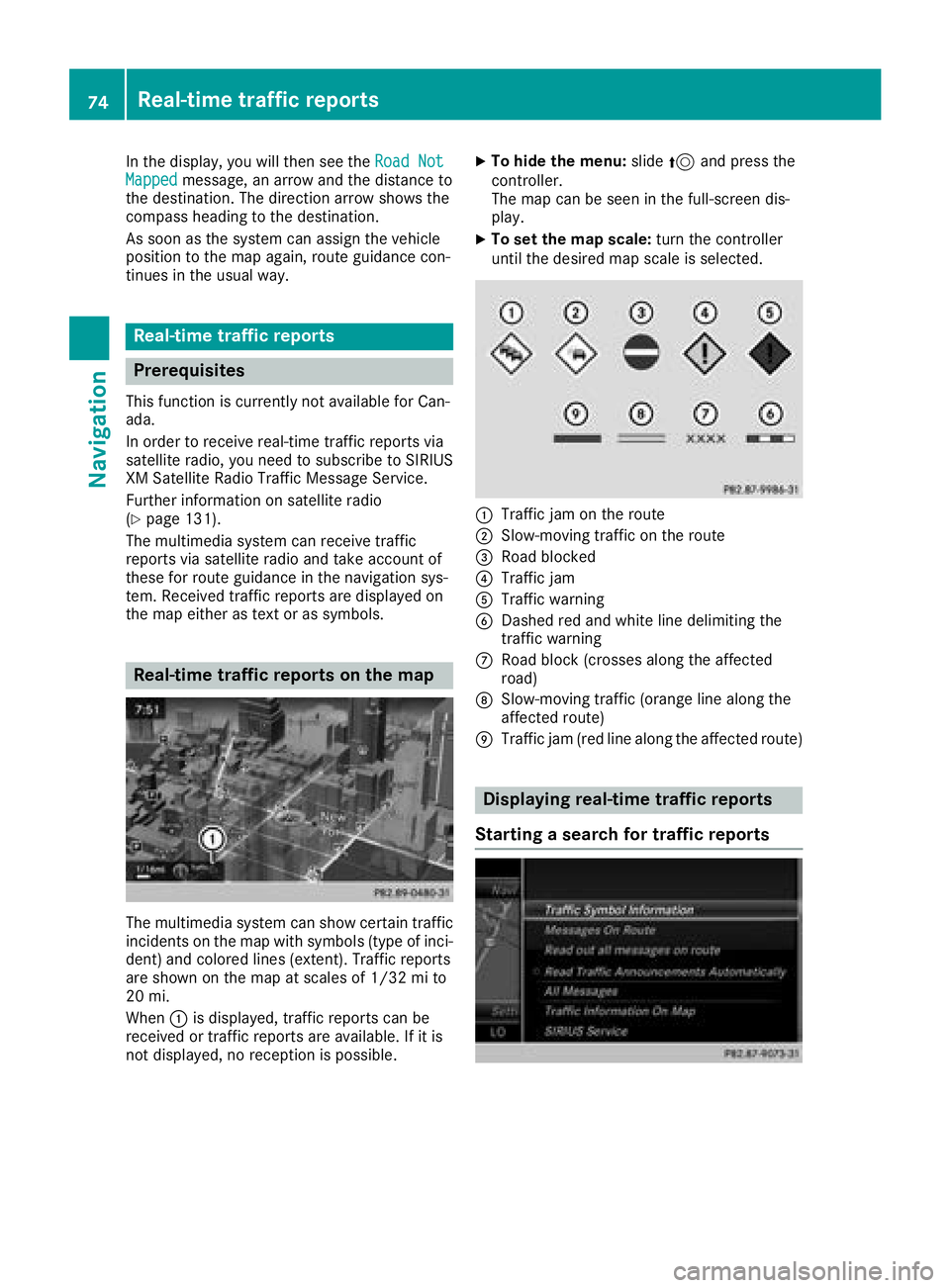
When :is displayed, traffic reports can be
received or traffic reports are available. If it is
not displayed, no reception is possible.
XTo hide the menu: slide5and press the
controller.
The map can be seen in the full-screen dis-
play.
XTo set the map scale: turn the controller
until the desired map scale is selected.
:Traffic jam on the route
;Slow-moving traffic on the route
=Road blocked
?Traffic jam
ATraffic warning
BDashed red and white line delimiting the
traffic warning
CRoad block (crosses along the affected
road)
DSlow-moving traffic (orange line along the
affected route)
ETraffic jam (red line along the affected route)
Displaying real-time traffic reports
Starting a search for traffic reports
74Real-time traffic reports
Navigation
Page 77 of 174
XTo switch to navigation mode:slide5the
controller.
XTo select Navi: turn and press the controller.
The map displays the current vehicle position
or the navigation menu appears.
XIf the navigation menu appears, press the
controller.
The map shows the vehicle's current position.
XTo show the menu: slide6the controller.
XTo select Traffic: turn and press the con-
troller.
If satellite signals cannot be received or there
are no traffic reports, you will see a message
to this effect.
XTo close the report: press the controller.
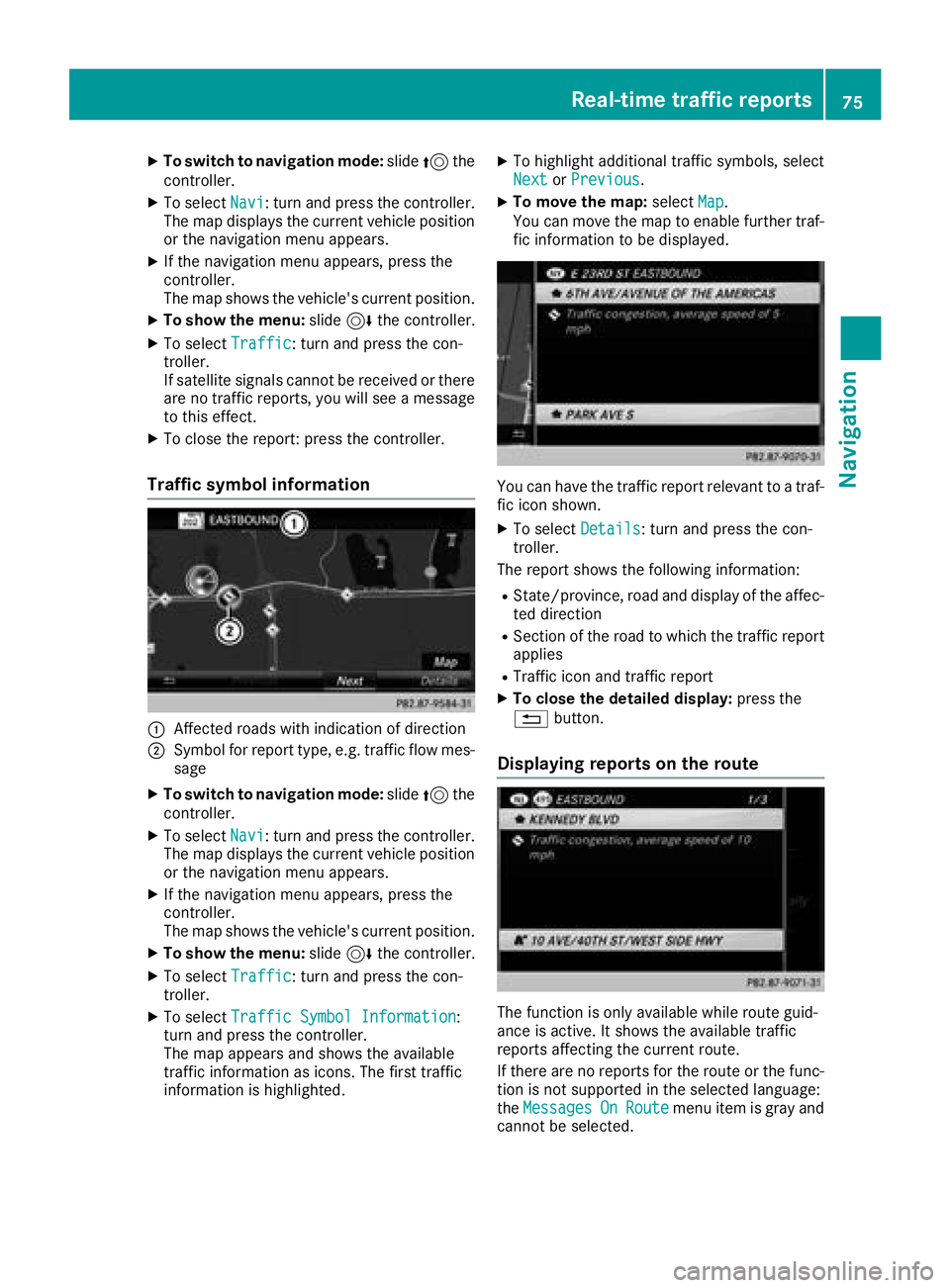
Traffic symbol information
:Affected roads with indication of direction
;Symbol for report type, e.g. traffic flow mes-
sage
XTo switch to navigation mode: slide5the
controller.
XTo select Navi: turn and press the controller.
The map displays the current vehicle position
or the navigation menu appears.
XIf the navigation menu appears, press the
controller.
The map shows the vehicle's current position.
XTo show the menu: slide6the controller.
XTo select Traffic: turn and press the con-
troller.
XTo select Traffic Symbol Information:
turn and press the controller.
The map appears and shows the available
traffic information as icons. The first traffic
information is highlighted.
XTo highlight additional traffic symbols, select
Nextor Previous.
XTo move the map: selectMap.
You can move the map to enable further traf-
fic information to be displayed.
You can have the traffic report relevant to a traf-
fic icon shown.
XTo select Details: turn and press the con-
troller.
The report shows the following information:
RState/province, road and display of the affec-
ted direction
RSection of the road to which the traffic report applies
RTraffic icon and traffic report
XTo close the detailed display: press the
% button.
Displaying reports on the route
The function is only available while route guid-
ance is active. It shows the available traffic
reports affecting the current route.
If there are no reports for the route or the func-
tion is not supported in the selected language:
theMessages
OnRoutemenu item is gray and
cannot be selected.
Real-time traffic reports75
Navigation
Z
Page 83 of 174
XTo switch to navigation mode:slide5the
controller.
XTo select Navi: turn and press the controller.
The map displays the current vehicle position
or the navigation menu appears.
XIf the navigation menu appears, press the
controller.
The map shows the vehicle's current position.
XTo show the menu: slide6the controller.
XTo select Options: turn and press the con-
troller.
XSelect Map Content.
XSelectText Information On Map.
The #dot indicates the current setting.
XTurn and press the controller.
CurrentStreetshows the current street at
the bottom of the display.
Geo-coordinates
shows the longitude and
latitude, elevation and number of satellites
received.
The elevation shown may deviate from the
actual elevation.
XTurn and press the controller.
Switching highway information on/off
The following can be displayed when driving on
a highway:
Rthe nearest gas stations and rest stops
Rrest areas and highway exits
and their present distances from the vehicle's
current position (
Ypage 69)
XTo switch to navigation mode: slide5the
controller.
XTo select Navi: turn and press the controller.
The map displays the current vehicle position
or the navigation menu appears.
XIf the navigation menu appears, press the
controller.
The map shows the vehicle's current position.
XTo show the menu: slide6the controller.
XTo select Options: turn and press the con-
troller.
XSelect Map Content.
XSelectHighway Information.
Switch the display in the map on Oor off ª.
Further information (
Ypage 69).
Displaying the next crossroads
If route guidance is not active, the next cross-
roads can be displayed at the upper edge of the
display.
XTo switch to navigation mode: slide5the
controller.
XTo select Navi: turn and press the controller.
The map displays the current vehicle position
or the navigation menu appears.
XIf the navigation menu appears, press the
controller.
The map shows the vehicle's current position.
XTo show the menu: slide6the controller.
XTo select Options: turn and press the con-
troller.
XSelect Map Content.
XSelectNext Intersecting Street.
Switch the display in the map on Oor off ª.
Showing the map version
XTo switch to navigation mode: slide5the
controller.
XTo select Navi: turn and press the controller.
The map displays the current vehicle position
or the navigation menu appears.
XIf the navigation menu appears, press the
controller.
The map shows the vehicle's current position.
XTo show the menu: slide6the controller.
XTo select Options: turn and press the con-
troller.
XSelect Map Content.
XSelectMap Version.
Information on the current map version is
shown. Information about new versions of the
digital map can be obtained from an author-
ized Mercedes-Benz Center.
Map functions81
Navigation
Z
Page 84 of 174
Rotating the 3D map
You can use this function to explore the vicinity
of the destination in a 3D view. The function is
available in all map scales.
XTo switch to navigation mode:slide5the
controller.
XTo select Navi: turn and press the controller.
The map displays the current vehicle position
or the navigation menu appears.
XIf the navigation menu appears, press the
controller.
The map shows the vehicle's current position.
XTo show the menu: slide6the controller.
XTo select Position: turn and press the con-
troller.
XSelect 3D Map Rotation.
XTurn the controller to change to the 3D map
perspective.
Additional functions:
RMoving the map (Ypage 49)
Map display
Displaying the navigation map
The multimedia system displays the navigation
map and globe satellite images. This allows for a realistic map display free from distortion in all
map scales.
Other functions:
RMoving the map (Ypage 49)
RChanging the map scale (Ypage 79)
Building images
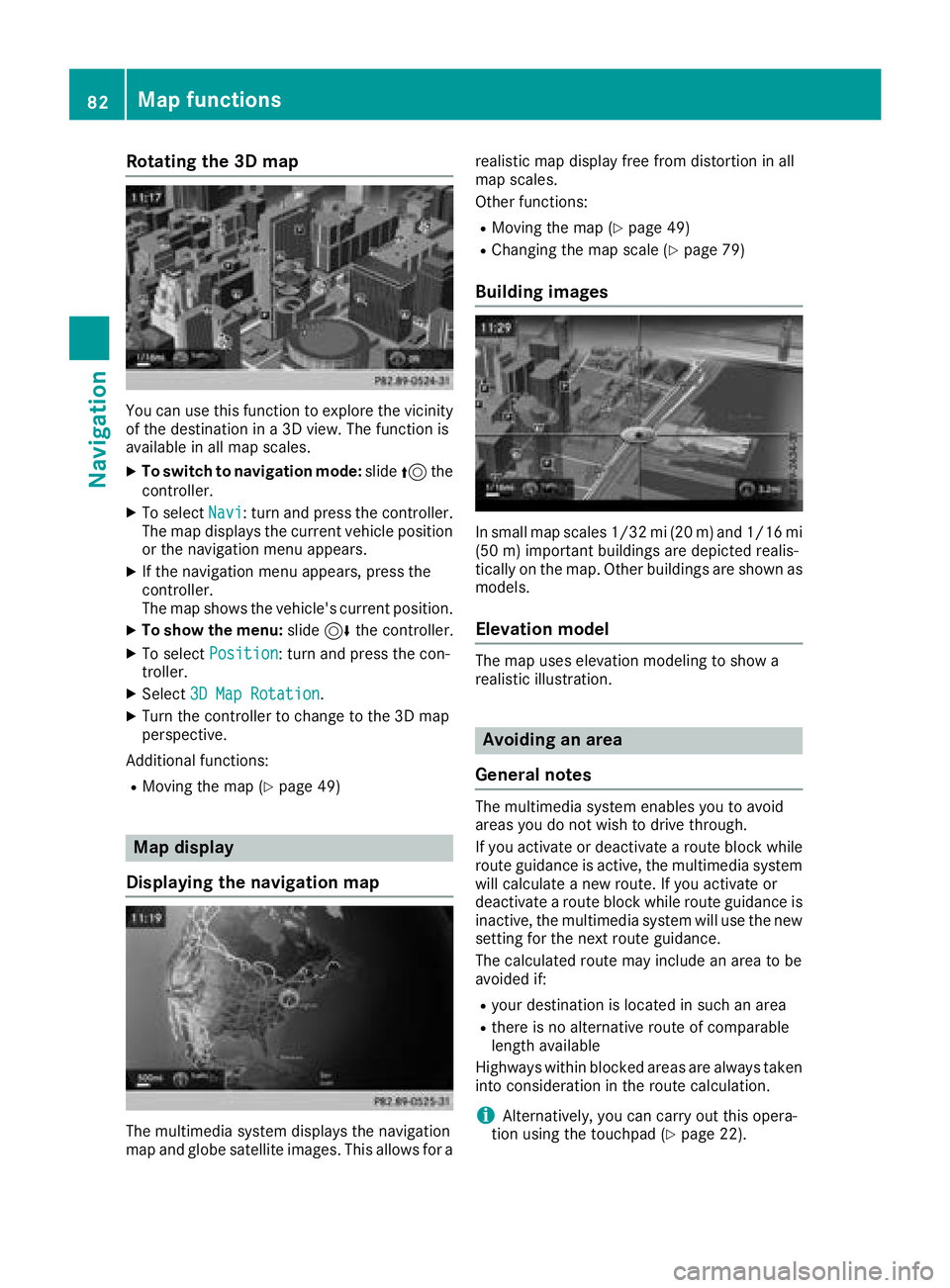
In small map scales 1/32 mi (20
m) and1/16 mi
(5 0m) importan t buildings are depicted realis-
tically on the map. Other buildings are shown as
models.
Elevation model
The map uses elevation modeling to show a
realistic illustration.
Avoiding an area
General notes
The multimedia system enables you to avoid
areas you do not wish to drive through.
If you activate or deactivate a route block while
route guidance is active, the multimedia system
will calculate a new route. If you activate or
deactivate a route block while route guidance is
inactive, the multimedia system will use the new
setting for the next route guidance.
The calculated route may include an area to be
avoided if:
Ryour destination is located in such an area
Rthere is no alternative route of comparable
length available
Highways within blocked areas are always taken
into consideration in the route calculation.
iAlternatively, you can carry out this opera-
tion using the touchpad (Ypage 22).
82Map functions
Navigation
Page 86 of 174
The area currently blocked is displayed as a
red square.
XTo move the area to a new location: slide
1,4,2the controller.
XTo change the size of the area: press the con-
troller.
XTurn the controller.
XTo accept changes: press the controller.
A message appears stating that the area has
been set.
Deleting one/all areas
XTo switch to navigation mode: slide5the
controller.
XTo select Navi: turn and press the controller.
The map displays the current vehicle position
or the navigation menu appears.
XIf the navigation menu appears, press the
controller.
The map shows the vehicle's current position.
XTo show the menu: slide6the controller.
XTo select Options:turn and press the con-
troller.
XSelect Route Settings.
XSelectAvoid Options.
XSelectAvoid Area.
A list appears.
XTo delete an area: mark an area by turning
the controller.
XSlide 9the controller.
XSelect DeleteorDelete All.
A prompt appears asking whether you wish to
delete the area.
XSelect YesorNo.
After selecting Yes, the area is deleted.
XTo delete all areas: when the list appears,
slide 9 the controller.
XSelect Delete All.
A prompt appears asking whether you wish to
delete all areas.
XSelect YesorNo.
After selecting Yes, all areas are deleted.
SIRIUS XM service
Displaying SIRIUS XM service informa-
tion
You can display the SIRIUS XM service informa-
tion.
XTo switch to navigation mode: slide5the
controller.
XTo select Navi: turn and press the controller.
The map displays the current vehicle position
or the navigation menu appears.
XIf the navigation menu appears, press the
controller.
The map shows the vehicle's current position.
XTo show the menu: slide6the controller.
XTo select Traffic: turn and press the con-
troller.
XSelect SIRIUS Service.
The provider's phone number (SIRIUS XM)
and the serial number of your service module
are displayed.
iAlternatively you can call up this function
using the touchpad (Ypage 22).
Registering for the SIRIUS XM traffic
report service
XCall the provider telephone number shown on
the multimedia system display.
iYou can also have the satellite service acti-
vated online. To do so, visit the SIRIUS XM
Radio website at http://www.sirius.com
(USA).
XThe connection is established: follow the
service employee's instructions.
The activation process may take up to ten
minutes.
iIf registration is not included when purchas-
ing the system, your credit card details will be
required to activate your account.
Updating the digital map
Introduction
The digital maps generated by the map software
become outdated in the same way as conven-
tional road maps. Optimal route guidance can
only be provided by the navigation system in
84Map functions
Navigation
Page 87 of 174
conjunction with the most up-to-date map soft-
ware.
Information about new versions of the digital
map can be obtained from an authorized
Mercedes-Benz Center. You can have the digital
map updated there using a data medium, or you
can update it yourself.
Carrying out a manual update
You can carry out the update yourself.
The update process may take some time (up to
45 minutes), depending on the size of the digital
map. The update will be completed more quickly
if the vehicle is stationary. If you begin the
update while the vehicle is stationary and the
starter battery has insufficient power, the mul-
timedia system may switch off automatically.
This protects the battery. In order to prevent
this, a suitable power supply to the vehicle must
be maintained.
Navigation functions
Calling up the navigation system
menu
XTo switch to navigation mode:slide5the
controller.
XTo select Navi: turn and press the controller.
The navigation menu appears or the map dis-
plays the current vehicle position.
XIf the map appears, slide 5the controller.
XPress the controller.
The navigation menu appears.
XTo return to the map: turn the controller
until Navigation
appears and then press the
controller.
Calling up the online map display
Requirement for online map display (USA):
mbrace must be activated for Internet access
(
Ypage 118).
Requirement for the online map display (Can-
ada): a mobile phone is connected to the multi-
media system via Bluetooth
®(Ypage 90) or
USB (Ypage 151).
XCall up the navigation menu (Ypage 85).
XTurn the controller until Online Map Dis‐playis brought to the front.
XPress the controller.
The online connection is established. Once
the connection is established, the Google
Maps™ map shows the vicinity of the current
vehicle position.
iAlternatively you can call up this function
using the touchpad (Ypage 22).
XTo exit the online map display: press the %
button.
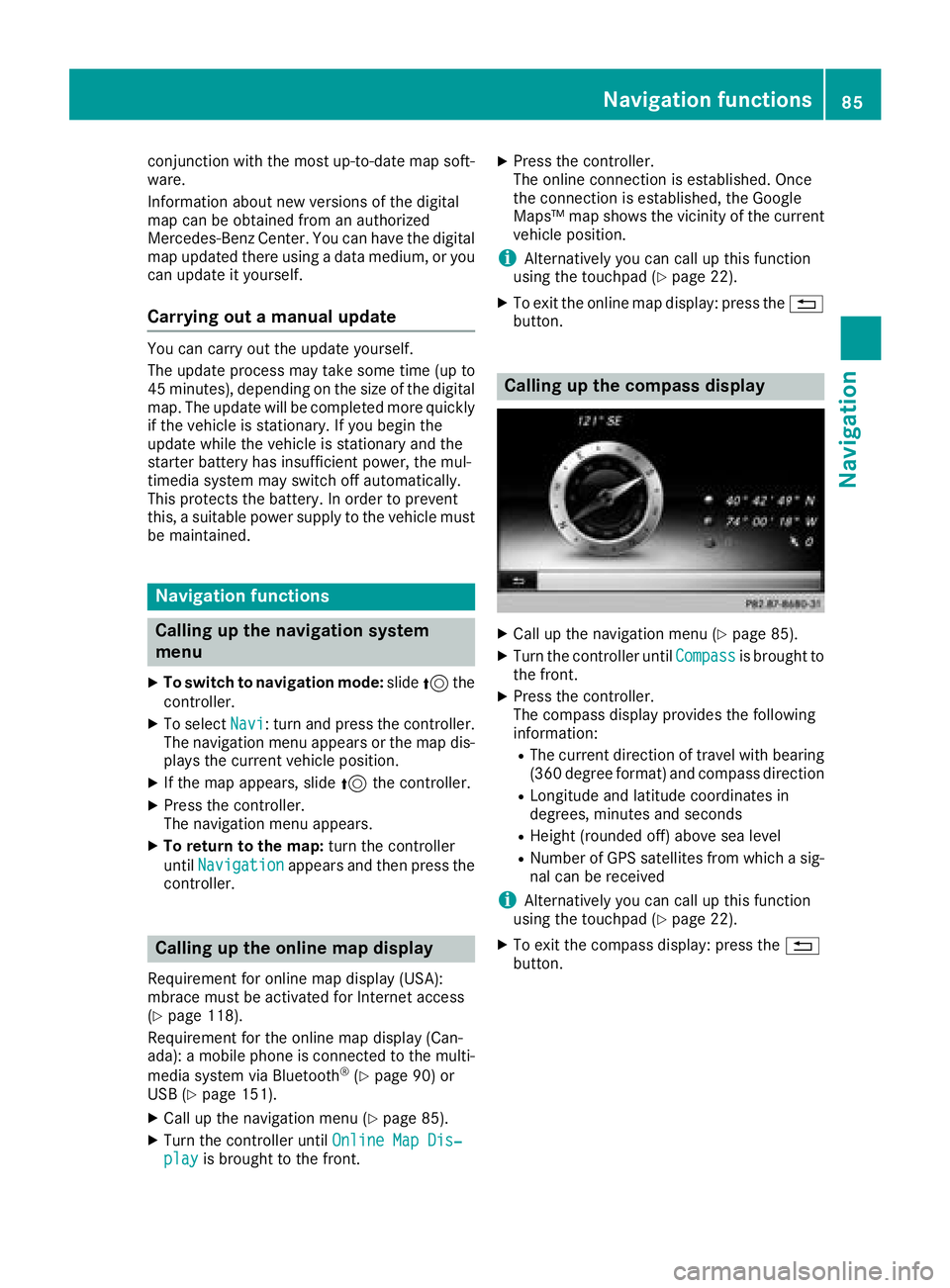
Calling up the compass display
XCall up the navigation menu (Ypage 85).
XTurn the controller until Compassis brought to
the front.
XPress the controller.
The compass display provides the following
information:
RThe current direction of travel with bearing
(360 degree format) and compass direction
RLongitude and latitude coordinates in
degrees, minutes and seconds
RHeight (rounded off) above sea level
RNumber of GPS satellites from which a sig- nal can be received
iAlternatively you can call up this function
using the touchpad (Ypage 22).
XTo exit the compass display: press the %
button.
Navigation functions85
Navigation
Z