usb MERCEDES-BENZ AMG GT S 2016 C190 Comand Manual
[x] Cancel search | Manufacturer: MERCEDES-BENZ, Model Year: 2016, Model line: AMG GT S, Model: MERCEDES-BENZ AMG GT S 2016 C190Pages: 226, PDF Size: 6.39 MB
Page 186 of 226
Inserting and ejecting an SD memory
card
Important safety notes
GWARNIN G
SD memory cards are small parts. They can be
swallowed and caus easphyxiation .This
poses an increased ris kof injury or eve nfatal
injury.
Kee pSD memory cards out of th ereac hof
children .If an SD memory car dis swallowed,
seek immediat emedical attention .
!Ifyou are no longer using the SDmemory
car d,you should remove itand take it out of
the vehicle. High temperatures can dam-
age the car d.
COMAND supports SDmemory car ds
(Secure Digital),SDHC memory car ds
(Secure DigitalHig h Capacity), and SDXC
memory car ds(Secure Digital e Xtended
C apacit y.
Inserting an SD memory card
XInsert the SDmemory card into the SDcard
slot unt il itengages. The sidewith the con-
tacts must face downwards.
If the memory card has been selected as a
med iasource, the medium isplayed and
the files are loaded in the background. If
there are no supported audio/video files,
you willsee a message to this effect.
iIfthe SDmemory card for navigation is
inserted into the SDcard slot, you can still
select the memory card as a media source.
The No Playable Files
message then
appears.
Ejecting an SD memory card
XPress the memory car d.
The memory card is ejecte d.
XRemove the memory card.
Connecting USB devices
There are two USB portsinthe stowage space
under the armrest.
XConnect the USB device to the USB port.
If the corresponding med iadisplay is visi-
ble, the medium isplayed and the files are
loaded inthe backgroun d. Ifthere are no
supported audio/vide o files, youwillsee a
message to th iseffect.
iMP3 players must support Media Transfer
Protocol (MTP).
Activating media mode
Switching on automatically
After inserting a CD/DVD, th ismed iamode is
automatical lyswitched on byCOMAND.
If playable music files are foun d,they will be
played byCOMAND.
If a med iafunction isalready switched on in
COMAND, th is will beinterrupted and the
basic display of the CD/DVD mode will
appear. Ifanother function, such as naviga-
tion, isbeing operate d,the basic display will
not change. Only the music from the last
inserted CD/DVD will beplayed.
Dependin g on the vehicle equipment, the
default display must already beturned on
when using with USB devices or SDmemory
cards.
XIn sert the CDs /DVDs (Ypage 183)
or
XIn sert an SDmemory car d:(Ypage 184)
or
XConnect a USB device: (Ypage 184)
COMAND loads the medium inserted and
starts to play itautomatically.
Further options for switching on
RUsing the main function bar: (Ypage 180)
RUsing the device list: (Ypage 181)
184Audio/video mode
Media
Page 187 of 226
Playback options
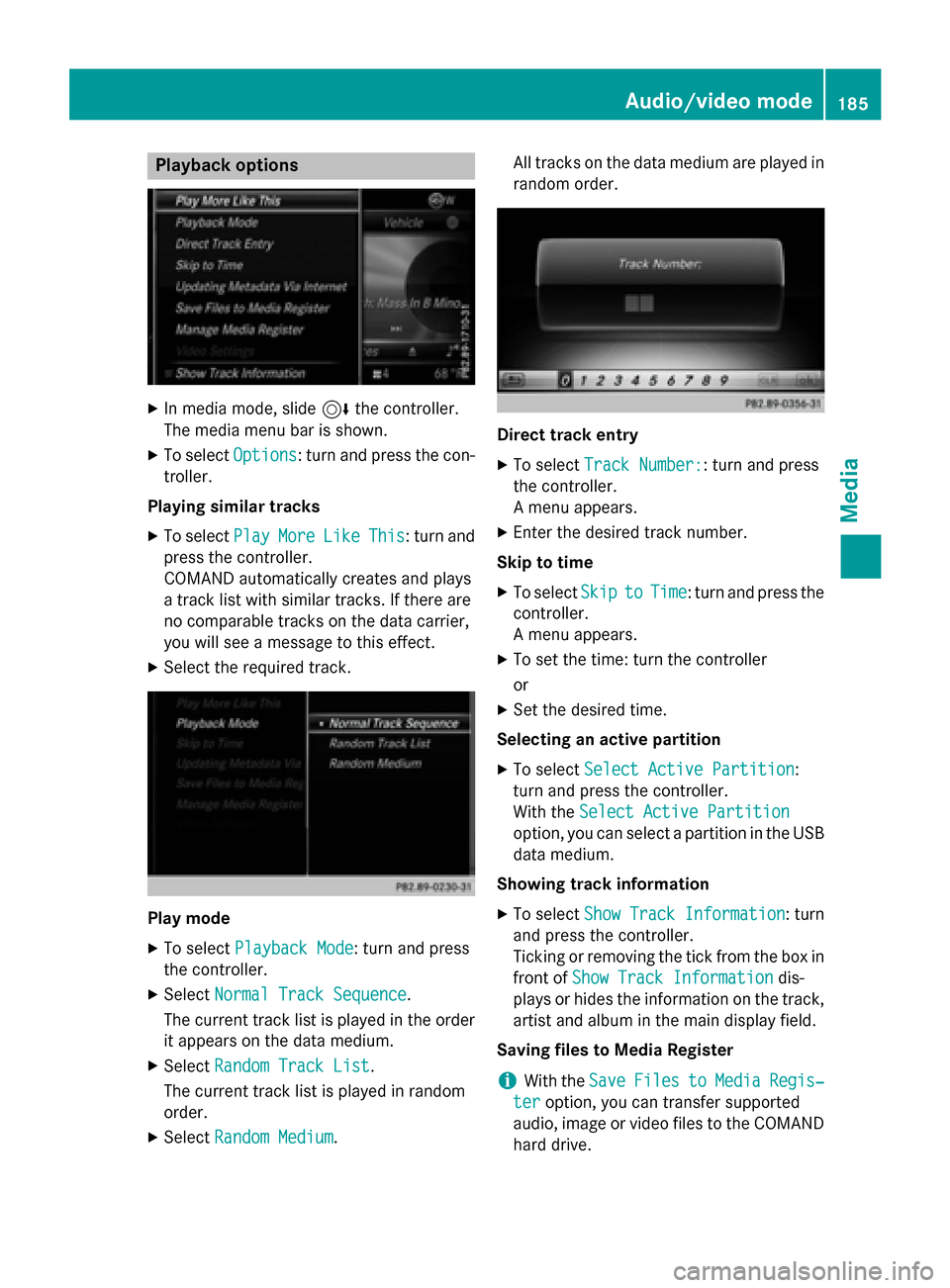
XIn media mode, slide6the controller.
The media menu bar is shown.
XTo select Options: turn and press the con-
troller.
Playing similar tracks
XTo select PlayMoreLikeThis: turn and
press the controller.
COMAND automatically creates and plays
a track list with similar tracks. If there are
no comparable tracks on the data carrier,
you will see a message to this effect.
XSelect the required track.
Play mode
XTo select Playback Mode: turn and press
the controller.
XSelect Normal Track Sequence.
The current track list is played in the order
it appears on the data medium.
XSelect Random Track List.
The current track list is played in random
order.
XSelect Random Medium. All tracks on the data medium are played in
random order.
Direct track entry
XTo select
Track Number:: turn and press
the controller.
A menu appears.
XEnter the desired track number.
Skip to time
XTo select SkiptoTime: turn and press the
controller.
A menu appears.
XTo set the time: turn the controller
or
XSet the desired time.
Selecting an active partition
XTo select Select Active Partition:
turn and press the controller.
With the Select Active Partition
option, you can select a partition in the USB
data medium.
Showing track information
XTo select Show Track Information: turn
and press the controller.
Ticking or removing the tick from the box in
front of Show Track Information
dis-
plays or hides the information on the track,
artist and album in the main display field.
Saving files to Media Register
iWith the SaveFilestoMediaRegis‐
teroption, you can transfer supported
audio, image or video files to the COMAND
hard drive.
Audio/video mode185
Media
Z
Page 189 of 226
XIn media mode, slide6the controller.
The media menu bar is shown.
XTo select Search: turn and press the con-
troller.
The category list is shown.
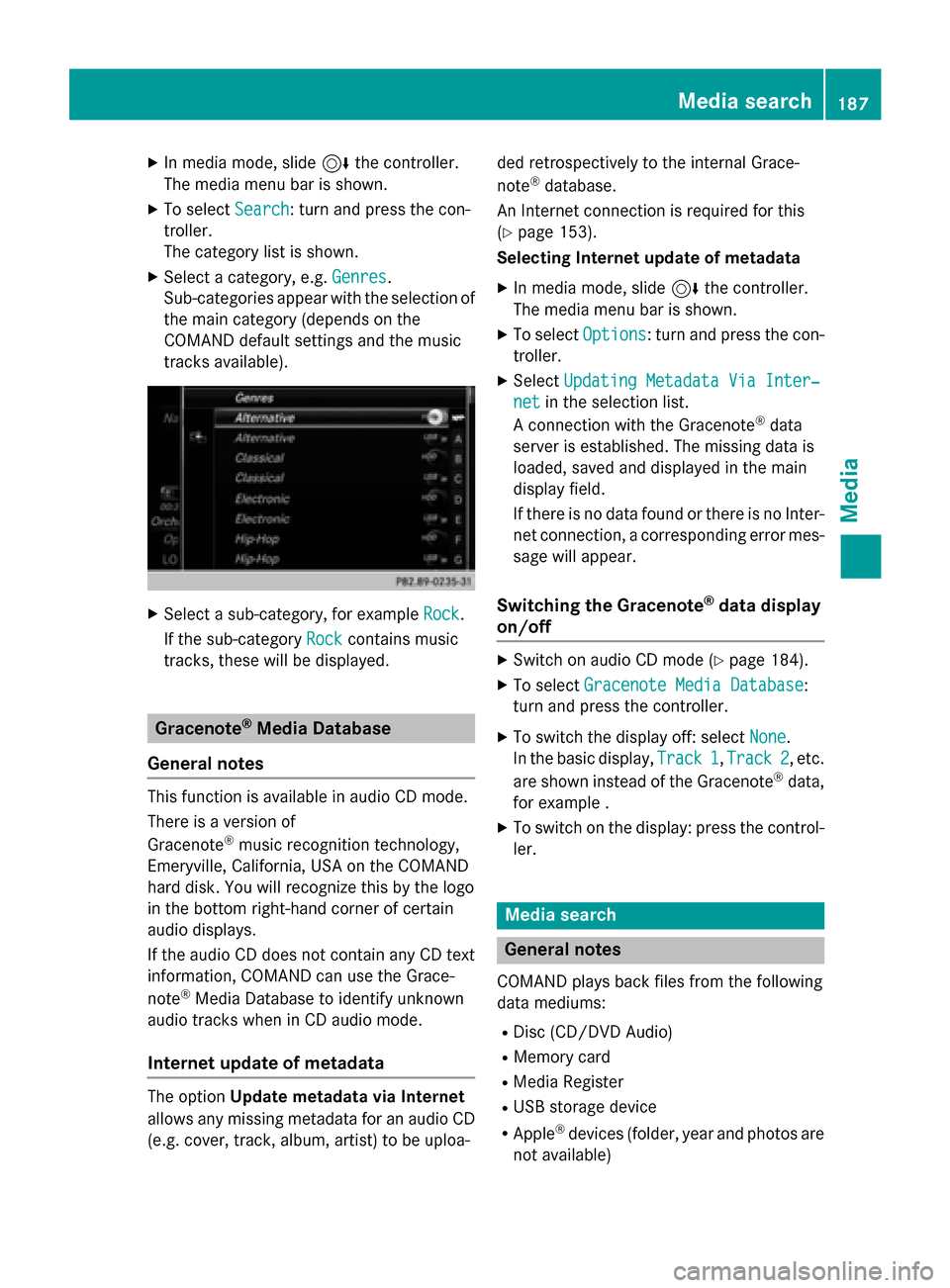
XSelect a category, e.g. Genres.
Sub-categories appear with the selection of
the main category (depends on the
COMAND default settings and the music
tracks available).
XSelect a sub-category, for example Rock.
If the sub-category Rock
contains music
tracks, these will be displayed.
Gracenote®Media Database
General notes
This function is available in audio CD mode.
There is a version of
Gracenote
®music recognition technology,
Emeryville, California, USA on the COMAND
hard disk. You will recognize this by the logo
in the bottom right-hand corner of certain
audio displays.
If the audio CD does not contain any CD text
information, COMAND can use the Grace-
note
®Media Database to identify unknown
audio tracks when in CD audio mode.
Internet update of metadata
The option Update metadata via Internet
allows any missing metadata for an audio CD (e.g. cover, track, album, artist) to be uploa- ded retrospectively to the internal Grace-
note
®database.
An Internet connection is required for this
(
Ypage 153).
Selecting Internet update of metadata
XIn media mode, slide 6the controller.
The media menu bar is shown.
XTo select Options: turn and press the con-
troller.
XSelect Updating Metadata Via Inter‐
netin the selection list.
A connection with the Gracenote®data
server is established. The missing data is
loaded, saved and displayed in the main
display field.
If there is no data found or there is no Inter-
net connection, a corresponding error mes-
sage will appear.
Switching the Gracenote®data display
on/off
XSwitch on audio CD mode (Ypage 184).
XTo select Gracenote Media Database:
turn and press the controller.
XTo switch the display off: select None.
In the basic display, Track 1
,Track 2, etc.
are shown instead of the Gracenote®data,
for example .
XTo switch on the display: press the control-
ler.
Media search
General notes
COMAND plays back files from the following
data mediums:
RDisc (CD/DVD Audio)
RMemory card
RMedia Register
RUSB storage device
RApple®devices (folder, year and photos are
not available)
Media search187
Media
Z
Page 193 of 226
RUSB storage device
RMP3
iData can only be copied from an MP3
player if this can be configured as a mass
storage device.
Video files from DVD-V cannot be copied.
While copying, several functions will not be
available. If this is the case, you will see a
message to this effect.
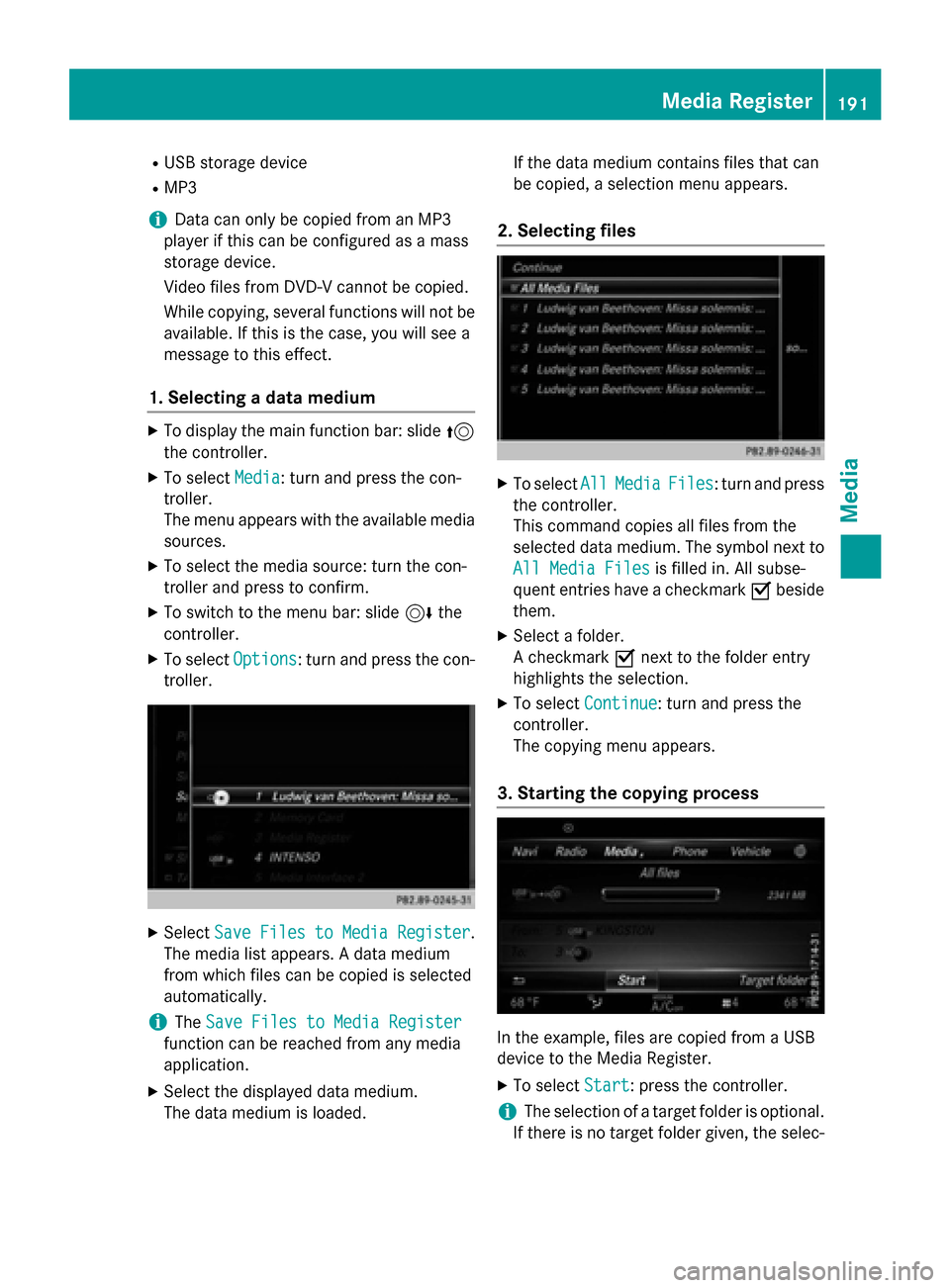
1. Selecting a data medium
XTo display the main function bar: slide 5
the controller.
XTo select Media: turn and press the con-
troller.
The menu appears with the available media
sources.
XTo select the media source: turn the con-
troller and press to confirm.
XTo switch to the menu bar: slide 6the
controller.
XTo select Options: turn and press the con-
troller.
XSelect Save Files to Media Register.
The media list appears. A data medium
from which files can be copied is selected
automatically.
iThe Save Files to Media Register
function can be reached from any media
application.
XSelect the displayed data medium.
The data medium is loaded. If the data medium contains files that can
be copied, a selection menu appears.
2. Selecting files
XTo select
AllMediaFiles: turn and press
the controller.
This command copies all files from the
selected data medium. The symbol next to
All Media Files
is filled in. All subse-
quent entries have a checkmark Obeside
them.
XSelect a folder.
A checkmark Onext to the folder entry
highlights the selection.
XTo select Continue: turn and press the
controller.
The copying menu appears.
3. Starting the copying process
In the example, files are copied from a USB
device to the Media Register.
XTo select Start: press the controller.
iThe selection of a target folder is optional.
If there is no target folder given, the selec-
Media Register191
Media
Z
Page 202 of 226
Playback options are optional functions
and are not, or only partially, supported by
Bluetooth
®audio devices.
Selecting playback options
XTo select Options: turn and press the con-
troller.
XSelect Playback Mode.
A # dot indicates the current setting.
XSelect the desired option.
If you select Random
TrackList, you will
see a corresponding message in the display
or selection window.
Increasing the volume using COMAND
XTo select Options: slide6and press the
controller.
XTo select Volume: turn and press the con-
troller.
A menu appears. The #dot indicates the
current setting.
XSelect StandardorBoost.
Information on sound settings
(
Ypage 210).
Operation with the Media Interface
General notes
Media Interface is a universal interface for the
connection of mobile audio and video devi-
ces. Media Interface in COMAND has two
USB connections.
Two USB connection sockets and an SD card slot are located in the stowage compartment
under the armrest.
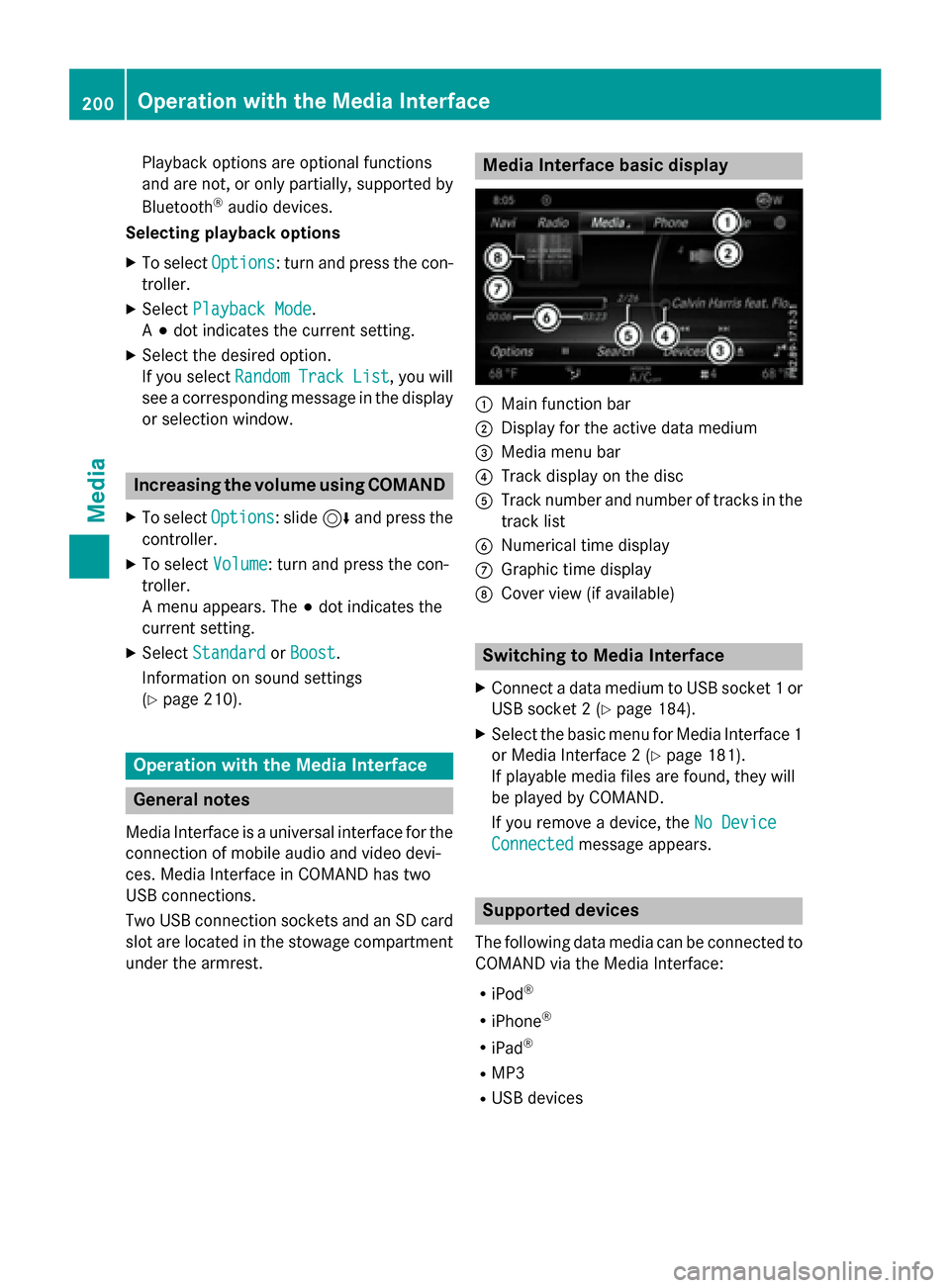
Media Interface basic display
:Main function bar
;Display for the active data medium
=Media menu bar
?Track display on the disc
ATrack number and number of tracks in thetrack list
BNumerical time display
CGraphic time display
DCover view (if available)
Switching to Media Interface
XConnect a data medium to USB socket 1 or
USB socket 2 (
Ypage 184).
XSelect the basic menu for Media Interface 1
or Media Interface 2 (
Ypage 181).
If playable media files are found, they will
be played by COMAND.
If you remove a device, the No Device
Connectedmessage appears.
Supported devices
The following data media can be connected to
COMAND via the Media Interface:
RiPod®
RiPhone®
RiPad®
RMP3
RUSB devices
200Operation with the Media Interface
Media
Page 209 of 226
XTo call up Display camera perspectives:
turn and press the controller
Stop function
XShow the DVD functions (Ypage 206).
XInterrupting playback
To selectÉfrom the DVD functions
menu: turn and press the controller.
The Ë display changes to Ì. The
video image is hidden.
XTo continue playback: selectÌ.
Playback continues from the point where it was interrupted.
XTo stop playback: selectÉagain while
playback is interrupted.
XTo start playback again: selectÌ.
Playback restarts from the beginning.
Pause function
XShow the DVD functions (Ypage 206).
XPausing playback
To select Ë: turn and press the control-
ler.
The Ë display changes to Ì.
XTo continue playback: selectÌ.
Selecting a scene/chapter
If the film is divided into scenes and chapters,
you can select these directly while the film is
running or you can skip progressively through
them. This is not possible at certain points for
some DVDs (e.g. during the opening credits).
It may also be possible to select the scene
and chapter from the functions stored on the
DVD.
XTo skip forwards or back: in the video
menu, turn the controller.
The next or previous scene in the film is
skipped to.
iThe DVD functions can also be used to
make selections (
Ypage 206).
Picture viewer
General notes
If there are pictures on the active data
medium, you can view them on the COMAND
display.
The following data media and picture formats
are supported:
RData media: MEDIA REGISTER, CD, DVD,
USB devices, SD memory cards
RPicture formats: jpeg, jpg, bmp, png
The maximum image resolution is 20 mega-
pixels
It is not possible to view a picture from the
driver's side while the vehicle is in motion.
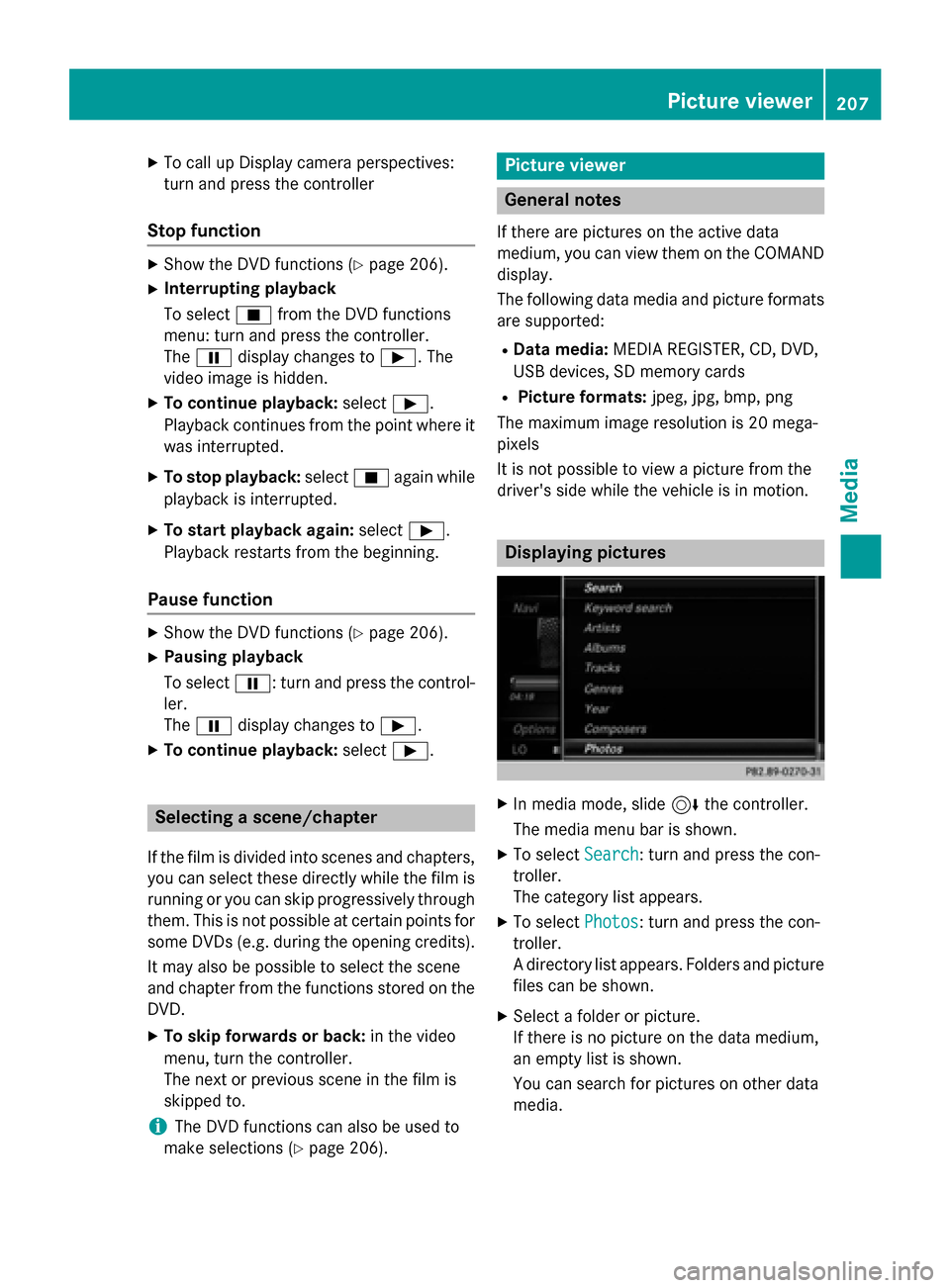
Displaying pictures
XIn media mode, slide 6the controller.
The media menu bar is shown.
XTo select Search: turn and press the con-
troller.
The category list appears.
XTo select Photos: turn and press the con-
troller.
A directory list appears. Folders and picture
files can be shown.
XSelect a folder or picture.
If there is no picture on the data medium,
an empty list is shown.
You can search for pictures on other data
media.
Picture viewer207
Media
Z