time MERCEDES-BENZ B-Class 2014 W246 Comand Manual
[x] Cancel search | Manufacturer: MERCEDES-BENZ, Model Year: 2014, Model line: B-Class, Model: MERCEDES-BENZ B-Class 2014 W246Pages: 270, PDF Size: 5.82 MB
Page 25 of 270
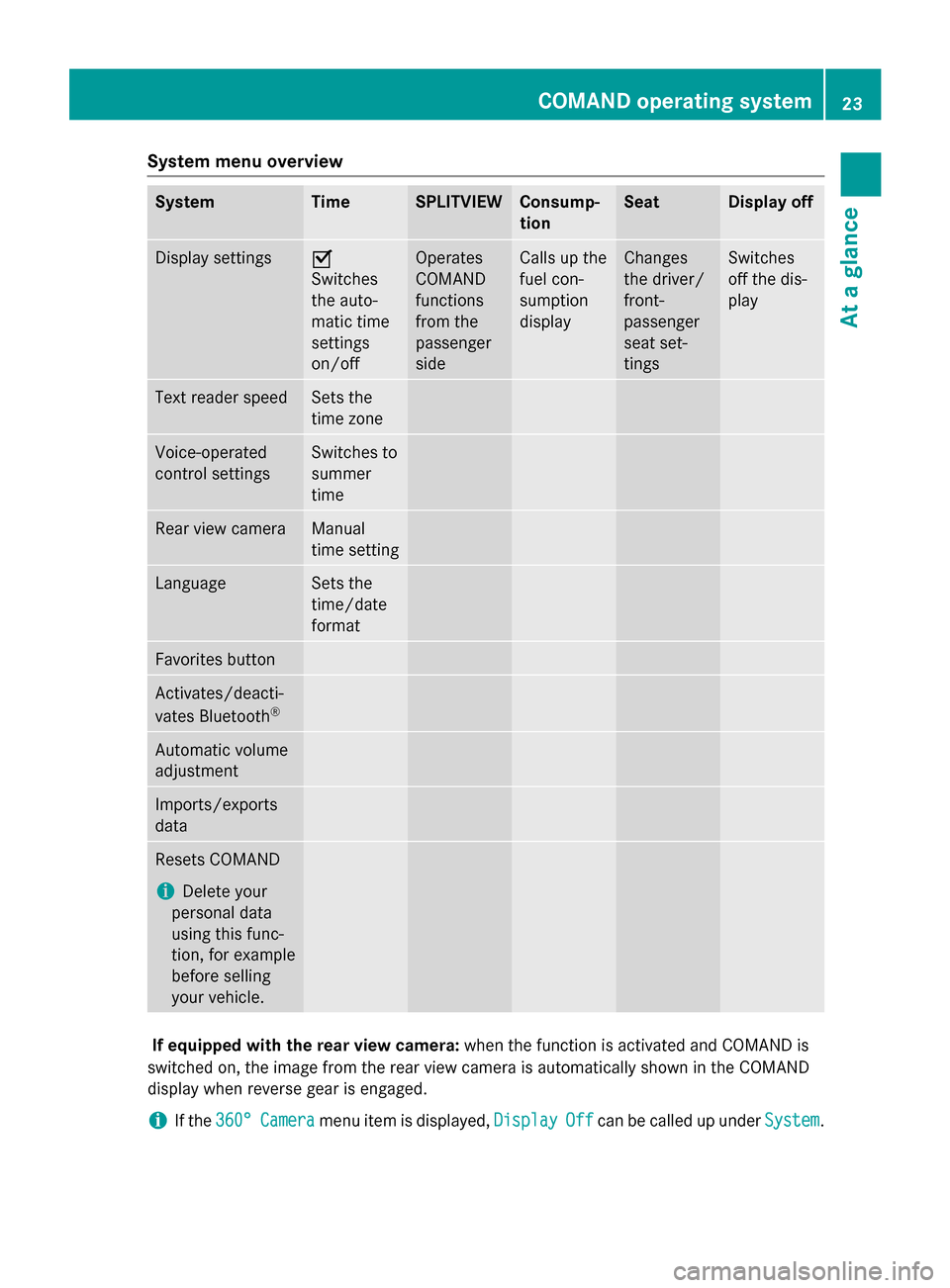
System menu overview
System Time SPLITVIEW Consump-
tion Seat Display off
Display settings 0073
Switches
the auto-
matic time
settings
on/off
Operates
COMAND
functions
from the
passenger
side Calls up the
fuel con-
sumption
display Changes
the driver/
front-
passenger
seat set-
tings Switches
off the dis-
play
Text reader speed Sets the
time zone
Voice-operated
control settings Switches to
summer
time
Rear view camera Manual
time setting
Language Sets the
time/date
format
Favorites button
Activates/deacti-
vates Bluetooth
® Automatic volume
adjustment
Imports/exports
data
Resets COMAND
i
Delete your
personal data
using this func-
tion, for example
before selling
your vehicle. If equipped with the rear view camera:
when the function is activated and COMAND is
switched on, the image from the rear view camera is automatically shown in the COMAND
display when reverse gear is engaged.
i If the
360° 360° Camera
Camera menu item is displayed, Display
DisplayOff
Offcan be called up under System
System. COMAND operating system
23At a glance
Page 38 of 270
0043
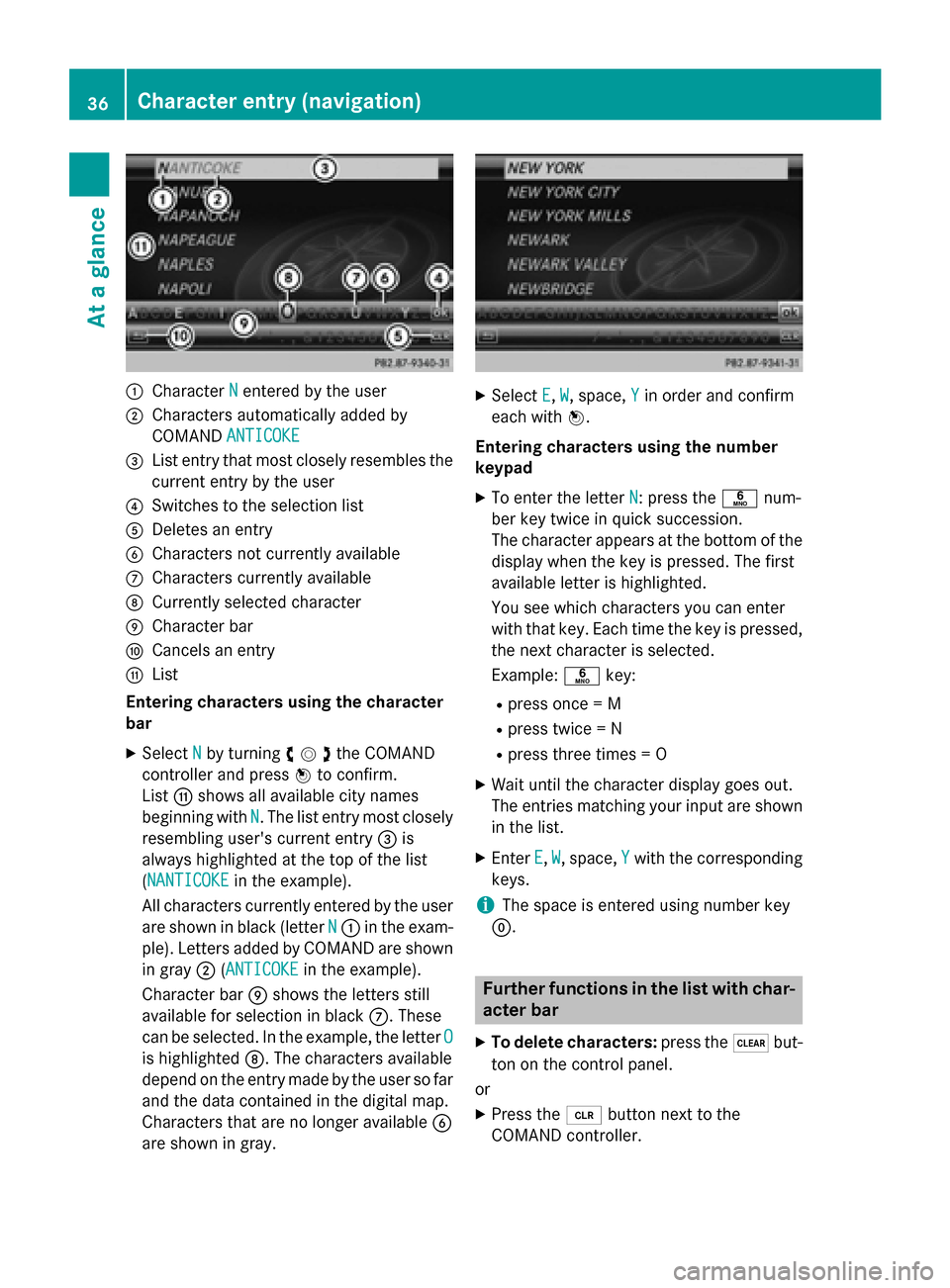
Character N
Nentered by the user
0044 Characters automatically added by
COMAND ANTICOKE ANTICOKE
0087 List entry that most closely resembles the
current entry by the user
0085 Switches to the selection list
0083 Deletes an entry
0084 Characters not currently available
006B Characters currently available
006C Currently selected character
006D Character bar
006E Cancels an entry
006F List
Entering characters using the character
bar
X Select N Nby turning 00790052007Athe COMAND
controller and press 0098to confirm.
List 006Fshows all available city names
beginning with N
N. The list entry most closely
resembling user's current entry 0087is
always highlighted at the top of the list
(NANTICOKE NANTICOKE in the example).
All characters currently entered by the user
are shown in black (letter N
N 0043 in the exam-
ple). Letters added by COMAND are shown
in gray 0044(ANTICOKEANTICOKE in the example).
Character bar 006Dshows the letters still
available for selection in black 006B. These
can be selected. In the example, the letter O
O
is highlighted 006C. The characters available
depend on the entry made by the user so far and the data contained in the digital map.
Characters that are no longer available 0084
are shown in gray. X
Select E E,W
W, space, Y
Yin order and confirm
each with 0098.
Entering characters using the number
keypad
X To enter the letter N N: press the0086num-
ber key twice in quick succession.
The character appears at the bottom of the
display when the key is pressed. The first
available letter is highlighted.
You see which characters you can enter
with that key. Each time the key is pressed,
the next character is selected.
Example: 0086key:
R press once = M
R press twice = N
R press three times = O
X Wait until the character display goes out.
The entries matching your input are shown
in the list.
X Enter E
E, W W, space, Y
Ywith the corresponding
keys.
i The space is entered using number key
0045. Further functions in the list with char-
acter bar
X To delete characters: press the0037but-
ton on the control panel.
or
X Press the 0084button next to the
COMAND controller. 36
Character entry (navigation)At a glance
Page 40 of 270
To do so, use the special cordless head-
phones (Y page 239). Using the headphones
on the correct sides ensures an optimal
sound.
You can connect your own headphones to a
special headphones jack. You can use the
remote control to operate them. Points to remember
R You can only adjust the volume for the
headphones supplied, directly on the head-
phones.
R Only entertainment functions, i.e. audio,
TV, video and Internet, for example, may be used with SPLITVIEW.
R Different media can be used on the driver
and front-passenger sides as long as they
use different media sources. Example: if a
medium from the single DVD drive is being
played on the driver's side, then another
medium that is also played from the single
DVD drive cannot be played separately on
the front-passenger side. However, other
media can be used at the same time on the
front-passenger side, including radio,
memory card, MUSIC REGISTER, Media
Interface, USB or AUX.
R If you use the same medium on both sides,
you can both carry out the respective set-
tings.
R Internet use is only available at any one
time to the driver or the front passenger.
A corresponding message appears on the
display.
R Internet can only be used, if it is set and
connected via a telephone on the driver's
side.
R The multifunction steering wheel can only
be used for functions which relate to the
driver's side. Switching SPLITVIEW on/off
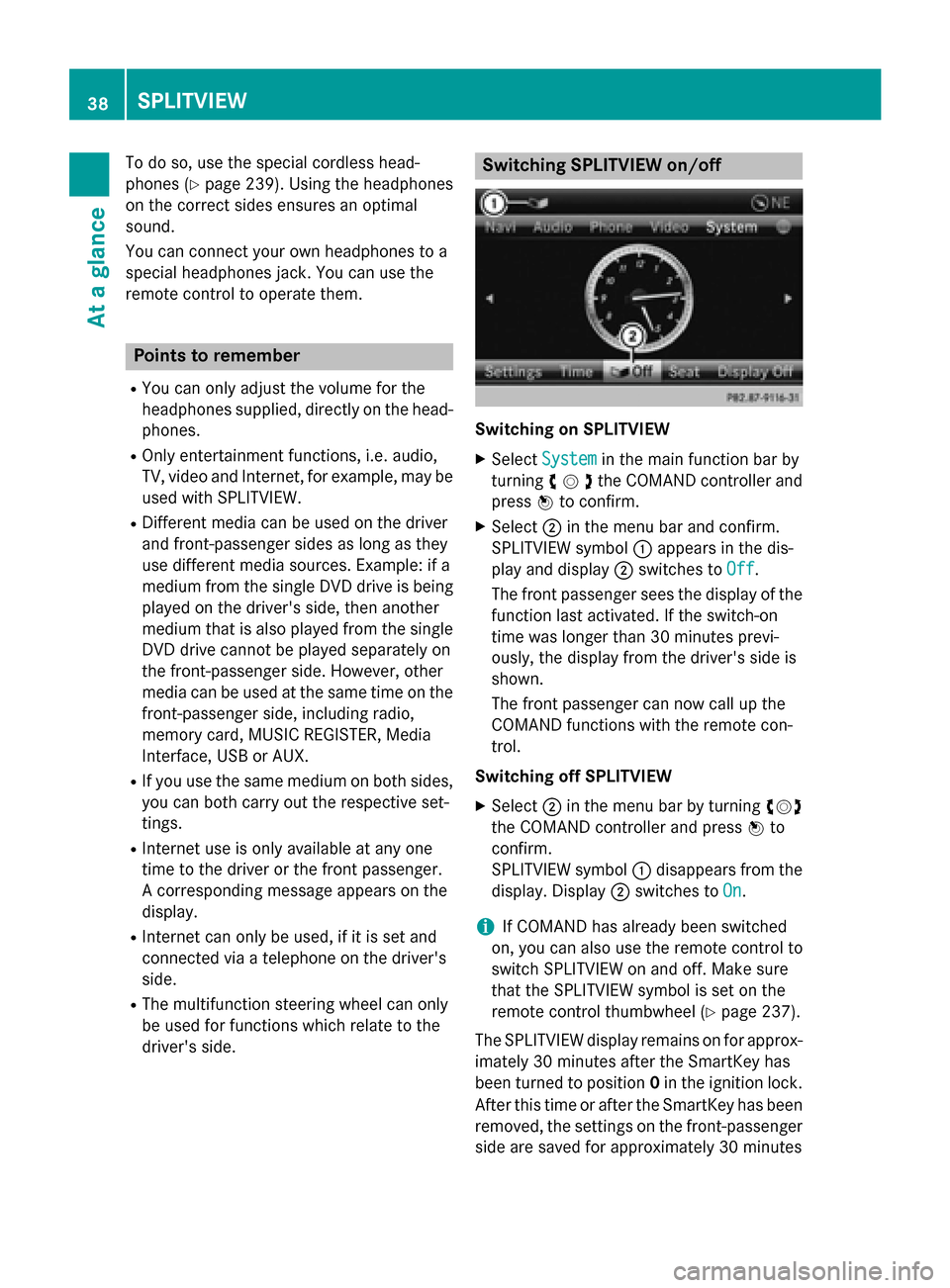
Switching on SPLITVIEW
X Select System System in the main function bar by
turning 00790052007Athe COMAND controller and
press 0098to confirm.
X Select 0044in the menu bar and confirm.
SPLITVIEW symbol 0043appears in the dis-
play and display 0044switches to Off
Off .
The front passenger sees the display of the
function last activated. If the switch-on
time was longer than 30 minutes previ-
ously, the display from the driver's side is
shown.
The front passenger can now call up the
COMAND functions with the remote con-
trol.
Switching off SPLITVIEW X Select 0044in the menu bar by turning 00790052007A
the COMAND controller and press 0098to
confirm.
SPLITVIEW symbol 0043disappears from the
display. Display 0044switches to On
On.
i If COMAND has already been switched
on, you can also use the remote control to
switch SPLITVIEW on and off. Make sure
that the SPLITVIEW symbol is set on the
remote control thumbwheel (Y page 237).
The SPLITVIEW display remains on for approx-
imately 30 minutes after the SmartKey has
been turned to position 0in the ignition lock.
After this time or after the SmartKey has been
removed, the settings on the front-passenger side are saved for approximately 30 minutes 38
SPLITVIEWAt a glance
Page 43 of 270
Your COMAND equipment
..................42
Display settings .................................. 42
Time settings ....................................... 42
Text reader settings ............................44
Voice Control System settings ..........44
Bluetooth ®
settings ............................ 44
Setting the system language .............45
Assigning a favorites button ..............45
Importing/exporting data ..................46
Reset function ..................................... 47 41Sys
tem settings
Page 44 of 270
Your COMAND equipment
These operating instructions describe all the
standard and optional equipment for your
COMAND system, as available at the time of
going to print. Country-specific differences
are possible. Please note that your
COMAND system may not be equipped with
all the features described. Display settings
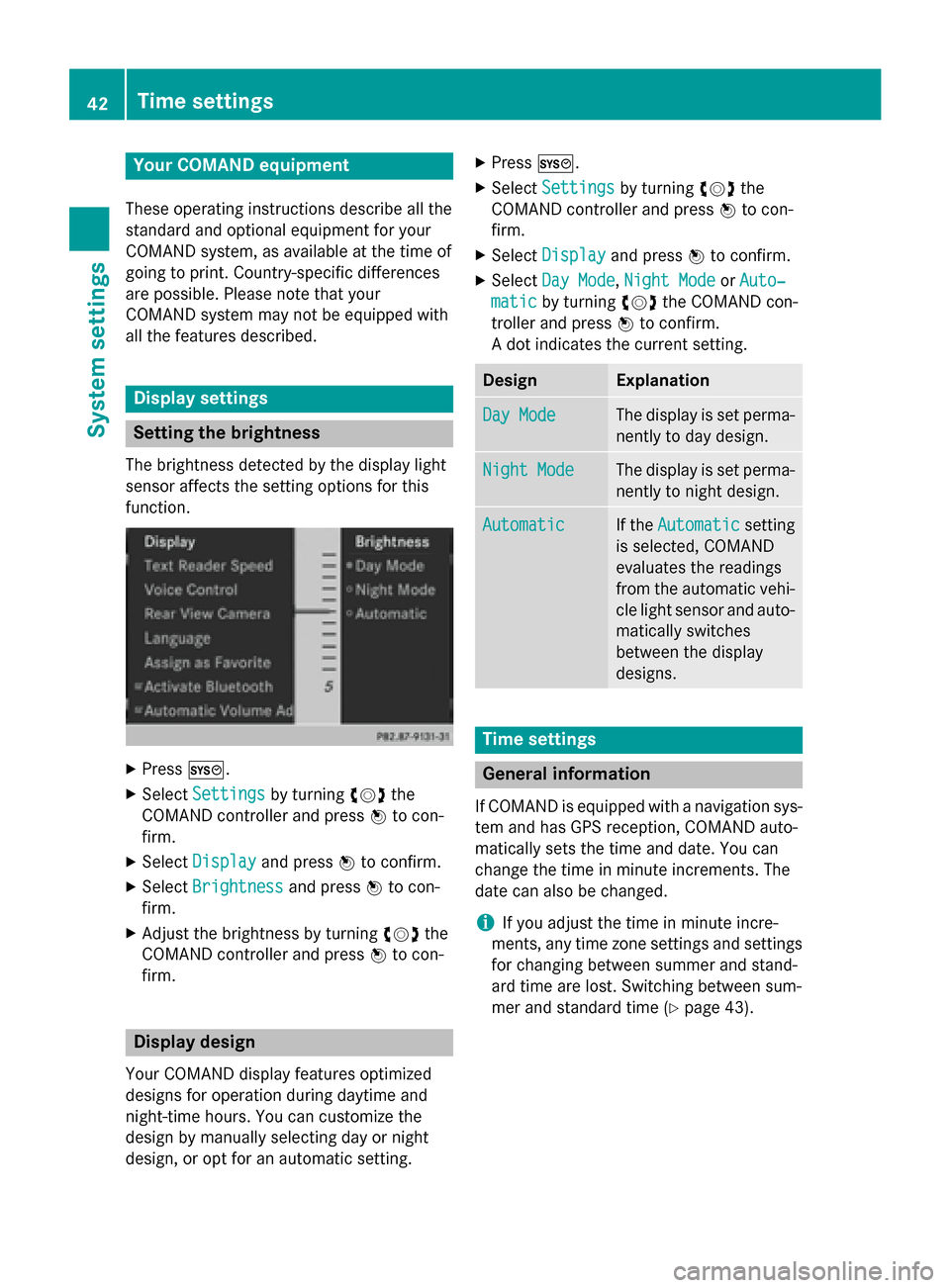
Setting the brightness
The brightness detected by the display light
sensor affects the setting options for this
function. X
Press 0066.
X Select Settings Settings by turning 00790052the
COMAND controller and press 0098to con-
firm.
X Select Display
Display and press 0098to confirm.
X Select Brightness
Brightness and press0098to con-
firm.
X Adjust the brightness by turning 00790052the
COMAND controller and press 0098to con-
firm. Display design
Your COMAND display features optimized
designs for operation during daytime and
night-time hours. You can customize the
design by manually selecting day or night
design, or opt for an automatic setting. X
Press 0066.
X Select Settings Settings by turning 00790052the
COMAND controller and press 0098to con-
firm.
X Select Display
Display and press 0098to confirm.
X Select Day Mode
Day Mode ,Night Mode
Night Mode orAuto‐
Auto‐
matic
matic by turning 00790052the COMAND con-
troller and press 0098to confirm.
A dot indicates the current setting. Design Explanation
Day Mode
Day Mode The display is set perma-
nently to day design. Night Mode
Night Mode The display is set perma-
nently to night design. Automatic
Automatic If the
Automatic
Automatic setting
is selected, COMAND
evaluates the readings
from the automatic vehi- cle light sensor and auto-
matically switches
between the display
designs. Time settings
General information
If COMAND is equipped with a navigation sys- tem and has GPS reception, COMAND auto-
matically sets the time and date. You can
change the time in minute increments. The
date can also be changed.
i If you adjust the time in minute incre-
ments, any time zone settings and settings for changing between summer and stand-
ard time are lost. Switching between sum-
mer and standard time (Y page 43).42
Time settingsSystem settings
Page 45 of 270
i
The following navigation system functions
require the time, time zone and summer/
standard time to be set correctly in order to
work properly:
R route guidance on routes with time-
dependent traffic guidance
R calculation of expected time of arrival
i With this function, you can set the time for
every display in the vehicle. Setting the time/date format
X Press the 0066button.
X Select Time
Timeby turning 00790052007Athe COMAND
controller and press 0098to confirm.
X Select Format
Format and press 0098to confirm.
The 003Bsymbols show the current settings.
X Set the format by turning 00790052007Athe
COMAND controller and press 0098to con-
firm. Abbreviation Meaning
DD
DD
.MM
MM .YY
YY Day . Month . Year
(date format, two digits)
MM MM
/DD
DD /YYYY
YYYY Month/Day/Year
date format, year (all
four digits)
YY YY
/MM
MM /DD
DD Year/Month/Day
date format, year (two
digits)
HH HH
:MM
MM
(24 hrs)
(24 hrs) Hours : Minutes
(24 hour time format)
HH HH
:MM
MM (AM/PM)
(AM/PM) Hours : Minutes
(AM/PM time format)
Adjusting the time zone and switching
to Daylight Savings Time (Summer)
X Press 0066. X
Select Time
Time by turning 00790052007Athe COMAND
controller and press 0098to confirm.
X Select Time TimeZone
Zoneand press 0098to confirm.
A list of countries or time zones appears.
The 003Bdot indicates the current setting.
X Select the country or time zone by turning
00790052007A the COMAND controller and press 0098
to confirm.
A time zone list may also be displayed,
depending on the country selected.
X Select the time zone and press 0098to con-
firm.
The entry for the Automatic Time Set‐
Automatic Time Set‐
tings tings is accepted.
Subsequent operation depends on whether
the automatic changeover function to sum-
mer time is available.
X To change manually: selectON ONorOFF
OFF and
press 0098to confirm.
X To change to automatic time: select
Automatic
Automatic and press0098to confirm.
The entry for the Automatic Time Set‐
Automatic Time Set‐
tings
tings is accepted.
X To switch the automatic time setting
off/on: press the 0066button.
X Select Time
Time by turning 00790052007Athe COMAND
controller and press 0098to confirm.
X Press 0098to confirm the Automatic AutomaticTime
Time
Settings
Settings.
Switch the automatic time setting off 0053or
on again 0073.
To switch on: the menu item is switched
on as the default setting. If the Automatic Automatic
Time Settings
Time Settings is switched off and you
switch it on again, the last settings for the
time zone and summer time changeover
are selected.
To switch off: the time zone is deselected
and the summer time is switched off. If
Automatic
Automatic is set for the summer time
changeover, a prompt will appear asking
whether this should be maintained.
X Select Yes YesorNo
No and press 0098to confirm. Time settings
43System settings
Page 46 of 270
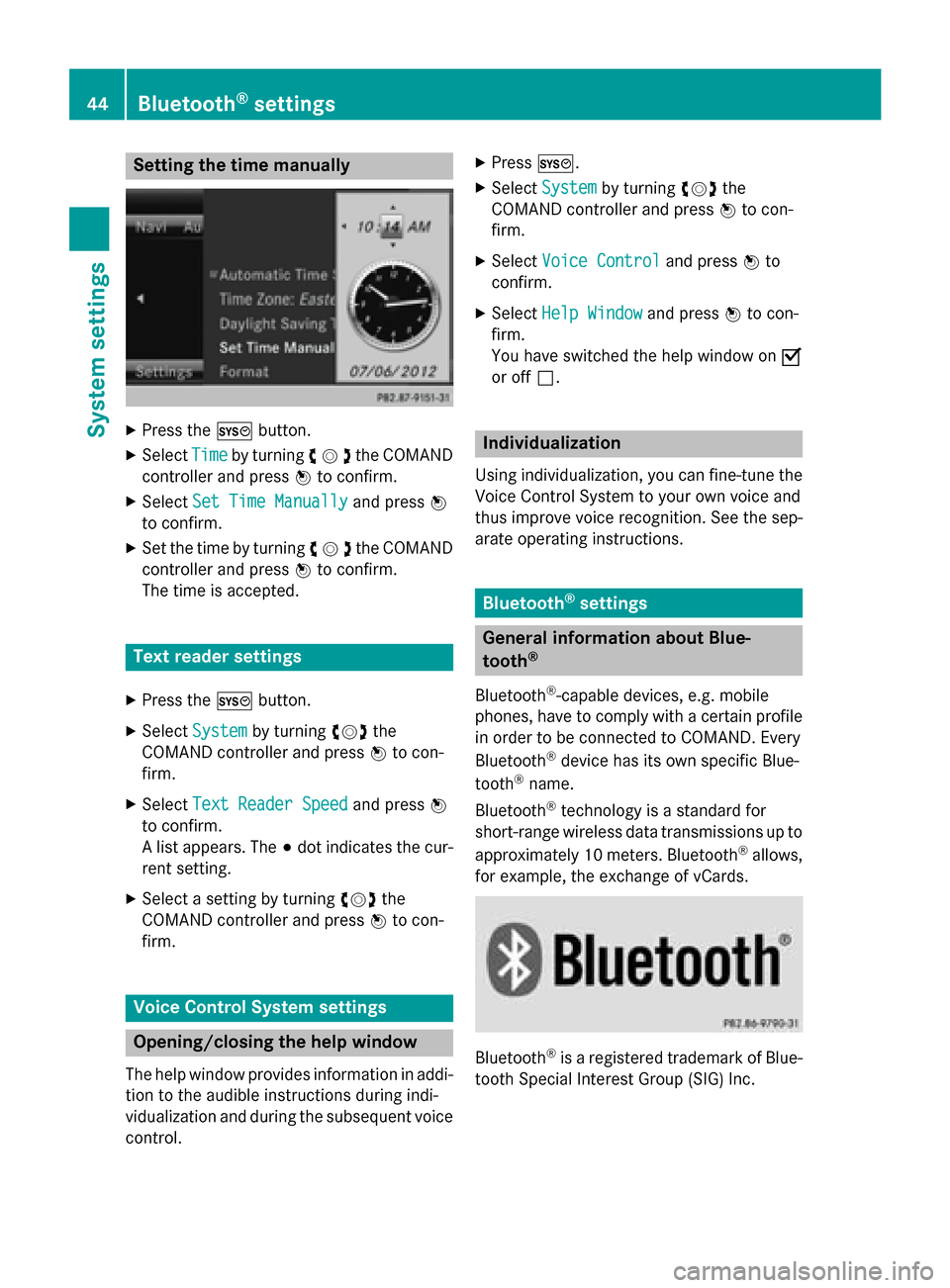
Setting the time manually
X
Press the 0066button.
X Select Time
Timeby turning 00790052007Athe COMAND
controller and press 0098to confirm.
X Select Set Time Manually
Set Time Manually and press0098
to confirm.
X Set the time by turning 00790052007Athe COMAND
controller and press 0098to confirm.
The time is accepted. Text reader settings
X Press the 0066button.
X Select System
System by turning 00790052007Athe
COMAND controller and press 0098to con-
firm.
X Select Text Reader Speed
Text Reader Speed and press0098
to confirm.
A list appears. The 003Bdot indicates the cur-
rent setting.
X Select a setting by turning 00790052007Athe
COMAND controller and press 0098to con-
firm. Voice Control System settings
Opening/closing the help window
The help window provides information in addi-
tion to the audible instructions during indi-
vidualization and during the subsequent voice control. X
Press 0066.
X Select System System by turning 00790052007Athe
COMAND controller and press 0098to con-
firm.
X Select Voice Control
Voice Control and press0098to
confirm.
X Select Help Window
Help Window and press0098to con-
firm.
You have switched the help window on 0073
or off 0053. Individualization
Using individualization, you can fine-tune the
Voice Control System to your own voice and
thus improve voice recognition. See the sep-
arate operating instructions. Bluetooth
®
settings General information about Blue-
tooth
®
Bluetooth ®
-capable devices, e.g. mobile
phones, have to comply with a certain profile
in order to be connected to COMAND. Every
Bluetooth ®
device has its own specific Blue-
tooth ®
name.
Bluetooth ®
technology is a standard for
short-range wireless data transmissions up to
approximately 10 meters. Bluetooth ®
allows,
for example, the exchange of vCards. Bluetooth
®
is a registered trademark of Blue-
tooth Special Interest Group (SIG) Inc. 44
Bluetooth ®
settingsSystem settings
Page 52 of 270
Your COMAND equipment
These operating instructions describe all the
standard and optional equipment for your
COMAND system, as available at the time of
going to print. Country-specific differences
are possible. Please note that your
COMAND system may not be equipped with
all the features described. Climate control status display
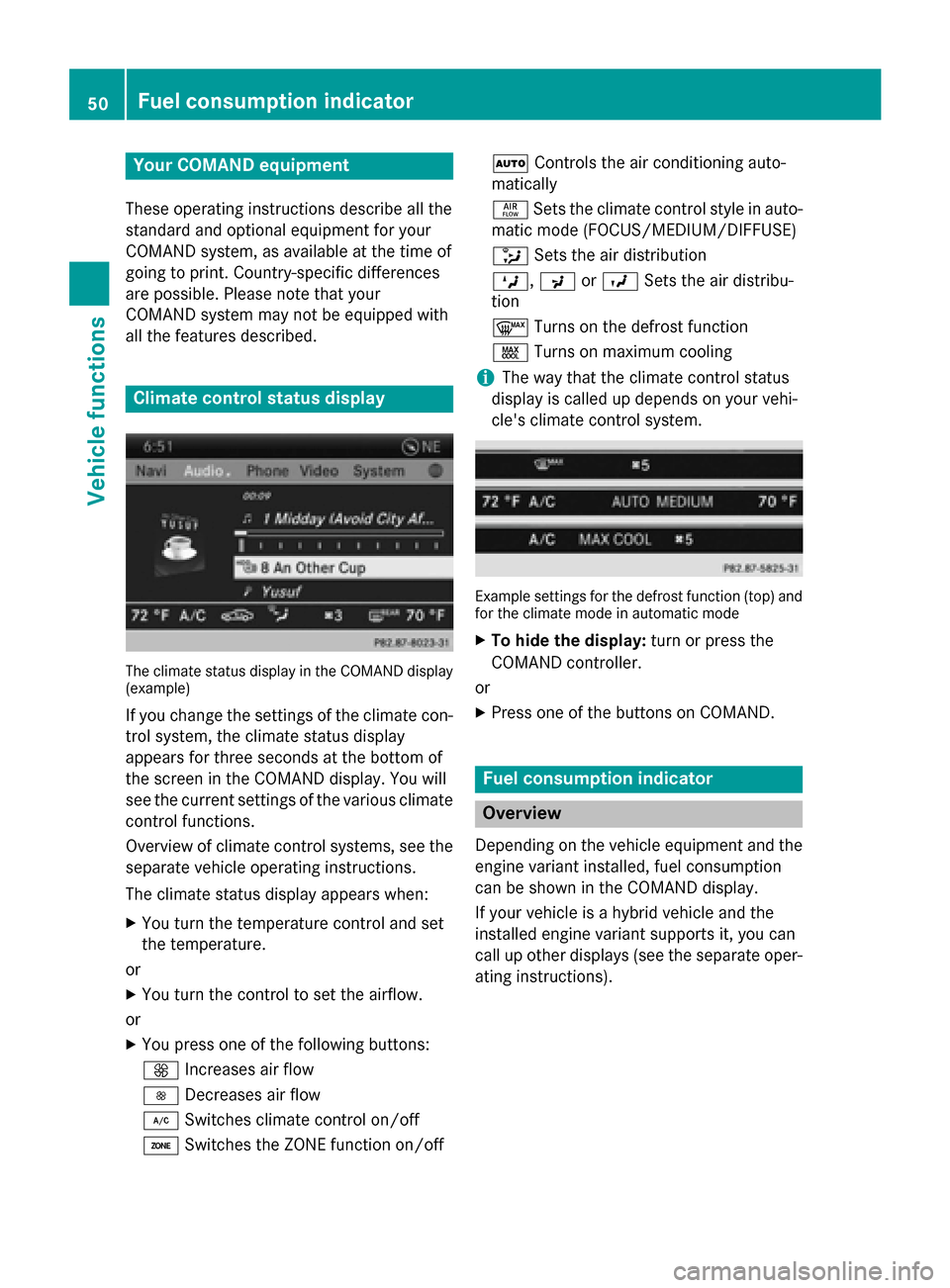
The climate status display in the COMAND display
(example)
If you change the settings of the climate con-
trol system, the climate status display
appears for three seconds at the bottom of
the screen in the COMAND display. You will
see the current settings of the various climate control functions.
Overview of climate control systems, see theseparate vehicle operating instructions.
The climate status display appears when:
X You turn the temperature control and set
the temperature.
or
X You turn the control to set the airflow.
or X You press one of the following buttons:
0097 Increases air flow
0095 Decreases air flow
005A Switches climate control on/off
00D6 Switches the ZONE function on/off 0058
Controls the air conditioning auto-
matically
00F0 Sets the climate control style in auto-
matic mode (FOCUS/MEDIUM/DIFFUSE)
008F Sets the air distribution
0099, 009Cor009B Sets the air distribu-
tion
0064 Turns on the defrost function
00C9 Turns on maximum cooling
i The way that the climate control status
display is called up depends on your vehi-
cle's climate control system. Example settings for the defrost function (top) and
for the climate mode in automatic mode
X To hide the display: turn or press the
COMAND controller.
or
X Press one of the buttons on COMAND. Fuel consumption indicator
Overview
Depending on the vehicle equipment and the
engine variant installed, fuel consumption
can be shown in the COMAND display.
If your vehicle is a hybrid vehicle and the
installed engine variant supports it, you can
call up other displays (see the separate oper-
ating instructions). 50
Fuel consu
mption indi catorVehicle functions
Page 62 of 270
Your COMAND equipment
These operating instructions describe all the
standard and optional equipment for your
COMAND system, as available at the time of
going to print. Country-specific differences
are possible. Please note that your
COMAND system may not be equipped with
all the features described. Introduction
Important safety notes
G
WARNING
If you operate information systems and com-
munication equipment integrated in the vehi- cle while driving, you will be distracted from
traffic conditions. You could also lose control of the vehicle. There is a risk of an accident.
Only operate the equipment when the traffic
situation permits. If you are not sure that this
is possible, park the vehicle paying attention
to traffic conditions and operate the equip-
ment when the vehicle is stationary.
You must observe the legal requirements for
the country in which you are currently driving when operating COMAND.
COMAND calculates the route to the destina-
tion without taking account of the following,
for example:
R traffic lights
R stop and yield signs
R merging lanes
R parking or stopping in a no parking/no
stopping zone
R other road and traffic rules and regulations
R narrow bridges
COMAND can give incorrect navigation com-
mands if the actual street/traffic situation
does not correspond with the digital map's
data. Digital maps do not cover all areas nor
all routes in an area. For example, a route may have been diverted or the direction of a one-
way street may have changed.
For this reason, you must always observe
road and traffic rules and regulations during
your journey. Road and traffic rules and reg-
ulations always have priority over the sys-
tem's driving recommendations.
Navigation announcements are intended to
direct you while driving without diverting your attention from the road and driving.
Please always use this feature instead of con-sulting the map display for directions. Look-
ing at the icons or map display can distract
you from traffic conditions and driving, and
increase the risk of an accident. General notes
Operational readiness of the navigation system The navigation system must determine the
position of the vehicle before first use or
whenever operational status is restored.
Therefore, you may have to drive for a while
before precise route guidance is possible.
GPS reception Among other things, correct functioning of
the navigation system depends on GPS recep-
tion. In certain situations, GPS reception may
be impaired, there may be interference or
there may be no reception at all, e.g. in tun-
nels or parking garages.
i Using roof carriers may impair the correct
functioning of a roof antenna (phone, sat-
ellite radio, GPS).
Entry restriction On vehicles for certain countries, there is a
restriction on entering data.
The restriction is active from a vehicle speed
of above approximately 3 mph (5 km/h).As
soon as the speed falls below approximately 60
IntroductionNavigation
Page 64 of 270
Basic settings
Setting route type and route options
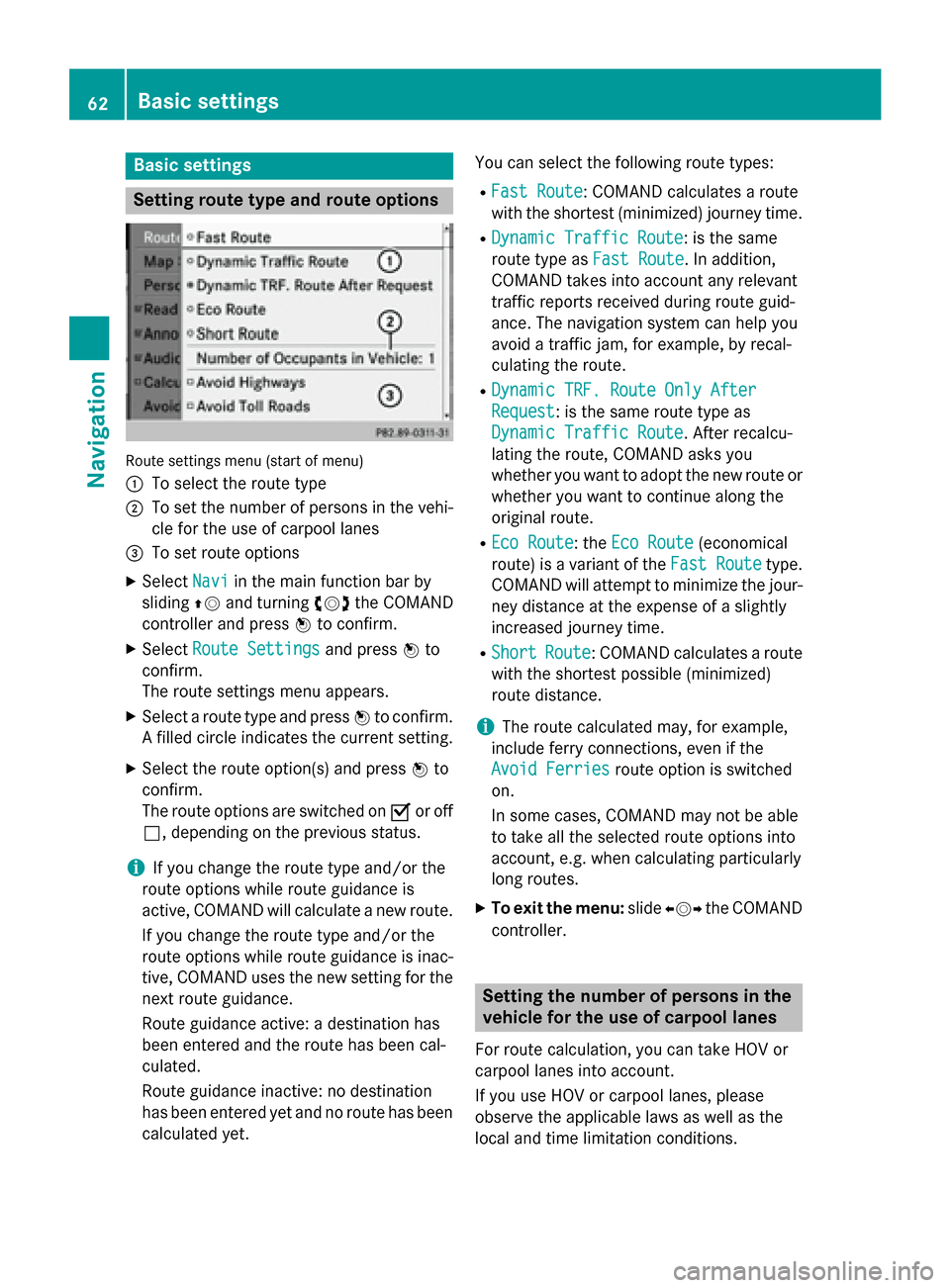
Route settings menu (start of menu)
0043
To select the route type
0044 To set the number of persons in the vehi-
cle for the use of carpool lanes
0087 To set route options
X Select Navi Naviin the main function bar by
sliding 00970052and turning 00790052007Athe COMAND
controller and press 0098to confirm.
X Select Route Settings
Route Settings and press0098to
confirm.
The route settings menu appears.
X Select a route type and press 0098to confirm.
A filled circle indicates the current setting.
X Select the route option(s) and press 0098to
confirm.
The route options are switched on 0073or off
0053, depending on the previous status.
i If you change the route type and/or the
route options while route guidance is
active, COMAND will calculate a new route.
If you change the route type and/or the
route options while route guidance is inac- tive, COMAND uses the new setting for the
next route guidance.
Route guidance active: a destination has
been entered and the route has been cal-
culated.
Route guidance inactive: no destination
has been entered yet and no route has been
calculated yet. You can select the following route types:
R Fast Route
Fast Route: COMAND calculates a route
with the shortest (minimized) journey time.
R Dynamic Traffic Route Dynamic Traffic Route: is the same
route type as Fast Route
Fast Route. In addition,
COMAND takes into account any relevant
traffic reports received during route guid-
ance. The navigation system can help you
avoid a traffic jam, for example, by recal-
culating the route.
R Dynamic TRF. Route Only After Dynamic TRF. Route Only After
Request
Request: is the same route type as
Dynamic Traffic Route Dynamic Traffic Route. After recalcu-
lating the route, COMAND asks you
whether you want to adopt the new route or
whether you want to continue along the
original route.
R Eco Route Eco Route: the Eco Route
Eco Route(economical
route) is a variant of the Fast Route
Fast Routetype.
COMAND will attempt to minimize the jour-
ney distance at the expense of a slightly
increased journey time.
R Short Short Route
Route: COMAND calculates a route
with the shortest possible (minimized)
route distance.
i The route calculated may, for example,
include ferry connections, even if the
Avoid Ferries Avoid Ferries route option is switched
on.
In some cases, COMAND may not be able
to take all the selected route options into
account, e.g. when calculating particularly
long routes.
X To exit the menu: slide009500520096 the COMAND
controller. Setting the number of persons in the
vehicle for the use of carpool lanes
For route calculation, you can take HOV or
carpool lanes into account.
If you use HOV or carpool lanes, please
observe the applicable laws as well as the
local and time limitation conditions. 62
Basic settingsNavigation