change time MERCEDES-BENZ B-Class 2016 W246 Comand Manual
[x] Cancel search | Manufacturer: MERCEDES-BENZ, Model Year: 2016, Model line: B-Class, Model: MERCEDES-BENZ B-Class 2016 W246Pages: 246, PDF Size: 6.73 MB
Page 89 of 246
Route guidance
General notes
Always observe the traffic regulations when
driving. Road and traffic rules and regulations
always have priority over system driving rec-
ommendations.
COMAND calculates the route to the destina-
tion without taking account of the following,
for example:
Rtraffic lights
Rstop and yield signs
Rparking or stopping restrictions
Rroad narrowing
Rtemporary traffic rules and regulations
COMAND can give differing navigation com-
mands if the actual street/traffic situation
does not correspond with the digital map's
data. For example, if the road layout or the
direction of a one-way street has been
changed.
Route guidance begins once a route has been
calculated (
Ypage 71).
COMAND guides you to your destination by
means of navigation announcements in the
form of audible navigation announcements
and route guidance displays.
Navigation messages guide you during the
journey without distracting you from traffic
conditions or driving. Please always use this
feature instead of consulting the map display
for directions. The symbols or the map display
could distract you from traffic conditions and
driving.
The route guidance displays can be seen if
navigation mode is switched on.
If you do not follow the navigation announce-
ments or if you leave the ca
lculated route,
COMAND automatically calculates a new
route to the destination.
If the digital map contains the corresponding information, the following applies:
Rduring route guidance, COMAND tries to
avoid roads with restricted access. These include, for example, roads which are
closed to through-traffic.
Rroads that have time restrictions (e.g.
closed on Sundays and public holidays) are
considered for route guidance on days
when they are open. For this purpose, the
relevant times must be correctly stored in
the database.
Change of direction
Overview
Changes of direction have three phases:
RPreparation phase
RAnnouncement phase
RChange-of-direction phase
Changes in direction are also shown in the
multifunction display of the instrument clus-
ter (see the vehicle Operator's Manual).
Preparation phase
COMAND prepares you for the upcoming
change of direction, e.g. with the announce-
ment "Prepare to turn right". You see the full-
screen map.
Announcement phase
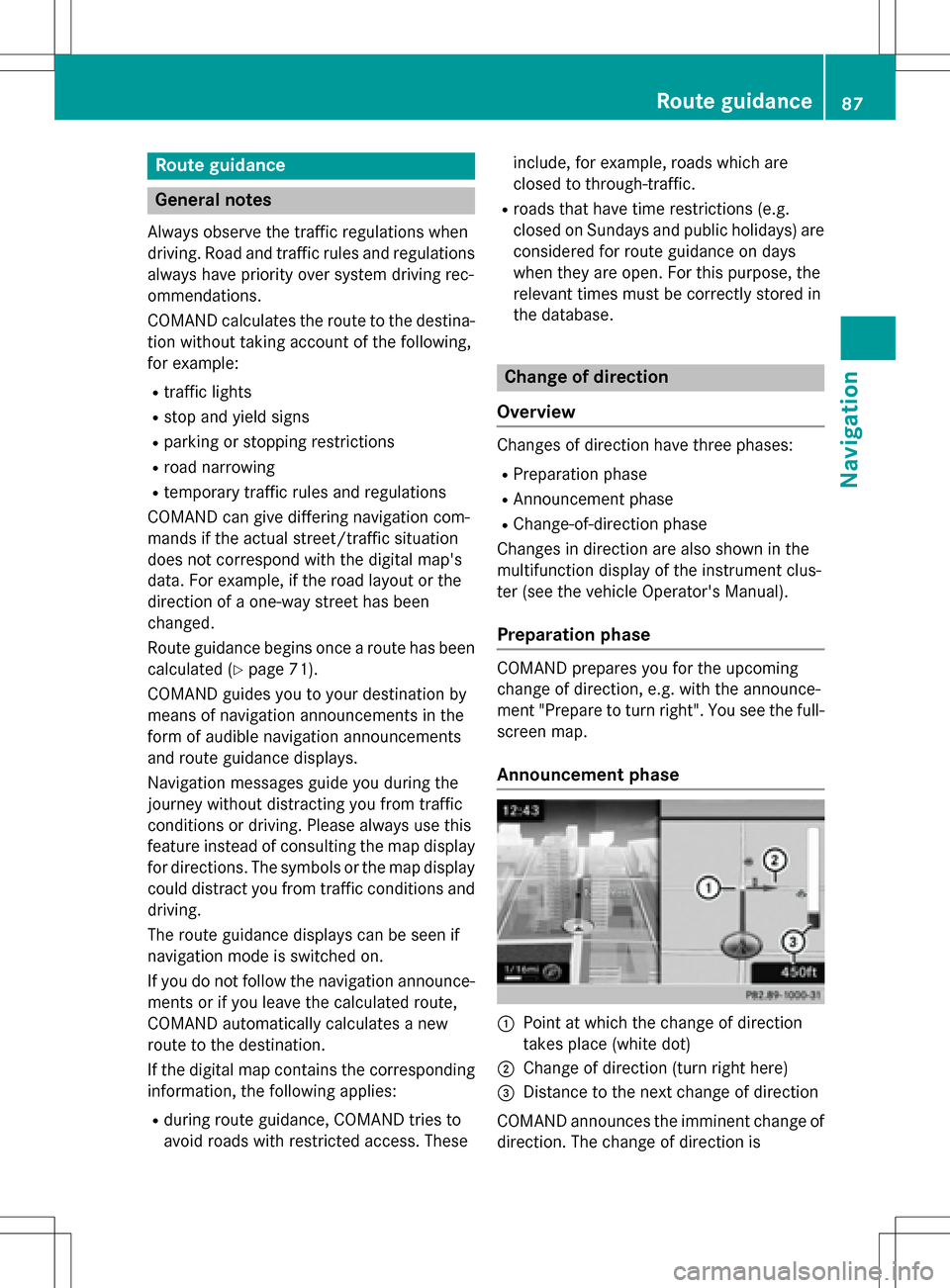
:Point at which the change of direction
takes place (white dot)
;Change of direction (turn right here)
=Distance to the next change of direction
COMAND announces the imminent change of
direction. The change of direction is
Route guidance87
Navigation
Z
Page 90 of 246
announced ahead of time, with the announce-
ment "Turn right in 300 meters", for example.
The display is now split into two sectors. The
map is shown on the left side of the display,
and a detailed image of the intersection or a
3D image of the imminent change of directionis shown on the right side of the display.
Change-of-direction phase
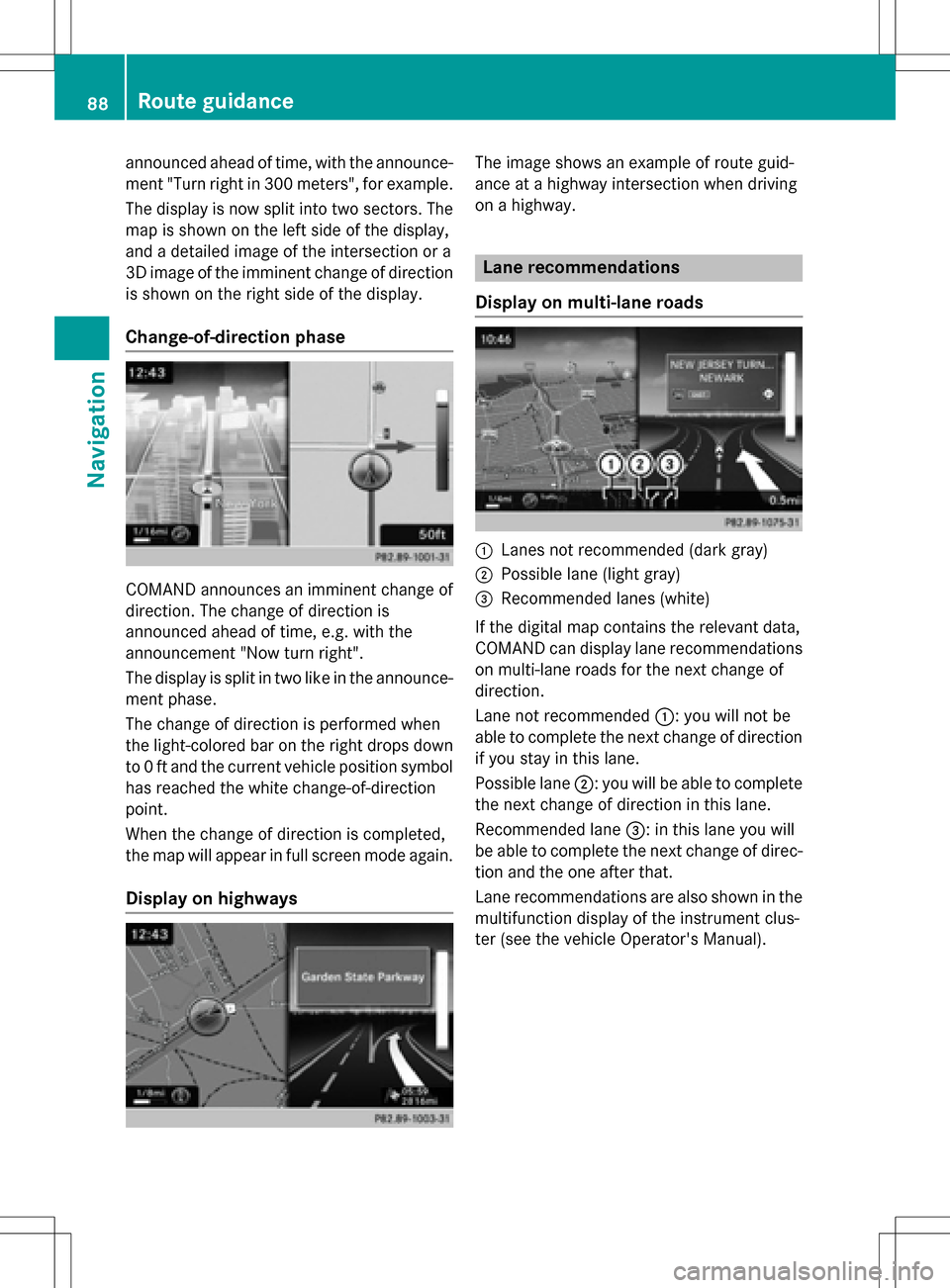
COMAND announces an imminent change of
direction. The change of direction is
announced ahead of time, e.g. with the
announcement "Now turn right".
The display is split in two like in the announce-
ment phase.
The change of direction is performed when
the light-colored bar on the right drops down
to 0 ft and the current vehicle position symbol
has reached the white change-of-direction
point.
When the change of direction is completed,
the map will appear in full screen mode again.
Display on highways
The image shows an example of route guid-
ance at a highway intersection when driving
on a highway.
Lane recommendations
Display on multi-lane roads
:Lanes not recommended (dark gray)
;Possible lane (light gray)
=Recommended lanes (white)
If the digital map contains the relevant data,
COMAND can display lane recommendations
on multi-lane roads for the next change of
direction.
Lane not recommended :: you will not be
able to complete the next change of direction
if you stay in this lane.
Possible lane ;: you will be able to complete
the next change of direction in this lane.
Recommended lane =: in this lane you will
be able to complete the next change of direc-
tion and the one after that.
Lane recommendations are also shown in the
multifunction display of the instrument clus-
ter (see the vehicle Operator's Manual).
88Route guidance
Navigation
Page 94 of 246
RUSA: view the vicinity of the destination if
street images are available and mbrace is
activated for Internet access
(
Ypage 150)
RCanada: view the vicinity of the destina-
tion if street images are available and a
mobile phone is connected to COMAND
via Bluetooth
®(Ypage 114) or USB
(
Ypage 197)
RUSA: download data from the Internet if
an Internet address is available and
mbrace is activated for Internet access
(
Ypage 114).
RCanada: download data from the Internet
if an Internet address is available and a
mobile phone is connected to COMAND
via Bluetooth
®(Ypage 114) or USB
(
Ypage 197).
Taking alternative route
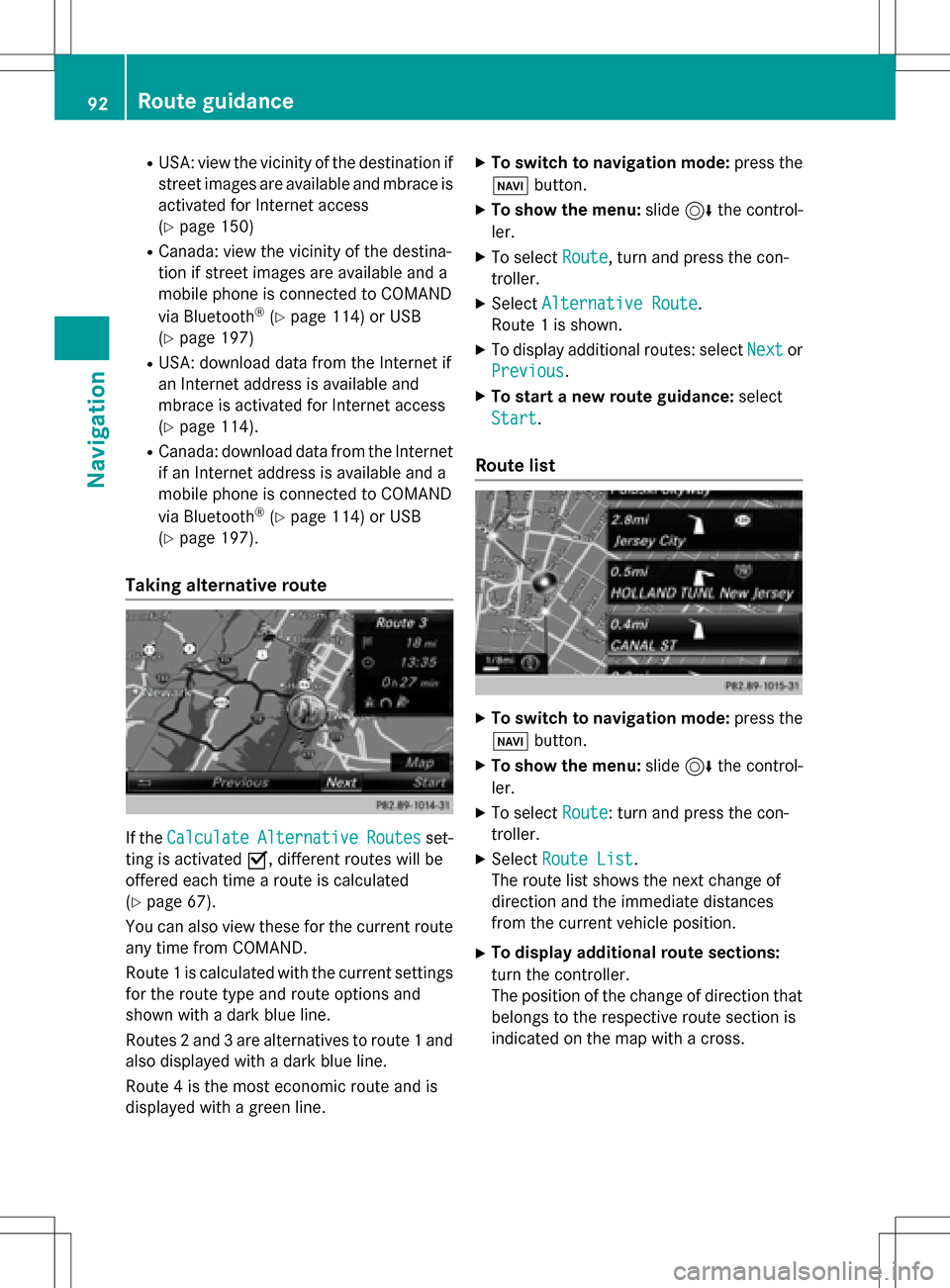
If the CalculateAlternativeRoutesset-
ting is activated O, different routes will be
offered each time a route is calculated
(
Ypage 67).
You can also view these for the current route
any time from COMAND.
Route 1 is calculated with the current settings
for the route type and route options and
shown with a dark blue line.
Routes 2 and 3 are alternatives to route 1 and
also displayed with a dark blue line.
Route 4 is the most economic route and is
displayed with a green line.
XTo switch to navigation mode: press the
Ø button.
XTo show the menu: slide6the control-
ler.
XTo select Route, turn and press the con-
troller.
XSelect Alternative Route.
Route 1 is shown.
XTo display additional routes: select Nextor
Previous
.
XTo start a new route guidance: select
Start
.
Route list
XTo switch to navigation mode: press the
Ø button.
XTo show the menu: slide6the control-
ler.
XTo select Route: turn and press the con-
troller.
XSelect Route List.
The route list shows the next change of
direction and the immediate distances
from the current vehicle position.
XTo display additional route sections:
turn the controller.
The position of the change of direction that
belongs to the respective route section is
indicated on the map with a cross.
92Route guidance
Navigation
Page 108 of 246
SIRIUS XM service
Displaying SIRIUS XM service informa-
tion
You can display the SIRIUS XM service infor-
mation.
XTo switch to navigation mode: press the
Ø button.
XTo show the menu: slide6the control-
ler.
XTo select Traffic: turn and press the con-
troller.
XSelect SIRIUS Service.
The provider's phone number (SIRIUS XM)
and the serial number of your service mod-
ule are displayed.
Registering the SIRIUS XM service
XCall the provider telephone number shown on the COMAND display.
iYou can also have the satellite service
activated online. To do so, visit the SIRIUS
XM Radio website at
http://www.sirius.com (USA).
Once the connection has been established:
XFollow the service employee's instructions.
The activation process may take up to
10 minutes.
If registration is not included when purchas-
ing the system, your credit card details will be
required to activate your account.
Updating the digital map
Introduction
The digital maps generated by the map soft-
ware become outdated in the same way as
conventional road maps. Optimal route guid-
ance can only be provided by the navigation
system in conjunction with the most up-to-
date map software.
Information about new versions of the digital
map can be obtained from an authorized Mercedes-Benz Center. You can have the dig-
ital map updated there using a data medium,
or you can update it yourself.
For North American countries, it is possible to
update the map data for COMAND free of
charge for a period of three years. Information
on the availability of this service for your vehi-
cle can be obtained from an authorized
Mercedes-Benz Center.
Entitlement to the free update
For the first three years after your vehicle is
registered, you are entitled to all available
updates to the map software for COMAND.
They are usually installed during a regular
vehicle service. After this period, you can pur-
chase further updates from an authorized
Mercedes-Benz Center.
The free updates relate to the vehicle and not
to an individual. If there is a change of own-
ership within the three years after first regis-
tration, the new owner is entitled to the map
software updates.
Updating at an authorized Mercedes-
Benz Center
If an update for your map software is availa-
ble, you will receive it free of charge at an
authorized Mercedes-Benz Center during
your vehicle's annual service. You can
arrange a separate appointment for this at an
authorized Mercedes-Benz Center on
request.
The update can only be performed:
Rat an authorized Mercedes-Benz Center
Rfor navigation data for North America
The map software is not provided on DVD.
Carrying out a manual update
After the free update of the map data has
expired or when buying map data, you can
update the data yourself.
The update process may take some time (up
to 45 minutes), depending on the size of the
106Map functions
Navigation
Page 116 of 246
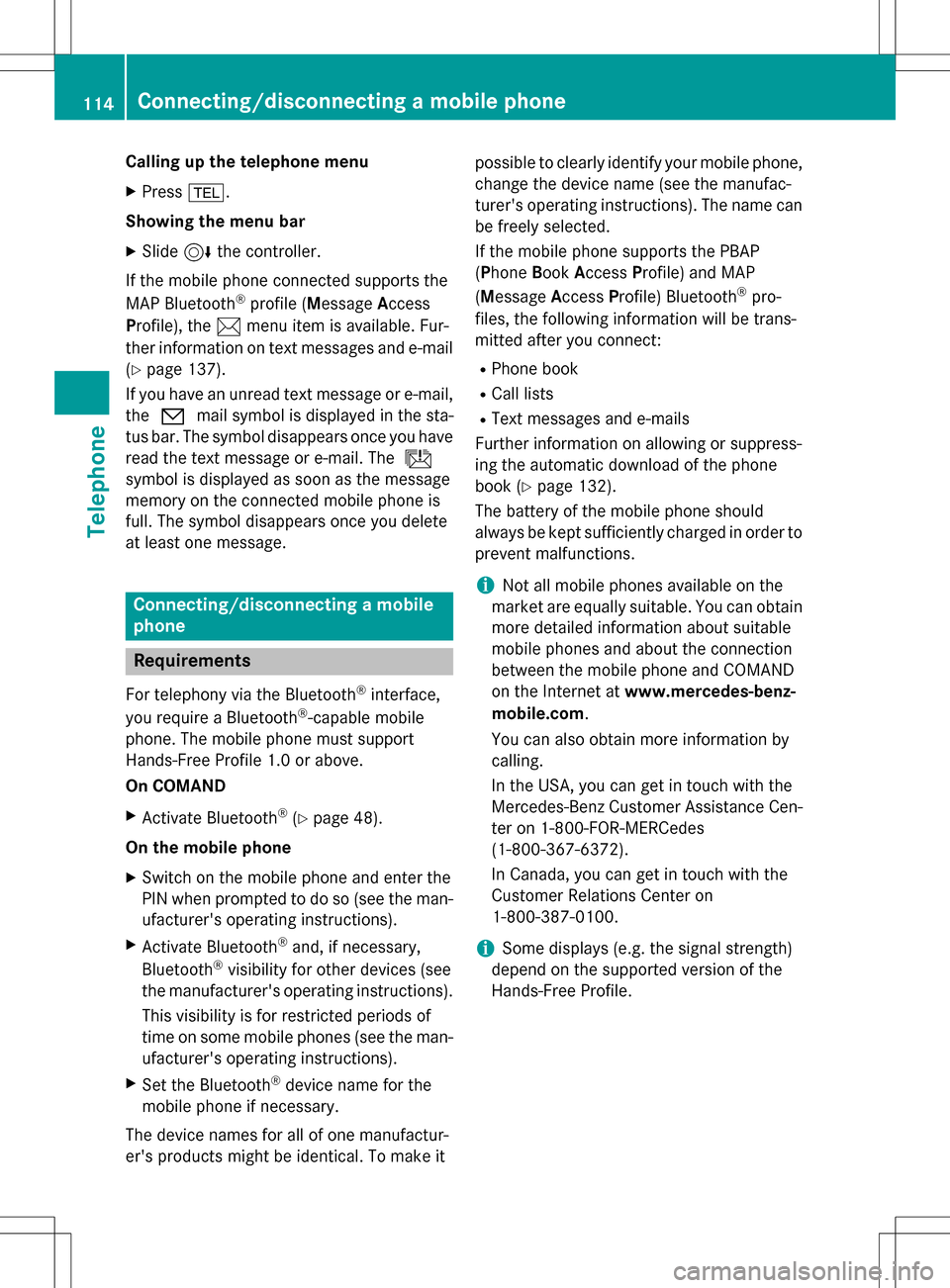
Calling up the telephone menu
XPress%.
Showing the menu bar
XSlide 6the controller.
If the mobile phone connected supports the
MAP Bluetooth
®profile ( Message Access
Profile), the 1menu item is available. Fur-
ther information on text messages and e-mail
(
Ypage 137).
If you have an unread text message or e-mail,
the 0 mail symbol is displayed in the sta-
tus bar. The symbol disappears once you have
read the text message or e-mail. The ú
symbol is displayed as soon as the message
memory on the connected mobile phone is
full. The symbol disappears once you delete
at least one message.
Connecting/disconnecting a mobile
phone
Requirements
For telephony via the Bluetooth®interface,
you require a Bluetooth®-capable mobile
phone. The mobile phone must support
Hands-Free Profile 1.0 or above.
On COMAND
XActivate Bluetooth®(Ypage 48).
On the mobile phone
XSwitch on the mobile phone and enter the
PIN when prompted to do so (see the man- ufacturer's operating instructions).
XActivate Bluetooth®and, if necessary,
Bluetooth®visibility for other devices (see
the manufacturer's operating instructions).
This visibility is for restricted periods of
time on some mobile phones (see the man-
ufacturer's operating instructions).
XSet the Bluetooth®device name for the
mobile phone if necessary.
The device names for all of one manufactur-
er's products might be identical. To make it possible to clearly identify your mobile phone,
change the device name (see the manufac-
turer's operating instructions). The name can
be freely selected.
If the mobile phone supports the PBAP
( Phone Book Access Profile) and MAP
( Message AccessProfile) Bluetooth
®pro-
files, the following information will be trans-
mitted after you connect:
RPhone book
RCall lists
RText messages and e-mails
Further information on allowing or suppress-
ing the automatic download of the phone
book (
Ypage 132).
The battery of the mobile phone should
always be kept sufficiently charged in order to
prevent malfunctions.
iNot all mobile phones available on the
market are equally suitable. You can obtain
more detailed information about suitable
mobile phones and about the connection
between the mobile phone and COMAND
on the Internet at www.mercedes-benz-
mobile.com .
You can also obtain more information by
calling.
In the USA, you can get in touch with the
Mercedes-Benz Customer Assistance Cen-
ter on 1-800-FOR-MERCedes
(1-800-367-6372 ).
In Canada, you can get in touch with the
Customer Relations Center on
1-800-387-0100.
iSome displays (e.g. the signal strength)
depend on the supported version of the
Hands-Free Profile.
114Connecting/disconnecting a mobile phone
Telephone
Page 121 of 246
XTo selectConn. Device: turn and press
the controller.
The device list appears.
XTo highlight the desired mobile phone in the
device list: turn the controller.
XTo select G: slide 9the controller.
XTo select Reception VolumeorTrans‐
mission Volume: turn and press the con-
troller.
XTo select a volume setting: turn the con-
troller.
XTo accept changes: press the controller.
iIncorrect settings may have an impact on
the quality of calls.
Using the telephone
Accepting a call
XTo select Accept: press the controller.
or
XPress 6on the multifunction steering
wheel.
The call is accepted.
Additional functions available during a call
(
Ypage 120).
Adjusting the call volume (
Ypage 118).
Further information about ending a call
(
Ypage 123).
iYou can also accept the call by voice com-
mand using the Voice Control System (see
the separate operating instructions).
iIf the phone number of the caller is trans-
ferred, it appears in the display. If the
phone number is saved in the phone book,
the contact's name and picture are also
displayed. If the phone number is not trans-
ferred, Unknown
is shown in the display.
Rejecting a call
XTo select Reject: turn and press the con-
troller.
or
XPress ~on the multifunction steering
wheel.
Making a call
Using the telephone menu
XTo call up the telephone menu: press the
% button.
XTo select all numbers one after the other in
the telephone menu: turn and press the
controller each time.
XTo select win the telephone menu: turn
and press the controller.
The call is made.
Further information about ending a call
(
Ypage 123).
Using the number keypad on the upper
section of the center console
XTo call up the telephone menu: press the
% button.
XEnter the digits using the number keypad.
XTo select win the telephone menu: turn
and press the controller.
The call is made.
Redial
XTo call up the telephone menu: press the
% button.
XTo select win the telephone menu: turn
and press the controller.
The list of outgoing calls is displayed. The
most recently dialed number is at the top.
XTo select an entry and make a call: turn and
press the controller.
Further information about ending a call
(
Ypage 123).
Using the telephone119
Telephone
Z
Page 126 of 246
You can now search for a contact
(
Ypage 124).
Further information on the symbols shown
(
Ypage 124).
iYou can also call up the phone book with
the multifunction steering wheel; see the
separate operating instructions.
Symbol overview
Sym-
bolExplanation
ÆContact that has been entered, edi-
ted or saved on COMAND.
\Contact with voice tag
These contacts have also been
assigned a voice tag. Voice tags are
available in vehicles with the Voice
Control System (see the separate
operating instructions).
ÃContact that was called up from a
mobile phone
¯Contact imported from the SD
memory card or USB device.
®Contact imported via the Blue-
tooth®interface.
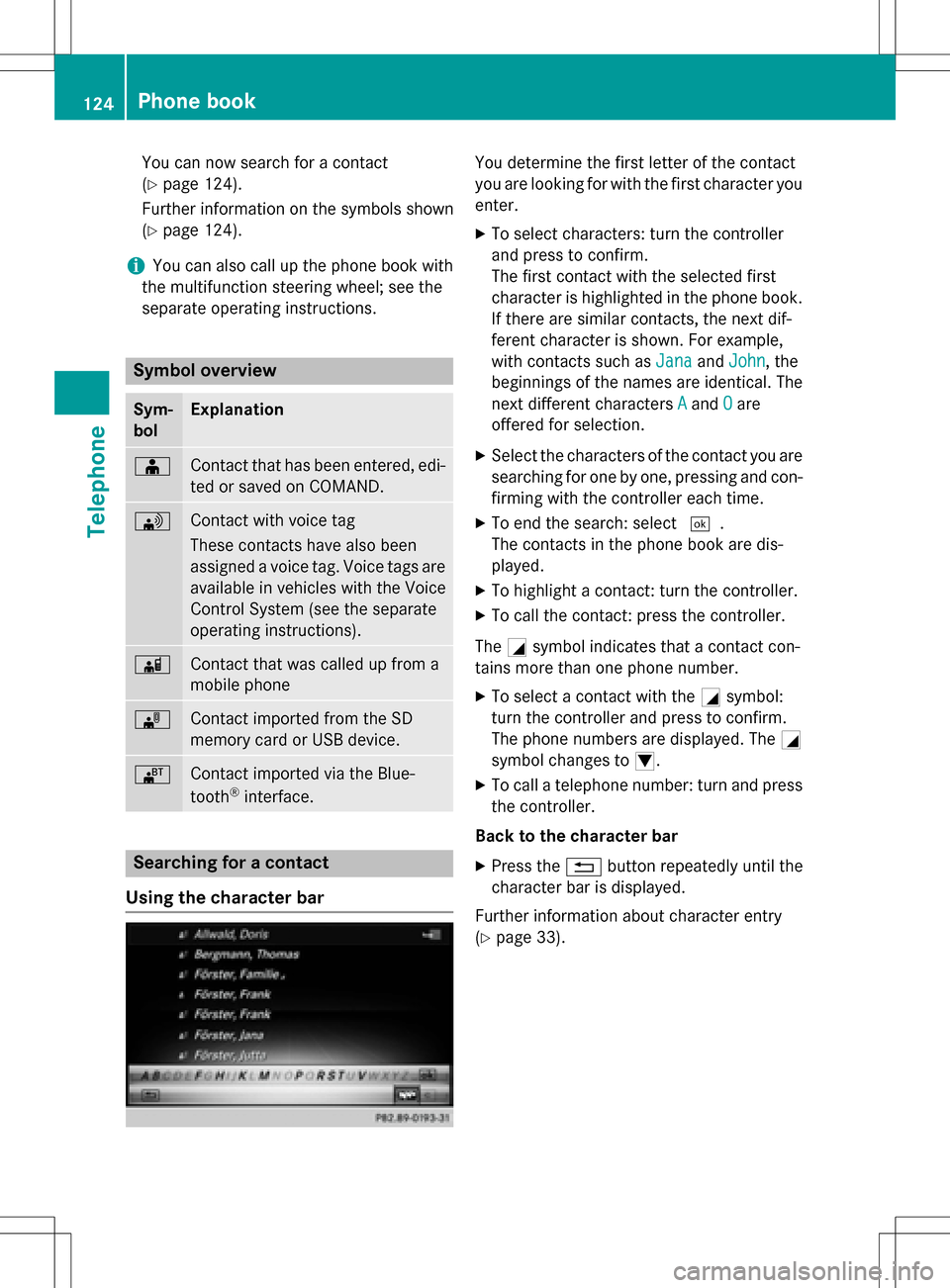
Searching for a contact
Using the character bar
You determine the first letter of the contact
you are looking for with the first character you
enter.
XTo select characters: turn the controller
and press to confirm.
The first contact with the selected first
character is highlighted in the phone book.
If there are similar contacts, the next dif-
ferent character is shown. For example,
with contacts such as Jana
andJohn, the
beginnings of the names are identical. The
next different characters A
andOare
offered for selection.
XSelect the characters of the contact you are
searching for one by one, pressing and con- firming with the controller each time.
XTo end the search: select ¬.
The contacts in the phone book are dis-
played.
XTo highlight a contact: turn the controller.
XTo call the contact: press the controller.
The Gsymbol indicates that a contact con-
tains more than one phone number.
XTo select a contact with the Gsymbol:
turn the controller and press to confirm.
The phone numbers are displayed. The G
symbol changes to I.
XTo call a telephone number: turn and press
the controller.
Back to the character bar
XPress the %button repeatedly until the
character bar is displayed.
Further information about character entry
(
Ypage 33).
124Phone book
Telephone
Page 182 of 246
Your COMANDequipment
These operatin ginstruction sdescribe all th e
standar dan doptional equipmen tof your
COMAN Dsystem, as available at th etime of
going to print .Country-specifi cdifference s
are possible. Bear in min dthat your vehicle
may no tfeature all function sdescribed here.
Thi salso applies to safety-relevan tsystems
an dfunctions.
Read th einformation on qualified specialis t
workshop sin th evehicle Operator's Manual.
Activating medi amode
General notes
There are severa lways to activat emedia
source susin gCOMAND.
The relevant section sof th eOperator's Man -
ual describe th esimples tway to activat e a
media source .
Thi ssection describes all option sfo ractivat -
in g media sources.
Button activation
XPress th eÕ button.
The last media source you hav eset is dis -
played.
XPress th eÕ buttonagain .
The men uappears wit hth eavailable media
sources.
XTo selec tmedia sources: turn th econtroller
until th edesire dmedia source is in th ecen-
ter. Press th econtroller .
Dependin gon th evehicle equipment, th e
followin gmedia source swill be available :
RDisc
RMemory Car d
RMedia Interface 1
RMedia Interface2
RBluetooth Audio
If playable music files are found ,they will be
playe dby COMAND.
Switching on automatically
Whe nan external media source is connected,
CD an dSD memor ycar dfunction sare auto-
matically switched on by COMAND. Whe n
usin gUS Bdevices, switch to th eappropriat e
Media Interface 1or Media Interface 2basi c
display.
External media sources:
RApple®devices (e.g. iPhon e®)
RUSBdevices (e.g. US Bstick, MP3 player)
RCD
RDV Dvideo
RSD cards
Rvia devices connecte dby Bluetoot h®
If playable music files are found ,they will be
playe dby COMAND.
iIfamedia function is already switched on
in COMAND, this will be interrupted an dth e
basi cdisplay of th enewly connecte d
devic ewill appear (except when usin gwit h
USB/iPo d
®).
If another function ,suc has navigation ,is
operating, th ebasi cdisplay will no tchange.
Only th emusic from th enewly connecte d
media source will play (except when usin g
wit hUSB/iPo d
®).
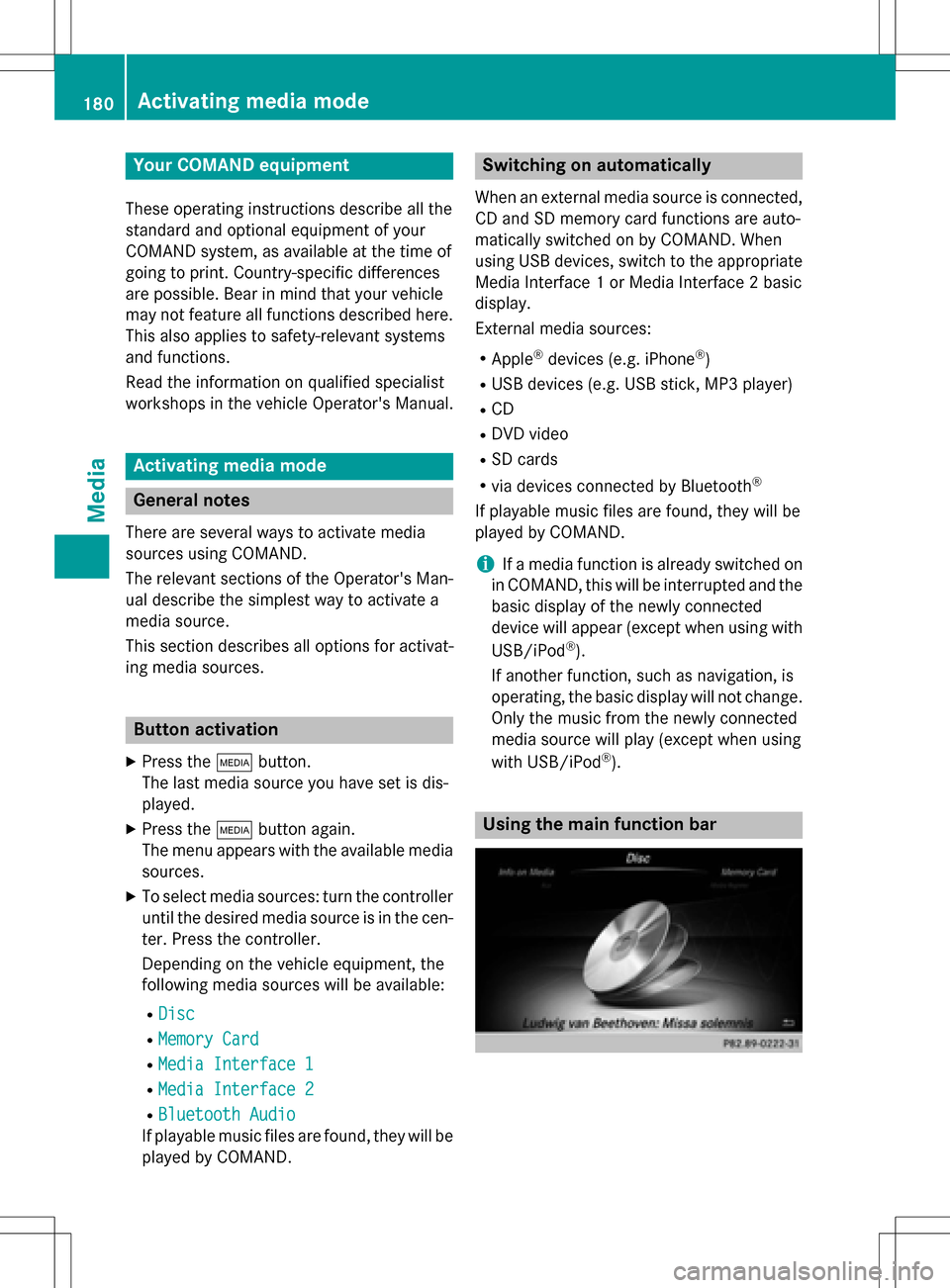
Usingth emain function ba r
180Activating media mode
Media
Page 190 of 246
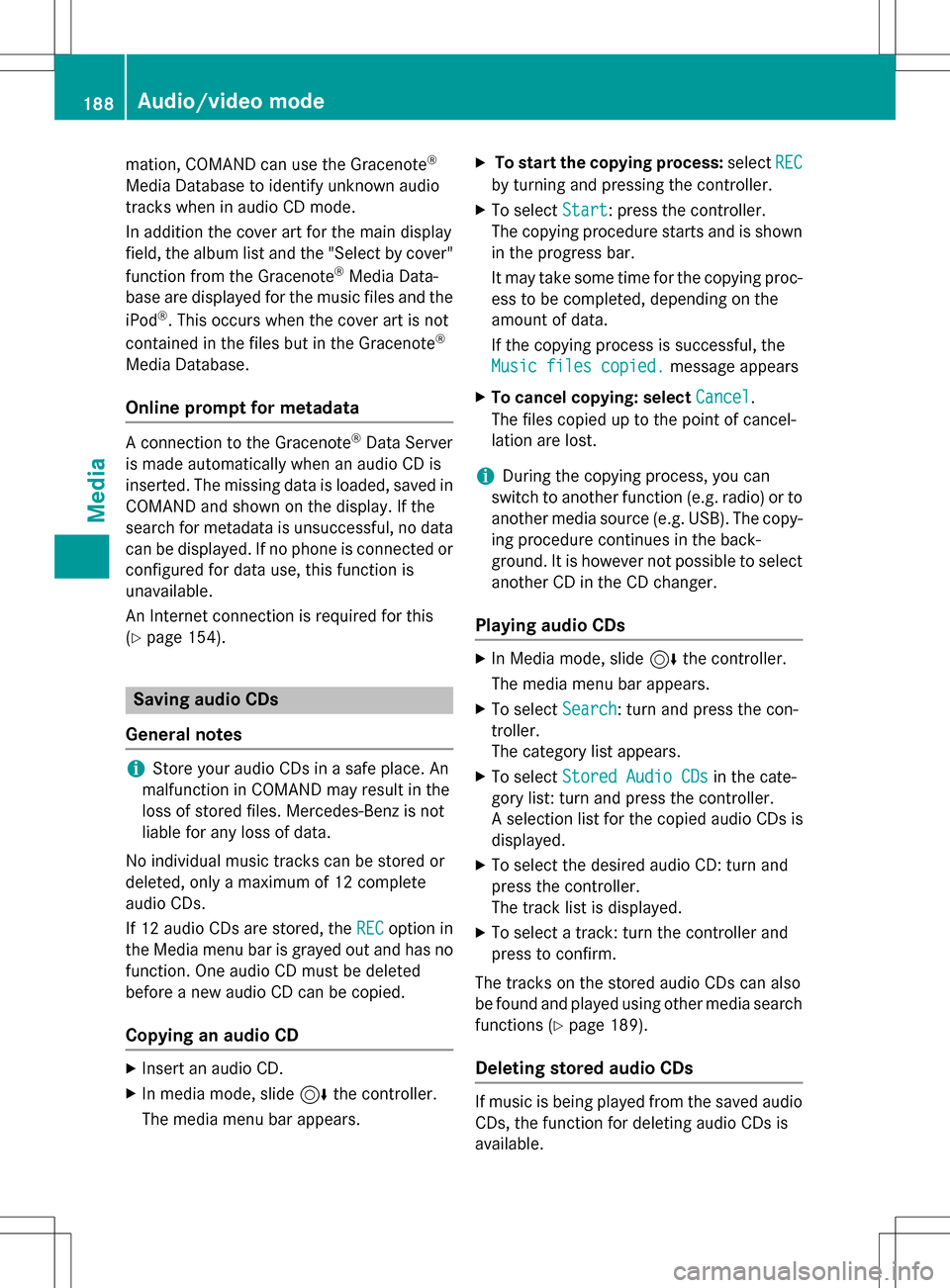
mation, COMAND can use the Gracenote®
Media Database to identify unknown audio
tracks when in audio CD mode.
In addition the cover art for the main display
field, the album list and the "Select by cover"function from the Gracenote
®Media Data-
base are displayed for the music files and the
iPod
®. This occurs when the cover art is not
contained in the files but in the Gracenote®
Media Database.
Online prompt for metadata
A connection to the Gracenote®Data Server
is made automatically when an audio CD is
inserted. The missing data is loaded, saved in
COMAND and shown on the display. If the
search for metadata is unsuccessful, no data
can be displayed. If no phone is connected or
configured for data use, this function is
unavailable.
An Internet connection is required for this
(
Ypage 154).
Saving audio CDs
General notes
iStore your audio CDs in a safe place. An
malfunction in COMAND may result in the
loss of stored files. Mercedes-Benz is not
liable for any loss of data.
No individual music tracks can be stored or
deleted, only a maximum of 12 complete
audio CDs.
If 12 audio CDs are stored, the REC
option in
the Media menu bar is grayed out and has no
function. One audio CD must be deleted
before a new audio CD can be copied.
Copying an audio CD
XInsert an audio CD.
XIn media mode, slide 6the controller.
The media menu bar appears.
XTo start the copying process: selectREC
by turning and pressing the controller.
XTo select Start: press the controller.
The copying procedure starts and is shown
in the progress bar.
It may take some time for the copying proc-
ess to be completed, depending on the
amount of data.
If the copying process is successful, the
Music files copied.
message appears
XTo cancel copying: select Cancel.
The files copied up to the point of cancel-
lation are lost.
iDuring the copying process, you can
switch to another function (e.g. radio) or to
another media source (e.g. USB). The copy-
ing procedure continues in the back-
ground. It is however not possible to select
another CD in the CD changer.
Playing audio CDs
XIn Media mode, slide 6the controller.
The media menu bar appears.
XTo select Search: turn and press the con-
troller.
The category list appears.
XTo select Stored Audio CDsin the cate-
gory list: turn and press the controller.
A selection list for the copied audio CDs is
displayed.
XTo select the desired audio CD: turn and
press the controller.
The track list is displayed.
XTo select a track: turn the controller and
press to confirm.
The tracks on the stored audio CDs can also
be found and played using other media search functions (
Ypage 189).
Deleting stored audio CDs
If music is being played from the saved audio
CDs, the function for deleting audio CDs is
available.
188Audio/video mode
Media
Page 194 of 246
This device name is predetermined but can
usually be changed. To make a clear selec-
tion of the Bluetooth
®device possible, we
recommend that you customize the device
name.
iA2DP (Advanced AudioDistribution
Profile): Bluetooth®audio profile for audio
data transmission
AVRCP (Audio VideoRemote Control
Profile): Bluetooth
®audio profile for audio
data playback.
iThe Bluetooth®device must be visible for
authorization. After authorization,
COMAND even finds the Bluetooth
®device
when it is not visible.
General notes
Before using your Bluetooth®audio device
with COMAND for the first time, you will need
to authorize it.
When you authorize a new Bluetooth
®audio
device, it is connected automatically. Con-
nection involves first searching for a Blue-
tooth
®audio device and then authorizing it.
You can authorize up to fifteen Bluetooth
®
devices.
iIf you authorize a mobile phone that sup-
ports Bluetooth®audio, the A2DP and
AVRCP Bluetooth®audio profiles are con-
nected automatically.
The mobile phone is then entered:
Rin the Bluetooth®telephone list
(
Ypage 115)
Rin the Bluetooth®audio device list
(
Ypage 192)
Mercedes-Benz recommends authorizing a
mobile phone in Bluetooth
®telephony
(
Ypage 116).
iIf the mobile phone that is connected only
supports two Bluetooth®profiles at the
same time, COMAND functions may
behave as follows:
Rwhen connecting to the Internet, play-
back is stopped on the Bluetooth®audio
device.
Rwhen starting playback on the Blue-
tooth®audio device, the Internet con-
nection is ended.
Searching for and authorizing a Blue-
tooth®audio device
Switching to Bluetooth®audio mode
XPress the Õbutton.
XTo select Bluetooth Audioin the menu:
turn and press the controller.
A menu appears.
If you see the No Bluetooth Audio
Device Authorizedmessage, you will
need to authorize the Bluetooth®audio
device first.
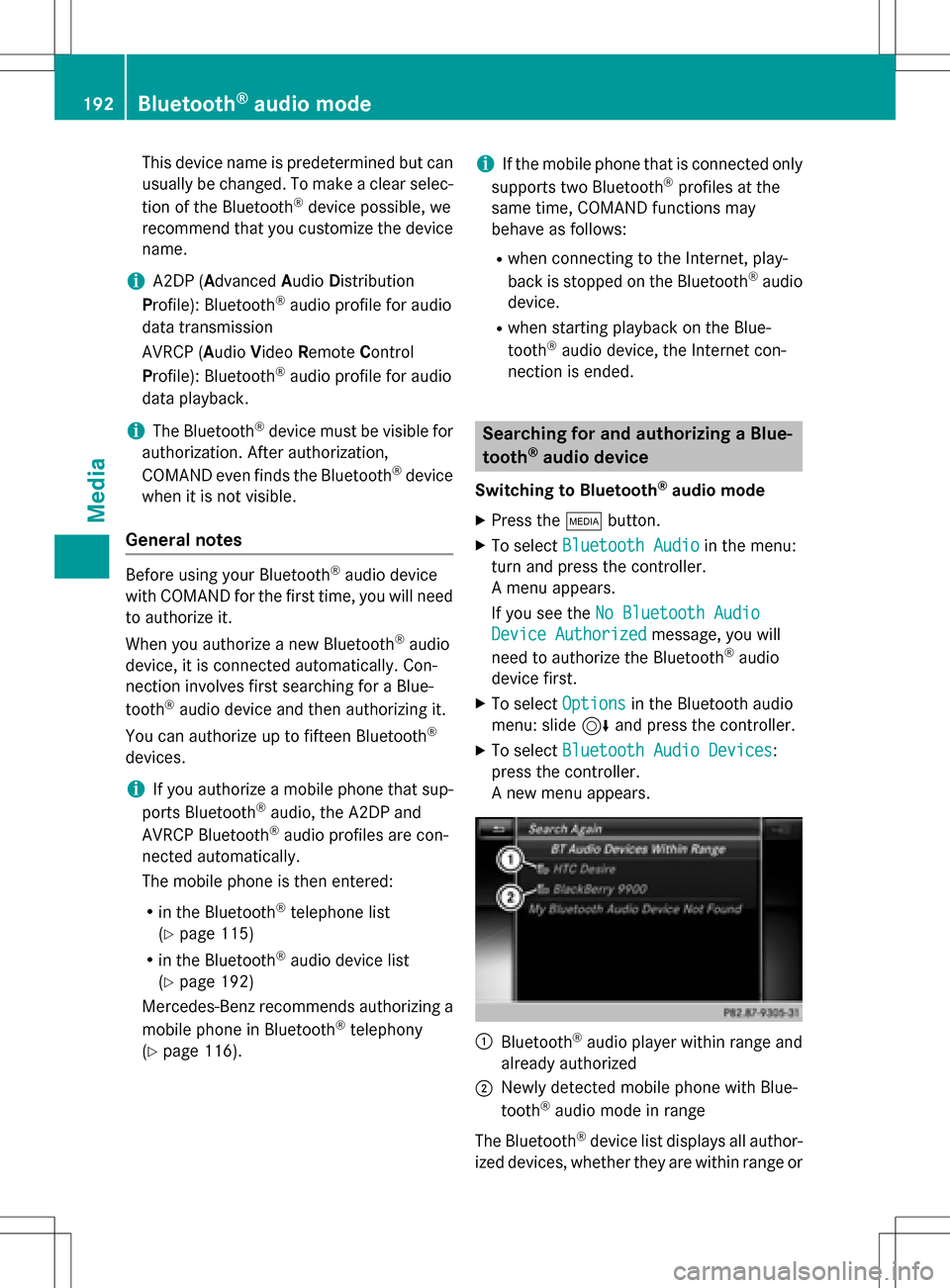
XTo select Optionsin the Bluetooth audio
menu: slide 6and press the controller.
XTo select Bluetooth Audio Devices:
press the controller.
A new menu appears.
:Bluetooth®audio player within range and
already authorized
;Newly detected mobile phone with Blue-
tooth®audio mode in range
The Bluetooth
®device list displays all author-
ized devices, whether they are within range or
192Bluetooth®audio mode
Media