fuel MERCEDES-BENZ B-Class 2016 W246 Comand Manual
[x] Cancel search | Manufacturer: MERCEDES-BENZ, Model Year: 2016, Model line: B-Class, Model: MERCEDES-BENZ B-Class 2016 W246Pages: 246, PDF Size: 6.73 MB
Page 8 of 246
Displaying the vehicle identifica-
tion number (VIN) .......................... 159
Importing destinations ................... 159
Placing a call at the destination ..... 158
Procedure and general informa-
tion ................................................ 157
Sending destinations to the
server ............................................ 157
Using a destination for route guid-
ance ............................................... 158
Using destinations .........................158
Dialing a number (telephone) ........... 119
Display
Selecting the design ........................ 40
Switching on/off .............................. 41
Displaying energy consumption
and generated electrical energy
(COMAND) ............................................ 55
DVD
Inserting/loading (DVD changer) ... 184
Inserting/loading (Rear Seat
Entertainment System) .................. 234
Notes on discs ............................... 183
Removing/ejecting (DVD
changer) ........................................ 185
Removing/ejecting (Rear Seat
Entertainment System) .................. 234
DVD video
Rear Seat Entertainment System ... 237
DYNAMIC SELECT
Configuration via the DYNAMIC
SELECT controller ............................ 60
Configuring individual drive pro-
gram ................................................ 59
Configuring using the DYNAMIC
SELECT button ................................. 60
Displaying engine data ..................... 60
Setting options ................................ 60
E
E-mailAnswering ...................................... 142
Calling up the settings menu ......... 138
Changing the name of the e-mail
account .......................................... 139
Configuring an e-mail account ....... 139
Configuring the e-mails displayed .. 139 Deactivating the e-mail function .... 139
Deleting ......................................... 144
Displaying details ........................... 141
Downloading e-mails manually ...... 139
Editing text templates .................... 143
Forwarding ..................................... 143
Inbox .............................................. 140
Reading .......................................... 140
Settings ......................................... 138
Storing the sender as a new entry
in the address book ....................... 144
Using a phone number in the text .. 144
Using text templates ...................... 143
Writing ........................................... 142
Entering the address (example) ......... 70
Entering the city .................................. 70
F
Factory setting (reset function) ......... 51
Favorites
Adding ............................................. 36
Deleting ........................................... 37
Displaying and calling up ................. 36
Moving ............................................. 37
Overview .......................................... 35
Renaming ......................................... 36
Favorites (Internet) ........................... 164
Favorites button .................................. 49
Fuel consumption (COMAND) ............ 55
G
Google™ Local Search
Calling up Local Search ................. 155
Entering a search position and
search term ................................... 156
Importing a destination/route ....... 156
Popular Searches ........................... 157
Search history ............................... 157
Using as the destination ................ 156
GPS reception ...................................... 64
Gracenote
®Media Database ............ 187
H
Handwriting recognition
Switching text reader function
on/off .............................................. 28
6Index
Page 9 of 246
Touchpad ......................................... 27
Harman kardon®Logic 7®sur-
round sound system
Balance/Fader ...............................2 10
Calling up the sound menu ............ 209
Equalizer ........................................ 210
Features ........................................ 209
Surround sound .............................2 10
Heading up (navigation) ................... 101
Home address
Entering and saving ......................... 71
I
Incident (traffic report) ....................... 94
Intermediate destinations
Accepting for the route .................... 81
Creating ...........................................7 9
Editing .............................................. 81
Entering ........................................... 79
Searching for a gas station when
the fuel level is low .......................... 81
Internet
Conditions for access .................... 150
Creating favorites .......................... 164
Entering the URL ............................ 161
Favorites manager ......................... 164
Favorites menu .............................. 165
Menu functions .............................. 162
Options menu ................................ 162
Selecting/setting access data ....... 151
Setting up an Internet connection .. 151
K
Keyword search (navigation)Entering keywords ........................... 72
Selecting search options ................. 73
Selecting search results ................... 72
Using online search ......................... 74
L
Lane recommendationsExplanation ...................................... 88
Presentation .................................... 88
Lights
Activating/deactivating the exte-
rior lighting delayed switch-off ......... 55 Setting the ambient lighting
(COMAND) ....................................... 54
List of access data
New provider ................................. 152
List of mobile phone network pro-
viders
With the selected provider ............. 152
Locator lighting
Setting (COMAND) ........................... 55
Lumbar support
Adjusting (COMAND) ....................... 56
M
MapSelecting map content ................... 100
Map (navigation)
Adjusting the scale ........................ 100
Building images ............................. 104
Displaying the next intersection .... 103
Heading ......................................... 101
Map settings .................................. 100
Moving ............................................. 66
North orientation ........................... 101
Notes ............................................. 100
Rotating the 3D map ...................... 103
Selecting POI symbols on the
map ............................................... 101
Selecting text information on the
map ............................................... 102
Showing the map version ............... 103
Switching highway information
on/off ............................................ 102
Traffic Sign Assist .......................... 102
Updating ........................................ 106
Map functions .................................... 100
Massage
Selecting a program ......................... 57
Media Interface
Mode ............................................. 197
Playback options ........................... 199
Search ........................................... 198
Selecting a music file ..................... 198
Switching to Media Interface ......... 197
Video function ............................... 199
Media search
Category list .................................. 189
Current tracklist ............................ 190
Index7
Page 12 of 246
Switching on/off (COMAND) ........... 59
Rear-compartment screens .............. 227
Receiving vCards ............................... 134
Redialing (telephone) ........................ 119
Remote control
Button lighting ............................... 228
Changing batteries ........................ 230
Rear Seat Entertainment System ... 227
Reserve fuel level
Switching the function on/off in
COMAND ......................................... 68
Resetting (factory settings) ............... 51
Route (navigation)
Selecting an alternative route .......... 92
Setting route options (avoiding:
highways, toll roads, tunnels, fer-
ries) ................................................. 67
Setting the route type (short
route, fast route, dynamic route or
economic route) ............................... 66
Starting calculation .......................... 71
Route guidance
Continue .......................................... 91
Freeway information ........................ 89
General notes .................................. 87
Lane recommendations ................... 88
Off-road ........................................... 93
Traffic reports .................................. 94
S
Safety notesAudio CD and MP3 mode ............... 181
Using the telephone ....................... 112
Satellite radio
Displaying information ................... 176
Overview ........................................ 173
Registering .................................... 172
Switching to ................................... 173
SatRadio
Channel list updates ...................... 177
Memory functions .......................... 175
Music and sports alerts ................. 175
Notes ............................................. 172
Selecting a category ...................... 173
Selecting a channel ....................... 174
Tagging music tracks ..................... 176 Screen
Selecting for the remote control .... 227
SD memory card
Ejecting .......................................... 185
Inserting ........................................ 185
Inserting/removing ........................ 185
Seat cushion
Adjusting (COMAND) ....................... 57
Seats
Active multicontour seat
(COMAND) ....................................... 57
Adjusting the lumbar support
(COMAND) ....................................... 56
Balance (seat heating) ..................... 57
Massage function (COMAND) .......... 57
Massage programs (COMAND) ........ 57
Resetting settings ............................ 57
Seat functions (COMAND) ............... 56
Selecting for adjustment
(COMAND) ....................................... 56
Setting the driving dynamics
(COMAND) ....................................... 57
Selecting stations
Radio ............................................. 169
Sending DTMF tones ......................... 121
Setting access data
Online and Internet ........................ 152
Setting the audio format
Rear Seat Entertainment System ... 240
Setting the language
COMAND ......................................... 48
Rear Seat Entertainment System ... 240
Setting the night design ..................... 40
Setting the text reader speed ............ 44
Setting the volume
Telephone calls ................................ 31
Settings
Sound settings ............................... 208
Short message
see Text messages (SMS)
SIRIUS weather display
5-day forecast ................................ 216
Daily forecast ................................. 216
Detail information .......................... 217
Information chart ........................... 216
Selecting a loca
tion for the
weather forecast ............................ 217
Switching on/off ........................... 216
10Index
Page 23 of 246
RNavigation system
-Navigation via the hard drive
-Destination entry, for example using key-
word search
-Realistic 3D map with textured city mod-
els
-Personal POIs and routes using SD mem-
ory card
-Navigation functions, e.g. compass dis-
play
-Dynamic route guidance with traffic
reports via SIRIUS satellite radio
RCommunication
-Messaging functions (text messages, e-
mail)
-Address book
-Internet browser
-Mercedes-Benz Apps with Google™
Local Search, destination and route
download, Facebook, Google Street
View™, stock prices, news and much
more
-Mercedes-Benz Mobile Website
-WiFi interface for the connection of a
smartphone to COMAND
-WiFi hotspot functionality to connect a
tablet PC or laptop in order to enable
access to the Internet using the custom- er's mobile phone
RSIRIUS Weather
-Weather data as an information chart
(current forecast, 5-day preview,
detailed information)
-Weather data on the weather map, e.g.
rain radar data, storm characteristics
and the track of tropical cyclones (hurri-
canes, tornadoes)
RVehicle functions
-Vehicle settings, e.g. fuel consumption
-Ionization
-360° camera
-Rear view camera
-Seat functions
-DYNAMIC SELECT (individual drive pro-
gram)
-Driving dynamics display in the COMAND
display for vehicles with the Off-Road
Engineering package (see vehicle Oper-
ator's Manual)
RFavorites button
Fast access to favorites functions using the
favorites button on the controller
Display
General notes
!Do not use the space in front of the dis-
play for storage. Objects placed here could
damage the display or impair its function.
Avoid any direct contact with the display
surface. Pressure on the display surface
may result in impairments to the display,
which could be irreversible.
Wearing polarized sunglasses may impair
your ability to read the display.
The display has an automatic temperature-
controlled switch-off feature. The brightness
is automatically reduced if the temperature is
too high. The display may then temporarily
switch off completely.
Overview21
Overview and operation
Page 57 of 246
Setting the interior welcome light
XCall upVehicle Settings(Ypage 54).
XTo select Interior Welcome Light: turn
and press the controller.
XPress the controller.
The function is switched on or off, depend-
ing on the previous status.
You can find further information on the inte-
rior lighting in the vehicle Operator's Manual.
Switching locator lighting on/off
If you switch on the LocatorLightingfunc-
tion, the exterior lighting is switched on for a
short time when it is dark. The light switch
must be set to Ã.
The exterior lighting remains on for
40 seconds after the vehicle is unlocked.
When you start the engine, the locator light-
ing is switched off and automatic headlamp
mode is activated.
You can find further information on the auto-
matic headlamp mode in the vehicle Opera-
tor's Manual.
XCall up Vehicle Settings(Ypage 54).
XTo select Locator Lighting: turn and
press the controller.
XPress the controller.
The function is switched on or off, depend-
ing on the previous status.
You can find further information on the lock-
ing feature in the vehicle Operator's Manual.
iThere may be fewer settings or none
depending on your vehicle's equipment.
Setting the delayed switch-off time
Interior lighting delayed switch-off
The interior lighting is activated for the dura-
tion of the delayed switch-off time when the
SmartKey is removed from the ignition lock.
XCall up Vehicle Settings(Ypage 54).
XTo select Interior Lighting Delayed
Switch-off: turn and press the controller.
The setting element is active.
XTo change the delayed switch-off time: turn the controller.
You can find further information on the inte-
rior lighting in the vehicle Operator's Manual.
Exterior lighting delayed switch-off
If you switch on the Exterior Lighting
Delayed Switch-offfunction, the exterior
lighting is switched on for a short time after
the engine is switched off. The light switch
must be set to Ã.
The exterior lighting remains on for
60 seconds after the engine is switched off. If
you close all the doors and the tailgate, the
exterior lighting switches off after the set
time.
XCall up Vehicle Settings(Ypage 54).
XTo select Exterior Lighting Delayed
Switch-off: turn and press the controller.
The setting element is active.
XTo change the delayed switch-off time: turn the controller.
Displaying energy consumption and
generated electrical energy
A bar graph displays the energy consumption
and the generated electrical energy.
XCall up Vehicle Settings(Ypage 54).
XTo select Consumption: turn and press the
controller.
The energy consumption and the generated
electrical energy for the last 15 minutes of
the journey is shown.
For further information on energy consump-
tion, see the vehicle Operator's Manual.
Displaying the fuel consumption
A bar graph displays the fuel consumption.
Vehicle settings55
Vehicle functions
Z
Page 58 of 246
XCallupVehicle Settings(Ypage 54 ).
XTo select Consumption: turn and press the
controller.
The fuel consumption for the last
15 minutes of the journey isshown.
Switching the ionization on/off
The ionization has a cleansing effect on the air
in the veh icleinterior. You can find further
information on the ionization inthe vehicle
Operator's Manual.
XCall upVehicle Settings(Ypage 54 ).
XTo select Ionization: turn and press the
controller.
The ionization isswitched on or off ,
depe nding on the previous status: press
and turn the controller.
Ex iting a menu:
XPress the %button.
Seats
Overview
You can configure the following seat func-
tionsinthe menu:
RBackrest sidebolsters
RLumbar
RSeat cushion
RMassage
RDynamics
RSeat heating balance
iThere may befewer settings or none
depe nding on your vehicle's equipment.
Selecting the adjustment function
and seat
XPress the Øbutton on the COMAND
control panel.
or
XTo select Vehiclefrom the main function
bar: turn and press the controller.
The veh iclemenu is disp layed.
XTo select Seat Settings: turn and press
the controller.
The seat settings menu isshown.
or
XPress the Tbutton on the controller.
The seat settings menu isshown.
XTo select the required seat function: turn
and press the controller.
XTo switch between DriverandFront
Passenger: slide 1 the controller.
Adjustment functions
Adjusting the backrest side bolsters
XCall up the seat functions (Ypage 56 ).
XTo select Backrest Sides: turn and press
the controller.
XTo change the setting: turn the controller.
You willsee the changes you have made in
the settings display.
XTo exit the menu: press the %button.
Adjusting the seat contour in the lum-
bar region of the seat backrest
This function allows you to adjust the air
cushions inthe lumbar region of the backrest
(4-way lumbar support ).
XCallup the seat functions (Ypage 56).
XTo select Lumbar: turn and press the con-
troller.
XTo act ivate the setting element: press the
controller.
XTo change the setting: slide 4or1
the controller.
The change will be visible in the setting ele-
ment.
XTo exit the menu: press the %button.
56Seats
Vehicle functions
Page 61 of 246
The camera cover closes automatically if:
Rthe ignition is switched off
Rthe vehicle exceeds a moderate speed
Rear view camera
General notes
The rear view camera covers the immediate
surroundings of the vehicle and assists you
when parking.
The rear view camera is only an aid. It is not a
replacement for your attention to your imme-
diate surroundings. You are always responsi-ble for safe maneuvering and parking. When
maneuvering or parking, make sure that there
are no persons, animals or objects in the area in which you are maneuvering.
There may be fewer settings depending on
your vehicle's equipment.
You can find further information about the
rear view camera in the vehicle Operator's
Manual.
Switching the rear view camera auto-
matic mode on/off
This function activates the rear view camera
when reverse gear is engaged.
XPress the Øbutton on the COMAND
control panel.
or
XPress Vehiclein the main function bar.
The vehicle menu is displayed.
XSlide 6the controller.
XTo select System Settings: turn and
press the controller.
XSelect Rear View Camera.
The Rear View Camera
menu appears.
XSelect Activation by R gear.
The function is switched on Oor off ª,
depending on the previous status.
When you start the vehicle and engage
reverse gear, the area behind the vehicle is shown with guide lines in the display. For
further information on the rear view camera
(see the vehicle Operator's Manual).
Opening the camera cover for clean-
ing
XTo select
Open Camera Coverin the rear
view camera menu: turn and press the con-
troller.
The Please
Wait...message appears for
approximately three seconds.
The camera cover opens.
The camera cover closes automatically if:
Rthe ignition is switched off
Rthe vehicle pulls away
DYNAMIC SELECT
General notes
Press DYNAMIC SELECTto configure the fol-
lowing settings and values for the Individual
drive program:
RDrive system
RSuspension
RSteering
RClimate control
RECO start/stop function
iIn a few countries, the ECO start/stop
function is deactivated at the factory due to
the available fuel grade. In this case, the
ECO start/stop function is not available
regardless of the display in the COMAND
display.
For Mercedes-AMG GLE vehicles, you can
configure the following settings and adjust-
ment values for the Individual drive program:
RDrive system
RSuspension
RTransmission
RESP®(Electronic Stability Program)
DYNAMIC SELECT59
Vehicle functions
Z
Page 70 of 246
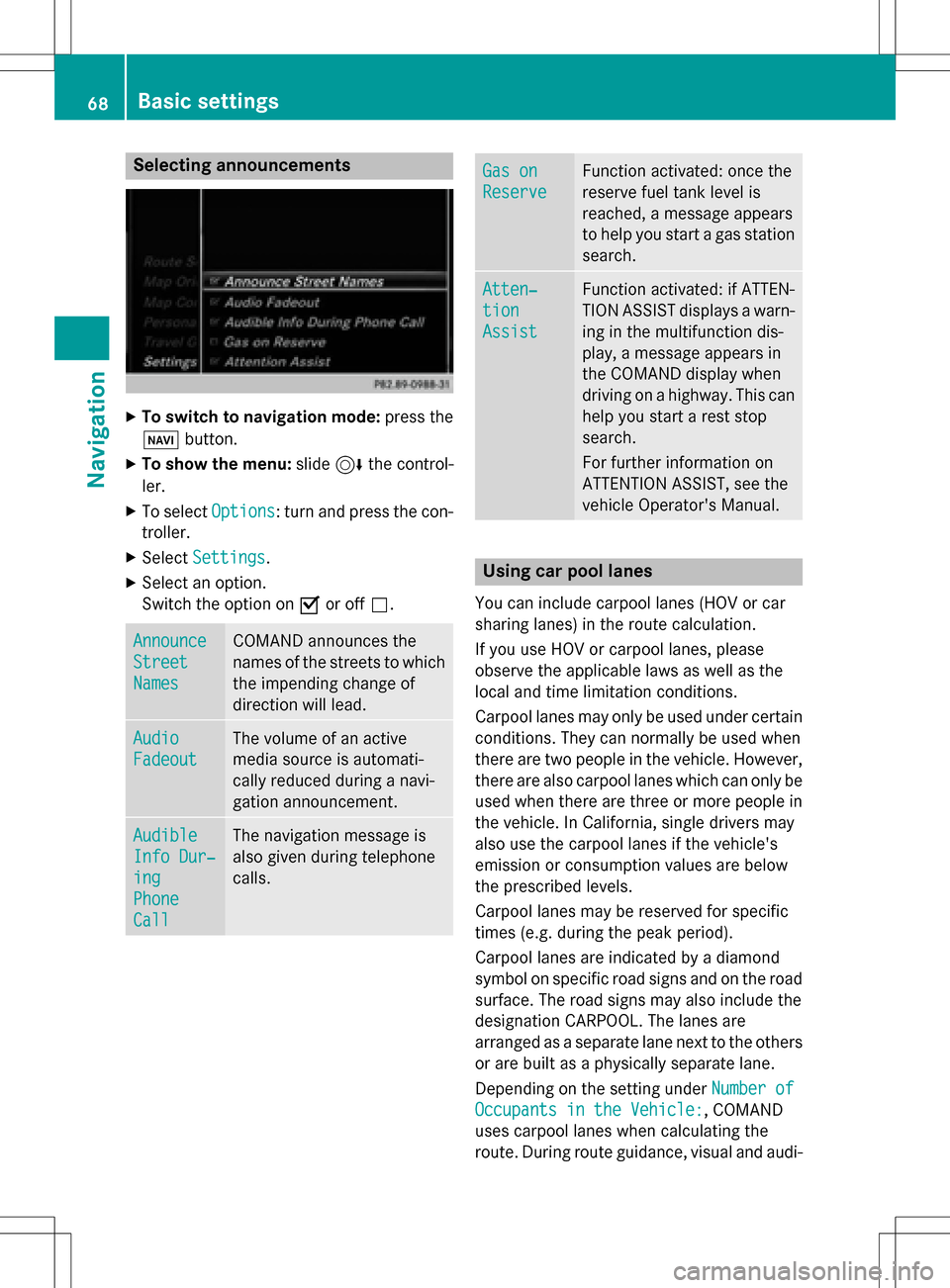
Selecting announcements
XTo switch to navigation mode:press the
Ø button.
XTo show the menu: slide6the control-
ler.
XTo select Options: turn and press the con-
troller.
XSelect Settings.
XSelect an option.
Switch the option on Oor off ª.
Announce
Street
Names
COMAND announces the
names of the streets to which
the impending change of
direction will lead.
Audio
Fadeout
The volume of an active
media source is automati-
cally reduced during a navi-
gation announcement.
Audible
Info Dur‐
ing
Phone
Call
The navigation message is
also given during telephone
calls.
Gas on
Reserve
Function activated: once the
reserve fuel tank level is
reached, a message appears
to help you start a gas station
search.
Atten‐
tion
Assist
Function activated: if ATTEN-
TION ASSIST displays a warn-
ing in the multifunction dis-
play, a message appears in
the COMAND display when
driving on a highway. This can
help you start a rest stop
search.
For further information on
ATTENTION ASSIST, see the
vehicle Operator's Manual.
Using car pool lanes
You can include carpool lanes (HOV or car
sharing lanes) in the route calculation.
If you use HOV or carpool lanes, please
observe the applicable laws as well as the
local and time limitation conditions.
Carpool lanes may only be used under certain
conditions. They can normally be used when
there are two people in the vehicle. However,
there are also carpool lanes which can only be
used when there are three or more people in
the vehicle. In California, single drivers may
also use the carpool lanes if the vehicle's
emission or consumption values are below
the prescribed levels.
Carpool lanes may be reserved for specific
times (e.g. during the peak period).
Carpool lanes are indicated by a diamond
symbol on specific road signs and on the road
surface. The road signs may also include the
designation CARPOOL. The lanes are
arranged as a separate lane next to the others
or are built as a physically separate lane.
Depending on the setting under Number of
Occupants in the Vehicle:, COMAND
uses carpool lanes when calculating the
route. During route guidance, visual and audi-
68Basic settings
Navigation
Page 83 of 246
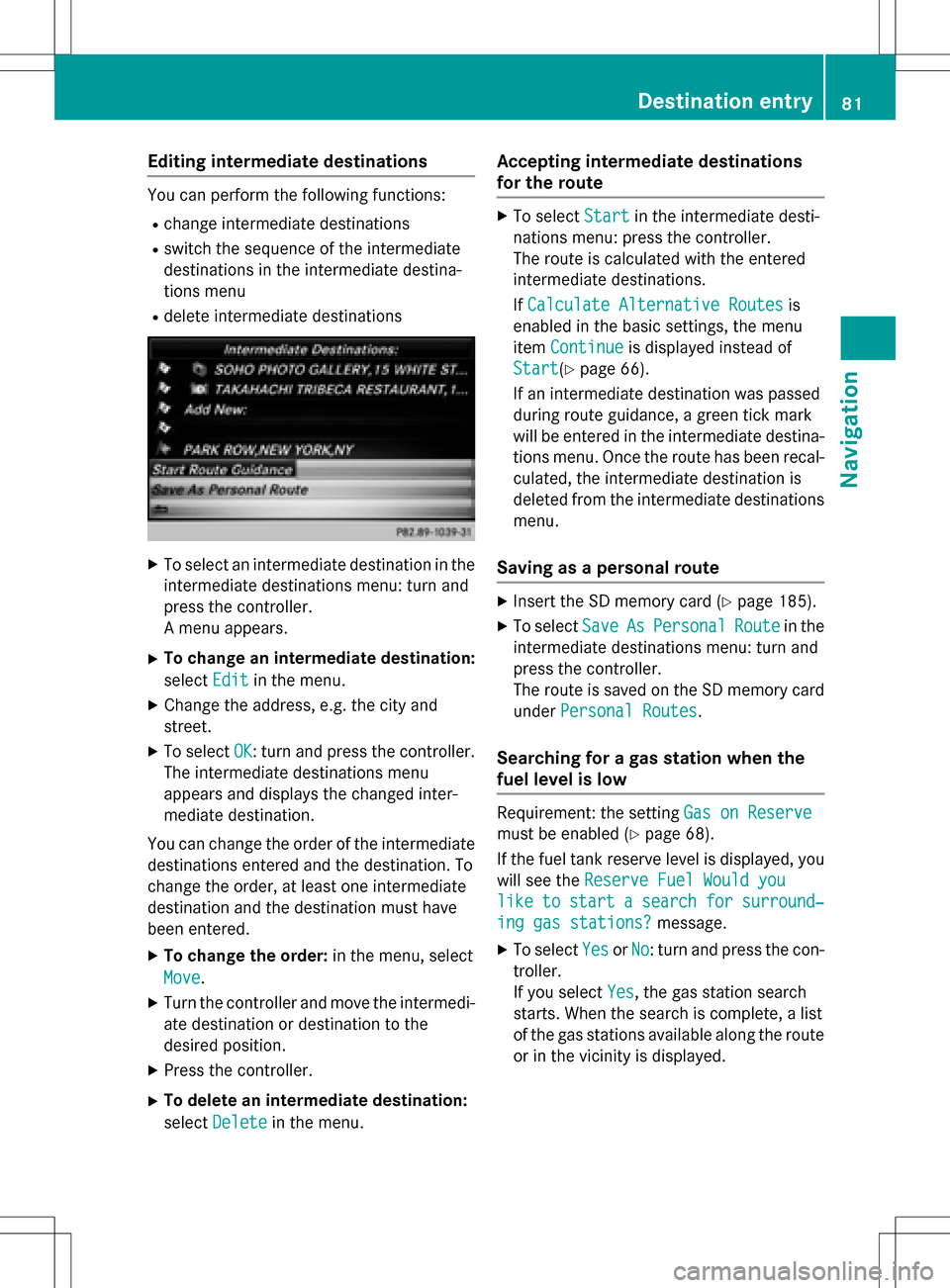
Editing intermediate destinations
You can perform the following functions:
Rchange intermediate destinations
Rswitch the sequence of the intermediate
destinations in the intermediate destina-
tions menu
Rdelete intermediate destinations
XTo select an intermediate destination in the
intermediate destinations menu: turn and
press the controller.
A menu appears.
XTo change an intermediate destination:
selectEdit
in the menu.
XChange the address, e.g. the city and
street.
XTo select OK: turn and press the controller.
The intermediate destinations menu
appears and displays the changed inter-
mediate destination.
You can change the order of the intermediate
destinations entered and the destination. To
change the order, at least one intermediate
destination and the destination must have
been entered.
XTo change the order: in the menu, select
Move
.
XTurn the controller and move the intermedi-
ate destination or destination to the
desired position.
XPress the controller.
XTo delete an intermediate destination:
select Delete
in the menu.
Accepting intermediate destinations
for the route
XTo select Startin the intermediate desti-
nations menu: press the controller.
The route is calculated with the entered
intermediate destinations.
If Calculate Alternative Routes
is
enabled in the basic settings, the menu
item Continue
is displayed instead of
Start
(Ypage 66).
If an intermediate destination was passed
during route guidance, a green tick mark
will be entered in the intermediate destina-
tions menu. Once the route has been recal-
culated, the intermediate destination is
deleted from the intermediate destinations menu.
Saving as a personal route
XInsert the SD memory card (Ypage 185).
XTo select SaveAsPersonalRoutein the
intermediate destinations menu: turn and
press the controller.
The route is saved on the SD memory card
under Personal Routes
.
Searching for a gas station when the
fuel level is low
Requirement: the setting Gas on Reserve
must be enabled (Ypage 68).
If the fuel tank reserve level is displayed, you
will see the Reserve Fuel Would you
liketostartasearchforsurround‐
ing gas stations?message.
XTo selectYesorNo: turn and press the con-
troller.
If you select Yes
, the gas station search
starts. When the search is complete, a list
of the gas stations available along the route
or in the vicinity is displayed.
Destination entry81
Navigation
Z
Page 218 of 246
Your COMANDequipment
These operatin ginstruction sdescribe all th e
standar dan doptional equipmen tof your
COMAN Dsystem, as available at th etime of
going to print .Country-specifi cdifference s
are possible. Bear in min dthat your vehicle
may no tfeature all function sdescribed here.
Thi salso applies to safety-relevan tsystems
an dfunctions.
Read th einformation on qualified specialis t
workshop sin th evehicle Operator's Manual.
Weather forecasts
Introduction
Thi sfunction is currentl yno tavailable fo r
Canada.
Fo rth ereception of weather forecast svia
satellite radio, you will need aSIRIU SXM Sat -
ellite Weather subscription .
If th emessage: Please call SIRIUS to
activate the system at :
888-539-7474 ESN: SIRIUS IDappears
alon gwit hth eID number of th eSIRIU S
device, you will need to hav eth eweather ser -
vic eactivated first .
XTo selectCal lorCancel:turn an dpress
th econtroller .
If amobile phone is connecte dto COMAN D
(
Ypage 114), when you selec tCalla cal lis
placed to amember of th eSIRIU Sservic e
staff .The ID number of th eSIRIU Sdevic e
will be transferred to th etelephon edisplay.
XThi swill be followed by instruction sfrom
th eservic eemployee.
COMAN Dcan receiv eweather forecast svia
satellite radio fo rth eentire US A(includin g
Alask aan dHawaii).
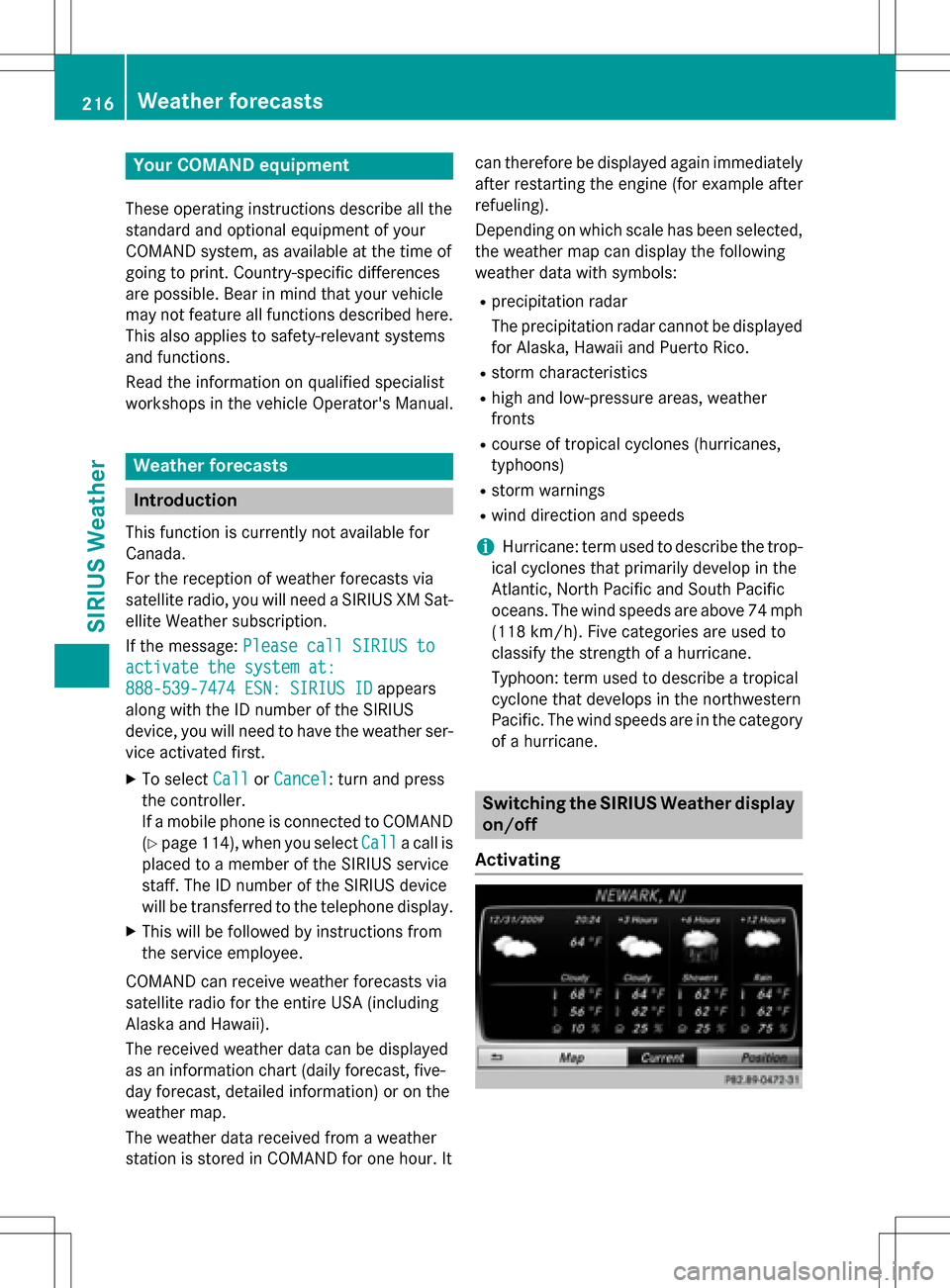
The received weather dat acan be displaye d
as an information chart (dail yforecast ,five-
day forecast ,detailed information )or on th e
weather map .
The weather dat areceived from aweather
station is stored in COMAN Dforon ehour .It can therefore be displaye
dagain immediately
after restartin gth eengin e(fo rexample after
refueling).
Dependin gon whic hscale has bee nselected,
th eweather map can display th efollowin g
weather dat awit hsymbols :
Rprecipitation radar
The precipitation radar canno tbe displaye d
fo rAlaska, Hawaii an dPuerto Rico.
Rstor mcharacteristics
Rhig han dlow-pressure areas, weather
fronts
Rcours eof tropical cyclones (hurricanes,
typhoons )
Rstormwarnings
Rwin ddirection an dspeeds
iHurricane: term used to describe th etrop-
ical cyclones that primarily develop in th e
Atl
antic, North Pacifi can dSout hPacifi c
oceans. The win dspeeds are abov e74 mph
(11 8km/ h). Five categories are used to
classify the strength of a hurricane.
Typhoon: term used to describe a tropical
cyclone that develops in the northwestern
Pacific. The wind speeds are in the category
of a hurricane.
Switching the SIRIUS Weather display
on/off
Activating
216Weather forecasts
SIRIUS Weather