light MERCEDES-BENZ B-CLASS HATCHBACK 2015 Owners Manual
[x] Cancel search | Manufacturer: MERCEDES-BENZ, Model Year: 2015, Model line: B-CLASS HATCHBACK, Model: MERCEDES-BENZ B-CLASS HATCHBACK 2015Pages: 293, PDF Size: 10.83 MB
Page 166 of 293
:
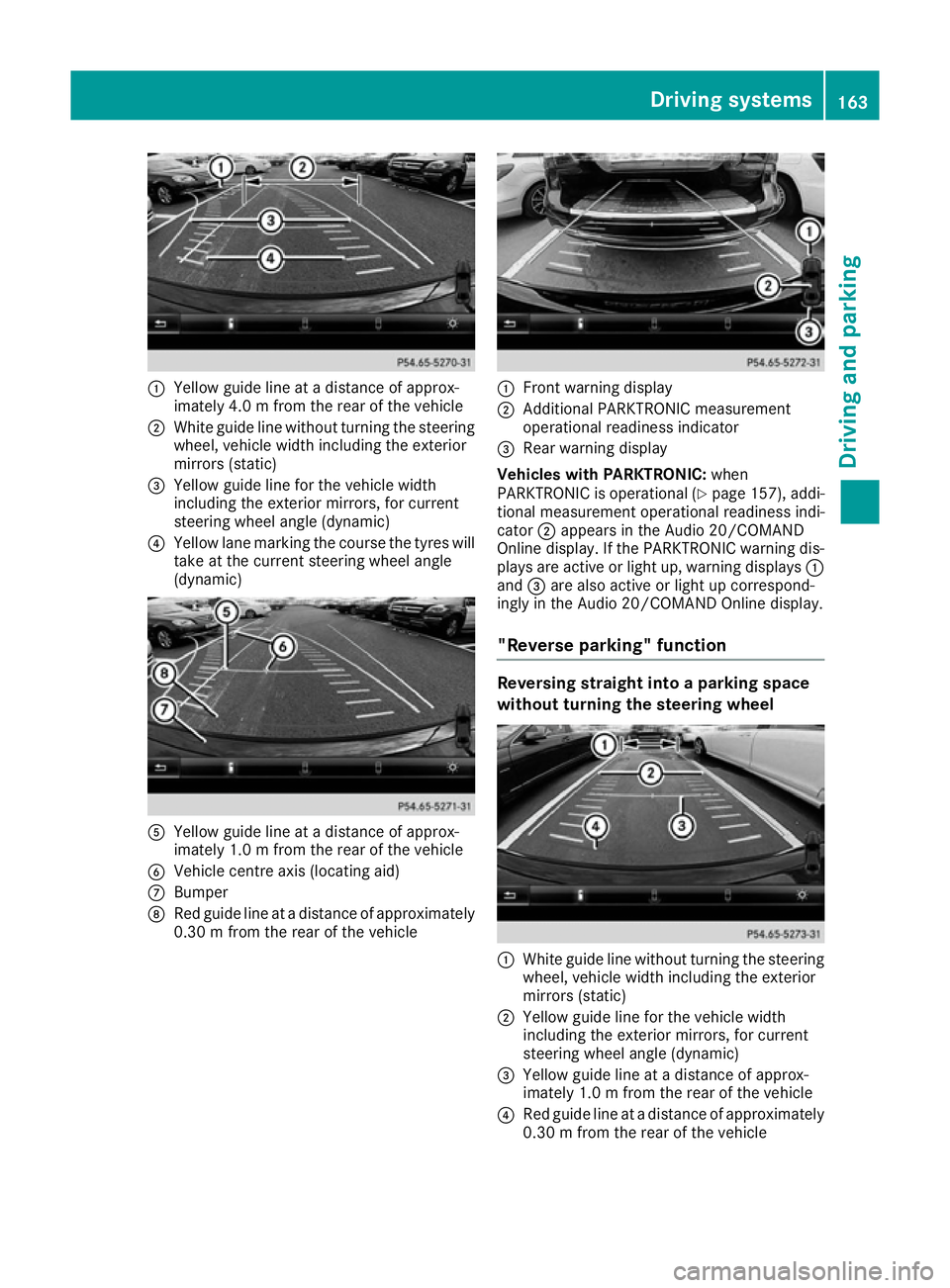
Yellow guide line at a distance of approx-
imately 4.0 m from the rear of the vehicle
; White guide line without turning the steering
wheel, vehicle width including the exterior
mirrors (static)
= Yellow guide line for the vehicle width
including the exterior mirrors, for current
steering wheel angle (dynamic)
? Yellow lane marking the course the tyres will
take at the current steering wheel angle
(dynamic) A
Yellow guide line at a distance of approx-
imately 1.0 m from the rear of the vehicle
B Vehicle centre axis (locating aid)
C Bumper
D Red guide line at a distance of approximately
0.30 m from the rear of the vehicle :
Front warning display
; Additional PARKTRONIC measurement
operational readiness indicator
= Rear warning display
Vehicles with PARKTRONIC: when
PARKTRONIC is operational (Y page 157), addi-
tional measurement operational readiness indi-
cator ;appears in the Audio 20/COMAND
Online display. If the PARKTRONIC warning dis-
plays are active or light up, warning displays :
and =are also active or light up correspond-
ingly in the Audio 20/COMAND Online display.
"Reverse parking" function Reversing straight into a parking space
without turning the steering wheel
:
White guide line without turning the steering
wheel, vehicle width including the exterior
mirrors (static)
; Yellow guide line for the vehicle width
including the exterior mirrors, for current
steering wheel angle (dynamic)
= Yellow guide line at a distance of approx-
imately 1.0 m from the rear of the vehicle
? Red guide line at a distance of approximately
0.30 m from the rear of the vehicle Driving systems
163Driving and parking Z
Page 173 of 293
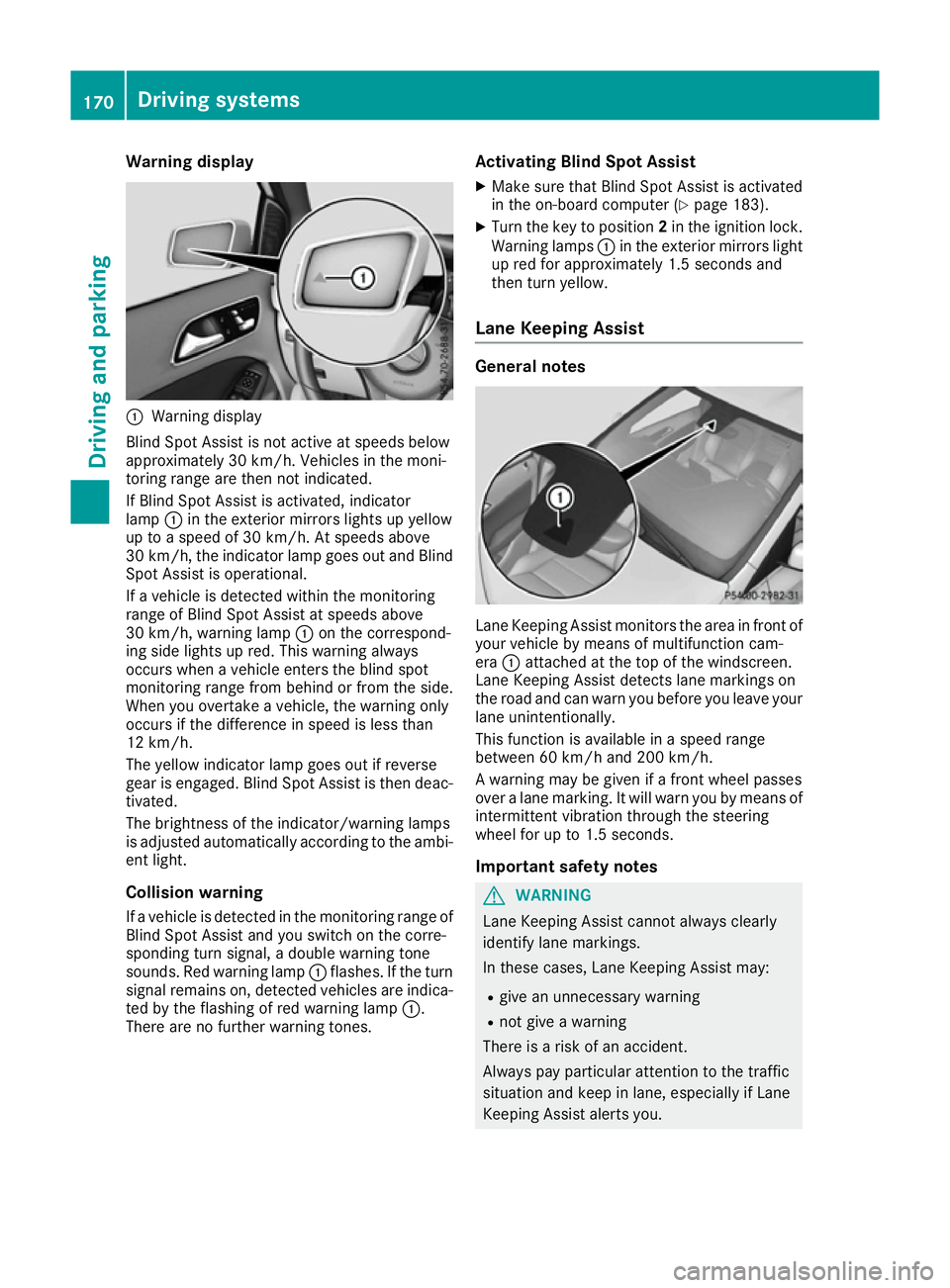
Warning display
:
Warning display
Blind Spot Assist is not active at speeds below
approximately 30 km/h. Vehicles in the moni-
toring range are then not indicated.
If Blind Spot Assist is activated, indicator
lamp :in the exterior mirrors lights up yellow
up to a speed of 30 km/h. At speeds above
30 km/h, the indicator lamp goes out and Blind
Spot Assist is operational.
If a vehicle is detected within the monitoring
range of Blind Spot Assist at speeds above
30 km/h, warning lamp :on the correspond-
ing side lights up red. This warning always
occurs when a vehicle enters the blind spot
monitoring range from behind or from the side.
When you overtake a vehicle, the warning only
occurs if the difference in speed is less than
12 km/h.
The yellow indicator lamp goes out if reverse
gear is engaged. Blind Spot Assist is then deac- tivated.
The brightness of the indicator/warning lamps
is adjusted automatically according to the ambi-
ent light.
Collision warning
If a vehicle is detected in the monitoring range of
Blind Spot Assist and you switch on the corre-
sponding turn signal, a double warning tone
sounds. Red warning lamp :flashes. If the turn
signal remains on, detected vehicles are indica-
ted by the flashing of red warning lamp :.
There are no further warning tones. Activating Blind Spot Assist
X Make sure that Blind Spot Assist is activated
in the on-board computer (Y page 183).
X Turn the key to position 2in the ignition lock.
Warning lamps :in the exterior mirrors light
up red for approximately 1.5 seconds and
then turn yellow.
Lane Keeping Assist General notes
Lane Keeping Assist monitors the area in front of
your vehicle by means of multifunction cam-
era :attached at the top of the windscreen.
Lane Keeping Assist detects lane markings on
the road and can warn you before you leave your lane unintentionally.
This function is available in a speed range
between 60 km/h and 200 km/h.
A warning may be given if a front wheel passes
over a lane marking. It will warn you by means of intermittent vibration through the steering
wheel for up to 1.5 seconds.
Important safety notes G
WARNING
Lane Keeping Assist cannot always clearly
identify lane markings.
In these cases, Lane Keeping Assist may:
R give an unnecessary warning
R not give a warning
There is a risk of an accident.
Always pay particular attention to the traffic
situation and keep in lane, especially if Lane
Keeping Assist alerts you. 170
Driving systemsDriving and parking
Page 175 of 293
Useful information
i This Owner's Manual describes all models,
series and optional equipment for your vehi-
cle that were available at the time of going to
press. National variations are possible. Note
that your vehicle may not be equipped with all
of the functions described. This is also the
case for systems and functions relevant to
safety.
i Read the information on qualified specialist
workshops: (Y page 23). Important safety notes
G
WARNING
Operating the integrated information systems and communications equipment in the vehicle
while driving will distract you from traffic con-
ditions. You could then lose control of the
vehicle. There is a risk of an accident.
Only operate these devices if road traffic con-
ditions permit. If you are unsure about the
surrounding conditions, pull over to a safe
location and make entries only while the vehi-
cle is stationary.
You must observe the legal requirements for the country in which you are currently driving whenoperating the on-board computer. G
WARNING
If the instrument cluster has failed or mal-
functioned, you may not recognise function
restrictions relevant to safety. The operating
safety of your vehicle may be impaired. There is a risk of an accident.
Drive on carefully. Have the vehicle checked
at a qualified specialist workshop immedi-
ately.
The on-board computer only shows messages or warnings from certain systems in the multifunc-tion display. You should therefore make sure
your vehicle is operating safely at all times.
If the operating safety of your vehicle is
impaired, park the vehicle safely as soon as pos- sible. Contact a qualified specialist workshop. For an overview, see the instrument panel illus-
tration (Y page 27). Displays and operation
Instrument cluster lighting
The light sensor in the instrument cluster auto-
matically controls the brightness of the multi-
function display. In daylight, the displays in the
instrument cluster are not illuminated.
The lighting in the instrument cluster, in the dis- plays and the controls in the vehicle interior can
be adjusted using the brightness control knob.
The brightness control knob is located on the
bottom left of the instrument cluster
(Y page 27).
X Turn the brightness control knob clockwise or
anti-clockwise.
If the light switch is set to the Ã,Tor
L position, the brightness is dependent
upon the brightness of the ambient light. READY indicator
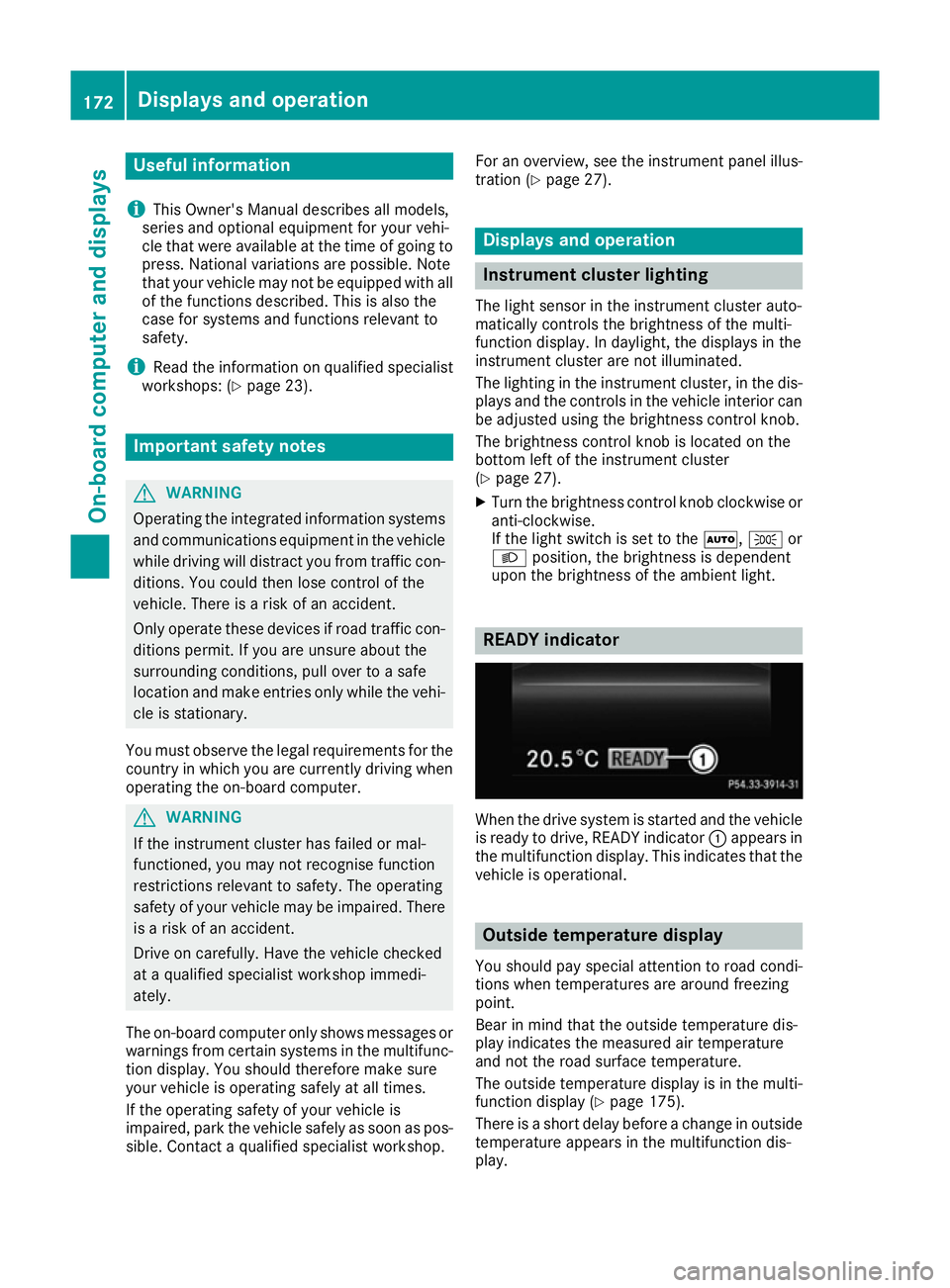
When the drive system is started and the vehicle
is ready to drive, READY indicator :appears in
the multifunction display. This indicates that the vehicle is operational. Outside temperature display
You should pay special attention to road condi-
tions when temperatures are around freezing
point.
Bear in mind that the outside temperature dis-
play indicates the measured air temperature
and not the road surface temperature.
The outside temperature display is in the multi-
function display (Y page 175).
There is a short delay before a change in outside
temperature appears in the multifunction dis-
play. 172
Displays and operationOn-board computer and displays
Page 177 of 293
If necessary, counteract the reduced regenera-
tive braking effect by applying the brake your-
self. Charge level display
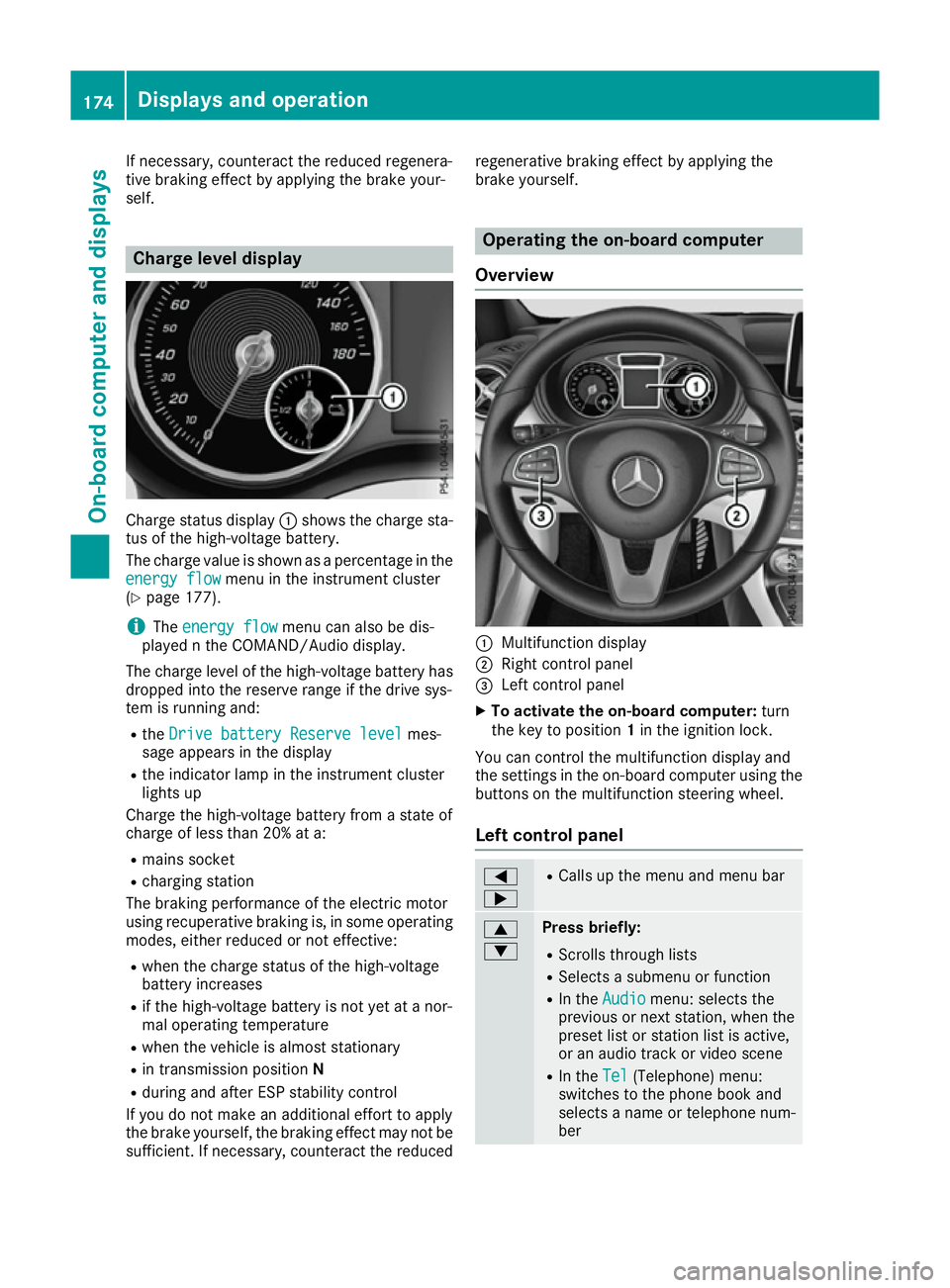
Charge status display
:shows the charge sta-
tus of the high-voltage battery.
The charge value is shown as a percentage in the
energy flow
energy flow menu in the instrument cluster
(Y page 177).
i The
energy flow
energy flow menu can also be dis-
played n the COMAND/Audio display.
The charge level of the high-voltage battery has dropped into the reserve range if the drive sys-
tem is running and:
R the Drive battery Reserve level Drive battery Reserve level mes-
sage appears in the display
R the indicator lamp in the instrument cluster
lights up
Charge the high-voltage battery from a state of
charge of less than 20% at a:
R mains socket
R charging station
The braking performance of the electric motor
using recuperative braking is, in some operating
modes, either reduced or not effective:
R when the charge status of the high-voltage
battery increases
R if the high-voltage battery is not yet at a nor-
mal operating temperature
R when the vehicle is almost stationary
R in transmission position N
R during and after ESP stability control
If you do not make an additional effort to apply
the brake yourself, the braking effect may not be sufficient. If necessary, counteract the reduced regenerative braking effect by applying the
brake yourself. Operating the on-board computer
Overview :
Multifunction display
; Right control panel
= Left control panel
X To activate the on-board computer: turn
the key to position 1in the ignition lock.
You can control the multifunction display and
the settings in the on-board computer using the buttons on the multifunction steering wheel.
Left control panel =
; R
Calls up the menu and menu bar 9
: Press briefly:
R Scrolls through lists
R Selects a submenu or function
R In the Audio Audio menu: selects the
previous or next station, when the preset list or station list is active,
or an audio track or video scene
R In the Tel Tel(Telephone) menu:
switches to the phone book and
selects a name or telephone num-
ber 174
Displays and operationOn-board computer and displays
Page 179 of 293
R
_ Adaptive Highbeam Assist
(Y page 101)
R ë HOLD function (Y page 154)
R 120 km/h!
120 km/h! Maximum permissible speed
exceeded (only for certain countries) Menus and submenus
Menu overview
Using the =or; button on the steering
wheel, open the menu bar.
Operating the on-board computer (Y page 174).
Depending on the equipment fitted in the vehi-
cle, you can call up the following menus:
R Trip
Trip menu (Y page 176)
R Navi Navi menu (navigation instructions)
(Y page 178)
R Audio
Audio menu (Y page 180)
R Tel
Tel menu (telephone) (Y page 181)
R Assist.
Assist. menu (assistance) (Y page 182)
R Serv.
Serv. menu (Y page 184)
R Settings
Settings menu (settings) (Y page 184)
The displays for the Audio
Audio, Navi
NaviandTel
Tel menus
may differ slightly to those in your vehicle.
The examples given in this Owner's Manual
apply to vehicles equipped with COMAND
Online. Trip menu
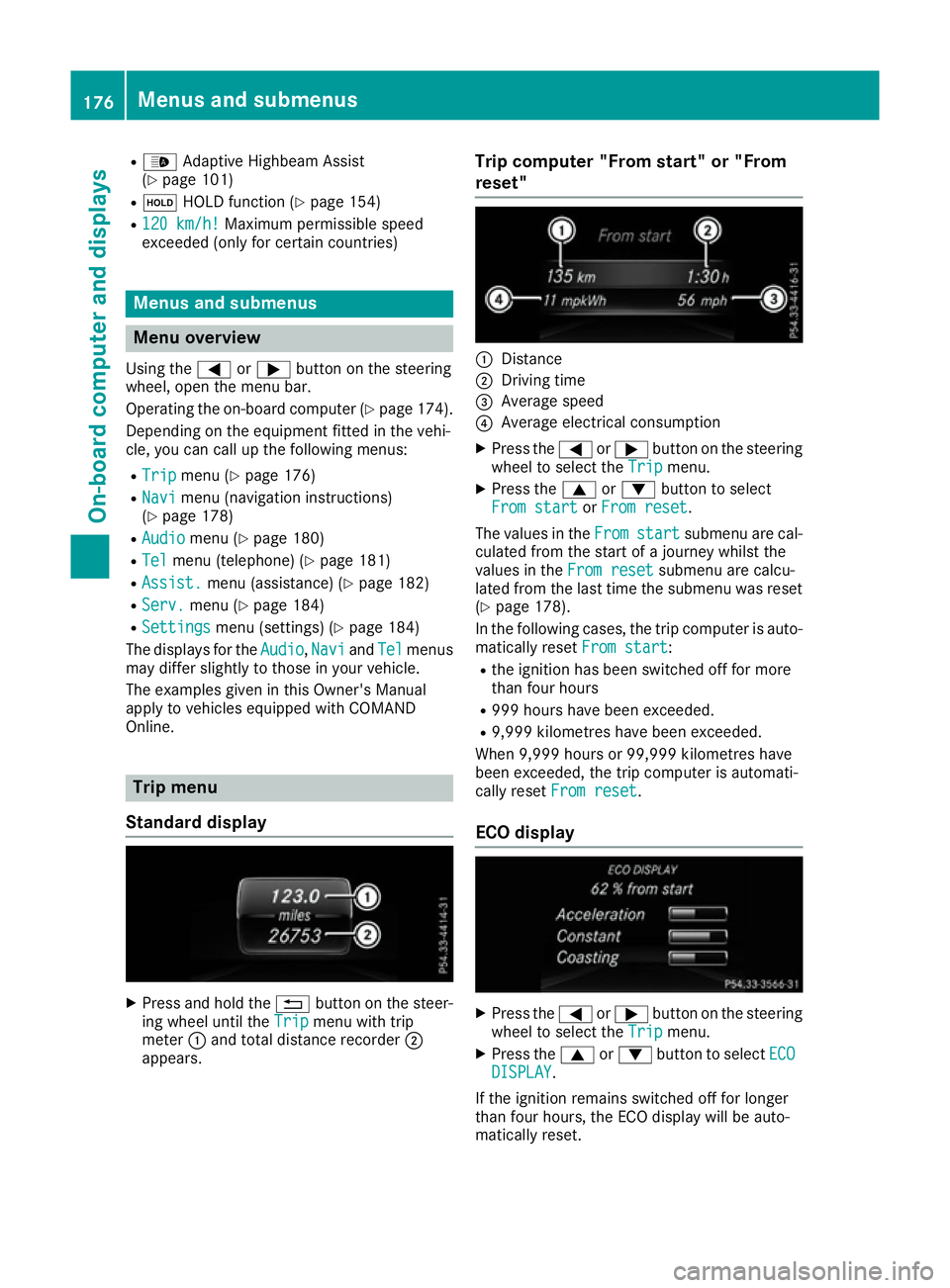
Standard display X
Press and hold the %button on the steer-
ing wheel until the Trip Tripmenu with trip
meter :and total distance recorder ;
appears. Trip computer "From start" or "From
reset" :
Distance
; Driving time
= Average speed
? Average electrical consumption
X Press the =or; button on the steering
wheel to select the Trip
Tripmenu.
X Press the 9or: button to select
From start
From start orFrom reset
From reset.
The values in the From
Fromstart
start submenu are cal-
culated from the start of a journey whilst the
values in the From reset From resetsubmenu are calcu-
lated from the last time the submenu was reset
(Y page 178).
In the following cases, the trip computer is auto-
matically reset From start From start:
R the ignition has been switched off for more
than four hours
R 999 hours have been exceeded.
R 9,999 kilometres have been exceeded.
When 9,999 hours or 99,999 kilometres have
been exceeded, the trip computer is automati-
cally reset From reset From reset.
ECO display X
Press the =or; button on the steering
wheel to select the Trip
Tripmenu.
X Press the 9or: button to select ECO
ECO
DISPLAY
DISPLAY.
If the ignition remains switched off for longer
than four hours, the ECO display will be auto-
matically reset. 176
Menus and submenusOn-board computer and displays
Page 180 of 293
Further information on the ECO display
(Y page 148).
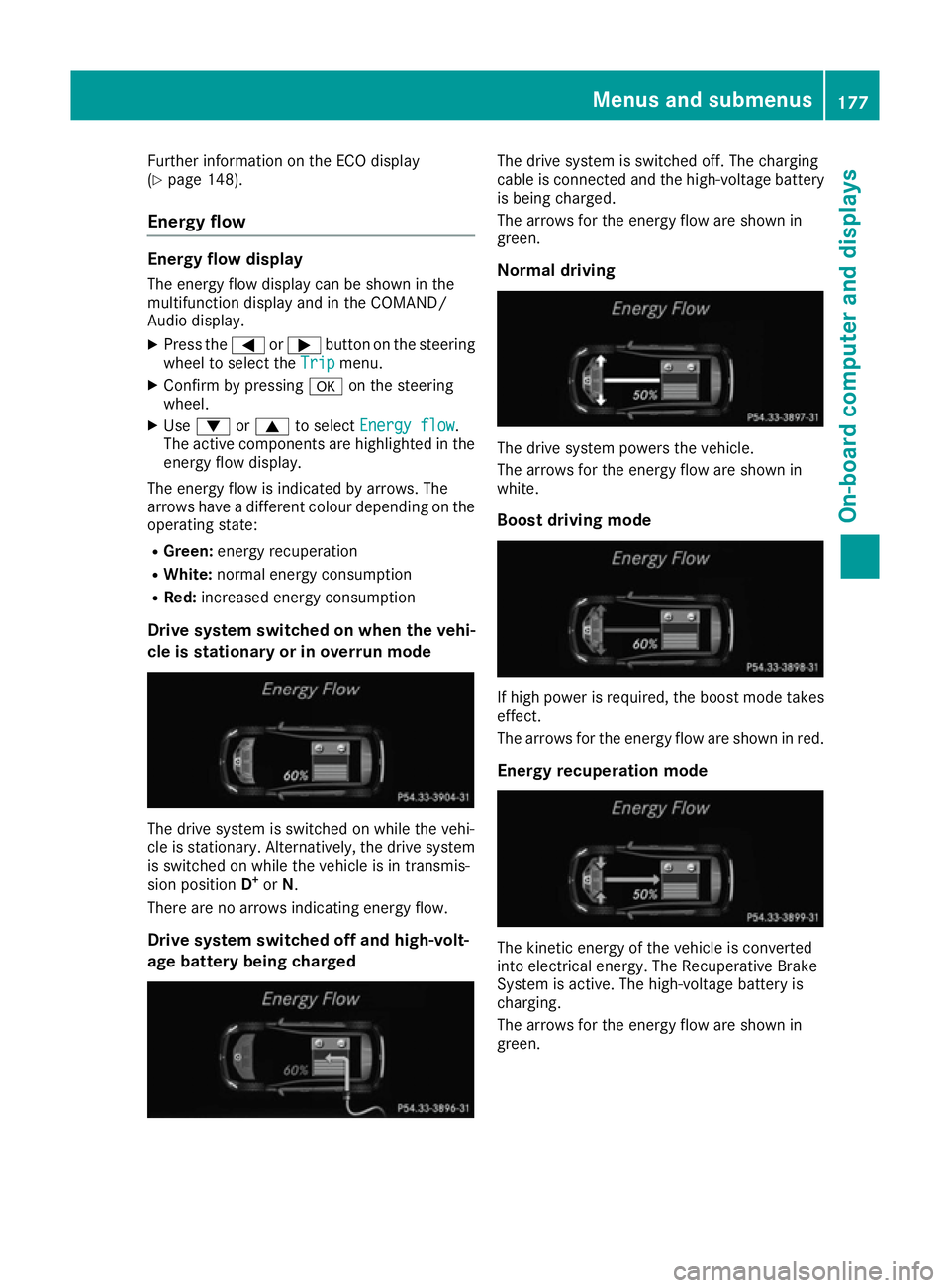
Energy flow Energy flow display
The energy flow display can be shown in the
multifunction display and in the COMAND/
Audio display. X Press the =or; button on the steering
wheel to select the Trip Tripmenu.
X Confirm by pressing aon the steering
wheel.
X Use : or9 to select Energy flow
Energy flow .
The active components are highlighted in the
energy flow display.
The energy flow is indicated by arrows. The
arrows have a different colour depending on the
operating state:
R Green: energy recuperation
R White: normal energy consumption
R Red: increased energy consumption
Drive system switched on when the vehi-
cle is stationary or in overrun mode The drive system is switched on while the vehi-
cle is stationary. Alternatively, the drive system is switched on while the vehicle is in transmis-
sion position D+
or N.
There are no arrows indicating energy flow.
Drive system switched off and high-volt-
age battery being charged The drive system is switched off. The charging
cable is connected and the high-voltage battery
is being charged.
The arrows for the energy flow are shown in
green.
Normal driving The drive system powers the vehicle.
The arrows for the energy flow are shown in
white.
Boost driving mode If high power is required, the boost mode takes
effect.
The arrows for the energy flow are shown in red.
Energy recuperation mode The kinetic energy of the vehicle is converted
into electrical energy. The Recuperative Brake
System is active. The high-voltage battery is
charging.
The arrows for the energy flow are shown in
green. Menus and submenus
177On-board computer and displays Z
Page 186 of 293
G
WARNING
If you deactivate ESP ®
, ESP ®
no longer sta-
bilises the vehicle. There is an increased risk
of skidding and an accident.
Only deactivate ESP ®
in the situations descri-
bed in the following.
It may be best to deactivate ESP ®
in the follow-
ing situations:
R when using snow chains
R in deep snow
R on sand or gravel
For further information about ESP ®
, see
(Y page 65).
X Start the drive system.
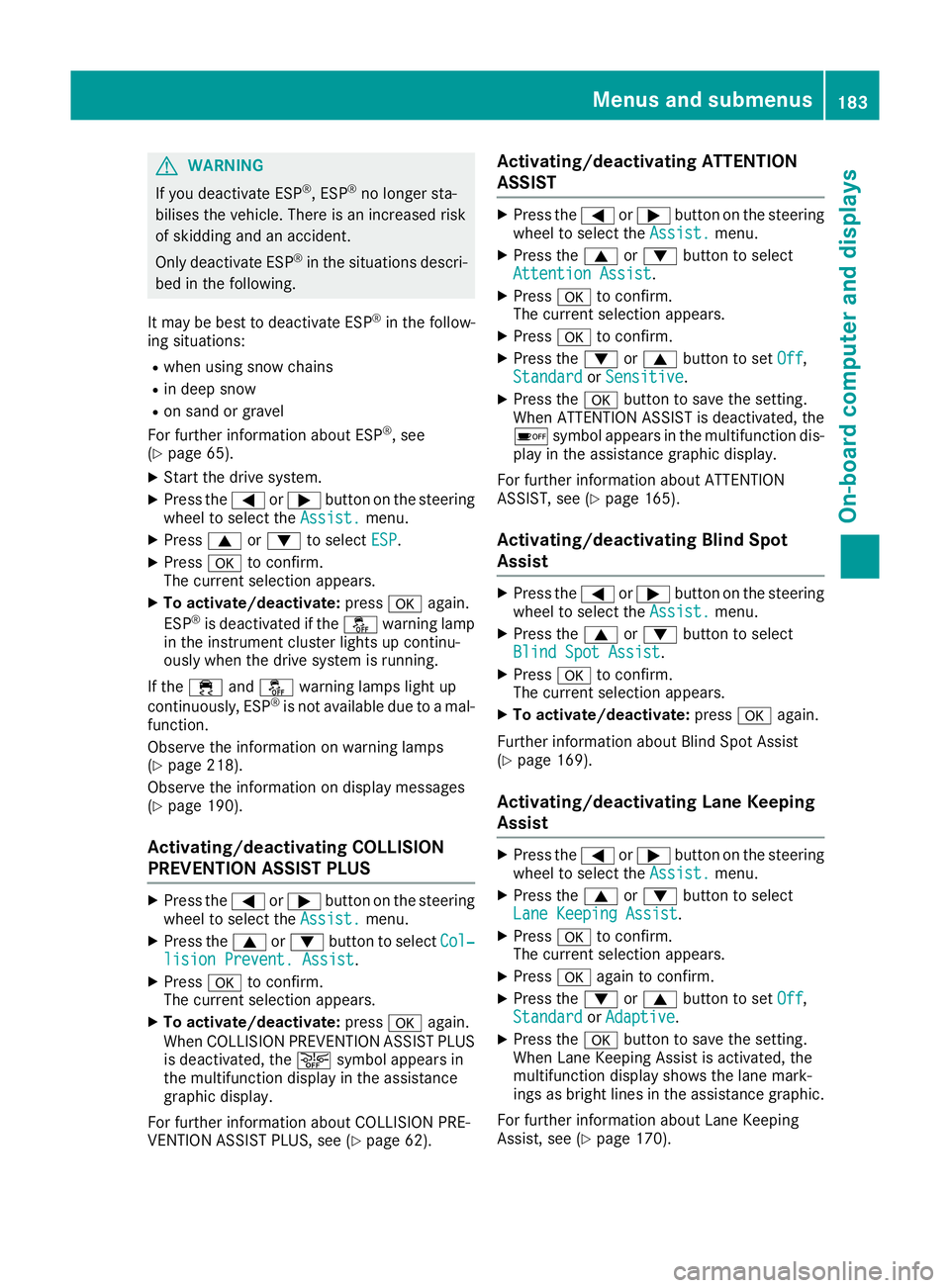
X Press the =or; button on the steering
wheel to select the Assist. Assist.menu.
X Press 9or: to select ESP
ESP.
X Press ato confirm.
The current selection appears.
X To activate/deactivate: pressaagain.
ESP ®
is deactivated if the åwarning lamp
in the instrument cluster lights up continu-
ously when the drive system is running.
If the ÷ andå warning lamps light up
continuously, ESP ®
is not available due to a mal-
function.
Observe the information on warning lamps
(Y page 218).
Observe the information on display messages
(Y page 190).
Activating/deactivating COLLISION
PREVENTION ASSIST PLUS X
Press the =or; button on the steering
wheel to select the Assist. Assist.menu.
X Press the 9or: button to select Col‐
Col‐
lision Prevent. Assist
lision Prevent. Assist.
X Press ato confirm.
The current selection appears.
X To activate/deactivate: pressaagain.
When COLLISION PREVENTION ASSIST PLUS
is deactivated, the æsymbol appears in
the multifunction display in the assistance
graphic display.
For further information about COLLISION PRE-
VENTION ASSIST PLUS, see (Y page 62).Activating/deactivating ATTENTION
ASSIST X
Press the =or; button on the steering
wheel to select the Assist. Assist.menu.
X Press the 9or: button to select
Attention Assist
Attention Assist.
X Press ato confirm.
The current selection appears.
X Press ato confirm.
X Press the :or9 button to set Off Off,
Standard Standard orSensitive
Sensitive.
X Press the abutton to save the setting.
When ATTENTION ASSIST is deactivated, the
é symbol appears in the multifunction dis-
play in the assistance graphic display.
For further information about ATTENTION
ASSIST, see (Y page 165).
Activating/deactivating Blind Spot
Assist X
Press the =or; button on the steering
wheel to select the Assist. Assist.menu.
X Press the 9or: button to select
Blind Spot Assist
Blind Spot Assist.
X Press ato confirm.
The current selection appears.
X To activate/deactivate: pressaagain.
Further information about Blind Spot Assist
(Y page 169).
Activating/deactivating Lane Keeping
Assist X
Press the =or; button on the steering
wheel to select the Assist. Assist.menu.
X Press the 9or: button to select
Lane Keeping Assist
Lane Keeping Assist.
X Press ato confirm.
The current selection appears.
X Press aagain to confirm.
X Press the :or9 button to set Off
Off,
Standard
Standard orAdaptive
Adaptive.
X Press the abutton to save the setting.
When Lane Keeping Assist is activated, the
multifunction display shows the lane mark-
ings as bright lines in the assistance graphic.
For further information about Lane Keeping
Assist, see (Y page 170). Menus and submenus
183On-board computer and displays Z
Page 187 of 293
Service menu
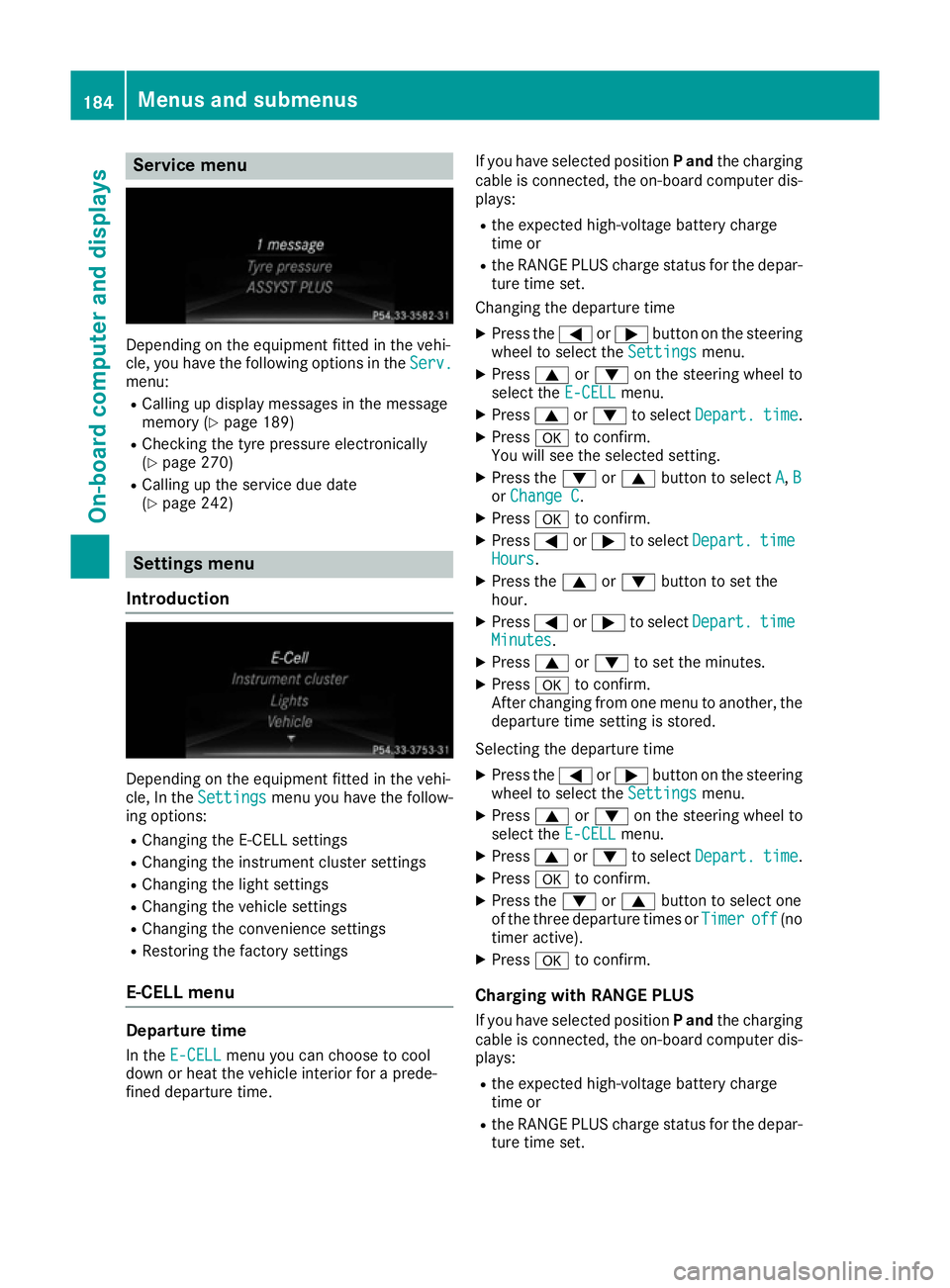
Depending on the equipment fitted in the vehi-
cle, you have the following options in the Serv.
Serv.
menu:
R Calling up display messages in the message
memory (Y page 189)
R Checking the tyre pressure electronically
(Y page 270)
R Calling up the service due date
(Y page 242) Settings menu
Introduction Depending on the equipment fitted in the vehi-
cle, In the Settings Settings menu you have the follow-
ing options:
R Changing the E-CELL settings
R Changing the instrument cluster settings
R Changing the light settings
R Changing the vehicle settings
R Changing the convenience settings
R Restoring the factory settings
E‑CELL menu Departure time
In the E-CELL
E-CELL menu you can choose to cool
down or heat the vehicle interior for a prede-
fined departure time. If you have selected position
Pand the charging
cable is connected, the on-board computer dis- plays:
R the expected high-voltage battery charge
time or
R the RANGE PLUS charge status for the depar-
ture time set.
Changing the departure time
X Press the =or; button on the steering
wheel to select the Settings Settingsmenu.
X Press 9or: on the steering wheel to
select the E‑CELL E‑CELLmenu.
X Press 9or: to select Depart.
Depart. time
time.
X Press ato confirm.
You will see the selected setting.
X Press the :or9 button to select A
A, B
B
or Change C
Change C.
X Press ato confirm.
X Press =or; to select Depart.
Depart. time
time
Hours
Hours.
X Press the 9or: button to set the
hour.
X Press =or; to select Depart.
Depart. time
time
Minutes
Minutes.
X Press 9or: to set the minutes.
X Press ato confirm.
After changing from one menu to another, the departure time setting is stored.
Selecting the departure time
X Press the =or; button on the steering
wheel to select the Settings
Settings menu.
X Press 9or: on the steering wheel to
select the E‑CELL
E‑CELLmenu.
X Press 9or: to select Depart.
Depart. time
time.
X Press ato confirm.
X Press the :or9 button to select one
of the three departure times or Timer
Timeroff
off (no
timer active).
X Press ato confirm.
Charging with RANGE PLUS If you have selected position Pand the charging
cable is connected, the on-board computer dis- plays:
R the expected high-voltage battery charge
time or
R the RANGE PLUS charge status for the depar-
ture time set. 184
Menus and submenusOn-board computer and displays
Page 188 of 293
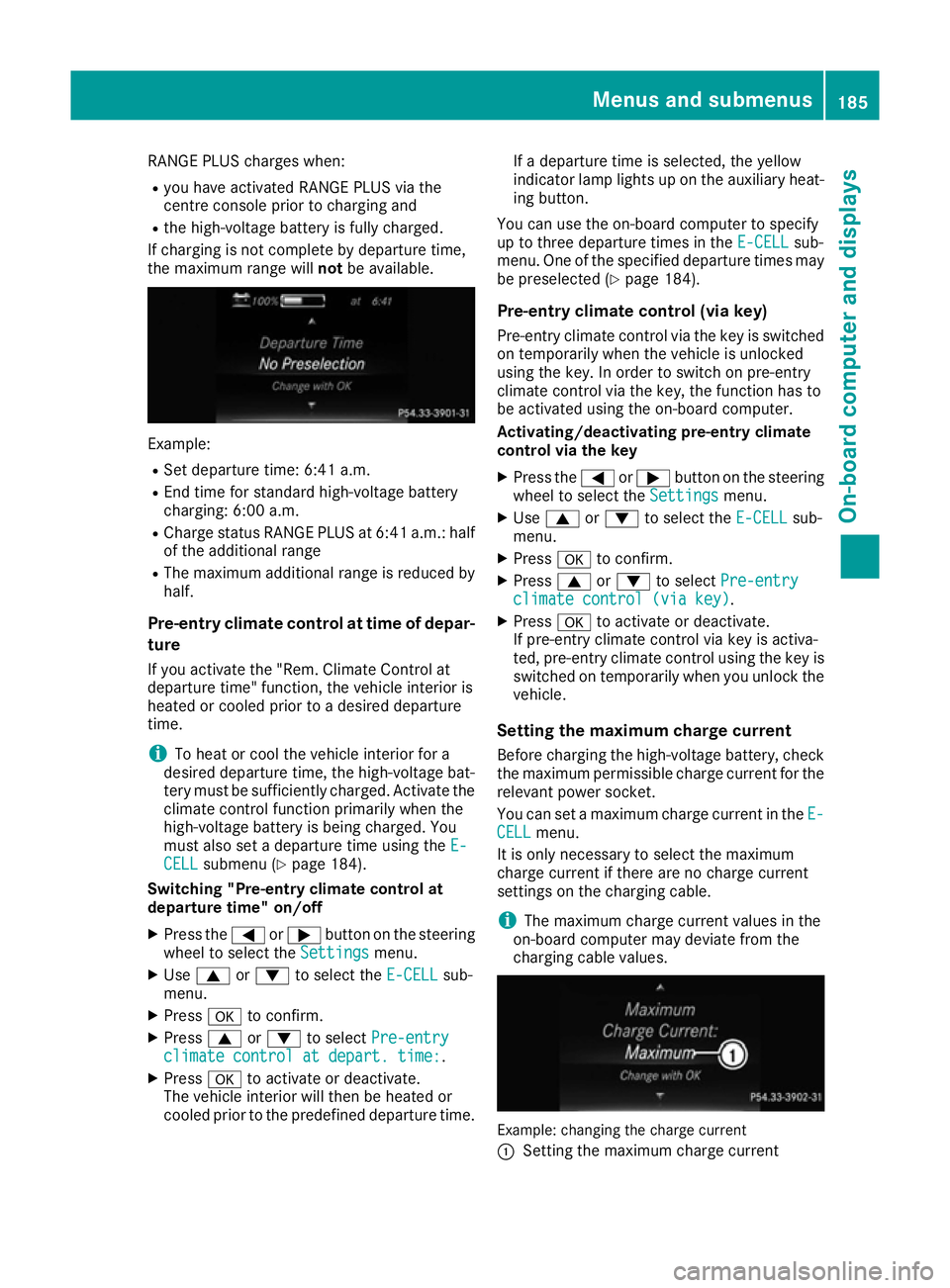
RANGE PLUS charges when:
R you have activated RANGE PLUS via the
centre console prior to charging and
R the high-voltage battery is fully charged.
If charging is not complete by departure time,
the maximum range will notbe available. Example:
R Set departure time: 6:41 a.m.
R End time for standard high-voltage battery
charging: 6:00 a.m.
R Charge status RANGE PLUS at 6:41 a.m.: half
of the additional range
R The maximum additional range is reduced by
half.
Pre-entry climate control at time of depar-
ture
If you activate the "Rem. Climate Control at
departure time" function, the vehicle interior is
heated or cooled prior to a desired departure
time.
i To heat or cool the vehicle interior for a
desired departure time, the high-voltage bat-
tery must be sufficiently charged. Activate the climate control function primarily when the
high-voltage battery is being charged. You
must also set a departure time using the E-
E-
CELL CELL submenu (Y page 184).
Switching "Pre-entry climate control at
departure time" on/off
X Press the =or; button on the steering
wheel to select the Settings
Settingsmenu.
X Use 9 or: to select the E-CELL
E-CELL sub-
menu.
X Press ato confirm.
X Press 9or: to select Pre-entry
Pre-entry
climate control at depart. time:
climate control at depart. time:.
X Press ato activate or deactivate.
The vehicle interior will then be heated or
cooled prior to the predefined departure time. If a departure time is selected, the yellow
indicator lamp lights up on the auxiliary heat-
ing button.
You can use the on-board computer to specify
up to three departure times in the E-CELL E-CELLsub-
menu. One of the specified departure times may
be preselected (Y page 184).
Pre-entry climate control (via key)
Pre-entry climate control via the key is switched on temporarily when the vehicle is unlocked
using the key. In order to switch on pre-entry
climate control via the key, the function has to
be activated using the on-board computer.
Activating/deactivating pre-entry climate
control via the key
X Press the =or; button on the steering
wheel to select the Settings Settingsmenu.
X Use 9 or: to select the E-CELL
E-CELLsub-
menu.
X Press ato confirm.
X Press 9or: to select Pre-entry
Pre-entry
climate control (via key)
climate control (via key).
X Press ato activate or deactivate.
If pre-entry climate control via key is activa-
ted, pre-entry climate control using the key is switched on temporarily when you unlock thevehicle.
Setting the maximum charge current Before charging the high-voltage battery, check
the maximum permissible charge current for the relevant power socket.
You can set a maximum charge current in the E- E-
CELL
CELL menu.
It is only necessary to select the maximum
charge current if there are no charge current
settings on the charging cable.
i The maximum charge current values in the
on-board computer may deviate from the
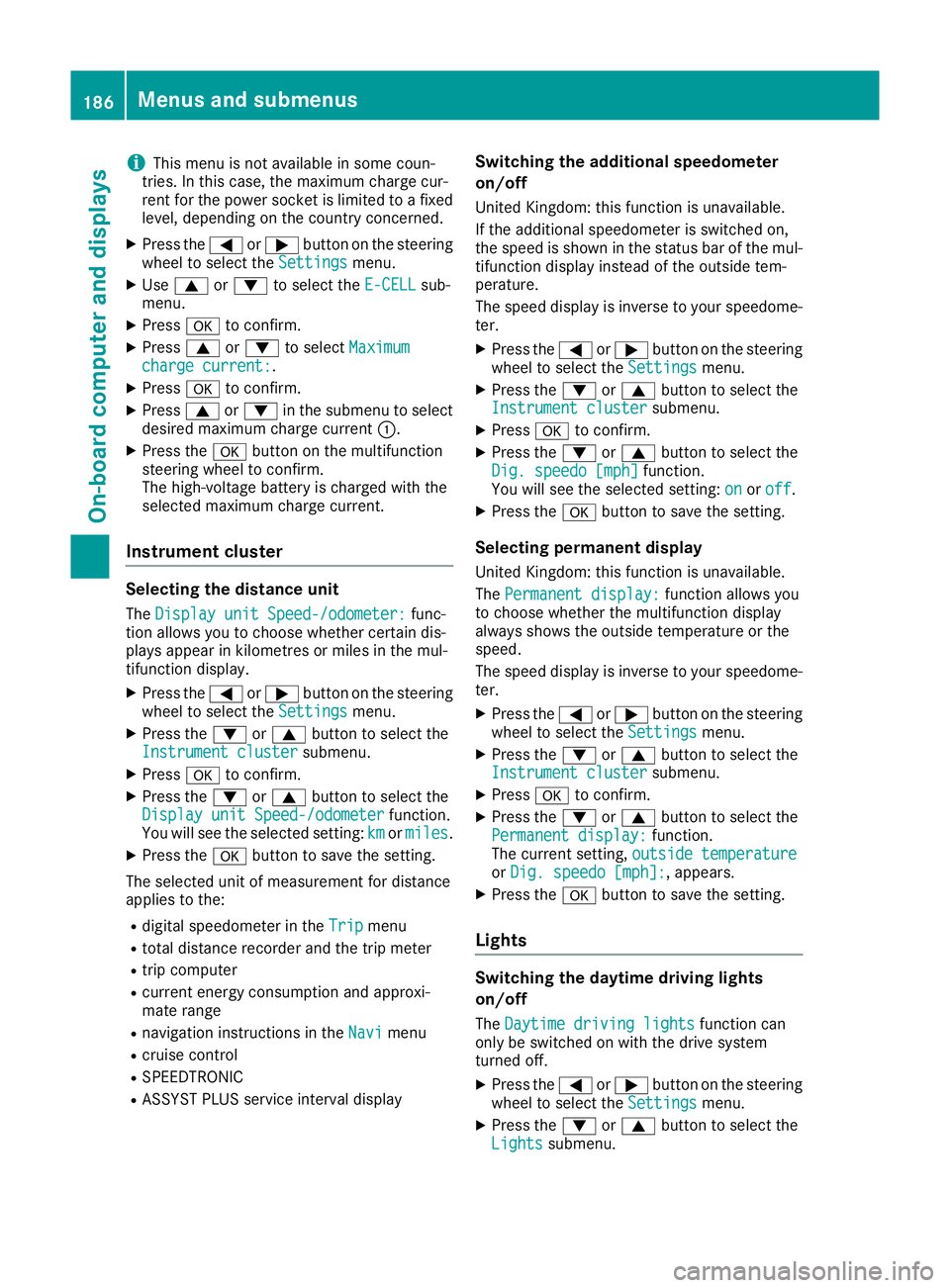
charging cable values. Example: changing the charge current
:
Setting the maximum charge current Menus and submenus
185On-board computer and displays Z
Page 189 of 293
i
This menu is not available in some coun-
tries. In this case, the maximum charge cur-
rent for the power socket is limited to a fixed
level, depending on the country concerned.
X Press the =or; button on the steering
wheel to select the Settings
Settings menu.
X Use 9 or: to select the E-CELL E-CELLsub-
menu.
X Press ato confirm.
X Press 9or: to select Maximum
Maximum
charge current:
charge current:.
X Press ato confirm.
X Press 9or: in the submenu to select
desired maximum charge current :.
X Press the abutton on the multifunction
steering wheel to confirm.
The high-voltage battery is charged with the
selected maximum charge current.
Instrument cluster Selecting the distance unit
The Display unit Speed-/odometer:
Display unit Speed-/odometer: func-
tion allows you to choose whether certain dis-
plays appear in kilometres or miles in the mul-
tifunction display.
X Press the =or; button on the steering
wheel to select the Settings
Settings menu.
X Press the :or9 button to select the
Instrument cluster Instrument cluster submenu.
X Press ato confirm.
X Press the :or9 button to select the
Display unit Speed-/odometer
Display unit Speed-/odometer function.
You will see the selected setting: km
kmormiles
miles.
X Press the abutton to save the setting.
The selected unit of measurement for distance
applies to the:
R digital speedometer in the Trip
Tripmenu
R total distance recorder and the trip meter
R trip computer
R current energy consumption and approxi-
mate range
R navigation instructions in the Navi Navimenu
R cruise control
R SPEEDTRONIC
R ASSYST PLUS service interval display Switching the additional speedometer
on/off
United Kingdom: this function is unavailable.
If the additional speedometer is switched on,
the speed is shown in the status bar of the mul-
tifunction display instead of the outside tem-
perature.
The speed display is inverse to your speedome- ter.
X Press the =or; button on the steering
wheel to select the Settings Settingsmenu.
X Press the :or9 button to select the
Instrument cluster
Instrument cluster submenu.
X Press ato confirm.
X Press the :or9 button to select the
Dig. speedo [mph]
Dig. speedo [mph] function.
You will see the selected setting: on
onoroff
off.
X Press the abutton to save the setting.
Selecting permanent display
United Kingdom: this function is unavailable.
The Permanent display: Permanent display: function allows you
to choose whether the multifunction display
always shows the outside temperature or the
speed.
The speed display is inverse to your speedome- ter.
X Press the =or; button on the steering
wheel to select the Settings Settingsmenu.
X Press the :or9 button to select the
Instrument cluster
Instrument cluster submenu.
X Press ato confirm.
X Press the :or9 button to select the
Permanent display:
Permanent display: function.
The current setting, outside temperature
outside temperature
or Dig. speedo [mph]:
Dig. speedo [mph]:, appears.
X Press the abutton to save the setting.
Lights Switching the daytime driving lights
on/off
The Daytime driving lights Daytime driving lights function can
only be switched on with the drive system
turned off.
X Press the =or; button on the steering
wheel to select the Settings Settingsmenu.
X Press the :or9 button to select the
Lights
Lights submenu. 186
Menus and submenusOn-board computer and displays