comand MERCEDES-BENZ C-Class 2011 W204 User Guide
[x] Cancel search | Manufacturer: MERCEDES-BENZ, Model Year: 2011, Model line: C-Class, Model: MERCEDES-BENZ C-Class 2011 W204Pages: 320, PDF Size: 13.17 MB
Page 176 of 320
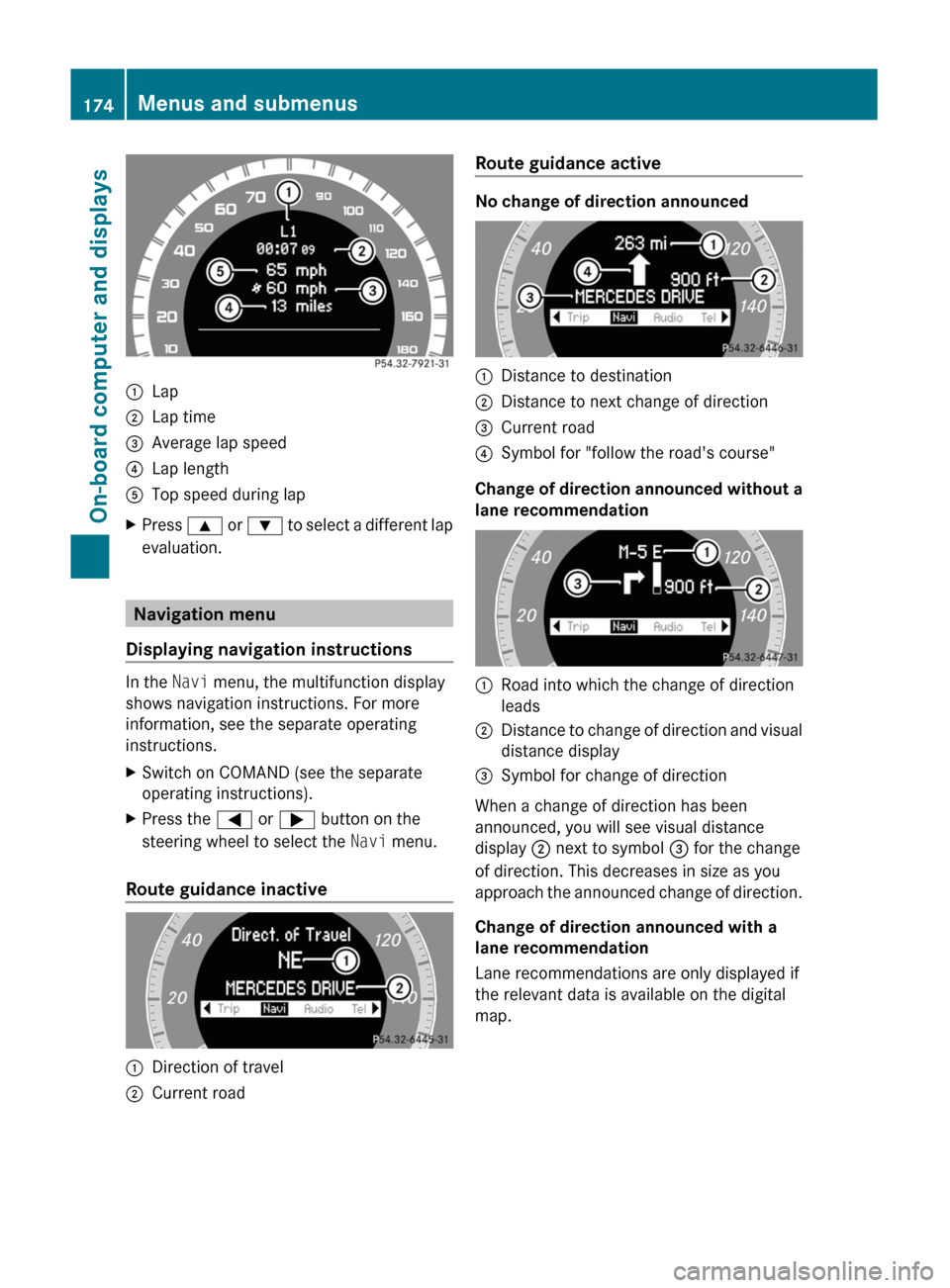
:Lap;Lap time=Average lap speed?Lap lengthATop speed during lapXPress 9 or : to select a different lap
evaluation.
Navigation menu
Displaying navigation instructions
In the Navi menu, the multifunction display
shows navigation instructions. For more
information, see the separate operating
instructions.
XSwitch on COMAND (see the separate
operating instructions).XPress the = or ; button on the
steering wheel to select the Navi menu.
Route guidance inactive
:Direction of travel;Current roadRoute guidance active
No change of direction announced
:Distance to destination;Distance to next change of direction=Current road?Symbol for "follow the road's course"
Change of direction announced without a
lane recommendation
:Road into which the change of direction
leads;Distance to change of direction and visual
distance display=Symbol for change of direction
When a change of direction has been
announced, you will see visual distance
display ; next to symbol = for the change
of direction. This decreases in size as you
approach the announced change of direction.
Change of direction announced with a
lane recommendation
Lane recommendations are only displayed if
the relevant data is available on the digital
map.
174Menus and submenusOn-board computer and displays
BA 204 USA, CA Edition A 2011; 1; 5, en-UShereepeVersion: 3.0.3.62010-05-20T09:17:30+02:00 - Seite 174
Page 177 of 320
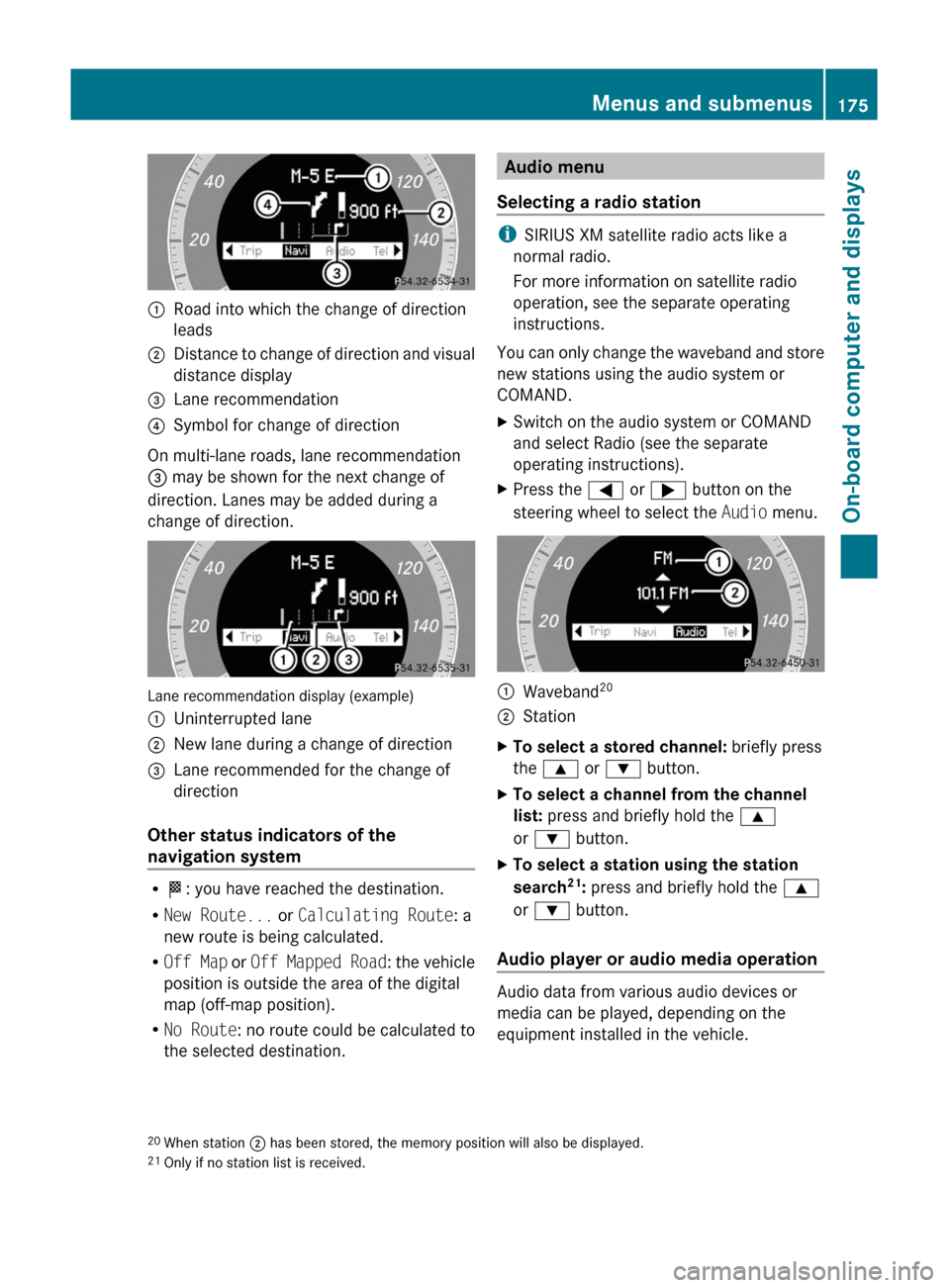
:Road into which the change of direction
leads;Distance to change of direction and visual
distance display=Lane recommendation?Symbol for change of direction
On multi-lane roads, lane recommendation
= may be shown for the next change of
direction. Lanes may be added during a
change of direction.
Lane recommendation display (example)
:Uninterrupted lane;New lane during a change of direction=Lane recommended for the change of
direction
Other status indicators of the
navigation system
R O : you have reached the destination.
R New Route... or Calculating Route : a
new route is being calculated.
R Off Map or Off Mapped Road : the vehicle
position is outside the area of the digital
map (off-map position).
R No Route : no route could be calculated to
the selected destination.
Audio menu
Selecting a radio station
i SIRIUS XM satellite radio acts like a
normal radio.
For more information on satellite radio
operation, see the separate operating
instructions.
You can only change the waveband and store
new stations using the audio system or
COMAND.
XSwitch on the audio system or COMAND
and select Radio (see the separate
operating instructions).XPress the = or ; button on the
steering wheel to select the Audio menu.:Waveband 20;StationXTo select a stored channel:
briefly press
the 9 or : button.XTo select a channel from the channel
list: press and briefly hold the 9
or : button.XTo select a station using the station
search 21
: press and briefly hold the 9
or : button.
Audio player or audio media operation
Audio data from various audio devices or
media can be played, depending on the
equipment installed in the vehicle.
20 When station ; has been stored, the memory position will also be displayed.
21 Only if no station list is received.Menus and submenus175On-board computer and displaysBA 204 USA, CA Edition A 2011; 1; 5, en-UShereepeVersion: 3.0.3.62010-05-20T09:17:30+02:00 - Seite 175Z
Page 178 of 320
XSwitch on the audio system or COMAND
and select the audio drive or medium (see
the separate operating instructions).XPress the = or ; button on the
steering wheel to select the Audio menu.
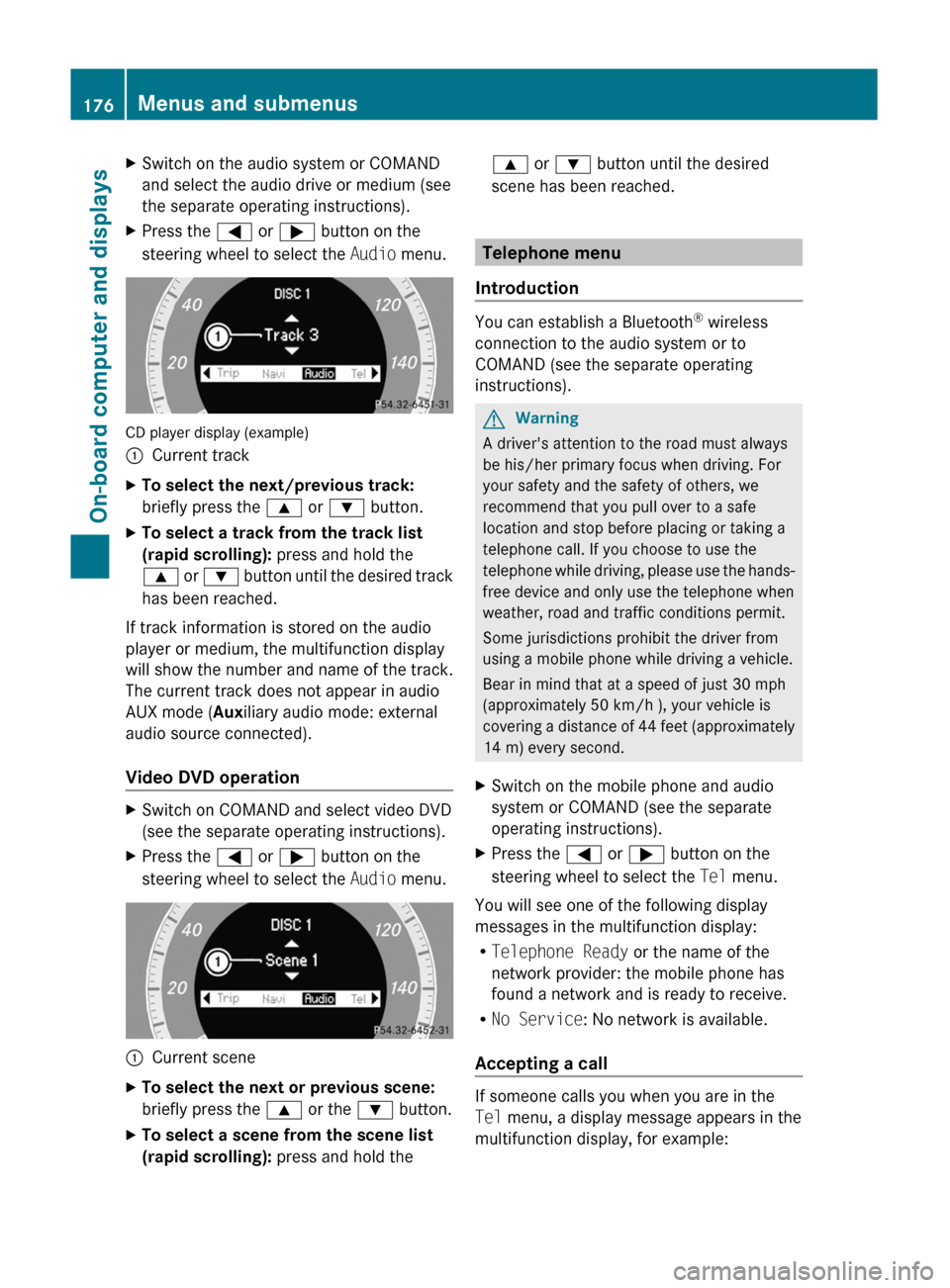
CD player display (example)
:Current trackXTo select the next/previous track:
briefly press the 9 or : button.XTo select a track from the track list
(rapid scrolling): press and hold the
9 or : button until the desired track
has been reached.
If track information is stored on the audio
player or medium, the multifunction display
will show the number and name of the track.
The current track does not appear in audio
AUX mode ( Auxiliary audio mode: external
audio source connected).
Video DVD operation
XSwitch on COMAND and select video DVD
(see the separate operating instructions).XPress the = or ; button on the
steering wheel to select the Audio menu.:Current sceneXTo select the next or previous scene:
briefly press the 9 or the : button.XTo select a scene from the scene list
(rapid scrolling): press and hold the9 or : button until the desired
scene has been reached.
Telephone menu
Introduction
You can establish a Bluetooth ®
wireless
connection to the audio system or to
COMAND (see the separate operating
instructions).
GWarning
A driver's attention to the road must always
be his/her primary focus when driving. For
your safety and the safety of others, we
recommend that you pull over to a safe
location and stop before placing or taking a
telephone call. If you choose to use the
telephone while driving, please use the hands-
free device and only use the telephone when
weather, road and traffic conditions permit.
Some jurisdictions prohibit the driver from
using a mobile phone while driving a vehicle.
Bear in mind that at a speed of just 30 mph
(approximately 50 km/h ), your vehicle is
covering a distance of 44 feet (approximately
14 m) every second.
XSwitch on the mobile phone and audio
system or COMAND (see the separate
operating instructions).XPress the = or ; button on the
steering wheel to select the Tel menu.
You will see one of the following display
messages in the multifunction display:
R Telephone Ready or the name of the
network provider: the mobile phone has
found a network and is ready to receive.
R No Service : No network is available.
Accepting a call
If someone calls you when you are in the
Tel menu, a display message appears in the
multifunction display, for example:
176Menus and submenusOn-board computer and displays
BA 204 USA, CA Edition A 2011; 1; 5, en-UShereepeVersion: 3.0.3.62010-05-20T09:17:30+02:00 - Seite 176
Page 179 of 320
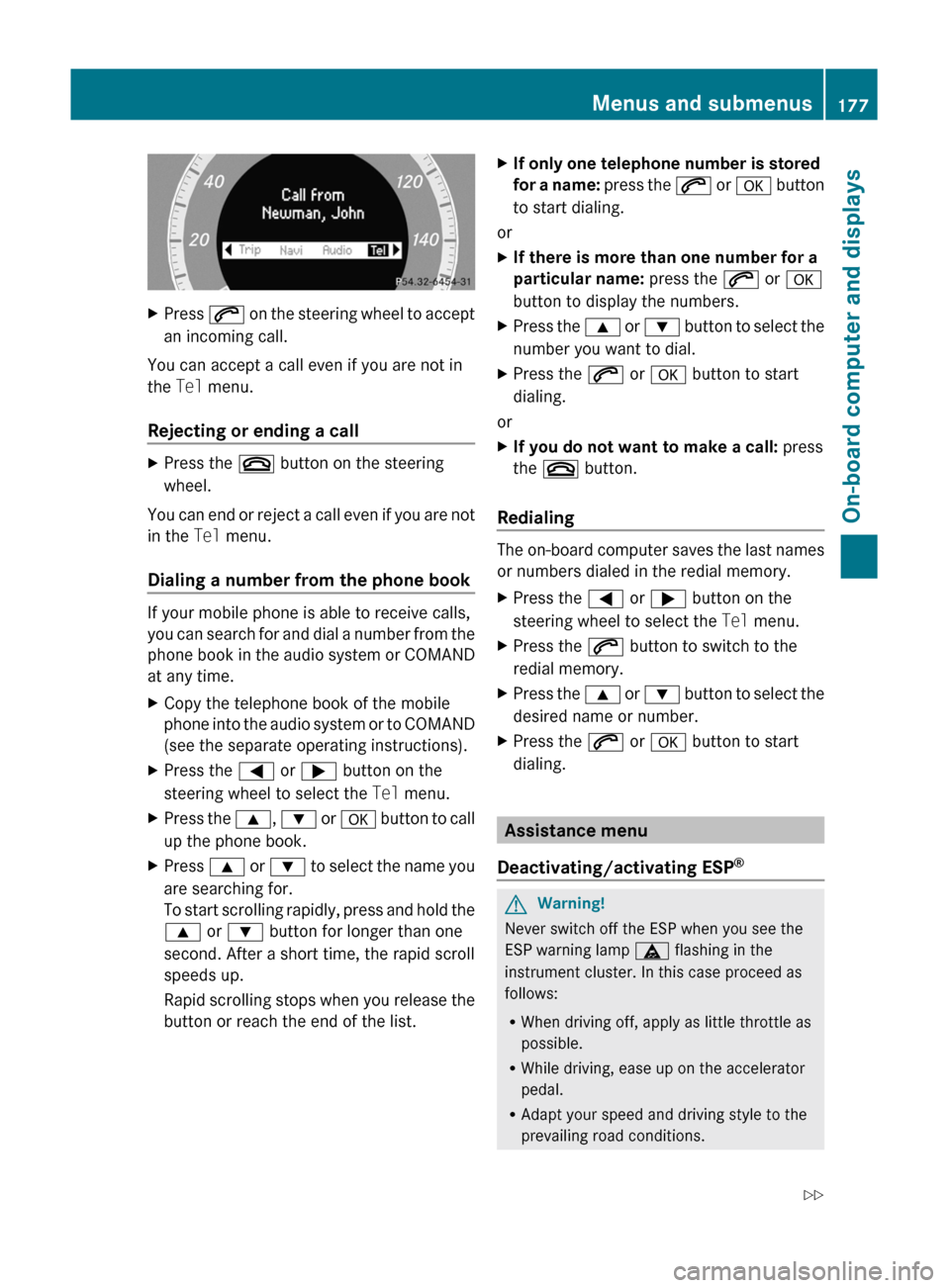
XPress 6 on the steering wheel to accept
an incoming call.
You can accept a call even if you are not in
the Tel menu.
Rejecting or ending a call
XPress the ~ button on the steering
wheel.
You can end or reject a call even if you are not
in the Tel menu.
Dialing a number from the phone book
If your mobile phone is able to receive calls,
you can search for and dial a number from the
phone book in the audio system or COMAND
at any time.
XCopy the telephone book of the mobile
phone into the audio system or to COMAND
(see the separate operating instructions).XPress the = or ; button on the
steering wheel to select the Tel menu.XPress the 9, : or a button to call
up the phone book.XPress 9 or : to select the name you
are searching for.
To start scrolling rapidly, press and hold the
9 or : button for longer than one
second. After a short time, the rapid scroll
speeds up.
Rapid scrolling stops when you release the
button or reach the end of the list.XIf only one telephone number is stored
for a name: press the 6 or a button
to start dialing.
or
XIf there is more than one number for a
particular name: press the 6 or a
button to display the numbers.XPress the 9 or : button to select the
number you want to dial.XPress the 6 or a button to start
dialing.
or
XIf you do not want to make a call: press
the ~ button.
Redialing
The on-board computer saves the last names
or numbers dialed in the redial memory.
XPress the = or ; button on the
steering wheel to select the Tel menu.XPress the 6 button to switch to the
redial memory.XPress the 9 or : button to select the
desired name or number.XPress the 6 or a button to start
dialing.
Assistance menu
Deactivating/activating ESP ®
GWarning!
Never switch off the ESP when you see the
ESP warning lamp ä flashing in the
instrument cluster. In this case proceed as
follows:
R When driving off, apply as little throttle as
possible.
R While driving, ease up on the accelerator
pedal.
R Adapt your speed and driving style to the
prevailing road conditions.
Menus and submenus177On-board computer and displaysBA 204 USA, CA Edition A 2011; 1; 5, en-UShereepeVersion: 3.0.3.62010-05-20T09:17:30+02:00 - Seite 177Z
Page 180 of 320
Failure to observe these guidelines could
cause the vehicle to skid. The ESP cannot
prevent accidents resulting from excessive
speed.
Further information about ESP ®
(Y page 63).
This function is not available in AMG vehicles.XStart the engine.XPress the = or ; button on the
steering wheel to select the DriveAssist
menu.XPress 9 or : to select ESP.XPress a.XTo deactivate: press a again.
The å warning lamp in the instrument
cluster comes on.GWarning
When the å ESP OFF warning lamp lights
up, ESP is switched off.
When the ä ESP warning lamp and the
å ESP OFF warning lamp are on
continuously, ESP is not operational due to a
malfunction.
When ESP is switched off or not operational,
the vehicle's stability during standard driving
maneuvers is reduced.
Adapt your driving style to suit the prevailing
road conditions/weather conditions and to
the non-operating status of ESP.
XTo activate: press a again.
The å warning lamp in the instrument
cluster goes out.
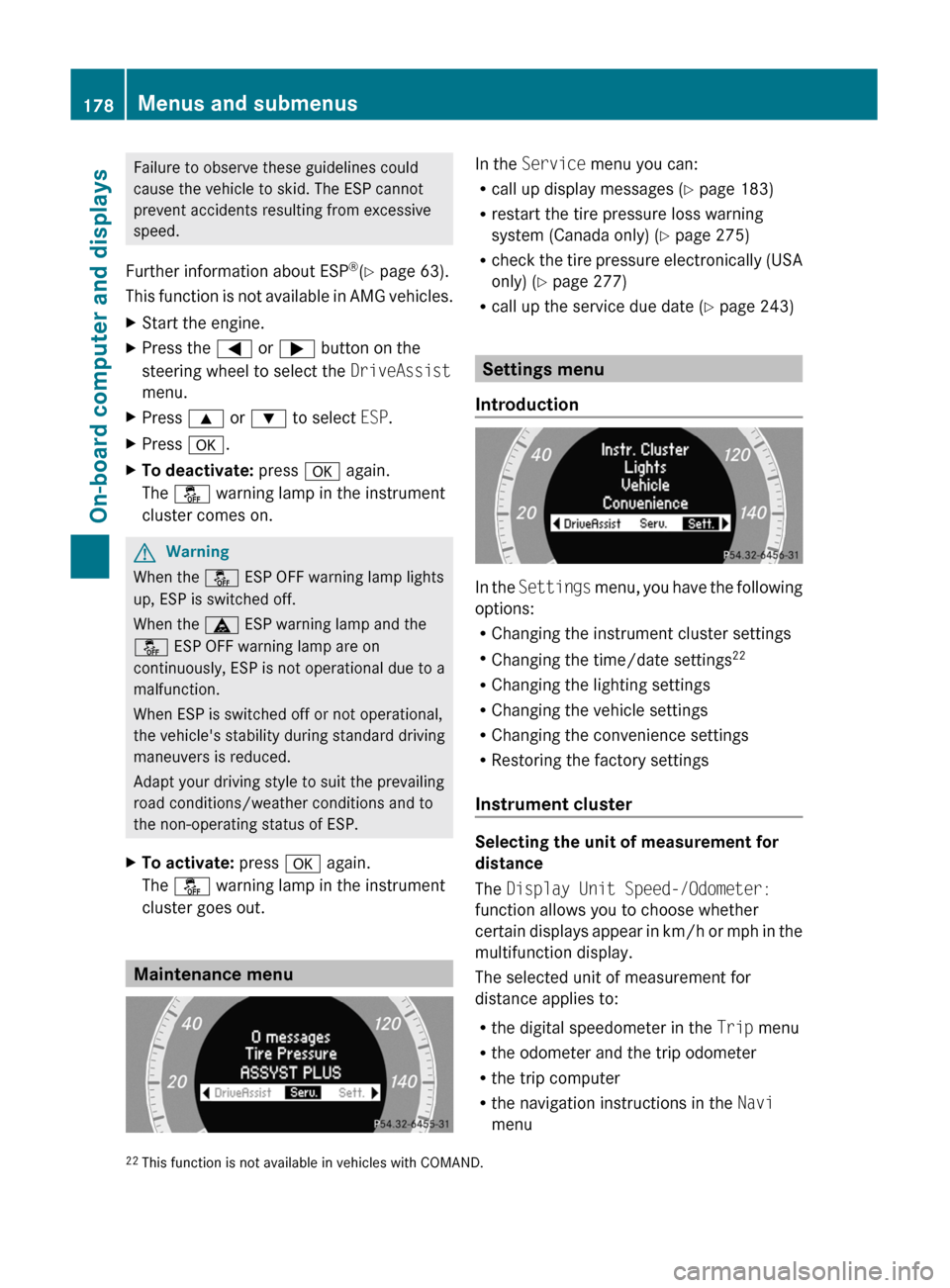
Maintenance menu
In the Service menu you can:
R call up display messages ( Y page 183)
R restart the tire pressure loss warning
system (Canada only) ( Y page 275)
R check the tire pressure electronically (USA
only) ( Y page 277)
R call up the service due date ( Y page 243)
Settings menu
Introduction
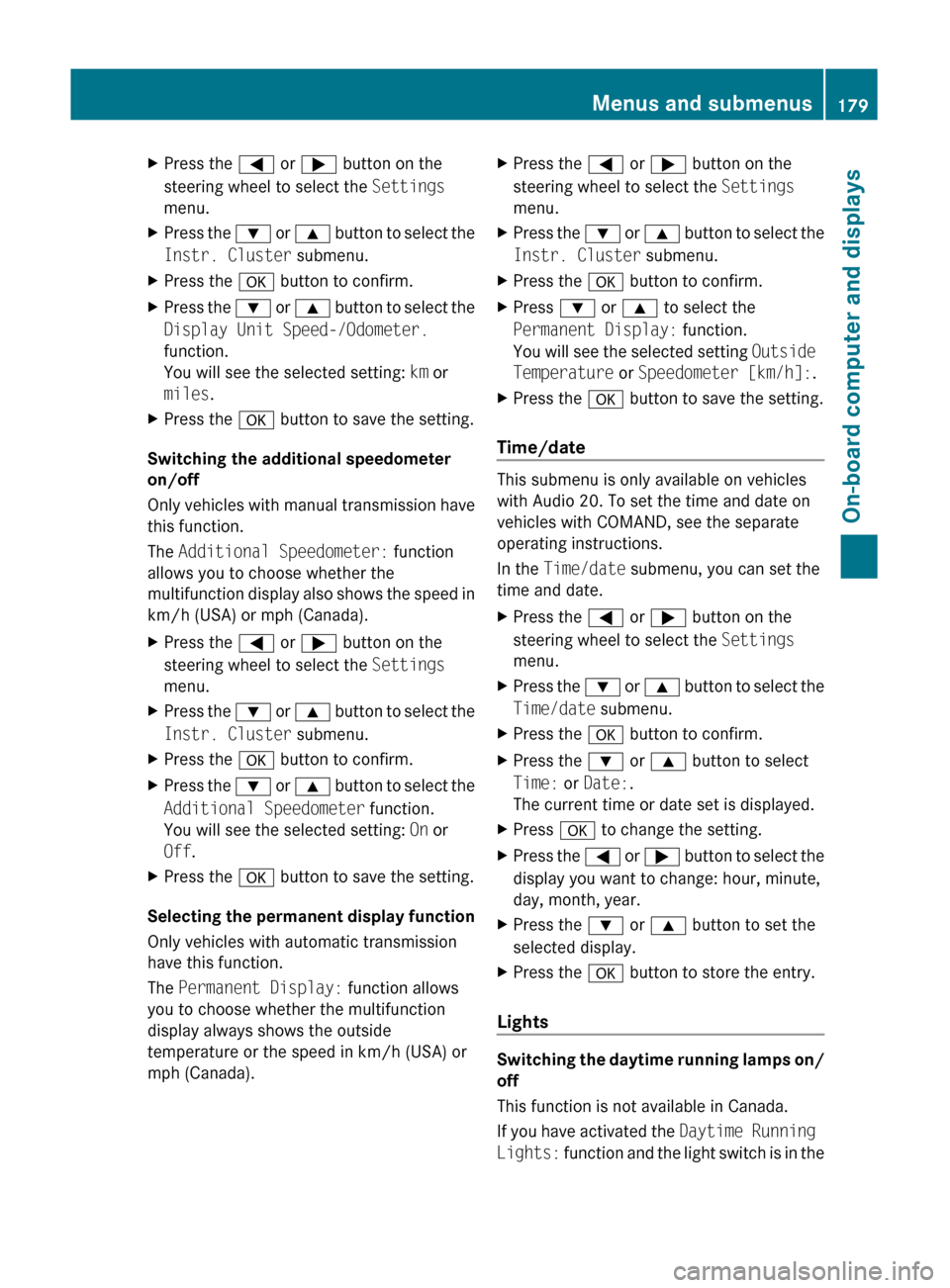
In the Settings menu, you have the following
options:
R Changing the instrument cluster settings
R Changing the time/date settings 22
R Changing the lighting settings
R Changing the vehicle settings
R Changing the convenience settings
R Restoring the factory settings
Instrument cluster
Selecting the unit of measurement for
distance
The Display Unit Speed-/Odometer:
function allows you to choose whether
certain displays appear in km/h or mph in the
multifunction display.
The selected unit of measurement for
distance applies to:
R the digital speedometer in the Trip menu
R the odometer and the trip odometer
R the trip computer
R the navigation instructions in the Navi
menu
22 This function is not available in vehicles with COMAND.178Menus and submenusOn-board computer and displays
BA 204 USA, CA Edition A 2011; 1; 5, en-UShereepeVersion: 3.0.3.62010-05-20T09:17:30+02:00 - Seite 178
Page 181 of 320
XPress the = or ; button on the
steering wheel to select the Settings
menu.XPress the : or 9 button to select the
Instr. Cluster submenu.XPress the a button to confirm.XPress the : or 9 button to select the
Display Unit Speed-/Odometer.
function.
You will see the selected setting: km or
miles .XPress the a button to save the setting.
Switching the additional speedometer
on/off
Only vehicles with manual transmission have
this function.
The Additional Speedometer: function
allows you to choose whether the
multifunction display also shows the speed in
km/h (USA) or mph (Canada).
XPress the = or ; button on the
steering wheel to select the Settings
menu.XPress the : or 9 button to select the
Instr. Cluster submenu.XPress the a button to confirm.XPress the : or 9 button to select the
Additional Speedometer function.
You will see the selected setting: On or
Off .XPress the a button to save the setting.
Selecting the permanent display function
Only vehicles with automatic transmission
have this function.
The Permanent Display: function allows
you to choose whether the multifunction
display always shows the outside
temperature or the speed in km/h (USA) or
mph (Canada).
XPress the = or ; button on the
steering wheel to select the Settings
menu.XPress the : or 9 button to select the
Instr. Cluster submenu.XPress the a button to confirm.XPress : or 9 to select the
Permanent Display: function.
You will see the selected setting Outside
Temperature or Speedometer [km/h]: .XPress the a button to save the setting.
Time/date
This submenu is only available on vehicles
with Audio 20. To set the time and date on
vehicles with COMAND, see the separate
operating instructions.
In the Time/date submenu, you can set the
time and date.
XPress the = or ; button on the
steering wheel to select the Settings
menu.XPress the : or 9 button to select the
Time/date submenu.XPress the a button to confirm.XPress the : or 9 button to select
Time: or Date: .
The current time or date set is displayed.XPress a to change the setting.XPress the = or ; button to select the
display you want to change: hour, minute,
day, month, year.XPress the : or 9 button to set the
selected display.XPress the a button to store the entry.
Lights
Switching the daytime running lamps on/
off
This function is not available in Canada.
If you have activated the Daytime Running
Lights: function and the light switch is in the
Menus and submenus179On-board computer and displaysBA 204 USA, CA Edition A 2011; 1; 5, en-UShereepeVersion: 3.0.3.62010-05-20T09:17:30+02:00 - Seite 179Z
Page 219 of 320
devices; see separate COMAND operating
instructions.
iThe glove box can be ventilated
(Y page 127).
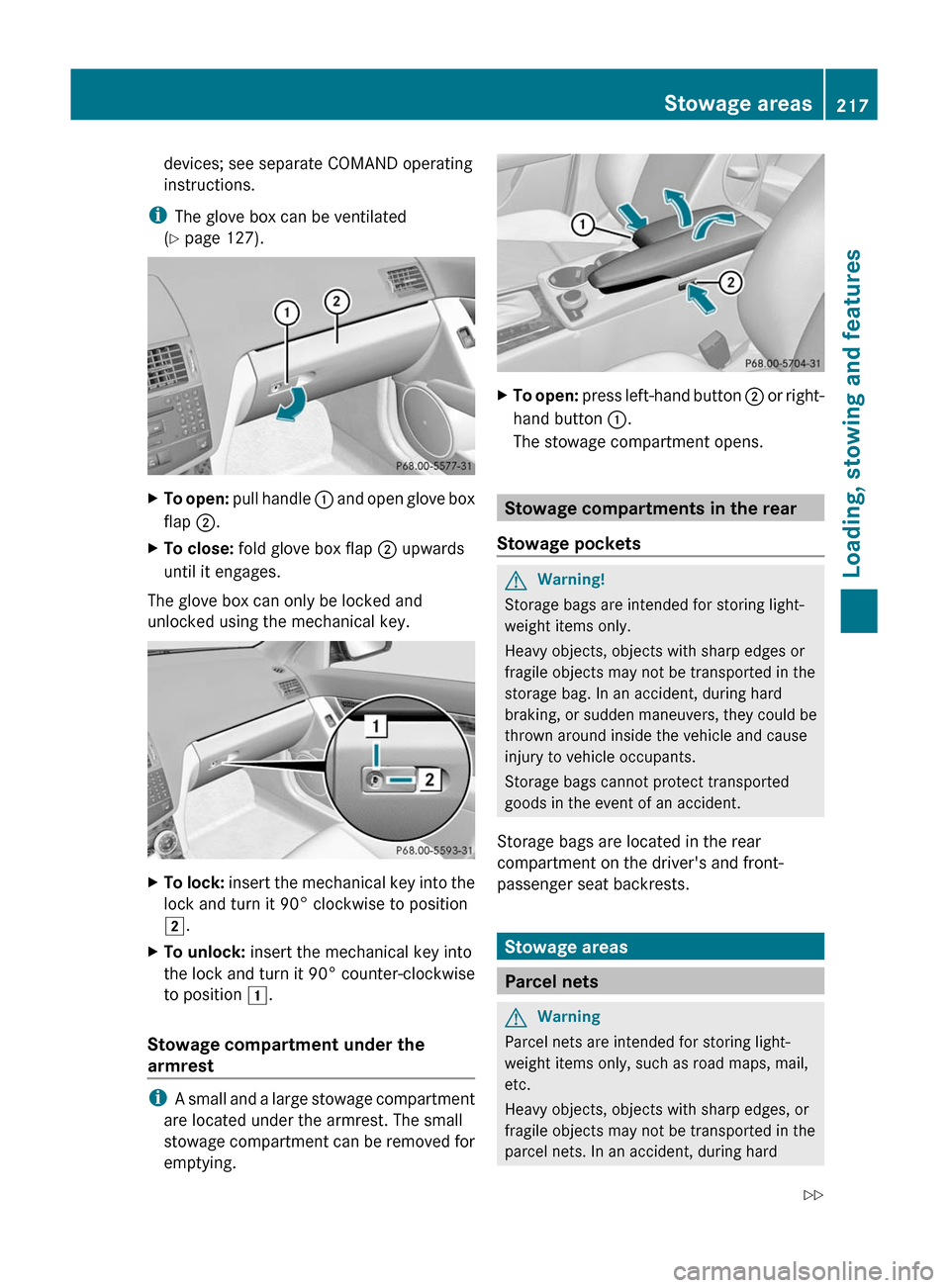
XTo open: pull handle : and open glove box
flap ;.
XTo close: fold glove box flap ; upwards
until it engages.
The glove box can only be locked and
unlocked using the mechanical key.
XTo lock: insert the mechanical key into the
lock and turn it 90° clockwise to position
2.
XTo unlock: insert the mechanical key into
the lock and turn it 90° counter-clockwise
to position 1.
Stowage compartment under the
armrest
iA small and a large stowage compartment
are located under the armrest. The small
stowage compartment can be removed for
emptying.
XTo open: press left-hand button ; or right-
hand button :.
The stowage compartment opens.
Stowage compartments in the rear
Stowage pockets
GWarning!
Storage bags are intended for storing light-
weight items only.
Heavy objects, objects with sharp edges or
fragile objects may not be transported in the
storage bag. In an accident, during hard
braking, or sudden maneuvers, they could be
thrown around inside the vehicle and cause
injury to vehicle occupants.
Storage bags cannot protect transported
goods in the event of an accident.
Storage bags are located in the rear
compartment on the driver's and front-
passenger seat backrests.
Stowage areas
Parcel nets
GWarning
Parcel nets are intended for storing light-
weight items only, such as road maps, mail,
etc.
Heavy objects, objects with sharp edges, or
fragile objects may not be transported in the
parcel nets. In an accident, during hard
Stowage areas217Loading, stowing and featuresBA 204 USA, CA Edition A 2011; 1; 5, en-UShereepeVersion: 3.0.3.62010-05-20T09:17:30+02:00 - Seite 217Z
Page 226 of 320
Cigarette lighterGWarning
When leaving the vehicle, always remove the
SmartKey from the ignition lock. Always take
the SmartKey with you and lock the vehicle.
Do not leave children unattended in the
vehicle, even if they are secured in a child
restraint system, or with access to an
unlocked vehicle. A child's unsupervised
access to a vehicle could result in an accident
and/or serious personal injury. The children
could:
Rinjure themselves on parts of the vehicle
Rbe seriously or fatally injured through
excessive exposure to extreme heat or cold
Rinjure themselves or cause an accident with
vehicle equipment that can be operated
even if the SmartKey is removed from the
ignition lock or removed from the vehicle,
such as seat adjustment, steering wheel
adjustment, or the memory function
If children open a door, they could injure other
persons or get out of the vehicle and injure
themselves or be injured by following traffic.
Do not expose the child restraint system to
direct sunlight. The child restraint system's
metal parts, for example, could become very
hot, and the child could be burned on these
parts.
GWarning
Never touch the heating element or sides of
the lighter; they are extremely hot. Hold the
knob only.
Make sure any children traveling with you do
not injure themselves or start a fire with the
hot cigarette lighter.
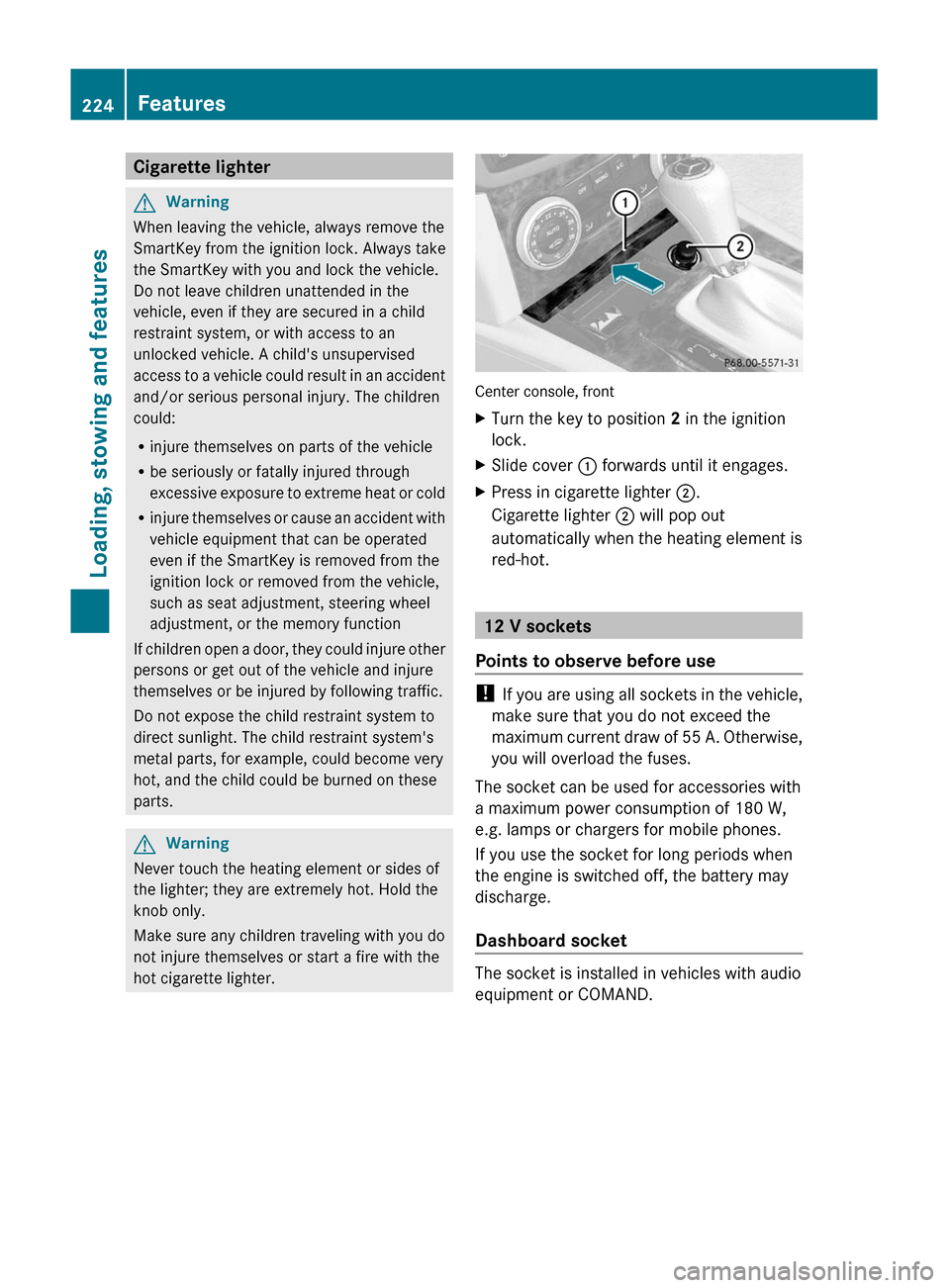
Center console, front
XTurn the key to position 2 in the ignition
lock.
XSlide cover : forwards until it engages.XPress in cigarette lighter ;.
Cigarette lighter ; will pop out
automatically when the heating element is
red-hot.
12 V sockets
Points to observe before use
! If you are using all sockets in the vehicle,
make sure that you do not exceed the
maximum current draw of 55 A. Otherwise,
you will overload the fuses.
The socket can be used for accessories with
a maximum power consumption of 180 W,
e.g. lamps or chargers for mobile phones.
If you use the socket for long periods when
the engine is switched off, the battery may
discharge.
Dashboard socket
The socket is installed in vehicles with audio
equipment or COMAND.
224FeaturesLoading, stowing and features
BA 204 USA, CA Edition A 2011; 1; 5, en-UShereepeVersion: 3.0.3.62010-05-20T09:17:30+02:00 - Seite 224
Page 230 of 320
If you have any questions concerning
activation, please contact one of the
following service hotlines:
R USA: Response Center under
866-990-9007
R Canada: Customer Service under
1-888-923-8367
An emergency call is dialed automatically if
an air bag or Emergency Tensioning Device is
triggered.
i An automatically dialed mbrace
emergency call cannot be canceled.
An emergency call can also be dialed
manually.
Once the emergency call is in progress, the
indicator lamp in the SOS button flashes. The
Connecting Call message appears in the
multifunction display.
COMAND is muted.
Once a connection has been established, the
Call Connected message appears in the
multifunction display.
All important information on the emergency
is compiled, for example:
R current location of the vehicle (as
determined by the GPS system)
R vehicle model
R vehicle color
R vehicle identification number
A voice connection between the Response
Center and the occupants of the vehicle will
be established automatically soon after the
emergency call has been initiated. If the
vehicle occupants are responsive, the
Response Center attempts to get more
information on the emergency.
i If no vehicle occupant answers, an
ambulance is immediately sent to the
vehicle.GWarning
If the indicator lamp in the SOS button is
flashing continuously and there was no voice
connection to the Response Center
established, then the mbrace system could
not initiate an emergency call (e.g. the
relevant cellular phone network is not
available).
The message Call Failed appears in the
multifunction display for approximately
10 seconds.
Should this occur, assistance must be
summoned by other means.
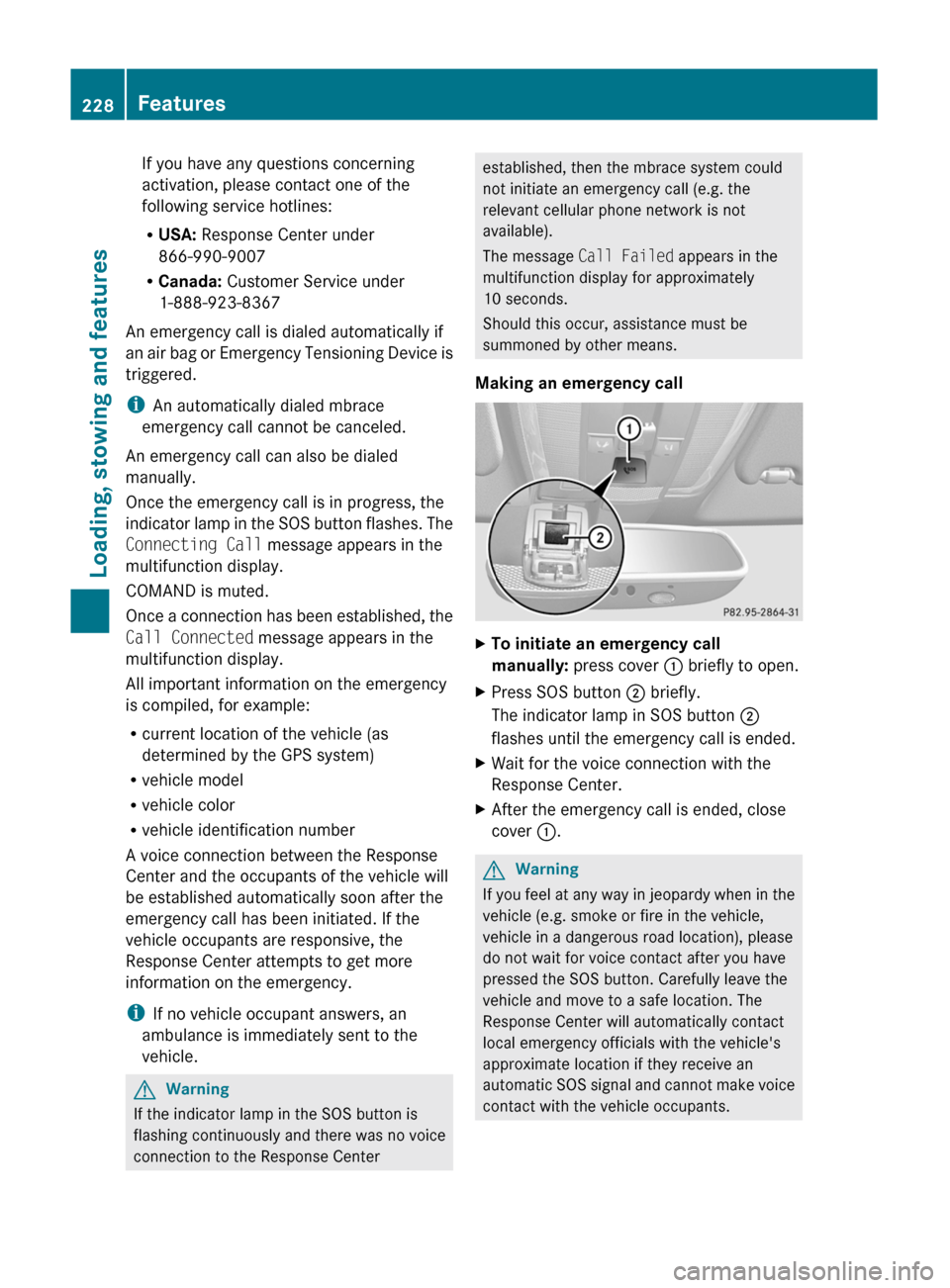
Making an emergency callXTo initiate an emergency call
manually: press cover : briefly to open.XPress SOS button ; briefly.
The indicator lamp in SOS button ;
flashes until the emergency call is ended.XWait for the voice connection with the
Response Center.XAfter the emergency call is ended, close
cover :.GWarning
If you feel at any way in jeopardy when in the
vehicle (e.g. smoke or fire in the vehicle,
vehicle in a dangerous road location), please
do not wait for voice contact after you have
pressed the SOS button. Carefully leave the
vehicle and move to a safe location. The
Response Center will automatically contact
local emergency officials with the vehicle's
approximate location if they receive an
automatic SOS signal and cannot make voice
contact with the vehicle occupants.
228FeaturesLoading, stowing and features
BA 204 USA, CA Edition A 2011; 1; 5, en-UShereepeVersion: 3.0.3.62010-05-20T09:17:30+02:00 - Seite 228
Page 231 of 320
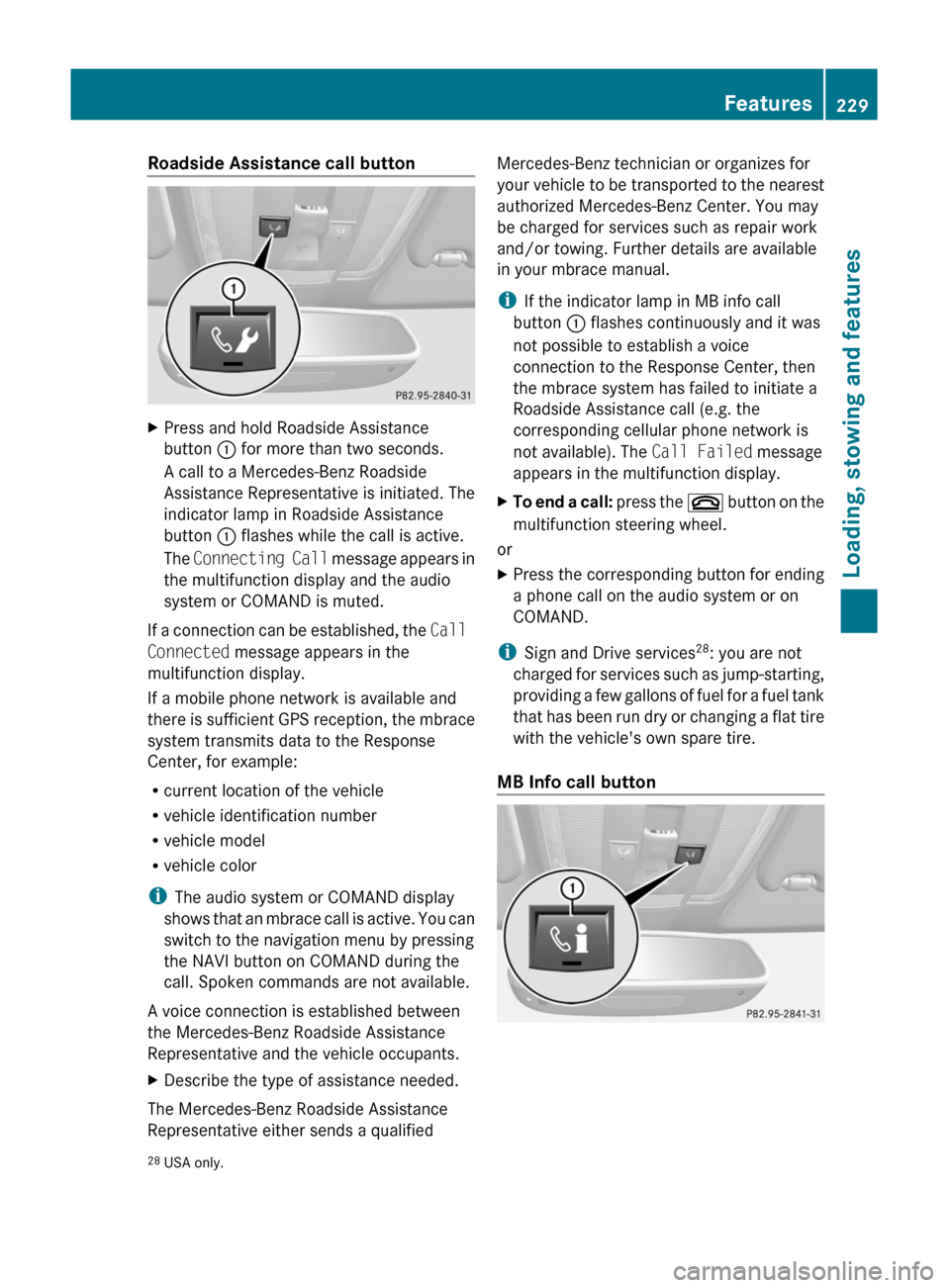
Roadside Assistance call buttonXPress and hold Roadside Assistance
button : for more than two seconds.
A call to a Mercedes-Benz Roadside
Assistance Representative is initiated. The
indicator lamp in Roadside Assistance
button : flashes while the call is active.
The Connecting Call message appears in
the multifunction display and the audio
system or COMAND is muted.
If a connection can be established, the Call
Connected message appears in the
multifunction display.
If a mobile phone network is available and
there is sufficient GPS reception, the mbrace
system transmits data to the Response
Center, for example:
R current location of the vehicle
R vehicle identification number
R vehicle model
R vehicle color
i The audio system or COMAND display
shows that an mbrace call is active. You can
switch to the navigation menu by pressing
the NAVI button on COMAND during the
call. Spoken commands are not available.
A voice connection is established between
the Mercedes-Benz Roadside Assistance
Representative and the vehicle occupants.
XDescribe the type of assistance needed.
The Mercedes-Benz Roadside Assistance
Representative either sends a qualified
Mercedes-Benz technician or organizes for
your vehicle to be transported to the nearest
authorized Mercedes-Benz Center. You may
be charged for services such as repair work
and/or towing. Further details are available
in your mbrace manual.
i If the indicator lamp in MB info call
button : flashes continuously and it was
not possible to establish a voice
connection to the Response Center, then
the mbrace system has failed to initiate a
Roadside Assistance call (e.g. the
corresponding cellular phone network is
not available). The Call Failed message
appears in the multifunction display.XTo end a call: press the ~ button on the
multifunction steering wheel.
or
XPress the corresponding button for ending
a phone call on the audio system or on
COMAND.
i Sign and Drive services 28
: you are not
charged for services such as jump-starting,
providing a few gallons of fuel for a fuel tank
that has been run dry or changing a flat tire
with the vehicle's own spare tire.
MB Info call button
28 USA only.Features229Loading, stowing and featuresBA 204 USA, CA Edition A 2011; 1; 5, en-UShereepeVersion: 3.0.3.62010-05-20T09:17:30+02:00 - Seite 229Z