phone MERCEDES-BENZ C-Class 2014 W204 Audio Manual
[x] Cancel search | Manufacturer: MERCEDES-BENZ, Model Year: 2014, Model line: C-Class, Model: MERCEDES-BENZ C-Class 2014 W204Pages: 106, PDF Size: 1.46 MB
Page 23 of 106

The last main function used is reactivated
after switching on.
Switching Audio 20 off X
Press button 0043.
or
X Turn the SmartKey to position 0 in the igni-
tion lock and remove the SmartKey.
i If you switch off Audio 20, playback of the
current audio source will also be switched
off. Your mobile phone can also no longer
be operated via the Audio 20 system. Switching the sound on or off
Switching the audio source on/off X
Press the 0063button.
The sound from the audio source is
switched on or off.
i When the sound is switched off, you will
see the 006Bsymbol in the status bar.
If you change the audio source or adjust the
volume using thumbwheel 0044, the sound
switches on automatically. Adjusting the volume
Adjusting the volume for the audio
source X
Turn thumbwheel 0044.
or
X Press the 0081or0082 button on the mul-
tifunction steering wheel.
The volume of the audio source currently
selected changes.
Adjusting the volume for phone calls You can adjust the volume for hands-free
mode during a phone call. X
Turn thumbwheel 0044during a phone call.
or
X Press the 0081or0082 button on the mul-
tifunction steering wheel during a tele-
phone call. Adjusting the sound settings
Selecting the sound menu The sound settings can be selected to suit a
variety of different audio sources. You can
access the sound menu for the current audio
source (radio, CD, USB audio, Bluetooth
®
audio, Media Interface, AUX) using the
respective basic menu.
Adjusting treble and bass X
Select Sound Soundusing the controller (slide
0052 0064,009500520096or turn 00790052007A) and press 0098to
confirm.
X Select Treble
Treble orBass
Bass and press 0098to con-
firm. Example: setting the bass
The current setting is indicated by a red nee-
dle.
X
To change the setting: slide009700520064or turn
00790052007Athe controller until the desired treble
and bass levels are set.
When you exit the menu, the current setting
is stored. Basic functions of Audio 20
21At a glance
Page 26 of 106

Rear Seat Entertainment
Components
Overview The Rear Seat Entertainment System includes:
R two rear-compartment screens behind the front-seat head restraints
R a remote control
R a CD/DVD drive
R AUX jacks on both screens (display AUX) and on the CD/DVD drive (drive AUX)
R two sets of cordless headphones
Rear-compartment screens 0043
AUX jacks, detailed view in the "CD/DVD drive and AUX jacks" section (Y page 26)
0044 Display 24
Rear Seat EntertainmentAt a glance
Page 27 of 106

Remote control
Overview 0043
Switches the screen on/off
0044 Switches the button lighting on/off
0087 Selects the screen for the remote control
0085 Selects a menu or menu item
0083 Confirms a selection or setting
0084 Switches the sound on/off (for corded
headphones)
006B Adjusts the volume (for corded head-
phones)
006C Skips to a track, fast-forward/fast-rewind
006D Selects a track; direct entry
006E Exits a menu (back) Selecting the screen for the remote
control You can use the remote control to operate
one of the two rear screens at a time. To do
so, you must switch the remote control to the
desired screen.
X
To select the left-hand screen: turn
thumbwheel 0087until "L REAR" is high-
lighted in the window.
X To select the right-hand screen: turn
thumbwheel 0087until "R REAR" is high-
lighted in the window.
Switching the screen on/off i
If the SmartKey is in position 0or 1in the
ignition lock (see the vehicle Operator's
Manual), or the SmartKey is not inserted,
the screens in the rear will switch off after
30 minutes.
Before the screens switch off, they show a
message to this effect.
You can switch the screens back on. How-
ever, this will discharge the starter battery.
X Point the remote control at the rear-com-
partment screen which has been selected
for remote operation.
X Press button 0043on the remote control.
The respective rear screen switches on or
off.
i You can only switch the screens on using
the remote control if the ignition is
switched on.
Switching the button lighting on/off X
Press button 0044on the remote control.
Depending on the previous status, the but-
ton lighting is switched on or off.
i If you do not use the remote control for
about 15 seconds, the button lighting
switches off automatically. Rear Seat Entertainment
25At a glance
Page 29 of 106

Cordless headphones
Overview 0043
Volume control
0044 Selects a screen for the headphones
0087 Battery compartment cover
0085 Switches the cordless headphones on/off
0083 Indicator lamp with various displays (Y page 27)
X Open both sides of the headphones and adjust the fit of the headphones by pulling the
headphone band in the direction of the arrow.
Switching the cordless headphones
on/off X
Press button 0085.
Depending on the previous status, the
headphones are switched on or off.
To save the battery, the headphones are
switched off automatically if they do not
receive an audio signal within three
minutes.
Adjusting the volume of the head-
phones X
Turn volume control 0043until the desired
volume has been set.
i If you have connected corded head-
phones to a rear-compartment screen, you can adjust the volume by pressing buttons
006B on the remote control (Y page 25).
Selecting a screen for the headphones X
Move push slider 0044toL(left-hand screen)
or R(right-hand screen).
Indicator lamp displays The color of the indicator lamp shows
whether the headphones are switched on or
off and indicates the charge level of the bat-
teries inserted. Rear Seat Entertainment
27At a glance
Page 30 of 106
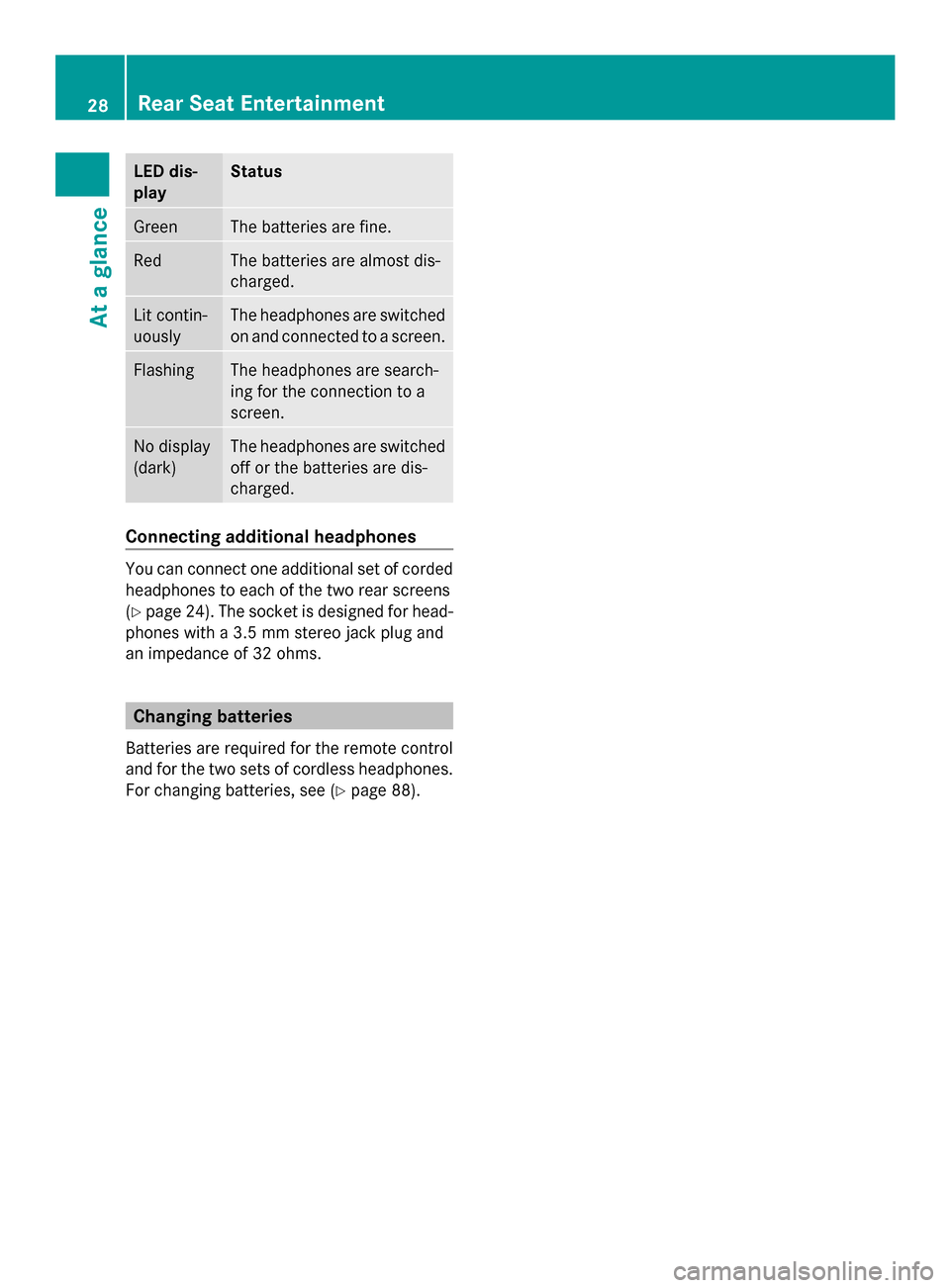
LED dis-
play Status
Green The batteries are fine.
Red The batteries are almost dis-
charged.
Lit contin-
uously The headphones are switched
on and connected to a screen.
Flashing The headphones are search-
ing for the connection to a
screen.
No display
(dark) The headphones are switched
off or the batteries are dis-
charged.
Connecting additional headphones
You can connect one additional set of corded
headphones to each of the two rear screens
(Y
page 24). The socket is designed for head-
phones with a 3.5 mm stereo jack plug and
an impedance of 32 ohms. Changing batteries
Batteries are required for the remote control
and for the two sets of cordless headphones.
For changing batteries, see (Y page 88).28
Rear Seat EntertainmentAt a glance
Page 35 of 106
Further information on telephone mode
(Y page 43).
Bluetooth ®
is a registered trademark of Blue-
tooth Special Interest Group (SIG) Inc. Activating/deactivating Bluetooth
®
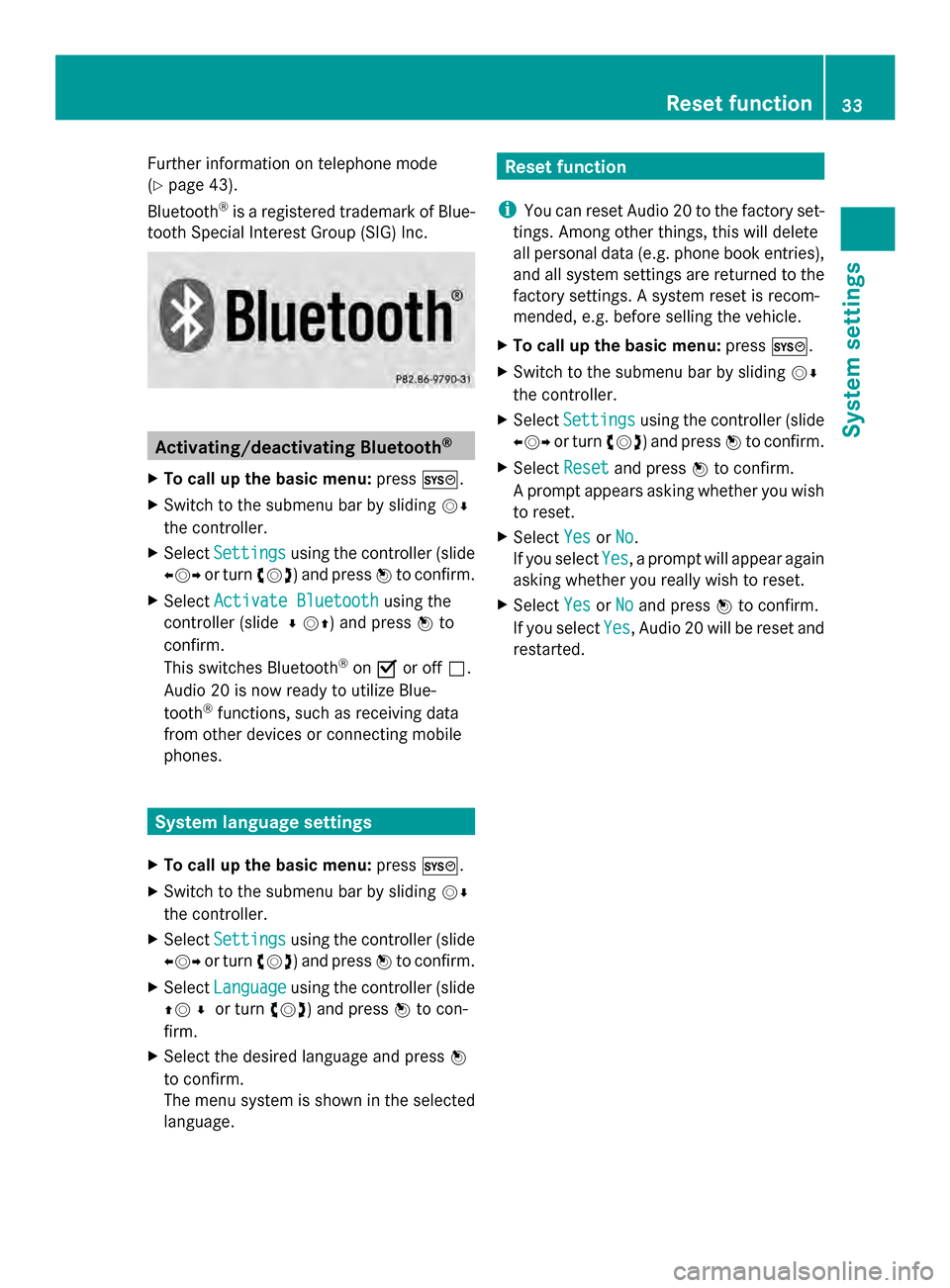
X To call up the basic menu: press0066.
X Switch to the submenu bar by sliding 00520064
the controller.
X Select Settings
Settings using the controller (slide
009500520096 or turn 00790052007A) and press 0098to confirm.
X Select Activate Bluetooth
Activate Bluetooth using the
controller (slide 00C500520097) and press 0098to
confirm.
This switches Bluetooth ®
on 0073 or off 0053.
Audio 20 is now ready to utilize Blue-
tooth ®
functions, such as receiving data
from other devices or connecting mobile
phones. System language settings
X To call up the basic menu: press0066.
X Switch to the submenu bar by sliding 00520064
the controller.
X Select Settings
Settings using the controller (slide
009500520096 or turn 00790052007A) and press 0098to confirm.
X Select Language Language using the controller (slide
0097005200C5 or turn 00790052007A) and press 0098to con-
firm.
X Select the desired language and press 0098
to confirm.
The menu system is shown in the selected
language. Reset function
i You can reset Audio 20 to the factory set-
tings. Among other things, this will delete
all personal data (e.g. phone book entries),
and all system settings are returned to the
factory settings. A system reset is recom-
mended, e.g. before selling the vehicle.
X To call up the basic menu: press0066.
X Switch to the submenu bar by sliding 00520064
the controller.
X Select Settings Settings using the controller (slide
009500520096 or turn 00790052007A) and press 0098to confirm.
X Select Reset Resetand press 0098to confirm.
A prompt appears asking whether you wish
to reset.
X Select Yes YesorNo
No.
If you select Yes
Yes, a prompt will appear again
asking whether you really wish to reset.
X Select Yes
YesorNo
No and press 0098to confirm.
If you select Yes
Yes, Audio 20 will be reset and
restarted. Reset function
33System settings
Page 43 of 106
Audio system features
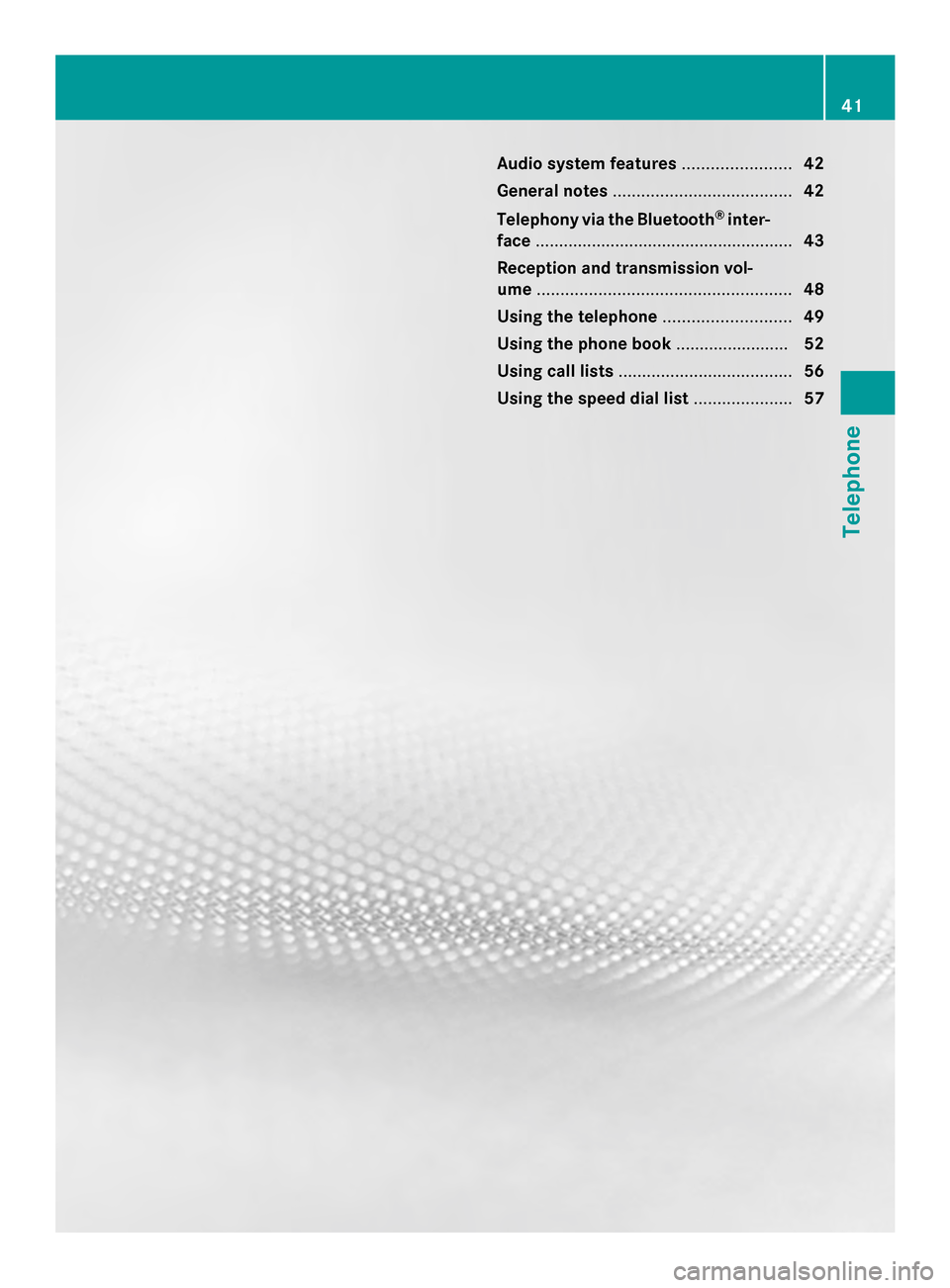
.......................42
General notes ...................................... 42
Telephony via the Bluetooth ®
inter-
face ....................................................... 43
Reception and transmission vol-
ume ...................................................... 48
Using the telephone ...........................49
Using the phone book ........................52
Using call lists ..................................... 56
Using the speed dial list .....................57 41Telephone
Page 44 of 106
Audio system features
i These Operating Instructions describe all
standard and optional equipment available
for your audio device at the time of going
to print. Country-specific deviations are
possible. Please note that your audio equip-
ment may not offer all the features descri-
bed. General notes
Important safety notes
G
WARNING
If you operate mobile communication equip-
ment while driving, you will be distracted from
traffic conditions. You could also lose control
of the vehicle. There is a risk of an accident.
Only operate this equipment when the vehicle
is stationary.
Bear in mind that at a speed of just 30 mph
(approximately 50 km/h), your vehicle is cov-
ering a distance of 44 feet (approximately
14 m) every second.
If you make a call on your mobile phone while
driving, always use hands-free mode. Only
use the mobile phone when road, weather
and traffic conditions permit. Introduction
Audio 20, in conjunction with a Bluetooth ®
-
capable mobile phone, enables you to make
calls via the Bluetooth ®
interface. Using the
Bluetooth ®
interface and a suitable mobile
phone, you can use the Audio 20 hands-free
facility and receive vCards.
With a suitable mobile phone, you can use the
hands-free system via the Bluetooth ®
inter-
face. You can also import contacts from the
mobile phone via PBAP (Phone Book Access
Profile) and receive vCards.
You can obtain more detailed information
about suitable mobile phones and about con- necting Bluetooth
®
-capable mobile phones
from your authorized Mercedes-Benz Center.
You can also obtain information via the Inter-
net at http://www.mbusa-mobile.com (for
customers in the USA only). Call disconnection while the vehicle is
in motion
A call may be disconnected if:
R there is insufficient network coverage in
certain areas.
R you move from one transmitter/receiver
area (cell) into another and no channels are
free.
R you use a SIM card which is not compatible
with the network available.
R you are using a mobile phone with "Twin-
card" and the mobile phone with the sec-
ond SIM card is already logged into the net-
work. Operating options
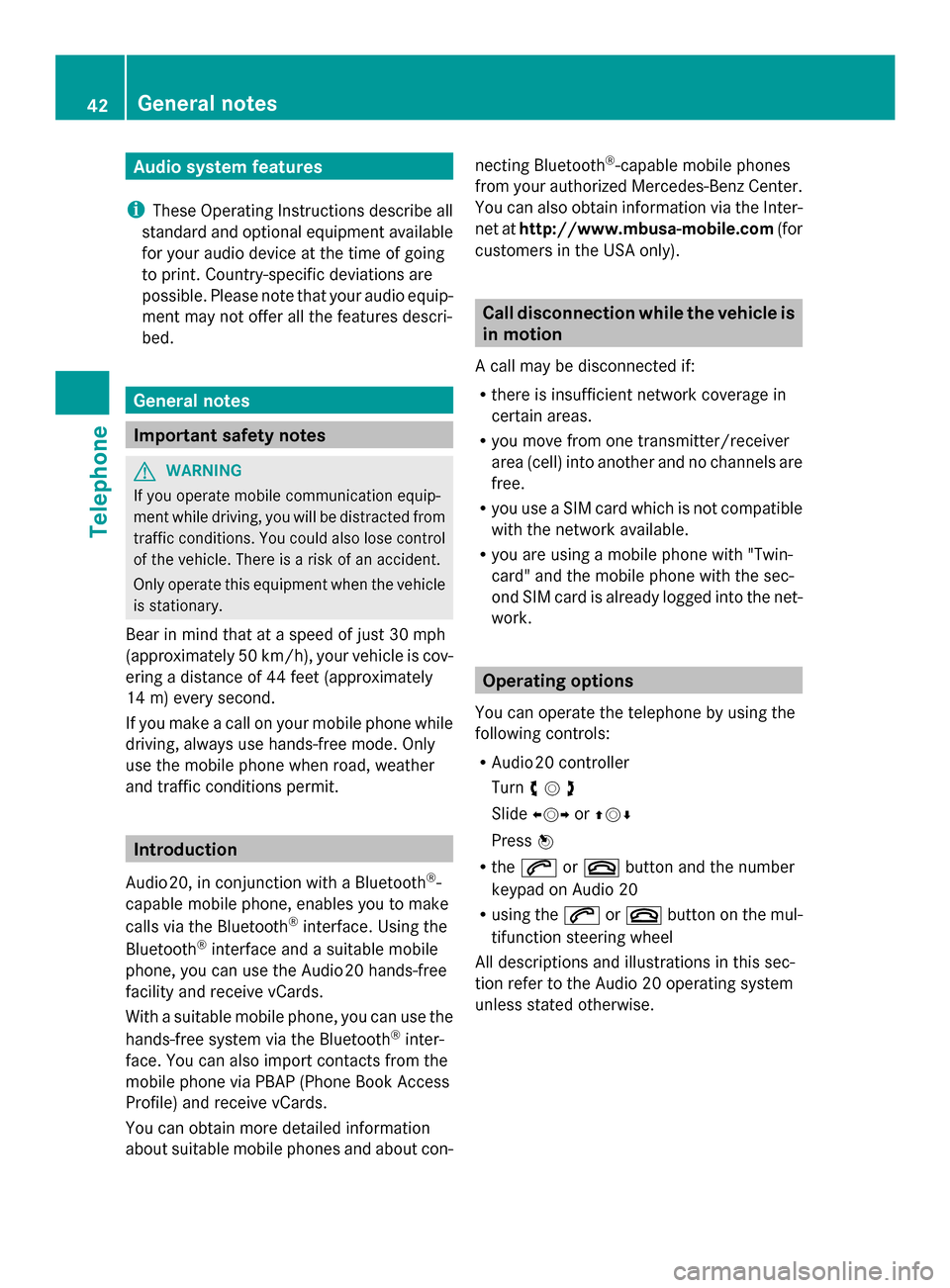
You can operate the telephone by using the
following controls:
R Audio 20 controller
Turn 00790052007A
Slide 009500520096 or009700520064
Press 0098
R the 0061 or0076 button and the number
keypad on Audio 20
R using the 0061or0076 button on the mul-
tifunction steering wheel
All descriptions and illustrations in this sec-
tion refer to the Audio 20 operating system
unless stated otherwise. 42
General notesTelephone
Page 45 of 106
Function restrictions
The telephone is not ready for use in the fol-
lowing situations:
R The telephone automatically tries to log on
to a network. If no network is available, you
may not be able to make a " 911" emer-
gency call. If you attempt to make an out-
going call, the No Service
No Service message will
appear for a short while.
If Audio 20 is switched off during a call in
hands-free mode, the call is disconnected.
You can prevent this as follows: before
switching off Audio 20, switch the mobile
phone to "Private mode" (see the mobile
phone operating instructions). "911" emergency call
The 911 emergency call is a public service.
Using it without due cause is a criminal
offense.
The following requirements must be fulfilled
for a 911emergency call:
R the mobile phone must be switched on.
R a network must be available.
R a valid and operational SIM card must be
inserted in the mobile phone.
R the mobile phone must be connected to
Audio 20 via Bluetooth ®
.
If you cannot make an emergency call, you
must arrange rescue measures yourself.
X Enter numbers on Audio 20 (Y page 50).
X Press 0061.
The telephone makes the connection.
X Wait until the emergency call center
answers and describe the emergency sit-
uation. Telephony via the Bluetooth
®
inter-
face Prerequisites
To use Bluetooth ®
interface telephony in con-
junction with Audio 20, you need a Blue-
tooth ®
-capable mobile phone.
On Audio 20
X Activate the Bluetooth ®
function on
Audio 20 (Y page 33).
On the mobile phone
X Switch on the mobile phone and enter the
PIN when prompted to do so (see the
mobile phone operating instructions).
X Activate Bluetooth ®
functions and, where
necessary, Bluetooth ®
visibility on the
mobile phone (see the mobile phone oper-
ating instructions).
The battery of the mobile phone should
always be kept sufficiently charged in order
to prevent malfunctions.
In preparation for telephoning via the Blue-
tooth ®
interface, you should check the fol-
lowing items on your mobile phone (see the
mobile phone operating instructions):
R Hands-Free Profile
The mobile phone must support Hands-
Free Profile 1.0 or above.
R Bluetooth ®
visibility
On some mobile phones, it is not enough to
activate only the Bluetooth ®
function. Your
device must also be made "visible" to other
devices (see the mobile phone operating
instructions).
This visibility is for restricted periods of
time on some mobile phones.
R Bluetooth ®
device name
Every Bluetooth ®
device has its own Blue-
tooth ®
device name. This device name is
freely definable, but can be identical for all
devices from the same manufacturer. It is
therefore recommended that you change
this name so that you can easily recognize Telephony via the Bluetooth
®
interface 43Telephone Z
Page 46 of 106

your mobile phone (see the mobile phone
operating instructions).
i Not all mobile phones available on the
market are equally suitable. You can obtain
more detailed information about suitable
mobile phones and about connecting Blue-
tooth ®
-capable mobile phones to Audio 20
on the Internet at
http://www.mbusa-mobile.com. Or call
the Mercedes-Benz Customer Assistance
Center at 1-800-FOR-MERCedes
(1-800-367-6372 )(for the USA) or Cus-
tomer Relations at 1-800-387-010 0(for
Canada).
i Some displays (e.g. the signal strength)
depend on the supported version of the
Hands-Free Profile. Connecting a mobile phone
General information Before using your mobile phone with Audio 20
for the first time, you will need to authorize it.
Device-specific information on connecting
Bluetooth ®
-capable mobile phones can be
found on the Internet at http://
www.mbusa-mobile.com . Or call the
Mercedes-Benz Customer Assistance Center
at 1-800-FOR-MERCedes (1-800-367-6372)
(for the USA) or Customer Relations at
1-800-387-010 0(for Canada).
When you authorize a new mobile phone, it is
connected automatically.
Connecting comprises:
R searching for a Bluetooth ®
-capable mobile
phone
R subsequently authorizing it
You can authorize up to 15 mobile phones.
During connection, the phone book, call lists
and text messages are automatically down-
loaded to Audio 20. This function must be
supported by the connected mobile phone.
You can suppress the automatic download of telephone data by deactivating the "Import
contacts" function (Y
page 55).
Searching for a mobile phone X
Press the 002Bbutton on Audio 20.
X Select Connect Device
Connect Device in the telephone
basic menu using the controller (slide
0052 0064and turn 00790052007A) and press 0098to con-
firm. X
Select Search Search for
forPhone
Phone and press 0098to
confirm.
A message appears.
X Select Start Start Search
Search and press 0098to con-
firm.
Audio 20 scans for Bluetooth ®
devices
within range and enters them into the Blue-
tooth ®
phone list.
If a new phone is found, it appears in the
list with the 00D3symbol.
The duration of the search depends on the
number of Bluetooth ®
telephones within
range and their characteristics.
Symbols in the Bluetooth ®
phone list Sym-
bol Explanation
00D3
New mobile phone in range, but
not yet authorized
0068
Authorized mobile phone
0036
Currently connected mobile
phone44
Telephony via the Bluetooth ®
interfaceTelephone