change time MERCEDES-BENZ C-Class 2015 W205 Comand Manual
[x] Cancel search | Manufacturer: MERCEDES-BENZ, Model Year: 2015, Model line: C-Class, Model: MERCEDES-BENZ C-Class 2015 W205Pages: 214, PDF Size: 5.16 MB
Page 166 of 214
Your COMAND equipment
These operating instructions describe all
standard and optional equipment available
for your COMAND system at the time of pur-
chase. Country-specific differences are pos-
sible. Please note that your COMAND system
may not be equipped with all the features
described. This also applies to safety-relevant
systems and functions. Therefore, the equip-
ment on your COMAND system may differ
from that in the descriptions and illustrations.
Should you have any questions concerning
equipment and operation, please consult an
authorized Mercedes-Benz Center. Activating media mode
General notes
There are several ways to activate media
sources using COMAND.
The relevant sections of the Operator's Man-
ual describe the simplest way to activate a
media source.
This section describes all options for activat-
ing media sources. Using the MEDIA button
X Press the 00FDbutton.
The menu for the last accessed media
source appears.
X To select the media source: keep pressing
the 00FD button until the required media
source has been set.
The media sources appear in the following
order:
R CD/DVD
R Memory card
R Media Register
R Vehicles without Media Interface: USB 1
and USB 2
R Vehicles with Media Interface: Media
Interface 1 and Media Interface 2 R
BT audio
R TV (if your vehicle is equipped with a TV)
R AUX
If playable music files are found, they will
be played by COMAND.
X To display the function bars: slide 00520064the
controller. Switching on automatically
After an external media source has been con-
nected, COMAND will only activate the cor-
responding media mode automatically in the
case of CDs and SD cards. When using USB
devices, depending on the vehicle's equip-
ment, the relevant Media Interface 1, 2 or
USB 1, 2 basic display must already be acti-
vated.
External media sources:
R Apple devices (e.g. iPhone ®
)
R USB devices (e.g. USB stick, MP3 player)
R CD
R DVD
R SD cards
R via AUX cable (automatic activation
depends on the device connected)
R via devices connected by Bluetooth ®
If playable music files are found, they will be
played by COMAND.
i If a media function is already switched on
in COMAND, this will be interrupted and the
basic display of the newly connected
device will appear.
If another function, such as navigation, is
operating, the basic display will not change.
Only the music from the newly connected
media source will play 164
Activa
ting media modeMedia
Page 168 of 214
Inserting and removing a disc from
the single CD/DVD drive
Before inserting a CD/DVD, ensure that the
cup holder is empty.
X To insert: press the00F8button on the
single drive.
If there is a disc already inserted, it will be
ejected.
X Insert a disc into the disc slot with the
printed side facing upwards.
The drive closes and the disc is played.
If the CD/DVD is operated in Media mode,
the corresponding basic menu will be
shown. If the CD/DVD is started using
another application (e.g. navigation), the
display will not change.
i The drive may not be able to play discs
with copy protection.
X To remove: press the00F8button.
The drive ejects the disc.
X Remove the ejected disc from the slot.
If you do not take the disc out of the slot, it
is drawn in again automatically after a short
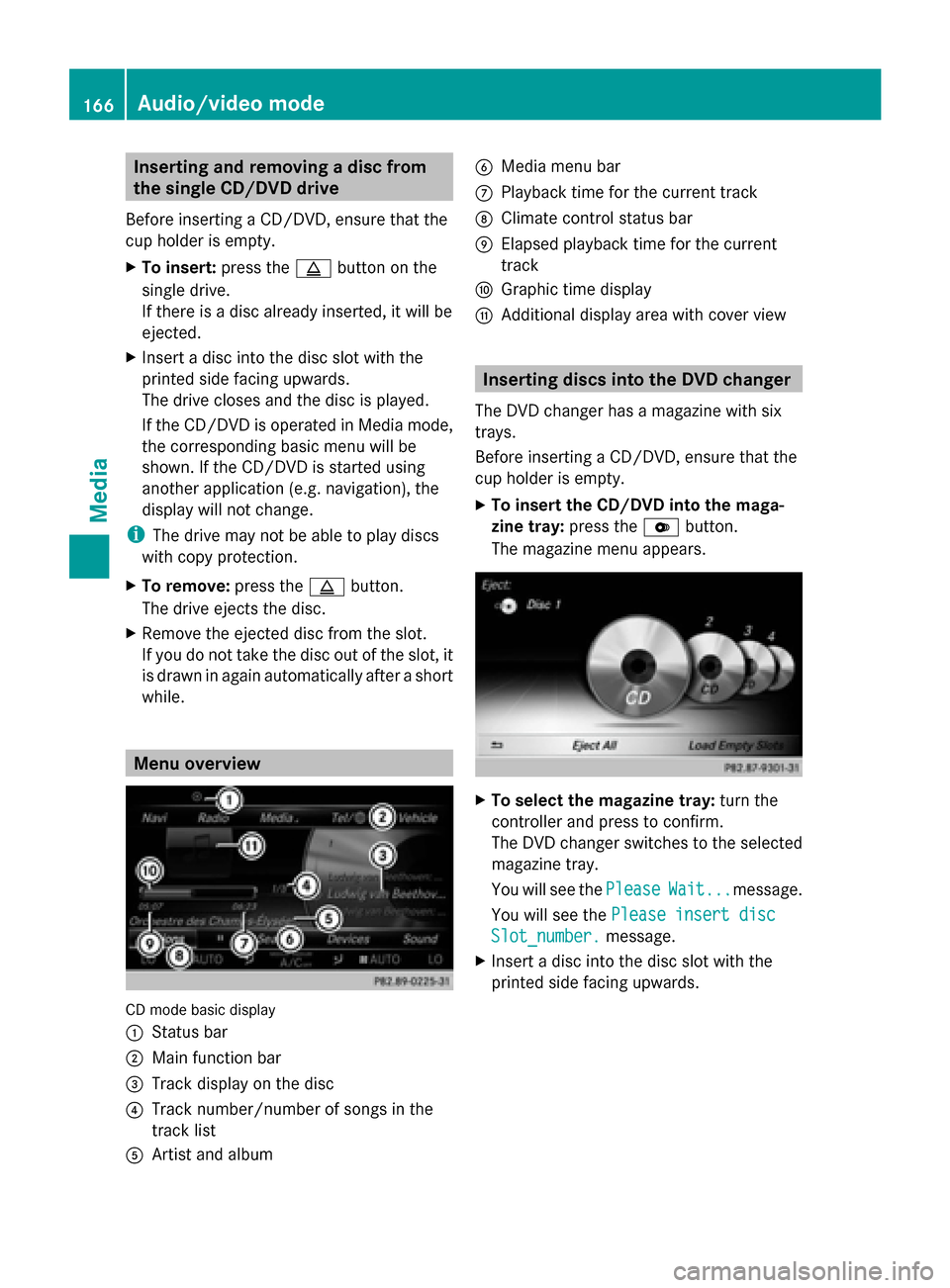
while. Menu overview
CD mode basic display
0043
Status bar
0044 Main function bar
0087 Track display on the disc
0085 Track number/number of songs in the
track list
0083 Artist and album 0084
Media menu bar
006B Playback time for the current track
006C Climate control status bar
006D Elapsed playback time for the current
track
006E Graphic time display
006F Additional display area with cover view Inserting discs into the DVD changer
The DVD changer has a magazine with six
trays.
Before inserting a CD/DVD, ensure that the
cup holder is empty.
X To insert the CD/DVD into the maga-
zine tray: press the0065button.
The magazine menu appears. X
To select the magazine tray: turn the
controller and press to confirm.
The DVD changer switches to the selected
magazine tray.
You will see the Please PleaseWait...
Wait...message.
You will see the Please insert disc
Please insert disc
Slot_number.
Slot_number. message.
X Insert a disc into the disc slot with the
printed side facing upwards. 166
Audio/video modeMedia
Page 178 of 214
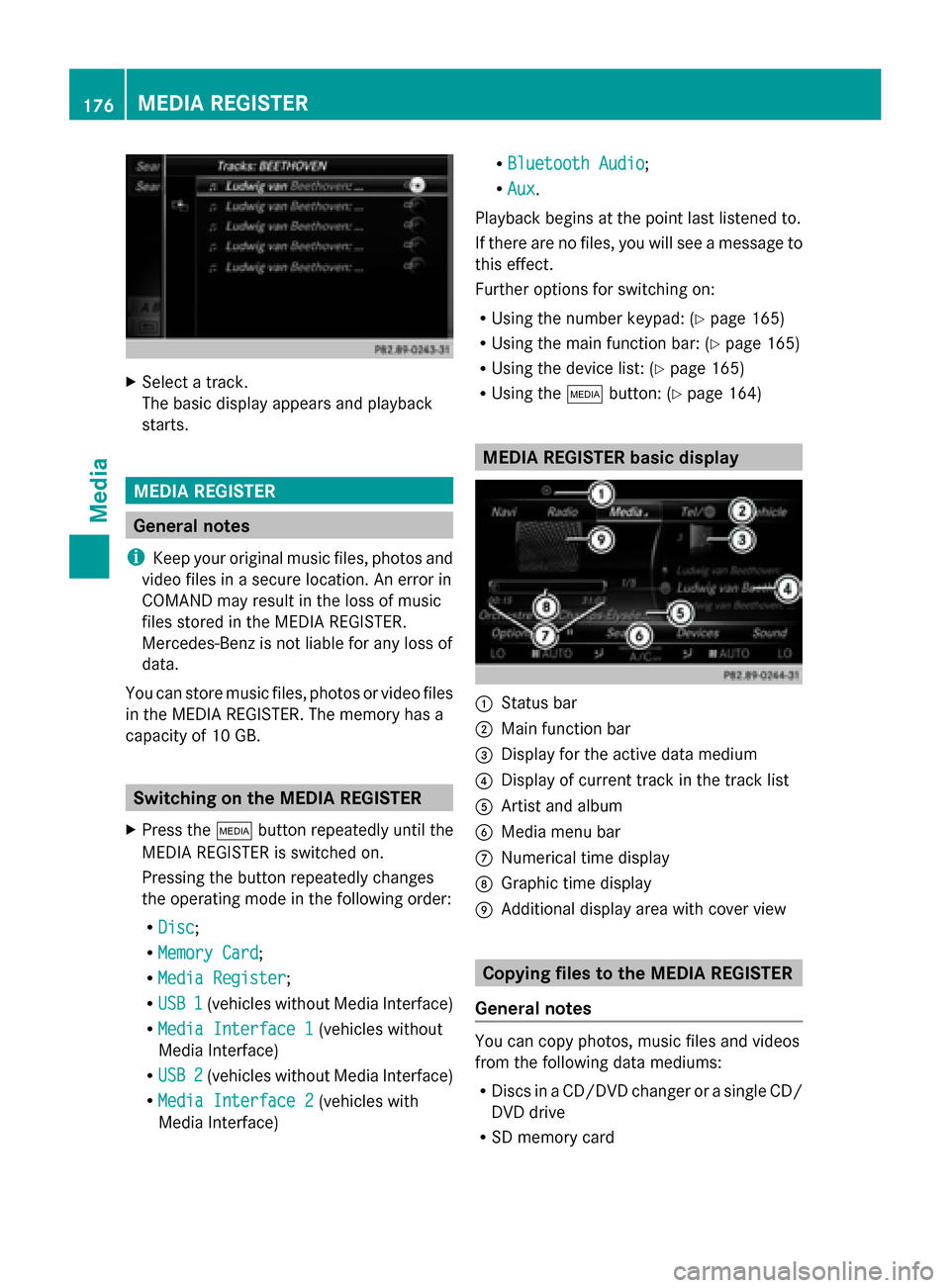
X
Select a track.
The basic display appears and playback
starts. MEDIA REGISTER
General notes
i Keep your original music files, photos and
video files in a secure location. An error in
COMAND may result in the loss of music
files stored in the MEDIA REGISTER.
Mercedes-Benz is not liable for any loss of
data.
You can store music files, photos or video files
in the MEDIA REGISTER. The memory has a
capacity of 10 GB. Switching on the MEDIA REGISTER
X Press the 00FDbutton repeatedly until the
MEDIA REGISTER is switched on.
Pressing the button repeatedly changes
the operating mode in the following order:
R Disc
Disc;
R Memory Card Memory Card;
R Media Register
Media Register;
R USB 1
USB 1 (vehicles without Media Interface)
R Media Interface 1
Media Interface 1 (vehicles without
Media Interface)
R USB 2
USB 2 (vehicles without Media Interface)
R Media Interface 2
Media Interface 2 (vehicles with
Media Interface) R
Bluetooth Audio Bluetooth Audio;
R Aux Aux .
Playback begins at the point last listened to.
If there are no files, you will see a message to
this effect.
Further options for switching on:
R Using the number keypad: (Y page 165)
R Using the main function bar: (Y page 165)
R Using the device list: (Y page 165)
R Using the 00FDbutton: (Y page 164) MEDIA REGISTER basic display
0043
Status bar
0044 Main function bar
0087 Display for the active data medium
0085 Display of current track in the track list
0083 Artist and album
0084 Media menu bar
006B Numerical time display
006C Graphic time display
006D Additional display area with cover view Copying files to the MEDIA REGISTER
General notes You can copy photos, music files and videos
from the following data mediums:
R
Discs in a CD/DVD changer or a single CD/
DVD drive
R SD memory card 176
MEDIA REGISTERMedia
Page 180 of 214
X
Select a folder.
X Select Continue
Continue.
X To select Start
Start: press the controller.
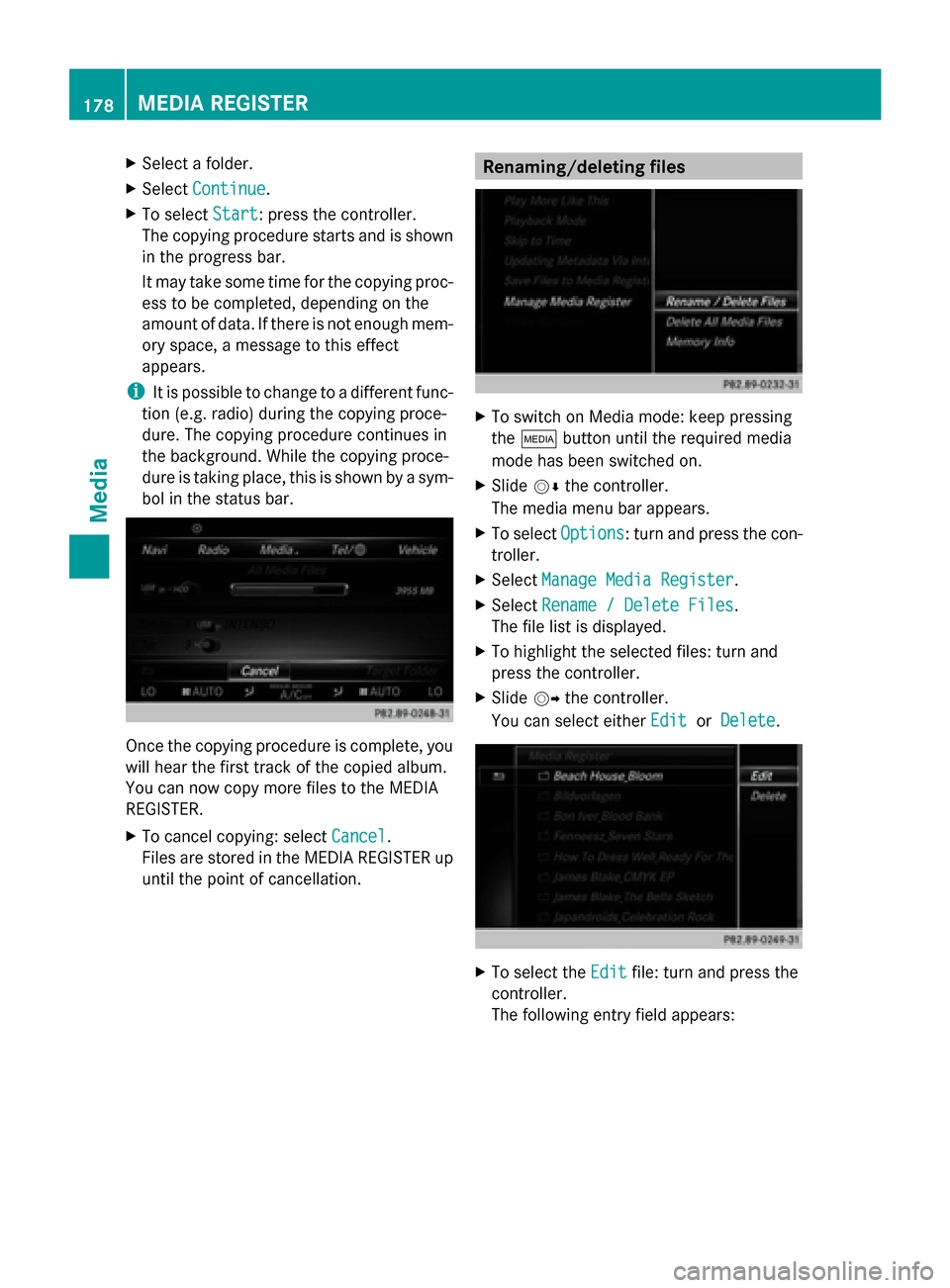
The copying procedure starts and is shown
in the progress bar.
It may take some time for the copying proc-
ess to be completed, depending on the
amount of data. If there is not enough mem-
ory space, a message to this effect
appears.
i It is possible to change to a different func-
tion (e.g. radio) during the copying proce-
dure. The copying procedure continues in
the background. While the copying proce-
dure is taking place, this is shown by a sym-
bol in the status bar. Once the copying procedure is complete, you
will hear the first track of the copied album.
You can now copy more files to the MEDIA
REGISTER.
X To cancel copying: select Cancel Cancel.
Files are stored in the MEDIA REGISTER up
until the point of cancellation. Renaming/deleting files
X
To switch on Media mode: keep pressing
the 00FD button until the required media
mode has been switched on.
X Slide 00520064the controller.
The media menu bar appears.
X To select Options Options: turn and press the con-
troller.
X Select Manage Media Register
Manage Media Register.
X Select Rename / Delete Files
Rename / Delete Files.
The file list is displayed.
X To highlight the selected files: turn and
press the controller.
X Slide 00520096the controller.
You can select either Edit EditorDelete
Delete . X
To select the Edit
Editfile: turn and press the
controller.
The following entry field appears: 178
MEDIA REGISTERMedia
Page 181 of 214
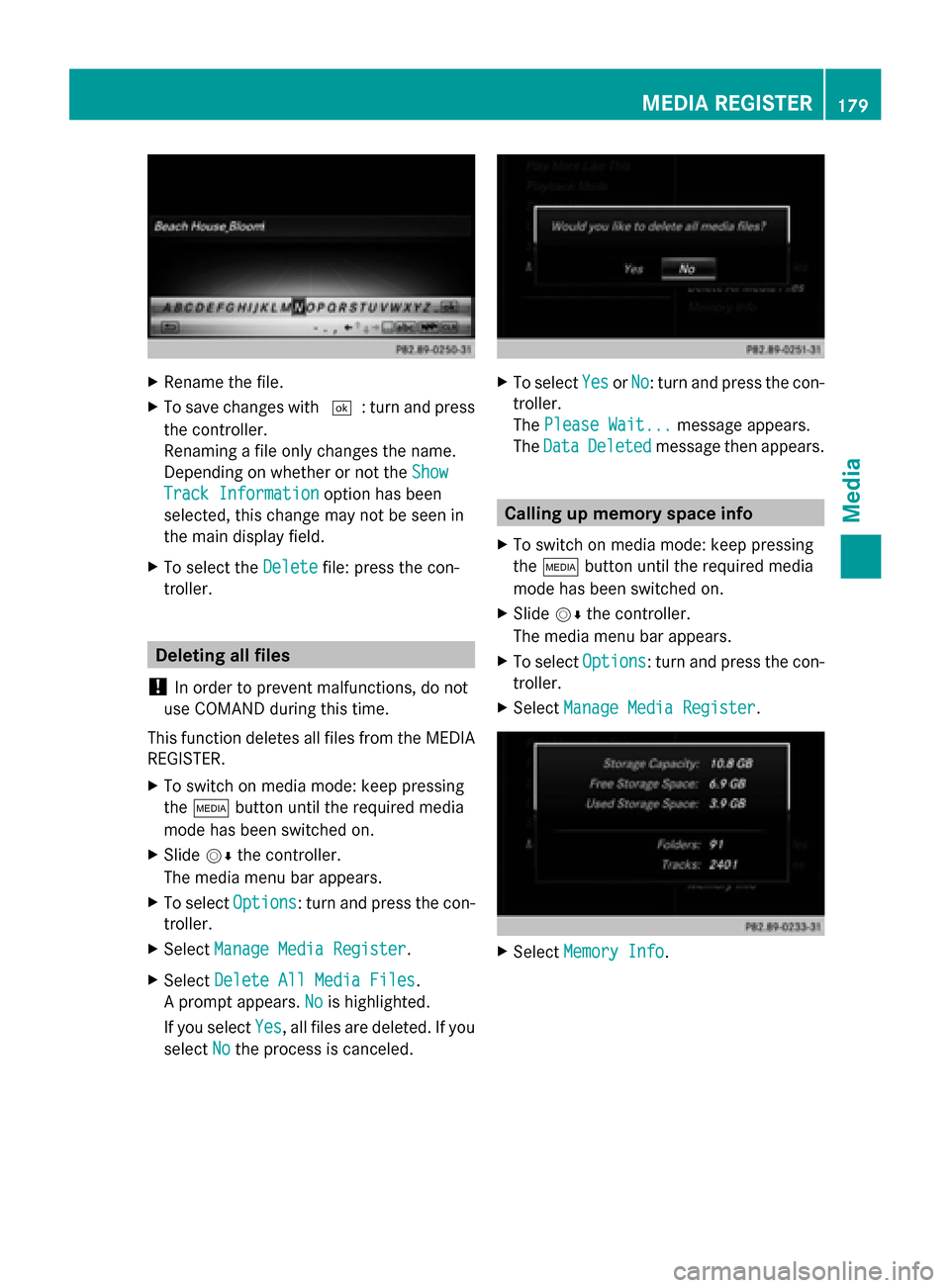
X
Rename the file.
X To save changes with 0054: turn and press
the controller.
Renaming a file only changes the name.
Depending on whether or not the Show Show
Track Information
Track Information option has been
selected, this change may not be seen in
the main display field.
X To select the Delete
Delete file: press the con-
troller. Deleting all files
! In order to prevent malfunctions, do not
use COMAND during this time.
This function deletes all files from the MEDIA
REGISTER.
X To switch on media mode: keep pressing
the 00FD button until the required media
mode has been switched on.
X Slide 00520064the controller.
The media menu bar appears.
X To select Options
Options: turn and press the con-
troller.
X Select Manage Media Register
Manage Media Register.
X Select Delete All Media Files
Delete All Media Files.
A prompt appears. No Nois highlighted.
If you select Yes
Yes , all files are deleted. If you
select No
No the process is canceled. X
To select Yes
YesorNo
No: turn and press the con-
troller.
The Please Wait... Please Wait... message appears.
The Data
Data Deleted
Deleted message then appears. Calling up memory space info
X To switch on media mode: keep pressing
the 00FD button until the required media
mode has been switched on.
X Slide 00520064the controller.
The media menu bar appears.
X To select Options Options: turn and press the con-
troller.
X Select Manage Media Register
Manage Media Register. X
Select Memory Info
Memory Info. MEDIA REGISTER
179Media Z
Page 194 of 214
General notes
Notes on discs !
Do not affix stickers or labels to the discs.
They could peel off and damage COMAND.
Stickers can cause the disc to bend, which
can result in read errors and disc recogni-
tion problems.
! COMAND is designed to play discs that
comply with the EN 60908 standard. There-
fore, you can only use discs with a maxi-
mum thickness of 1.3 mm.
If you insert thicker discs, e.g. those that
contain data on both sides (DVD on one
side and audio data on the other), they can-
not be ejected and can damage the device.
Only use round discs with a diameter of
12 cm. Do not use discs with a diameter of
8 cm, even with an adapter.
The variety of data media, burners and burn
software means there is no guarantee that
the system will be able to play discs that you
have copied yourself.
DVD playback conditions If video DVDs do not conform to the NTSC or
PAL TV standards, they may create picture,
sound or other problems during playback.
COMAND is capable of playing back video
DVDs produced according to the following
standards:
R Region code 1 or region code 0 (no region
code)
R PAL or NTSC standard
You will generally find the relevant details
either on the DVD itself or on the DVD case.
i If you insert a video DVD with a different
region code, a message to this effect
appears.
i COMAND is set to region code 1 at the
factory. This setting can be changed at an
authorized Mercedes-Benz Center. It is also
possible to play video DVDs with a different
region code, provided that they are pro- duced in accordance with the PAL or NTSC
TV standard. The region code can be
changed up to five times.
Control options There are four control menus available in
video DVD mode.
Most DVDs have their own control menu.
The DVD's control menu is operated directly
using the controller or DVD functions.
Control menu and
function Operation
R
DVD's control
menu
Selection of title,
scene, language,
subtitles ... Operation with the
controller
R
Menu Options Options
Selection of
brightness, con-
trast, color, for-
mat Operation using the
menu bar/options/
video settings
R
Video menu
Selection of
scene, fast
forward/rewind In full-screen mode,
slide
005200C5 the con-
troller R
DVD functions
Selection of title,
scene, language,
subtitles ... In full-screen mode,
press the controller
Function restrictions
Depending on the DVD, certain functions or
actions may not function at all. The symbol
0047
appears in the display. 192
Video DVD modeMedia
Page 195 of 214
Switching to video DVD mode
R Insert and eject a disc from the single drive
(Y page 166)
R Insert a disc into the DVD changer
(Y page 166)
R Eject a disc from the DVD changer
(Y page 167)
Further options for switching on:
R Use the number keypad ( Ypage 165)
R Use the main function bar (Y page 165)
R Use the device list (Y page 165)
R Use the 00FDbutton (Y page 164) DVD basic display
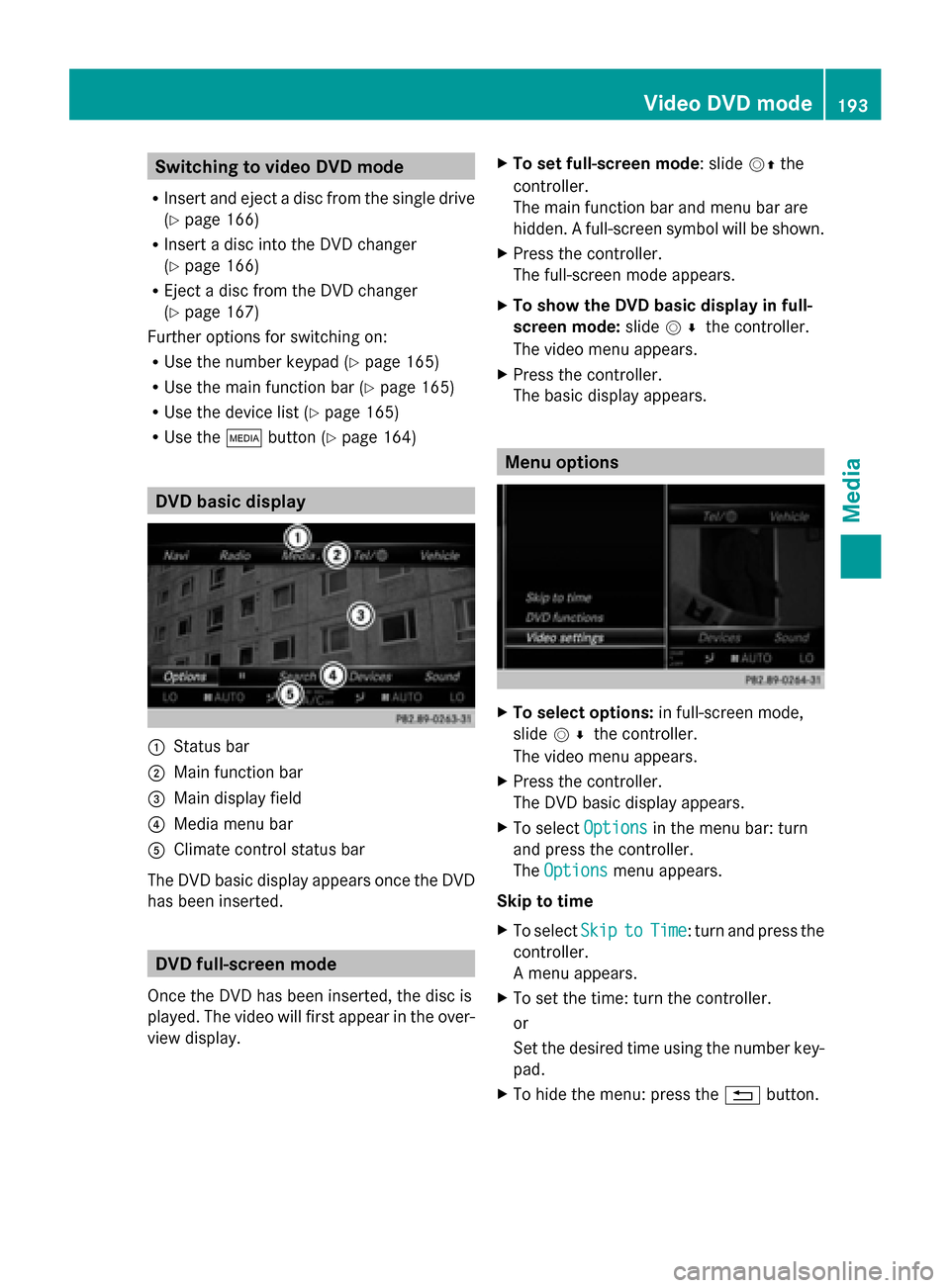
0043
Status bar
0044 Main function bar
0087 Main display field
0085 Media menu bar
0083 Climate control status bar
The DVD basic display appears once the DVD
has been inserted. DVD full-screen mode
Once the DVD has been inserted, the disc is
played. The video will first appear in the over-
view display. X
To set full-screen mode : slide00520097the
controller.
The main function bar and menu bar are
hidden. A full-screen symbol will be shown.
X Press the controller.
The full-screen mode appears.
X To show the DVD basic display in full-
screen mode: slide005200C5 the controller.
The video menu appears.
X Press the controller.
The basic display appears. Menu options
X
To select options: in full-screen mode,
slide 005200C5 the controller.
The video menu appears.
X Press the controller.
The DVD basic display appears.
X To select Options Optionsin the menu bar: turn
and press the controller.
The Options Options menu appears.
Skip to time
X To select Skip
Skip to toTime
Time : turn and press the
controller.
A menu appears.
X To set the time: turn the controller.
or
Set the desired time using the number key-
pad.
X To hide the menu: press the 0038button. Video DVD mode
193Media Z
Page 211 of 214
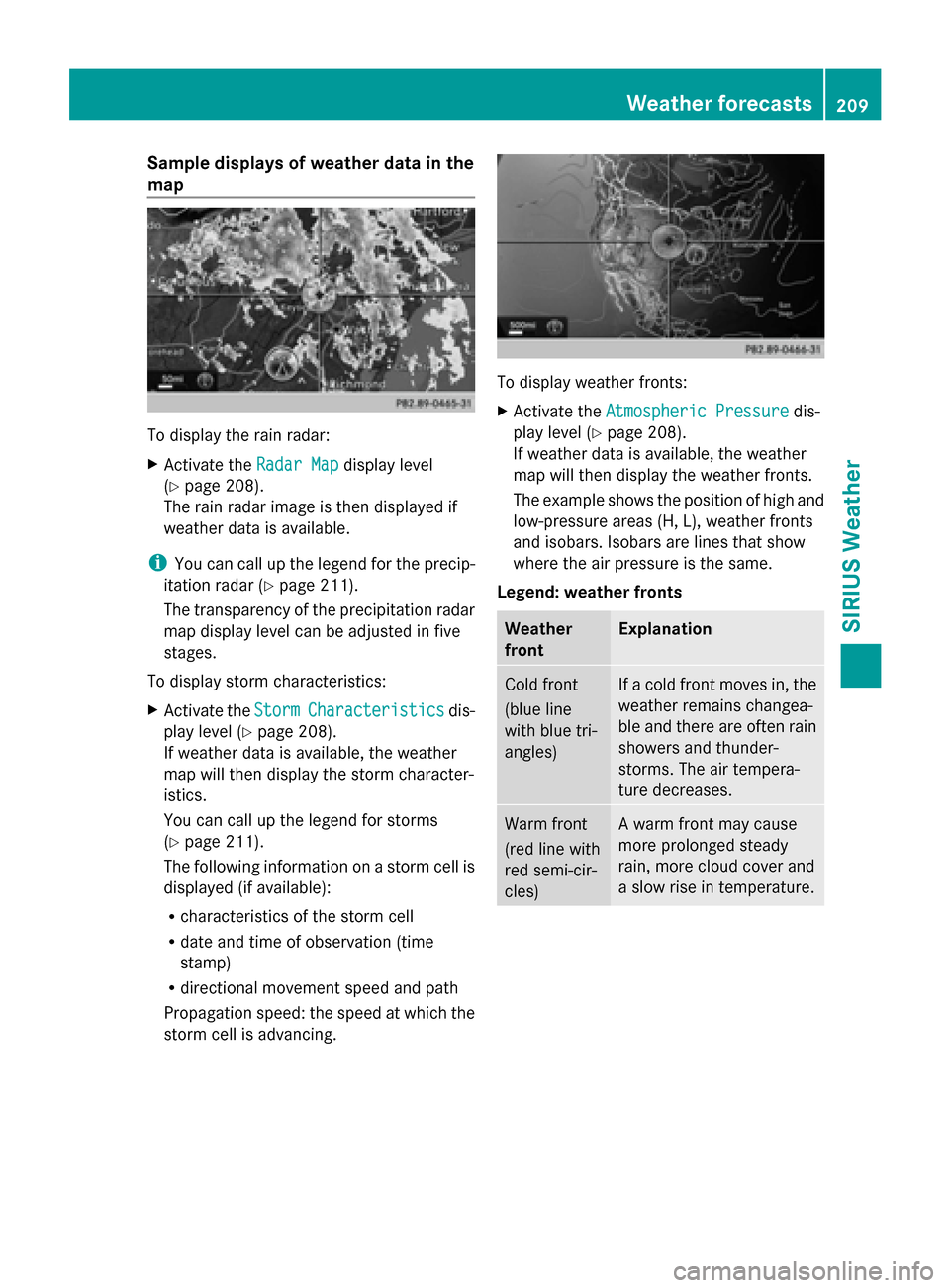
Sample displays of weather data in the
map To display the rain radar:
X
Activate the Radar Map Radar Mapdisplay level
(Y page 208).
The rain radar image is then displayed if
weather data is available.
i You can call up the legend for the precip-
itation radar (Y page 211).
The transparency of the precipitation radar
map display level can be adjusted in five
stages.
To display storm characteristics:
X Activate the Storm
Storm Characteristics Characteristics dis-
play level (Y page 208).
If weather data is available, the weather
map will then display the storm character-
istics.
You can call up the legend for storms
(Y page 211).
The following information on a storm cell is
displayed (if available):
R characteristics of the storm cell
R date and time of observation (time
stamp)
R directional movement speed and path
Propagation speed: the speed at which the
storm cell is advancing. To display weather fronts:
X
Activate the Atmospheric Pressure Atmospheric Pressure dis-
play level (Y page 208).
If weather data is available, the weather
map will then display the weather fronts.
The example shows the position of high and
low-pressure areas (H, L), weather fronts
and isobars. Isobars are lines that show
where the air pressure is the same.
Legend: weather fronts Weather
front Explanation
Cold front
(blue line
with blue tri-
angles) If a cold front moves in, the
weather remains changea-
ble and there are often rain
showers and thunder-
storms. The air tempera-
ture decreases.
Warm front
(red line with
red semi-cir-
cles) A warm front may cause
more prolonged steady
rain, more cloud cover and
a slow rise in temperature. Weather forecasts
209SIRIUS Weather
Page 212 of 214
Weather
front Explanation
Stationary
front
(red and blue
line with red
semi-circles
and blue tri-
angles) The weather front moves
minimally. The weather
remains changeable in this
area.
Occlusion
(purple line
with purple
semi-circles
and trian-
gles) When the faster cold front
catches up and joins the
warm front ahead of it, an
occluded front is formed.
The weather remains
changeable and rainy
within an occlusion.
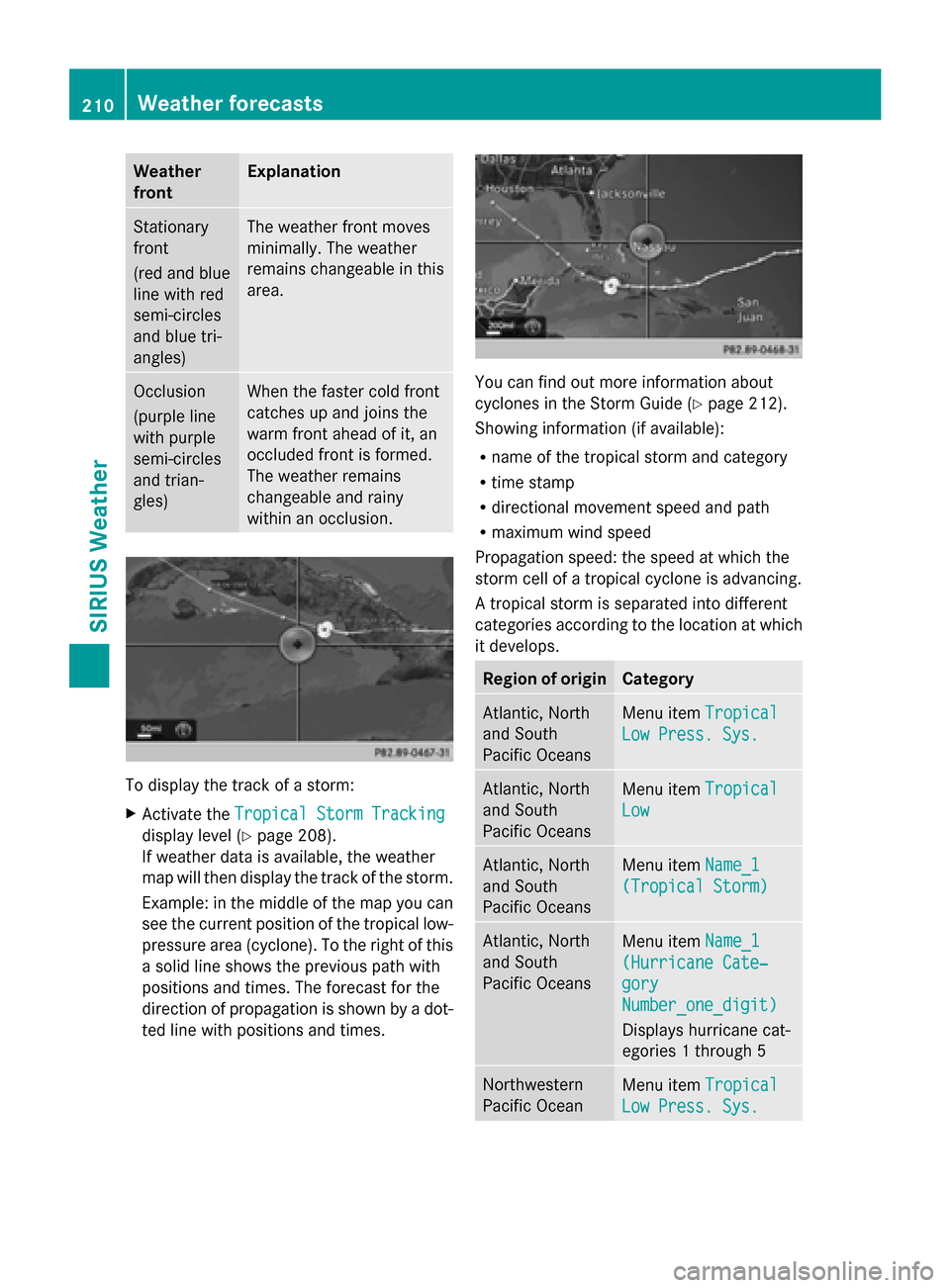
To display the track of a storm:
X
Activate the Tropical Storm Tracking Tropical Storm Tracking
display level (Y page 208).
If weather data is available, the weather
map will then display the track of the storm.
Example: in the middle of the map you can
see the current position of the tropical low-
pressure area (cyclone). To the right of this
a solid line shows the previous path with
positions and times. The forecast for the
direction of propagation is shown by a dot-
ted line with positions and times. You can find out more information about
cyclones in the Storm Guide (Y
page 212).
Showing information (if available):
R name of the tropical storm and category
R time stamp
R directional movement speed and path
R maximum wind speed
Propagation speed: the speed at which the
storm cell of a tropical cyclone is advancing.
A tropical storm is separated into different
categories according to the location at which
it develops. Region of origin Category
Atlantic, North
and South
Pacific Oceans
Menu item
Tropical Tropical
Low Press. Sys.
Low Press. Sys. Atlantic, North
and South
Pacific Oceans
Menu item
Tropical Tropical
Low
Low Atlantic, North
and South
Pacific Oceans
Menu item
Name_1 Name_1
(Tropical Storm)
(Tropical Storm) Atlantic, North
and South
Pacific Oceans
Menu item
Name_1 Name_1
(Hurricane Cate‐
(Hurricane Cate‐
gory gory
Number_one_digit) Number_one_digit)
Displays hurricane cat-
egories 1 through 5 Northwestern
Pacific Ocean
Menu item
Tropical Tropical
Low Press. Sys.
Low Press. Sys. 210
Weather forecastsSIRIUS Weather
Page 213 of 214
Region of origin Category
Northwestern
Pacific Ocean
Menu item
Name_LP10 Name_LP10
(Tropical Cyclone)
(Tropical Cyclone) Northwestern
Pacific Ocean
Menu item
Name_1
Name_1
(Typhoon) (Typhoon) Northwestern
Pacific Ocean
Menu item
Name_1
Name_1
(Super-Typhoon) (Super-Typhoon) You can also see the time stamp for the
weather data on map scales of 50 miles and
smaller.
The weather map shows wind directions and
wind speeds.
Legend (precipitation radar and storms) X
Display the menu on the weather map
(Y page 208).
X To select View
View : turn and press the control-
ler.
X Select Legend
Legend.
i The symbol for a tornadic storm is also
valid for a cyclone (mesocyclone). Precipita-
tion type Color scale
Rain Eleven shades from light (light
green) to heavy (red)
Mixed Light (light violet) to heavy
(violet)
Snow Light (light turquoise) to
heavy (turquoise) Time stamp
The time stamp shows when the weather data
was created by the weather station.
A time stamp corresponds to the time at the
vehicle's current position. The changeover
from summer time to standard time is per-
formed automatically.
X
Display the menu on the weather map
(Y page 208).
X To select View View: turn and press the control-
ler.
X Select Time Stamp
Time Stamp.
Changing to the information chart X
Display the menu on the weather map
(Y page 208).
X To select Weather Table Weather Table: turn and press
the controller.
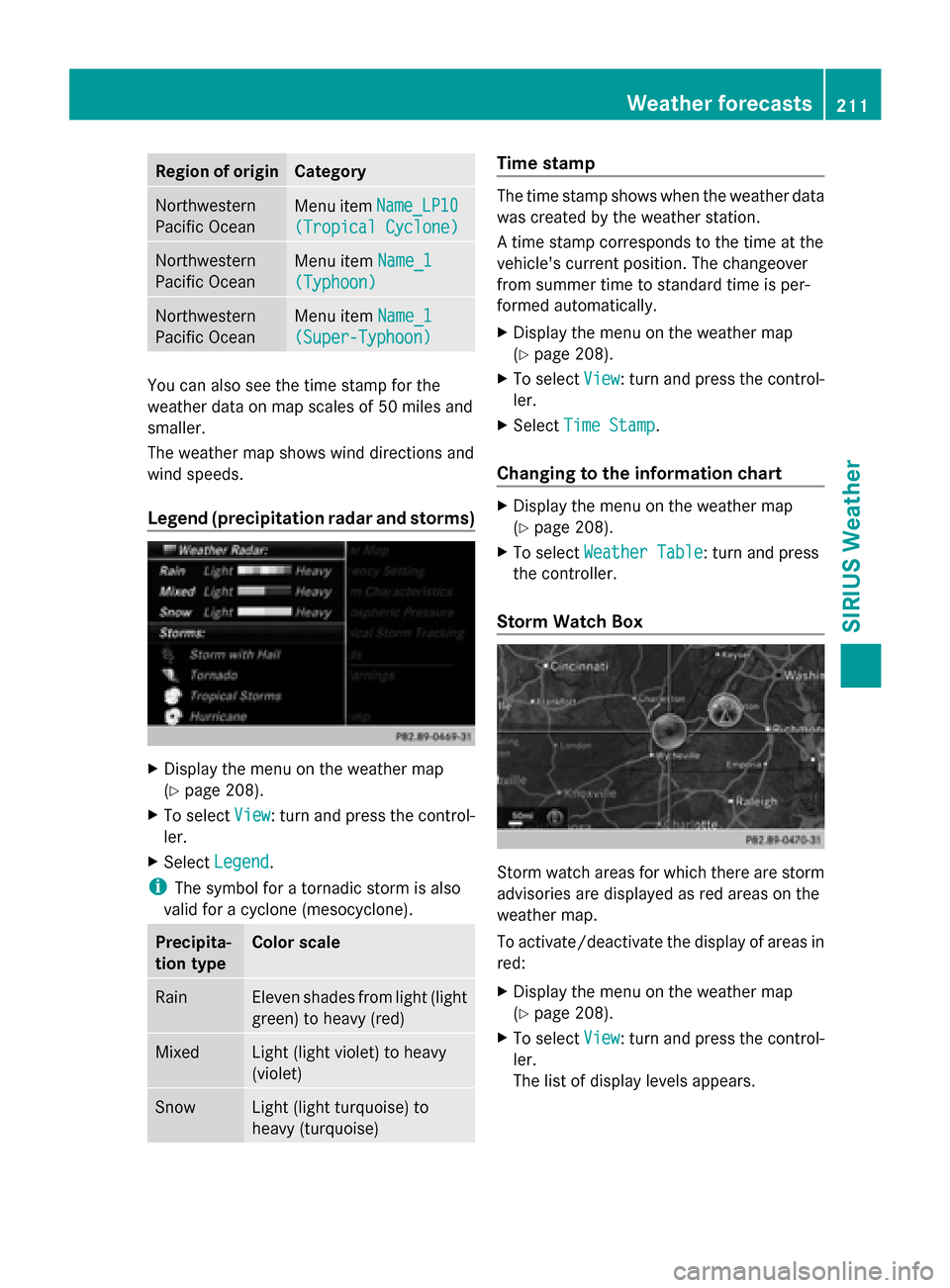
Storm Watch Box Storm watch areas for which there are storm
advisories are displayed as red areas on the
weather map.
To activate/deactivate the display of areas in
red:
X
Display the menu on the weather map
(Y page 208).
X To select View View: turn and press the control-
ler.
The list of display levels appears. Weather forecasts
211SIRIUS Weather