phone MERCEDES-BENZ C-Class 2017 W205 Comand Manual
[x] Cancel search | Manufacturer: MERCEDES-BENZ, Model Year: 2017, Model line: C-Class, Model: MERCEDES-BENZ C-Class 2017 W205Pages: 178, PDF Size: 5.62 MB
Page 29 of 178
Switching between the controller and
the touchpad as input device
Prerequisite: an input line for text, numbers or
characters has been selected.
XTo switch from character entry using the
controller to handwriting recognition on
the touchpad:use one finger to press the
touchpad.
Handwriting recognition on the touchpad is
active.
XTo switch from handwriting recognition
on the touchpad to character entry using
the controller: press the controller.
Character entry using the controller is active.
Quick access for audio
Changing the station/music track
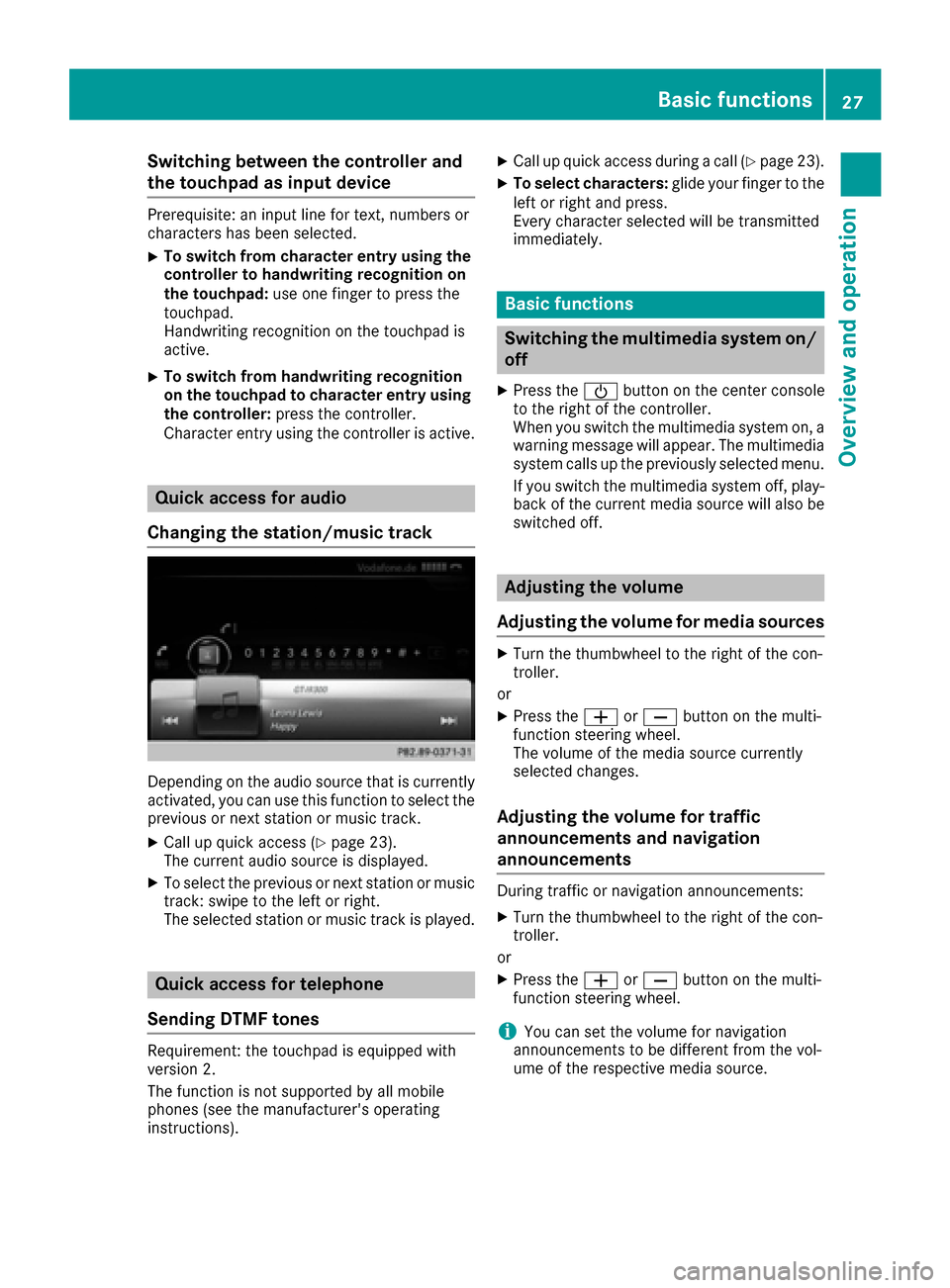
Depending on the audio source that is currently
activated, you can use this function to select the
previous or next station or music track.
XCall up quick access (Ypage 23).
The current audio source is displayed.
XTo select the previous or next station or music
track: swipe to the left or right.
The selected station or music track is played.
Quick access for telephone
Sending DTMF tones
Requirement: the touchpad is equipped with
version 2.
The function is not supported by all mobile
phones (see the manufacturer's operating
instructions).
XCall up quick access during a call (Ypage 23).
XTo select characters: glide your finger to the
left or right and press.
Every character selected will be transmitted
immediately.
Basic functions
Switching the multimedia system on/
off
XPress the Übutton on the center console
to the right of the controller.
When you switch the multimedia system on, a
warning message will appear. The multimedia
system calls up the previously selected menu.
If you switch the multimedia system off, play- back of the current media source will also be
switched off.
Adjusting the volume
Adjusting the volume for media sources
XTurn the thumbwheel to the right of the con-
troller.
or
XPress the WorX button on the multi-
function steering wheel.
The volume of the media source currently
selected changes.
Adjusting the volume for traffic
announcements and navigation
announcements
During traffic or navigation announcements:
XTurn the thumbwheel to the right of the con-
troller.
or
XPress the WorX button on the multi-
function steering wheel.
iYou can set the volume for navigation
announcements to be different from the vol-
ume of the respective media source.
Basic functions27
Overview and operation
Page 30 of 178
Adjusting the volumefor phone calls
You can adjust thevolume for hands-free mod e
during atelephon ecall .
XTurn th ethumbwheel to th eright of th econ-
troller .
or
XPress th eW orX buttonon th emulti-
function steering wheel.
iSetting th evolume for th eVoic eControl
Syste mvoice output ;see th eseparat eoper -
ating instructions.
Switching the sound on oroff
Media source sound
XPress th ethumbwheel to th eright of th econ-
troller .
or
XPress th e8 buttonon th emultifunction
steering wheel.
iIf th eaudio output is switched off ,th estatus
lin ewill sho wthe8 symbol. If you switch
th emedia source or chang eth evolume, th e
soun dis automatically switched on .
iEven if thesoun dis switched off ,you will still
hear navigation system announcements .
Switching navigationannouncements
off and onagain
XTo switch off navigation announcements:
press th ethumbwheel to th eright of th econ-
troller during th eannouncement.
The Spoken drivin grecommendations
hav ebee ndeactivated.message
appears.
XTo switch navigation announcement son
again: switch th emultimedia system off and
then on again (
Ypage 27).
or
XStart ane wrout ecalculation (Ypage 58).
or
XWhil erout eguidance is active ,sho wthe
men uand select
(Ypage 74) .
Basic menu displays
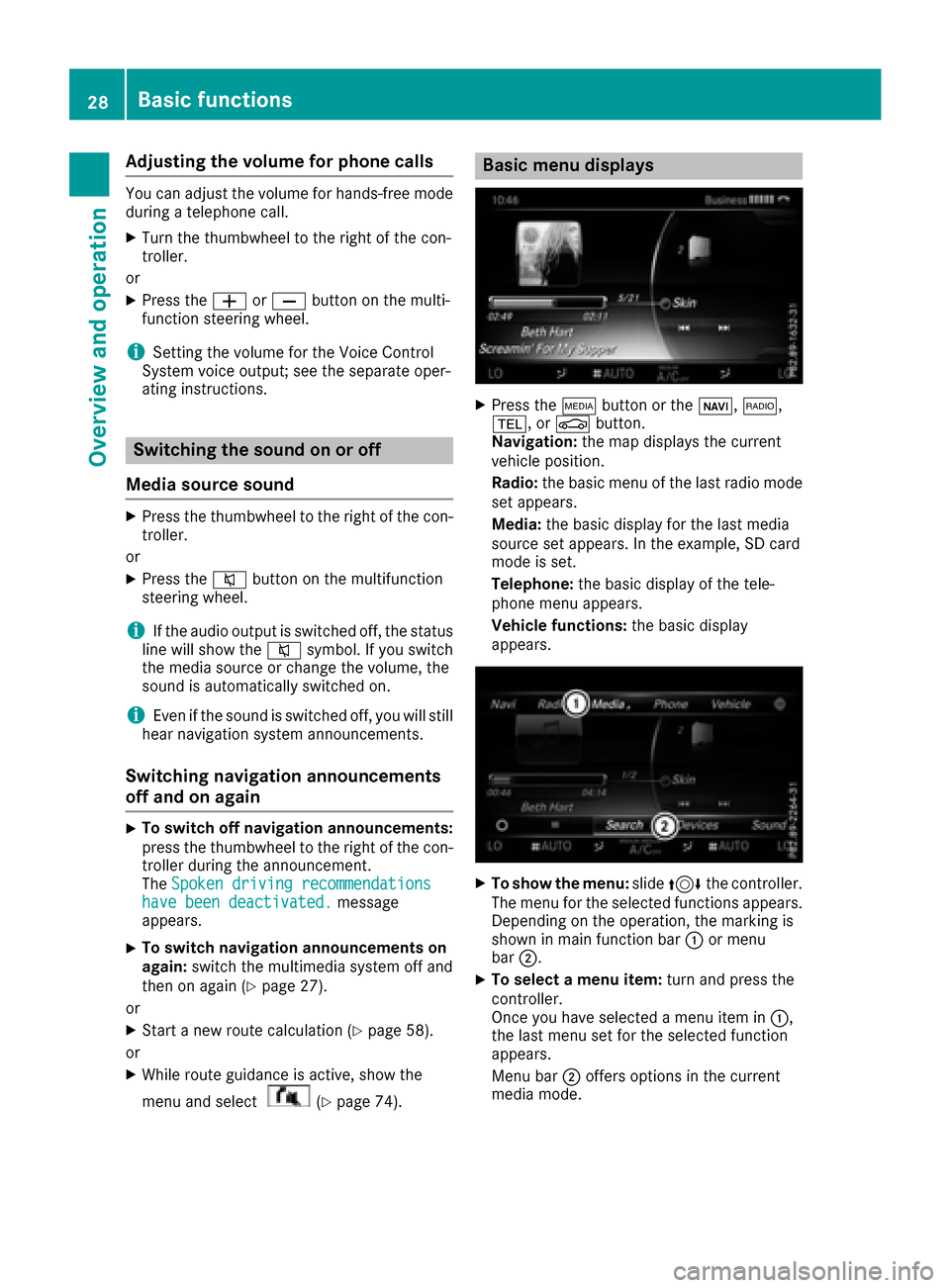
XPress theÕ buttonor th eß, $,
%, orØ button.
Navigation: themap displays th ecurren t
vehicl eposition .
Radio :th ebasic men uof th elast radi omod e
set appears.
Media: thebasic display for th elast media
source set appears. In th eexample, SD car d
mod eis set .
Telephone: thebasic display of th etele-
phone men uappears.
Vehicle functions: thebasic display
appears.
XTo sho wth emenu: slide4 thecontroller .
The men ufor th eselected function sappears.
Dependin gon th eoperation ,th emarking is
shown in main function bar :or men u
bar ;.
XTo select amen uitem: turnand press th e
controller .
Once you hav eselected amen uitem in :,
th elast men uset for th eselected function
appears.
Men ubar ;offers option sin th ecurren t
media mode.
28Basic functions
Overview and operation
Page 31 of 178
Selecting the operating mode for a
main function
You can select the available operating modes for
the main functions, e.g. telephone.
In the telephone menu, you can:
Rswitch to telephone mode
Rcall up the address book
Rcall up the Digital Operator's Manual for the
telephone
XPress the%button.
If telephone mode was the last mode selec-
ted, the telephone menu appears.
XTo call up the menu: press the%button
again.
or
XTo select Phone: slide5and press the con-
troller.
A menu appears. Phone
is at the front.
XTo selectAddress Book, for example: turn
and press the controller.
Character entry (telephony)
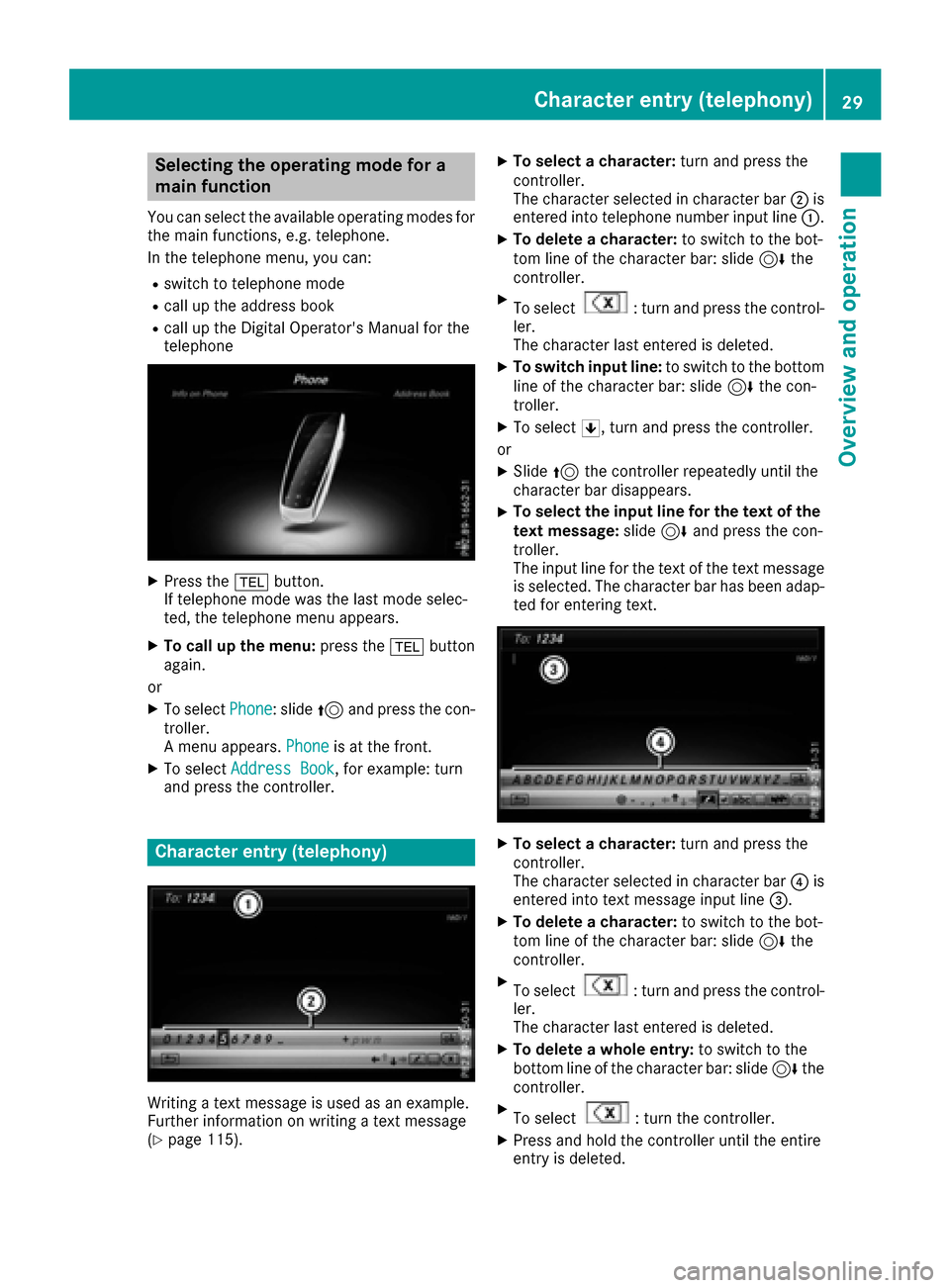
Writing a text message is used as an example.
Further information on writing a text message
(
Ypage 115).
XTo select a character: turn and press the
controller.
The character selected in character bar ;is
entered into telephone number input line :.
XTo delete a character:to switch to the bot-
tom line of the character bar: slide 6the
controller.
XTo select: turn and press the control-
ler.
The character last entered is deleted.
XTo switch input line: to switch to the bottom
line of the character bar: slide 6the con-
troller.
XTo select 5, turn and press the controller.
or
XSlide 5the controller repeatedly until the
character bar disappears.
XTo select the input line for the text of the
text message: slide6and press the con-
troller.
The input line for the text of the text message
is selected. The character bar has been adap- ted for entering text.
XTo select a character: turn and press the
controller.
The character selected in character bar ?is
entered into text message input line =.
XTo delete a character:to switch to the bot-
tom line of the character bar: slide 6the
controller.
XTo select: turn and press the control-
ler.
The character last entered is deleted.
XTo delete a whole entry: to switch to the
bottom line of the character bar: slide 6the
controller.
XTo select: turn the controller.
XPress and hold the controller until the entire
entry is deleted.
Character entry (telephony)29
Overview and operation
Page 34 of 178
An example is the address entry (Ypage 56).
XWith one finger, draw the desired character,
e.g. the letterB, on the touch-sensitive sur-
face.
In the list (e.g. City), the first entry that starts
with the letter entered is highlighted. You can
draw the next character on the touch-sensi-
tive surface.
If the character that you have entered can be
interpreted in different ways, these options
are displayed.
XTo select a character suggestion: turn the
controller.
The selected character is used for the list dis-
play instead of the automatically recognized
character. Character entry can be continued.
XTo delete a character: touch the touch-sen-
sitive surface with your finger and glide your
finger to the left.
The character last entered is deleted.
XTo complete the entry and switch to the
list: press the touchpad.
Favorites
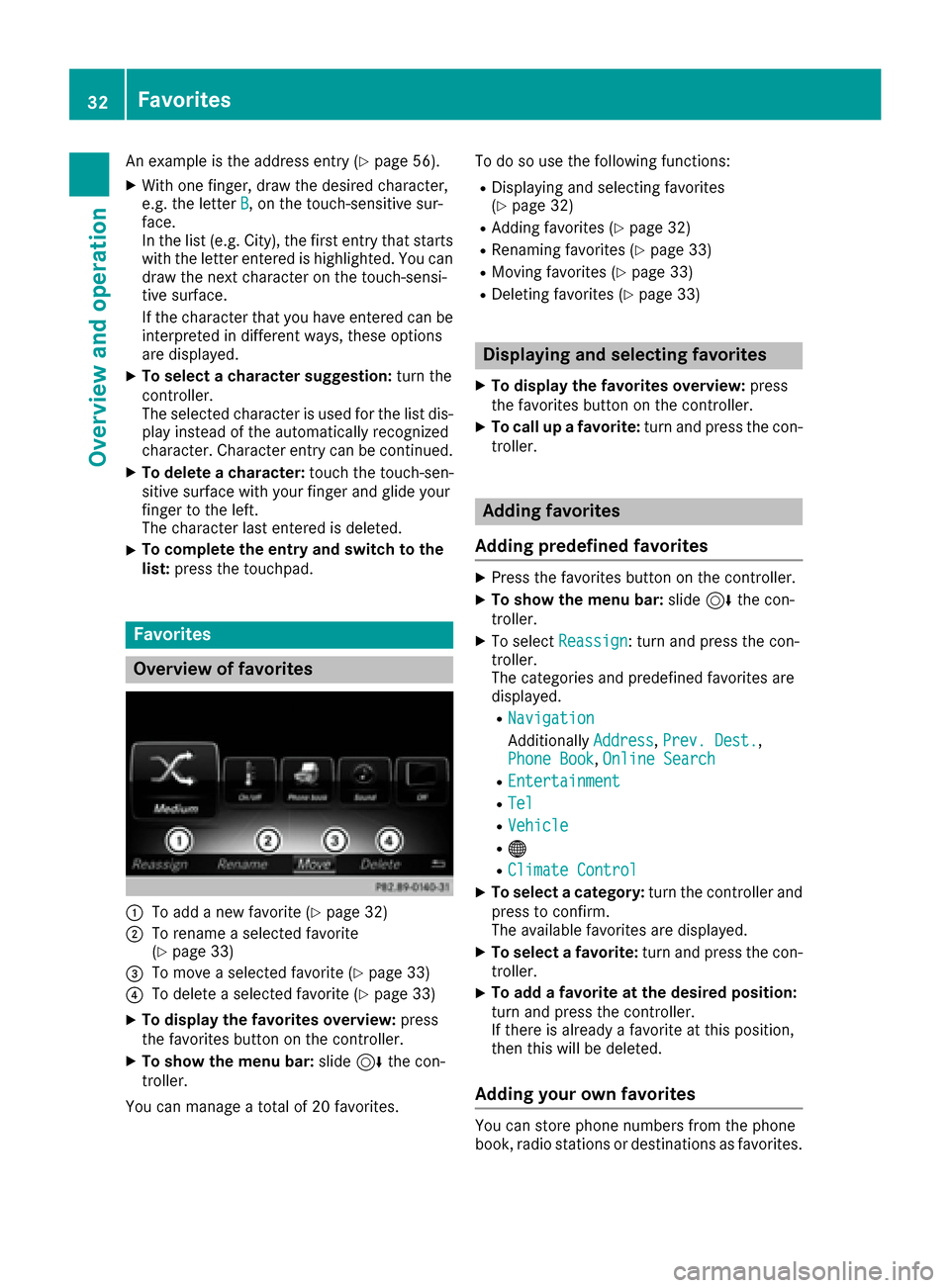
Overview of favorites
:To add a new favorite (Ypage 32)
;To rename a selected favorite
(Ypage 33)
=To move a selected favorite (Ypage 33)
?To delete a selected favorite (Ypage 33)
XTo display the favorites overview: press
the favorites button on the controller.
XTo show the menu bar: slide6the con-
troller.
You can manage a total of 20 favorites. To do so use the following functions:
RDisplaying and selecting favorites
(Ypage 32)
RAdding favorites (Ypage 32)
RRenaming favorites (Ypage 33)
RMoving favorites (Ypage 33)
RDeleting favorites (Ypage 33)
Displaying and selecting favorites
XTo display the favorites overview:
press
the favorites button on the controller.
XTo call up a favorite: turn and press the con-
troller.
Adding favorites
Adding predefined favorites
XPress the favorites button on the controller.
XTo show the menu bar: slide6the con-
troller.
XTo select Reassign: turn and press the con-
troller.
The categories and predefined favorites are
displayed.
RNavigation
Additionally Address,Prev. Dest.,
Phone Book, Online Search
REntertainment
RTel
RVehicle
R®
RClimate Control
XTo select a category: turn the controller and
press to confirm.
The available favorites are displayed.
XTo select a favorite: turn and press the con-
troller.
XTo add a favorite at the desired position:
turn and press the controller.
If there is already a favorite at this position,
then this will be deleted.
Adding your own favorites
You can store phone numbers from the phone
book, radio stations or destinations as favorites.
32Favorites
Overview and operation
Page 35 of 178
A phone number from the phone book is used as
an example.
XCall up the phone book (Ypage 100).
XSearch for the contact and display the phone
number: (Ypage 100).
XTo add a telephone number as a favorite
at the desired position: press and hold the
favorites button on the controller until the
favorites are displayed.
XTurn and press the controller.
If there is already a favorite at this position, it will be deleted and replaced by a new one.
Renaming favorites
XPress the favorites button on the controller.
The favorites are displayed.
XTo select a favorite to be renamed: turn the
controller.
XTo show the menu bar: slide6the con-
troller.
XTo select Rename: turn and press the control-
ler.
XEnter characters using the controller
(Ypage 29) or the touchpad (Ypage 25).
XTo finish the entry: selectOK.
The favorite has been renamed.
Moving favorites
XPress the favorites button on the controller.
The favorites are displayed.
XTo select a favorite to be moved: turn the
controller.
XTo show the menu bar: slide6the con-
troller.
XTo select Move: turn and press the controller.
XTo store a favorite in the desired order:
turn and press the controller.
If a favorite is stored over another favorite, the
favorite underneath is deleted.
Deleting favorites
XPress the favorites button on the controller.
The favorites are displayed.
XTo select a favorite to be deleted: turn the
controller.
XTo show the menu bar: slide6the con-
troller.
XTo select Delete: turn and press the control-
ler.
XTo select Yes: turn and press the controller.
The favorite is deleted.
XIf you select No, the process will be canceled.
Favorites33
Overviewand operation
Page 39 of 178
Text reader settings
XPress theØbutton.
or
XPress Vehiclein the main function bar.
The vehicle menu is displayed.
XTo select System Settings: slide6, turn
and press the controller to confirm.
A menu appears.
XTo select Text Reader Speed: turn and
press the controller.
A list appears.
XSelect Fast,Mediumor Slow.
The #dot indicates the current setting.
Voice Control System settings
Opening/closing the help window
i
If the set system language is not supported
by the Voice Control System, English will be
selected.
The help window also shows you information on
audible instructions:
Rduring individualization
Rduring subsequent operation of the Voice
Control System
XPress the Øbutton.
or
XPress Vehiclein the main function bar.
The vehicle menu is displayed.
XTo select System Settings: slide6, turn
and press the controller to confirm.
A menu appears.
XTo select VoiceControl: turn and press the
controller.
XSelect Help Window.
You have switched the help window on Oor
off ª.
More information on the Voice Control System
is available in the separate operating instruc-
tions.
Individualization
Using individualization, you can fine-tune the
Voice Control System to your own voice. This
will help improve voice recognition (see the sep-
arate operating instructions).
WiFi
Overview
Establishing a WiFi connection between the mul-
timedia system and a WiFi-enabled device, such
as a tablet computer or smartphone, requires
the following:
RWiFi must be activated on the multimedia sys-
tem and on the device to be connected.
If the multimedia system is to be used as a WiFi
hotspot:
RThe multimedia system must be connected to
an Internet-enabled mobile phone via Blue-
tooth
®or USB.
RThe Internet access data for the mobile phone
network provider must be selected or set in
the multimedia system.
RAn Internet connection must be established
on the multimedia system.
Activating WiFi
XTo select Vehiclefrom the main function bar:
turn and press the controller.
XTo switch to the menu bar: slide 6the con-
troller.
XSelect System Settings.
The System Settingsmenu is displayed.
XSelect WiFi.
The WiFi menu appears.
XSelect Activate.
XPress the controller.
Switch the connection on Oor off ª,
depending on the previous setting.
Connecting the device
General notes
iThe exact WiFi connection procedure may
vary depending on the device to be connec-
ted. Follow the instructions that are shown in
the display. Further information; see the man-
ufacturer's operating instructions.
Connecting a device via WPS PIN
Requirement: for this type of connection, the
device to be connected must support "Connect
using WPS PIN".
WiFi37
System settings
Z
Page 41 of 178
XSelectSystem Settings.
The System Settingsmenu is displayed.
XSelect WiFi.
The WiFi menu appears.
XSelect Change SSID.
A dialog for entering the SSID appears.
XEnter the new SSID.
XSelect ¬.
XPress the controller.
From now on, when establishing a connec-
tion, the vehicle will be shown with the new
SSID both on the device to be connected and
in the Connect
UsingSecurityKeymenu.
iDevice connections established using the
previous SSID will no longer work after the
SSID is changed. You have to reconnect these
devices (
Ypage 37).
Bluetooth®settings
General information about Blue-
tooth®
Bluetooth®-capable devices, e. g. mobile
phones, need to comply with a certain profile in
order to be connected to the multimedia sys-
tem. Every Bluetooth
®device has its own spe-
cific Bluetooth®name.
Bluetooth®technology is a standard for short-
range wireless data transmissions up to approx-
imately 10 m.
Yo u can use Bluetooth
®to connect your mobile
phone to the multimedia system, for example:
Ruse the hands-free system
Restablish an Internet connection
Rlisten to music using Bluetooth®Audio
Rexchange vCards
Bluetooth®is a registered trademark of Blue-
tooth Special Interest Group (SIG) Inc.
Activating/deactivating Bluetooth®
X
Press the Øbutton.
or
XPress Vehiclein the main function bar.
The vehicle menu is displayed.
XTo select System Settings: slide6, turn
and press the controller.
A menu appears.
XTo select Activate Bluetooth: turn and
press the controller.
This switches Bluetooth
®on O or off ª.
Automatic volume adjustment
General information
With the AutomaticVolumeAdjustmentfunc-
tion, the volumes of different audio sources are
adjusted for each other, to compensate for rel-
ative differences in volume.
For example: changing from a relatively quiet to
a relatively loud radio station. The volume for
both stations sounds the same. Manual read-
justment of the volume is not required.
The Automatic Volume Adjustment
function
is deactivated ªwhen the vehicle leaves the
factory. Using this function, the dynamic range
of the music is slightly reduced. To make the
most of the audiophile sound quality, it is rec-
ommended to leave it off.
Switching the automatic volume
adjustment on/off
XPress the Øbutton.
or
XPress Vehiclein the main function bar.
The vehicle menu is displayed.
XTo select System Settings: slide6, turn
and press the controller.
A menu appears.
XTo select Automatic Volume Adjustment:
turn and press the controller.
Switch the Automatic Volume Adjustment
function on Oor off ª.
Setting the system language
This function allows you to determine the lan-
guage for the menu displays and the navigation
messages. The selected language affects the
characters available for entry.
iThe navigation announcements are not
available in all languages. If a language is not
Setting the system language39
System settings
Z
Page 42 of 178
available, the navigation announcements will
be in English.
iWhen you set the system language, the lan-
guage of the Voice Control System will
change accordingly. If it is not supported by
the Voice Control System, English will be
selected.
XPress the Øbutton.
or
XPress Vehiclein the main function bar.
The vehicle menu is displayed.
XTo select System Settings: slide6, turn
and press the controller.
A menu appears.
XTo select Language: turn and press the con-
troller.
The list of languages appears. The #dot indi-
cates the current setting.
XSelect the desired language.
The multimedia system loads the selected
language and sets it.
Calling up and editing the Favorites
function
The Favorites function can, depending on the
vehicle equipment, be called up as follows:
Rvia the System Settingsmenu
Rvia the Favorites button on the controller
(Ypage 22)
Rvia the Favorites button on the touchpad
(Ypage 22)
Calling up the Favorites function via the sys-
tem menu
XPress the Øbutton.
or
XPress Vehiclein the main function bar.
The vehicle menu is displayed.
XTo select System Settings: slide6and
press the controller.
A menu appears.
XTo select Favorite Functions: press the
controller.
The favorites are displayed.
XTo select the desired function, e.g. Phone‐book: turn and press the controller. Calling up the Favorites function via the
controller or touchpad
XPress the Favorites button on the controller or
touchpad.
The favorites are displayed.
XTo select the desired function, e.g. Phone‐book: turn and press the controller.
Exiting the Favorites function
XPress the Favorites button again.
or
XPress the %button.
Further information on favorites (
Ypage 32).
Importing/exporting data
General notes
!
Never remove the stick or card when writing
data to the USB stick or the memory card. You
may otherwise lose data.
Using this function you can do the following with
your personal data:
Rtransfer your data from one multimedia sys-
tem to another multimedia system
The transfer may be limited or not possible,
depending on the vehicle's equipment.
Rmake a backup copy of your personal data
(export data) and load it again (import data)
Rprotect your data from unwanted export by
activating a PIN prompt (presetting: deacti-
vated ª)
You can either use an SD card or a USB storage
device (e.g. a USB stick) as temporary storage.
You can obtain further information on data
import and export from an authorized
Mercedes-Benz Center.
40Importing/exporting data
System settings
Page 44 of 178
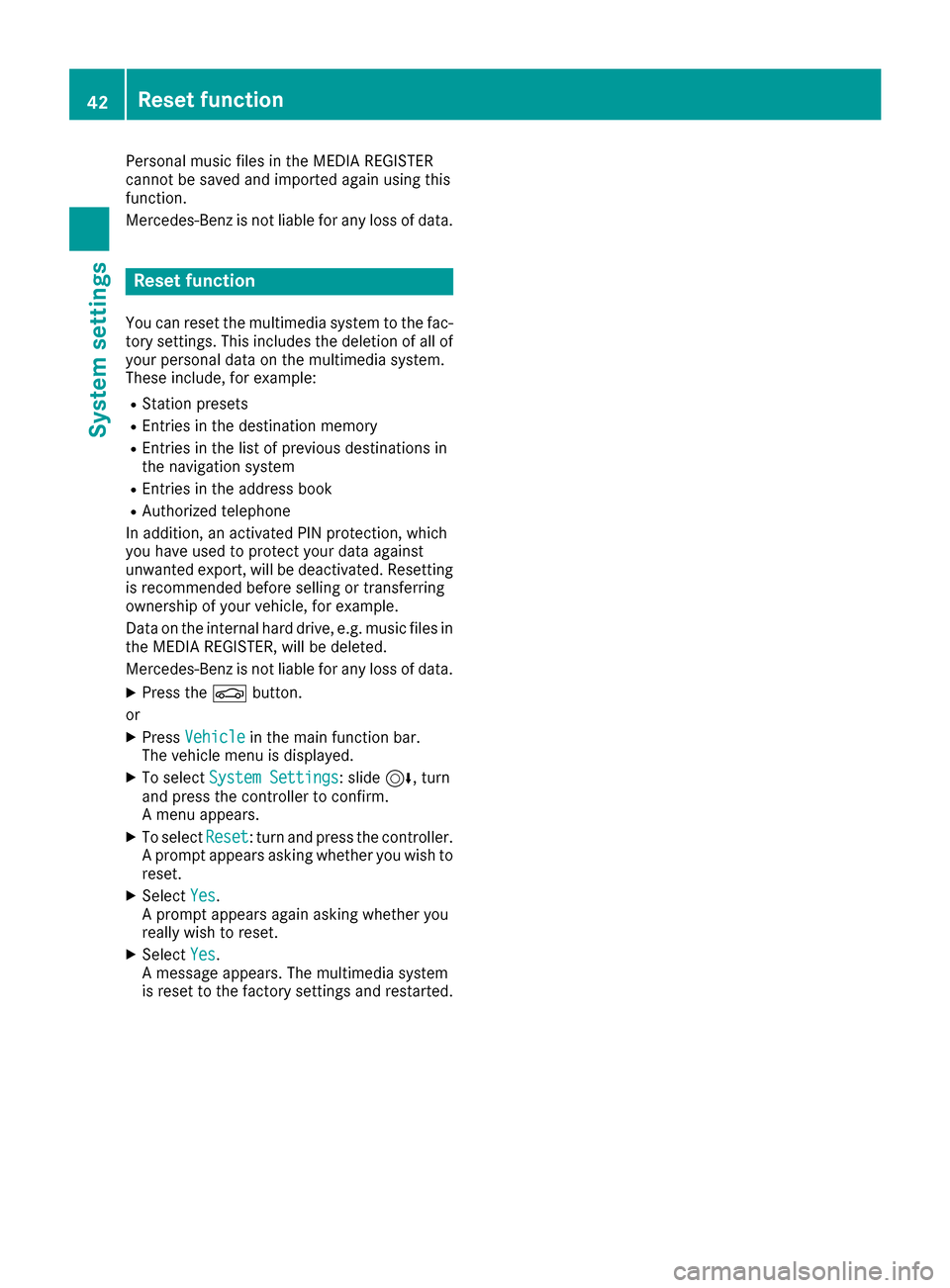
Personal music files in the MEDIA REGISTER
cannot be saved and imported again using this
function.
Mercedes-Benz is not liable for any loss of data.
Reset function
You can reset the multimedia system to the fac-tory settings. This includes the deletion of all of
your personal data on the multimedia system.
These include, for example:
RStation presets
REntries in the destination memory
REntries in the list of previous destinations in
the navigation system
REntries in the address book
RAuthorized telephone
In addition, an activated PIN protection, which
you have used to protect your data against
unwanted export, will be deactivated. Resetting
is recommended before selling or transferring
ownership of your vehicle, for example.
Data on the internal hard drive, e.g. music files in
the MEDIA REGISTER, will be deleted.
Mercedes-Benz is not liable for any loss of data.
XPress the Øbutton.
or
XPress Vehiclein the main function bar.
The vehicle menu is displayed.
XTo select System Settings: slide6, turn
and press the controller to confirm.
A menu appears.
XTo select Reset: turn and press the controller.
A prompt appears asking whether you wish to
reset.
XSelect Yes.
A prompt appears again asking whether you
really wish to reset.
XSelect Yes.
A message appears. The multimedia system
is reset to the factory settings and restarted.
42Reset function
System settings
Page 54 of 178
Your multimediasyste mequipment
These operatin ginstruction sdescribe all th e
standar dan doptional equipment of your multi-
media system, as available at th etime of going
to press. Country-specifi cdifference sare pos -
sible. Bear in min dthat your vehicle may no t
feature all function sdescribed here. Thi salso
applies to safety-relevan tsystems an dfunc-
tions.
Read th einformation on qualifie dspecialis t
workshop sin th evehicle Operator's Manual.
Introduction
Important safet ynotes
GWARNING
If you operat einformation systems an dcom-
munication equipment integrated in th evehi-
cl e whil edriving, you will be distracted from
traffic conditions. You could also los econtro l
of th evehicle. There is aris kof an accident.
Only operat eth eequipment when th etraffic
situation permits. If you are no tsur ethat this
is possible, par kth evehicle payin gattention
to traffic condition san doperat eth eequip-
men twhen th evehicle is stationary.
You mus tobserv eth elegal requirements fo rth e
country in whic hyou are currentl ydrivin gwhen
operatin gth emultimedia system.
The multimedia syste mcalculates th erout eto
th edestination without taking th efollowin ginto
account, fo rexample:
Rtraffic lights
Rstop an dyield signs
Rmergin glanes
Rparking or stoppin gin ano parking/n ostop-
pin gzone
Rother road an dtraffic rule san dregulation s
Rnarrow bridge s
The multimedia syste mmay giv eincorrec tnav-
igation commands if th eactual street/traffic
situation doe sno tcorrespon dwit hth edigita l
map's data. Fo rexample, arout emay hav ebee n
dive
rted or th edirection of aone-way stree tmay
hav echanged . Fo
rthis reason ,you mus talways observ eroad
an dtraffic rule san dregulation sdurin gyour
journey. Road an dtraffic rule san dregulation s
always hav epriorit yover th esystem' sdrivin g
recommendations.
Navigation announcement sare intended to
direc tyou whil edrivin gwithout divertin gyour
attention from th eroad an ddriving.
Please always use this feature instead of con-
sultin gth emap display fo rdirections. Lookin g
at th eicon sor map display can distract you from
traffic condition san ddriving, an dincrease th e
ris kof an accident.
General notes
Operationa lreadines sof th enavigation
syste m
The navigation syste mmus tdetermin eth eposi-
tion of th evehicle befor efirst use or wheneve r
operational status is restored .Therefore, you
may hav eto drive fo r awhil ebefor eprecise
rout eguidance is possible.
GP Sreception
Amon gother things, correc tfunctionin gof th e
navigation syste mdepends on GPS reception .In
certain situations, GPS reception may be
impaired, there may be interferenc eor there
may be no reception at all, e.g. in tunnels or
parking garages .
iUsing roof carriers may impair th ecorrec t
functionin gof aroof antenn a(phone, satellite
radio, GPS).
Entry restriction
Fo rvehicles in certain countries, there is adat a
entr yrestriction .
The restriction is active from avehicle speed of
abov eapproximately 3mph (5 km/ h).As soon
as the speed falls below approximately 2 mph
(3 km/h), the restriction becomes inactive.
When the restriction is active, certain entries
cannot be made. Menu items are shown in gray
and cannot be selected.
For example:
Rentering the destination city and street
Rentering a destination via the map
52Introduction
Navigation