ad blue MERCEDES-BENZ C-Class 2017 W205 Comand Manual
[x] Cancel search | Manufacturer: MERCEDES-BENZ, Model Year: 2017, Model line: C-Class, Model: MERCEDES-BENZ C-Class 2017 W205Pages: 178, PDF Size: 5.62 MB
Page 4 of 178
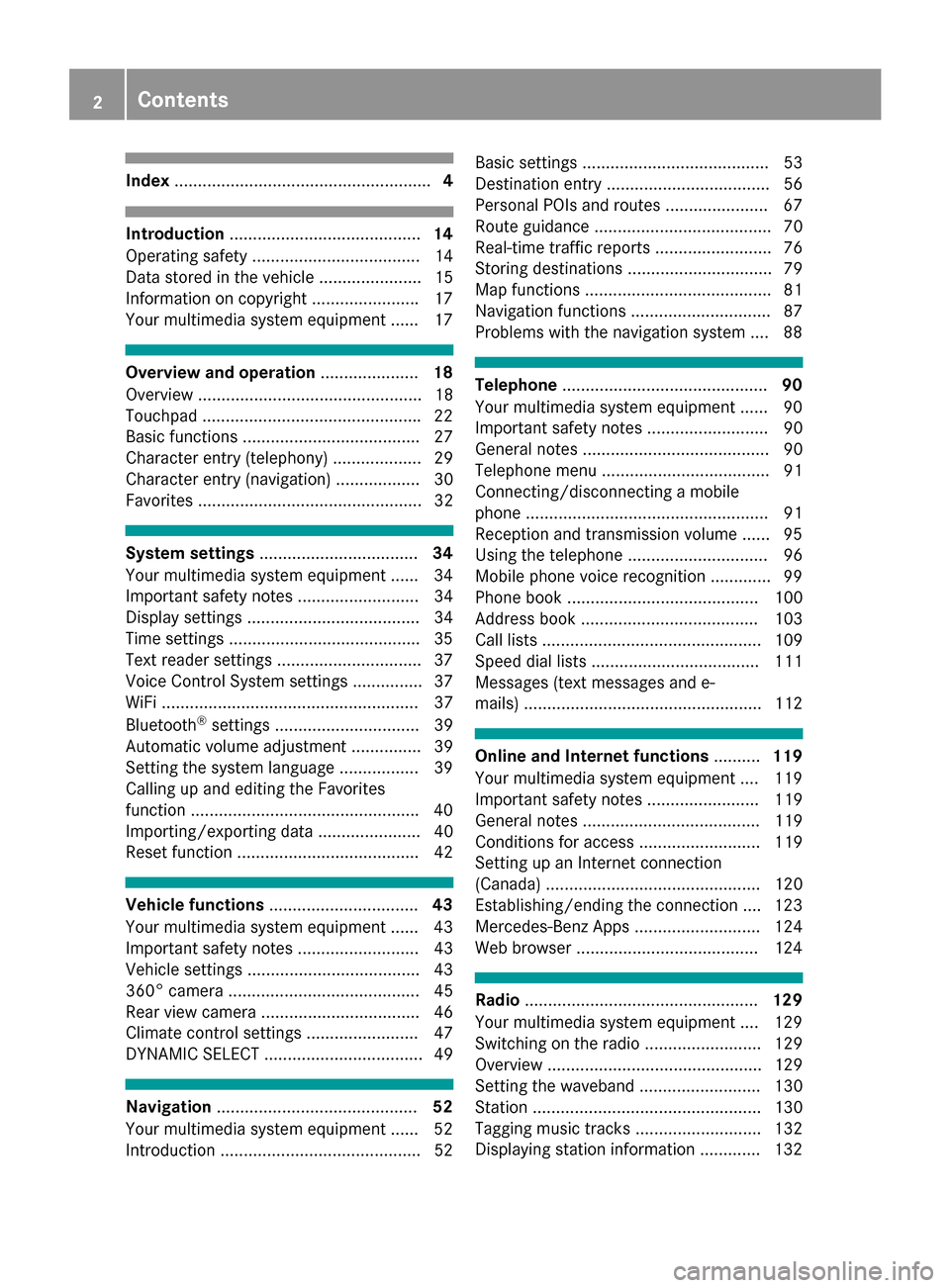
Index....................................................... 4
Introduction......................................... 14
Operating safety .................................... 14
Data stored in the vehicle ...................... 15
Information on copyright ...................... .17
Your multimedia system equipment ...... 17
Overview and operation .....................18
Overview ................................................ 18
Touchpad .............................................. .22
Basic functions ...................................... 27
Character entry (telephony) ................... 29
Character entry (navigation) .................. 30
Favorites ................................................ 32
System settings .................................. 34
Your multimedia system equipment ...... 34
Important safety notes .......................... 34
Display settings ..................................... 34
Time settings .........................................3 5
Text reader settings ...............................3 7
Voice Control System settings ............... 37
WiFi ....................................................... 37
Bluetooth
®settings ............................... 39
Automatic volume adjustment ............... 39
Setting the system language .................3 9
Callin g up and editing the Favorites
function ................................................ .40
Importing/exporting data ...................... 40
Reset function ....................................... 42
Vehicle functions ................................ 43
Your multimedia system equipment ...... 43
Important safety notes .......................... 43
Vehicle settings .....................................4 3
360° camera ......................................... 45
Rear view camera .................................. 46
Climate control settings ........................ 47
DYNAMIC SELECT .................................. 49
Navigation ........................................... 52
Your multimedia system equipment ...... 52
Introduction ...........................................5 2Basic settings ........................................ 53
Destination entry ................................... 56
Personal POIs and routes ...................... 67
Route guidance ...................................... 70
Real-time traffic reports ......................... 76
Storing destinations ............................... 79
Map functions ........................................ 81
Navigation functions .............................. 87
Problems with the navigation system .... 88
Telephone
............................................ 90
Your multimedia system equipment ...... 90
Important safety notes .......................... 90
General notes ........................................ 90
Telephone menu .................................... 91
Connecting/disconnecting a mobile
phone .................................................... 91
Reception and transmission volume ...... 95
Using the telephone .............................. 96
Mobile phone voice recognition ............. 99
Phone book ......................................... 100
Address book ...................................... 103
Call lists ............................................... 109
Speed dial lists .................................... 111
Messages (text messages and e-
mails) ................................................... 112
Online and Internet functions ..........119
Your multimedia system equipment .... 119
Important safety notes ........................ 119
General notes ...................................... 119
Conditions for access .......................... 119
Setting up an Internet connection
(Canada) .............................................. 120
Establishing/ending the connection .... 123
Mercedes-Benz Apps ........................... 124
Web browser .......................................1 24
Radio.................................................. 129
Your multimedia system equipment .... 129
Switching on the radio ......................... 129
Overview .............................................. 129
Setting the waveband .......................... 130
Station ................................................. 130
Tagging music tracks ........................... 132
Displaying station information ............. 132
2Contents
Page 5 of 178
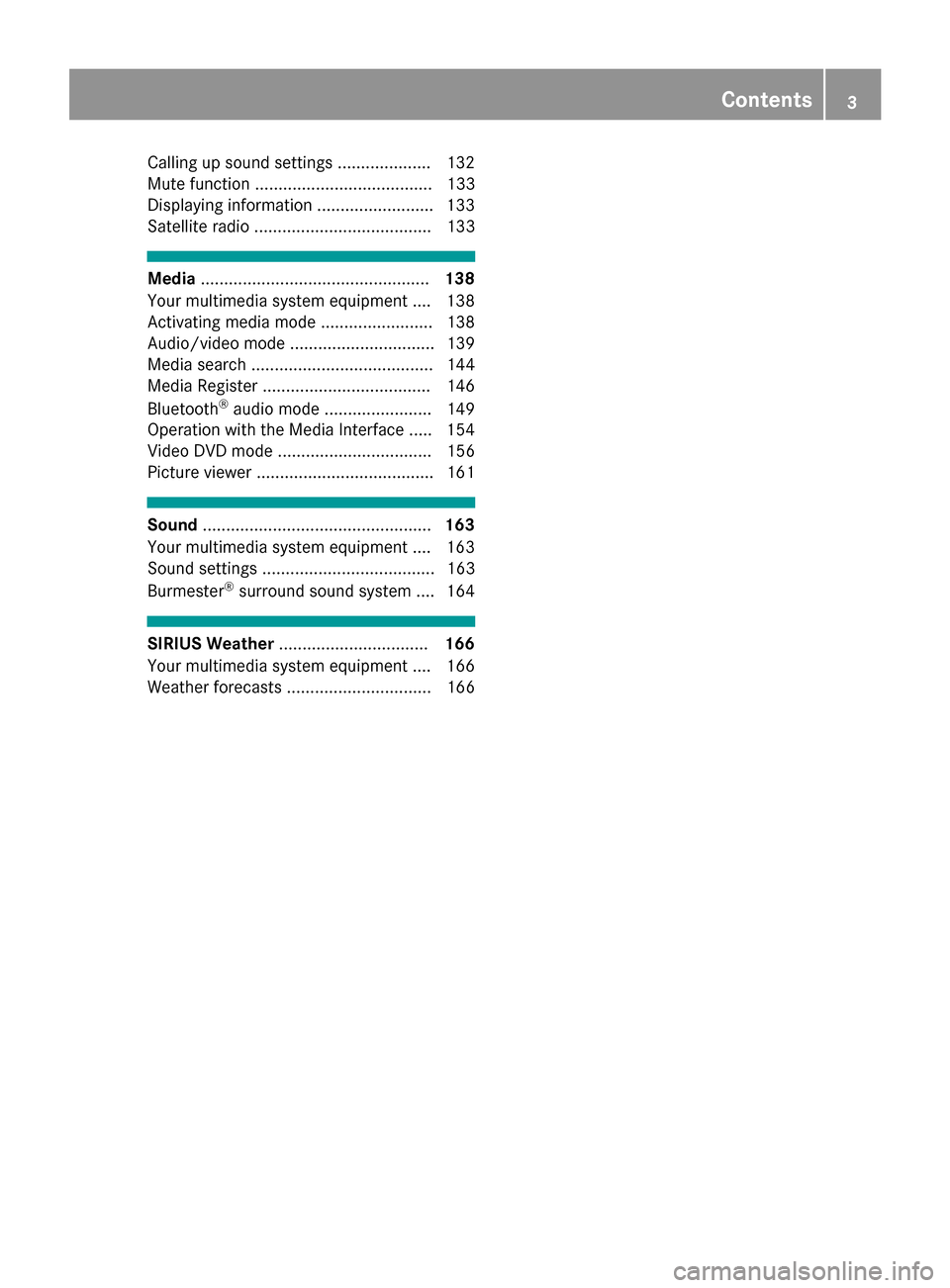
Calling up sound settings .................... 132
Mute function ...................................... 133
Dis playin g information ........................ .133
Satellite radio ...................................... 133
Media ................................................. 138
Your multimedia system equipment .... 138
Activating media mode ........................ 138
Audio/video mode ............................... 139
Media search ....................................... 144
Media Register ....................................1 46
Bluetooth
®audio mode ....................... 149
Operation with the Media Interface ..... 154
Video DVD mode ................................. 156
Picture viewer ...................................... 161
Sound ................................................. 163
Your multimedia system equipment .... 163
Sound settings ..................................... 163
Burmester
®surround sound system .... 164
SIRIUS Weather ................................ 166
Your multimedia system equipment .... 166
Weather forecasts ............................... 166
Contents3
Page 6 of 178
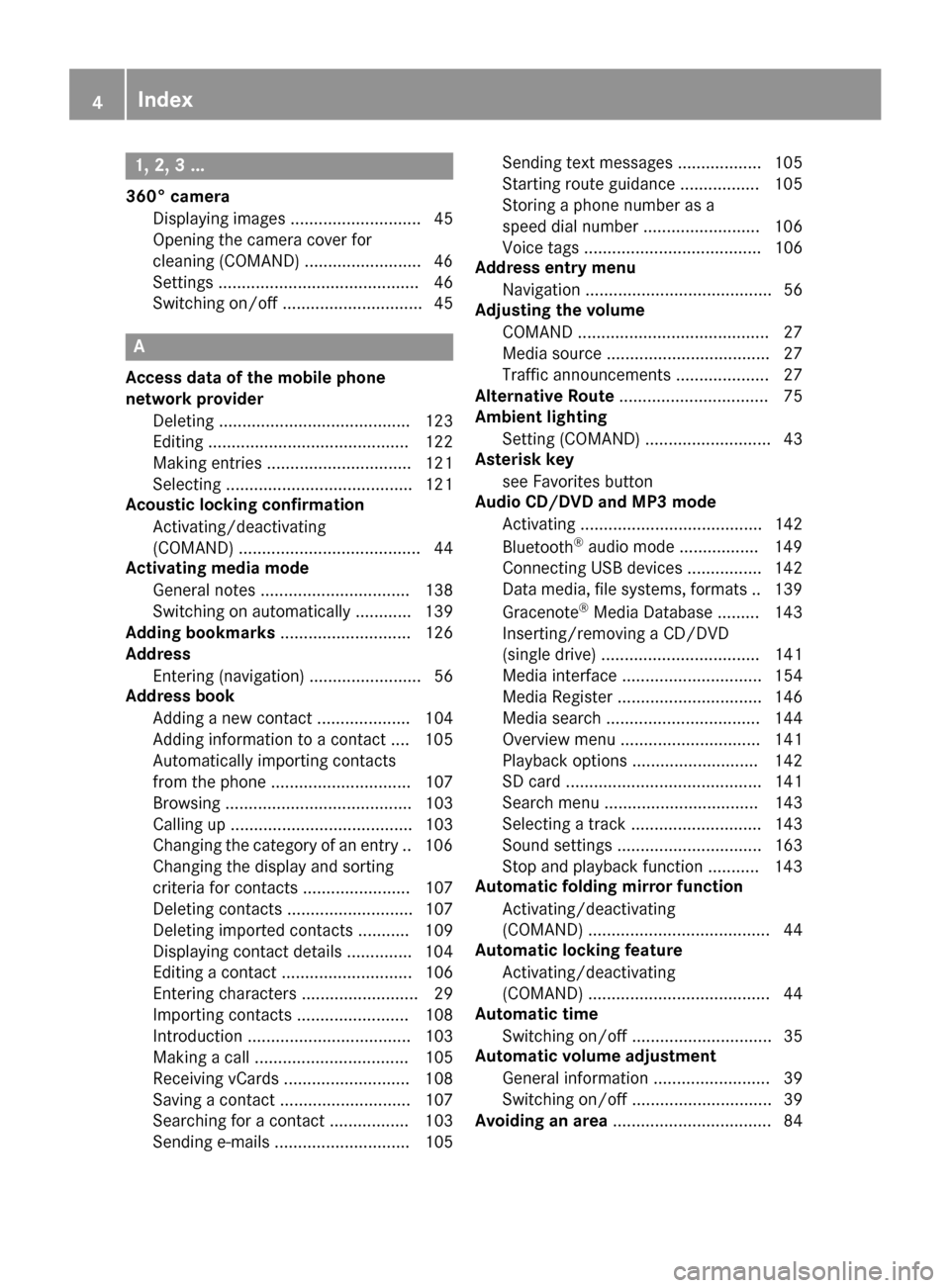
1, 2, 3 ...
360° cameraDisplaying images ............................ 45
Opening the camera cover for
cleaning (COMAND) .........................4 6
Settings ........................................... 46
Switching on/off .............................. 45
A
Access data of the mobile phone
network provider
Deleting ......................................... 123
Editing ........................................... 122
Making entries ............................... 121
Selecting ........................................ 121
Acoustic locking confirmation
Activating/deactivating
(COMAND) ....................................... 44
Activating media mode
General notes ................................ 138
Switching on automatically ............ 139
Adding bookmarks ............................ 126
Address
Entering (navigation) ........................ 56
Address book
Adding a new contact .................... 104
Adding information to a contact .... 105
Automatically importing contacts
from the phone .............................. 107
Browsing ........................................ 103
Calling up ....................................... 103
Changing the category of an entry .. 106
Changing the display and sorting
criteria for contacts ....................... 107
Deleting contacts ........................... 107
Deleting imported contacts ........... 109
Displaying contact details .............. 104
Editing a contact ............................ 106
Entering characters ......................... 29
Importing contacts ........................ 108
Introduction ................................... 103
Making a call ................................. 105
Receiving vCards ........................... 108
Saving a contact ............................ 107
Searching for a contact ................. 103
Sending e-mails ............................. 105 Sending text messages .................. 105
Starting route guidance ................. 105
Storing a phone number as a
speed dial number ......................... 106
Voice tags ...................................... 106
Address entry menu
Navigation ........................................ 56
Adjusting the volume
COMAND ......................................... 27
Media source ................................... 27
Traffic announcements .................... 27
Alternative Route ................................ 75
Ambient lighting
Setting (COMAND) ........................... 43
Asterisk key
see Favorites button
Audio CD/DVD and MP3 mode
Activating ....................................... 142
Bluetooth
®audio mode ................. 149
Connecting USB devices ................ 142
Data medi
a, file systems, formats .. 139
Gracenote®Media Database ......... 143
Inserting/removing a CD/DVD
(single drive) .................................. 141
Media interface .............................. 154
Media Register ............................... 146
Media search ................................. 144
Overview menu .............................. 141
Playback options ........................... 142
SD card .......................................... 141
Search menu ................................. 143
Selecting a track ............................ 143
Sound settings ............................... 163
Stop and playback function ........... 143
Automatic folding mirror function
Activating/deactivating
(COMAND) ....................................... 44
Automatic locking feature
Activating/deactivating
(COMAND) ....................................... 44
Automatic time
Switching on/off .............................. 35
Automatic volume adjustment
General information ......................... 39
Switching on/off .............................. 39
Avoiding an area .................................. 84
4Index
Page 7 of 178
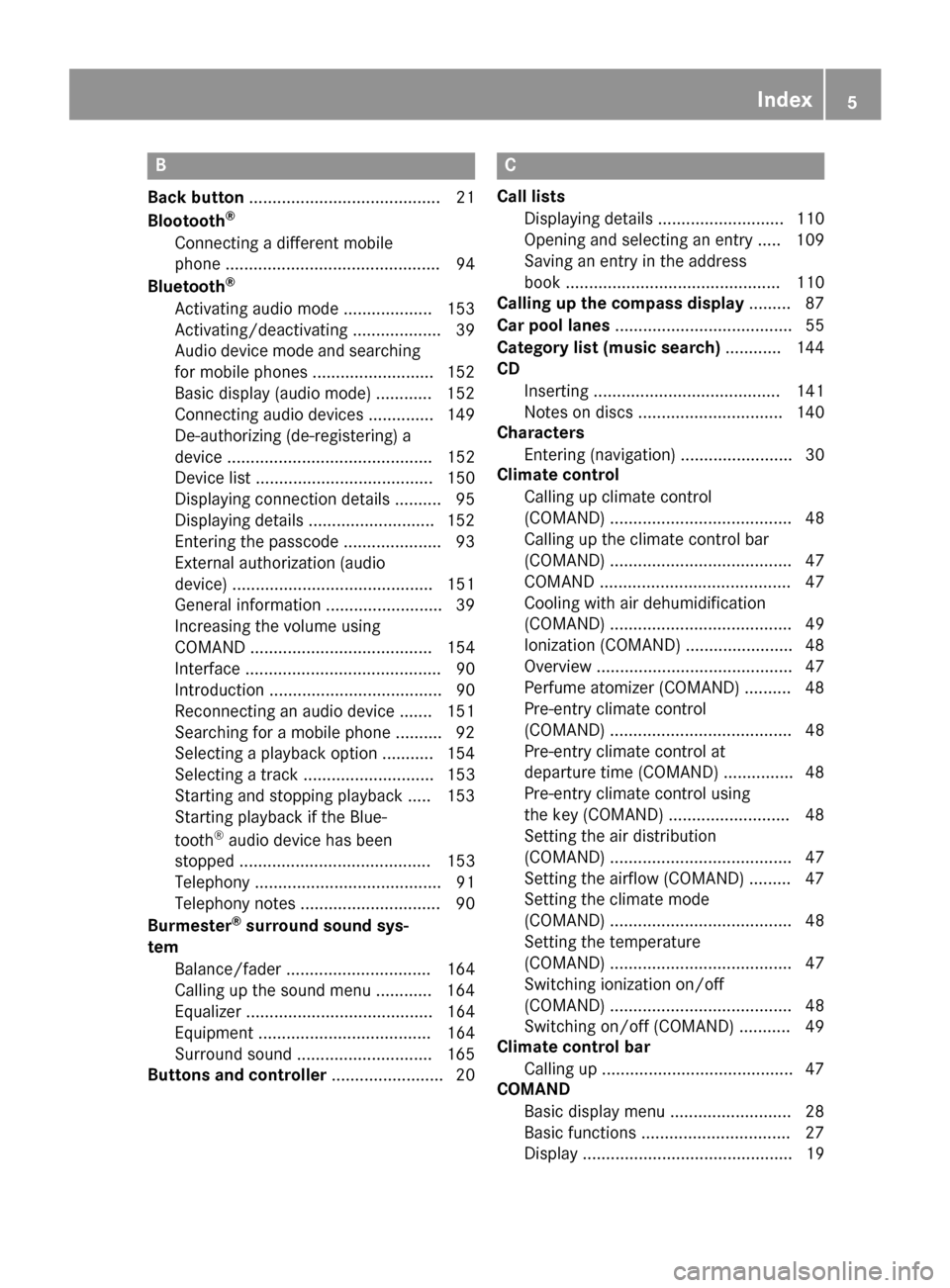
B
Back button......................................... 21
Blootooth®
Connecting a different mobile
phone .............................................. 94
Bluetooth
®
Activating audio mode ................... 153
Activating/deactivating ................... 39
Audio device mode and searching
for mobile phones .......................... 152
Basic display (audio mode) ............ 152
Connecting audio devices .............. 149
De-authorizing (de-registering) a
device ............................................ 152
Device list ...................................... 150
Displaying connection details .......... 95
Displaying details ........................... 152
Entering the passcode ..................... 93
External authorization (audio
device) ........................................... 151
General information ......................... 39
Increasing the volume using
COMAND ....................................... 154
Interface .......................................... 90
Introduction ..................................... 90
Reconnecting an audio device ....... 151
Searching for a mobile phone .......... 92
Selecting a playback option ........... 154
Selecting a track ............................ 153
Starting and stopping playback ..... 153
Starting playback if the Blue-
tooth
®audio device has been
stopped ......................................... 153
Telephony ........................................ 91
Telephony notes .............................. 90
Burmester
®surround sound sys-
tem
Balance/fader ............................... 164
Calling up the sound menu ............ 164
Equalizer ........................................ 164
Equipment ..................................... 164
Surround sound ............................. 165
Buttons and controller ........................ 20
C
Call lists
Displaying details ........................... 110
Opening and selecting an entry ..... 109
Saving an entry in the address
book .............................................. 110
Calling up the compass display ......... 87
Car pool lanes ...................................... 55
Category list (music search) ............ 144
CD
Inserting ........................................ 141
Notes on discs ............................... 140
Characters
Entering (navigation) ........................ 30
Climate control
Calling up climate control
(COMAND) ....................................... 48
Calling up the climate control bar
(COMAND) ....................................... 47
COMAND ......................................... 47
Cooling with air dehumidification
(COMAND) ....................................... 49
Ionization (COMAND) ....................... 48
Overview .......................................... 47
Perfume atomizer (COMAND) .......... 48
Pre-entry climate control
(COMAND) ....................................... 48
Pre-entry climate control at
departure time (COMAND) ............... 48
Pre-entry climate control using
the key (COMAND) .......................... 48
Setting the air distribution
(COMAND) ....................................... 47
Setting the airflow (COMAND) ......... 47
Setting the climate mode
(COMAND) ....................................... 48
Setting the temperature
(COMAND) ....................................... 47
Switching ionization on/off
(COMAND) ....................................... 48
Switching on/off (COMAND) ........... 49
Climate control bar
Calling up ......................................... 47
COMAND
Basic display menu .......................... 28
Basic functions ................................ 27
Display ............................................. 19
Index5
Page 10 of 178
Adjusting the scale .......................... 81
Building images ................................ 84
Displaying the next intersection ...... 83
Elevation modeling ........................... 84
Map heading up ............................... 82
Map settings .................................... 81
Moving ............................................. 53
North orientation ............................. 82
Notes ............................................... 81
Rotating the 3D map ........................ 83
Selecting POI symbols on the
map ................................................. 82
Selecting text information on the
map ................................................. 83
Showing the map version ................. 83
Switching highway information
on/off .............................................. 83
Updating .......................................... 86
Map functions ...................................... 81
Media Interface
Basic display .................................. 154
Playback options ........................... 156
Search ........................................... 155
Selecting a music file ..................... 155
Supported devices ......................... 155
Supported file formats ................... 155
Switching to Media Interface ......... 155
Video function ............................... 156
Media mode
Connections for external media
sources .......................................... 138
Switching on .................................. 138
Media Register
Basic display .................................. 146
Calling up memory space informa-
tion ................................................ 149
Copying files .................................. 146
Deleting all files ............................. 148
Renaming/deleting files ................ 148
Selecting a playback mode ............ 149
Switching on .................................. 146
Media search
By folder ........................................ 145
Category list .................................. 144
Current tracklist ............................ 145
General notes ................................ 144
Keyword search ............................. 145
Music genres ................................. 145 Selecting by cover ......................... 145
Starting the media search .............. 144
Memory card
SD card .......................................... 141
Mercedes-Benz Apps
Calling up ....................................... 124
Voice control ................................. 124
Microphone, switching on/off ........... 98
Mobile phone
Authorizing ....................................... 93
Connecting (Bluetooth
®inter-
face) ................................................ 91
Conne
cting another mobile
phone .............................................. 94
De-authorizing ................................. 95
Displaying Bluetooth
®connection
details .............................................. 95
Enabling for Internet access .......... 120
Monitor
see COMAND display
MP3
Copyright ....................................... 140
Stop and playback function ........... 143
see Audio CD/DVD and MP3 mode
Multimedia system
see Display
Music
see Audio CD/DVD and MP3 mode
MUSIC REGISTER
General notes ................................ 146
My address
Saving .............................................. 57
N
NavigationAdjusting the volume of the navi-
gation announcements .................... 27
Alternative route .............................. 75
Avoiding an area .............................. 84
Basic settings .................................. 53
Blocking a route section affected
by a traffic jam ................................. 75
Calling up the compass display ........ 87
Calling up the menu ......................... 87
Canceling/continuing route guid-
ance ................................................. 74
Displaying current position .............. 75
8Index
Page 13 of 178
S
Safety notesAudio CD/DVD and MP3 mode ..... 139
Using the telephone .........................9 0
Satellite radio
Displaying information ...................1 37
Overview ........................................ 134
Presets menu view ......................... 136
Registering ....................................1 34
Switching to ................................... 134
SatRadio
Channel list updates ......................1 37
Memory functions .......................... 135
Music and sports alerts ................. 136
Notes ............................................. 133
Selecting a category ......................1 34
Selecting a channel ....................... 135
Tagging music tracks ..................... 137
SD card
Inserting ........................................ 141
Inserting/removing ........................ 141
Removing ....................................... 142
Searching for a gas station
When the fuel level is low ................ 66
Seat-belt adjustment function
Activating/deactivating
(COMAND) ....................................... 44
Selecting stations
Radio ............................................. 130
Sending DTMF tones ........................... 98
Setting access data
Online and Internet ........................ 121
Setting the language
COMAND ......................................... 39
Setting the night design ..................... 34
Setting the text reader speed ............ 37
Setting the volume
Telephone calls ................................ 28
Setting the waveband
Radio ............................................. 130
Settings
Sound settings ............................... 163
Short message
see Text messages (SMS)
SIRIUS weather display
5-day forecast ................................ 166
Daily forecast ................................. 166 Detail information .......................... 167
Information chart ........................... 166
Selecting a location for the
weather forecast ............................ 167
Switching on/off ........................... 166
Weather map ................................. 169
Sound
Switchi ng on/off .............................. 28
So
und settings
Balance/fader ............................... 163
Calling up the sound menu ............ 163
Equalizer ........................................ 163
Sound system
see Burmester
®surround sound system
Speed dial
Deleting ......................................... 111
Setting up ...................................... 111
State/province
Selecting .......................................... 57
Stop function
Video DVD ..................................... 160
Storing stations
Radio ............................................. 131
Street name announcements
Switching on/off (COMAND) ........... 55
Switching between summer time
and standard time ............................... 35
Switching on media mode
Using the Media button ................. 138
Via the device list .......................... 139
Via the main function bar ............... 138
System settings
Automatic volume adjustment ......... 39
Bluetooth
®....................................... 39
Date ................................................. 35
Importing/exporting data ................ 40
Language ......................................... 39
Text reader speed ............................ 37
Time ................................................. 35
Time zone ........................................ 35
Voice Control System ...................... 37
T
Telephone
Accepting a call (COMAND) ............. 96
Adding a call .................................... 97
Adjusting the volume for calls .......... 28
Index11
Page 14 of 178
Authorizing a mobile phone (con-
necting) ............................................ 93
Call lists ......................................... 109
Call waiting ...................................... 99
Calling up the telephone menu ........ 91
Calls with several participants ......... 98
Conference calls .............................. 98
Connecting a mobile phone (gen-
eral information) .............................. 91
De-authorizing (disconnecting) a
mobile phone ................................... 95
Deleting a speed dial preset .......... 111
Deleting messages ........................ 118
Displaying Bluetooth
®connection
details .............................................. 95
Downloading messages manually .. 113
E-mail ............................................. 112
E-mail requirements ....................... 112
E-mail settings ............................... 112
Ending an active call ........................ 99
Entering a number ........................... 96
Entering phone numbers .................. 96
Establishing the connection from
the mobile phone ............................. 94
Function restrictions ........................ 91
Functions available during a call ...... 97
General notes .................................. 90
Incoming call during an existing
call ................................................... 99
Making a call .................................... 96
Message conditions ....................... 112
Message settings ........................... 112
Operating options ............................ 90
Phone book .................................... 100
Reading messages ......................... 114
Reception and transmission vol-
ume ................................................. 95
Reconnecting a mobile phone
automatically ................................... 94
Rejecting a call (COMAND) .............. 96
Safety notes ..................................... 90
Sending DTMF tones ........................ 98
Setting up a speed dial .................. 111
Switching between calls (call wait- ing) .................................................. 98
Switching between mobile
phones ............................................. 94
Switching the microphone on/off .... 98 Telephone menu overvi
ew ............... 91
T
ext message conditions ............... 112
Text message settings ................... 112
Text messages (SMS) .................... 112
Toggling ........................................... 98
Using the telephone ......................... 96
Writing e-mails ............................... 116
Writing text messages ................... 115
Telephone number
Entering ........................................... 96
Text messages (SMS)
Calling the sender .......................... 117
Calling up the settings menu ......... 112
Configuring the text messages
displayed ....................................... 112
Deleting ......................................... 118
Displaying details ........................... 115
Downloading manually ................... 113
Editing text templates .................... 117
Inbox .............................................. 114
Reading .......................................... 114
Reading aloud ................................ 114
Settings ......................................... 112
Storing sender in address book ..... 118
Storing the sender as a new
address book entry ........................ 117
Using a phone number in the text .. 117
Using text templates ...................... 117
Writing ........................................... 115
Time
Setting ............................................. 36
Setting summer/standard time ....... 35
Setting the format ............................ 36
Setting the time ............................... 36
Setting the time zone ....................... 35
Setting the time/date format .......... 36
Switching automatic time on/off ..... 35
Touchpad
Calling up quick access for audio
and telephone .................................. 23
Changing the input language for
handwriting recognition ................... 26
Changing the station/music
track ................................................ 27
Character suggestions ..................... 26
Deleting characters ......................... 26
Entering a space .............................. 26
Entering characters ......................... 25
12Index
Page 20 of 178
Overview
Components
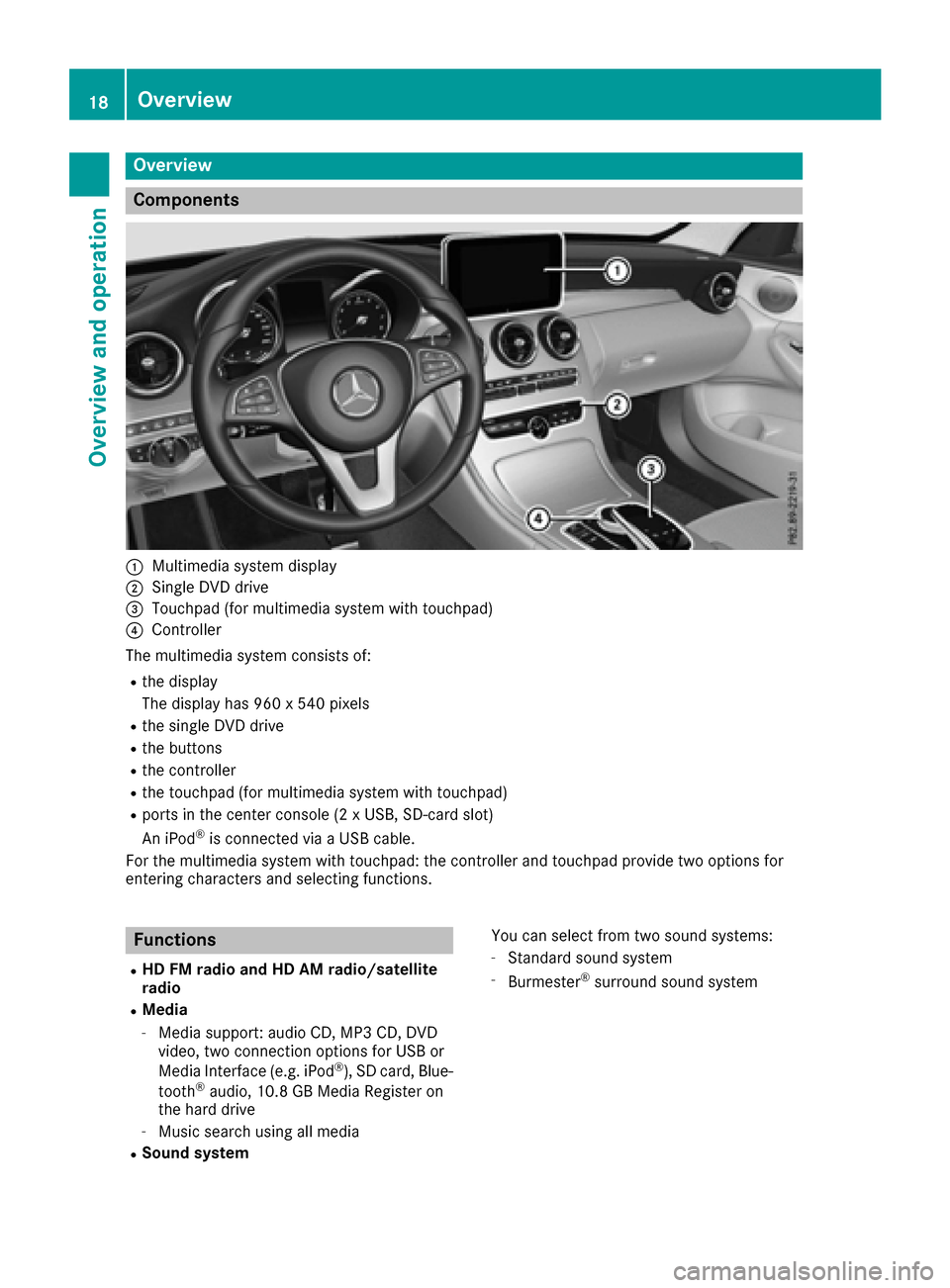
:Multimedia system display
;Single DVD drive
=Touchpad (for multimedia system with touchpad)
?Controller
The multimedia system consists of:
Rthe display
The display has 960 x 540 pixels
Rthe single DVD drive
Rthe buttons
Rthe controller
Rthe touchpad (for multimedia system with touchpad)
Rports in the center console (2 x USB, SD-card slot)
An iPod®is connected via a USB cable.
For the multimedia system with touchpad: the controller and touchpad provide two options for
entering characters and selecting functions.
Functions
RHD FM radio and HD AM radio/satellite
radio
RMedia
-Media support: audio CD, MP3 CD, DVD
video, two connection options for USB or
Media Interface (e.g. iPod
®), SD card, Blue-
tooth®audio, 10.8 GB Media Register on
the hard drive
-Music search using all media
RSound system You can select from two sound systems:
-Standard sound system
-Burmester®surround sound system
18Overview
Overview and operation
Page 39 of 178
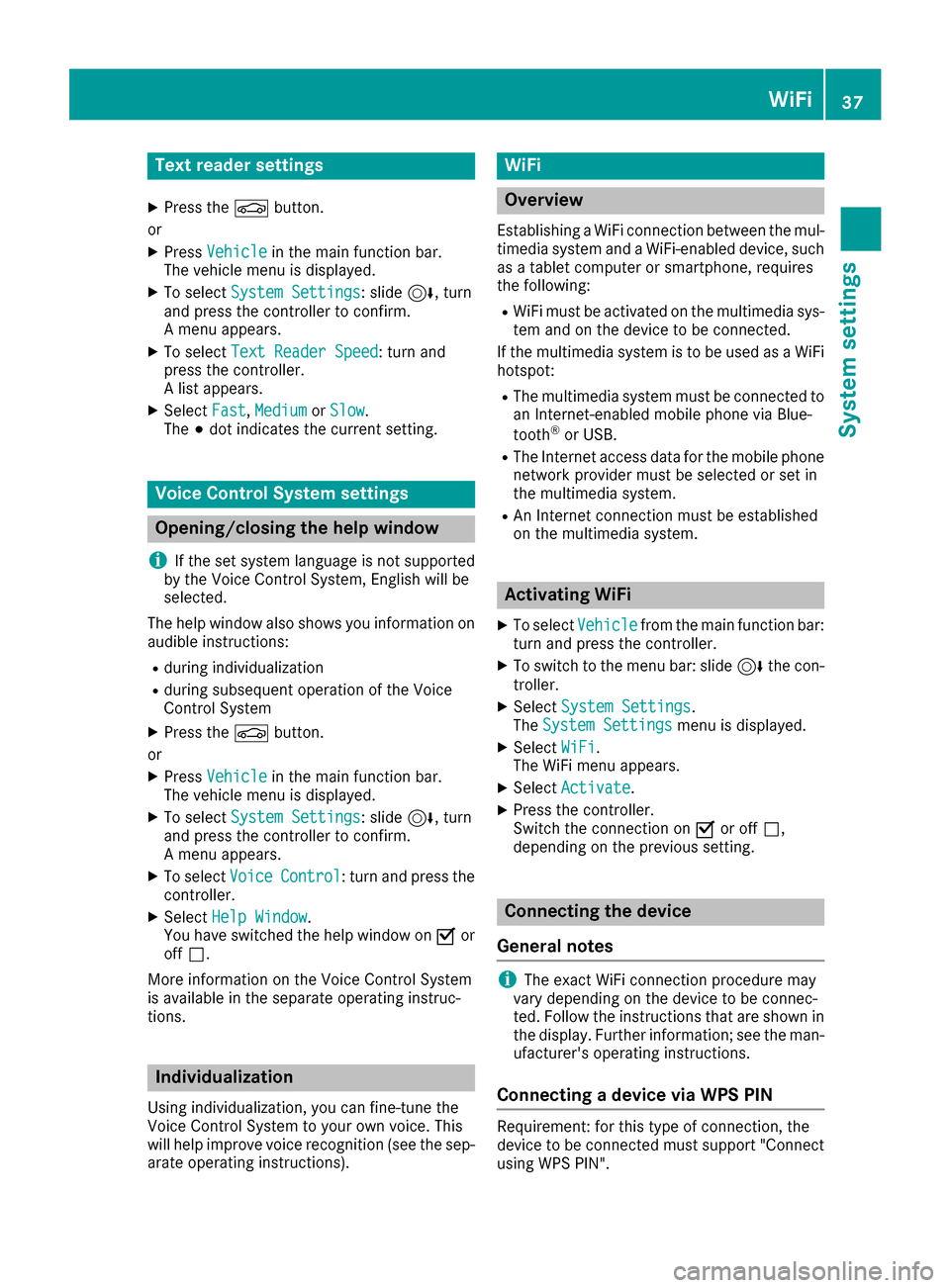
Text reader settings
XPress theØbutton.
or
XPress Vehiclein the main function bar.
The vehicle menu is displayed.
XTo select System Settings: slide6, turn
and press the controller to confirm.
A menu appears.
XTo select Text Reader Speed: turn and
press the controller.
A list appears.
XSelect Fast,Mediumor Slow.
The #dot indicates the current setting.
Voice Control System settings
Opening/closing the help window
i
If the set system language is not supported
by the Voice Control System, English will be
selected.
The help window also shows you information on
audible instructions:
Rduring individualization
Rduring subsequent operation of the Voice
Control System
XPress the Øbutton.
or
XPress Vehiclein the main function bar.
The vehicle menu is displayed.
XTo select System Settings: slide6, turn
and press the controller to confirm.
A menu appears.
XTo select VoiceControl: turn and press the
controller.
XSelect Help Window.
You have switched the help window on Oor
off ª.
More information on the Voice Control System
is available in the separate operating instruc-
tions.
Individualization
Using individualization, you can fine-tune the
Voice Control System to your own voice. This
will help improve voice recognition (see the sep-
arate operating instructions).
WiFi
Overview
Establishing a WiFi connection between the mul-
timedia system and a WiFi-enabled device, such
as a tablet computer or smartphone, requires
the following:
RWiFi must be activated on the multimedia sys-
tem and on the device to be connected.
If the multimedia system is to be used as a WiFi
hotspot:
RThe multimedia system must be connected to
an Internet-enabled mobile phone via Blue-
tooth
®or USB.
RThe Internet access data for the mobile phone
network provider must be selected or set in
the multimedia system.
RAn Internet connection must be established
on the multimedia system.
Activating WiFi
XTo select Vehiclefrom the main function bar:
turn and press the controller.
XTo switch to the menu bar: slide 6the con-
troller.
XSelect System Settings.
The System Settingsmenu is displayed.
XSelect WiFi.
The WiFi menu appears.
XSelect Activate.
XPress the controller.
Switch the connection on Oor off ª,
depending on the previous setting.
Connecting the device
General notes
iThe exact WiFi connection procedure may
vary depending on the device to be connec-
ted. Follow the instructions that are shown in
the display. Further information; see the man-
ufacturer's operating instructions.
Connecting a device via WPS PIN
Requirement: for this type of connection, the
device to be connected must support "Connect
using WPS PIN".
WiFi37
System settings
Z
Page 41 of 178
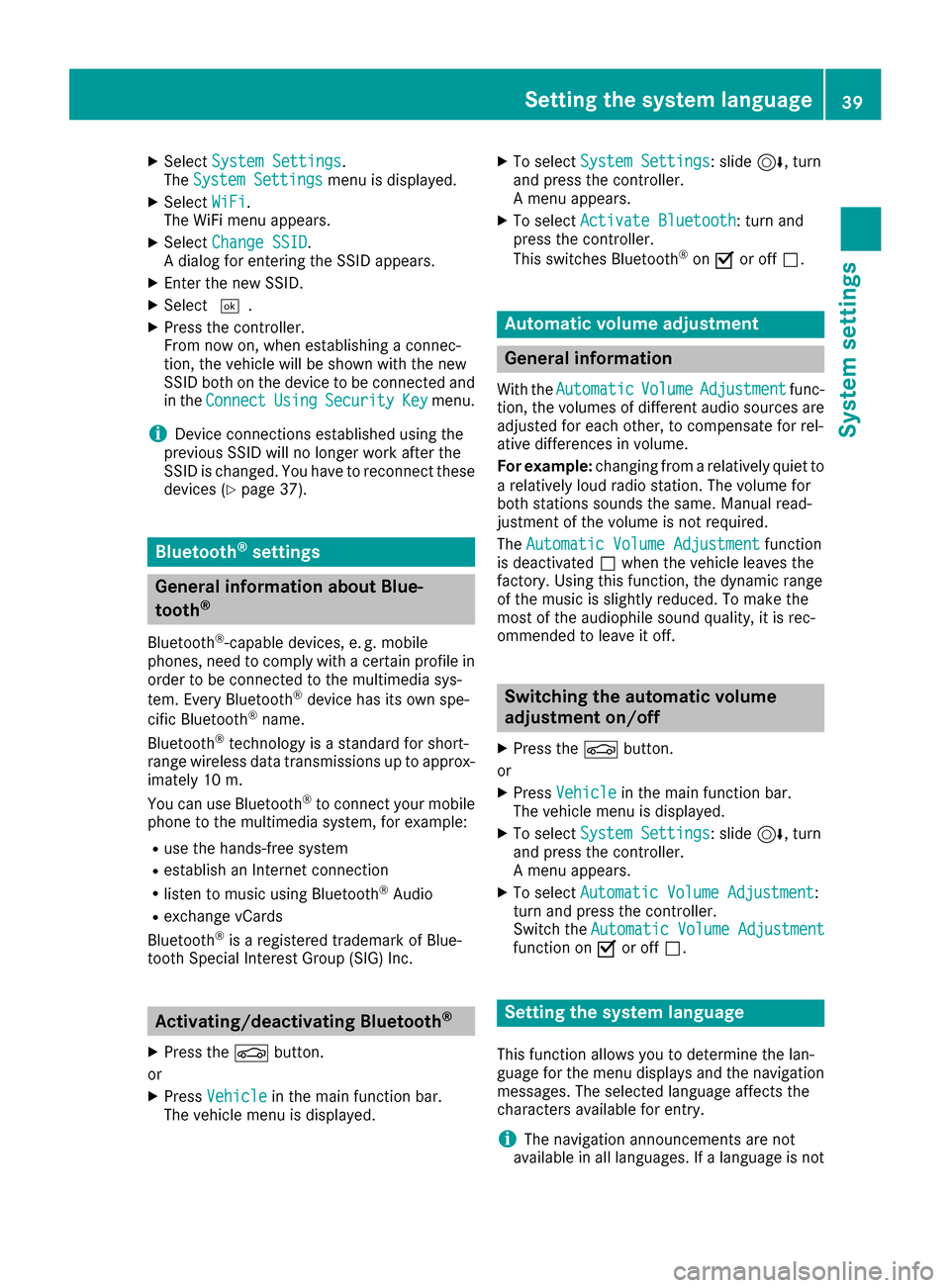
XSelectSystem Settings.
The System Settingsmenu is displayed.
XSelect WiFi.
The WiFi menu appears.
XSelect Change SSID.
A dialog for entering the SSID appears.
XEnter the new SSID.
XSelect ¬.
XPress the controller.
From now on, when establishing a connec-
tion, the vehicle will be shown with the new
SSID both on the device to be connected and
in the Connect
UsingSecurityKeymenu.
iDevice connections established using the
previous SSID will no longer work after the
SSID is changed. You have to reconnect these
devices (
Ypage 37).
Bluetooth®settings
General information about Blue-
tooth®
Bluetooth®-capable devices, e. g. mobile
phones, need to comply with a certain profile in
order to be connected to the multimedia sys-
tem. Every Bluetooth
®device has its own spe-
cific Bluetooth®name.
Bluetooth®technology is a standard for short-
range wireless data transmissions up to approx-
imately 10 m.
Yo u can use Bluetooth
®to connect your mobile
phone to the multimedia system, for example:
Ruse the hands-free system
Restablish an Internet connection
Rlisten to music using Bluetooth®Audio
Rexchange vCards
Bluetooth®is a registered trademark of Blue-
tooth Special Interest Group (SIG) Inc.
Activating/deactivating Bluetooth®
X
Press the Øbutton.
or
XPress Vehiclein the main function bar.
The vehicle menu is displayed.
XTo select System Settings: slide6, turn
and press the controller.
A menu appears.
XTo select Activate Bluetooth: turn and
press the controller.
This switches Bluetooth
®on O or off ª.
Automatic volume adjustment
General information
With the AutomaticVolumeAdjustmentfunc-
tion, the volumes of different audio sources are
adjusted for each other, to compensate for rel-
ative differences in volume.
For example: changing from a relatively quiet to
a relatively loud radio station. The volume for
both stations sounds the same. Manual read-
justment of the volume is not required.
The Automatic Volume Adjustment
function
is deactivated ªwhen the vehicle leaves the
factory. Using this function, the dynamic range
of the music is slightly reduced. To make the
most of the audiophile sound quality, it is rec-
ommended to leave it off.
Switching the automatic volume
adjustment on/off
XPress the Øbutton.
or
XPress Vehiclein the main function bar.
The vehicle menu is displayed.
XTo select System Settings: slide6, turn
and press the controller.
A menu appears.
XTo select Automatic Volume Adjustment:
turn and press the controller.
Switch the Automatic Volume Adjustment
function on Oor off ª.
Setting the system language
This function allows you to determine the lan-
guage for the menu displays and the navigation
messages. The selected language affects the
characters available for entry.
iThe navigation announcements are not
available in all languages. If a language is not
Setting the system language39
System settings
Z