phone MERCEDES-BENZ C CLASS 2018 Owner's Manual
[x] Cancel search | Manufacturer: MERCEDES-BENZ, Model Year: 2018, Model line: C CLASS, Model: MERCEDES-BENZ C CLASS 2018Pages: 370, PDF Size: 6.25 MB
Page 216 of 370
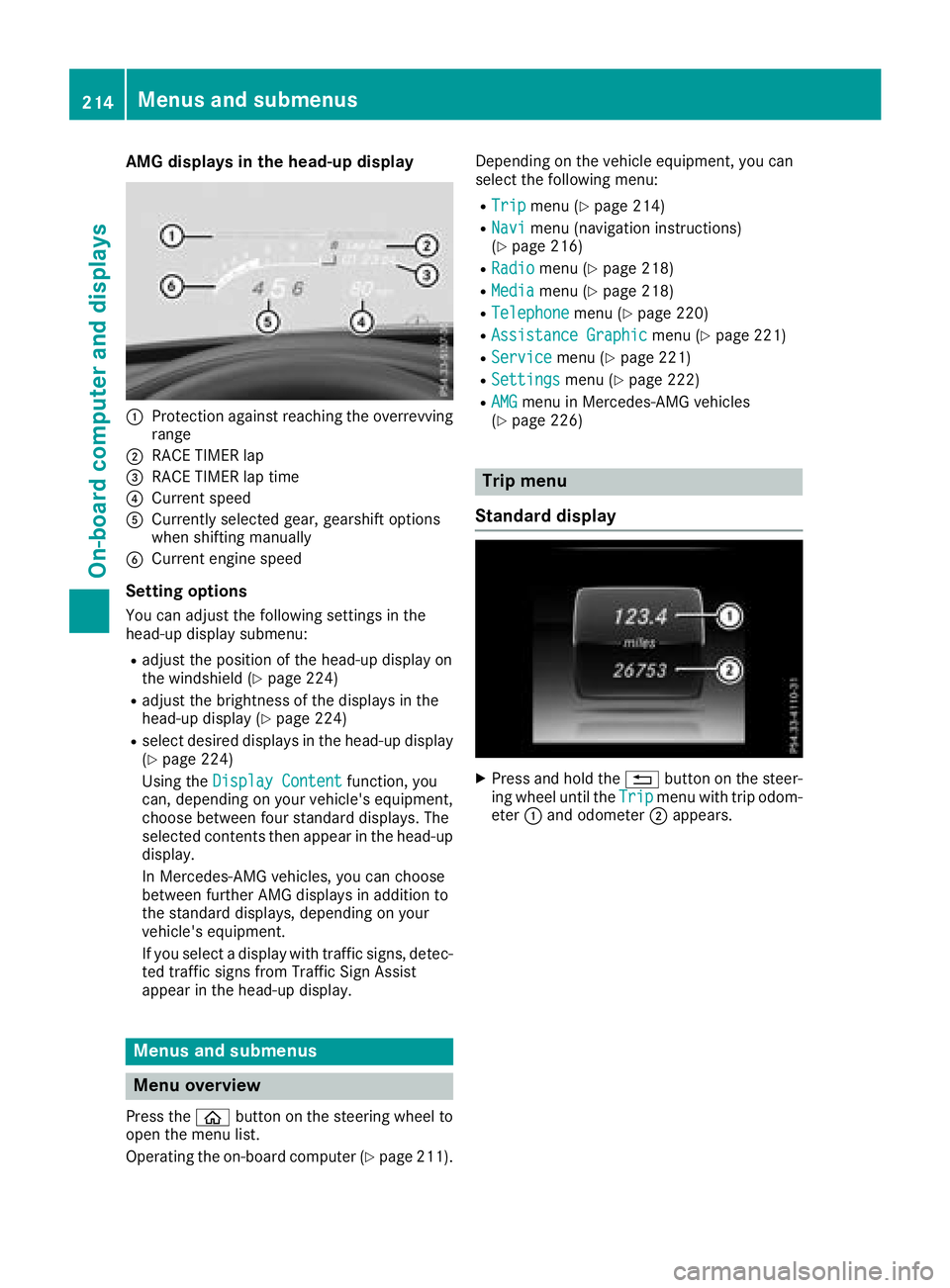
AMG displays inthe head-up display
:Protection against reachin gth eoverrevving
range
;RACE TIMER lap
=RACE TIMER lap tim e
?Currentspee d
ACurrently selected gear ,gearshif toption s
when shiftin gmanually
BCurren tengin espee d
Setting options
You can adjust th efollowin gsettings in th e
head-up display submenu:
Radjust th epositio nof th ehead-up display on
th ewindshield (Ypage 224)
Radjust thebrightness of th edisplays in th e
head-up display (Ypage 224)
Rselect desired displays in th ehead-up display
(Ypage 224)
Usin gth eDispla yConten t
function ,you
can ,depending on your vehicle's equipment,
choos ebetween four standard displays. The
selected contents then appear in th ehead-up
display.
In Mercedes-AM Gvehicles, you can choos e
between further AM Gdisplays in addition to
th estandard displays, depending on your
vehicle's equipment.
If you select adisplay wit htraffic signs, detec-
te dtraffic sign sfrom Traffic Sig nAssist
appear in th ehead-up display.
Menus and submenus
Menu overview
Press th eò buttonon th esteering whee lto
open th emen ulist .
Operating th eon-board computer (
Ypage 211).Dependin
gon th evehicl eequipment, you can
select th efollowin gmenu:
RTri pmen u (Ypage 214)
RNavimen u(navigation instructions)
(Ypage 216)
RRadiomen u (Ypage 218)
RMediamenu (Ypage 218)
RTelephonemenu (Ypage 220)
RAssistanc eGraphi cmenu (Ypage 221)
RServic emenu (Ypage 221)
RSettingsmenu (Ypage 222)
RAMGmenuin Mercedes-AM Gvehicles
(Ypage 226)
Trip menu
Standard display
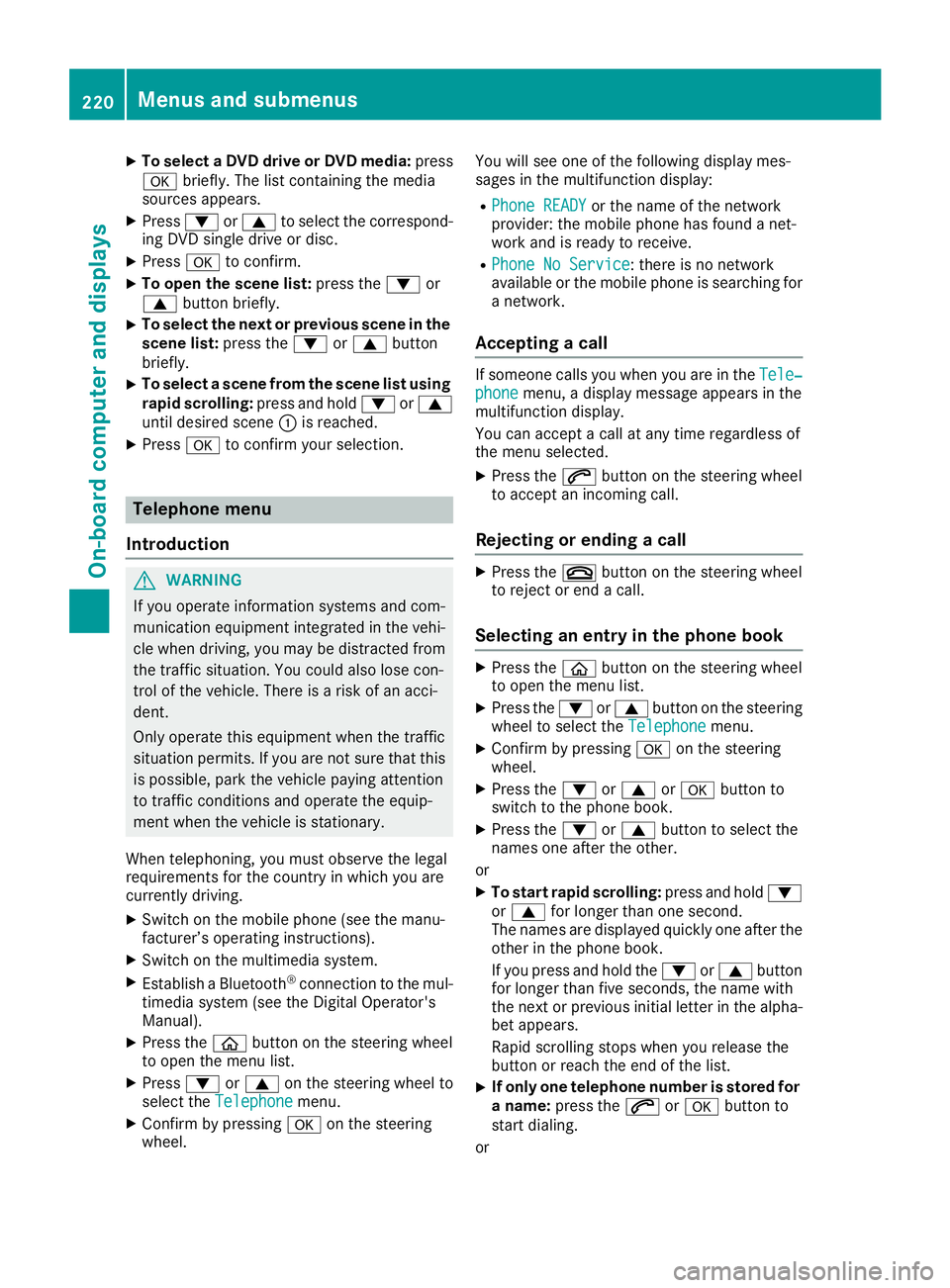
XPress and hold th e% buttonon th esteer -
ing whee luntil th eTri pmen uwit htrip odom -
eter :and odometer ;appears.
214Menus and submenus
On-board computer and displays
Page 222 of 370
XTo select a DVD drive or DVD media:press
a briefly. The list containing the media
sources appears.
XPress :or9 to select the correspond-
ing DVD single drive or disc.
XPress ato confirm.
XTo open the scene list: press the:or
9 button briefly.
XTo select the next or previous scene in the
scene list: press the:or9 button
briefly.
XTo select a scene from the scene list using
rapid scrolling: press and hold:or9
until desired scene :is reached.
XPress ato confirm your selection.
Telephone menu
Introduction
GWARNING
If you operate information systems and com-
munication equipment integrated in the vehi-
cle when driving, you may be distracted from
the traffic situation. You could also lose con-
trol of the vehicle. There is a risk of an acci-
dent.
Only operate this equipment when the traffic
situation permits. If you are not sure that this
is possible, park the vehicle paying attention
to traffic conditions and operate the equip-
ment when the vehicle is stationary.
When telephoning, you must observe the legal
requirements for the country in which you are
currently driving.
XSwitch on the mobile phone (see the manu-
facturer’s operating instructions).
XSwitch on the multimedia system.
XEstablish a Bluetooth®connection to the mul-
timedia system (see the Digital Operator's
Manual).
XPress the òbutton on the steering wheel
to open the menu list.
XPress :or9 on the steering wheel to
select the Telephonemenu.
XConfirm by pressing aon the steering
wheel. You will see one of the following display mes-
sages in the multifunction display:
RPhone READYor the name of the network
provider: the mobile phone has found a net-
work and is ready to receive.
RPhone No Service: there is no network
available or the mobile phone is searching for a network.
Accepting a call
If someone calls you when you are in the Tele‐phonemenu, a display message appears in the
multifunction display.
You can accept a call at any time regardless of
the menu selected.
XPress the 6button on the steering wheel
to accept an incoming call.
Rejecting or ending a call
XPress the ~button on the steering wheel
to reject or end a call.
Selecting an entry in the phone book
XPress the òbutton on the steering wheel
to open the menu list.
XPress the :or9 button on the steering
wheel to select the Telephonemenu.
XConfirm by pressing aon the steering
wheel.
XPress the :or9 ora button to
switch to the phone book.
XPress the :or9 button to select the
names one after the other.
or
XTo start rapid scrolling: press and hold:
or 9 for longer than one second.
The names are displayed quickly one after the
other in the phone book.
If you press and hold the :or9 button
for longer than five seconds, the name with
the next or previous initial letter in the alpha-
bet appears.
Rapid scrolling stops when you release the
button or reach the end of the list.
XIf only one telephone number is stored for
a name: press the 6ora button to
start dialing.
or
220Menus and submenus
On-board computer and displays
Page 223 of 370
XIf there is more than one number for a
particular name:press the6ora
button to display the numbers.
XPress the :or9 button to select the
number you want to dial.
XPress the 6ora button to start dialing.
or
XTo exit the telephone book: press the~
or % button briefly.
Redialing
The on-board computer saves the last names or
numbers dialed in the redial memory.
XPress the òbutton on the steering wheel
to open the menu list.
XPress the :or9 button on the steering
wheel to select the Telephonemenu.
XConfirm by pressing aon the steering
wheel.
XPress the 6button to switch to the redial
memory.
XPress the :or9 button to select the
desired name or number.
XPress the 6ora button to start dialing.
or
XTo exit the redial memory: press the~
or % button briefly.
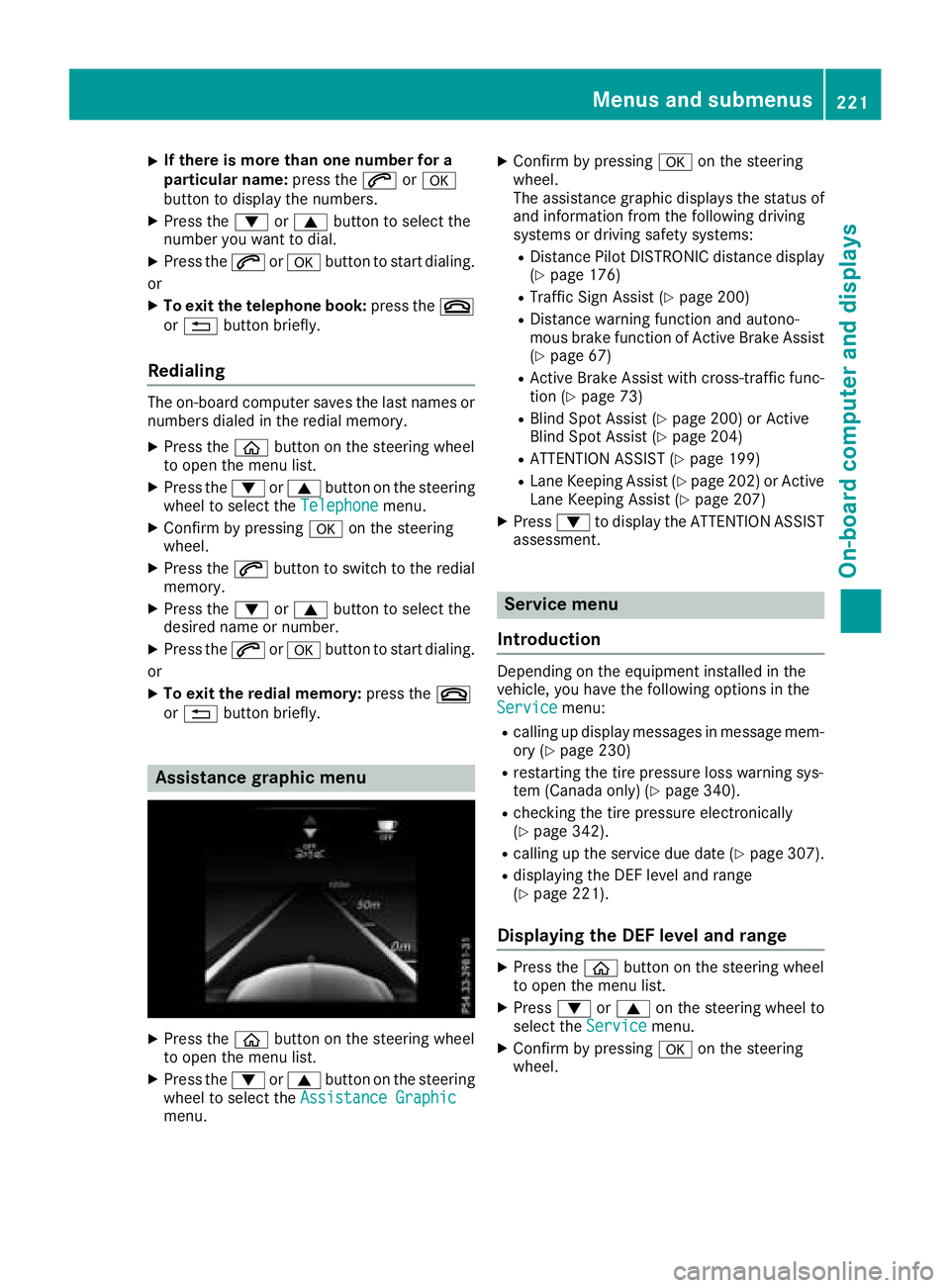
Assistance graphic menu
XPress the òbutton on the steering wheel
to open the menu list.
XPress the :or9 button on the steering
wheel to select the Assistance Graphic
menu.
XConfirm by pressing aon the steering
wheel.
The assistance graphic displays the status of
and information from the following driving
systems or driving safety systems:
RDistance Pilot DISTRONIC distance display
(Ypage 176)
RTraffic Sign Assist (Ypage 200)
RDistance warning function and autono-
mous brake function of Active Brake Assist (
Ypage 67)
RActive Brake Assist with cross-traffic func-
tion (Ypage 73)
RBlind Spot Assist (Ypage 200) or Active
Blind Spot Assist (Ypage 204)
RATTENTION ASSIST (Ypage 199)
RLane Keeping Assist (Ypage 202) or Active
Lane Keeping Assist (Ypage 207)
XPress :to display the ATTENTION ASSIST
assessment.
Service menu
Introduction
Depending on the equipment installed in the
vehicle, you have the following options in the
Service
menu:
Rcalling up display messages in message mem-
ory (Ypage 230)
Rrestarting the tire pressure loss warning sys-
tem (Canada only) (Ypage 340).
Rchecking the tire pressure electronically
(Ypage 342).
Rcalling up the service due date (Ypage 307).
Rdisplaying the DEF level and range
(Ypage 221).
Displaying the DEF level and range
XPress the òbutton on the steering wheel
to open the menu list.
XPress :or9 on the steering wheel to
select the Servicemenu.
XConfirm by pressing aon the steering
wheel.
Menus and submenus221
On-board computer and displays
Z
Page 259 of 370
Display messagesPossible causes/consequences andMSolutions
Ð
Power Steering Mal‐function See Opera‐tor's Manual
The powersteering is malfunctioning .
A warning tone also sounds.
GWARNIN G
You will need to use mor eforce to steer .
There is aris kof an accident.
XChec kwhether you are able to apply th eextr aforce required.
If you ar eabl eto steer safely:
XDrive on carefully.
XVisit aqualified specialist workshop immediately.
If you ar eunable to steer safely:
XDo no tdrive on .
XConsult aqualified specialist workshop .
Phone No ServiceYour vehicleis outside th enetwork provider' stransmitter/receiver
range.
XWait until th emobile phone operational readiness symbol appear s
in th emultifunction display.
¥
Check Washer Fluid
The washer flui dlevel in th ewasher flui dreservoir has dropped belo w
th eminimum .
XAddwasher flui d (Ypage 307).
SmartKey
Display messagesPossible causes/consequences and MSolutions
Â
KeyDoesNotBelongto Vehicl e
You haveput th ewrong SmartKey in th eignition lock.
XUse th ecorrec tSmartKey.
Â
Tak eYou rKey fro mIgnition
The SmartKey is in th eignition lock.
A warning tone sounds
XRemove th eSmartKey.
Â
Obtain aNew Key
The SmartKey needs to be replaced.
XVisit aqualified specialist workshop .
Â
ReplaceKey Batter y
The SmartKey battery is discharged.
XChange thebatterie s (Ypage 81) .
Display messages257
On-board computer and displays
Z
Page 273 of 370
Operating system
Overview
General notes
Wearing polarized sunglasses may impair your
ability to read the display.
The display has an automatic temperature-con-
trolled switch-off feature. The brightness is
automatically reduced if the temperature is too
high. The display may temporarily switch off
completely.
Cleaning instructions
!Do not touch the display. The display has a
very sensitive high-gloss surface; there is a
risk of scratching. If you have to clean the
screen, however, use a mild cleaning agent
and a soft, lint-free cloth.
The display must be switched off and have
cooled down before you start cleaning. Do not
apply pressure to the display surface when
cleaning it, as this could cause irreversible dam-
age to the display.
Switching the multimedia system
on/off
XPress the Übutton on the center console
to the right of the controller.
XFor Mercedes-AMG vehicles with a switch- able AMG Performance exhaust system:
press the thumbwheel which is to the right of
the controller.
Adjusts the volume
XTurn the thumbwheel to the right of the con-
troller.
The volume is adjusted:
Rfor the currently selected media source
Rduring traffic or navigation announcements
Rin hands-free mode during a phone call
Switching the sound on or off
This function is only available on the multifunc-
tion steering wheel for Mercedes-AMG vehicles
with a selectable AMG Performance exhaust
system.
XPress the thumbwheel to the right of the con-
troller.
or
XPress the 8button on the multifunction
steering wheel.
If the audio output is switched off, the status
line will show the 8symbol. If you switch
the media source or change the volume, the
sound is automatically switched on.
iNavigation announcements will be heard
even if the sound is muted.
Functions
The multimedia system has the following func-
tions:
RRadio mode
RMedia mode with media search
RSound system
RNavigation system
COMAND: navigation via the hard drive
Audio 20: navigation via SD card
RCommunication functions
RSIRIUS Weather (COMAND)
RVehicle functions with system settings
RFavorites functions
Controller
The controller in the center console lets you:
Rselect menu items on the display
Renter characters
Rselect a destination on the map
Rsave entries
The controller can be:
Rturned 3
Rslid left or right 1
Rslid forwards or back 4
Rslid diagonally2
Rpressed briefly or pressed and held 7
Back button
You can use the%button to exit a menu or to
call up the display of the current operating
mode.
Operating system271
Multimedia system
Z
Page 275 of 370
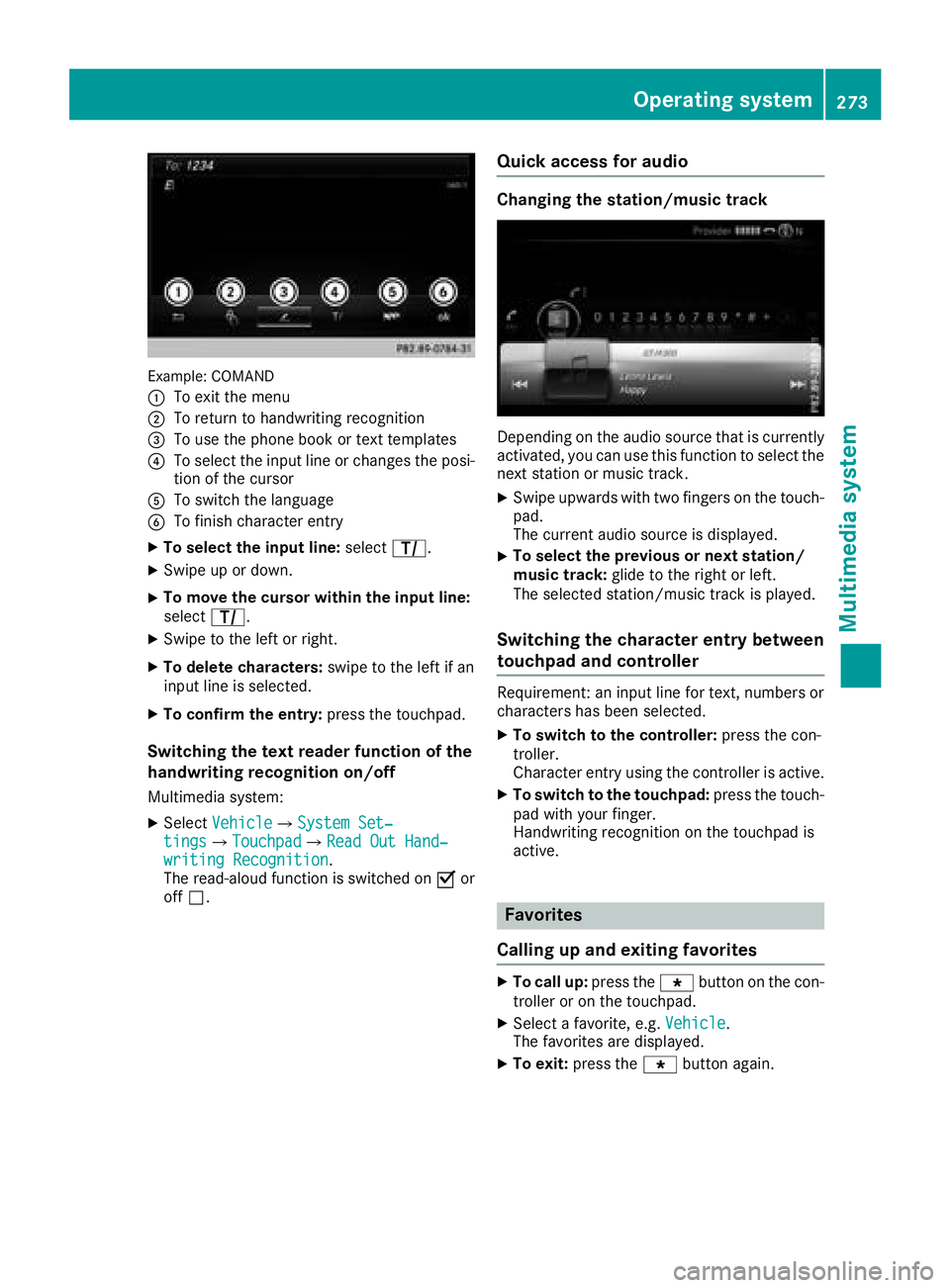
Example: COMAND
:
To exit the menu
;To return to handwriting recognition
=To use the phone book or text templates
?To select the input line or changes the posi-
tion of the cursor
ATo switch the language
BTo finish character entry
XTo select the input line:selectp.
XSwipe up or down.
XTo move the cursor within the input line:
select p.
XSwipe to the left or right.
XTo delete characters: swipe to the left if an
input line is selected.
XTo confirm the entry: press the touchpad.
Switching the text reader function of the
handwriting recognition on/off
Multimedia system:
XSelectVehicleQSystem Set‐tingsQTouchpadQRead Out Hand‐writing Recognition.
The read-aloud function is switched on Oor
off ª.
Quick access for audio
Changing the station/music track
Depending on the audio source that is currently
activated, you can use this function to select the
next station or music track.
XSwipe upwards with two fingers on the touch-
pad.
The current audio source is displayed.
XTo select the previous or next station/
music track: glide to the right or left.
The selected station/music track is played.
Switching the character entry between
touchpad and controller
Requirement: an input line for text, numbers or
characters has been selected.
XTo switch to the controller: press the con-
troller.
Character entry using the controller is active.
XTo switch to the touchpad: press the touch-
pad with your finger.
Handwriting recognition on the touchpad is
active.
Favorites
Calling up and exiting favorites
XTo call up: press thegbutton on the con-
troller or on the touchpad.
XSelect a favorite, e.g. Vehicle.
The favorites are displayed.
XTo exit: press the gbutton again.
Operating system273
Multimedia system
Z
Page 279 of 370
Notes for route options:
RUse Toll Roads
The route calculation includes roads which
require you to pay a usage fee (toll).
RUse Carpool Lanes(only available in the
USA)
Prerequisite: your vehicle meets the access
conditions for carpool lanes.
Carpool lanes will be included if the carpool
lanes option is activated.
Entering an address
Multimedia system:
XSelect NaviQNavigation.
XSelectDestinationQAddress Entry.
iIf route guidance is active, first slide 6the
controller and show the menu.
Enter an address, e.g. as follows:
Rcity or ZIP code, street, house number
Rcountry, city or ZIP code
Rcity or ZIP code, center
Rstreet, city or ZIP code, intersection
XSelect City.
The city in which the vehicle is currently loca-
ted (current vehicle position) is at the top.
Below this, you will see locations for which
route guidance has already been carried out.
XEnter the city.
The Gsymbol: the location is contained on
the digital map multiple times.
XTo switch to the list: slide the5control-
ler.
XSelect the location.
If available, the ZIP code is shown. If there are
different ZIP codes available for the location,
the corresponding digits are displayed with an
X
.
XEnter the street and house number.
The address is in the menu.
Further options for destination entry:
RKeyword search
The keyword search finds destinations using
fragments of words.
Rselect the last destination
Rselect a contact
Rselect a POI
You can search for a POI by location, name or
telephone number.
Rselect destination on the map
Renter intermediate destination
You can map the route to the destination
yourself with up to four intermediate destina-
tions.
Rselect destinations from Mercedes-Benz
Apps
Rselect geo-coordinates
Calculating the route
Prerequisite: the address has been entered and
is in the menu.
XSelect StartorContinue.
The route is calculated with the selected route
type and the selected route options.
If route guidance has already been activated,
a prompt will appear asking whether you wish
to end the current route guidance.
XSelect YesorSet as Intermediate Des‐tination.
Yescancels the current route guidance and
starts route calculation to the new destina-
tion.
Set as Intermediate Destination
adds
the new destination in addition to the existing
destination and opens the intermediate des-
tinations list.
Connecting a mobile phone
Requirements
Note: this segment describes connecting of a
mobile phone with COMAND. To connect a
mobile phone with Audio 20 (see the Digital
Operator's Manual).
For telephony via the Bluetooth
®interface, you
require a Bluetooth®-capable mobile phone. The
mobile phone must support Hands-Free Profile
1.0 or above.
Multimedia system:
XSelect VehicleQSystem Set‐tingsQActivate Bluetooth.
XActivate Bluetooth®O.
Mobile phone:
XActivate Bluetooth®and, if necessary, Blue-
tooth®visibility for other devices (see the
manufacturer's operating instructions).
Operating system277
Multimedia system
Z
Page 280 of 370
The Bluetooth®device names for all of one man-
ufacturer's products might be identical. To
make it possible to clearly identify your mobile
phone, change the device name (see the man-
ufacturer's operating instructions).
If the mobile phone supports the PBAP (Phone
Book Access Profile) and MAP (M essage
Access Profile) Bluetooth
®profiles, the follow-
ing information will be transmitted after you
connect:
RPhone book
RCall lists
RMessages
iFurther information on suitable mobile
phones can be obtained on the Internet at:
http://www.mercedes-benz.com/
connect
iIn the USA, you can get in touch with the
Mercedes-Benz Customer Assistance Center
on 1-800-FOR-MERCedes (1-800-367-6372).
In Canada, you can get in touch with the Cus-
tomer Relations Center on 1-800-387-0100.
Searching for and authorizing a mobile
phone
Before using your mobile phone with the multi-
media system for the first time, you will need to
search for the phone and then authorize (con-
nect) it. Depending on the mobile phone, author-
ization either takes place by means of Secure
Simple Pairing or by entering a passkey. The
multimedia system automatically makes the
procedure that is relevant for your mobile phone available. The mobile phone is always connec-
ted automatically after authorization. Further
information on using a mobile phone with the
multimedia system (see the Digital Operator's
Manual).
If the multimedia system does not detect your
mobile phone, this may be due to particular
security settings on your mobile phone (see the
manufacturer's operating instructions).
Only one mobile phone can be connected to the
multimedia system at any one time.
Searching for a mobile phone
Multimedia system:
XSelect PhoneQConnectDeviceQSearch for PhonesQStartSearch.
The available mobile phones are displayed. Symbols in the device list
Sym-
bolExplanation
ÏNew mobile phone found, not yet
authorized.
ÑMobile phone is authorized, but is
not connected.
#Mobile phone is authorized and
connected.
Connecting a mobile phone
Authorization using Secure Simple Pairing:
XSelect mobile phone.
A code is displayed in the multimedia system
and on the mobile phone.
XIf codes match:
selectYeson the multimedia
system.
XConfirm code on the mobile phone. Depend-
ing on the mobile phone used, confirm the
connection to the multimedia system and for
the PBAP and MAP Bluetooth
®profiles. The
prompt to confirm may take up to two
minutes to be displayed (see the manufactur-
er's operating instructions).
XIf the codes are different: selectNoon the
multimedia system.
The process is canceled.
Repeat authorization.
Authorization by entering a passkey (passcode):
XSelect Bluetooth®name of the mobile phone.
The input menu for the passkey is displayed.
XChoose a one to sixteen-digit number combi- nation as a passkey.
XEnter the passkey on the multimedia system.
XPress ¬to confirm.
XEnter and confirm the passkey on the mobile
phone. Depending on the mobile phone used,
confirm the connection to the multimedia sys-
tem and for the PBAP and MAP Bluetooth
®
profiles. The prompt to confirm may take up
to two minutes to be displayed (see the man-
ufacturer's operating instructions).
Switching between mobile phones
If you have authorized more than one mobile
phone, you can switch between the individual
phones.
278Operating system
Multimedia system
Page 281 of 370
Multimedia system:
XSelectPhoneQConnect Device.
XSelect a mobile phone from the device list.
Media mode
General notes
If you wish to play external media sources, the
appropriate media mode must already be turned
on. Further information on media mode (see the
Digital Operator's Manual).
The following external media sources can be
used:
RApple®devices (e.g. iPhone®)
RUSB devices (e.g. USB stick, MP3 player)
RCD
RDVD (COMAND)
RSD cards
Rvia devices connected by Bluetooth®
iInformation on the single DVD drive (see the
Digital Operator's Manual).
Activating media mode
Multimedia system:
XSelect MediaQDevices.
The available media sources will be shown.
XSelect the media source.
Playable files are played.
Inserting and removing an SD card
Important safety notes
GWARNING
SD cards are small parts. They can be swal-
lowed and cause choking. This poses an
increased risk of injury or even fatal injury.
Keep the SD card out of the reach of children. If a SD card is swallowed, seek medical atten-
tion immediately.
!If you are no longer using the SD card, you
should remove it and store it outside the vehi-
cle. High temperatures can damage the card.
Inserting an SD card
The SD card slot is located in the stowage com-
partment under the armrest.
XInsert the SD card into the SD card slot until
the SD card engages. The side with the con-
tacts must face down.
XSelect the media source (Ypage 279).
Removing an SD card
XPress the SD card.
The SD card is ejected.
XRemove the memory card.
Connecting USB devices
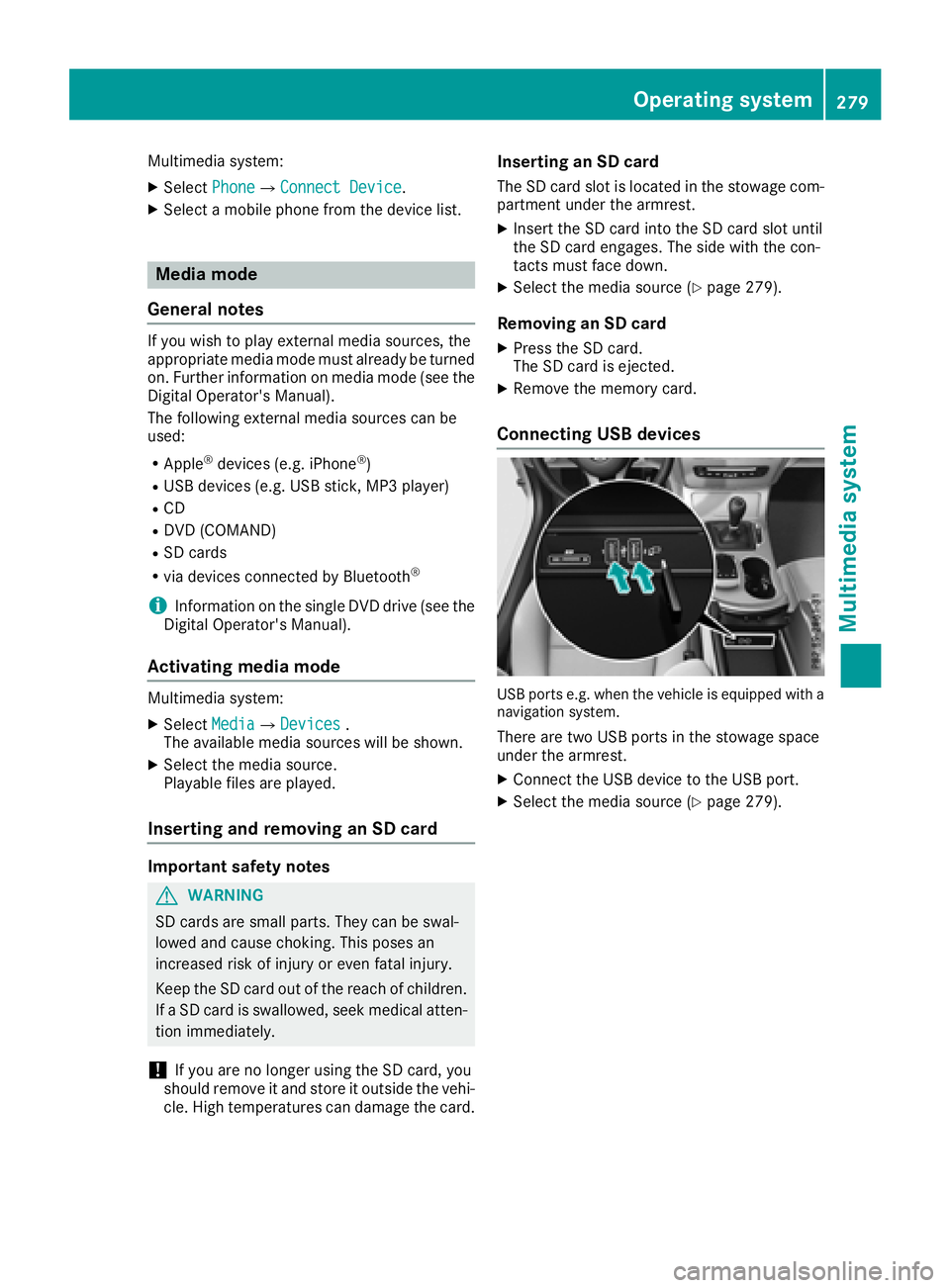
USB ports e.g. when the vehicle is equipped with a
navigation system.
There are two USB ports in the stowage space
under the armrest.
XConnect the USB device to the USB port.
XSelect the media source (Ypage 279).
Operating system279
Multimedia system
Z
Page 282 of 370
Stowage areas
Loading guidelines
GWARNING
Combustion engines emit poisonous exhaust
gases such as carbon monoxide. Exhaust
gases can enter the vehicle interior if the
trunk lid is open when the engine is running,
especially if the vehicle is in motion. There is a
risk of poisoning.
Always switch off the engine before opening
the trunk lid. Never drive with the trunk lid
open.
GWARNING
If objects, luggage or loads are not secured or
not secured sufficiently, they could slip, tip
over or be flung around and thereby hit vehicle
occupants. There is a risk of injury, particu-
larly in the event of sudden braking or a sud-
den change in direction.
Always store objects so that they cannot be
flung around. Secure objects, luggage or
loads against slipping or tipping before the
journey.
GWARNING
The exhaust tail pipe and tail pipe trim can
become very hot. If you come into contact
with these parts of the vehicle, you could burn
yourself. There is a risk of injury.
Always be particularly careful around the
exhaust tail pipe and the tail pipe trim. Allow
these components to cool down before touch-
ing them.
The handling characteristics of a laden vehicle
are dependent on the distribution of the load
within the vehicle. For this reason, you should
observe the following notes when transporting a
load:
RNever exceed the maximum permissible
gross vehicle mass or the gross axle weight
rating for the vehicle (including occupants).
The values are specified on the vehicle iden- tification plate on the B-pillar of the driver's
door.
RThe trunk is the preferred place to carry
objects.
RPosition heavy loads as far forwards as pos-
sible and as low down in the trunk as possible.
RThe load must not protrude above the upper
edge of the seat backrests.
RAlways place the load behind unoccupied
seats if possible.
RSecure the load with sufficiently strong and
wear-resistant tie-downs. Pad sharp edges for
protection.
Stowage spaces
Important safety notes
GWARNING
If objects in the passenger compartment are
stowed incorrectly, they can slide or be
thrown around and hit vehicle occupants. In
addition, cupholders, open stowage spaces
and mobile phone brackets cannot always
retain all objects they contain. There is a risk of injury, particularly in the event of sudden
braking or a sudden change in direction.
RAlways stow objects so that they cannot be
thrown around in such situations.
RAlways make sure that objects do not pro-
trude from stowage spaces, parcel nets or
stowage nets.
RClose the lockable stowage spaces before
starting a journey.
RAlways stow and secure heavy, hard, poin-
ted, sharp-edged, fragile or bulky objects in
the trunk.
Observe the loading guidelines (
Ypage 280).
280Stowage areas
Stowage and features