change time MERCEDES-BENZ C-CLASS CABRIOLET 2018 Owner's Guide
[x] Cancel search | Manufacturer: MERCEDES-BENZ, Model Year: 2018, Model line: C-CLASS CABRIOLET, Model: MERCEDES-BENZ C-CLASS CABRIOLET 2018Pages: 589, PDF Size: 10.55 MB
Page 316 of 589
The
road and traf fic ru les and regulations alw ays
ha ve priority over multimedia sy stem driving
instructions.
The following driving instructions can be used:
R Navigation announcements
R Route guidance displ ays
R Lane recommendations
If yo u do not follow the driving instructions or if
yo u lea vethe calculated route, a new route is
calculated automaticall y.
Driving instructions may di ffer from the actual
ro ad and traf fic conditions if:
R The route is diver ted
R The direction of a one-w aystre et has been
ch anged
Fo rth is reason, you must alw ays obser veroad
and traf fic ru les and regulations during your
journey as well as the pr evailing traf fic condi‐
tions.
The route may dif fer from the ideal route due to
th efo llowing:
R Roadwor ks R
Incomple tedigital map data
Note s on GPS reception
The cor rect function of the navigation sy stem
depends amongst other things on GPS recep‐
tion. In cer tain situations GPS reception can be
impaired, defective or even not possible, e.g. in
tunnels or in multi-s torey car par ks.
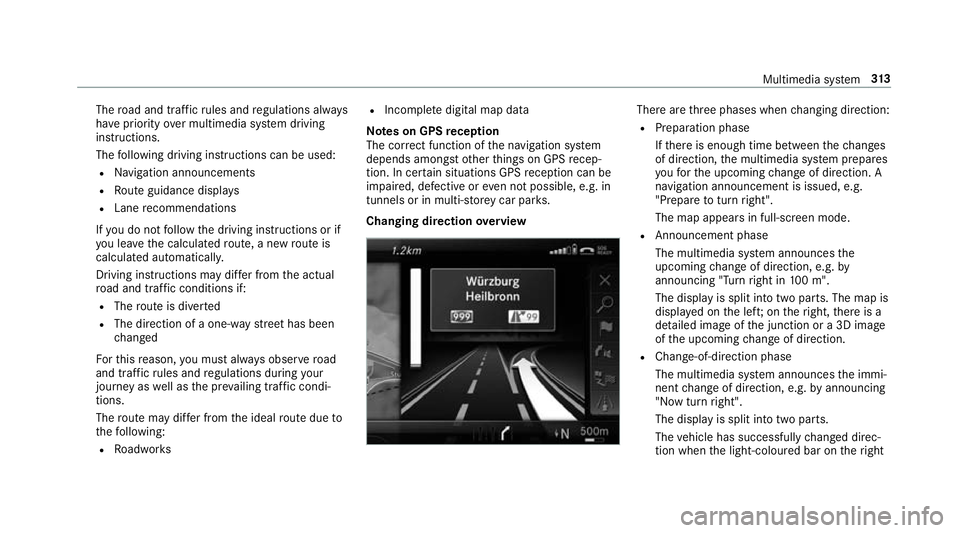
Changing direction overview There are
thre e phases when changing direction:
R Preparation phase
Ifth ere is enough time between thech anges
of direction, the multimedia sy stem prepares
yo ufo rth e upcoming change of direction. A
navigation announcement is issued, e.g.
"Prepare toturn right".
The map appears in full-screen mode.
R Announcement phase
The multimedia sy stem announces the
upcoming change of direction, e.g. by
announcing "Turn right in 100 m".
The display is split into two parts. The map is
displa yed on the lef t;on theright, there is a
de tailed image of the junction or a 3D image
of the upcoming change of direction.
R Chan ge-of-direction phase
The multimedia sy stem announces the immi‐
nent change of direction, e.g. byannouncing
"N ow turn right".
The display is split into two parts.
The vehicle has successfully changed direc‐
tion when the light-coloured bar on theright Multimedia sy
stem 313
Page 317 of 589
drops down
to0 m and the cur rent vehicle
position symbol has reached the highlighted
ch ange-of-direction point.
When thech ange of direction is comple te,
th e map appears in full-screen mode.
0009 Changes of direction are also shown in the
Instrument Displa y.
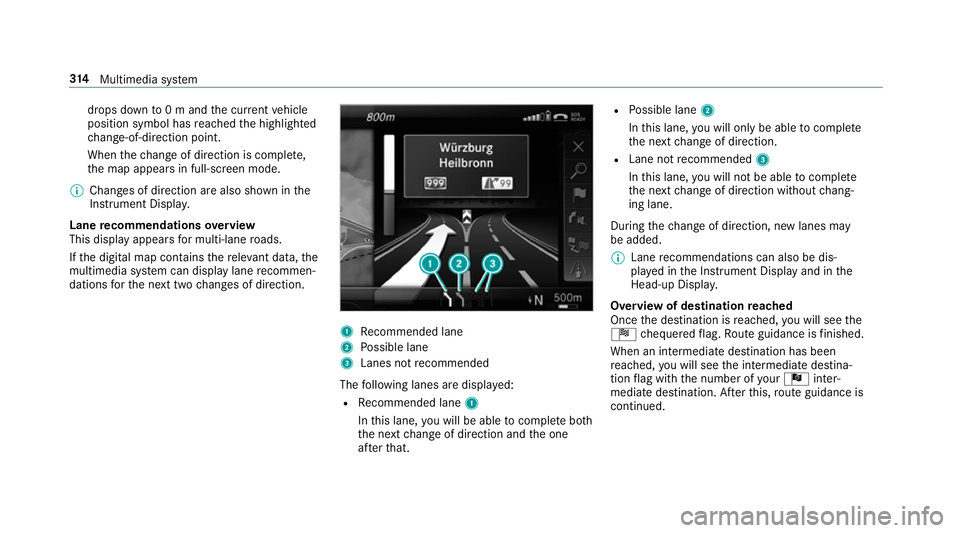
Lane recommendations overview
This display appears for multi-lane roads.
If th e digital map conta insthere leva nt da ta,the
multimedia sy stem can display lane recommen‐
dations forth e next two changes of direction. 1
Recommended lane
2 Possible lane
3 Lanes not recommended
The following lanes are displa yed:
R Recommended lane 1
In this lane, you will be able tocompl ete bo th
th e next change of direction and the one
af te rth at. R
Possible lane 2
In this lane, you will on lybe able tocompl ete
th e next change of direction.
R Lane not recommended 3
In this lane, you will not be able tocompl ete
th e next change of direction without chang‐
ing lane.
During thech ange of direction, new lanes may
be added.
0009 Lane recommendations can also be dis‐
pl ay ed in the Instrument Display and in the
Head-up Displa y.
Overview of destination reached
Once the destination is reached, you will see the
Í chequered flag. Route guidance is finished.
When an intermedia tedestination has been
re ached, you will see the intermediate destina‐
tion flag with the number of your Î inter‐
mediate destination. Af terth is, route guidance is
continued. 314
Multimedia sy stem
Page 318 of 589
Switching navigation announcements on/off
Re quirements:
R route guidance is active. 0007
Toswitch off: pressthevo lume control on
th e multifunction steering wheel during a
navigation announcement (0013 page 284).
or 0007
Press thevo lume control on the cent recon‐
sole du ring a navigation announcement
(0013 page 284).
The Spoken driving recommendations have
been deactivated. messageappears.
or 0007
Show the navigation menu (0013 page 301).0007
Select !Driving recommendation .
The symbol changes to# . 0007
Toactivate: select#Driving recommen-
dation .
The cur rent navigation announcement is
pl ay ed. 0009
Inthefo llowing situations, navigation
announcements are switched on automati‐
cally:
R A new route guidance is star ted.
R The route is recalculated.
0009 You can add and call up this function as a
fa vo urite under Spoken driving recommenda-
tions on/off.
Swit ching navigation announcements on/off
during a phone call 0007
Select System. 0007
Select õAudio. 0007
Select Navigation and traffic announce-
ments. 0007
Swit chDriving recommendations during
phone call on0073 or off 0053.
Ad justing the volume of navigation
announcements
Re quirements:
R Route guidance is active. 0007
On the multifunction steering wheel or
on the multimedia sy stem: turn thevo lume
control on the multifunction steering wheel
during a navigation announcement.
or 0007
Turn thevo lume control on the cent recon‐
sole du ring a navigation announcement
(0013 page 285).
0009 Inthefo llowing situations, thevo lume is
ra ised tothe maximum volume or lo weredto
th e minimum volume:
R A new route guidance is star ted.
R The route is recalculated.
0009 The minimum volume can be individually set
at a Mercedes-Benz Service Cent re. 0007
Via sy stem settings: selectSystem. 0007
Select õAudio. 0007
Select Navigation and traffic announce-
ments. 0007
Select Driving recommendation volume. 0007
Set thevo lume. Multimedia sy
stem 315
Page 327 of 589
Multimedia sy
stem:
0018 Navigation 0019
Z Options 0007
Activate 0073Next intersecting street .
The name of the next intersecting stre et will
be displa yed at the upper edge of the displa y.
Displaying the map version
Multimedia sy stem:
0018 Navigation 0019
Z Options 0007
Select Map version . 0007
Select Details.
0009 Information about new versions of the digital
map can be obtained from a Mercedes-Benz
service cent re.
Overview of avoiding an area
Yo u can define areas along a route that you
wo uld like toavoid.
The route can include an area that is tobe avoi‐
ded in thefo llowing situations:
R the destination is located in an area that is to
be avo ided
R if mo torw ays are located within the area that
is to be avoided Mo
torw ays are alw aysta ke n into account for
th ero ute.
R there is no sensible alternative route
Av oiding a new area
Multimedia sy stem:
0018 Navigation 0019
À Route and position
0019 Avoid options 0019
Areas 0007
Select Avoid new area. 0007
Tosear chfor an area via the map: select
Using map. 0007
Movethe map
or 0007
Tosear chfor an area using an address:
select Address entry . 0007
Enter the address. 0007
Select Select destination.
The map appears. 0007
Todispl ayan area: presstheTo uch Control,
th eto uchpad or the controller.
A redre ctangle appea rs. This designates the
area that should be avoided. 0007
Tochange the size of the area: swipe up or
down on theTo uch Control or theto uchpad.
or 0007
Slide the controller up or down.
The map scale is enlar ged or reduced and
ch anges the size of the area. 0007
Toset the area: presstheTo uch Control,
th eto uchpad or the controller.
The area is entered into the list.
Changing an area
Multimedia sy stem:
0018 Navigation 0019
À Route and position
0019 Avoid options 0019
Areas 0007
Highlight an area in the list. 0007
Select 0080Edit.
Moving the area on the map 0007
Swipe in any direction on theTo uch Control
or touchpad.
or 0007
Slide the controller in any direction. 324
Multimedia sy stem
Page 328 of 589
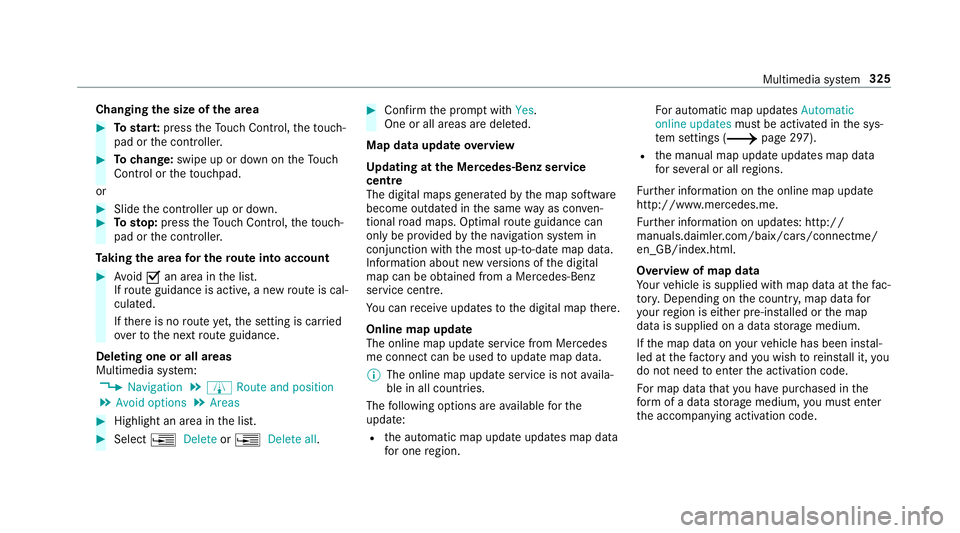
Changing
the size of the area 0007
Tostar t:press theTo uch Control, theto uch‐
pad or the controller. 0007
Tochange: swipe up or down on theTo uch
Control or theto uchpad.
or 0007
Slide the controller up or down. 0007
Tosto p:press theTo uch Control, theto uch‐
pad or the controller.
Ta king the area for the route into account 0007
Avoid 0073an area in the list.
If ro ute guidance is active, a new route is cal‐
culated.
If th ere is no route yet,th e setting is car ried
ove rto the next route guidance.
Deleting one or all areas
Multimedia sy stem:
0018 Navigation 0019
À Route and position
0019 Avoid options 0019
Areas 0007
Highlight an area in the list. 0007
Select 0080Delete or0080 Delete all. 0007
Confirm the prom ptwith Yes.
One or all areas are dele ted.
Map data update overview
Up dating at the Mercedes-Benz se rvice
centre
The digital maps generated bythe map software
become outdated in the same way as co nven‐
tional road maps. Optimal route guidance can
on ly be pr ovided bythe navigation sy stem in
conjunction with the most up-to-date map data.
Information about new versions of the digital
map can be obtained from a Mercedes-Benz
service cent re.
Yo u can recei veupdates tothe digital map there.
Online map update
The online map update service from Mercedes
me connect can be used toupdate map data.
0009 The online map update service is not availa‐
ble in all countries.
The following options are available forthe
update:
R the automatic map update updates map data
fo r one region. Fo
r auto matic map updates Automatic
online updates must be activated in the sys‐
te m settings (0013 page 297).
R the manual map update updates map data
fo r se veral or all regions.
Fu rther information on the online map update
http://www.mercedes.me.
Fu rther information on updates: http://
manuals.daimle r.com/baix/cars/connectme/
en_GB/index.html.
Overview of map data
Yo ur vehicle is supplied with map data at thefa c‐
to ry. Depending on the count ry, map data for
yo ur region is either pre-ins talled or the map
data is supplied on a data storage medium.
If th e map data on your vehicle has been ins tal‐
led at thefa ctory and you wish toreins tall it, you
do not need toenter the activation code.
Fo r map data that you ha vepur chased in the
fo rm of a data storage medium, you must en ter
th e accompanying activation code. Multimedia sy
stem 325
Page 329 of 589
0009
Ifyo u sa vethe map data on a data storage
medium with the online map update service,
no entry isrequ ired. The activation code is
st ored on the data storage medium during
th e downloading process.
The online map update service is not availa‐
ble in all countries.
Obse rveth efo llowing when entering the activa‐
tion code:
R The activation code can be used for one vehi‐
cle
R The activation code is not transferable
R The activation code has six digits
In theeve nt of thefo llowing problems, please
con tact a Mercedes-Benz service centre:
R The multimedia sy stem does not accept the
activation code
R You ha velost the activation code Displaying
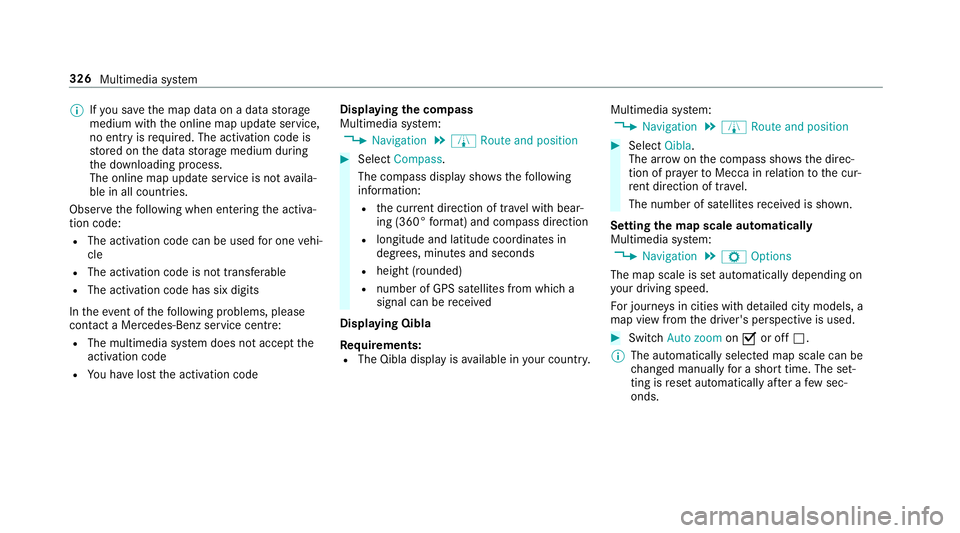
the compass
Multimedia sy stem:
0018 Navigation 0019
À Route and position 0007
Select Compass.
The compass display sho wsthefo llowing
information:
R the cur rent di rection of tr avel with bear‐
ing (360° form at) and compass direction
R longitude and latitude coo rdinates in
degrees, minutes and seconds
R height (rounded)
R number of GPS satellites from which a
signal can be recei ved
Displaying Qibla
Requ irements:
R The Qibla display is available in your count ry.Multimedia sy
stem:
0018 Navigation 0019
À Route and position 0007
Select Qibla.
The ar rowonthe compass sho wsthe direc‐
tion of pr ayer toMecca in relation tothe cur‐
re nt di rection of tr avel.
The number of satellites recei ved is shown.
Setting the map scale automatically
Multimedia sy stem:
0018 Navigation 0019
Z Options
The map scale is set automatically depending on
yo ur driving speed.
Fo r journe ysin cities with de tailed city models, a
map view from the driver's perspective is used. 0007
Switch Auto zoom on0073 or off 0053.
0009 The automatically selected map scale can be
changed manually for a short time. The set‐
ting is reset automatically af ter a few sec‐
onds. 326
Multimedia sy stem
Page 332 of 589
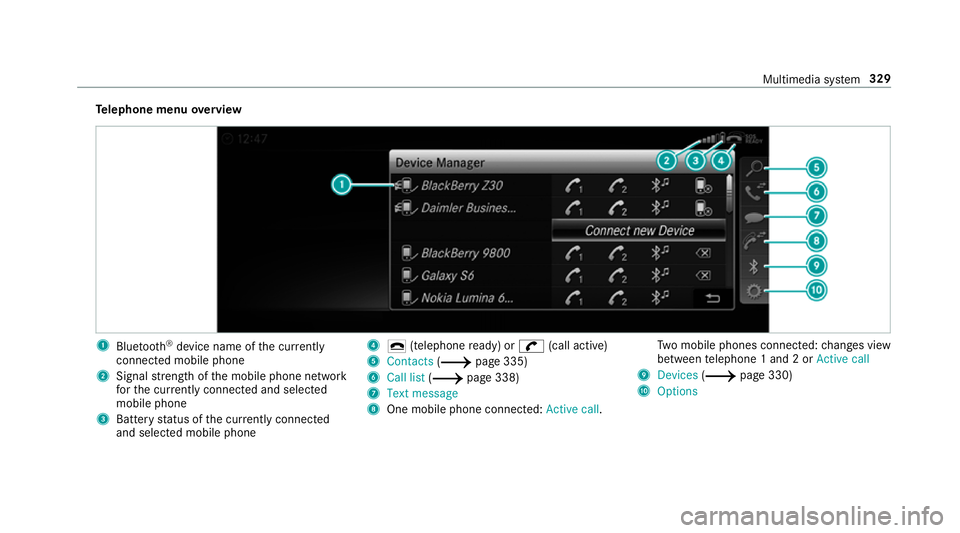
Te
lephone menu overview 1
Blue tooth ®
device name of the cur rently
connected mobile phone
2 Signal stre ngth of the mobile phone network
fo rth e cur rently connected and selected
mobile phone
3 Battery status of the cur rently connected
and selected mobile phone 4
0071 (telephone ready) or 0097(call active)
5 Contacts (0013page 335)
6 Call list (0013page 338)
7 Text message
8 One mobile phone connec ted: Active call. Tw
o mobile phones connected: changes view
between telephone 1 and 2 or Active call
9 Devices (0013page 330)
A Options Multimedia sy
stem 329
Page 334 of 589
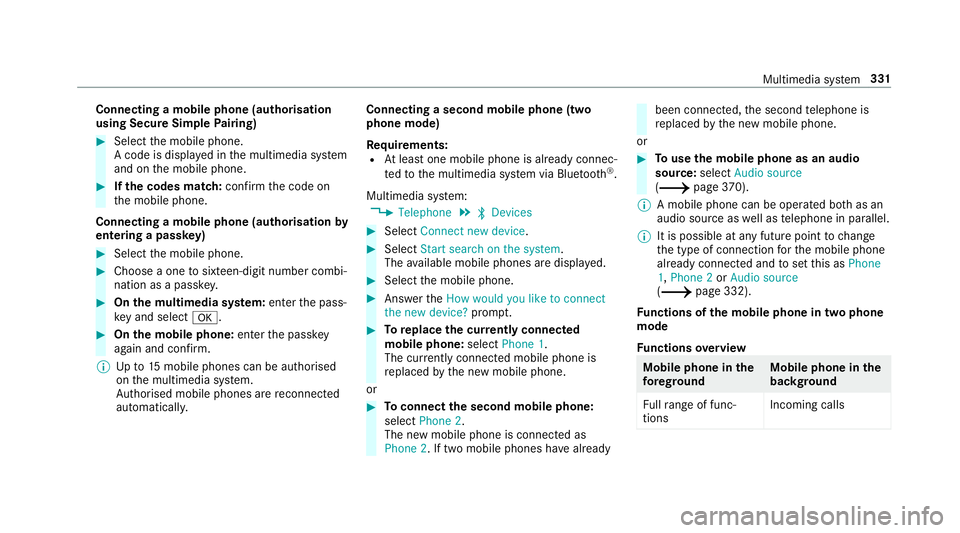
Connecting a mobile phone (au
thorisation
using Secure Simple Pairing) 0007
Select the mobile phone.
A code is displa yed in the multimedia sy stem
and on the mobile phone. 0007
Ifth e codes match: confirm the code on
th e mobile phone.
Connecting a mobile phone (authorisation by
entering a passk ey) 0007
Select the mobile phone. 0007
Choose a one tosixteen-digit number combi‐
nation as a passk ey. 0007
On the multimedia sy stem: enter the pass‐
ke y and select 0076. 0007
On the mobile phone: enterthe passk ey
again and con firm.
0009 Upto15 mobile phones can be auth orised
on the multimedia sy stem.
Auth orised mobile phones are reconnected
au tomatical ly. Connecting a second mobile phone (two
phone mode)
Re
quirements:
R Atleast one mobile phone is already connec‐
te dto the multimedia sy stem via Blue tooth ®
.
Multimedia sy stem:
0018 Telephone 0019
00A5 Devices 0007
Select Connect new device. 0007
Select Start search on the system .
The available mobile phones are displa yed. 0007
Select the mobile phone. 0007
Answer theHow would you like to connect
the new device? prompt. 0007
Toreplace the cur rently connected
mobile phone: selectPhone 1.
The cur rently connected mobile phone is
re placed bythe new mobile phone.
or 0007
Toconnect the second mobile phone:
select Phone 2.
The new mobile phone is connec ted as
Phone 2. If two mobile phones ha vealready been connec
ted, the second telephone is
re placed bythe new mobile phone.
or 0007
Touse the mobile phone as an audio
source: selectAudio source
(0013 page370).
0009 A mobile phone can be operated bo thas an
audio source as well as telephone in parallel.
0009 It is possible at any future point tochange
th e type of connection forth e mobile phone
already connected and toset this as Phone
1, Phone 2 orAudio source
(0013 page 332).
Fu nctions of the mobile phone in two phone
mode
Fu nctions overview Mobile phone in
the
fo re gr ound Mobile phone in
the
bac kground
Fu llra nge of func‐
tions Incoming calls Multimedia sy
stem 331
Page 336 of 589
0007
Answer the confi rmation prom ptwith Yes.
The mobile phone is deauthorised and
dele ted from the sy stem.
Information on NearField Communication
(NFC)
NFC enables short- range wi reless data transfer
or (re)connection of a mobile phone with the
multimedia sy stem.
The following functions are available without
having authorised a mobile phone:
R Trans ferring a URL tobe vie wed in the multi‐
media sy stem (see the manufacturer's oper‐
ating instructions).
R Setting up theve hicle's Wi-Fi access da tavia
th e sy stem settings (0013 page 291).
Fu rther information can be found at: http://
www.mercedes-benz.com/connect
Using the mobile phone with NearField Com‐
munication (NFC)
Requ irements:
R NFC is activated on the mobile phone (see
th e manufacturer's operating instructions) R
The mobile phone's screen is switched on
and unloc ked (see the manufacturer's oper‐
ating instructions) 0007
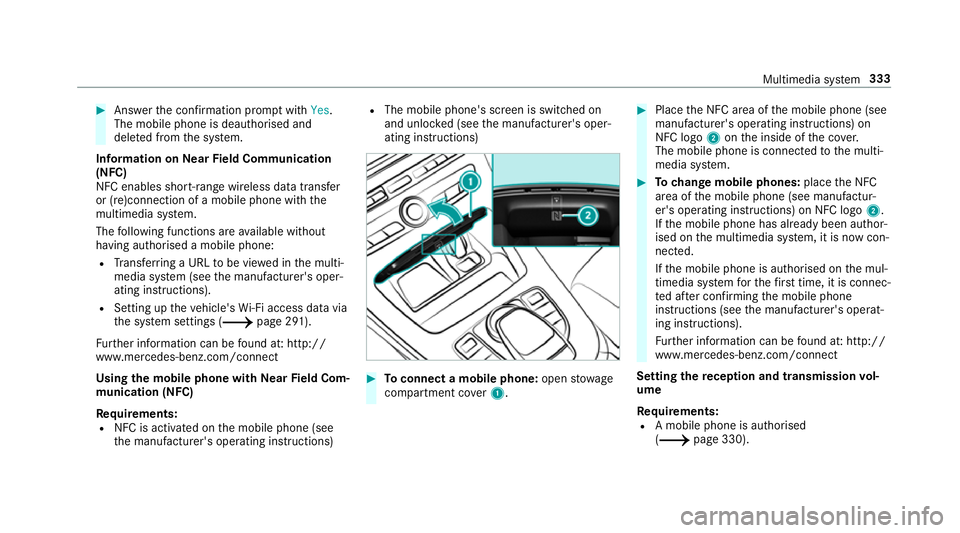
Toconnect a mobile phone: openstowage
compartment co ver1. 0007
Place the NFC area of the mobile phone (see
manufacturer's operating instructions) on
NFC logo 2onthe inside of the co ver.
The mobile phone is connected tothe multi‐
media sy stem. 0007
Tochange mobile phones: placethe NFC
area of the mobile phone (see manufactur‐
er's operating instructions) on NFC logo 2.
If th e mobile phone has already been author‐
ised on the multimedia sy stem, it is now con‐
nected.
If th e mobile phone is authorised on the mul‐
timedia sy stem forth efirs t time, it is connec‐
te d af ter confirming the mobile phone
instructions (see the manufacturer's operat‐
ing instructions).
Fu rther information can be found at: http://
www.mercedes-benz.com/connect
Setting there ception and transmission vol‐
ume
Re quirements:
R A mobile phone is authorised
(0013 page 330). Multimedia sy
stem 333
Page 357 of 589
The Internet connection via Blue
tooth®
is restric‐
te d or does not function if:
R the mobile phone is switched off
R the mobile phone network co verage is insuf‐
fi cient
R mobile da tause is deactivated on the mobile
phone
R the Blue tooth®
function on the multimedia
sy stem is switched off and the mobile phone
is to be connec ted via Blue tooth®
R the Blue tooth®
function is switched off on
th e mobile phone and the mobile phone is to
be connec ted via Blue tooth®
R neither the mobile phone network nor the
mobile phone allow simultaneous use of a
te lephone and an Internet connection
R the mobile phone has not been enabled for
Internet access via Blue tooth®
If a mobile phone is connected tothe multimedia
sy stem forth efirs t time via Blu etoo th®
,yo u will
be assis tedth ro ugh the process of setting up an
Internet connection. The Internet connection can also be confi
gured
manually.
Fu rther information can be obtained at http://
www.mercedes-benz.com/connect or from a
Mercedes-Benz service centre.
Multimedia sy stem:
0018 System 0019
ö Connectivity
0019 Internet settings
Blue tooth ®
connection via PAN 0007
Select the mobile phone.
The Internet connection is es tablished.
Switching the Blu etoo th®
pr ofile
Re quirements:
R The mobile phone supports the DUN and
PA N Blue tooth®
profiles.
Multimedia sy stem:
0018 System 0019
ö Connectivity
0019 Internet settings 0007
Toswitch from DUN toPAN: select the
mobile phone. 0007
Select 0080. 0007
Select Change configuration. 0007
Activate 0073Automatic configuration.
The Internet connection is au tomatical lycon‐
fi gured using thePA N Blue tooth®
profile. 0007
Toswitch from PANto DUN: select the
mobile phone. 0007
Select 0080. 0007
Select Change configuration. 0007
Deactivate 0053Automatic configuration. 0007
Select Configure settings using COMAND . 0007
Configuri ngthe Internet connection using
preset or manual access data
(0013 page 353).
Editing access data
Requ irements:
R The mobile phone supports the Blue tooth®
DUN profile. 354
Multimedia sy stem