audio MERCEDES-BENZ C-CLASS COUPE 2011 User Guide
[x] Cancel search | Manufacturer: MERCEDES-BENZ, Model Year: 2011, Model line: C-CLASS COUPE, Model: MERCEDES-BENZ C-CLASS COUPE 2011Pages: 373, PDF Size: 8.17 MB
Page 217 of 373
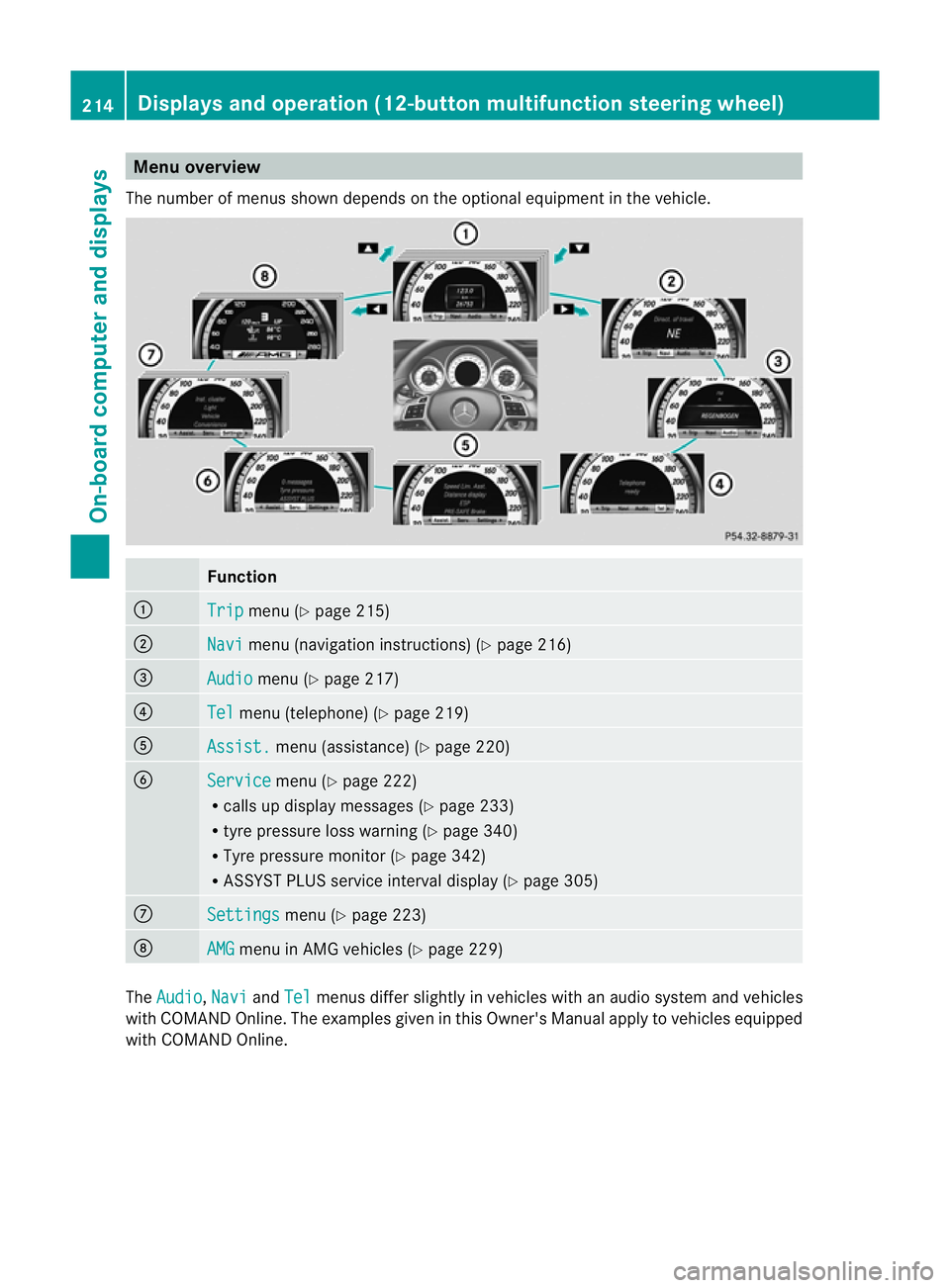
Menu overview
The number of menus show ndepends on the optional equipment in the vehicle. Function
:
Trip menu (Y
page 215) ;
Navi menu (navigation instructions) (Y
page 216)=
Audio menu (Y
page 217) ?
Tel menu (telephone) (Y
page 219)A
Assist. menu (assistance) (Y
page 220)B
Service menu (Y
page 222)
R calls up display messages ( Ypage 233)
R tyre pressure loss warning (Y page 340)
R Tyre pressure monitor (Y page 342)
R ASSYST PLUS service interval display (Y page 305)C
Settings menu (Y
page 223) D
AMG menu in AMG vehicles (Y
page 229)The
Audio ,
Navi and
Tel menus differ slightly in vehicles with an audio system and vehicles
with COMAND Online. The examples given in this Owner's Manual apply to vehicles equipped
with COMAND Online. 214
Displays and operation (12-button multifunction steering wheel)On-board computer and displays
Page 219 of 373
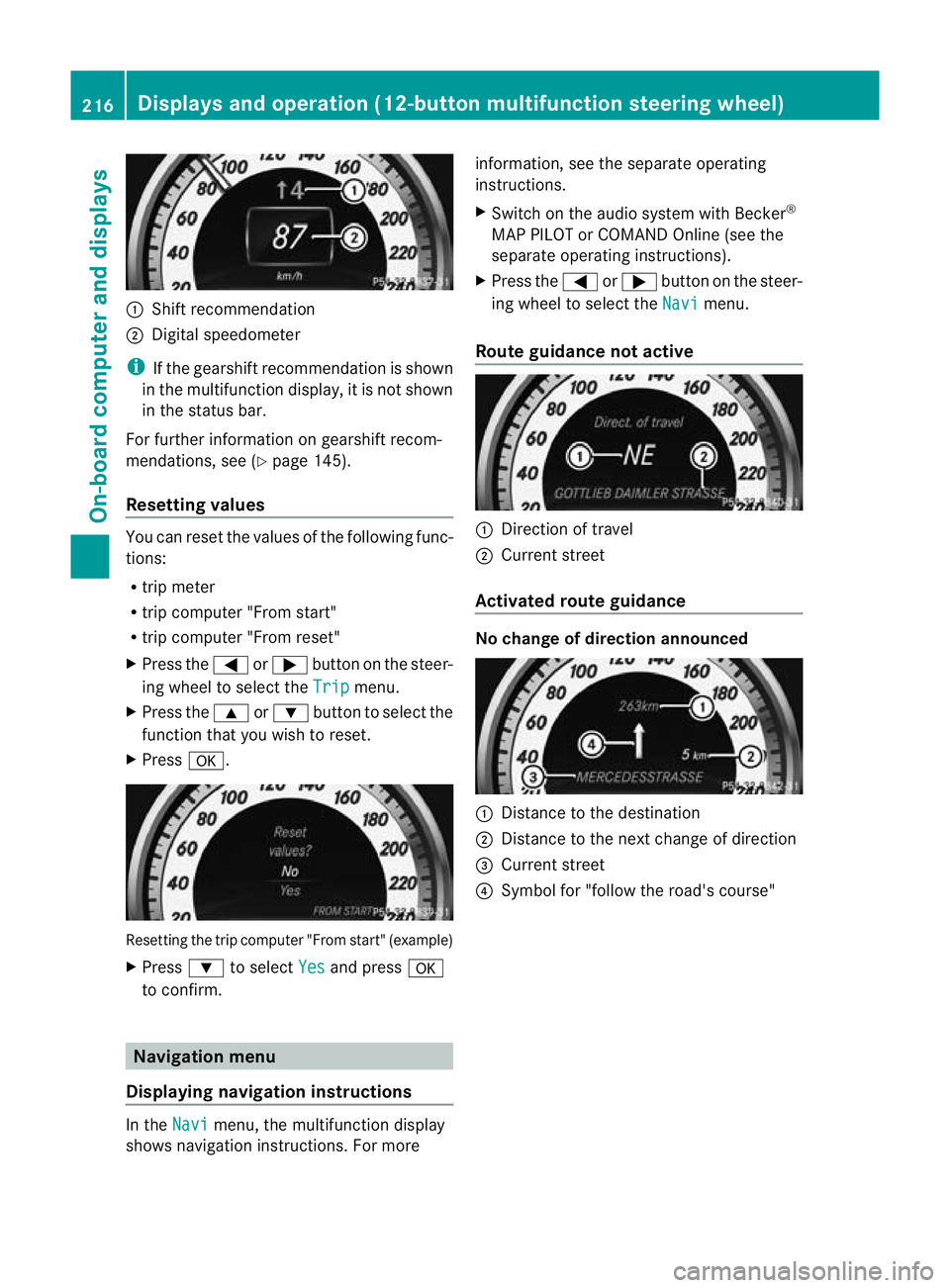
:
Shift recommendation
; Digital speedometer
i If the gearshift recommendation is shown
in the multifunction display, it is not shown
in the status bar.
For further information on gearshift recom-
mendations, see (Y page 145).
Resetting values You can reset the values of the following func-
tions:
R
trip meter
R trip computer "From start"
R trip computer "From reset"
X Press the =or; button on the steer-
ing wheel to select the Trip menu.
X Press the 9or: button to select the
function tha tyou wish to reset.
X Press a. Resetting the trip computer "From start" (example)
X
Press :to select Yes and press
a
to confirm. Navigation menu
Displaying navigation instructions In the
Navi menu, the multifunction display
shows navigation instructions. For more information, see the separate operating
instructions.
X
Switch on the audio system with Becker ®
MAP PILOT or COMAND Online (see the
separate operating instructions).
X Press the =or; button on the steer-
ing wheel to select the Navi menu.
Route guidance not active :
Direction of travel
; Current street
Activated route guidance No change of direction announced
:
Distance to the destination
; Distance to the next change of direction
= Current street
? Symbol for "follow the road's course" 216
Displays and operation (12-button multifunction steering wheel)On-board computer and displays
Page 220 of 373
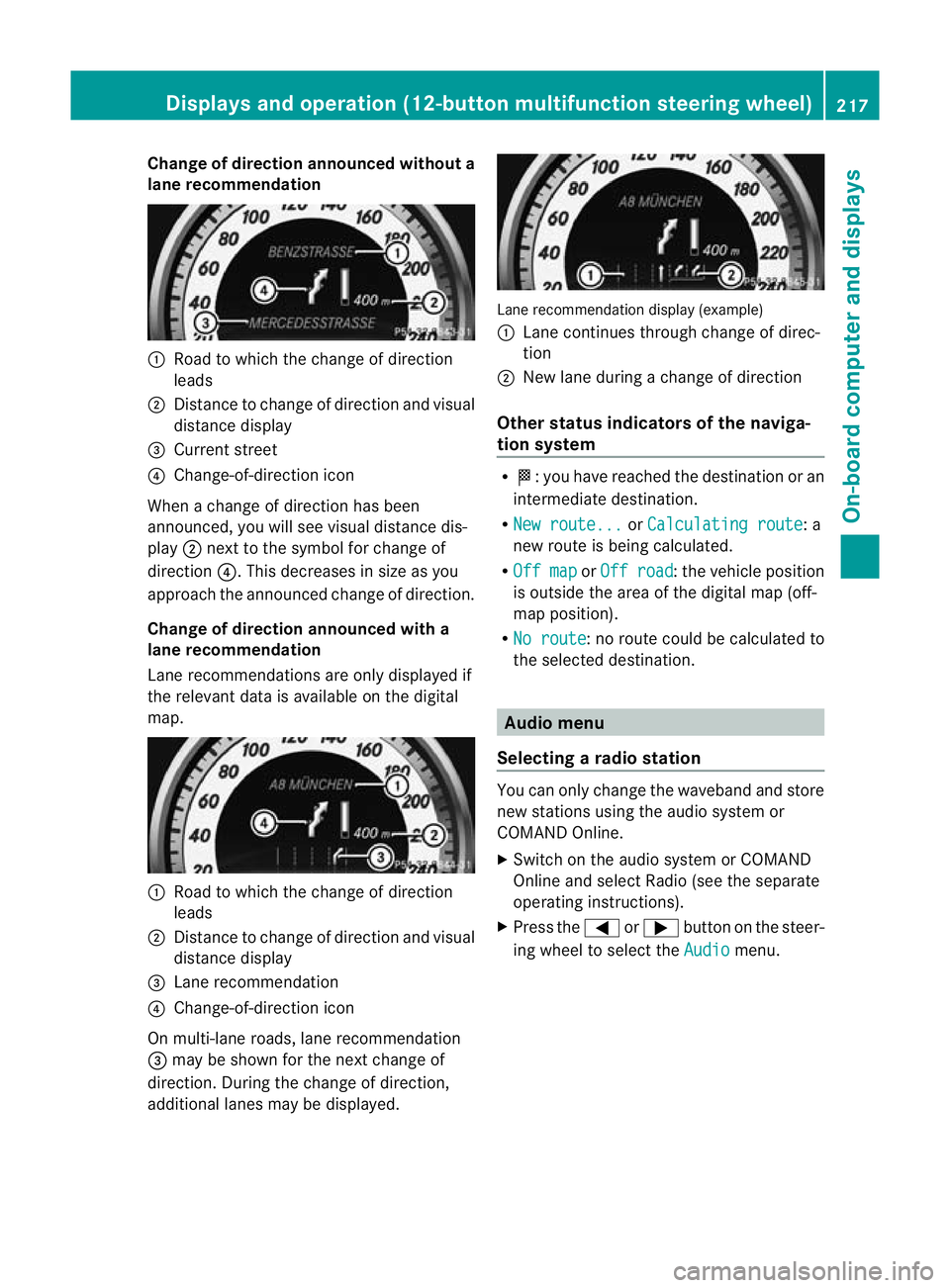
Change of direction announced without a
lane recommendation :
Road to which the change of direction
leads
; Distance to change of direction and visual
distance display
= Current street
? Change-of-direction icon
When a change of direction has been
announced, you will see visual distance dis-
play ;next to the symbol for change of
direction ?.This decreases in size as you
approach the announced change of direction.
Change of direction announced with a
lane recommendation
Lane recommendations are only displayed if
the relevant data is available on the digital
map. :
Road to which the change of direction
leads
; Distance to change of direction and visual
distance display
= Lane recommendation
? Change-of-direction icon
On multi-lane roads, lane recommendation
= may be shown for the next change of
direction. During the change of direction,
additional lanes may be displayed. Lane recommendation display (example)
:
Lane continues through change of direc-
tion
; New lane during a change of direction
Other status indicators of the naviga-
tion system R
O:y ou have reached the destination or an
intermediate destination.
R New route... or
Calculating route : a
new route is being calculated.
R Off map or
Off road :t
he vehicle position
is outside the area of the digital map (off-
map position).
R No route :n
o route could be calculated to
the selected destination. Audio menu
Selecting aradio station You can only change the waveband and store
new stations using the audio system or
COMAND Online.
X
Switch on the audio system or COMAND
Online and select Radio (see the separate
operating instructions).
X Press the =or; button on the steer-
ing wheel to select the Audio menu.Displays and operation (12-button multifunction steering wheel)
217On-board computer and displays Z
Page 221 of 373
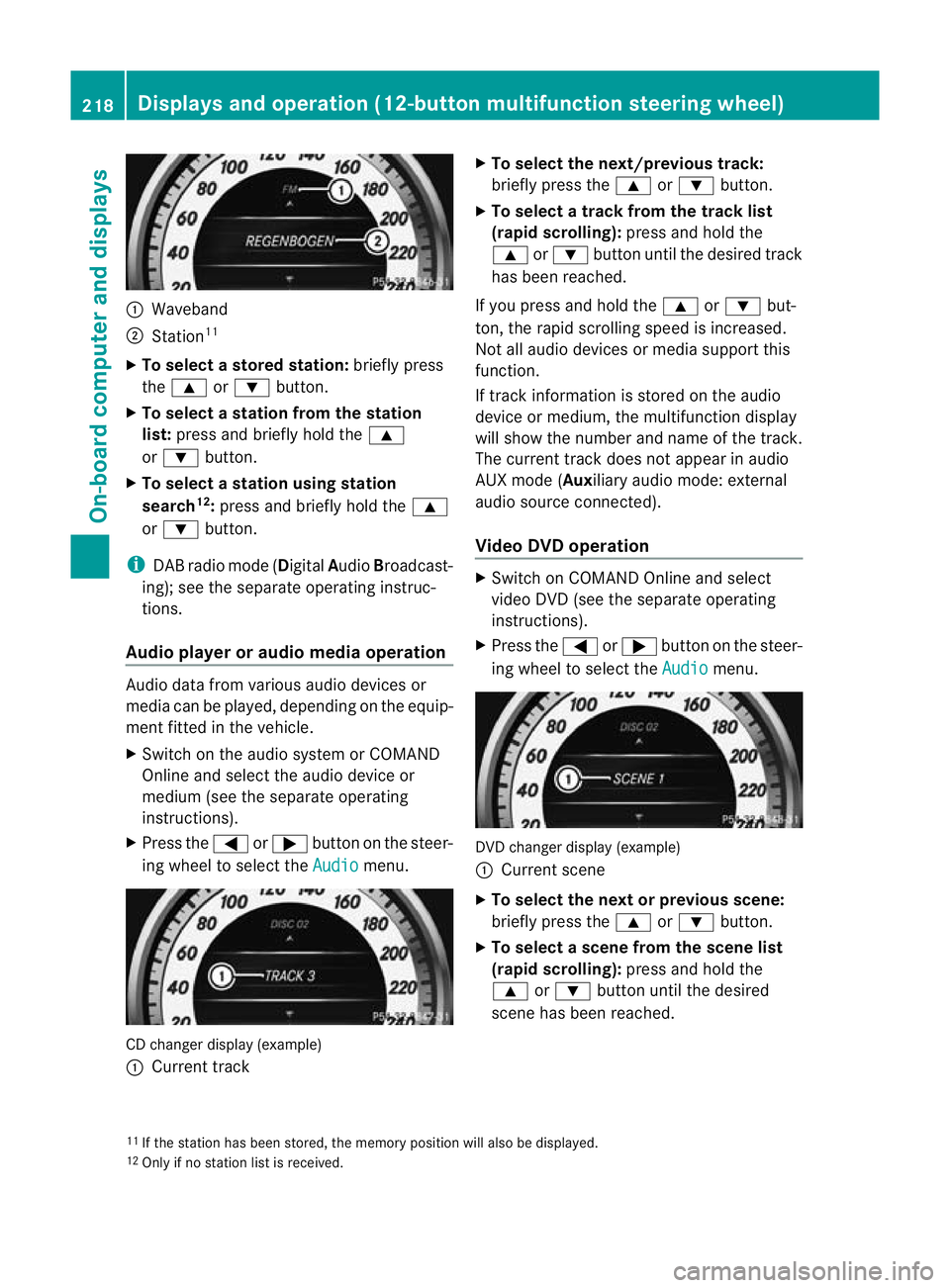
:
Waveband
; Station 11
X To select astore dstation: briefly press
the 9 or: button.
X To select a station from the station
list: press and briefly hold the 9
or : button.
X To select astation using station
search 12
:press and briefly hold the 9
or : button.
i DAB radio mode ( DigitalAudioBroadcast-
ing); see the separate operating instruc-
tions.
Audio player or audio media operation Audio data from various audi
odevices or
media can be played, depending on the equip-
ment fitted in the vehicle.
X Switch on the audio system or COMAND
Online and select the audio device or
medium (see the separate operating
instructions).
X Press the =or; button on the steer-
ing wheel to select the Audio menu.
CD changer display (example)
:
Current track X
To select the next/previous track:
briefly press the 9or: button.
X To select a track from the track list
(rapid scrolling): press and hold the
9 or: button until the desired track
has been reached.
If you press and hold the 9or: but-
ton, the rapid scrolling speed is increased.
Not all audio devices or media support this
function.
If track information is stored on the audio
device or medium, the multifunction display
will show the number and name of the track.
The curren ttrack does not appear in audio
AUX mode (Auxiliary audio mode: external
audio source connected).
Video DVD operation X
Switch on COMAND Online and select
video DVD (see the separate operating
instructions).
X Press the =or; button on the steer-
ing wheel to select the Audio menu.
DVD changer display (example)
:
Current scene
X To selectt he next or previous scene:
briefly press the 9or: button.
X To selectas cene from the scene list
(rapid scrolling): press and hold the
9 or: buttonuntil the desired
scene has been reached.
11 If the statio nhas been stored, the memory position will also be displayed.
12 Only if no statio nlist is received. 218
Displays and operation (12-button multifunction steering wheel)On-board computer and displays
Page 222 of 373
Telephone menu
Introduction Functions and displays ar
edependen tonthe
optional equipment installed in your vehicle.
You can place your mobile phone in the
mobile phone bracket (Y page 292), or set
up a Bluetooth ®
connection to the audio sys-
tem or COMAND Online (see the separate
operating instructions).
i You can obtain further information about
suitable mobile phones and connecting
mobile phones via Bluetooth ®
:
R in any Mercedes Benz Service Centre
R on the Internet at http://
www.mercedes-benz.com/connect G
WARNING
Observe the legal requirements of the country
in which you are currently driving regarding
the use of mobile phones in the vehicle.
If it is permitted to use mobile phones while
the vehicle is in motion, you should only use
them when the road and traffic conditions
allow.O therwise, you may be distracted from
the traffic conditions, cause an accident and
injure yourself and others.
X Switch on the mobile phone and audio sys-
tem or COMAND Online (see the separate
operating instructions).
X Press the =or; button on the steer-
ing wheel to select the Tel menu.
You will see one of the following display mes-
sages in the multifunctio ndisplay:
R Please enter PIN :t
he mobile phone has
been placed in the mobile phone bracket
and the PIN has not been entered.
X Enter the PIN using the mobile phone, LIN-
GUATRONIC, the audio system or
COMAND Online.
The mobile phone will search for a network. R
Telephone ready or the name of the net-
work provider: the mobile phone has found
a network and is ready to receive.
R Telephone No Service : no network is
available, or the mobile phone is searching
for a network.
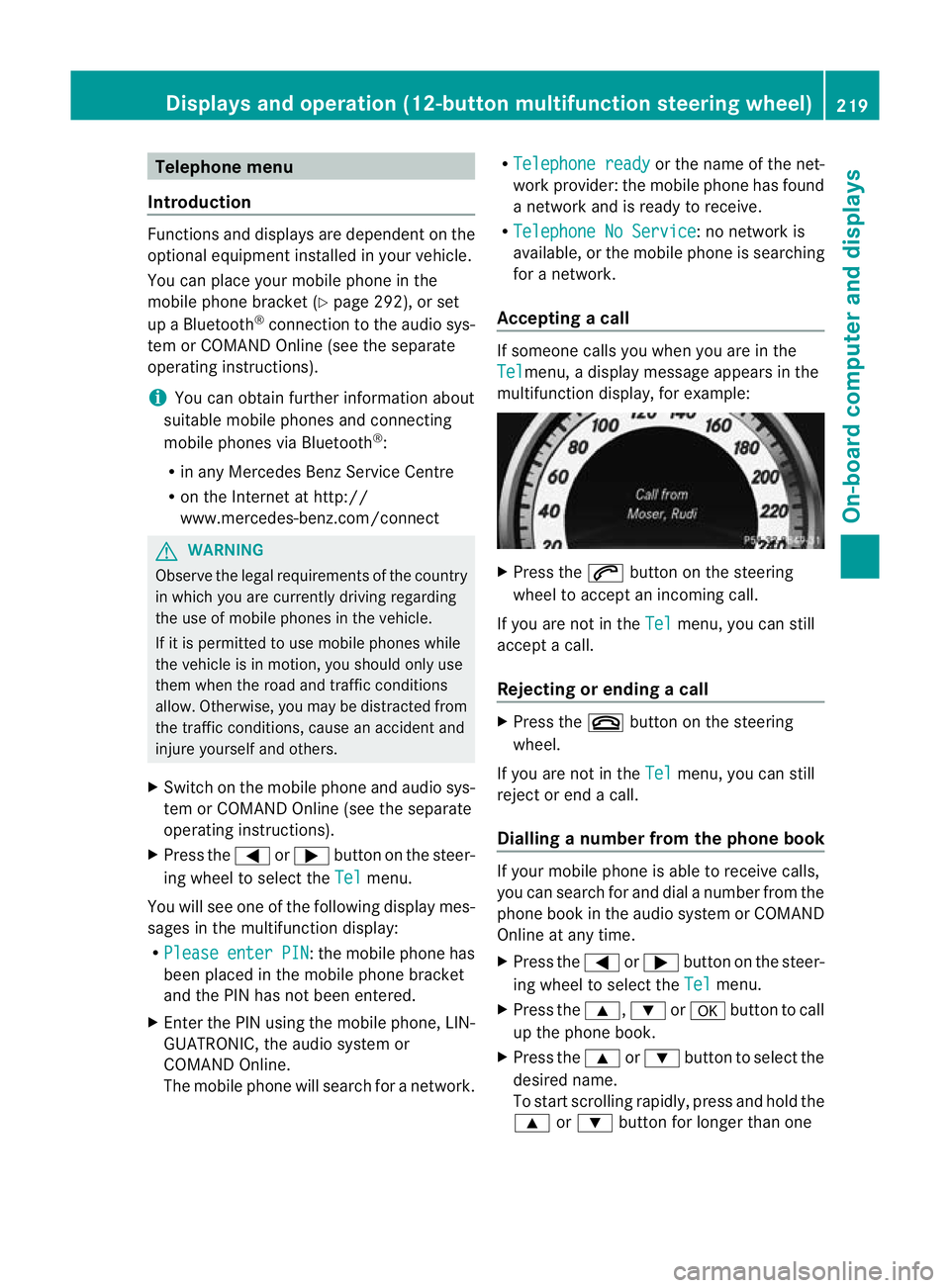
Accepting acall If someone calls you whe
nyou are in the
Tel menu, a display message appears in the
multifunction display, for example: X
Press the 6button on the steering
wheel to accept an incoming call.
If you are not in the Tel menu, you can still
accept a call.
Rejecting or ending acall X
Press the ~button on the steering
wheel.
If you are not in the Tel menu, you can still
reject or end a call.
Dialling anumber from the phone book If you
rmobile phone is able to receive calls,
you can search for and dial a number from the
phone book in the audio system or COMAND
Online at any time.
X Press the =or; button on the steer-
ing wheel to select the Tel menu.
X Press the 9,:ora button to call
up the phone book.
X Press the 9or: button to select the
desired name.
To start scrolling rapidly ,press and hold the
9 or: button for longer than one Displays and operation (12-button multifunction steering wheel)
219On-board computer and displays Z
Page 288 of 373
Front stowage compartments
Glove compartment
i
The glove compartmen tcan be ventilated
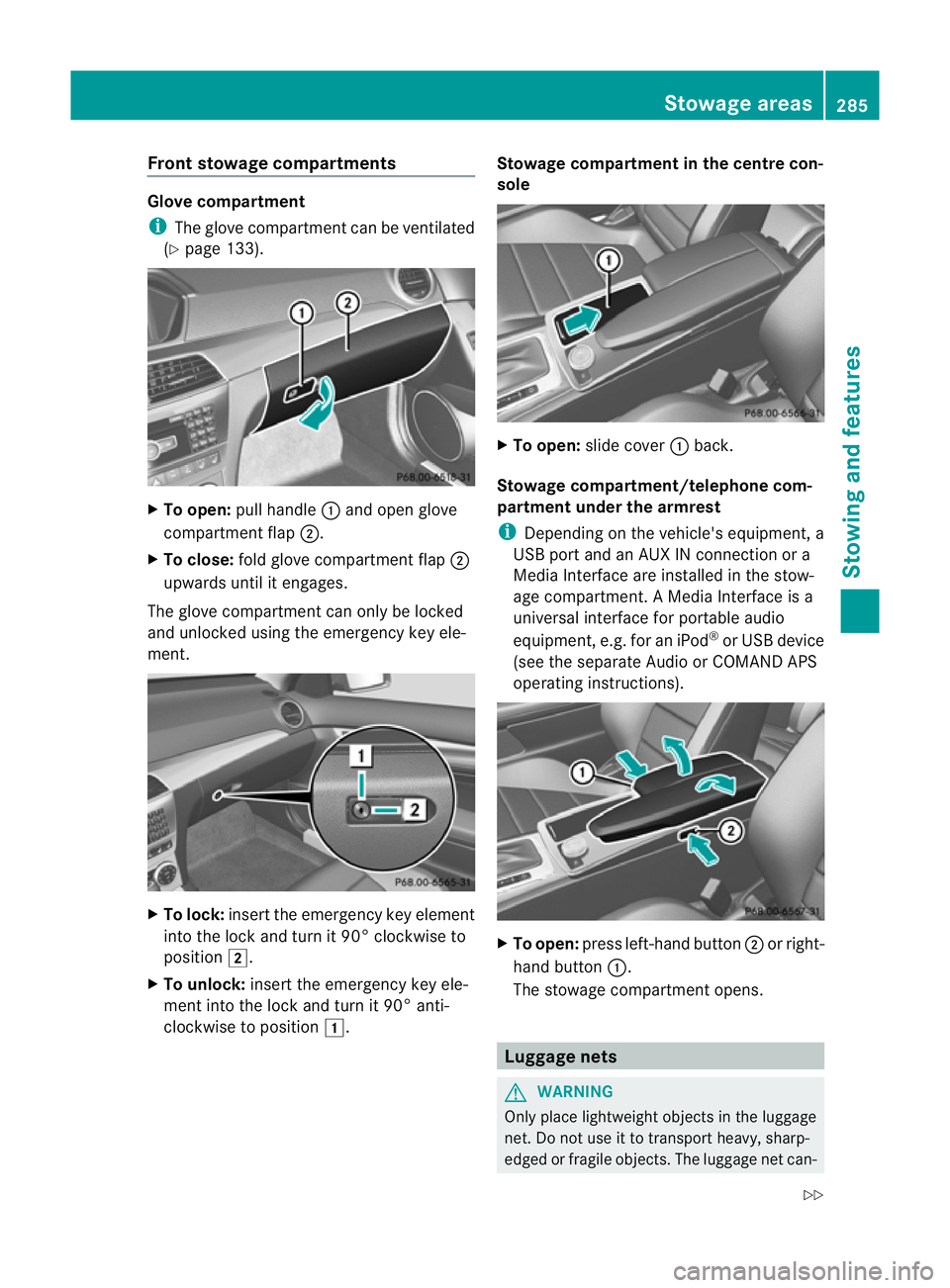
(Y page 133). X
To open: pull handle :and open glove
compartment flap ;.
X To close: fold glove compartmen tflap ;
upwards until it engages.
The glove compartmen tcan only be locked
and unlocked using the emergency key ele-
ment. X
To lock: insert the emergency key element
into the lock and turn it 90° clockwise to
position 2.
X To unlock: insert the emergency key ele-
ment into the lock and turn it 90° anti-
clockwise to position 1. Stowage compartment in the centre con-
sole
X
To open: slide cover :back.
Stowage compartment/telephone com-
partment under the armrest
i Depending on the vehicle's equipment, a
USB port and an AUX IN connection or a
Media Interface are installed in the stow-
age compartment. A Media Interface is a
universal interface for portable audio
equipment, e.g .for an iPod ®
or USB device
(see the separate Audio or COMAND APS
operating instructions). X
To open: press left-hand button ;or right-
hand button :.
The stowage compartment opens. Luggage nets
G
WARNING
Only place lightweight object sinthe luggage
net. Do not use it to transport heavy, sharp-
edged or fragile objects. The luggage net can- Stowage areas
285Stowing and features
Z
Page 296 of 373
i
There are various mobile phone brackets
that may be fitted to your vehicle; in some
cases, these are country-specific.
i Even if your vehicle is equppied with con-
venience telephony, you can connect a
Bluetooth ®
-capable mobile phone with
Audio 20 or COMAND Online via the Blue-
tooth ®
interface.
More information on suitable mobile phones,
mobile phone brackets and on connecting
Bluetooth ®
-capable mobile phones with
Audio 20 or COMAND Online can be obtained:
R at your Mercedes-Benz Service Centre
R on the Internet at http://www.mercedes-
benz.com/connect
i The functions and services available when
you use the phone depend on your mobile
phone model and service provider.
Inserting the mobile phone X
Open the telephone compartment
(Y page 285).
X Place the mobile phone bracket into the
pre-installed bracket (see the separate
mobile phone bracket installation instruc-
tions).
X Insert the mobile phone into the mobile
phone bracket (see the separate mobile
phone bracket installation instructions).
If the mobile phone is inserted in the mobile
phone bracket, you can speak to the person
you are calling using the hands-free system.
i On some mobile phone brackets, first you
have to connect the mobile phone via Blue-
tooth ®
with a mobile phone bracket (see
the separate operating instructions for the
mobile phone bracket).
On these mobile phone brackets, the
mobile phone does not have to be inserted
into the bracket for you to be able to use
the telephone functions. In this case, the
charging function and aerial function are
not available. Operating the mobile phone You can operate the telephone using the
6
and~ buttons on the luxury multi-
function steering wheel. You can operate
other mobile phone functions via the on-
board computer (Y page 219).
When you take the key out of the ignition lock,
the mobile phone stays on but you can no
longer use the hands-free system.
If you are making a call and you would like to
take the key out of the ignition lock, first
remove the mobile phone from the bracket.
Otherwise, the call will be ended.
i When a mobile phone bracket is used that
is connected to the mobile phone via Blue-
tooth ®
: if you want to continue a call in
"Private mode", you have to perform the
necessary steps on the mobile phone (see
the separate mobile phone operating
instructions).
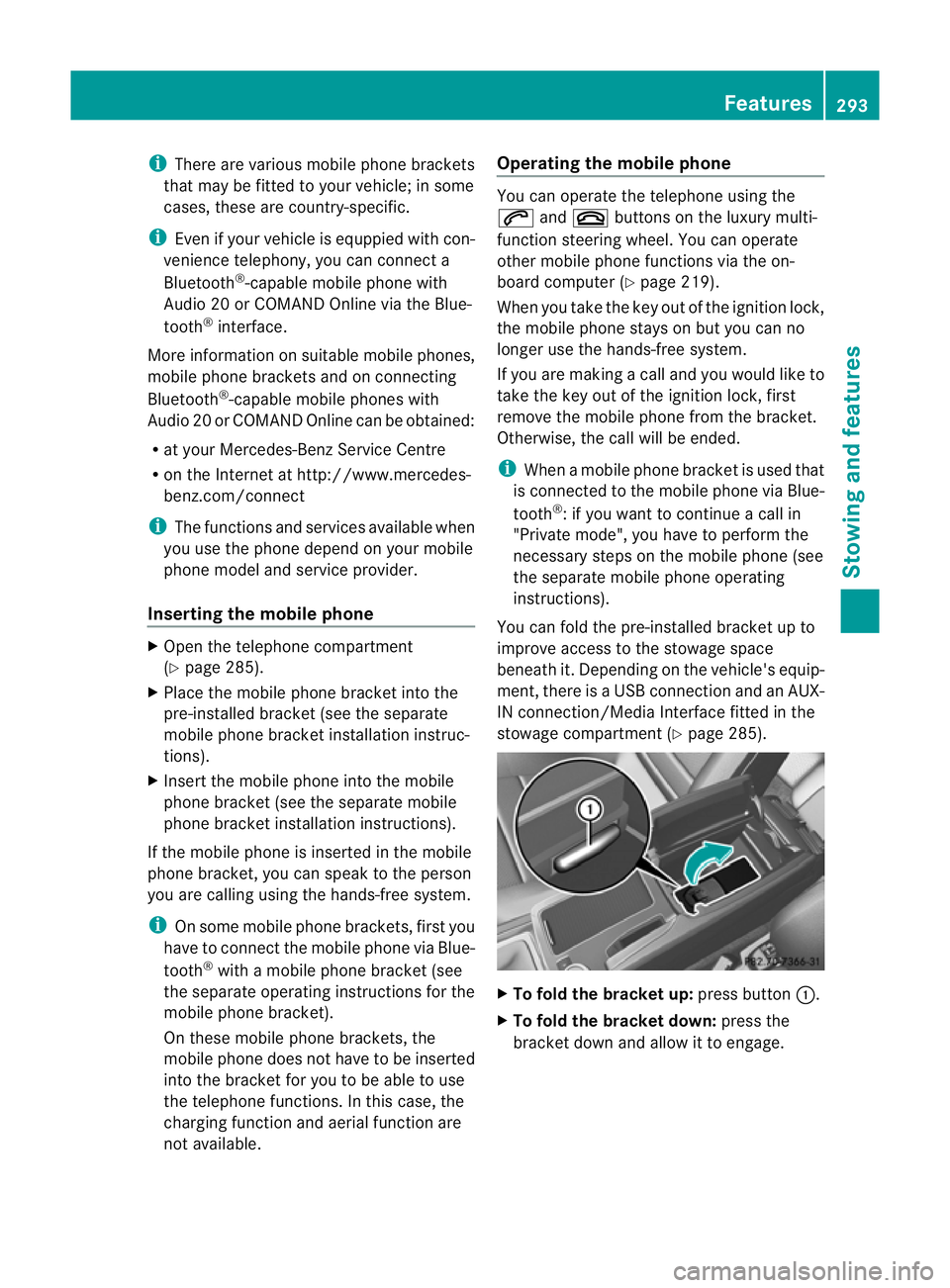
You can fold the pre-installed bracket up to
improve access to the stowage space
beneath it. Depending on the vehicle's equip-
ment,t here is aUSB connection and an AUX-
IN connection/Media Interface fitted in the
stowage compartment (Y page 285). X
To fold the bracket up: press button:.
X To fold the bracket down: press the
bracket dow nand allow it to engage. Features
293Stowing an d features Z
Page 353 of 373
Useful information
i This Owner's Manual describes all models
and all standard and optional equipment
available to your vehicle at the time of pub-
lication of the Owner's Manual. Country-
specific deviations are possible. Please
note that your vehicle may not be equipped
with all features described. This also
applies to safety-relevan tsystems and
functions.
i Please read the information on qualified
specialist workshops (Y page 26).Notes on the technical data
i The technical data was determined in
accordance with EC Directives. All data
applies to the vehicle's standard equip-
ment. Therefore, the data may differ for
vehicles with optional equipment. You can
obtain further information from a
Mercedes-Benz Service Centre.
You can find technical data on the Internet at:
http://www.mercedes-benz.com Genuine Mercedes-Benz parts
Mercedes-Ben ztests genuine parts and con-
version parts and accessories which have
been specifically approved for your vehicle for
their reliability, safety and suitability. Despite
ongoing market research, Mercedes-Benzis
unable to evaluate other parts. Mercedes-
Ben ztherefore accepts no responsibility for
the use of such parts in Mercedes-Ben zvehi-
cles, even if they have been independently or
officially approved.
In Germany and some other countries, certain
parts are only officially approved for installa-
tion or modification if they comply with legal
requirements. All genuine Mercedes-Benz
parts meet this requirement .The use of non- approved parts may invalidate the vehicle's
general operating permit. This is the case if:
R
they cause a change of the vehicle type
from that for which the vehicle's general
operating permit was granted.
R other road users could be endangered.
R the emission or noise levels are adversely
affected. G
WARNING
Driving safety may be impaired if non-
approved parts, tyres and wheels or safety-
relevant accessories are used.
This could lead to malfunctions in safety-rel-
evant systems, e.g. the brake system. This
could cause you to lose control of your vehicle
and cause an accident.
For this reason, Mercedes-Ben zrecommends
that you use genuine Mercedes-Benz parts or
parts of equal quality. Only use tyres, wheels
and accessories that have been specifically
approved for your vehicle.
! Airbags and seat belt tensioners, as well
as control units and sensors for these
restraint systems may be installed in the
following areas of your vehicle:
R doors
R door pillars
R door sills
R seats
R dashboard
R instrument cluster
R centre console
Do not install accessories such as audio
systems in these areas. Do not carry out
repairs or welding. You could impair the
operating efficiency of the restraint sys-
tems.
Have aftermarket accessories installed at
a qualified specialist workshop. Mercedes-
Benz recommends that you use a
Mercedes-Benz Service Centre for this pur-
pose. 350
Genuine Mercedes-Benz partsTechnical data