navigation MERCEDES-BENZ C-Class COUPE 2017 CL205 User Guide
[x] Cancel search | Manufacturer: MERCEDES-BENZ, Model Year: 2017, Model line: C-Class COUPE, Model: MERCEDES-BENZ C-Class COUPE 2017 CL205Pages: 354, PDF Size: 8.66 MB
Page 215 of 354
XPressato confirm.
The currents election appears.
XTo activate/deactivate: press theabut-
ton again.
When PRE-SAFE
®Brake is deactivated, the
æ symbol appears in the multifunction dis-
play in the Assistance Graphic
menu.
For more information on PRE ‑SAFE
®Brake, see
(Ypage 70).
Activating/deactivating Blind Spot Assist
XPress the òbutton on the steerin gwheel
to open the menu list.
XPress the :or9 button on the steering
wheel to select the Settingsmenu.
XConfirm by pressing aon the steering
wheel.
XUse : or9 to select the DriveAssistsubmenu.
XPressato confirm.
XPress :or9 to select Blind SpotAssist.
XPressato confirm.
The currents election appears.
XTo activate/deactivate: press theabut-
ton again.
For further information about Blind Spot Assist,
see (
Ypage 191).
For further information about Active Blind Spot
Assist ,see (
Ypage 194).
Setting ATTENTION ASSIST
XPress the òbutton on the steerin gwheel
to open the menu list.
XPress the :or9 button on the steering
wheel to select the Settingsmenu.
XConfirm by pressing aon the steering
wheel.
XUse : or9 to select the DriveAssistsubmenu.
XPressato confirm.
XPress :or9 to select ATTENTIONASSIST.
XPressato confirm.
XPress :or9 to select Off,Standardor Sensitive.
XPress the abutton to confirm the selec-
tion.
When ATTENTION ASSIST is deactivated, the
é symbol appears in the Assistance
Graphicmenu in the multifunction display.
For further information about ATTENTION
ASSIST, see (
Ypage 189).
Setting Lane Keeping Assist
XPress the òbutton on the steerin gwheel
to open the menu list.
XPress the :or9 button on the steering
wheel to select the Settingsmenu.
XConfirm by pressing aon the steering
wheel.
XUse : or9 to select the DriveAssistsubmenu.
XPressato confirm.
XPress :or9 to select LaneKeepingAssist.
XPressato confirm.
The currents election,StandardorAdap‐tive,appears.
XTo change the setting: pressaagain.
For further information about Lane Keeping
Assist ,see (
Ypage 193).
For further information about Active Lane Keep-
ing Assist ,see (
Ypage 197).
Head-up Display submenu
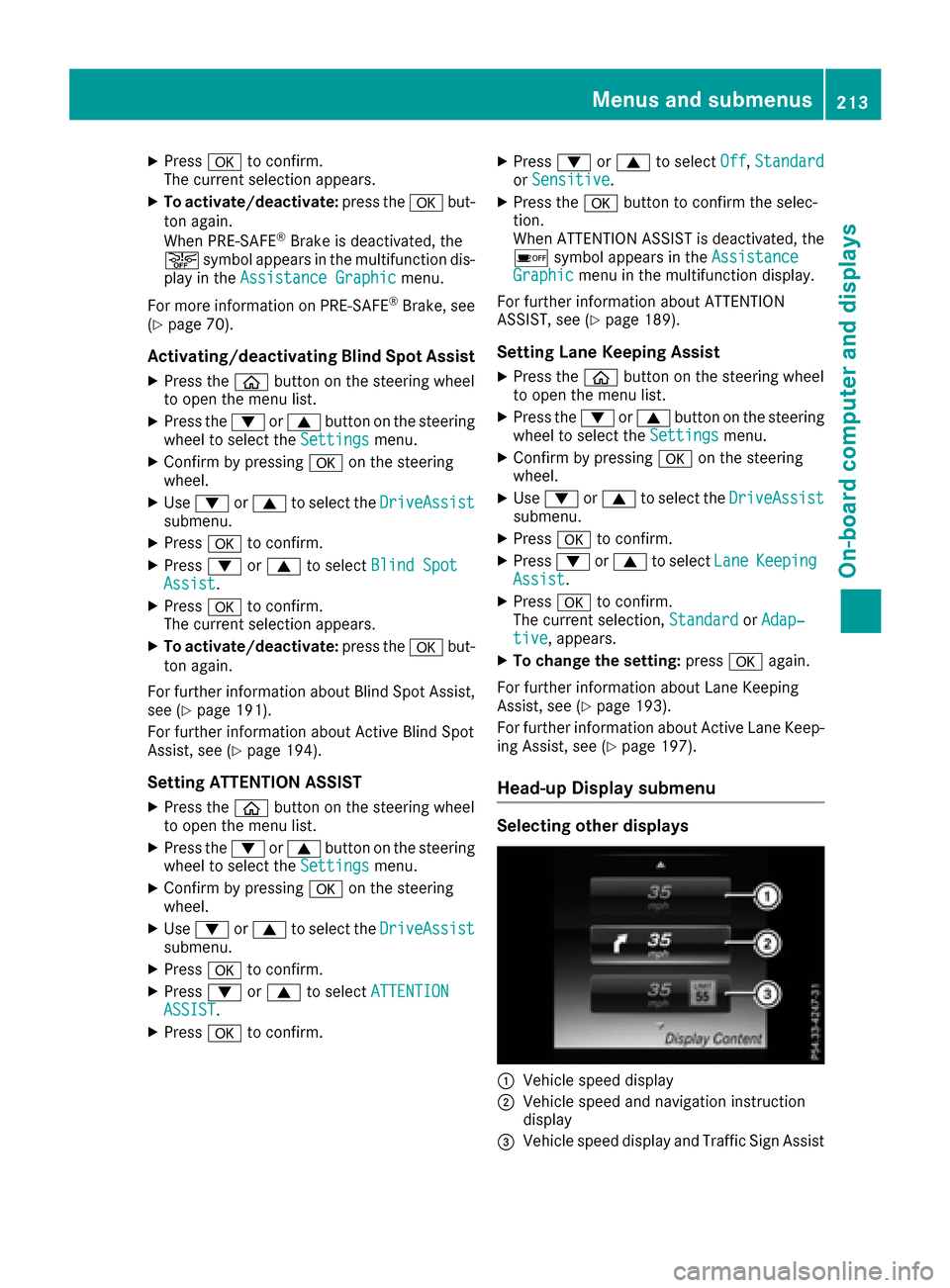
Selecting other displays
:Vehicle speed display
;Vehicle speed and navigation instruction
display
=Vehicle speed display and Traffic Sign Assist
Menus and submenus213
On-board computer and displays
Z
Page 216 of 354
Using theDisplay Contentfunction, you can
choose from up to four displayo ptions depend-
ing on the vehicle's equipment. The selected
contents appearint he Head-up Display.
In Mercedes-AMG vehicles, you can also choose
between two AMG displays. If you select an
AMG display, the Head-up Display shows AMG-
specific contents.
XPress the òbutton on the steering wheel
to open the menu list.
XPress :or9 on the steering wheel to
select the Settingsmenu.
XConfirm by pressing aon the steering
wheel.
XPress :or9 to select the Head-upDisplaysubmenu.
XPressato confirm.
XSelect DisplayContentwith: or9.
XPress ato confirm.
Ag raphic selection list appears.
XPress :or9 to select the desired dis-
play.
XPress the abutton to confirm the selec-
tion.
You can find further information on navigation
displays in the multimedia system (see separate operating instructions).
Information on displays of Traffic Sign Assist
(
Ypage 190).
Setting the position
You can adjust the position of the Head-up Dis-
play on the windshield. You can compensate for
height differences if the seat positions are
changed, for example.
XSwitch on the Head-up Display (Ypage 203).
XPress the òbutton on the steering wheel
to open the menu list.
XPress the :or9 button on the steering
wheel to select the Settingsmenu.
XConfirm by pressing aon the steering
wheel.
XUse : or9 to select the Head-upDisplaysubmenu.
XPressato confirm.
XPress :or9 to select the Positionfunction.
XPress theabutton to save the setting.
XPress :or9 to adjust the position to a
level from Level+5(up) toLevel-5(down).
XPress the aor% button to save the
setting.
Using the Memory function, you can save and
call up the set position of the Head-up Display as
as ingle memory preset (
Ypage 109).
Setting the brightness
The brightness of the Head-up Display is auto-
matically adjusted to the surrounding ambient
light. You can also individually adjust the bright-
ness of the Head-up Display.
XSwitch on the Head-up Display (Ypage 203).
XPress the òbutton on the steering wheel
to open the menu list.
XPress the :or9 button on the steering
wheel to select the Settingsmenu.
XConfirm by pressing aon the steering
wheel.
XUse : or9 to select the Head-upDisplaysubmenu.
XPressato confirm.
XPress :or9 to select the Brightnessfunction.
XPress theabutton to save the setting.
XPress the :or9 button to adjust the
brightness to alevel from Level+5(bright) to
Level -5(dark).
XPress the aor% button to save the
setting.
Light submenu
Switching the daytimer unning lamps on/
off
This function is not available in Canada.
XPress òon the steering wheel to open the
menu list.
XPress :or9 on the steering wheel to
select the Settingsmenu.
XConfirm by pressing aon the steering
wheel.
XPress :or9 to select the Lightssubmenu.
XPressato confirm.
XUsing :or9,s elect the DaytimeRunning Lightsfunction.
If the DaytimeRunningLightsfunction has
been switched on, the cone of light and the
214Menus and submenus
On-board computer and displays
Page 217 of 354
Wsymbol are shown in white in the multi-
function display.
XPress the abutton to save the setting.
Further information on daytime running lamps
Daytime Running Lights
(Ypage 110).
Instrument cluster submenu
Selecting the distance unit
The DisplayUnitSpeed-/Odometerfunction
allowsy ou to choose whether certain displays
appearink ilometers or miles in the multifunc-
tion display.
XPress the òbutton on the steering wheel
to open the menu list.
XPress the :or9 button on the steering
wheel to select the Settingsmenu.
XConfirm by pressing aon the steering
wheel.
XUse : or9 to select the InstrumentClustersubmenu.
XPressato confirm.
XPress :or9 to select the DisplayUnit Speed-/Odometerfunction.
The current setting kmorMilesappears.
XPress the abutton to save the setting.
The selected unit of measurement for distance
applies to:
RDigital speedometer in the Tripmenu
ROdometer and the trip odometer
RTrip computer
RCurrent consumption and the range
RRange
RNavigation instructions in the Navimenu
RCruise control
RDISTRONIC PLUS with Steering Assist and
Stop&Go Pilot
RASSYST PLUS service interval display
Switching the additional speedometer
on/off
If the additional speedometer is switched on,
the speed is shown in the status bar in the mul-
tifunction displayinstead of the outside tem-
perature.
The speed displayisi nverse to the speedome-
ter.
XPress the òbutton on the steering wheel
to open the menu list.
XPress :or9 on the steering wheel to
select the Settingsmenu.
XConfirm by pressing aon the steering
wheel.
XPress :or9 to select the Instru‐ment Clustersubmenu.
XPressato confirm.
XUsing :or9,s elect the AdditionalSpeedometer [km/h]function.
The current selection appears.
XTo activate/deactivate: press theabut-
ton again.
Restoring the factory settings
XPress the òbutton on the steering wheel
to open the menu list.
XPress the :or9 button on the steering
wheel to select the Settingsmenu.
XConfirm by pressing aon the steering
wheel.
XUse : or9 to select the FactorySettingssubmenu.
XPressato confirm.
The Reset All Settings?function
appears.
XPress :or9 to select NoorYes.
XPress ato confirm the selection.
If you have selected Yes,the multifunction
displays howsaconfirmation message.
For safety reasons, the Daytime Running
Lightsfunction in theLightssubmenu is only
reset when the vehicle is stationary.
Menus and submenus215
On-board computer and displays
Z
Page 251 of 354
Warning/
indicator
lampNSignal type
Possiblec auses/consequences and M
Solutions
!NThe yellow ABS warning lamp is lit while the engine is running.
ABS (anti-lock braking system) is malfunctioning.
If there is an additiona lwarning tone, the EBD (electronic brake force distribution)
is malfunctioning.
Other driving systems and driving safety systems may als obefaulty.
GWARNING
The brake system continues to function normally, but without the functions listed
above. The front and rear wheels coul dtherefore lock if you brake hard ,for exam-
ple.
The steerability and braking characteristics may be severely affected. The braking
distance in an emergency braking situation can increase.
If ESP
®is not operational ,ESP®is unable to stabilize the vehicle.
There is an increased risk of skidding and an accident.
XObserve the additiona ldisplay messages in the multifunction display.
XDrive on carefully.
XVisi taq ualified specialist worksho pimmediately.
If the ABS control unit is faulty, there is als oapossibility that other systems ,such
as the navigation system or the automatic transmission, wil lnot be available.
$J
÷!N $ (USA only), J(Canada only): the red brake warning lamp and the yellow
ESP®and ABS warning lamp sare lit while the engine is running.
ABS and ESP®are malfunctioning.
Other driving systems and driving safety systems may als obefaulty.
GWARNING
The brake system continues to function normally, but without the functions listed
above. The front and rear wheels coul dtherefore lock if you brake hard ,for exam-
ple.
The steerability and braking characteristics may be severely affected. The braking
distance in an emergency braking situation can increase.
If ESP
®is not operational ,ESP®is unable to stabilize the vehicle.
There is an increased risk of skidding and an accident.
XObserve the additiona ldisplay messages in the multifunction display.
XDrive on carefully.
XVisi taq ualified specialist worksho pimmediately.
Warning and indicator lamps in the instrument cluster249
On-board computer and displays
Z
Page 260 of 354
General notes
The multimedia system section in this manual
describes the basicprinciples for operation.
More information can be found in the Digital
Operator's Manual.
Important safety notes
GWARNING
If you operate information systems and com-
municatio nequipment integrated in the vehi-
cle whil edriving, you wil lbedistracted from
traffic conditions. You could also lose control
of the vehicle .There is arisk of an accident.
Only operate the equipment when the traffic
situation permits. If you are not sure that this
is possible, park the vehicle paying attention
to traffic conditions and operate the equip-
ment when the vehicle is stationary.
You must observe the legalr equirements for the
country in which you are currently driving when
operating the multimedia system.
The multimedia system calculates the route to
the destination withou ttaking the following into
account, for example:
Rtraffic lights
Rstop and yield signs
Rparking or stopping restrictions
Rroad narrowing
Rother road and traffic rule sand regulations
The multimedia system may give incorrect nav-
igation recommendations if the actual street/
traffic situation does not correspond with the
digital map's data.
For example:
Rad iverted route
Rthe road layout or the direction of aone-way
street has been changed
For this reason, you must alwayso bserve road
and traffic rule sand regulations during your
journey. Roa dand traffic rule sand regulations
alwaysh ave priority over multimedia system
driving recommendations.
Navigation announcements are intended to
direct you whil edriving withou tdiverting your
attention from the road and driving. Please alwaysu
se this feature instead of con-
sulting the map display for directions. Looking
at the icons or map display can distract you from
traffic conditions and driving, and increase the
risk of an accident.
This equipment complies with FCC radiation
exposure limits set forth for uncontrolled equip-
ment and meets the FCC radi ofrequency (RF)
Exposure Guidelines in Supplement CtoOET65.
This equipment has very low levelsofRFe nergy
that is deemedtoc omply withoutmaximum
permissive exposure evaluation (MPE). But it is
desirabl et
ha
t it shoul dbeinstalled and oper-
ated with at least 8inches( 20 cm) and more
between the radiator and aperson's body
(excluding extremities: hands, wrists, fee tand
legs.)
GWARNING
Modifications to electronic components ,their
software as well as wiring can impai rtheir
functio nand/or the functio nofothernet-
worked components .Inparticular, systems
relevant to safety could also be affected. As a
result, thes emayno longer functio nasinten-
de da nd/or jeopardize the operating safety of
the vehicle. There is an increased ris kofan
accident and injury.
Never tamper with the wiring as well as elec-
troni ccomponents or thei rsoftware. You
shoul dhavea llwork to electrical and elec-
troni cequipment carriedoutataq uali fied
specialist workshop.
If yo umakea ny changes to the vehicl eelec-
tronics, the general operating permiti sren-
dered invalid.
Function restrictions
For safety reasons ,som efunctions are restric-
ted or unavailabl ewhile the vehicl eisinmotion.
Yo uw illn otice this, for example, because either
yo uw illn ot be able to select certain menu items
or am essage will appear to thise ffect.
258Functionrestrictions
Multimedia system
Page 261 of 354

Operating system
Overview
General notes
!Do not use the space in frontoft he display
for storage. Objects placed here could dam-
age the display or impair its function .Avoid
any direct contact with the display surface.
Pressure on the display surface may result in
impairment stothe display, which could be
irreversible.
Wearing polarized sunglasses may impair your
ability to read the display.
The display has an automatic temperature-con-
trolled switch-off feature. The brightness is
automatically reduced if the temperature is too
high. The display may temporarily switch off
completely.
Cleaning instructions
!Do not touch the display. The display has a
very sensitive high-gloss surface; there is a
risk of scratching .Ifyou have to clean the
screen,h owever, use amild cleanin gagent
and asoft,l int-free cloth.
The display must be switched off and have
cooled down before you start cleaning. Do not
apply pressure to the display surface when
cleanin git, as this could cause irreversible dam-
age to the display.
Switching the multimedia system
on/off
XPress the ubutton on the center console
to the right of the controller.
For Mercedes-AMG vehicles with selectable
AMG Performance exhaust system: press the
thumbwheel to the right of the controller.
Adjusting the volume
XTurn the thumbwheel to the right of the con-
troller.
The volume is adjusted:
Rfor the currently selected media source
Rduring traffic or navigation announcements
Rin hands-free mode during aphone call
Switching the sound on or off
This function is not available for Mercedes-AMG
vehicles with selectable AMG Performance
exhaust system.
XPress the thumbwheel to the right of the con-
troller.
If the audio output is switched off, the status
line will show the 8symbol. If you switch
the media source or set the volume, the sound
is automatically switched on.
iNavigation announcements will be heard
even if the sound is muted.
Functions
The multimedia system has the following func-
tions:
RRadio mode
RMedia mode with media search
RSound systems
RNavigation system
COMAND :navigation via the hard drive
Audio 20: navigation via SD card
RCommunication functions
RSIRIUS Weather (COMAND)
RVehicle function swith system settings
RFavorites functions
Controller
The controller in the center console lets you:
Rselect menu items on the display
Renter characters
Rselect adestination on the map
Rsave entries
The controller can be:
Rturned 3
Rslid left or right 1
Rslid forwards or back 4
Rslid diagonally2
Rpressed briefly or pressed and held 7
Back button
You can use the%button to exit amenu or to
call up the basic display of the currento perating
mode.
Operating system259
Multimedia system
Z
Page 265 of 354
Settings in the climate menu
Setting the climate mode
By settingthe climate mode you determine the
type of airflow. The settingisa ctive when the air-
conditioning system is set to Ã
(
Ypage 123).
XCall up the climate control menu
(Ypage 262).
XTo select Climate Mode:turn and press the
controller.
XTo change the setting: turn the controller.
Exiting amenu:
XPress the %button.
The current airflow settingiss hown in the cli-
mate control bar: DIFFUSE
,MEDIUMor FOCUS.
Starting/stopping the perfume atomizer
The perfume atomizer makes it possible to scent
the air in individual compartments in the vehicle
interior. Further information (
Ypage 126).
XCall up the climate control menu
(Ypage 262).
XTo select AirFreshener:turn and press the
controller.
The settinge lement is active.
XTo start/stop the perfume atomizer: press
the controller.
XTo set the intensity: turn the controller when
the atomizer is switched on.
Exiting amenu:
XPress the %button.
Switching the ionization on/off
The ionization has acleansing effect on the air in
the vehicle interior. Further information
(
Ypage 128).
XCall up the climate control menu
(Ypage 262).
XTo select Ionization:turn and press the
controller.
The settinge lement is active.
XTo switch the ionization on/off:p ress the
controller.
Exiting amenu:
XPress the %button.
Settings in the bottom bar of the cli-
matec ontrol menu
Switching cooling with air dehumidifica-
tion on/off
XCall up the climate control menu
(Ypage 262).
XSlide6the controller repeatedly until the
bottom bar is activated.
XTo select OA/C:turn and press the control-
ler.
XSwitch cooling with air dehumidification on
O or off ª.
iThe current status of the cooling function is
displayed in the climate control bar: A/C ON
–a ctivated, A/C OFF –deactivated.
iDeactivating the cooling with air dehumidi-
fication function reduces fuel consumption.
Synchronizing the climate control set-
tings
Use OSync(synchronization) to select the cli-
mate control settingf or all zones togetherOor
separately ª.
XCall up the climate control menu
(Ypage 262).
XSlide6the controller repeatedly until the
bottom bar is activated.
XTo select OSync:turn and press the con-
troller.
XSwitch the synchronization function on Oor
off ª.
For further information on synchronizing climate
control settings, see (
Ypage 124).
Navigation mode
Important safety notes
GWARNING
If you operate information systems and com-
munication equipment integrated in the vehi-
cle while driving, you will be distracted from
traffic conditions. You could also lose control
of the vehicle. There is arisk of an accident.
Only operate the equipment when the traffic
situation permits. If you are not sure that this
Operating system263
Multimedia system
Z
Page 266 of 354

is possible,park the vehicle paying attention
to traffic condition sand operatet he equip-
mentw hen the vehicle is stationary.
You must observe the legal requirements for the
countr yinwhich you are currently drivingw hen
operating the navigation system.
General notes
Among other things, correctf unctioning of the
navigation system depends on GPS reception. In
certain situations ,GPS receptio nmay be
impaired,t here may be interference or there
may be no receptio natall, e.g. in tunnels or
parking garages.
Audio 20 is equipped with MARGIN
®MAP PILOT
(see the manufacturer'so perating instructions).
The Garmin
®MAP PILOTo perating instructions
are stored on the SD memory card as aPDF file.
The SD card box contain saquick guide.
The followingd escriptions apply to navigation
with COMAND.F urther information can be
foundint he Digital Operator's Manual.
Selecting aroute typ eand route options
Multimedia system:
XSelect NaviQNavigation.
The map shows the vehicle's current position.
XSlide 6the controller.
XSelect OptionsQRouteS ettings.
Notes for routet ypes:
REco Route
RDynamic Traffic Route
Traffic reports on the routef or the routeguid-
anc eare taken int oaccount.
RCalculateA lternative Routes
Different routes are being calculated. Instead
ofStartselectt heContinuemenui tem.
Notes for routeo ptions:
RUse Toll Roads
The routecalculation includes roads which
require you to pay ausage fee (toll).
RUse Carpool Lanes(only available in the
USA)
Prerequisite: your vehicle meetst he access
condition sfor carpool lanes.
Carpool lanes will be included if the carpool
lanes optio nisactivated.
Entering an address
Multimedia system:
XSelect NaviQNavigation.
The map shows the vehicle's current position.
XSlide 6the controller.
XSelect DestinationQAddress Entry.
Enter an address,e .g. as follows:
RcityorZ IP code, street, house number
Rcountry, cit yorZIP code
RcityorZ IP code, center
Rstreet, cit yorZIP code, intersection
XSelect City.
The cit yinwhich the vehicle is currently loca-
ted (current vehicle position) is at the top.
Below this ,you will see locations for which
routeg uidancehas already been carried out.
XEnter the city.
The Gsymbol: the location is contained on
the digital map multiple times.
XTo switch to th elist: slide the 5control-
ler.
XSelec tthe location.
If available, the ZIP code is shown.Ift here are
differentZ IP codes available for the location,
the correspondin gdigits are displayed with an
X
.
XEnter the street and house number.
The address is in the menu.
Further options for destination entry:
Rsearchf orak eyword
The keywor dsearchf inds destinations using
fragment sofwords.
Rselectt he last destination
Rselectac ontact
RselectaP OI
You can searchf oraP OI by location, name or
telephonen umber.
Rselectdestination on the map
Renter intermediate destination
You can map the routetot he destination
yourself with up to four intermediate destina-
tions.
Rselectd estinations fromM ercedes-Benz
Apps
Rselectg eo-coordinates
264Operating system
Multimedia system
Page 280 of 354

All important informationonthe emergency is
transmitted, for example:
Rcurrent location of the vehicl e(as determined
by the GP Ssystem)
Rvehicl eide ntificatio nnumber
Rinformatio nonthe severity of the accident
Shortly afte rthe emergency cal lhas been initi-
ated, avoice connectio nisa utomaticall yestab-
lishe dbetween the Customer Assistance Center
and the vehicl eoccupants.
RIf the vehicl eoccupants respond, the
Mercedes-Benz Customer Assistance Center
attempts to get more informatio nonthe
emergency.
RIf ther eisnor esponse from the vehicl eoccu-
pants, an ambulance is immediatelys ent to
the vehicle.
If no voice connectio ncan be established to the
Mercedes-Benz Customer Assistance Center,
the system hasb eenu nabl etoi nitiate an emer-
gency call.
Thi scan occur, for example, if the relevant
mobil ephone network is not available. The indi-
cato rlam pint he SOS button flashe scontinu-
ously.
The CallFailed
message appear sinthe mul-
tifunctio ndisplay and must be confirmed.
In thisc ase, summon assistance by other
means.
Making an emergenc ycall
XTo initiate an emergenc ycallm anually:
press cover :briefl ytoo pen.
XPress and hol dthe SOS button for at leas tone
second ;.
The indicator lamp in SOS button ;flashes
unti lthe emergency cal lisconcluded.
XWait for avoice connectio ntothe Mercedes-
Benz Customer Assistance Center.
XAfter the emergency call, close cover :.
If the mobil ephone network is unavailable,
mbrace will not be able to make the emergency
call. If yo uleave the vehicl eimmediatelya fter
pressing the SOS button, yo uwilln ot know
whethe rmbrace place dthe emergency call. In
thisc ase, always summona ssistance by other
means.
Roadside Assistance button
XTo cal lRoadside Assistance: press Road-
side Assistance button :.
Thi sinitiates acalltot he Mercedes-Benz Cus-
tome rAssistance Center.
The indicator lamp in Roadside Assistance
button :flashe swhile the cal lisactive. The
Connectin gCall
message appear sinthe
multifunctio ndisplay .The audi ooutputi s
muted.
If ac onnectio ncan be made ,the Cal lCon‐
nectedmessage appear sinthe multifunction
display.
If am obilephone network and GP Sreception
ar ea vailable, the system transfer sdatatot he
Mercedes-Benz Customer Assistance Center,
for example:
Rcurrent location of the vehicle
Rvehicl eide ntificatio nnumber
The multimedia system display indicates thata
cal lisa ctive. During the call, yo ucan change to
the navigation menu by pressing the NAVI but-
ton on the multimedia system ,for example.
Voice outpu tisn ot availabl einthiscase.
Av oice connectio nise stablished between the
Mercedes-Benz Customer Assistance Center
and the vehicl eoccupants.
278Features
Stowag eand featur es
Page 281 of 354
From the remote malfunction diagnosis, the
Mercedes-Benz CustomerAssistance Center
can ascertai nthe nature of the problem
(
Ypage 282).
The Mercedes-Benz CustomerA ssistance Cen-
ter either send saqualified Mercedes-Benz tech-
nicia norm akesarrangements for your vehicle
to be transported to the nearest authorized
Mercedes-Benz Center.
You may be charged for services such as repair
wor kand/o rtowing.
You can find more information in the separate
mbrace manual.
The system has not bee nabletoi nitiate aRoad-
sid eA ssistance call, if:
Rthe indicator lamp for Roadsid eAssistance
cal lbutton Fis flashing continuously.
Rno voice connectio ntothe Mercedes-Benz
CustomerA ssistance Center wa sestab-
lished.
Thisc an occur if the relevant mobile phone net-
wor kisn ot available, for example.
The Call Failed
messag eappears in the mul-
tifunction display.
XTo end acall: press the ~button on the
multifunction steering wheel.
or
XPres sthe corresponding multimedia system
button for ending aphone call.
MB Info cal lbutton
XTo cal lMBInfo: press MB Info cal lbutton :.
Thisi nitiates acalltot he Mercedes-Benz Cus-
tomer Assistance Center.
The indicator lamp in MB Info cal lbutton :
flashesw hile the connectio nisbeing made.
The Connecting Call
messag eappears in the multifunction display. The audio output is
muted.
If ac onnectio ncan be made, the Call Con‐
nectedmessageappears in the multifunction
display.
If am obile phone network and GP Sreception
are available, the system transfers data to the
Mercedes-Benz CustomerA ssistance Center,
for example:
Rcurrent location of the vehicle
Rvehicle identification number
The multimedia system displa yindicates that a
cal lisa ctive. During the call, yo ucan chang eto
the navigation menu by pressing the NAVI but-
ton on COMAND, for example.
Voice output is not available in this case.
Av oice connectio nisestablishedb etween the
Mercedes-Benz CustomerA ssistance Center
and the vehicle occupants.
You receive information abouto perating your
vehicle, aboutt he nearest authorized
Mercedes-Benz Center and abouto ther prod-
ucts and services from Mercedes-Benz.
You can find further information on the mbrace
system under "Owners Online" at http://
www.mbusa.com.
The system has not bee nabletoi nitiate an MB
Info call, if:
Rthe indicator lamp in MB Info cal lbutton ï
is flashing continuously.
Rno voice connectio ntothe Mercedes-Benz
CustomerA ssistance Center wa sestab-
lished.
Thisc an occur if the relevant mobile phone net-
wor kisn ot available, for example.
The Call Failed
messag eappears in the mul-
tifunction display.
XTo en dacall:press the ~button on the
multifunction steering wheel.
or
XPres sthe corresponding multimedia system
button for ending aphone call.
Cal lpriority
Whe nservice calls are active, e.g. Roadside
Assistance or MB Info calls, an emergency call
can stil lbeinitiated .Inthis case ,anemergency
cal lwillt ake priority and overrid eallother active
calls.
Features279
Stowage and features
Z