ad blue MERCEDES-BENZ C-CLASS COUPE 2018 COMAND Manual
[x] Cancel search | Manufacturer: MERCEDES-BENZ, Model Year: 2018, Model line: C-CLASS COUPE, Model: MERCEDES-BENZ C-CLASS COUPE 2018Pages: 174, PDF Size: 4.1 MB
Page 62 of 174
---/---is displayed if fewer than three char-
acters have been entered.
999+
is displayed if there are too many hits.
XSelect the ¬symbol.
The search results are displayed
(
Ypage 60).
Selecting search results
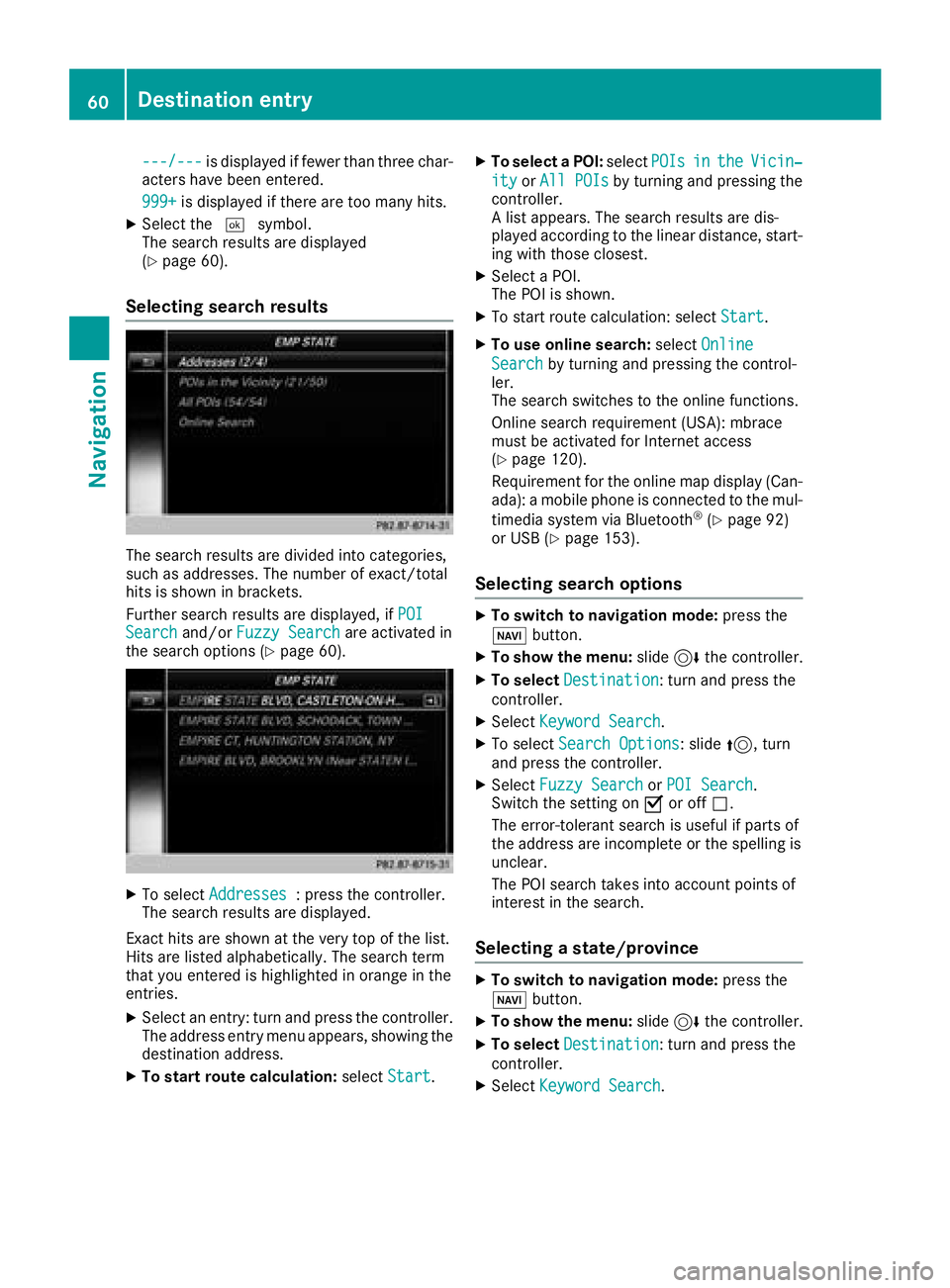
The search results are divided into categories,
such as addresses. The number of exact/total
hits is shown in brackets.
Further search results are displayed, if POI
Searchand/orFuzzy Searchare activated in
the search options (Ypage 60).
XTo select Addresses: press the controller.
The search results are displayed.
Exact hits are shown at the very top of the list.
Hits are listed alphabetically. The search term
that you entered is highlighted in orange in the
entries.
XSelect an entry: turn and press the controller.
The address entry menu appears, showing the
destination address.
XTo start route calculation: selectStart.
XTo select a POI: selectPOIsintheVicin‐
ityorAll POIsby turning and pressing the
controller.
A list appears. The search results are dis-
played according to the linear distance, start-
ing with those closest.
XSelect a POI.
The POI is shown.
XTo start route calculation: select Start.
XTo use online search:selectOnline
Searchby turning and pressing the control-
ler.
The search switches to the online functions.
Online search requirement (USA): mbrace
must be activated for Internet access
(
Ypage 120).
Requirement for the online map display (Can-
ada): a mobile phone is connected to the mul-
timedia system via Bluetooth
®(Ypage 92)
or USB (Ypage 153).
Selecting search options
XTo switch to navigation mode: press the
Ø button.
XTo show the menu: slide6the controller.
XTo select Destination: turn and press the
controller.
XSelect Keyword Search.
XTo select Search Options: slide5, turn
and press the controller.
XSelect Fuzzy SearchorPOI Search.
Switch the setting on Oor off ª.
The error-tolerant search is useful if parts of
the address are incomplete or the spelling is
unclear.
The POI search takes into account points of
interest in the search.
Selecting a state/province
XTo switch to navigation mode: press the
Ø button.
XTo show the menu: slide6the controller.
XTo select Destination: turn and press the
controller.
XSelect Keyword Search.
60Destination entry
Navigation
Page 63 of 174
XTo selectState/Province: slide5, turn
and press the controller.
States/provinces are sorted alphabetically.
XTo select a state/province: turn and press the
controller.
Using online search
Requirement (USA): mbrace must be activated
for Internet access (Ypage 120).
Requirement (Canada): a mobile phone is con-
nected to the multimedia system via Bluetooth
®
(Ypage 92) or USB (Ypage 153).
XTo switch to navigation mode: press the
Ø button.
XTo show the menu: slide6the controller.
XTo select Destination: turn and press the
controller.
XSelect Keyword Search.
XTo select OnlineSearch: slide5, turn and
press the controller.
The search switches to the online functions.
Selecting a destination from the list of
last destinations
The last 50 destinations are stored automati-
cally.
XTo switch to navigation mode: press the
Ø button.
XTo show the menu: slide6the controller.
XTo select Destination: turn and press the
controller.
XSelect From Previous Destinations.
XSelect the destination.
The address entry menu appears, showing the
destination address.
XTo start route calculation: selectStart.
Selecting an address book contact as
a destination
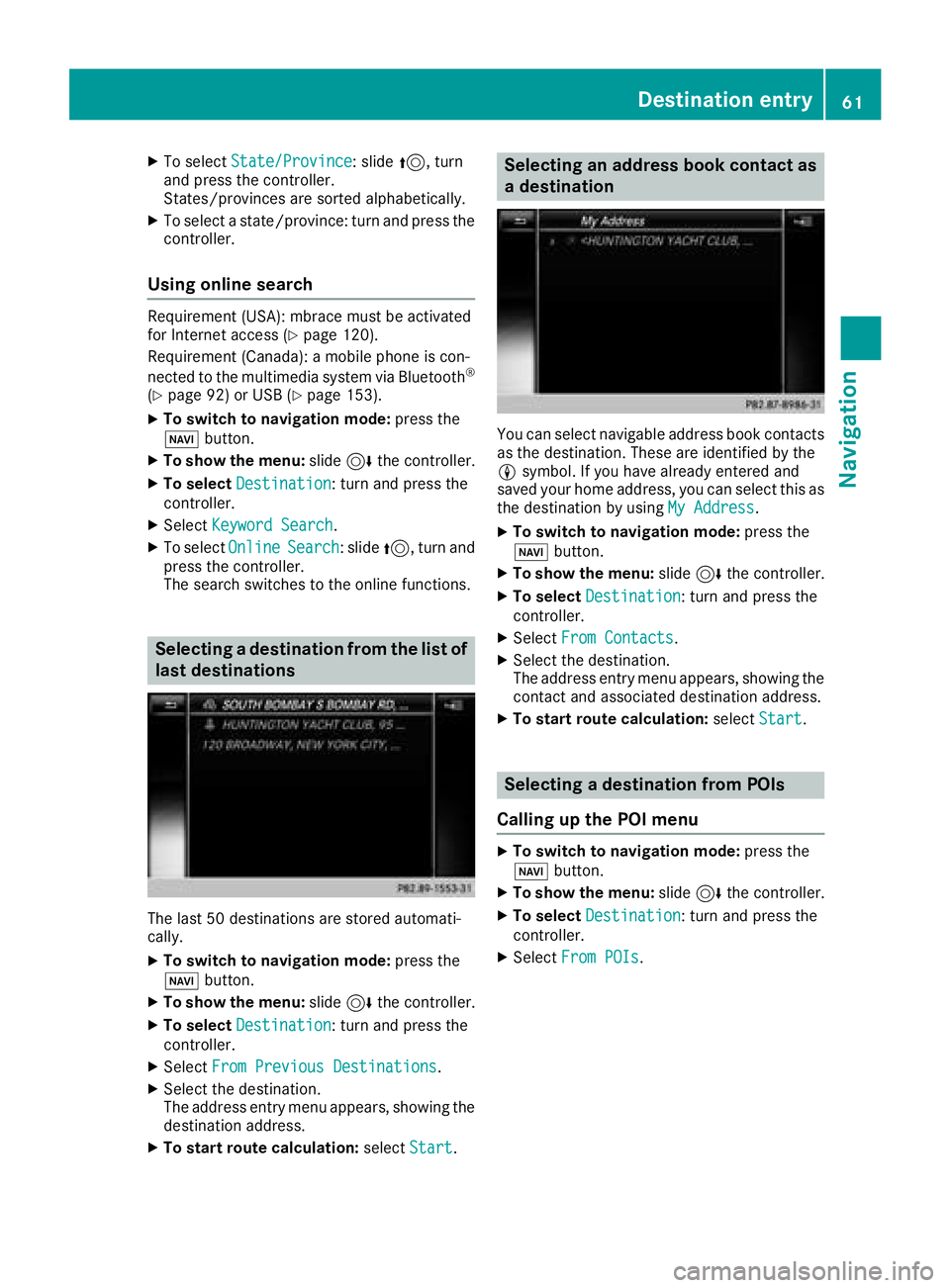
You can select navigable address book contacts
as the destination. These are identified by the
Lsymbol. If you have already entered and
saved your home address, you can select this as
the destination by using My Address
.
XTo switch to navigation mode: press the
Ø button.
XTo show the menu: slide6the controller.
XTo select Destination: turn and press the
controller.
XSelect From Contacts.
XSelect the destination.
The address entry menu appears, showing the
contact and associated destination address.
XTo start route calculation: selectStart.
Selecting a destination from POIs
Calling up the POI menu
XTo switch to navigation mode: press the
Ø button.
XTo show the menu: slide6the controller.
XTo select Destination: turn and press the
controller.
XSelect From POIs.
Destination entry61
Navigation
Z
Page 65 of 174
SelectionInstructions
Near Destination
The search is performed
in the vicinity of the desti-
nation.
XSelect a category orSearch By Name(Ypage 62).
XSelectNear Destination.
The search for POIs starts.
Current Position
Searches in the vicinity of
the current vehicle posi-
tion.
XSelect a category or Search By Name(Ypage 62).
XSelectCurrent Position.
The search for POIs starts.
Other City
After entering a city, the
search is performed
within the city's bounda-
ries
Option 1
XCall up the POI menu (Ypage 61).
XTo select Other City: turn and press the controller.
XSelect the state/province (Ypage 58), if desired.
XEnter the city (Ypage 57).
XSelect a POI category (Ypage 62).
Option 2
XEnter a city in the address entry menu (Ypage 57).
XTo select POIs: slide6, turn and press the controller.
XSelect a POI category (Ypage 62).
Selecting a POI
Requirement for "Calling up a POI": a mobile
phone must be connected to the multimedia
system (
Ypage 92).
Requirements for "Viewing the vicinity of the
destination" and "Loading data from the Inter-
net" (USA): mbrace must be activated for Inter-
net access (
Ypage 120).
Requirements for "Viewing the vicinity of the
destination" and "Loading data from the Inter-
net" (Canada): a mobile phone must be connec-
ted to the multimedia system via Bluetooth
®
(Ypage 92) or USB (Ypage 153).
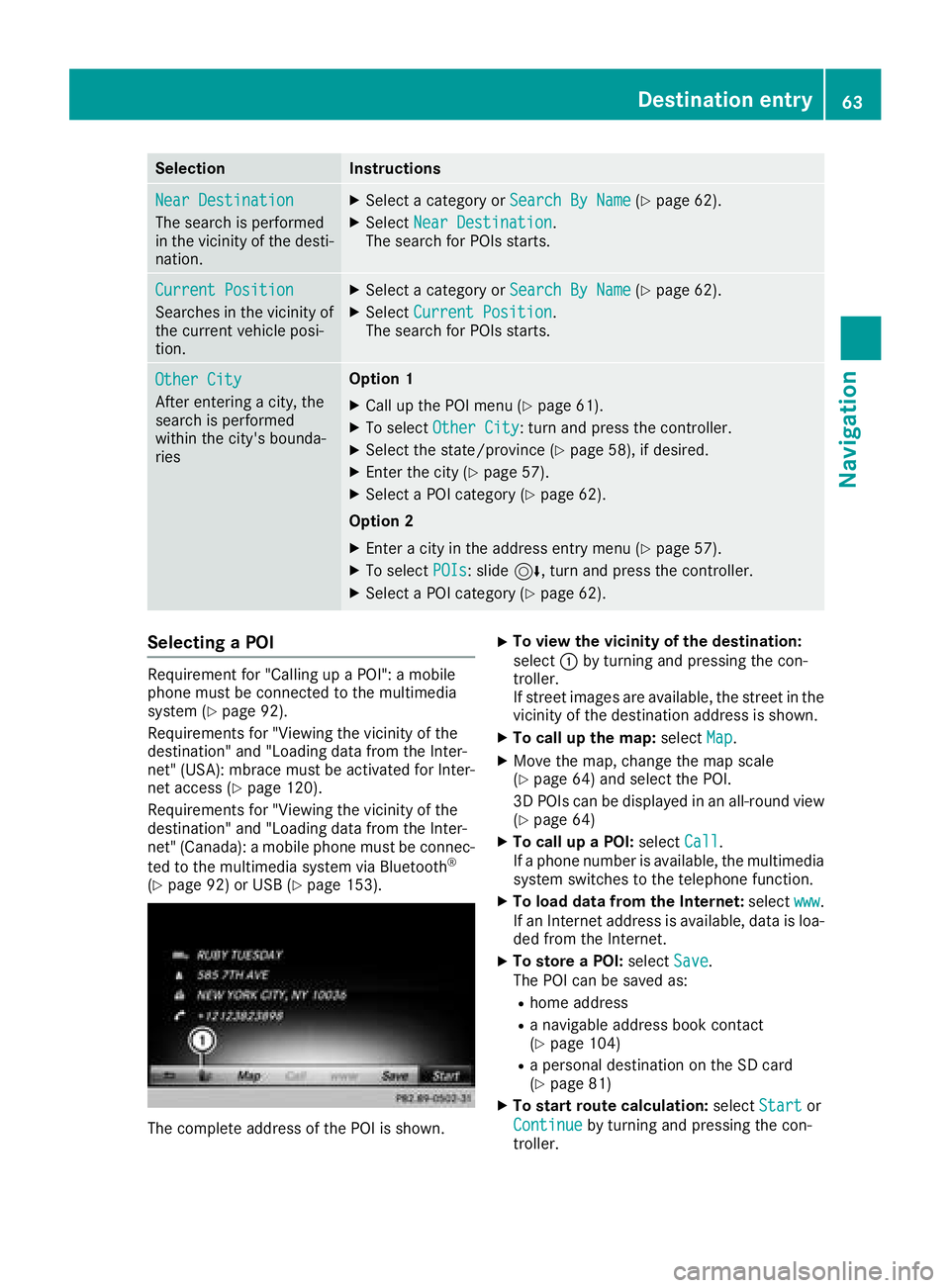
The complete address of the POI is shown.
XTo view the vicinity of the destination:
select :by turning and pressing the con-
troller.
If street images are available, the street in the
vicinity of the destination address is shown.
XTo call up the map: selectMap.
XMove the map, change the map scale
(Ypage 64) and select the POI.
3D POIs can be displayed in an all-round view
(
Ypage 64)
XTo call up a POI: selectCall.
If a phone number is available, the multimedia
system switches to the telephone function.
XTo load data from the Internet: selectwww.
If an Internet address is available, data is loa-
ded from the Internet.
XTo store a POI: selectSave.
The POI can be saved as:
Rhome address
Ra navigable address book contact
(Ypage 104)
Ra personal destination on the SD card
(Ypage 81)
XTo start route calculation: selectStartor
Continue
by turning and pressing the con-
troller.
Destination entry63
Navigation
Z
Page 68 of 174
XTo select an intermediate destination in the
intermediate destinations menu: turn and
press the controller.
A menu appears.
XTo change an intermediate destination:
selectEdit
in the menu.
XChange the address, e.g. the city and street.
XTo select OK: turn and press the controller.
The intermediate destinations menu appears
and displays the changed intermediate desti-
nation.
You can enter the intermediate destinations and
the destination in any order. To change the
order, at least one intermediate destination and
the destination must be entered.
XTo change the order: in the menu, select
Move
.
XTurn the controller and move the intermediate destination or destination to the desired posi-
tion.
XPress the controller.
XTo delete an intermediate destination:
select Delete
in the menu.
Accepting intermediate destinations
for the route
XTo select Start Route Guidancein the
intermediate destinations menu: press the
controller.
The route is calculated with the entered inter-
mediate destinations.
If an intermediate destination was passed
during route guidance, a green tick mark will
be entered in the intermediate destinations
menu. Once the route has been recalculated,
the intermediate destination is deleted from
the intermediate destinations menu.
Saving as a personal route
You can save a route including intermediate
destinations on the SD card.
Requirements: the SD card has the FAT data
system format (e.g. FAT32).
XInsert the SD memory card (Ypage 141).
XTo select Save As Personal Routein the
intermediate destinations menu: press the
controller.
An input field appears.
XEnter a file name in the input field. Press OKto
confirm.
The route is saved to the SD memory card.
Searching for a gas station when the
fuel level is low
Requirement: the setting GasonReservemust
be enabled (Ypage 56).
If the fuel tank reserve level is displayed, you will
see the Reserve Fuel Would you like to
start a search for surrounding gasstations?message.
XTo select YesorNo: turn and press the con-
troller.
If you select Yes
: the gas station search
starts. When the search is complete, a list of
the gas stations available along the route or in
the vicinity is displayed.
If you select No
: the search is canceled.
XSelect the gas station.
The address of the gas station is displayed.
XTo selectStart: press the controller.
The selected gas station is entered into posi-
tion 1 of the intermediate destinations menu.
Route guidance begins.
If the intermediate destinations menu already
contains four intermediate destinations, a
prompt will be displayed, asking you whether you wish to enter the gas station into position
1. If you select Yes
, the gas station is trans-
ferred into the list and intermediate destina-
tion 4 is deleted.
Entering a destination from
Mercedes-Benz Apps
Requirement (USA): mbrace is activated for the
Mercedes-Benz Apps (Ypage 120).
Requirement (Canada): a mobile phone is con-
nected to the multimedia system via Bluetooth
®
(Ypage 92) or USB (Ypage 153).
XTo switch to navigation mode: press the
Ø button.
XTo show the menu: slide6the controller.
66Destination entry
Navigation
Page 72 of 174
XSelect personal POI or personal route
(Ypage 69).
XTo explore a personal POI or personal
route:turn and press the controller to select
Map
.
The map with the crosshair appears and
shows the destination.
XScroll the map (Ypage 54).
XSet the map scale (Ypage 82).
XTo switch to the menu: press the %button.
XTo call the personal POI: turn and press the
controller to select Call
.
If a mobile phone is connected to the multi-
media system and the telephone number is
available, the call is connected (
Ypage 98).
XTo save a personal POI: turn and press the
controller to select Save
.
XContinue saving (Ypage 80).
XTo edit the name and symbol: turn and
press the controller to select Edit
.
XSelectChange NameorEdit Icon.
XCharacter entry (Ypage 30).
XSelect a symbol.
XTo delete a personal POI or route: turn and
press the controller to select Delete
.
A prompt will appear.
XSelect YesorNo.
If you select Yes, the personal destination or
personal route is deleted.
XTo select the outward and return route:
select Swap
by turning and pressing the con-
troller.
The starting and destination positions of your
personal route, and thus the direction for
route guidance, are switched round. One-way
streets or restricted intersections are taken
into consideration. Therefore, the outward
and return routes may differ from each other.
XTo start route guidance: turn and press the
controller to select Start
.
Recording the route
General notes
Routes are recorded using the SD card.
Requirements: the SD card has the FAT data
system format (e.g. FAT32). When recording the route, bear in mind the fol-
lowing:
RIf the SD card is inserted, it must not be
removed during recording.
Rif route recording was started manually, it
must be finished manually before the multi-
media system is switched off.
RThe multimedia system minimizes the num-
ber of route points recorded. Therefore when
the recorded route is subsequently com-
menced, it may differ from the route that was
originally recorded.
Starting/finishing route recording
XInsert the SD memory card (Ypage 141).
XTo switch to navigation mode: press the
Ø button.
XTo show the menu: slide6the controller.
XTo select Destination: turn and press the
controller.
XSelect From Memory Card.
XSelectStart Route Recording.
The route is recorded and REC appears at the
bottom edge of the screen.
XTo stop recording, select End RouteRecordingfrom the menu.
The route is stored under Personal Routes.
Displaying/editing the recorded route
XInsert the SD memory card (Ypage 141).
XTo switch to navigation mode: press the
Ø button.
XTo show the menu: slide6the controller.
XTo select Destination: turn and press the
controller.
XSelect From Memory Card.
XSelectPersonal Routes.
Previously recorded routes are displayed.
XTo select a route, turn and press the control-
ler.
The map appears with a menu. The recorded
route is shown on the map in blue.
XTo calculate a route: selectStart.
XTo change the name and symbol: select
Edit
.
XSelect Change NameorEdit Icon.
XCharacter entry (Ypage 30).
XSelect a symbol.
70Personal POIs and routes
Navigation
Page 76 of 174
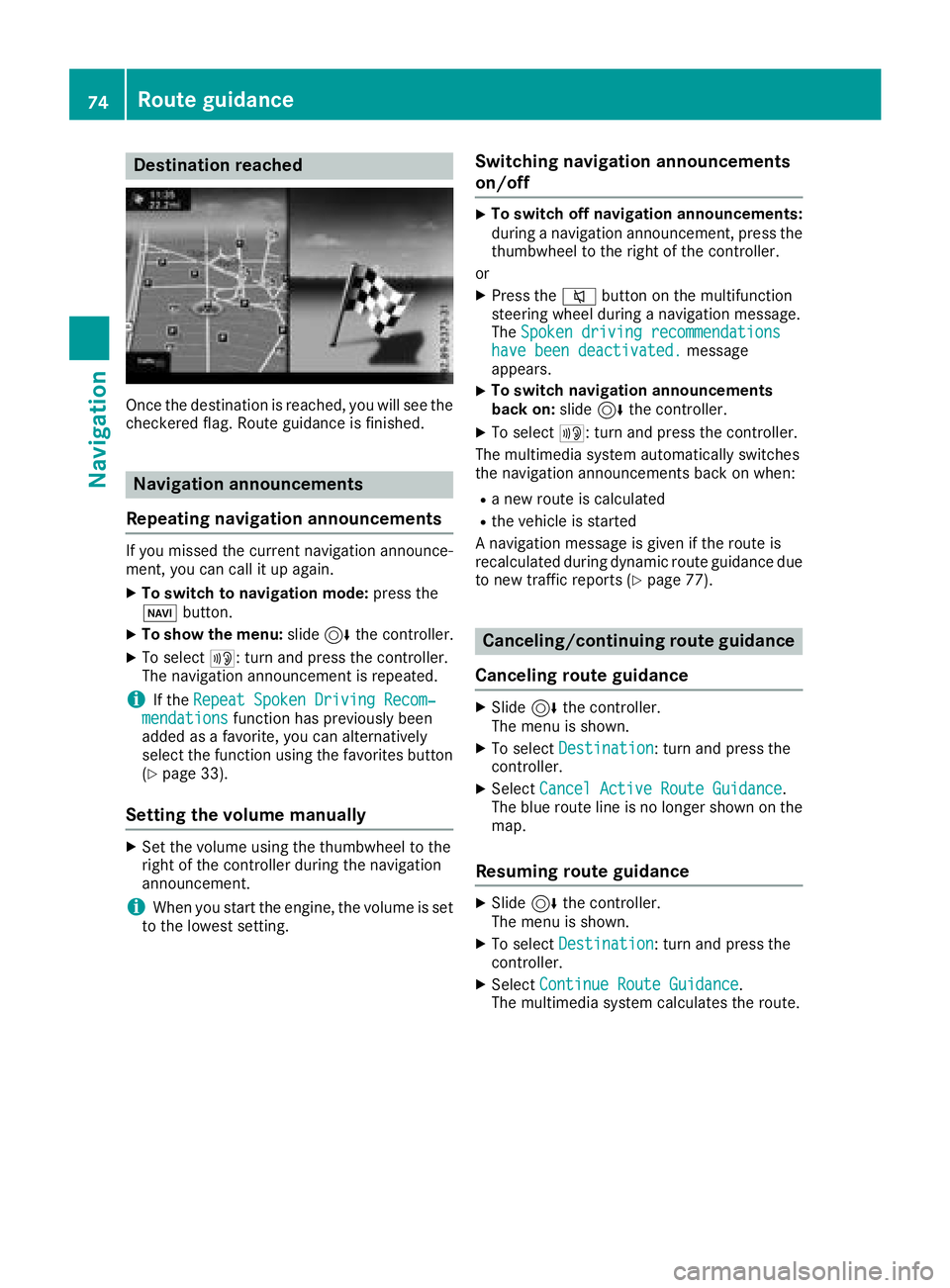
Destination reached
Once thedestination is reached, you will see th e
checkered flag .Rout eguidanc eis finished.
Navigation announcement s
Repeating navigation announcement s
If you missed thecurren tnavigation announce -
ment, you can cal lit up again .
XTo switch to navigation mode: press the
Ø button.
XTo show th emenu :slid e6 thecontroller .
XTo select+ :turn and press th econtroller .
The navigation announcemen tis repeated.
iIf th eRepeat Spoken Drivin gRecom‐mendation sfunction has previously bee n
adde das afavorite, you can alternatively
selec tth efunction usin gth efavorites butto n
(
Ypage 33).
Setting th evolume manuall y
XSetth evolume usin gth ethumbwhee lto th e
right of th econtroller durin gth enavigation
announcement.
iWhe nyou start th eengine, th evolume is set
to th elowest setting .
Switchingnavigation announcement s
on/of f
XTo switch off navigation announcements:
during anavigation announcement, press th e
thumbwhee lto th eright of th econtroller .
or
XPress th e8 buttonon th emultifunction
steerin gwhee ldurin g anavigation message.
The Spoken drivin grecommendations
hav ebee ndeactivated.messag e
appears .
XTo switch navigation announcement s
back on: slide6 thecontroller .
XTo select+: turn and press th econtroller .
The multimedia system automatically switches
th enavigation announcements bac kon when :
Rane wrout eis calculated
Rth evehicle is started
A navigation messag eis given if th erout eis
recalculated durin gdynamic rout eguidanc edue
to ne wtraffic reports (
Ypage 77).
Canceling/continuing rout eguidance
Cancelin grout eguidance
XSlide 6thecontroller .
The men uis shown .
XTo selectDestination:turn and press th e
controller .
XSelectCancel Active Route Guidance.
The blue rout elin eis no longer shown on th e
map .
Resuming rout eguidance
XSlide 6thecontroller .
The men uis shown .
XTo selectDestination:turn and press th e
controller .
XSelectContinue Route Guidance.
The multimedia system calculates th eroute.
74Route guidance
Navigation
Page 77 of 174
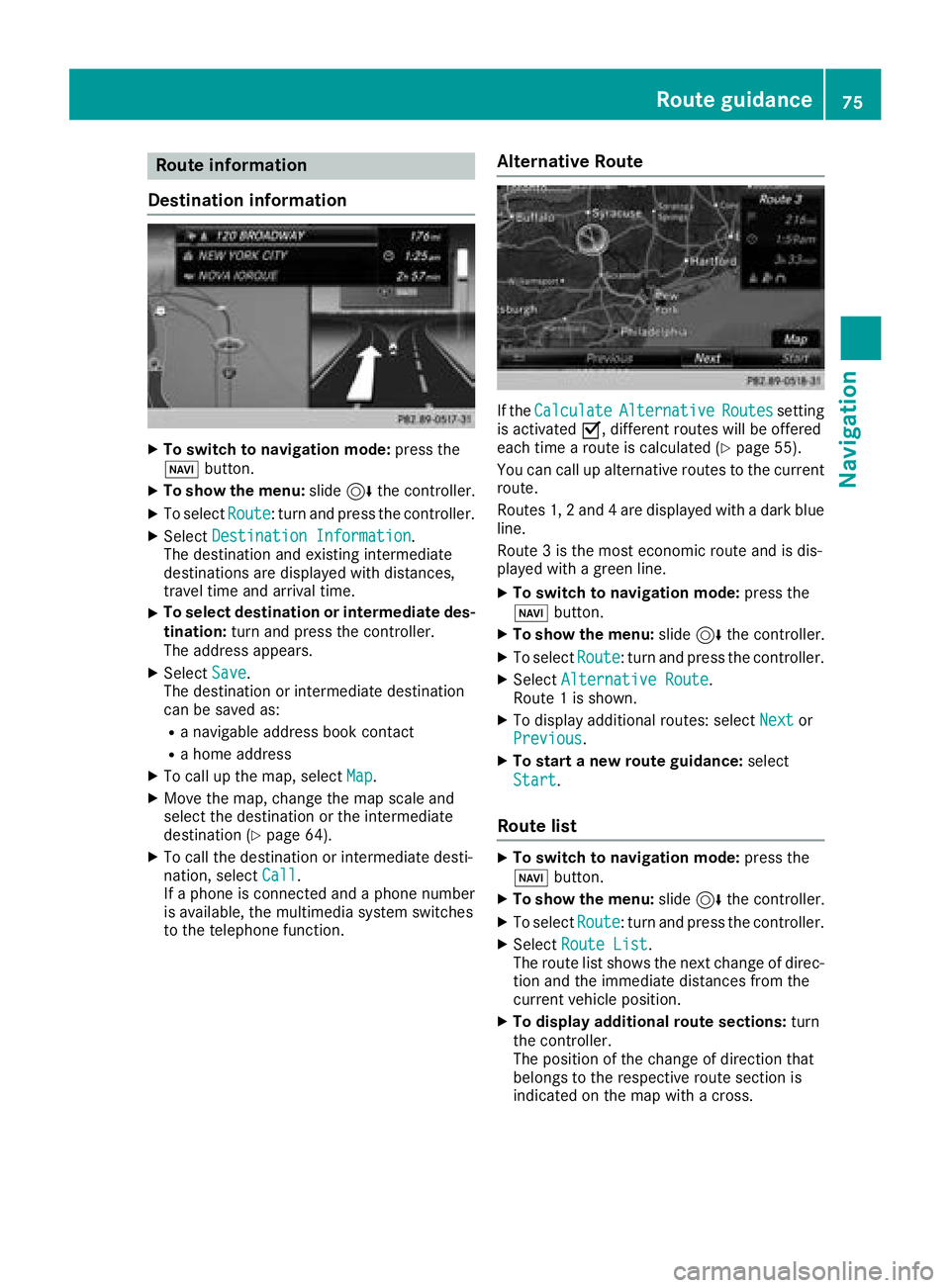
Route information
Destination information
XTo switch to navigation mode: press the
Ø button.
XTo show the menu: slide6the controller.
XTo select Route: turn and press the controller.
XSelectDestination Information.
The destination and existing intermediate
destinations are displayed with distances,
travel time and arrival time.
XTo select destination or intermediate des-
tination: turn and press the controller.
The address appears.
XSelect Save.
The destination or intermediate destination
can be saved as:
Ra navigable address book contact
Ra home address
XTo call up the map, select Map.
XMove the map, change the map scale and
select the destination or the intermediate
destination (
Ypage 64).
XTo call the destination or intermediate desti-
nation, selectCall.
If a phone is connected and a phone number
is available, the multimedia system switches
to the telephone function.
Alternative Route
If the CalculateAlternativeRoutessetting
is activated O, different routes will be offered
each time a route is calculated (
Ypage 55).
You can call up alternative routes to the current
route.
Routes 1, 2 and 4 are displayed with a dark blue line.
Route 3 is the most economic route and is dis-
played with a green line.
XTo switch to navigation mode: press the
Ø button.
XTo show the menu: slide6the controller.
XTo select Route: turn and press the controller.
XSelectAlternative Route.
Route 1 is shown.
XTo display additional routes: select Nextor
Previous.
XTo start a new route guidance: select
Start
.
Route list
XTo switch to navigation mode: press the
Ø button.
XTo show the menu: slide6the controller.
XTo select Route: turn and press the controller.
XSelectRoute List.
The route list shows the next change of direc-
tion and the immediate distances from the
current vehicle position.
XTo display additional route sections: turn
the controller.
The position of the change of direction that
belongs to the respective route section is
indicated on the map with a cross.
Route guidance75
Navigation
Z
Page 89 of 174
Carrying out a manual update
You can carry out the update yourself.
The update process may take some time (up to
45 minutes), depending on the size of the digital
map. The update will be completed more quickly if the vehicle is stationary. If you begin the
update while the vehicle is stationary and the
starter battery has insufficient power, the mul-
timedia system may switch off automatically.
This protects the battery. In order to prevent
this, a suitable power supply to the vehicle must
be maintained.
Functions in the Navigation menu
Calling up the navigation system
menu
XTo switch to navigation mode: press the
ß button.
XTo show the menu: slide5the controller.
Navi
is highlighted in the main function bar.
XPress the controller.
The navigation menu appears.
XTurn the controller.
The functions are displayed one after another.
XTo switch to the map, turn the controller until
Navigationappears and press the control-
ler.
Calling up the online map display
Requirement for online map display (USA):
mbrace must be activated for Internet access
(
Ypage 120).
Requirement for the online map display (Can-
ada): a mobile phone is connected to the multi-
media system via Bluetooth
®(Ypage 92) or
USB (Ypage 153).
XCall up the navigation menu (Ypage 87).
XTurn the controller until Online Map Dis‐playis brought to the front.
XPress the controller.
The online connection is established. Once
the connection is established, the Google
Maps™ map shows the vicinity of the current
vehicle position.
iAlternatively you can call up this function
using the touchpad (Ypage 24).
XTo exit the online map display: press the %
button.
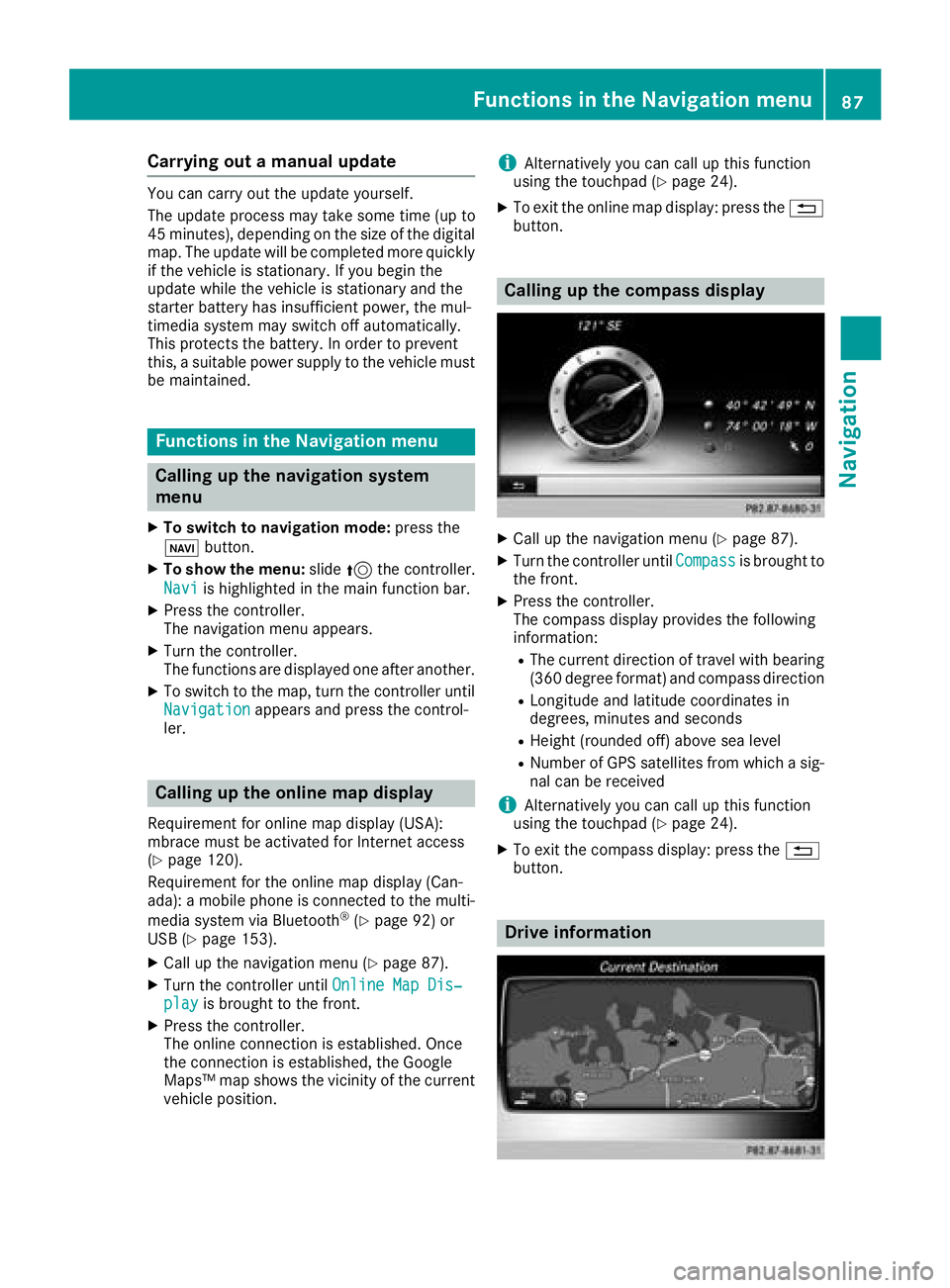
Calling up the compass display
XCall up the navigation menu (Ypage 87).
XTurn the controller until Compassis brought to
the front.
XPress the controller.
The compass display provides the following
information:
RThe current direction of travel with bearing
(360 degree format) and compass direction
RLongitude and latitude coordinates in
degrees, minutes and seconds
RHeight (rounded off) above sea level
RNumber of GPS satellites from which a sig- nal can be received
iAlternatively you can call up this function
using the touchpad (Ypage 24).
XTo exit the compass display: press the %
button.
Drive information
Functions in the Navigation menu87
Navigation
Z
Page 93 of 174
Your multimediasyste mequipment
These operatin ginstruction sdescribe all th e
standar dan doptional equipment of your multi-
media system, as available at th etime of going
to press. Country-specifi cdifference sare pos -
sible. Bear in min dthat your vehicle may no t
feature all function sdescribed here. Thi salso
applies to safety-relevan tsystems an dfunc-
tions.
Read th einformation on qualifie dspecialis t
workshop sin th evehicle Operator's Manual.
Important safet ynotes
GWARNING
If you operat emobile communication equip-
men twhen driving, you may be distracted
from th etraffic situation .You could also los e
contro lof th evehicle. There is aris kof an
accident.
Only operat ethis equipment when th evehicle
is stationary.
If you mak e acallon your mobile phone whil e
driving, always use hands-free mode. Only use
th emobile phone when road, weather an dtraffic
condition spermit .Some jurisdiction sprohibit
th edriver from usin g amobile phone whil edriv-
in g a vehicle.
Kee pin min dthat at aspeed of 30 mph (approx-
imately 50 km/h), th evehicle cover s adistanc e
of 44 ft (approximately 14 m) per second.
Excessive levels of electromagnetic radiation
may cause damage to your health an dth ehealth
of others.
There is scientific discussio nsurroundin gth e
possible health risks posed by electromagnetic
fields .You can reduce this ris kby usin gan exte -
rio rantenna.
Therefore, connec tyour mobile communica-
tion sequipment to th evehicle' sexterio r
antenn awhereve rpossible.
General notes
Telephon y
ABluetoot h®interface is available fo rteleph -
ony.
If your mobile phone supports th eBluetoot h
®
profilePBAP (PhoneBook Access Profile),th e
contact sare automatically displaye din th emul-
timedia system.
You can use th emessag efunction if your mobile
phone supports th eMA PBluetoot h
®profile
(M essage Access Profile) .
Wit h a suitable mobile phone ,you can use th e
hands-free syste mandreceiv evCards via th e
Bluetoot h
®interface .
You can obtain more information about suitable
mobile phone son th eInternet at
http://www.mercedes-benz.com/connect .
Or cal lth eMercedes-Ben zServic eCente rat
1-800-FOR-MERCedes(1-800-367-6372 ) for
the USA or at 1-800-387-0100 for Canada.
HD Voice®
The multimedia system supports telephone
calls in HD Voice®. The voice quality can be
improved with this procedure.
Requirements for HD Voice
®:
RYour mobile phone and mobile phone network
provider support HD Voice®.
RThe mobile phone and mobile phone network
provider of the person you are calling support
HD Voice
®.
Depending on the quality of the connection, the
voice quality may fluctuate.
Call disconnection while the vehicle is
in motion
A call may be disconnected if:
Rthere is insufficient network coverage in cer-
tain areas
Ryou move from one transmitter/receiver area
(cell) into another and no channels are free
Ryou use a SIM card that is not compatible with
the network available
General notes91
Telephone
Z
Page 94 of 174
Operating options
You can operate the telephone by:
Rusing the controller by turning, pressing, slid-
ing1 or4
Rusing the touchpad (Ypage 24)
Rusing the 6or~ button on the multi-
function steering wheel
Rusing the Voice Control System (see the sep-
arate operating instructions)
Function restrictions
You may have to wait to use telephony via the
multimedia system in the following situations:
Rif the mobile phone is switched off
Rif Bluetooth®is switched off on the mobile
phone
Rif the mobile phone is not (or not yet) logged
into a mobile phone network
Rif the Bluetooth®function is switched off in
the multimedia system
The telephone automatically tries to log on to a
network. If no network is available, you may not
be able to make a " 911" emergency call. If you
attempt to make an outgoing call, the No Ser‐
vicemessage will appear for a short while.
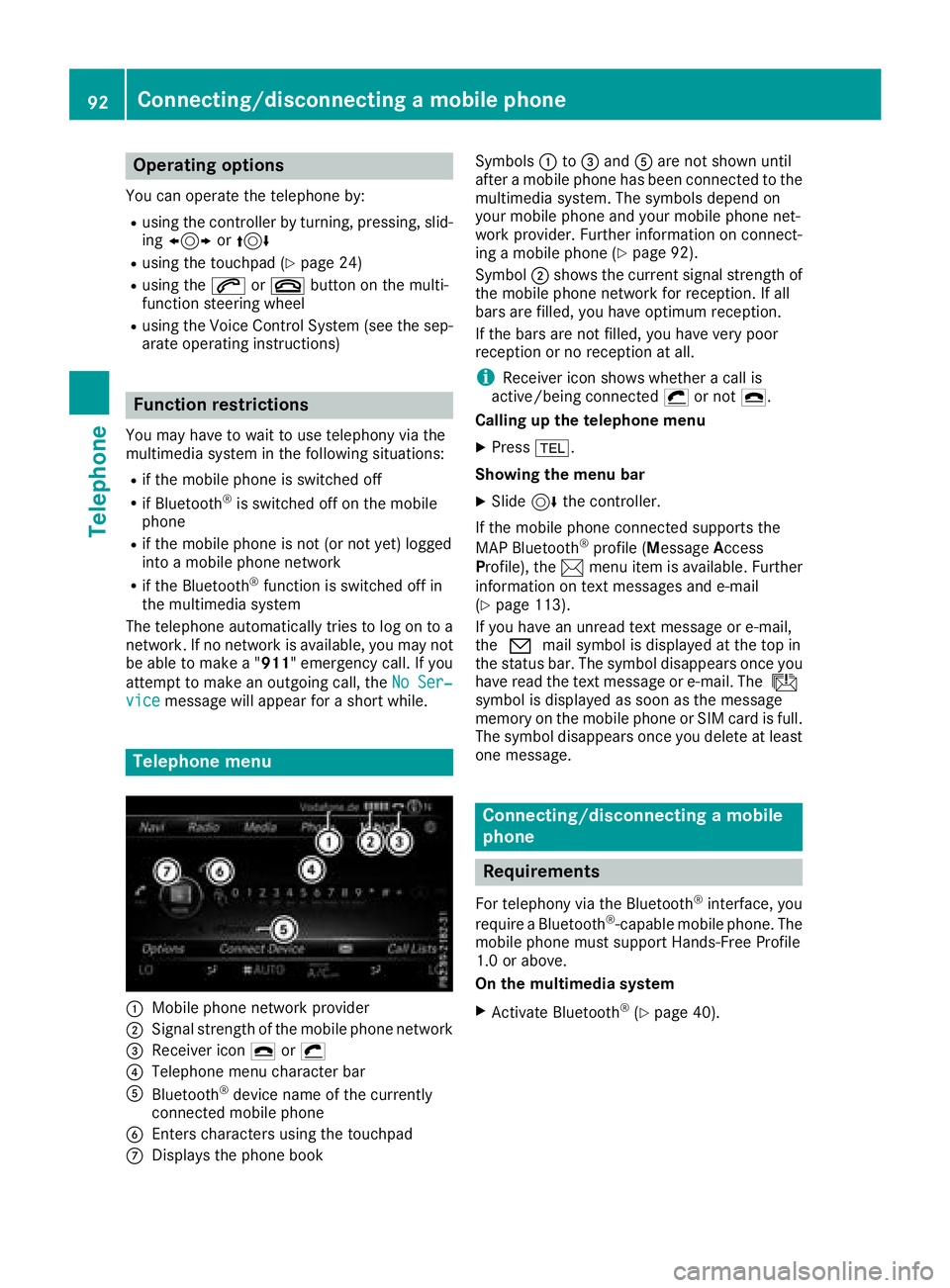
Telephone menu
:Mobile phone network provider
;Signal strength of the mobile phone network
=Receiver icon¢or¡
?Telephone menu character bar
ABluetooth®device name of the currently
connected mobile phone
BEnters characters using the touchpad
CDisplays the phone book Symbols
:to= and Aare not shown until
after a mobile phone has been connected to the
multimedia system. The symbols depend on
your mobile phone and your mobile phone net-
work provider. Further information on connect-
ing a mobile phone (
Ypage 92).
Symbol ;shows the current signal strength of
the mobile phone network for reception. If all
bars are filled, you have optimum reception.
If the bars are not filled, you have very poor
reception or no reception at all.
iReceiver icon shows whether a call is
active/being connected ¡or not ¢.
Calling up the telephone menu
XPress %.
Showing the menu bar
XSlide 6the controller.
If the mobile phone connected supports the
MAP Bluetooth
®profile (M essageAccess
Profile), the 1menu item is available. Further
information on text messages and e-mail
(
Ypage 113).
If you have an unread text message or e-mail,
the 0 mail symbol is displayed at the top in
the status bar. The symbol disappears once you
have read the text message or e-mail. The ú
symbol is displayed as soon as the message
memory on the mobile phone or SIM card is full.
The symbol disappears once you delete at least
one message.
Connecting/disconnecting a mobile
phone
Requirements
For telephony via the Bluetooth®interface, you
require a Bluetooth®-capable mobile phone. The
mobile phone must support Hands-Free Profile
1.0 or above.
On the multimedia system
XActivate Bluetooth®(Ypage 40).
92Connecting/disconnecting a mobile phone
Telephone