light MERCEDES-BENZ C-CLASS COUPE 2018 COMAND Manual
[x] Cancel search | Manufacturer: MERCEDES-BENZ, Model Year: 2018, Model line: C-CLASS COUPE, Model: MERCEDES-BENZ C-CLASS COUPE 2018Pages: 174, PDF Size: 4.1 MB
Page 62 of 174
---/---is displayed if fewer than three char-
acters have been entered.
999+
is displayed if there are too many hits.
XSelect the ¬symbol.
The search results are displayed
(
Ypage 60).
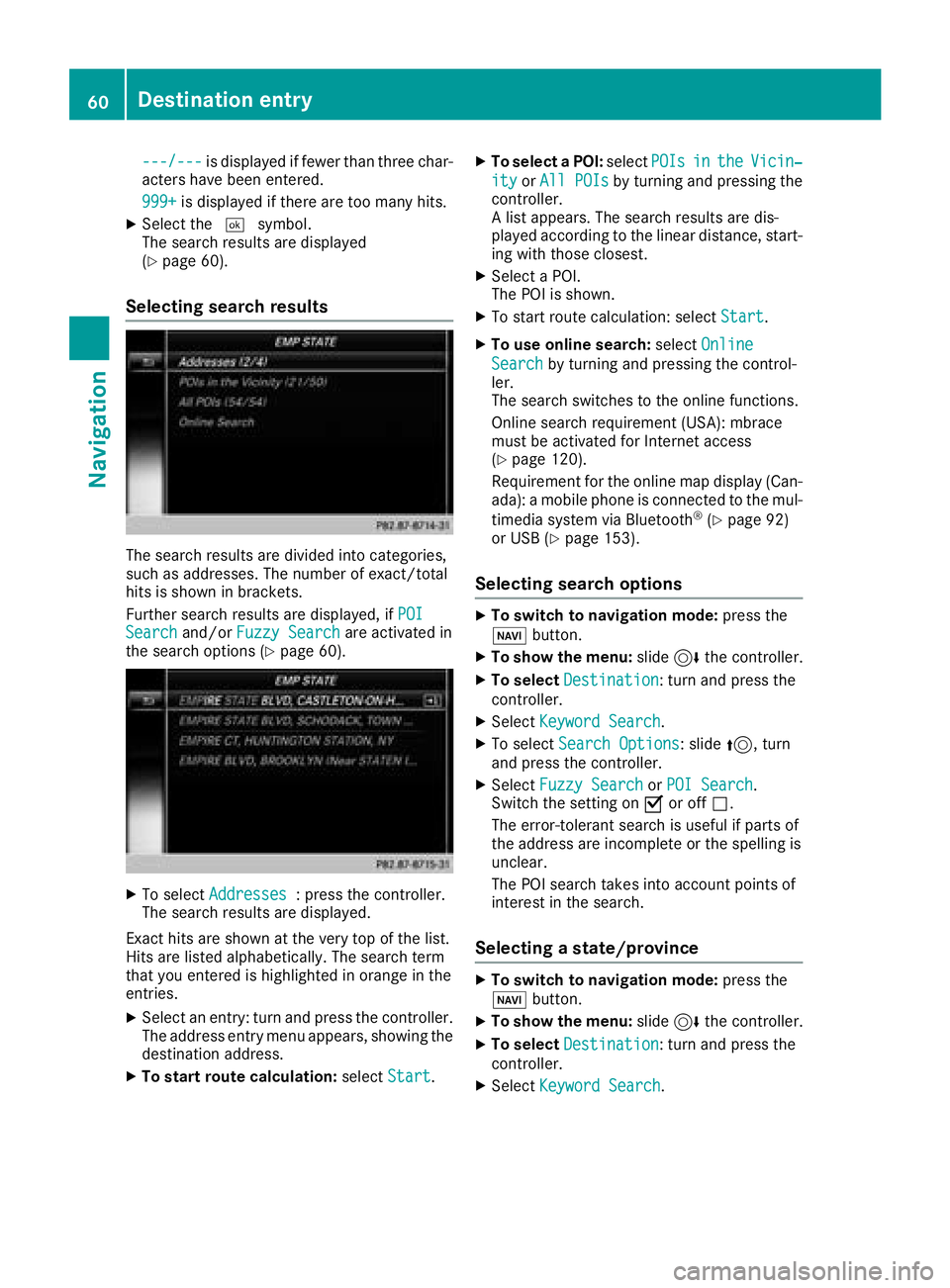
Selecting search results
The search results are divided into categories,
such as addresses. The number of exact/total
hits is shown in brackets.
Further search results are displayed, if POI
Searchand/orFuzzy Searchare activated in
the search options (Ypage 60).
XTo select Addresses: press the controller.
The search results are displayed.
Exact hits are shown at the very top of the list.
Hits are listed alphabetically. The search term
that you entered is highlighted in orange in the
entries.
XSelect an entry: turn and press the controller.
The address entry menu appears, showing the
destination address.
XTo start route calculation: selectStart.
XTo select a POI: selectPOIsintheVicin‐
ityorAll POIsby turning and pressing the
controller.
A list appears. The search results are dis-
played according to the linear distance, start-
ing with those closest.
XSelect a POI.
The POI is shown.
XTo start route calculation: select Start.
XTo use online search:selectOnline
Searchby turning and pressing the control-
ler.
The search switches to the online functions.
Online search requirement (USA): mbrace
must be activated for Internet access
(
Ypage 120).
Requirement for the online map display (Can-
ada): a mobile phone is connected to the mul-
timedia system via Bluetooth
®(Ypage 92)
or USB (Ypage 153).
Selecting search options
XTo switch to navigation mode: press the
Ø button.
XTo show the menu: slide6the controller.
XTo select Destination: turn and press the
controller.
XSelect Keyword Search.
XTo select Search Options: slide5, turn
and press the controller.
XSelect Fuzzy SearchorPOI Search.
Switch the setting on Oor off ª.
The error-tolerant search is useful if parts of
the address are incomplete or the spelling is
unclear.
The POI search takes into account points of
interest in the search.
Selecting a state/province
XTo switch to navigation mode: press the
Ø button.
XTo show the menu: slide6the controller.
XTo select Destination: turn and press the
controller.
XSelect Keyword Search.
60Destination entry
Navigation
Page 67 of 174
SelectionStep
AddressEntryXEnter a destination by
address (Ypage 57).
KeywordSearchXSelect a destination
using a keyword search
(
Ypage 59).
From Previ‐ous Destina‐tions
XSelect a destination
from the list of last des-
tinations (
Ypage 61).
From Con‐tactsXSelect a contact from
the address book as the
destination (
Ypage 61).
From POIsXSelect a point of interest(Ypage 63).
Using MapXEnter a destination using
the map (Ypage 64).
From MemoryCardXSelect a personal POI
(Ypage 69).
FromMercedes-Benz Apps
XEnter a destination from
Mercedes-Benz Apps
(
Ypage 66).
Using Geo-CoordinatesXEnter a destination using
the geo-coordinates
(
Ypage 67).
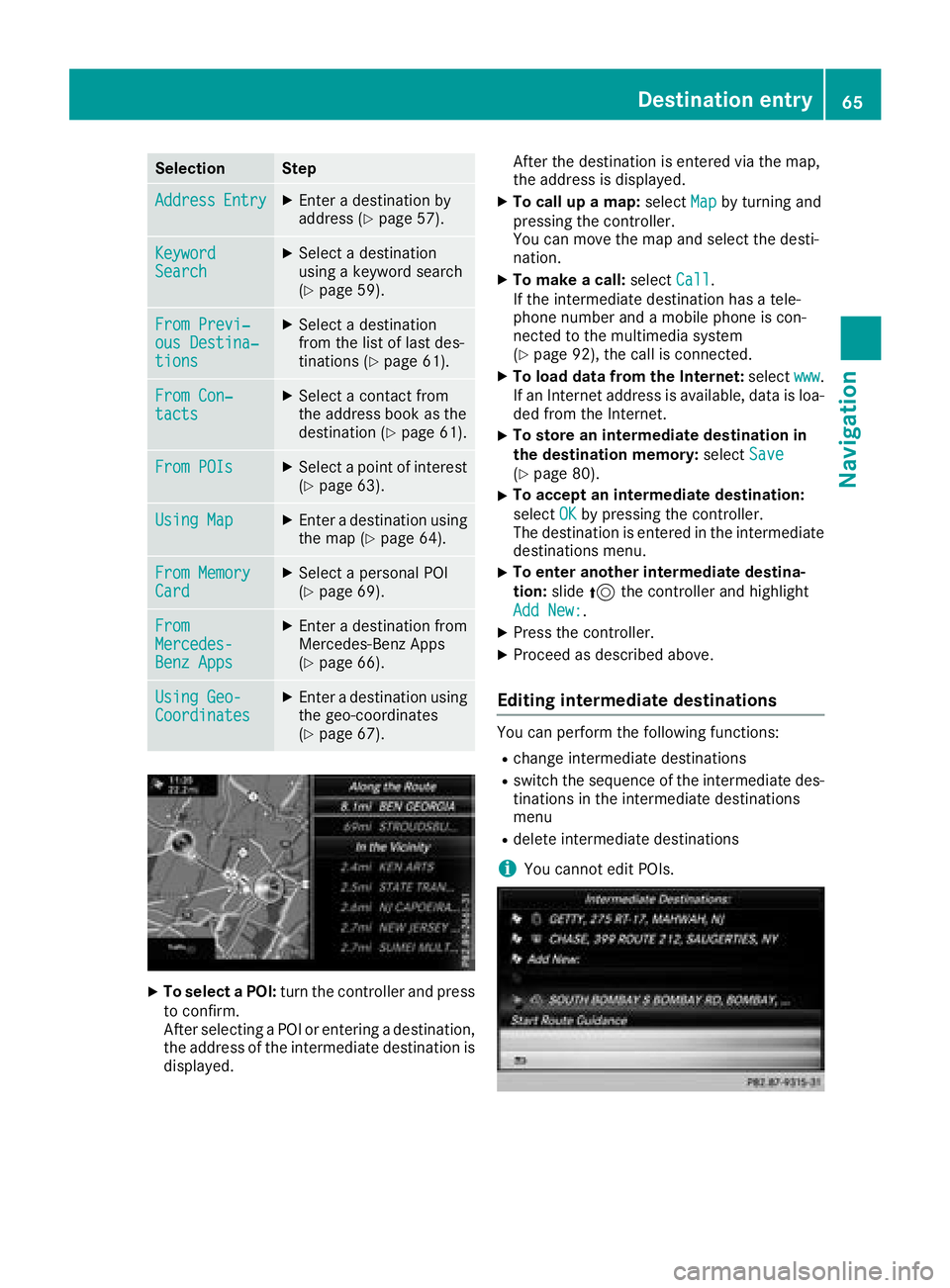
XTo select a POI: turn the controller and press
to confirm.
After selecting a POI or entering a destination,
the address of the intermediate destination is
displayed. After the destination is entered via the map,
the address is displayed.
XTo call up a map:
selectMapby turning and
pressing the controller.
You can move the map and select the desti-
nation.
XTo make a call: selectCall.
If the intermediate destination has a tele-
phone number and a mobile phone is con-
nected to the multimedia system
(
Ypage 92), the call is connected.
XTo load data from the Internet: selectwww.
If an Internet address is available, data is loa- ded from the Internet.
XTo store an intermediate destination in
the destination memory: selectSave
(Ypage 80).
XTo accept an intermediate destination:
selectOK
by pressing the controller.
The destination is entered in the intermediate
destinations menu.
XTo enter another intermediate destina-
tion: slide5the controller and highlight
Add New:
.
XPress the controller.
XProceed as described above.
Editing intermediate destinations
You can perform the following functions:
Rchange intermediate destinations
Rswitch the sequence of the intermediate des-
tinations in the intermediate destinations
menu
Rdelete intermediate destinations
iYou cannot edit POIs.
Destination entry65
Navigation
Z
Page 70 of 174
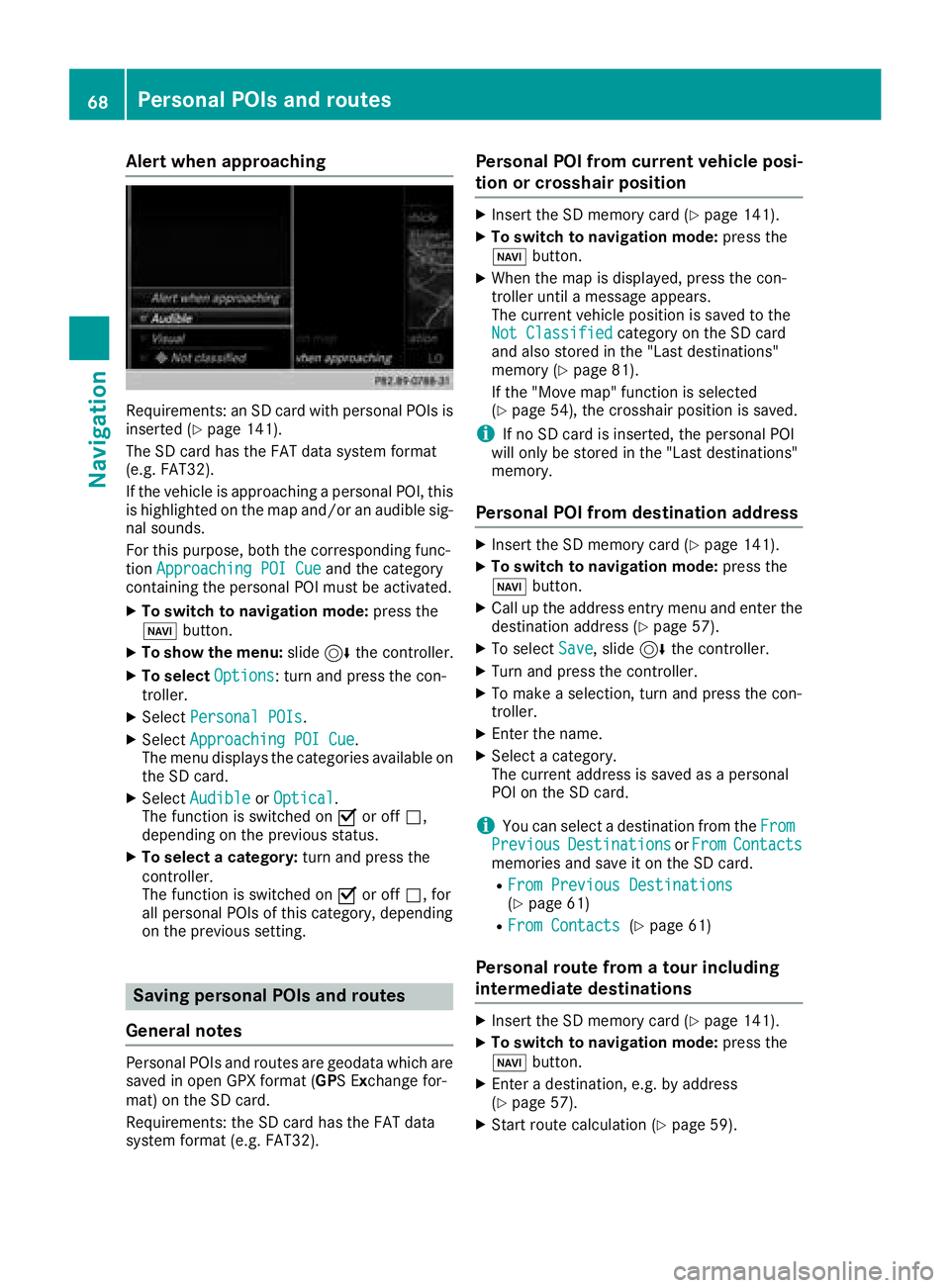
Alert when approaching
Requirements: an SD cardwit hpersonal POI sis
inserted (Ypage 141).
The SD car dhas th eFA Tdat asystem format
(e.g. FAT32).
If th evehicl eis approachin g apersonal POI ,this
is highlighte don th emap and/o ran audible sig-
nal sounds.
Fo rthis purpose ,bot hth ecorresponding func-
tion Approaching POI Cue
and th ecategory
containing th epersonal POI mus tbe activated.
XTo switch to navigation mode: press the
Ø button.
XTo sho wthemenu: slide6 thecontroller .
XTo select Options:tur nand press th econ-
troller .
XSelectPersonal POI s.
XSelectApproaching POI Cue.
The men udisplays th ecategorie savailable on
th eSD card.
XSelec tAudibl eorOptica l.
The function is switched on Oor off ª,
depending on th eprevious status .
XTo selectacategory: turnand press th e
controller .
The function is switched on Oor off ª,for
all personal POI sof this category, depending
on th eprevious setting .
Saving personal POIs and routes
Gene ral notes
Personal POI sand routes are geodat awhic hare
saved in open GPX format (GP S E xchange for -
mat )on th eSD card.
Requirements: th eSD car dhas th eFA Tdat a
system format (e.g. FAT32).
Personal POI fr omcurrent vehicle posi-
ti on or cros shair position
XInsertth eSD memory car d (Ypage 141).
XTo switch to navigation mode: press the
Ø button.
XWhen th emap is displayed, press th econ-
troller until amessage appears.
The curren tvehicl eposition is saved to th e
Not Classifie d
category on theSD car d
and also store din th e"Las tdestinations"
memory (
Ypage 81).
If th e"Mov emap" function is selected
(
Ypage 54), th ecrosshair position is saved.
iIf no SD car dis inserted, th epersonal POI
will only be store din th e"Las tdestinations"
memory.
Personal POI fr omdestination address
XInser tth eSD memory car d (Ypage 141).
XTo switch to navigation mode: press the
Ø button.
XCall up th eaddress entr ymen uand ente rth e
destination address (Ypage 57).
XTo select Save,slid e6 thecontroller .
XTurn and press th econtroller .
XTo make aselection ,tur nand press th econ-
troller .
XEnterth ename.
XSelec t acategory.
The curren taddress is saved as apersonal
POI on th eSD card.
iYou can select adestination from th eFro mPreviousDestinationsorFro mContactsmemories and sav eit on th eSD card.
RFro mPrevious Destinations(Ypage 61)
RFro mContacts(Ypage 61 )
Personal route fr oma tour including
intermediate destinations
XInser tth eSD memory car d (Ypage 141).
XTo switch to navigation mode: press the
Ø button.
XEnter adestination ,e.g. by address
(Ypage 57).
XStart rout ecalculation (Ypage 59).
68Personal POIs and routes
Navigation
Page 73 of 174
Route guidance
General notes
The multimedia system calculates the route to
the destination without taking the following into
account, for example:
Rtraffic lights
Rstop and yield signs
Rparking or stopping restrictions
Rroad narrowing
Rtemporary traffic rules and regulations
The navigation system can give differing driving
recommendations if the actual street/traffic sit-
uation does not correspond with the digital
map's data. For example, if the road layout or
the direction of a one-way street has been
changed.
For this reason, you must always observe road
and traffic rules and regulations during your
journey. Road and traffic rules and regulations
always have priority over system driving recom-
mendations.
Route guidance begins once a route has been
calculated (
Ypage 59).
The multimedia system guides you to your des-
tination by means of navigation announcements
in the form of audible navigation announce-
ments and route guidance displays.
The route guidance displays can be seen if nav-
igation mode is switched on.
If you do not follow the navigation announce-
ments or if you leave the calculated route, the
multimedia system automatically calculates a
new route to the destination.
If the digital map contains the corresponding
information, the following applie s:
RDuring route guidance, the multimedia sys-
tem tries to avoid roads with restricted
access. These include, for example, roads
which are closed to through-traffic.
RRoads that have time restrictions are consid-
ered for route guidance on days when they are
open. For this purpose, the relevant times
must be correctly stored in the database. For example, a time restriction can mean a road is
closed on Sundays and public holidays.
Change of direction
Overview
Changes of direction have three phases:
RPreparation phase
RAnnouncement phase
RChange-of-direction phase
Changes in direction are also shown in the mul-
tifunction display of the instrument cluster (see
the vehicle Operator's Manual).
Preparation phase
The multimedia system prepares you for the
upcoming driving maneuver, e.g. with the
announcement "Prepare to turn right". You see
the full-screen map.
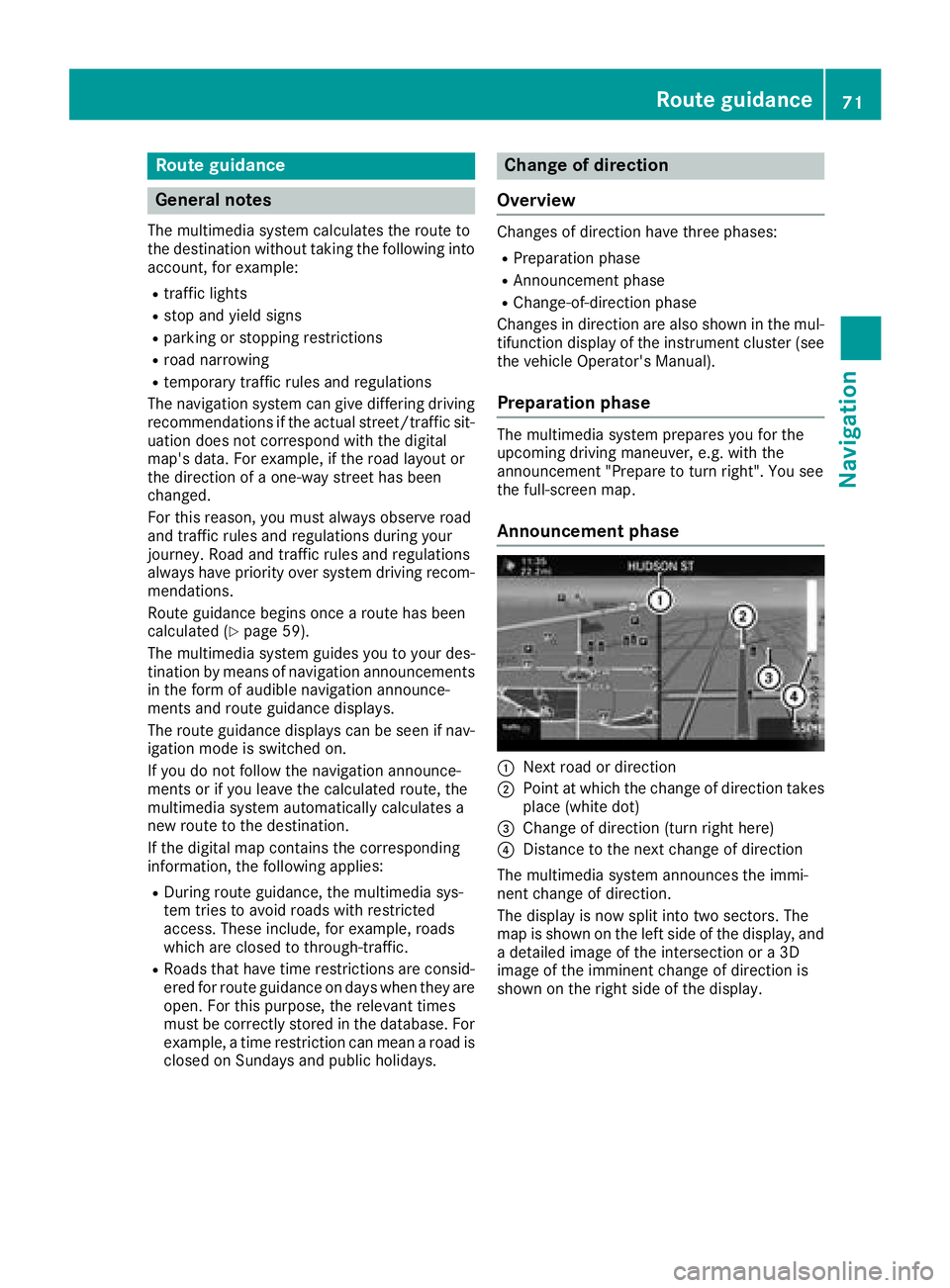
Announcement phase
:Next road or direction
;Point at which the change of direction takes
place (white dot)
=Change of direction (turn right here)
?Distance to the next change of direction
The multimedia system announces the immi-
nent change of direction.
The display is now split into two sectors. The
map is shown on the left side of the display, and
a detailed image of the intersection or a 3D
image of the imminent change of direction is
shown on the right side of the display.
Route guidance71
Navigation
Z
Page 74 of 174
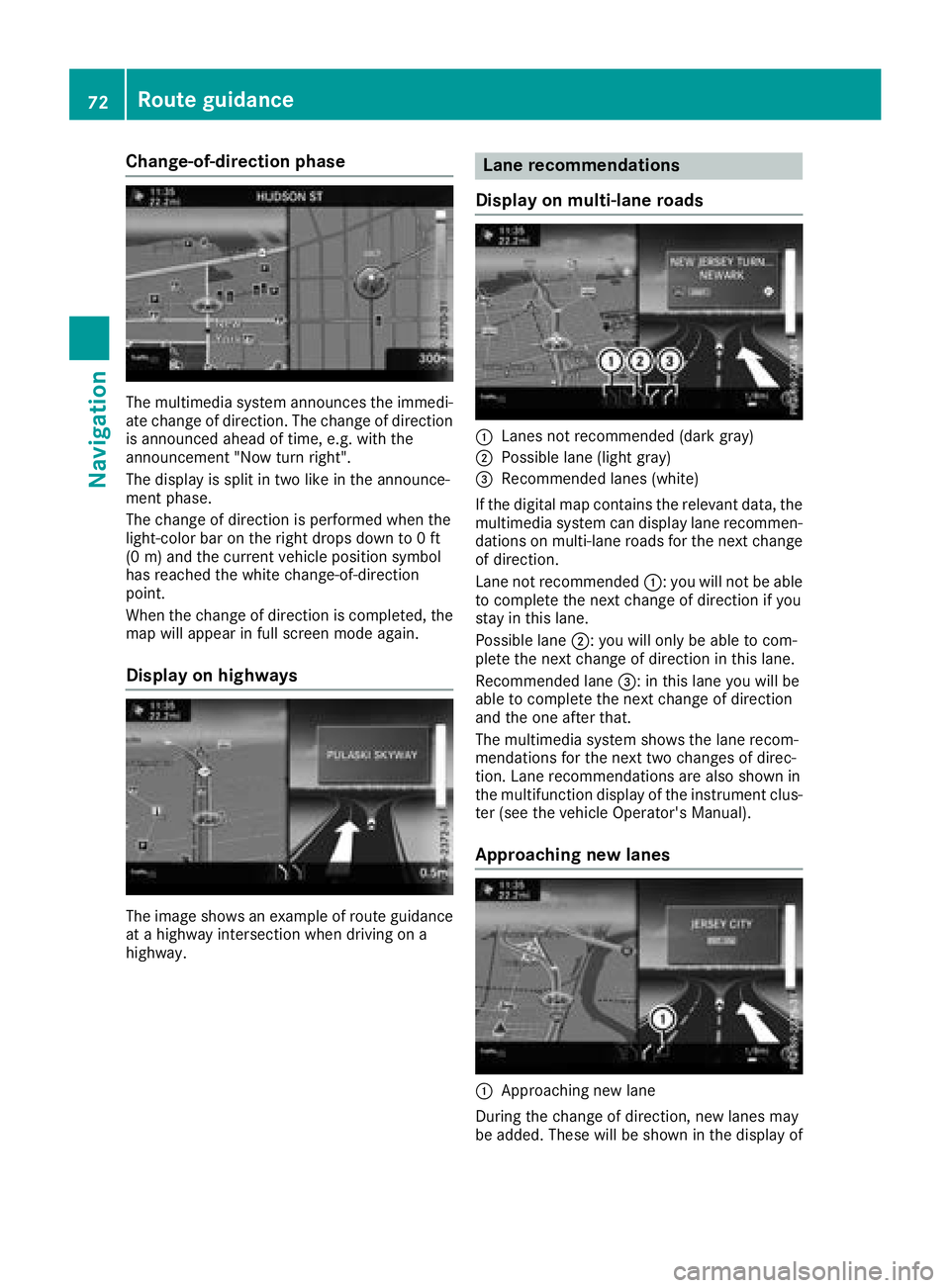
Change-of-direction phase
The multimedia system announces the immedi-
ate change of direction. The change of directionis announced ahead of time, e.g. with the
announcement "Now turn right".
The display is split in two like in the announce-
ment phase.
The change of direction is performed when the
light-color bar on the right drops down to 0 ft
(0 m) an d the current vehicle position symbol
has reached the white change-of-direction
point.
When the change of direction is completed, the
map will appear in full screen mode again.
Display on highways
The image shows an example of route guidance
at a highway intersection when driving on a
highway.
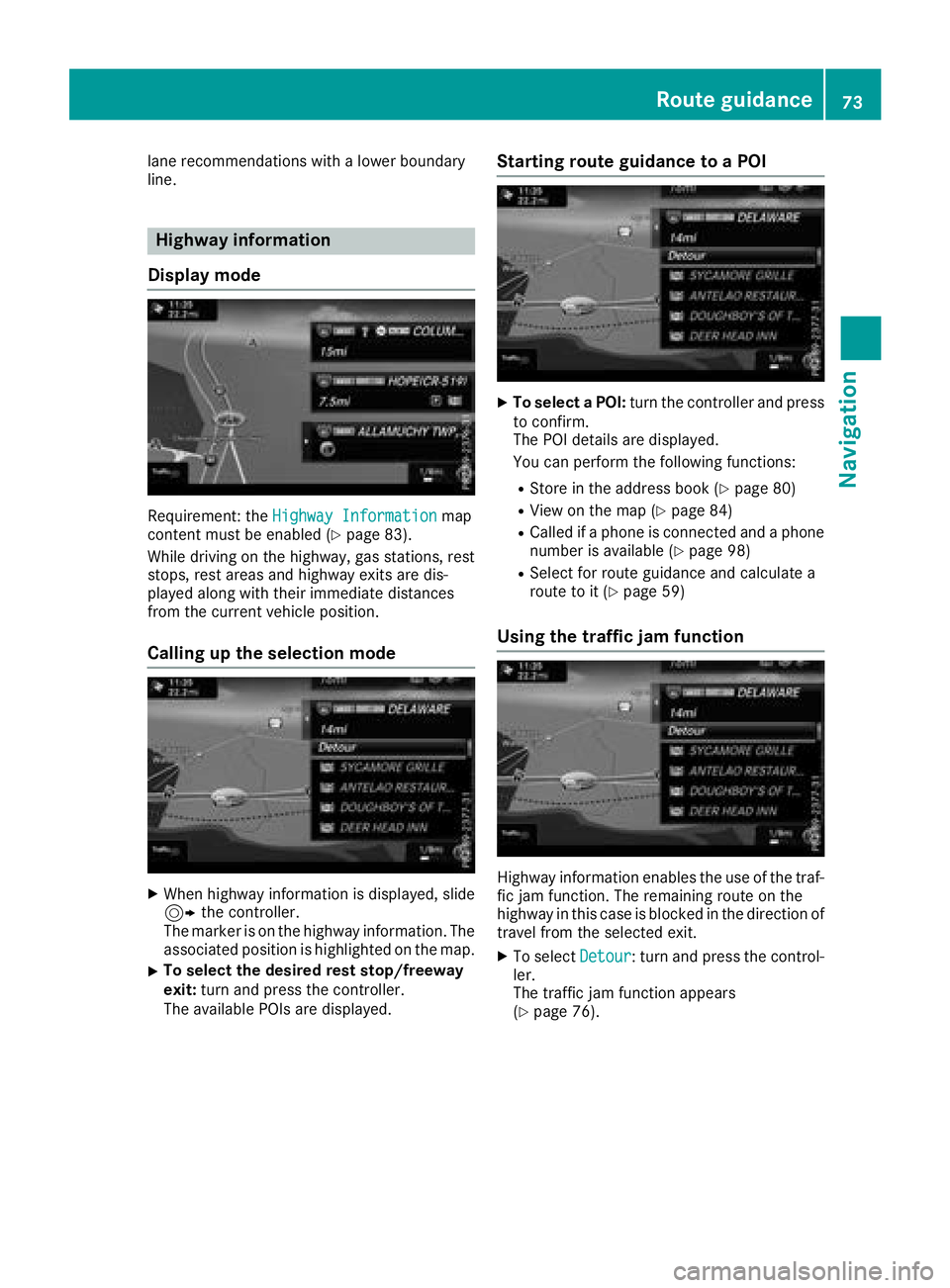
Lane recommendations
Display on multi-lane roads
:Lanes not recommended (dark gray)
;Possible lane (light gray)
=Recommended lanes (white)
If the digital map contains the relevant data, the
multimedia system can display lane recommen-
dations on multi-lane roads for the next change
of direction.
Lane not recommended :: you will not be able
to complete the next change of direction if you
stay in this lane.
Possible lane ;: you will only be able to com-
plete the next change of direction in this lane.
Recommended lane =: in this lane you will be
able to complete the next change of direction
and the one after that.
The multimedia system shows the lane recom-
mendations for the next two changes of direc-
tion. Lane recommendations are also shown in
the multifunction display of the instrument clus-
ter (see the vehicle Operator's Manual).
Approaching new lanes
:Approaching new lane
During the change of direction, new lanes may
be added. These will be shown in the display of
72Route guidance
Navigation
Page 75 of 174
lane recommendations with a lower boundary
line.
Highway information
Display mode
Requirement: the Highway Informationmap
content must be enabled (Ypage 83).
While driving on the highway, gas stations, rest
stops, rest areas and highway exits are dis-
played along with their immediate distances
from the current vehicle position.
Calling up the selection mode
XWhen highway information is displayed, slide 9 the controller.
The marker is on the highway information. The
associated position is highlighted on the map.
XTo select the desired rest stop/freeway
exit: turn and press the controller.
The available POIs are displayed.
Starting route guidance to a POI
XTo select a POI: turn the controller and press
to confirm.
The POI details are displayed.
You can perform the following functions:
RStore in the address book (Ypage 80)
RView on the map (Ypage 84)
RCalled if a phone is connected and a phone
number is available (Ypage 98)
RSelect for route guidance and calculate a
route to it (Ypage 59)
Using the traffic jam function
Highway information enables the use of the traf-
fic jam function. The remaining route on the
highway in this case is blocked in the direction of
travel from the selected exit.
XTo select Detour: turn and press the control-
ler.
The traffic jam function appears
(
Ypage 76).
Route guidance73
Navigation
Z
Page 80 of 174
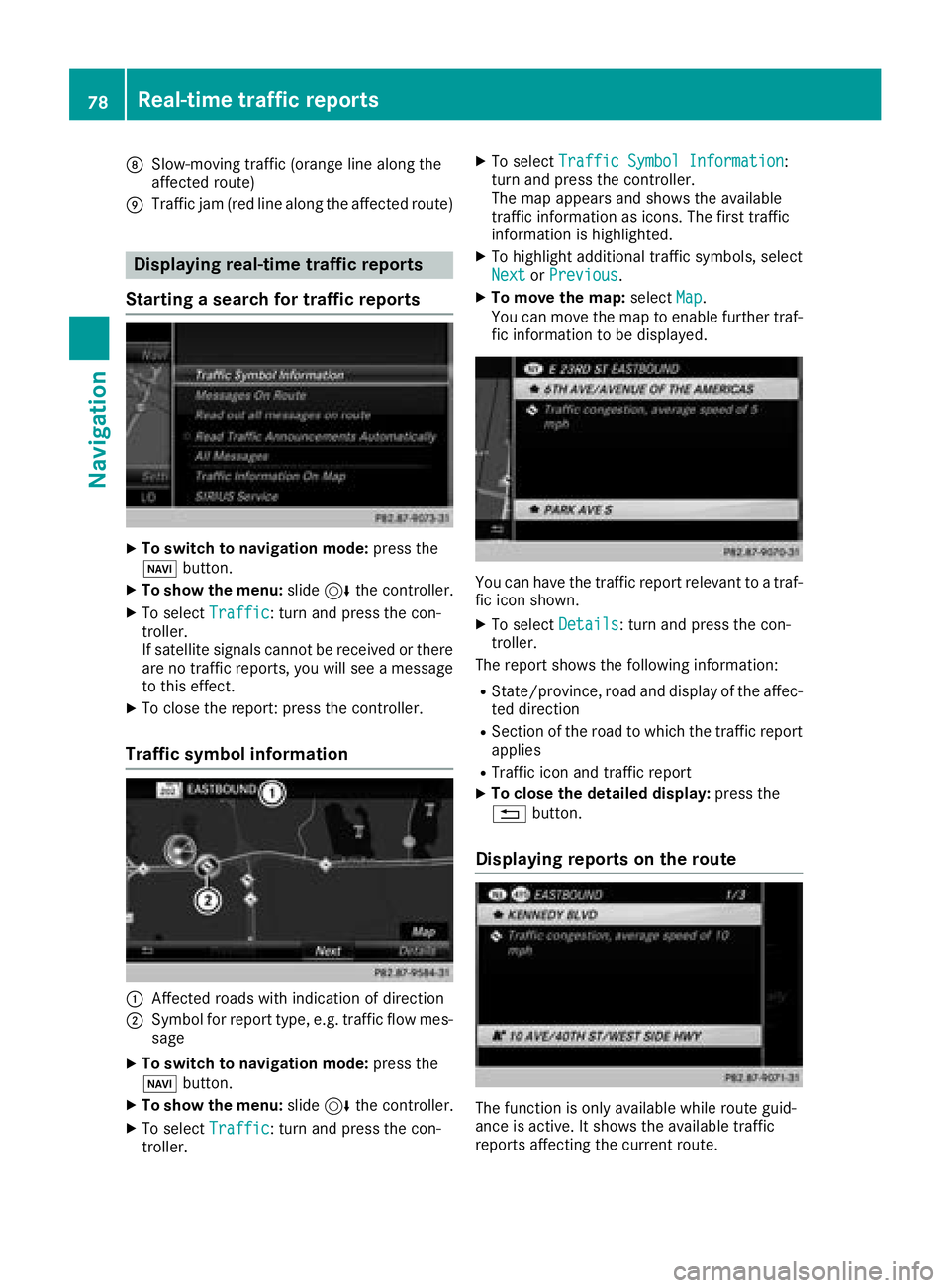
DSlow-moving traffic (orange line along the
affected route)
ETraffic jam (red line along the affected route)
Displaying real-time traffic reports
Starting a search for traffic reports
XTo switch to navigation mode: press the
Ø button.
XTo show the menu: slide6the controller.
XTo select Traffic: turn and press the con-
troller.
If satellite signals cannot be received or there
are no traffic reports, you will see a message
to this effect.
XTo close the report: press the controller.
Traffic symbol information
:Affected roads with indication of direction
;Symbol for report type, e.g. traffic flow mes-
sage
XTo switch to navigation mode: press the
Ø button.
XTo show the menu: slide6the controller.
XTo select Traffic: turn and press the con-
troller.
XTo select Traffic Symbol Information:
turn and press the controller.
The map appears and shows the available
traffic information as icons. The first traffic
information is highlighted.
XTo highlight additional traffic symbols, select
Nextor Previous.
XTo move the map: selectMap.
You can move the map to enable further traf-
fic information to be displayed.
You can have the traffic report relevant to a traf-
fic icon shown.
XTo select Details: turn and press the con-
troller.
The report shows the following information:
RState/province, road and display of the affec-
ted direction
RSection of the road to which the traffic report applies
RTraffic icon and traffic report
XTo close the detailed display: press the
% button.
Displaying reports on the route
The function is only available while route guid-
ance is active. It shows the available traffic
reports affecting the current route.
78Real-time traffic reports
Navigation
Page 83 of 174
XSelectYesorNo.
If you select Yes, a list showing both destina-
tion addresses appears.
XTo select the destination address: turn and
press the controller.
The destination address is overwritten.
XSelect Save as "My address" As "My
Address".
The destination is saved as your home
address.
Saving a destination to an SD card
XInsert the SD memory card (Ypage 141).
XSelect a POI, for example (Ypage 61).
XTo select Save: turn and press the controller.
A menu appears.
XSelect To Memory Card.
If no destination has been saved yet on the SD
card, an input menu will appear.
or
XSelect NotClassifiedor, if available, select
a category that you have created yourself.
An input menu appears.
XEnter a new name and a new category for the
destination in the input menu if required.
Character entry (
Ypage 31).
XSelect OK.
The Saving Successfulmessage appears.
The destination is saved to the SD card.
Saving the current vehicle position
XTo switch to navigation mode: press the
Ø button.
XTo show the menu: slide6the controller.
XTo select Position: turn and press the con-
troller.
XSelect Save.
The current vehicle position is saved in "Last
destinations".
Saving the crosshair position
XTo switch to navigation mode: press the
Ø button.
XTo display the crosshair: press the control-
ler.
XMove the map to the desired position
(Ypage 54).
XTo show the menu: press the controller.
XTo select Position: turn and press the con-
troller.
XSelect Save.
The crosshair position is saved in the last des-
tinations.
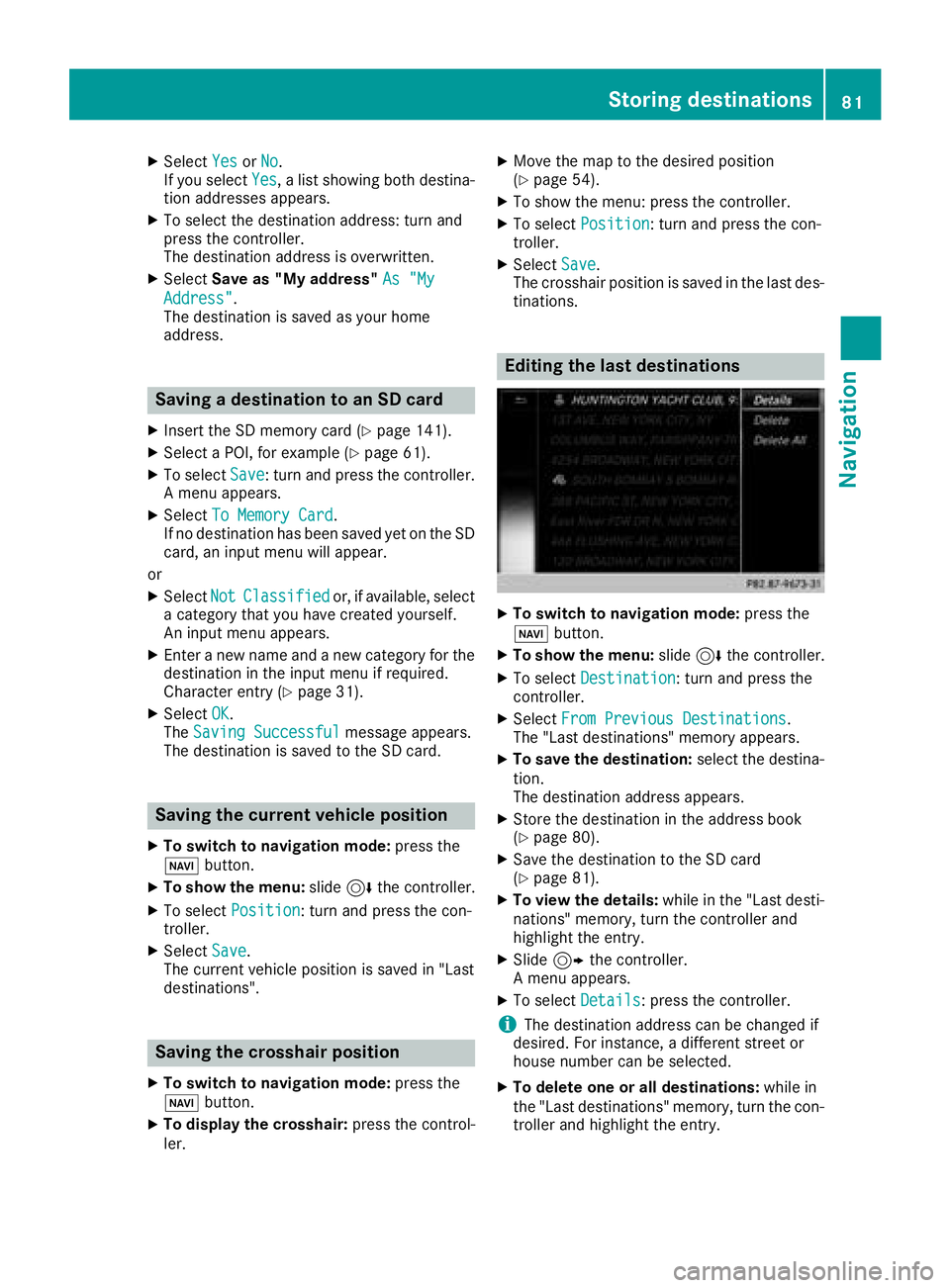
Editing the last destinations
XTo switch to navigation mode: press the
Ø button.
XTo show the menu: slide6the controller.
XTo select Destination: turn and press the
controller.
XSelect From Previous Destinations.
The "Last destinations" memory appears.
XTo save the destination: select the destina-
tion.
The destination address appears.
XStore the destination in the address book
(Ypage 80).
XSave the destination to the SD card
(Ypage 81).
XTo view the details: while in the "Last desti-
nations" memory, turn the controller and
highlight the entry.
XSlide 9the controller.
A menu appears.
XTo select Details: press the controller.
iThe destination address can be changed if
desired. For instance, a different street or
house number can be selected.
XTo delete one or all destinations: while in
the "Last destinations" memory, turn the con-
troller and highlight the entry.
Storing destinations81
Navigation
Z
Page 89 of 174
Carrying out a manual update
You can carry out the update yourself.
The update process may take some time (up to
45 minutes), depending on the size of the digital
map. The update will be completed more quickly if the vehicle is stationary. If you begin the
update while the vehicle is stationary and the
starter battery has insufficient power, the mul-
timedia system may switch off automatically.
This protects the battery. In order to prevent
this, a suitable power supply to the vehicle must
be maintained.
Functions in the Navigation menu
Calling up the navigation system
menu
XTo switch to navigation mode: press the
ß button.
XTo show the menu: slide5the controller.
Navi
is highlighted in the main function bar.
XPress the controller.
The navigation menu appears.
XTurn the controller.
The functions are displayed one after another.
XTo switch to the map, turn the controller until
Navigationappears and press the control-
ler.
Calling up the online map display
Requirement for online map display (USA):
mbrace must be activated for Internet access
(
Ypage 120).
Requirement for the online map display (Can-
ada): a mobile phone is connected to the multi-
media system via Bluetooth
®(Ypage 92) or
USB (Ypage 153).
XCall up the navigation menu (Ypage 87).
XTurn the controller until Online Map Dis‐playis brought to the front.
XPress the controller.
The online connection is established. Once
the connection is established, the Google
Maps™ map shows the vicinity of the current
vehicle position.
iAlternatively you can call up this function
using the touchpad (Ypage 24).
XTo exit the online map display: press the %
button.
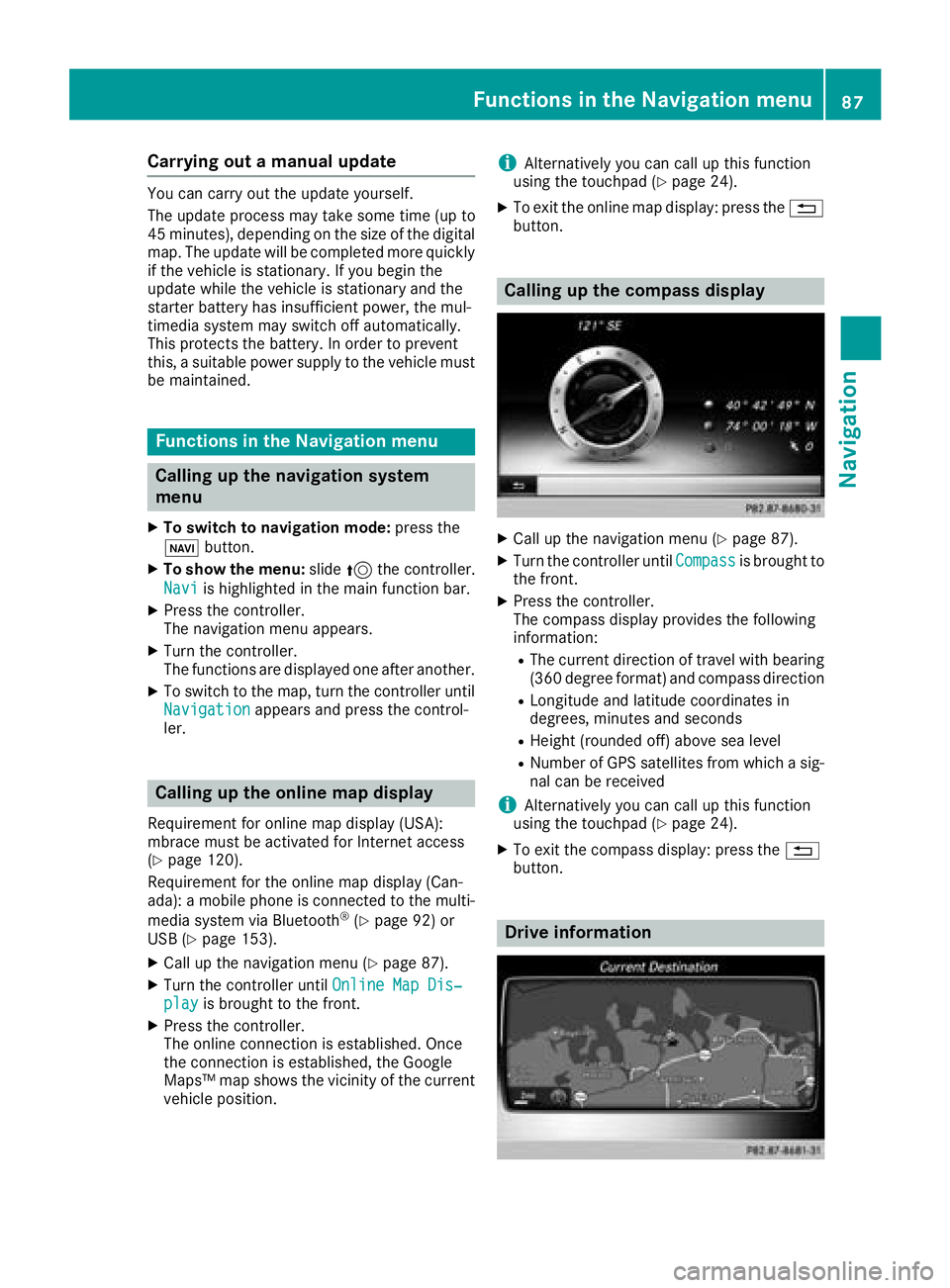
Calling up the compass display
XCall up the navigation menu (Ypage 87).
XTurn the controller until Compassis brought to
the front.
XPress the controller.
The compass display provides the following
information:
RThe current direction of travel with bearing
(360 degree format) and compass direction
RLongitude and latitude coordinates in
degrees, minutes and seconds
RHeight (rounded off) above sea level
RNumber of GPS satellites from which a sig- nal can be received
iAlternatively you can call up this function
using the touchpad (Ypage 24).
XTo exit the compass display: press the %
button.
Drive information
Functions in the Navigation menu87
Navigation
Z
Page 90 of 174
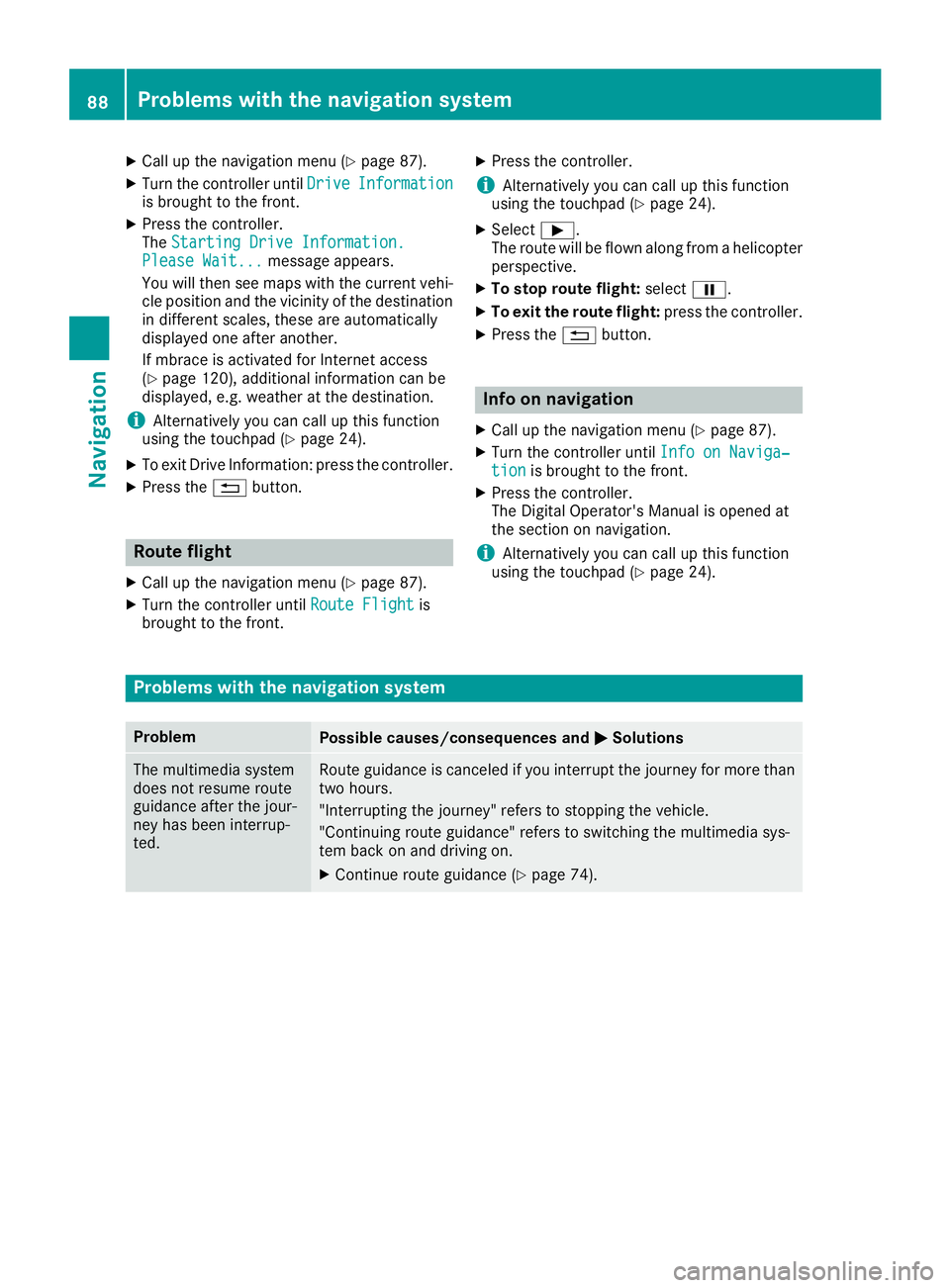
XCallup the navigation menu (Ypage 87).
XTurn the controller unt ilDriveInformationis brought to the front.
XPress the controller.
The Starting Drive Information.
Please Wait...message appears.
You willthen see maps with the current veh i-
cle position and the vicinity of the destination
in diff erent scales, these are automatically
displ ayed one after another.
If mbrace isactivated for Internet access
(
Ypage 120), additional information can be
displ ayed, e.g. weather at the destination.
iAlternatively you can call up th isfunction
using the touchpad (Ypage 24).
XTo exit DriveInformation: press the controller.
XPress the %button.
Route flight
XCallup the navigation menu (Ypage 87).
XTurn the controller unt ilRoute Flightis
brought to the front.
XPress the controller.
iAlternatively you can call up this function
using the touchpad (Ypage 24).
XSelect Ì.
The route will beflown along from a helicopter
perspective.
XTo stop route flight:selectË.
XTo exit the route flight: press the controller.
XPress the %button.
Info on navigation
XCall up the navigation menu (Ypage 87).
XTurn the controller until Info on Naviga‐tionis brought to the front.
XPress the controller.
The Digital Operator's Manual is opened at
the section on navigation.
iAlternatively you can call up this function
using the touchpad (Ypage 24).
Problems with the navigation system
ProblemPossible causes/consequences and MSolutions
The multimedia system
does not resume route
guidance after the jour-
ney has been interrup-
te d.Route guidance iscanceled if you interrupt the journey for more than
two hours.
"In terrupting the journey" refers to stopping the vehicle.
"Con tinuing route guidance" refers to switching the multimedia sys-
tem back on and driving on.
XContinue route guidance (Ypage 74).
88Problems with the navigation system
Navigation