phone MERCEDES-BENZ C-CLASS COUPE 2018 COMAND Manual
[x] Cancel search | Manufacturer: MERCEDES-BENZ, Model Year: 2018, Model line: C-CLASS COUPE, Model: MERCEDES-BENZ C-CLASS COUPE 2018Pages: 174, PDF Size: 4.1 MB
Page 114 of 174
Overwriting an entry
XTo selectYes: turn and press the controller.
A list of the existing five numbers is displayed.
XTo select the number to be overwritten from
the list: turn the controller and press to con-
firm.
The entry is overwritten with the new tele-
phone number.
Canceling the overwriting of an entry
XTo select No: turn and press the controller.
The process is canceled.
Deleting call lists
Call lists which are generated and managed by
the multimedia system can be deleted in the
multimedia system.
You cannot delete call lists from the multimedia
system which are displayed on a mobile phone
that supports the PBAP Bluetooth
®.
XTo call up the telephone menu: press the
% button.
XTo switch to the menu bar: slide 6the con-
troller.
XTo select Call Lists: turn and press the
controller.
XSelect Delete Call Lists.
A prompt appears asking whether you wish to
delete all call lists.
XTo select Yes: turn and press the controller.
The call lists are deleted.
iIf you delete call lists from the mobile phone
(see the manufacturer's operating instruc-
tions), the multimedia system updates the
call list display the next time it connects.
Speed dial lists
Setting up
XTo call up the telephone menu: press the
% button.
XTo call up the menu bar: slide 6the con-
troller.
XTo select Call Lists: turn and press the
controller.
XSelect Speed Dial Preset List.
The speed dial list is displayed.
XTo highlight a memory position for the speed
dial: turn the controller.
If you highlight an entry that already exists in the speed dial list, this is overwritten with the
new entry.
XTo select G: slide 9the controller.
XSelect Assign Speed Dial Preset.
The phone book is displayed.
XSearch for a contact (Ypage 101).
XTo select a contact: turn and press the con-
troller.
The phone number has been saved as a speed
dial.
Deleting
Deleting a speed dial preset
XTo call up the telephone menu: press the
% button.
XTo call up the menu bar: slide 6the con-
troller.
XTo select Call Lists: turn and press the
controller.
XSelect Speed Dial Preset List.
The speed dial list is displayed.
XTo highlight the memory position you want to
delete: turn the controller.
XTo select G: slide 9the controller.
XTo select DeleteSpeedDialPreset: turn
and press the controller.
XTo select Yes: turn and press the controller.
The speed dial preset has been deleted.
Deleting all speed dial presets
XTo call up the telephone menu: press the
% button.
XTo call up the menu bar: slide 6the con-
troller.
XTo select Call Lists: turn and press the
controller.
XSelect Speed Dial Preset List.
The speed dial list is displayed.
XTo select G: slide 9the controller.
XTo select Delete All Speed Dial Pre‐sets: turn and press the controller.
XTo selectYes: turn and press the controller.
All speed dials are deleted.
112Speed dial lists
Telephone
Page 115 of 174
Messages
General notes
New messages are identified by the/sym-
bol in the display of the multimedia system and
an audible signal. Once you have read all the
messages, the symbol is no longer displayed.
The multimedia system displays the 100 newest
text messages and e-mails.
The ú symbol is displayed when the mobile
phone's message memory is full. The symbol is
no longer displayed if you delete messages on
the mobile phone.
Function restrictions
Text messages cannot be written while the vehi-
cle is in motion.
Requirements
To use the message functions, the connected
mobile phone must support the MAP Bluetooth®
profile. The prompt for the MAP Bluetooth®pro-
file may have to be confirmed on the mobile
phone.
With some mobile phones, some settings still
have to be made after connecting to the multi-
media system (see the manufacturer's operat-
ing instructions). The messages are then dis-
played the next time you connect to the multi-
media system.
An e-mail account must be set up on the mobile
phone for the e-mail function (see the manufac-
turer’s operating instructions).
To read and write e-mails in the multimedia sys- tem, the e-mail account first needs to be con-
figured (
Ypage 114).
Some mobile phones with the MAP Bluetooth®
profile:
Ronly show new text messages
Rdo not support the deleting or editing of text
messages
Rdo not support the drafts folder for text mes- sages
Rdo not support the sending of text messages
Rdo not support the e-mail function
Rdo not send messages when in a locked sta-
tus Not all mobile phones available on the market
are equally suitable. Further information about
settings and supported functions of Bluetooth
®-
capable mobile phones can be found on the
Internet at
http://www.mercedes-benz.com/connect .
Or call the Mercedes-Benz Customer Assistance
Center at 1-800-FOR-MERCedes
(1-800-367-6372) (for the USA) or Customer
Relations at 1-800-387-0100 (for Canada).
Settings
Calling up the settings menu for mes-
sages
XTo call up the telephone menu: press the
% button.
XTo switch to the menu bar: slide 6the con-
troller.
XTo select 1: turn and press the controller.
The message menu is displayed.
XTo switch to the menu bar: slide 6the con-
troller.
XTo select Settings: turn and press the con-
troller.
The text message settings and the available e-
mail accounts of the connected mobile phone
will be displayed.
Configuring the text messages dis-
played
XCall up the settings menu for messages
(Ypage 113).
XTo highlight Text Message: turn the control-
ler.
XTo select G: slide 9the controller.
A menu with the following options is shown:
RAll Messages
RNew Messages
ROff
The messages are not displayed automati-
cally. You can display the 100 newest text
messages from the mobile phone using the
Download
option in the message menu.
XTo select the required option: turn and press
the controller.
Messages113
Telephone
Z
Page 116 of 174
Configuring the e-mails displayed
XCall up the settings menu for messages
(Ypage 113).
XTo highlight an e-mail account: turn the con-
troller.
XTo selectG: slide 9the controller.
A menu with the following options is shown:
RAll Messages
RNew Messages
ROff
The messages are not displayed automati-
cally. You can also display the 100 newest
e-mails using the Download
option in the
message menu.
XTo select the required option: turn and press
the controller.
Configuring an e-mail account
XCall up the settings menu for messages
(Ypage 113).
XTo select an e-mail account: turn and press
the controller.
The e-mail account is now configured. E-mails
can now be received and sent in the multi-
media system.
Deactivating the e-mail function
XCall up the settings menu for messages
(Ypage 113).
XTo select E-Mail Off: turn and press the
controller.
E-mail reception is deactivated.
Changing the displayed name of the e-
mail account
Some mobile phones:
Rdo not support the changing of the displayed
name
Rsupport only the e-mail address of the e-mail
account
XCall up the settings menu for messages
(Ypage 113).
XTo highlight an e-mail account: turn the con-
troller.
XTo select G: slide 9the controller.
XTo select Own E-Mail Address: turn and
press the controller.
The input menu for entering your own e-mail
address is displayed.
Downloading messages manually
XTo call up the telephone menu: press the
% button.
XTo switch to the menu bar: slide 6the con-
troller.
XTo select 1: turn and press the controller.
The message menu is displayed.
XTo switch to the menu bar: slide 6the con-
troller.
XTo select Download: turn and press the con-
troller.
Downloading text messages and e-mails
from the phone
XSelect From the Phone.
The messages are downloaded.
If you have selected Automatic
Downloadin
the e-mail settings, manual downloading is
not possible.
Updating from the e-mail server by the
mobile phone
XSelect From the E-Mail Server.
The e-mails in the mobile phone are updated.
This function is not supported by all mobile
phones.
Reading messages
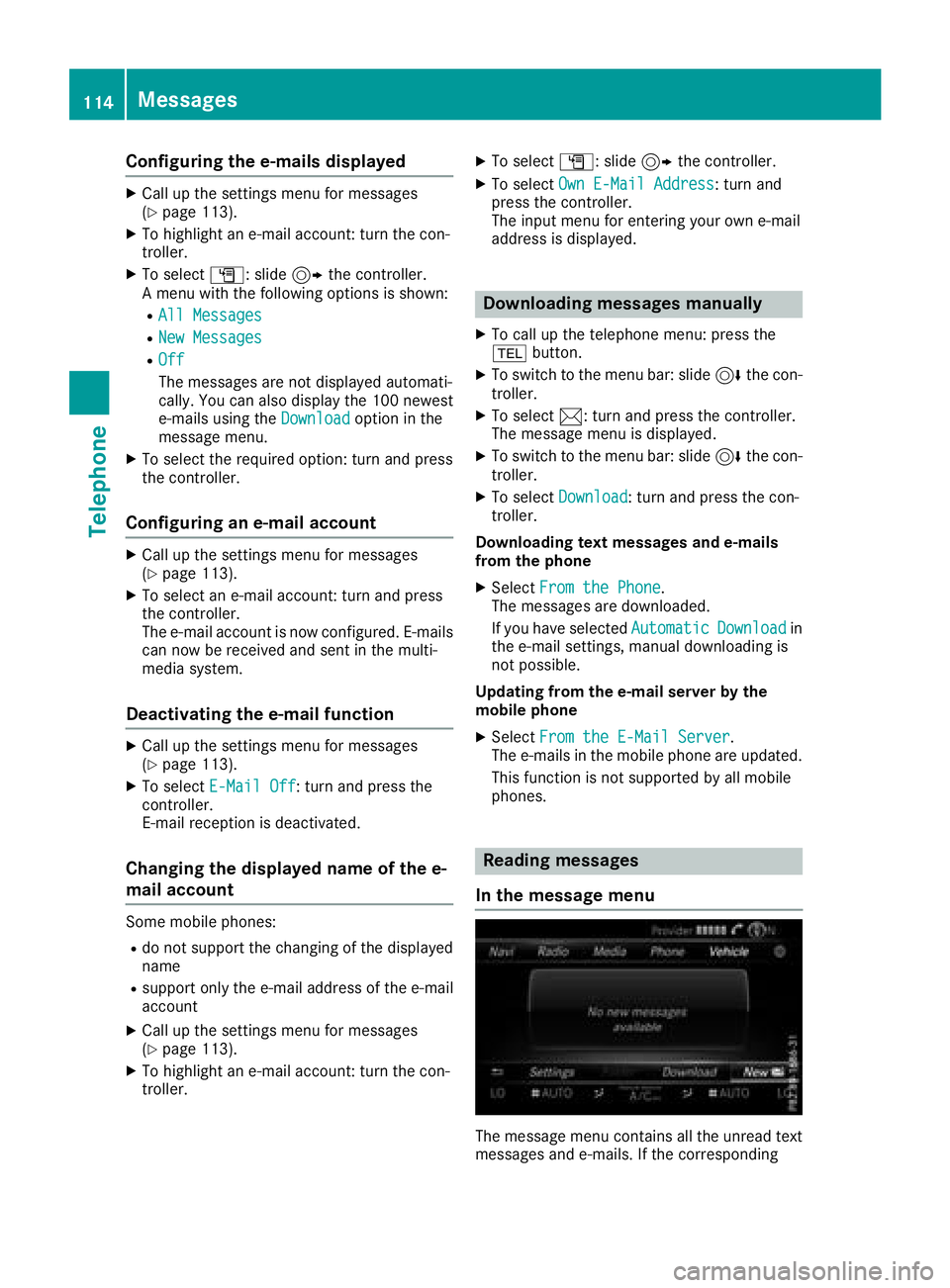
In the message menu
The message menu contains all the unread text
messages and e-mails. If the corresponding
114Messages
Telephone
Page 117 of 174
folder is called up, the messages are sorted by
text messages and e-mails and displayed.
XTo call up the telephone menu: press the
%button.
XTo switch to the menu bar: slide 6the con-
troller.
XTo select 1: turn and press the controller.
The message menu is displayed with the
unread messages.
XTo select the message: turn and press the
controller.
The message text is displayed.
XTo close the message text: press the%
button.
If you want to read messages that have already
been read again, you have to call up the corre-
sponding message folder (
Ypage 115).
In the message folder
XTo call up the telephone menu: press the
% button.
XTo switch to the menu bar: slide 6the con-
troller.
XTo select 1: turn and press the controller.
The message menu is displayed.
XTo switch to the menu bar: slide 6the con-
troller.
XTo select Folder: turn and press the control-
ler.
XTo select Text MessageorE-Mail: turn and
press the controller.
The selected folder is displayed.
XTo select the message: turn and press the
controller.
The message is displayed.
XTo scroll through the message or select phone numbers in the text: turn the controller.
The display scrolls up or down line by line, or
skips to the next or previous telephone num-ber and automatically highlights it.
XTo return to the list: press%.
The following sub-folders can be selected
for text messages and e-mails:
RInbox
This folder contains all the incoming mes-
sages.
ROutbox
This folder contains all the outgoing mes-
sages.
RDrafts
This folder contains all the messages that you
have saved as a draft.
iFolders cannot be selected if they are
empty.
Depending on the mobile phone used, the sub-
folder function may be available.
Read-aloud function for messages
XTo start the read-aloud function: press the
controller when the message is displayed.
XTo select Read Aloud: turn and press the
controller.
The multimedia system reads the message
aloud.
XTo cancel the read-aloud function: press the
8 button.
or
XPress the controller, select Cancel Read-Aloud Functionand press the controller
again.
You can set the language (
Ypage 40) and the
speed (Ypage 37) of the read-aloud function.
Displaying details and phone numbers
The multimedia system can also show a short-
ened sender display in full.
XTo call up the telephone menu: press the
% button.
XTo switch to the menu bar: slide 6the con-
troller.
XTo select 1: turn and press the controller.
The message menu is displayed.
XTo switch to the menu bar: slide 6the con-
troller.
XTo select Folder: turn and press the control-
ler.
XTo select Text MessageorE-Mail: turn and
press the controller.
The selected folder is displayed.
XTo highlight the desired message: turn the
controller.
XTo select G: slide 9the controller.
XTo select Details: turn and press the con-
troller.
The detailed view appears.
Messages115
Telephone
Z
Page 118 of 174
XTo close the detailed display:slide8 the
controller.
XTo return to the telephone menu: press the
% button.
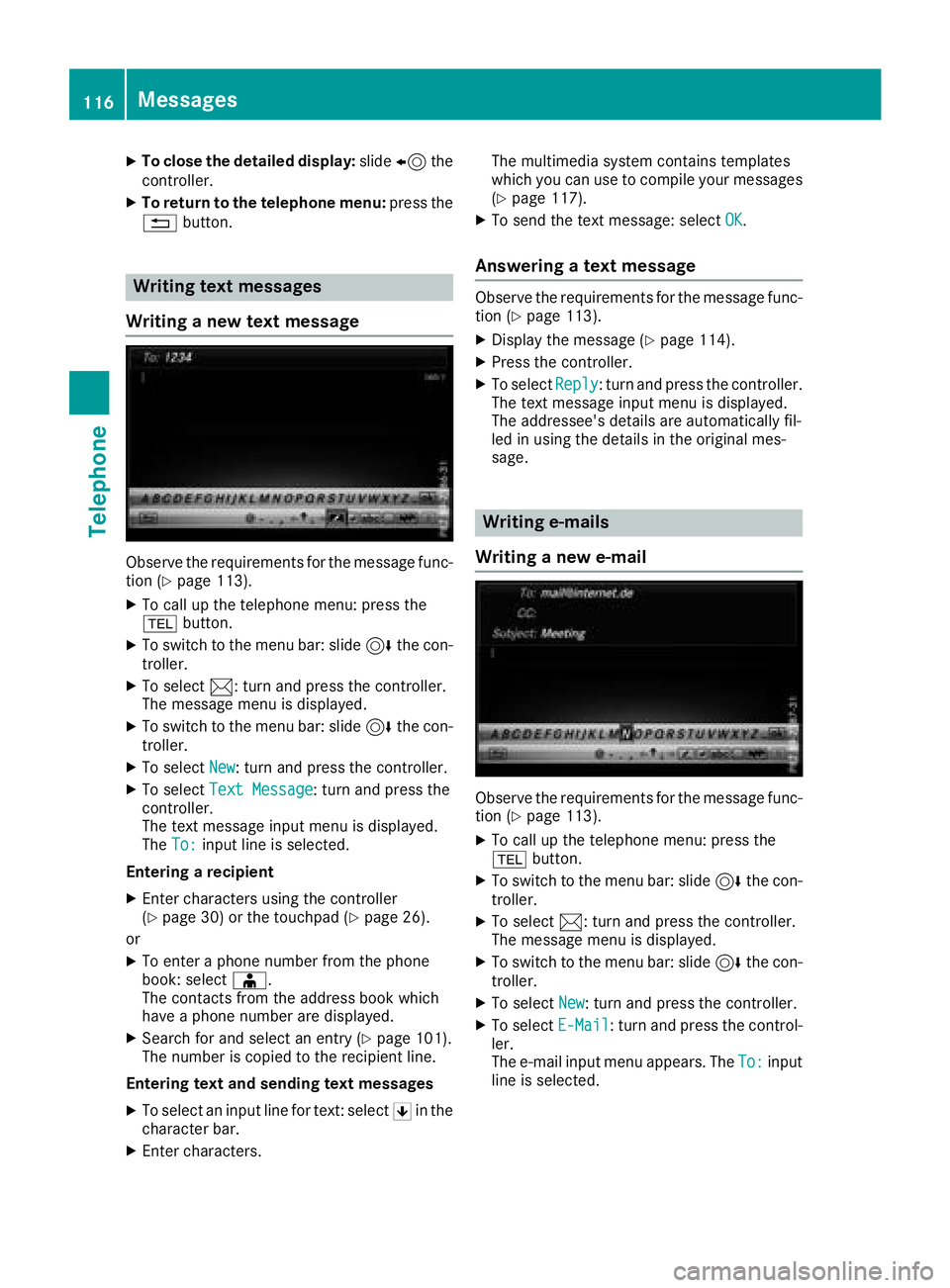
Writing text messages
Writing a new text message
Observe the requirements for the message func-
tion (Ypage 113).
XTo call up the telephone menu: press the
% button.
XTo switch to the menu bar: slide 6the con-
troller.
XTo select 1: turn and press the controller.
The message menu is displayed.
XTo switch to the menu bar: slide 6the con-
troller.
XTo select New: turn and press the controller.
XTo selectText Message: turn and press the
controller.
The text message input menu is displayed.
The To:
input line is selected.
Entering a recipient
XEnter characters using the controller
(Ypage 30) or the touchpad (Ypage 26).
or
XTo enter a phone number from the phone
book: select Æ.
The contacts from the address book which
have a phone number are displayed.
XSearch for and select an entry (Ypage 101).
The number is copied to the recipient line.
Entering text and sending text messages
XTo select an input line for text: select 5in the
character bar.
XEnter characters. The multimedia system contains templates
which you can use to compile your messages
(
Ypage 117).
XTo send the text message: select OK.
Answering a text message
Observe the requirements for the message func-
tion (Ypage 113).
XDisplay the message (Ypage 114).
XPress the controller.
XTo selectReply: turn and press the controller.
The text message input menu is displayed.
The addressee's details are automatically fil-
led in using the details in the original mes-
sage.
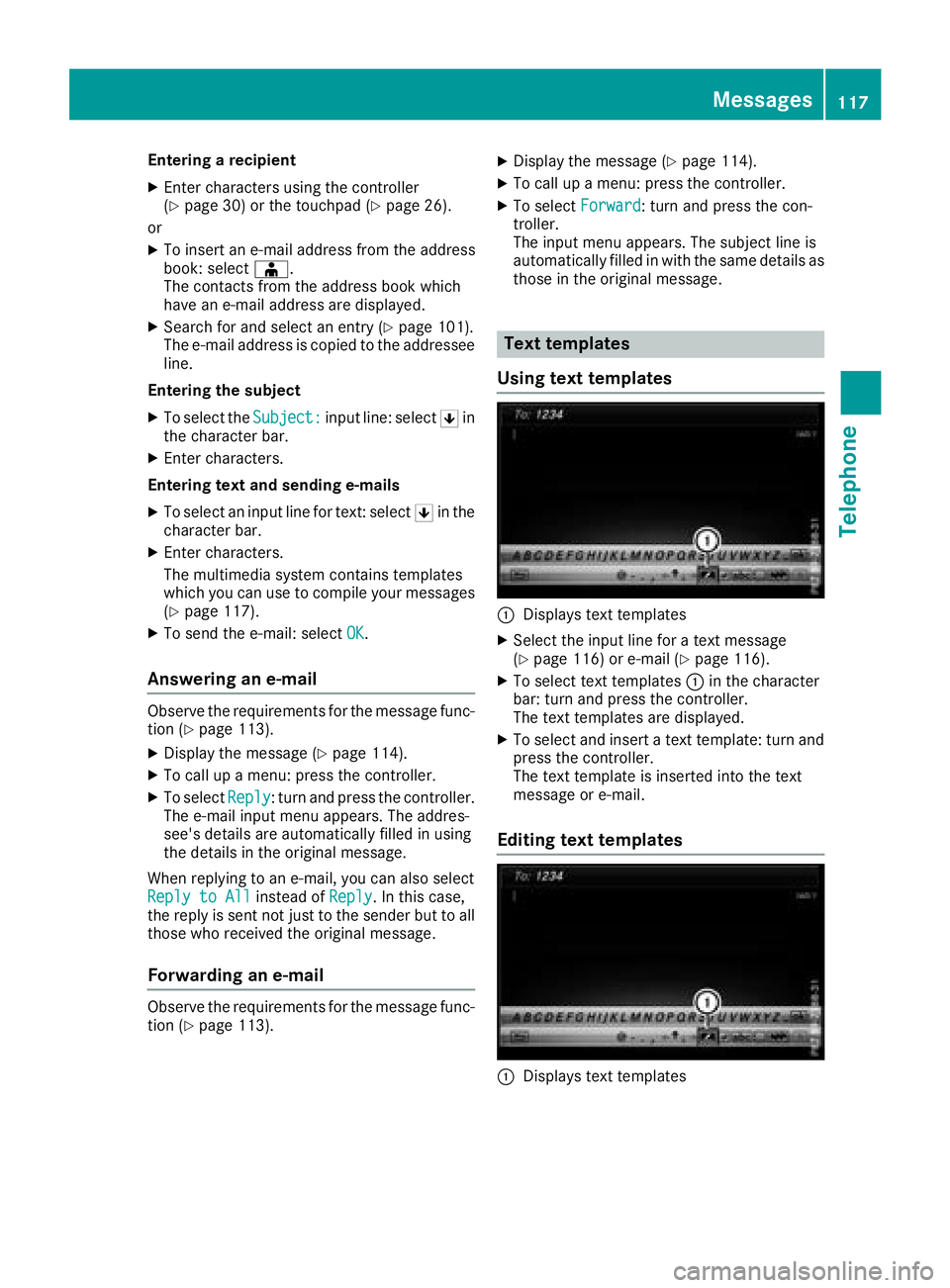
Writing e-mails
Writing a new e-mail
Observe the requirements for the message func-
tion (Ypage 113).
XTo call up the telephone menu: press the
% button.
XTo switch to the menu bar: slide 6the con-
troller.
XTo select 1: turn and press the controller.
The message menu is displayed.
XTo switch to the menu bar: slide 6the con-
troller.
XTo select New: turn and press the controller.
XTo selectE-Mail: turn and press the control-
ler.
The e-mail input menu appears. The To:
input
line is selected.
116Messages
Telephone
Page 119 of 174
Entering a recipient
XEnter characters using the controller
(Ypage 30) or the touchpad (Ypage 26).
or
XTo insert an e-mail address from the address
book: select Æ.
The contacts from the address book which
have an e-mail address are displayed.
XSearch for and select an entry (Ypage 101).
The e-mail address is copied to the addressee
line.
Entering the subject
XTo select the Subject:input line: select 5in
the character bar.
XEnter characters.
Entering text and sending e-mails
XTo select an input line for text: select 5in the
character bar.
XEnter characters.
The multimedia system contains templates
which you can use to compile your messages
(
Ypage 117).
XTo send the e-mail: select OK.
Answering an e-mail
Observe the requirements for the message func-
tion (Ypage 113).
XDisplay the message (Ypage 114).
XTo call up a menu: press the controller.
XTo selectReply: turn and press the controller.
The e-mail input menu appears. The addres-
see's details are automatically filled in using
the details in the original message.
When replying to an e-mail, you can also select
Reply to All
instead of Reply. In this case,
the reply is sent not just to the sender but to all
those who received the original message.
Forwarding an e-mail
Observe the requirements for the message func-
tion (Ypage 113).
XDisplay the message (Ypage 114).
XTo call up a menu: press the controller.
XTo select Forward: turn and press the con-
troller.
The input menu appears. The subject line is
automatically filled in with the same details as
those in the original message.
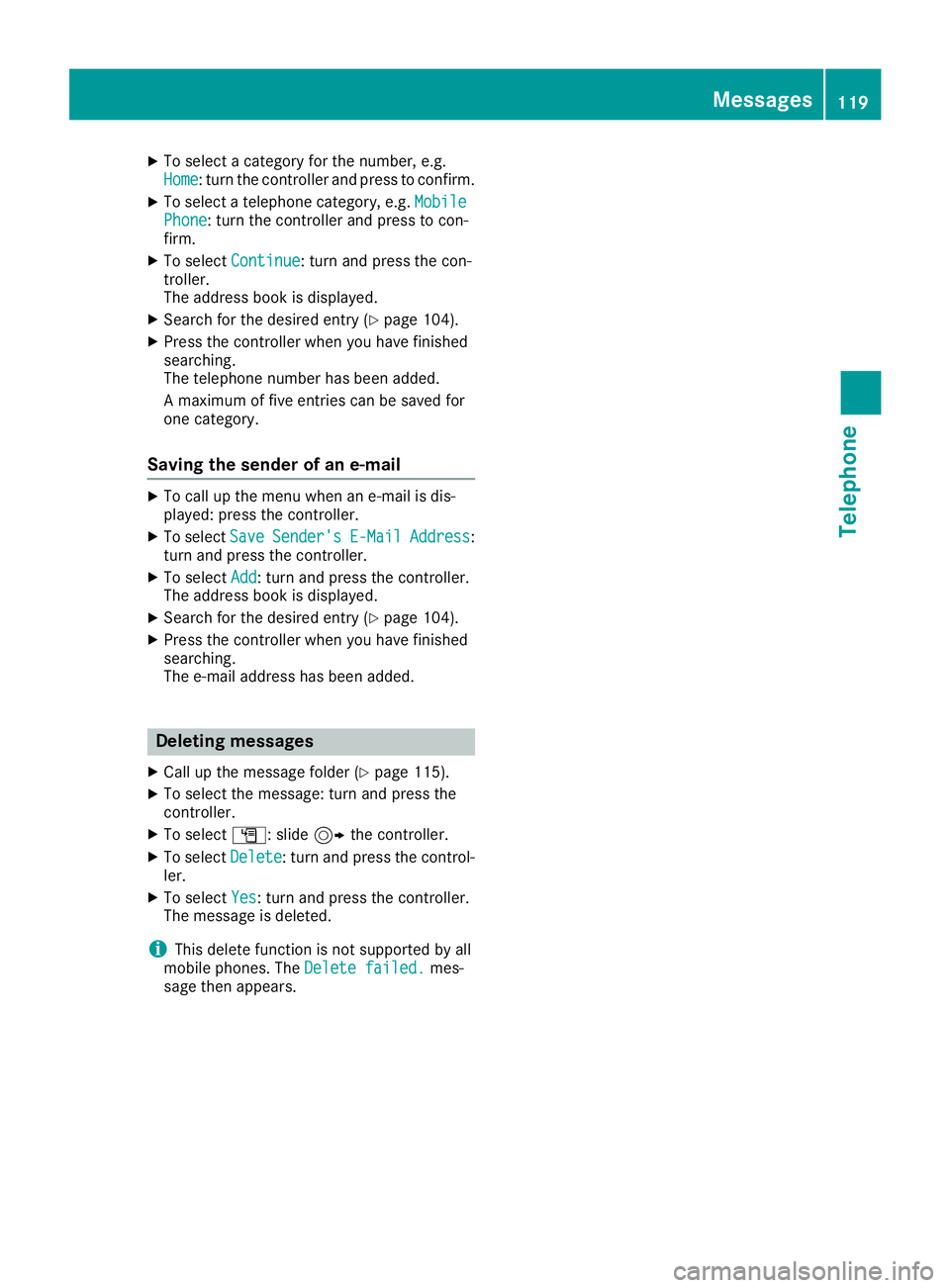
Text templates
Using text templates
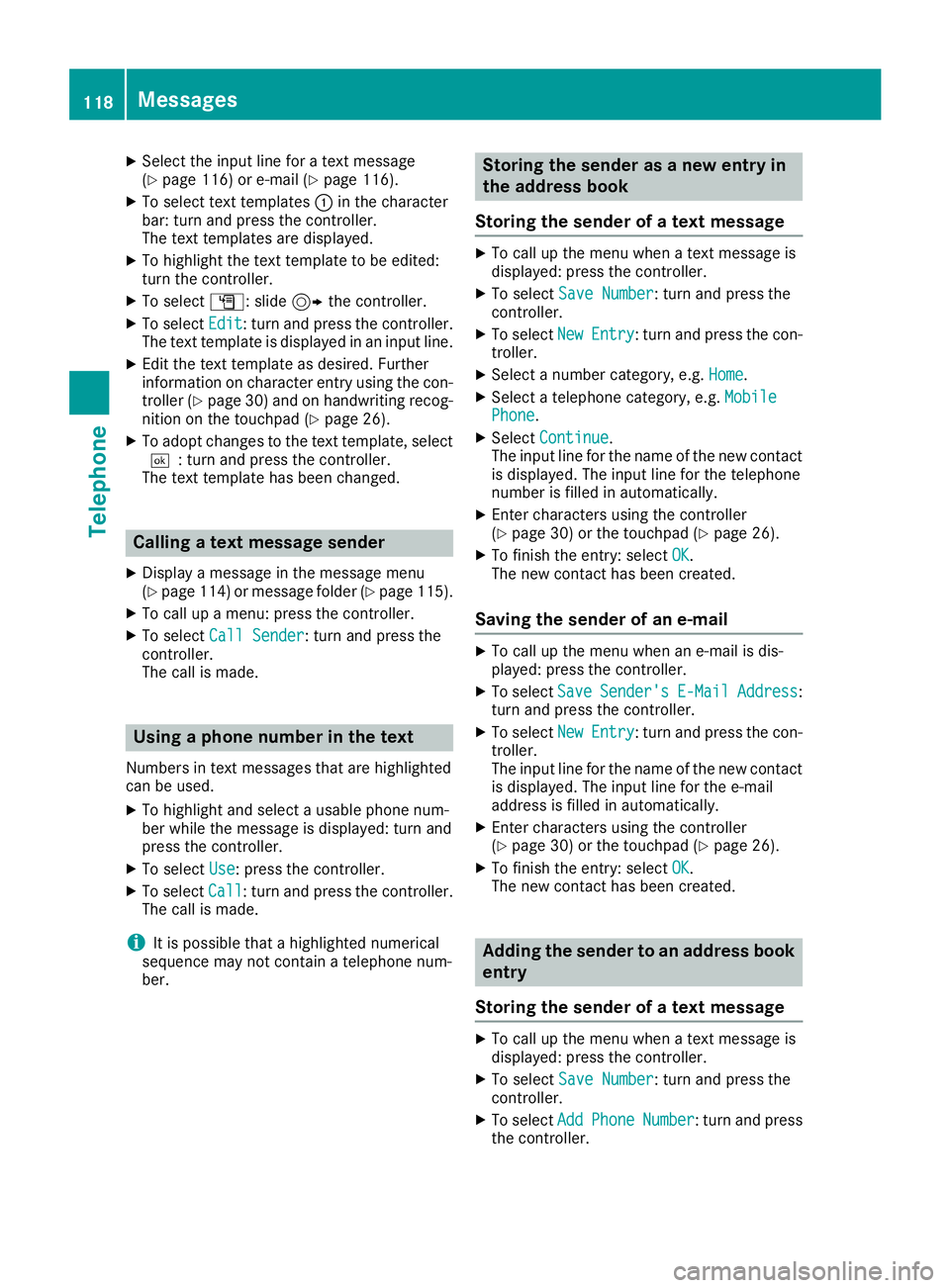
:Displays text templates
XSelect the input line for a text message
(Ypage 116) or e-mail (Ypage 116).
XTo select text templates :in the character
bar: turn and press the controller.
The text templates are displayed.
XTo select and insert a text template: turn and
press the controller.
The text template is inserted into the text
message or e-mail.
Editing text templates
:Displays text templates
Messages117
Telephone
Z
Page 120 of 174
XSelect the input line for a text message
(Ypage 116) or e-mail (Ypage 116).
XTo select text templates:in the character
bar: turn and press the controller.
The text templates are displayed.
XTo highlight the text template to be edited:
turn the controller.
XTo select G: slide 9the controller.
XTo select Edit: turn and press the controller.
The text template is displayed in an input line.
XEdit the text template as desired. Further
information on character entry using the con-
troller (
Ypage 30) and on handwriting recog-
nition on the touchpad (Ypage 26).
XTo adopt changes to the text template, select
¬: turn and press the controller.
The text template has been changed.
Calling a text message sender
XDisplay a message in the message menu
(Ypage 114 )or message folder (Ypage 115).
XTo call up a menu: press the controller.
XTo select Call Sender: turn and press the
controller.
The call is made.
Using a phone number in the text
Numbers in text messages that are highlighted
can be used.
XTo highlight and select a usable phone num-
ber while the message is displayed: turn and
press the controller.
XTo select Use: press the controller.
XTo selectCall: turn and press the controller.
The call is made.
iIt is possible that a highlighted numerical
sequence may not contain a telephone num-
ber.
Storing the sender as a new entry in
the address book
Storing the sender of a text message
XTo call up the menu when a text message is
displayed: press the controller.
XTo select Save Number: turn and press the
controller.
XTo select NewEntry: turn and press the con-
troller.
XSelect a number category, e.g. Home.
XSelect a telephone category, e.g. MobilePhone.
XSelectContinue.
The input line for the name of the new contact
is displayed. The input line for the telephone
number is filled in automatically.
XEnter characters using the controller
(Ypage 30) or the touchpad (Ypage 26).
XTo finish the entry: select OK.
The new contact has been created.
Saving the sender of an e-mail
XTo call up the menu when an e-mail is dis-
played: press the controller.
XTo select SaveSender'sE-MailAddress:
turn and press the controller.
XTo select NewEntry: turn and press the con-
troller.
The input line for the name of the new contact
is displayed. The input line for the e-mail
address is filled in automatically.
XEnter characters using the controller
(Ypage 30) or the touchpad (Ypage 26).
XTo finish the entry: select OK.
The new contact has been created.
Adding the sender to an address book
entry
Storing the sender of a text message
XTo call up the menu when a text message is
displayed: press the controller.
XTo select Save Number: turn and press the
controller.
XTo select AddPhoneNumber: turn and press
the controller.
118Messages
Telephone
Page 121 of 174
XTo select a category for the number, e.g.
Home: turn the controller and press to confirm.
XTo select a telephone category, e.g.MobilePhone: turn the controller and press to con-
firm.
XTo select Continue: turn and press the con-
troller.
The address book is displayed.
XSearch for the desired entry (Ypage 104).
XPress the controller when you have finished
searching.
The telephone number has been added.
A maximum of five entries can be saved for
one category.
Saving the sender of an e-mail
XTo call up the menu when an e-mail is dis-
played: press the controller.
XTo select SaveSender'sE-MailAddress:
turn and press the controller.
XTo select Add: turn and press the controller.
The address book is displayed.
XSearch for the desired entry (Ypage 104).
XPress the controller when you have finished
searching.
The e-mail address has been added.
Deleting messages
XCall up the message folder (Ypage 115).
XTo select the message: turn and press the
controller.
XTo select G: slide 9the controller.
XTo select Delete: turn and press the control-
ler.
XTo select Yes: turn and press the controller.
The message is deleted.
iThis delete function is not supported by all
mobile phones. The Delete failed.mes-
sage then appears.
Messages119
Telephone
Z
Page 122 of 174
Your multimediasyste mequipment
These operatin ginstruction sdescribe all th e
standar dan doptional equipment of your multi-
media system, as available at th etime of going
to press. Country-specifi cdifference sare pos -
sible. Bear in min dthat your vehicle may no t
feature all function sdescribed here. Thi salso
applies to safety-relevan tsystems an dfunc-
tions.
Read th einformation on qualifie dspecialis t
workshop sin th evehicle Operator's Manual.
Important safet ynotes
GWARNING
If you operat einformation systems an dcom-
munication equipment integrated in th evehi-
cl e when driving, you may be distracted from
th etraffic situation .You could also los econ-
trol of th evehicle. There is aris kof an acci-
dent.
Only operat ethis equipment when th etraffic
situation permits. If you are no tsur ethat this
is possible, par kth evehicle payin gattention
to traffic condition san doperat eth eequip-
men twhen th evehicle is stationary.
You mus tobserv eth elegal requirements fo rth e
country in whic hyou are drivin gwhen operatin g
th esystem.
General notes
Connection difficulties whil eth evehi-
cle is in motion.
If an Internet connection has bee nestablished
via adata-enabled mobile phone ,th econnec -
tion may be los tin th efollowin gsituations:
Rth emobile phone networ kcoverage is insuf -
ficient.
Rth evehicle has moved into amobile phone
cell wit hno free channels.
Rth eSI M car dused is no tcompatible wit hth e
networ kavailable .
Function restrictions (Canada)
You will no tbe able to use th eMercedes-Ben z
Apps an dInternet connection ,or will no longer
be able to use them, or may hav eto wait befor e
usin gthem, in th efollowin gsituations:
Rif your mobile phone is switched of f
Rif your mobile phone has notbee nenable dfo r
Internet access
Rif th eBluetoot h®function is switched of fon
th emultimedia syste man dth edesire dphone
is suppose dto be connecte dvia Bluetoot h
®
Rif theBluetoot h®function is switched of fon
th emobile phone an dth ephone is suppose d
to be connecte dvia Bluetoot h
®
Rif themobile phone is no tconnecte dvia US B
an dth ephone is suppose dto be connecte d
via US B
Rif either th emobile phone networ kor th e
mobile phone doe sno tallo wsimultaneous
use of aphone an dan Internet connection
Rif th emobile phone has no tbee nenable dfo r
Internet access via Bluetoot h®and/or USB
The driver is no tpermitte dto cal lup websites
whil edrivin gan duse of th eMercedes-Ben z
Apps is restricted.
iIt is possible that you may no tbe able to
receiv ecalls when an In ternet connection is
active .Thi sdepends on th emobile phone an d
th emobile phone networ kused .
Conditions for access
USA: to use Mercedes-Ben zApps an dInternet
access ,mbrace mus tbe activated an dopera-
tional. Furthermore, mbrace mus tbe activated
fo rMercedes-Ben zApps an dInternet access .
Tak enote of th econnection priorities .An emer-
gency cal lhas th ehighes tpriority. Whe n aser-
vic ecall, e.g. abreakdown servic ecal lor th eMB
Info Call, is active ,an emergency cal lcan still be
initiated. Aservic ecall, on th eother hand, has
priorit yover acurren tInternet connection .
Therefore, you canno testablis han Internet con-
nection durin g aservic ecall.
Canada: amobile phone mus tbe connecte dvia
Bluetoot h
®(Ypage 92) or US B (Ypage 153)
wit hth emultimedia system. Furthermore, you
need avalid mobile servic econtrac twit h a data
120Conditions for access
Online and Internet functions
Page 123 of 174
option, which is used to calculate the associated
connection costs.
Conditions for a Bluetooth
®connection
RThe mobile phone supports at least one of the
Bluetooth®profiles DUN (Dial- UpNetwork-
ing) or PAN (Personal AreaNetwork).
The Bluetooth
®profiles DUN and PAN enable
the Internet connection of the mobile phone
to be made available to the system.
Conditions for a USB connection
RThe mobile phone supports at least one of the
USB classes:
-RNDIS (Remote Network DriverInterface
Specification)
-CDC/NCM (Network ControlModel)
-CDC/ECM (Ethernet ControlModel)
-CDC/ACM (Access ControlModel)
The USB classes enable the mobile phone
Internet connection to be made available to
the system.
The terms of use are shown when the system is
used for the first time and then once a year
thereafter. Only read and accept the terms of
use when the vehicle is stationary.
The driver is not permitted to call up websites
while driving and use of the Mercedes-Benz
Apps is restricted.
iThe availability of individual Mercedes-Benz
Apps may vary depending on the country.
Setting up an Internet connection
(Canada)
Procedure and general information
In order to set up a mobile phone for Internet
access, your mobile phone must be connected
to the multimedia system via Bluetooth
®
(Ypage 92) or USB (Ypage 142).
If you are using Internet access for the first time,
you must enable the connected mobile phone
for Internet access (
Ypage 121). If the con-
nected mobile phone supports the Bluetooth®
PAN profile or the USB classes RNDIS,
CDC/NCM or CDC/ECM, you do not need to
make additional settings. The Internet connec-
tion is established. If the connected mobile
phone does not support the named Bluetooth
®
profile or the named USB classes, predefined (
Ypage 121) or manual access data
(Ypage 122) must be set.
While initializing the mobile phone for the Inter-
net connection, access data which is already on
the mobile phone may be overwritten. You
should therefore check the settings on the
mobile phone (see the manufacturer's operating
instructions).
Enabling the mobile phone for Inter-
net access
XCall up Internet functions (Ypage 124).
XTo switch to the menu bar: slide 6the con-
troller.
XTo select Settings: turn and press the con-
troller.
XTo select Configure Internet Settings:
turn and press the controller.
If a mobile phone has already been enabled,
the device list is displayed.
XTo select Start Search: turn and press the
controller.
Mobile phones are displayed that:
Rare connected to the multimedia system
Rfulfill the conditions for the Internet func-
tions
Rhave not yet been set up for the Internet
function
XTo select a mobile phone from the device list: turn the controller and press to confirm.
If the mobile phone supports the Bluetooth
®
PAN profile or the USB classes RNDIS, CDC/
NCM or CDC/ECM, Internet access is set up.
You can use the Internet functions.
If the connected mobile phone does not sup-
port the named Bluetooth
®profile or the
named USB classes, predefined (Ypage 121)
or manual access data (Ypage 122) must be
set.
Setting access data of the mobile
phone network provider
Selecting the predefined access data of
the mobile phone network provider
XTo select Predefined Settings: turn and
press the controller.
A list of countries appears.
Setting up an Internet connection (Canada)121
Online and Internet functions
Z