reset MERCEDES-BENZ C-CLASS COUPE 2018 Owner's Manual
[x] Cancel search | Manufacturer: MERCEDES-BENZ, Model Year: 2018, Model line: C-CLASS COUPE, Model: MERCEDES-BENZ C-CLASS COUPE 2018Pages: 593, PDF Size: 10.86 MB
Page 347 of 593
Re
ading text messages
Multimedia sy stem:
0018 Telephone 0019
i Text message
Re ading a text message 0007
Select a text messa ge.
The message text is displ ayed.
Using there ad-aloud function 0007
Select a text messa ge. 0007
Select Read aloud .
The text messa geisread aloud.
Composing and sending a text message
Multimedia sy stem:
0018 Telephone 0019
i Text message 0007
Select Write new text message.
Ad ding a recipient 0007
Select Press to add recipient. 0007
Select the conta ct.
Dictating text 0007
Select Press to dictate. 0007
Tostart the dictation function: press on
th e cent ral control element.
The app forth e dictation function is loaded.
If th ere was no prior Internet connection, a
connection is now es tablished. 0007
Say the message.
The dictation ends automatically af teryou
ha ve finished speaking.
Af terth evo ice message has been processed,
it is shown as text. 0007
Toreplace a message: selectReplace mes-
sage.
The text that has been dictated and shown
on the display is reset and can be dictated
again.
Editing text 0007
Select thewo rd. 0007
Tocall up the cor rection menu: press on
th e cent ral control element.
The following options are available:
R adjusting the capitalisation of words (if
suppor tedby thech aracter set) R
expanding thech oice of words
R deleting the selection
R recording a new dictation 0007
Tolea vethe menu: selectDone.
Sending text messages 0007
Select Send text message .
Re plying toate xt message
Multimedia sy stem:
0018 Telephone 0019
i Text message 0007
Open thete xt messa ge. 0007
Select p. 0007
Select Reply.
Calling a text message sender
Multimedia sy stem:
0018 Telephone 0019
i Text message 0007
Open thete xt messa ge. 0007
Select p. 0007
Select Call sender. 344
Multimedia sy stem
Page 353 of 593
St
arting manually 0007
Select the mobile phone from the device list.
Exiting Android Auto 0007
Press the00E2 button on the multifunction
st eering wheel, forex ample.
0009 If Android Autowa s not displa yed in thefo re‐
ground before disconnecting, the application
st arts in the bac kground when reconnected.
Yo u can call up Android Autointhe main
menu.
Calling up the Android Autosound settings
Multimedia sy stem:
0018 Connect 0019
Android Auto 0019
Sound 0007
Select theto ne menu (0013 page 390).
Ending Android Auto
Multimedia sy stem:
0018 Connect 0019
Android Auto 0007
Select Disconnect.
The connection is ended.
The mobile phone continues tobe supplied
with elect ricity. or 0007
Disconnect the connecting cable between
th e mobile phone and multimedia sy stem.
Mercedes-Benz recommends disconnecting
th e connecting cable only when theve hicle is
st ationar y. Tr
ansfer redve hicle data with Android Auto
and Apple CarPlay™ Overview of transfer
redve hicle data
When using Android Autoor Apple CarPlay™,
cer tain vehicle data is transfer redto the mobile
phone. This enables youto getth e best out of
selected mobile phone services. Vehicle data is
not directly accessible.
The following sy stem information is transmit ted:
R Software release of the multimedia sy stem
R System ID (anonymised)
The transfer of this data is used tooptimise
communication between theve hicle and the
mobile phone. To
do this, and toassign se veralve hicles tothe
mobile phone, a vehicle identifier is randomly
ge nerated.
This has no connection totheve hicle identifica‐
tion number (VIN) and is dele ted when the multi‐
media sy stem is reset (0013 page 303).
The following driving status data is transmit ted:
R Transmission position engaged
R Distinction between par ked, standstill, rolling
and driving
R Day/night mode of the instrument clus ter
The transfer of this data is used toalter how
con tent is displ ayed tocor respond tothe driving
situation.
The following position data is transmitted:
R Coordinates
R Speed
R Compass direction
R Acceleration di rection 350
Multimedia sy stem
Page 362 of 593
The Internet connection via Blue
tooth®
is restric‐
te d or does not function if:
R the mobile phone is switched off
R the mobile phone network co verage is insuf‐
fi cient
R mobile da tause is deactivated on the mobile
phone
R the Blue tooth®
function on the multimedia
sy stem is switched off and the mobile phone
is to be connec ted via Blue tooth®
R the Blue tooth®
function is switched off on
th e mobile phone and the mobile phone is to
be connec ted via Blue tooth®
R neither the mobile phone network nor the
mobile phone allow simultaneous use of a
te lephone and an Internet connection
R the mobile phone has not been enabled for
Internet access via Blue tooth®
If a mobile phone is connected tothe multimedia
sy stem forth efirs t time via Blu etoo th®
,yo u will
be assis tedth ro ugh the process of setting up an
Internet connection. The Internet connection can also be confi
gured
manually.
Fu rther information can be obtained at http://
www.mercedes-benz.com/connect or from a
Mercedes-Benz service centre.
Multimedia sy stem:
0018 System 0019
ö Connectivity
0019 Internet settings
Blue tooth ®
connection via PAN 0007
Select the mobile phone.
The Internet connection is es tablished.
Switching the Blu etoo th®
pr ofile
Re quirements:
R The mobile phone supports the DUN and
PA N Blue tooth®
profiles.
Multimedia sy stem:
0018 System 0019
ö Connectivity
0019 Internet settings 0007
Toswitch from DUN toPAN: select the
mobile phone. 0007
Select 0080. 0007
Select Change configuration. 0007
Activate 0073Automatic configuration.
The Internet connection is au tomatical lycon‐
fi gured using thePA N Blue tooth®
profile. 0007
Toswitch from PANto DUN: select the
mobile phone. 0007
Select 0080. 0007
Select Change configuration. 0007
Deactivate 0053Automatic configuration. 0007
Select Configure settings using COMAND . 0007
Configuri ngthe Internet connection using
preset or manual access data
(0013 page 358).
Editing access data
Requ irements:
R The mobile phone supports the Blue tooth®
DUN profile. Multimedia sy
stem 359
Page 382 of 593
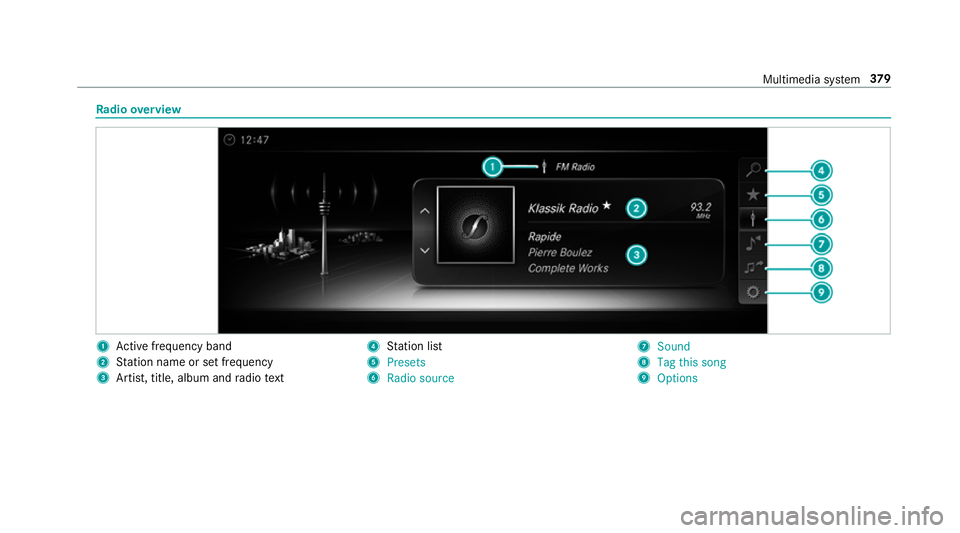
Ra
dio overview 1
Active frequency band
2 Station name or set frequency
3 Artist, title, album and radio text 4
Station list
5 Presets
6 Radio source 7
Sound
8 Tag this song
9 Options Multimedia sy
stem 37 9
Page 383 of 593
Setting
the frequency band Multimedia sy
stem:
0018 Radio 0019
Þ Radio source 0007
Select a frequency band. Selecting a
radio station Multimedia sy
stem:
0018 Radio 0007
Navigate up or down. Calling up
thera dio station list Multimedia sy
stem:
0018 Radio 0019
00D3 0007
Select a station. Sear
ching forra dio stations using station
names or direct frequency entry Multimedia sy
stem:
0018 Radio 0019
00D3 0019
00D3 0007
Ente r astation name or frequenc y. 0007
Select 0076.
The sea rchre sults are displa yed. 0007
Select a station. St
oring radio stations Multimedia sy
stem:
0018 Radio 0019
ß Presets 0007
Select Store current station in the presets . Editing
radio station presets Multimedia sy
stem:
0018 Radio 0019
ß Presets
Moving stations: 0007
Highlight a preset entry and navigate tothe
left. 0007
Select Move highlighted station. 0007
Select a memo rypreset.
Deleting stations: 0007
Highlight a preset entry and navigate tothe
left. 0007
Select Delete highlighted station. 0007
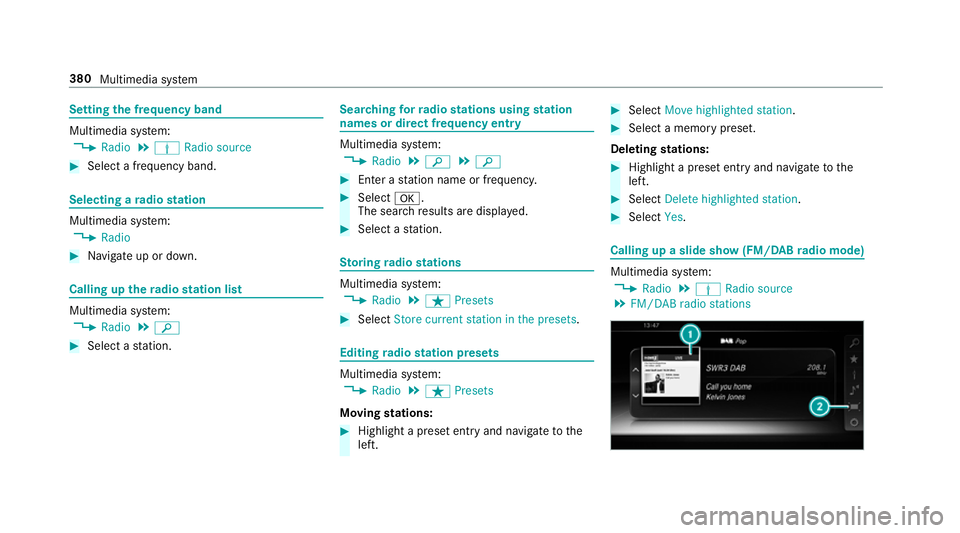
Select Yes. Calling up a slide show (FM/DAB
radio mode) Multimedia sy
stem:
0018 Radio 0019
Þ Radio source
0019 FM/DAB radio stations 380
Multimedia sy stem
Page 387 of 593
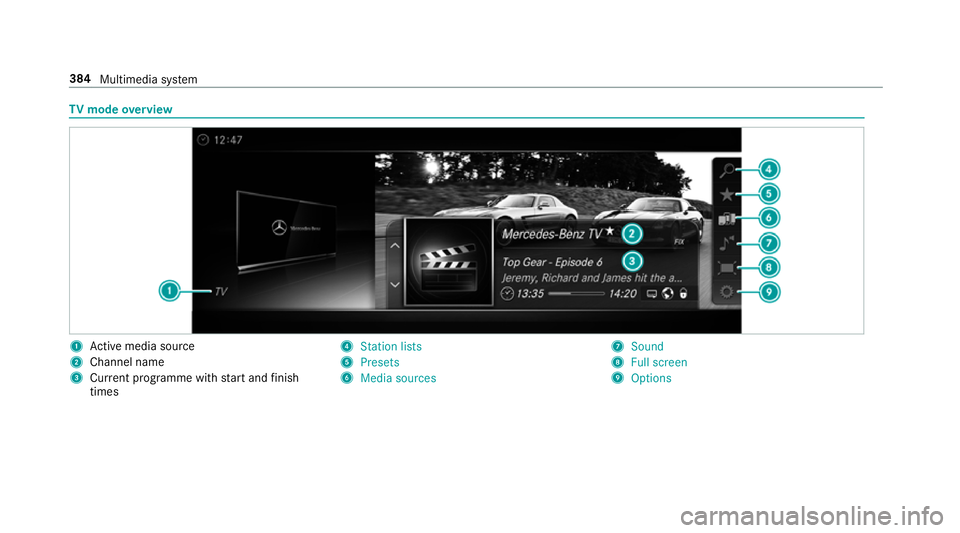
TV
mode overview 1
Active media sou rce
2 Channel name
3 Current programme wi thstart and finish
times 4
Station lists
5 Presets
6 Media sources 7
Sound
8 Full screen
9 Options 384
Multimedia sy stem
Page 388 of 593
Overview of
the displa ysintheTV cont rol
menu The
following information is displa yed:
R Cur rent TV channel with theß symbol (if
th ech annel has been sa ved as a favo urite)
R Cur rent programme wi thstart and finish
times
R FIX
Channel fix, description of the function
(0013 page 386)
Ac tivating/deactivating channel fix
( 0013 page 386)
R Symbols, forex ample:
p Telete xt
z Audio languages available
r Encryp tedch annel Showing or hiding in full screen
Showing
0007
Select 0008Full screen .
or 0007
Press the0055 button.
Hiding 0007
Press the0038 button. Selecting
TVchannels Selecting
TVchannels from the control menu
Multimedia sy stem:
0018 Media 0019
à Media sources 0019
TV 0007
Swipe up or down on theto uchpad.
The TVtuner sets the pr evious/n extch annel
from thech annel list. The control menu
appears for twelve seconds.
Selecting TVchannels from thech annel list
Multimedia sy stem:
0018 Media 0019
à Media sources 0019
TV
0019 ª Station lists 0007
Select TV channels. 0007
Select a TVchannel.
The TVtuner selects thech annel from the
ch annel list. The control menu appears for
appr oximately twelve seconds. Sear
ches for a TVchannel 0007
Select TV channels . 0007
Select ªSearch . 0007
Enter thech annel sear ched for
( 0013 page 290). 0007
Select a TVchannel.
Selecting a TVchannel from thefa vo urites
Re quirements:
R The TVchannel has been sa ved in thefa vo ur‐
ites.
Multimedia sy stem:
0018 Media 0019
à Media sources 0019
TV
0019 ß Presets 0007
Select theTV channel.
Selecting TVchannels in the bac kground
Re quirements:
R An application is active, e.g. the navigation.
R TVmode is switched on in the bac kground
and the sound from the selected TVchannel
can be heard Multimedia sy
stem 385
Page 390 of 593
Quic
k-saving a TVchannel
Multimedia sy stem:
0018 Media 0019
à Media sources 0019
TV 0007
In full-screen mode, press theto uchpad for
longer than thre e seconds.
The cur rent TV channel is stored in the
fa vo urites in the next available position.
St oring TVchannels
Multimedia sy stem:
0018 Media 0019
à Media sources 0019
TV
0019 ß Presets 0007
Select Store current station in the presets .
or 0007
Highlight a channel in thech annel list and
st ore as a favo urite.
The cur rent channel is stored in thefa vo ur‐
ites in the next available position.
Moving channels in thefa vo urites 0007
Highlight a channel in thefa vo urites. 0007
Select 0080Move highlighted station. 0007
Highlight the new position. 0007
Confirm the position.
Deleting channels 0007
Highlight a channel in thefa vo urites. 0007
Select 0080Delete highlighted station. 0007
Select Yes.
Using a voice tag
Multimedia sy stem:
0018 Media 0019
à Devices 0019
TV
0019 ß Favourites 0007
Highlight a TVchannel in thefa vo urites. 0007
Select 0080Voice tag . 0007
Alternatively: use a voice tag inthech annel
list.
Creating a voice tag 0007
Select Add. 0007
Say a voice tag.
A messa geappears when thevo ice tag has
been created.
Lis tening toavo ice tag 0007
Select Listen. Deleting a
voice tag 0007
Select Delete.
A message appears asking whe ther youwa nt
to dele tethevo ice tagfo rth eTV channel. 0007
Select Yes. TV
prog ramme Overvi
ewof audio language and subtitles
Au dio language
R It is possible tochoose between se veral
audio languages when a programme is broad‐
cast in multiple languages.
R If En glish, forex ample, is set as the sy stem
language and a TVchannel is broadcasting in
th is language, En glish is selec ted automati‐
cally.
The prog ramme transmission may be indica ted
with thefo llowing symbols:
m Programme with audio explanations for
th e visually impaired
o Stereo broadcast Multimedia sy
stem 387
Page 392 of 593
MHEG-5 digital
telete xt 0007
Ifth ete lete xt is displ ayed, press and hold on
th eto uchpad.
A colour selection bar appears. 0007
Select a colour.
The data content is displ ayed. 0007
Toenter numbers: select123. 0007
Enterth e numbers in quick succession. 0007
Toreturn totheTV prog ramme: selectTV. Pictu
resettings Picture settings
overview
The following picture form at settings are availa‐
ble:
R Automatic
The brightness is automatically set with this
option.
R 16:9
R 4:3
R Zoom Selecting picture settings
Multimedia sy
stem:
0018 Media 0019
à Media sources 0019
TV
0019 Z Options 0007
Select Picture format. 0007
Select a picture form at.
Ad justing the brightness manually
If th eAutomatic pictureform at is swit ched off,
yo u can adjust the brightness yourself. 0007
Select Brightness. 0007
Adjust the brightness. HD prog
rammes Re
ceiving encryp ted HD prog rammes
000E NO
TEDama getothe CI+ module and
Smart Card The CI+ module is designed
for use in the
home. The CI+ module can overheat and be
damaged bycontinuous exposure tohigh
outside temp eratures. 0007
Make sure that the CI+ module is not
subject tohigh temp eratures forex ten‐
ded pe riods of time.
If th e CI+ module is damaged, no
encryp tedch annels can be recei ved. The
TVtuner is in the boot recess. 0007
Ifre qu ired (countr y-dependent), insert the
Smart Ca rdinto the CI+ module slot. 0007
Remo vethe pr otective cap from theTV tune r. 0007
Insert the CI+ module into theTV tuner sl ot. 0007
Replace the pr otective cap on theTV tune r.
When the CI+ module is inser ted cor rectly,
encryp ted HD programmes can be recei ved
according toCI+ standard.
If th e CI module is not compatible, an er ror
messa geappears.
Calling up the CI+ module menu
Multimedia sy stem:
0018 Media 0019
à Media sources 0019
TV
0019 Z Options 0007
Select CA module. Multimedia sy
stem 389
Page 396 of 593
fi
ed based on the actual operating conditions
and/or loads.
Examples of arduous operating conditions:
R regular city driving with frequent intermedi‐
ate stops
R mainly short-dis tance driving
R frequent operation in mountainous terrain or
on poor road sur faces
R when the engine is of ten le ftidling for long
periods
R operation in particula rly dusty conditions
and/or if air-recirculation mode is frequently
used
In these or similar operating conditions, ha vethe
interior air filter, engine air cleaner, engine oil
and oil filter etc. changed more frequent ly. The
ty re s must be checked more frequently if the
ve hicle is operated under increased loads. Fur‐
th er information can be obtained at a qualified
specialist workshop. Battery disconnection periods
The ASS
YST PLUS se rvice inter val display
can only calculate the service due da tewhen
th e bat tery is connected. 0007
Notedown the service due date displa yed on
th e instrument display before disconnecting
th e battery (0013 page 392). Engine compartment
Ac
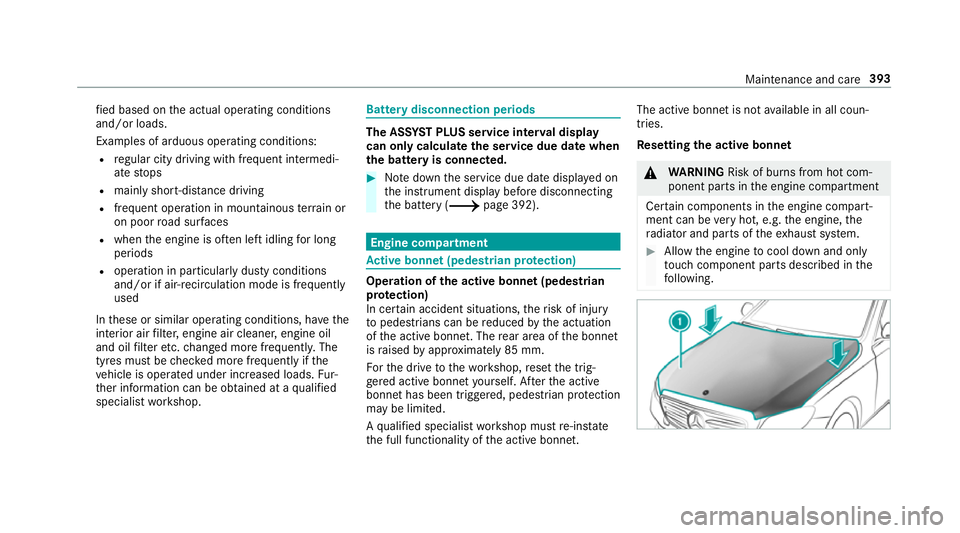
tive bonn et(pedestrian pr otection) Operation of
the active bonnet (pedestrian
pr otection)
In cer tain accident situations, therisk of injury
to pedestrians can be reduced bythe actuation
of the active bonn et. The rear area of the bonn et
is raised byappr oximately 85 mm.
Fo rth e drive tothewo rkshop, reset the trig‐
ge red active bonn etyourself. Af terth e active
bonn ethas been triggered, pedestrian pr otection
may be limited.
A qu alified specialist workshop must re-ins tate
th e full functionality of the active bonn et. The active bonnet is not
available in all coun‐
tries.
Re setting the active bonnet 000A
WARNING Risk of bu rns from hot com‐
ponent parts in the engine compartment
Cer tain components in the engine compart‐
ment can be very hot, e.g. the engine, the
ra diator and parts of theex haust sy stem. 0007
Allow the engine tocool down and only
to uch co mponent parts described in the
fo llowing. Maintenance and care
393