audio MERCEDES-BENZ C-CLASS SALOON 2007 User Guide
[x] Cancel search | Manufacturer: MERCEDES-BENZ, Model Year: 2007, Model line: C-CLASS SALOON, Model: MERCEDES-BENZ C-CLASS SALOON 2007Pages: 377, PDF Size: 6.19 MB
Page 140 of 377
On-board computer (vehicles with the luxury multi-function steering wheel*, 12 buttons)
137
R
Off map orOff road : the vehicle position
is outside the area of the digital map (off-
map position).
R No route: no route to the selected desti-
nation could be calculated.
For more information, see the separate Oper-
ating Instructions for Audio 50 APS* and
COMAND APS*. Audio* menu
i Menu overview (Y page 132), using the
on-board computer (Y page 130).
Use the functions in the Audiomenu to oper-
ate the audio equipment *. If noaudio equip-
ment* is switched on, the multi-functio n
display will show the Audio offmessage.
Use the buttons on the luxury multi-function
steering wheel.
X Press (or& to select the Audio
menu . Selecting a radio station X
Switch on the audio equipment* or
COMAND APS* and select the radio; see
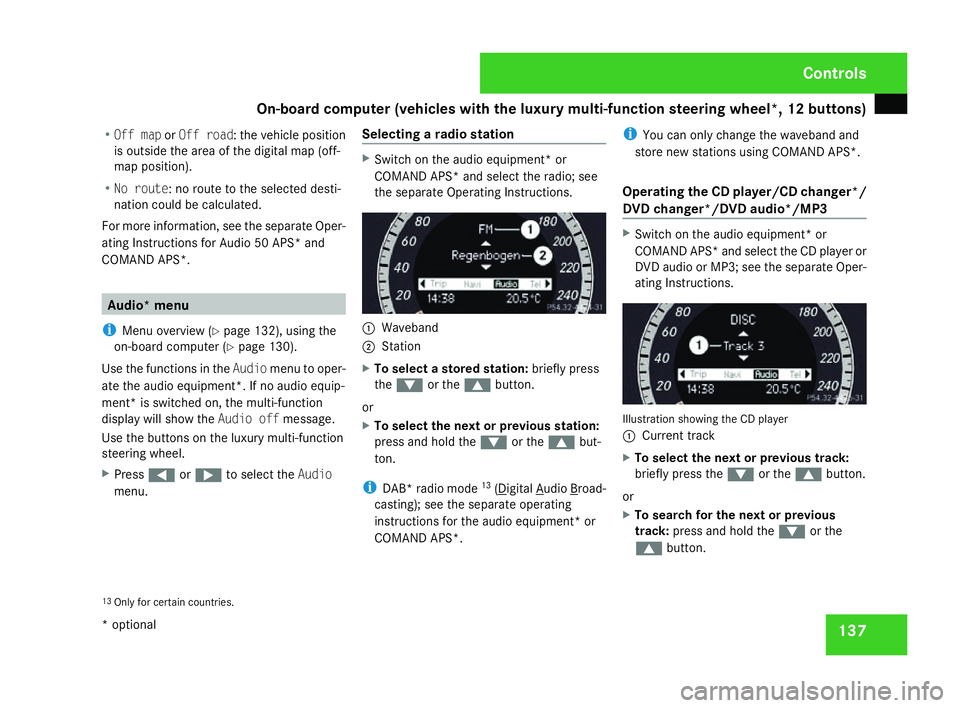
the separate Operating Instructions . 1
Waveband
2 Station
X To select a stored station :briefly press
the % or the $button.
or
X To select the next or previous station :
press and hold the %or the $but-
ton .
i DAB* radio mode 13
( Digital Audio Broad-
casting); see the separate operating
instructions for the audio equipment* or
COMAND APS* . i
You can only change the waveband and
store new stations using COMAND APS*.
Operating the CD player/CD changer */
DVD changer*/DVD audio*/MP3 X
Switch on the audio equipment* or
COMAND APS* and select the CD player or
DVD audio or MP3; see the separate Oper-
ating Instructions . Illustration showing the CD player
1
Current track
X To select the next or previous track :
briefly press the %or the $button.
or
X To search for the next or previous
track :press and hold the %or the
$ button.
13 Only for certain countries. Controls
* optional
204_AKB; 2; 3, en-GB
mkalafa,
2007-06-26T23:11:51+02:00 - Seite 137
Page 141 of 377
On-board computer (vehicles with the luxury multi-function steering wheel*, 12 buttons)
138
i
If you are playing a CD or DVD with track
information, the multi-function display
shows the name and number of the track.
The title is displayed for MP3s.
Operating the DVD video* X
Switch on COMAND APS* and select DVD
video; see the separate Operating Instruc-
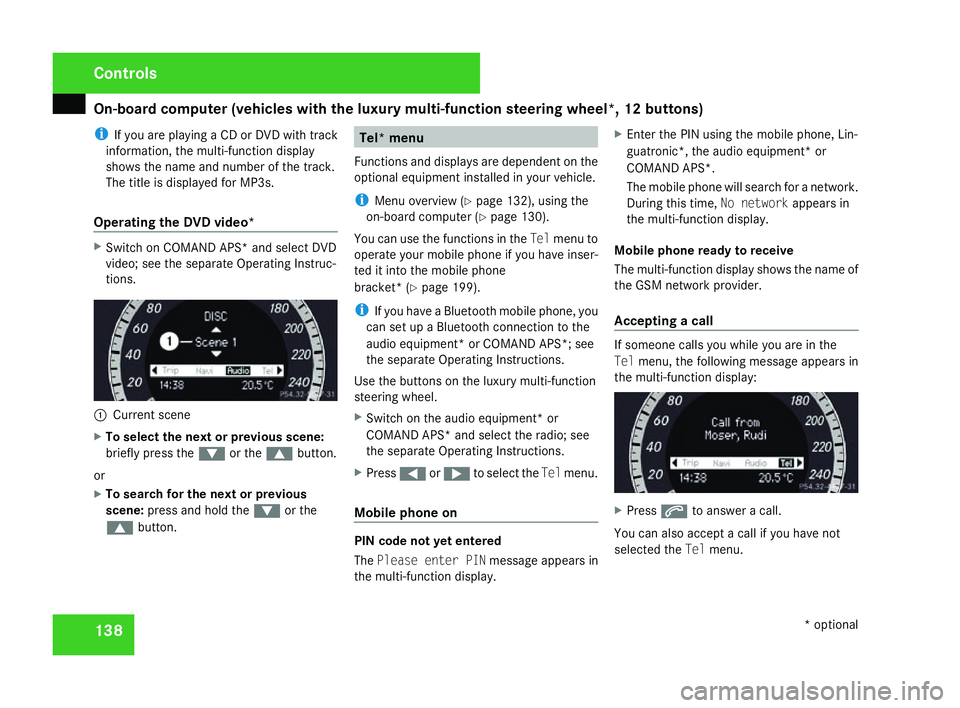
tions . 1
Current scen e
X To select the next or previous scene:
briefly press the %or the $button.
or
X To search for the next or previous
scene: press and hold the %or the
$ button. Tel* menu
Functions and displays are dependent on the
optional equipment installed in your vehicle.
i Menu overview (Y page 132), using the
on-board computer (Y page 130).
You can use the functions in the Telmenu to
operate your mobile phone if you have inser-
ted it into the mobile phone
bracket* (Y page 199).
i If you have a Bluetooth mobile phone, you
can set up a Bluetooth connection to the
audio equipment* or COMAND APS*; see
the separate Operating Instructions.
Use the buttons on the luxury multi-function
steering wheel.
X Switch on the audio equipment* or
COMAND APS* and select the radio; see
the separate Operating Instructions .
X Press (or& to select the Telmenu .
Mobile phone on PIN code not yet entered
The
Please enter PIN message appears in
the multi-function display. X
Enter the PIN using the mobile phone, Lin-
guatronic*, the audio equipment* or
COMAND APS* .
The mobile phone will search for a network.
During this time, No networkappears in
the multi-function display .
Mobile phone ready to receive
The multi-function display shows the name of
the GSM network provider.
Accepting a call If someone calls you while you are in the
Tel
menu, the following message appears in
the multi-function display: X
Press sto answer a call.
You can also accept a call if you have not
selected the Telmenu . Cont
rols
* optional
204_AKB; 2; 3, en-GB
mkalafa,
2007-06-26T23:11:51+02:00 - Seite 138
Page 142 of 377
On-board computer (vehicles with the luxury multi-function steering wheel*, 12 buttons)
139
Rejecting or ending a call X
Press t.
You can also reject or end a call if you have
not selected the Telmenu.
Dialling a number from the phone book For information on entering new phone num-
bers in the phone book, see the respectiv e
Operating Instructions for the mobile phone,
the audio equipment* or COMAND APS*.
If your mobile phone is able to receive calls,
you can search for and dial a number from the
phone book in the audio equipment* or
COMAND APS* at any time.
X Copy the phone book of your mobile phon e
to the audio equipment* or COMAND
APS*; see the separate Operating Instruc -
tions for the audio equipment* or COMAND
APS* .
X Press %,$ or# to call up the
phone book.
X Press %or$ to select the name yo u
are searching for .
To scroll rapidly, press and hold the %
or the $button for longer than 1 sec- ond. After four seconds, the rapid scroll
speeds up.
The rapid scroll stops when you release the
button or reach the end of the list.
X If only one telephone number is stored
for a name: presssor# to start
dialling.
The Connecting call.. .message and
the telephone number dialled appear in the
multi-function display. The name also
appears, provided it is stored in the phon e
book. The dialled number is stored in the
NOS. DIALLE Dlist .
If a call is connected, the phone book entry
appears in the multi-function display.
or
X If there is more than one number for a
particular name: presssor# to
display the numbers.
X Press %or$ to select the numbe r
you want to dial.
X Press sor# to start dialling.
The Connecting call.. .message and
the telephone number dialled appear in the
multi-function display. The name also
appears, provided it is stored in the phon ebook. The dialled number is stored in the
NOS. DIALLE Dlist .
If a call is connected, the phone book entry
appears in the multi-function display.
or
X If you do not want to make a call: press the
t button.
Redialling The on-board computer stores the most
recently dialled names and numbers from the
mobile phone.
X Press the sbutton to go to the most
recently dialled number or name in the
redial menu.
X Press %or$ to select the numbe r
or name you are looking for.
X Press sor# to start dialling. Controls
* optional
204_AKB; 2; 3, en-G
B
mkalafa , 2007-06-26T23:11:51+02:00 - Seite 139
Page 144 of 377
On-board computer (vehicles with the luxury multi-function steering wheel*, 12 buttons)
141
Instrument cluster The
Instrument cluster menu contains
the following functions:
R Units for speed and distance
R Language
R Dig. speedo, on vehicles with manual trans-
mission
R Permanent display*, on vehicles with auto-
matic transmission
Selecting the units for speed and distance
The Display Unit Speed-/Odometer func-
tion allows you to choose whether certain
displays appear in mph or km/h.
The selected units apply to:
R The total distance recorder and the trip
meter
R The trip computer
R The digital speedometer in the Tripmenu
R Cruise control *
R Speedtronic*
X Press %or$ to select the Instru-
ment cluster submenu.
X Press #to confirm. X
Press %or$ to select the Display
Unit Speed-/Odometer function.
You will see the selected setting: kmor
miles.
X Press #to change the selected setting .
Selecting the language
This menu is only available on vehicles with-
out audio equipment.
i Vehicles with Audio 20*, Audio 50 APS*
or COMAND APS*: this function is not avail-
able, since the language of the audio equip-
ment is used.
The Language function allows you to select
the language for the instrument cluster.
X Press %or$ to select the Instru-
ment cluster submenu.
X Press #to confirm.
X Press %or$ to select the Lan-
guage function.
You will see the selected language.
X Press #to see the list of languages .
X Press %or$ to select the desired
language: R
German
R Englis h
R French
R Italia n
R Spanish
R Dutch
R Danish
R Swedish
R Portuguese
R Turkish
R Russian
X Press #to save the selected language.
Activating or deactivating the additional
speedometer on vehicles with manual
transmission
i Vehicles for the United Kingdom: this
menu is not available.
The Speedometer (mph) function allows you
to select whether the multi-function display
shows the speed in mph.
X Press %or$ to select the Instru-
ment cluster submenu.
X Press #to confirm. Controls
* optional
204_AKB; 2; 3, en-G
B
mkalafa , 2007-06-26T23:11:51+02:00 - Seite 141 Z
Page 145 of 377
On-board computer (vehicles with the luxury multi-function steering wheel*, 12 buttons)
142
X
Press %or$ to select the Dig.
speedo (mph) function.
You will see the selected setting: Onor
Off.
X Press #to change the selected setting .
Selecting the permanent display* on vehi-
cles with automatic transmission*
i Vehicles for the United Kingdom: this
menu is not available.
The Permanent display function allows you
to choose whether the multi-function display
always shows the outside temperature or the
speed in mph.
X Press %or$ to select the Instru-
ment cluster submenu.
X Press #to confirm.
X Press %or$ to select the Perma-
nent displa yfunction.
You will see the selected setting: Outside
temperature orSpeedometer (mph).
X Press #to change the selected setting .Time/date This menu is only available on vehicles with-
out audio equipment or with Audio 20*
.
i Vehicles with Audio 50 APS* or COMAND
APS*: this function is not available, since
the time/date of the audio equipment* is
used.
The Time/date menu allows you to set the
time and the date.
X Press %or$ to select the Time/
Dat esubmenu.
X Press #to confirm.
Setting the time
X Press %or$ to select the Time
function.
You will see the time currently set.
X Press #to change it.
X Press (or& to select the display to
be changed: hours, minutes.
X Press %and$ to set the selected
display.
X Press #to store the entry .Setting the date
X
Press %or$ to select the Date
function.
You will see the date currently set.
X Press #to change it.
X Press (or& to select the display to
be changed: day, month, year .
X Press %and$ to set the selected
display.
X Press #to store the entry .
Light s The
Lights menu contains the following
functions:
R Intelligent Light System
R Daytime driving lamps
R Surround lighting
R Interior lighting delayed switch-off
Switching the Intelligent Light System*
on/off
When you activate Intell. Light System,
you activate the following functions: Cont
rols
* optional
204_AKB; 2; 3, en-GB
mkalafa,
2007-06-26T23:11:51+02:00 - Seite 142
Page 197 of 377
Loading and stowing
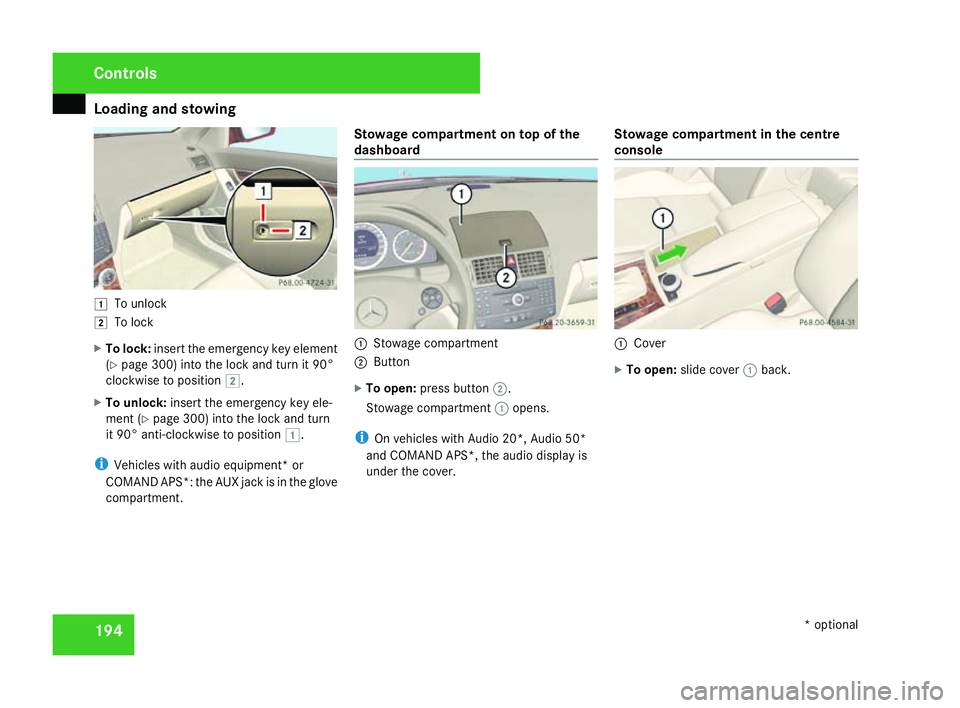
194$
To unlock
% To lock
X To lock :insert the emergency key elemen t
( Y page 300) into the lock and turn it 90°
clockwise to position %.
X To unlock: insert the emergency key ele-
ment (Y page 300) into the lock and turn
it 90° anti-clockwise to position $.
i Vehicles with audio equipment* or
COMAND APS*: the AUX jack is in the glove
compartment. Stowage compartment on top of the
dashboard
1
Stowage compartment
2 Button
X To open: press button 2.
Stowage compartment 1opens.
i On vehicles with Audio 20*, Audio 50*
and COMAND APS*, the audio display is
under the cover. Stowage compartment in the centre
console 1
Cove r
X To open: slide cover 1back. Controls
* optional
204_AKB; 2; 3, en-GB
mkalafa,
2007-06-26T23:11:51+02:00 - Seite 194
Page 201 of 377
Features
198
X
Press in cigarette lighter 2.
Cigarette lighter 2will pop out automati-
cally when the heating element is red-hot .12V socket
You can use the socket for accessories up to
a maximum of 180 W.
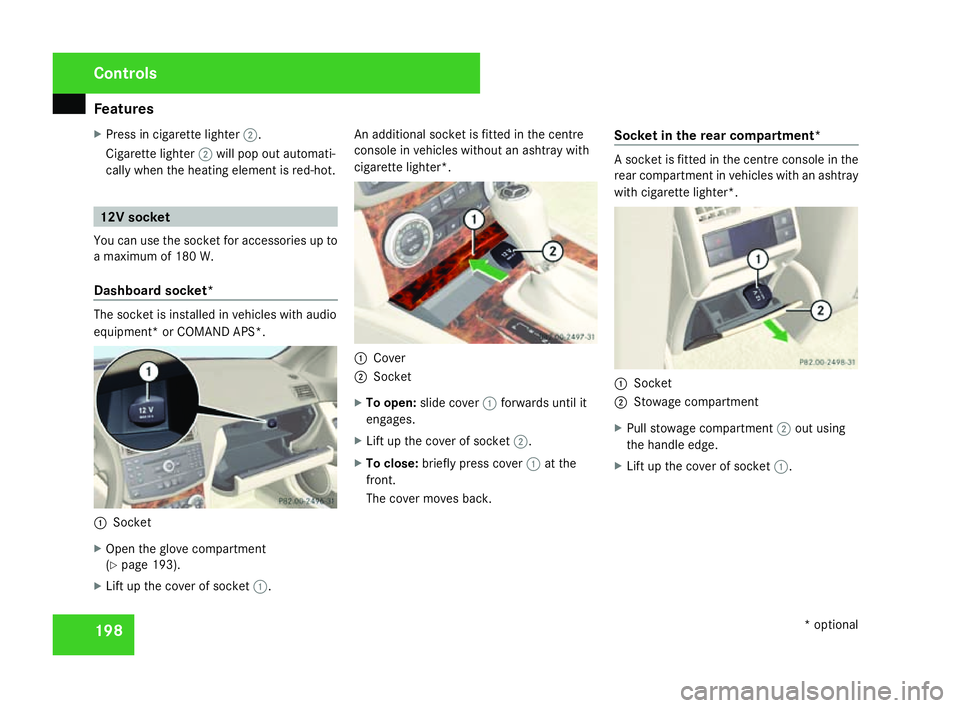
Dashboard socket* The socket is installed in vehicles with audio
equipment* or COMAND APS*.
1
Socket
X Open the glove compartment
(Y page 193).
X Lift up the cover of socket 1. An additional socket is fitted in the centre
console in vehicles without an ashtray with
cigarette lighter*.
1
Cove r
2 Socket
X To open: slide cover 1forwards until it
engages.
X Lift up the cover of socket 2.
X To close: briefly press cover 1at th e
front.
The cover moves back. Socket in the rear compartment* A socket is fitted in the centre console in the
rear compartment in vehicles with an ashtra
y
with cigarette lighter* . 1
Socket
2 Stowage compartment
X Pull stowage compartment 2out using
the handle edge.
X Lift up the cover of socket 1. Cont
rols
* optional
204_AKB; 2; 3, en-GB
mkalafa,
2007-06-26T23:11:51+02:00 - Seite 198
Page 203 of 377
Features
200
X
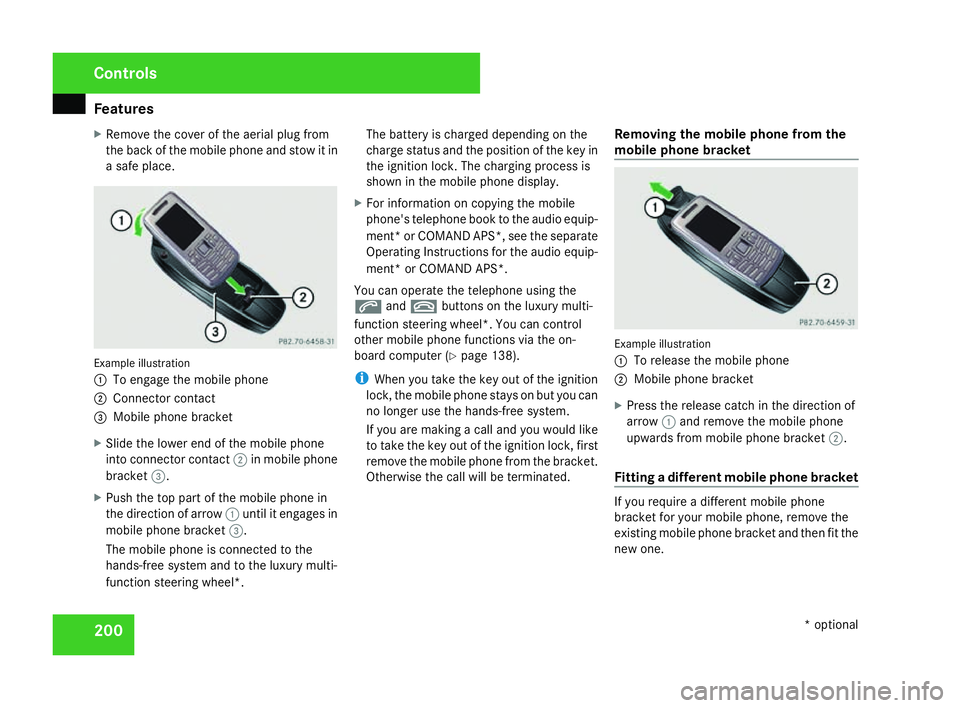
Remove the cover of the aerial plug from
the back of the mobile phone and stow it in
a safe place. Example illustration
1
To engage the mobile phone
2 Connector contact
3 Mobile phone bracket
X Slide the lower end of the mobile phone
into connector contact 2in mobile phon e
bracket 3.
X Push the top part of the mobile phone in
the direction of arrow 1until it engages in
mobile phone bracket 3.
The mobile phone is connected to the
hands-free system and to the luxury multi-
function steering wheel*. The battery is charged depending on the
charge status and the position of the key in
the ignition lock. The charging process is
shown in the mobile phone display
.
X For information on copying the mobil e
phone's telephone book to the audio equip-
ment *or COMAND APS*, see the separate
Operating Instructions for the audio equip-
ment* or COMAND APS* .
You can operate the telephone using the
s andt buttons on the luxury multi-
function steering wheel*. You can contro l
other mobile phone functions via the on-
board computer (Y page 138).
i When you take the key out of the ignition
lock, the mobile phone stays on but you can
no longer use the hands-free system.
If you are making a call and you would like
to take the key out of the ignition lock, first
remove the mobile phone from the bracket .
Otherwise the call will be terminated. Removing the mobile phone from the
mobile phone bracket Example illustration
1
To release the mobile phone
2 Mobile phone bracket
X Press the release catch in the direction of
arrow 1and remove the mobile phon e
upwards from mobile phone bracket 2.
Fitting a different mobile phone bracket If you require a different mobile phon
e
bracket for your mobile phone, remove the
existing mobile phone bracket and then fit the
new one. Controls
* optional
204_AKB; 2; 3, en-GB
mkalafa,
2007-06-26T23:11:51+02:00 - Seite 200