light MERCEDES-BENZ C-CLASS SALOON 2012 Owners Manual
[x] Cancel search | Manufacturer: MERCEDES-BENZ, Model Year: 2012, Model line: C-CLASS SALOON, Model: MERCEDES-BENZ C-CLASS SALOON 2012Pages: 557, PDF Size: 10.15 MB
Page 313 of 557
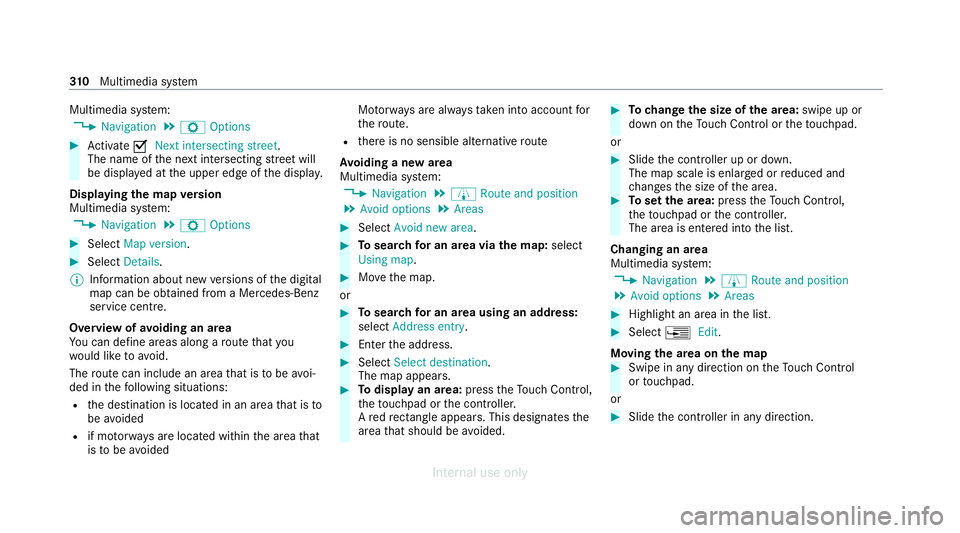
Multimedia sy
stem:
4 Navigation 5
Z Options #
Activate ONext intersecting street .
The name of the next intersecting stre et will
be displa yed at the upper edge of the displa y.
Displaying the map version
Multimedia sy stem:
4 Navigation 5
Z Options #
Select Map version . #
Select Details.
% Information about new versions of the digital
map can be obtained from a Mercedes-Benz
service cent re.
Overview of avoiding an area
Yo u can define areas along a route that you
wo uld like toavoid.
The route can include an area that is tobe avoi‐
ded in thefo llowing situations:
R the destination is located in an area that is to
be avo ided
R if mo torw ays are located within the area that
is to be avoided Mo
torw ays are alw aysta ke n into account for
th ero ute.
R there is no sensible alternative route
Av oiding a new area
Multimedia sy stem:
4 Navigation 5
À Route and position
5 Avoid options 5
Areas #
Select Avoid new area. #
Tosear chfor an area via the map: select
Using map. #
Movethe map.
or #
Tosear chfor an area using an address:
select Address entry . #
Enter the address. #
Select Select destination.
The map appears. #
Todispl ayan area: presstheTo uch Control,
th eto uchpad or the controller.
A redre ctangle appears . This designates the
area that should be avoided. #
Tochange the size of the area: swipe up or
down on theTo uch Control or theto uchpad.
or #
Slide the controller up or down.
The map scale is enlar ged or reduced and
ch anges the size of the area. #
Toset the area: presstheTo uch Control,
th eto uchpad or the controller.
The area is entered into the list.
Changing an area
Multimedia sy stem:
4 Navigation 5
À Route and position
5 Avoid options 5
Areas #
Highlight an area in the list. #
Select ¥Edit.
Moving the area on the map #
Swipe in any direction on theTo uch Control
or touchpad.
or #
Slide the controller in any direction. 310
Multimedia sy stem
Internal use only
Page 314 of 557
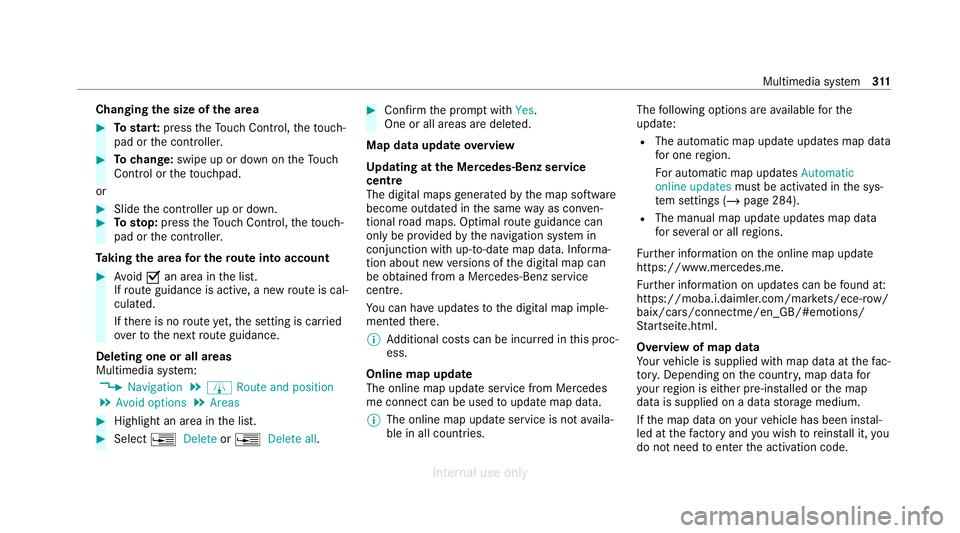
Changing
the size of the area #
Tostar t:press theTo uch Control, theto uch‐
pad or the controller. #
Tochange: swipe up or down on theTo uch
Control or theto uchpad.
or #
Slide the controller up or down. #
Tosto p:press theTo uch Control, theto uch‐
pad or the controller.
Ta king the area for the route into account #
Avoid Oan area in the list.
If ro ute guidance is active, a new route is cal‐
culated.
If th ere is no route yet,th e setting is car ried
ove rto the next route guidance.
Deleting one or all areas
Multimedia sy stem:
4 Navigation 5
À Route and position
5 Avoid options 5
Areas #
Highlight an area in the list. #
Select ¥Delete or¥ Delete all. #
Confirm the prom ptwith Yes.
One or all areas are dele ted.
Map data update overview
Up dating at the Mercedes-Benz se rvice
centre
The digital maps generated bythe map software
become outdated in the same way as conv en‐
tional road maps. Optimal route guidance can
on ly be pr ovided bythe navigation sy stem in
conjunction with up-to-date map data. Informa‐
tion about new versions of the digital map can
be obtained from a Mercedes-Benz service
cent re.
Yo u can ha veupdates tothe digital map imple‐
mented there.
% Additional costs can be incur red in this proc‐
ess.
Online map update
The online map update service from Mercedes
me connect can be used toupdate map data.
% The online map update service is not availa‐
ble in all countries. The
following options are available forthe
update:
R The automatic map update updates map data
for one region.
Fo r auto matic map updates Automatic
online updates must be activated in the sys‐
te m settings (/ page 284).
R The manual map update updates map data
for se veral or all regions.
Fu rther information on the online map update
https://www.mercedes.me.
Fu rther information on updates can be found at:
https://moba.i.daimler.com/mar kets/ece-r ow/
baix/cars/connectme/en_GB/#emotions/
St artseite.html.
Overview of map data
Yo ur vehicle is supplied with map data at thefa c‐
to ry. Depending on the count ry, map data for
yo ur region is either pre-ins talled or the map
data is supplied on a data storage medium.
If th e map data on your vehicle has been ins tal‐
led at thefa ctory and you wish toreins tall it, you
do not need toenter the activation code. Multimedia sy
stem 311
Internal use only
Page 336 of 557
Yo
u can find information on thefo llowing topics:
R Activation of Me rcedes me connect
R Operating theve hicle
R Nearest Mercedes-Benz service centre
R Other products and services from Mercedes-
Benz
Data is transfer red during the connection tothe
Mercedes-Benz Cus tomer Centre (/ page 334).
Calling the Mercedes-Benz Cus tomer Centre
using the multimedia sy stem
Requ irements:
R You ha veaccess toa GSM networ k.
R The contra ct partner's GSM network co ver‐
age is available in there spective region.
R The ignition is switched on so that vehicle
data can be transfer red automatically.
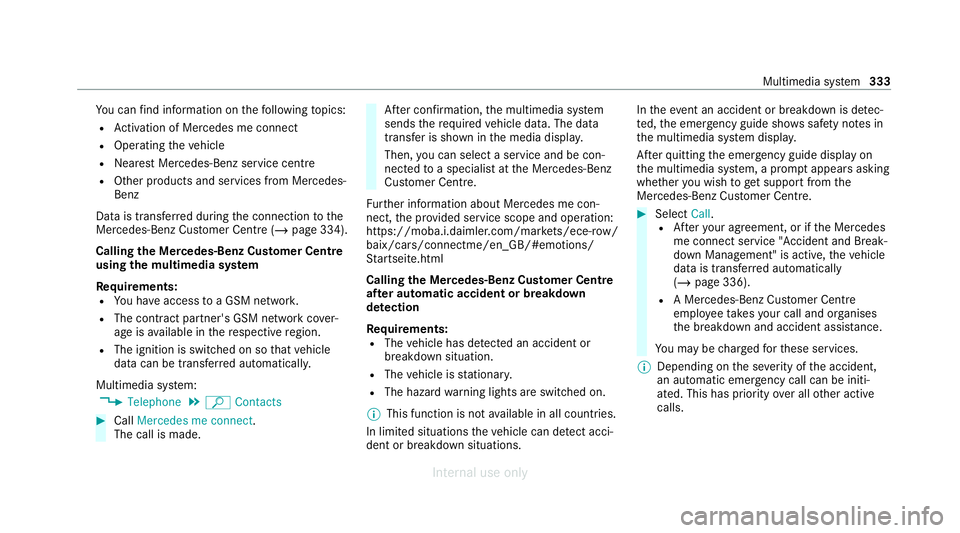
Multimedia sy stem:
4 Telephone 5
ª Contacts #
Call Mercedes me connect.
The call is made. Af
ter confirmation, the multimedia sy stem
sends there qu ired vehicle data. The data
transfer is shown in the media displa y.
Then, you can select a service and be con‐
nected toa specialist at the Mercedes-Benz
Cus tomer Centre.
Fu rther information about Mercedes me con‐
nect, the pr ovided service scope and operation:
https://moba.i.daimler.com/mar kets/ece-r ow/
baix/cars/connectme/en_GB/#emotions/
St artseite.html
Calling the Mercedes-Benz Cus tomer Centre
af te r automatic accident or breakdown
de tection
Re quirements:
R The vehicle has de tected an accident or
breakdown situation.
R The vehicle is stationar y.
R The hazard warning lights are switched on.
% This function is not available in all countries.
In limited situations theve hicle can de tect acci‐
dent or breakdown situations. In
theeve nt an accident or breakdown is de tec‐
te d, the emer gency guide sho wssafety no tes in
th e multimedia sy stem displa y.
Af terqu itting the emer gency guide displ ayon
th e multimedia sy stem, a prom ptappears asking
whe ther you wish toget support from the
Mercedes-Benz Cus tomer Centre. #
Select Call.
R Afteryo ur agreement, or if the Mercedes
me connect service "Accident and Break‐
down Management" is active, theve hicle
data is transfer red automatically
(/ page 336).
R A Mercedes-Benz Cus tomer Centre
emplo yeeta ke syo ur call and or ganises
th e breakdown and accident assis tance.
Yo u may be charge dfo rth ese services.
% Depending on the se verity of the accident,
an automatic emer gency call can be initi‐
ated. This has prio rity over all other active
calls. Multimedia sy
stem 333
Internal use only
Page 346 of 557
#
Toswitch from PANto DUN: select the
mobile phone. #
Select ¥. #
Select Change configuration. #
Deactivate ªAutomatic configuration. #
Select Configure settings using COMAND .#
Configuri ngthe Internet connection using
preset or manual access data (/ page 342).
Editing Internet access data
Re quirements:
R The mobile phone supports the Blue tooth®
DUN profile.
Multimedia sy stem:
4 System 5
ö Connectivity
5 Internet settings #
Highlight the mobile phone. #
Select ¥. #
Select Change configuration .#
For mobile phones with PAN and DUN:
select Configure settings using COMAND. #
Configure the Internet connection using pre‐
set or manual access data (/ page 342).
Cancelling Internet access permission for a
mobile phone
Multimedia sy stem:
4 System 5
ö Connectivity
5 Internet settings #
Highlight the mobile phone. #
Select ¥. #
Select Delete configuration. #
Select Yes.
Displaying mobile phone details
Multimedia sy stem:
4 System 5
ö Connectivity
5 Internet settings #
Highlight the mobile phone. #
Select ¥. #
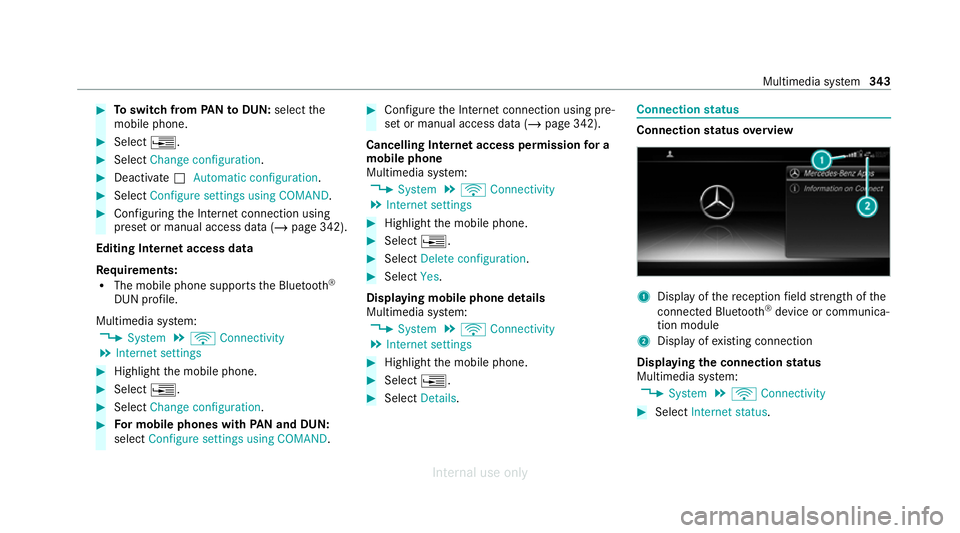
Select Details. Connection
status Connection
status overview 1
Display of there ception field stre ngth of the
connected Blu etoo th®
device or communica‐
tion module
2 Display of existing connection
Displaying the connection status
Multimedia sy stem:
4 System 5
ö Connectivity #
Select Internet status . Multimedia sy
stem 343
Internal use only
Page 350 of 557
Manufactured under licence from Dolby Labora‐
to
ries. Dolb y,Dol byAudio and the double-D sym‐
bol are trademar ksof Dolby Laboratories. Graceno
te,th e Graceno telogo and logotype,
"P ow ered byGracen ote", MusicID and Pla ylist
Plus are either regis tere d trademar ksor trade‐
mar ksof Graceno te, Inc. in theUn ited States
and/or other countries. "Made
for iPod", and "Made for iPhone," mean
th at an electronic accesso ryhas been designed
to connect specifically toiPod ®
, or iPhone ®
,
re spectivel y,and has been certified bythe de vel‐
oper tomeet Apple per form ance standards.
Apple ®
is not responsible forth e operation of
th is device or its compliance with saf ety and reg‐
ulatory standards. Please no tethat the use of
th is accessory with iPod, or iPhone may af fect
wi reless per form ance.
iPhone ®
, iPod ®
, iPod classic ®
, iPod nano ®
, and
iPod touch ®
are trademar ksof Apple Inc., regis‐
te re d in theU. S. and other countries. Lightning ®
is a trademark of Apple Inc.
Note s on copyright
Au dio files that you create or reproduce yourself
fo r playback aregeneral lysubject tocopyright
pr otection. In many count ries, reproductions,
eve nfo r private use, are not permitted without
th e prior consent of the copyright holder. Make
sure that you kn owabout the applicable copy‐
ri ght regulations and that you co mply withthese. Multimedia sy
stem 347
Internal use only
Page 361 of 557
Sear
ching for a music track on the Blue‐
to oth ®
audio device
Multimedia sy stem:
4 Media 5
à Media sources
5 á Bluetooth audio #
Select ª. #
Select a categor y.
A track li stappears. #
Select a trac k.
% The function is only available when the
mobile phone and the media pla yer selected
on the mobile phone support this function.
Switching Blu etoo th®
audio equipment via
NFC
Requ irements:
R Obser vethe no tes on using NFC
(/ page 319).
R The Blue tooth®
audio overview is displa yed
( / page 356). #
Lightly press the NFC area on the mobile
phone (see the manufacturer's operating
instructions).
If th e mobile phone has already been author‐
ised on the multimedia sy stem as Blue tooth®
audio equipment, it is now connec ted.
If th e mobile phone is authorised on the mul‐
timedia sy stem as Blue tooth ®
audio equip‐
ment forth efirs t time, it is connected af ter
confirming the instructions on the mobile
phone (see the manufacturer's operating
instructions).
Disconnecting Blue tooth ®
audio equipment
Multimedia sy stem:
4 Telephone 5
á Media sources #
Select thei symbol in the line of the
mobile phone.
The disconnection of the mobile phone takes
place without a confi rmation prom pt. The
mobile phone remains auth orised inthe sys‐
te m. Ra
dio Switching on the
radio Multimedia sy
stem:
4 Radio #
Alternatively: press the$ button.
The radio display appears. You will hear the
last station pla yed on the last frequency
band selected. 358
Multimedia sy stem
Internal use only
Page 363 of 557
Calling up
thera dio station list Multimedia sy
stem:
4 Radio 5
è #
Select a station. Sear
ching forra dio stations using station
names or direct frequency entry Multimedia sy
stem:
4 Radio 5
è #
Ente r astation name or frequenc y.#
Select a.
The sea rchre sults are displa yed. #
Select a station. St
oring radio stations Multimedia sy
stem:
4 Radio 5
ß Presets #
Select Store current station in the presets. Managing
radio station presets Multimedia sy
stem:
4 Radio 5
ß Presets
Moving stations: #
Highlight a preset entry and navigate tothe
left. #
Select Move highlighted station. #
Select a memo rypreset.
Deleting stations: #
Highlight a preset entry and navigate tothe
left. #
Select Delete highlighted station. #
Select Yes. Calling up a slide show (FM/DAB
radio mode) Multimedia sy
stem:
4 Radio 5
Þ Radio source
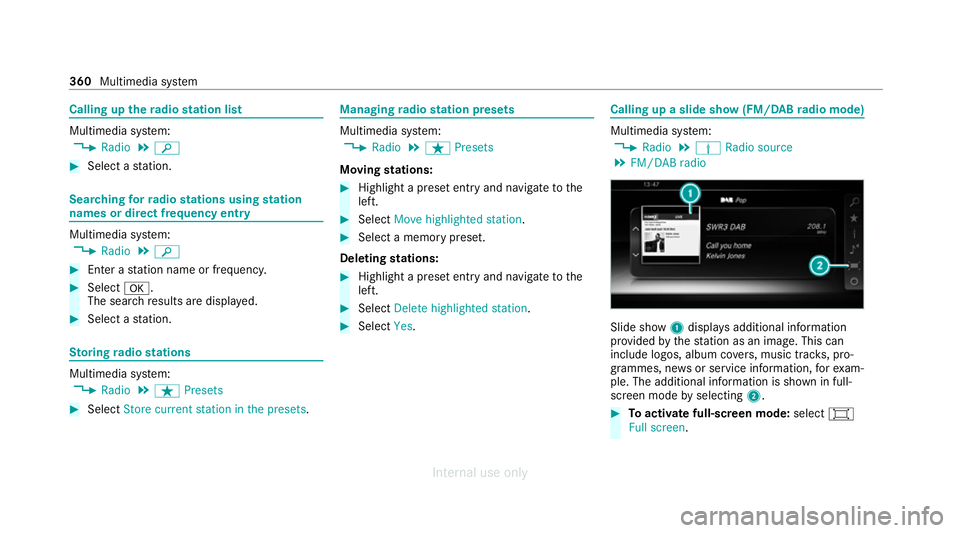
5 FM/DAB radio Slide show
1displa ysadditional information
pr ov ided bythest ation as an image. This can
include logos, album co vers, music trac ks, pro‐
grammes, ne wsor service information, forex am‐
ple. The additional information is shown in full-
sc reen mode byselecting 2. #
Toactivate full-screen mode: select#
Full screen. 360
Multimedia sy stem
Internal use only
Page 369 of 557
The order of
thech annel lists is alphabetical or
countr y-specific.
The TVtuner requ ires a short amount of time to
update the information.
The channel lists show thefo llowing information:
R recei vable channel names
R programme title
The information is shown under thefo llowing
conditions:
R it is broadcast bythe digital channel
R there ception conditions are adequate Favo
urites Overview of
TVprog rammes (f avourites)
Yo u can sa veup to100 digital TVchannels in
fa vo urites.
Fo rqu ick- access you can sa veTV channels as
fa vo urites. Qui
ck-saving a TVchannel
Multimedia sy stem:
4 Media 5
à Media sources 5
TV #
In full-screen mode, press theto uchpad for
longer than thre e seconds.
The cur rent TV channel is stored in the
fa vo urites in the next available position.
St oring TVchannels
Multimedia sy stem:
4 Media 5
à Media sources 5
TV
5 ß Presets #
Select Store current station in the presets.
or #
Highlight a channel in thech annel list and
st ore as a favo urite.
The cur rent channel is stored in thefa vo ur‐
ites in the next available position.
Moving channels in thefa vo urites #
Highlight a channel in thefa vo urites. #
Select ¥Move highlighted station. #
Highlight the new position. #
Confirm the position.
Deleting channels #
Highlight a channel in thefa vo urites. #
Select ¥Delete highlighted station. #
Select Yes. TV
prog ramme Overvi
ewof audio language and subtitles
Au dio language
R A selection from theav ailable audio lan‐
guages can be made for a programme broad‐
cast in multiple languages.
R If English, forex ample, is set as the sy stem
language and a TVchannel is broadcasting in
th is language, Engl ish is selected automati‐
cally.
The prog ramme transmission may be indica ted
with thefo llowing symbols:
m Programme with audio explanations for
th e visually impaired
o Stereo broadcast 366
Multimedia sy stem
Internal use only
Page 377 of 557
#
With your hand flat, push down active bonnet
1 inthe area around the hinges on bo th
sides (ar rows).
In doing so, the actuator is depressurised
and you may hear a hissing sound.
The engine bonnet must en gage in position. #
Ifth e active bonn etcan be raised slight lyat
th ere ar in the area of the hinges, repeat the
st ep until it engages cor rectl y. Opening and closing
the bonnet &
WARNING Risk of accident due todriv‐
ing with the bonn etunlo cked
The bonn etmay open and block your vie w. #
Neverre lease the bonn etwhen driving. #
Before every trip, ensure that the
engine bonn etis loc ked. &
WARNING Risk of accident and inju ry
when opening and closing the bonn et
The bonnet may suddenly drop into the end
position.
There is a risk of injury for an yone in the
engine bonn et's range of mo vement. #
Do not open or close the bonn etifth ere
is a person in the bonn et's range of
mo vement. &
WARNING Risk of burn s when opening
th e bonn et
If yo u open the bonn etwhen the engine has
ove rheated or when there is a fire inthe
engine compartment, thefo llowing situations
may occur:
R You could come into contact with hot
ga ses.
R You could come into contact with other
hot, escaping operating fluids. #
Before opening the bonn et, allow the
engine tocool down. #
Intheeve nt of a fire inthe engine com‐
partment, keep the bonn etclosed and
call thefire service. &
WARNING Risk of injury duetomoving
parts
Components in the engine compartment may
continue running or start up sudden ly,even if
th e ignition is switched off.
Make sure of thefo llowing before per form ing
ta sks in the engine compartmen t: #
Switch the ignition off. #
Neverre ach into the danger zone sur‐
ro unding moving co mponents, e.g. the
ro tation area of thefa n. #
Remo vejewe llery and watches. #
Keep items of clo thing and hair away
from moving parts. 374
Maintenance and care
Internal use only
Page 379 of 557
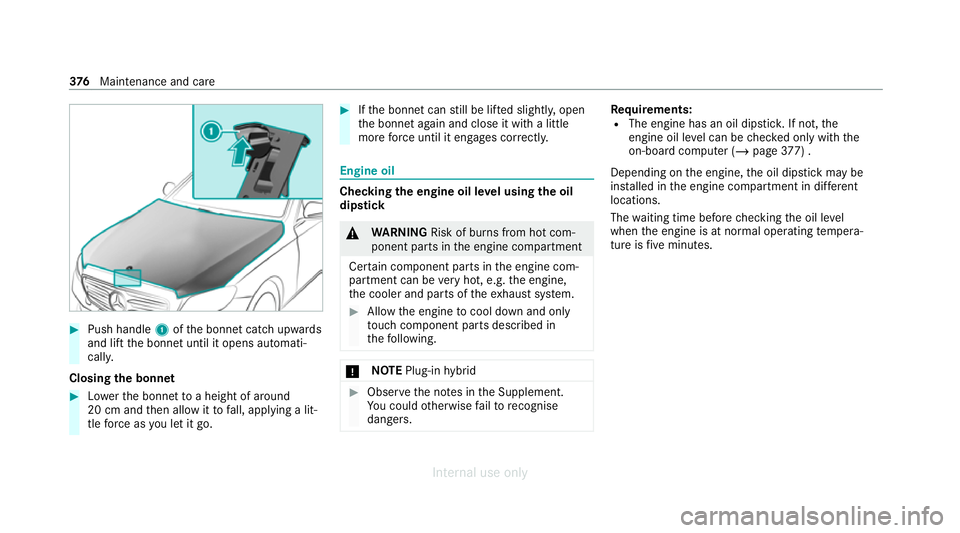
#
Push handle 1ofthe bonn etcatch up wards
and lift the bonn etuntil it opens automati‐
call y.
Closing the bonnet #
Lowe rth e bonn etto a height of around
20 cm and then allow it tofall, applying a lit‐
tle forc e as you let it go. #
Ifth e bonn etcan still be lif ted slightl y,open
th e bonn etagain and close it with a little
more forc e until it engages cor rectly. Engine oil
Che
cking the engine oil le vel using the oil
dip stick &
WARNING Risk of burn s from hot com‐
ponent parts in the engine compartment
Cer tain component parts in the engine com‐
partment can be very hot, e.g. the engine,
th e cooler and parts of theex haust sy stem. #
Allow the engine tocool down and only
to uch co mponent parts described in
th efo llowing. *
NO
TEPlug-in hybrid #
Obser vethe no tes in the Supplement.
Yo u could otherwise failto recognise
dangers. Re
quirements:
R The engine has an oil dipstic k.If not, the
engine oil le vel can be checked only with the
on-board computer (/ page377) .
Depending on the engine, the oil dipstick may be
ins talled in the engine compartment in dif fere nt
locations.
The waiting time before checking the oil le vel
when the engine is at normal operating temp era‐
ture is five minutes. 376
Maintenance and care
Internal use only