radio MERCEDES-BENZ C-CLASS SALOON 2012 User Guide
[x] Cancel search | Manufacturer: MERCEDES-BENZ, Model Year: 2012, Model line: C-CLASS SALOON, Model: MERCEDES-BENZ C-CLASS SALOON 2012Pages: 557, PDF Size: 10.15 MB
Page 308 of 557
as a sensor
forth eflow of traf fic and helps to
impr oveth equ ality of the traf fic re ports.
If yo u do not wish totransmit your vehicle posi‐
tion, you can ha vethis service deactivated at a
Mercedes-Benz service centre.
Useful information on FM RDS-T MC:
R A FM RDS-TMC radio station broadcasts traf‐
fi c re ports alongside thera dio prog ramme.
R FM RDS-TMC is not available in all countries.
Displ aying subscription information
Requ irements:
R The vehicle is equipped with Live Traf fic
Information.
R Forre gistration at Mercedes me and the
ex tension of the subscription: you ha ve a
user account in the Mercedes me por tal.
Multimedia sy stem:
4 Navigation 5
Z Options
The subscription expiry date is automatically dis‐
pla yed:
R one month before theex piry date. R
one week before theex piry date.
R ontheex piry date. #
Todispl aymanuall y:select Live Traffic Sub-
scription Info.
Depending on thest atus, one of thefo llowing
messages appears:
R the period of validity forth e subscription
is displa yed.
R the subscription has expired.
Re gis tering on Mercedes me
Live Traf fic Information must be regis tere d. Re g‐
istration is car ried out at a Mercedes-Benz
service cent re. #
Create a user account at Mercedes me at:
https://www.mercedes.me. A valid email
address is requ ired forth is. #
Regis terth eve hicle using theve hicle identifi‐
cation number (VIN). #
Have theve hicle linked tothe Mercedes me
user account at a Mercedes-Benz service
cent re. The vehicle registration documents and a
form of identification are requ ired for
th is. #
Accept thege neral and specific term s of use.
Extending a subscription #
Call up the Mercedes me user account. #
Switch tothe Mercedes me connect Online
St ore via the linked vehicle. #
Extend the Live Traf fic Information service. #
Select there ne wa l period. #
Addth e product tothe shopping bask et. #
Accept thege neral and specific term s of use.
Live Traf fic Information remains activated for
th e selected extension pe riod. Activation
begins on the date of extension.
Displ aying the traf fic map
Re quirements:
R For Live Traf fic Information: theve hicle is
equipped with a communication module fea‐
turing an activated, integrated SIM card.
R When theve hicle is star ted, the communica‐
tion module automatically es tablishes an Multimedia sy
stem 305
Internal use only
Page 344 of 557
Depending on
theve hicle's equipment, you can
es tablish an Internet connection in thefo llowing
wa ys:
R Vehicles with a communication module:
Internet use including Mercedes me connect
services and data roaming (/ page 341).
R Vehicles without a communication mod‐
ule:
- viaWi-Fi wi tha data-enabled mobile
phone (/ page 341)
- via Blue tooth®
with a data-enabled
mobile phone (/ page 342)
The In tern et functions can only be used toa limi‐
te d degree whilst driving.
Fu nction of the communication module
On vehicles with a built-in communication mod‐
ule, the Internet connection is es tablished via an
integrated SIM card.
To use In tern et access via the communication
module thefo llowing conditions must be me t:
R The vehicle is equipped with a permanently
ins talled communication module. R
Mercedes me connect is active and ready for
operation.
R Mercedes me connect is activated for Inter‐
net access.
Fo r most Mercedes me connect services, data
vo lume is available when pur chasing the serv‐
ices.
Ad ditional data volume is requ ired touse some
functions, e.g. In tern et radio or Wi-Fi hotspot.
If th e data volume limit is reached, theav ailabil‐
ity of Mercedes me connect services is limited.
The data volume can be pur chased directly
from a mobile phone network pr ovider viathe
Mercedes me Portal.
% Visit a Mercedes-Benz service centre tofind
out wh ether it is possible topur chase data
vo lume in your count rydirectly from a
mobile phone network pr ovider .
Setting up an Internet connection via Wi-Fi
Re quirements:
R theWi -Fi function is acti vated on the multi‐
media sy stem (/ page277). R
theWi -Fi function is acti vated on theex tern al
device (see the manufacturer's operating
instructions).
R Internet access via Wi-Fi is acti vated (see the
manufacturer's operating instructions).
The Internet connection via Wi-Fi is restricted or
does not function if:
R the mobile phone is switched off
R mobile data use is deactivated on the mobile
phone
R theWi -Fi function is deacti vated on the multi‐
media sy stem
R theWi -Fi function is deacti vated on theex ter‐
nal device
R Internet access via Wi-Fi is deacti vated on
th eex tern al device
Multimedia sy stem:
4 System 5
ö Connectivity
5 Internet settings
5 Search for Wi-Fi networks #
Select the networ k. #
Log in totheWi -Fi network (/ page 277). Mul
timedia sy stem 341
Internal use only
Page 347 of 557
%
When connected via Wi-Fi or a Blu etoo th®
device, the appr oximate data volume trans‐
mit ted is displa yed. The exact values can be
re qu ested from your mobile phone network
pr ov ider.
% Inthe case of a connection via the communi‐
cation module thefo llowing status informa‐
tion is shown:
R Type of network
R Status online/of fline Mercedes-Benz Apps
Calling up Mercedes-Benz Apps
Re
quirements:
R The registration forth e use of Mercedes-
Benz Apps has been comple ted.
R The general term s and conditions ha vebeen
con firm ed.
Multimedia sy stem:
4 Connect 5
Ú Mercedes-Benz Apps #
Select an app. %
The available features are countr y-depend‐
ent.
Licence fees may be applicable.
Using Mercedes-Benz Apps with voice con‐
trol
Re quirements:
R The registration forth e use of Mercedes-
Benz Apps has been comple ted.
R The general term s and conditions ha vebeen
con firm ed.
The o symbol indicates that a Mercedes-
Benz app can be used via voice control. #
Select a Mercedes-Benz app.
The app menu is displa yed. #
Touse voice control: selectoLan-
guage. #
Say thequ estion or command.
% Voice control is not available in all countries
and languages. Tu
neIn Radio Calling up
TuneIn Radio
Re quirements:
R There is an account on https://
www.me rcedes.me.
R The Internet Radio service is activated.
R The data volume is available.
Depending on the count ry, data volume may
need tobe pur chased.
R Afast Internet connection for data transmis‐
sion free of inter fere nce.
The services are countr y-dependent.
Fo r more information, consult a Mercedes-
Benz service centre.
Multimedia sy stem:
4 Radio 5
Þ Radio source #
Select TuneIn Radio.
The TuneIn Radio display appears. The last
st ation set starts playing.
% The connection quality depends on the local
mobile phone reception. 344
Multimedia sy stem
Internal use only
Page 348 of 557
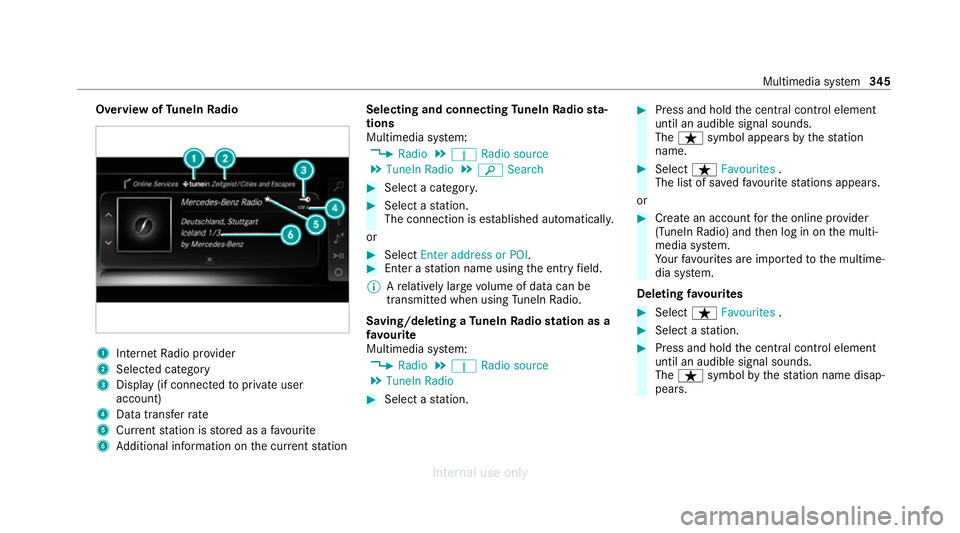
Overview of
TuneIn Radio 1
Internet Radio pr ovider
2 Selec ted category
3 Display (if connecte dto private user
account)
4 Data transfer rate
5 Current station is stored as a favo urite
6 Additional information on the cur rent station Selecting and connecting
TuneIn Radio sta‐
tions
Multimedia sy stem:
4 Radio 5
Þ Radio source
5 TuneIn Radio 5
è Search #
Select a categor y. #
Select a station.
The connection is es tablished automaticall y.
or #
Select Enter address or POI. #
Enter a station name using the entry field.
% Arelatively lar gevolume of data can be
transmitte d when using TuneIn Radio.
Saving/deleting a TuneIn Radio station as a
fa vo urite
Multimedia sy stem:
4 Radio 5
Þ Radio source
5 TuneIn Radio #
Select a station. #
Press and hold the cent ral control element
until an audible signal sounds.
The ß symbol appears bythest ation
name. #
Select ßFavourites .
The list of sa vedfavo urite stations appears.
or #
Create an account forth e online pr ovider
(TuneIn Radio) and then log in on the multi‐
media sy stem.
Yo ur favo urites are impor tedto the multime‐
dia sy stem.
Deleting favo urites #
Select ßFavourites . #
Select a station. #
Press and hold the cent ral control element
until an audible signal sounds.
The ß symbol bythest ation name disap‐
pears. Multimedia sy
stem 345
Internal use only
Page 349 of 557
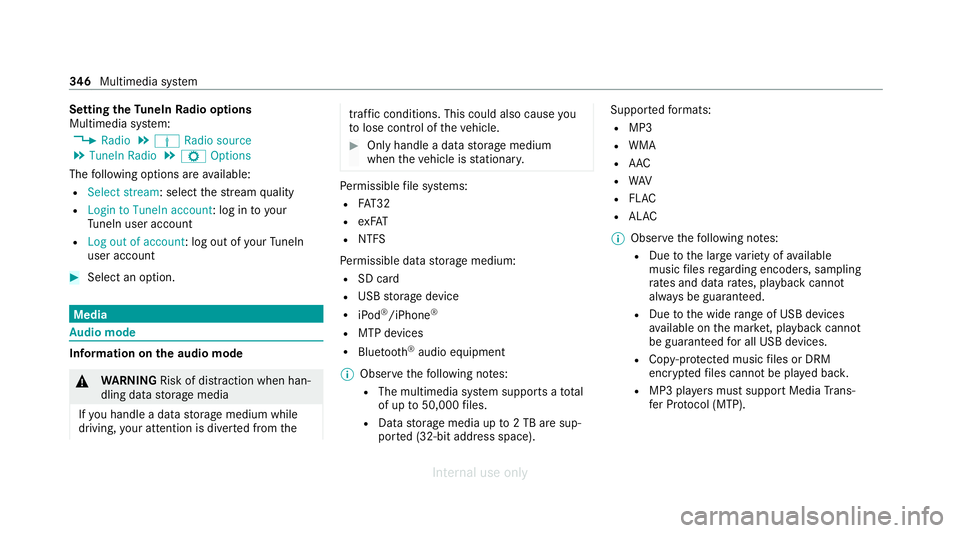
Setting
theTu neIn Radio options
Multimedia sy stem:
4 Radio 5
Þ Radio source
5 TuneIn Radio 5
Z Options
The following options are available:
R Select stream: select thest re am quality
R Login to TuneIn account: log in to your
Tu neIn user account
R Log out of account: log out of your TuneIn
user account #
Select an option. Media
Au
dio mode In
fo rm ation on the audio mode &
WARNING Risk of dist raction when han‐
dling data storage media
If yo u handle a data storage medium while
driving, your attention is diver ted from the traf
fic conditions. This could also cause you
to lose control of theve hicle. #
Only handle a data storage medium
when theve hicle is stationar y. Pe
rm issible file sy stems:
R FAT32
R exFAT
R NTFS
Pe rm issible data storage medium:
R SD card
R USB storage device
R iPod ®
/iPhone ®
R MTP devices
R Blue tooth ®
audio equipment
% Obse rveth efo llowing no tes:
R The multimedia sy stem supports a total
of up to50,000 files.
R Data storage media up to2 TB are sup‐
por ted (32‑bit address space). Suppor
tedfo rm ats:
R MP3
R WMA
R AAC
R WAV
R FLAC
R ALAC
% Obser vethefo llowing no tes:
R Due tothe lar gevariet y of available
music files rega rding encoders, sampling
ra tes and data rates, playback cannot
alw ays be guaranteed.
R Due tothe wide range of USB devices
av ailable on the mar ket, pl ayback cann ot
be guaranteed for all USB devices.
R Cop y-pr otected music files or DRM
enc rypte dfiles cannot be pla yed bac k.
R MP3 pla yers must support Media Trans‐
fe r Pr otocol (MTP). 346
Multimedia sy stem
Internal use only
Page 361 of 557
Sear
ching for a music track on the Blue‐
to oth ®
audio device
Multimedia sy stem:
4 Media 5
à Media sources
5 á Bluetooth audio #
Select ª. #
Select a categor y.
A track li stappears. #
Select a trac k.
% The function is only available when the
mobile phone and the media pla yer selected
on the mobile phone support this function.
Switching Blu etoo th®
audio equipment via
NFC
Requ irements:
R Obser vethe no tes on using NFC
(/ page 319).
R The Blue tooth®
audio overview is displa yed
( / page 356). #
Lightly press the NFC area on the mobile
phone (see the manufacturer's operating
instructions).
If th e mobile phone has already been author‐
ised on the multimedia sy stem as Blue tooth®
audio equipment, it is now connec ted.
If th e mobile phone is authorised on the mul‐
timedia sy stem as Blue tooth ®
audio equip‐
ment forth efirs t time, it is connected af ter
confirming the instructions on the mobile
phone (see the manufacturer's operating
instructions).
Disconnecting Blue tooth ®
audio equipment
Multimedia sy stem:
4 Telephone 5
á Media sources #
Select thei symbol in the line of the
mobile phone.
The disconnection of the mobile phone takes
place without a confi rmation prom pt. The
mobile phone remains auth orised inthe sys‐
te m. Ra
dio Switching on the
radio Multimedia sy
stem:
4 Radio #
Alternatively: press the$ button.
The radio display appears. You will hear the
last station pla yed on the last frequency
band selected. 358
Multimedia sy stem
Internal use only
Page 362 of 557
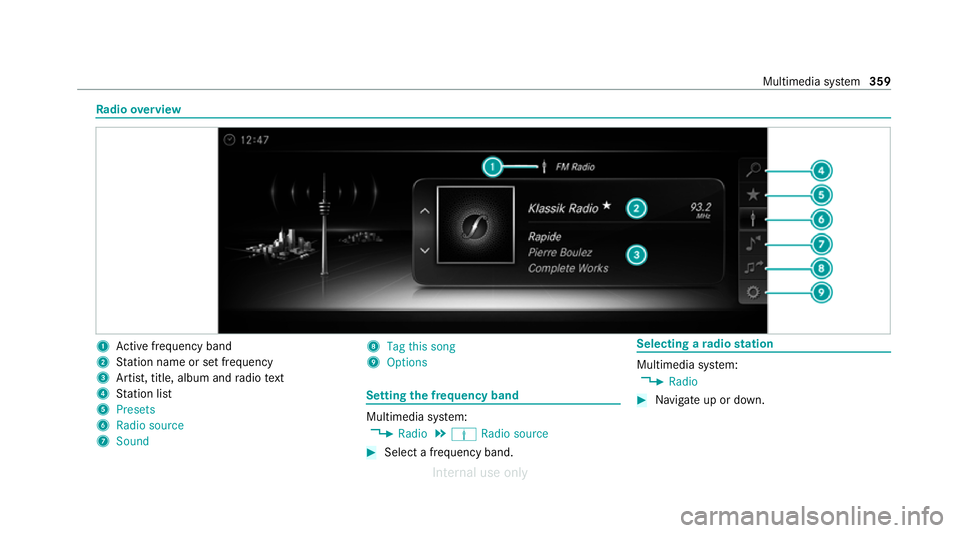
Ra
dio overview 1
Active frequency band
2 Station name or set frequency
3 Artist, title, album and radio text
4 Station list
5 Presets
6 Radio source
7 Sound 8
Tag this song
9 Options Setting
the frequency band Multimedia sy
stem:
4 Radio 5
Þ Radio source #
Select a frequency band. Selecting a
radio station Multimedia sy
stem:
4 Radio #
Navigate up or down. Multimedia sy
stem 359
Internal use only
Page 363 of 557
Calling up
thera dio station list Multimedia sy
stem:
4 Radio 5
è #
Select a station. Sear
ching forra dio stations using station
names or direct frequency entry Multimedia sy
stem:
4 Radio 5
è #
Ente r astation name or frequenc y.#
Select a.
The sea rchre sults are displa yed. #
Select a station. St
oring radio stations Multimedia sy
stem:
4 Radio 5
ß Presets #
Select Store current station in the presets. Managing
radio station presets Multimedia sy
stem:
4 Radio 5
ß Presets
Moving stations: #
Highlight a preset entry and navigate tothe
left. #
Select Move highlighted station. #
Select a memo rypreset.
Deleting stations: #
Highlight a preset entry and navigate tothe
left. #
Select Delete highlighted station. #
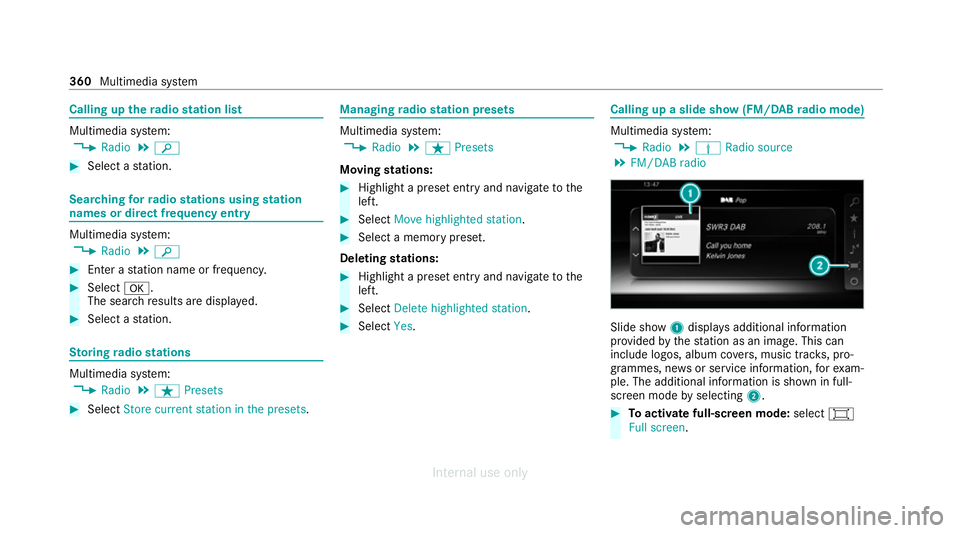
Select Yes. Calling up a slide show (FM/DAB
radio mode) Multimedia sy
stem:
4 Radio 5
Þ Radio source
5 FM/DAB radio Slide show
1displa ysadditional information
pr ov ided bythest ation as an image. This can
include logos, album co vers, music trac ks, pro‐
grammes, ne wsor service information, forex am‐
ple. The additional information is shown in full-
sc reen mode byselecting 2. #
Toactivate full-screen mode: select#
Full screen. 360
Multimedia sy stem
Internal use only
Page 364 of 557
#
Todeactivate full-sc reen mode: select
%. Ac
tivating or deactivating the frequency fix
function Multimedia sy
stem:
4 Radio 5
Z Options 5
Frequency fix #
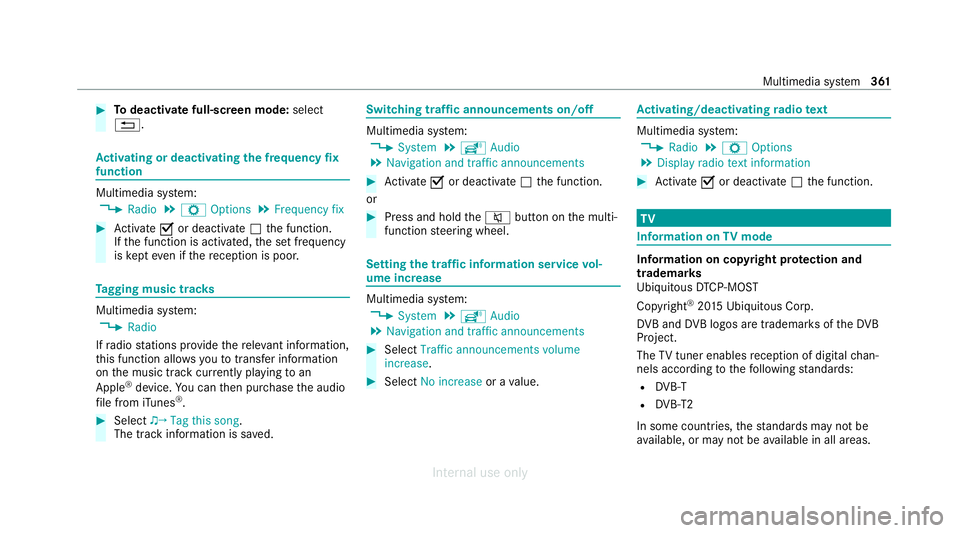
Activate Oor deacti vate ª the function.
If th e function is activated, the set frequency
is ke pt eve n ifthere ception is poo r. Ta
gging music trac ks Multimedia sy
stem:
4 Radio
If ra dio stations pr ovide there leva nt information,
th is function allo wsyouto trans fer information
on the music track cur rently pl aying toan
Apple ®
device. You can then pur chase the audio
fi le from iTunes ®
. #
Select ♫→ Tag this song.
The track information is sa ved. Switching traf
fic announcements on/off Multimedia sy
stem:
4 System 5
õ Audio
5 Navigation and traffic announcements #
Activate Oor deacti vate ª the function.
or #
Press and hold the8 button on the multi‐
function steering wheel. Setting
the traf fic information service vol‐
ume increase Multimedia sy
stem:
4 System 5
õ Audio
5 Navigation and traffic announcements #
Select Traffic announcements volume
increase. #
Select No increase or avalue. Ac
tivating/deactivating radio text Multimedia sy
stem:
4 Radio 5
Z Options
5 Display radio text information #
Activate Oor deacti vate ª the function. TV
Information on
TVmode In
fo rm ation on copy right pr otection and
trademarks
Ubiquitous DTCP-MOST
Copyright ®
20 15 Ubiquitous Corp.
DV B and DVB logos are trademark s oftheDVB
Project.
The TVtuner enables reception of digital chan‐
nels according tothefo llowing standards:
R DVB-T
R DVB-T2
In some countries, thest andards may not be
av ailable, or may not be available in all areas. Multimedia sy
stem 361
Internal use only
Page 368 of 557
Multimedia sy
stem:
4 Media 5
à Media sources 5
TV
5 ß Presets #
Select theTV channel.
Selecting TVchannels in the bac kground
Re quirements:
R An application is active, e.g. the navigation.
R TVmode is switched on in the bac kground
and the sound from the selected TVchannel
can be heard #
Press theD button on theto uchpad.
The media menu is called up. #
Navigate up or down.
The next or pr evious TVchannel is selec ted. Displaying cur
rent prog ramme in form ation
fo r the selected channel (EPG)
Multimedia sy stem:
4 Media 5
à Media sources 5
TV
5 Z Options #
Select Electronic Program Guide.
EPG displa ys thefo llowing information (if
av ailable):
R Broadcast times
R Names of the cur rent and upcoming pro‐
grammes #
Select programme information and confirm.
The de tails are displa yed. #
Toscroll: swipe up or down on theto uch‐
pad. #
Toexitth e detailed displa y:press the%
button.
Fu nction of thech annel fix setting
Channel fix is switched on
The channel is not changed. This is useful if, for
ex ample, you drive theve hicle thro ugh reception re
gions that ove rlap. It pr events frequent switch‐
ing ba ckand forth between channels.
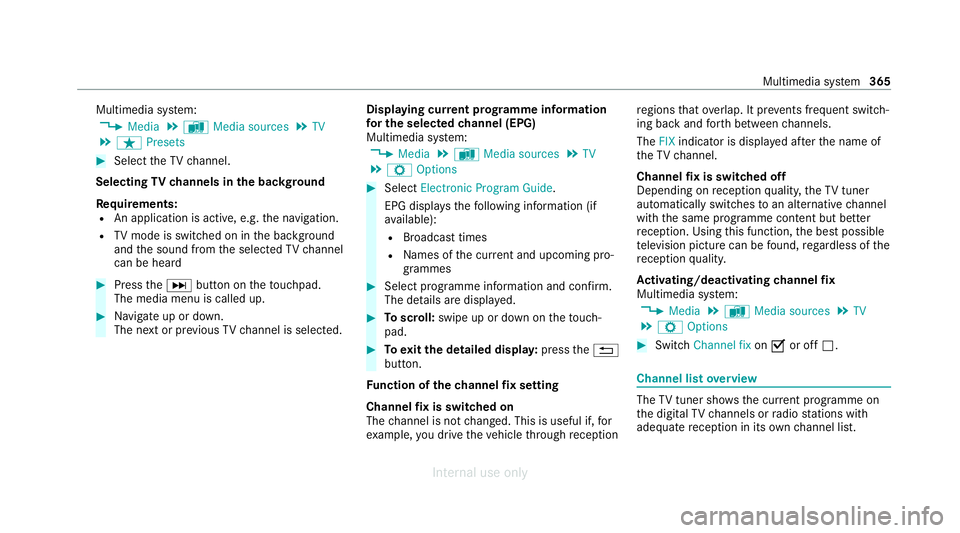
The FIXindicator is displa yed af terth e name of
th eTV channel.
Channel fix is switched off
Depending on reception qualit y,theTV tuner
au tomatical lyswitches toan alternative channel
with the same programme conte nt but better
re ception. Using this function, the best possible
te levision picture can be found, rega rdless of the
re ception qualit y.
Ac tivating/deactivating channel fix
Multimedia sy stem:
4 Media 5
à Media sources 5
TV
5 Z Options #
Switch Channel fix onO or off ª. Channel list
overview The
TVtuner sho wsthe cur rent programme on
th e digital TVchannels or radio stations with
adequate reception in its ownch annel list. Multimedia sy
stem 365
Internal use only