ECO mode MERCEDES-BENZ C-CLASS SALOON 2012 Owner's Manual
[x] Cancel search | Manufacturer: MERCEDES-BENZ, Model Year: 2012, Model line: C-CLASS SALOON, Model: MERCEDES-BENZ C-CLASS SALOON 2012Pages: 557, PDF Size: 10.15 MB
Page 320 of 557
#
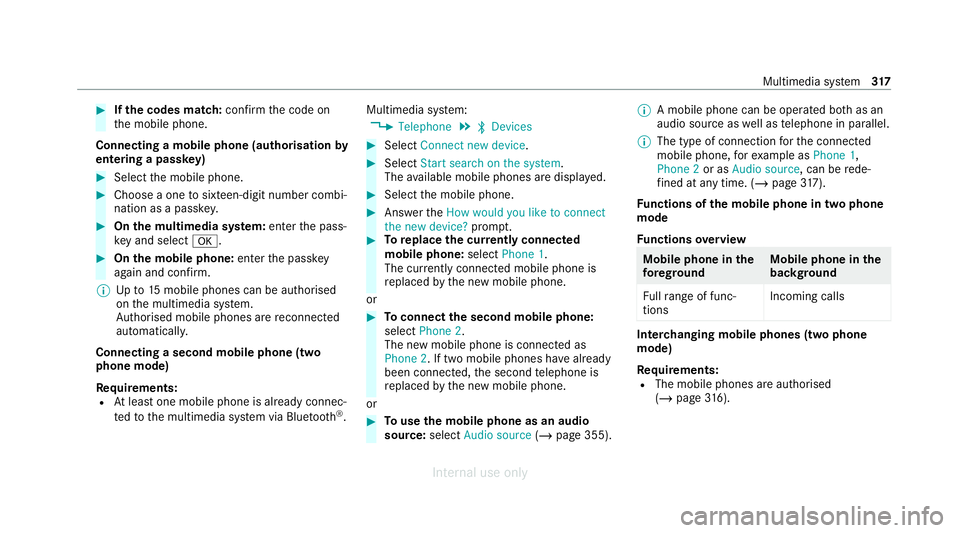
Ifth e codes match: confirm the code on
th e mobile phone.
Connecting a mobile phone (authorisation by
entering a passk ey) #
Select the mobile phone. #
Choose a one tosixteen-digit number combi‐
nation as a passk ey. #
On the multimedia sy stem: enter the pass‐
ke y and select a. #
On the mobile phone: enterthe passk ey
again and con firm.
% Upto15 mobile phones can be auth orised
on the multimedia sy stem.
Auth orised mobile phones are reconnected
au tomatical ly.
Connecting a second mobile phone (two
phone mode)
Re quirements:
R Atleast one mobile phone is already connec‐
te dto the multimedia sy stem via Blue tooth ®
. Multimedia sy
stem:
4 Telephone 5
ª Devices #
Select Connect new device. #
Select Start search on the system.
The available mobile phones are displa yed. #
Select the mobile phone. #
Answer theHow would you like to connect
the new device? prompt. #
Toreplace the cur rently connected
mobile phone: selectPhone 1.
The cur rently connected mobile phone is
re placed bythe new mobile phone.
or #
Toconnect the second mobile phone:
select Phone 2.
The new mobile phone is connec ted as
Phone 2. If two mobile phones ha vealready
been connec ted, the second telephone is
re placed bythe new mobile phone.
or #
Touse the mobile phone as an audio
source: selectAudio source (/page 355). %
A mobile phone can be operated bo thas an
audio source as well as telephone in parallel.
% The type of connection forth e connected
mobile phone, forex ample as Phone 1,
Phone 2 or asAudio source , can berede‐
fi ned at any time. (/ page 317).
Fu nctions of the mobile phone in two phone
mode
Fu nctions overview Mobile phone in
the
fo re gr ound Mobile phone in
the
bac kground
Fu llra nge of func‐
tions Incoming calls In
terc hanging mobile phones (two phone
mode)
Re quirements:
R The mobile phones are authorised
(/ page 316). Multimedia sy
stem 317
Internal use only
Page 323 of 557
#
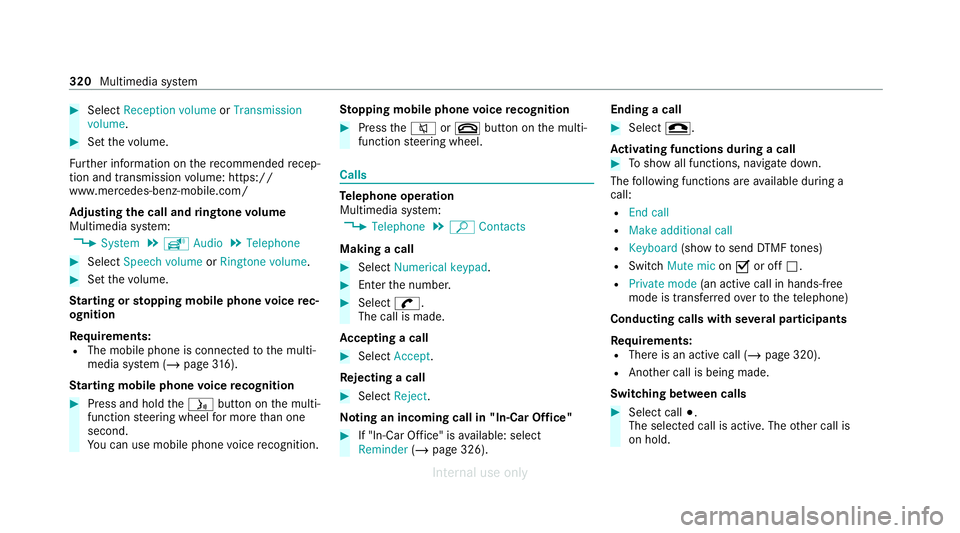
Select Reception volume orTransmission
volume. #
Set thevo lume.
Fu rther information on there commended recep‐
tion and transmission volume: https://
www.me rcedes-benz-mobile.com/
Ad justing the call and ringtone volume
Multimedia sy stem:
4 System 5
õ Audio 5
Telephone #
Select Speech volume orRingtone volume .#
Set thevo lume.
St arting or stopping mobile phone voice rec‐
ognition
Re quirements:
R The mobile phone is connecte dto the multi‐
media sy stem (/ page316).
St arting mobile phone voice recognition #
Press and hold theó button on the multi‐
function steering wheel for more than one
second.
Yo u can use mobile phone voice recognition. St
opping mobile phone voice recognition #
Press the8 or~ button on the multi‐
function steering wheel. Calls
Te
lephone operation
Multimedia sy stem:
4 Telephone 5
ª Contacts
Making a call #
Select Numerical keypad. #
Ente rth e number. #
Select w.
The call is made.
Ac cepting a call #
Select Accept .
Re jecting a call #
Select Reject.
No ting an incoming call in "In-Car Of fice" #
If "In-Car Of fice" is available: select
Reminder (/page 326). Ending a call #
Select =.
Ac tivating functions during a call #
Toshow all functions, navigate down.
The following functions are available during a
call:
R End call
R Make additional call
R Keyboard (showtosend DTMF tones)
R Switch Mute mic onO or off ª.
R Private mode (an activecall in hands-free
mode is transfer redove rto thete lephone)
Conducting calls with se veral participants
Requ irements:
R There is an active call (/ page 320).
R Another call is being made.
Switching between calls #
Select call #.
The selected call is active. The other call is
on hold. 320
Multimedia sy stem
Internal use only
Page 334 of 557
%
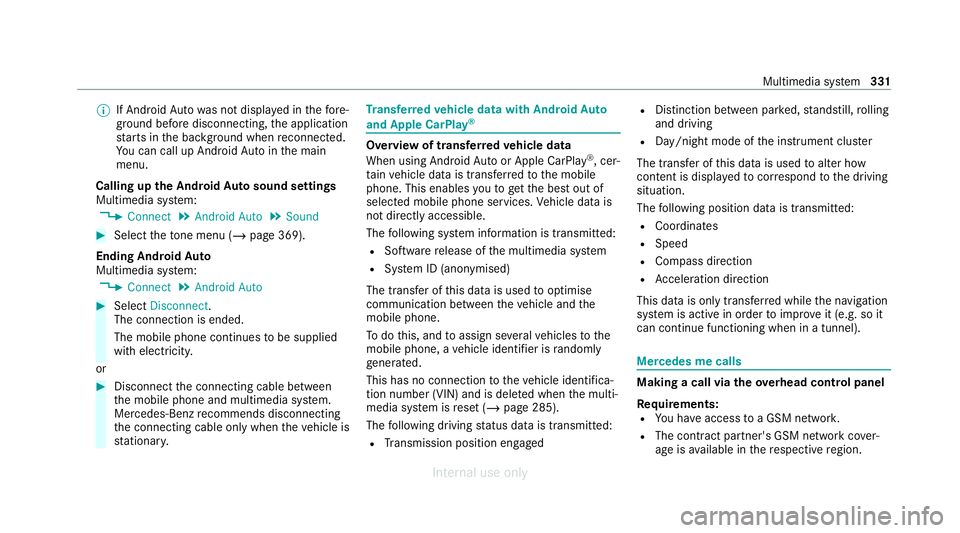
If Android Autowa s not displa yed in thefo re‐
ground before disconnecting, the application
st arts in the bac kground when reconnected.
Yo u can call up Android Autointhe main
menu.
Calling up the Android Autosound settings
Multimedia sy stem:
4 Connect 5
Android Auto 5
Sound #
Select theto ne menu (/ page 369).
Ending Android Auto
Multimedia sy stem:
4 Connect 5
Android Auto #
Select Disconnect.
The connection is ended.
The mobile phone continues tobe supplied
with elect ricity.
or #
Disconnect the connecting cable between
th e mobile phone and multimedia sy stem.
Mercedes-Benz recommends disconnecting
th e connecting cable only when theve hicle is
st ationar y. Tr
ansfer redve hicle data with Android Auto
and Apple CarPlay ® Overview of transfer
redve hicle data
When using Android Autoor Apple CarPlay ®
, cer‐
ta in vehicle data is transfer redto the mobile
phone. This enables youto getth e best out of
selected mobile phone services. Vehicle data is
not directly accessible.
The following sy stem information is transmit ted:
R Software release of the multimedia sy stem
R System ID (anonymised)
The transfer of this data is used tooptimise
communication between theve hicle and the
mobile phone.
To do this, and toassign se veralve hicles tothe
mobile phone, a vehicle identifier is randomly
ge nerated.
This has no connection totheve hicle identifica‐
tion number (VIN) and is dele ted when the multi‐
media sy stem is reset (/ page 285).
The following driving status data is transmit ted:
R Transmission position engaged R
Distinction between par ked, standstill, rolling
and driving
R Day/night mode of the instrument clus ter
The transfer of this data is used toalter how
con tent is displ ayed tocor respond tothe driving
situation.
The following position data is transmitte d:
R Coordinates
R Speed
R Compass direction
R Acceleration dire ction
This da tais only transfer red while the navigation
sy stem is active in order toimpr oveit (e.g. so it
can continue functioning when in a tunnel). Mercedes me calls
Making a call via the
overhead control panel
Requ irements:
R You ha veaccess toa GSM networ k.
R The contra ct partner's GSM network co ver‐
age is available in there spective region. Multimedia sy
stem 331
Internal use only
Page 342 of 557

This allo
wsmeasu resfo rre scue, reco very or
to wing toa Mercedes-Benz Service Cent reto
be initiated quickl y.
If th e Mercedes-Benz emer gency call sy stem
cann otconnect tothe Mercedes-Benz emer‐
ge ncy call centre, the emer gency call is au tomat‐
ically sent tothe public emer gency services call
centre.
If no connection can be made tothe public
emer gency services, a cor responding message
appears inthe media displa y. #
Dial the emer gency call number 11 2onyour
mobile phone.
Ending an unin tentional emer gency call #
Select ~onthe multifunction steering
wheel.
Data transfer of the Mercedes-Benz emer‐
ge ncy call sy stem
In theeve nt of an auto matic or manual emer‐
ge ncy call thefo llowing data is transmitte d,for
ex ample:
R Vehicle's GPS position data R
GPS position data on thero ute (a few hun‐
dred metres before the incident)
R Direction of tra vel
R Vehicle identification number
R Vehicle drive type
R Number of people de term ined tobe in the
ve hicle
R Whe ther Mercedes me connect is available
or not
R Whe ther the emer gency call was initiated
manually or automatically
R Time of the accident
R Language setting on the multimedia sy stem
Fo r accident clarification purposes, thefo llowing
measures can be take n up toan hour af terthe
emer gency call has been initia ted:
R The cur rent vehicle position can be de ter‐
mined.
R Avo ice connection totheve hicle occupants
can be es tablished %
ForRu ssia: various functions, e.g. receiving
traf fic information, cannot be used for up to
two hou rsafte r sending an emergency call.
Self diagnosis function of the emer gency call
sy stem
Yo ur car verifies the operability of the emer‐
ge ncy call sy stem each time the ignition is ON.
In case of sy stem failure, you will be informed
with text messa geon the instrument clus ter and
with red indicator SOS NOT READY onthe dis‐
pla y.
Please, make sure, that during 30 seconds af ter
switching ignition ON there d indicator SOS
NOT READY inthe upper right corner of display
is switched OFF, this means the emer gency call
sy stem passed diagnostics successfully.
St arting/ending ERA-GLONASS test mode
Re quirements:
R The star ter battery is suf ficiently charge d.
R The ignition is switched on.
R The vehicle has been stationary for at least
one minute. Multimedia sy
stem 339
Internal use only
Page 343 of 557
%
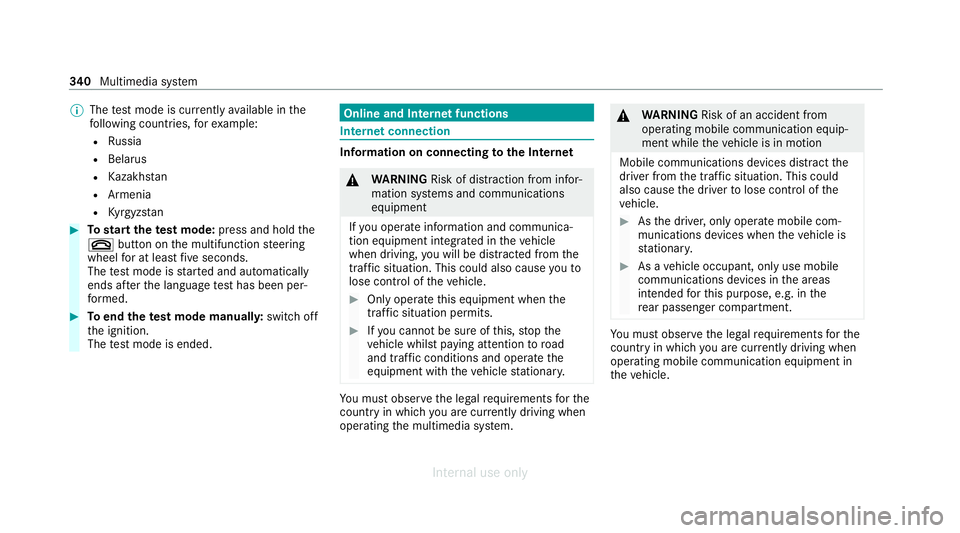
The test mode is cur rently available in the
fo llowing countries, forex ample:
R Russia
R Belarus
R Kazakh stan
R Armenia
R Kyrgyzs tan #
Tostart thete st mode: press and hold the
~ button on the multifunction steering
wheel for at least five seconds.
The test mode is star ted and automatically
ends af terth e language test has been per‐
fo rm ed. #
Toend thete st mode manuall y:switch off
th e ignition.
The test mode is ended. Online and Internet functions
Internet connection
Information on connecting
tothe Internet &
WARNING Risk of dist raction from infor‐
mation sy stems and communications
equipment
If yo u operate information and communica‐
tion equipment integ rated in theve hicle
when driving, you will be distracted from the
traf fic situation. This could also cause youto
lose control of theve hicle. #
Only operate this equipment when the
traf fic situation permits. #
Ifyo u cannot be sure of this, stop the
ve hicle whilst paying attention toroad
and traf fic conditions and ope rate the
equipment with theve hicle stationar y. Yo
u must obse rveth e legal requirements forthe
country in whi chyou are cur rently driving when
operating the multimedia sy stem. &
WARNING Risk of an accident from
ope rating mobile communication equip‐
ment while theve hicle is in motion
Mobile communications devices distract the
driver from the traf fic situation. This could
also cause the driver tolose control of the
ve hicle. #
Asthe driver, only operate mobile com‐
munications devices when theve hicle is
st ationar y. #
As a vehicle occupant, only use mobile
communications devices in the areas
intended forth is purpose, e.g. in the
re ar passenger compartment. Yo
u must obse rveth e legal requirements forthe
country in whi chyou are cur rently driving when
operating mobile communication equipment in
th eve hicle. 340
Multimedia sy stem
Internal use only
Page 353 of 557
The multimedia connection unit is
found in the
stow age compartment under the armrest and
has two USB ports.
Depending on theve hicle's equipment, addi‐
tional USB ports can be found in thestow age
compartment of the cent reconsole and in the
re ar passenger compartment. #
Connect the USB device tothe USB port.
Pla yable music files are pla yed back only if
th e cor responding media display is activated.
% Use the USB port identified byç touse
Apple CarPlay ®
and Android Auto.
% Depending on theve hicle equipment there is
an additional USB port in there ar passenger
compartment. Ports th at are labelled with a
bat tery symbol can only be used tocharge
USB devices.
Selecting a track in the media playba ck
Multimedia sy stem:
4 Media
Selecting a track byskipping toa track #
Toskip backwards or forw ards toa
track: navigate up or down. Selecting a track using
the cur rent track list #
Select è. #
Select Current track list. #
Select a tra ck.
Selecting playback options
Multimedia sy stem:
4 Media 5
Z Options
Playing back similar trac ks #
Select Play similar tracks.
A track li stwith similar trac ksis created and
pla yed bac k.
Playback mode #
Select Random playback of the current track
list.
The cur rent track li stis pla yed in random
orde r. #
Select Random playback of the current
medium.
All trac kson the active data storage medium
are pla yed in random orde r. #
Select Normal track sequence .
The cur rent track li stis pla yed in the order it
appears on the data storage medium.
Controlling media playback
Multimedia sy stem:
4 Media 5
Y Playback control
A bar with playback controls is shown. #
Topause playback: select and confirm
Y with th e cent ral control element.
The Ë symbol is displa yed. #
Toresume playback: select and confirm
Y again with the cent ral control element.
The Ì symbol is displa yed.
To fast forw ard/r ewind #
MoveË onthe timeline.
To hide the playback controls #
Press the% button. 350
Multimedia sy stem
Internal use only
Page 369 of 557
The order of
thech annel lists is alphabetical or
countr y-specific.
The TVtuner requ ires a short amount of time to
update the information.
The channel lists show thefo llowing information:
R recei vable channel names
R programme title
The information is shown under thefo llowing
conditions:
R it is broadcast bythe digital channel
R there ception conditions are adequate Favo
urites Overview of
TVprog rammes (f avourites)
Yo u can sa veup to100 digital TVchannels in
fa vo urites.
Fo rqu ick- access you can sa veTV channels as
fa vo urites. Qui
ck-saving a TVchannel
Multimedia sy stem:
4 Media 5
à Media sources 5
TV #
In full-screen mode, press theto uchpad for
longer than thre e seconds.
The cur rent TV channel is stored in the
fa vo urites in the next available position.
St oring TVchannels
Multimedia sy stem:
4 Media 5
à Media sources 5
TV
5 ß Presets #
Select Store current station in the presets.
or #
Highlight a channel in thech annel list and
st ore as a favo urite.
The cur rent channel is stored in thefa vo ur‐
ites in the next available position.
Moving channels in thefa vo urites #
Highlight a channel in thefa vo urites. #
Select ¥Move highlighted station. #
Highlight the new position. #
Confirm the position.
Deleting channels #
Highlight a channel in thefa vo urites. #
Select ¥Delete highlighted station. #
Select Yes. TV
prog ramme Overvi
ewof audio language and subtitles
Au dio language
R A selection from theav ailable audio lan‐
guages can be made for a programme broad‐
cast in multiple languages.
R If English, forex ample, is set as the sy stem
language and a TVchannel is broadcasting in
th is language, Engl ish is selected automati‐
cally.
The prog ramme transmission may be indica ted
with thefo llowing symbols:
m Programme with audio explanations for
th e visually impaired
o Stereo broadcast 366
Multimedia sy stem
Internal use only
Page 394 of 557
Note
s on MOExtended tyres (run-flat tyres) &
WARNING Risk of accident when driving
in limp -home mode
Driving in emergency mode impairs the han‐
dling characteristics of theve hicle. #
Do not exceed the permissible maxi‐
mum speed of the MOEx tended tyres. #
Avoid any abrupt steering and driving
manoeuvres as well as driving over
obs tacles (kerbs, pot holes, off-road).
This applies, in pa rticular, toa loaded
ve hicle. #
Stop driving in the emer gency mode if
yo u notice:
R banging noise
R vehicle vibration
R smoke which smells like rubber
R continuous ESP ®
inter vention
R crac ksinthe tyre side walls #
After driving in emergency mode, ha ve
th erims checkedby aqu alified special‐ ist
workshop with rega rd totheir fur ther
use. #
The defective tyre must be replaced in
eve rycase. Wi
th MOExtended tyres (run-flat tyres), you can
continue todrive your vehicle even if there is a
tot al loss of pressure in one or more tyres. How‐
eve r,th e tyre af fected must not show any clearly
visible damage.
Yo u can recognise MOExtended tyres bythe
MOExtended marking which appears on the side
wa ll of the tyre.
Ve hicles with tyre pressure monitoring sys‐
te m: MOExtended tyres may only be used in
conjunction wi than activated tyre pressure mon‐
itoring sy stem.
If a pressure loss warning message appears in
th e multifunction displa y,proceed as follo ws:
R Check the tyre for dama ge.
R If driving on, obser vethefo llowing no tes. Driving distance possible in emer
gency
mode af ter the pressure loss warning: Load condition Driving distance pos‐
sible in emergency
mode
Pa rtially laden 80 km
Fu lly laden 30 km The driving dis
tance possible in emergency
mode may vary depending on the driving style.
Obser vethe maximum permissible speed of
80 km/h.
If a tyre has gone flat and cannot be replaced
with an MOEx tended tyre, you can use a stand‐
ard tyre as a temp orary measure. TIREFIT kit
storage location The TIREFIT kit is located under
the boot floor. Breakdown assis
tance 391
Internal use only
Page 417 of 557
On-board computer:
4 Service 5
Tyres #
Swipe down wards on Touch Control on the
left-hand side of thesteering wheel.
The Use current tyre pressures as new refer-
ence values? message is shown in the multi‐
function displa y.#
Torestart, press Touch Control on the left-
hand side of thesteering wheel.
The Tyre press. monitor restarted message is
shown in the multifunction displa y.
Cur rent wa rning messages are dele ted and
th eye llow h warning lamp goes out.
Af teryo u ha vebeen driving for a few
minutes, the sy stem checks whe ther the cur‐
re nt tyre pressures are wi thin the specified
ra nge. The cur rent tyre pressures are then
accep ted as refere nce values and monitored.
Be sure toalso pay attention tothefo llowing
re lated topic:
R Notes on tyre pressure (/ page411) Wheel
change Note
s on selecting, fitting and replacing
tyres *
NO
TEMercedes-AMG vehicles #
Obser vethe no tes in the Supplement.
Yo u could otherwise failto recognise
dangers. &
WARNING Risk of accident due toincor‐
re ct dimensions of wheels and tyres
If wheels and tyres of the wrong size are
used, the wheel brakes or wheel suspension
components may become damaged. #
Alw aysre place wheels and tyres with
th ose that fulfil the specifications of the
original part.
When replacing wheels, make sure tofit the
cor rect:
R Designation
R Type When
replacing tyres, make sure tofit the
cor rect:
R Designation
R Manufactu rer
R Type &
WARNING Risk of injury thro ugh exceed‐
ing the specified tyre load-bearing capa‐
city or the permissible speed rating
Exceeding the load-bearing capacity of the
tyres can lead totyre dama geand could
cause the tyres toexplode. #
Therefore, only use tyre types and sizes
appr ovedfo ryo ur vehicle model. #
Obser vethe tyre load-bearing capacity
ra ting and speed rating requ iredfor
yo ur vehicle. 414
Wheels and tyres
Internal use only
Page 421 of 557
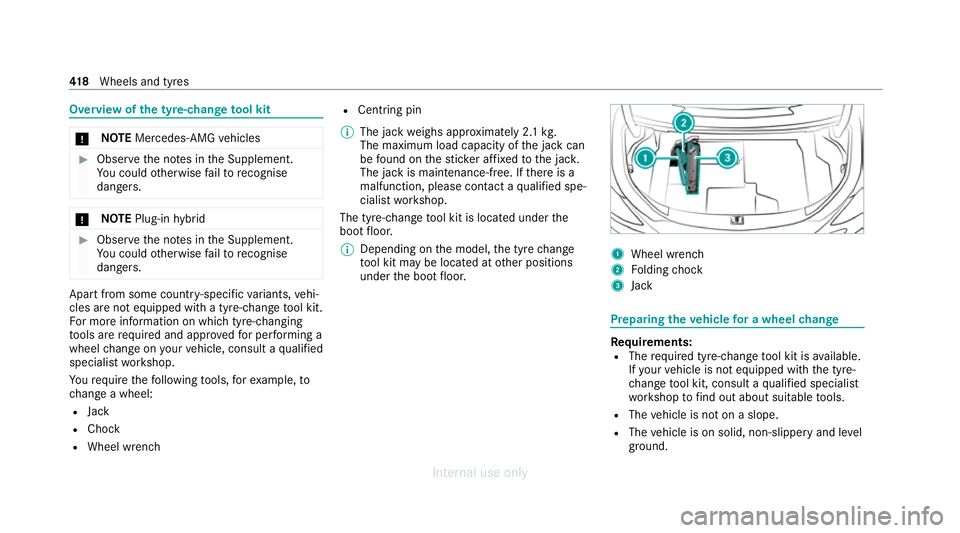
Overview of
the ty re-change tool kit *
NO
TEMercedes-AMG vehicles #
Obser vethe no tes in the Supplement.
Yo u could otherwise failto recognise
dangers. *
NO
TEPlug-in hybrid #
Obser vethe no tes in the Supplement.
Yo u could otherwise failto recognise
dangers. Apa
rtfrom some countr y-specific variants, vehi‐
cles are not equipped with a tyre-change tool kit.
Fo r more information on which tyre-changing
to ols are required and appr oved for per form ing a
wheel change on your vehicle, consult a qualified
specialist workshop.
Yo ure qu ire thefo llowing tools, forex ample, to
ch ange a wheel:
R Jack
R Chock
R Wheel wrench R
Cent ring pin
% The jack weighs appr oximately 2.1 kg.
The maximum load capacity of the jack can
be found on thest icke r af fixe dto the jac k.
The jack is maintenance-free. If there is a
malfunction, please conta ct aqualified spe‐
cialist workshop.
The tyre-change tool kit is located under the
boot floor.
% Depending on the model, the tyre change
to ol kit may be located at other positions
under the boot floor. 1
Wheel wrench
2 Folding chock
3 Jack Preparing
theve hicle for a wheel change Re
quirements:
R The requ ired tyre-change tool kit is available.
If yo ur vehicle is not equipped with the tyre-
ch ange tool kit, consult a qualified specialist
wo rkshop tofind out about suitable tools.
R The vehicle is not on a slope.
R The vehicle is on solid, non-slippery and le vel
ground. 41 8
Wheels and tyres
Internal use only