AUX MERCEDES-BENZ CL CLASS 2010 User Guide
[x] Cancel search | Manufacturer: MERCEDES-BENZ, Model Year: 2010, Model line: CL CLASS, Model: MERCEDES-BENZ CL CLASS 2010Pages: 500, PDF Size: 9.32 MB
Page 219 of 500
Voice Control System introduction
Safety notes
G
Warning!
Only use the Voice Control System when road
and traffic conditions permit you to do so.
Otherwise you could be involved in an
accident in which you or others could be
injured. G
Warning!
Please devote your attention first and
foremost to the traffic situation you are in.
While the system permits hands-free phone
operation, attention
to traffic may be diverted
not only by physical operation of a phone, but
also by the distraction of a phone
conversation while driving. As such, for safety
reasons, we encourage the driver to stop the
vehicle in a safe place before answering or
placing a phone call.
For safety reasons, you should only select a
destination when the vehicle is stationary.
While the navigation system provides
directional assistance, the driver must remain
focused on safe driving behavior, especially
attention to traffic and street signs, and
should utilize the system’s audio cues while
driving.
The navigation system does not supply any
information on stop signs, yield signs, traffic
regulations or traffic safety rules. Their
observance always remains in the driver’s
personal responsibility. Maps do not cover all
areas nor all routes within an area.
Traffic regulations always have priority over
any route recommendations given.
Bear in mind that at a speed of just 30 mph
(approximately 50 km/h), your vehicle is
covering a distance of 44 feet (approximately
14 m) every second. G
Warning!
Navigation announcements are intended to
direct you
while driving without diverting your
attention from the road and driving.
Please always use navigation announcements
instead of consulting the map display for
directions. Consulting the symbols or map
display for directions may cause you to divert
your attention from driving and increase your
risk of an accident. G
Warning!
Please do not use the Voice Control System
in an emergency, as the tone of your voice
may change
in a stressful situation. This could
cause a delay in completing your phone call
in a timely manner. This could distract you in
an emergency situation and cause you to be
involved in an accident. General information
Depending on vehicle equipment, you can
operate the following systems via the Voice
Control System:
R Telephone ( Y page 225)
R Navigation ( Y page 219)
R Address book (Y page 229)
R Audio ( Y page 231) (AM/FM radio,
Satellite radio, CD/DVD changer, MP3
mode (SD
card, USB, Music Register, Media
Interface), AUX)
R Video
You control these systems using spoken
commands. Moreover, controls such as the
buttons on the multifunction steering wheel
(Y page 218) allow you to keep your hands
on the steering wheel.
The Voice Control System recognizes
commands and number sequences,
irrespective of the speaker. To optimize
speech recognition for your voice follow the
individualization process ( Y page 250). Voice Control System introduction
217
Control systems
216_AKB; 3; 90, en-US
d2ureepe, Version: 2.11.8.1 2009-05-15T11:47:50+02:00 - Seite 217 Z
Page 238 of 500
“Track 1” to “Track 99”
Use the commands “Track 1” to “Track 99”
to select a title number from a loaded
medium.
“Next track”
Use the command “Next track” to select the
next track.
“Previous track”, “Repeat track”
Use the command “Previous track” or
“Repeat
track”
to play again the track you are
listening to. When you speak the command
during the first seconds of the track, the
previous track is played back.
“Group 1” to “Group 9” The “Group 1” to “Group 9” commands are
used
to
select a group on the inserted audio-
DVD.
“Next group”, “Previous group” Use the command “Next group” or “Previous
group” to select a group on the inserted
audio-DVD.
“DVD audio”
Use the command “DVD audio” to start an
audio DVD in the COMAND.
“DVD video”
Use the command “DVD video” to start a
video DVD in the COMAND.
“Select scene”, “Select chapter”
Use the command “Select scene” or “Select
chapter” to select a scene or chapter on the
current video DVD. “Hard disk”, “Music Register” Use the command “Hard disk” or “Music
Register” to switch to the internal hard disk
(Music Register) of the COMAND.
“Memory card”
The “Memory card” command is used to
switch from the DVD drive to the SD card.
Voice Control System external
devices
Operation
You can use the Voice Control System to
R switch to audio AUX mode
R switch to media interface mode
R switch to the USB interface
X Selecting application: Press
button ? on the multifunction steering
wheel.
X Speak one of the following commands. Commands
For a list of commands, see ( Y page 237).
Help commands Use the following commands to hear all
commands for external devices:
R
“Help Media Interface”
R “Help USB-Interface”
“Audio AUX” Use the command “Audio AUX” to switch to
audio AUX mode.
“Video AUX”
Use the command “Video AUX” to switch to
video AUX mode.236
Voice Control System external devices
Control systems
216_AKB; 3; 90, en-US
d2ureepe,
Version: 2.11.8.1 2009-05-15T11:47:50+02:00 - Seite 236
Page 249 of 500
Media interface
R
media interface (on)
R UCI (on) USB interface
R
USB
R USB interface Aux
R
audio auxiliary/aux (input)
R auxiliary/aux audio (input)
R video auxiliary/aux (input)
R auxiliary/aux video (input) Voice Control System
troubleshooting
Help function
To support
the user, the Voice Control System
contains an extensive help function.
The help function gives you
R general hints on how to best use the Voice
Control System
R a listing of all available commands Help commands
“Help voice control” Using the command “Help voice control” will
give you information on how to best use the
Voice Control System.
“Help”
X
Press button ? on the multifunction
steering wheel and speak the command
“Help”.
You will receive help for the currently
selected application. When you speak the command “Help” during
a dialog such as after the command “Dial
number”, you will receive help for the next
dialog steps.
You can also call up the help function
specifically for a particular system, for
example using the command “Help
telephone”.
Help window
You can use the help window to view a
selection of
valid commands on the COMAND
display.
The help functions can be switched on or off
via COMAND in the System menu
(Y page 80). Entering digits and spelling
Entering digits R
Digits from “Zero” to “Nine” may be used.
R Speaking phone
numbers in digit blocks of
3 to 5 digits has proven a very reliable
method for the input of phone numbers.
Spelling R
The letters of the English alphabet and the
digits 0 - 9 may be used.
R Speak the letters in blocks of 5 - 7 letters
at a time.
R Speak each individual letter clearly. Voice Control System troubleshooting
247
Control systems
216_AKB; 3; 90, en-US
d2ureepe, Version: 2.11.8.1 2009-05-15T11:47:50+02:00 - Seite 247 Z
Page 355 of 500
Cigarette lighter
G
Observe Safety notes, see page 51. G
Warning!
Never touch the heating element or sides of
the lighter; they are extremely hot. Hold the
knob only.
Make sure any children traveling with you do
not injure themselves or start a fire with the
hot cigarette lighter.
If the engine is off and the cigarette lighter is
being used extensively, the vehicle battery
may become discharged.
X Open the cover ( Y page 352). X
Switch on the ignition.
X Push in cigarette lighter :.
Cigarette lighter : will pop out
automatically when hot.
X Take out cigarette lighter :.
X Reinsert cigarette lighter : in its socket
after use. Power outlets
The power outlets can be used to
accommodate 12V DC electrical accessories
(e.g. auxiliary lamps, mobile phone chargers)
up to a maximum of 15 A (180 W).
If the engine is off and the power outlets are
being used extensively, the vehicle battery
may become discharged. X
Switch on the ignition.
Power outlet in glove box X
Open glove box ( Y page 348). Power outlet in trunk
Tele Aid
! In order to activate the Tele Aid system, a
subscriber agreement must be completed.
To ensure your system is activated and
operational, please press Information
button E to perform the acquaintance
call. Failure to complete either of these
steps may result in a system that is not
activated.
If you have any questions regarding
activation, please call the Customer
Assistance Center at
1-800-FOR-MERCedes (1-800-367-6372)
(USA only) or 1-888-923-8367 (Canada
only). Useful features
353Controls in detail
216_AKB; 3; 90, en-US
d2ureepe, Version: 2.11.8.1 2009-05-15T11:47:50+02:00 - Seite 353 Z
Page 427 of 500
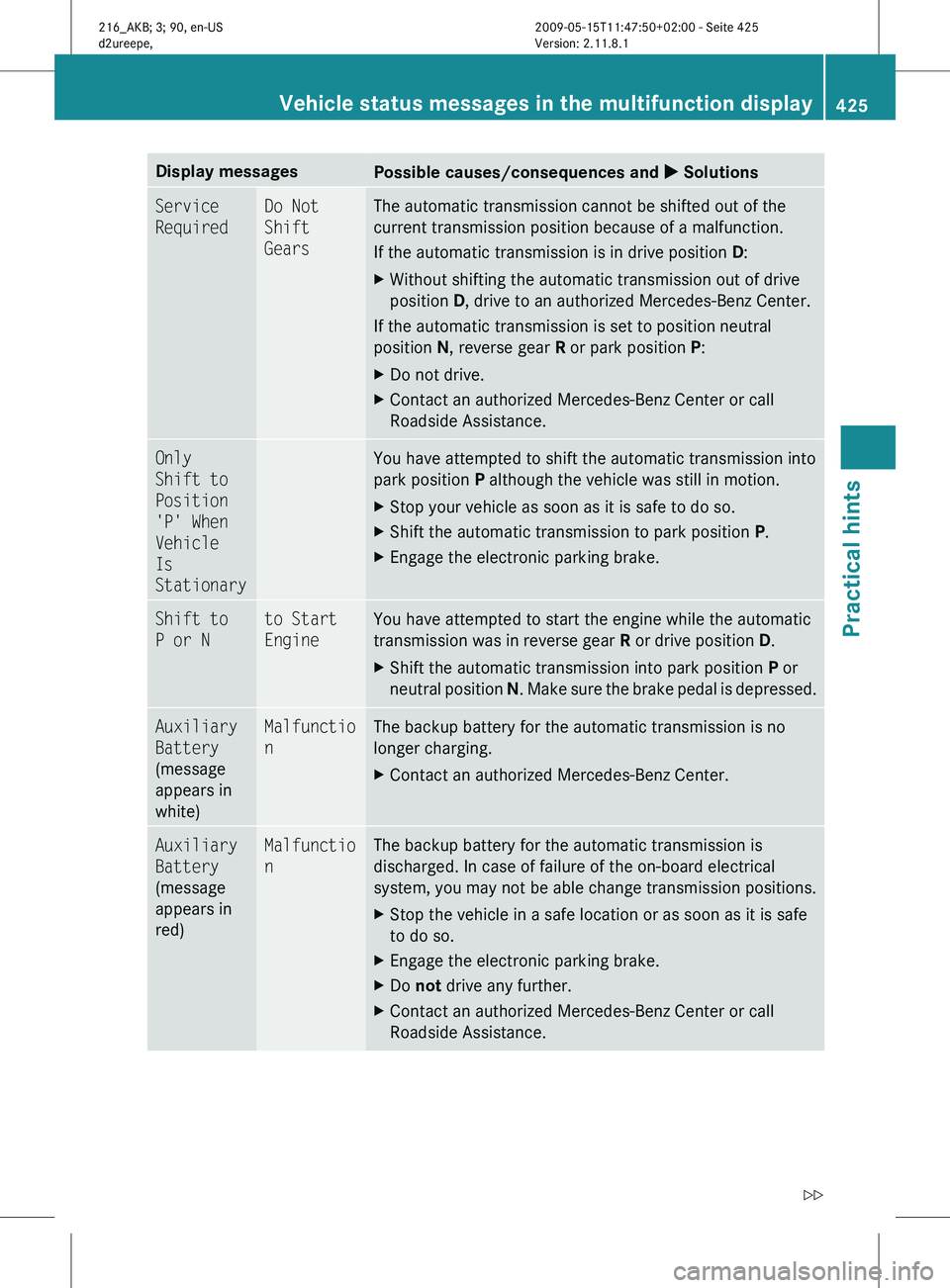
Display messages
Possible causes/consequences and
X SolutionsService
Required Do Not
Shift
Gears The automatic transmission cannot be shifted out of the
current transmission position because of a malfunction.
If the automatic transmission is in drive position D:
X
Without shifting the automatic transmission out of drive
position D, drive to an authorized Mercedes-Benz Center.
If the automatic transmission is set to position neutral
position N, reverse gear R or park position P:
X Do not drive.
X Contact an authorized Mercedes-Benz Center or call
Roadside Assistance. Only
Shift to
Position
'P' When
Vehicle
Is
Stationary You have attempted to shift the automatic transmission into
park position P although the vehicle was still in motion.
X
Stop your vehicle as soon as it is safe to do so.
X Shift the automatic transmission to park position P.
X Engage the electronic parking brake. Shift to
P or N to Start
Engine You have attempted to start the engine while the automatic
transmission was in reverse gear
R or drive position D.
X Shift the automatic transmission into park position P or
neutral position N
. Make sure the brake pedal is depressed. Auxiliary
Battery
(message
appears in
white) Malfunctio
n The backup battery for the automatic transmission is no
longer charging.
X
Contact an authorized Mercedes-Benz Center. Auxiliary
Battery
(message
appears in
red) Malfunctio
n The backup battery for the automatic transmission is
discharged. In case of failure of the on-board electrical
system, you may not be able change transmission positions.
X
Stop the vehicle in a safe location or as soon as it is safe
to do so.
X Engage the electronic parking brake.
X Do not drive any further.
X Contact an authorized Mercedes-Benz Center or call
Roadside Assistance. Vehicle status messages in the multifunction display
425
Practical hints
216_AKB; 3; 90, en-US
d2ureepe,Version: 2.11.8.1 2009-05-15T11:47:50+02:00 - Seite 425 Z