USB MERCEDES-BENZ CL CLASS 2010 User Guide
[x] Cancel search | Manufacturer: MERCEDES-BENZ, Model Year: 2010, Model line: CL CLASS, Model: MERCEDES-BENZ CL CLASS 2010Pages: 500, PDF Size: 9.32 MB
Page 183 of 500
:
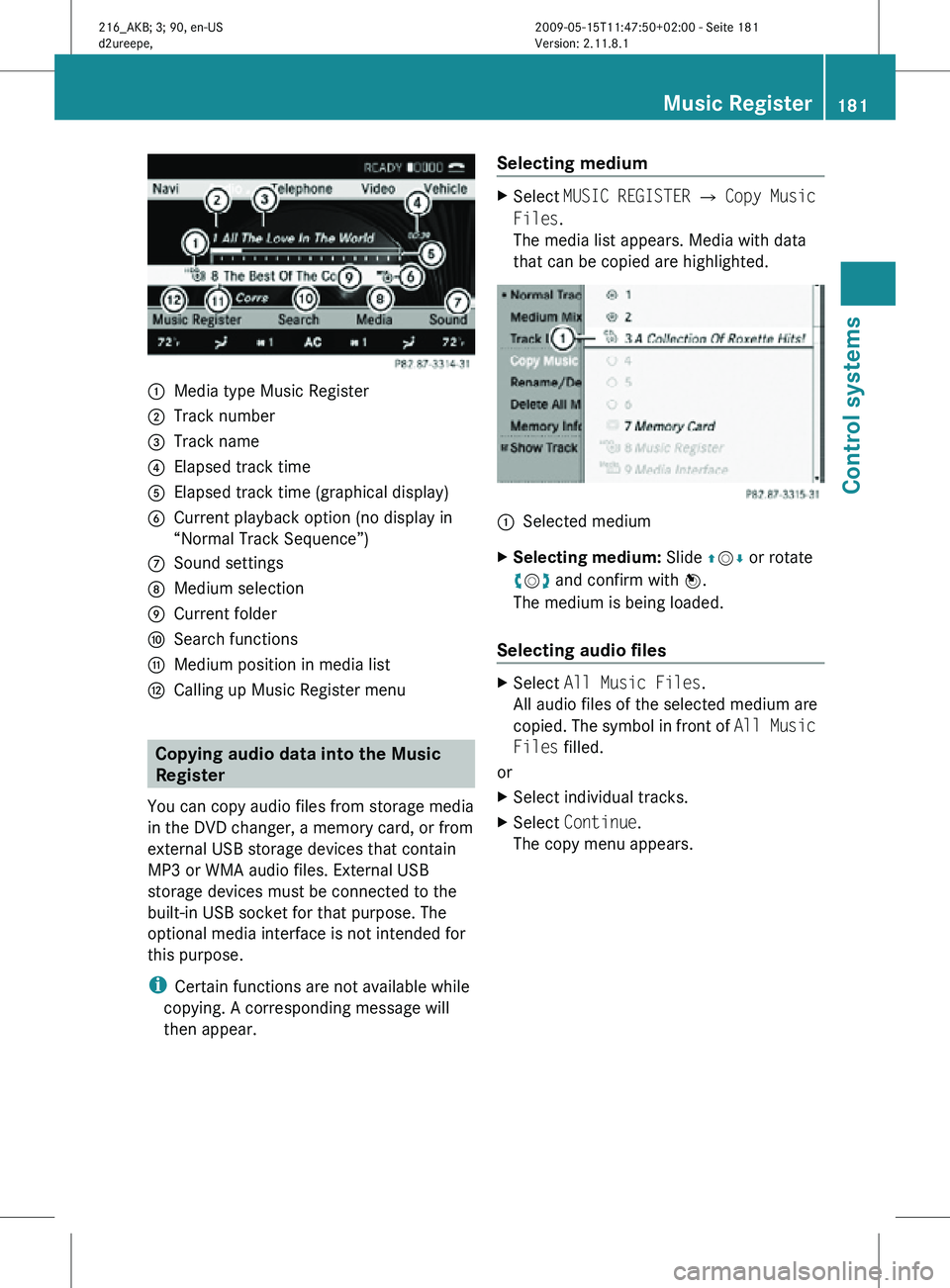
Media type Music Register
; Track number
= Track name
? Elapsed track time
A Elapsed track time (graphical display)
B Current playback option (no display in
“Normal Track Sequence”)
C Sound settings
D Medium selection
E Current folder
F Search functions
G Medium position in media list
H Calling up Music Register menu Copying audio data into the Music
Register
You can copy audio files from storage media
in the DVD changer, a memory card, or from
external USB storage devices that contain
MP3 or WMA audio files. External USB
storage devices must be connected to the
built-in USB socket for that purpose. The
optional media interface is not intended for
this purpose.
i Certain functions are not available while
copying. A corresponding message will
then appear. Selecting medium X
Select MUSIC REGISTER Q Copy Music
Files.
The media list appears. Media with data
that can be copied are highlighted. :
Selected medium
X Selecting medium: Slide ZVÆ or rotate
cVd and confirm with W.
The medium is being loaded.
Selecting audio files X
Select All Music Files.
All audio files of the selected medium are
copied. The symbol in front of All Music
Files filled.
or
X Select individual tracks.
X Select Continue.
The copy menu appears. Music Register
181Control systems
216_AKB; 3; 90, en-US
d2ureepe, Version: 2.11.8.1 2009-05-15T11:47:50+02:00 - Seite 181 Z
Page 186 of 500
For your safety and the safety of others, pull
over to a safe location and stop before
operating an external audio source.
Connections i
Always store the devices in a safe place.
Only use genuine Mercedes-Benz
connector cables.
Suitable connector cables are located in
the vehicle or can be purchased at any
authorized Mercedes-Benz Center.
The media interface allows for connection of
the following media to the COMAND:
R iPod ®
R USB devices
R MP3 player
i For further information on compatible
multimedia devices
R visit www.mbusa-mobile.com
R call the Mercedes-Benz Customer
Assistance Center at
1-800-FOR-MERCedes
(1-800-367-6372) (in the USA)
R call Customer Service at
1-800-387-0100 (in Canada)
Supported USB devices The following USB devices are supported:
R
USB flash drives
R USB hard drives (1", 1.8", and 2.5") with a
starting/steady current not to exceed
800 mA (separate power supply may be
necessary)
R selected MP3 players
i The media interface supports USB
storage devices of “USB Device
Subclass 6”. Information on “USB Device
Subclass 6” is available from the
manufacturer of the respective device. Supported file formats on USB devices The following file formats are supported:
R
MP3: CBR, VBR (up to 320 kbit/s)
R WMA: CBR, VBR (up to 320 kbit/s)
Special characteristics of USB devices
R Do not store data other than audio data on
a USB device. Doing so will increase the
time required to initialize the USB device.
R A maximum of 8 directory levels with up to
1000 tracks each are supported.
R Do not use USB extensions or adapters.
They could impair functionality.
R Playlists on the USB device will be searched
for in the background. Playlists that were
found will be available in separate
categories among the folders. The
initialization of large USB storage devices
that contain a large number of files may
take several minutes.
i Files that are protected via DRM
(Digital Rights Management) are not
supported by the media interface. Connecting external devices
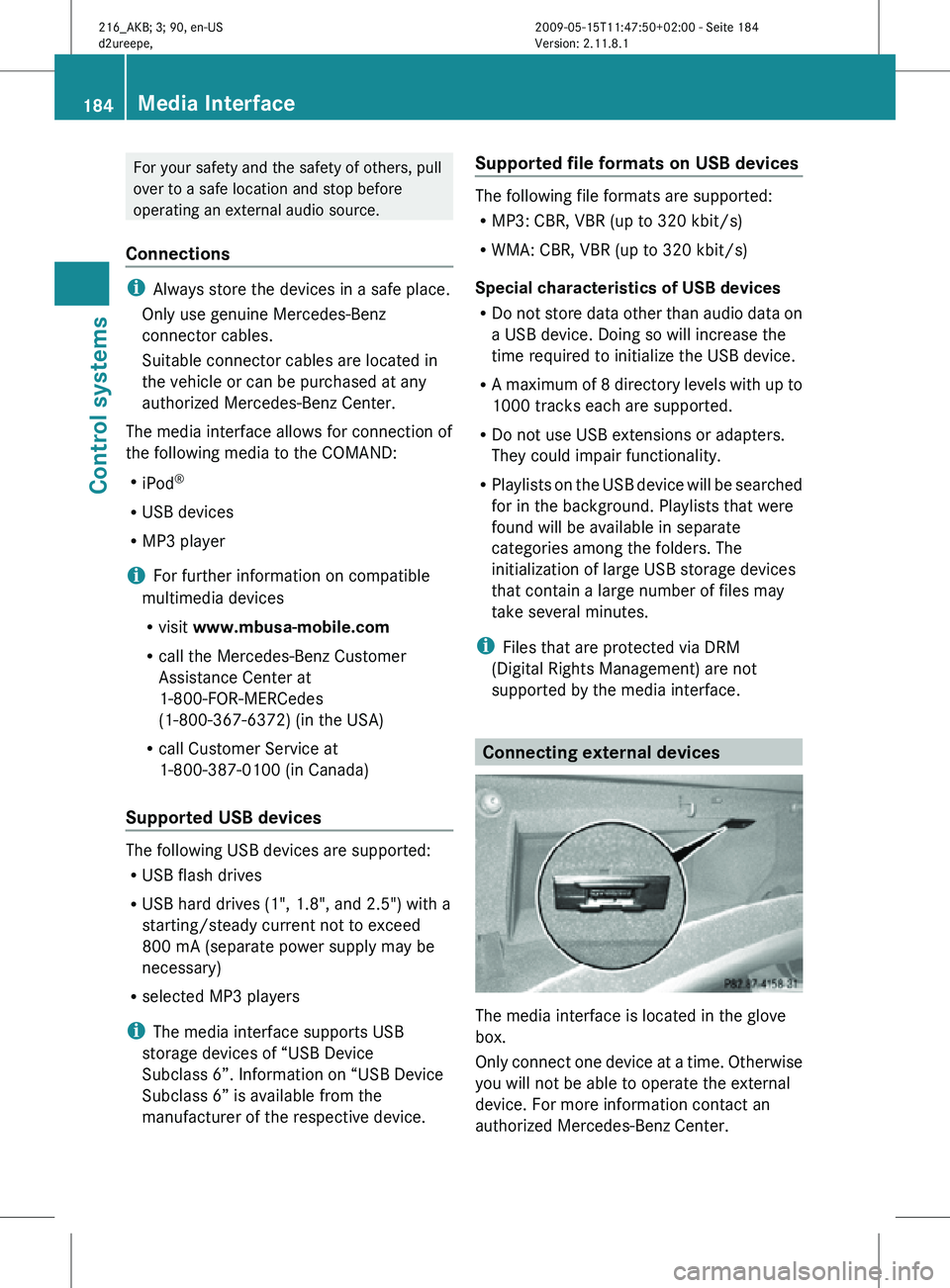
The media interface is located in the glove
box.
Only connect one device at a time. Otherwise
you will not be able to operate the external
device. For more information contact an
authorized Mercedes-Benz Center.184
Media InterfaceControl systems
216_AKB; 3; 90, en-US
d2ureepe,
Version: 2.11.8.1 2009-05-15T11:47:50+02:00 - Seite 184
Page 187 of 500
i
Do not leave external devices in the
vehicle. Proper function of the device could
be impaired due to excessive
temperatures, for example when exposing
to direct sunlight or when the outside
temperature is extremely low. Mercedes-
Benz does not assume liability for damage
to external devices. :
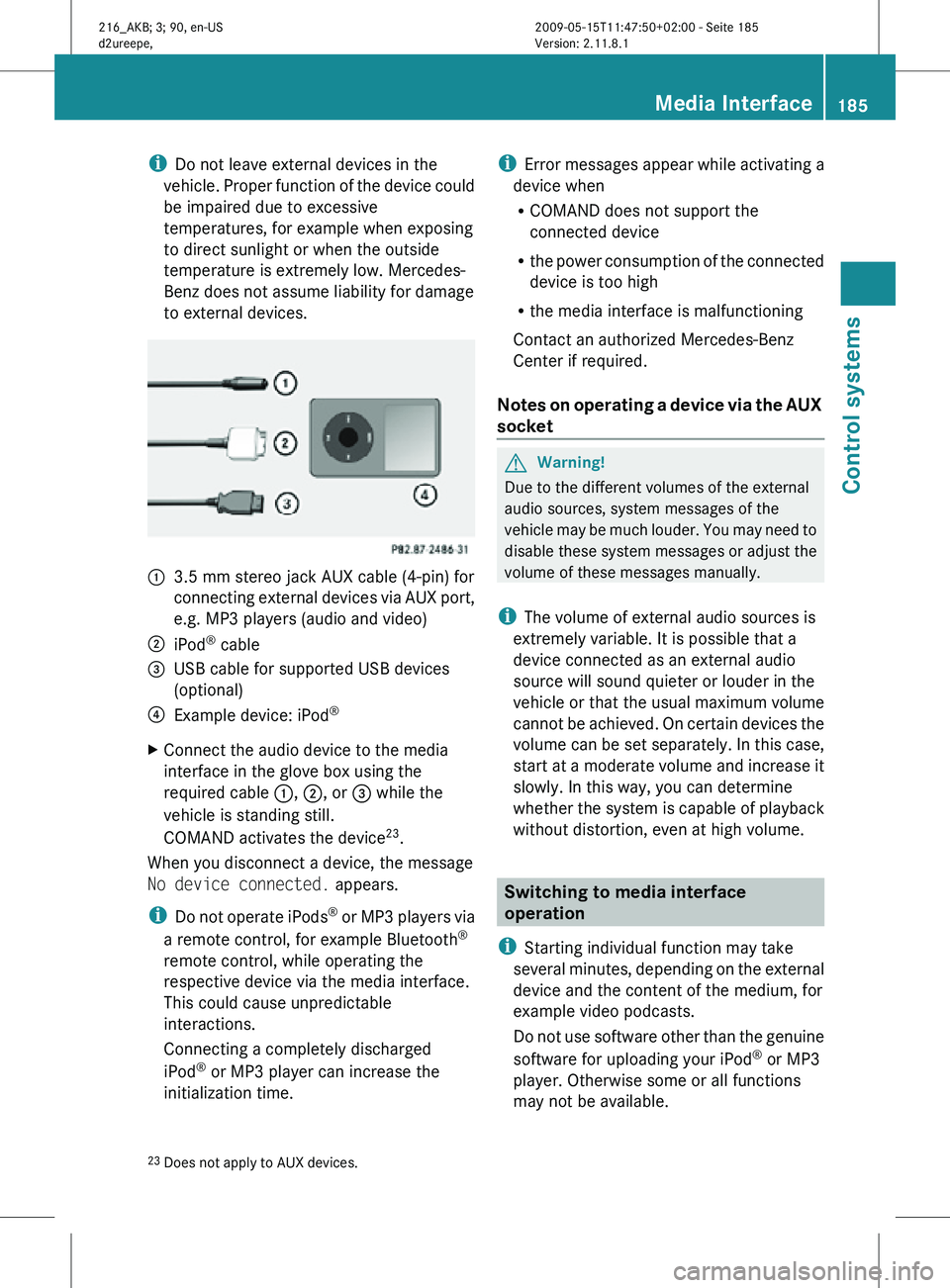
3.5 mm stereo jack AUX cable (4-pin) for
connecting external devices via AUX port,
e.g. MP3 players (audio and video)
; iPod ®
cable
= USB cable for supported USB devices
(optional)
? Example device: iPod ®
X Connect the audio device to the media
interface in the glove box using the
required cable :, ;, or = while the
vehicle is standing still.
COMAND activates the device 23
.
When you disconnect a device, the message
No device connected. appears.
i Do not operate iPods ®
or MP3 players via
a remote control, for example Bluetooth ®
remote control, while operating the
respective device via the media interface.
This could cause unpredictable
interactions.
Connecting a completely discharged
iPod ®
or MP3 player can increase the
initialization time. i
Error messages appear while activating a
device when
R COMAND does not support the
connected device
R the power consumption of the connected
device is too high
R the media interface is malfunctioning
Contact an authorized Mercedes-Benz
Center if required.
Notes on operating a device via the AUX
socket G
Warning!
Due to the different volumes of the external
audio sources, system messages of the
vehicle may be much louder. You may need to
disable these system messages or adjust the
volume of these messages manually.
i The volume of external audio sources is
extremely variable. It is possible that a
device connected as an external audio
source will sound quieter or louder in the
vehicle or that the usual maximum volume
cannot be achieved. On certain devices the
volume can be set separately. In this case,
start at a moderate volume and increase it
slowly. In this way, you can determine
whether the system is capable of playback
without distortion, even at high volume. Switching to media interface
operation
i Starting individual function may take
several minutes, depending on the external
device and the content of the medium, for
example video podcasts.
Do not use software other than the genuine
software for uploading your iPod ®
or MP3
player. Otherwise some or all functions
may not be available.
23 Does not apply to AUX devices. Media Interface
185Control systems
216_AKB; 3; 90, en-US
d2ureepe, Version: 2.11.8.1 2009-05-15T11:47:50+02:00 - Seite 185 Z
Page 188 of 500
From another main function
X
Press shortcut button R.
COMAND activates the last selected disc
mode.
i When media interface operation was
selected before, it is now activated.
X Select MediaQ Media Interface.
The media list appears. The dot #
indicates the currently played medium.
i When no device is connected, Media
Interface instead of the device name
appears.
If COMAND does not support the
connected device, the message Device
incompatible. appears. The device will
be listed in the media list as Not
Available. When two devices are
connected, the message Please ensure
that only one device is connected.
appears.
X Confirm with W.
COMAND activates a connected device. A
corresponding message appears.
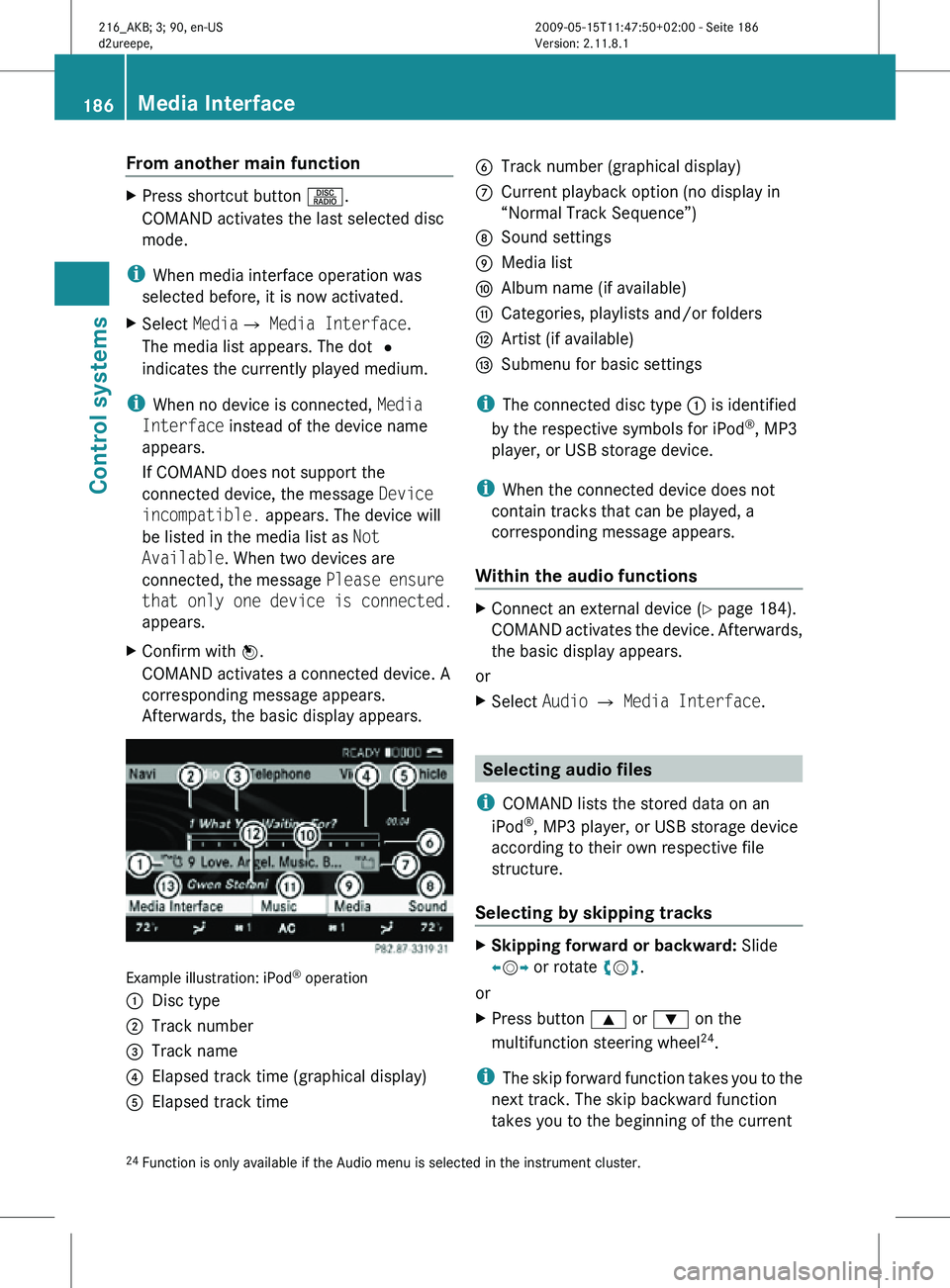
Afterwards, the basic display appears. Example illustration: iPod
®
operation
: Disc type
; Track number
= Track name
? Elapsed track time (graphical display)
A Elapsed track time B
Track number (graphical display)
C Current playback option (no display in
“Normal Track Sequence”)
D Sound settings
E Media list
F Album name (if available)
G Categories, playlists and/or folders
H Artist (if available)
I Submenu for basic settings
i The connected disc type : is identified
by the respective symbols for iPod ®
, MP3
player, or USB storage device.
i When the connected device does not
contain tracks that can be played, a
corresponding message appears.
Within the audio functions X
Connect an external device (Y page 184).
COMAND activates the device. Afterwards,
the basic display appears.
or
X Select Audio Q Media Interface. Selecting audio files
i COMAND lists the stored data on an
iPod ®
, MP3 player, or USB storage device
according to their own respective file
structure.
Selecting by skipping tracks X
Skipping forward or backward: Slide
XVY or rotate cVd.
or
X Press button 9 or : on the
multifunction steering wheel 24
.
i The skip forward function takes you to the
next track. The skip backward function
takes you to the beginning of the current
24 Function is only available if the Audio menu is selected in the instrument cluster. 186
Media InterfaceControl systems
216_AKB; 3; 90, en-US
d2ureepe,
Version: 2.11.8.1 2009-05-15T11:47:50+02:00 - Seite 186
Page 189 of 500
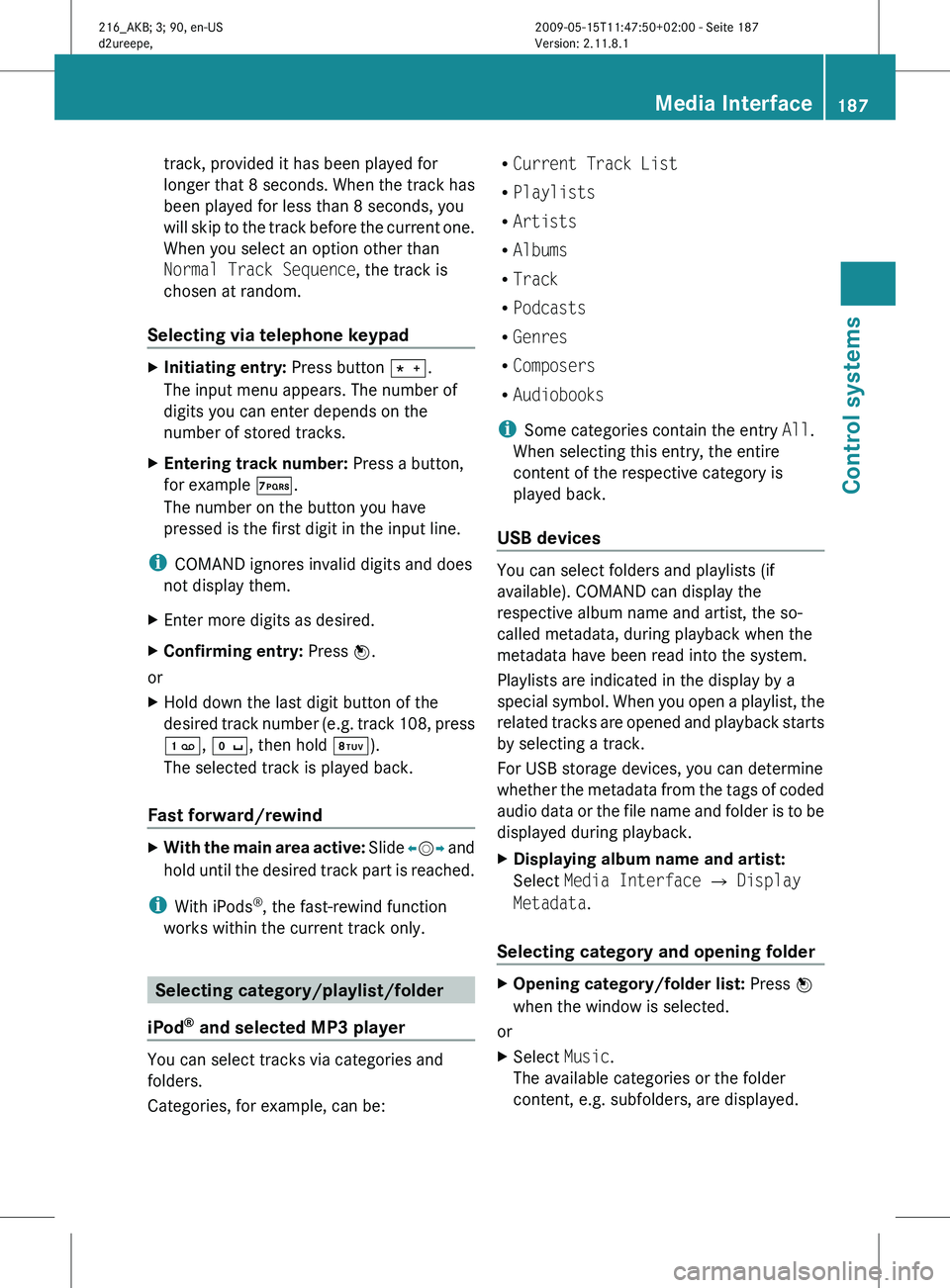
track, provided it has been played for
longer
that
8 seconds. When the track has
been played for less than 8 seconds, you
will skip to the track before the current one.
When you select an option other than
Normal Track Sequence, the track is
chosen at random.
Selecting via telephone keypad X
Initiating entry: Press button Ä.
The input menu appears. The number of
digits you can enter depends on the
number of stored tracks.
X Entering track number: Press a button,
for example Á.
The number on the button you have
pressed is the first digit in the input line.
i COMAND ignores invalid digits and does
not display them.
X Enter more digits as desired.
X Confirming entry: Press W.
or
X Hold down the last digit button of the
desired track
number (e.g. track 108, press
´, Å, then hold Â).
The selected track is played back.
Fast forward/rewind X
With the main area active: Slide X
VY and
hold until the desired track part is reached.
i With iPods ®
, the fast-rewind function
works within the current track only. Selecting category/playlist/folder
iPod ®
and selected MP3 player You can select tracks via categories and
folders.
Categories, for example, can be: R
Current Track List
R Playlists
R Artists
R Albums
R Track
R Podcasts
R Genres
R Composers
R Audiobooks
i Some categories contain the entry All.
When selecting this entry, the entire
content of the respective category is
played back.
USB devices You can select folders and playlists (if
available). COMAND can display the
respective album name and artist, the so-
called metadata, during playback when the
metadata have been read into the system.
Playlists are indicated in the display by a
special
symbol.
When you open a playlist, the
related tracks are opened and playback starts
by selecting a track.
For USB storage devices, you can determine
whether the metadata from the tags of coded
audio data or the file name and folder is to be
displayed during playback.
X Displaying album name and artist:
Select Media Interface Q Display
Metadata.
Selecting category and opening folder X
Opening category/folder list: Press W
when the window is selected.
or
X Select Music.
The available categories or the folder
content, e.g. subfolders, are displayed. Media Interface
187
Control systems
216_AKB; 3; 90, en-US
d2ureepe, Version: 2.11.8.1 2009-05-15T11:47:50+02:00 - Seite 187 Z
Page 191 of 500
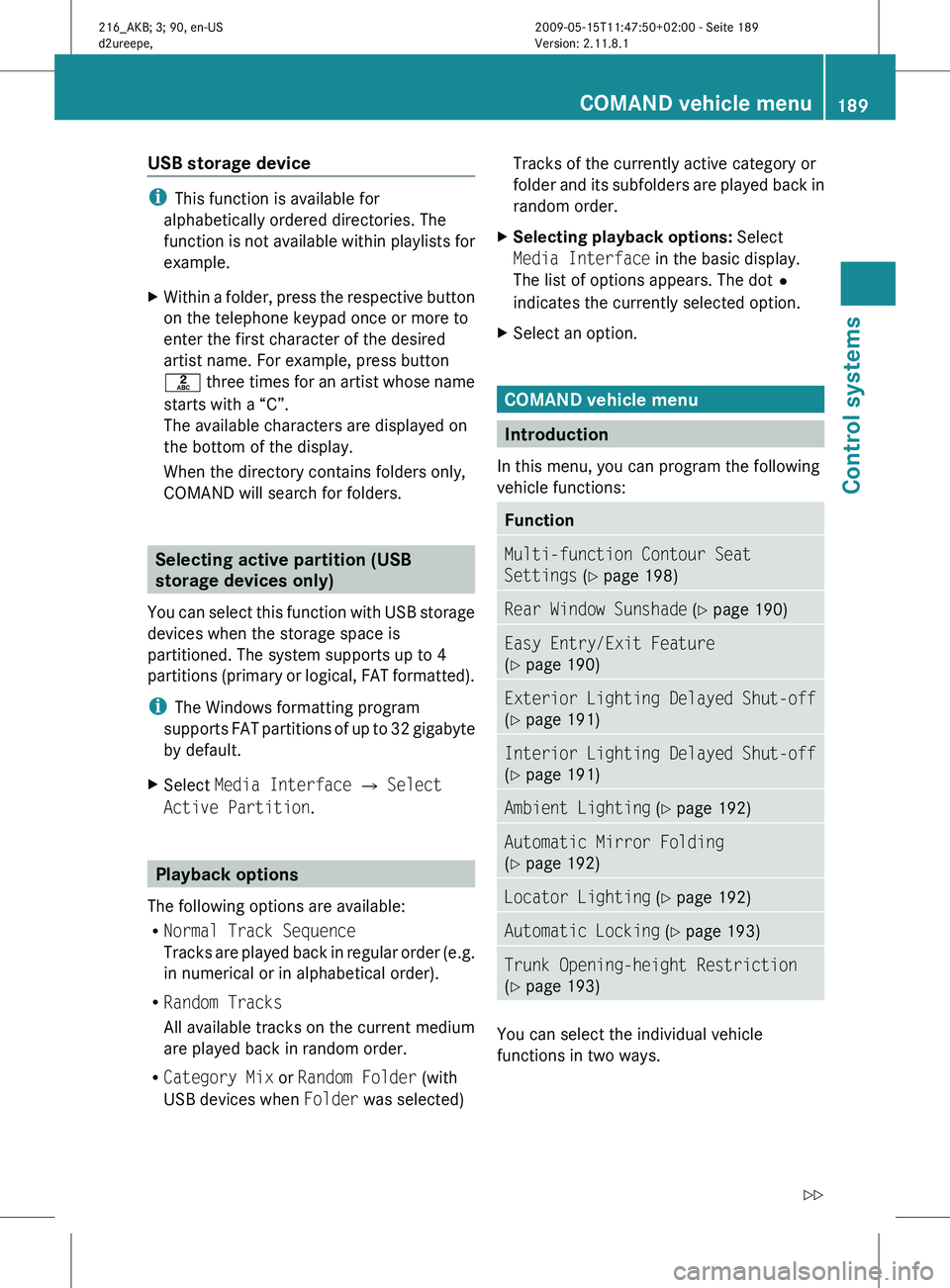
USB storage device
i
This function is available for
alphabetically ordered directories. The
function is
not available within playlists for
example.
X Within a folder, press the respective button
on the telephone keypad once or more to
enter the first character of the desired
artist name. For example, press button
l three
times for an artist whose name
starts with a “C”.
The available characters are displayed on
the bottom of the display.
When the directory contains folders only,
COMAND will search for folders. Selecting active partition (USB
storage devices only)
You can
select this function with USB storage
devices when the storage space is
partitioned. The system supports up to 4
partitions (primary or logical, FAT formatted).
i The Windows formatting program
supports FAT partitions of up to 32 gigabyte
by default.
X Select Media Interface Q Select
Active Partition. Playback options
The following options are available:
R Normal Track Sequence
Tracks are
played back in regular order (e.g.
in numerical or in alphabetical order).
R Random Tracks
All available tracks on the current medium
are played back in random order.
R Category Mix or Random Folder (with
USB devices when Folder was selected) Tracks of the currently active category or
folder
and
its subfolders are played back in
random order.
X Selecting playback options: Select
Media Interface in the basic display.
The list of options appears. The dot
#
indicates the currently selected option.
X Select an option. COMAND vehicle menu
Introduction
In this menu, you can program the following
vehicle functions: Function
Multi-function Contour Seat
Settings (Y page 198)
Rear Window Sunshade (Y page 190)
Easy Entry/Exit Feature
(Y page 190)
Exterior Lighting Delayed Shut-off
(Y page 191)
Interior Lighting Delayed Shut-off
(Y page 191)
Ambient Lighting (Y page 192)
Automatic Mirror Folding
(Y page 192)
Locator Lighting (Y page 192)
Automatic Locking (Y page 193)
Trunk Opening-height Restriction
(Y page 193)
You can select the individual vehicle
functions in two ways. COMAND vehicle menu
189
Control systems
216_AKB; 3; 90, en-US
d2ureepe, Version: 2.11.8.1 2009-05-15T11:47:50+02:00 - Seite 189 Z
Page 219 of 500
Voice Control System introduction
Safety notes
G
Warning!
Only use the Voice Control System when road
and traffic conditions permit you to do so.
Otherwise you could be involved in an
accident in which you or others could be
injured. G
Warning!
Please devote your attention first and
foremost to the traffic situation you are in.
While the system permits hands-free phone
operation, attention
to traffic may be diverted
not only by physical operation of a phone, but
also by the distraction of a phone
conversation while driving. As such, for safety
reasons, we encourage the driver to stop the
vehicle in a safe place before answering or
placing a phone call.
For safety reasons, you should only select a
destination when the vehicle is stationary.
While the navigation system provides
directional assistance, the driver must remain
focused on safe driving behavior, especially
attention to traffic and street signs, and
should utilize the system’s audio cues while
driving.
The navigation system does not supply any
information on stop signs, yield signs, traffic
regulations or traffic safety rules. Their
observance always remains in the driver’s
personal responsibility. Maps do not cover all
areas nor all routes within an area.
Traffic regulations always have priority over
any route recommendations given.
Bear in mind that at a speed of just 30 mph
(approximately 50 km/h), your vehicle is
covering a distance of 44 feet (approximately
14 m) every second. G
Warning!
Navigation announcements are intended to
direct you
while driving without diverting your
attention from the road and driving.
Please always use navigation announcements
instead of consulting the map display for
directions. Consulting the symbols or map
display for directions may cause you to divert
your attention from driving and increase your
risk of an accident. G
Warning!
Please do not use the Voice Control System
in an emergency, as the tone of your voice
may change
in a stressful situation. This could
cause a delay in completing your phone call
in a timely manner. This could distract you in
an emergency situation and cause you to be
involved in an accident. General information
Depending on vehicle equipment, you can
operate the following systems via the Voice
Control System:
R Telephone ( Y page 225)
R Navigation ( Y page 219)
R Address book (Y page 229)
R Audio ( Y page 231) (AM/FM radio,
Satellite radio, CD/DVD changer, MP3
mode (SD
card, USB, Music Register, Media
Interface), AUX)
R Video
You control these systems using spoken
commands. Moreover, controls such as the
buttons on the multifunction steering wheel
(Y page 218) allow you to keep your hands
on the steering wheel.
The Voice Control System recognizes
commands and number sequences,
irrespective of the speaker. To optimize
speech recognition for your voice follow the
individualization process ( Y page 250). Voice Control System introduction
217
Control systems
216_AKB; 3; 90, en-US
d2ureepe, Version: 2.11.8.1 2009-05-15T11:47:50+02:00 - Seite 217 Z
Page 237 of 500
Operation
You can use the Voice Control System to
R select a CD/DVD or another medium
R select a track
R select a folder in MP3 mode
R change the category when in media
interface mode
R select a group in audio DVD mode
R select a chapter or scene when in video
DVD mode
i Upon the
command “Next/Previous CD/
DVD”, the DVD changer switches from one
CD/DVD to the next. It will skip empty
slots. When you select an empty slot using
the commands “CD/DVD 1” through “CD/
DVD 6”, the current slot remains selected.
i The following commands “DVD audio”,
“DVD video”, “Next/Previous CD/DVD”
and “CD/DVD 1” to “CD/DVD 6”, cause
the DVD changer to switch from one slot to
another, regardless of the type of medium
found in the selected slot. In your
command, you can therefore replace the
term “CD/DVD” with “Medium”.
Selecting CD/DVD mode X
Press button ? on the multifunction
steering wheel.
X Speak one of the following commands:
R
“CD player”
R “CD changer”
R “DVD audio”
R “DVD video”
R “Hard disk”
R “Memory card”
R “Media interface”
R “USB”
R “Music Register” X
Press button ? on the multifunction
steering wheel.
X Speak one of the following commands. Commands
For a list of commands, see ( Y page 237).
Help commands Use the following commands and the Voice
Control
System
will read out a list of available
commands for the audio/video functions:
R “Help CD”
R “Help DVD audio”
R “Help DVD video”
R “Help MP3”
R “Help hard disk”
R “Help memory card”
R “Help media interface”
R “Help USB”
R “Help music register”
“Next CD/DVD/Medium” Use the command “Next CD”, “Next DVD” or
“Next Medium” to select the next available
medium in the CD/DVD changer.
“Previous CD/DVD/Medium”
Use the command “Previous CD”, “Previous
DVD” or “Previous Medium” to select the
previous medium in the CD/DVD change.
“CD/DVD/Medium 1” to “CD/DVD/
Medium 6”
Use commands “CD/DVD/Medium 1” to
“CD/DVD/Medium 6” to select one of up to
six mediums in your CD/DVD changer.Voice Control System CD/DVD changer/MP3
235
Control systems
216_AKB; 3; 90, en-US
d2ureepe,Version: 2.11.8.1 2009-05-15T11:47:50+02:00 - Seite 235 Z
Page 238 of 500
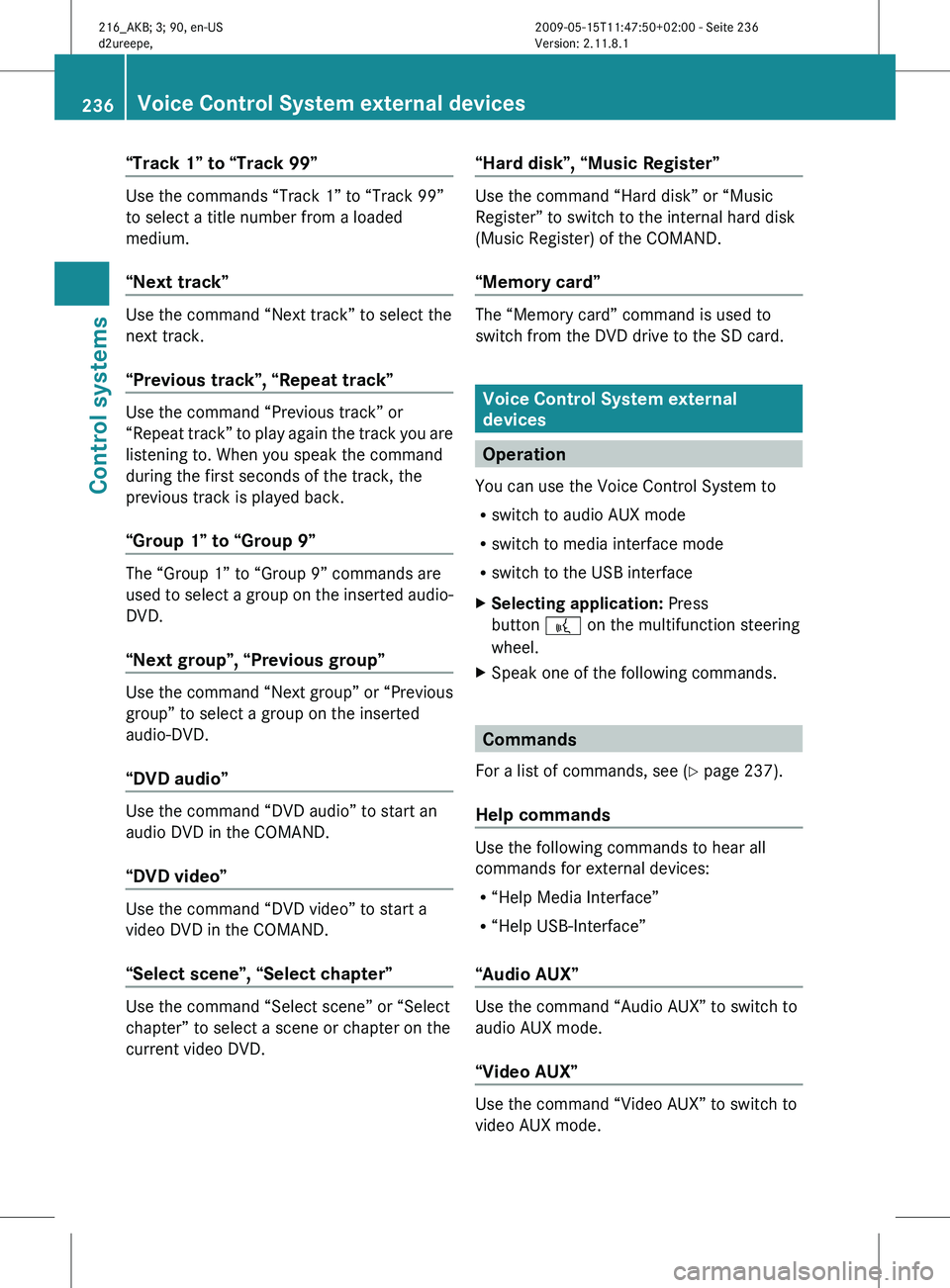
“Track 1” to “Track 99”
Use the commands “Track 1” to “Track 99”
to select a title number from a loaded
medium.
“Next track”
Use the command “Next track” to select the
next track.
“Previous track”, “Repeat track”
Use the command “Previous track” or
“Repeat
track”
to play again the track you are
listening to. When you speak the command
during the first seconds of the track, the
previous track is played back.
“Group 1” to “Group 9” The “Group 1” to “Group 9” commands are
used
to
select a group on the inserted audio-
DVD.
“Next group”, “Previous group” Use the command “Next group” or “Previous
group” to select a group on the inserted
audio-DVD.
“DVD audio”
Use the command “DVD audio” to start an
audio DVD in the COMAND.
“DVD video”
Use the command “DVD video” to start a
video DVD in the COMAND.
“Select scene”, “Select chapter”
Use the command “Select scene” or “Select
chapter” to select a scene or chapter on the
current video DVD. “Hard disk”, “Music Register” Use the command “Hard disk” or “Music
Register” to switch to the internal hard disk
(Music Register) of the COMAND.
“Memory card”
The “Memory card” command is used to
switch from the DVD drive to the SD card.
Voice Control System external
devices
Operation
You can use the Voice Control System to
R switch to audio AUX mode
R switch to media interface mode
R switch to the USB interface
X Selecting application: Press
button ? on the multifunction steering
wheel.
X Speak one of the following commands. Commands
For a list of commands, see ( Y page 237).
Help commands Use the following commands to hear all
commands for external devices:
R
“Help Media Interface”
R “Help USB-Interface”
“Audio AUX” Use the command “Audio AUX” to switch to
audio AUX mode.
“Video AUX”
Use the command “Video AUX” to switch to
video AUX mode.236
Voice Control System external devices
Control systems
216_AKB; 3; 90, en-US
d2ureepe,
Version: 2.11.8.1 2009-05-15T11:47:50+02:00 - Seite 236
Page 239 of 500
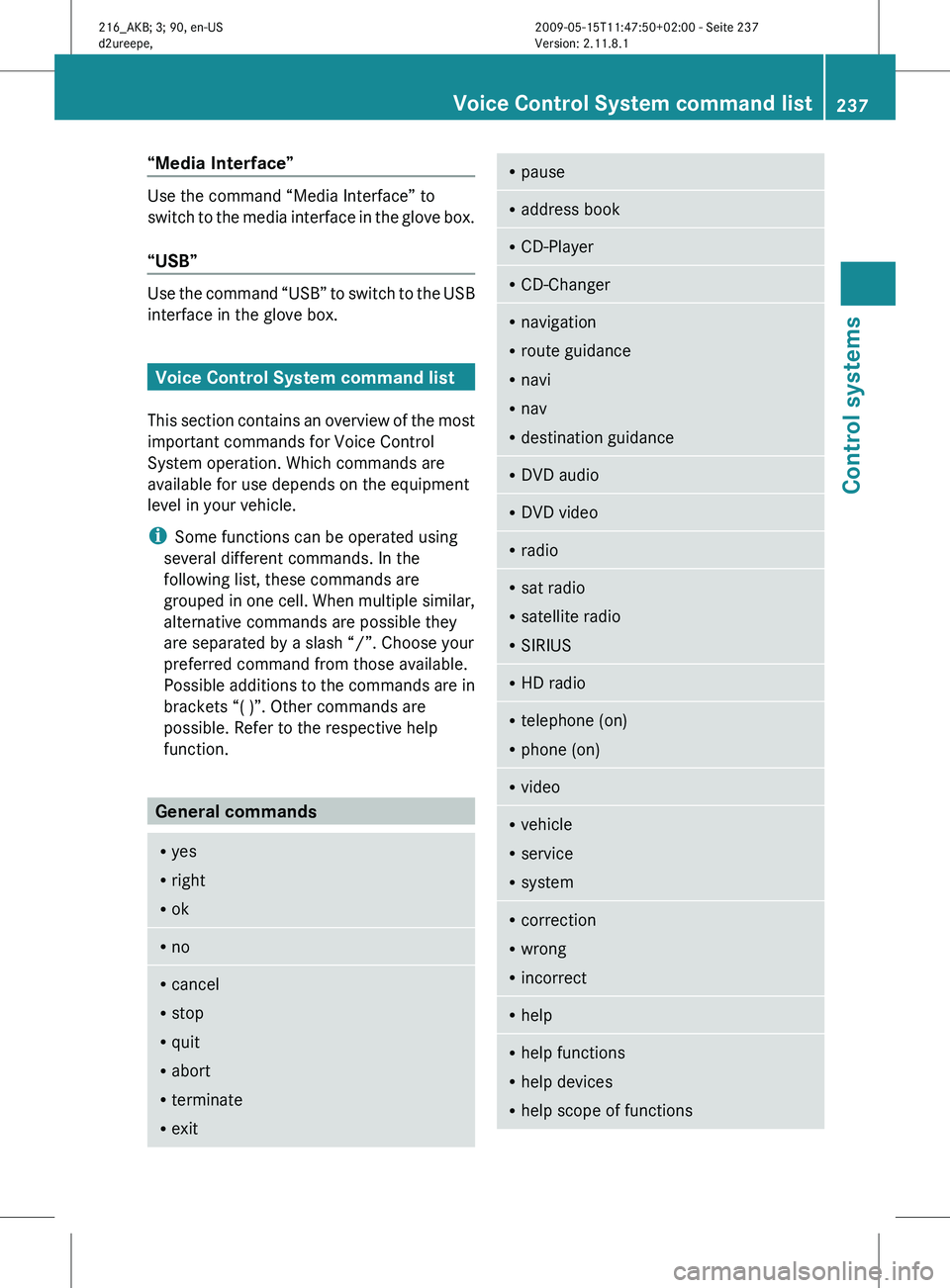
“Media Interface”
Use the command “Media Interface” to
switch
to
the media interface in the glove box.
“USB” Use the command “USB” to switch to the USB
interface in the glove box.
Voice Control System command list
This section
contains an overview of the most
important commands for Voice Control
System operation. Which commands are
available for use depends on the equipment
level in your vehicle.
i Some functions can be operated using
several different commands. In the
following list, these commands are
grouped in one cell. When multiple similar,
alternative commands are possible they
are separated by a slash “/”. Choose your
preferred command from those available.
Possible additions to the commands are in
brackets “( )”. Other commands are
possible. Refer to the respective help
function. General commands
R
yes
R right
R ok R
no R
cancel
R stop
R quit
R abort
R terminate
R exit R
pause R
address book R
CD-Player R
CD-Changer R
navigation
R route guidance
R navi
R nav
R destination guidance R
DVD audio R
DVD video R
radio R
sat radio
R satellite radio
R SIRIUS R
HD radio R
telephone (on)
R phone (on) R
video R
vehicle
R service
R system R
correction
R wrong
R incorrect R
help R
help functions
R help devices
R help scope of functions Voice Control System command list
237
Control systems
216_AKB; 3; 90, en-US
d2ureepe, Version: 2.11.8.1 2009-05-15T11:47:50+02:00 - Seite 237 Z