center console MERCEDES-BENZ CL CLASS 2010 Owner's Guide
[x] Cancel search | Manufacturer: MERCEDES-BENZ, Model Year: 2010, Model line: CL CLASS, Model: MERCEDES-BENZ CL CLASS 2010Pages: 500, PDF Size: 9.32 MB
Page 147 of 500
X
Select DTMF from the telephone menu
during a call. :
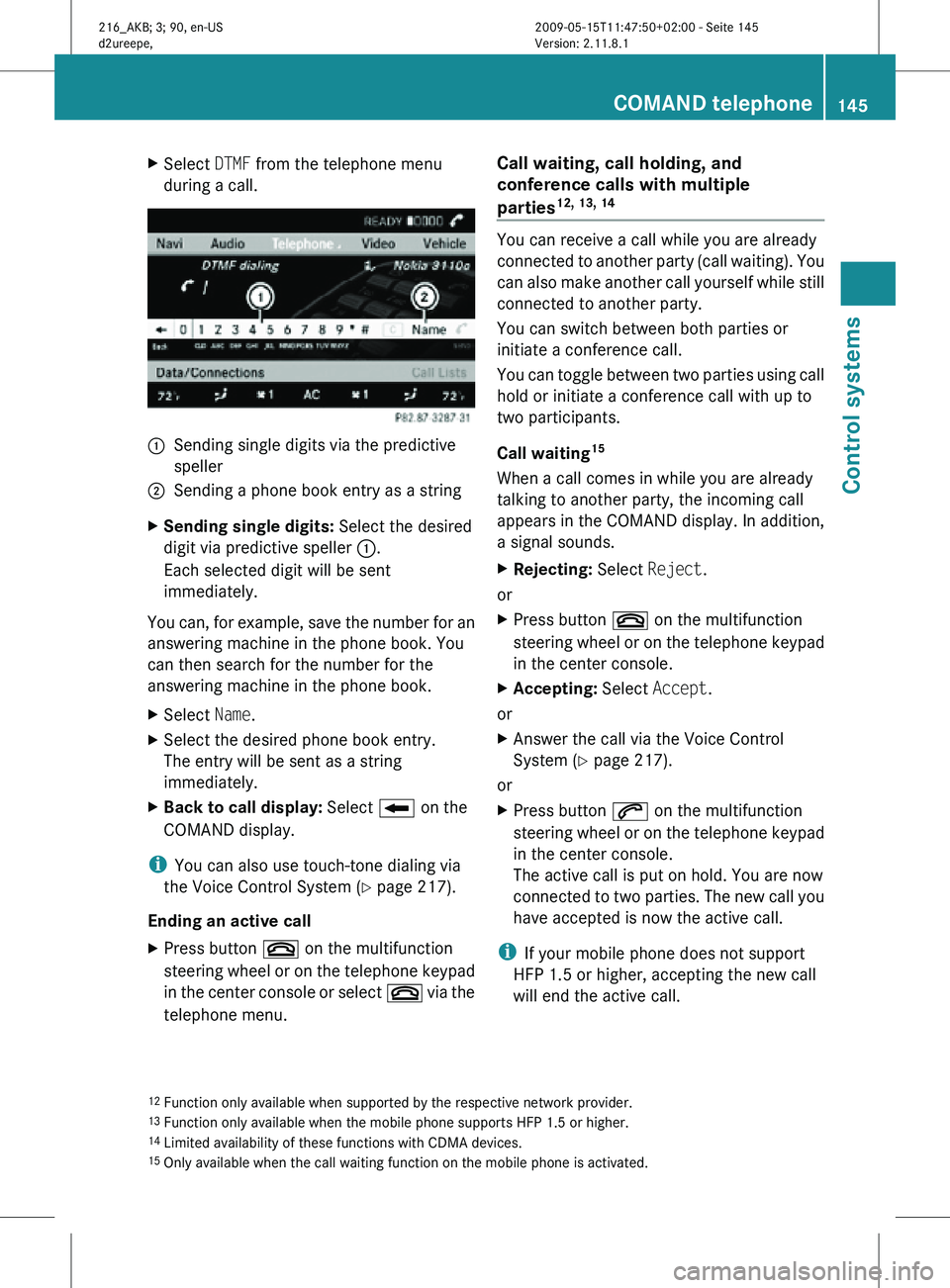
Sending single digits via the predictive
speller
; Sending a phone book entry as a string
X Sending single digits: Select the desired
digit via predictive speller :.
Each selected digit will be sent
immediately.
You can, for example, save the number for an
answering machine in the phone book. You
can then search for the number for the
answering machine in the phone book.
X Select Name.
X Select the desired phone book entry.
The entry will be sent as a string
immediately.
X Back to call display: Select B on the
COMAND display.
i You can also use touch-tone dialing via
the Voice Control System (Y page 217).
Ending an active call
X Press button ~ on the multifunction
steering wheel or on the telephone keypad
in the center console or select ~ via the
telephone menu. Call waiting, call holding, and
conference calls with multiple
parties
12, 13, 14
You can receive a call while you are already
connected to another party (call waiting). You
can also make another call yourself while still
connected to another party.
You can switch between both parties or
initiate a conference call.
You can toggle between two parties using call
hold or initiate a conference call with up to
two participants.
Call waiting
15
When a call comes in while you are already
talking to another party, the incoming call
appears in the COMAND display. In addition,
a signal sounds.
X Rejecting: Select Reject.
or
X Press button ~ on the multifunction
steering wheel or on the telephone keypad
in the center console.
X Accepting: Select Accept.
or
X Answer the call via the Voice Control
System (Y page 217).
or
X Press button 6 on the multifunction
steering wheel or on the telephone keypad
in the center console.
The active call is put on hold. You are now
connected to two parties. The new call you
have accepted is now the active call.
i If your mobile phone does not support
HFP 1.5 or higher, accepting the new call
will end the active call.
12 Function only available when supported by the respective network provider.
13 Function only available when the mobile phone supports HFP 1.5 or higher.
14 Limited availability of these functions with CDMA devices.
15 Only available when the call waiting function on the mobile phone is activated. COMAND telephone
145Control systems
216_AKB; 3; 90, en-US
d2ureepe, Version: 2.11.8.1 2009-05-15T11:47:50+02:00 - Seite 145 Z
Page 148 of 500
Calling an additional party
You can call another party during an active
call. The active call is put on hold.
X
Select NEW from the telephone menu and
press W.
or
X Press button 6 on the telephone
keypad in the center console.
X Enter the number to call manually
(Y page 143) or from the phone book
(Y page 149).
Switching between two parties (call hold)
When you are connected to two parties, the
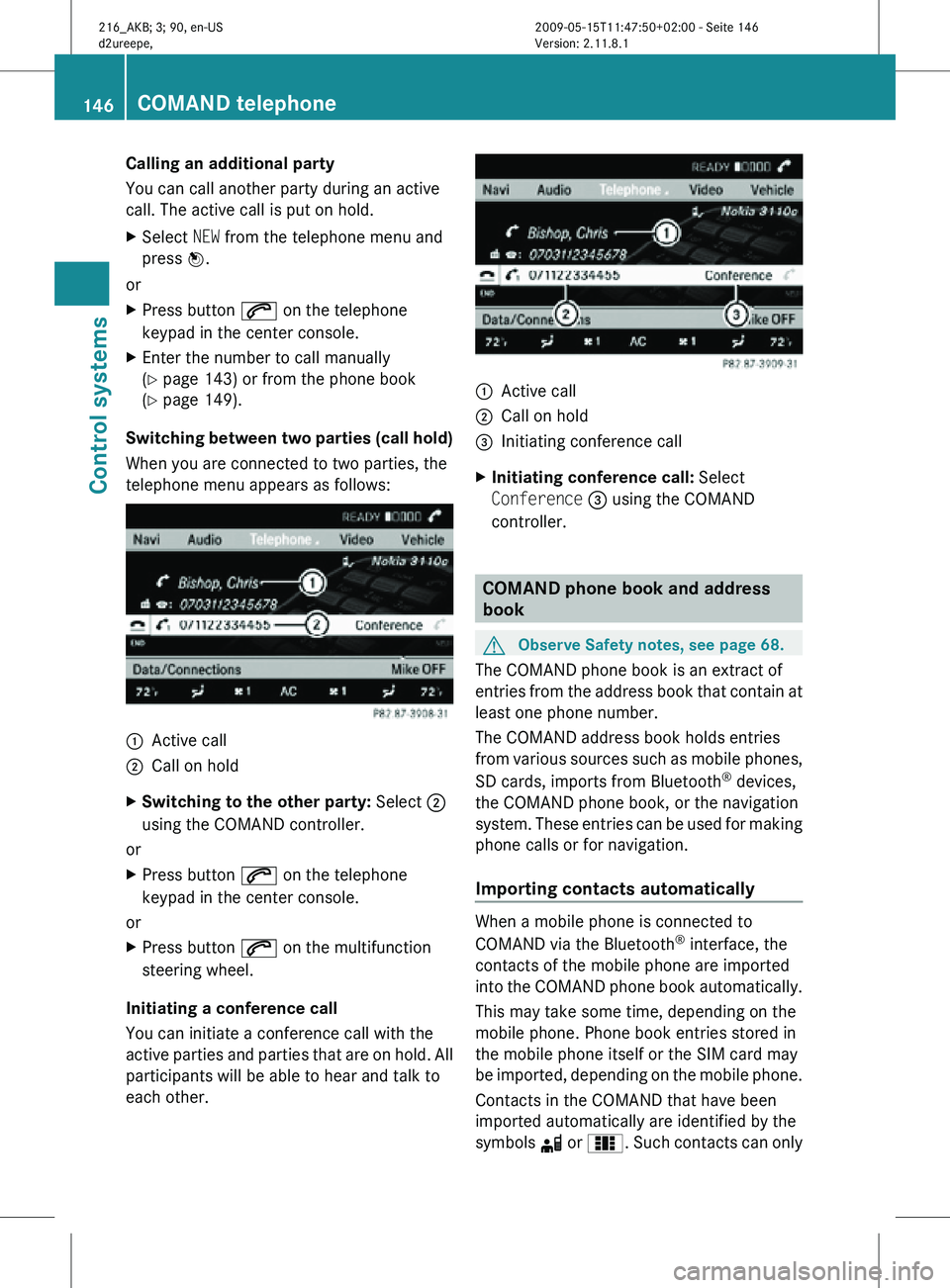
telephone menu appears as follows: :
Active call
; Call on hold
X Switching to the other party: Select ;
using the COMAND controller.
or
X Press button 6 on the telephone
keypad in the center console.
or
X Press button 6 on the multifunction
steering wheel.
Initiating a conference call
You can initiate a conference call with the
active parties and parties that are on hold. All
participants will be able to hear and talk to
each other. :
Active call
; Call on hold
= Initiating conference call
X Initiating conference call: Select
Conference = using the COMAND
controller. COMAND phone book and address
book
G
Observe Safety notes, see page 68.
The COMAND phone book is an extract of
entries from the address book that contain at
least one phone number.
The COMAND address book holds entries
from various sources such as mobile phones,
SD cards, imports from Bluetooth ®
devices,
the COMAND phone book, or the navigation
system. These entries can be used for making
phone calls or for navigation.
Importing contacts automatically When a mobile phone is connected to
COMAND via the Bluetooth
®
interface, the
contacts of the mobile phone are imported
into the COMAND phone book automatically.
This may take some time, depending on the
mobile phone. Phone book entries stored in
the mobile phone itself or the SIM card may
be imported, depending on the mobile phone.
Contacts in the COMAND that have been
imported automatically are identified by the
symbols d or 0. Such contacts can only 146
COMAND telephoneControl systems
216_AKB; 3; 90, en-US
d2ureepe,
Version: 2.11.8.1 2009-05-15T11:47:50+02:00 - Seite 146
Page 150 of 500
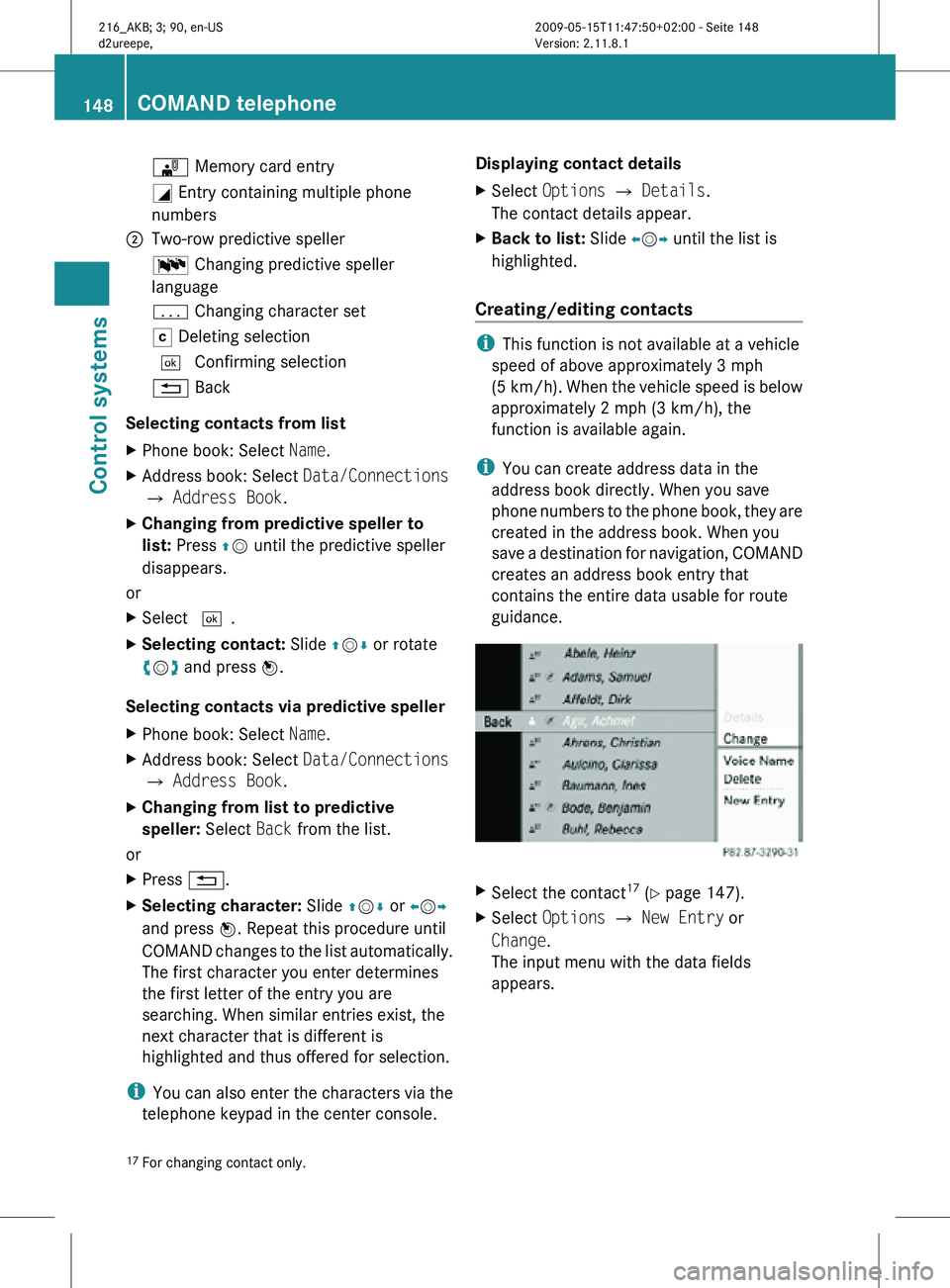
¯ Memory card entry
G Entry containing multiple phone
numbers
; Two-row predictive speller
B Changing predictive speller
language
p Changing character set
F Deleting selection
¬ Confirming selection
% Back
Selecting contacts from list
X Phone book: Select Name.
X Address book: Select Data/Connections
Q Address Book.
X Changing from predictive speller to
list: Press ZV until the predictive speller
disappears.
or
X Select ¬.
X Selecting contact: Slide ZVÆ or rotate
cVd and press W.
Selecting contacts via predictive speller
X Phone book: Select Name.
X Address book: Select Data/Connections
Q Address Book.
X Changing from list to predictive
speller: Select Back from the list.
or
X Press %.
X Selecting character: Slide ZVÆ or XVY
and press W. Repeat this procedure until
COMAND changes to the list automatically.
The first character you enter determines
the first letter of the entry you are
searching. When similar entries exist, the
next character that is different is
highlighted and thus offered for selection.
i You can also enter the characters via the
telephone keypad in the center console. Displaying contact details
X
Select Options Q Details.
The contact details appear.
X Back to list: Slide XVY until the list is
highlighted.
Creating/editing contacts i
This function is not available at a vehicle
speed of above approximately 3 mph
(5 km/h). When the vehicle speed is below
approximately 2 mph (3 km/h), the
function is available again.
i You can create address data in the
address book directly. When you save
phone numbers to the phone book, they are
created in the address book. When you
save a destination for navigation, COMAND
creates an address book entry that
contains the entire data usable for route
guidance. X
Select the contact 17
(Y page 147).
X Select Options Q New Entry or
Change.
The input menu with the data fields
appears.
17 For changing contact only. 148
COMAND telephoneControl systems
216_AKB; 3; 90, en-US
d2ureepe,
Version: 2.11.8.1 2009-05-15T11:47:50+02:00 - Seite 148
Page 151 of 500
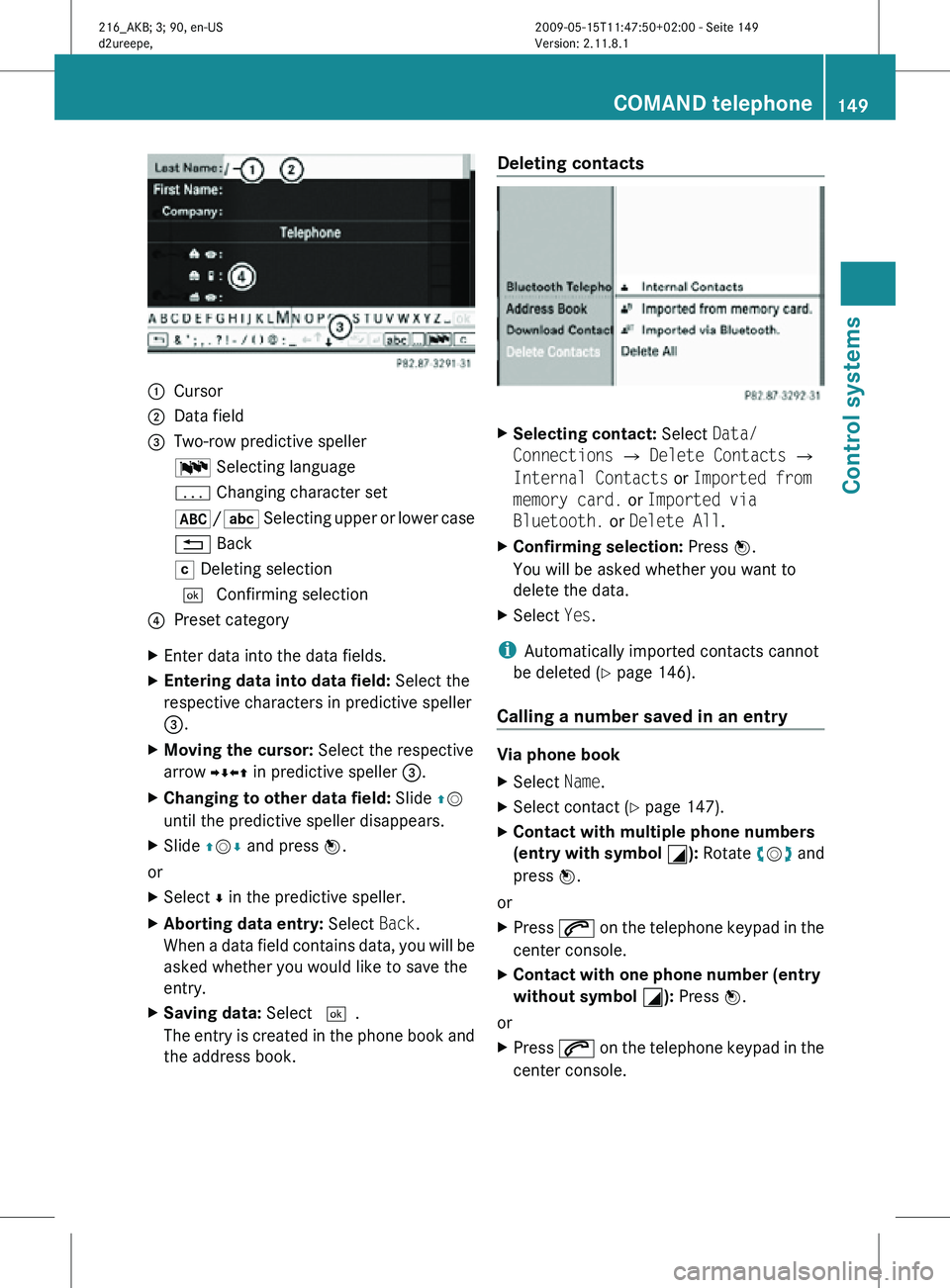
:
Cursor
; Data field
= Two-row predictive speller
B Selecting language
p Changing character set
*/E Selecting upper or lower case
% Back
F Deleting selection
¬ Confirming selection
? Preset category
X Enter data into the data fields.
X Entering data into data field: Select the
respective characters in predictive speller
=.
X Moving the cursor: Select the respective
arrow YÆXZ in predictive speller =.
X Changing to other data field: Slide ZV
until the predictive speller disappears.
X Slide ZVÆ and press W.
or
X Select Æ in the predictive speller.
X Aborting data entry: Select Back.
When a data field contains data, you will be
asked whether you would like to save the
entry.
X Saving data: Select ¬.
The entry is created in the phone book and
the address book. Deleting contacts
X
Selecting contact: Select Data/
Connections Q Delete Contacts Q
Internal Contacts or Imported from
memory card. or Imported via
Bluetooth. or Delete All.
X Confirming selection: Press W.
You will be asked whether you want to
delete the data.
X Select Yes.
i Automatically imported contacts cannot
be deleted (Y page 146).
Calling a number saved in an entry Via phone book
X
Select Name.
X Select contact (Y page 147).
X Contact with multiple phone numbers
(entry with symbol G): Rotate cVd and
press W.
or
X Press 6 on the telephone keypad in the
center console.
X Contact with one phone number (entry
without symbol G): Press W.
or
X Press 6 on the telephone keypad in the
center console. COMAND telephone
149Control systems
216_AKB; 3; 90, en-US
d2ureepe, Version: 2.11.8.1 2009-05-15T11:47:50+02:00 - Seite 149 Z
Page 157 of 500
system searches upward or downward and
stops at the next receivable station/
channel.
or
X Press and hold button 9 or : on the
multifunction steering wheel 18
.
Selecting stations using station presets i
This function is not available for Weather
Band.
X Select Audio Q FM/AM Radio Q FM or
AM.
X Select Presets.
or
X Press W when the main area is selected.
The preset menu appears. The dot # in
front of
a preset position indicates that the
currently selected station is saved there.
X Select station preset by rotating cVd or
sliding ZVÆ and press W.
or
X Enter a position number with the telephone
keypad using buttons ´ - Ã
(Y page 70).
or
X Press button 9 or : on the
multifunction steering wheel briefly 18
.
Selecting stations by entering the
frequency manually i
This function is not available for Weather
Band.
X Select Audio Q FM/AM Radio Q FM or
AM. Entering the frequency using the
COMAND controller
X
Select Radio Q Enter Frequency.
The menu for manual frequency entry
appears.
X Exiting menu without making an entry:
Press back button % in the center
console (Y page 75).
X Increasing or decreasing number: Slide
ZVÆ or rotate cVd.
i You can
only select available frequencies.
X Selecting the next number: Slide VY.
X Confirming frequency entry: Press W.
COMAND tunes in to the frequency
entered.
i If you enter a frequency which is outside
the frequency range, COMAND tunes in to
the next lowest frequency.
Entering the frequency using the
telephone keypad
X Press button à on the telephone
keypad (
Y page 70).
X Enter frequency using buttons Å -
Ã.
COMAND tunes in to the frequency
entered.
Selecting channels using the WB
channel i
This function
is only available for Weather
Band.
X Select Audio Q FM/AM Radio Q WB
Q Channel.
or
X Press W when the main area is selected.
The channel list appears. The dot # in
front of a list entry indicates the currently
selected channel.
18 Function is only available if the Audio menu is selected in the instrument cluster. COMAND FM/AM radio
155
Control systems
216_AKB; 3; 90, en-US
d2ureepe, Version: 2.11.8.1 2009-05-15T11:47:50+02:00 - Seite 155 Z
Page 163 of 500
Tuning in channels using manual
channel number entry
i
If you try to tune in a channel when the
satellite radio service is not activated, you
will see
the screen described in the section
“Satellite radio service is not activated”
(Y page 158).
Entering the channel number using the
COMAND controller
X Select Audio Q Audio Q Sat. Radio
Q Sat. Radio Q Channel Entry.
The menu
for manual channel number entry
appears.
X Exiting menu without making an entry:
Press back button % in the center
console (Y page 75).
X Increase or decreasing number: Slide
ZVÆ or rotate cVd.
X Selecting next number: Slide XVY.
X Confirming channel entry: Press W.
Further operation
depends on whether the
selected channel number is valid or if the
channel is included in your subscription.
Entering the channel number using the
telephone keypad
X Press button à on the telephone
keypad (
Y page 70).
X Enter channel number using buttons Å
- Ã.
Further operation
depends on whether the
selected channel number is valid or if the
channel is included in your subscription.
Channel number is valid and channel is
included in subscription
COMAND tunes in the channel entered.
Channel number is invalid
You will
see the message Invalid Channel .
X Closing message: Press W. Channel number is valid but channel is
not included in subscription
You will see the screen described in the
section “Satellite radio service is not
activated” (
Y page 158).
X Closing display: Press W.
Tuning in channels using the channel
list X
Select Audio Q Audio Q Sat. Radio
Q Sat. Radio Q Channel List.
The channel list appears. The dot # in
front of a list entry indicates the currently
selected channel.
X Select channel by rotating cVd or sliding
ZVÆ and press W.
i The contents of the channel list depends
on which channels are included in your
subscription and which program category
you have
selected (Y page 159). If satellite
radio service is not activated, the channel
list contains only the preview channel. Saving channels
i There are 20 preset positions available.
Option 1 X
Select Audio Q Sat. Radio Q Sat.
Radio Q Save Channel.
Option 2 X
Press W when the main area is selected.
Option 3 X
Select Audio Q Sat. Radio Q
Presets.
All three of these will call up a preset menu.
The dot # in front of a preset position
indicates that this is the channel currently
selected and being listened to. COMAND satellite radio
161
Control systems
216_AKB; 3; 90, en-US
d2ureepe, Version: 2.11.8.1 2009-05-15T11:47:50+02:00 - Seite 161 Z
Page 180 of 500
X
Select DVD-V.
The DVD-V menu appears. The dot # in
front of a menu item - 16:9 Optimized,
4:3 or Widescreen indicates the current
format.
X Changing the format: Slide ZVÆ or turn
cVd, until you reach the desired setting.
X Saving the format: Press W.DVD menu
The DVD menu is the menu stored on the DVD
itself. It is structured in various ways
according to the individual DVD and permits
certain actions and settings.
Calling up the DVD menu X
Select Video Q Video DVD.
X Show the menu system, if necessary
(Y page 176).
X Select DVD-V Q DVD Functions Q
Menu.
The DVD menu appears.
Selecting menu items in the DVD menu X
Slide ZVÆ or XVY.
X Confirming the selection: Press W.
The selection menu appears. X
Reconfirming the selection: Select
Select.
COMAND carries out the action defined by
the selected DVD menu item. i
Depending on the DVD, it is possible the
menu item Play either has no function or
has no function in certain parts of the DVD
menu.
Stopping the movie or skipping to the
beginning/end of a scene X
Select a menu item of your choice from the
DVD menu.
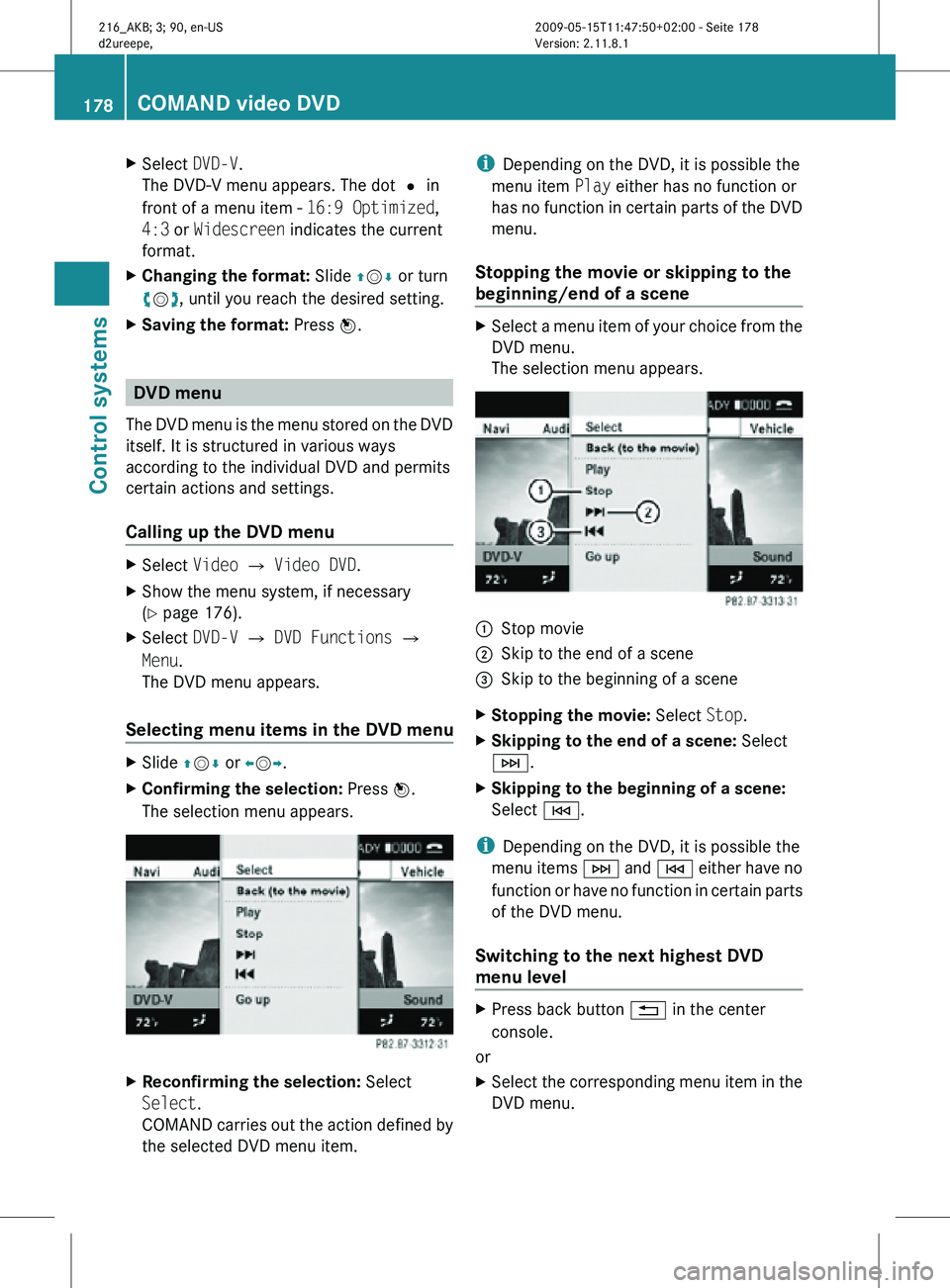
The selection menu appears. :
Stop movie
; Skip to the end of a scene
= Skip to the beginning of a scene
X Stopping the movie: Select Stop.
X Skipping to the end of a scene: Select
F.
X Skipping to the beginning of a scene:
Select E.
i Depending on the DVD, it is possible the
menu items F and E either have no
function or have no function in certain parts
of the DVD menu.
Switching to the next highest DVD
menu level X
Press back button % in the center
console.
or
X Select the corresponding menu item in the
DVD menu. 178
COMAND video DVDControl systems
216_AKB; 3; 90, en-US
d2ureepe,
Version: 2.11.8.1 2009-05-15T11:47:50+02:00 - Seite 178
Page 196 of 500
COMAND automatic climate control
Introduction
i The components and operating principles
of COMAND can be found on ( Y page 68).G
Warning!
Follow the recommended settings for heating
and cooling given on the following pages and
pages in the “Controls in detail” chapter.
Otherwise the windows could fog up,
impairing visibility and endangering you and
others.
You can operate the climate control via
COMAND or via the buttons on the climate
control panel (Y page 338).
Some of the special climate control functions
can only be operated via COMAND.
The following climate control functions can
be operated via COMAND:
R Temperature ( Y page 194)
R Air distribution (Y page 195)
R Air volume ( Y page 195)
R Switching off cooling (Æ)
(Y page 196)
R Central climate control (Mono)
(Y page 196)
R Footwell temperature ( Y page 197)
R Air flow from air vents (Y page 197)
The climate control menu is called up via the
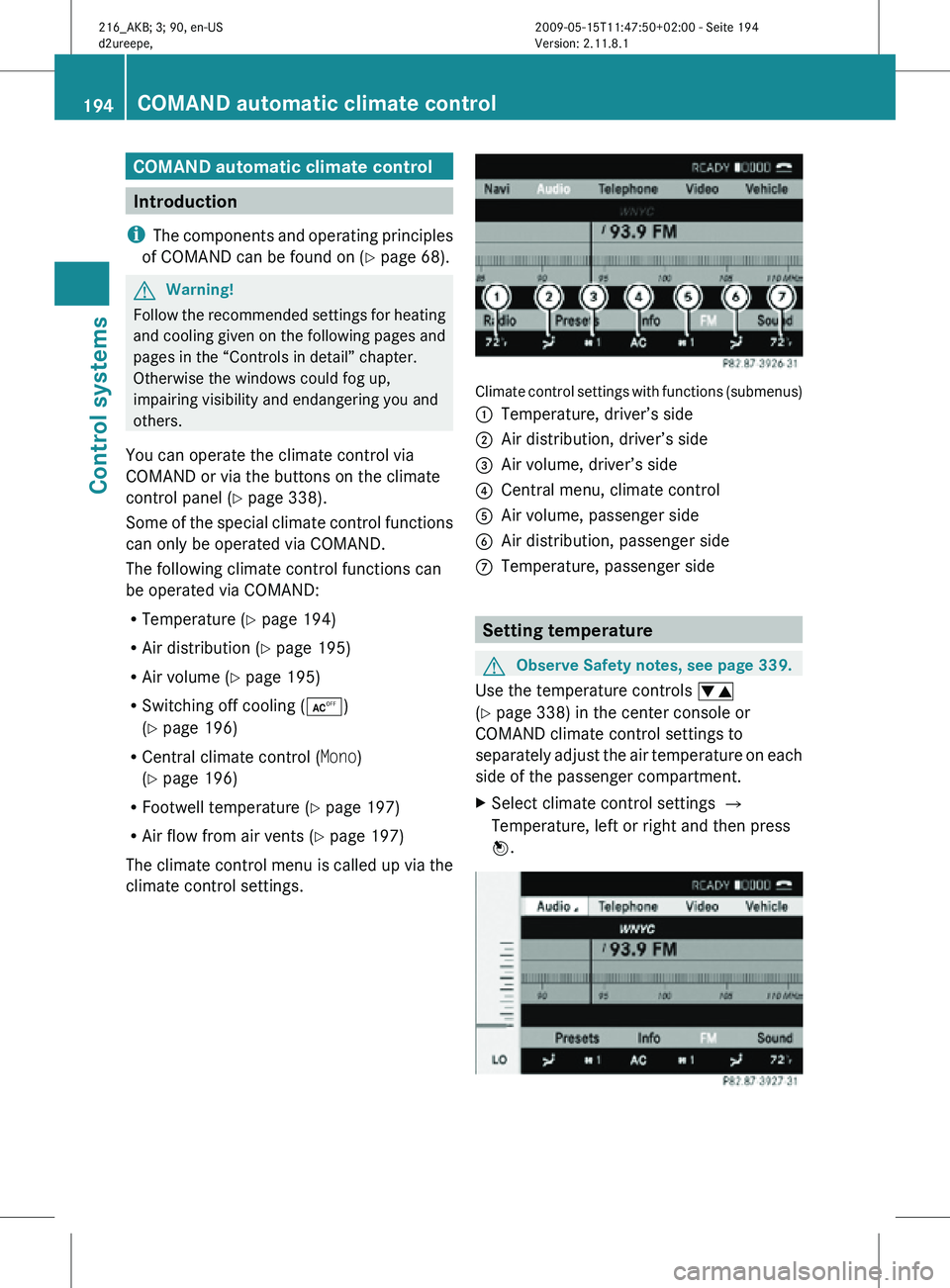
climate control settings. Climate control settings with functions (submenus)
:
Temperature, driver’s side
; Air distribution, driver’s side
= Air volume, driver’s side
? Central menu, climate control
A Air volume, passenger side
B Air distribution, passenger side
C Temperature, passenger side Setting temperature
G
Observe Safety notes, see page 339.
Use the temperature controls w
(Y page 338) in the center console or
COMAND climate control settings to
separately adjust the air temperature on each
side of the passenger compartment.
X Select climate control settings Q
Temperature, left or right and then press
W. 194
COMAND automatic climate controlControl systems
216_AKB; 3; 90, en-US
d2ureepe,
Version: 2.11.8.1 2009-05-15T11:47:50+02:00 - Seite 194
Page 197 of 500
X
Changing temperature: Slide ZVÆ or
rotate cVd.
X Exiting menu: Press W, back button
% in the center console (Y page 69) or
slide XVY.
The setting is saved. Adjusting air distribution
G
Observe Safety notes, see page 339.
You can adjust the air distribution separately
for the driver’s and front passenger side.
i When you change the air distribution, the
automatic function of the climate control
system is switched off.
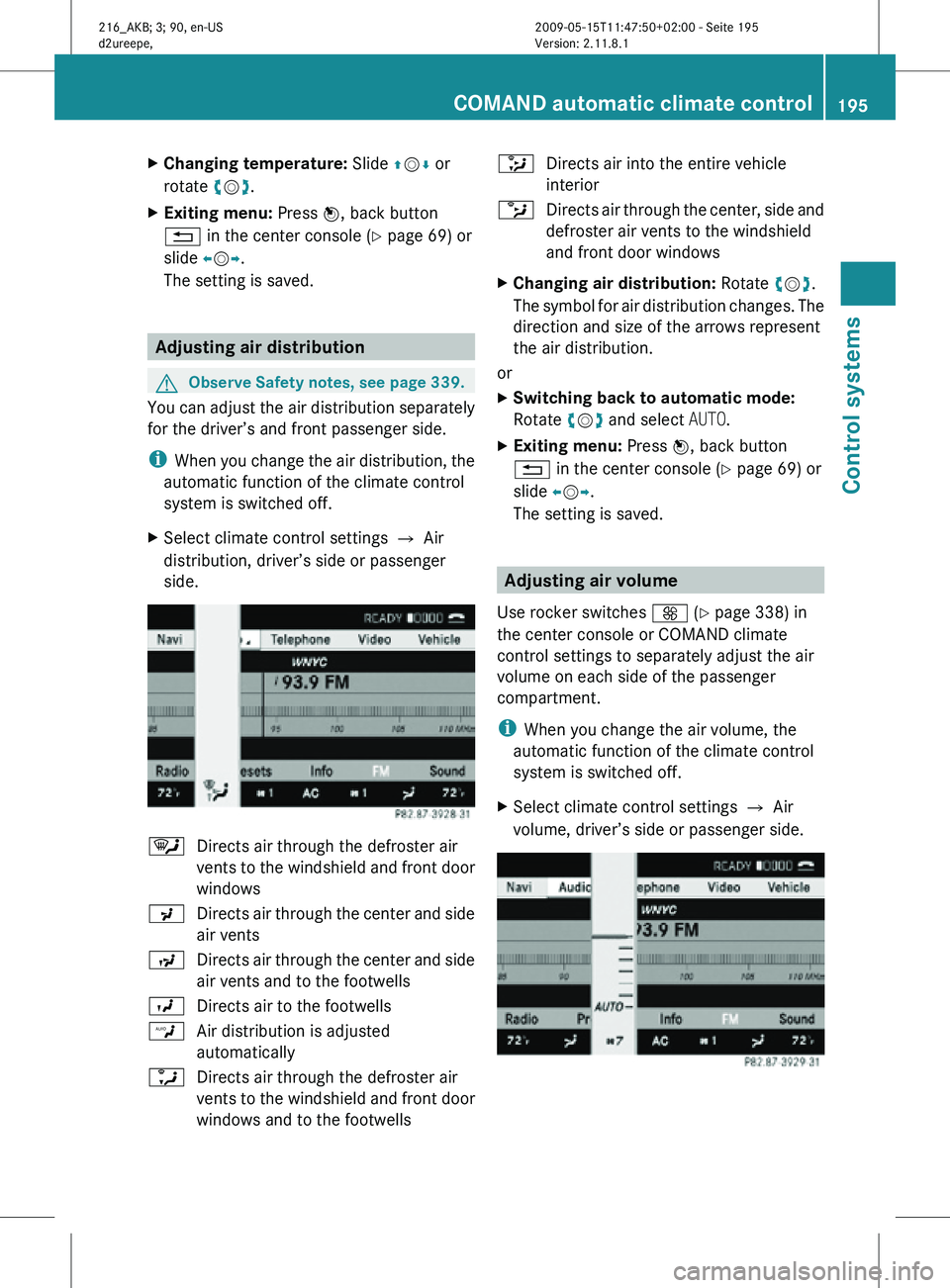
X Select climate control settings Q Air
distribution, driver’s side or passenger
side. ¯
Directs air through the defroster air
vents to the windshield and front door
windows
P Directs air through the center and side
air vents
N Directs air through the center and side
air vents and to the footwells
O Directs air to the footwells
W Air distribution is adjusted
automatically
a Directs air through the defroster air
vents to the windshield and front door
windows and to the footwells _
Directs air into the entire vehicle
interior
b Directs air through the center, side and
defroster air vents to the windshield
and front door windows
X Changing air distribution: Rotate cVd.
The symbol for air distribution changes. The
direction and size of the arrows represent
the air distribution.
or
X Switching back to automatic mode:
Rotate cVd and select AUTO.
X Exiting menu: Press W, back button
% in the center console (Y page 69) or
slide XVY.
The setting is saved. Adjusting air volume
Use rocker switches K (Y page 338) in
the center console or COMAND climate
control settings to separately adjust the air
volume on each side of the passenger
compartment.
i When you change the air volume, the
automatic function of the climate control
system is switched off.
X Select climate control settings Q Air
volume, driver’s side or passenger side. COMAND automatic climate control
195Control systems
216_AKB; 3; 90, en-US
d2ureepe, Version: 2.11.8.1 2009-05-15T11:47:50+02:00 - Seite 195 Z
Page 198 of 500

X
Changing air volume: Slide ZVÆ or rotate
cVd.
or
X Switching back to automatic mode:
Rotate cVd and select AUTO.
X Exiting menu: Press W, back button
% in the center console (Y page 69) or
slide XVY.
The setting is saved. Central climate control menu via
COMAND
The central climate control menu is in the
center of the climate control settings. When
the climate control is activated, you will see
AC in the central menu. The following
functions can only be operated in the central
climate control menu via COMAND:
R Deactivating cooling (Æ) (Y page 196)
R Central climate control (Mono)
(Y page 196)
R Footwell temperature ( Y page 197)
R Air flow from air vents (Y page 197)
X Select climate control settings Q Central
menu. Activating/deactivating air
conditioning
The air conditioning is operational while the
engine is running and cools the interior air to
the temperature set by the operator. In addition, the air conditioning dehumidifies
the interior air and helps prevent window
fogging.
i
Condensation may drip out from
underneath the vehicle. This is normal and
not an indication of a malfunction. G
Warning!
If you deactivate the air conditioning, the
vehicle will not be cooled when weather
conditions are warm. The windows can fog up
more quickly. Window fogging may impair
visibility and endanger you and others.
X Select climate control settings Q Central
climate control menu.
X Selecting Æ: Slide ZVÆ or rotate
cVd.
X Confirming selection: Press W.
A checkmark appears when the cooling is
deactivated.
Æ appears in the central menu of the
climate control settings. !
If the air conditioning cannot be activated
again, this indicates that the air
conditioning is losing refrigerant. The
compressor has turned off.
Have the air conditioning checked at the
nearest authorized Mercedes-Benz Center.
Selecting Mono mode Mono is used to adjust the climate zones for
the entire vehicle at the same time. When the
Mono function is switched on and you change
the climate on the driver’s side, these
changes will be carried out in the same
manner for all climate zones.196
COMAND automatic climate controlControl systems
216_AKB; 3; 90, en-US
d2ureepe,
Version: 2.11.8.1 2009-05-15T11:47:50+02:00 - Seite 196