ad blue MERCEDES-BENZ CL-Class 2012 C216 Owner's Guide
[x] Cancel search | Manufacturer: MERCEDES-BENZ, Model Year: 2012, Model line: CL-Class, Model: MERCEDES-BENZ CL-Class 2012 C216Pages: 488, PDF Size: 21.88 MB
Page 185 of 488
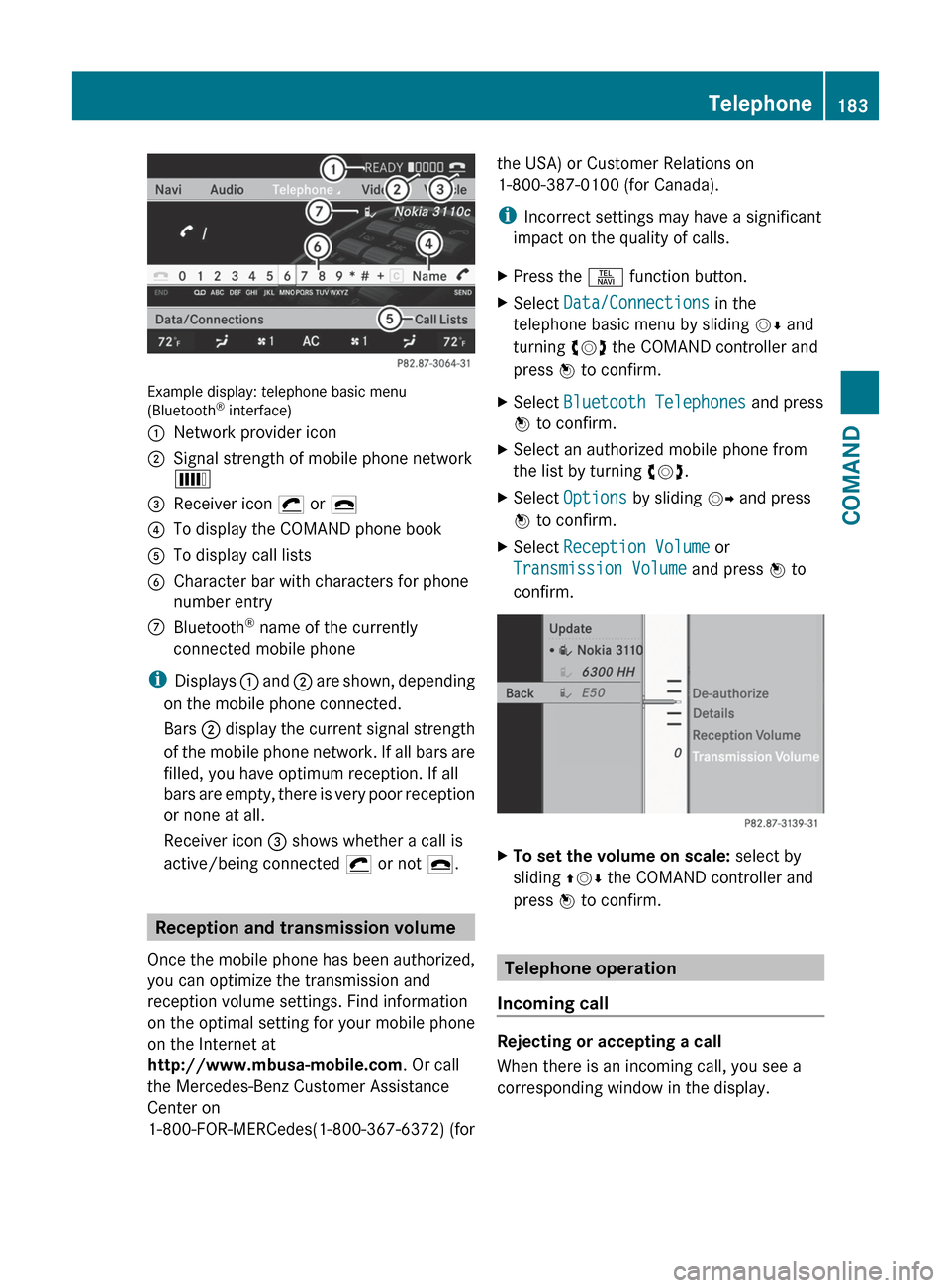
Example display: telephone basic menu
(Bluetooth ®
interface)
:Network provider icon;Signal strength of mobile phone network
È=Receiver icon ¡ or ¢?To display the COMAND phone bookATo display call listsBCharacter bar with characters for phone
number entryCBluetooth ®
name of the currently
connected mobile phone
i Displays : and ; are shown, depending
on the mobile phone connected.
Bars ; display the current signal strength
of the mobile phone network. If all bars are
filled, you have optimum reception. If all
bars are empty, there is very poor reception
or none at all.
Receiver icon = shows whether a call is
active/being connected ¡ or not ¢.
Reception and transmission volume
Once the mobile phone has been authorized,
you can optimize the transmission and
reception volume settings. Find information
on the optimal setting for your mobile phone
on the Internet at
http://www.mbusa-mobile.com . Or call
the Mercedes-Benz Customer Assistance
Center on
1-800-FOR-MERCedes(1-800-367-6372) (for
the USA) or Customer Relations on
1-800-387-0100 (for Canada).
i Incorrect settings may have a significant
impact on the quality of calls.XPress the S function button.XSelect Data/Connections in the
telephone basic menu by sliding VÆ and
turning cVd the COMAND controller and
press W to confirm.XSelect Bluetooth Telephones and press
W to confirm.XSelect an authorized mobile phone from
the list by turning cVd.XSelect Options by sliding VY and press
W to confirm.XSelect Reception Volume or
Transmission Volume and press W to
confirm.XTo set the volume on scale: select by
sliding ZVÆ the COMAND controller and
press W to confirm.
Telephone operation
Incoming call
Rejecting or accepting a call
When there is an incoming call, you see a
corresponding window in the display.
Telephone183COMANDZ
Page 190 of 488
The address book organizes and stores
entries that are entered from different
sources (mobile phone, SD memory card,
Bluetooth ®
import, COMAND phone book,
navigation). You can use these entries to
make telephone calls and for navigation.
Importing contacts automatically
If a mobile phone is connected to COMAND
via the Bluetooth ®
interface, the contacts
(phone book entries) of the mobile phone are
automatically imported into COMAND's
phone book.
Depending on the mobile phone, this process
may take some time. Depending on the
mobile phone used, only the phone book
entries in the mobile phone or these entries
and the phone book entries from the SIM card
are imported.
The automatically imported contacts (phone
book entries) can be recognized in COMAND
by the Ã/0 symbol. They are only
available in COMAND if the corresponding
mobile phone is connected to COMAND via
the Bluetooth ®
interface.
Importing contacts manually
i The stored phone book and the vCards
remain in COMAND, even if you use
COMAND with another mobile phone. The
entries can be viewed without a mobile
phone. For this reason, delete the phone
book before selling or transferring
ownership of your vehicle.
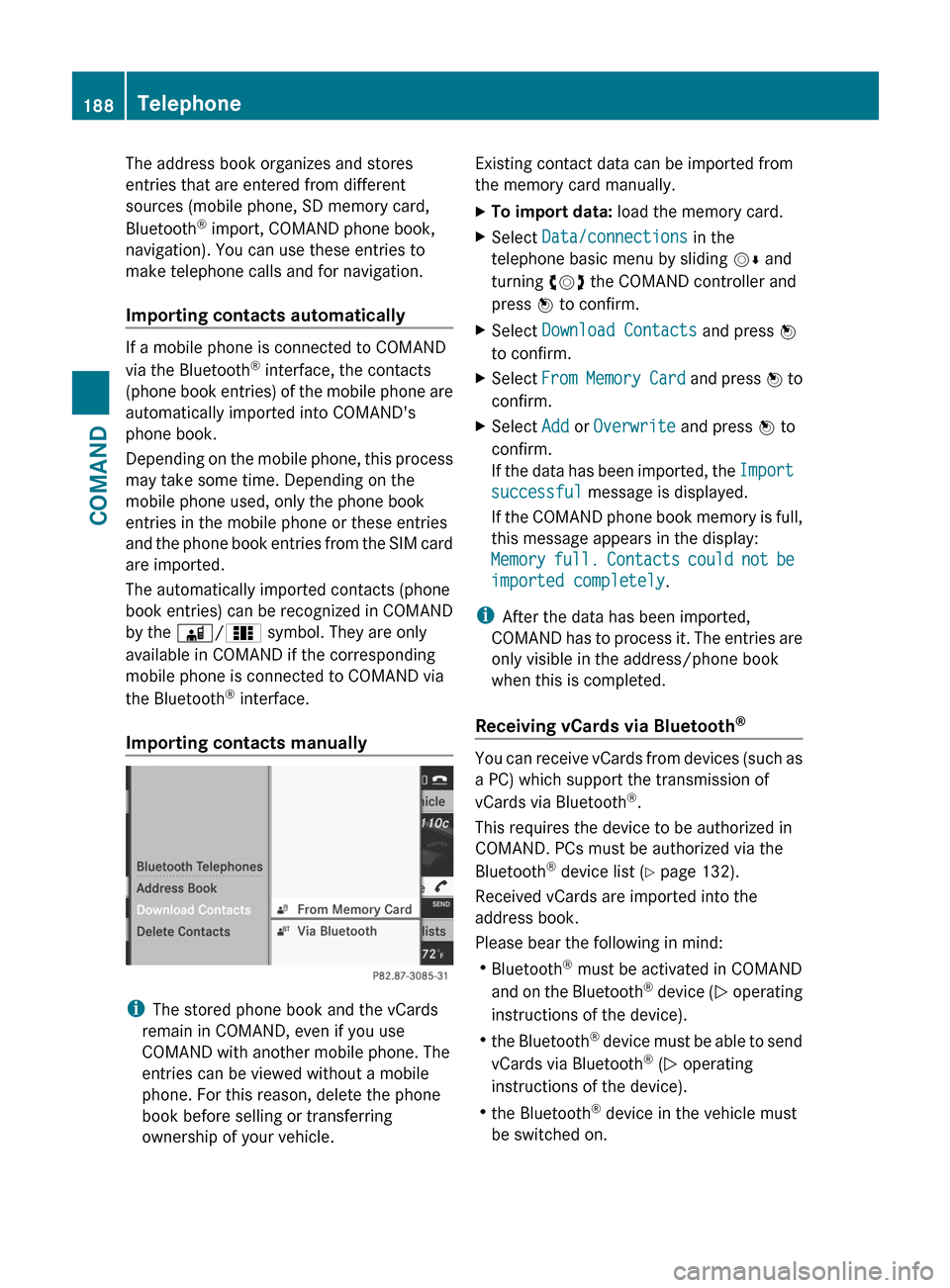
Existing contact data can be imported from
the memory card manually.XTo import data: load the memory card.XSelect Data/connections in the
telephone basic menu by sliding VÆ and
turning cVd the COMAND controller and
press W to confirm.XSelect Download Contacts and press W
to confirm.XSelect From Memory Card and press W to
confirm.XSelect Add or Overwrite and press W to
confirm.
If the data has been imported, the Import
successful message is displayed.
If the COMAND phone book memory is full,
this message appears in the display:
Memory full. Contacts could not be
imported completely .
i
After the data has been imported,
COMAND has to process it. The entries are
only visible in the address/phone book
when this is completed.
Receiving vCards via Bluetooth ®
You can receive vCards from devices (such as
a PC) which support the transmission of
vCards via Bluetooth ®
.
This requires the device to be authorized in
COMAND. PCs must be authorized via the
Bluetooth ®
device list ( Y page 132).
Received vCards are imported into the
address book.
Please bear the following in mind:
R Bluetooth ®
must be activated in COMAND
and on the Bluetooth ®
device ( N operating
instructions of the device).
R the Bluetooth ®
device must be able to send
vCards via Bluetooth ®
(N operating
instructions of the device).
R the Bluetooth ®
device in the vehicle must
be switched on.
188TelephoneCOMAND
Page 191 of 488
iIf you switch to another main function,
e.g. navigation, while receiving vCards, the
reception of vCards will be terminated.XSelect Data/Connections in the
telephone basic menu by sliding VÆ and
turning cVd the COMAND controller and
press W to confirm.XSelect Download Contacts and press W
to confirm.XSelect Via Bluetooth and press W to
confirm.
This interrupts the Bluetooth ®
connection
between COMAND and your active mobile
phone. In turn, COMAND is ready to receive
vCards from another Bluetooth ®
device.XStart data transfer on the external
Bluetooth device ( N operating instructions
of the device).
The data on the vCards is automatically
transferred to the address book. The
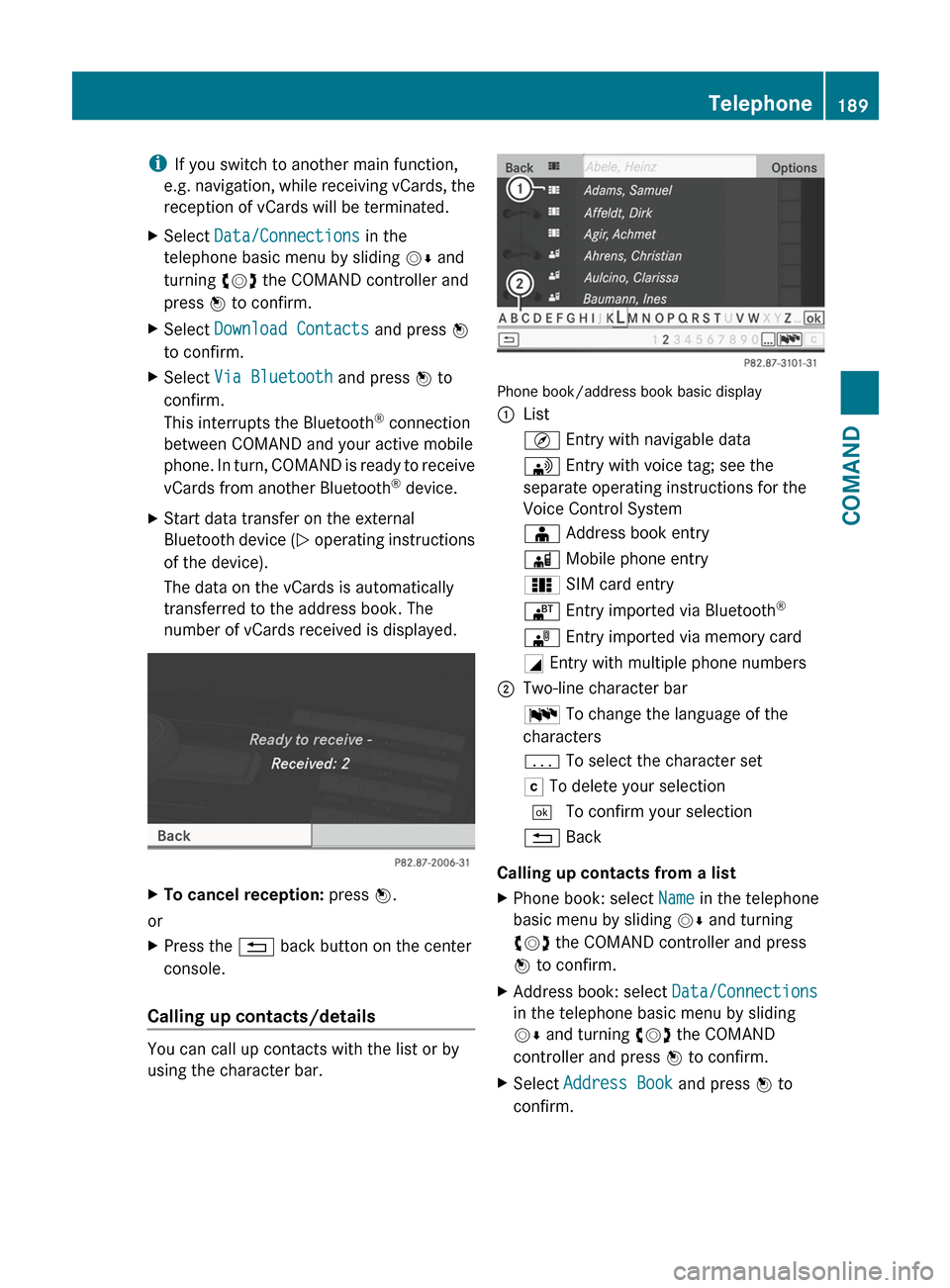
number of vCards received is displayed.XTo cancel reception: press W.
or
XPress the % back button on the center
console.
Calling up contacts/details
You can call up contacts with the list or by
using the character bar.
Phone book/address book basic display
:ListÇ Entry with navigable data\ Entry with voice tag; see the
separate operating instructions for the
Voice Control SystemÆ Address book entryà Mobile phone entry0 SIM card entry® Entry imported via Bluetooth ®¯
Entry imported via memory cardG Entry with multiple phone numbers;Two-line character barB To change the language of the
charactersp To select the character setF To delete your selection¬ To confirm your selection% Back
Calling up contacts from a list
XPhone book: select Name in the telephone
basic menu by sliding VÆ and turning
cVd the COMAND controller and press
W to confirm.XAddress book: select Data/Connections
in the telephone basic menu by sliding
V Æ and turning cVd the COMAND
controller and press W to confirm.XSelect Address Book and press W to
confirm.Telephone189COMANDZ
Page 193 of 488
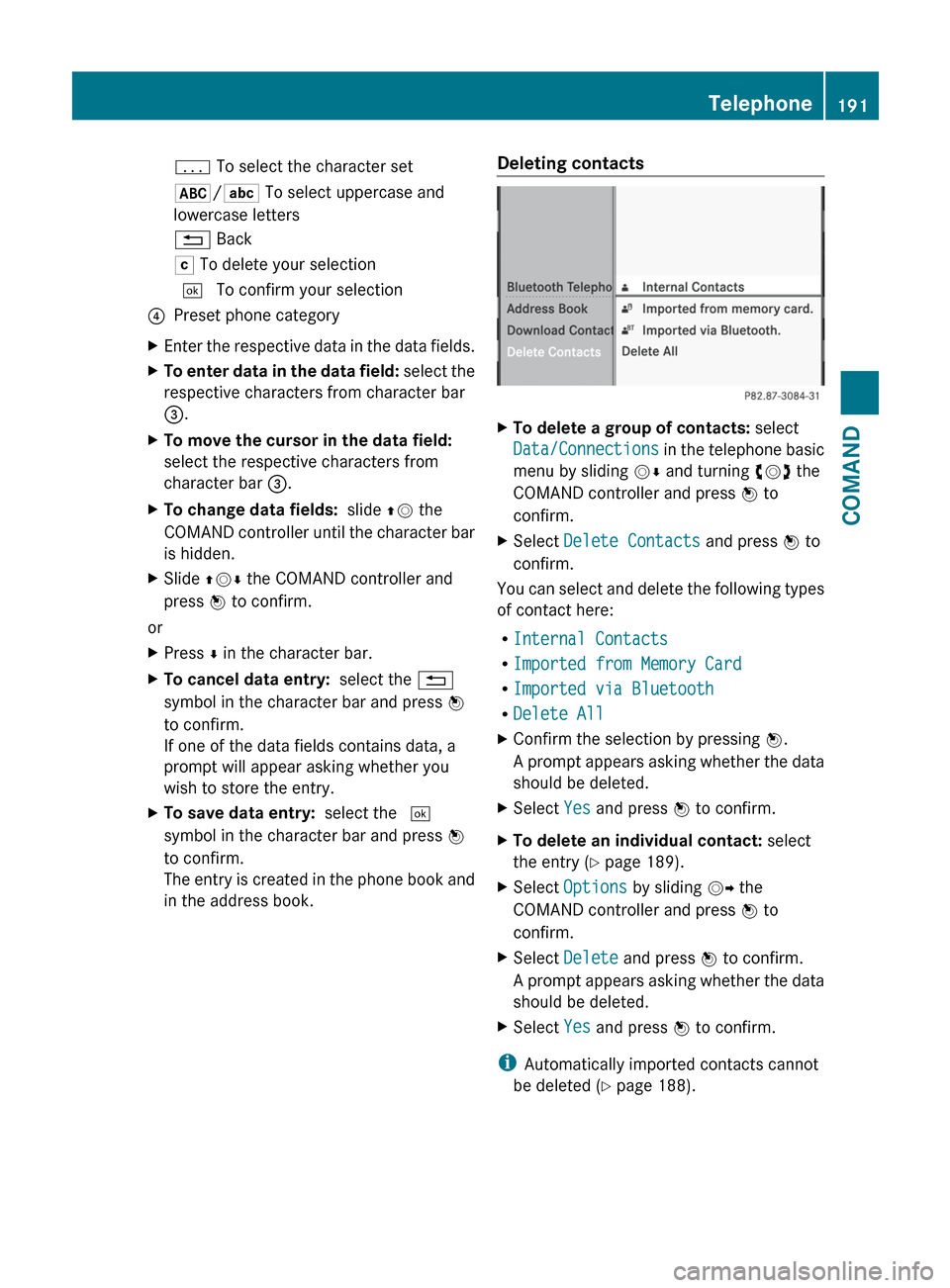
p To select the character set*/E To select uppercase and
lowercase letters% BackF To delete your selection¬ To confirm your selection?Preset phone categoryXEnter the respective data in the data fields.XTo enter data in the data field: select the
respective characters from character bar
= .XTo move the cursor in the data field:
select the respective characters from
character bar =.XTo change data fields: slide ZV the
COMAND controller until the character bar
is hidden.XSlide ZVÆ the COMAND controller and
press W to confirm.
or
XPress Æ in the character bar.XTo cancel data entry: select the %
symbol in the character bar and press W
to confirm.
If one of the data fields contains data, a
prompt will appear asking whether you
wish to store the entry.XTo save data entry: select the ¬
symbol in the character bar and press W
to confirm.
The entry is created in the phone book and
in the address book.Deleting contactsXTo delete a group of contacts: select
Data/Connections in the telephone basic
menu by sliding VÆ and turning cVd the
COMAND controller and press W to
confirm.XSelect Delete Contacts and press W to
confirm.
You can select and delete the following types
of contact here:
R Internal Contacts
R Imported from Memory Card
R Imported via Bluetooth
R Delete All
XConfirm the selection by pressing W.
A prompt appears asking whether the data
should be deleted.XSelect Yes and press W to confirm.XTo delete an individual contact: select
the entry ( Y page 189).XSelect Options by sliding VY the
COMAND controller and press W to
confirm.XSelect Delete and press W to confirm.
A prompt appears asking whether the data
should be deleted.XSelect Yes and press W to confirm.
i
Automatically imported contacts cannot
be deleted ( Y page 188).
Telephone191COMANDZ
Page 220 of 488
800 mA (it may be necessary to connect a
separate power supply)
R certain MP3 players
i The Media Interface supports USB
storage media of "USB Device Subclass 6".
Information concerning USB Device
Subclass 6 is available from the equipment
manufacturer.
For details and a list of supported devices,
visit http://www.mbusa-mobile.com . Or
call the Mercedes-Benz Customer Assistance
Center at
1-800-FOR-MERCedes(1-800-367-6372) (for
the USA) or Customer Relations at
1-800-387-0100 (for Canada).
Connecting an external device
i Do not leave external devices in the
vehicle as extreme temperatures (e.g.
direct sunlight or extremely low outside
temperatures) could cause them to
malfunction (see the operating instructions
for the respective device). Mercedes-Benz
USA, LLC accepts no liability for damage to
external devices.
Never connect more than one device at a
time. You will otherwise not be able to
operate the external device.
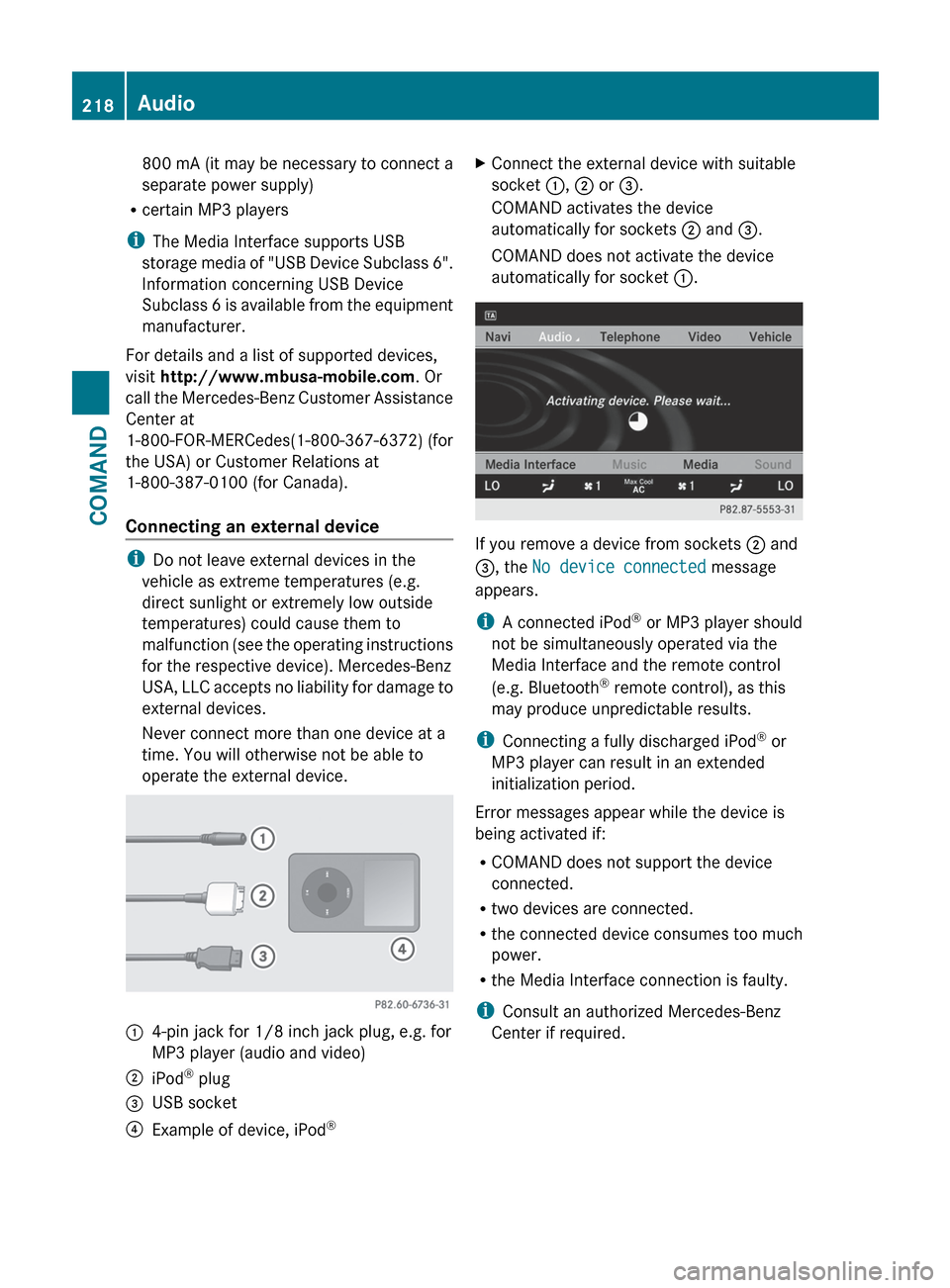
:4-pin jack for 1/8 inch jack plug, e.g. for
MP3 player (audio and video);iPod ®
plug=USB socket?Example of device, iPod ®XConnect the external device with suitable
socket :, ; or =.
COMAND activates the device
automatically for sockets ; and =.
COMAND does not activate the device
automatically for socket :.
If you remove a device from sockets ; and
= , the No device connected message
appears.
i A connected iPod ®
or MP3 player should
not be simultaneously operated via the
Media Interface and the remote control
(e.g. Bluetooth ®
remote control), as this
may produce unpredictable results.
i Connecting a fully discharged iPod ®
or
MP3 player can result in an extended
initialization period.
Error messages appear while the device is
being activated if:
R COMAND does not support the device
connected.
R two devices are connected.
R the connected device consumes too much
power.
R the Media Interface connection is faulty.
i Consult an authorized Mercedes-Benz
Center if required.
218AudioCOMAND
Page 235 of 488
COMAND controller and press W to
confirm.
The main area is active.XSelect the Easy-Entry/Exit Feature
menu by sliding XVY or turning cVd the
COMAND controller.
The EASY-ENTRY/EXIT feature menu
appears. The current setting is indicated by
a # dot.XSelect Setting by sliding ZVÆ or turning
cVd the COMAND controller.
The selected setting is indicated by a #
dot.
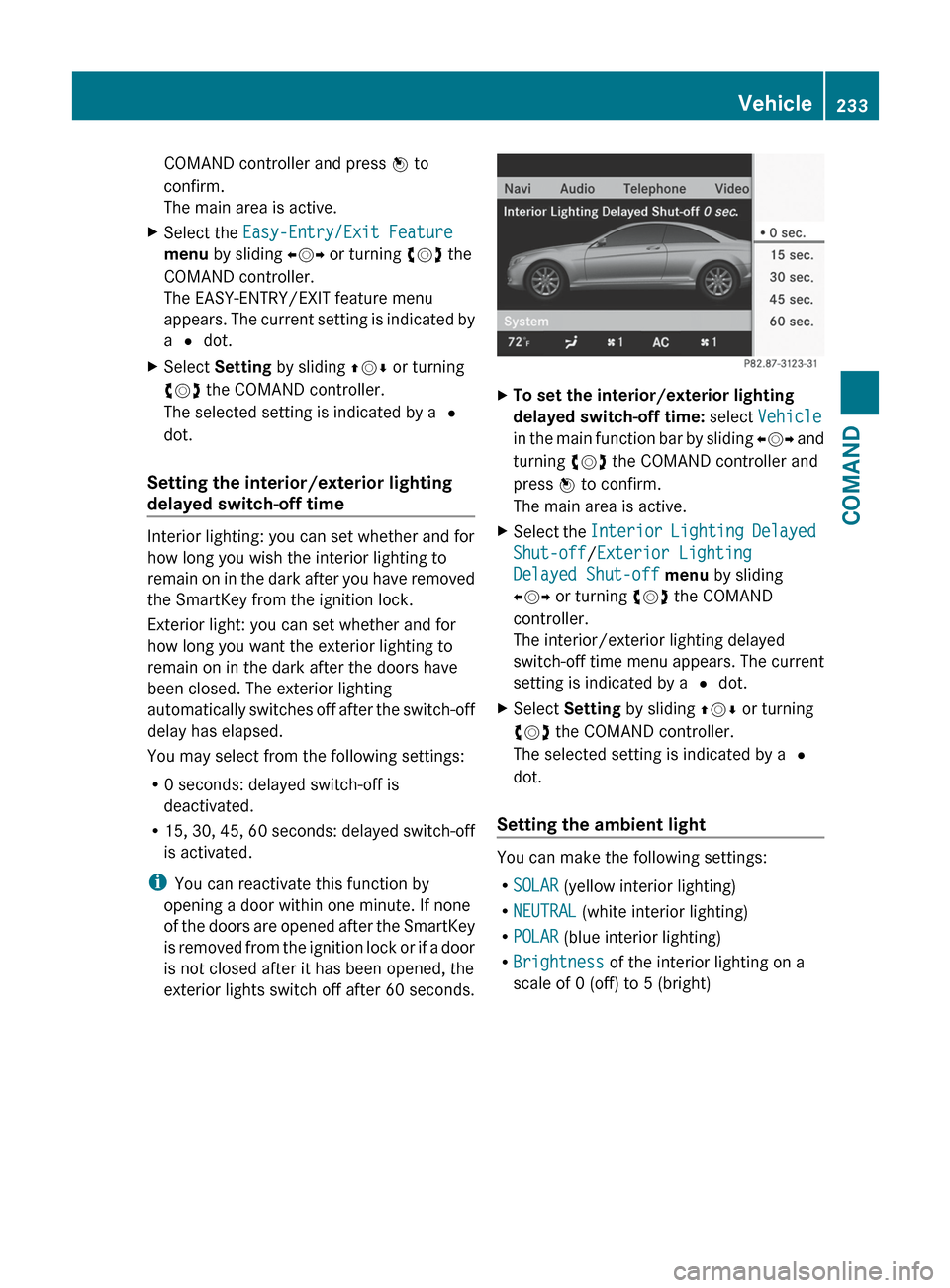
Setting the interior/exterior lighting
delayed switch-off time
Interior lighting: you can set whether and for
how long you wish the interior lighting to
remain on in the dark after you have removed
the SmartKey from the ignition lock.
Exterior light: you can set whether and for
how long you want the exterior lighting to
remain on in the dark after the doors have
been closed. The exterior lighting
automatically switches off after the switch-off
delay has elapsed.
You may select from the following settings:
R 0 seconds: delayed switch-off is
deactivated.
R 15, 30, 45, 60 seconds: delayed switch-off
is activated.
i You can reactivate this function by
opening a door within one minute. If none
of the doors are opened after the SmartKey
is removed from the ignition lock or if a door
is not closed after it has been opened, the
exterior lights switch off after 60 seconds.
XTo set the interior/exterior lighting
delayed switch-off time: select Vehicle
in the main function bar by sliding XVY and
turning cVd the COMAND controller and
press W to confirm.
The main area is active.XSelect the Interior Lighting Delayed
Shut-off /Exterior Lighting
Delayed Shut-off menu by sliding
XVY or turning cVd the COMAND
controller.
The interior/exterior lighting delayed
switch-off time menu appears. The current
setting is indicated by a # dot.XSelect Setting by sliding ZVÆ or turning
cVd the COMAND controller.
The selected setting is indicated by a #
dot.
Setting the ambient light
You can make the following settings:
R SOLAR (yellow interior lighting)
R NEUTRAL (white interior lighting)
R POLAR (blue interior lighting)
R Brightness of the interior lighting on a
scale of 0 (off) to 5 (bright)
Vehicle233COMANDZ
Page 314 of 488
Guidance only shows parking spaces on the
passenger side in the default setting. Parking
spaces on the driver's side are displayed as
soon as the turn signal on the driver's side is
activated. To park on the driver's side, you
must leave the driver's side turn signal
switched on until you have engaged reverse
gear. If a parking space is detected, parking
symbol ; changes to blue. Additionally, an
arrow pointing right = or left : is shown.
Parking Guidance will only detect parking
spaces:
R that are closed in at the back
R that are parallel to the direction of travel
R that are at least 5 ft (1.5 m) wide
R that are at least 4.3 ft (1.3 m) longer than
your vehicle
A parking space is displayed while you are
driving past it, and until you are
approximately 50 ft (15 m) away from it.
Parking
The following instructions refer to parking in
a space on the front-passenger side. To park
in a space on the driver's side, mirror the
instructions.
GWARNING
The Parking Guidance is only an aid and may
not detect all obstacles. The Parking
Guidance does not relieve you of the
responsibility to pay attention. You are always
responsible for safety and must continue to
pay attention to your immediate surroundings
when parking and maneuvering. Otherwise,
you could endanger yourself and others.
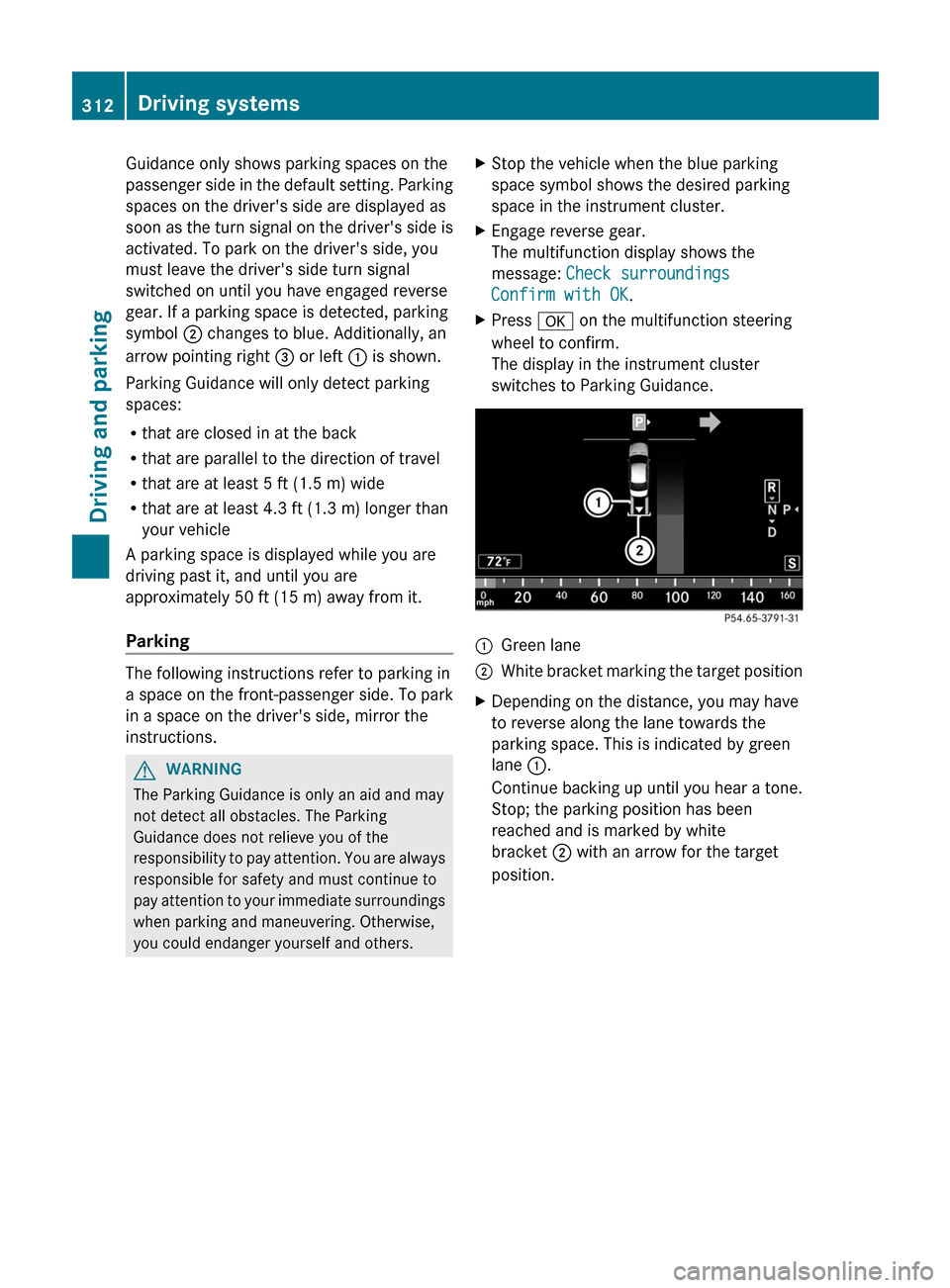
XStop the vehicle when the blue parking
space symbol shows the desired parking
space in the instrument cluster.XEngage reverse gear.
The multifunction display shows the
message: Check surroundings
Confirm with OK .XPress a on the multifunction steering
wheel to confirm.
The display in the instrument cluster
switches to Parking Guidance.:Green lane;White bracket marking the target positionXDepending on the distance, you may have
to reverse along the lane towards the
parking space. This is indicated by green
lane :.
Continue backing up until you hear a tone.
Stop; the parking position has been
reached and is marked by white
bracket ; with an arrow for the target
position.312Driving systemsDriving and parking
Page 317 of 488
Rthe trunk lid is open
R it is raining or snowing strongly or if it is
foggy
R it is night or if you are parking/
maneuvering your vehicle in a very dark
area
R a very bright white light is affecting the
camera
R the immediate vicinity is illuminated with
fluorescent light (the display of the
COMAND system can flicker)
R temperature changes abruptly, for example
if you drive out of the cold into a heated
garage (condensation on the lens)
R the camera lens is dirty or covered
R the rear of your vehicle is damaged
In this case, have the position and the
setting of the camera checked at a
specialist workshop. Mercedes-Benz
recommends that you consult a Mercedes-
Benz Center for this purpose.
Do not use the rear view camera in these
situations. You could otherwise injure
yourself and other people and/or cause
damage - including damage to your vehicle -
while parking/maneuvering.
Activating the rear view cameraXMake sure that the SmartKey is in position
2 in the ignition lock.XEngage reverse gear.
The area behind the vehicle is shown in the
COMAND display with guide lines.
Guide lines in the COMAND display
GWARNING
Use of rear view camera can be dangerous if
you are color-blind or have impaired color
vision.
Only use rear view camera if you can see and
distinguish all colored guidelines shown by
rear view camera on the COMAND system
display.
GWARNING
Please note that objects that do not touch the
ground may appear to be further away than
they actually are, for example:
R the bumper of a vehicle parked behind you
R the trailer drawbar
R the ball coupling of a trailer tow hitch
R the rear end of a truck
R a slanted post
In such cases, you should not use the guide
lines to judge the distance. You may misjudge
the distance, which increases the risk of
impacting the objects.
Even if the object you approach is directly on
the ground, do not approach the object any
closer than the red guide line.
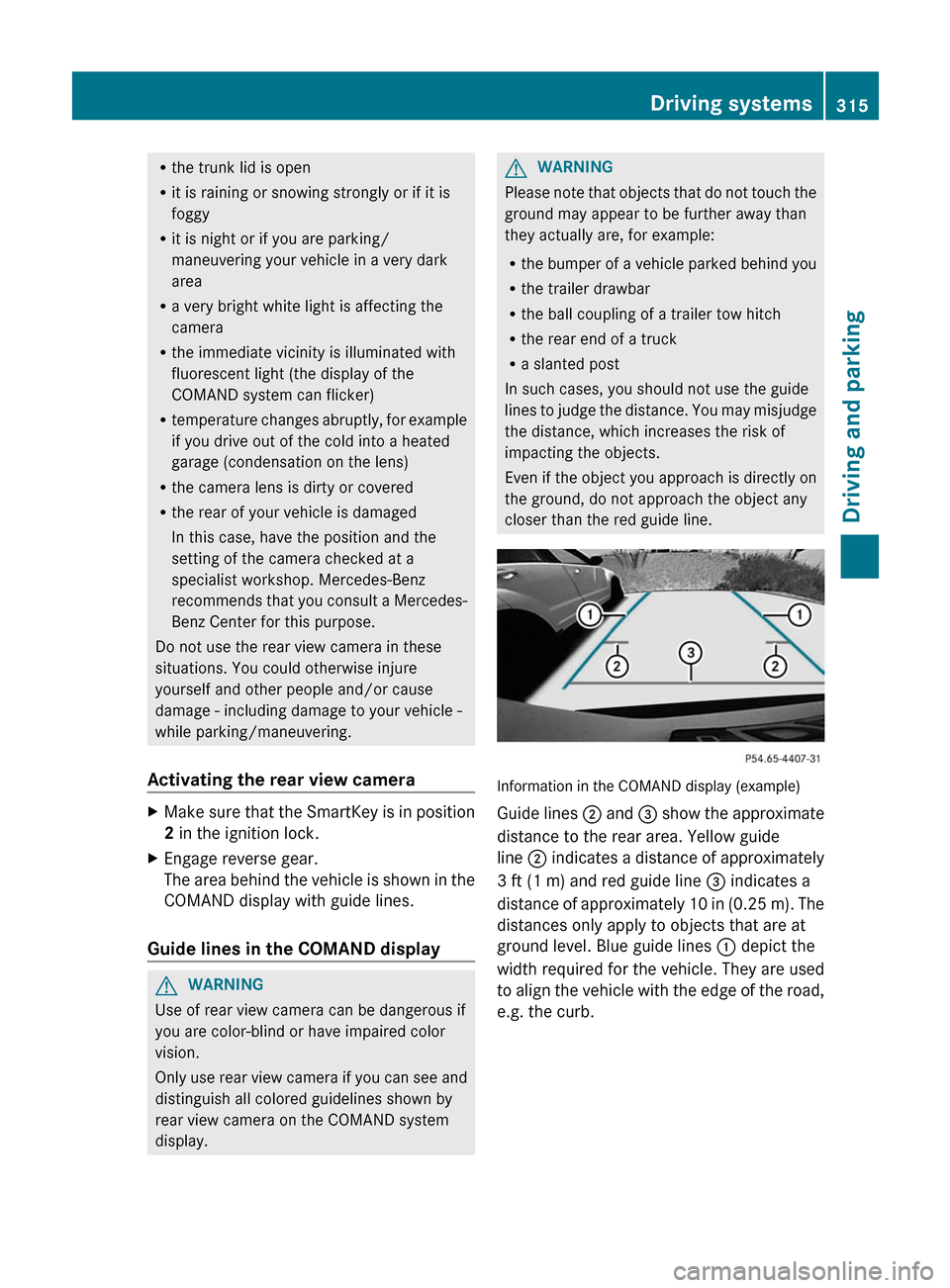
Information in the COMAND display (example)
Guide lines ; and = show the approximate
distance to the rear area. Yellow guide
line ; indicates a distance of approximately
3 ft (1 m) and red guide line = indicates a
distance of approximately 10 in (0.25 m). The
distances only apply to objects that are at
ground level. Blue guide lines : depict the
width required for the vehicle. They are used
to align the vehicle with the edge of the road,
e.g. the curb.
Driving systems315Driving and parkingZ
Page 340 of 488

:Gear indicator;Upshift indicator=Engine oil temperature?Coolant temperature
Upshift indicator UP ; indicates that the
engine has reached the overrevving range
when in the manual gearshift program.
Upshift indicator UP ; fades out other
messages until you have shifted up.
When the engine oil temperature is below
80 †, the oil temperature is shown in blue.
Avoid driving at full engine output during this
time.
i CL 63 AMG: additionally, the status of the
ECO start/stop function ( Y page 270) will
be displayed.
RACETIMER
Displaying and starting RACETIMER
GWARNING
The RACETIMER feature is only for use on
roads and in conditions where high speed
driving is permitted. Racing on public roads is
prohibited under all circumstances. The driver
is and must always remain responsible for
following posted speed limits.
You can use the RACETIMER to store lap
times.
When RACETIMER is displayed, you cannot
adjust the volume using the W and X
buttons on the steering wheel.XPress = or ; on the steering wheel
to select the AMG menu.XPress the 9 button repeatedly until the
RACETIMER is shown.:Gear indicator;Seconds indicator=RACETIMER?Lap
You can start the RACETIMER when the
engine is running or if the SmartKey is in
position 2 in the ignition lock.
XTo start: press the W button to start the
RACETIMER.XTo display the intermediate time: press
the X button to show the intermediate
time.
The intermediate time is displayed for five
seconds.XTo stop: press the W button to stop the
RACETIMER.
The RACETIMER interrupts timing when you
stop the vehicle and turn the SmartKey to
position 1 in the ignition lock. When you turn
the SmartKey to position 2 or 3 and then
press the W button, timing is continued.
Storing the lap time and starting a new lap
It is possible to store a maximum of sixteen
laps.
338Menus and submenusOn-board computer and displays
Page 342 of 488
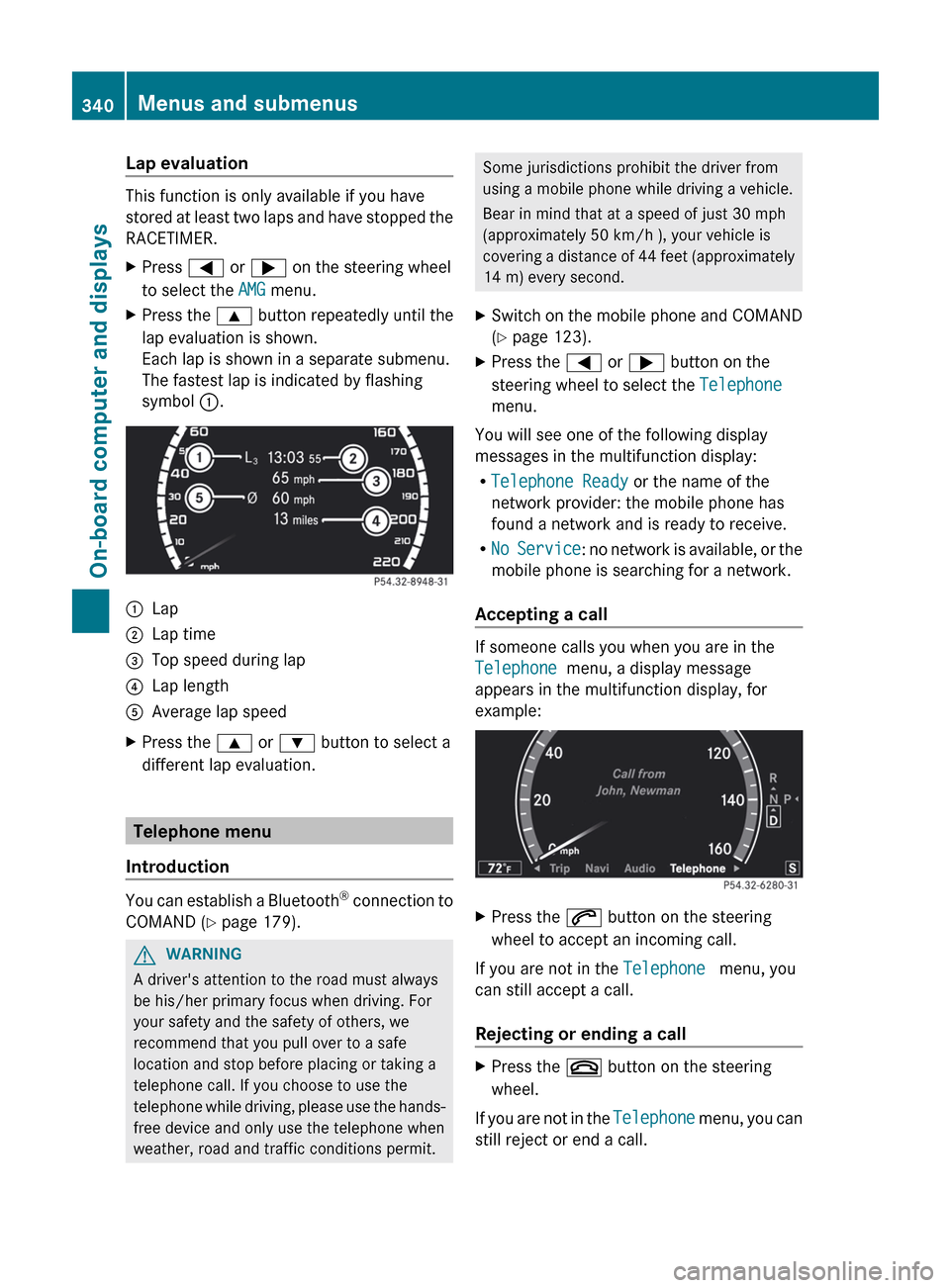
Lap evaluation
This function is only available if you have
stored at least two laps and have stopped the
RACETIMER.
XPress = or ; on the steering wheel
to select the AMG menu.XPress the 9 button repeatedly until the
lap evaluation is shown.
Each lap is shown in a separate submenu.
The fastest lap is indicated by flashing
symbol :.:Lap;Lap time=Top speed during lap?Lap lengthAAverage lap speedXPress the 9 or : button to select a
different lap evaluation.
Telephone menu
Introduction
You can establish a Bluetooth ®
connection to
COMAND ( Y page 179).
GWARNING
A driver's attention to the road must always
be his/her primary focus when driving. For
your safety and the safety of others, we
recommend that you pull over to a safe
location and stop before placing or taking a
telephone call. If you choose to use the
telephone while driving, please use the hands-
free device and only use the telephone when
weather, road and traffic conditions permit.
Some jurisdictions prohibit the driver from
using a mobile phone while driving a vehicle.
Bear in mind that at a speed of just 30 mph
(approximately 50 km/h ), your vehicle is
covering a distance of 44 feet (approximately
14 m) every second.XSwitch on the mobile phone and COMAND
( Y page 123).XPress the = or ; button on the
steering wheel to select the Telephone
menu.
You will see one of the following display
messages in the multifunction display:
R Telephone Ready or the name of the
network provider: the mobile phone has
found a network and is ready to receive.
R No Service : no network is available, or the
mobile phone is searching for a network.
Accepting a call
If someone calls you when you are in the
Telephone menu, a display message
appears in the multifunction display, for
example:
XPress the 6 button on the steering
wheel to accept an incoming call.
If you are not in the Telephone menu, you
can still accept a call.
Rejecting or ending a call
XPress the ~ button on the steering
wheel.
If you are not in the Telephone menu, you can
still reject or end a call.
340Menus and submenusOn-board computer and displays