CD changer MERCEDES-BENZ CL CLASS 2013 User Guide
[x] Cancel search | Manufacturer: MERCEDES-BENZ, Model Year: 2013, Model line: CL CLASS, Model: MERCEDES-BENZ CL CLASS 2013Pages: 496, PDF Size: 7.5 MB
Page 221 of 496
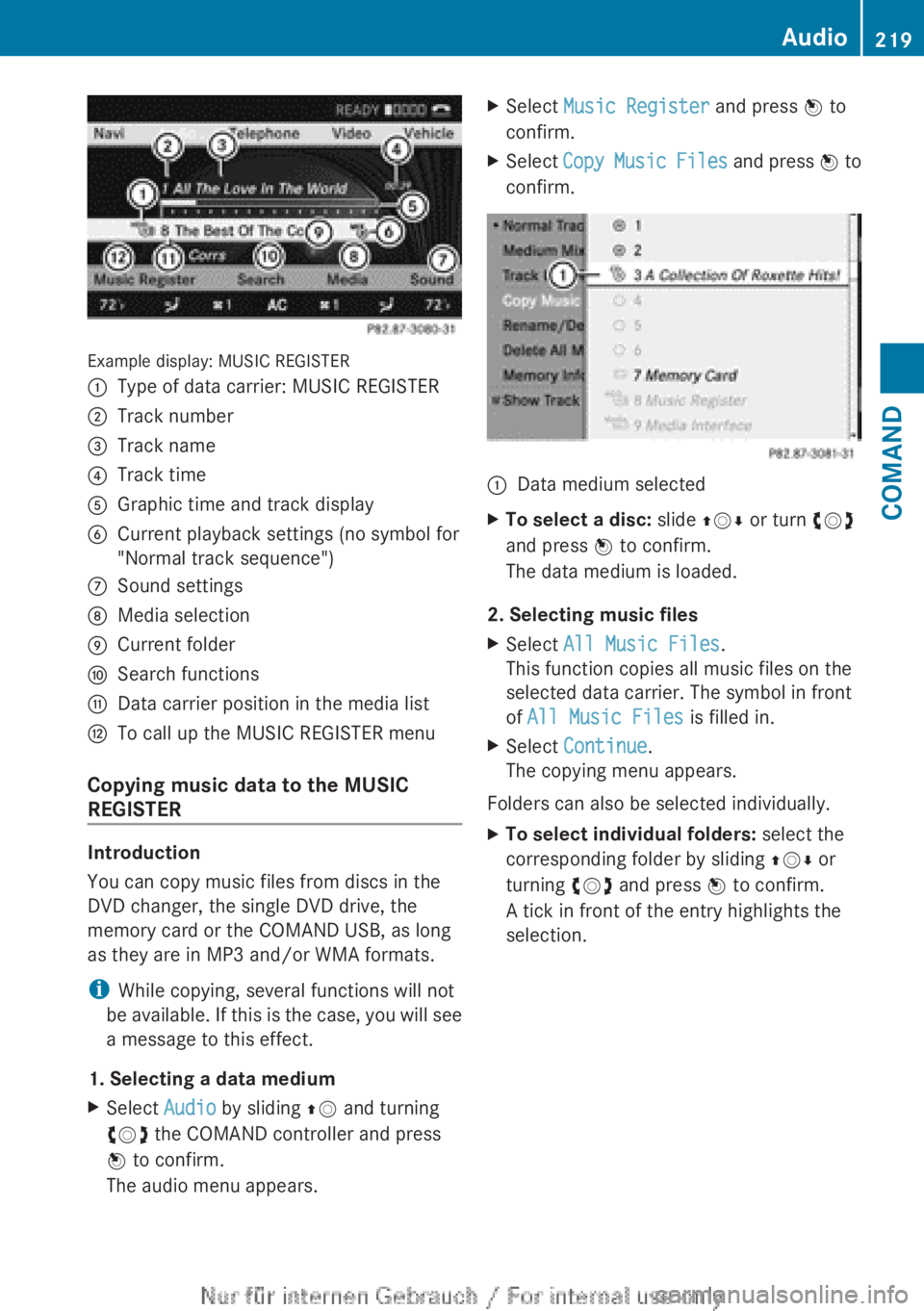
Example display: MUSIC REGISTER
:Type of data carrier: MUSIC REGISTER;Track number=Track name?Track timeAGraphic time and track displayBCurrent playback settings (no symbol for
"Normal track sequence")CSound settingsDMedia selectionECurrent folderFSearch functionsGData carrier position in the media listHTo call up the MUSIC REGISTER menu
Copying music data to the MUSIC
REGISTER
Introduction
You can copy music files from discs in the
DVD changer, the single DVD drive, the
memory card or the COMAND USB, as long
as they are in MP3 and/or WMA formats.
i While copying, several functions will not
be available. If this is the case, you will see
a message to this effect.
1. Selecting a data medium
XSelect Audio by sliding ZV and turning
cVd the COMAND controller and press
W to confirm.
The audio menu appears.XSelect Music Register and press W to
confirm.XSelect Copy Music Files and press W to
confirm.:Data medium selectedXTo select a disc: slide ZVÆ or turn cVd
and press W to confirm.
The data medium is loaded.
2. Selecting music files
XSelect All Music Files .
This function copies all music files on the
selected data carrier. The symbol in front
of All Music Files is filled in.XSelect Continue .
The copying menu appears.
Folders can also be selected individually.
XTo select individual folders: select the
corresponding folder by sliding ZVÆ or
turning cVd and press W to confirm.
A tick in front of the entry highlights the
selection.Audio219COMANDZ
Page 345 of 496
XTo select a stored station: briefly press
the 9 or : button.XTo select a station from the station
list: press and briefly hold the : or
9 button.XTo select a station using station
search 15
: press and briefly hold the 9
or : button.XPress a to stop the station search
function at the desired station.
Operating an audio player or audio
media
Audio data from various audio devices or
media can be played, depending on the
equipment installed in the vehicle.
XSwitch on COMAND and select audio
device or audio medium ( Y page 209).XPress the = or ; button on the
steering wheel to select the Audio menu.
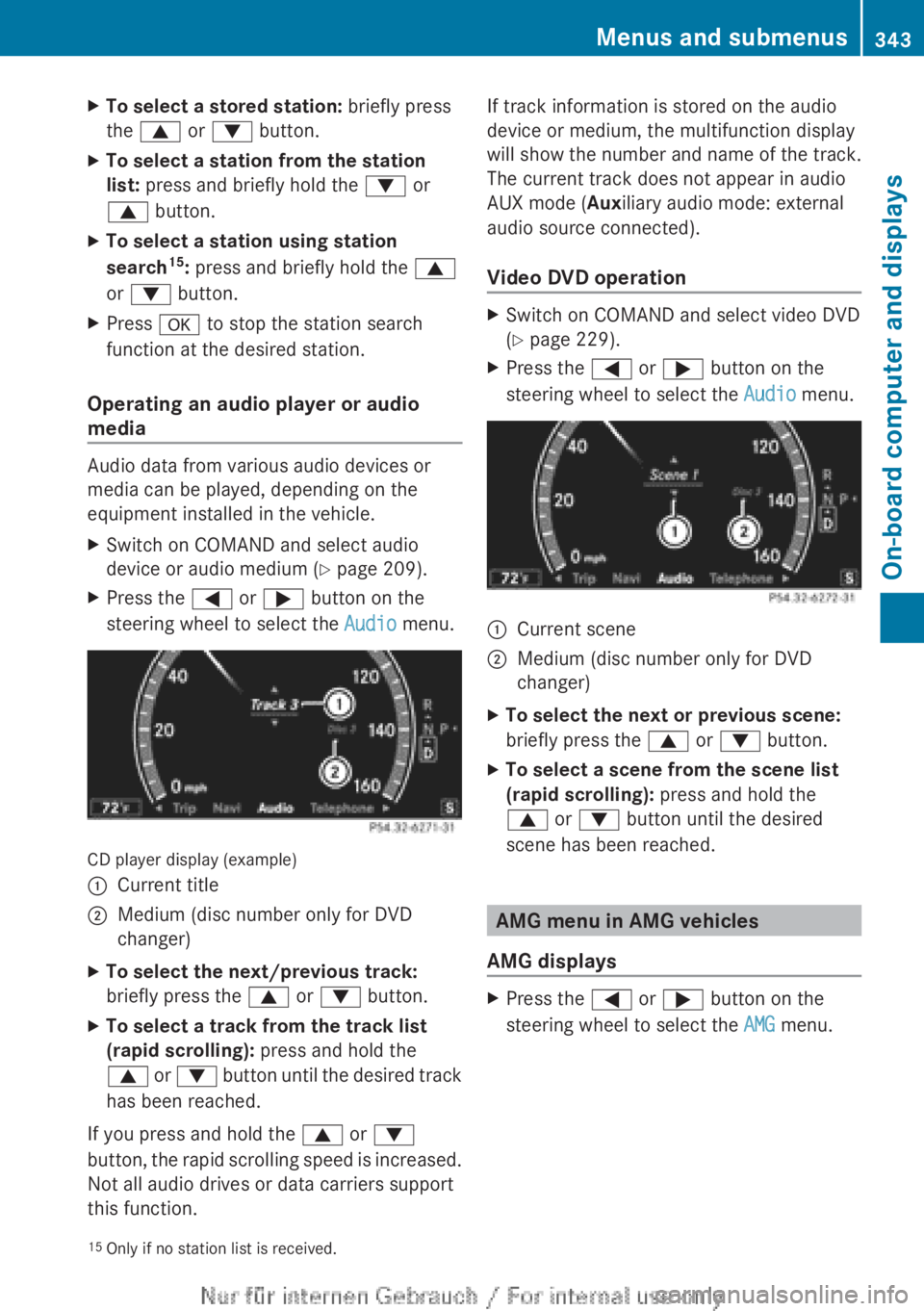
CD player display (example)
:Current title;Medium (disc number only for DVD
changer)XTo select the next/previous track:
briefly press the 9 or : button.XTo select a track from the track list
(rapid scrolling): press and hold the
9 or : button until the desired track
has been reached.
If you press and hold the 9 or :
button, the rapid scrolling speed is increased.
Not all audio drives or data carriers support
this function.
If track information is stored on the audio
device or medium, the multifunction display
will show the number and name of the track.
The current track does not appear in audio
AUX mode ( Auxiliary audio mode: external
audio source connected).
Video DVD operationXSwitch on COMAND and select video DVD
( Y page 229).XPress the = or ; button on the
steering wheel to select the Audio menu.:Current scene;Medium (disc number only for DVD
changer)XTo select the next or previous scene:
briefly press the 9 or : button.XTo select a scene from the scene list
(rapid scrolling): press and hold the
9 or : button until the desired
scene has been reached.
AMG menu in AMG vehicles
AMG displays
XPress the = or ; button on the
steering wheel to select the AMG menu.15
Only if no station list is received.Menus and submenus343On-board computer and displaysZ